Overview
On Wednesday June 17, 2020, SCRAM Systems will be releasing new features in SCRAM 24/7™ that include the ability to create a Caseload Specific Fees and the option of having a new or edited fee be applied to all current clients or just new clients.
- Add a Caseload Specific Fee
- Apply a New or Edited Fee to all Active Clients
- Associate an Existing Fee to a Specific Caseload
- Disable a Fee for an Activity and Apply to All Active Clients
Add a Caseload Specific Fee and Apply the Fee to all Active Clients
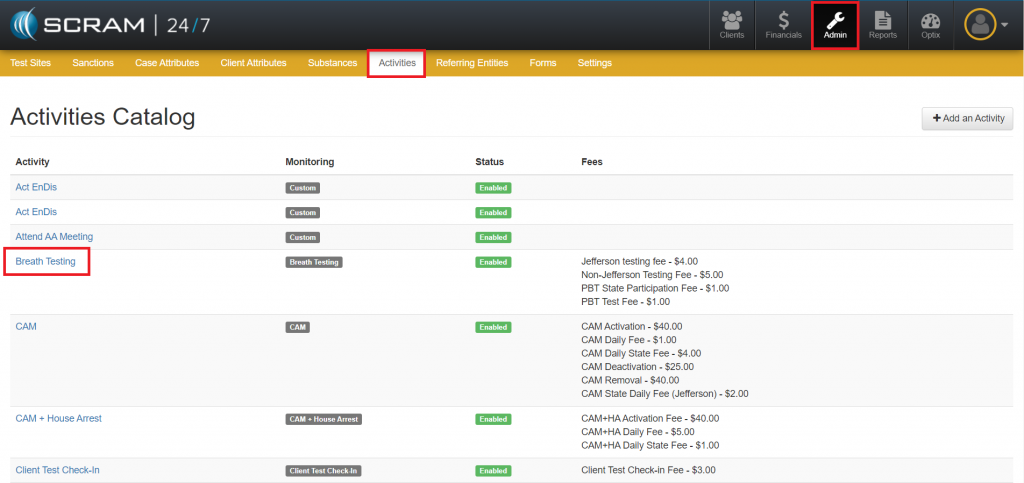
- Access the Activities Catalog page in the Admin area.
- Select the activity in which a Caseload Specific Fee will be added.
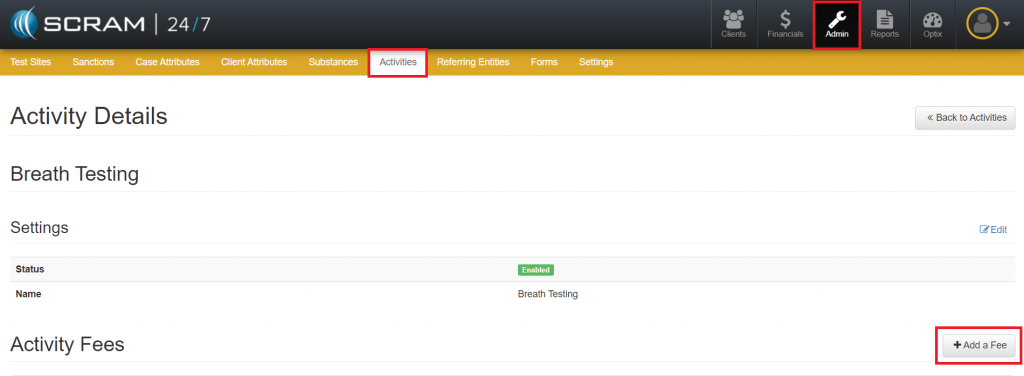
- Click the Add a Fee button.
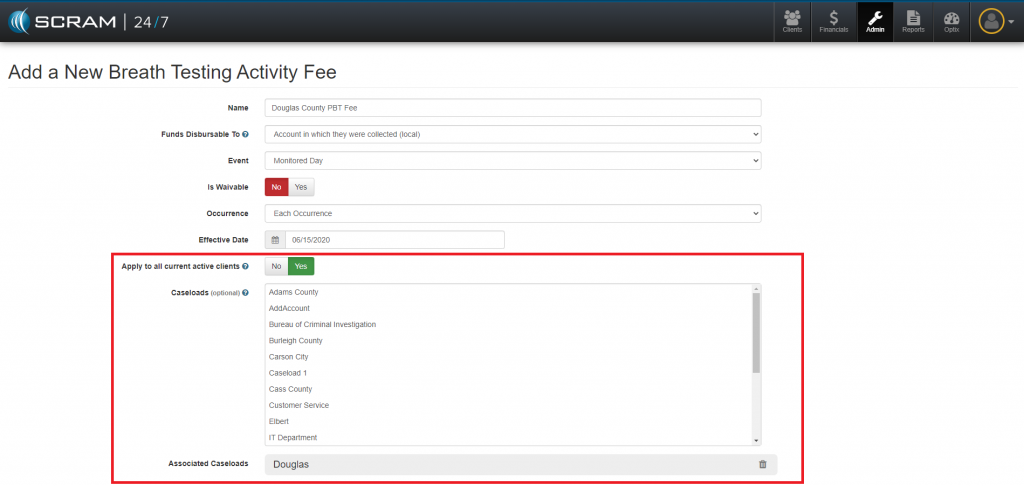
- Create the Fee:
- Name
- Funds Disbursable – Designate whether the fee should be disbursable to the state.
- Event – What should trigger the fee to be issued?
- Is Waivable
- Occurrence – How often should the fee be issued?
- Effective Date – Fee cannot be backdated.
- Apply to All Current Active Clients – Clicking the Yes button will apply this fee to active clients who have this activity assigned.
- Caseload – This option allows you to specify the test where the fee will be applied. If none is selected, the fee will be applied to all test sites.
- Amount Type:
- Single Fixed Value
- Range of Values
- Fixed Set of Values
Edit Fee Amount and Apply to All Active Clients
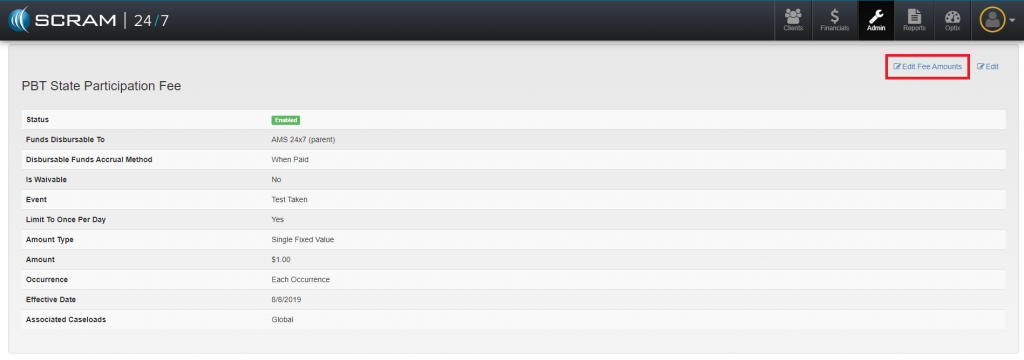
- Navigate to the fee.
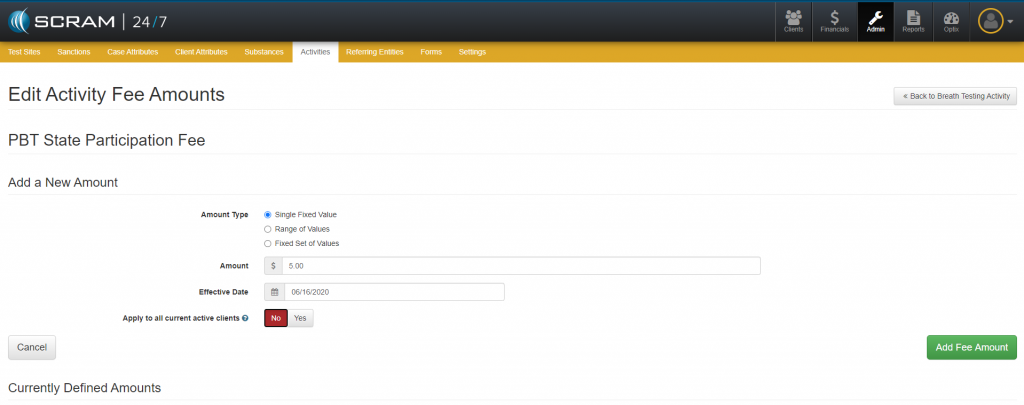
- Click the Edit Fee Amounts link.
- Edit the Amount Type, the Amount and or the Effective Date.
- Select whether the change should be Applied to All Current Active Clients.
- Selecting the Yes button – Will apply this edited fee to all active clients who have this activity assigned.
- Selecting the No button – Will only apply this edited fee to new clients that have been assigned to this activity.
Associate an Existing Fee to a Specific Caseload
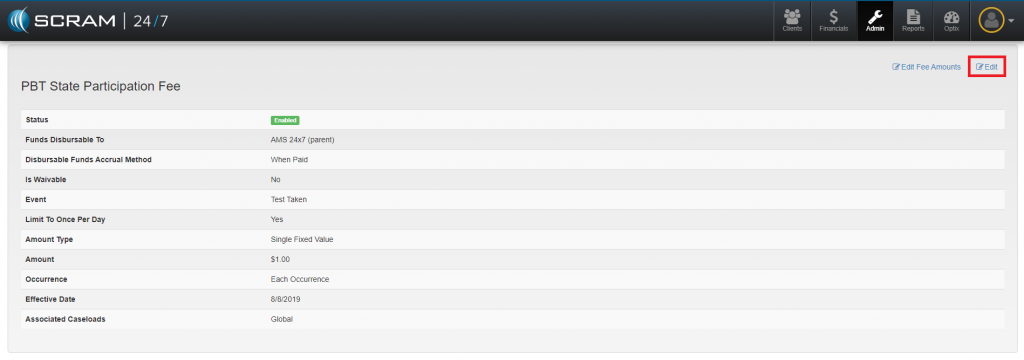
- Navigate to the fee.
- Click the Edit link.
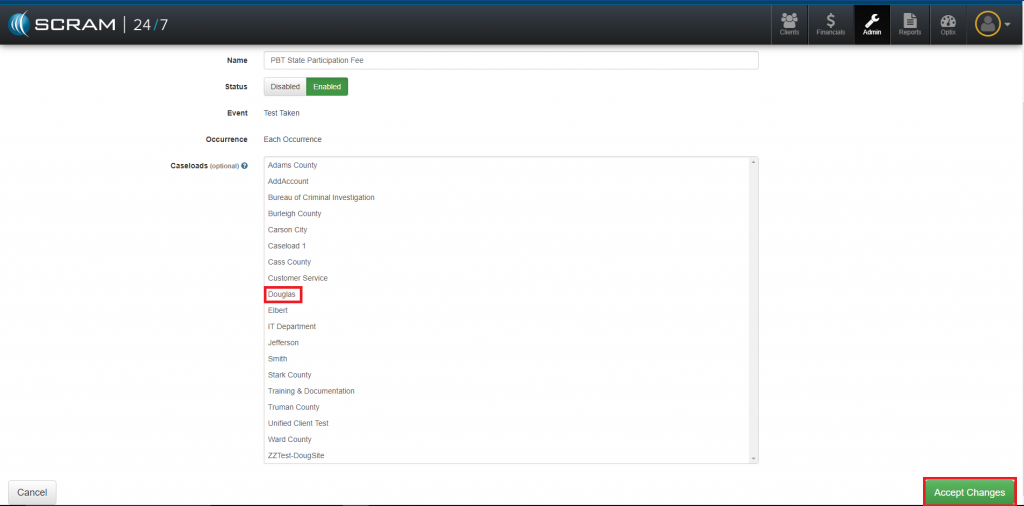
- Select Caseload(s).
- Click the Accept Changes button.
Disable a Fee for an Activity/Applied to All Active Clients
- Navigate to the fee.
- Click the Edit link.
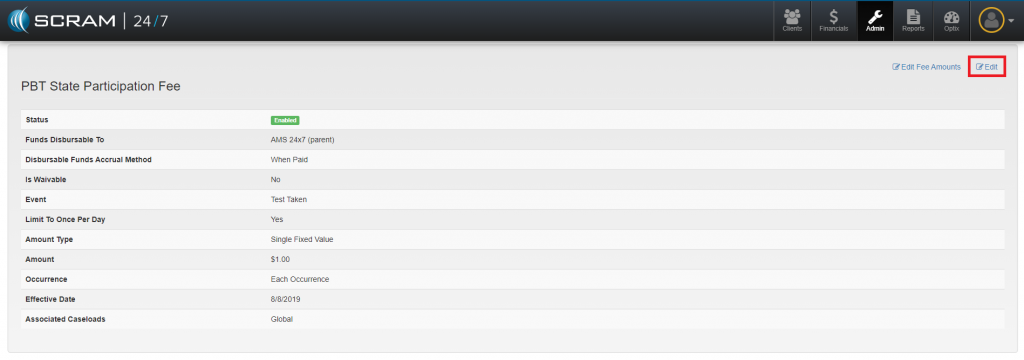
- Click the Disable button.
- Apply to all Current Active Clients field.
- Selecting the Yes option – Will remove this fee for all active clients who have this activity assigned.
- Selecting the No option – The fee will remain for current clients but will not be an option for future clients.
Feedback
As always, please feel free to contact SCRAM Systems Customer Service at 1-303-785-7879 with any recommendations for system improvements.