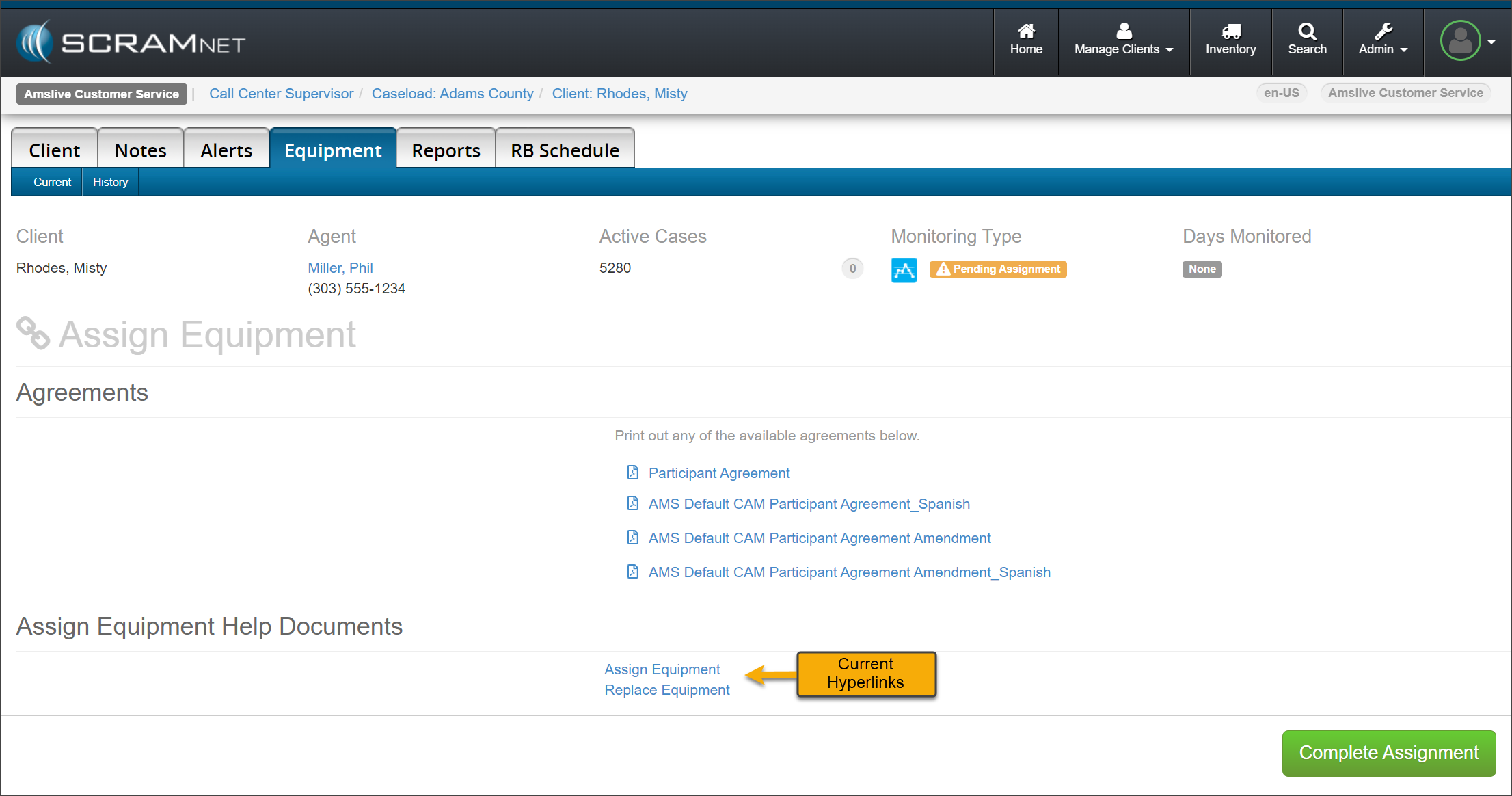
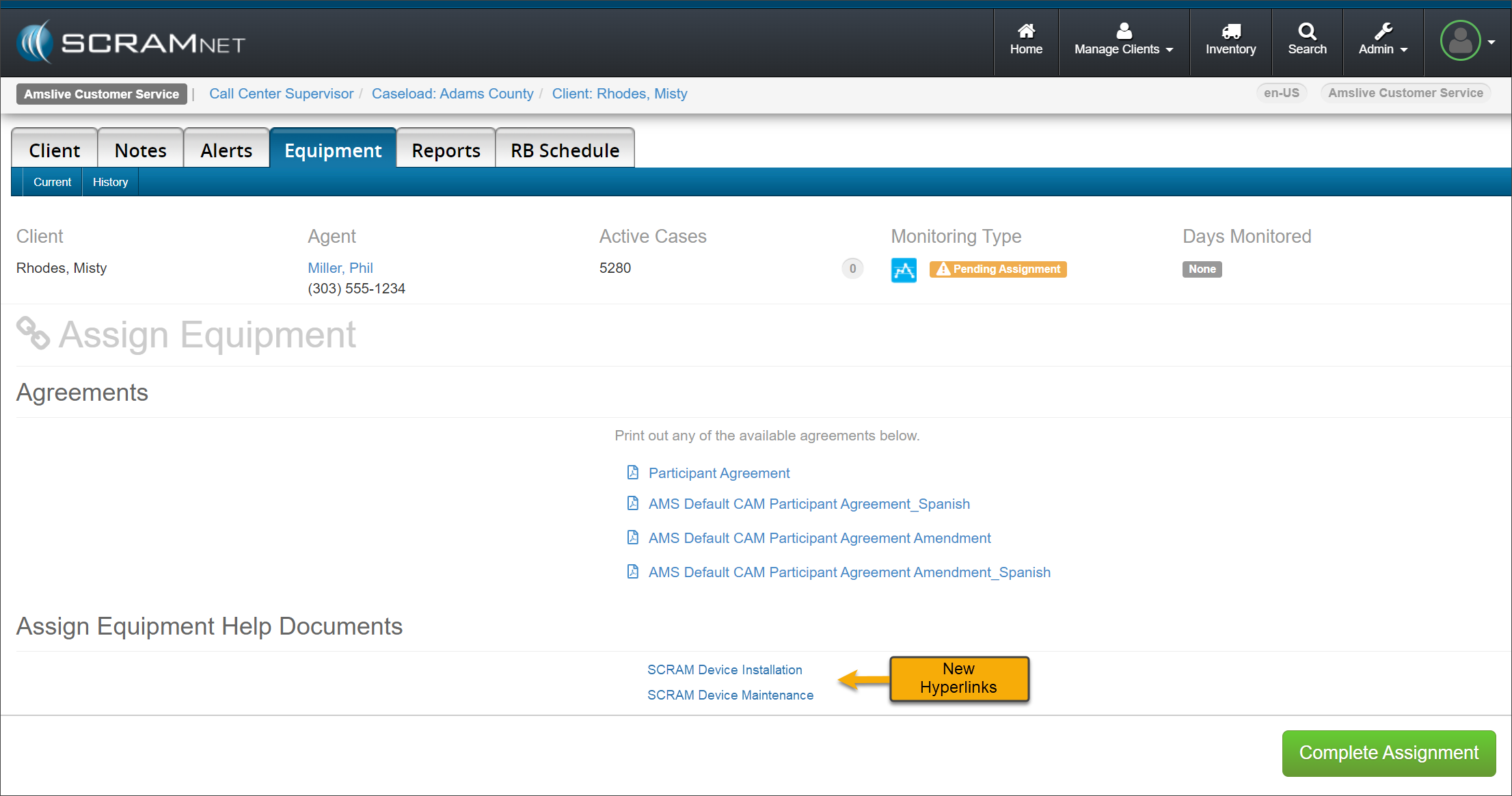
On November 1, 2023, SCRAM Systems® will release an enhancement for your SCRAMNET client caseloads. The “Assign Equipment Help Documents” hyperlinks will be updated on the Assignment, Maintenance, and Stop Monitoring pages.
Current Assign Equipment Help Document Hyperlinks – click to enlarge
The Help Documents hyperlinks will display SCRAM Device Installation, SCRAM Device Maintenance, and SCRAM Device Check-In based on the current equipment activity.
New Assign Equipment Help Document Hyperlinks – click to enlarge
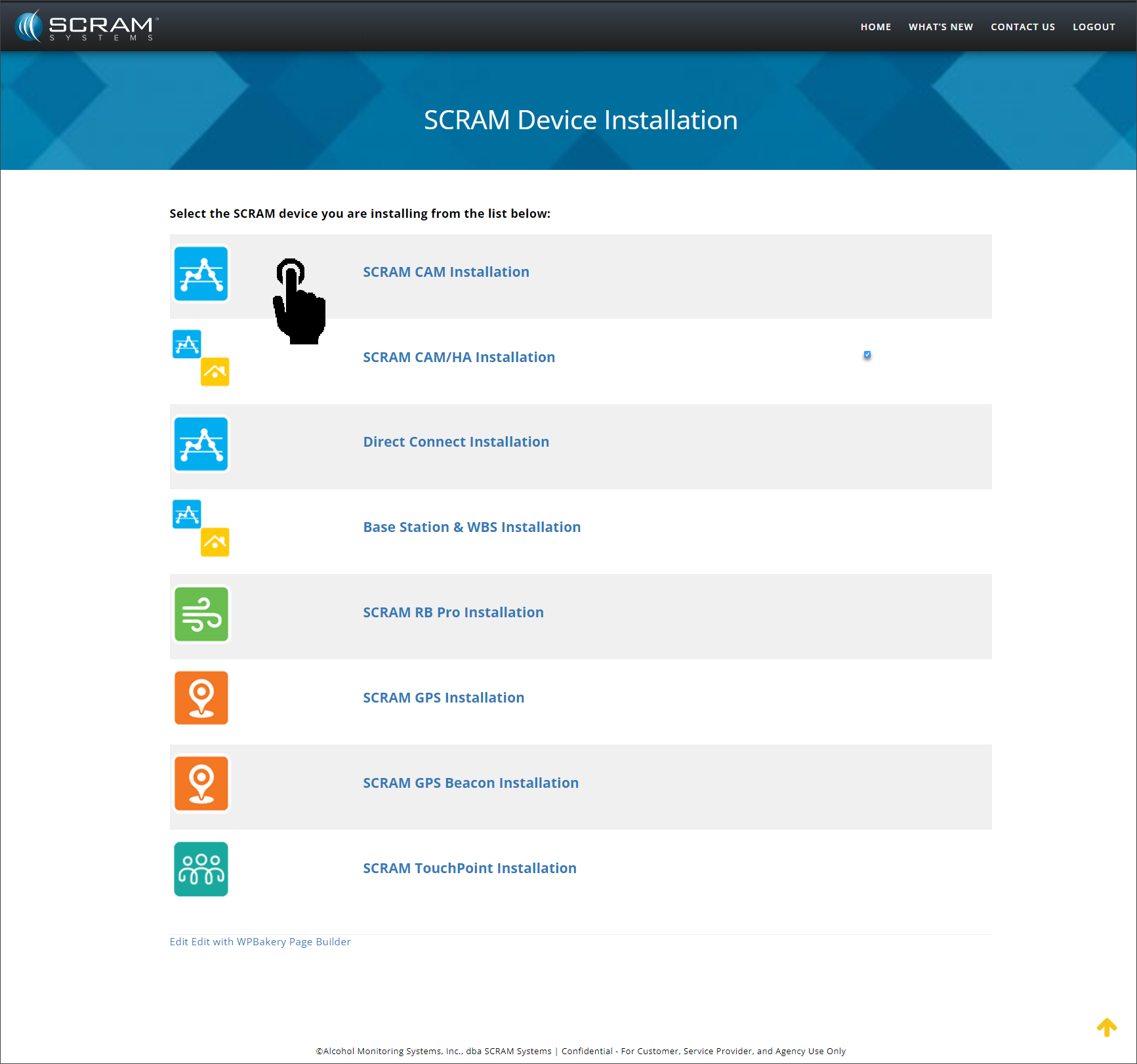
Selecting the hyperlink will open the specific device activity Help landing page. The landing page will display a list of SCRAM’s monitoring technologies from which to choose. For example, select the SCRAM CAM Installation hyperlink…
SCRAM Device Installation Help Article – click to enlarge
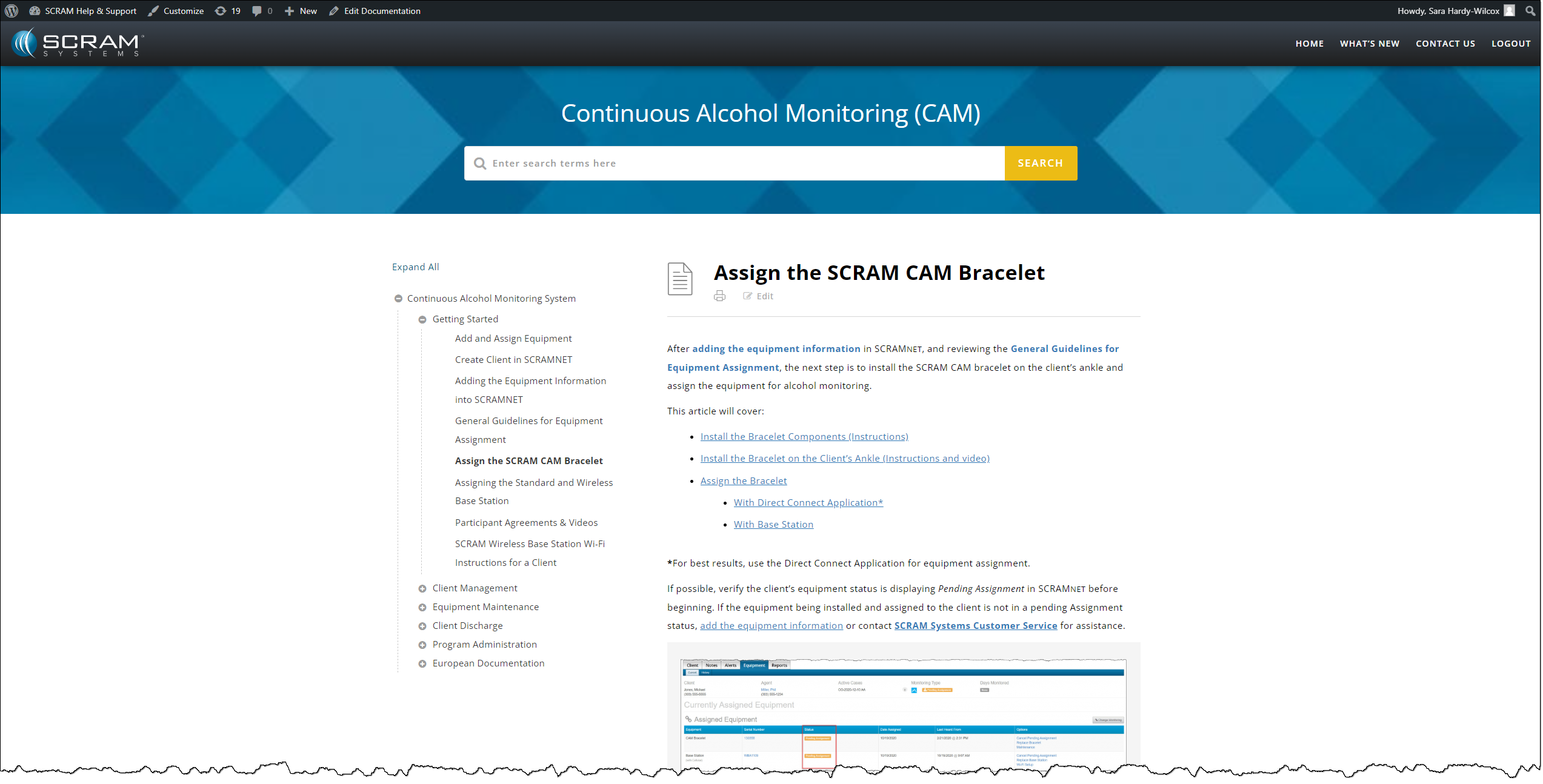
…to access step-by-step instructions on assigning the SCRAM CAM Bracelet to your client.
Assign the SCRAM CAM Bracelet Help Article – click to enlarge
On, October 18, 2023, SCRAM Systems will release an enhancement to the SCRAM TouchPoint application username requirement for your client’s supervision plan. This enhancement enables you to create a unique username for the client to access the application instead of requiring an email address. This enhancement is helpful when a client’s supervision plan includes a restriction from using email or accessing the internet.
Not seeing the enhancement? Clear your cache and cookies and refresh your browser window.
The latest version of the TouchPoint app is required for these enhancements. As a best practice, SCRAM Systems recommends that all TouchPoint app users enable their smartphones for automatic app updates to make this process easier.
New TouchPoint Client
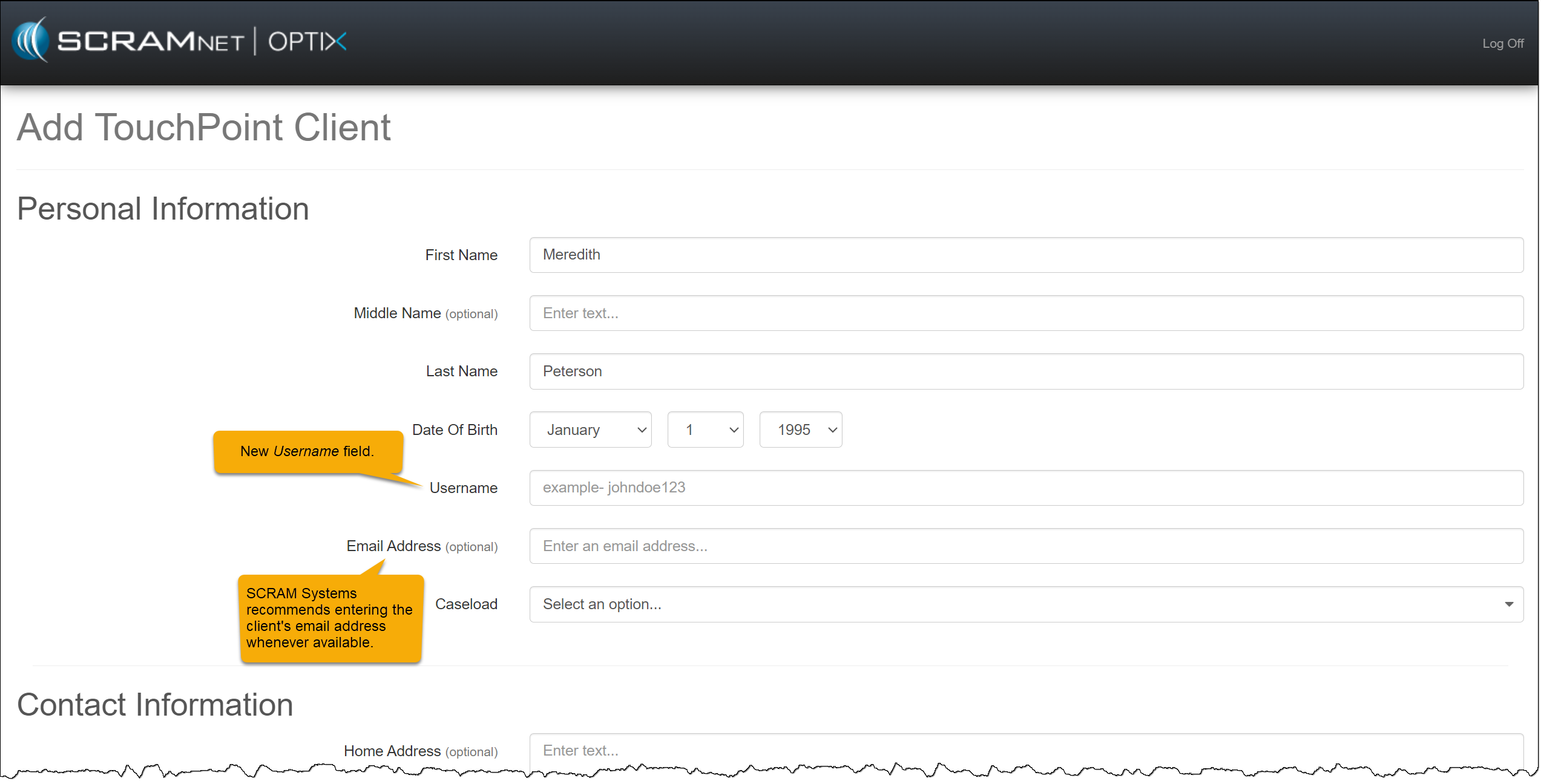
For new TouchPoint clients, you will enter the Username the client will use to log into the application on their smartphone in the Personal Information section. Their Username must be unique.
Add TouchPoint Client page – click to enlarge
SCRAM Systems recommends entering the client’s email address in the Email Address (optional) field whenever possible. This will ensure the client may complete a password reset independently within the TouchPoint application when needed.
TouchPoint Password Reset
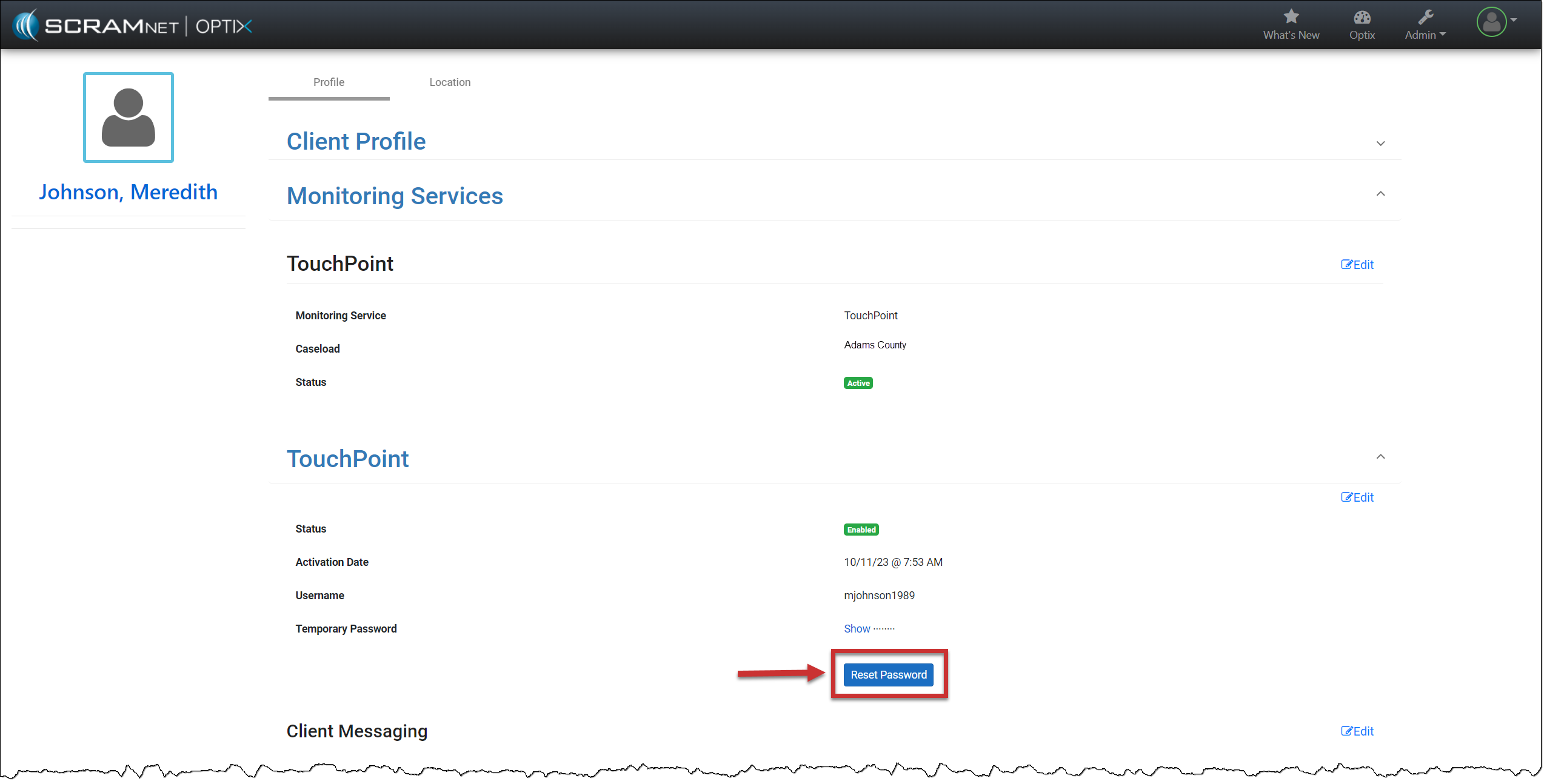
When an email is not listed for the client in the Email Address (optional) field, the client is instructed to contact the supervising authority when a password reset is needed. As the supervising authority, you must access the client’s TouchPoint profile in the system and create a new password for the client to use.
Optix TouchPoint Client Profile page – click to enlarge
When creating a new password for the client, the password must be at least eight (8) characters. The password must contain at least one upper-case and one lower-case letter and include either a number (1,2,3, etc.) or a special symbol (~!@#$, etc.).
Current TouchPoint Client
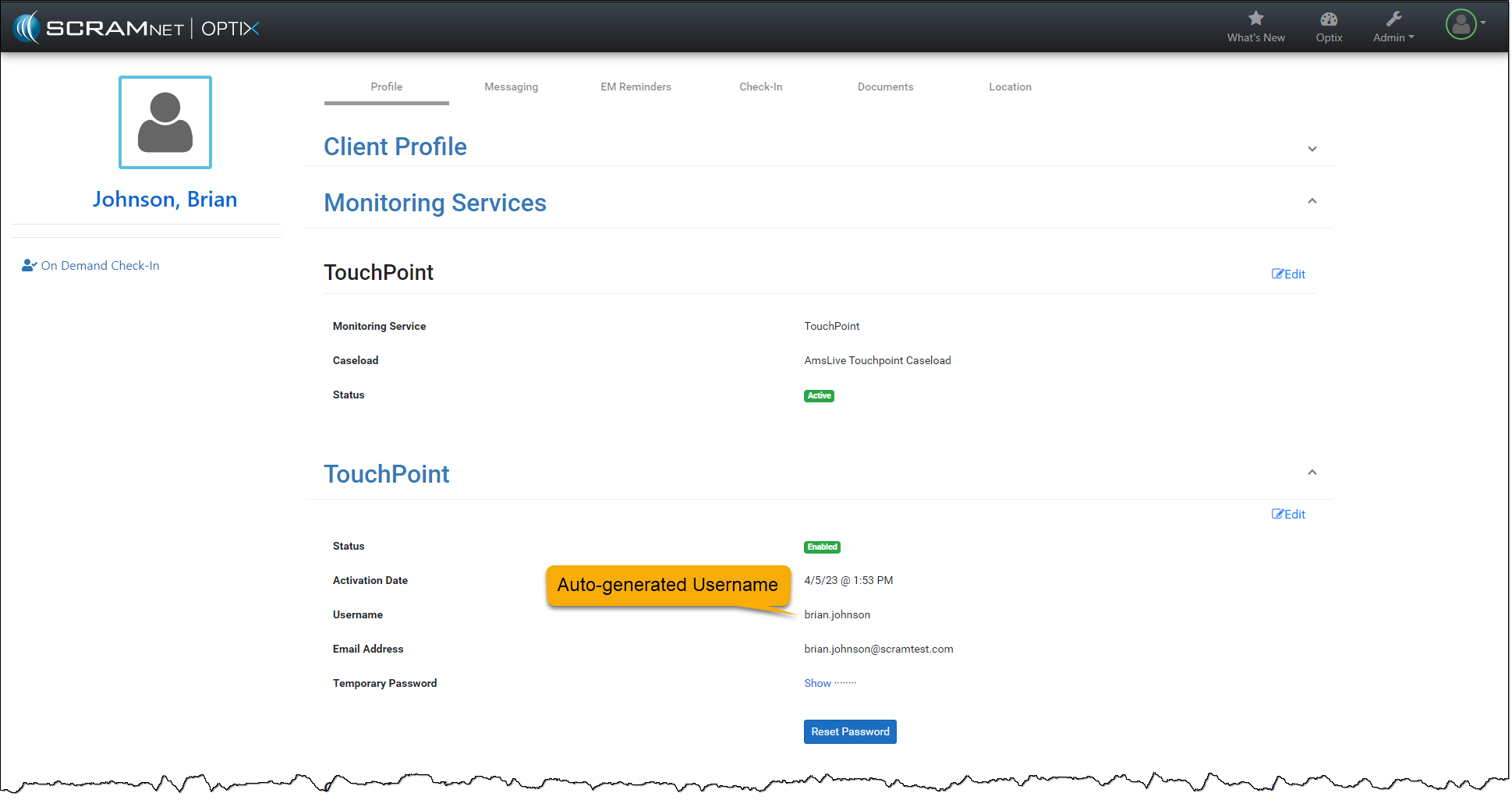
You do not need to take any actions for your current active TouchPoint client caseloads. Your clients may continue to log in using their email addresses. In the system, you will notice that SCRAM Systems has auto-generated the username field for each TouchPoint client.
TouchPoint Client Username- click to enlarge
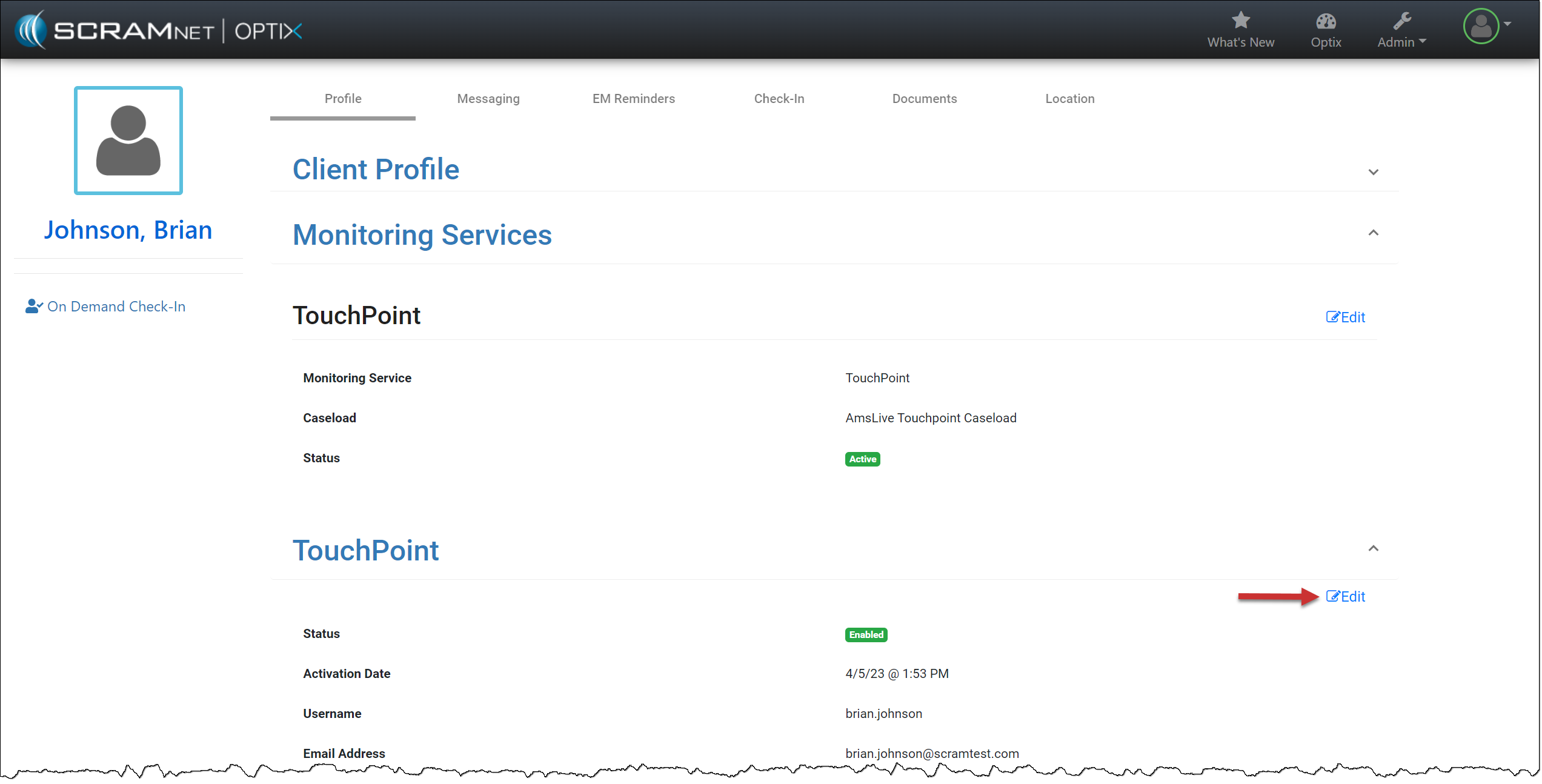
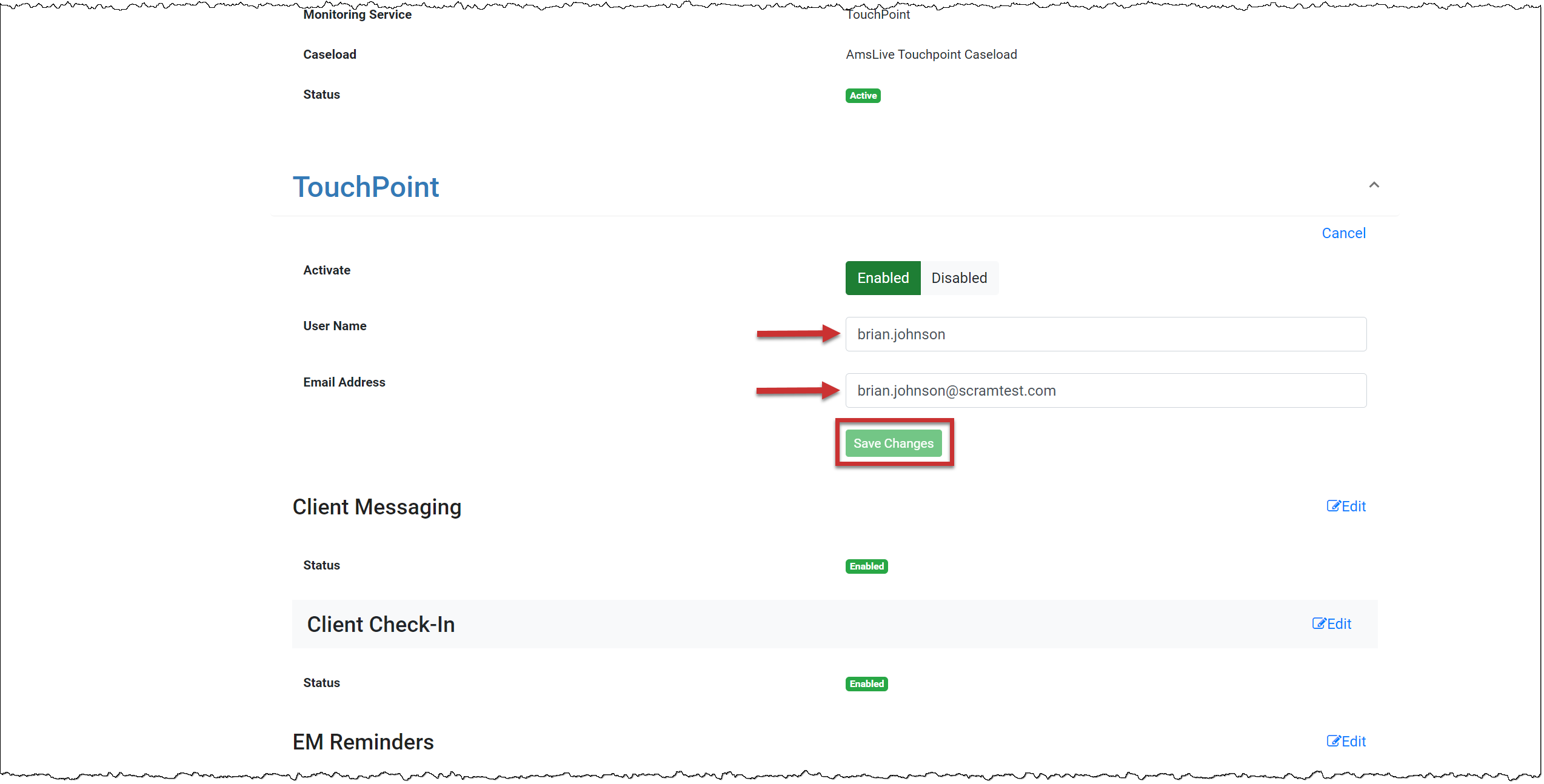
You may update the Username or Email Address field if needed by selecting the Edit hyperlink.
TouchPoint Client Profile page – click to enlargeUpdate TouchPoint client Username and Email Address – click to enlarge
On, October 18, 2023, SCRAM Systems will release two enhancements to SCRAM Nexus.
Included in this release:
You may now cancel future recurring appointments on the calendar for your client’s activities, directives, and tasks in Nexus.
New SCRAM TouchPoint activity username requirement for your client’s supervision plan in Nexus. This enhancement enables you to create a unique username for the client to access the application instead of requiring an email address. This enhancement is helpful when a client’s supervision plan includes a restriction from using email or accessing the internet.
Not seeing the enhancement in Nexus? Clear your cache and cookies and refresh your browser window.
The latest version of the TouchPoint app will be available to clients in the app stores. As a best practice, SCRAM Systems recommends that all TouchPoint app users enable their smartphones for automatic app updates (SCRAM login required) to make this process easier.
Cancel Future Appointments
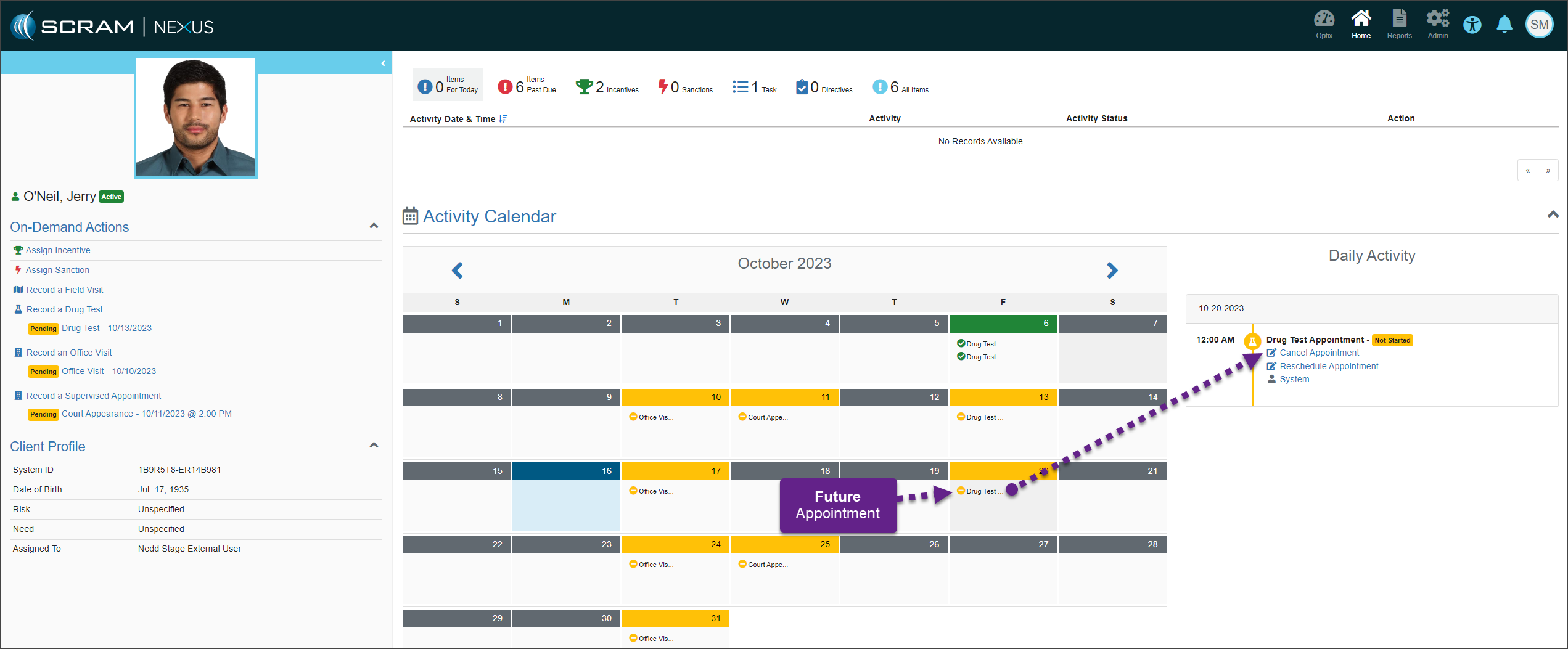
Select the appointment on the client’s Activity Calendar you wish to cancel and then select the Cancel Appointment hyperlink.
SCRAM Nexus Client Activity Calendar – click to enlarge
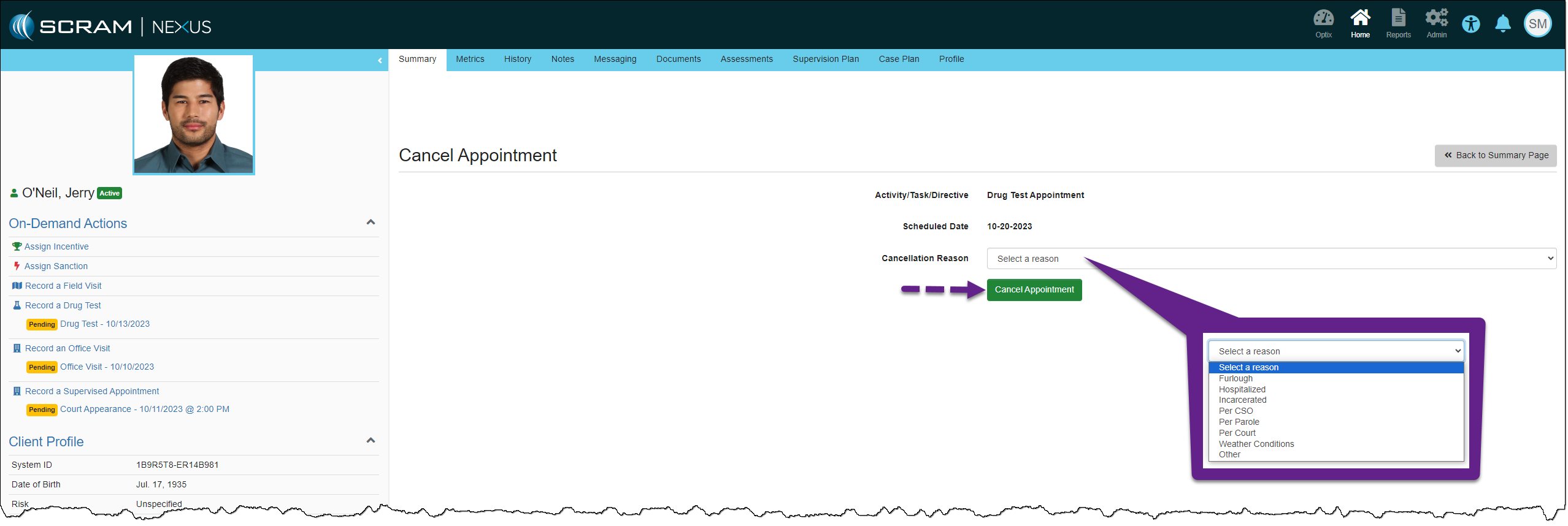
Select the Cancellation Reason and then the Cancel Appointment button.
Cancel Appointment page – click to enlarge
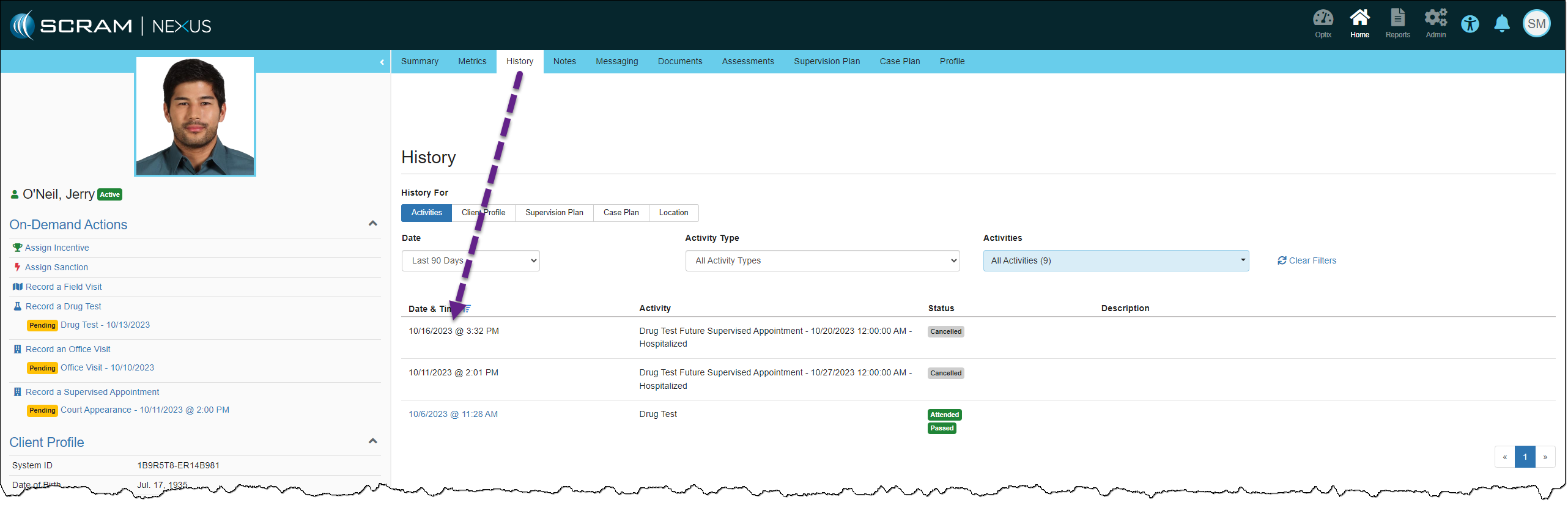
The client’s History page will record the canceled appointment.
Client History page – click to enlarge
A single occurrence, day-of, and past calendar appointments are managed using the current process of rescheduling or making the appointment as excused or unexcused.
Add TouchPoint Activity
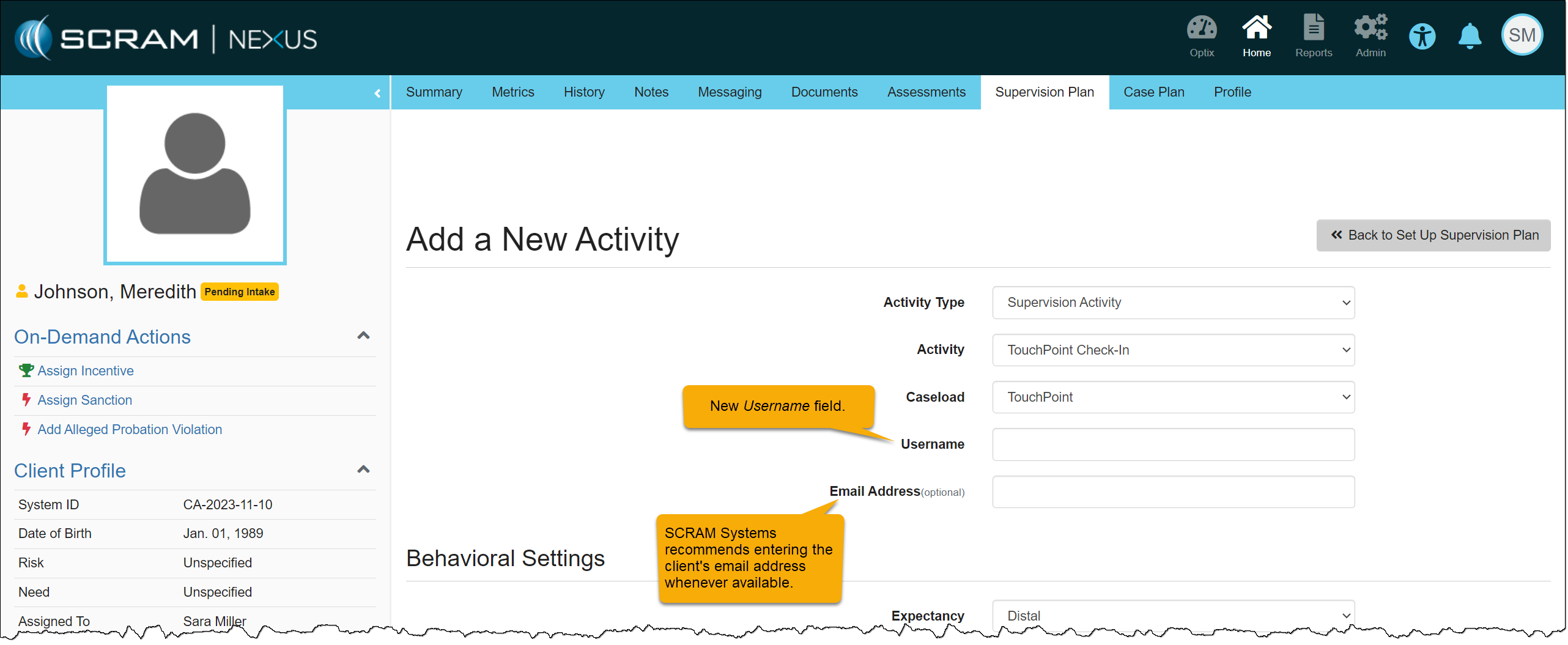
When adding the TouchPoint activity to your clients, you will enter the Username the client will use to log into the application on their smartphone. Their Username must be unique.
Client TouchPoint Activity – click to enlarge
SCRAM Systems recommends entering the client’s email address in the Email Address (optional) field whenever possible. This will ensure the client may complete a password reset independently within the TouchPoint application when needed.
Current TouchPoint Activity
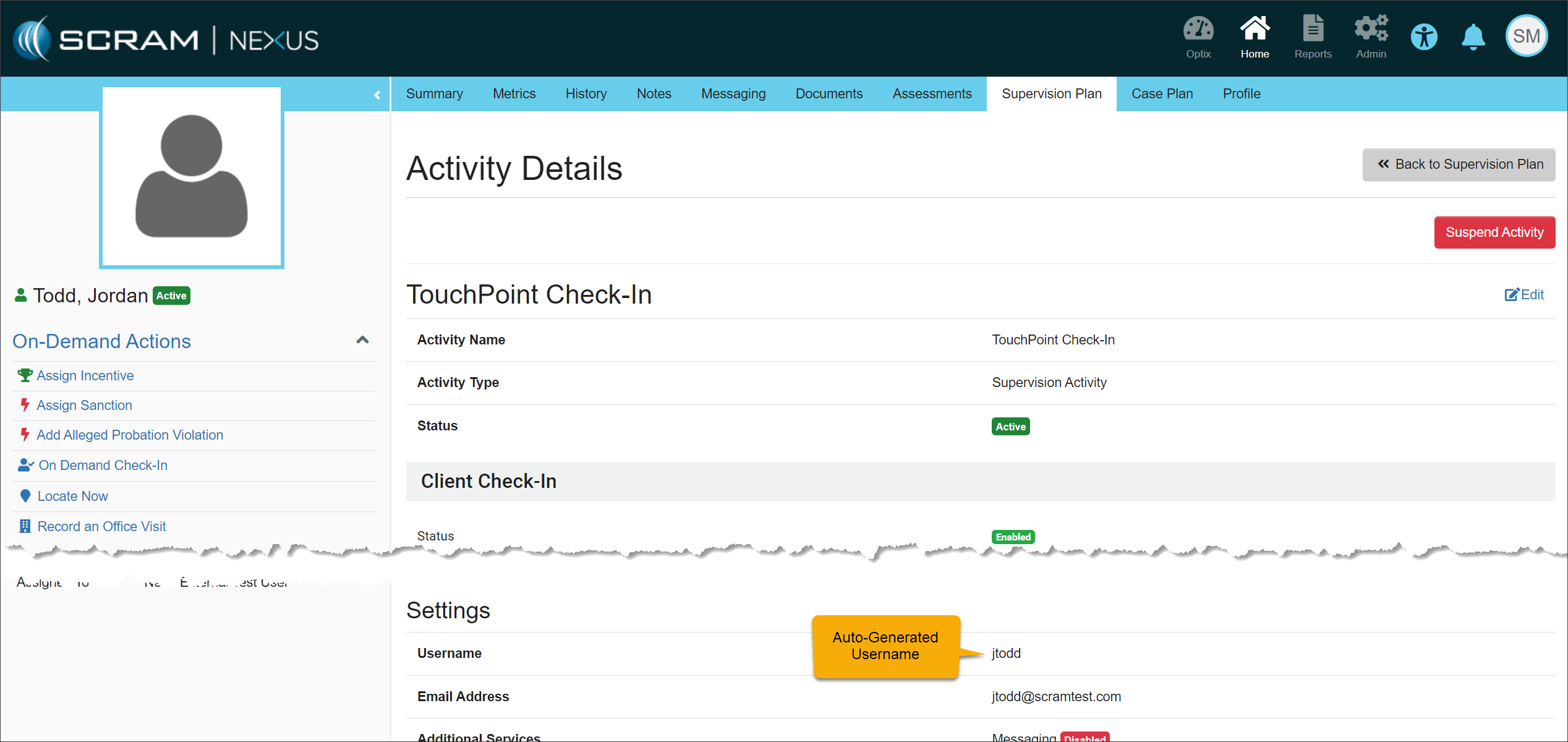
You do not need to take any actions for clients currently active with a TouchPoint activity. Your clients may continue to log in using their email addresses. In the system, you will notice that SCRAM Systems has auto-generated the username field for each TouchPoint activity client.
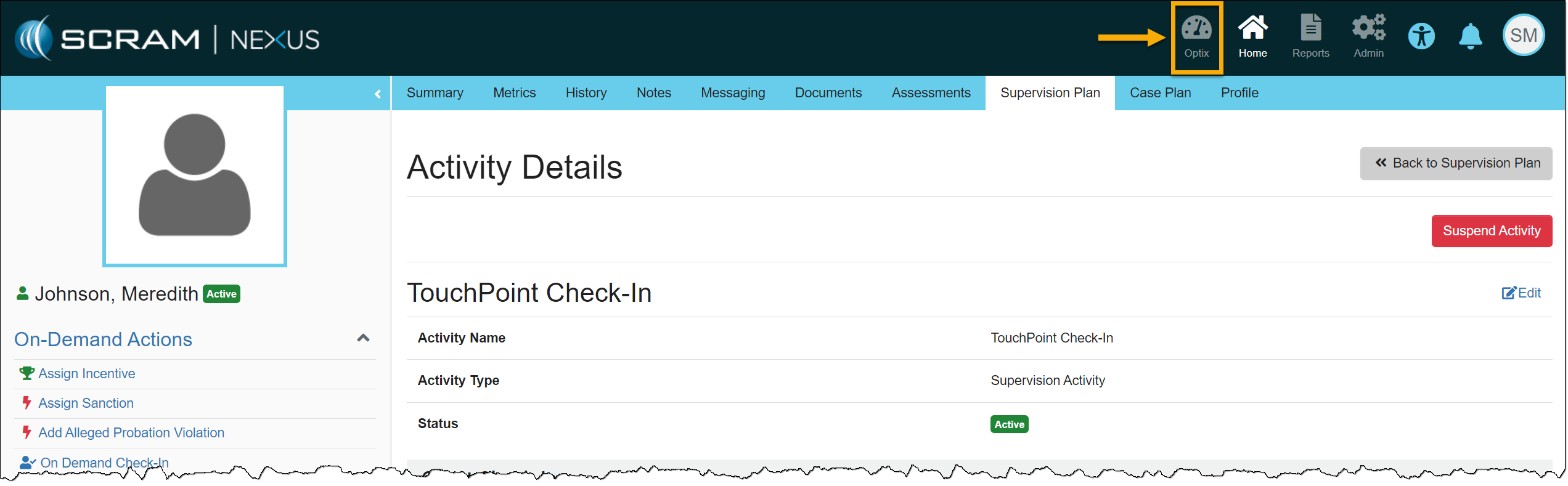
Activity Details page – click to enlarge
Edit Username and Email Address
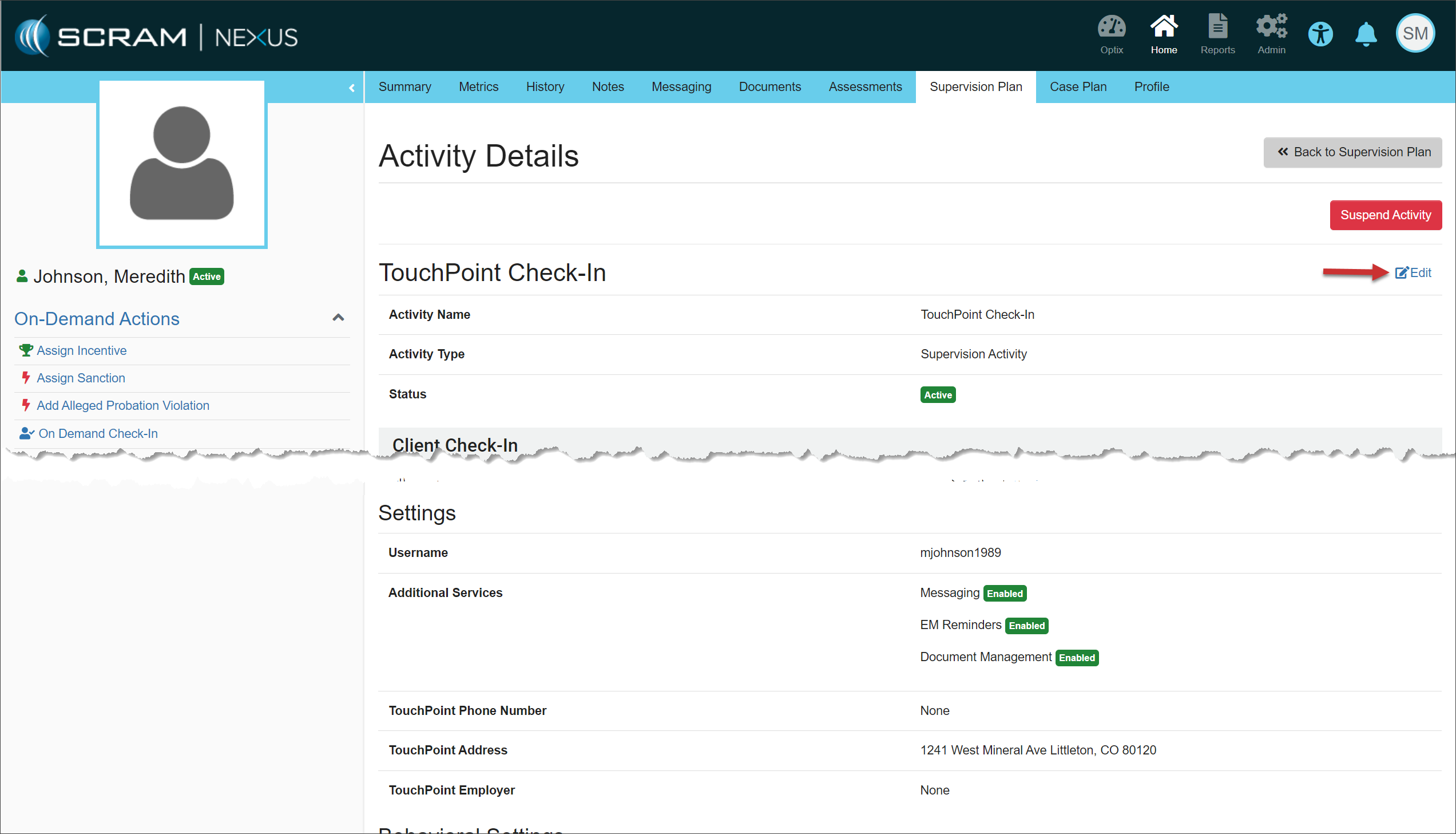
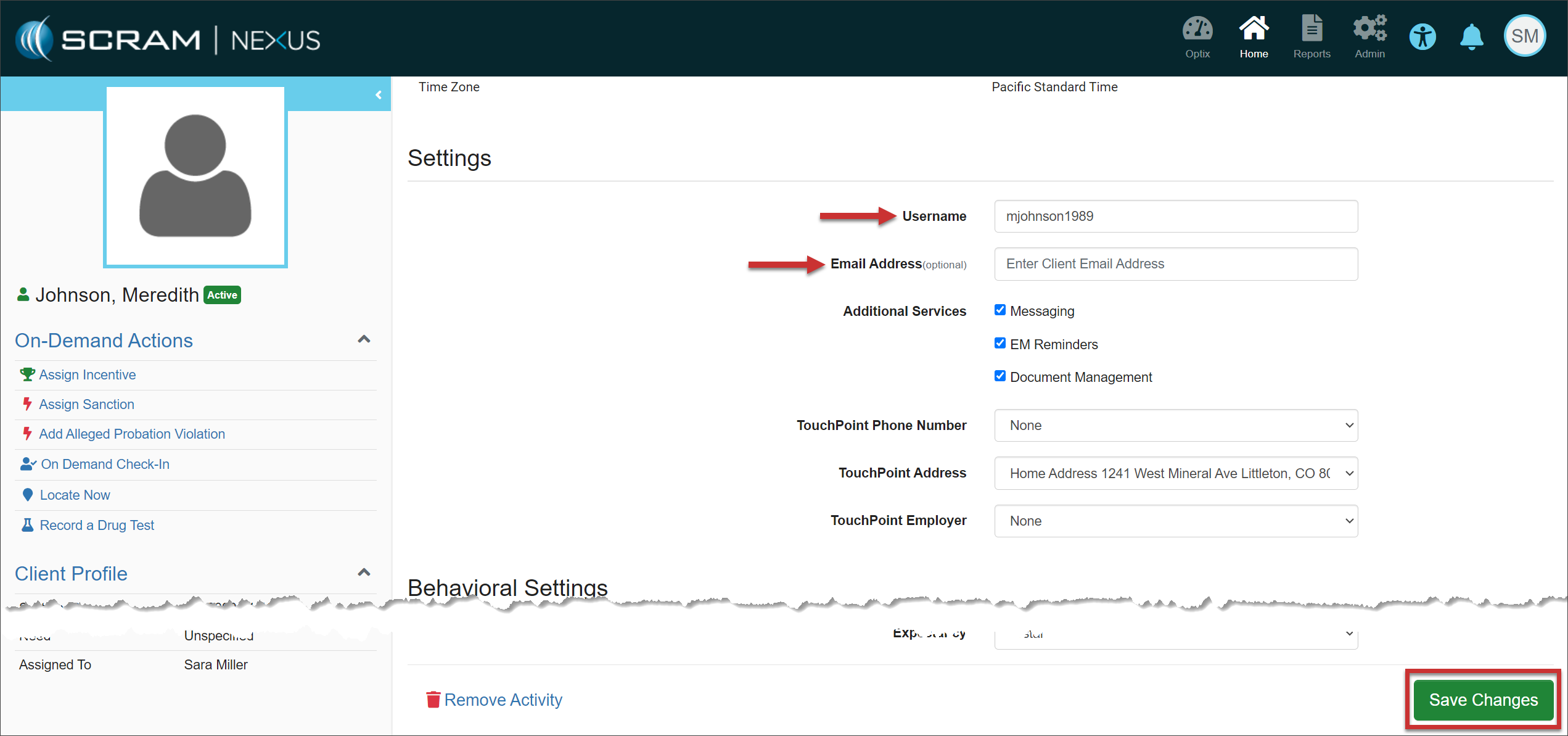
You may update the Username or Email Address field if needed by selecting the Edit hyperlink.
Activity Details page – click to enlargeTouchPoint Activity Client Settings – click to enlarge
TouchPoint Application Password Reset
When an email is not listed for the client in the Email Address (optional) field, the client is instructed to contact the supervising authority when a password reset is needed. As the supervising authority, you must access the client’s Optix TouchPoint profile and create a new password for the client to use.
Client Activity Details page – click to enlargeOptix Client TouchPoint Profile page – click to enlarge
When creating a new password for the client, the password must be at least eight (8) characters. The password must contain at least one upper-case and one lower-case letter and include either a number (1,2,3, etc.) or a special symbol (~!@#$, etc.).
On, September 21, 2023, SCRAM Systems will release an enhancement to the SCRAM TouchPoint Documents page for your client’s supervision plan in Nexus. This enhancement enables you to require a client to electronically sign a PDF Document shared with them via their TouchPoint mobile application.
Not seeing the enhancement in Nexus? Clear your cache and cookies and refresh your browser window.
The latest version of the TouchPoint app will be available to clients in the app stores. As a best practice, SCRAM Systems recommends that all TouchPoint app users enable their smartphones for automatic app updates (SCRAM login required) to make this process easier.
Require an eSignature
You may require an eSignature for any PDF document you wish to share with your client’s TouchPoint mobile application. This includes new and previously viewed PDFs.
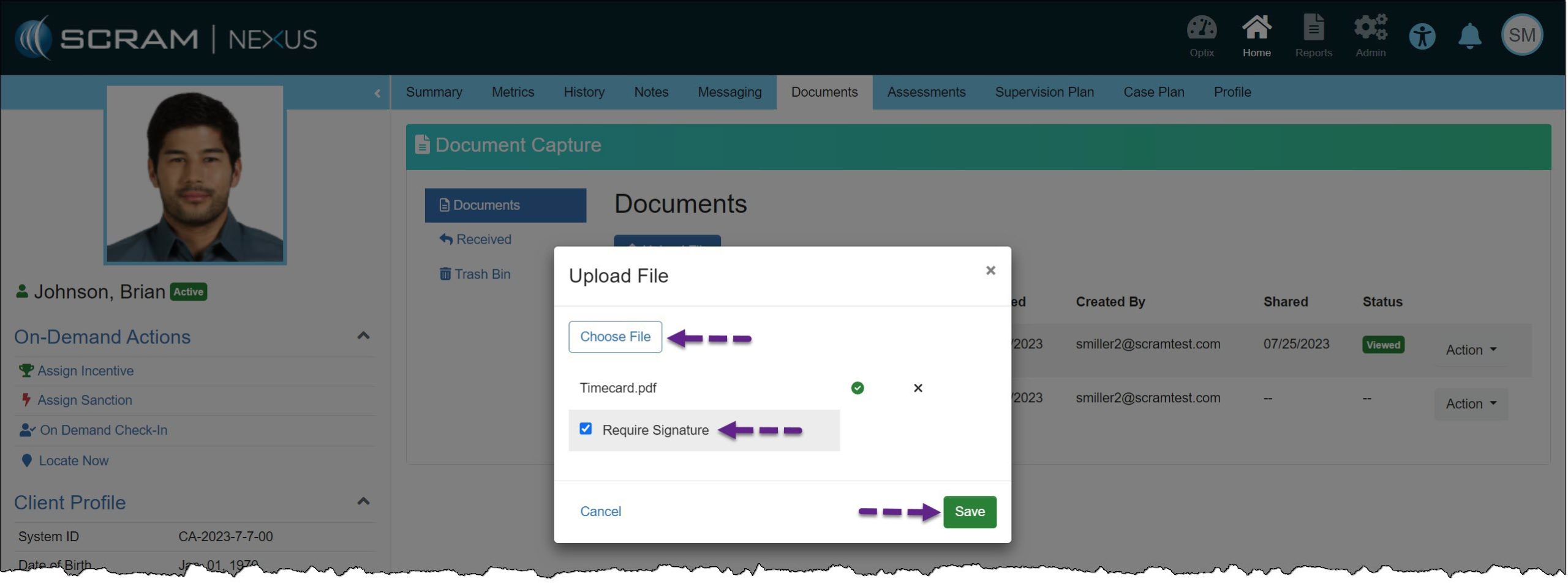
To require an eSignature for a new PDF document:
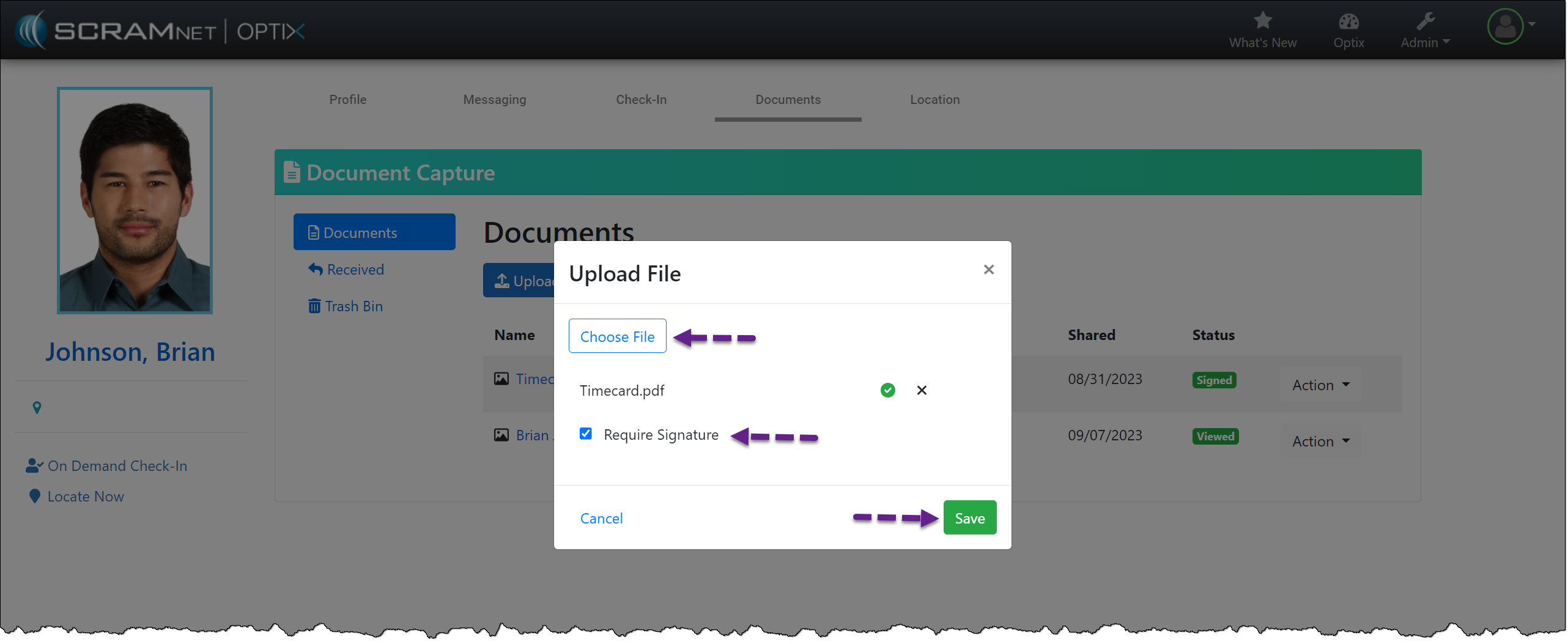
Select the Upload File button on the client’s Documents page.
On the Upload File pop-up, choose the PDF file.
Select the checkbox to Require Signature.
Select the Save button.
Client’s Documents Page – click to enlarge
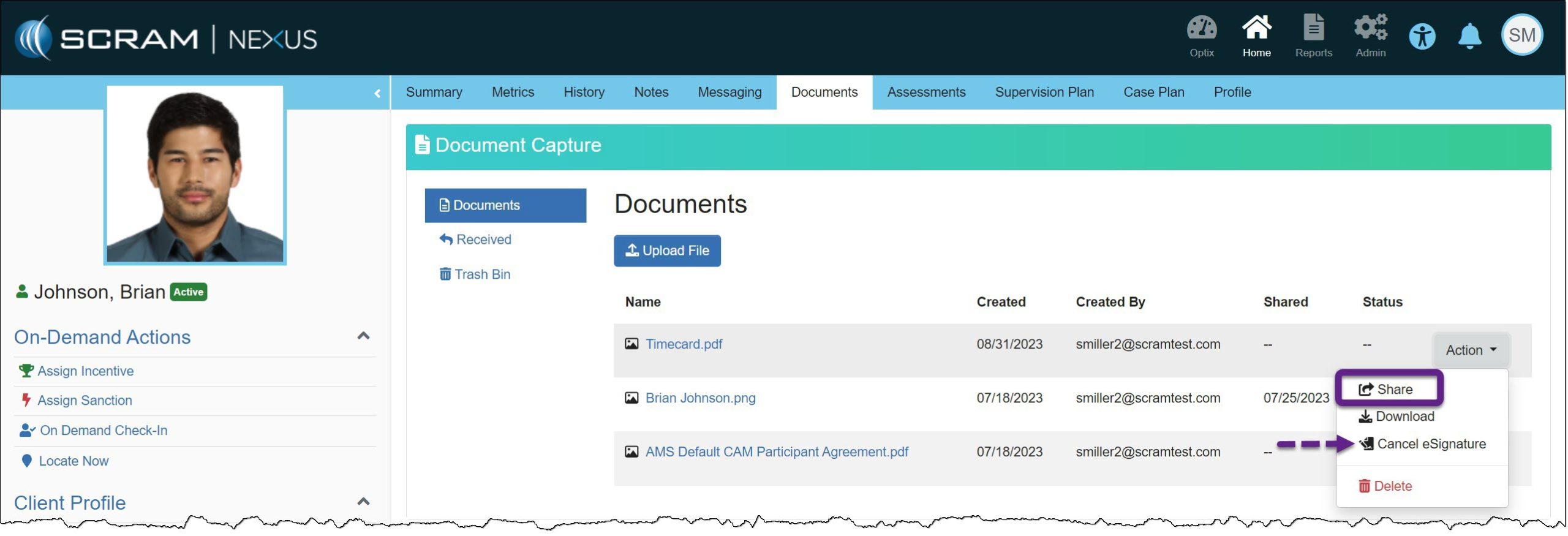
Once displayed on the Documents page, Share the PDF with the client’s TouchPoint mobile application.
Document Action Dropdown Menu – click to enlarge
If an eSignature is no longer required, you may now select Cancel eSignature.
You may request an eSignature for previously shared and viewed PDFs by selecting the ellipsis and then selecting the Require eSignature option. The client will then be notified that a document requires an eSignature.
SCRAM TouchPoint Mobile Application
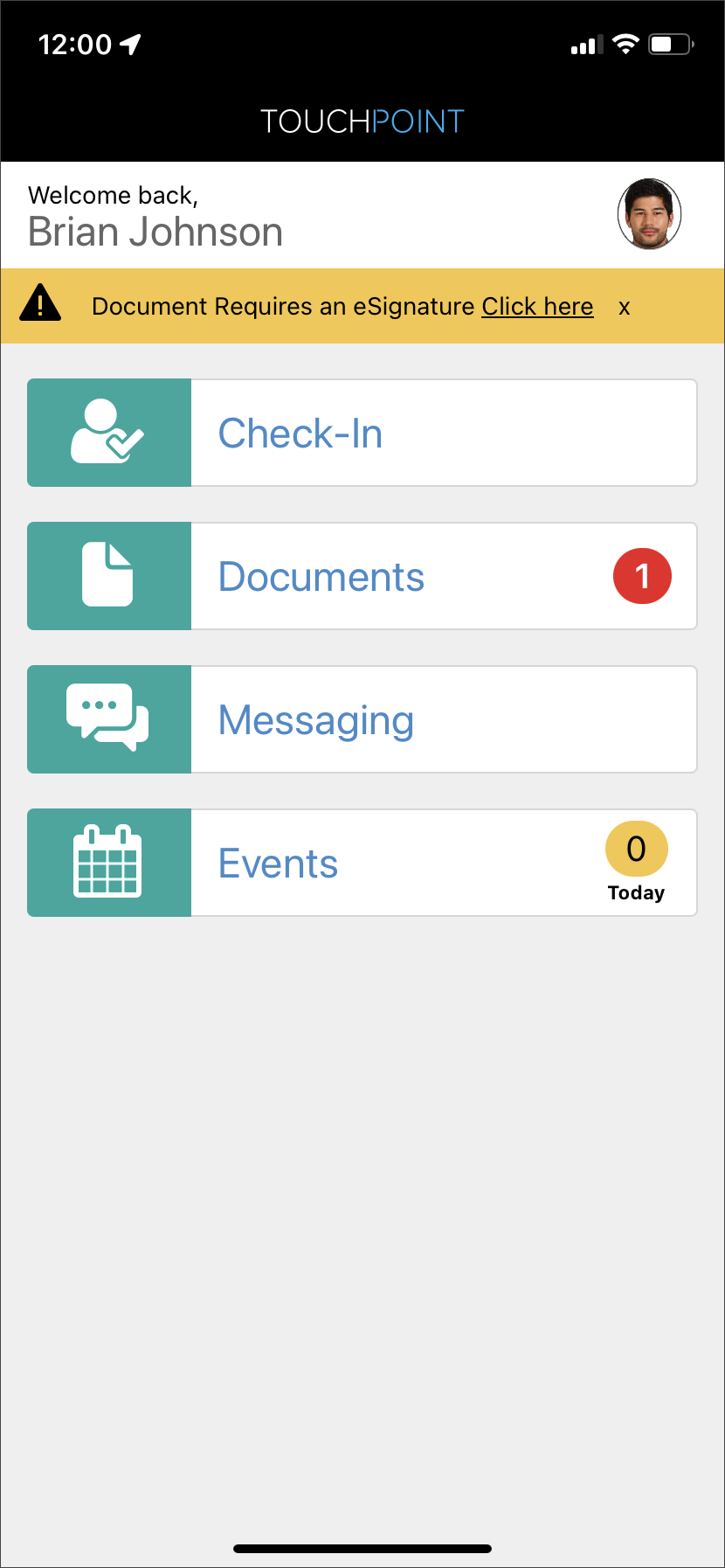
When an eSignature is required for a shared document, the application’s Home screen will display a banner that alerts the client of the necessary eSignature.
TouchPoint Mobile Application Client Home Screen – click to enlarge
To complete an eSignature, have the client:
View the PDF within the TouchPoint mobile application by tapping on it.
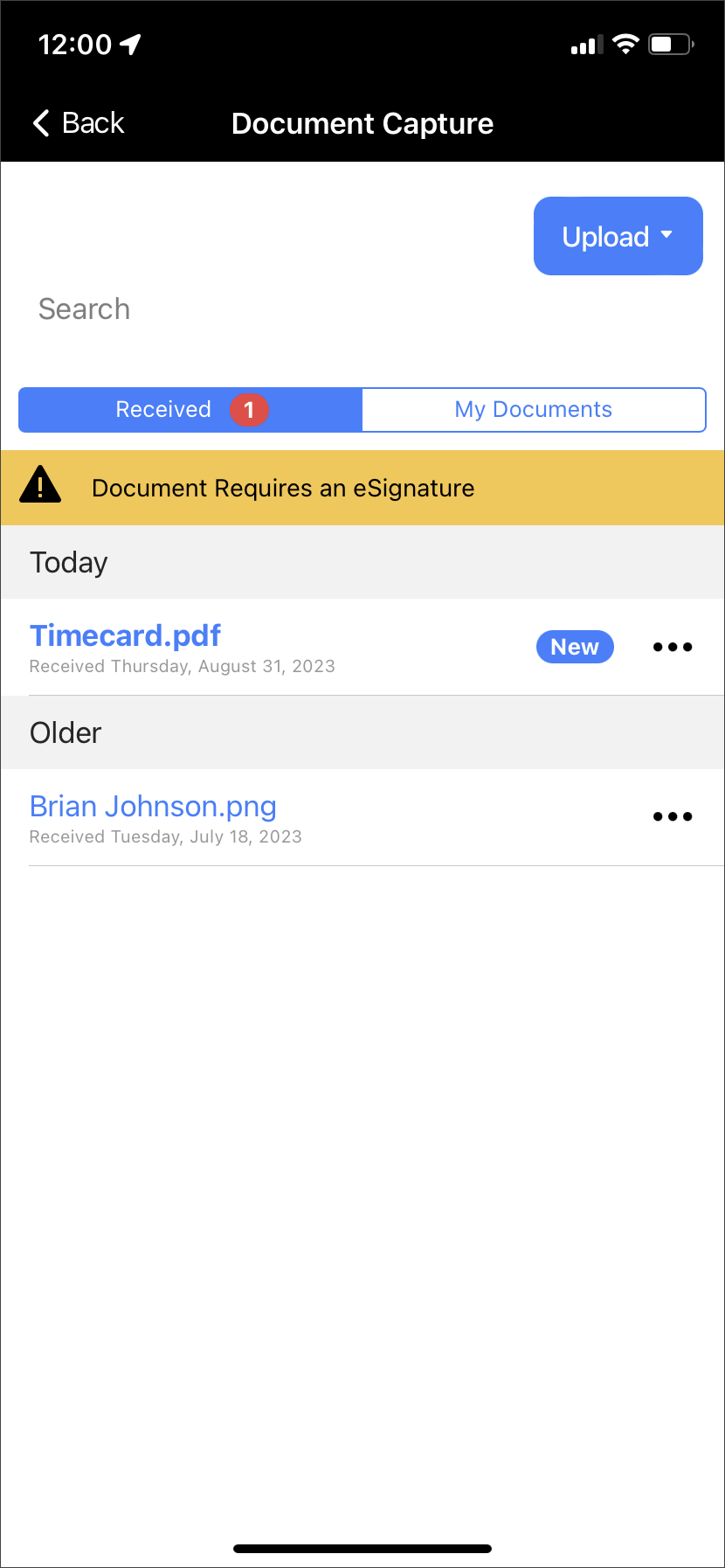
Client’s Document Capture Screen – click to enlarge
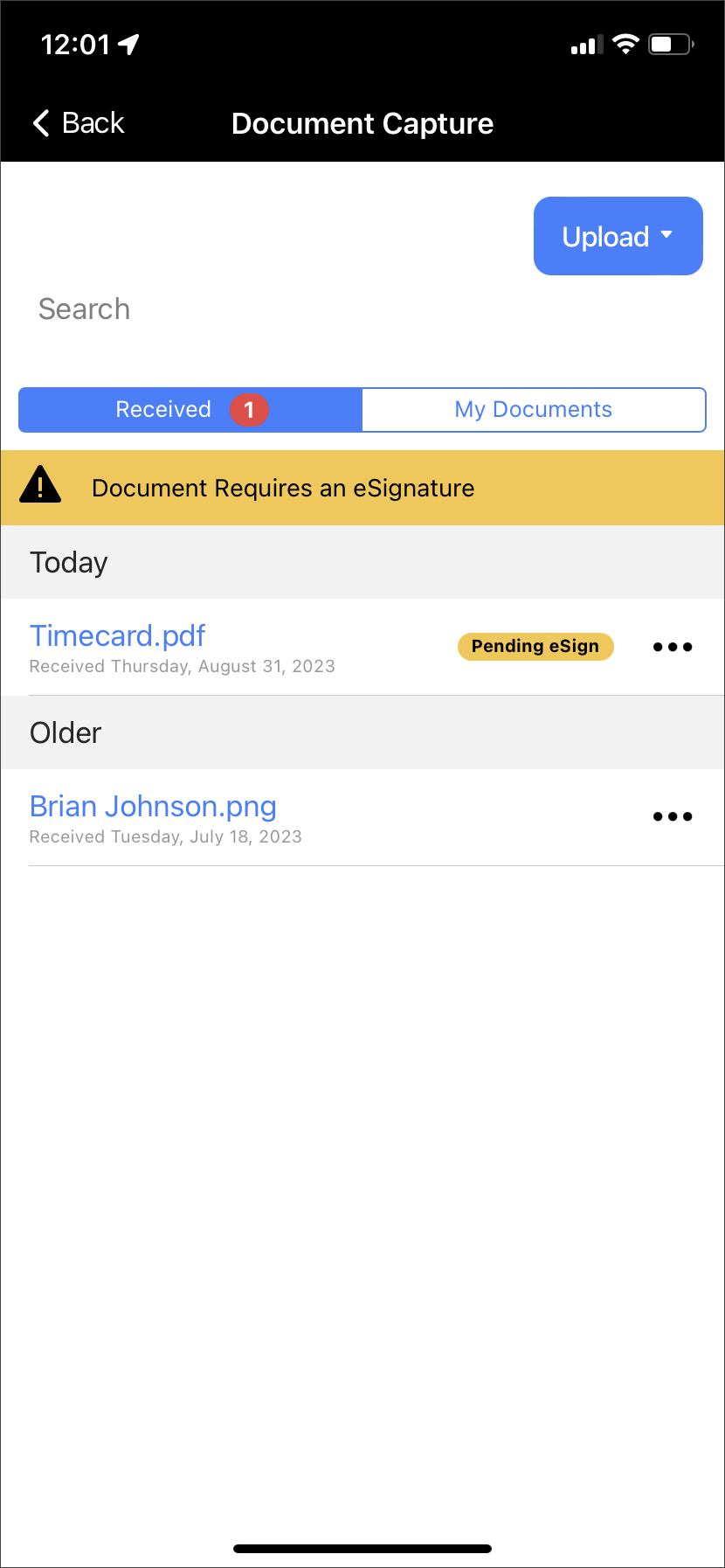
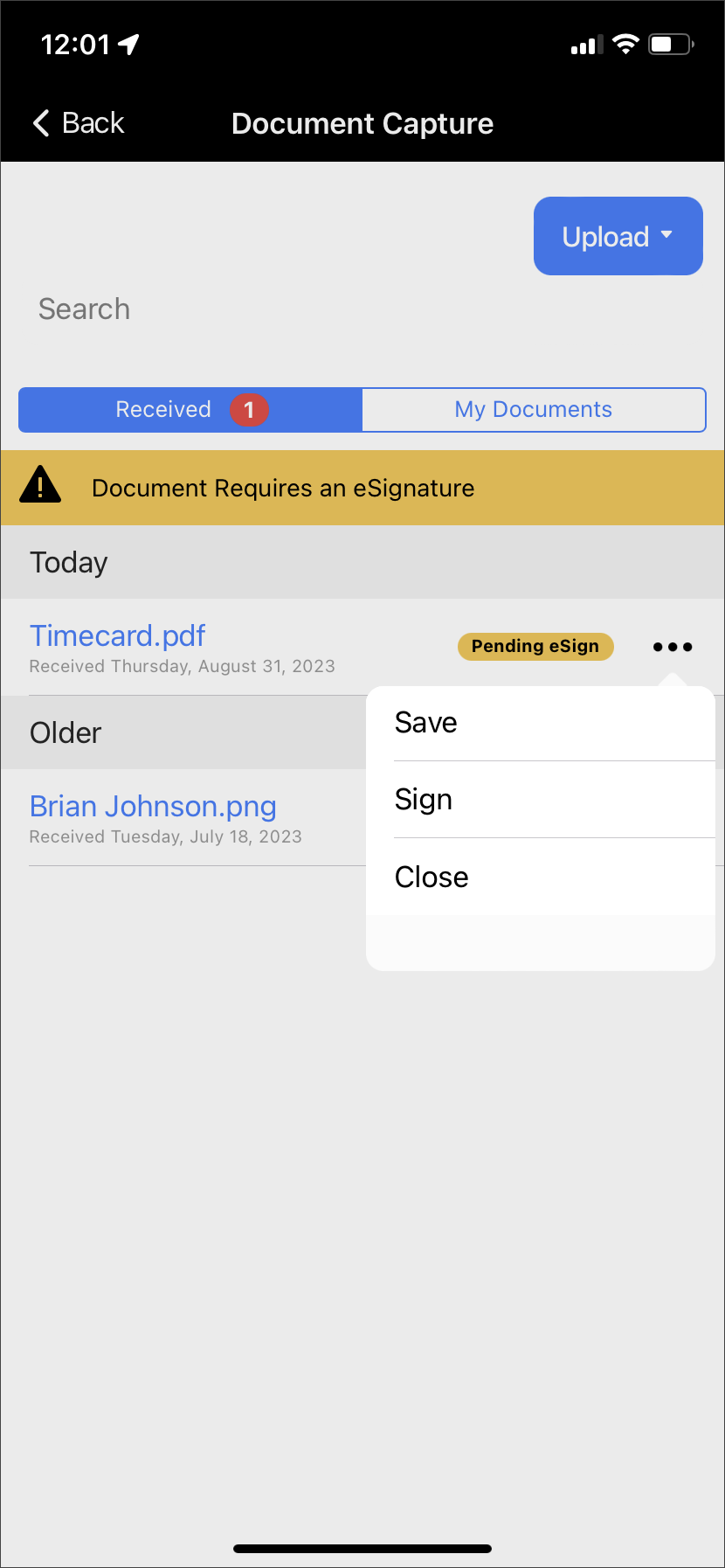
After viewing the document, a “Pending eSign” badge will display next to the ellipsis. Tap the ellipsis and then tap the Sign option.
Document Pending eSign badge – click to enlargeEllipsis Menu Options – click to enlarge
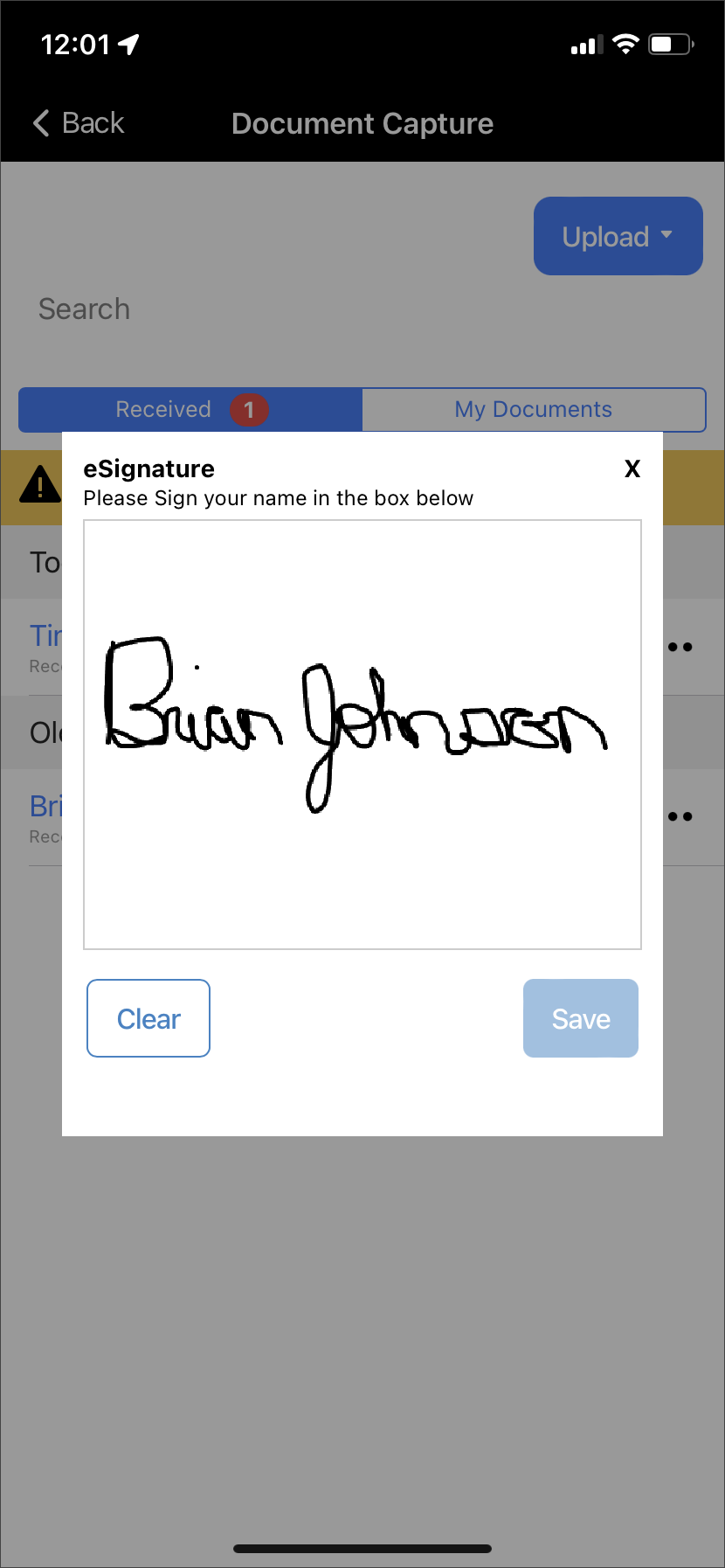
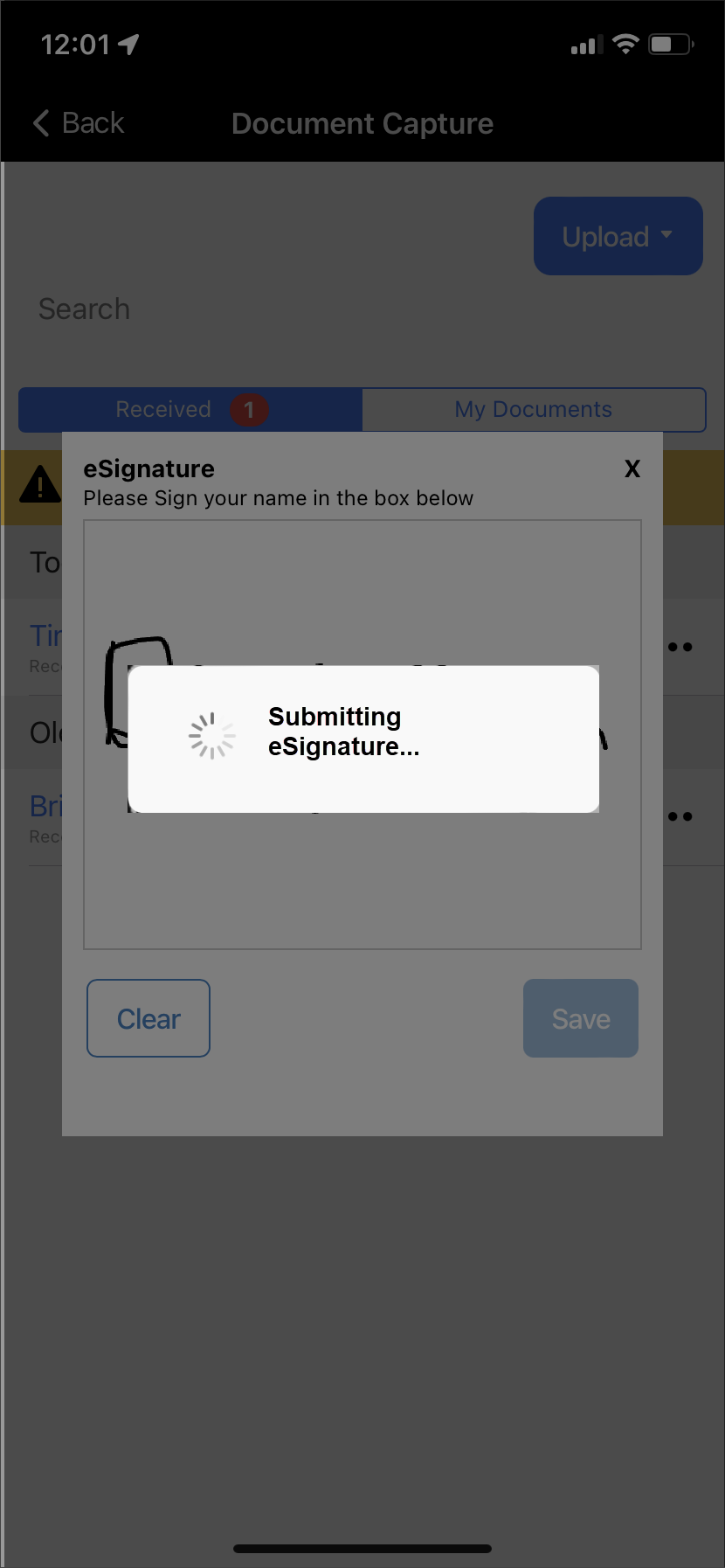
Sign your name on the eSignature pop-up and tap the Save button.
eSignature Capture Screen – click to enlarge
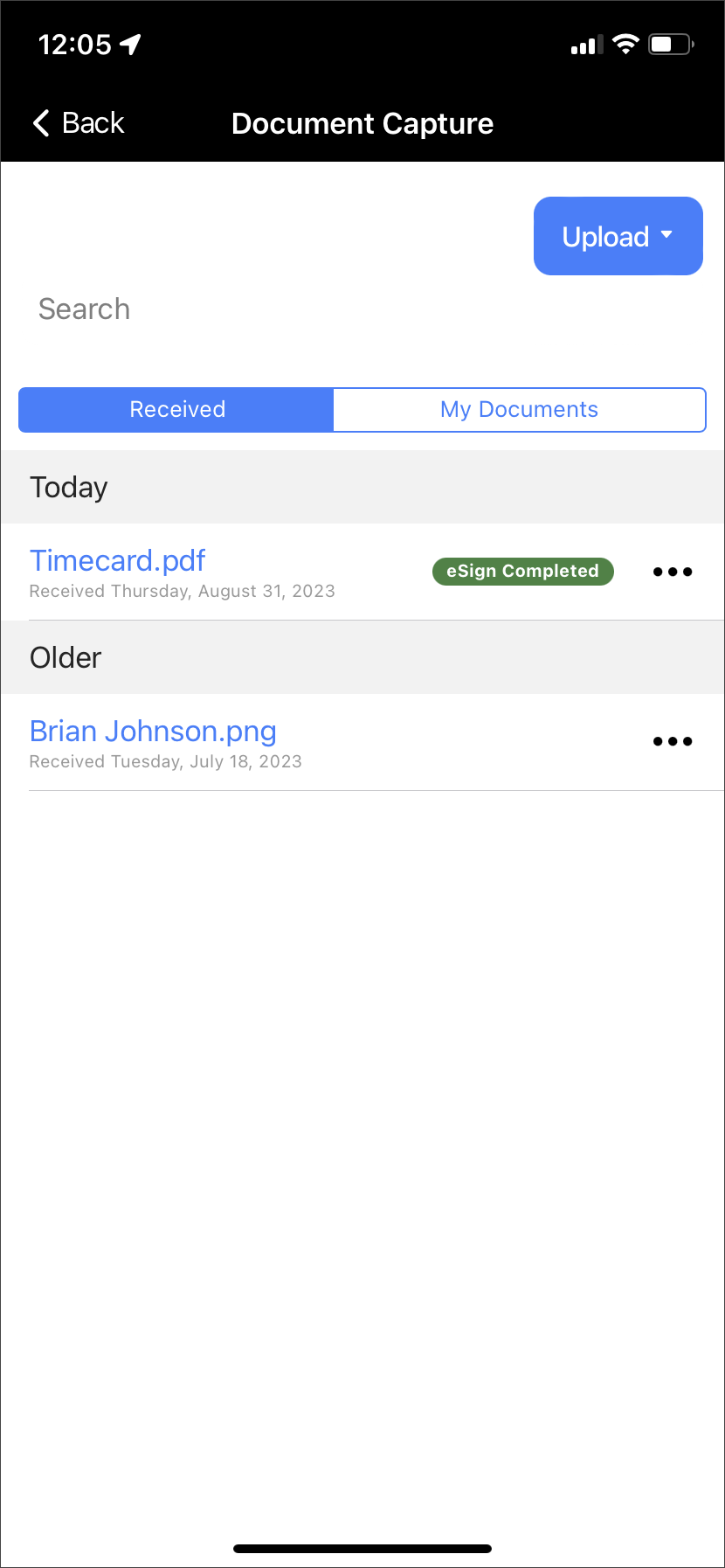
A message of “Submitting eSignature” will display on the screen. Once submitted, an “eSign Completed” badge will display next to the document’s information.
Submitting eSignature Banner – click to enlargeeSign Completed Badge – click to enlarge
View eSignature
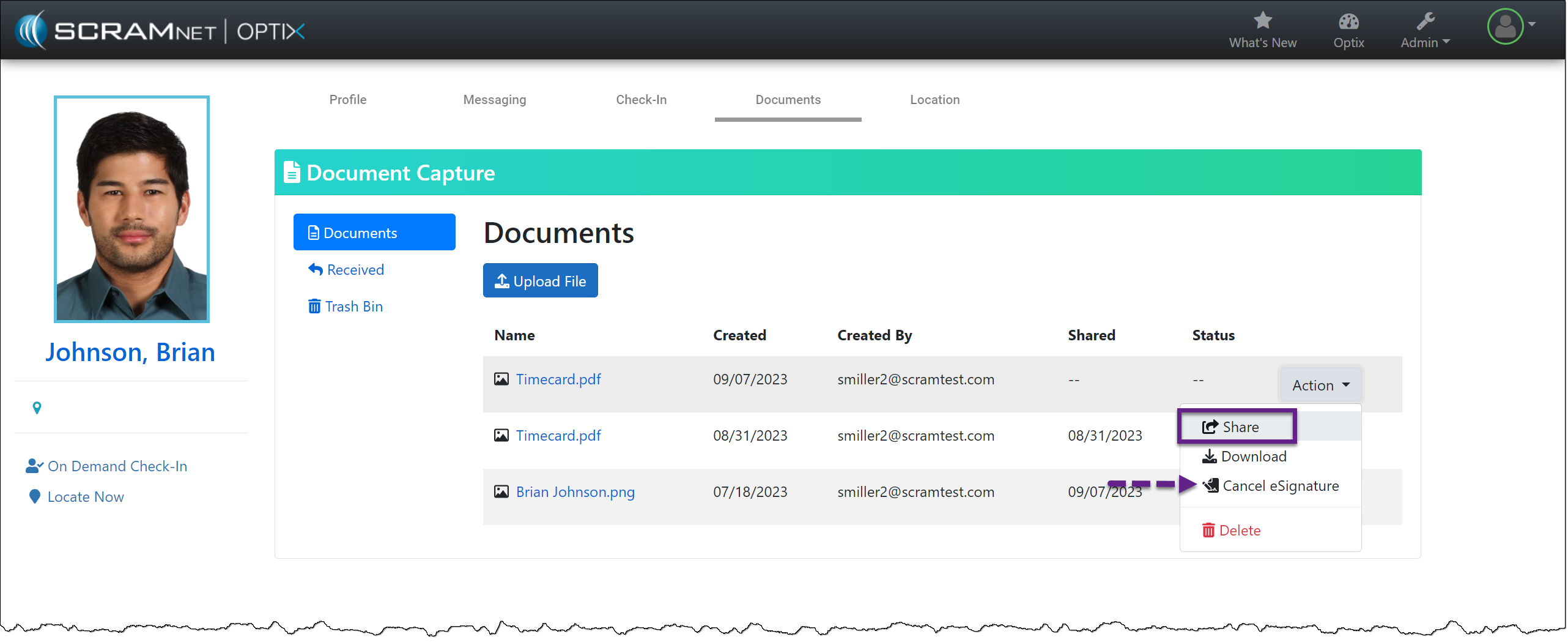
After the client views the document and completes the eSignature on their TouchPoint mobile application, the status for that document will update from “Pending eSignature” to “Signed” on the client’s Documents page in Nexus.
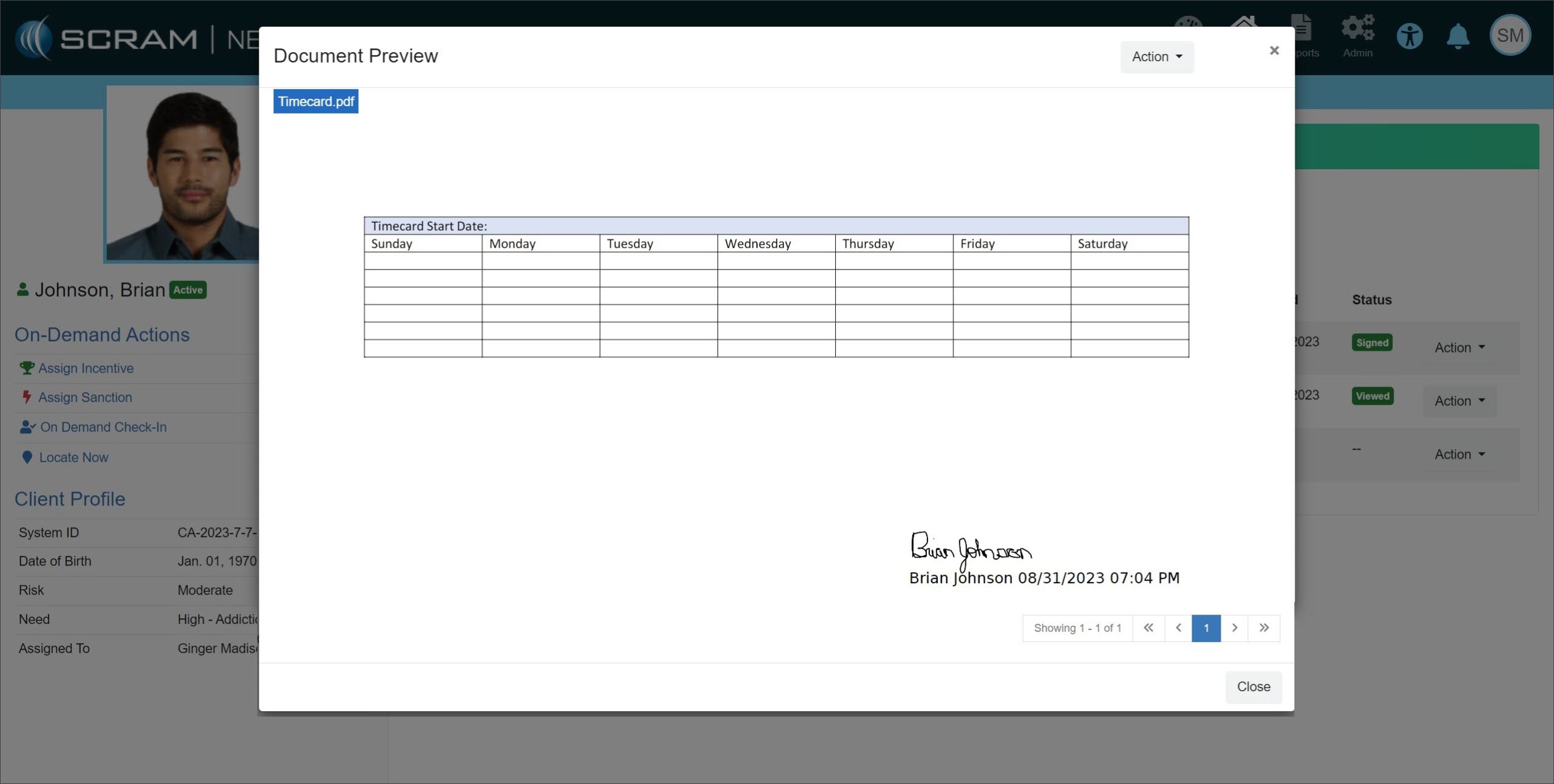
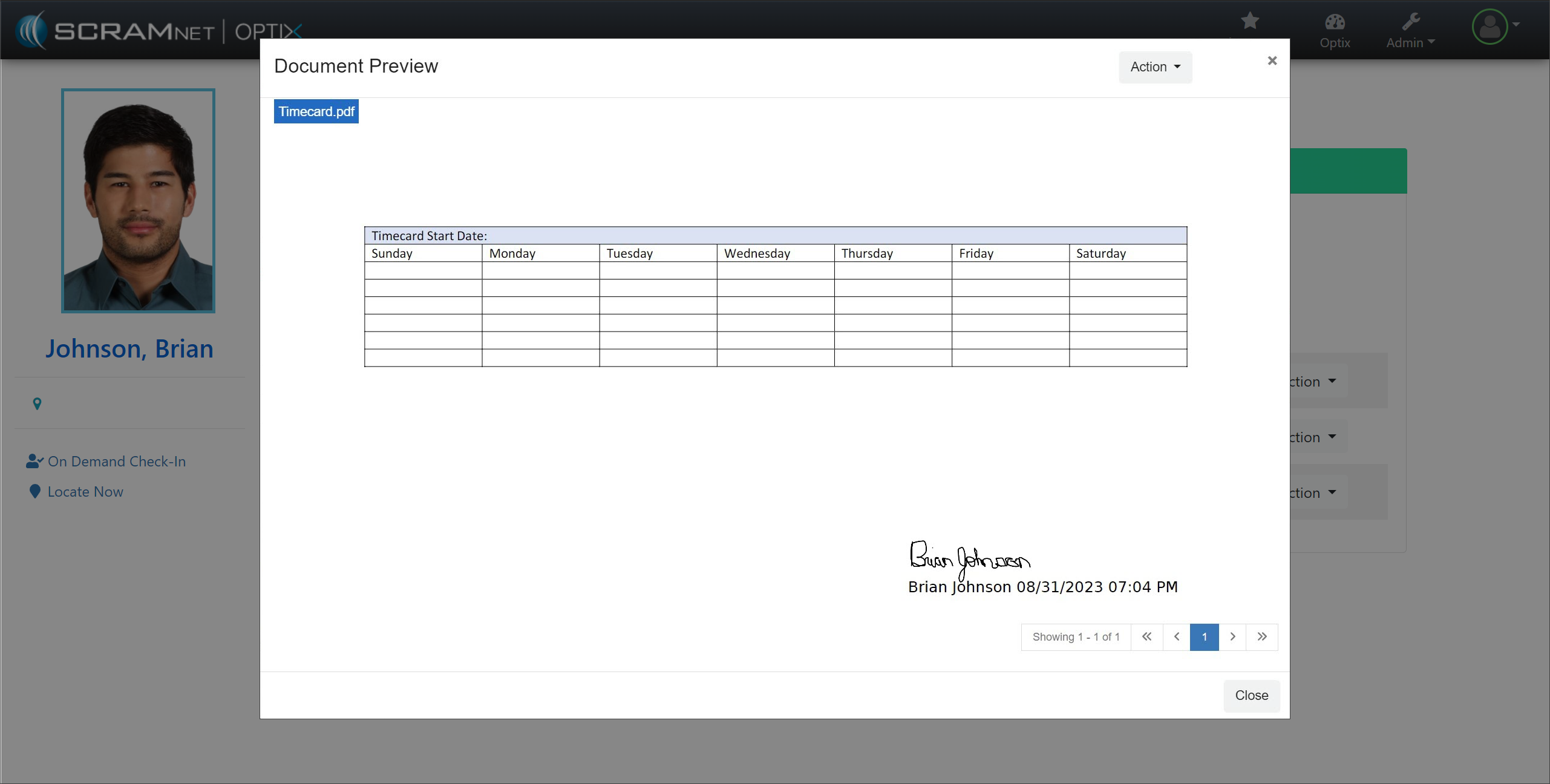
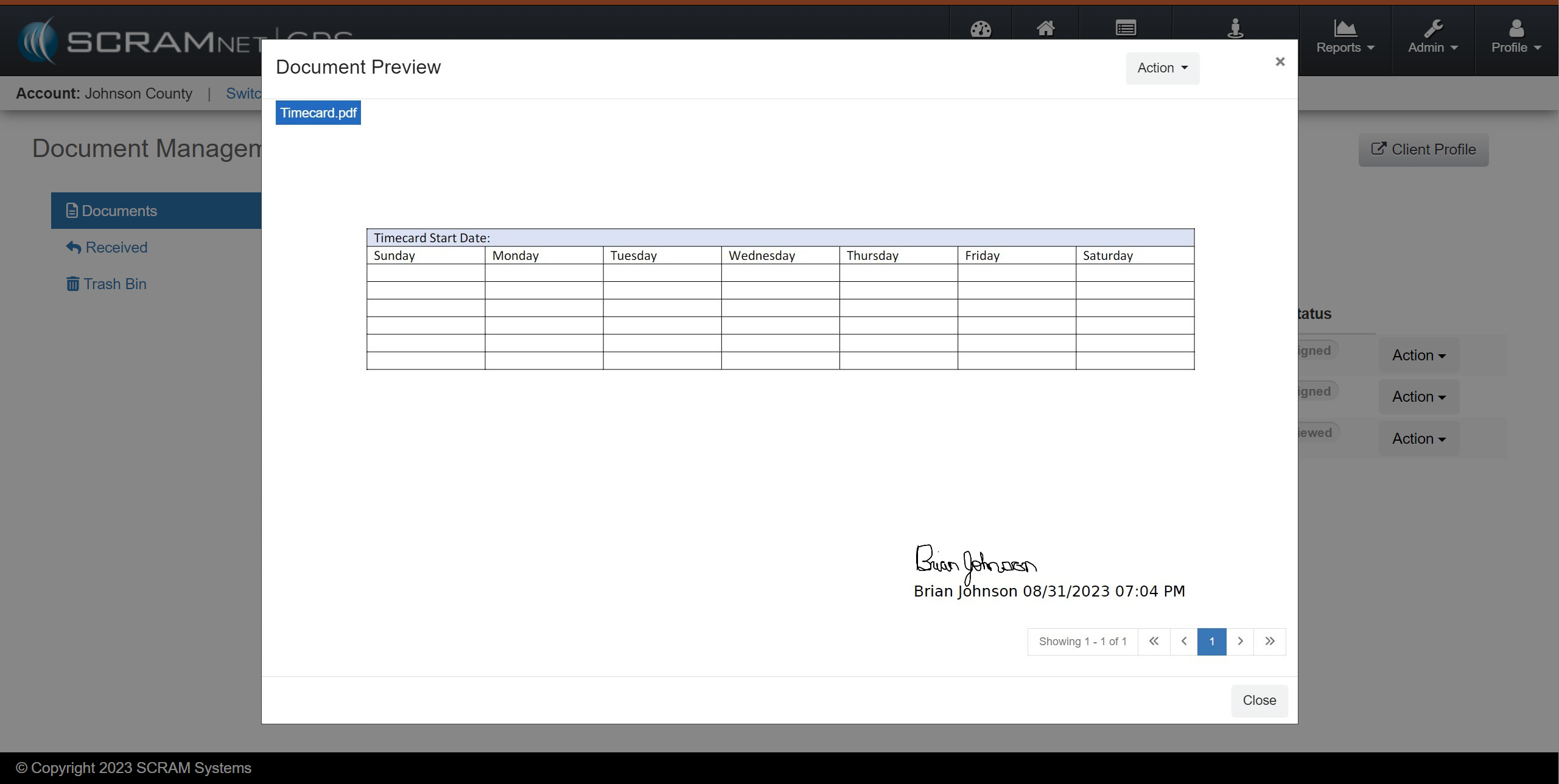
Following the established process, you may view the eSignature from the Document Preview pop-up or download the document to your computer.
On, September 21, 2023, SCRAM Systems will release an enhancement to the SCRAM TouchPoint Documents page for your client’s supervision plan. This enhancement enables you to require a client to electronically sign a PDF Document shared with them via their TouchPoint mobile application.
Not seeing the enhancement in SCRAMNET Optix? Clear your cache and cookies and refresh your browser window.
The latest version of the TouchPoint app will be available to clients in the app stores.As a best practice, SCRAM Systems recommends that all TouchPoint app users enable their smartphones for automatic app updates (SCRAM login required) to make this process easier.
Require an eSignature
You may require an eSignature for any PDF document you wish to share with your client’s TouchPoint mobile application. This includes new and previously viewed PDFs.
To require an eSignature for a new PDF document:
Select the Upload File button on the client’s Documents page.
On the Upload File pop-up, choose the PDF file.
Select the checkbox to Require Signature.
Select the Save button.
TouchPoint Client Documents page – click to enlarge
Once displayed on the Documents page, Share the PDF with the client’s TouchPoint mobile application.
Document Action Dropdown Menu – click to enlarge
If an eSignature is no longer required, you may now select Cancel eSignature.
You may request an eSignature for previously shared and viewed PDFs by selecting the ellipsis and then selecting the Require eSignature option. The client will then be notified that a document requires an eSignature.
SCRAM TouchPoint Mobile Application
When an eSignature is required for a shared document, the application’s Home screen will display a banner that alerts the client of the necessary eSignature.
TouchPoint Mobile Application Client Home Screen – click to enlarge
To complete an eSignature, have the client:
View the PDF within the TouchPoint mobile application by tapping on it.
Client’s Document Capture Screen – click to enlarge
After viewing the document, a “Pending eSign” badge will display next to the ellipsis. Tap the ellipsis and then tap the Sign option.
Document Pending eSign badge – click to enlargeEllipsis Menu Options – click to enlarge
Sign your name on the eSignature pop-up and tap the Save button.
eSignature Capture Screen – click to enlarge
A message of “Submitting eSignature” will display on the screen. Once submitted, an “eSign Completed” badge will display next to the document’s information.
Submitting eSignature Banner – click to enlargeeSign Completed Badge – click to enlarge
View eSignature
After the client views the document and completes the eSignature on their TouchPoint mobile application, the status for that document will update from “Pending eSignature” to “Signed” on the client’s Documents page.
Following the established process, you may view the eSignature from the Document Preview pop-up or download the document to your computer.
On, September 21, 2023, SCRAM Systems will release an enhancement to the SCRAM TouchPoint Documents page for your client’s supervision plan in SCRAMNET GPS . This enhancement enables you to require a client to electronically sign a PDF Document shared with them via their TouchPoint mobile application.
Not seeing the enhancement in SCRAMNET GPS? Clear your cache and cookies and refresh your browser window.
The latest version of the TouchPoint app will be available to clients in the app stores. As a best practice, SCRAM Systems recommends that all TouchPoint app users enable their smartphones for automatic app updates (SCRAM login required) to make this process easier.
Require an eSignature
You may require an eSignature for any PDF document you wish to share with your client’s TouchPoint mobile application. This includes new and previously viewed PDFs.
To require an eSignature for a new PDF document:
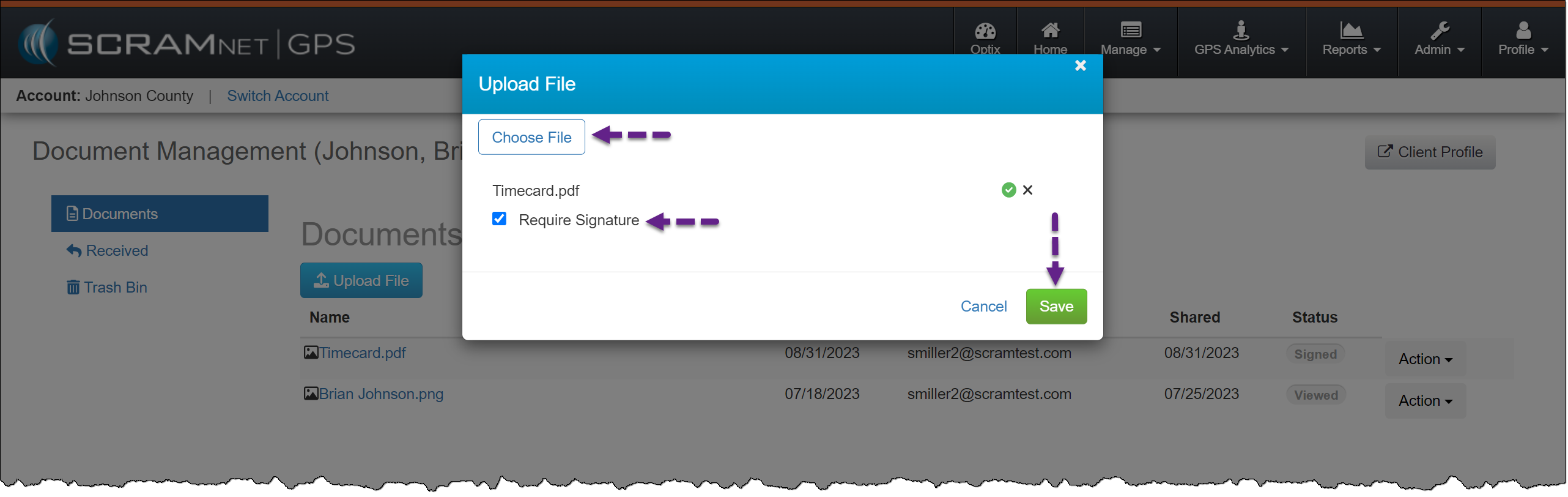
Select the Upload File button on the client’s Documents page.
On the Upload File pop-up, choose the PDF file.
Select the checkbox to Require Signature.
Select the Save button.
Client Document Management – click to enlarge
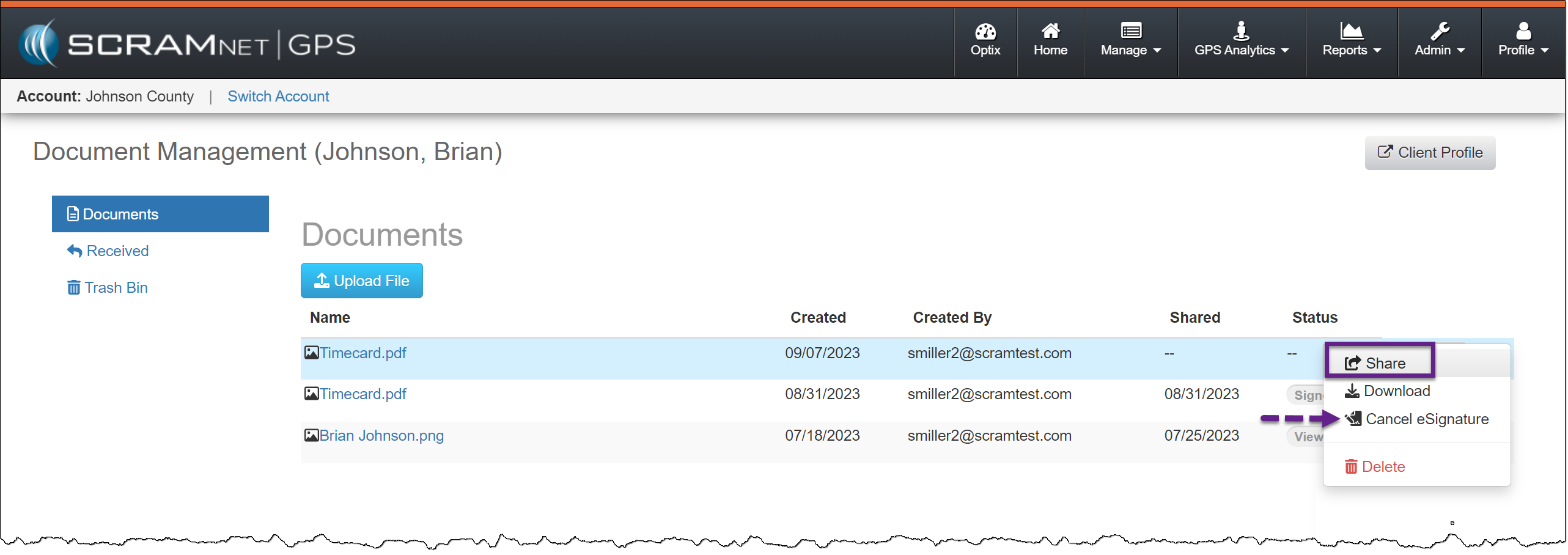
Once displayed on the Documents page, Share the PDF with the client’s TouchPoint mobile application.
Document option menu – click to enlarge
If an eSignature is no longer required, you may now select Cancel eSignature.
You may request an eSignature for previously shared and viewed PDFs by selecting the ellipsis and then selecting the Require eSignature option. The client will then be notified that a document requires an eSignature.
SCRAM TouchPoint Mobile Application
When an eSignature is required for a shared document, the application’s Home screen will display a banner that alerts the client of the necessary eSignature.
TouchPoint mobile application client Home screen – click to enlarge
To complete an eSignature, have the client:
View the PDF within the TouchPoint mobile application by tapping on it.
Client Document Capture screen – click to enlarge
After viewing the document, a “Pending eSign” badge will display next to the ellipsis. Tap the ellipsis and then tap the Sign option.
Document Pending eSign badge – click to enlargeDocument ellipsis dropdown menu – click to enlarge
Sign your name on the eSignature pop-up and tap the Save button.
eSignature Capture screen – click to enlarge
A message of “Submitting eSignature” will display on the screen. Once submitted, an “eSign Completed” badge will display next to the document’s information.
Submitting eSignature banner – click to enlargeeSign Completed badge – click to enlarge
View eSignature
After the client views the document and completes the eSignature on their TouchPoint mobile application, the status for that document will update from “Pending eSignature” to “Signed” on the client’s Documents page.
Following the established process, you may view the eSignature from the Document Preview pop-up or download the document to your computer.
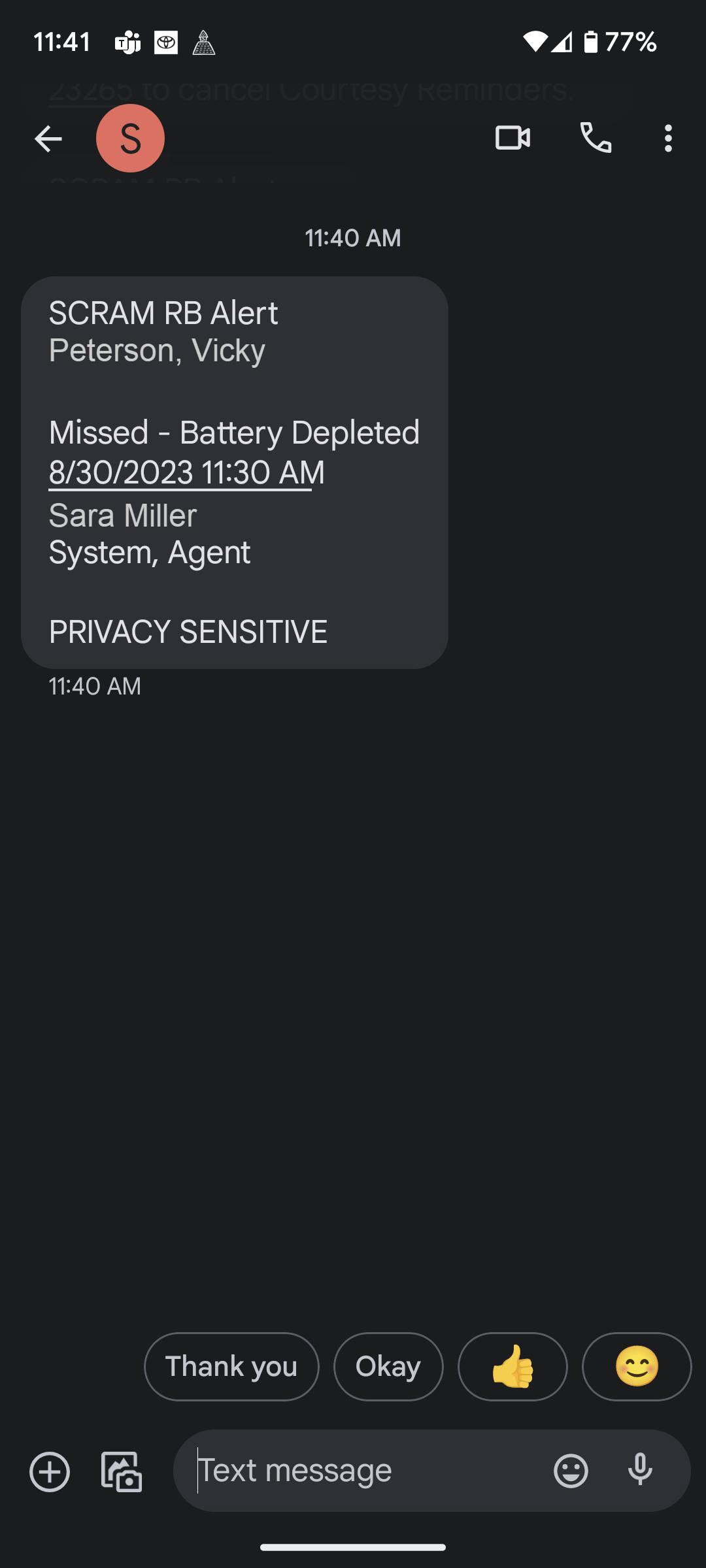
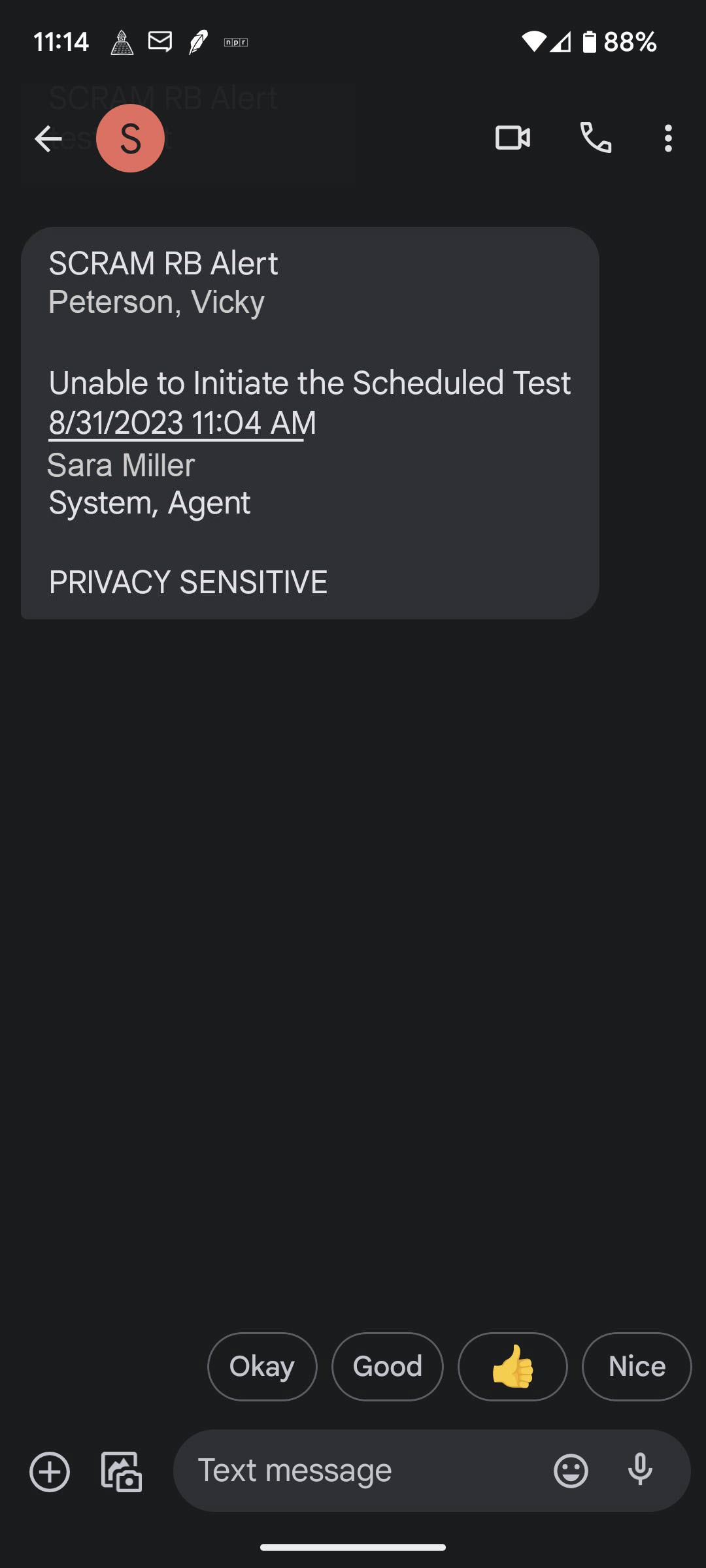
On September 20, 2023, SCRAM Systems® will release an enhancement for your Priority Notification Remote Breath Pro client Caseloads. With this enhancement, breath test results of Missed – Battery Depleted and Missed – Temperature are included in notifications sent via email or text messages.
Missed – Battery Depleted (click to enlarge)
Missed – Temperature (click to enlarge)
In cases where multiple Missed Test events are received simultaneously, only one notification will be sent.
The Missed – Temperature notification message states, “Unable to Initiate the Scheduled Test.” Access the client’s RB Results page and the “Missed – Temperature” event in SCRAMNET to view additional details.
On September 6, 2023, SCRAM Systems® will release an enhancement to the SCRAMNET Inventory page, which will enable you to connect multiple Remote Breath Pros and Wireless Base Stations to your location’s Wi-Fi network simultaneously.
Once connected, the devices will automatically reconnect to this persistent Wi-Fi network when in range. Connecting to a Wi-Fi network may speed up the assignment, firmware upload, and check-in processes at locations with poor cellular network connections.
Multiple Wi-Fi Setup
Select the Inventory button.
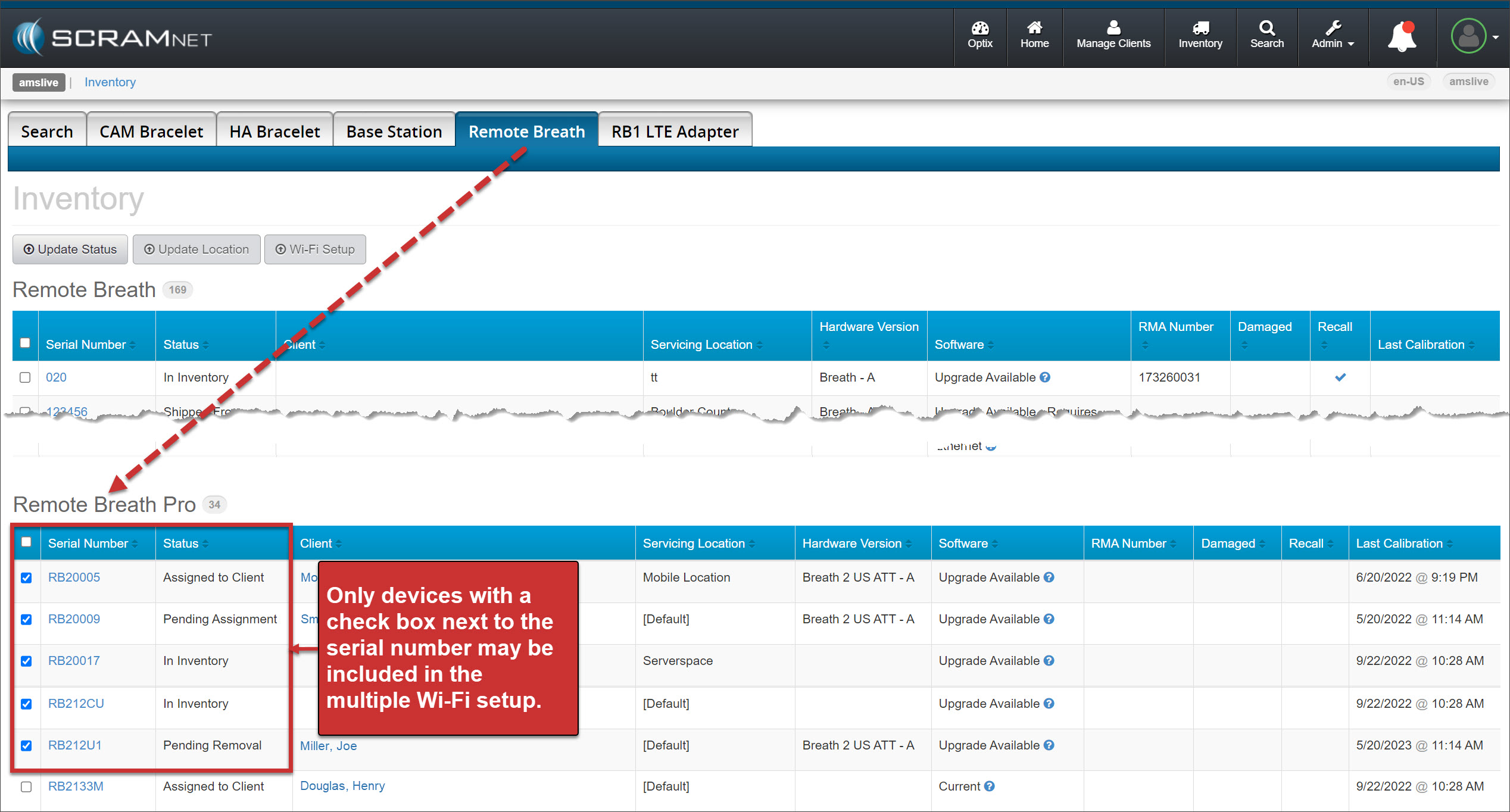
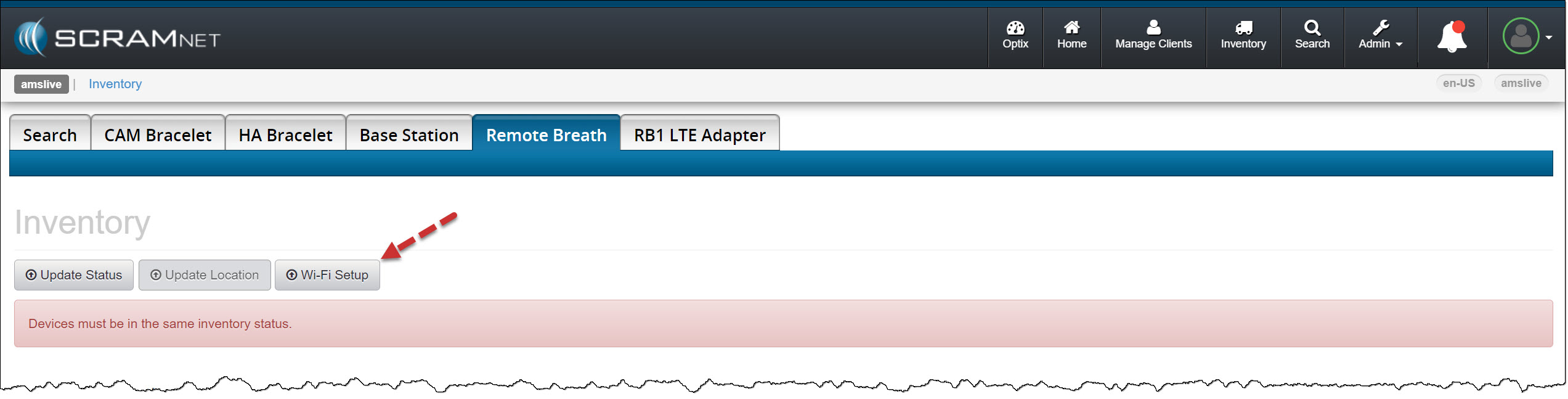
Select either the Base Station or Remote Breath tab. In this example, “Remote Breath” is selected.
Locate the Remote Breath Pro section and check the box next to each device’s serial number to which you wish to send the Wi-Fi credentials.
Remote Breath Inventory page (click to enlarge)
Select the Wi-Fi Setup button.
Remote Breath Inventory page (click to enlarge)
The warning banner, “Devices must be in the same inventory status,” pertains not to the Wi-Fi Setup process but to the update device status or location process.
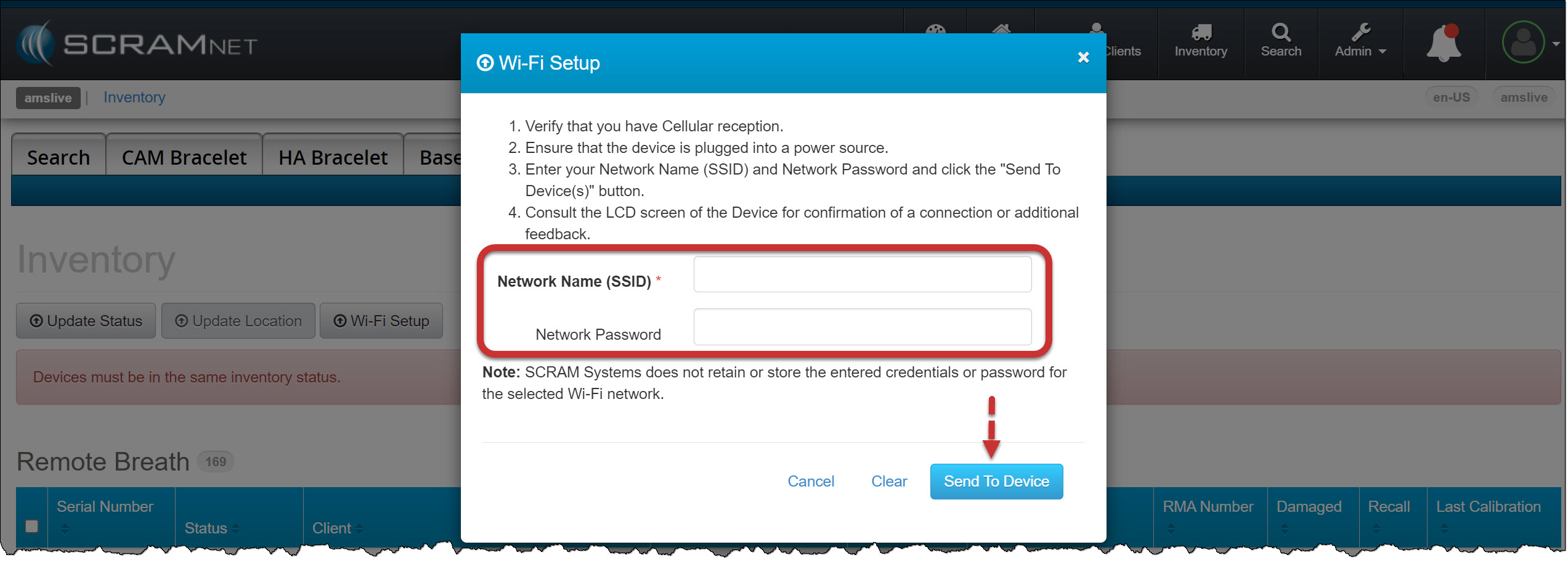
Enter the Network Name (SSID) and Network Password information on the Wi-Fi Setup pop-up.
Select the Send to Device button.
Wi-Fi Setup pop-up (click to enlarge)
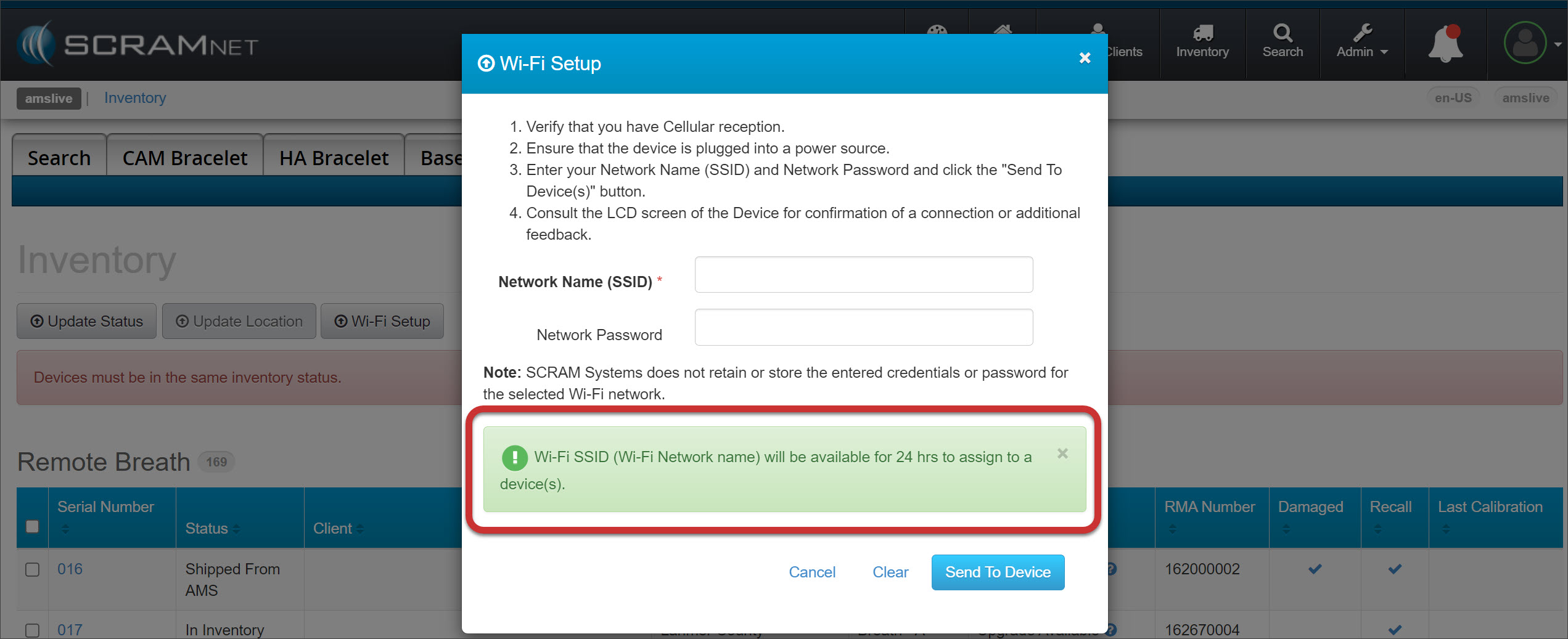
The Wi-Fi information will be available for the selected devices for 24 hours. If the device is not in range of the Wi-Fi network, does not successfully connect to the Wi-Fi network, or is powered off during the 24-hour window, you may resend the information following the above process.
On, August 31, 2023, SCRAM Systems will release two TouchPoint-related enhancements:
TouchPoint mobile app “swipe down” to refresh functionality
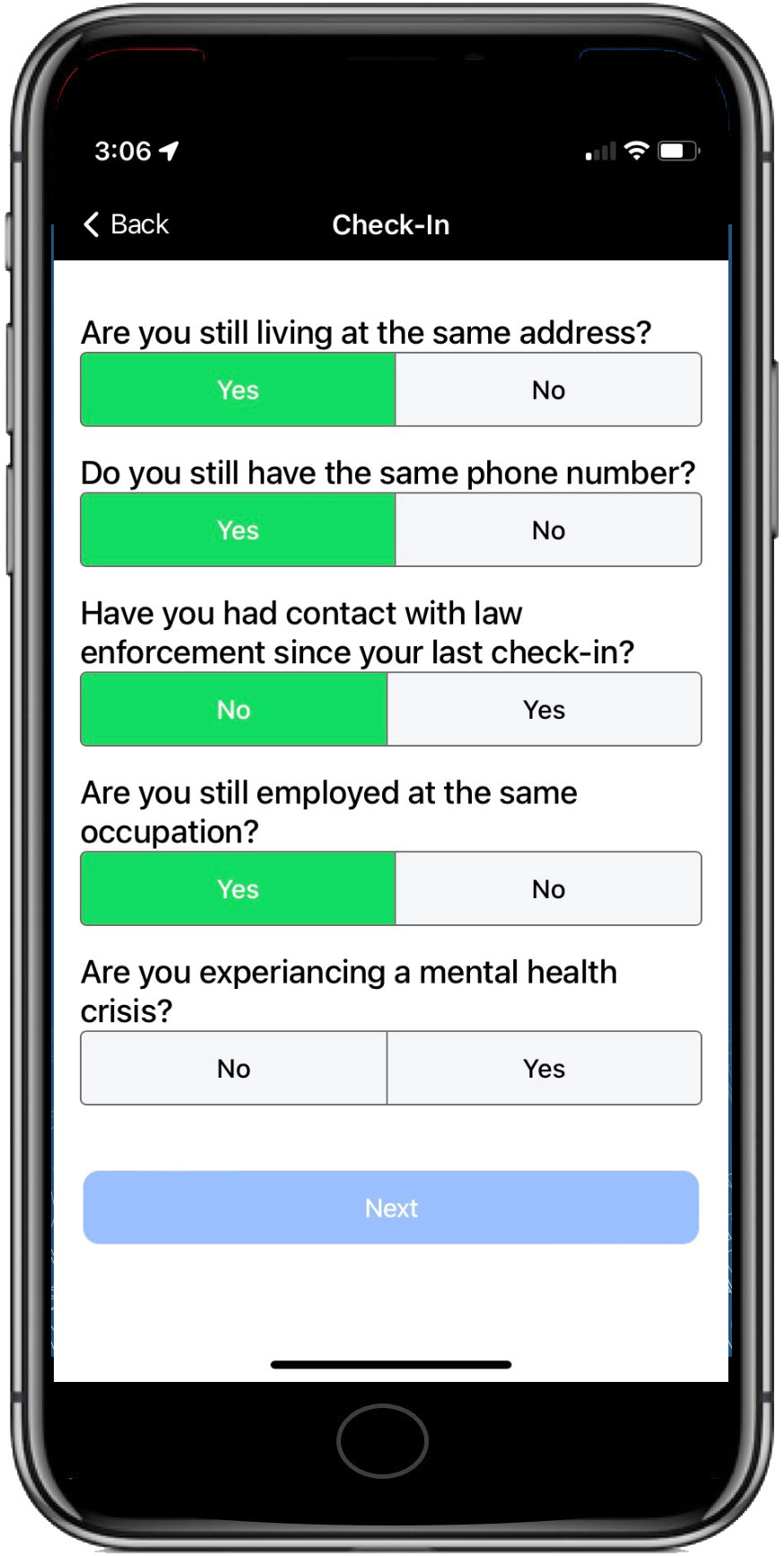
Client Check-In Follow-Up Question
Not seeing the enhancement? Clear your cache and cookies and refresh your browser window.
The latest version of the TouchPoint app is required for these enhancements. As a best practice, SCRAM Systems recommends that all TouchPoint app users enable their smartphones for automatic app updates to make this process easier.
Swipe to Refresh
This enhancement focuses on improving the client’s experience within the SCRAM TouchPoint application on their smartphone. The client can now refresh the screen by “swiping” down on the screen.
Client Check-In Follow-Up Question
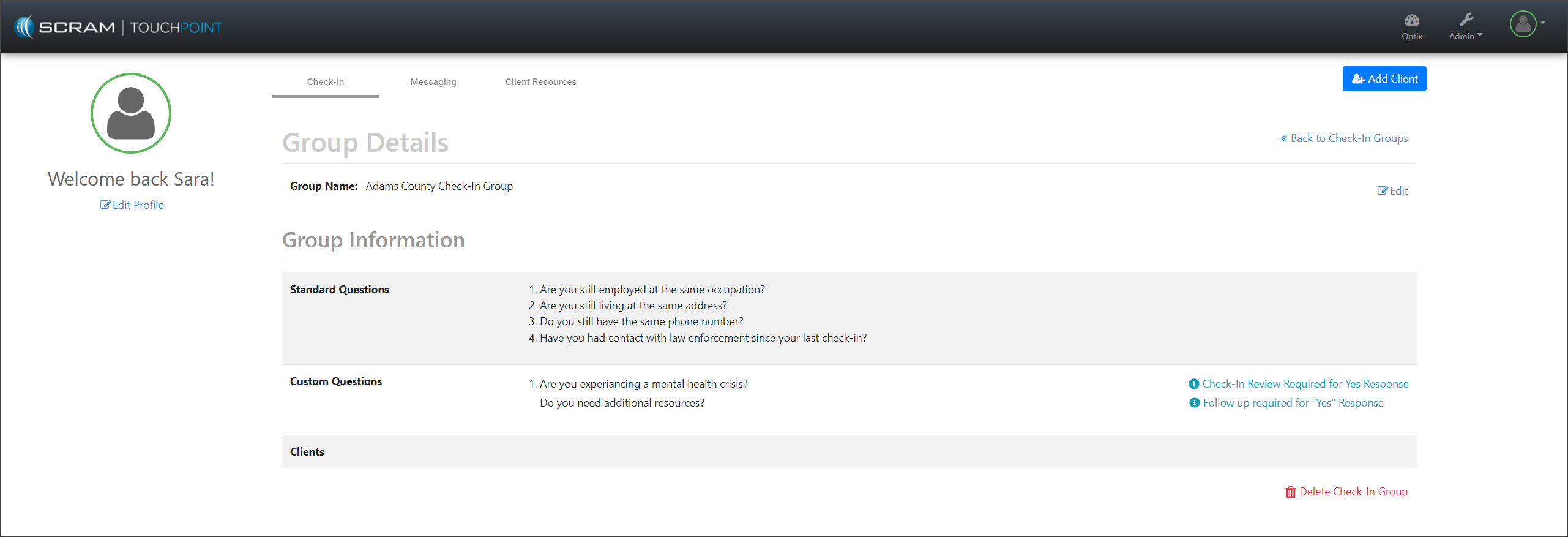
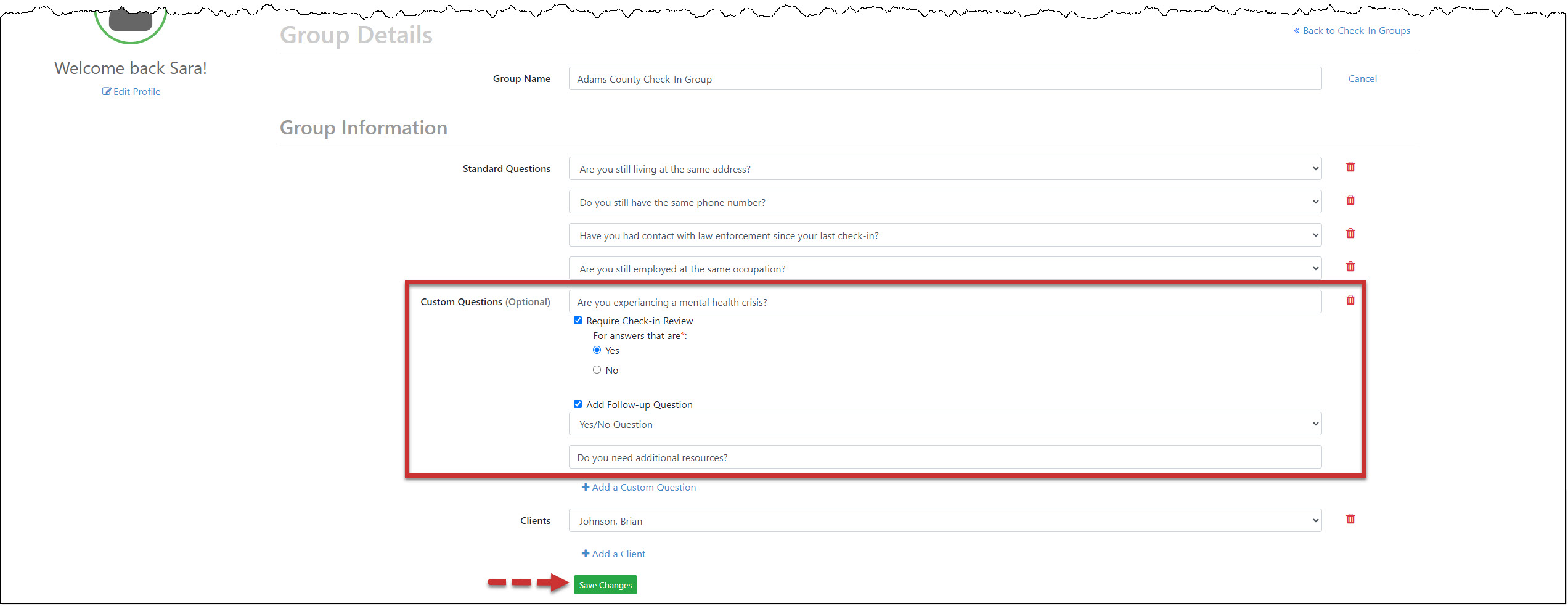
When you create a custom question, you may now include a follow-up question based on the client’s response to the original question. You may customize the response format of the follow-up question as either a Yes/No Question or Short Answer.
Client Check-In Group Details page – click to enlarge
To create a new Custom Question with a follow-up question:
For a new or current question group, select the +Add a Custom Question hyperlink on the Group Details page and enter your question.
Select the Require Check-in Review checkbox and either the Yes or No option.
Select the +Add Follow-up Question checkbox.
Open the dropdown menu and select the format for the client’s response as either Yes/No Question or Short Answer.
Enter your “follow-up question.”
After entering all required questions, select the Save Changes button.
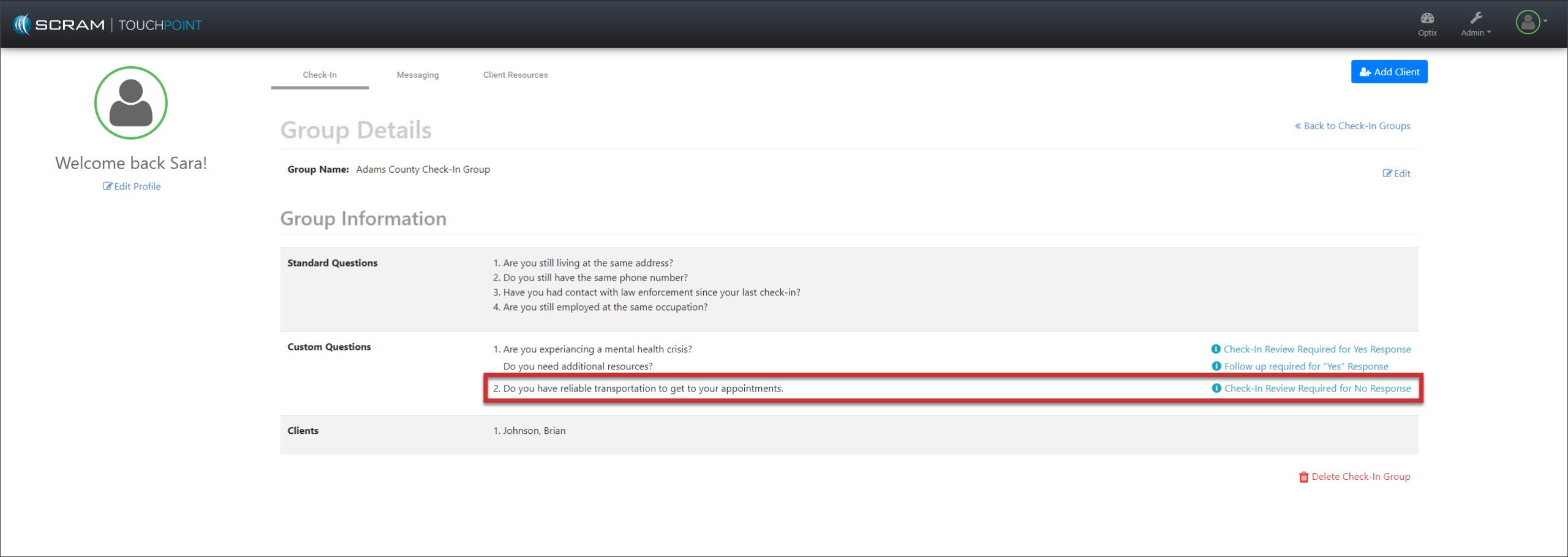
Custom Question with Follow-Up Question – click to enlarge
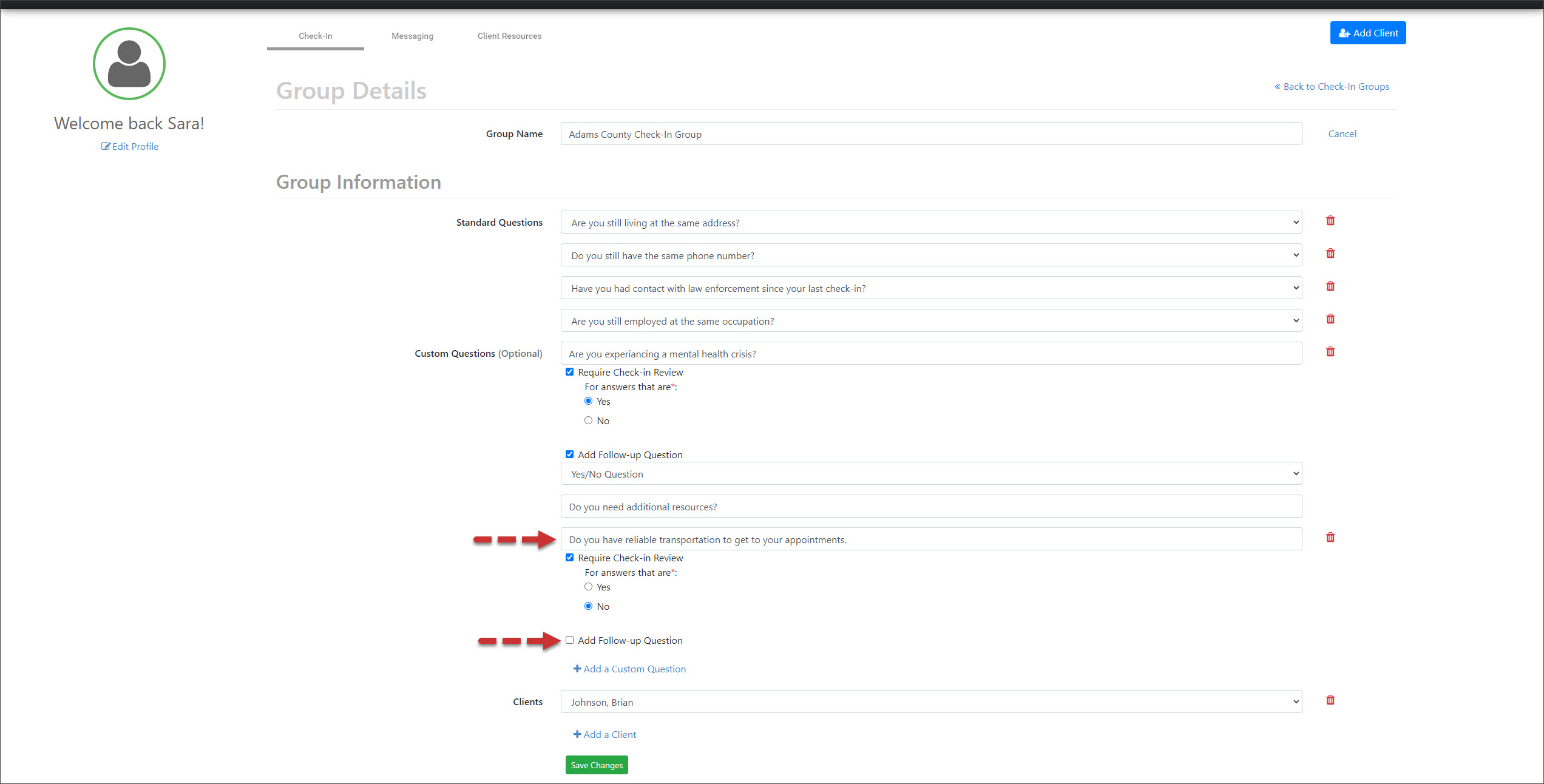
To add a follow-up question to an existing Custom Question:
Client Check-In Group Details page – click to enlarge
For a current question group, select the Edit hyperlink and locate the custom question to which you wish to add the follow-up question. Select the +Add Follow-up Question checkbox.
Custom Question Add Follow-Up Question – click to enlarge
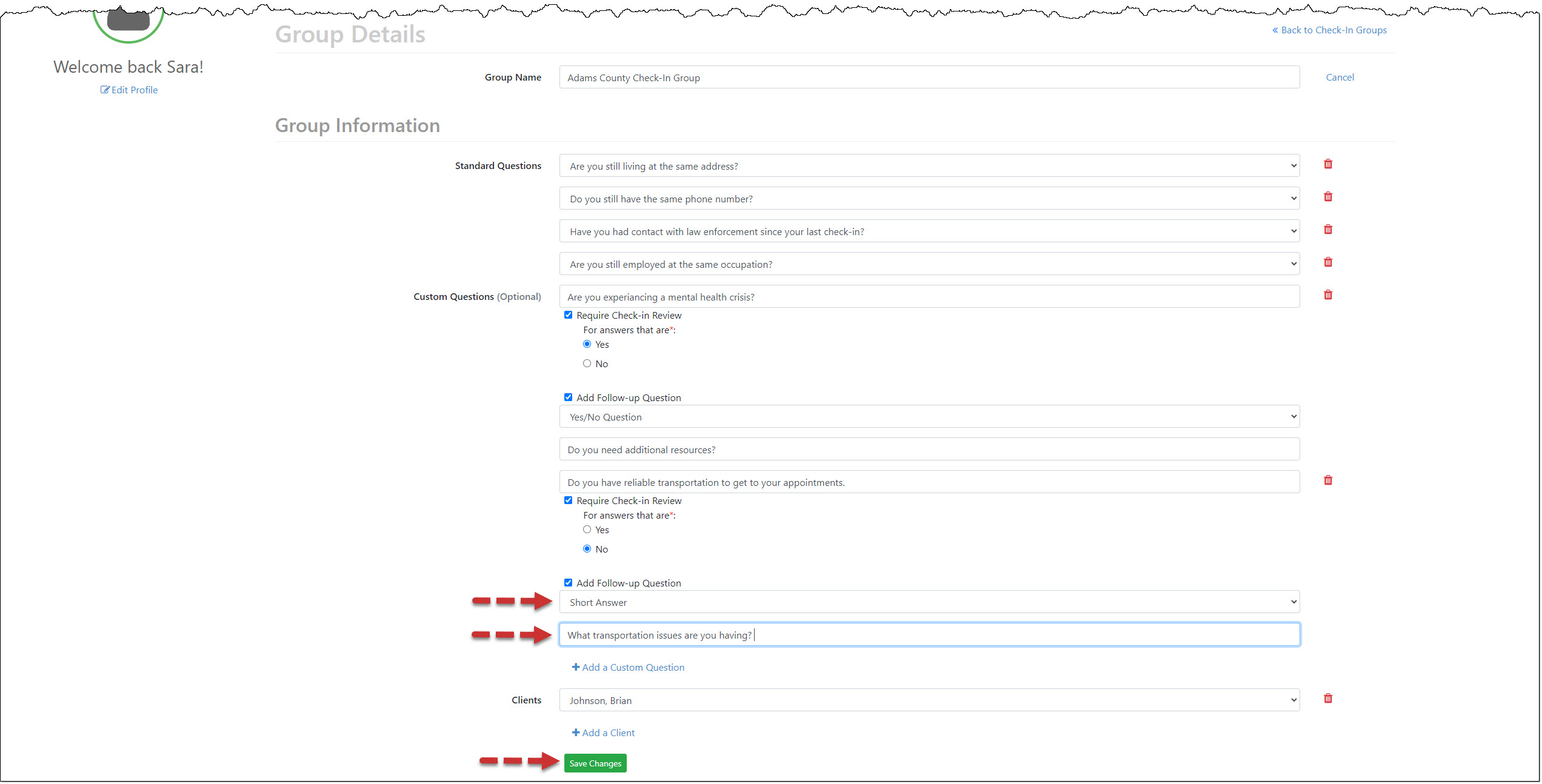
Open the dropdown menu and select the format for the client’s response as either Yes/No Question or Short Answer.
Enter your “follow-up question.”
After entering all required questions, select the Save Changes button.
Custom Question Add Follow-Up Details – click to enlarge
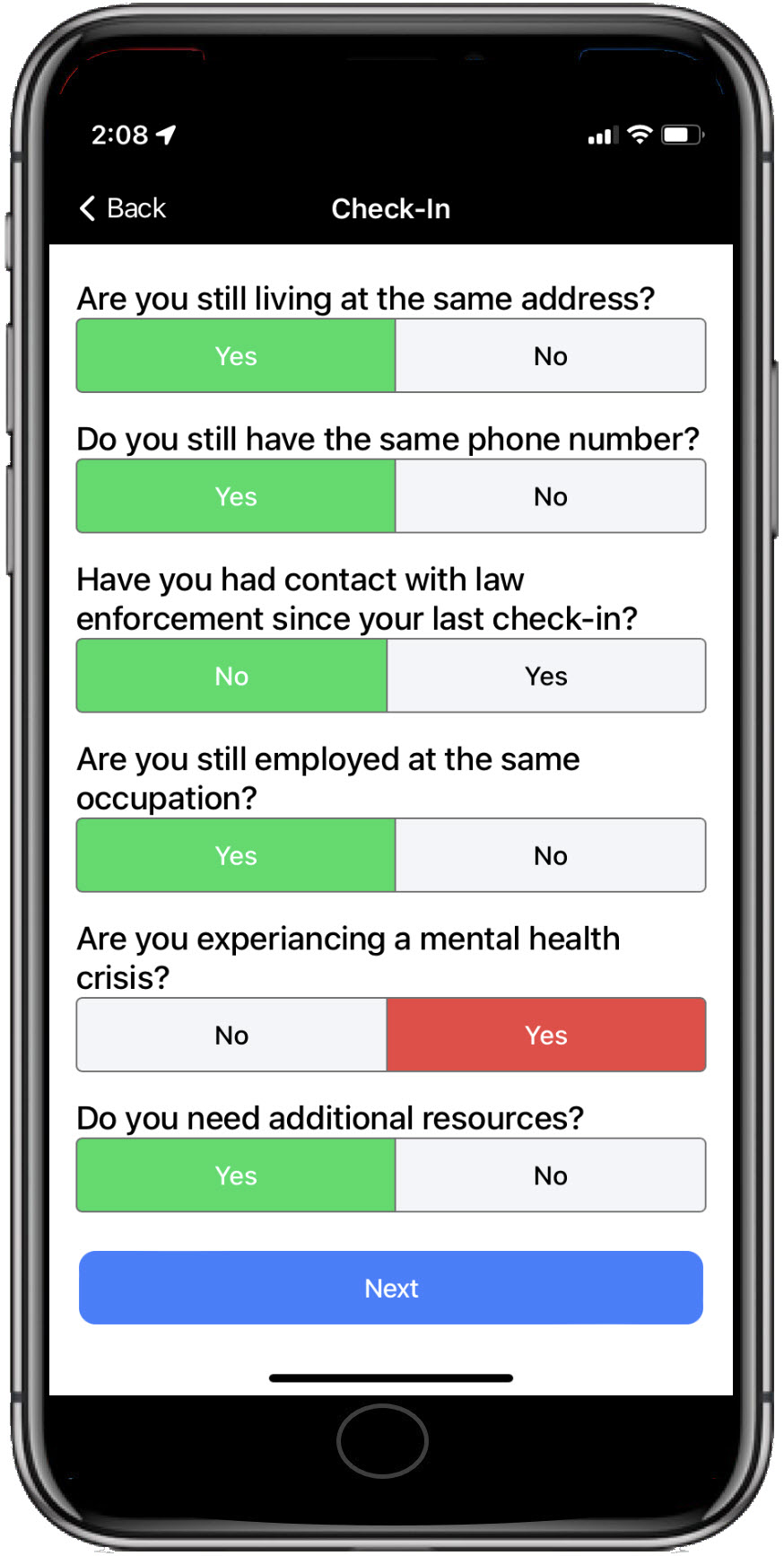
After the release and once the client has updated their application on their smartphone, when they respond to a customized question, based on their response, the follow-up question will populate on the screen.
SCRAM TouchPoint Mobile Application – click to enlargeSCRAM TouchPoint Mobile Application – click to enlarge
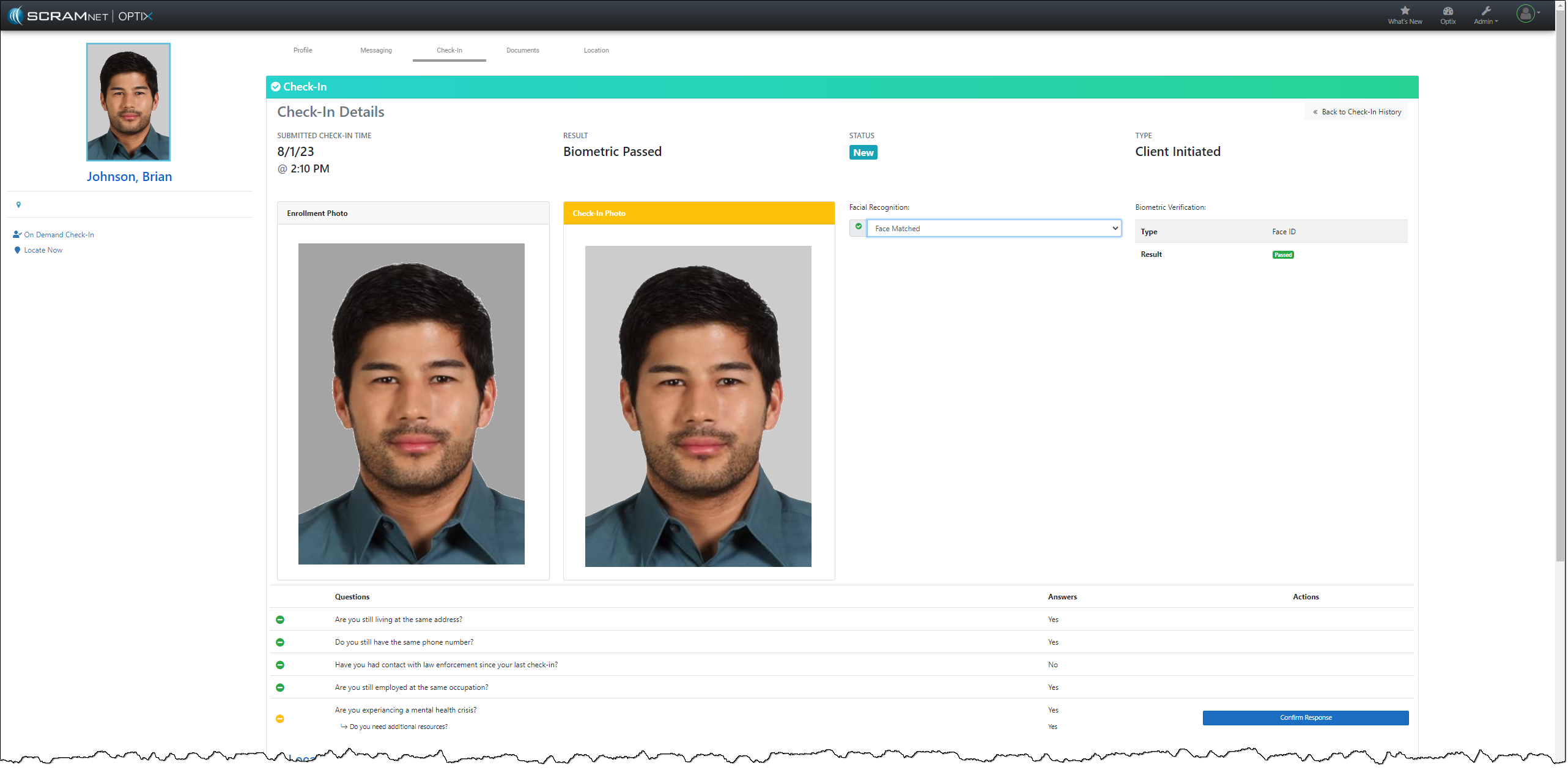
You may view the check-in results on the client Check-In History page.
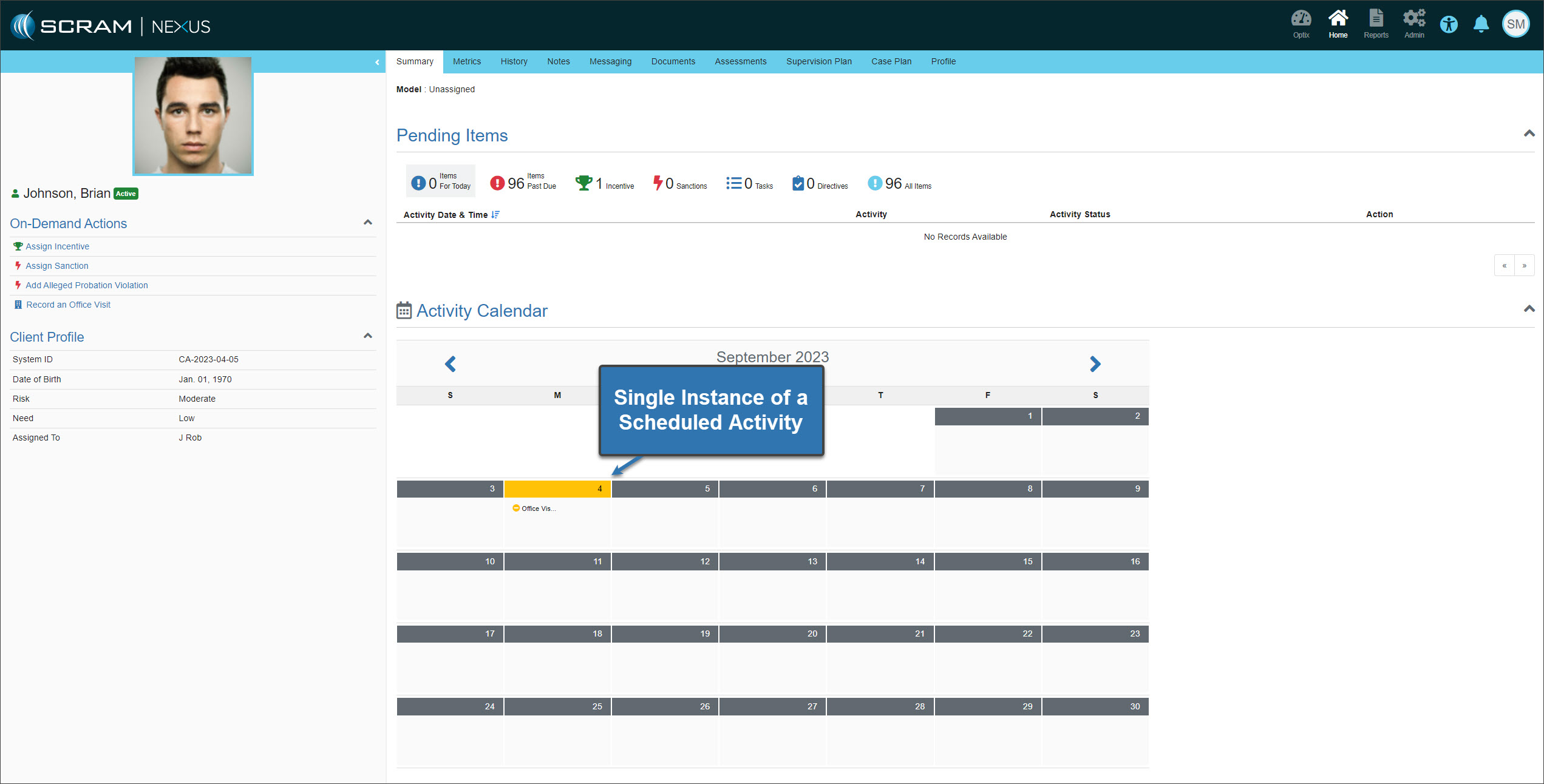
On August 31, 2023, SCRAM Systems will release an enhancement to how scheduled activities are displayed on the client’s Activity Calendar in SCRAM Nexus.
Not seeing the enhancement in Nexus? Clear your cache and cookies and refresh your browser window.
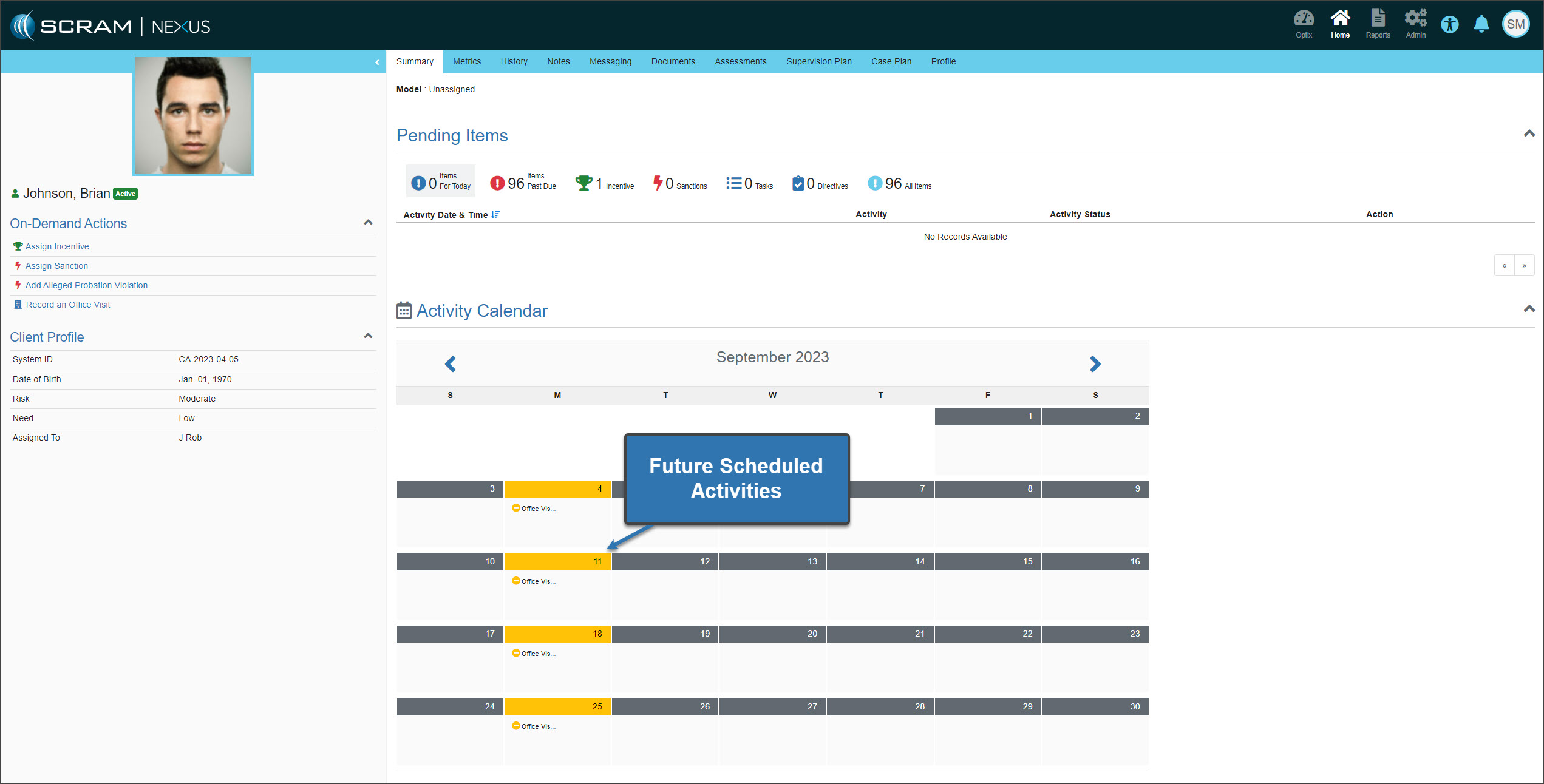
Currently, you may view only one instance of a scheduled activity on a client’s calendar. The next occurrence of the scheduled activity is not displayed until the current activity is recorded.
Client’s Activity Calendar – click to enlarge
With this enhancement, you may view future scheduled activities on the calendar as well.
Client’s Activity Calendar – click to enlarge
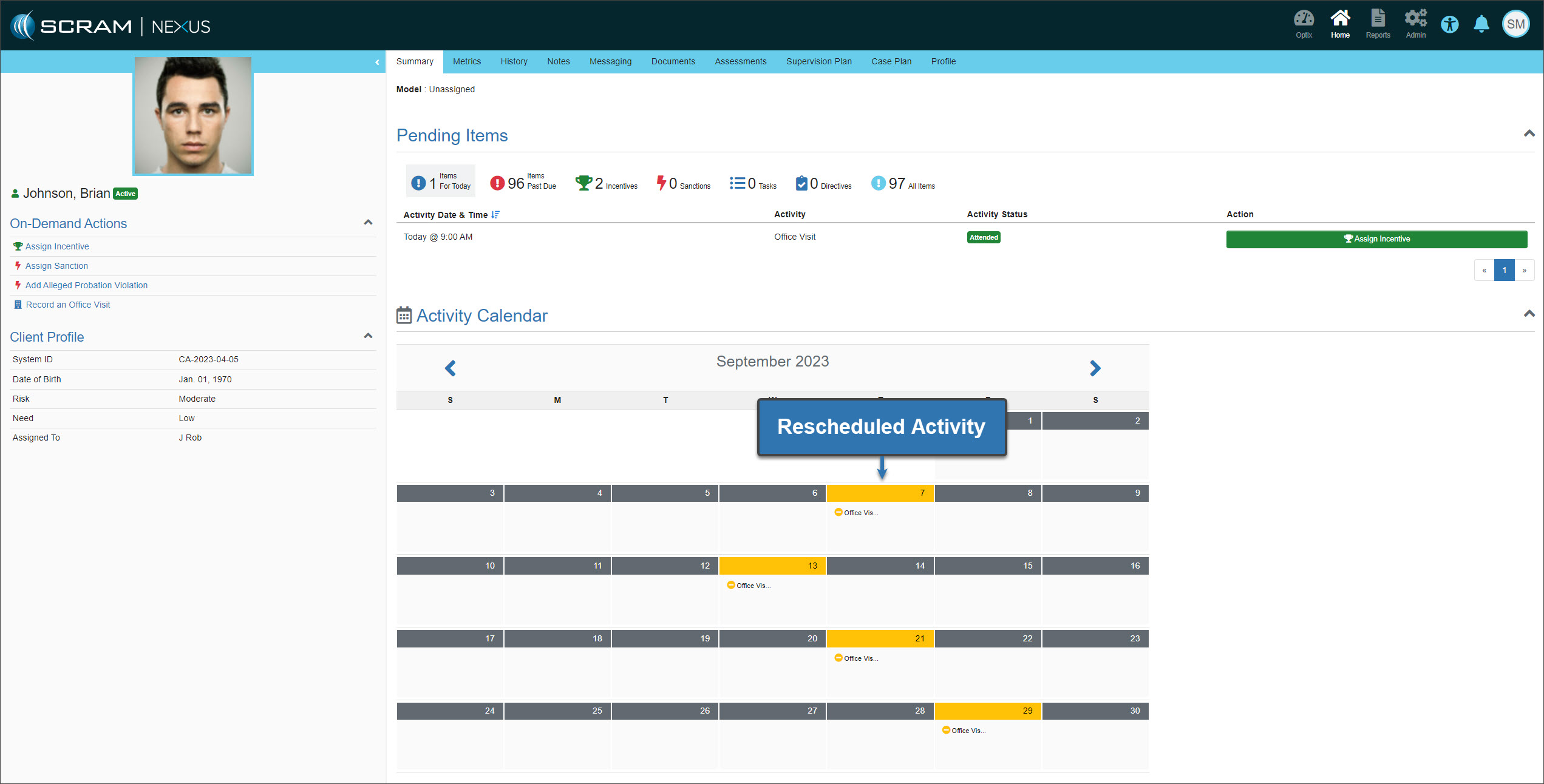
Reschedule a Scheduled Activity (Set Schedule or Set Frequency)
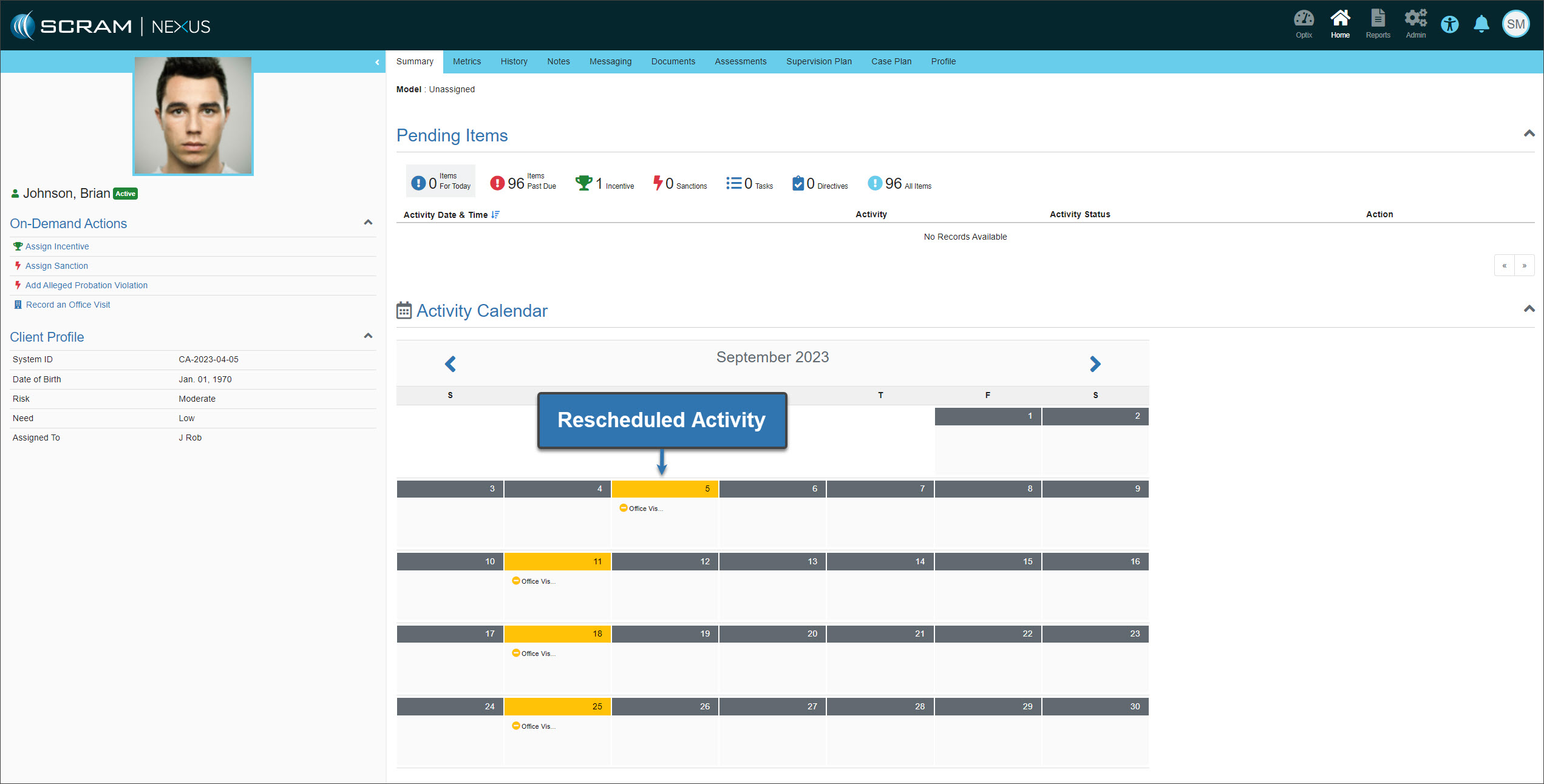
When you reschedule a scheduled activity, the calendar will only reflect that specific activity’s rescheduled date.
Client’s Activity Calendar – click to enlarge
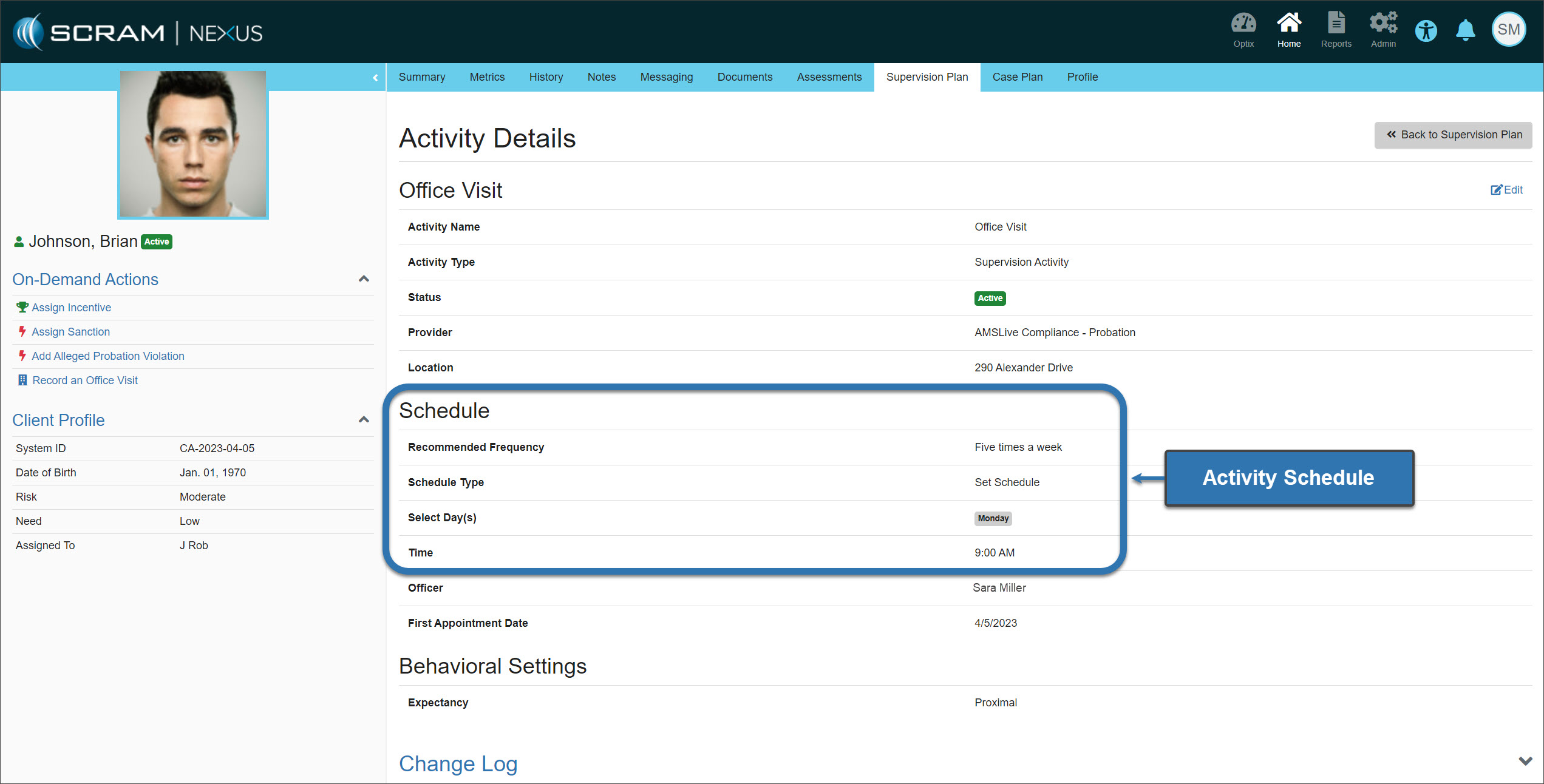
Future scheduled activities will reflect the frequency setup on the Supervision Plan’s Activity Details page.
Client’s Activity Details page – click to enlarge
Reschedule a Scheduled Activity (Set Interval)
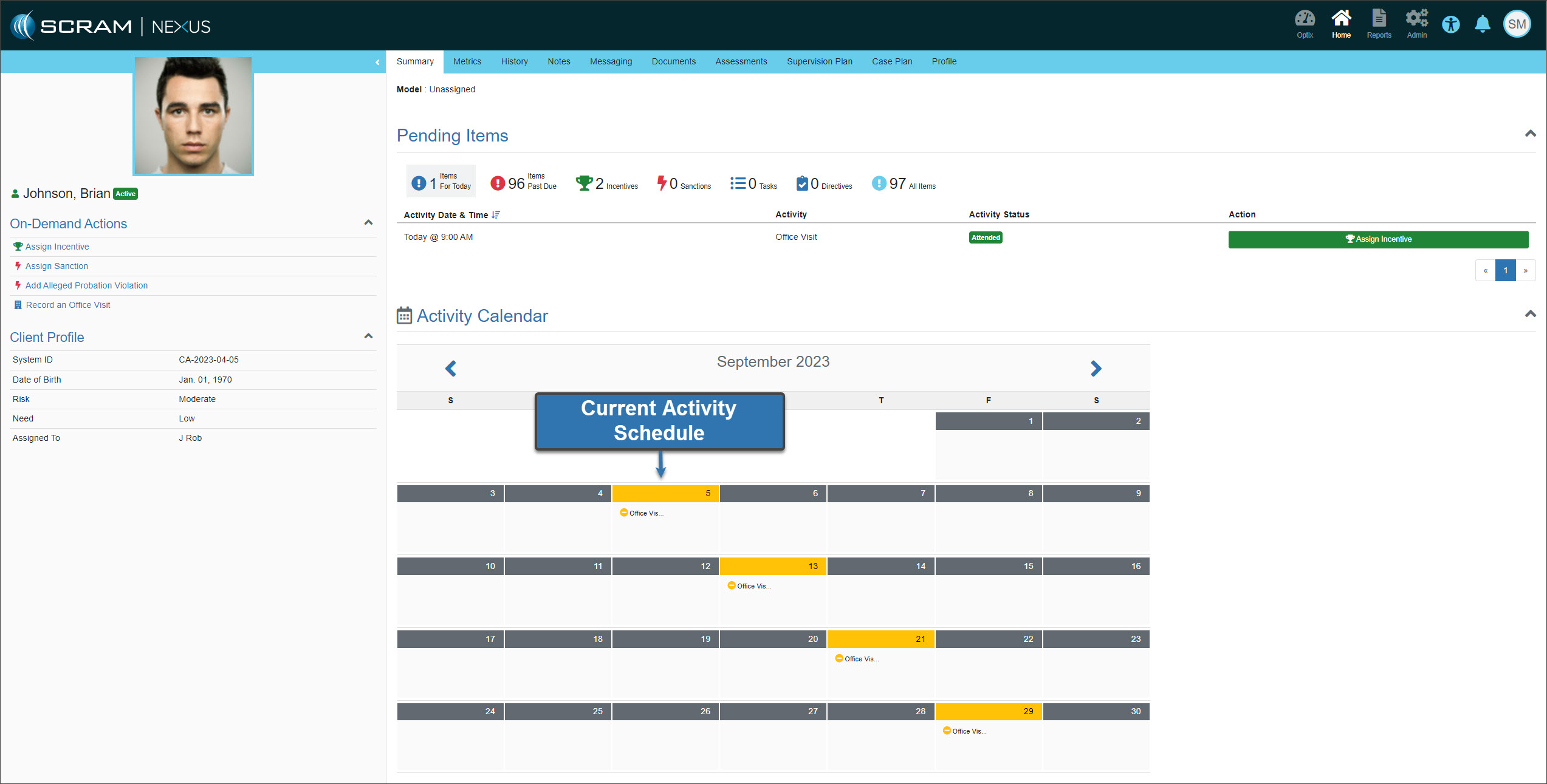
In cases where the frequency for the scheduled activity is a “Set Interval,” for example, once every eight (8) days, only the rescheduled activity will update on the Activity Calendar.
Client’s Activity Calendar – click to enlargeClient’s Activity Calendar – click to enlarge
Once the rescheduled activity is recorded, future scheduled activities on the calendar will be updated based on the frequency of the set interval.
When a client progresses to the next phase of a supervision plan, all past scheduled activities for the completed phase must be recorded before the future scheduled activities for the new phase are displayed on the calendar.