On, October 18, 2023, SCRAM Systems will release two enhancements to SCRAM Nexus.
Included in this release:
- You may now cancel future recurring appointments on the calendar for your client’s activities, directives, and tasks in Nexus.
- New SCRAM TouchPoint activity username requirement for your client’s supervision plan in Nexus. This enhancement enables you to create a unique username for the client to access the application instead of requiring an email address. This enhancement is helpful when a client’s supervision plan includes a restriction from using email or accessing the internet.
 |
|
Cancel Future Appointments
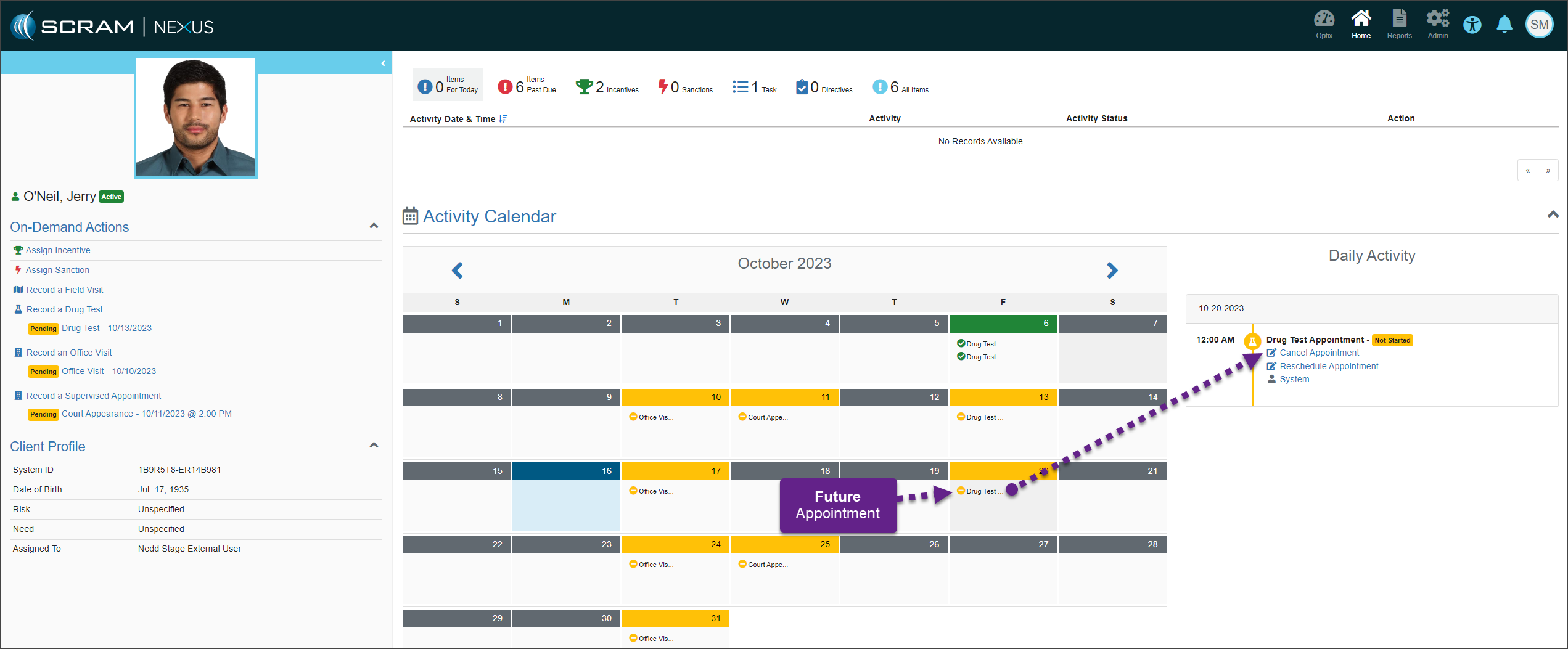
Select the appointment on the client’s Activity Calendar you wish to cancel and then select the Cancel Appointment hyperlink.
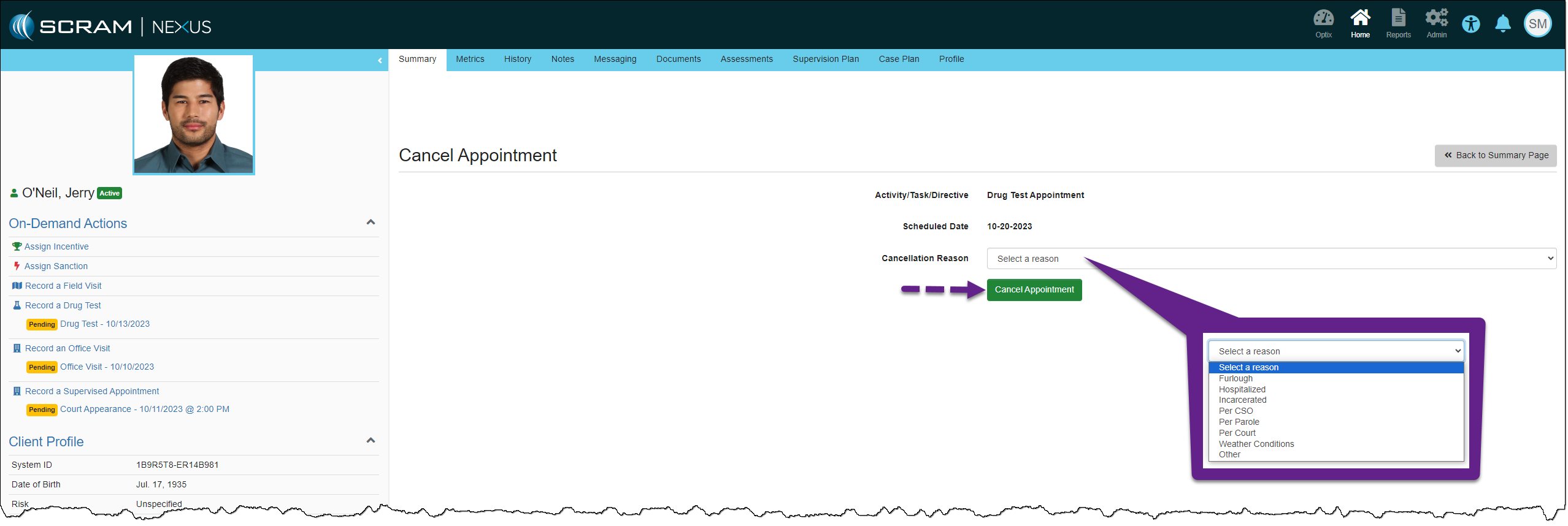
Select the Cancellation Reason and then the Cancel Appointment button.
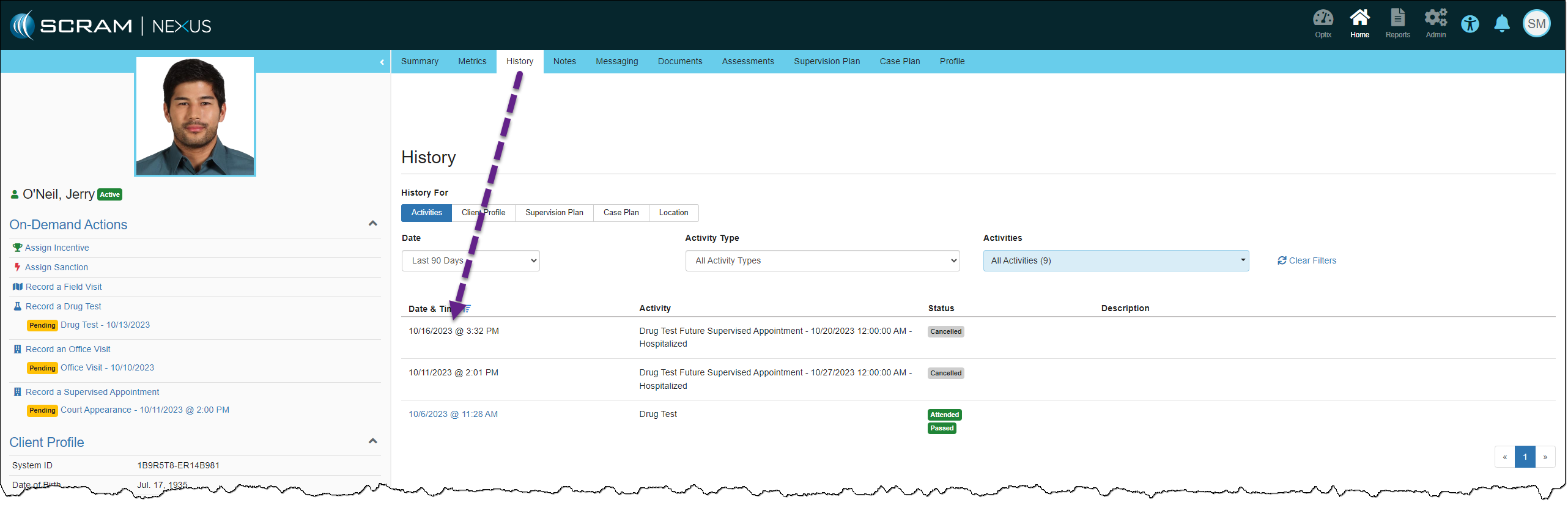
The client’s History page will record the canceled appointment.
| A single occurrence, day-of, and past calendar appointments are managed using the current process of rescheduling or making the appointment as excused or unexcused. |
Add TouchPoint Activity
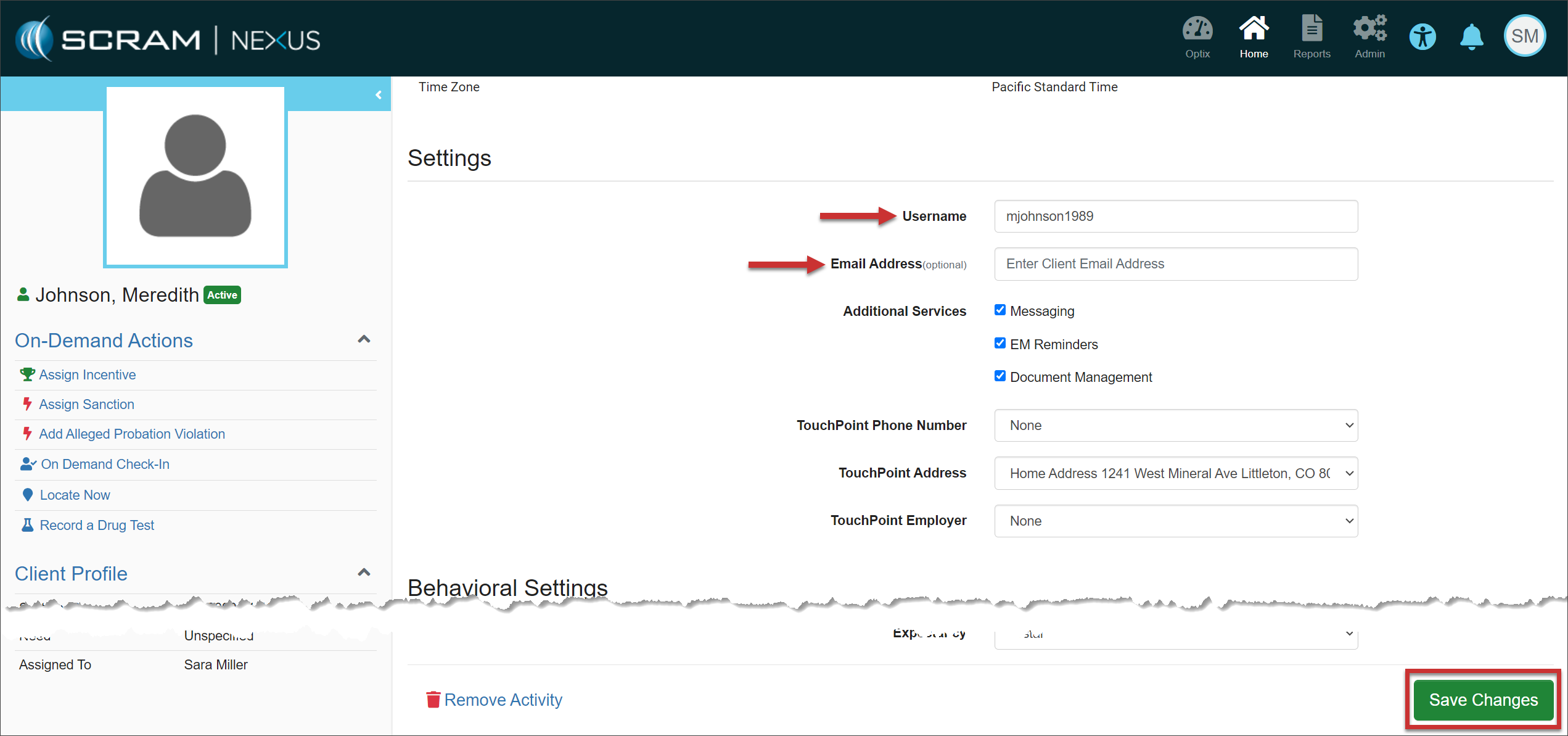
When adding the TouchPoint activity to your clients, you will enter the Username the client will use to log into the application on their smartphone. Their Username must be unique.
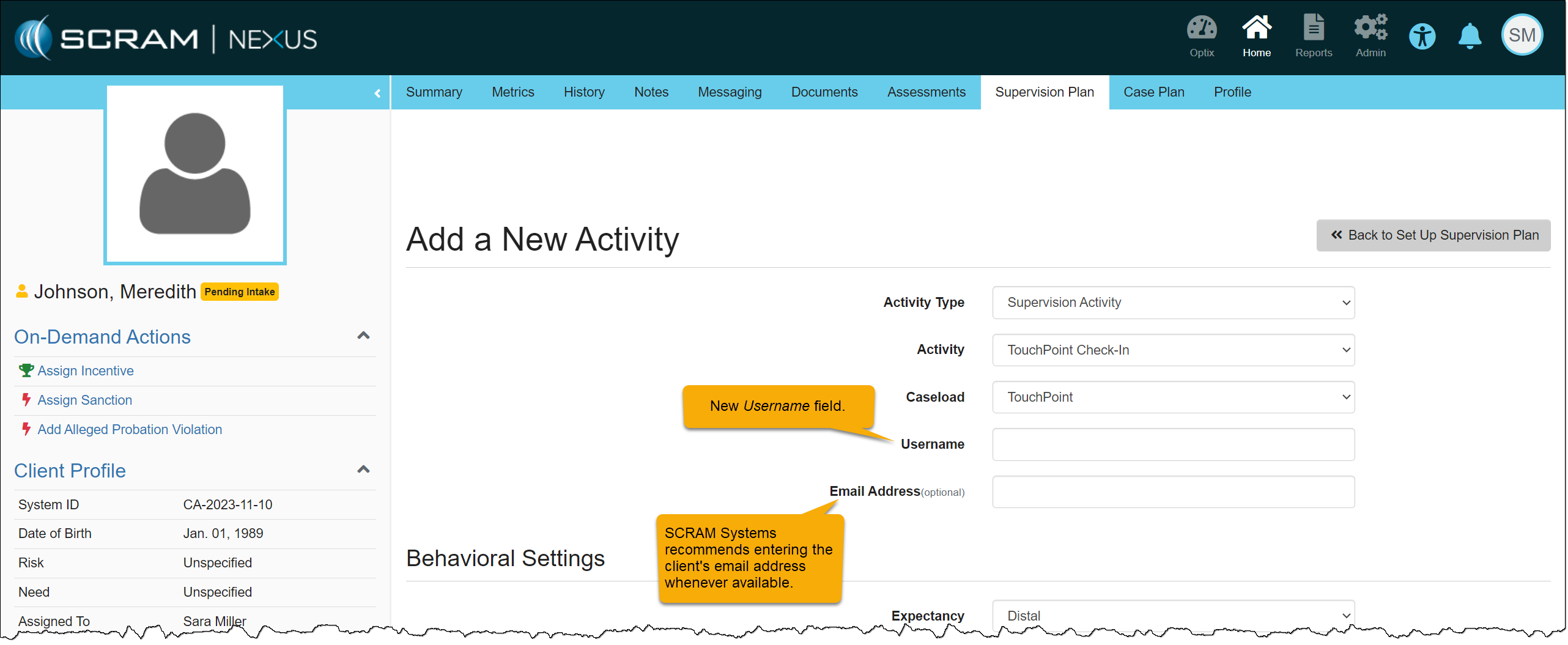
| SCRAM Systems recommends entering the client’s email address in the Email Address (optional) field whenever possible. This will ensure the client may complete a password reset independently within the TouchPoint application when needed. |
Current TouchPoint Activity
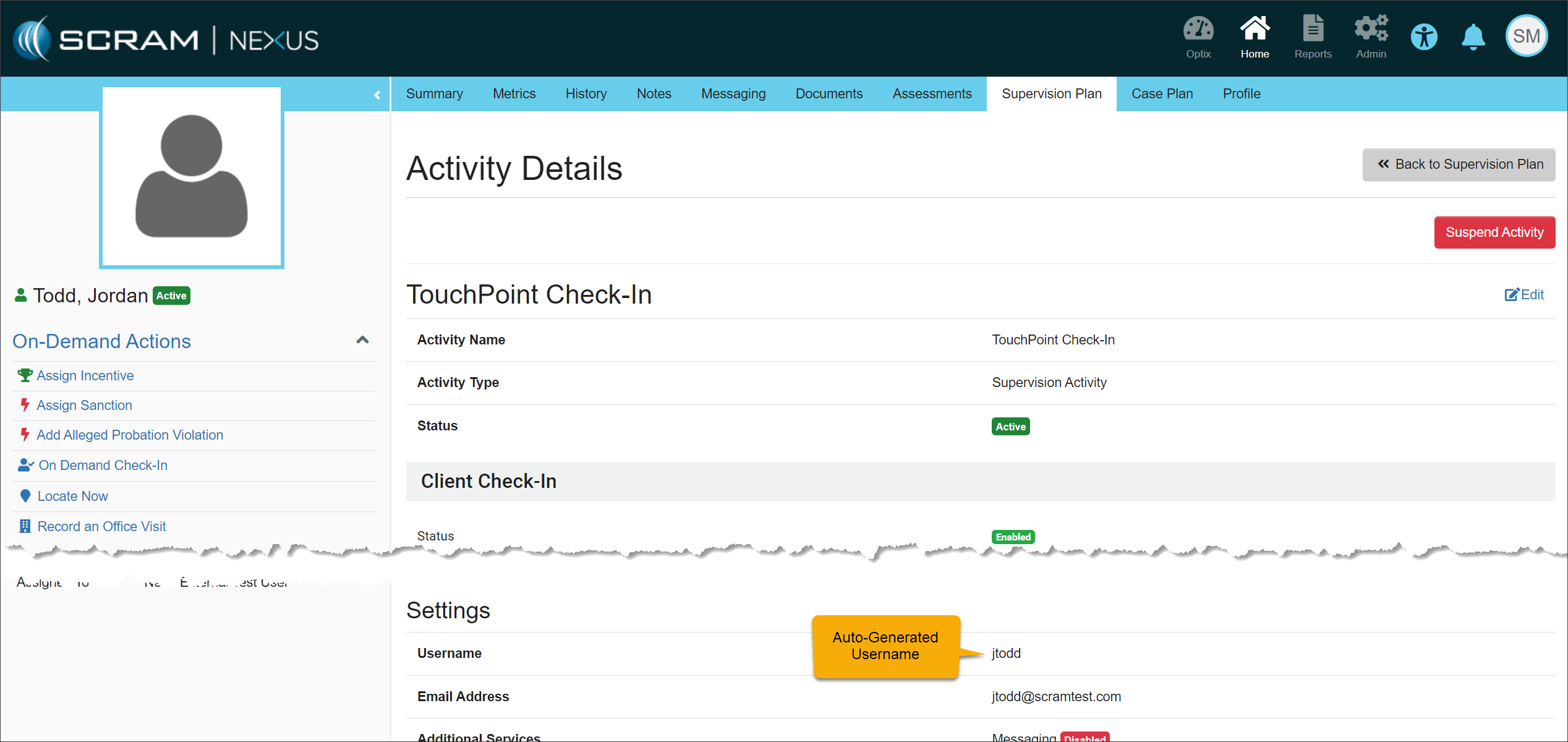
You do not need to take any actions for clients currently active with a TouchPoint activity. Your clients may continue to log in using their email addresses. In the system, you will notice that SCRAM Systems has auto-generated the username field for each TouchPoint activity client.
Edit Username and Email Address
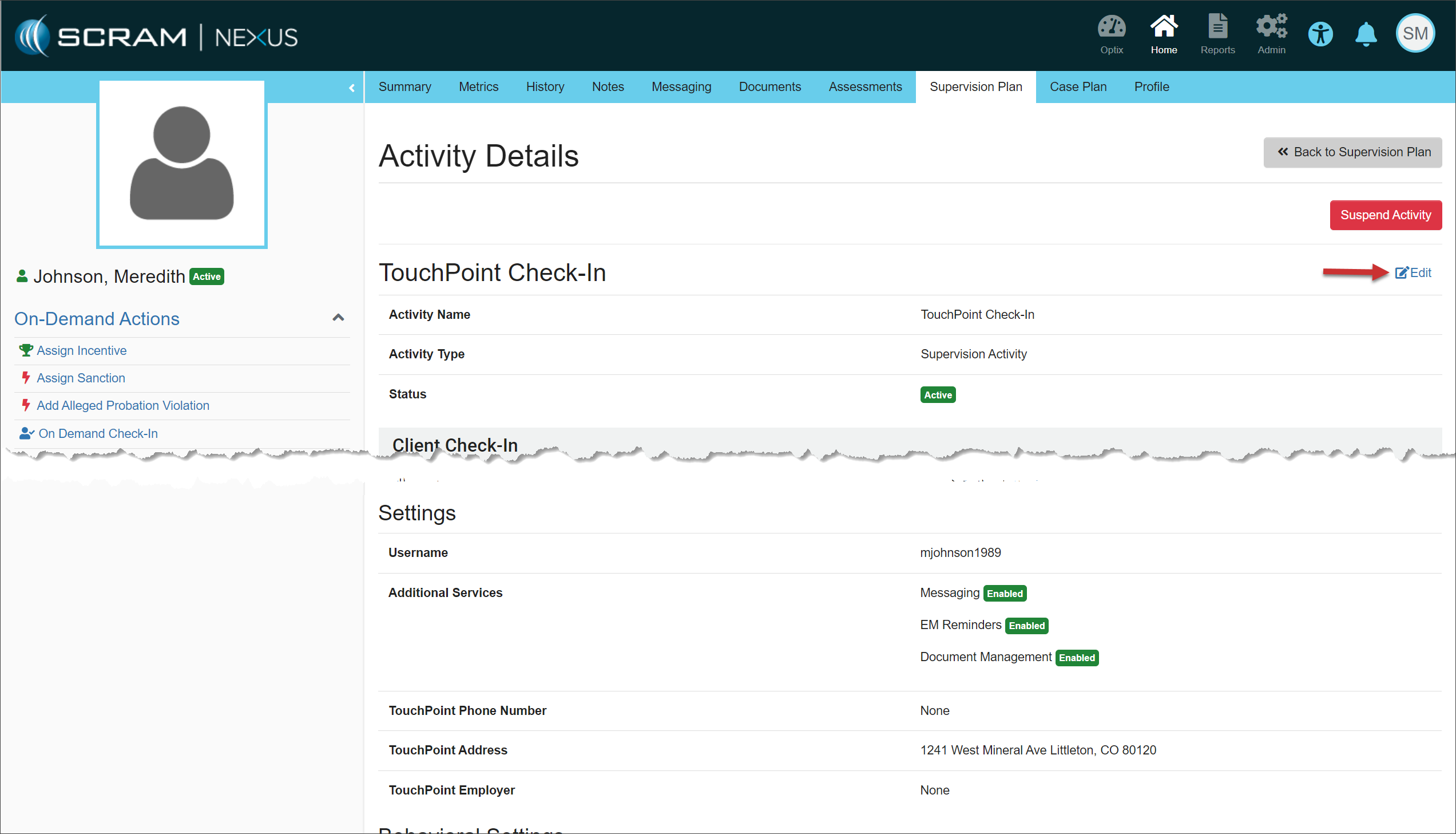
You may update the Username or Email Address field if needed by selecting the Edit hyperlink.
TouchPoint Application Password Reset
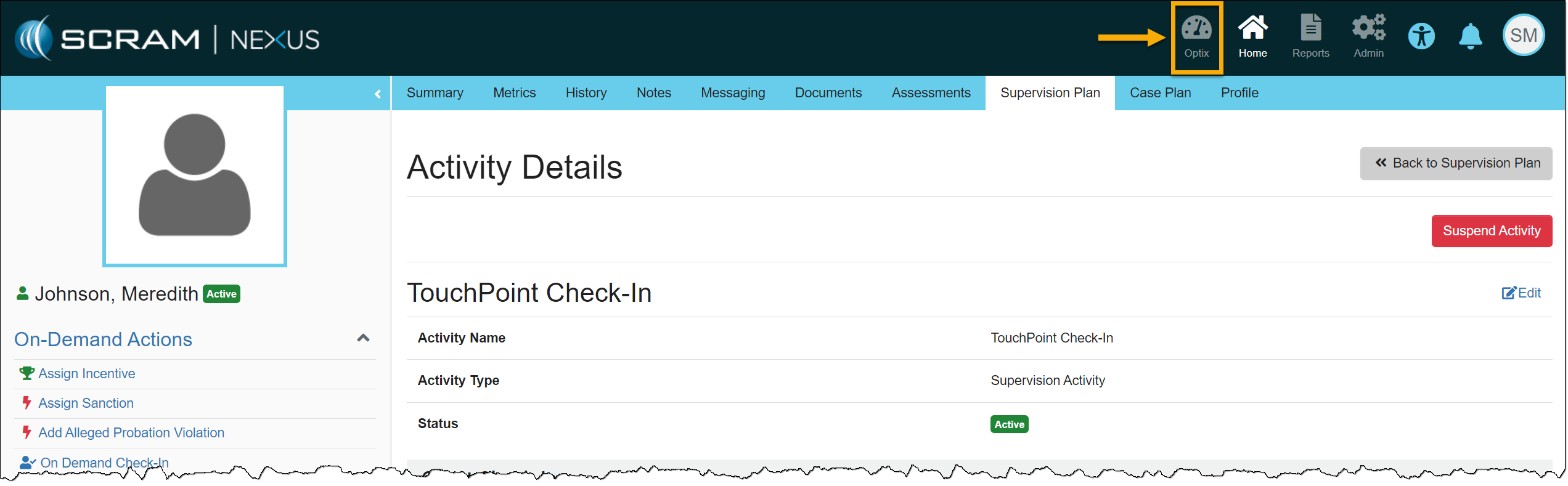
When an email is not listed for the client in the Email Address (optional) field, the client is instructed to contact the supervising authority when a password reset is needed. As the supervising authority, you must access the client’s Optix TouchPoint profile and create a new password for the client to use.
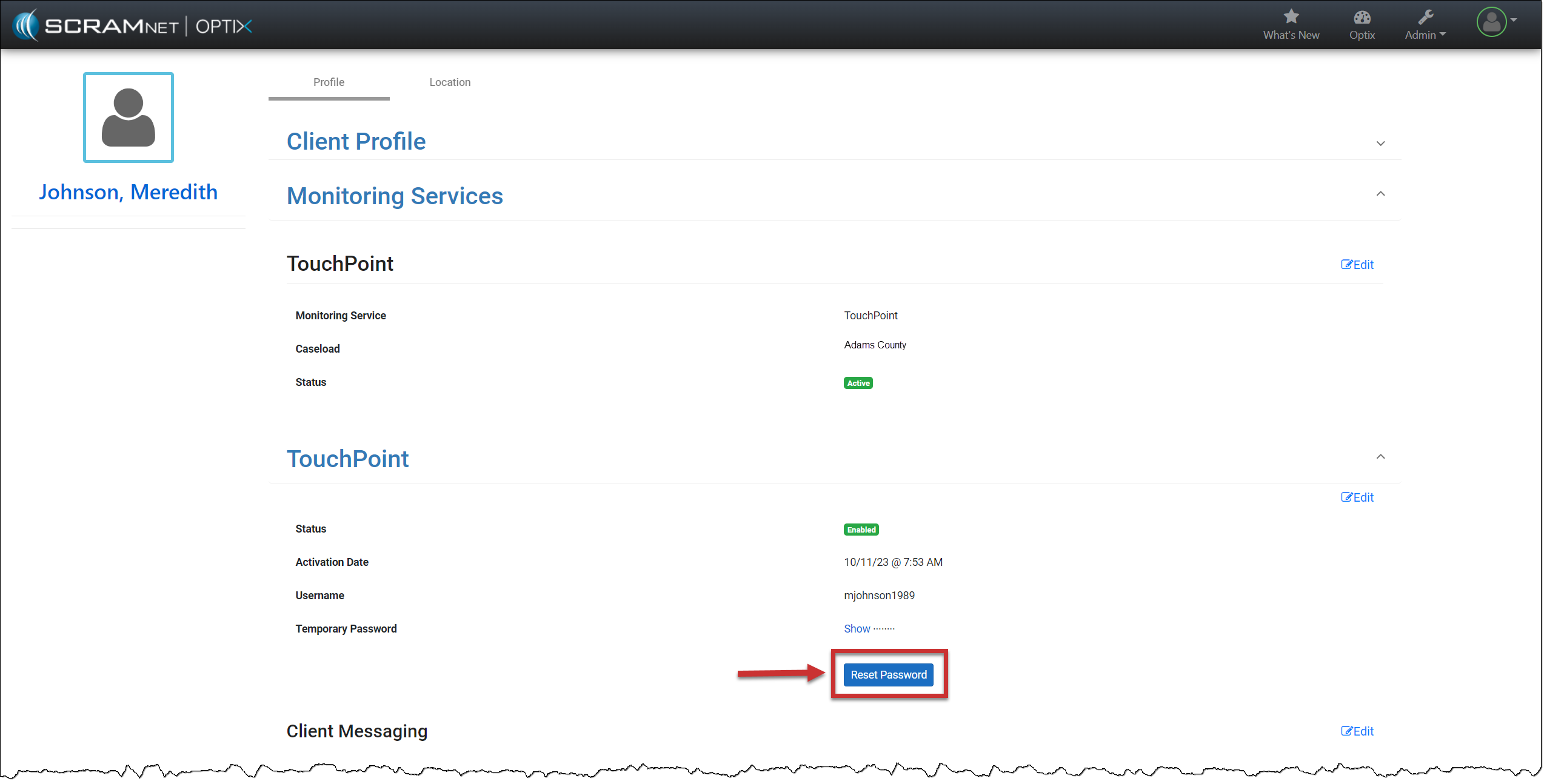
When creating a new password for the client, the password must be at least eight (8) characters. The password must contain at least one upper-case and one lower-case letter and include either a number (1,2,3, etc.) or a special symbol (~!@#$, etc.).