SCRAM Systems® is committed to providing a website that
is accessible to the widest possible audience, regardless of circumstance
and ability.
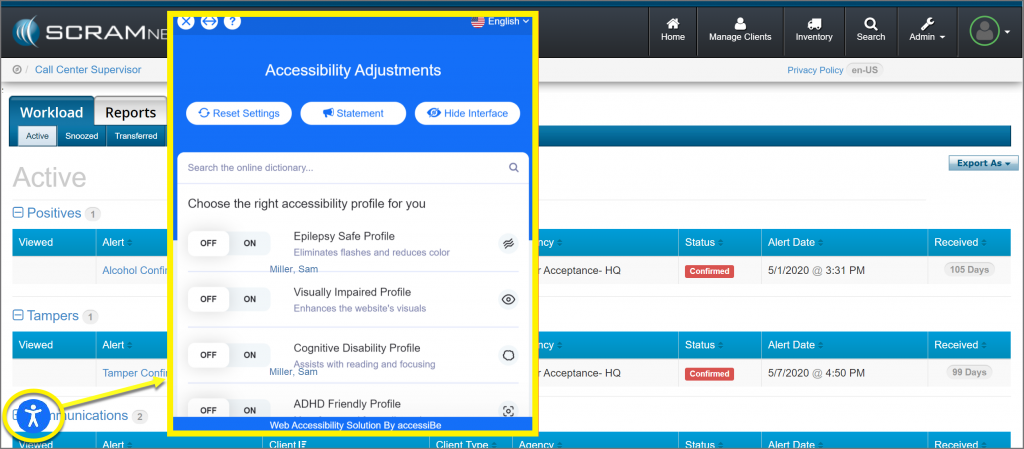
As our first step, SCRAM has added an Accessibility icon to the bottom left side of your screen in SCRAMNET®.
Select the Accessibility icon to view the Accessibility Adjustments menu. From here, select the appropriate Accessibility options to customize SCRAMNET to make it easier for you to use.
Remove the Accessibility Icon
To remove the icon from view, simply click on the icon and select the Hide Interface button. You will be prompted to Accept responsibility for hiding the interface. Once accepted, the screen will refresh and the icon will no longer appear. If you clear your internet browser’s browsing history, temporary files (cache), and cookies, then the Accessibility icon will reappear.
Feedback
As always, please feel free to contact SCRAM Systems Customer Services at 1-303-785-7879 with any recommendations for system improvements.
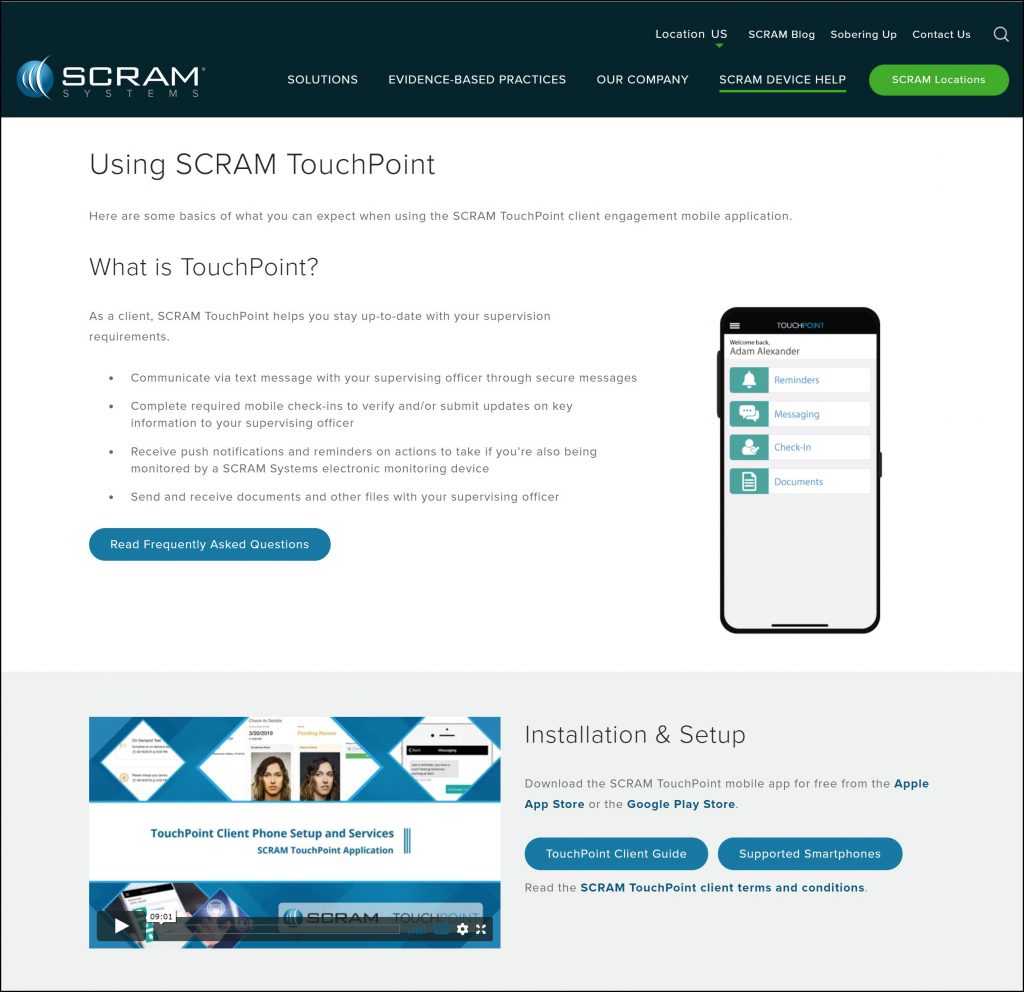
Confidently refer your SCRAM TouchPoint™ clients to the Using SCRAM TouchPoint page on scramsystems.com. This page provides clients access to frequently asked questions, the TouchPoint Client Phone Setup and Services video, a printable client guide, and the latest supported smartphone information. The information provided will guide your client through the SCRAM TouchPoint app setup process, how to use the SCRAM TouchPoint features available, and steps to take when troubleshooting common issues.
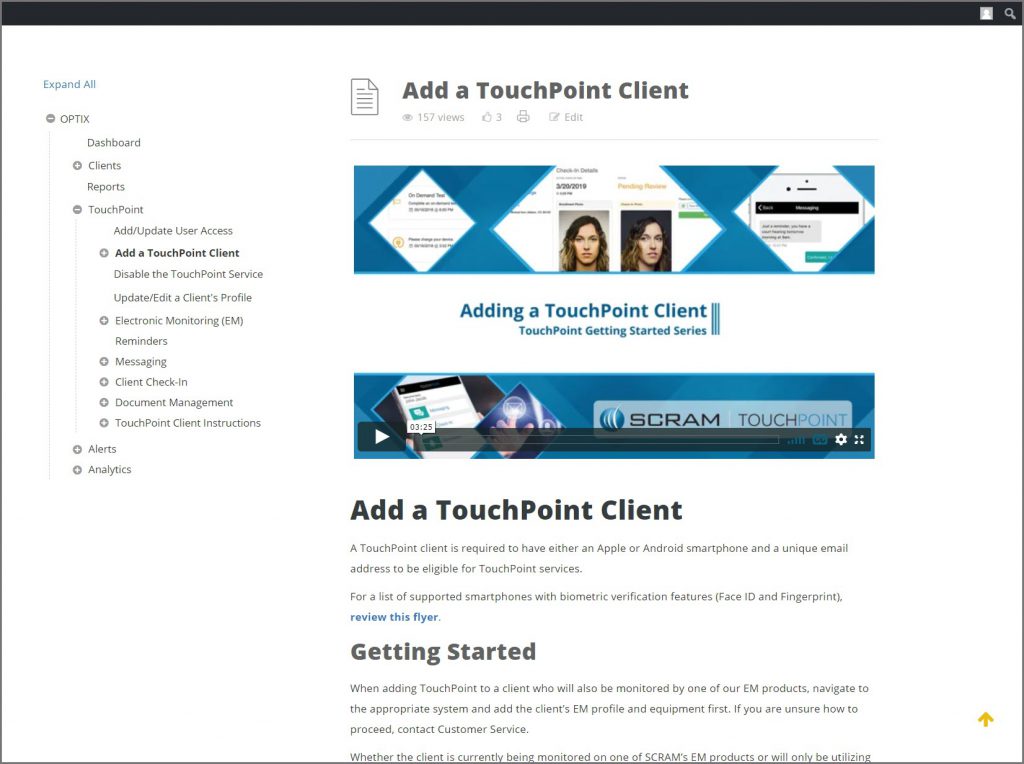
Find additional TouchPoint documentation and instructional videos on the Optix Help page.
Effective July 23, 2020, SCRAM Optix™ and the SCRAM TouchPoint™ app will be updated to enhance the Documents service and improve the client enrollment process. These enhancements will improve usability and management of your TouchPoint caseload.
The enhancements for this release include:
New SCRAM TouchPoint Client Temporary Password
A new client will be able to access the SCRAM TouchPoint App using their email address and an auto-generated temporary password.
The SCRAM TouchPoint Documents Service
Send a document or image directly to the client’s SCRAM TouchPoint app from the system.
New features on the Documents page designed to improve management of documents and images.
The SCRAM TouchPoint Client App
The Received tab on the Documents Capture screen within the TouchPoint app, will display all documents or images shared with the client.
The Client can view and print the document or image from the app.
Let’s
look at the individual updates.
New Temporary Password
After adding a new
TouchPoint client’s profile to the system, the client’s Profile page in SCRAM
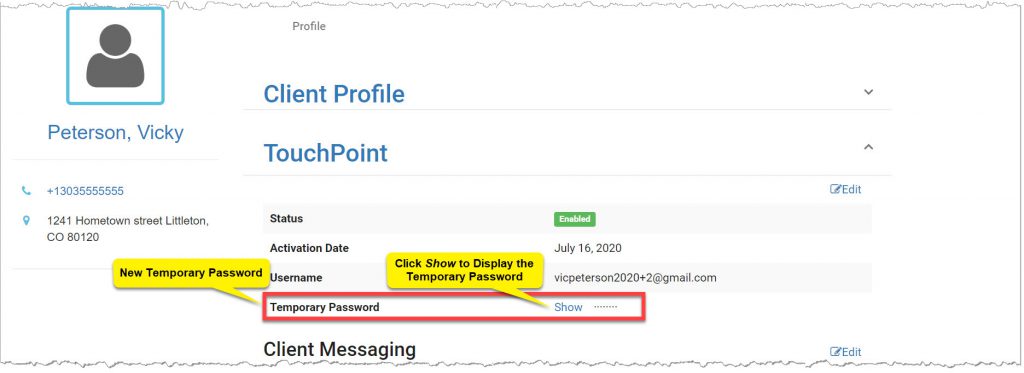
Optix will now display an auto generated temporary password for the client. Using
the temporary password, the process of walking the client through the app setup
and initial login will run more smoothly, without any delay due to a lag in the
delivery of the Reset Password email.
By default, the temporary
password is hidden from view. To view the temporary password, select the Show
link.
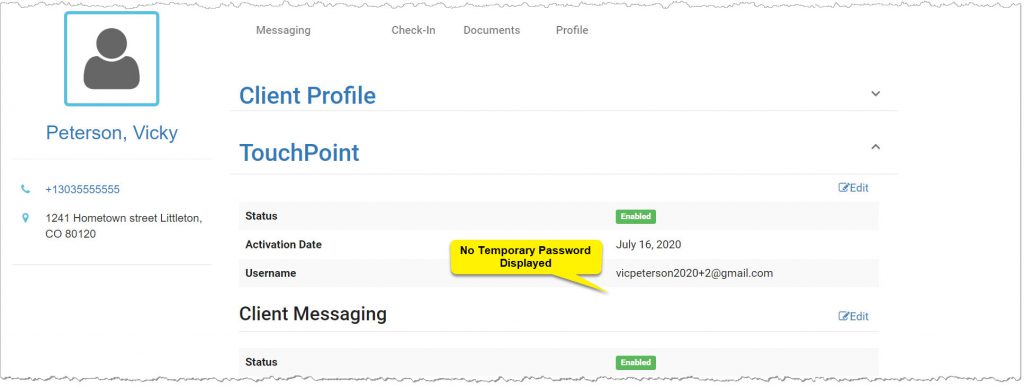
After the client has logged
into the application for the first time, the temporary password will no longer
be displayed on the page.
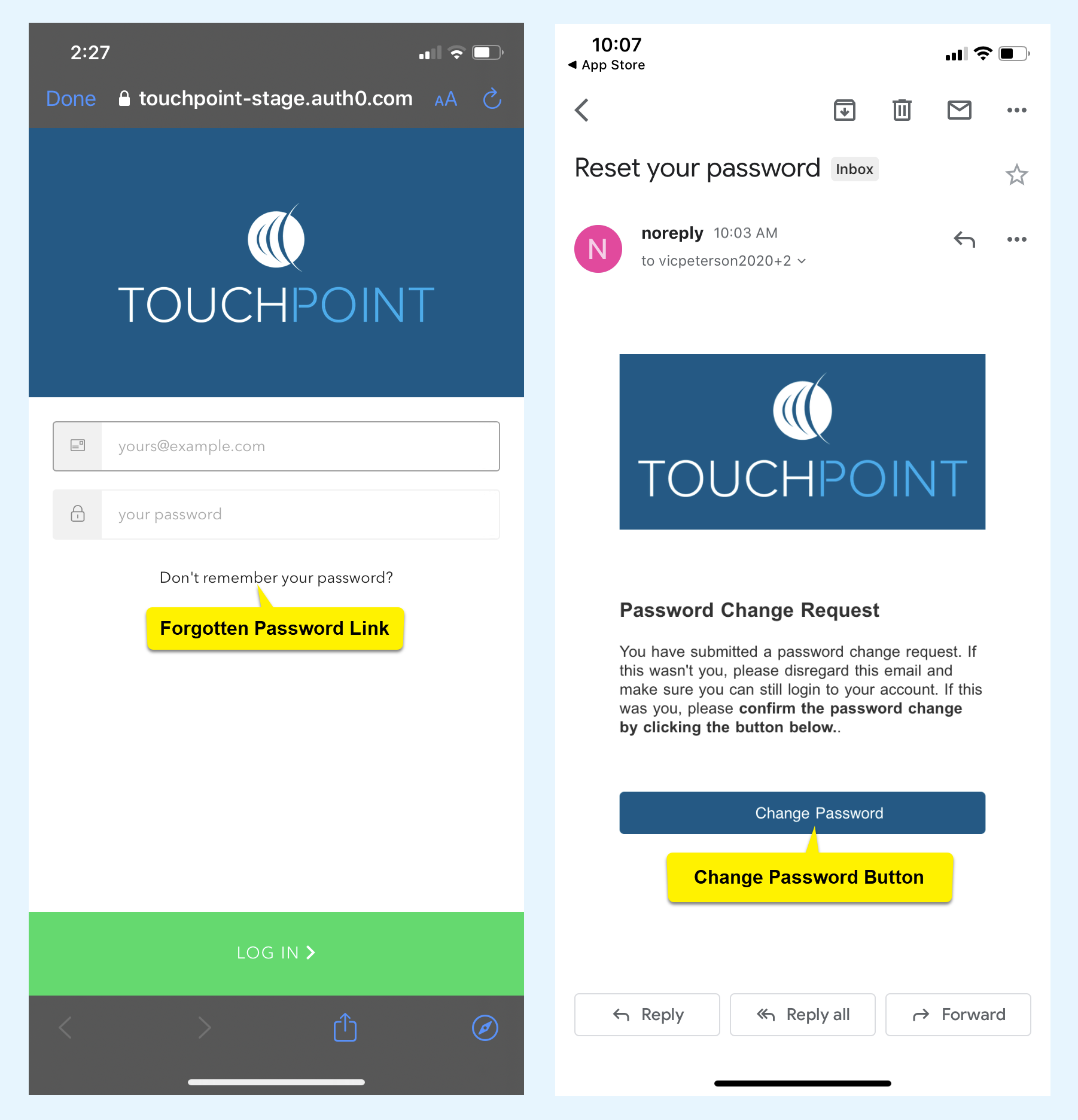
After the initial login and client
orientation, have the client select the forgotten password link on the app’s
home screen and create a new secure password to access the app moving forward.
TouchPoint Documents Service Updates
On the Documents tab for your
client, new functionality is now available for improved management of the images
received by the client. Additionally, you can now share a document or image
with your client.
Sending a Document
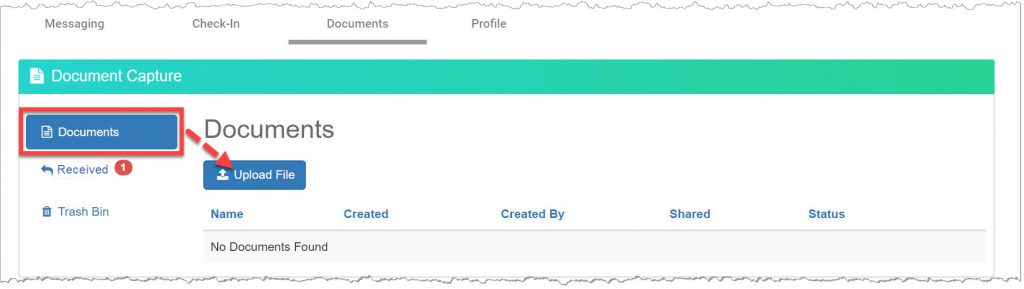
On the Documents tab, select
the Documents button. There are two steps to follow when sharing a document or
image with your client.
Step One: Upload the Document or Image
Start by selecting the Upload File button.
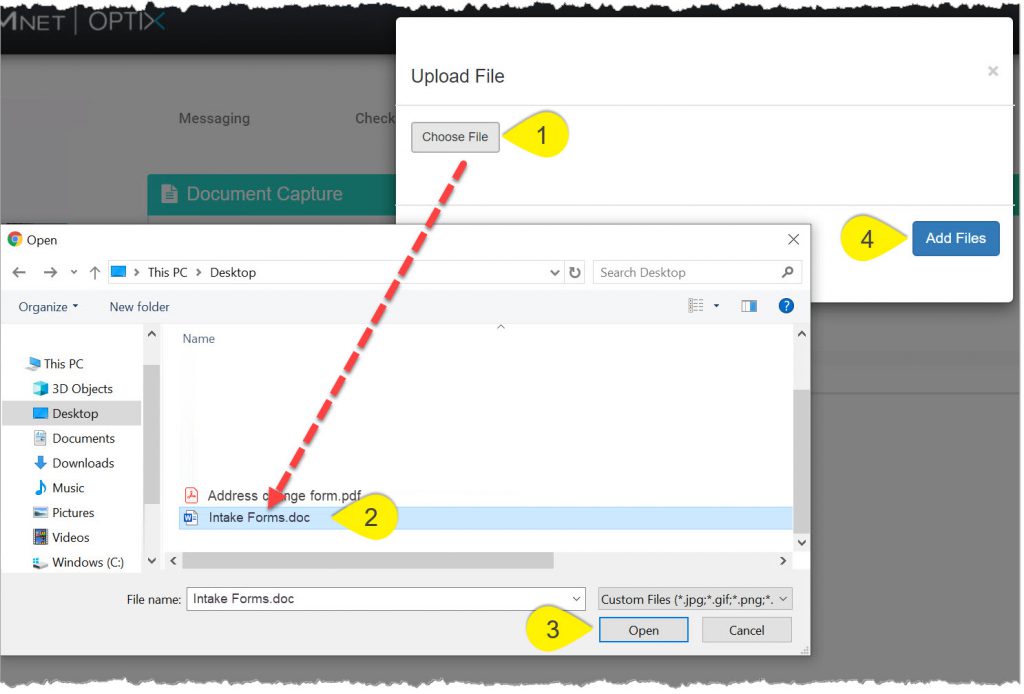
On the Upload File pop-up, select the Choose File button.
Select the file to upload. The selected file name will display in the File Name field. Supported file types include:
.pdf
.doc
.docx
.png
.jpeg
.gif
Select the Open button. The select file will display on the Upload File pop-up.
Click the Add Files button.
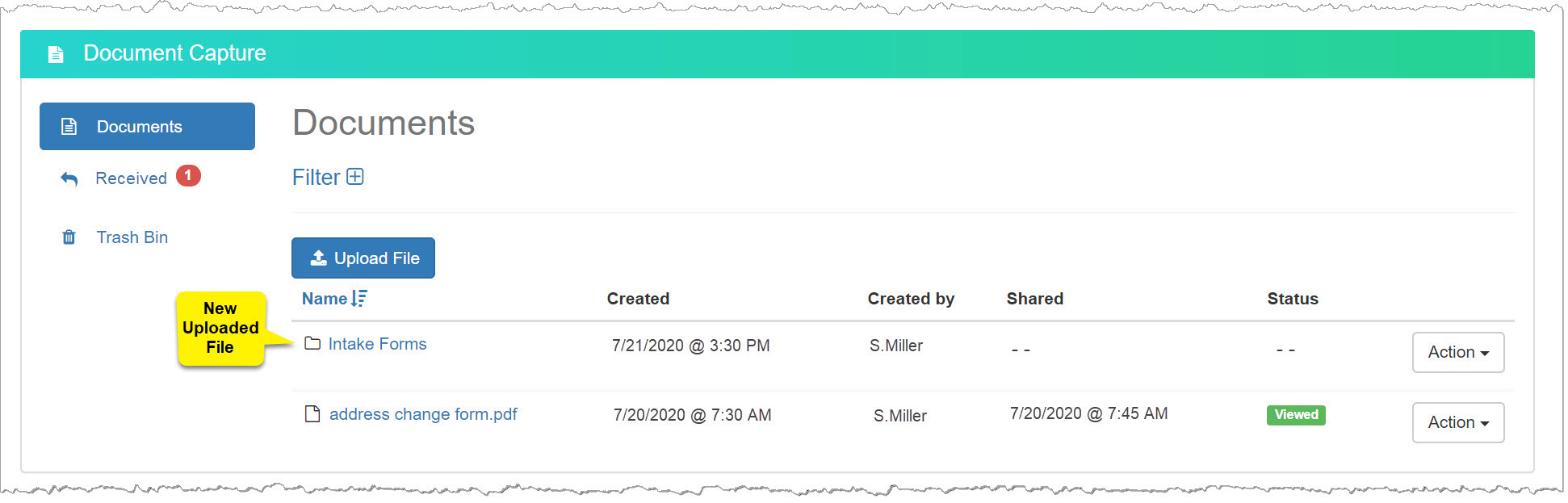
The document is now displayed
on the Documents page.
Step Two: Share the Document
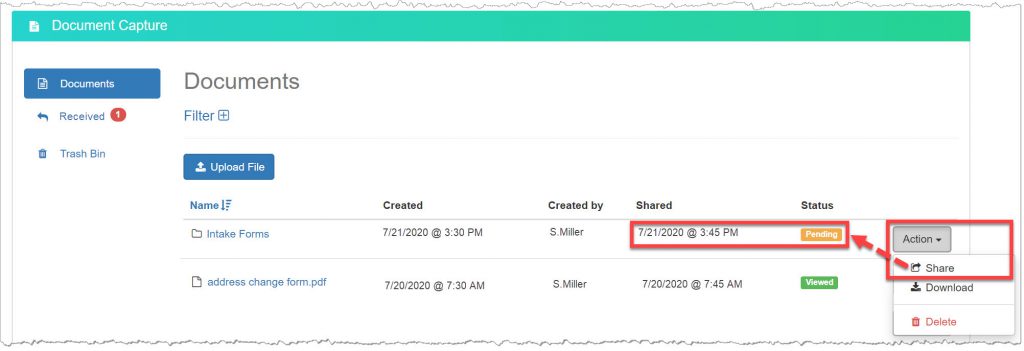
From the Action drop-down menu to the right of the document to be shared with the client, select the Share option
The Shared column for that document will now display a date and time stamp. Once the client has viewed the document in the TouchPoint app, the status will update from Pending to Viewed.
Other actions that can be
completed for each file uploaded to the system includes,
Downloading the document.
Deleting the document.
Received Page
Updates to the Received page
include,
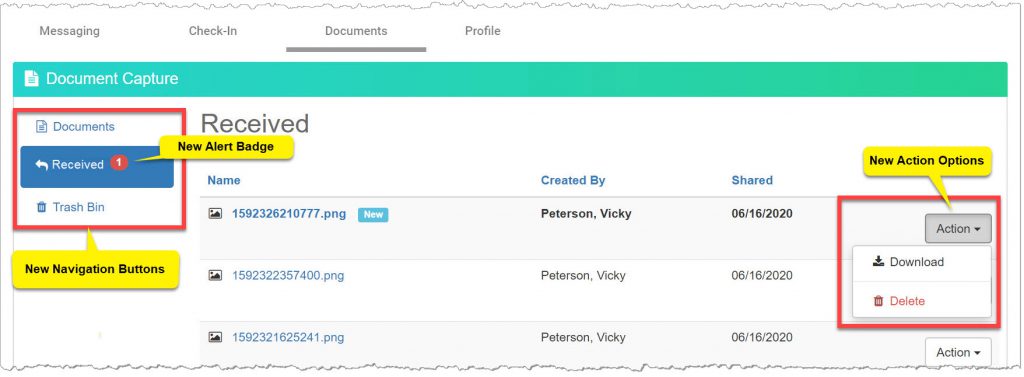
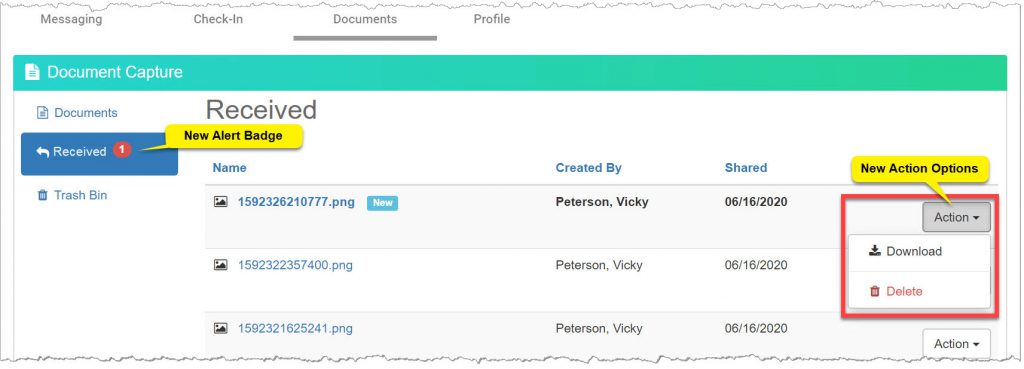
A red badge icon on the Received button indicating a new image has been shared from the client’s app.
An Action menu located to the right of each image provides options to Download or Delete an image.
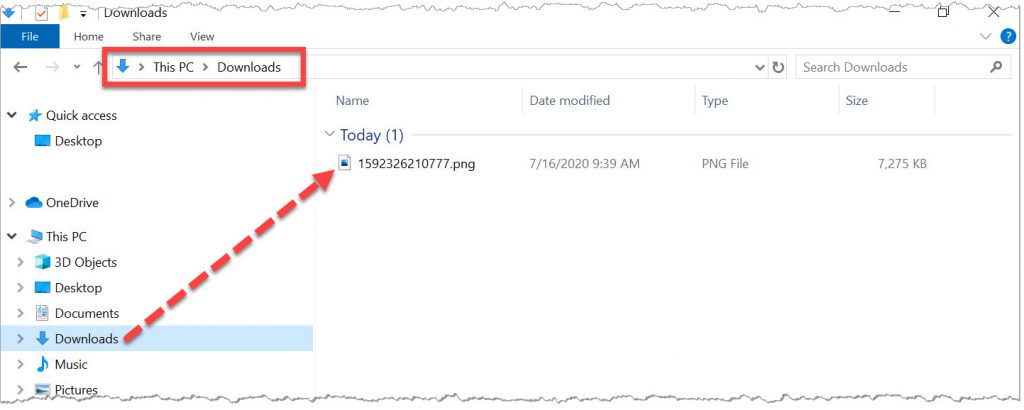
When utilizing the Download option, the downloaded image can be found in your computer’s Downloads folder. For assistance locating the downloaded image, contact Customer Service.
Trash Bin
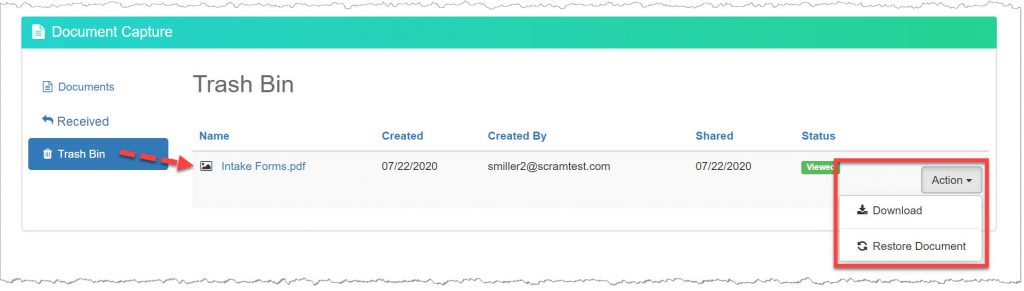
The Trash Bin page displays
all images and documents deleted from either the Documents page or the Received
page. The Action menu to the right of each image allows you to restore
or download the image or document from the system.
Deleting a shared document or image from the system, does not delete the document or image from the client’s Documents tile in the TouchPoint app.
TouchPoint Client App Update
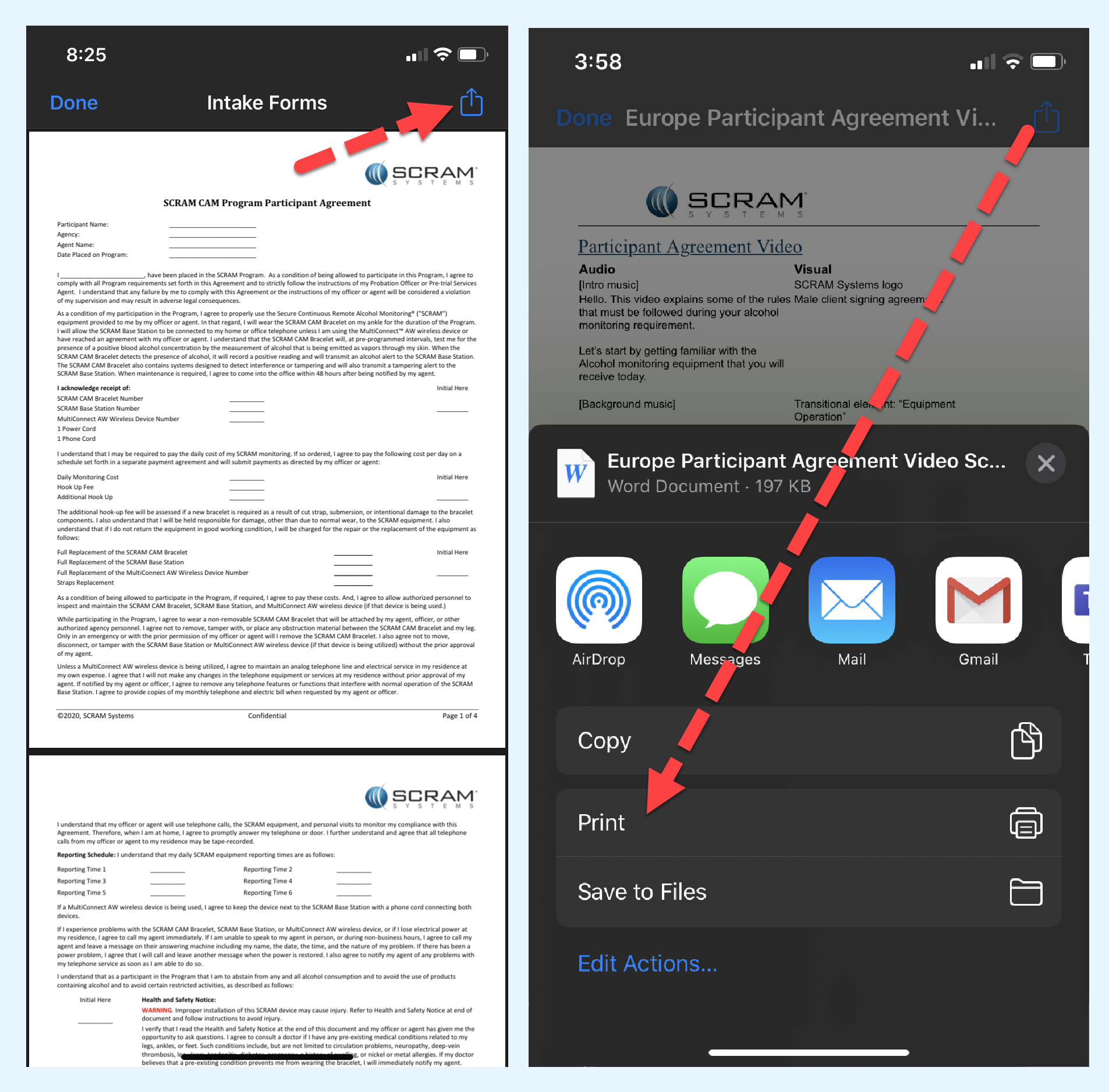
Once a new document has been
shared with the client, have the client tap the Documents tile within the app. On
the Document capture screen, the Received tab will display all documents shared
from the system. Tapping the name of the document will open the document on the
client’s phone. From here the client can view and print the document.
IMPORTANT:
TouchPoint app updates are made available by the Apple App Store and the Google Play store dependent upon their approval processes; therefore, the enhanced TouchPoint app functionality may not be available to clients right away.
Once available, clients must update the TouchPoint app to the current version in order to view the documents or images you have shared with them.
Feedback
As always, please contact SCRAM Systems Customer Service at 1-303-785-7879 with any recommendations for system improvements.
Effective July 8, 2020 SCRAM Systems®
has added three new 24/7 Monitoring and Compliance reports available on the Analytics
tab in SCRAMNET OPTIX™. Additionally,
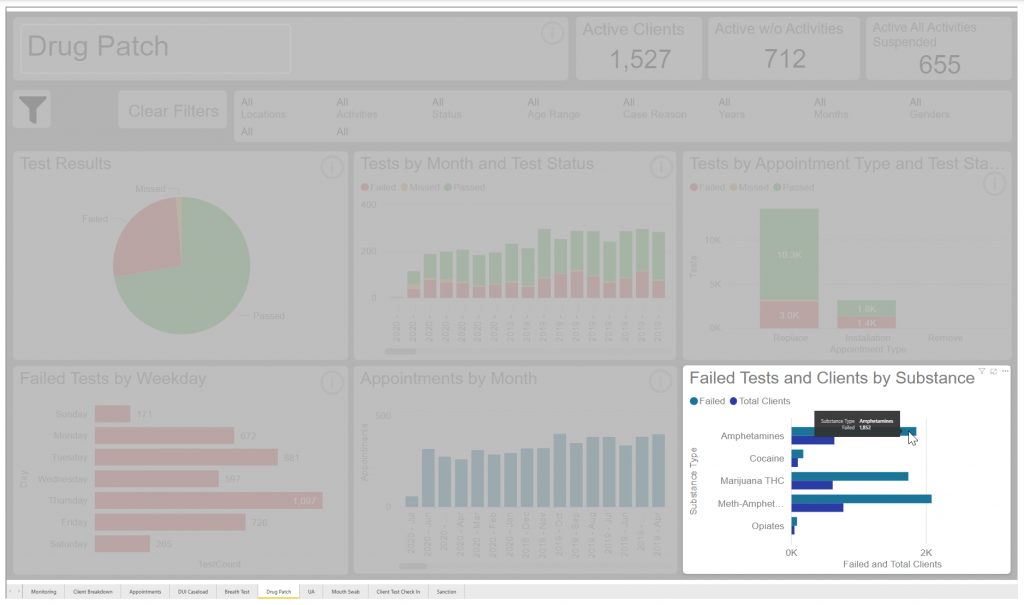
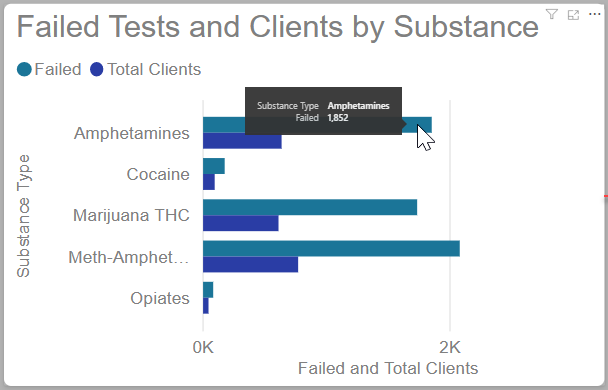
a new section entitled Failed Test and Clients by Substance has been
added to the current Drug Patch and UA reports.
New 24/7 Monitoring and Compliance Analytics Reports
The new analytic reporting available provides insight into compliance, activity treads, and sanction details for your program. The new reports available are:
Visit the Analytics page on SCRAMNET Optix Help to learn more.
Update to the Drug Patch and UA Report
With the addition of the Failed Test and Clients by Substance data, the Drug Patch and UA reports will now display the total failed tests by substances and the number of clients who tested positive for that substance.
Feedback
As always, please contact SCRAM Systems Customer Service at
1-303-785-7879 with any recommendations for system improvements.
Effective June 18, 2020, SCRAM Systems® will implement a software enhancement that will improve your visibility of new documents shared by clients who are active for the SCRAM TouchPoint Documents service in SCRAMNET OPTIX™. Additionally, we have streamlined the client’s experience with updates to the Documents and Check-In services for the SCRAM TouchPoint™ smartphone app, which should be available in the Apple App Store and the Google Play store within the next week.
These changes will take effect once clients have updated the SCRAM TouchPoint app on their smartphones.
Update to Documents page in SCRAMNET OPTIX
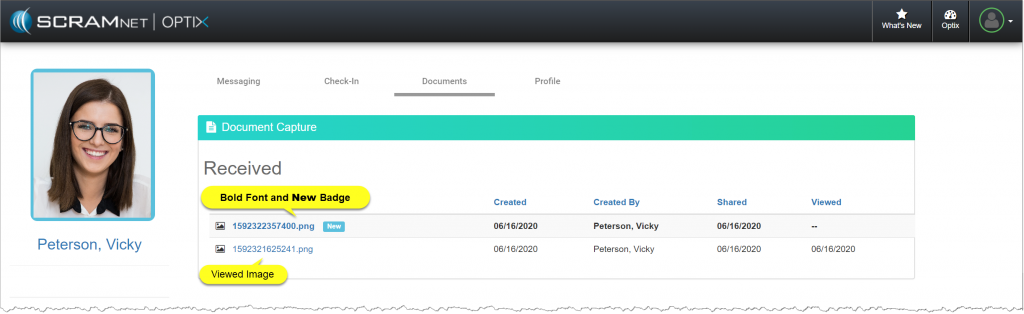
With this new update, you will
now be able to identify new images shared by the client. Once a new image is
received, the name of the image will display in a bold font, and a badge to the
right of the image name will display as New. Once the image is selected
and viewed, the text will display in a normal font and the New badge
disappears.
Updates to the SCRAM TouchPoint Application
Documents Tile
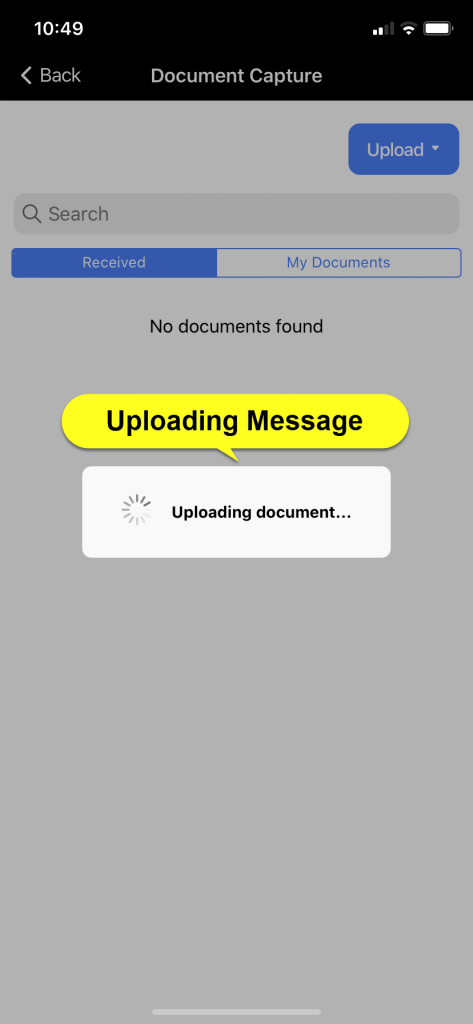
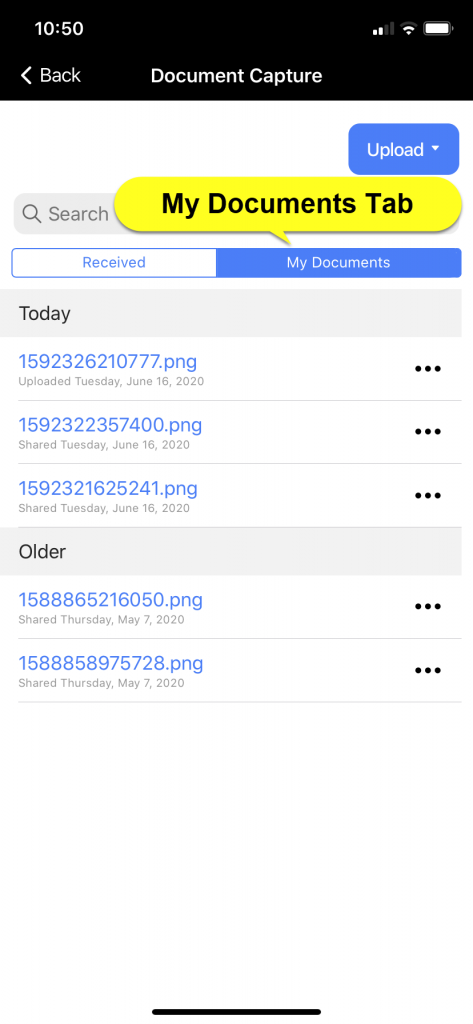
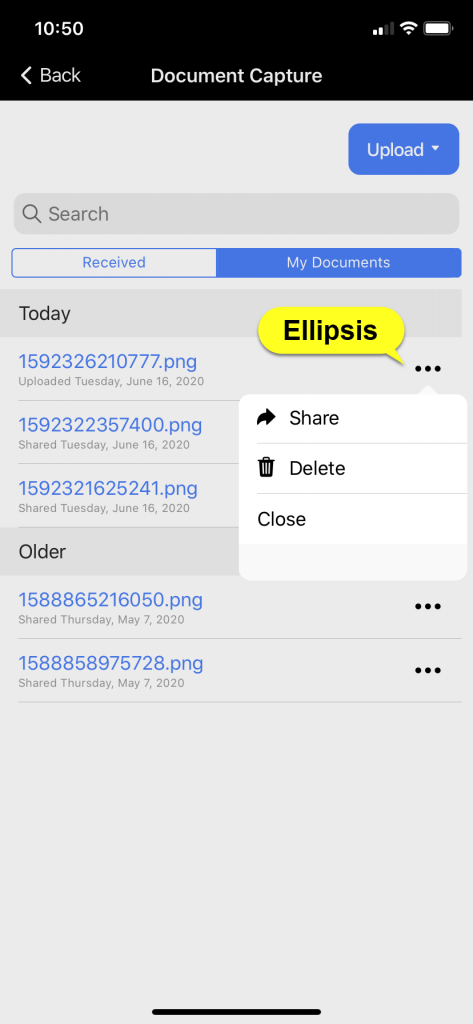
With this new update, we have streamlined the client’s experience to help eliminate confusion after uploading an image to the SCRAM TouchPoint app and then locating and sharing the image. After the client has updated the app, once an image is uploaded; the screen will automatically display the My Documents tab, which will allow the client to select the ellipsis and share the document as normal.
Only iPhone images are shown for this example. For a full list of instruction on Uploading and Sharing a document for both Android and iPhone, visit the Client Instructions page on SCRAMNET OPTIX Help.
Client Check-In Location
Services
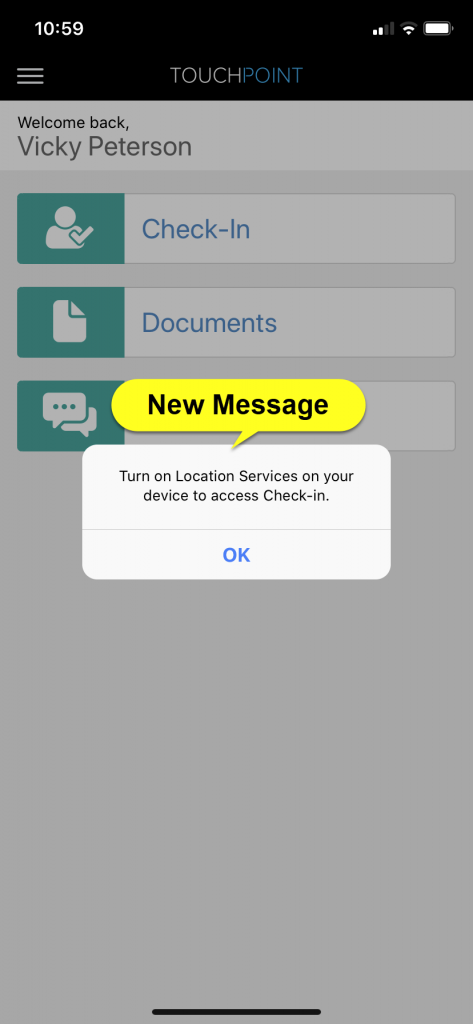
With this update, the client is now required to have Location Services turned on for the app or they will not be able to complete a check-in. If the Location Services are turned off, once the client taps the Check-In tile within the app, they will be prompted to turn on the Location Services on their smartphone.
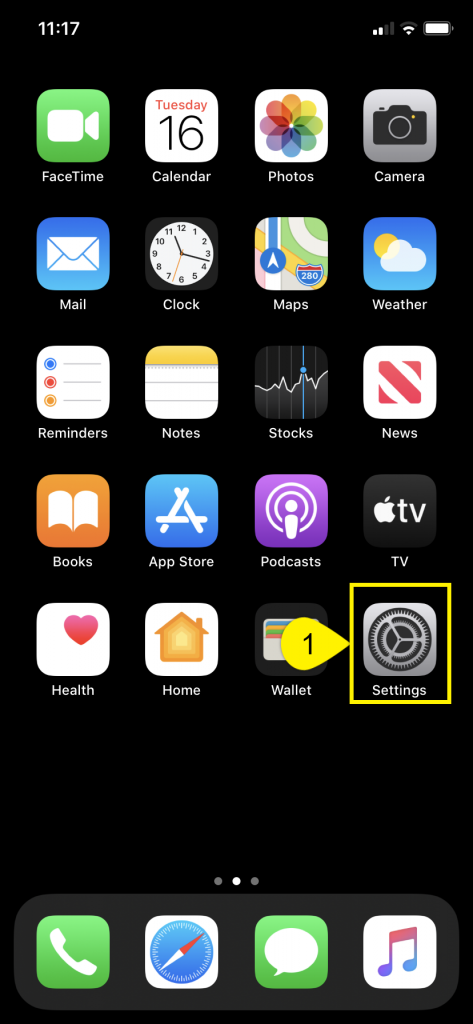
To enable the Location Services, have the client:
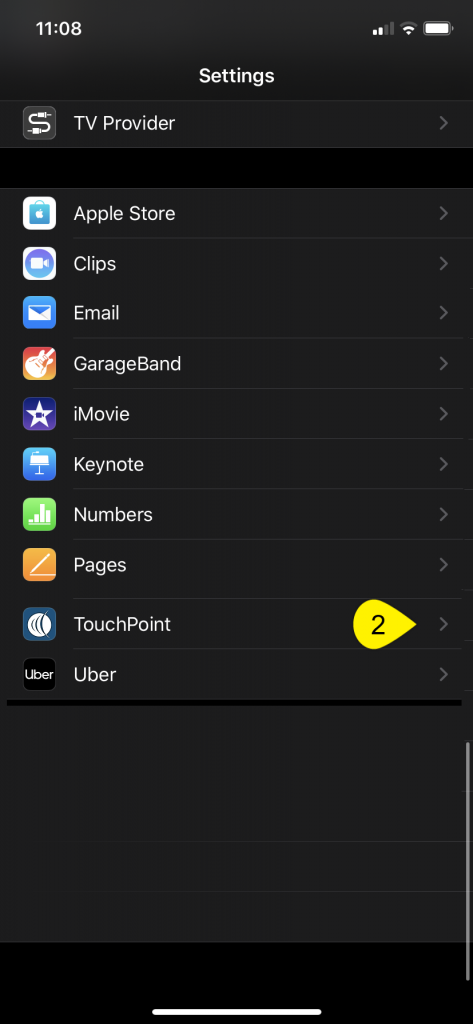
Select the Settings icon on their
smartphone.
Select the SCRAM TouchPoint app.
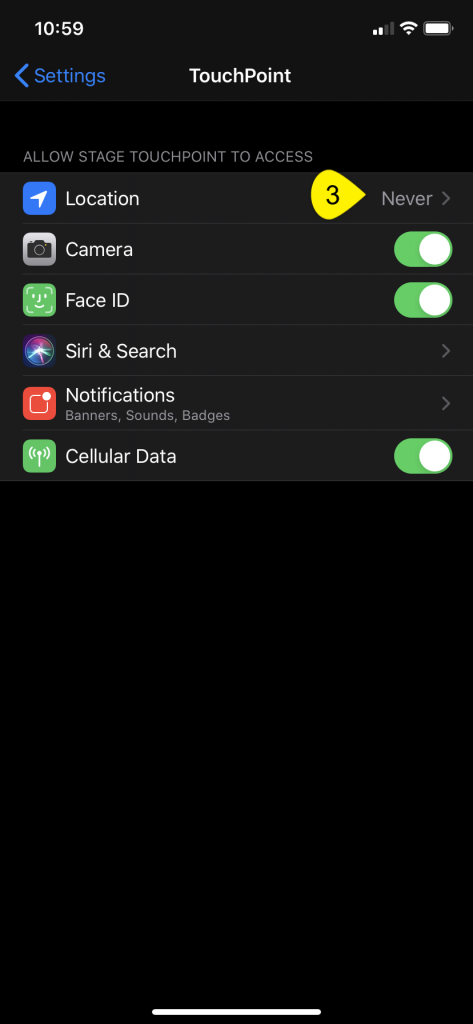
Select the Location option.
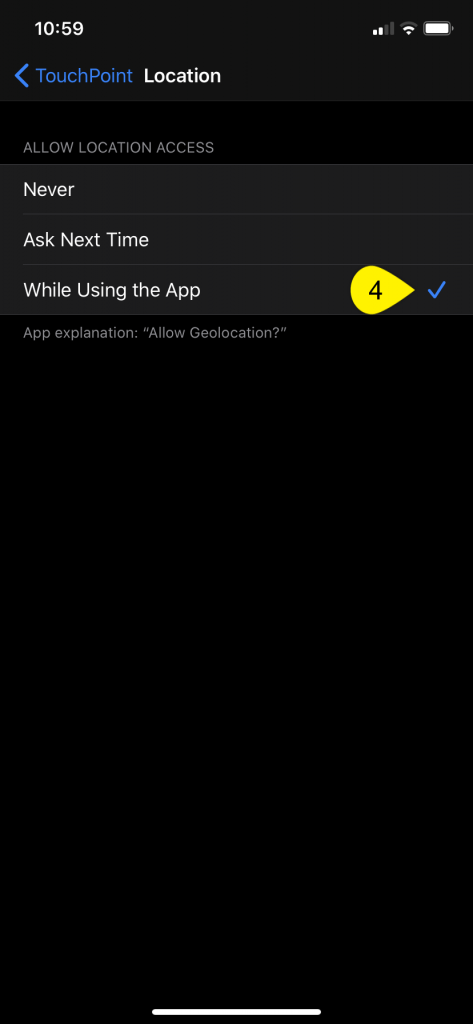
Select the option of “While Using the App”.
Once completed, the client can navigate back to the SCRAM
TouchPoint app and complete their check-in.
Only iPhone images are shown for this example. For a full list of troubleshooting steps for both Android and iPhone visit the SCRAMNET OPTIX Help page.
Feedback
As always, please contact SCRAM Systems Customer Service at 1-303-785-7879 with any recommendations for system improvements.


 IMPORTANT: