What's New

At 5:00 AM MDT on Monday, January 13, 2025, SCRAM Systems will release four enhancements for your SCRAM GPS monitoring program.

These enhancements are:

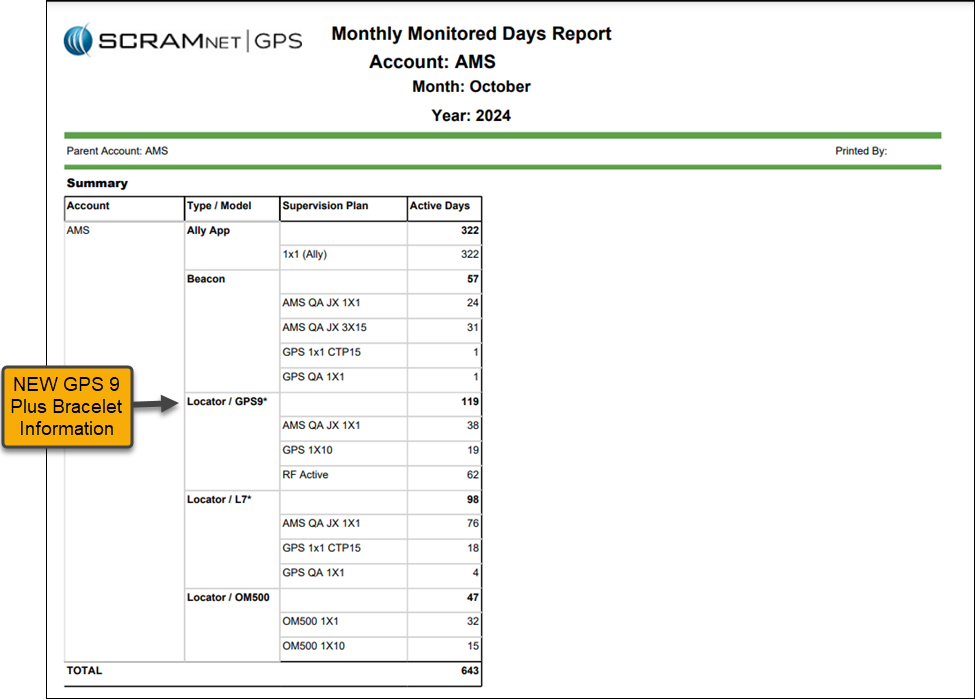
  1. The Monthly Monitored Days report will track the GPS 9 Plus bracelets separately
  2. Optionally include Client ID in Text and Email Notifications
  3. Notes Can Be Sorted by Any Column
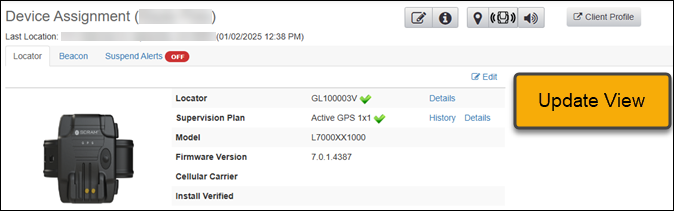
  4. Device Assignment “Classic View” No Longer Available
Information During the 15-minute deployment, you may not be able to access SCRAMNET GPS, but messages from the SCRAM GPS device will continue to be processed uninterrupted.

Update to the Monthly Monitored Days Report – GPS 9 Plus Bracelets Type / Model Added

The Summary section of the Monthly Monitored Days Report will display the total active days by device type, supervision plan, and services, providing a clear view of reporting and billing for your monitoring program.  

The Type / Model column is broken out into the following devices and services:

  • Ally App
  • Beacon
  • Locator/Gen7* (Standard GPS Bracelet)
  • Locator/GPS9* (GPS 9 Plus Bracelet)
  • Locator/OM500
GPS Monthly Monitored Days Report – Summary Page
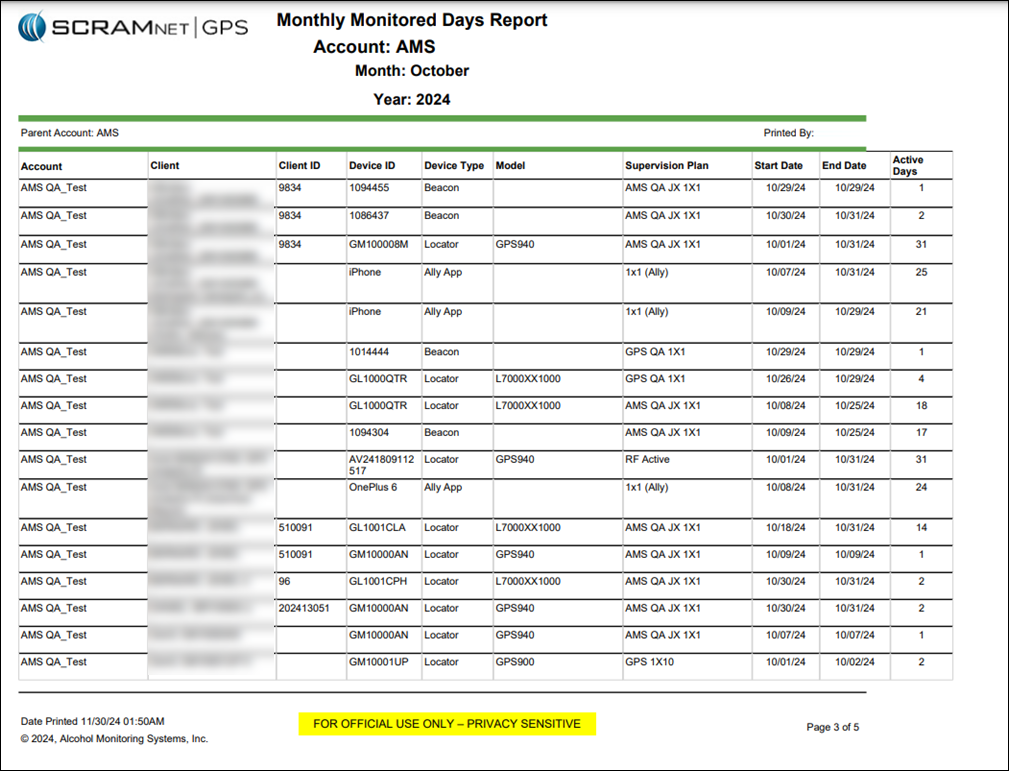
GPS Monthly Monitored Days Report – Detail Section

Include the Client ID in Text and Email Notifications

An Administrator for your program may include one or both of the Client ID fields in Text and Email notifications. This can be useful for programs relying on the Client ID fields to identify clients.

To include Client ID field(s):

  1. Select the Admin button and then the Account Settings option.
  2. On the Administration page, select the Accounts tab.
  3. On the Preferences tab, locate the “Include client ID(s) in Notifications” option and open the dropdown menu to select your options.
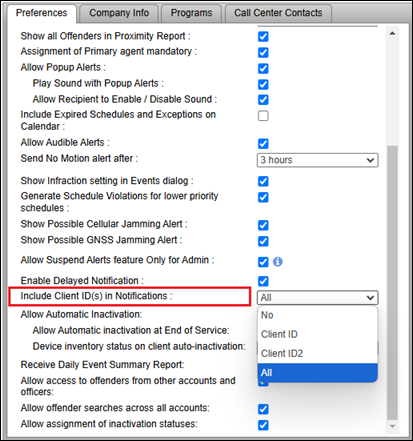
Include Client ID(s) in Notifications Option

Once selected in Account Administration, one or both (depending on what is selected) Client IDs will be included in Notifications sent to recipients.
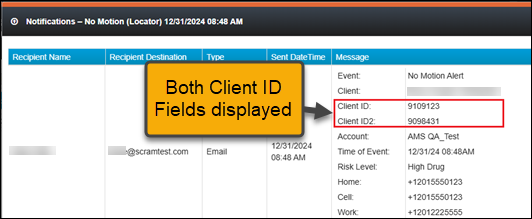
Event Notification Example
Information When the client ID field has been identified as a social security number (SSN), only the last four (4) numbers are visible on the Text or Email notification.

Filter Client Notes by Column

With this update, you may filter how the Notes are displayed for client Events using the filter icons on each column header. This can be useful to filter for specific Event types or usernames (Entered By). 
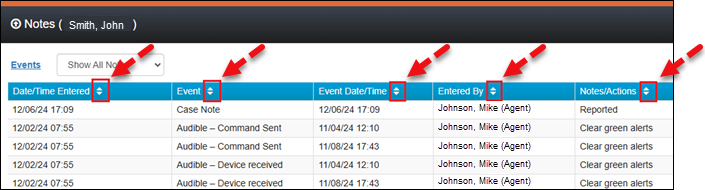
Client Notes Pop-Up

Device Assignment “Classic View” No Longer Available

To ensure SCRAMNET GPS supports both the Standard and GPS 9 Plus features, the “Classic View” will no longer be available on the Device Assignment page.  
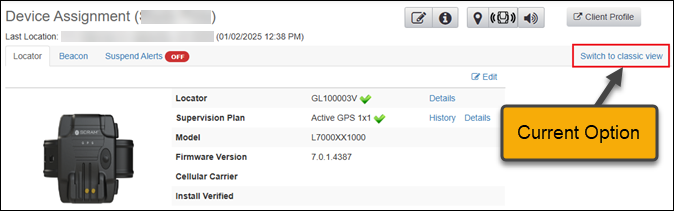
Current Device Assignment View
Updated Device Assignment Page

Continue Reading

On December 19, 2024, SCRAM Systems released an enhancement for your Nexus caseload. This enhancement will allow you to schedule randomized drug tests for your client.

TipsThe service for the randomized scheduling of drug tests must be enabled for your account before you may utilize it. For more information, contact your SCRAM Systems Account Representative.

Once enabled, you may select the Random schedule option when adding a Drug Test Activity to your client’s supervision plan.

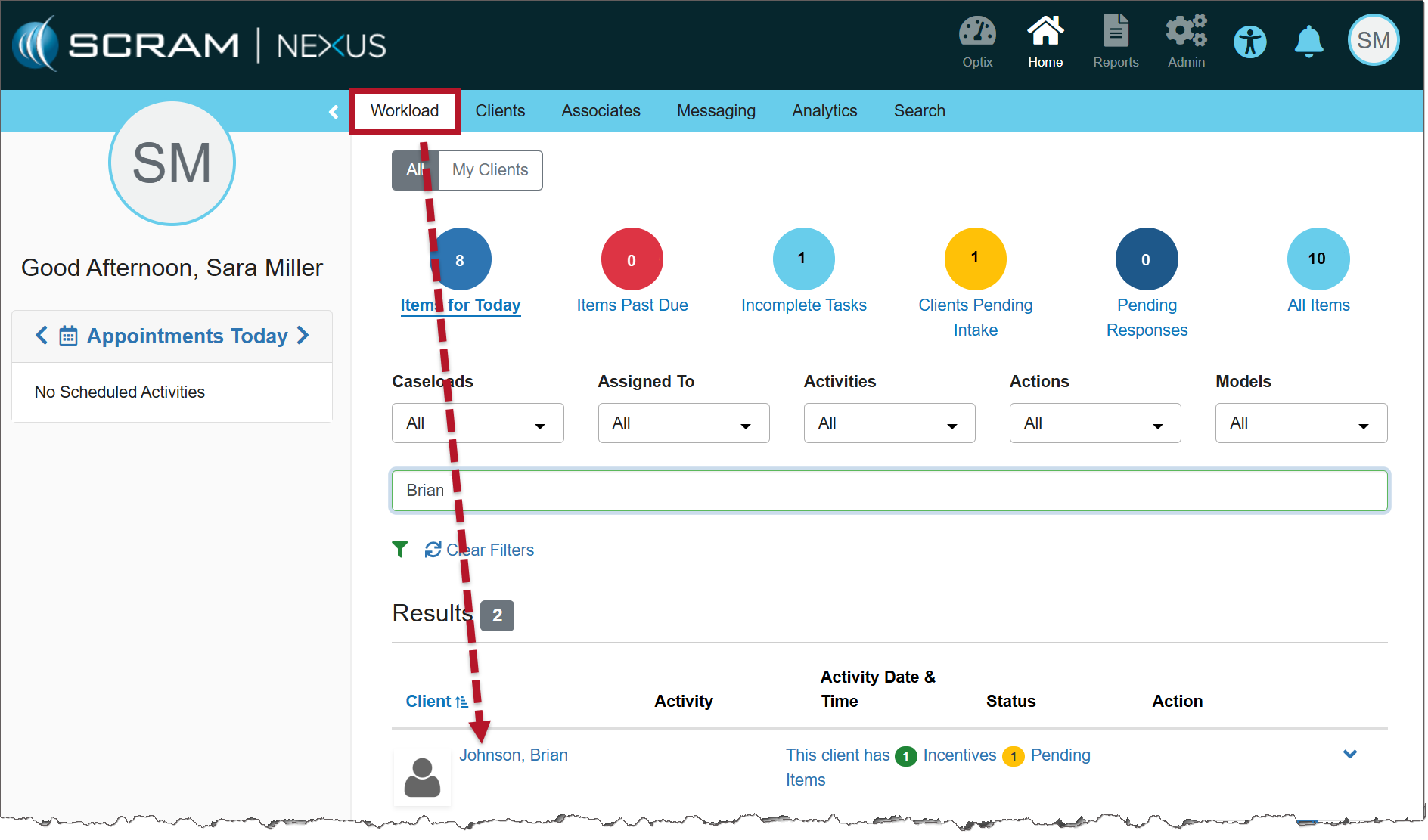
From the Nexus Workload page, select the client’s name hyperlink.

Nexus Clients tab (click to enlarge)

On the client’s Summary page, select the Supervision Plan tab.

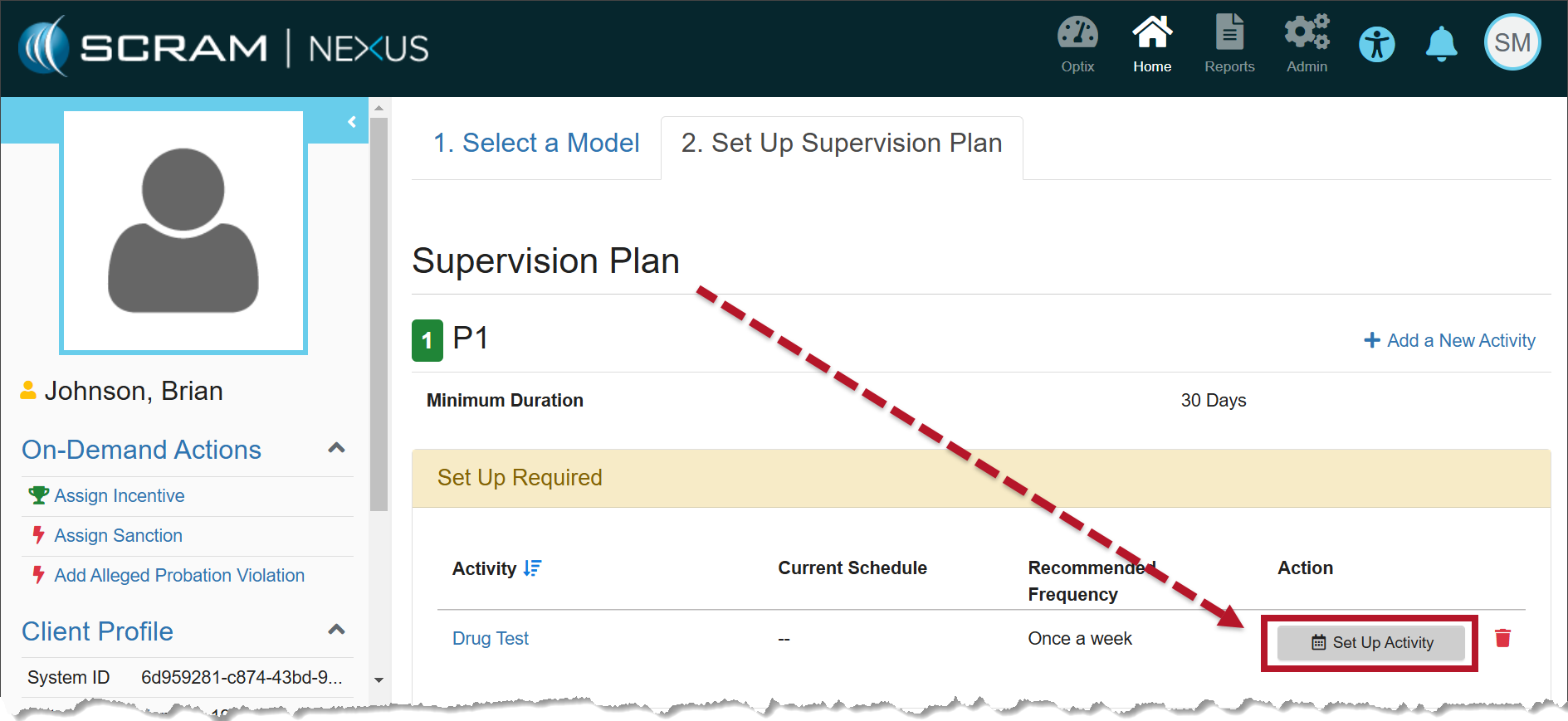
In the Supervision Plan section, select the Set Up Activity button.

Supervision Plan information (click to enlarge)

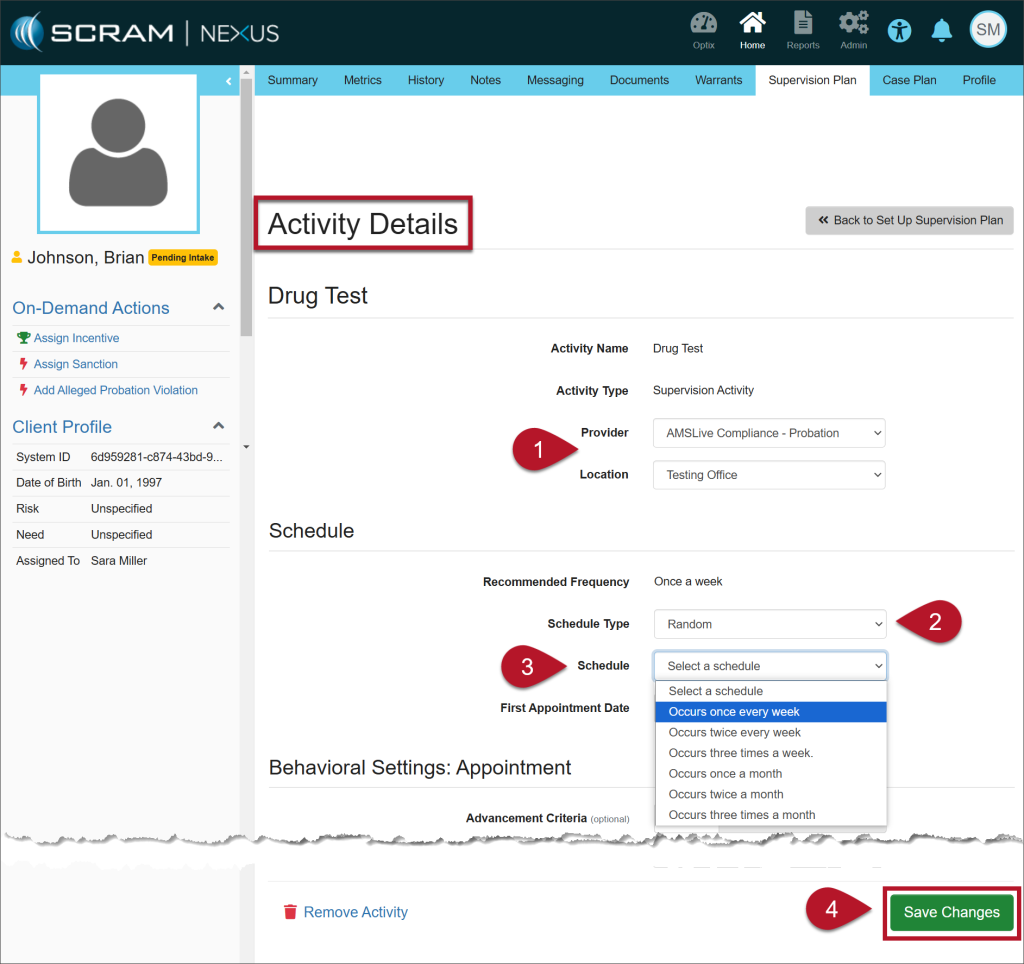
On the Activity Details page, enter the details for the Drug Test Activity: 

  1. Select the Provider and the Location from the dropdown menus. 
  2. On the Schedule Type dropdown menu, select the option of Random.
    • Once selected, the Specific Time field is no longer editable.
  3. The Recommended Frequency is based on the model for the client, but you may choose from the other options in the Schedule dropdown.
  4. Select the Save Changes button.
Activity Details page (click to enlarge)

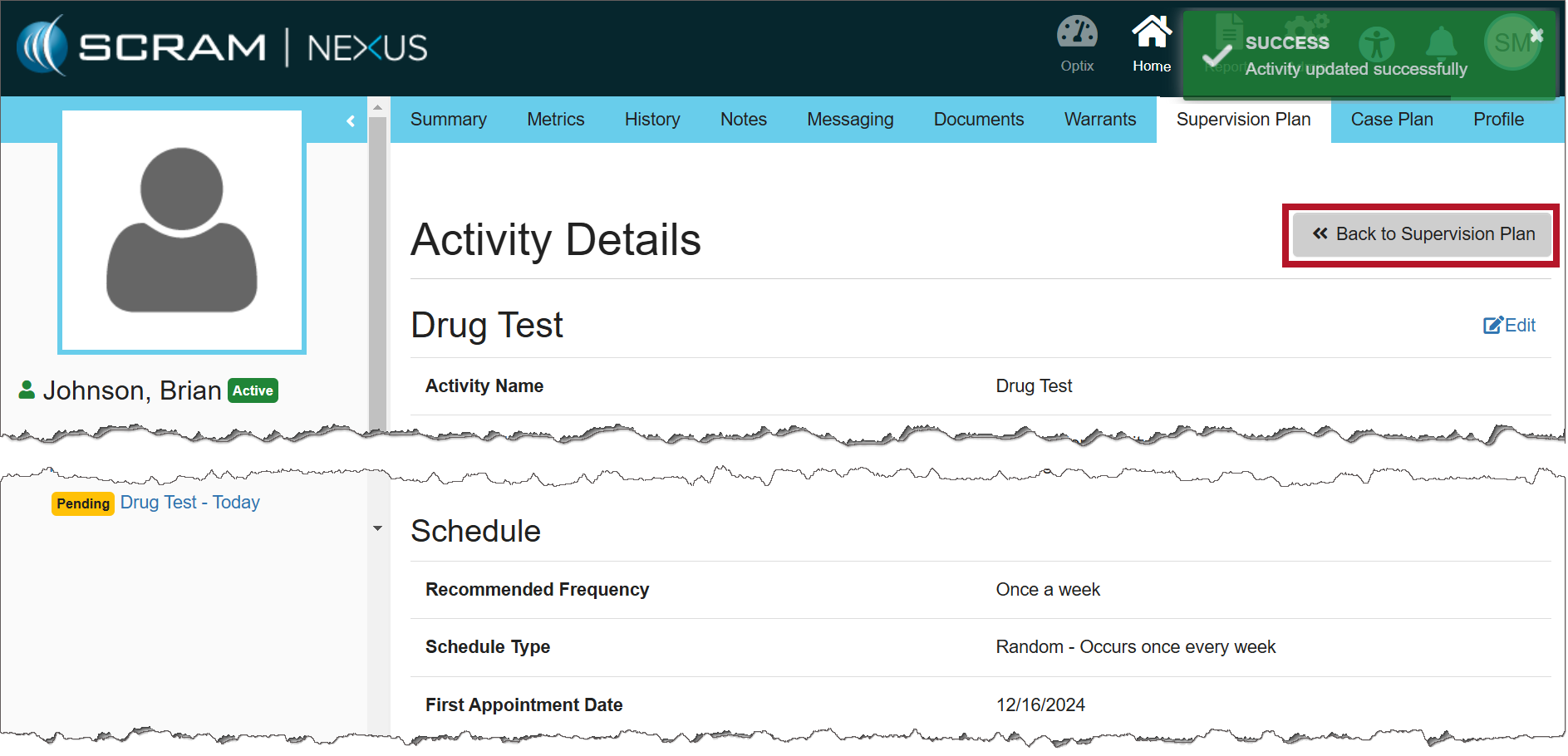
Once saved, a green success banner will display on the page. You may view the details for the Drug Test Activity in the Activity Details section.
To return to the Supervision Plan page, select the >>Back to Supervision Plan button.

Activity Details page (click to enlarge)

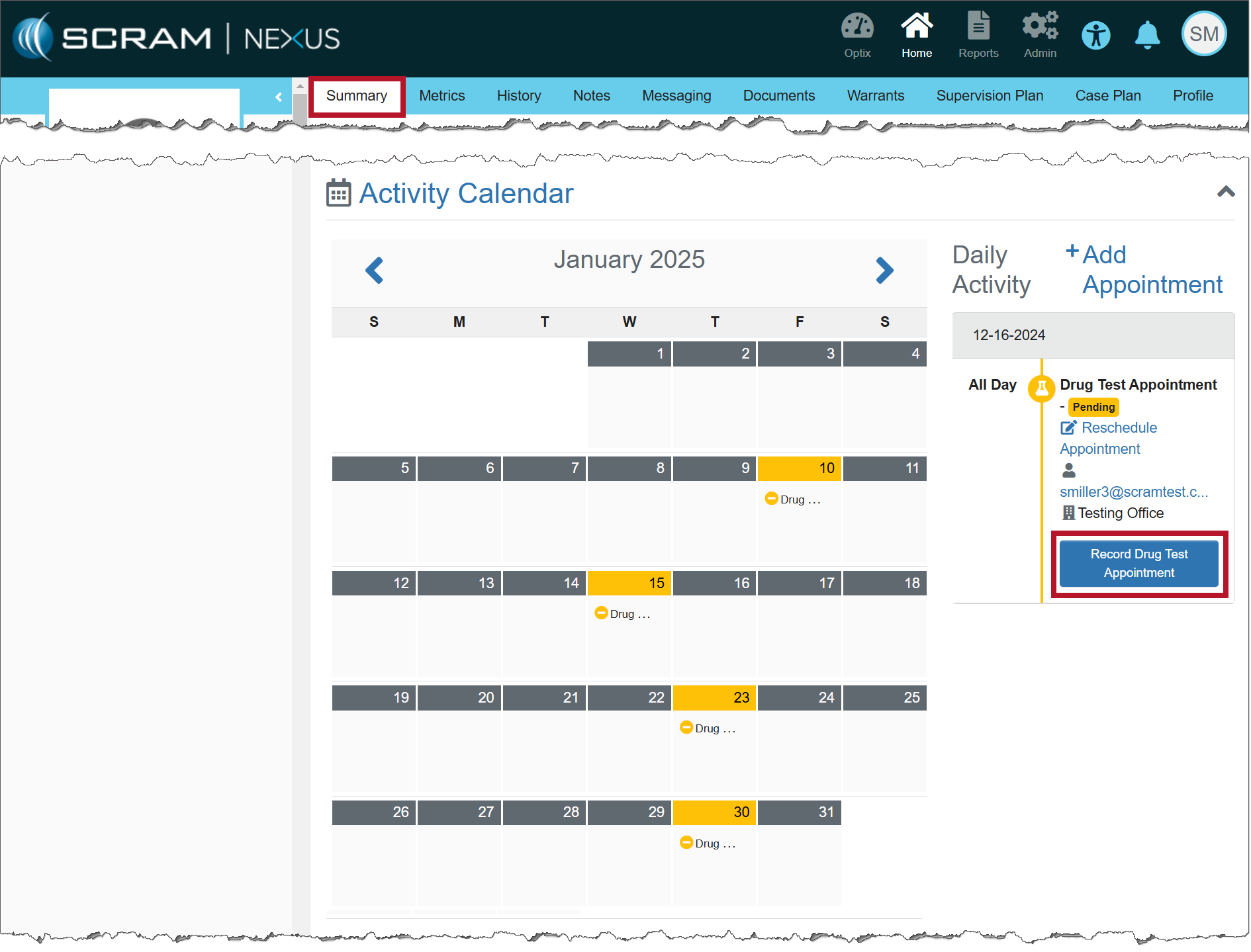
The calendar on the client’s Summary page will display the drug tests interspersed randomly based on the frequency entered.

Activity Calendar (click to enlarge)
NotesImportant Notes:
  • When creating a random Drug Test schedule, appointments are not scheduled on weekends or Federal holidays.
  • The client will receive an automated push notification by 5:00 AM via TouchPoint Messaging that a drug test must be completed that day.
  • You may cancel or reschedule the random Drug Test appointment using the established process.

Entering the Results of the Drug Test

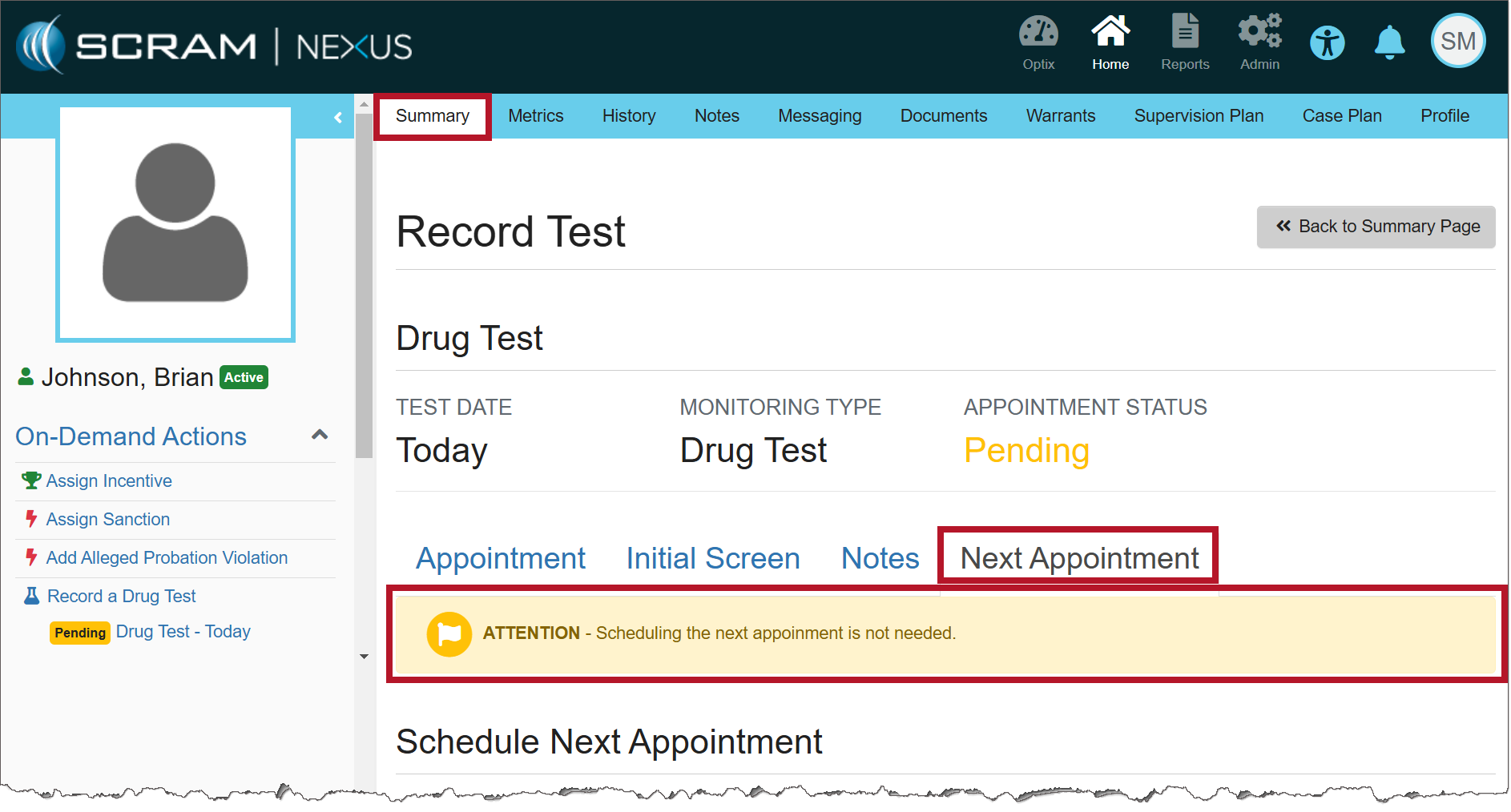
When recording the results of the Drug Test Appointment, there is no need to schedule the client’s next appointment because the random schedule has already been established.

Record Test information (click to enlarge)

Continue Reading

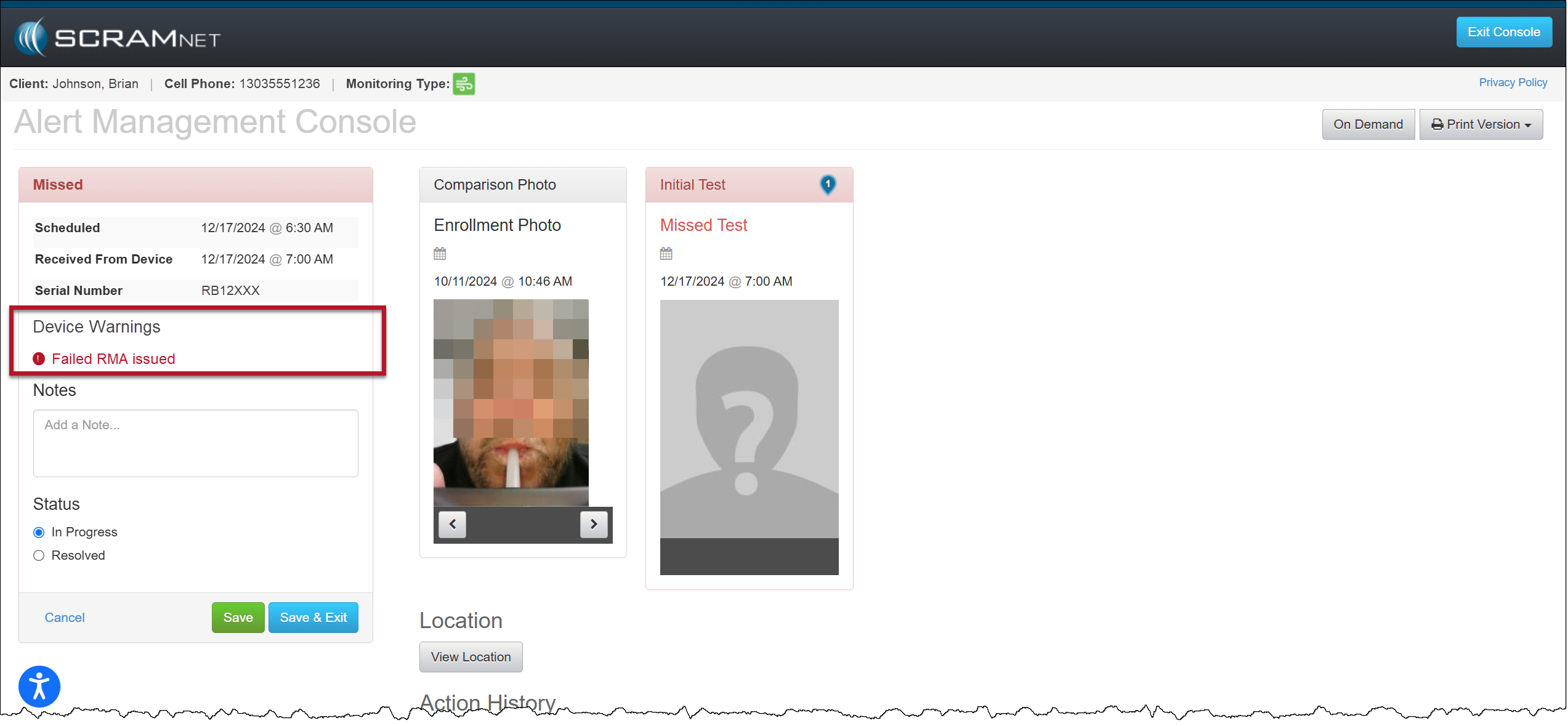
On December 18, 2024, SCRAM Systems® will release an enhancement for your Remote Breath Pro client Caseloads. With this enhancement, when an RMA has been issued for an RB Pro device that has failed, the Alert Management Console (AMC) will include a new Device Warnings section that displays a “Failed RMA issued” warning for all breath test results (for example, Passed, Missed, or Scheduled Test Not Received alerts) received after the RMA is created. 

AMC with Device Warning Message – click to enlarge
Tips
  • A “failed RMA” is issued when the device is not operating within normal parameters.
  • When utilizing the Remote Breath Carousel, the “Device Warning” section will not display regardless of the device’s RMA status.
  • Once the client’s RB Pro device has been replaced or checked in, the Device Warning section and “Failed RMA issued” message will no longer be displayed on the alert’s AMC.
  • If SCRAM Systems cancels the RMA, the Device Warning section and “Failed RMA issued” message will no longer be displayed on the alert’s AMC.

Continue Reading

Information The services for the mass transfer of clients and for managing fines and fees must be enabled before you may utilize them. For more information, contact your SCRAM Systems Account Representative.

On December 12, 2024, SCRAM Systems released two enhancements for your Nexus caseloads. These enhancements are:

  • SCRAM Nexus Mass Transfer
  • SCRAM Nexus Fines & Fees

Mass Transfer

The first enhancement available is SCRAM Nexus Mass Transfer. Once enabled, you may transfer a caseload or multiple clients in bulk to other officers or caseloads.

  1. Select the Clients tab from the Nexus Workload page.
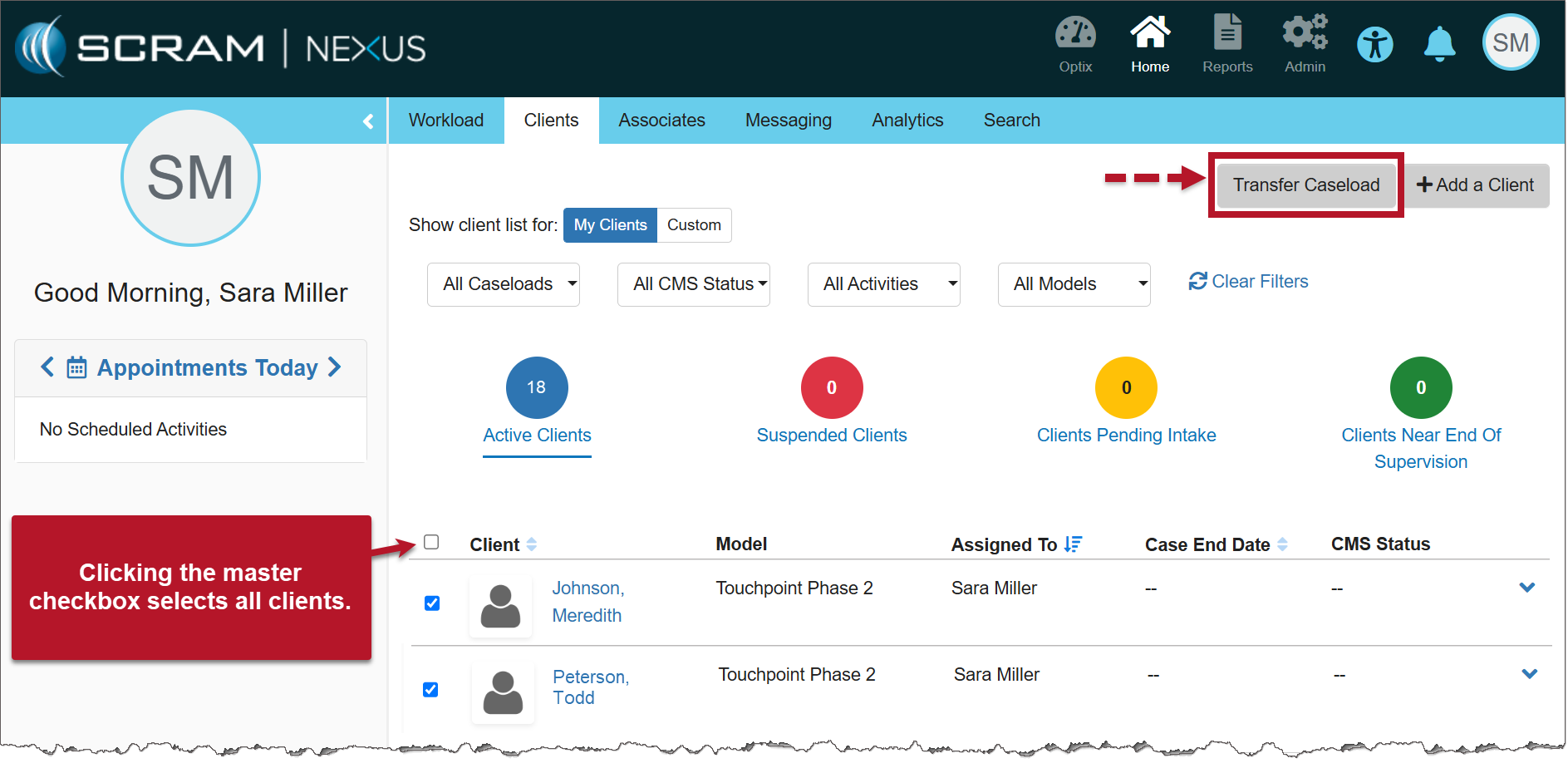
  2. Select the checkbox next to each of the clients you’d like to transfer, then select the Transfer Caseload button.
Nexus Clients page (click to enlarge)
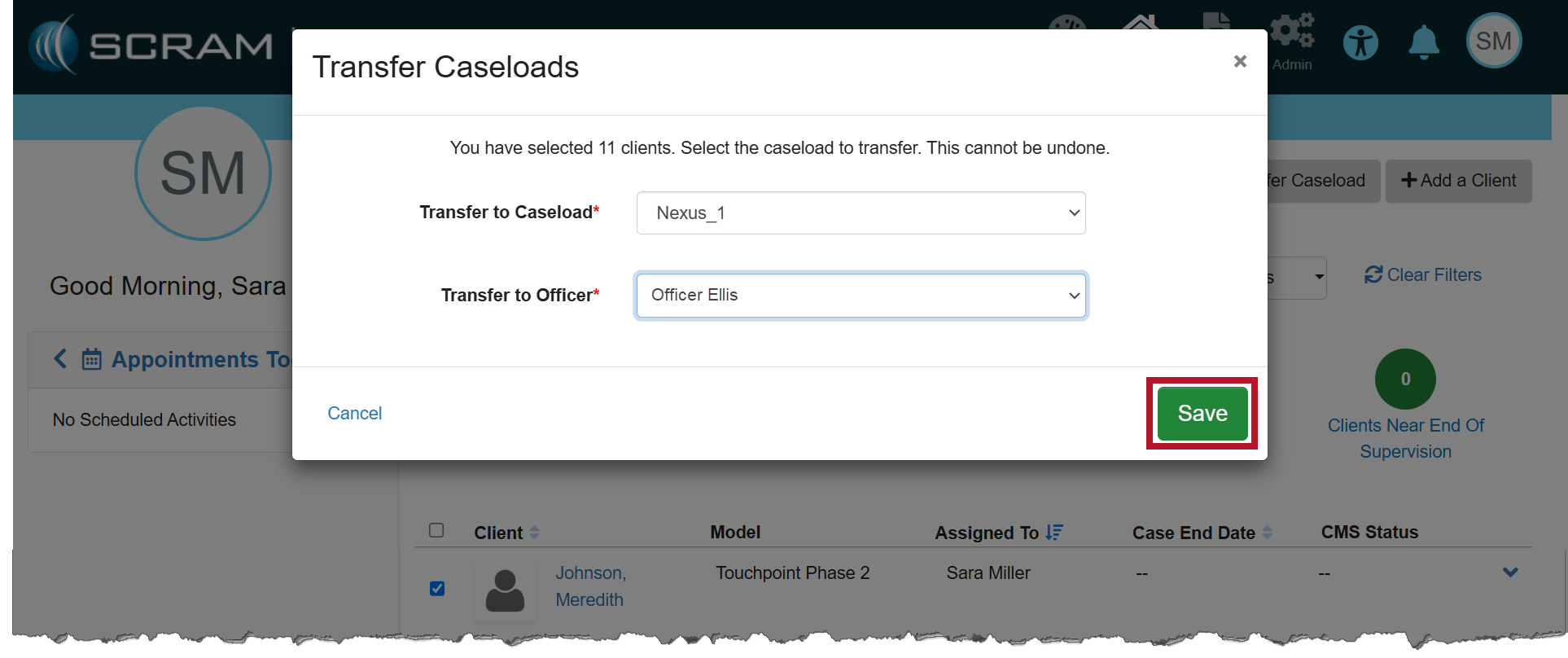
  1. On the Transfer Caseloads pop-up window, select the Caseload and Officer from the dropdown menus. Both fields are required.
  2. Select the Save button.
Transfer Caseloads pop-up (click to enlarge)
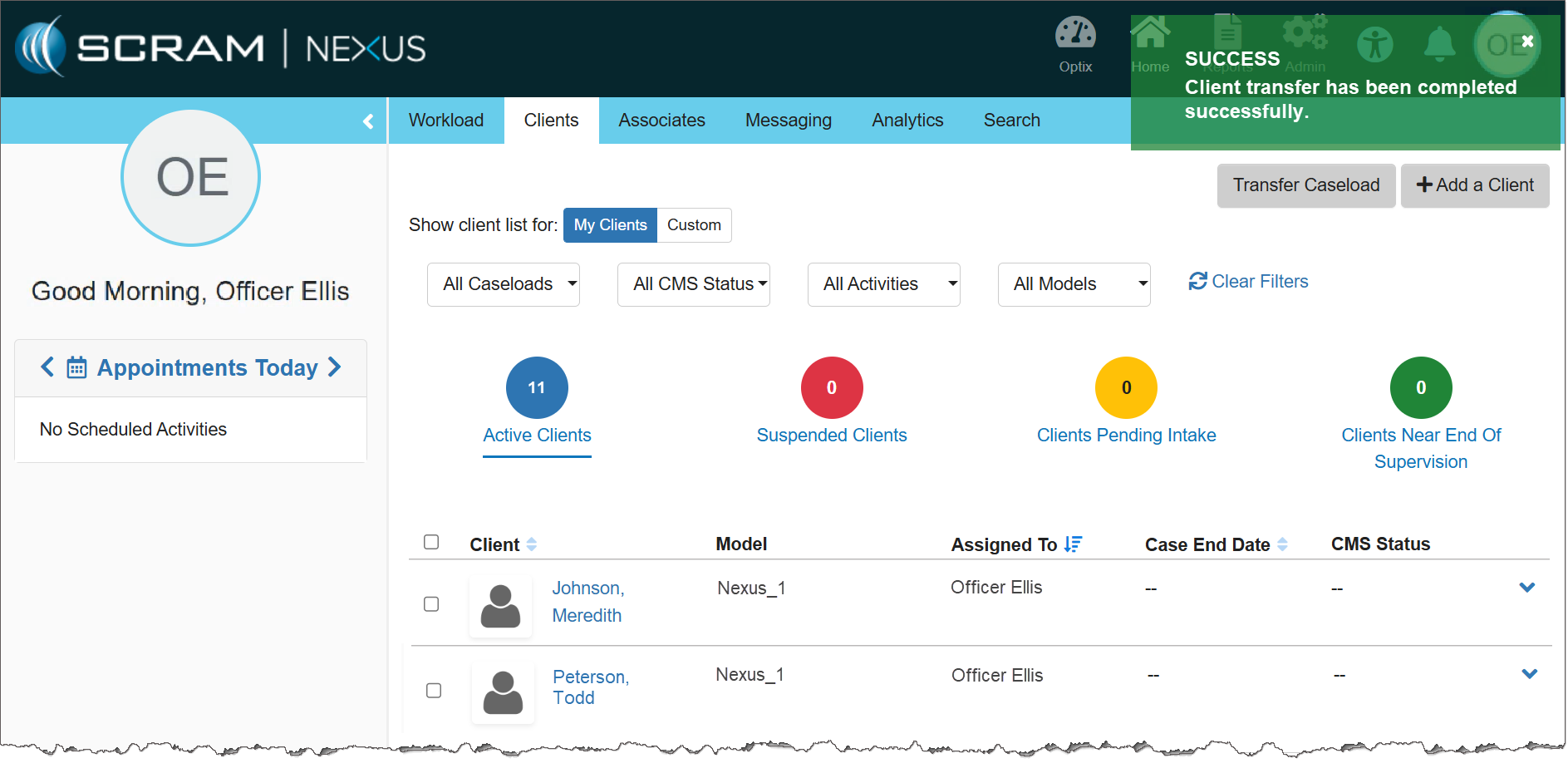
  1. Once saved, a success pop-up banner will display. Additionally, the clients will be displayed on the transferred officer’s Clients page.
The Transferred Officer’s Clients page (click to enlarge)

Fines & Fees

The second enhancement is SCRAM Nexus Fines & Fees. Once enabled, you may add, edit, and record payment for any fines and fees issued for the client.

Navigate to the Fines & Fees Tab

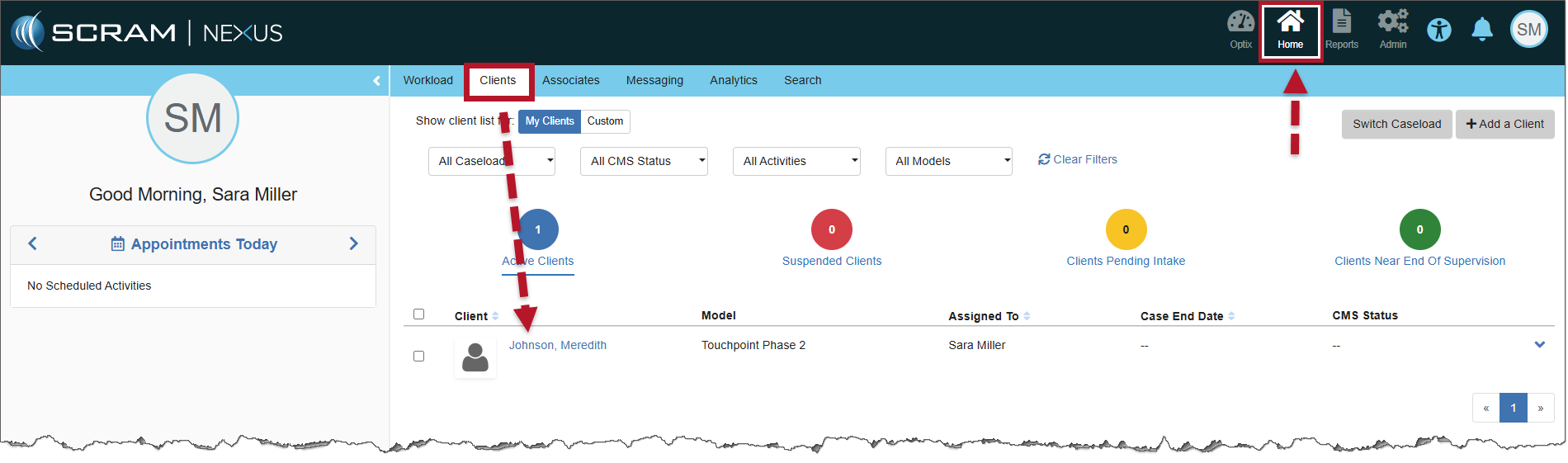
  1. Select the client’s name hyperlink from the Clients tab on the Home page.
Nexus Clients page (click to enlarge)
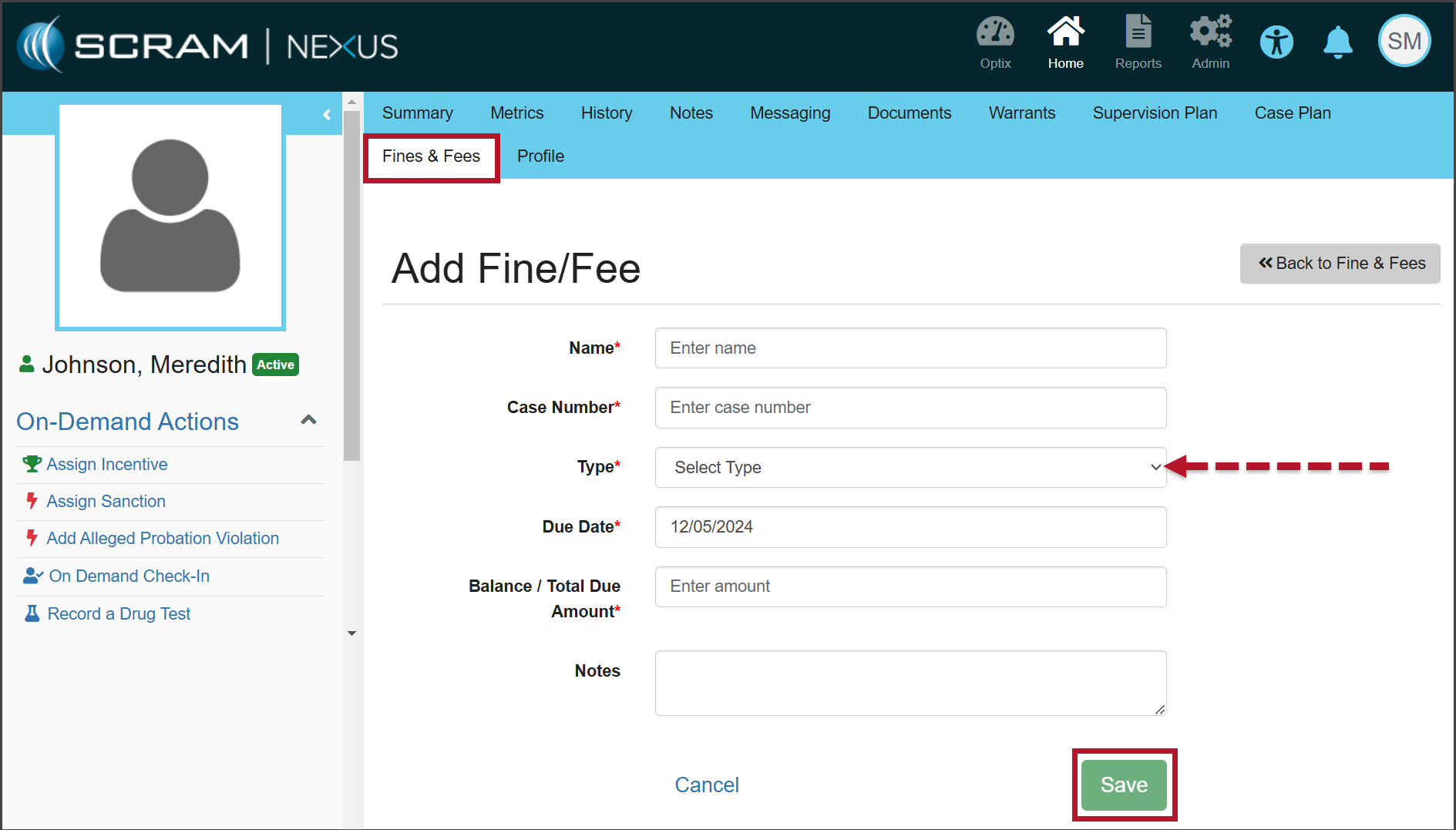
  1. On the Client Summary page, select the Fines & Fees tab.
The Add Fine/Fee page (click to enlarge)
  1. Enter the details for the fine or fee, on the Add Fine/Fee page. Unless otherwise indicated, all fields are required.
  2. Open the Type dropdown menu and select whether this fine or fee is One Time or Scheduled.
  3. After entering the information, select the Save button.
  4. Once saved, a green “success” banner is displayed.

Record Payment of Fines & Fees

When recording a payment, users have the ability to record complete or partial payments submitted by the client.

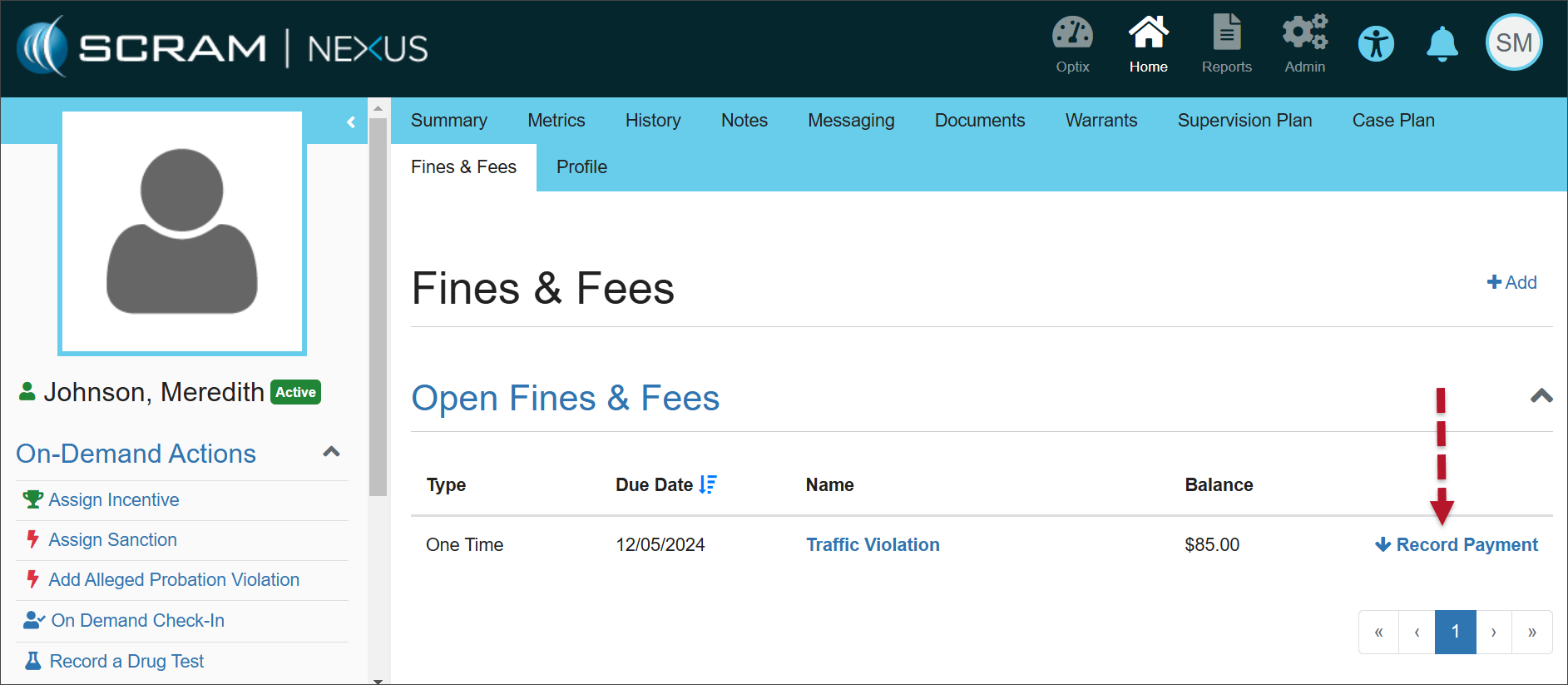
  1. On the Open Fines & Fees page, select the Record Payment hyperlink for the fine or fee for which you would like to record payment.
Open Fines & Fees (click to enlarge)
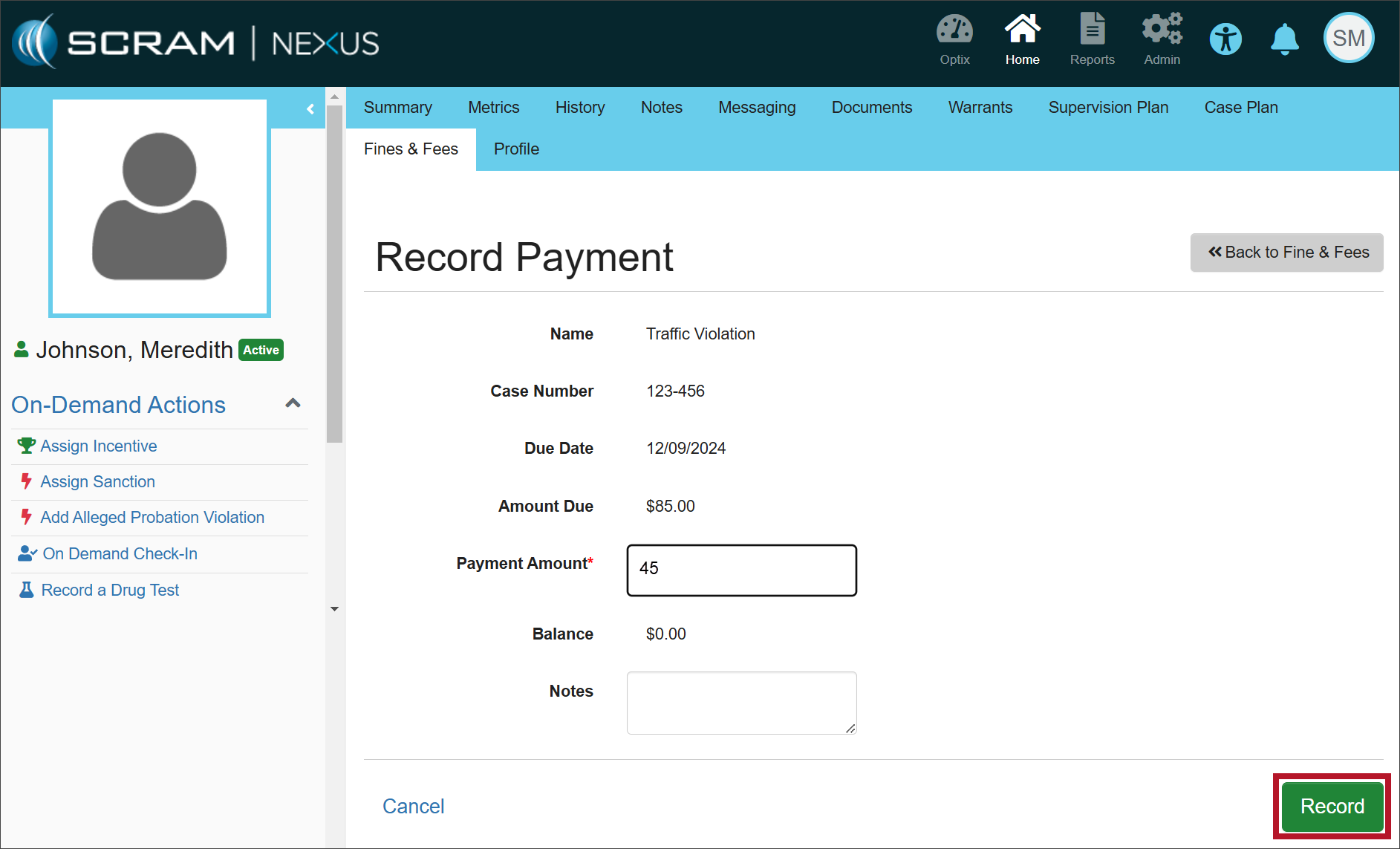
  1. Enter the payment amount and any relevant notes, then select the Record button.
Record Payment page (click to enlarge)

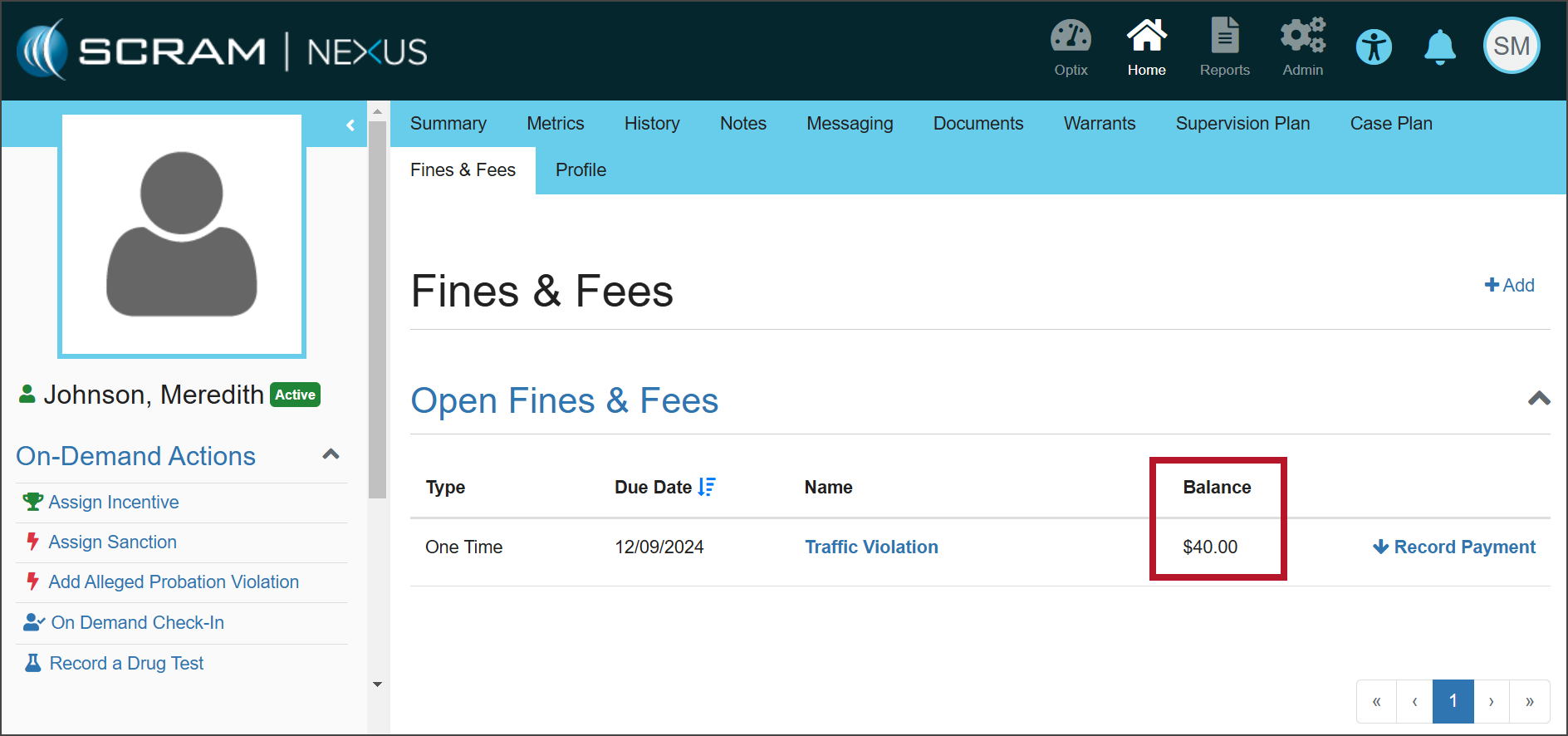
Once a fine or fee has been saved, the Open Fines & Fees section will display the details for each fine or fee with an “open” status.

When payment is made in full, the Balance will show as $0.00. When partial payment is made, the Balance will reflect the amount that remains due.

Fines & Fees (click to enlarge)
Information Once payment has been made in full, you must manually change the status of the fine or fee to “Closed.” If the status is not closed, the fee will appear under Open Fines & Fees with a balance of $0.00.

Edit the Fines/Fees

In some cases, the details of the fine or fee may need to be edited.

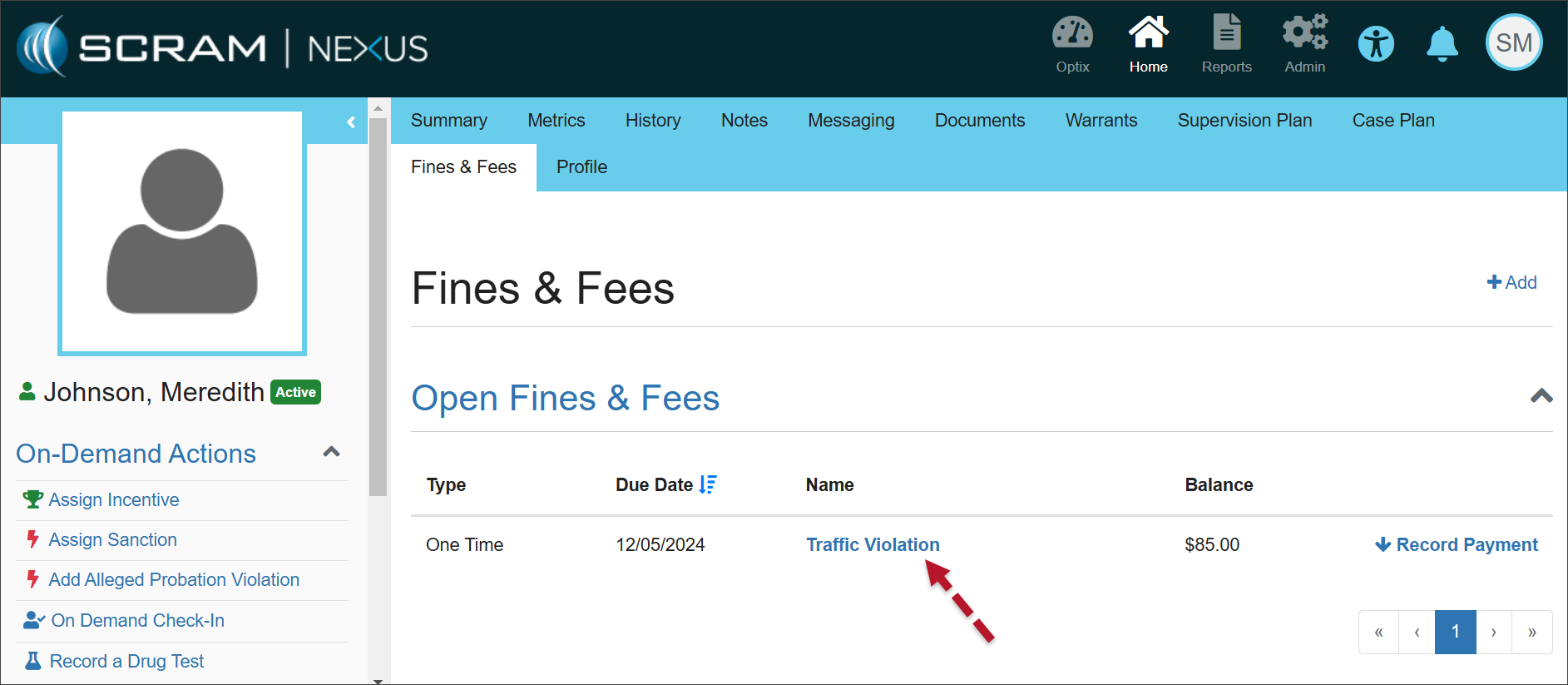
  1. Select the Name hyperlink in the Open Fines & Fees section.
Open Fines & Fees (click to enlarge)
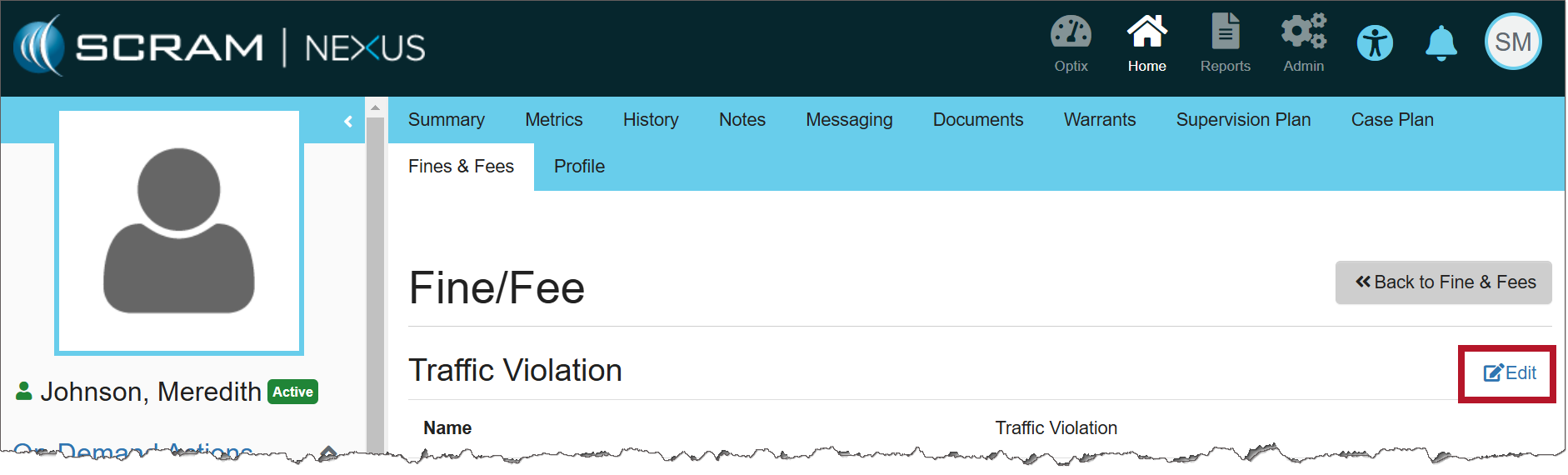
  1. Select Edit to make changes to the details of the specific fine or fee.
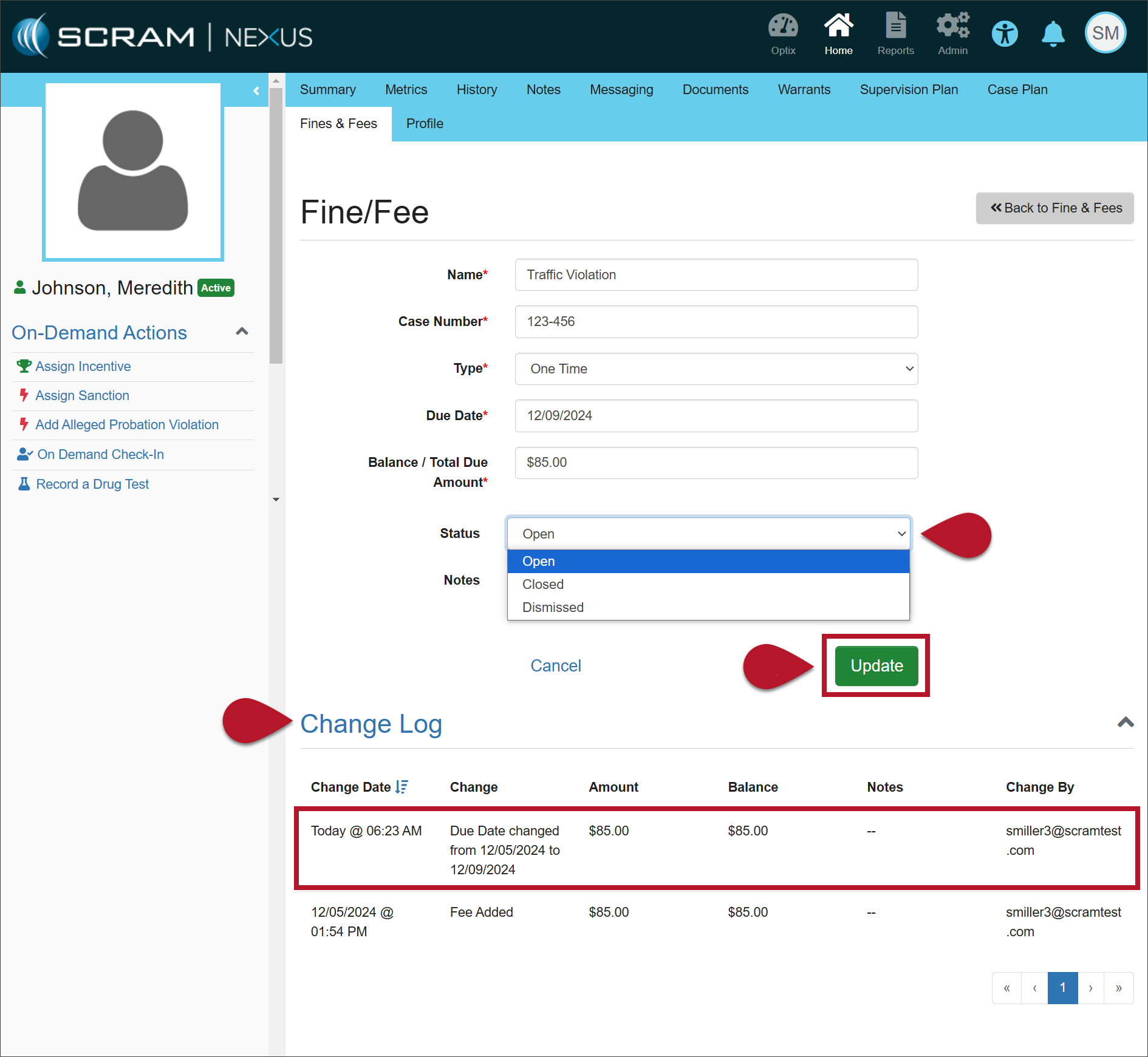
Fine/Fee page (click to enlarge)
  1. Make any necessary changes to the information.
  2. Once the status has been updated to either ‘Closed’ or ‘Dismissed,’ the fine or fee will be displayed with its details in the Closed Fines & Fees section.
  3. Select the Update button to save your changes.
Fine/Fee page (click to enlarge)

The Change Log will record your changes.

Continue Reading

Tomorrow, December 4th, 2024, SCRAM Systems will release an enhancement to the Ambient VOC Detected test results.

When an excess of Volatile Organic Compounds (VOCs) – usually picked up from the device’s surroundings – is detected in the SCRAM Remote Breath Pro (RB Pro) device’s breath testing flow path, the RB Pro device prevents breath tests from being performed, and an Ambient VOC Detected alert is displayed in SCRAMNET. With this enhancement, SCRAMNET will automatically initiate flow path checks every 10 minutes for up to two hours until the flow path is clear and the client may test.

Here is the complete process:

  1. The device will generate a descending arpeggio (“uh-oh”) sound.
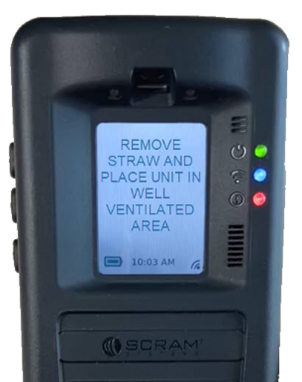
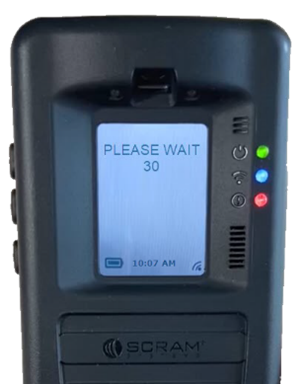
  2. The device’s screen will display, “REMOVE STRAW AND PLACE UNIT IN A WELL VENTILATED AREA,” followed by, “PLEASE WAIT with a 30-second count down.”
RB Pro Device Message – click to enlarge
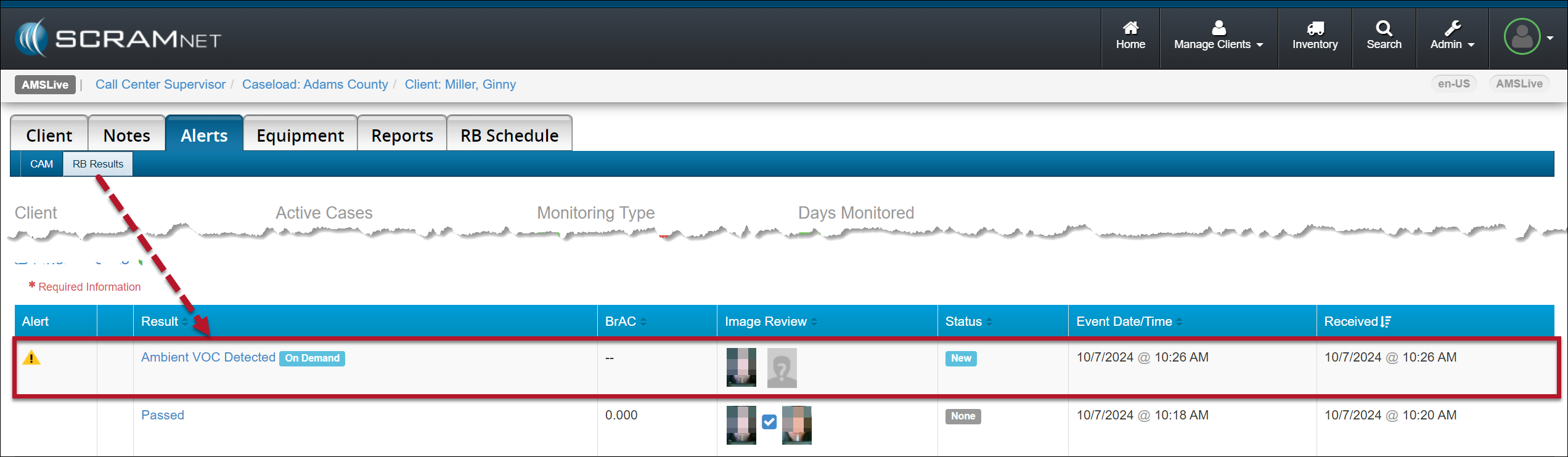
  1. The device will repeat this process automatically for two minutes. If the VOC does not clear, the device will end the current breath test process, and the screen will display “MONITORING …” At this time, an “Ambient VOC Detected” alert will be generated in SCRAMNET.
SCRAMNET Ambient VOC Detected Alert Client’s RB Results page – click to enlarge
Advise the client to take the following steps to help clear the device’s breath-testing flow path:
  1. Remove the breath tube from the device, wash it with dish soap, rinse it with water, and then thoroughly dry the breath tube before using it again. Moisture in the breath tube could impact test results.
  2. Relocate the RB Pro device to an area of fresh air that is free of chemicals (like air fresheners) and cleaning agents (including freshly cleaned countertops).
  3. Remove the device from its carrying case and place it on its side on a tabletop or other clean surface away from contaminants, with the vent on the bottom and the breath tube port unobstructed.
Once an Ambient VOC Detected alert has been generated:
  1. SCRAMNET will record a “Mitigation Started” entry in the event’s Action History section of the Alert Management Console.
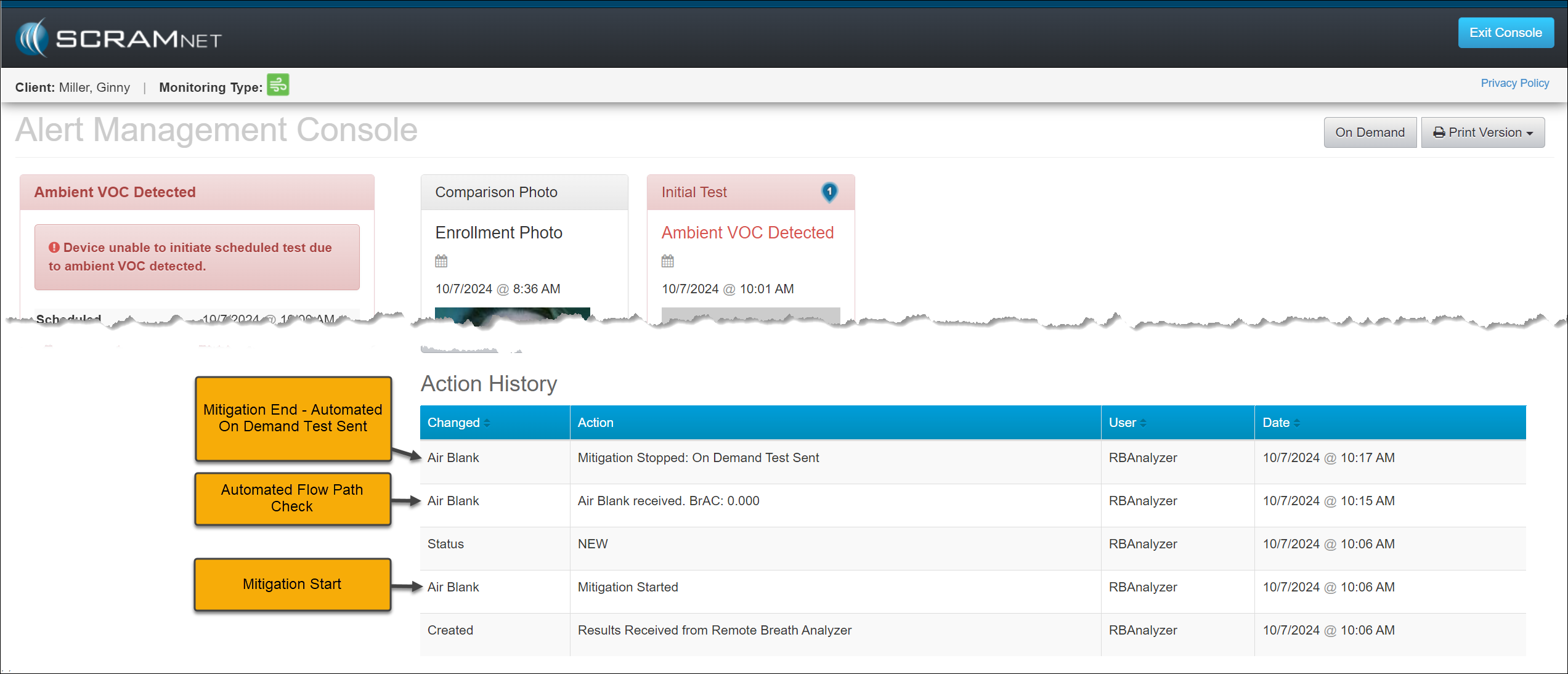
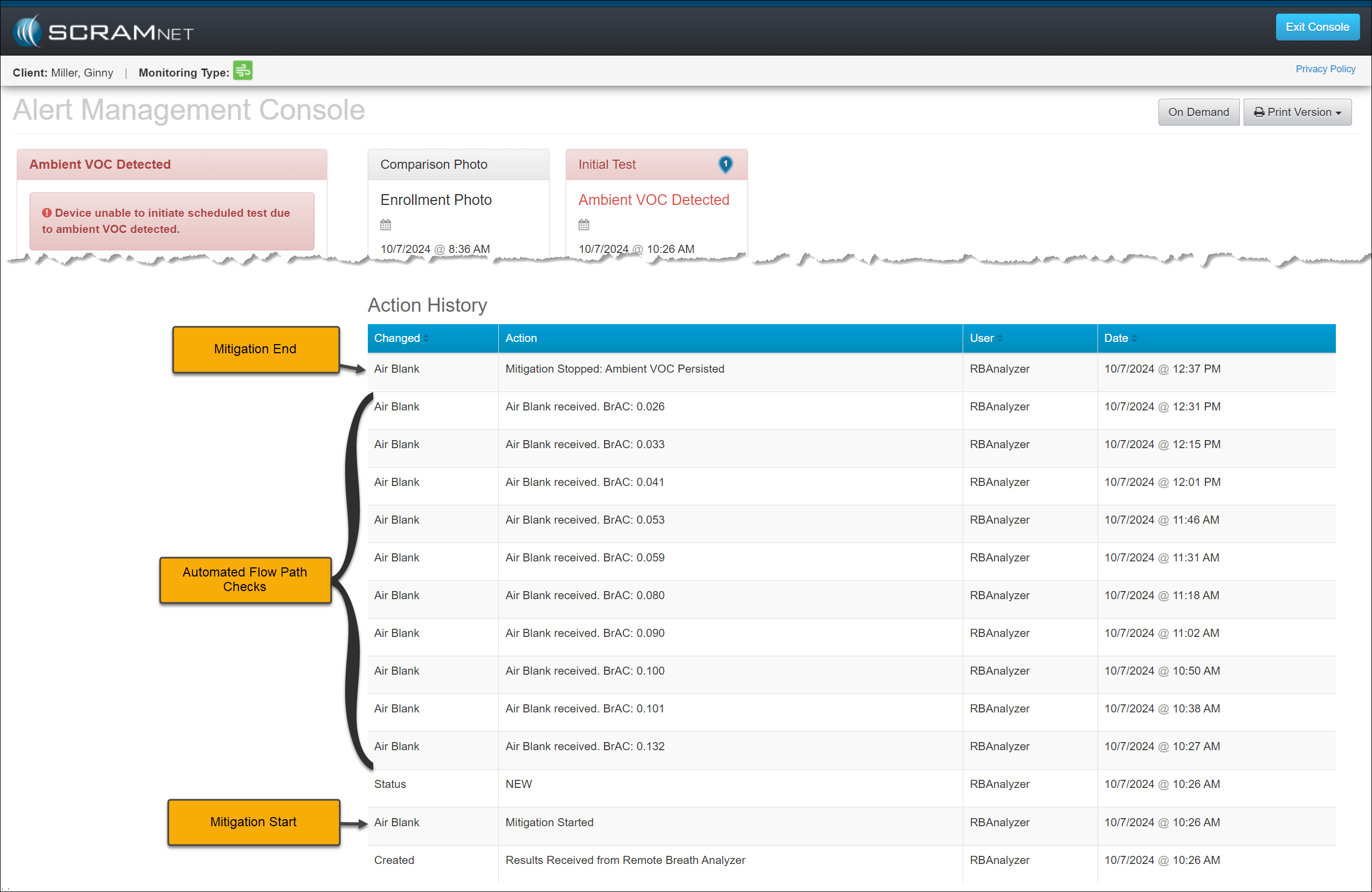
  2. SCRAMNET will automatically initiate flow path checks (Air Blank Tests) every 10 minutes for two hours. These checks will also be recorded in the event’s Action History.
  3. SCRAMNET will automatically send the device an On-Demand test once environmental ethanol (Ambient VOC) is no longer detected. The Action History will record this as a “Mitigation Stopped: On Demand Test Sent” entry.
Ambient VOC Detected Alert Management Console -click to enlarge
  1. If environmental ethanol is still detected after two hours of flow path checks, SCRAMNET will stop requesting Air Blank checks and record a “Mitigation Stopped – Ambient VOC Persisted” entry in the Action History for the event.
Ambient VOC Detected Alert Management Console -click to enlarge
WarningIf the Ambient VOC Mitigation process is interrupted by another breath test (scheduled, on-demand, or client-initiated), this event’s mitigation process is discontinued.
  • A new mitigation process will begin if the latest test request exceeds the Ambient VOC threshold.
  • If, however, the level of VOCs detected in the flow path drops below the detection threshold but is still above 0.000, then the RB Pro device will allow a breath test. So, it is possible that a client’s breath test result that interrupts the Ambient VOC Mitigation process may register a very low-level alcohol detection.
  • SCRAM Systems advises against violating clients for this very low-level alcohol detection, as the alcohol detected in the breath test could be from residual environmental VOCs still in the flow path and/or fuel cell.
NotesImportant Notes:
  • Typically, the low-level alcohol detection we see following a lengthy VOC-clearing scenario is well below the monitoring program’s Lower Level of Detection (LLOD), which is the threshold at which alerts are generated in SCRAMNET. Most monitoring programs’ LLOD threshold is 0.020 BrAC.
  • Based on SCRAM Systems internal testing, residual VOCs present in the device will not influence a BrAC value above 0.020.
  • For customers with the LLOD threshold set below 0.020, the confirmation process of initial and confirmation tests being both positive and not drastically different is still required.
  • If the LLOD threshold is set very low (0.005, e.g.), then the potential for a low-level VOC contaminant to influence both the initial and confirmation tests is increased. For these caseloads, SCRAM Systems recommends that customers allow the automated Ambient VOC Mitigation process to be completed uninterrupted.

Continue Reading

Did You Know???

SCRAM Systems now offers emailed copies of your order tracking numbers to allow you to track order delivery timeframes. If you are interested in this service, please send an email to orders@scramsystems.com with the name(s) and email address(es) of the contact(s) within your organization who wish(es) to receive emailed copies of your order tracking numbers.

If you do not wish to receive this information via email, there is nothing you need to do.

Continue Reading

SCRAM Systems® provides enhancements and updates to the SCRAM TouchPoint™ Mobile application on a continual basis. These updates improve the functionality and usability of the application for your client. Once an update is available in the Apple App store and the Google Play store, the next step is to have the client update the application on their smartphone.

An app update can be completed in two ways.

  • Automatic application updates (Recommended)
  • Manual application updates

As a best practice, we recommend you encourage your clients to enable automatic app updates – this ensures they are always using the latest version of the TouchPoint app.

Setup Automatic Application Updates

iPhone

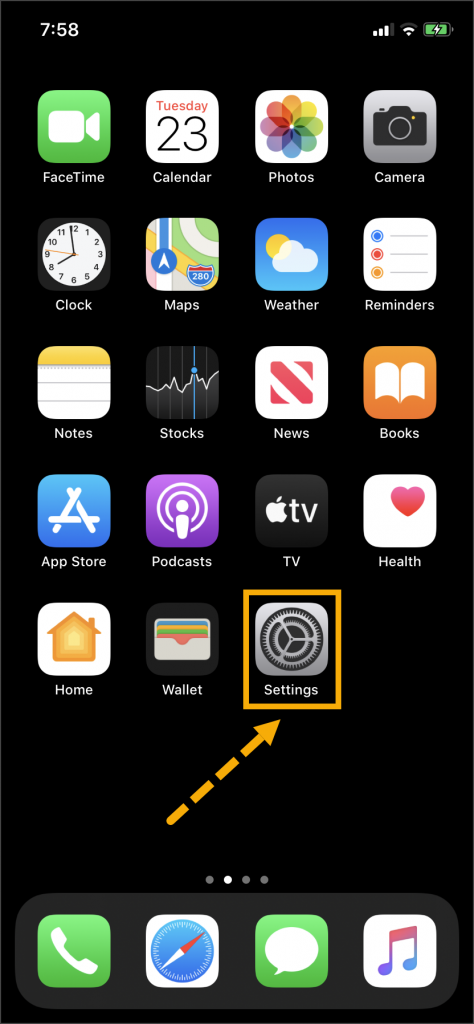
  1. On the client’s smartphone, tap the Settings icon.
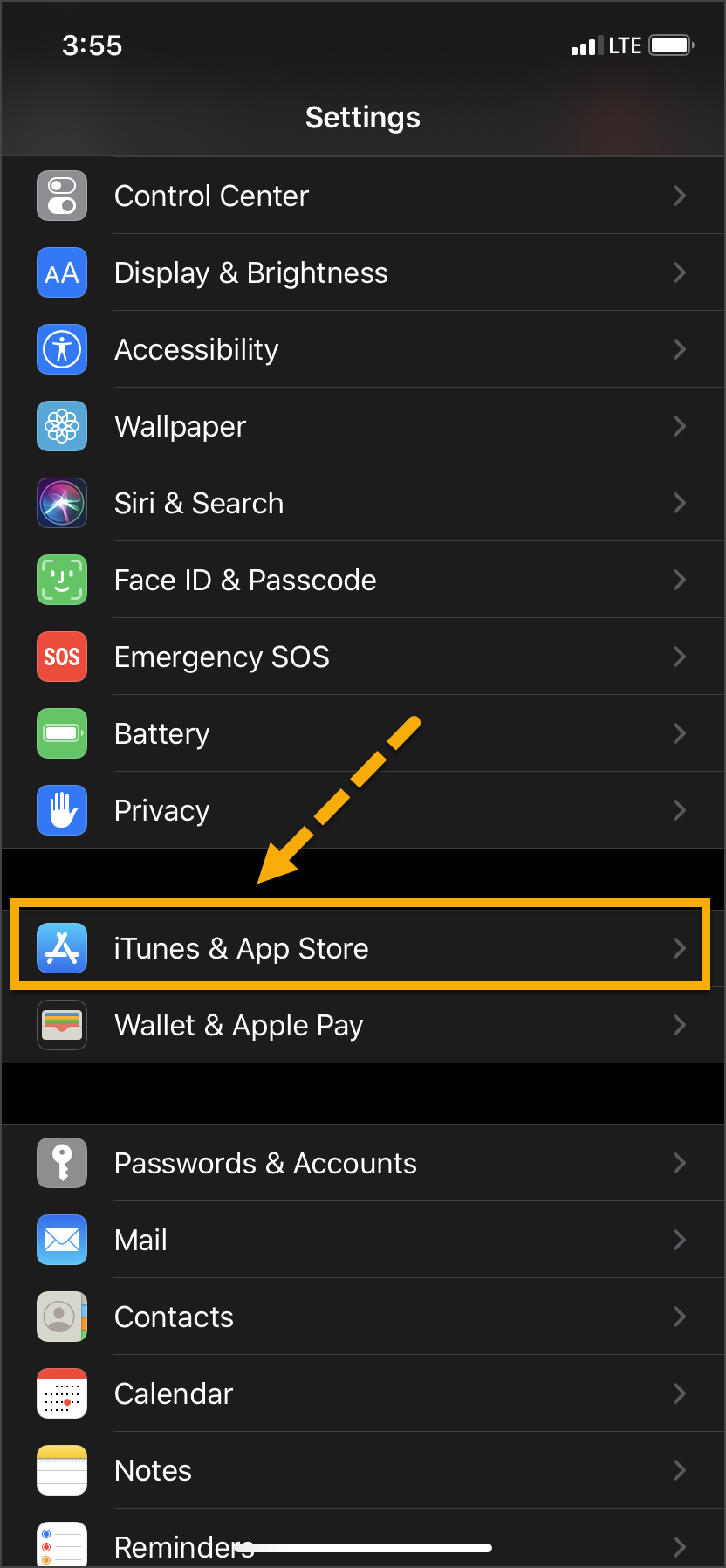
  2. On the Settings screen, tap the iTunes & App Store option.
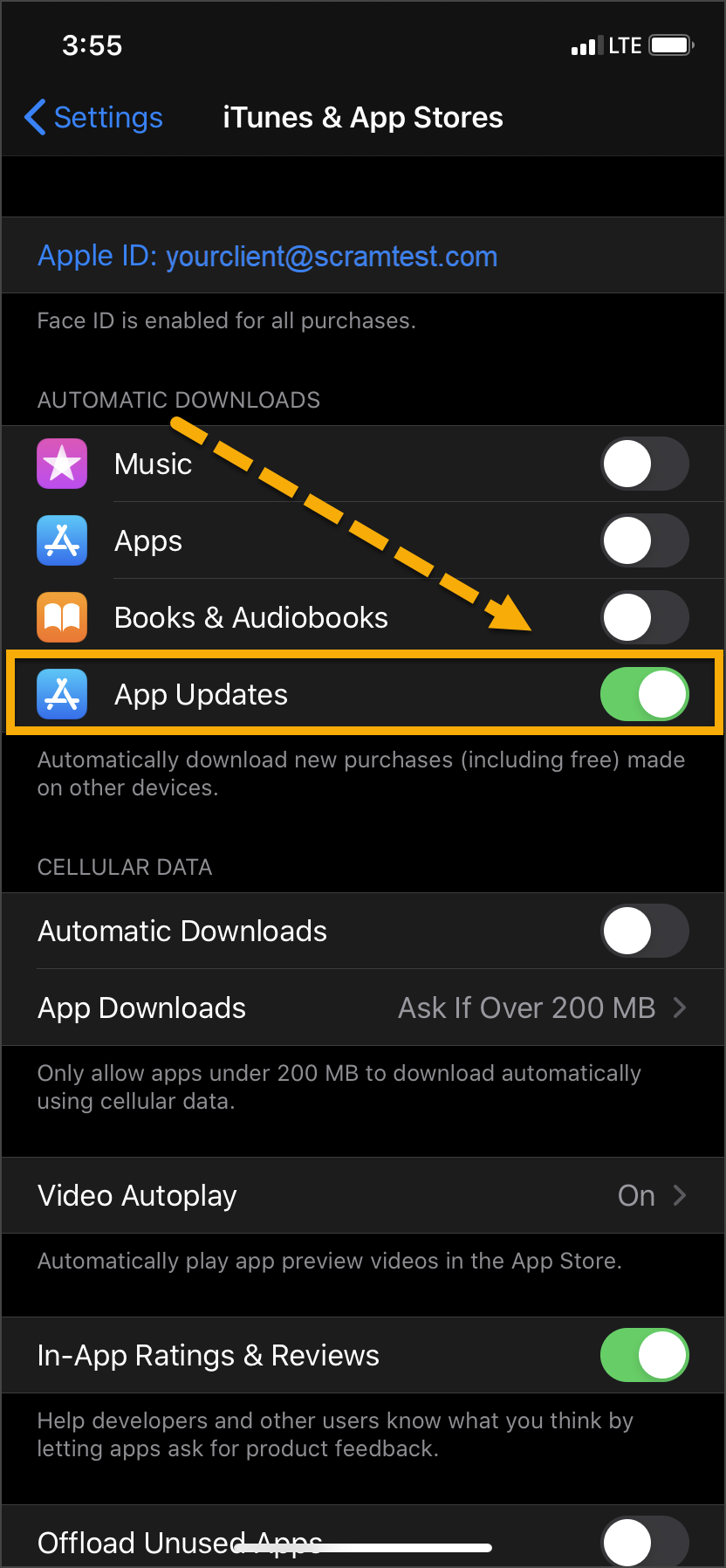
  3. Under the Automatic Downloads section, ensure the App Updates option is enabled.
iPhone home screen Settings icon
Tap ‘Settings’
iPhone settings screen
Tap ‘iTunes & App Store’
iPhone Settings screen
Toggle ‘App Updates’ to the “On” Position

Android

  1. On the client’s smartphone, swipe up on the Home screen.
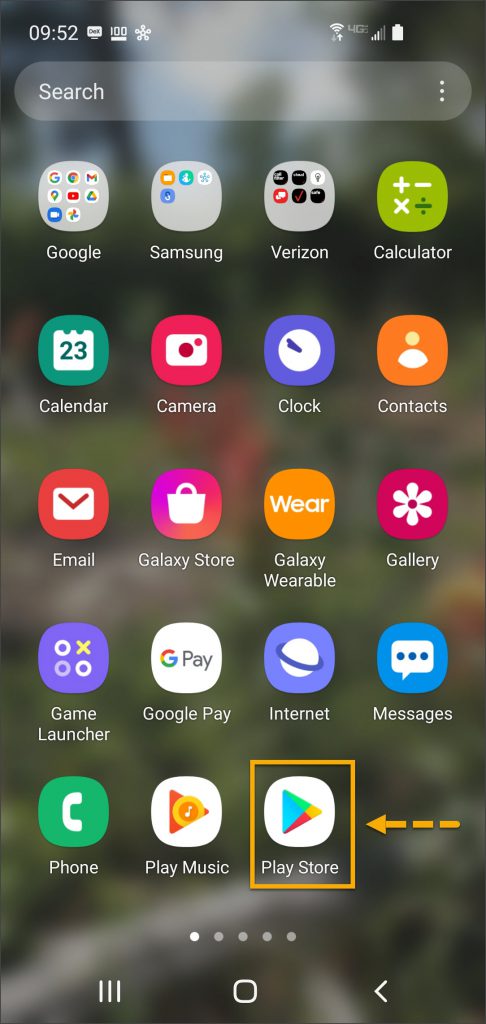
  2. Tap the Play Store icon.
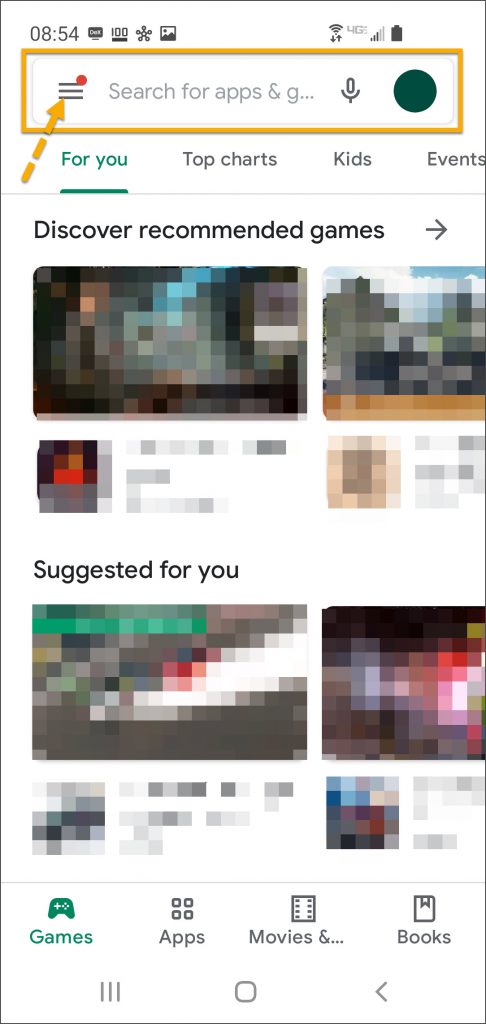
  3. On the Google Play store screen, tap the menu icon in the search field.
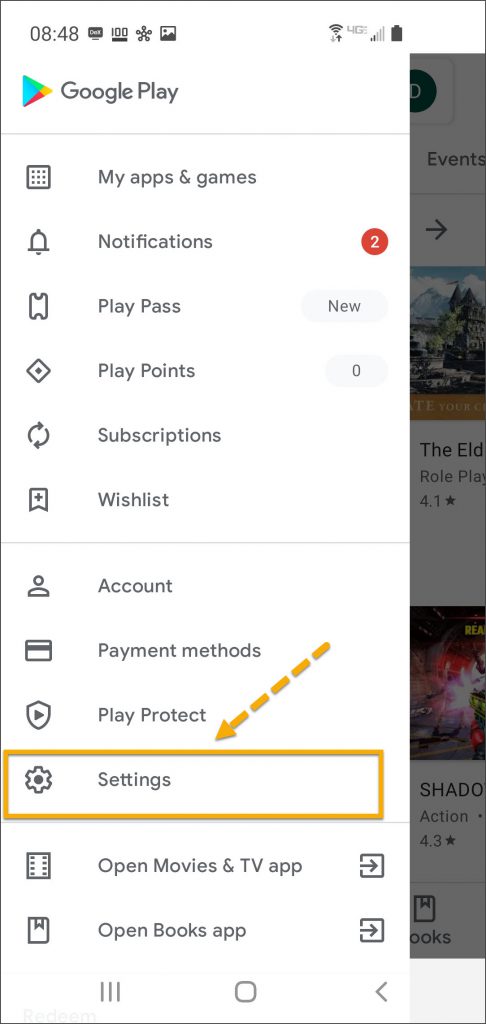
  4. Locate and tap the Settings option.
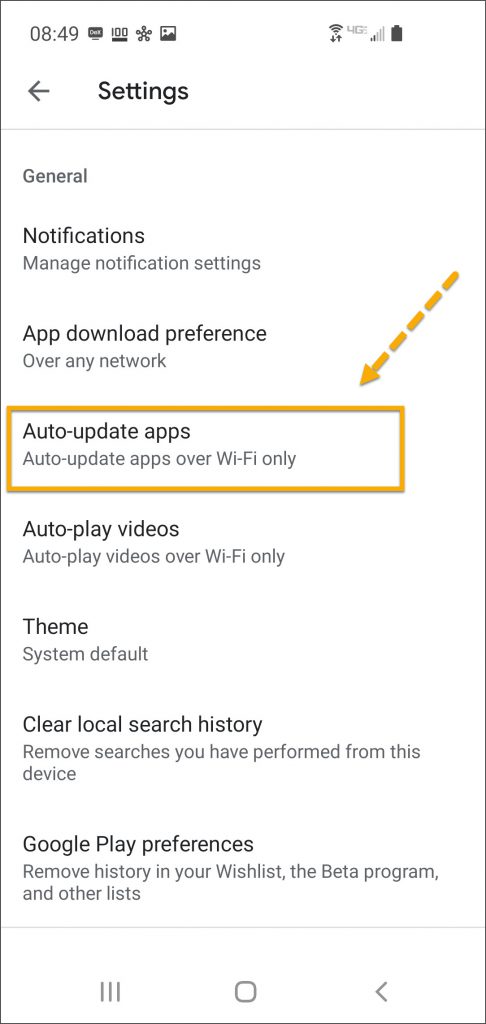
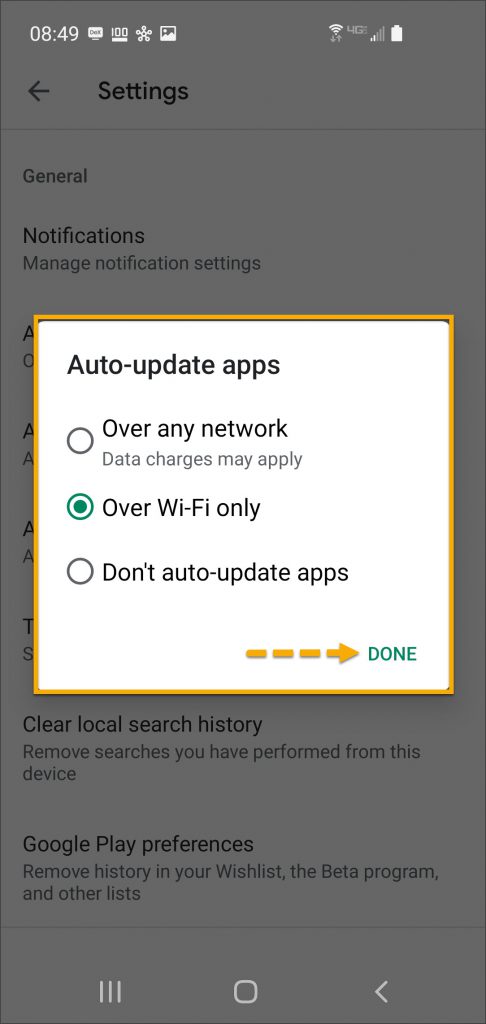
  5. Tap the Auto-update apps option.
  6. In the Auto-update apps window, select the option of,
    • Over any network (Data charges may apply)
    • Over Wi-Fi only
  7. After making the selection, tap Done.
Android app screen Play Store app
Tap the ‘Play Store’ App Icon
Android Google Play screen menu
Select the “Hamburger” Menu
Android Google Play store screen
Tap ‘Settings’
Android Settings screen Auto-Update apps
Select ‘Auto-update apps’
Android Auto Update apps window options
Select the Desired Update Communication Method and Tap ‘Done’

Manual Application Update

iPhone

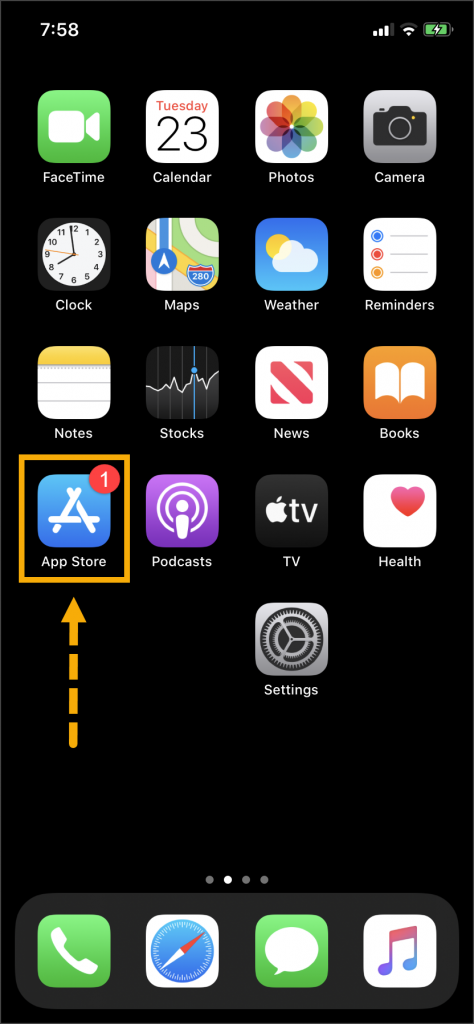
Once an update to the TouchPoint application is available, the App Store icon will display a red badge.

Instruct the client to:

  1. Tap the App Store icon.
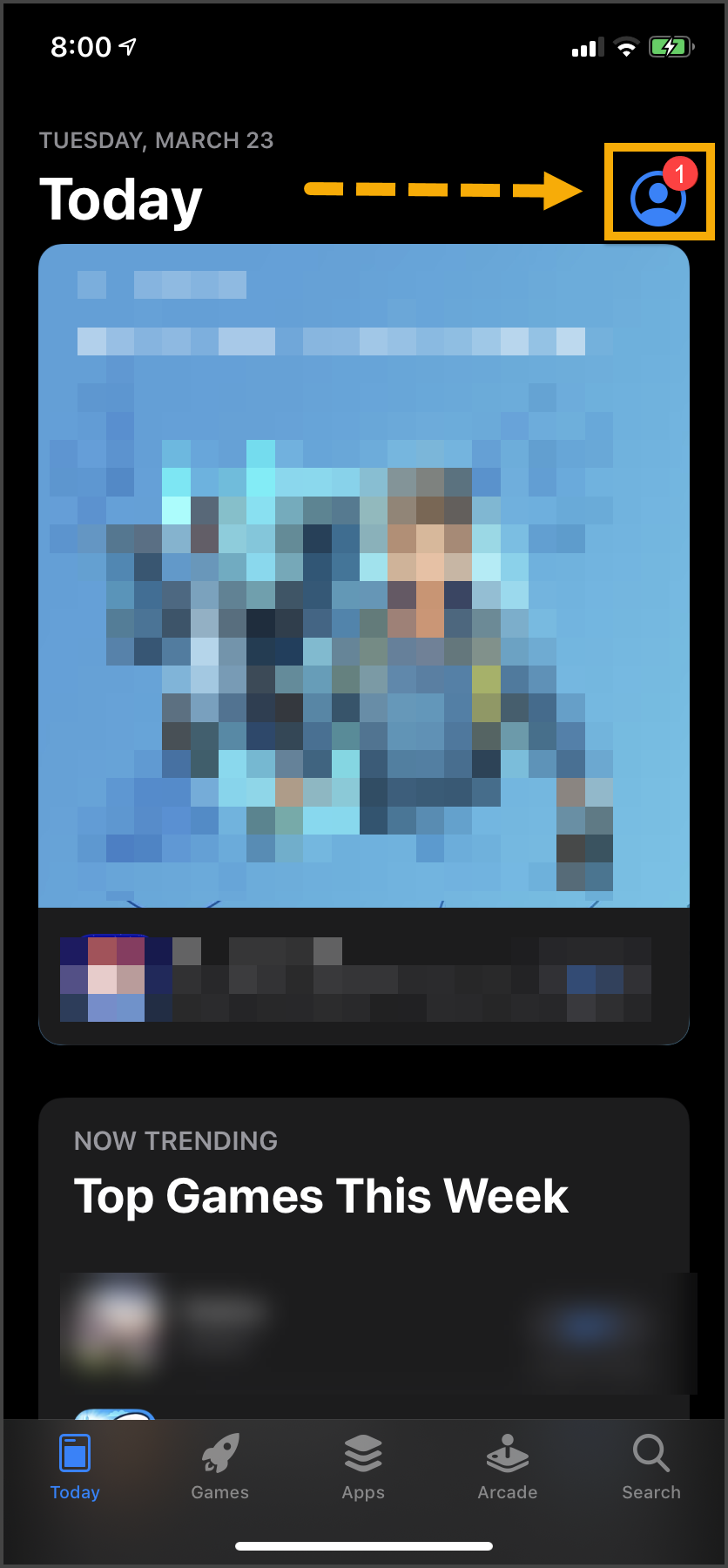
  2. Tap their profile icon.
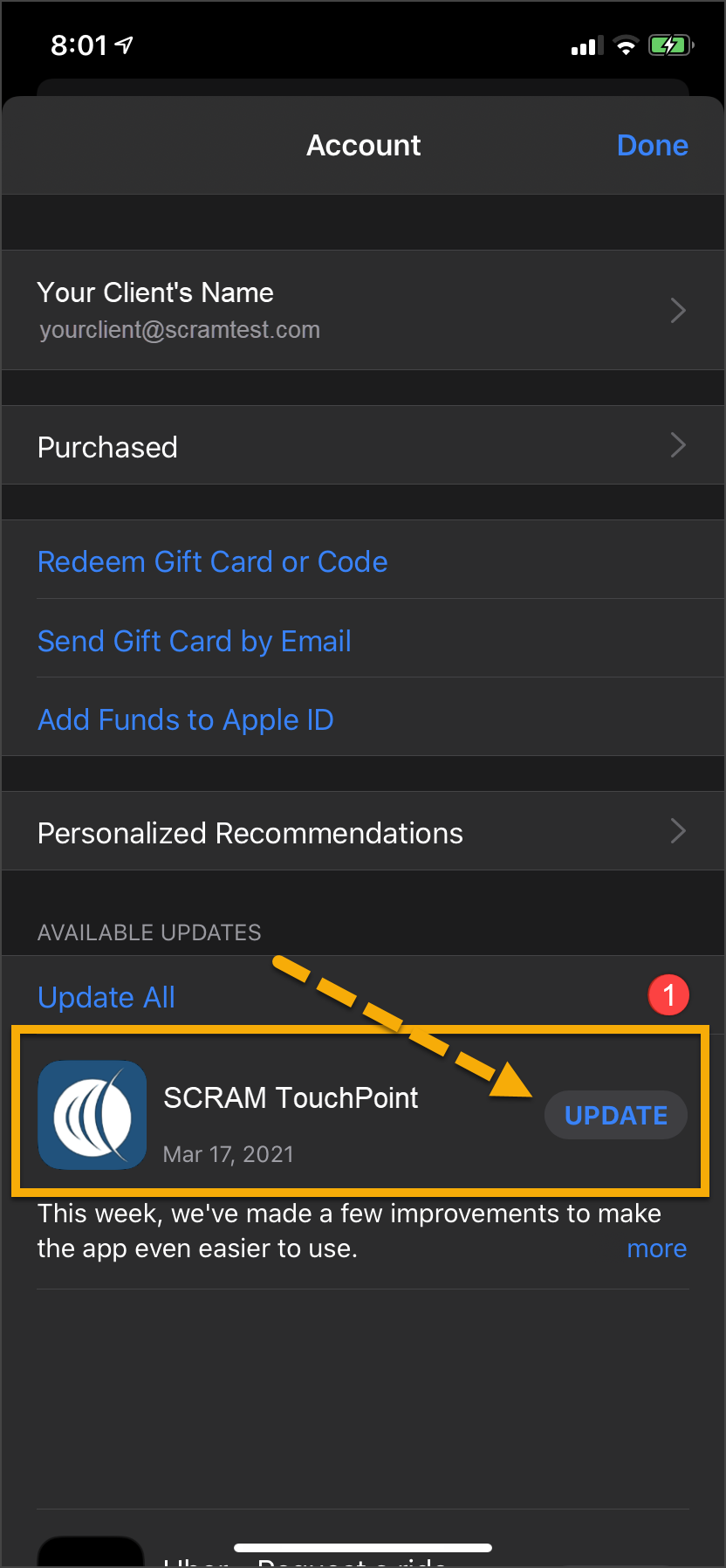
  3. Under the Available Updates heading, locate the SCRAM TouchPoint app.
  4. Tap the Update button. 

As a best practice, we recommend you encourage your clients to enable automatic app updates – this ensures they are always using the latest version of the TouchPoint app.

iPhone Home screen App Store icon
Tap the ‘App Store’ Icon
iPhone App screen
Select the “My Account” Icon
iPhone App update screen
Locate the SCRAM TouchPoint App in the List and Select ‘UPDATE’

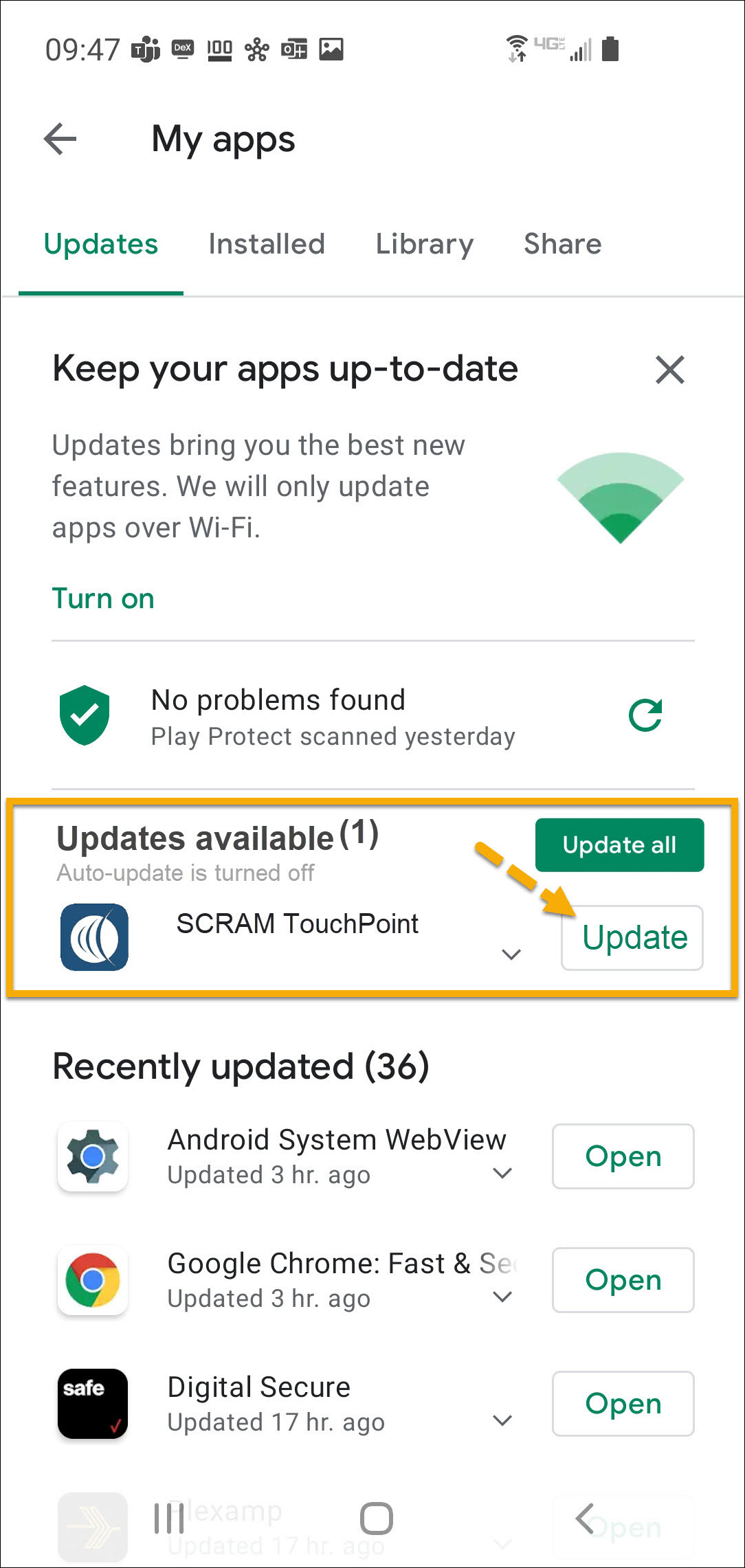
Android

  1. Swipe up on the Home screen and tap the Play Store icon.
  2. On the Google Play store screen, tap the menu icon in the search field.
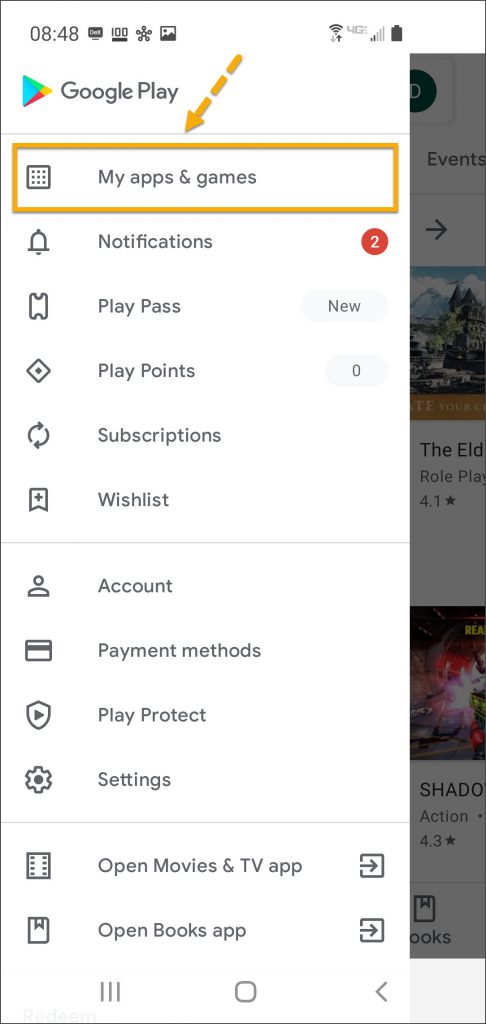
  3. Tap the My apps & games option.
  4. Under the Updates Available section, locate the SCRAM TouchPoint app and tap the Update button.

As a best practice, we recommend you encourage your clients to enable automatic app updates – this ensures they are always using the latest version of the TouchPoint app.

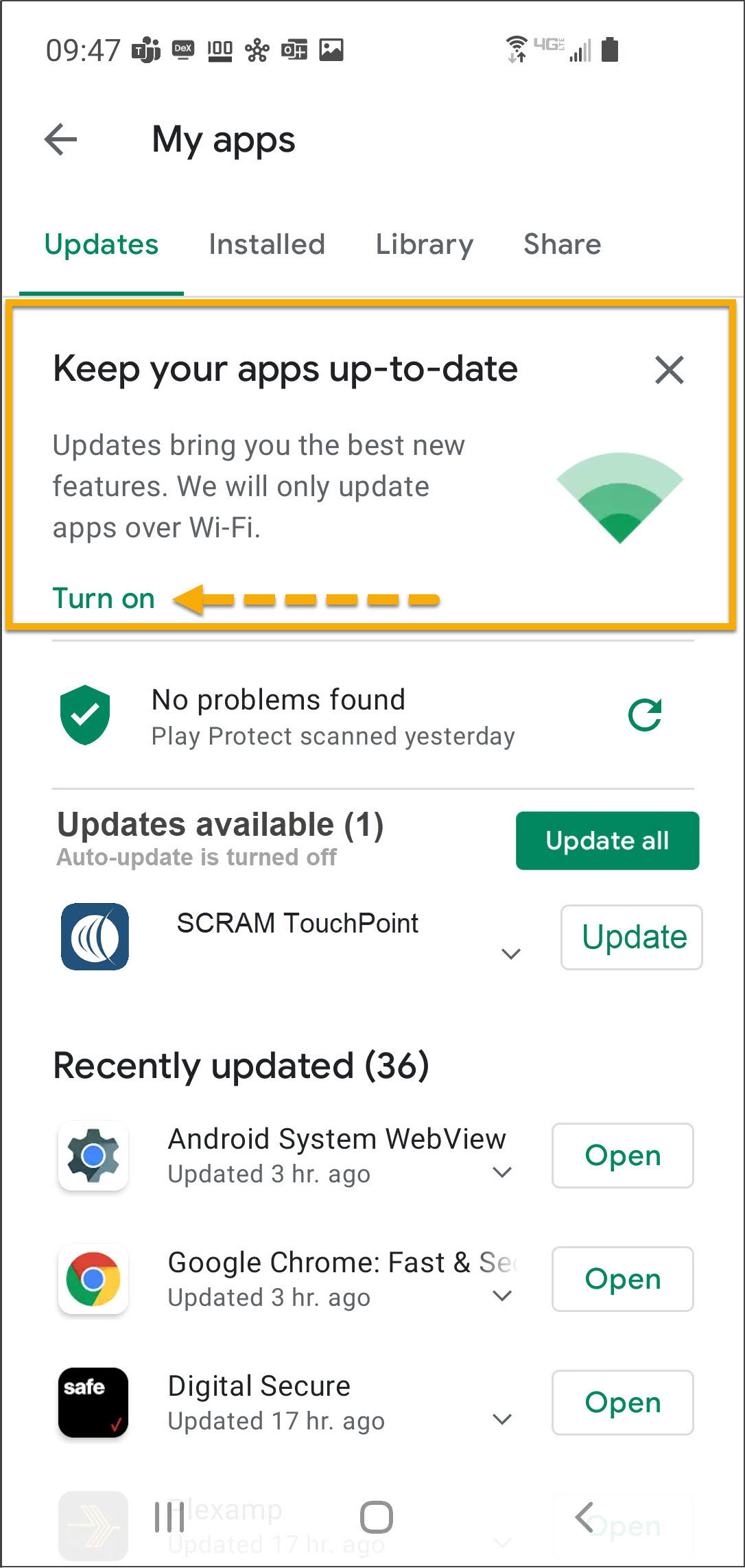
On the My apps screen, tap the Turn on button to enable automatic app updates.

Android app screen Play Store app
Tap the ‘Play Store’ App Icon
Android Google Play screen menu
Select the “Hamburger” Menu
Android Google Play store screen
Select ‘My apps & games’
Android My apps screen update available
Locate the SCRAM TouchPoint App in the List and Select ‘Update’
Android My apps screen
Tap ‘Turn On’ to Automatically Keep Apps Up-to-Date Over Wi-Fi

Continue Reading

On October 28, 2024, SCRAM Systems released two enhancements for your SCRAM TouchPoint caseloads. These enhancements include:

  • Your client’s Check-In and Location details are now consolidated under a “History” tab.
  • A new “TouchPoint Change Log” record is available on the History tab detailing all updates made on the client’s Profile page.
To Access the History Tab for the Client:
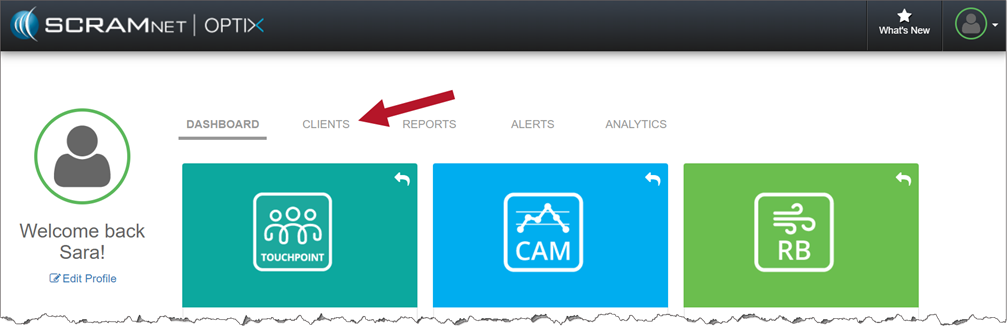
  1. On the Optix Dashboard, select the Clients tab.
The Clients Tab on the Optix Dashboard (click to enlarge)

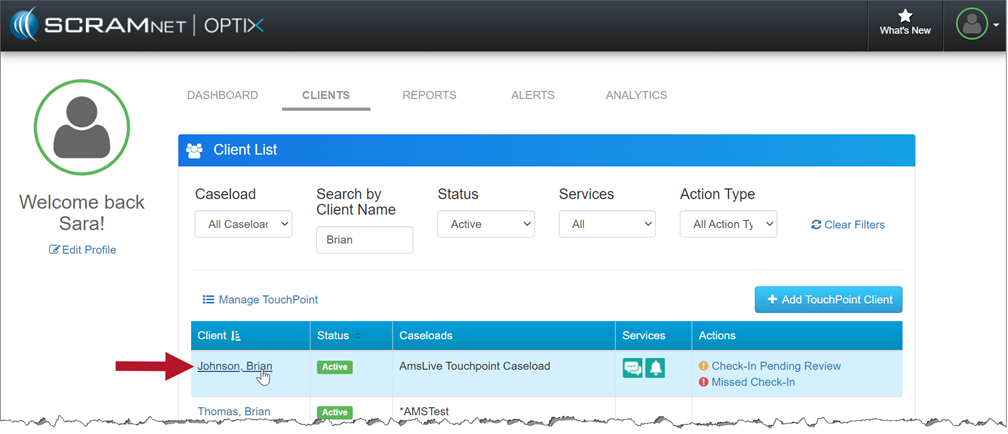
2. Once you’ve found your client, select their name hyperlink.

Select Your Client from the Client List (click to enlarge)

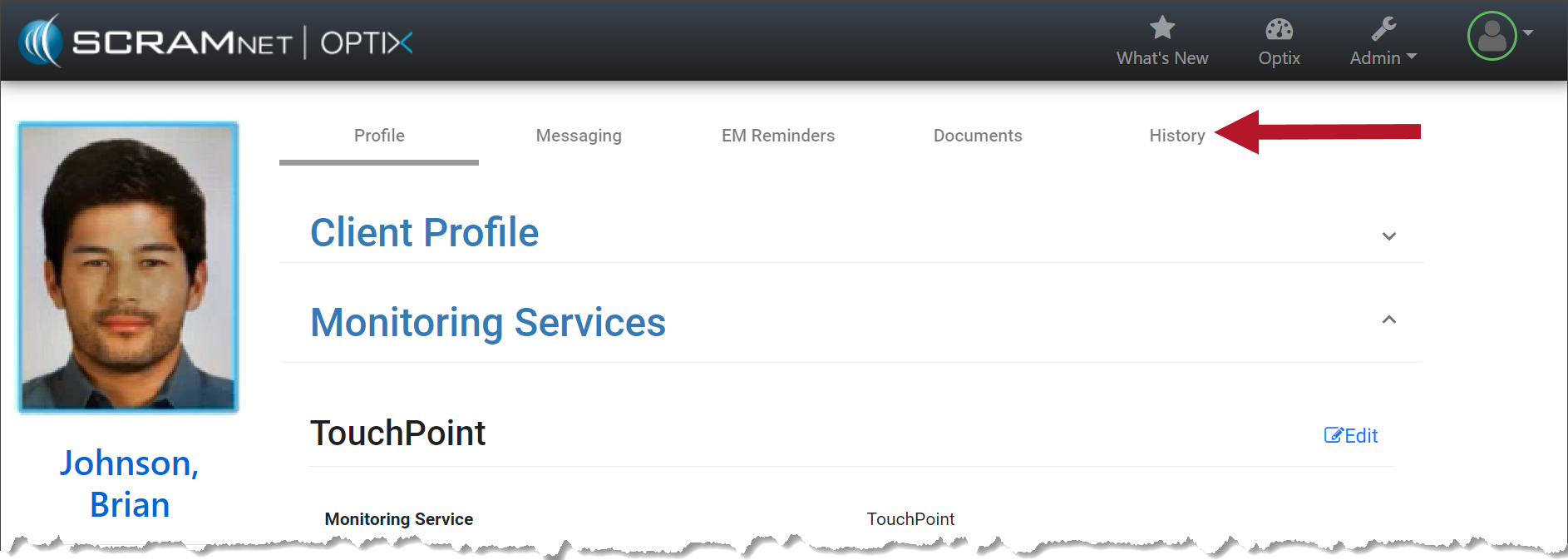
3. On the client’s Profile page, select the History tab.

The New History Tab will Appear on the Client’s Page (click to enlarge)

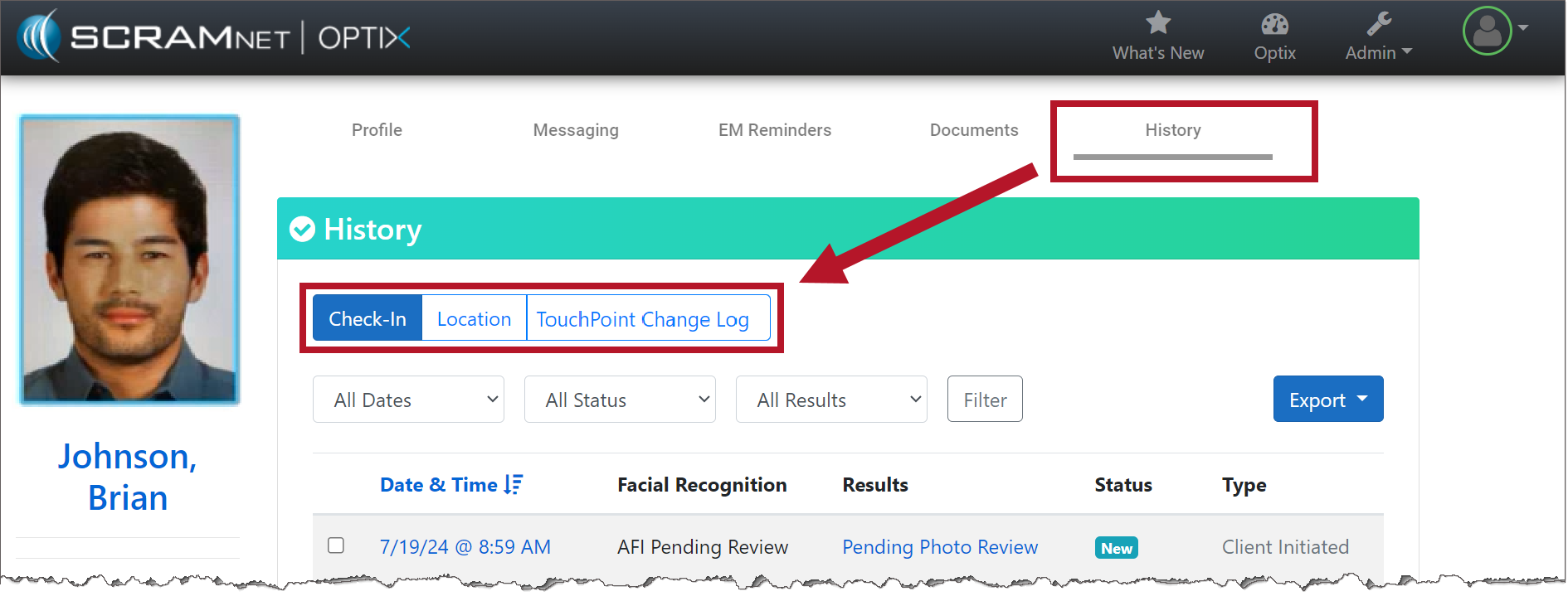
4. On the History page, select the Check-In, Location, and TouchPoint Change Log buttons to view the details.

History tab with Check-In, Location, and TouchPoint Change Log information (click to enlarge)

Check-In

With the Check-In button selected, you will still see the date & time, the results of the Facial Recognition feature, status, and type. No changes have been made to this feature.

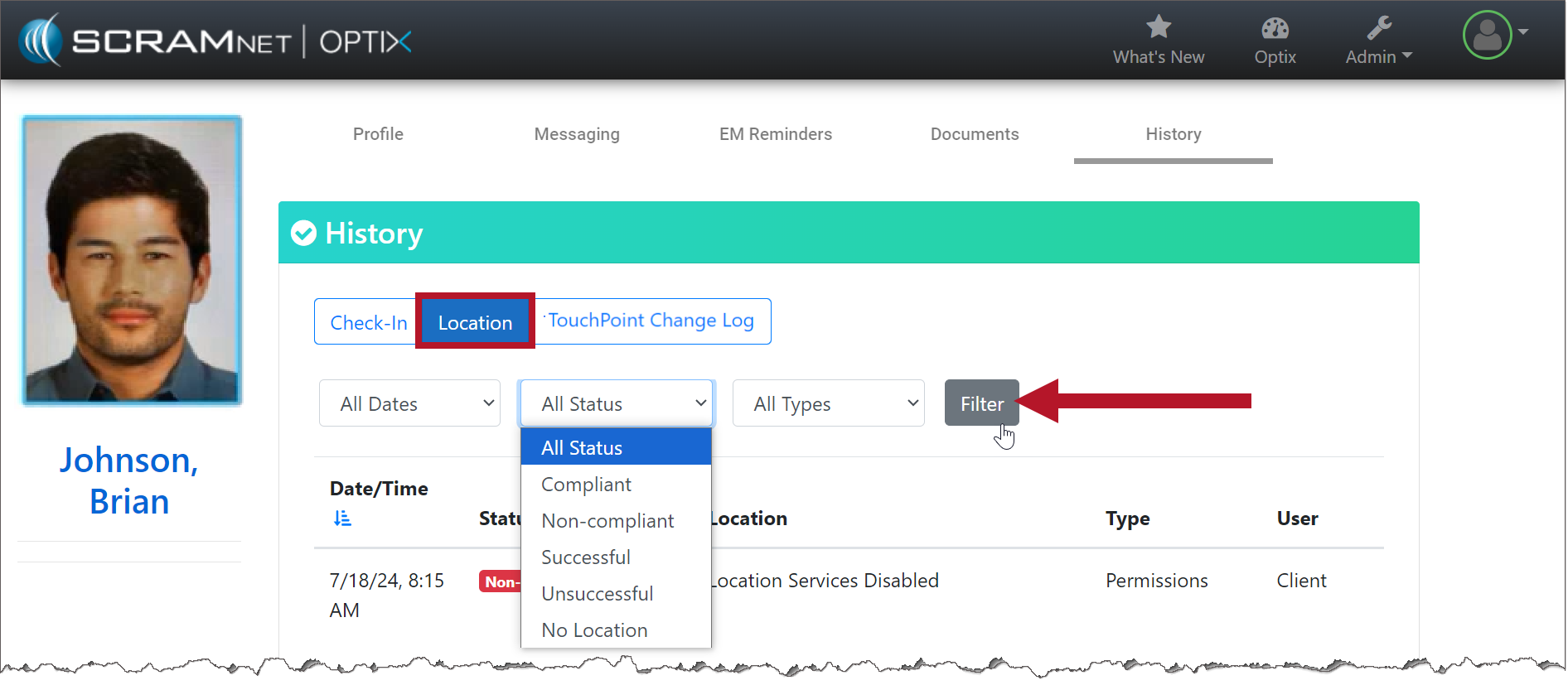
Location

With the Location button selected, you may use the filters to customize what is displayed on the page.

Filter your Location Results (click to enlarge)

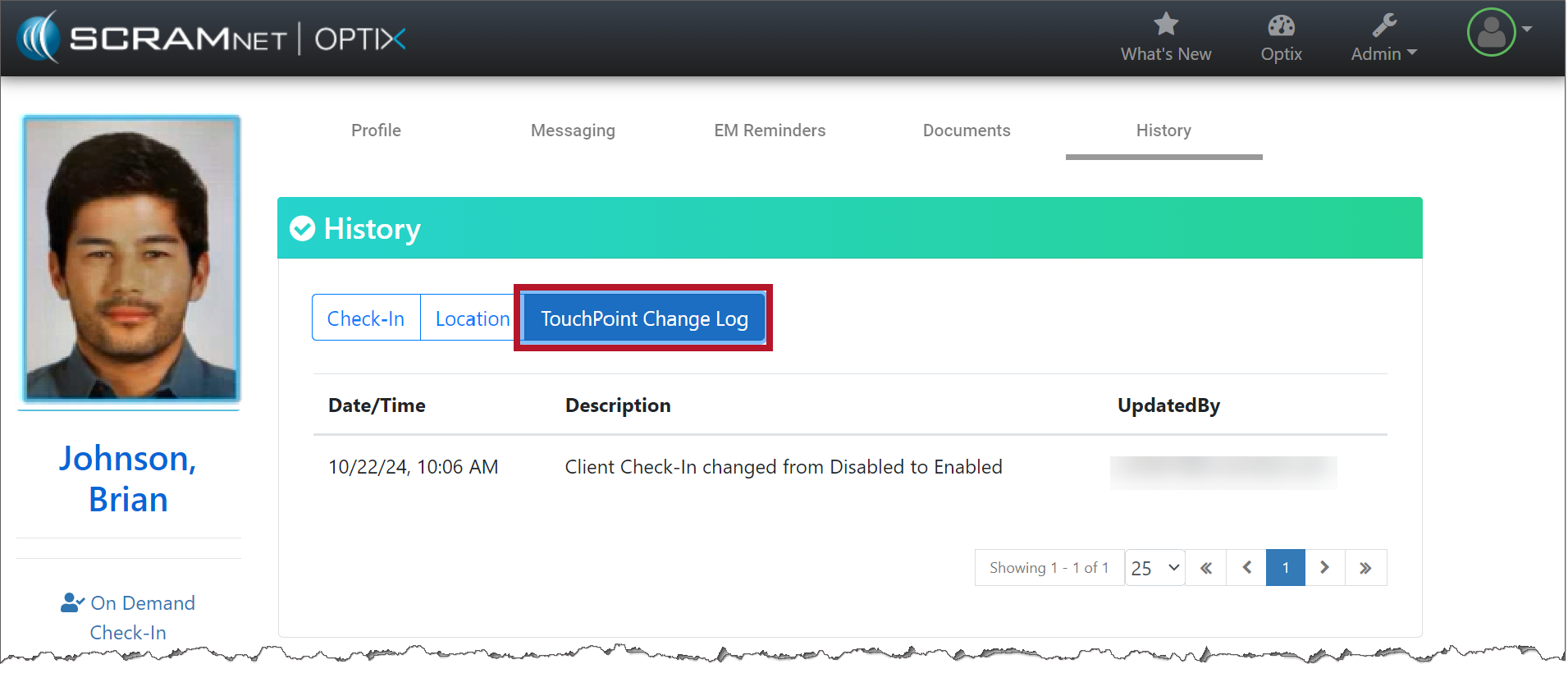
TouchPoint Change Logs

With the TouchPoint Change Log selected, you may view a record of the changes made on the client’s Profile page, including the user’s information that made the change.

TouchPoint Change Log tab (click to enlarge)

Continue Reading

At 5:00 AM MDT on Tuesday, October 22, 2024, SCRAM Systems is introducing a new feature in SCRAMNET GPS that will allow Officers, Agents, and Case Managers to send audible alarms to SCRAM GPS devices for longer than the standard 30-second duration.

Information SCRAMNET GPS deployments typically occur on Thursdays at 7:00 AM EST in the US, 10:00 PM AEST in Australia, and the following 12:00 AM EST (Friday) in Canada. Please refer to the official SCRAM Systems email communication associated with this release for more details. During the 15-minute deployment, you may not be able to access SCRAMNET GPS, but messages from the SCRAM GPS device will continue to be processed uninterrupted.

Send the Audible Alarm for Longer Duration

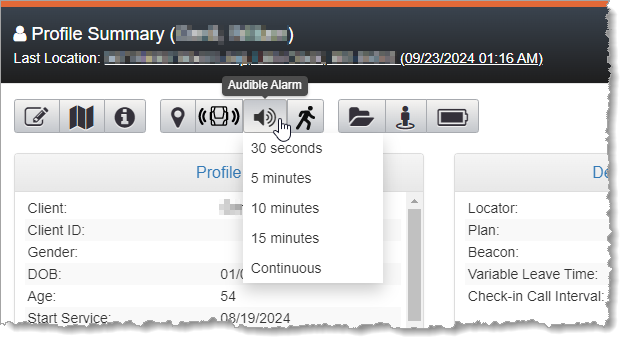
SCRAMNET GPS users may now send the Audible Alarm for durations longer than 30 seconds. This can be useful when the client is in a loud environment, or to help you find a lost bracelet.

The Audible Alarm can be sent from various pages in SCRAMNET GPS. The Audible Alarm now supports the following durations:

  • 30 seconds
  • 5 minutes
  • 10 minutes
  • 15 minutes
  • Continuous
Audible Alarm Duration Dropdown

SCRAMNET GPS will automatically send audible alarms in 30-second intervals followed by a brief pause between alarms, until the client presses the button or until the selected duration has elapsed.

To stop an Audible Alarm that has been set for a long (or continuous) duration, change the duration to 30 seconds.

The Client Events Dialog

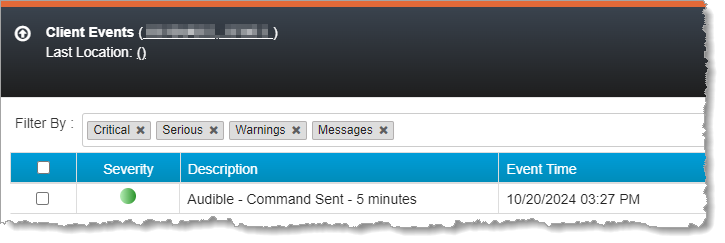
The “Audible – Command Sent” message is shown in the Client Events dialog. The message shows the duration selected by the user.

Audible Alarm on Client Events Dialog

If the client presses the button for the Audible Alarm, then an “Audible – Offender pushed button event” is shown in the Client Events dialog. If the client has not pressed the button and the selected duration is reached, then an “Audible – Offender did not push button” event is shown.

Continue Reading

October 2024 Tip of the Month

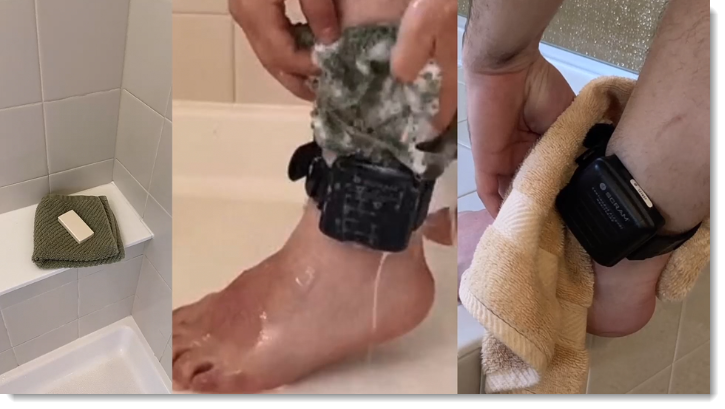
To help decrease the possibility of skin irritation, rashes, or infections developing on your SCRAM CAM clients’ ankles, encourage them to exercise a daily cleansing routine. SCRAM Systems strongly recommends clients follow these steps to wash their ankles under and around the device:

  1. Apply soap to a clean, damp washcloth and wash your ankle by inserting the washcloth between the device and your skin, and then removing it.
  2. Repeat the motion until all areas between the device and your ankle have been washed.
  3. When you are done cleaning your ankle, rinse the area off to remove the soap.
  4. Lastly, use a dry washcloth or towel to thoroughly dry underneath and around the device.
Wash the skin around the ankle with a washcloth, rinse, and dry the area completely
WarningWARNINGS:
  • The device should not be submerged under water – showers are recommended.
  • If your client has a specific health condition or concern, be sure they discuss it with you, their supervising authority, and a medical practitioner.

Continue Reading