What's New

Re: Fraudulent Phone Calls, Client Safety, & Data Security Assurance

To Our Valued Partners,

We want to take a moment to reassure you that there has been no data breach at SCRAM Systems. Our internal security teams have conducted a thorough review of recent reports, and there is no indication that any data has been accessed or compromised from SCRAM Systems’ servers.

What we are observing appears to be part of a broader scam targeting individuals on Electronic Monitoring (EM) programs nationwide—regardless of the device manufacturer or service provider. These fraudulent calls have been reported by clients wearing a variety of monitoring devices from multiple vendors and appear to stem from publicly available information or data obtained through unrelated means.

SCRAM Systems is actively monitoring the situation and remains in close contact with partners and relevant authorities to ensure the integrity of our systems and support the safety of monitored individuals.

In the meantime, we continue to recommend the following:

  • If a client receives a suspicious or threatening call, they should immediately contact local law enforcement and report the incident.
  • If you have any client reports or specific details to share, we welcome you to pass them along so we can escalate internally and contribute to broader awareness and monitoring efforts.

We are also available to set up a call should you wish to discuss this matter further.

Thank you for your continued partnership and vigilance.

Sincerely,

John Hennessey

Chief Operating Officer

SCRAM Systems

jhennessey@scramsystems.com

815-342-4469
Download a copy of this letter

Continue Reading

At 5:00 AM MDT on Thursday, April 3, 2025, SCRAM Systems is introducing two new features in SCRAMNET GPS. Enhancements include:

  1. Changes to the SCRAM Ally mobile app registration and login process
  2. Enhanced performance with HTTP/2 support
Information During the 15-minute deployment, you may not be able to access SCRAMNET GPS, but messages from the SCRAM GPS device will continue to be processed uninterrupted.

Changes to SCRAM Ally Registration & Login

Victim Notification: Background

The SCRAMNET GPS Victim Notification service, paired with its companion smartphone app, SCRAM Ally™, allows officers and case managers to automatically inform victims when an assigned GPS client is in close proximity to the victim’s smartphone, and possibly in violation of a restraining order.

Important! IMPORTANT: Activation of the Victim Notification service requires a contract amendment. If you are interested in the service, please contact your SCRAM Systems Account Manager or Sales Representative.


Changes That Impact Existing Victim Notification Customers

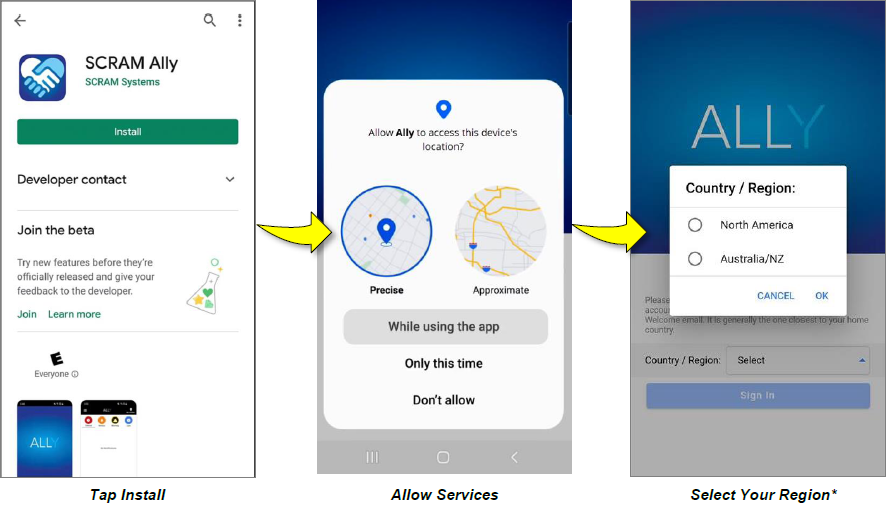
New victim-users of the SCRAM Ally mobile app must now select their home Country / Region* when registering the app:

Install Ally, allow services, and select your region.
Select the image above to open the SCRAM Ally App Victim Instructions help page
Important! IMPORTANT NOTES:
  • *If a new victim-user selects the wrong Region by mistake during registration, contact SCRAM Systems Customer Support for assistance immediately.
  • Existing users of the SCRAM Ally app will not need to take any action to continue using the app.

Enhanced Performance with HTTP/2 Support

SCRAMNET GPS now supports HTTP/2, a modern standard for allowing web browsers to communicate more efficiently with SCRAM Systems servers, which results in faster page-load times. You don’t need to do anything to take advantage of this feature. It is automatically enabled on your browser.

TipTip: For optimal performance we suggest clearing your browser’s cache and cookies following the April 3rd deployment of the feature.

Continue Reading

SCRAM Systems has recently learned of a telephone-based scam that targets the clients of electronic monitoring (EM) programs. Currently, the scam appears to be centered in the states of North Carolina and Tennessee, and focused on EM clients. In this scam, a caller poses as a member of local law enforcement – or in one case, as a SCRAM Systems representative – and then demands payment and/or bank account information from the client over the phone for EM device monitoring services. The scammer additionally threatens arrest or other legal consequences for failure to comply.

Please be aware that SCRAM Systems will never contact your clients to request payments. We have engaged our Security Team to investigate this further, and we encourage you to share news of this potential fraud with your monitoring program clients, as well as any monitoring program team member who interfaces with clients.

You may also wish to share news of this scam with recently-released clients who are not court-ordered to be fitted with an EM device, as they may be targeted by scammers who claim they are to be fitted with one and must pay for it in advance.

If you have any questions or receive reports of fraud attempts, please contact SCRAM Systems Customer Service.

Continue Reading

On February 27, 2025, SCRAM Systems will release two enhancements for your SCRAM Nexus caseloads:

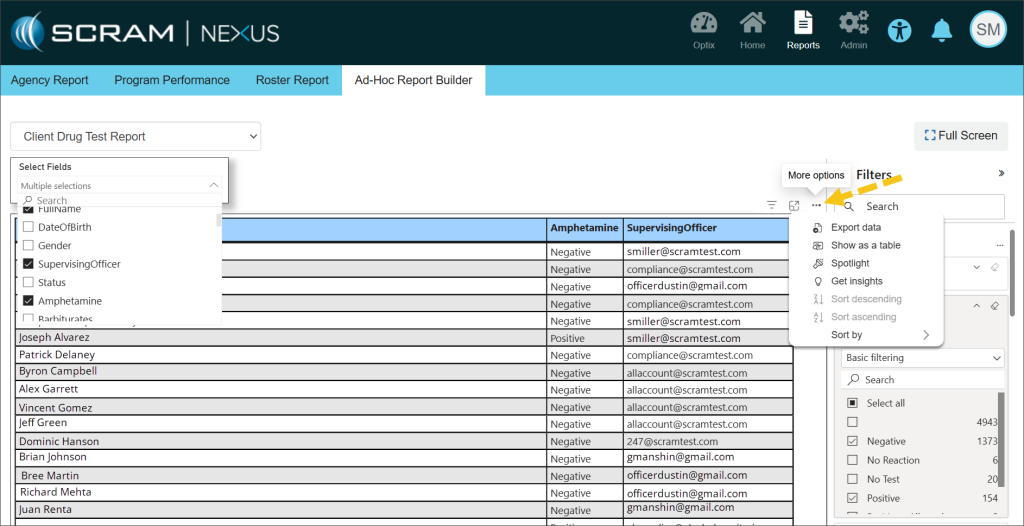
  1. Ad Hoc Reporting allows for multiple options in building dynamic reports using data already entered from the Nexus database. Reports may be customized to fit the requirements necessary for the monitoring of clients.
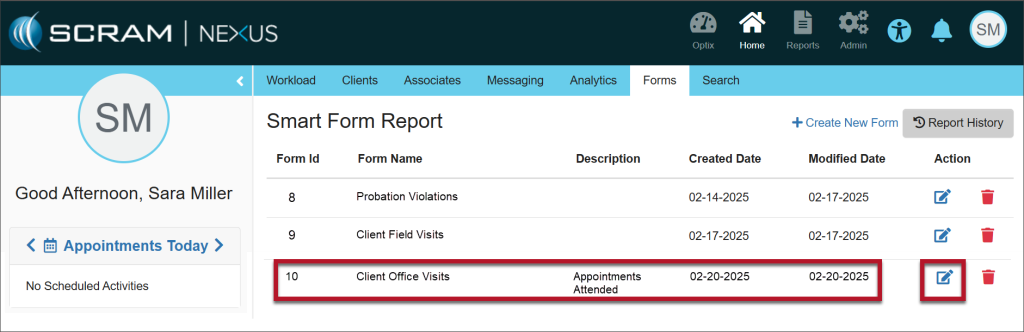
  2. Smart Forms allows users to create, maintain, and customize the official forms they use to communicate with the courts. Some information the forms use is static, for example, content originating from the courts, and some needs to be personalized to the client. The forms can be customized to include information on a single client or on multiple clients.

SCRAM Nexus Ad Hoc Reporting

Customizing a Report

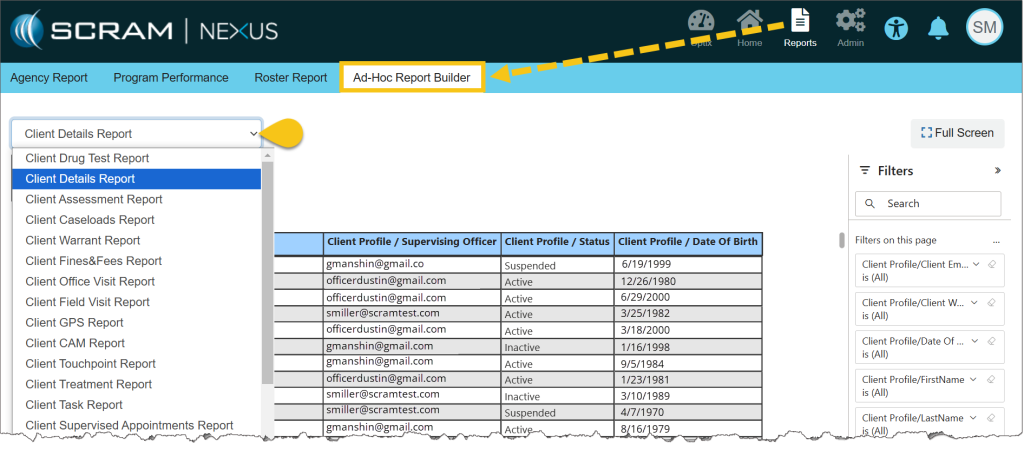
From the Reports menu, select the Ad Hoc Report Builder tab, and then select the desired Report Type from the dropdown menu.

Ad Hoc Report Builder Tab

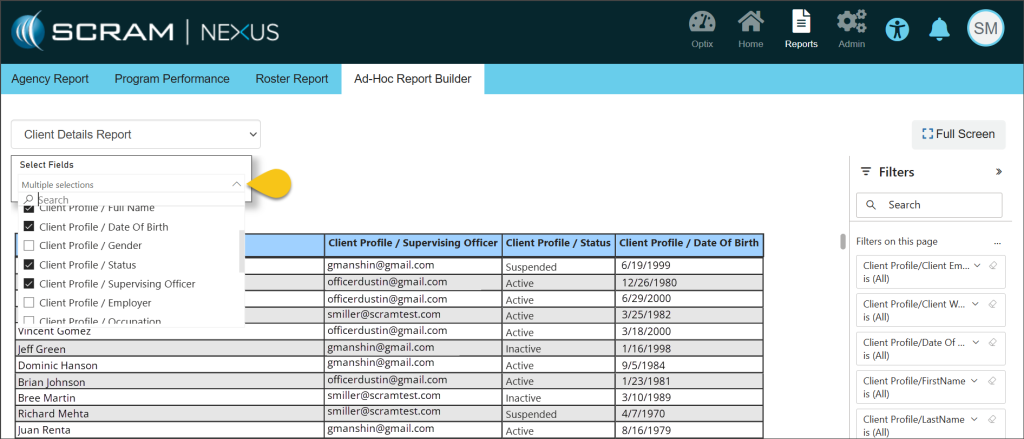
Once a report is selected, use the Select Fields dropdown list to choose the data fields that will be included in the report. The selected fields will show as titles of the columns in the report. As each choice is selected, the report will dynamically populate.

Select Fields Dropdown

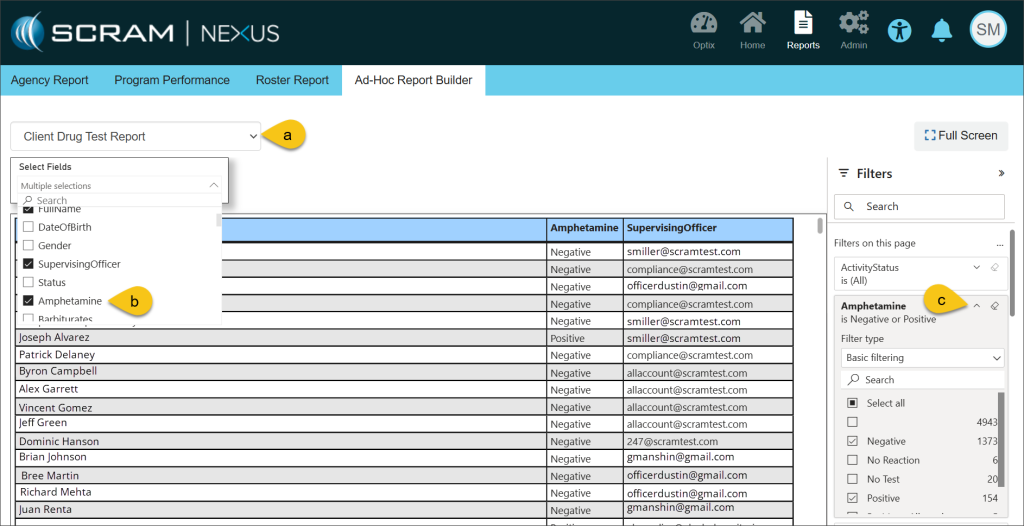
Further customization is available using the Filters section on the right side of the page. These advanced filters allow you to add more conditions for the information that will be displayed on the report. For example, choosing the Client Drug Test Report with the field of Amphetamine selected, allows you to filter the report even further to only show clients who have tested negative or positive for amphetamines.

Additional Filters

Printing a Report

Hovering your mouse over any field in the table uncovers more options for viewing the information contained in the report. Selecting the More Options ellipsis (…) allows for exporting and printing your report in Excel.

More Options

SCRAM Nexus Smart Forms

Customizing a Smart Form

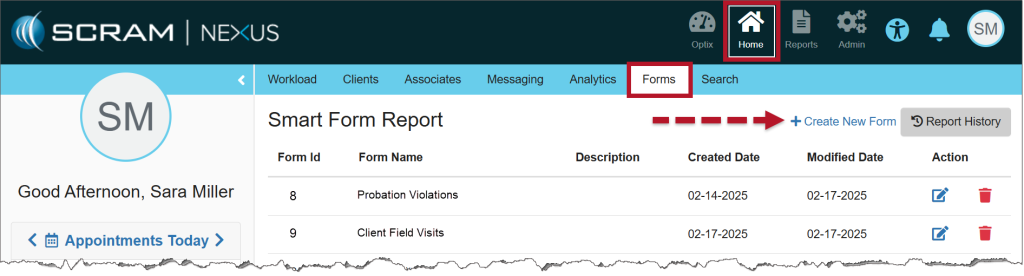
  1. From the Home menu, select the Forms tab, and then select the +Create New Form hyperlink.
Smart Form Report
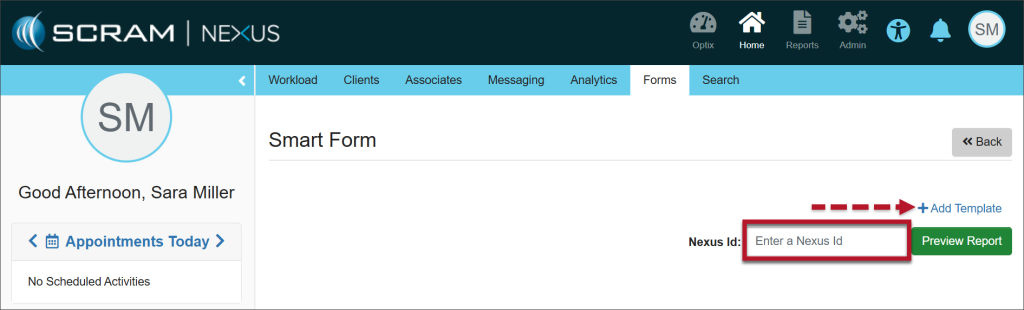
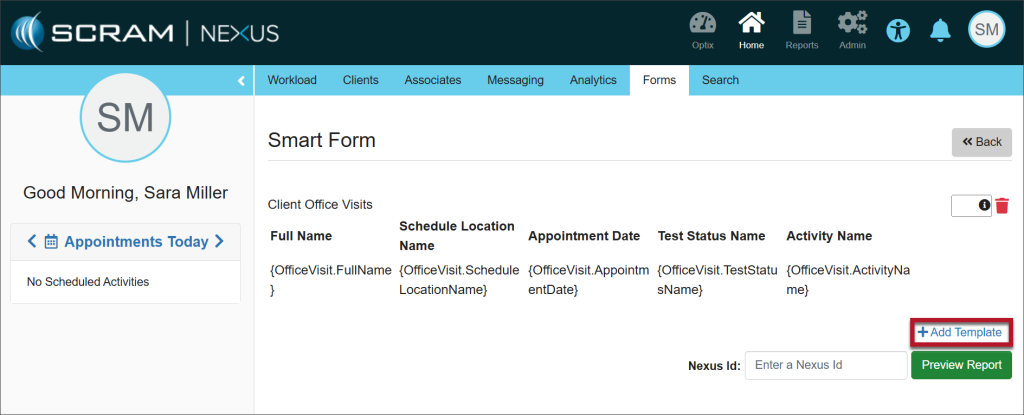
  1. Enter the client’s Nexus Id (Find the Nexus Id) and select the +Add Template hyperlink.
Select +Add Template
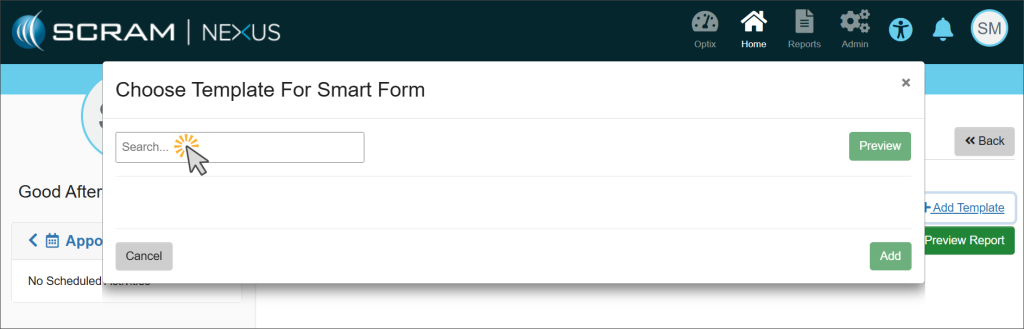
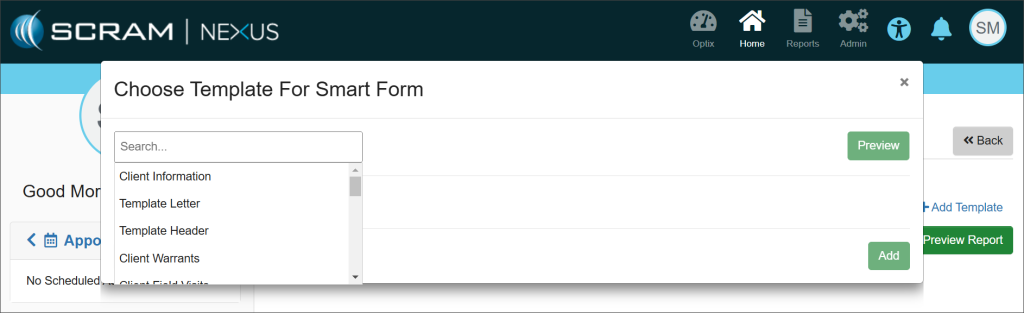
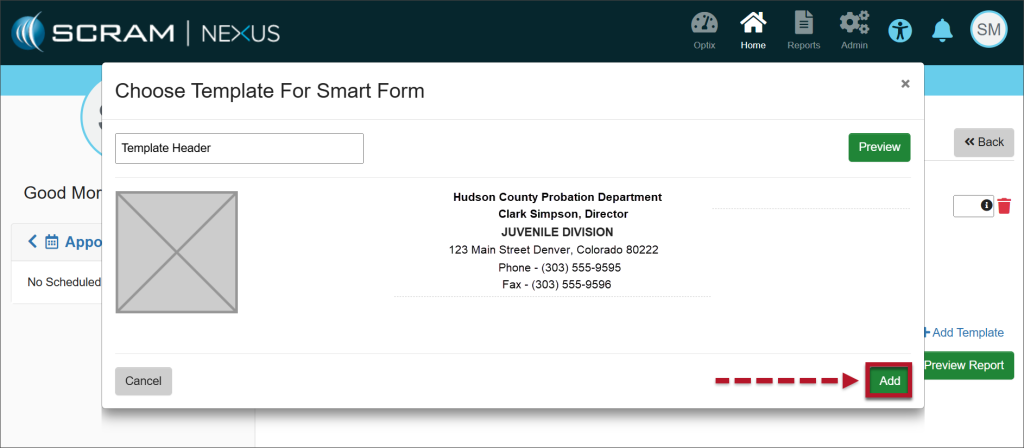
  1. A Choose Template for Smart Form pop-up window will display. Select the Search field to activate a dropdown menu of template choices and select the desired template.
Select the Search Field
Choose the Desired Template
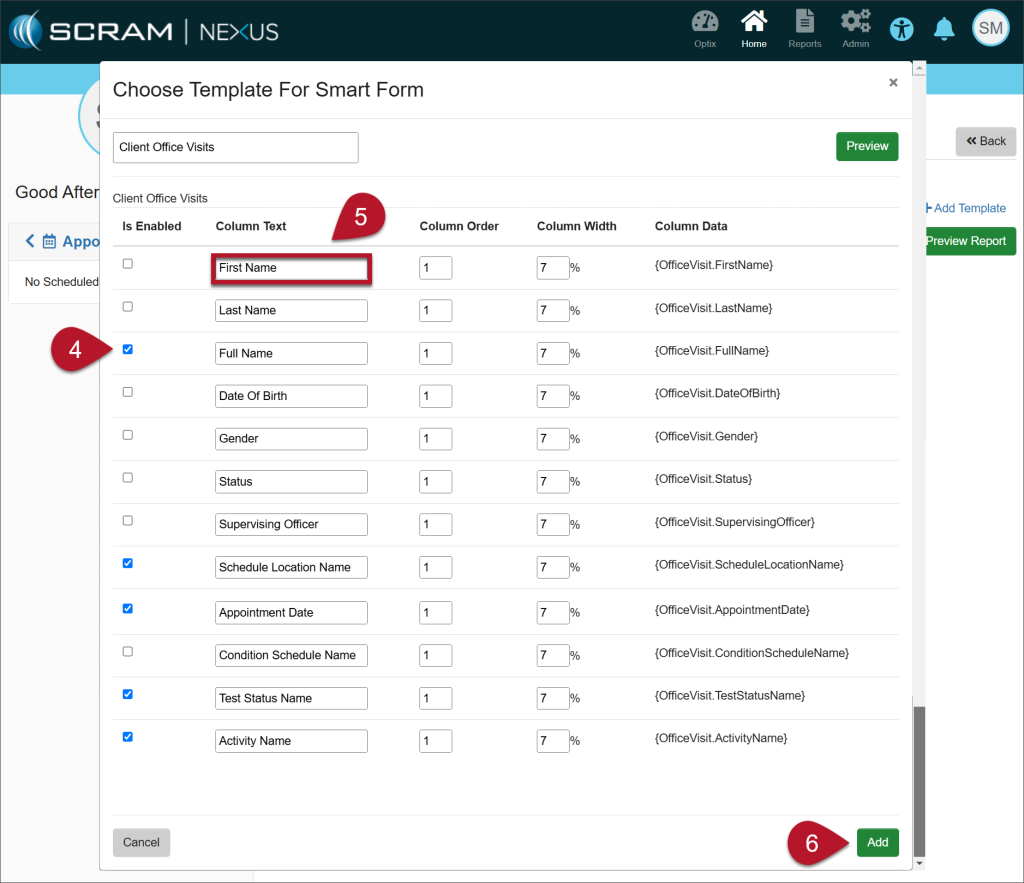
  1. Select the checkboxes of the attributes necessary to include on the form.
  2. Each template is editable. Edit the text contained in any Column Text field to change the information. This gives you the ability to customize the headings as they will appear on the report output.
  3. Once you have made your changes, select the Add button.
Deselect the columns you do not need, edit the Column Text headings, if desired, and then select Add.
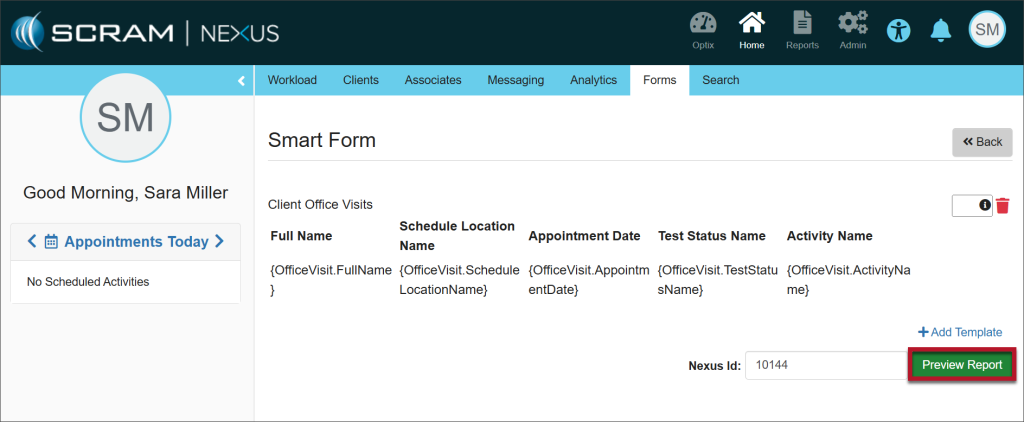
  1. Select the Preview Report button.
Preview the Report
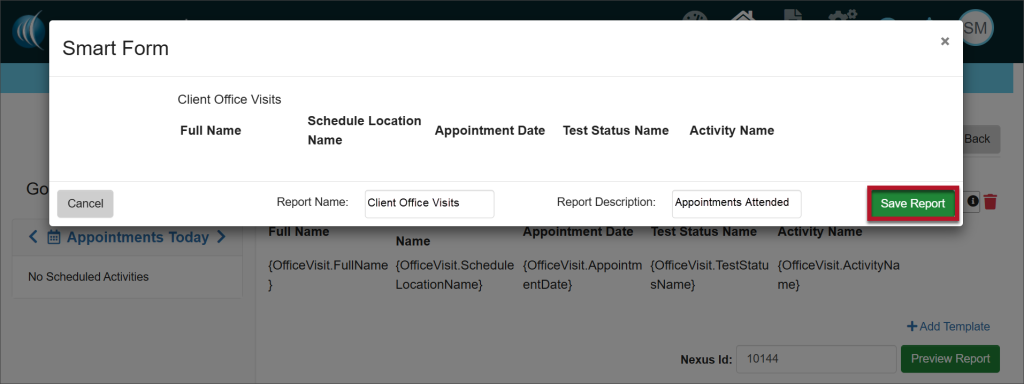
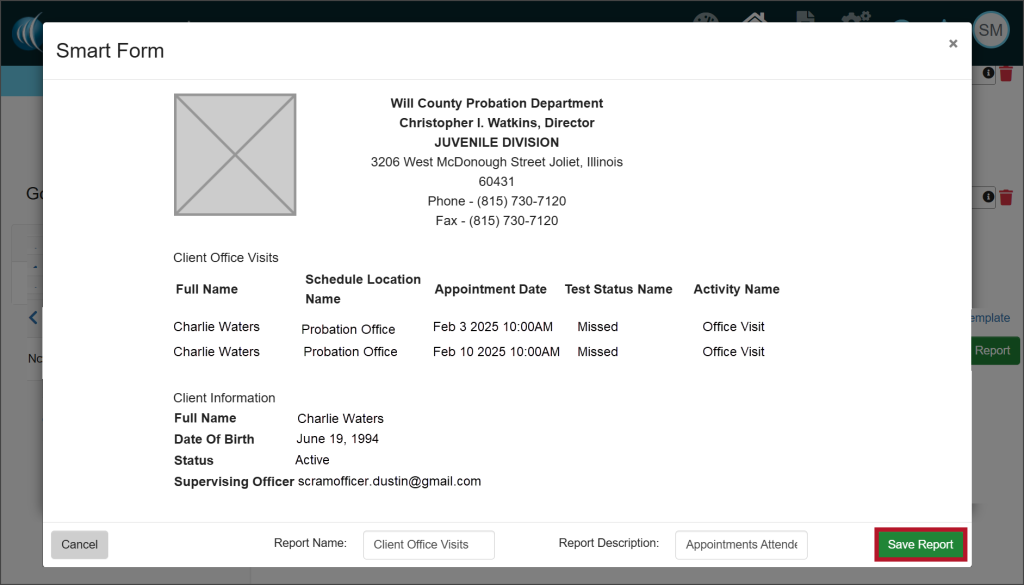
  1. From the Preview, add a report name and description. Select the Save Report button.
Add a Report Name and Description
  1. A green Success banner will indicate that the Smart form was saved successfully. The form has been saved in the Smart Form Report section. To continue customizing the form, select the Edit icon under the Action heading.
Saved Form
  1. Re-enter the client’s Nexus Id and select the +Add Template hyperlink to continue adding components to the saved form.
Add Template
  1. Select the Add button to add the new template to the existing report.
Add Button

Final Edits to the Form

Once the information has been customized to meet your needs, you have the ability to adjust the order of the sections on your form.

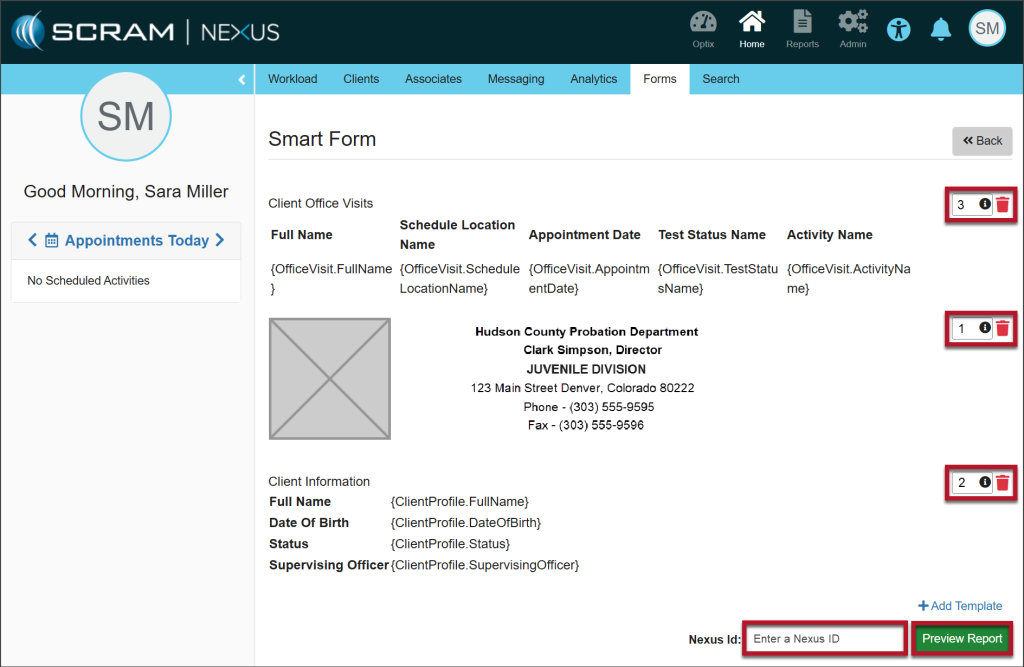
  1. Add numbers to the fields on the right side of the page to order the sections in the sequence you’d like them to appear on the form.
  2. Enter the client’s Nexus Id.
  3. Select Preview Report to view the final product.
Change the Order of the Sections
  1. Select the Save Report button. The green Success banner indicates that the Smart Form was added successfully.
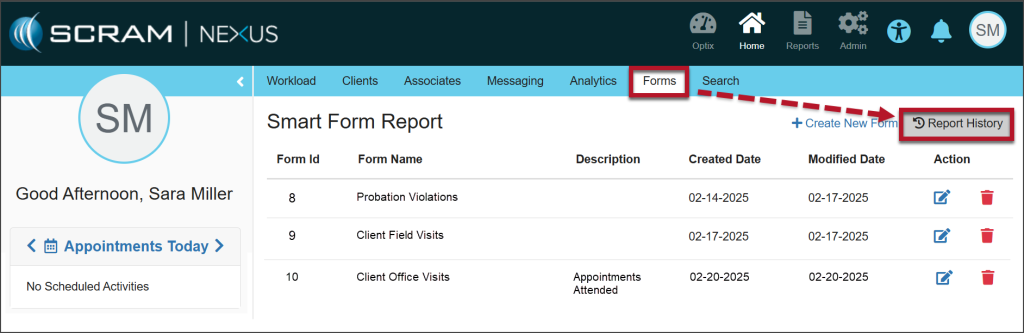
  1. The form is available to run from the Forms tab. Select the Report History button to access the form.
Access the New Form
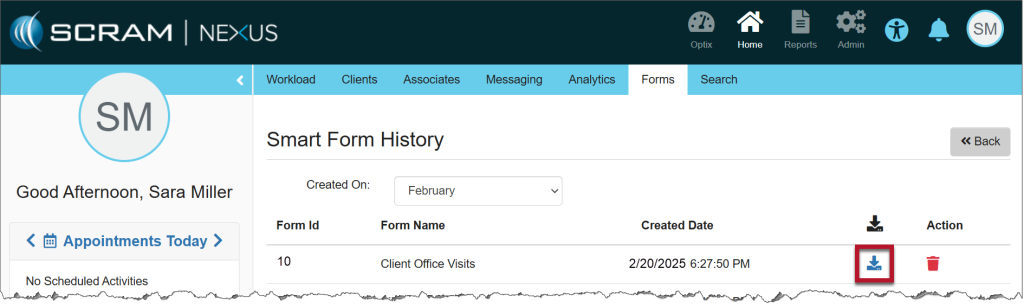
  1. Select the download icon next to the Form Name.
Download the Form
  1. Acknowledge that you want to download the Smart Form.
  2. The document will be available in your Downloads folder.

One Form, Multiple Clients

The form for a single client can also be shared with multiple clients using the Mass Transfer feature.

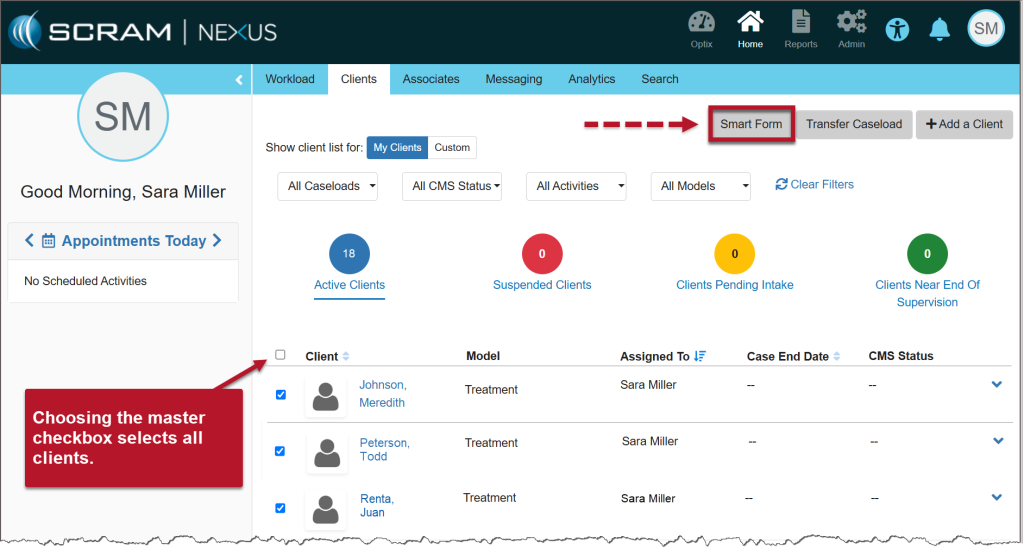
  1. Select the checkbox next to each of the clients that you want to send the form to.
  2. Select the Smart Form button.
Smart Form Button
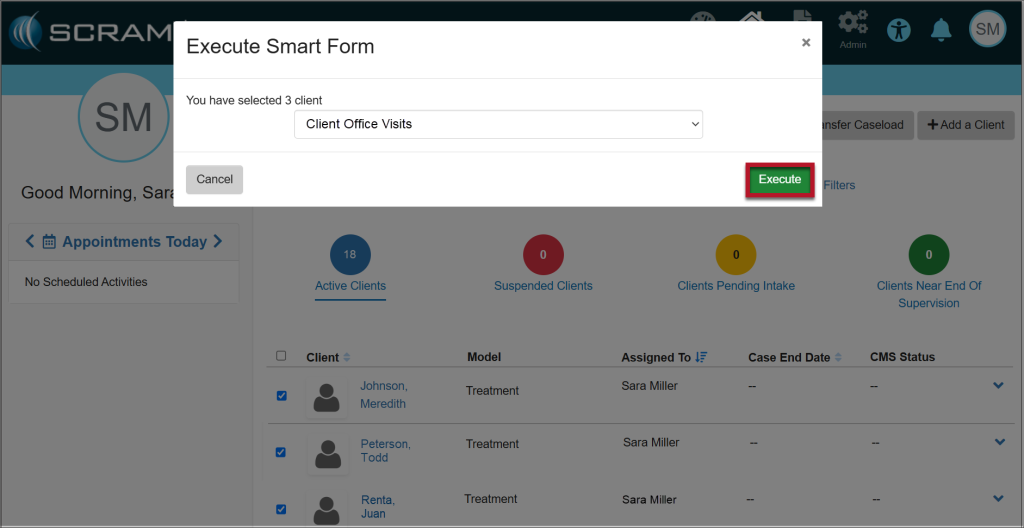
  1. The Execute Smart Form pop-up displays a dropdown of forms you have created. Choose the form you want to use for the selected clients and select the Execute button.
Execute Smart Form
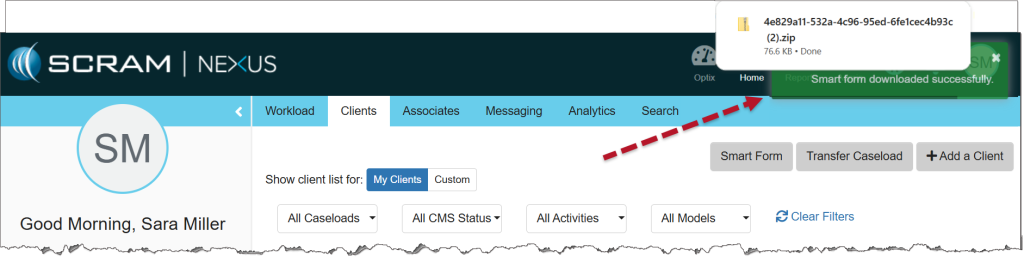
  1. A green Success banner will indicate that the Smart Form was downloaded successfully. The document for each client will be available as a .zip file in your Downloads folder.
Smart Form Downloaded Successfully

Continue Reading

On February 18, 2025, SCRAM Systems will release three enhancements for your SCRAM TouchPoint Caseloads. These enhancements include:

  1. An option to disable Biometric Verification for clients who log in to TouchPoint for Check-Ins.
  2. For Messaging services, as soon as one user marks a message as read, it eliminates the need for all users to mark the same passage as read. Each message will be stamped with the username, date, and time read.
  3. In an effort to ensure that clients are using the latest version of the SCRAM TouchPoint mobile application, a reminder banner will be displayed on the client’s smartphone.
Information Your account must be enabled for video conferencing for these instructions to work. Contact your SCRAM Systems Account Representative if you are interested in activating this service.
Important! As a best practice, we recommend you encourage your clients to enable automatic app updates. This ensures they are always using the latest version of the TouchPoint app.

Optional Biometric Login

For customers who do not require biometric verification when logging into TouchPoint, an option will be available to disable the setting.

Disabling Biometric Verification

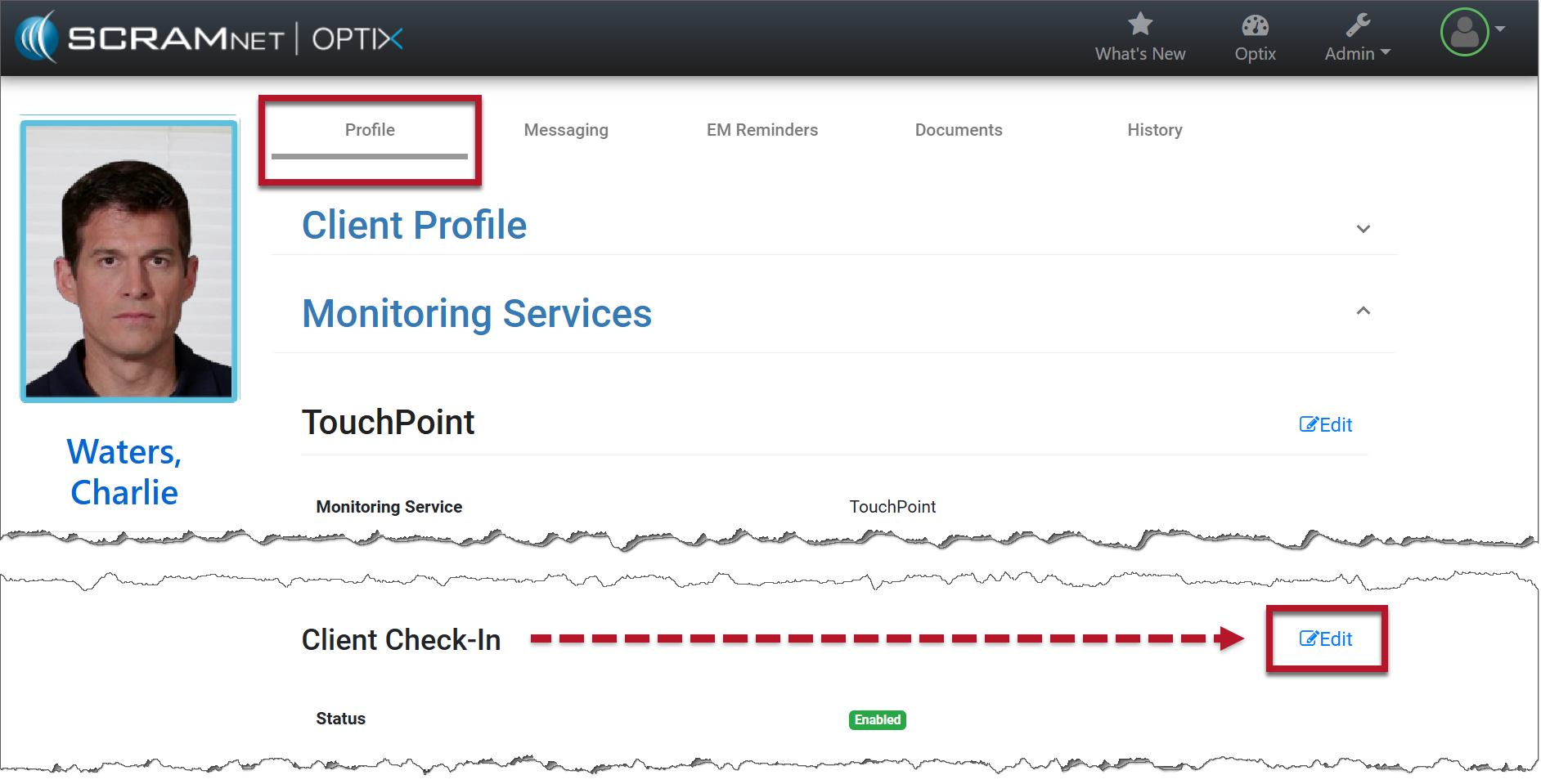
  1. From the client’s Profile page in Optix, select the Edit hyperlink for Client Check-In.
Client Profile Page
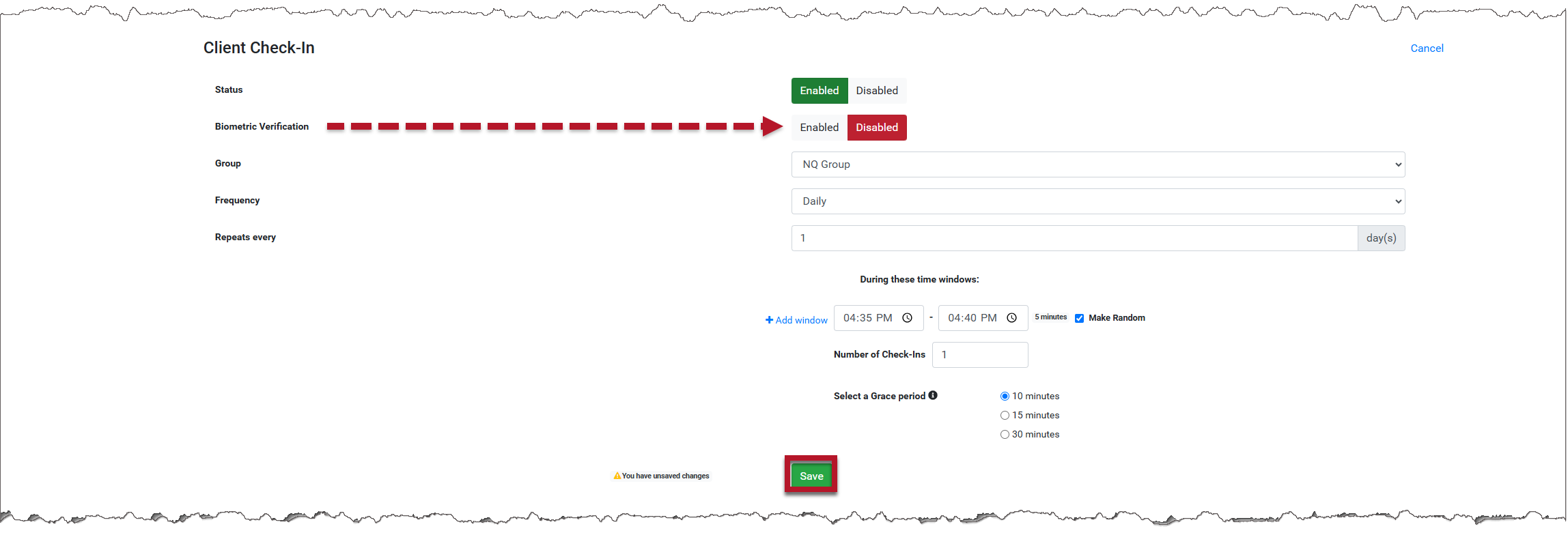
  1. Toggle the Status of the Biometric Verification from Enabled to Disabled and save your changes.
Toggle Button to Disabled
  1. Biometric Verification has been disabled. When the user logs in to TouchPoint on their smartphone, biometric verification will not be required. The Check-In questions will be the first thing they see.
Biometric Verification Disabled
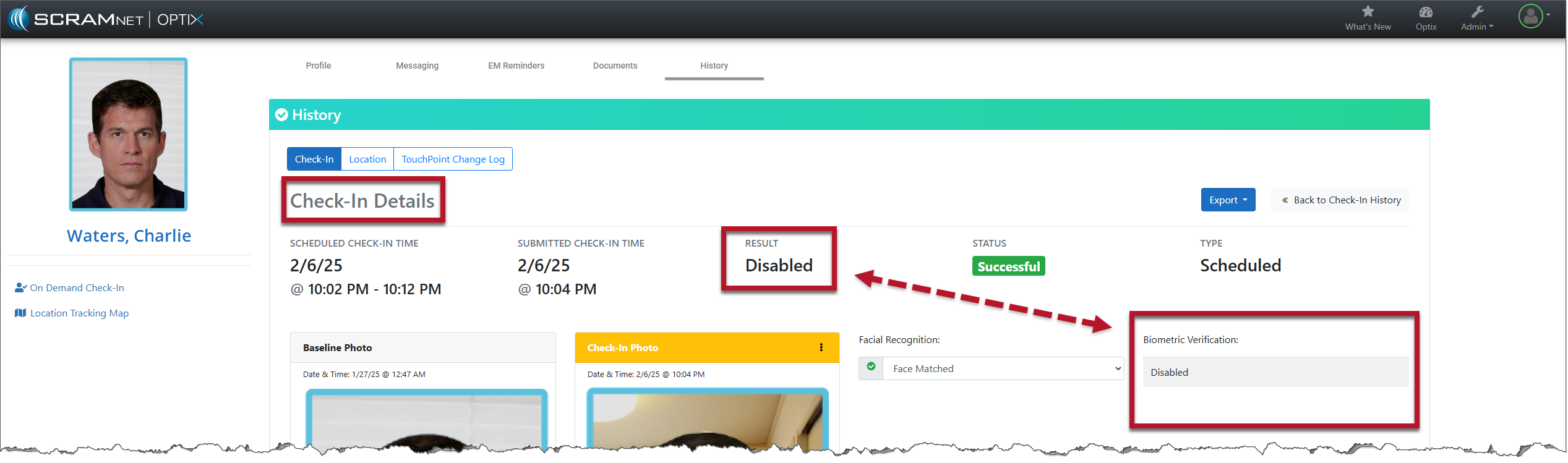
  1. The Check-In Details page will also display “Disabled” for Biometric Verification.
Check-In Details Page

TouchPoint Read Messages

Once a user reads a message in TouchPoint, that message will be marked as read for all users.

Mark Messages as Read

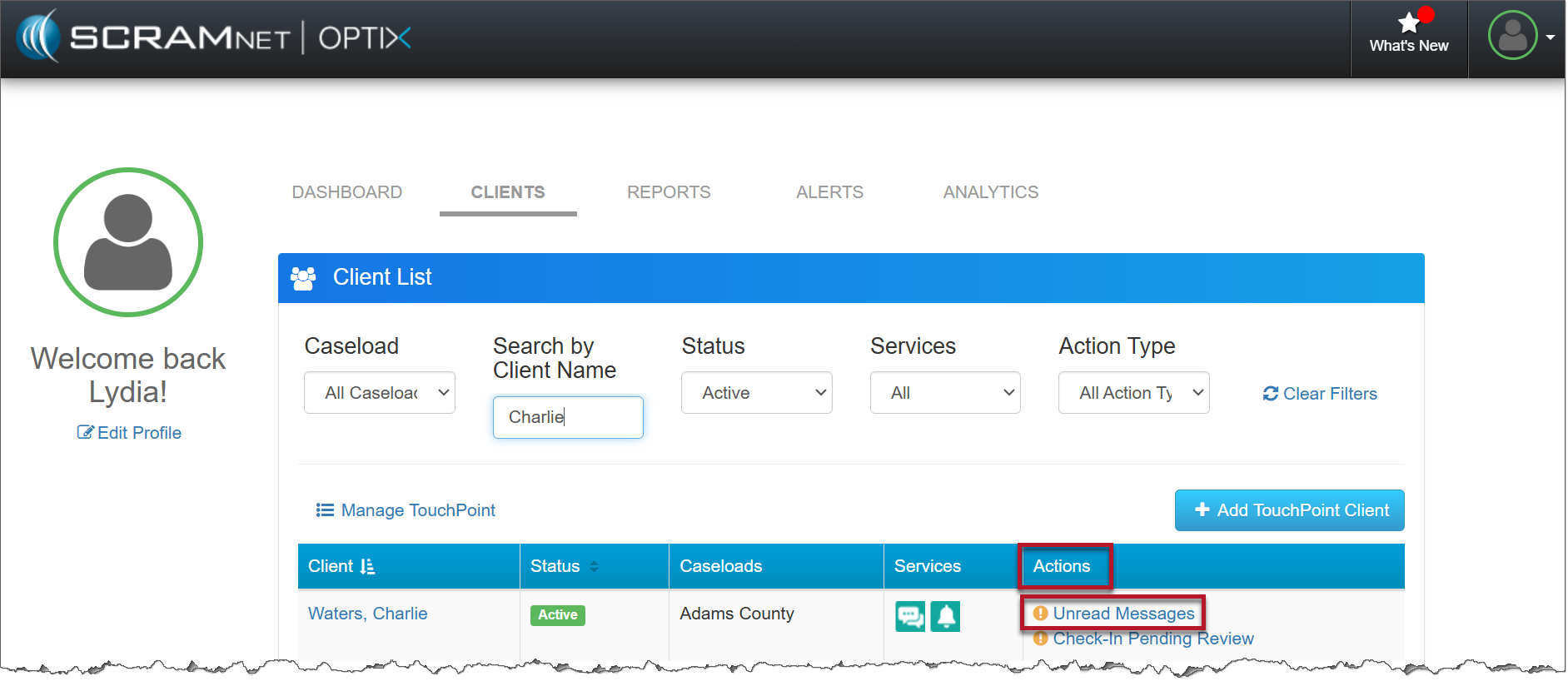
When a user receives a message from a client, an Unread Message alert appears in the Actions column on the Client List page. Select the Unread Messages hyperlink.

Client List Page

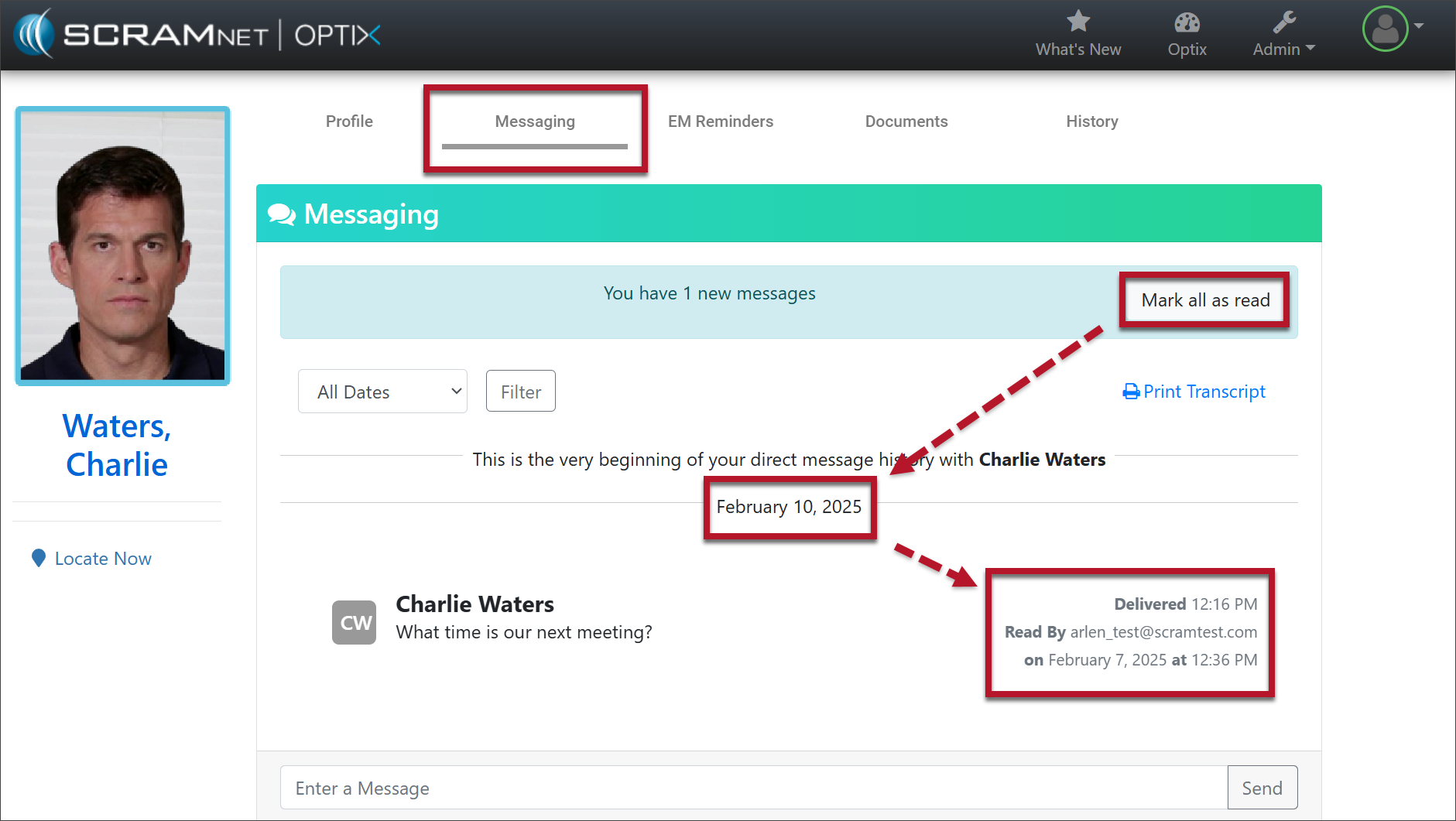
The new message displays on the Messaging tab. Selecting the Mark all as read button:

  • Removes the Unread Message alert from the Actions column for all users.
  • Displays a “Read By” receipt to all users that shows the username, date, and time of the message read.
Messaging Tab with Read Receipt

Update to Latest Version of TouchPoint Application

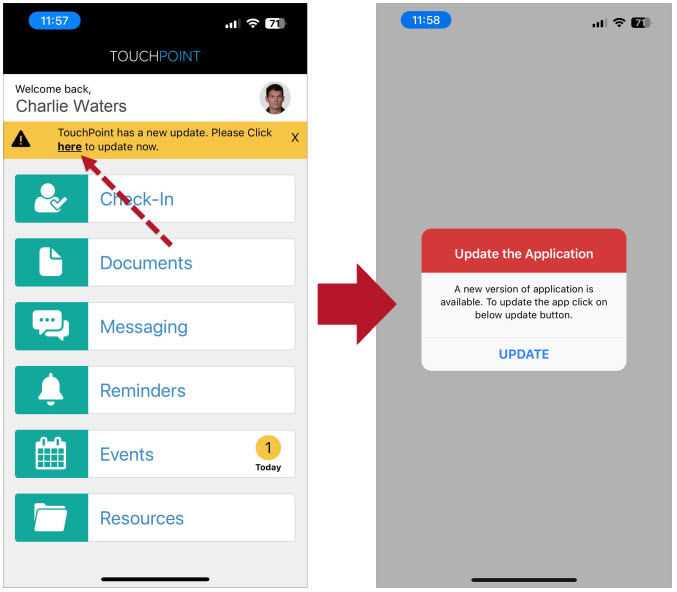
To ensure your client is using the most recent version of the TouchPoint Mobile Application, a reminder banner will be displayed when logging in to TouchPoint. Selecting the link will take the client to the Google Play store or Apple App Store to download and install the update.

If clients select the x in the banner, it will close the alert. The next time the client logs in, the banner will reappear until the app is updated.

TouchPoint’s New Update Banner

Continue Reading

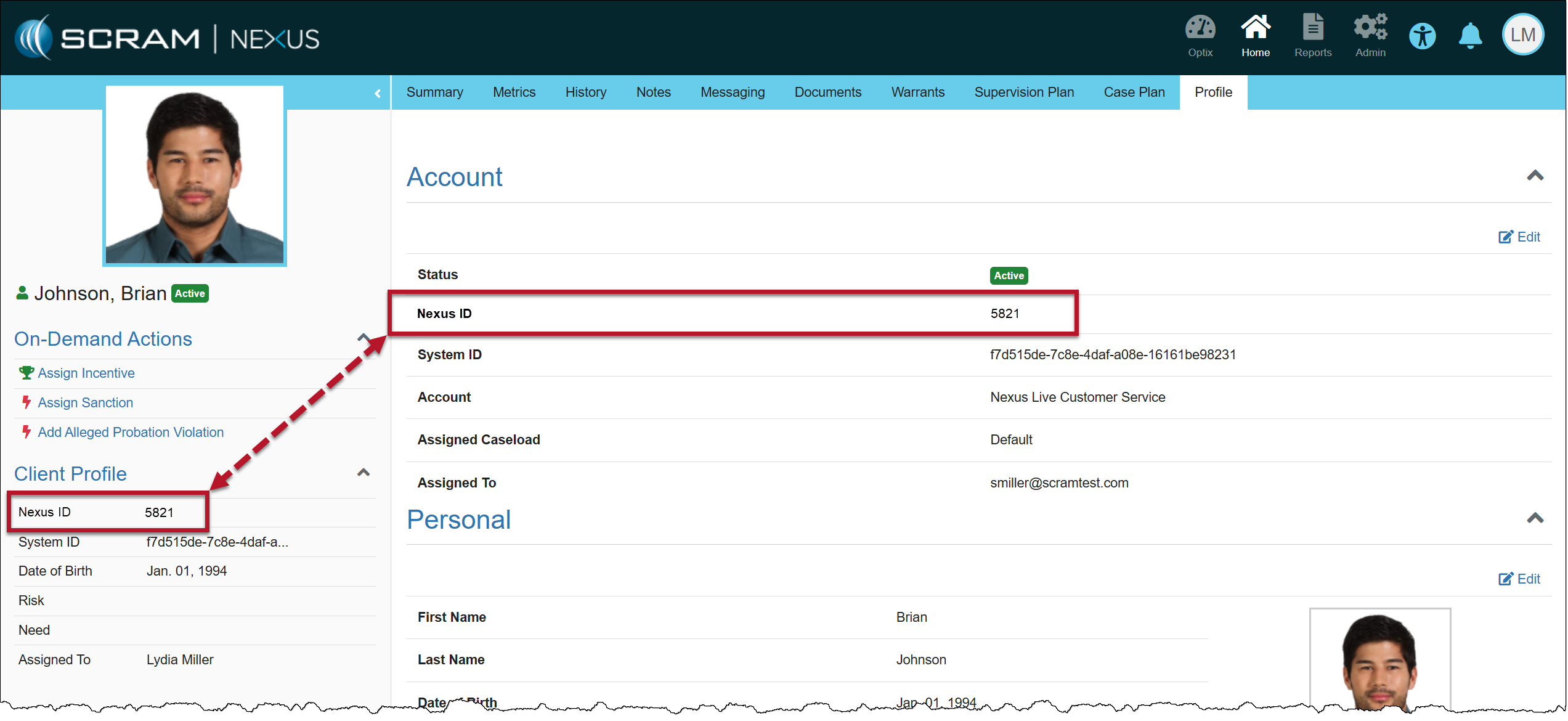
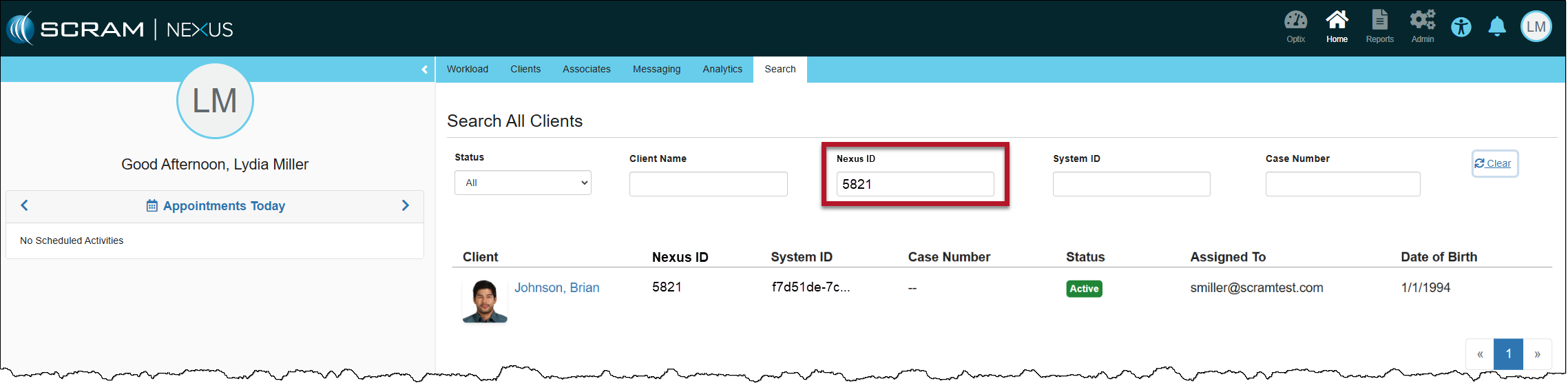
Yesterday, February 4, 2025, SCRAM Systems released an enhancement for your SCRAM Nexus Caseloads. When adding a new client to your Nexus Caseload, a Nexus ID number will be generated in addition to the System ID.

The Nexus ID will be displayed on the client’s sidebar and may be used when you search your client caseload.

Client Profile Page with Nexus ID
Client Search Page
Information
  • The Nexus ID is an autogenerated number that cannot be edited.
  • This easy-to-remember ID number may be used to expedite your client search by making it easier for you to distinguish between clients with similar names.

Continue Reading

A new version of the SCRAM Ally (Victim Notification) mobile app is available on the Google Play Store. Users are encouraged to update to the latest version (2.1.0), which includes the following changes:

  • Support for newer versions of the Android OS
  • Updates to the core messaging system used for alert notifications
  • Permissions to access Location Service and Motion Activity are now optional

Support for Newer Versions of the Android OS

SCRAM Ally supports Android versions 9 through 15, and this latest update provides a smoother, more optimized experience for users on Android 14 and 15 devices.

Updates to the Core Messaging System Used for Alert Notifications

The SCRAM Ally app’s core messaging system – Firebase Cloud Messaging (FCM) – was updated for improved reliability and performance. Android smartphone users are strongly encouraged to visit the Google Play Store and update to the latest version of SCRAM Ally for Android to ensure proper delivery of important alerts via push notifications.

TipTip: After updating the SCRAM Ally app, it is important that your Victim users open the app and visit the Homepage. This action will ensure alert notifications function properly.

Access to Location Service and Motion Activity

For accurate, continuous monitoring, SCRAM Ally requires permission to access Location Service and Motion & Fitness Activity. Even when permissions are required by the app to function properly, both Apple and Google recommend making these permissions optional, to give users more control over their data.  

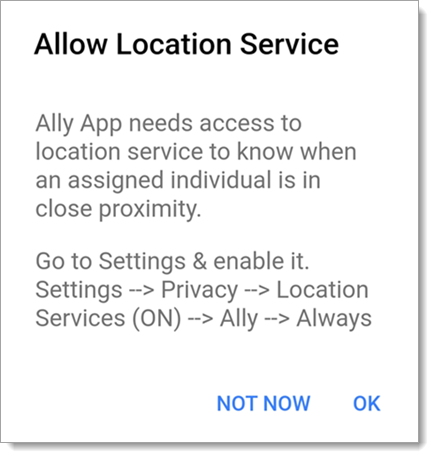
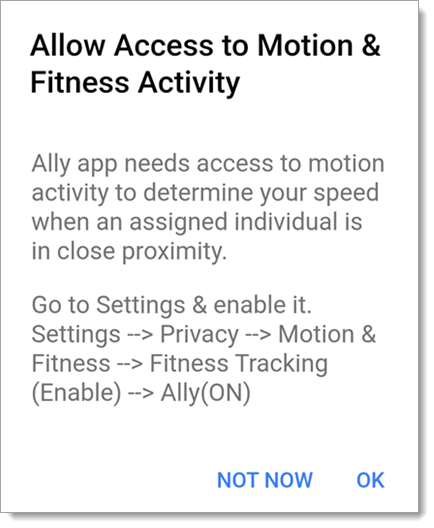
SCRAM Ally requires these permissions to properly monitor Victims and deliver important alerts with regard to Victims’ proximity to their assigned individuals. When Ally does not have these permissions, the following dialogs are displayed:

SCRAM Ally App Requests Access to Location Service
SCRAM Ally Requests Access to Motion & Fitness Activity

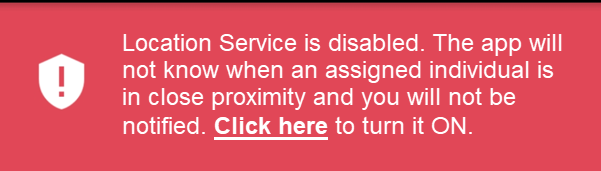
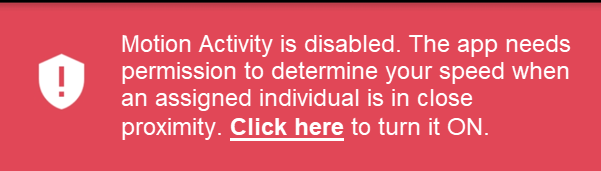
If Victim users do not grant permission to either of these services, the following banner warnings are displayed in the SCRAM Ally app:

Warning Banner: Location Service is Disabled
Warning Banner: Motion & Fitness Activity is Disabled

Additionally, when the Location Service is disabled, a critical alert is generated in SCRAMNET GPS. It is important to address this alert as it indicates the Victim is not properly monitored:

SCRAMNET Alert: Location Service Disabled – Victim (click to enlarge)

Continue Reading

Tips Warning: Corrosion of internal components may occur if these instructions are not followed.

Follow these instructions to ensure your battery and faceplate are installed correctly to get the most out of your alcohol monitoring device.

Clean the Battery Compartment

  1. Remove the old faceplate and battery and dispose of them in accordance with local regulations.
    Important! Important: Never reuse a SCRAM CAM battery. Once removed, dispose of it or recycle it in accordance with local regulations and replace it with a new battery.
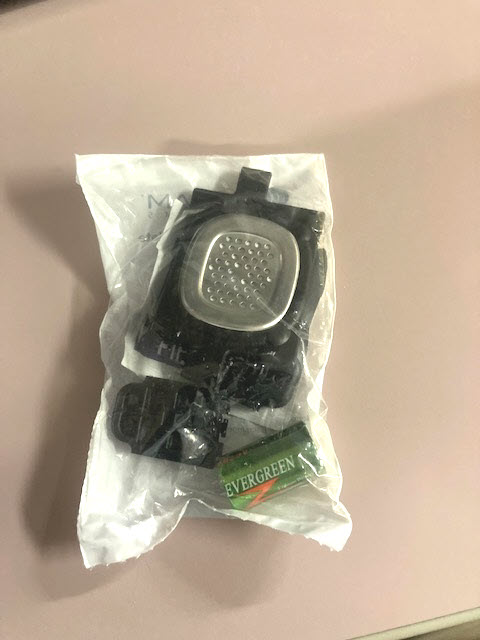
  2. Open a Battery/Faceplate Kit (P/N 03628 on the SCRAM Equipment Order Form).
    SCRAM Battery/Faceplate Kit (click to enlarge)
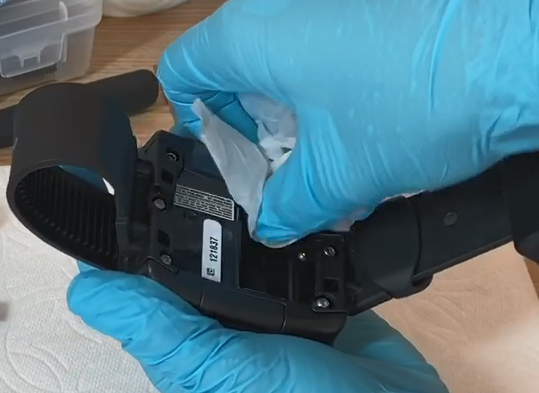
  3. Using the wipe provided in the kit, wipe the battery contacts in the device battery compartment, and then dry the contacts with a paper towel or microfiber cloth.
Image of Cleaning Bracelet Battery Contacts
Cleaning Bracelet Battery Contacts (click to enlarge)

Install the Battery

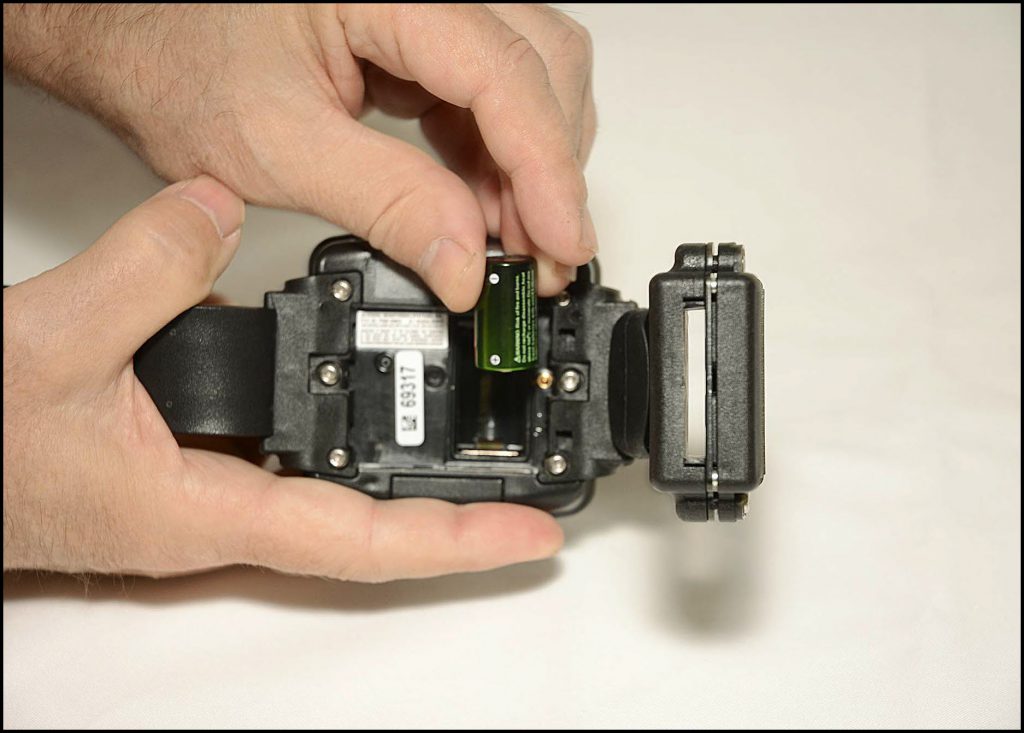
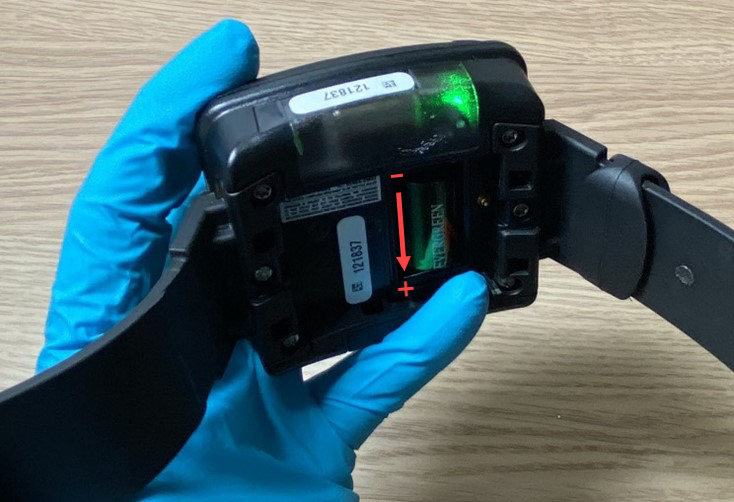
Install Battery Positive (+) Side Down (click to enlarge)
  1. Place the battery in the battery compartment with the positive end of the battery positioned towards the bottom of the bracelet body (it points downward).
  2. Ensure you see a green light when the battery is installed. The green light will turn off after five seconds.
Image of Battery Installed in Bracelet with Green Light On
Battery Installed in Bracelet with Green Light On (click to enlarge)

Install the Faceplate

  1. Lay the replacement faceplate over the battery compartment.
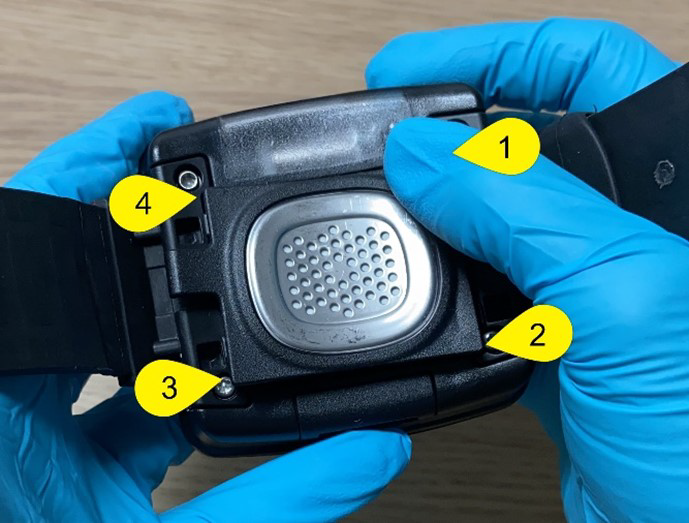
  2. Starting in the upper right corner, press down firmly until you hear/feel a click.
  3. Moving clockwise on the faceplate, press down firmly in each of the remaining corners. Ensure you hear/feel a click in each corner.
  4. It may be necessary to remove the faceplate and reinstall if you do not hear or feel a click in each corner of the faceplate.
Image of Installing Faceplate on Bracelet
Installing Faceplate on Bracelet (click to enlarge)
Tips Warning: Moisture may seep through the faceplate seals and corrode internal components if the faceplate is not thoroughly attached – you must hear/feel four distinct clicks!

Continue Reading

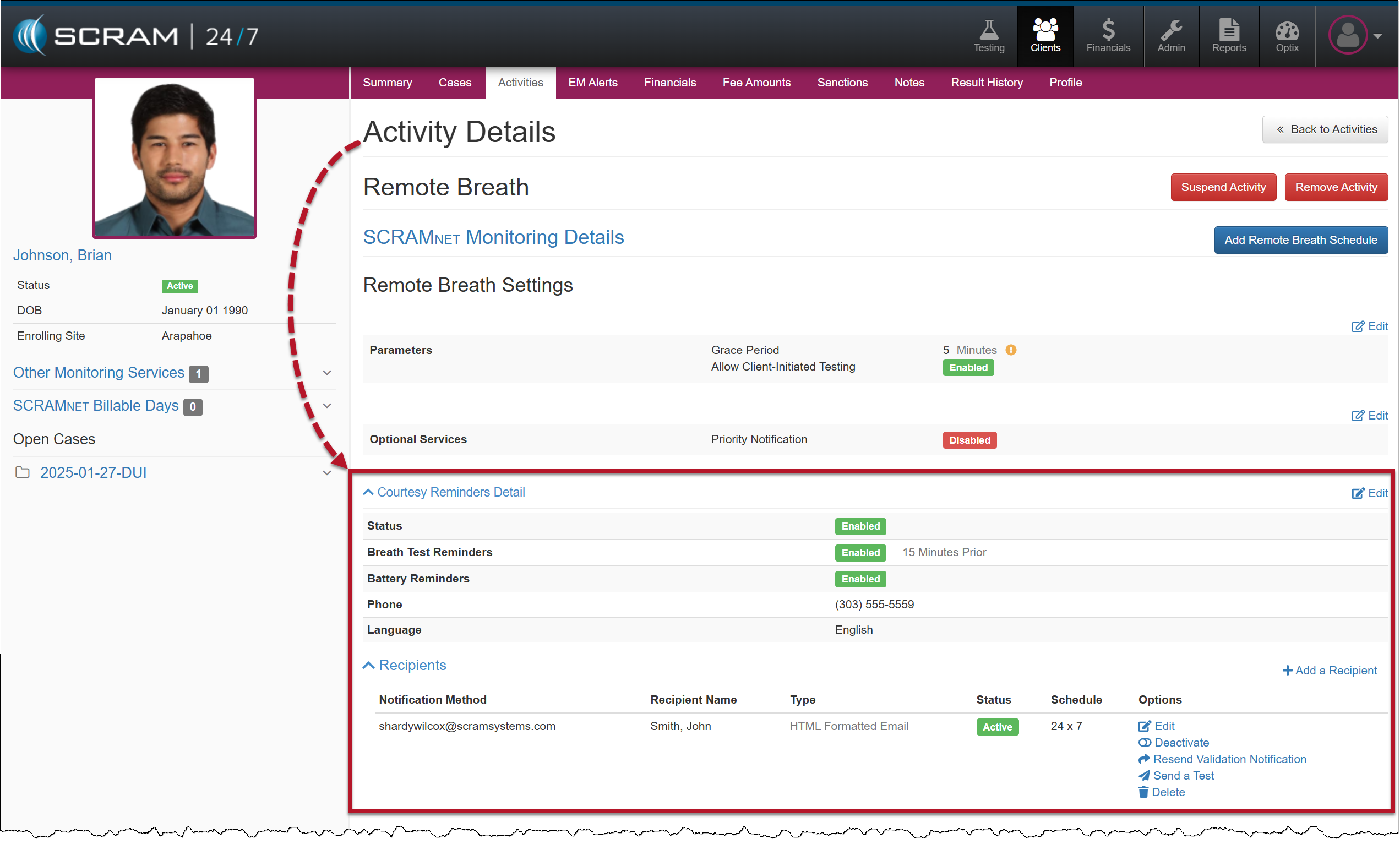
On January 29, 2025, SCRAM Systems will release an enhancement for your clients participating in a Remote Breath Activity. For current or new clients within your SCRAM 24/7 program, you may enable Remote Breath Courtesy Reminders, as well as enable notifications to be sent to third-party recipients.

Information If you don’t see the enhancement in SCRAM 24/7, please clear your cache and cookies and refresh your browser window.

New Client Setup

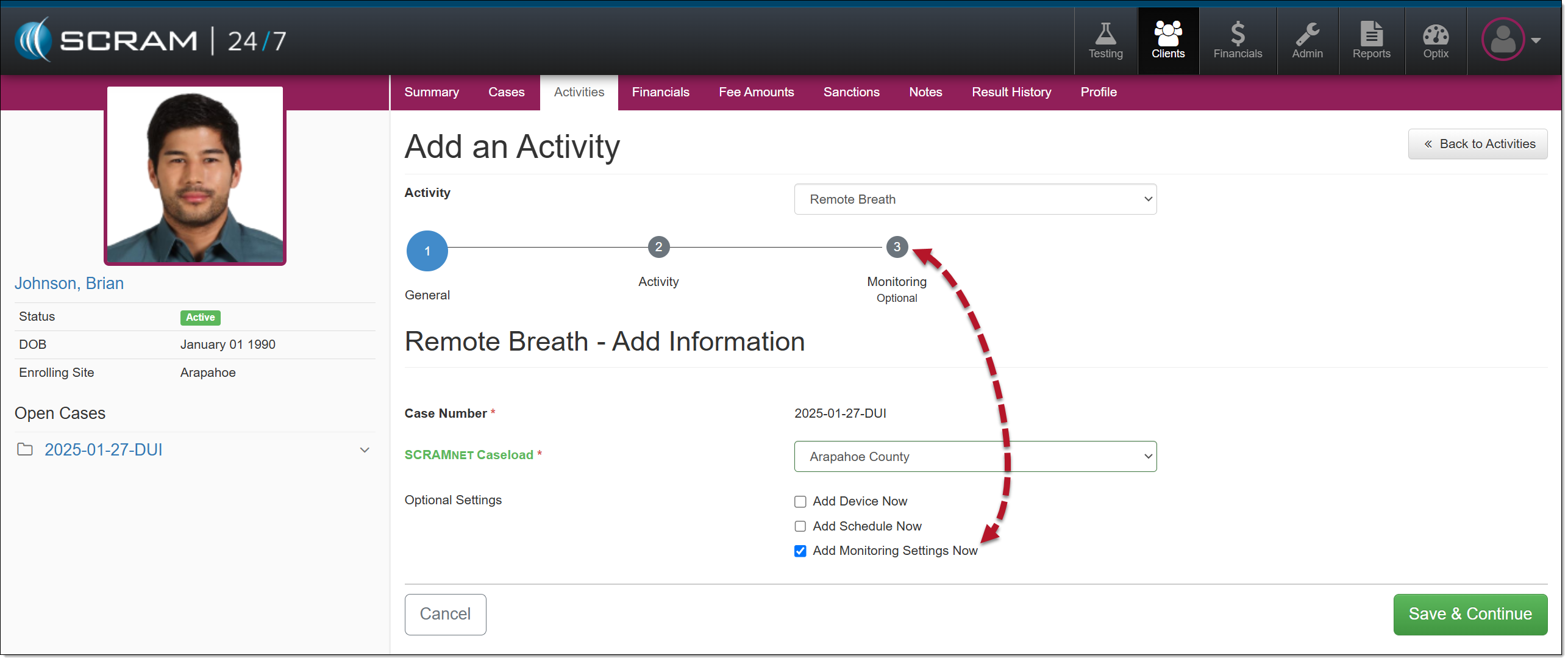
When adding a new Remote Breath Activity to your client:

  1. To enable the monitoring settings for the client, select the checkbox next to the Add Monitoring Settings Now option and then the Save and Continue button.
Add A Remote Breath Activity
  1. On the Monitoring step, you will enable and enter the details for client Courtesy Reminders and third-party Recipients.
Remote Breath Activity Monitoring Settings Step

Courtesy Reminders

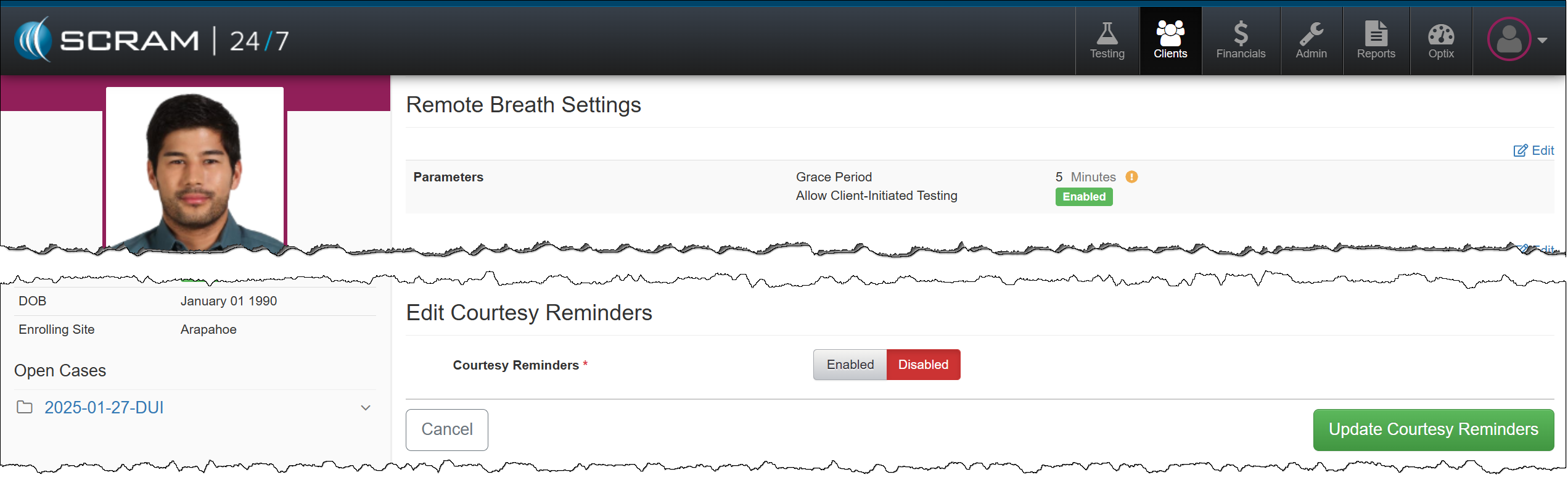
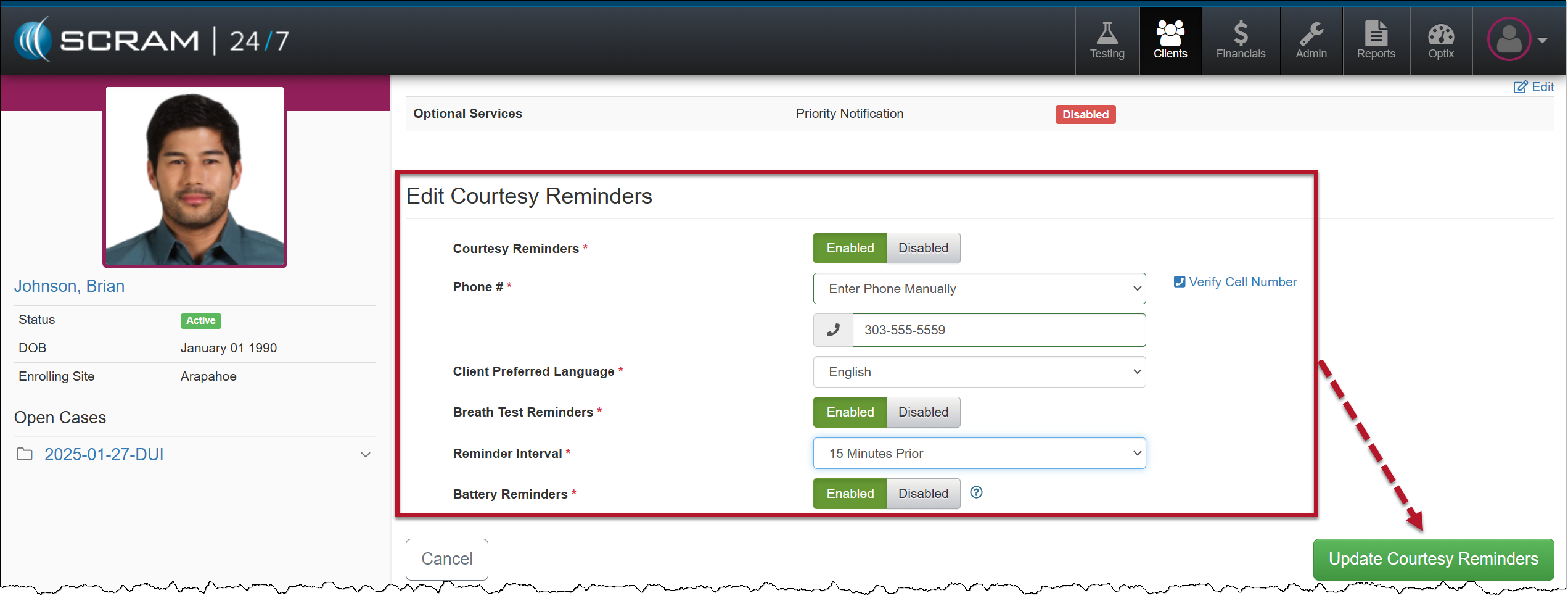
Enable Courtesy Reminders for the Client
Client’s Courtesy Reminders Details

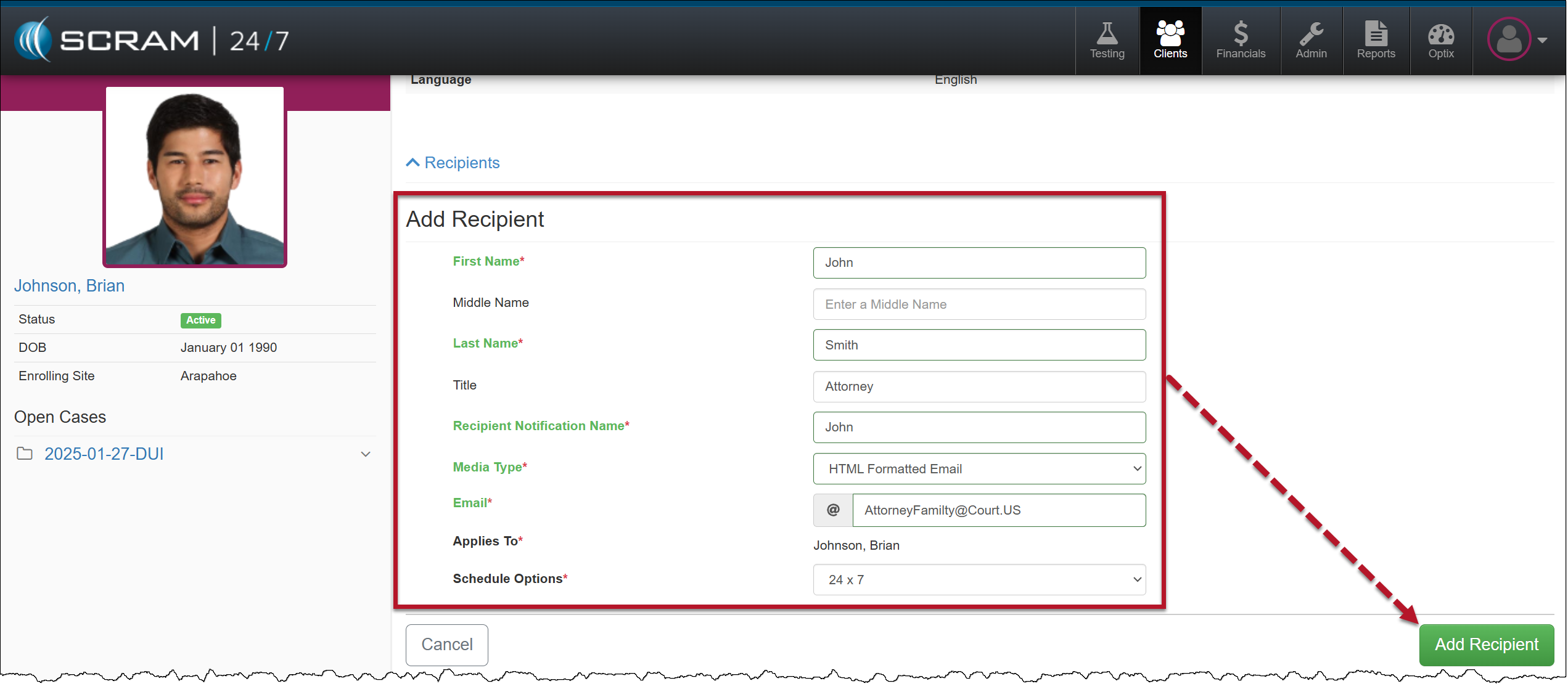
Third-Party Recipient Notifications

Add Recipient Details
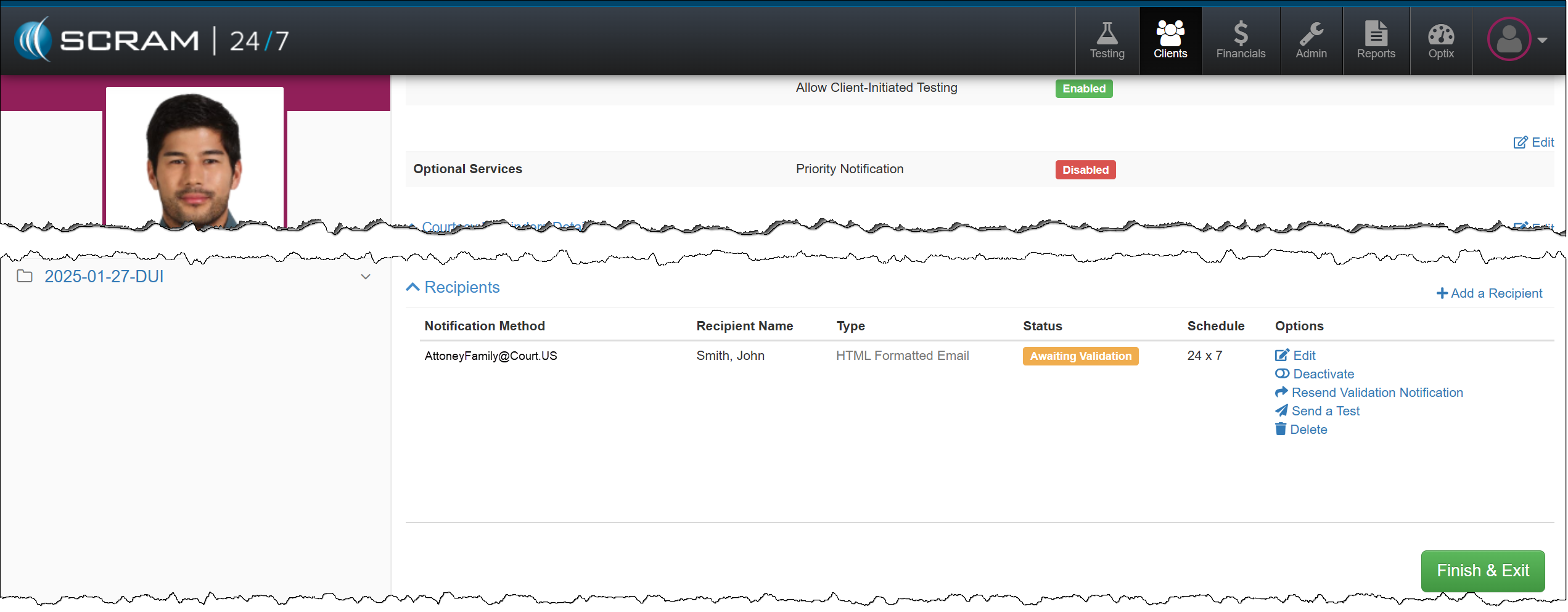
Recipient Notification Method Awaiting Validation
TipsTip: Third-party Recipient notifications are for non-SCRAM users only. To ensure other Officers and Agents in your Program receive appropriate alerts, enable and use “Priority Notifications” instead.

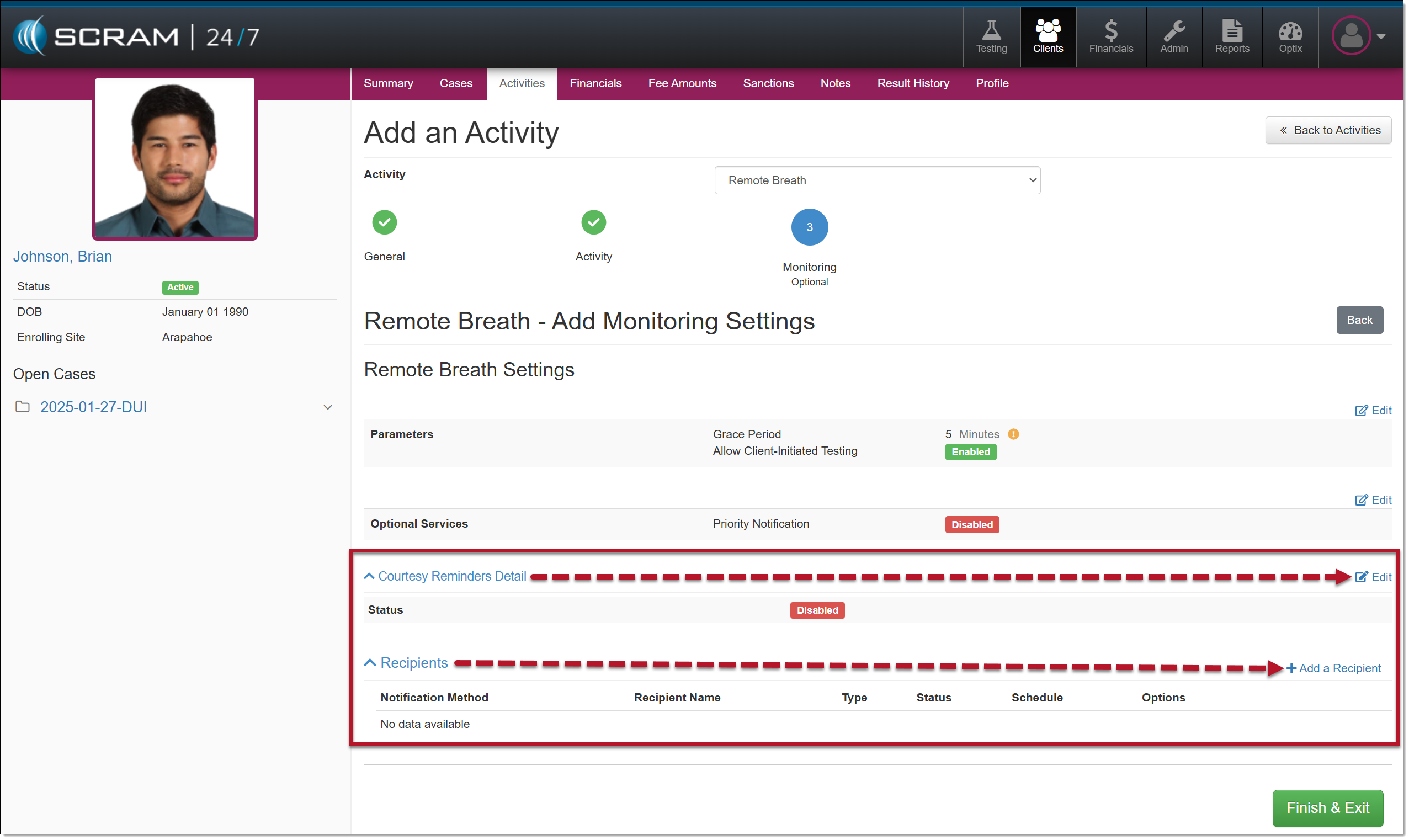
Enable/Edit Active Remote Breath Activity

To add or edit the client’s Remote Breath Courtesy Reminders or third-party notification Recipients, select the Remote Breath Activity on the client’s Activities page, and then expand the Courtesy Reminders Detail or the Recipients heading.

Client Remote Breath Activity Details Page

Continue Reading

On January 29, 2025, SCRAM Systems® will release two enhancements for your SCRAM Remote Breath Caseload.

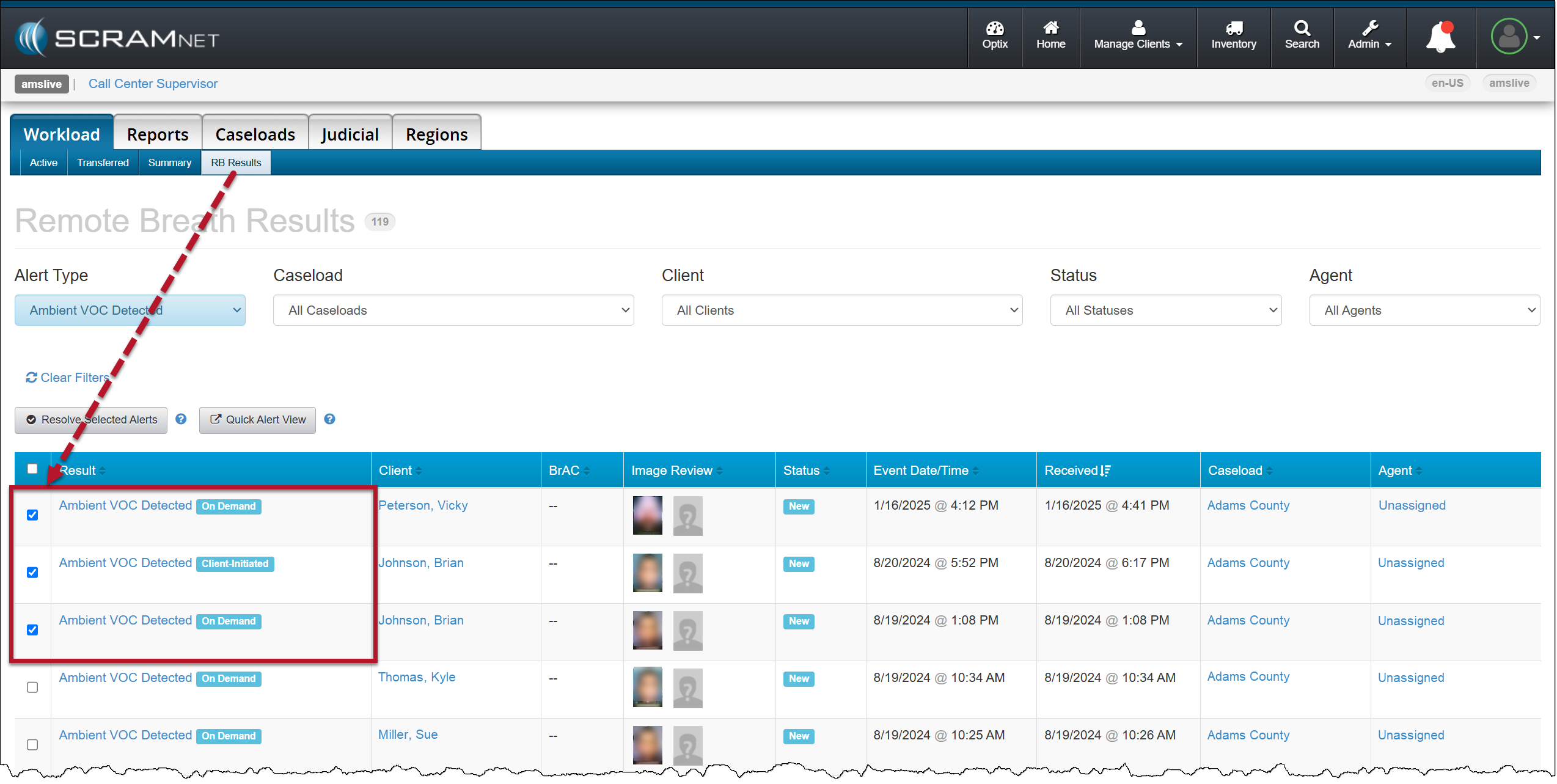
  • Resolve multiple Ambient VOC Detected alerts on the RB Results page.
  • Configure your Caseload to automatically send a single On-Demand test to the device following a “Missed” scheduled breath test.

Resolve Multiple (bulk) Ambient VOC Detected Alerts

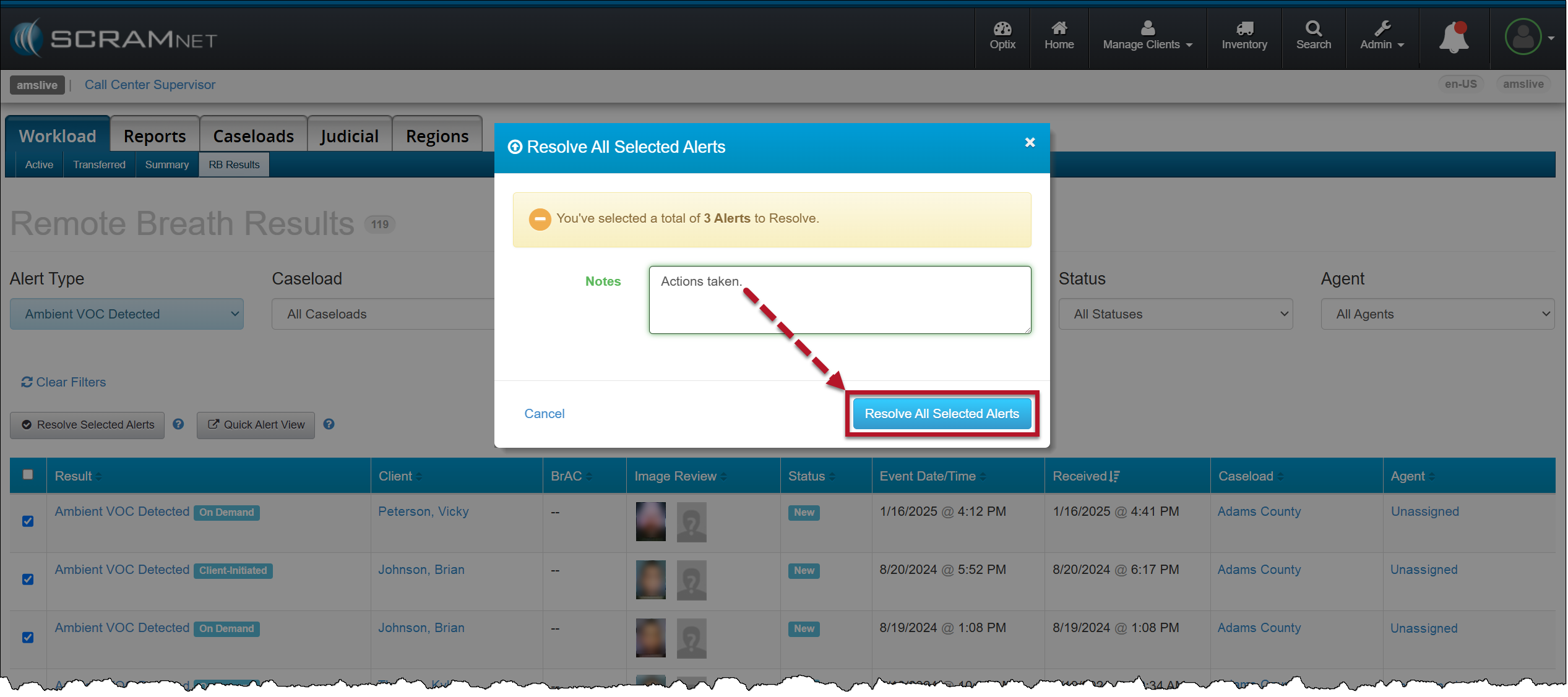
On the RB Results page for your Caseload, you may select the checkbox next to multiple Ambient VOC detected alerts and then select the Resolve Selected Alerts button to “bulk” resolve of them all at once.

RB Results page – Multiple Ambient VOC Detected Alerts Selected
Resolve All Selected Alerts Pop-Up Acknowledgement

Configure your Remote Breath Caseload to Send an On-Demand Test after a Missed Scheduled Breath Test:

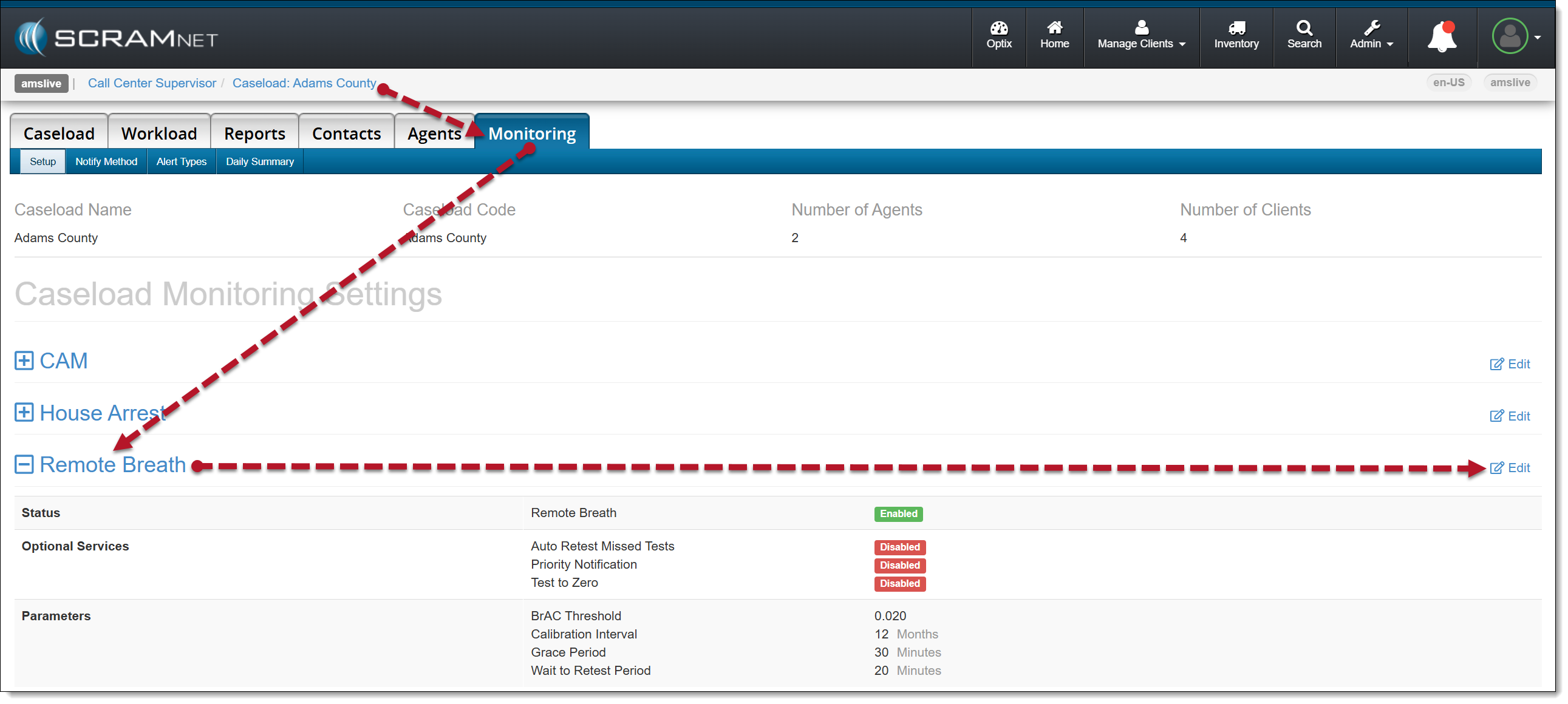
  1. Select the Monitoring tab for the selected Caseload.
  2. In the Remote Breath section, select the Edit hyperlink.
Caseload-Monitoring page-Remote Breath section
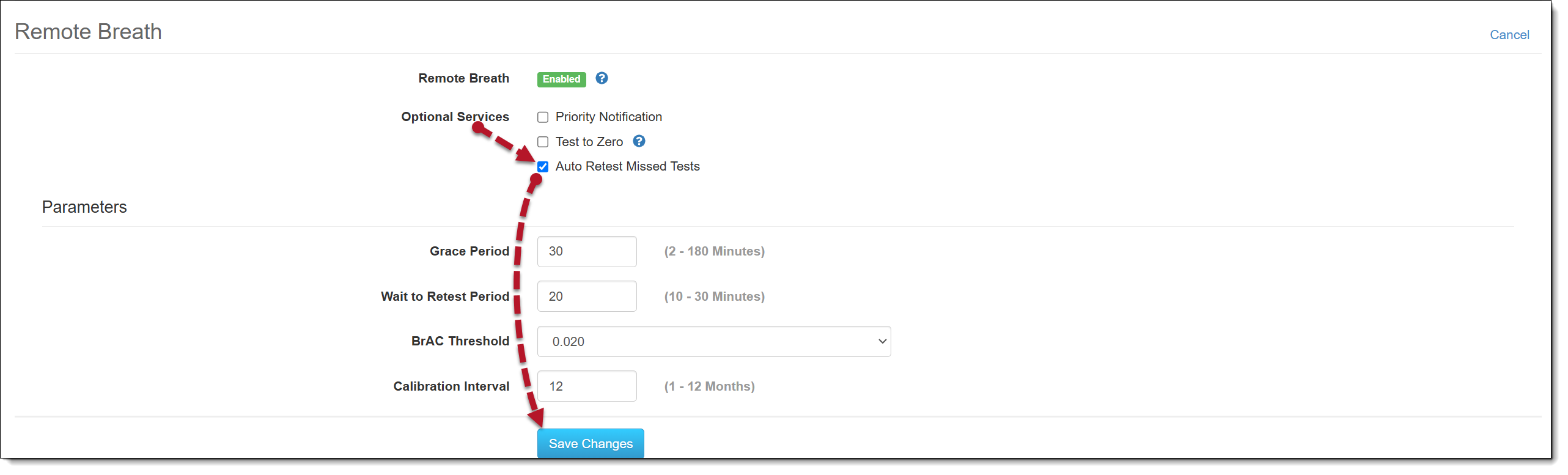
  1. Select the checkbox next to the Auto Retest Missed Test option in the Optional Services section.  
  2. Select the Save Changes button.
Configure Remote Breath Optional Services
Auto Retest Missed Tests Enabled

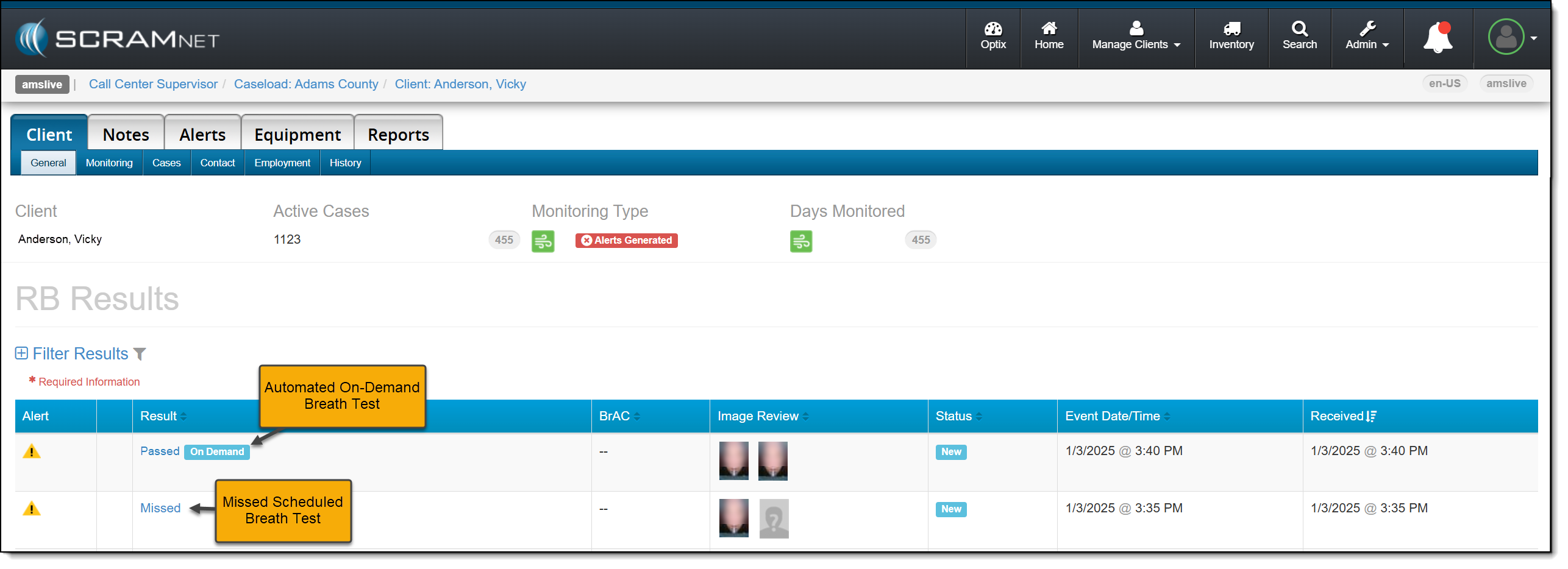
Moving forward, when SCRAMNET reports that the client has missed their scheduled breath test, an On-Demand test will be sent.

RB Results Page with Missed Test with Automated On-Demand test sent

Continue Reading