It is important that Location Services are ‘allowed‘ on your client’s smartphone for the use of the Location Verification, Location Tracking, and Client Check-In services. If at any time you select the option of Don’t Allow or Deny access, it could be considered a violation of your participation in the TouchPoint program or of the terms and conditions of your supervision plan. To verify and reactivate disabled location services follow the below steps.
For iPhone*
Start by navigating to the Settings icon on your phone.
- Select the TouchPoint icon (you may have to scroll to locate the icon).
- On the Allow TouchPoint to Access screen, select the Location option.
- Ensure the While Using the App is selected.
Moving forward, you will be prompted to allow TouchPoint to access you locations during the check-in. Ensure you always select Allow when prompted to do so.
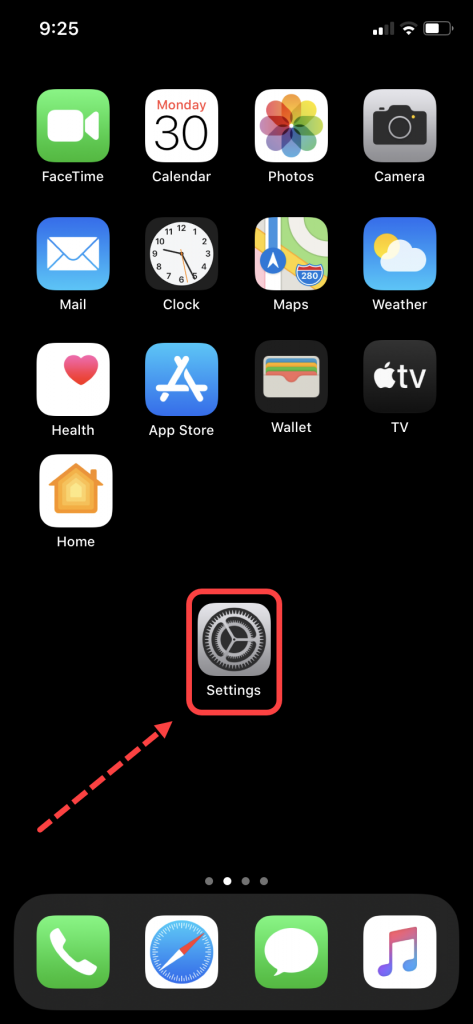 iPhone Settings icon (click to enlarge) |
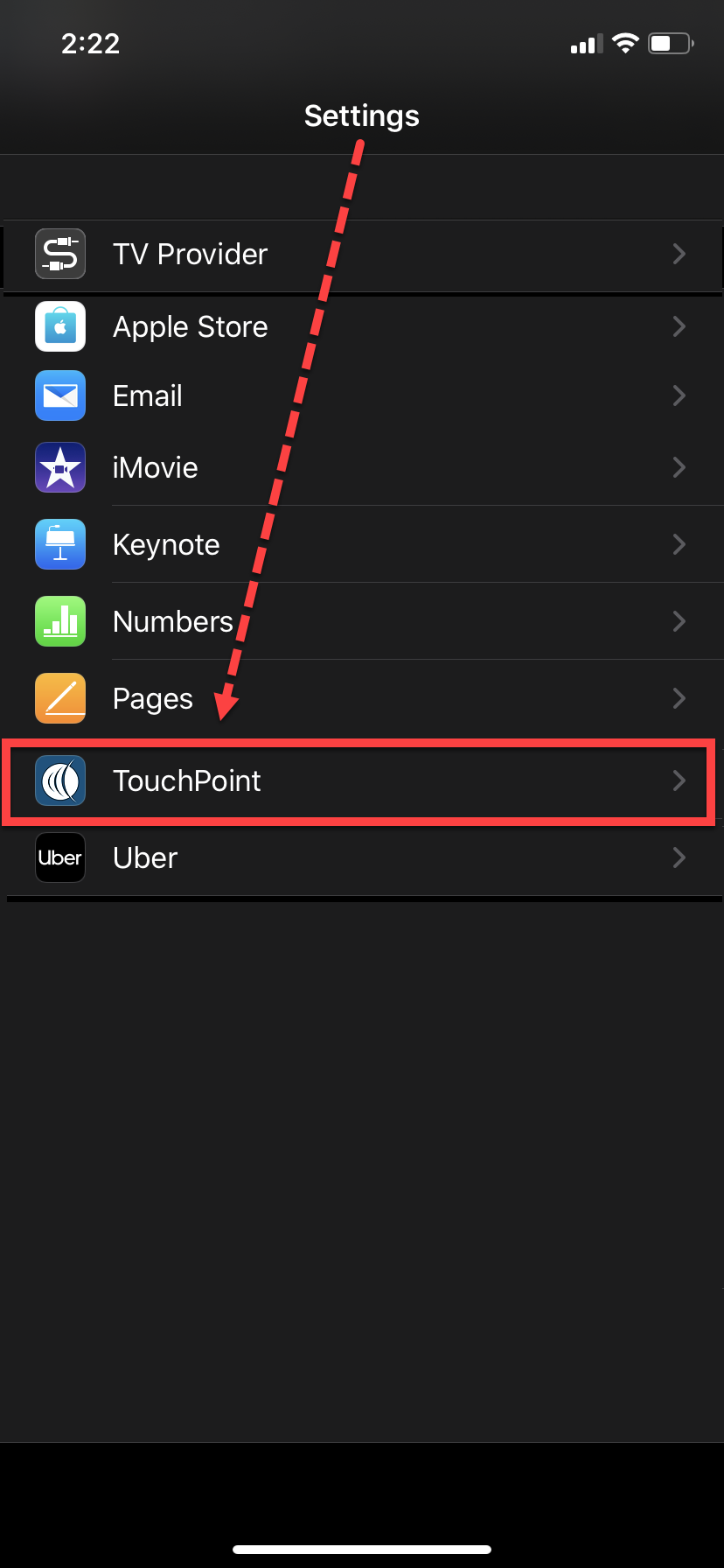 iPhone Settings screen (click to enlarge) |
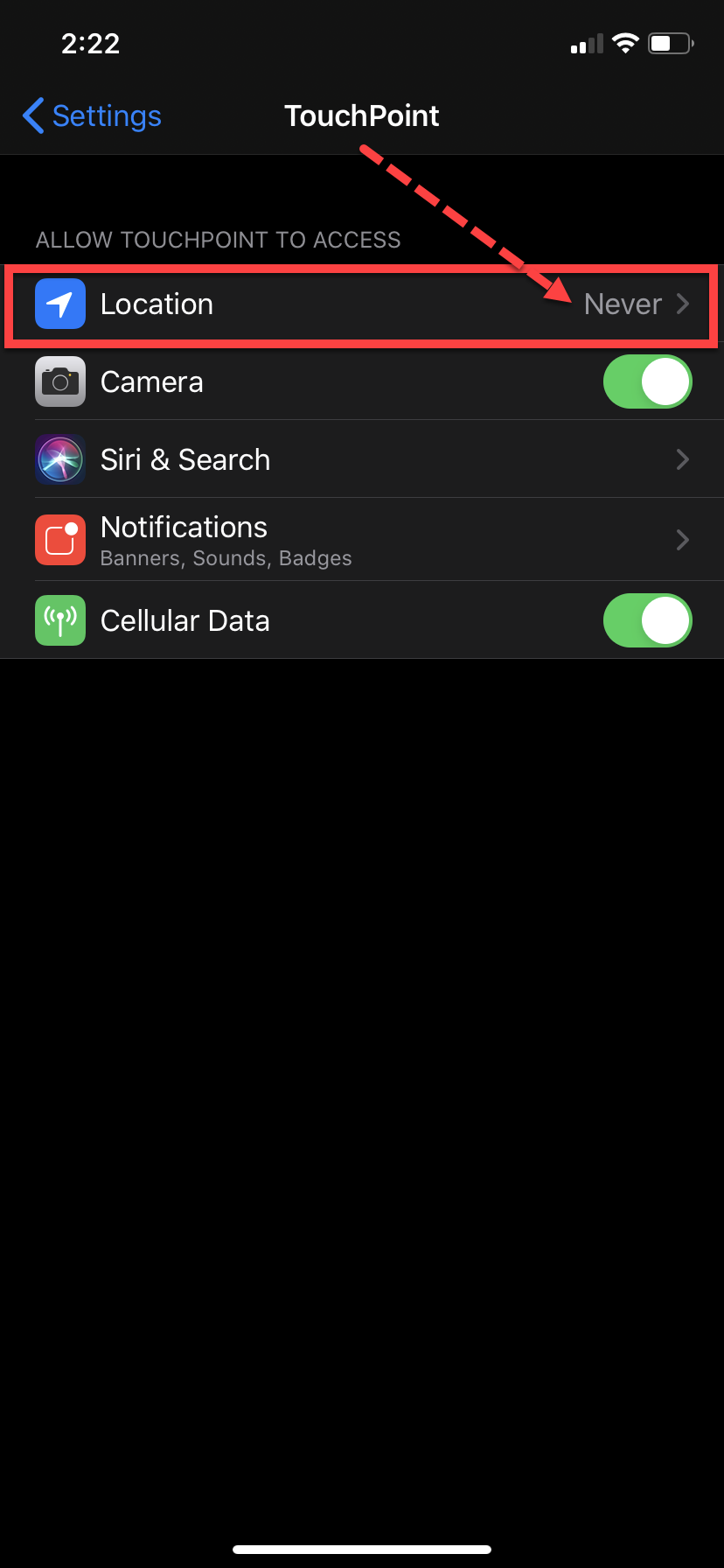 iPhone TouchPoint Locations screen (click to enlarge) |
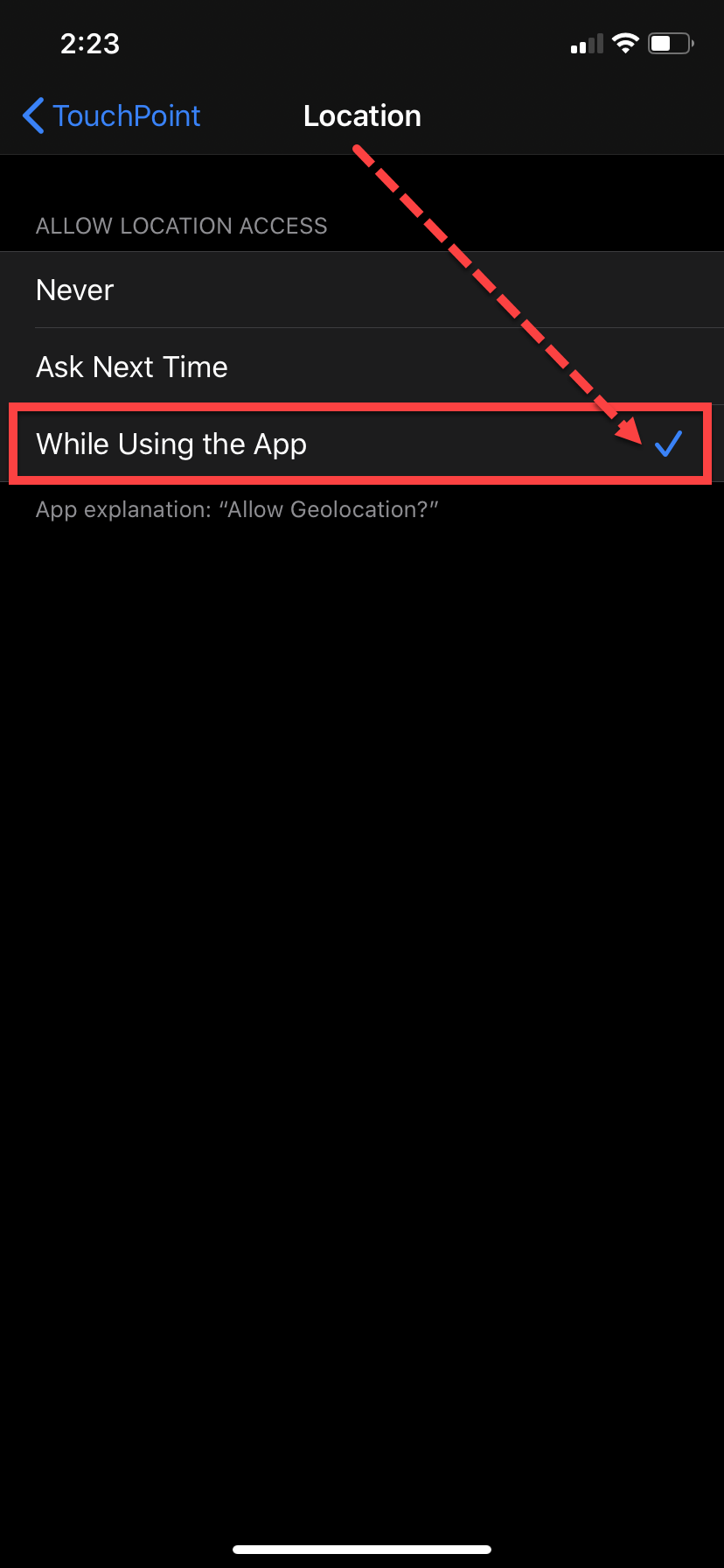 iPhone Location screen (click to enlarge) |
For Android*
Start by navigating to the Setting icon on your phone.
- Select the Apps option.
- On the Apps screen, locate and select the TouchPoint app.
- On the TouchPoint app screen, locate and select Permissions under the App settings section.
- Ensure the Location option is enabled.
Moving forward, you will be prompted to allow TouchPoint to access you locations during the check-in. Ensure you always select Allow when prompted to do so.
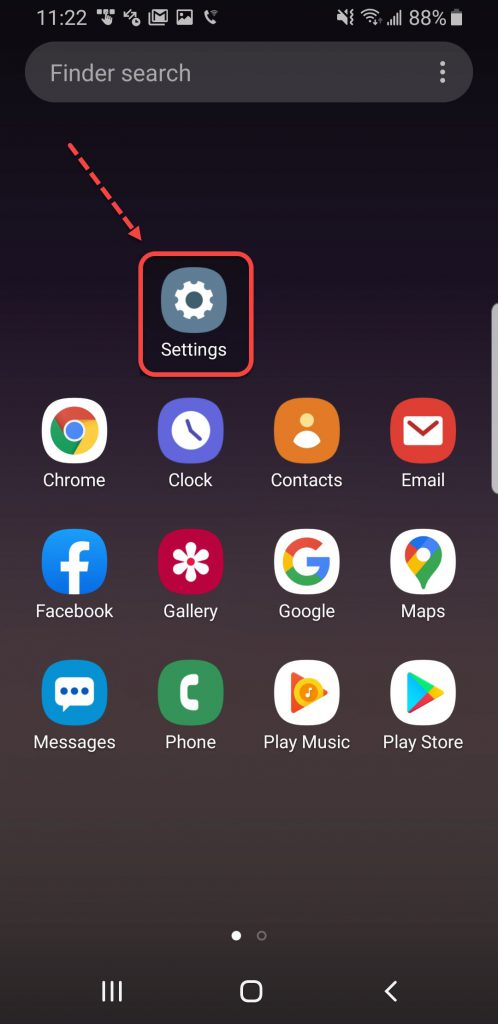 Android Settings icon (click to enlarge) |
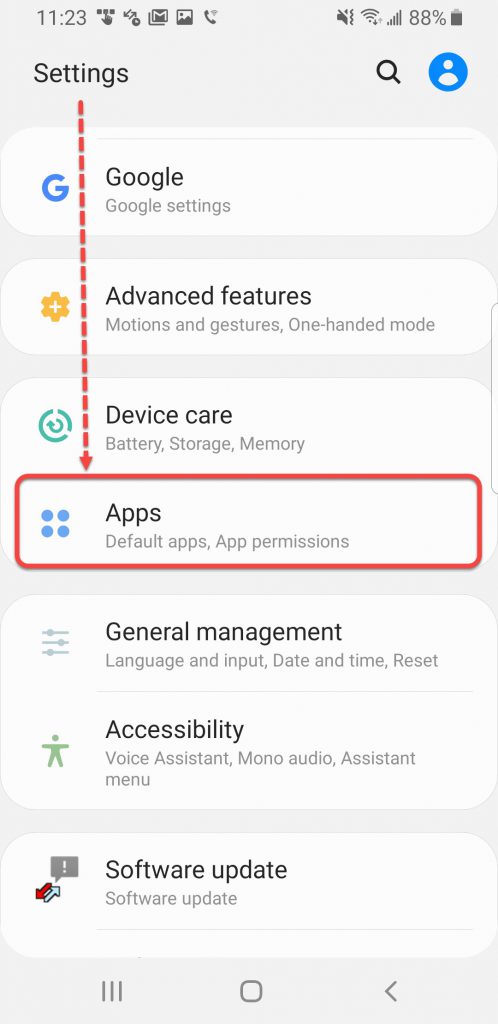 Android Settings screen (click to enlarge) |
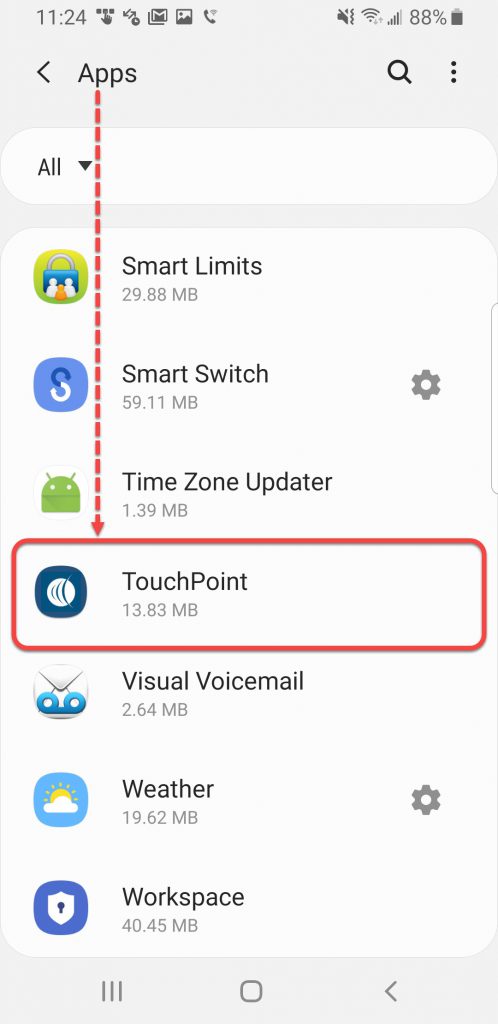 Android Apps screen (click to enlarge) |
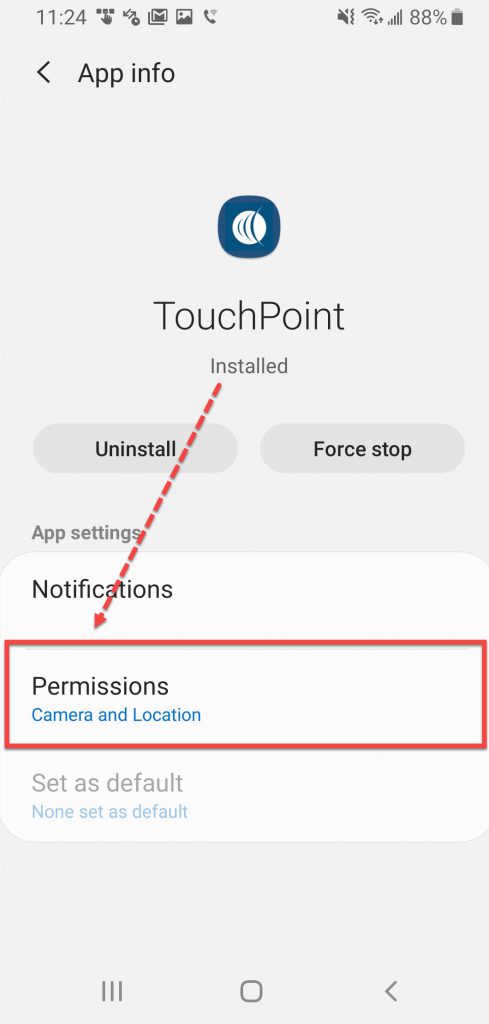 Android App Info screen (click to enlarge) |
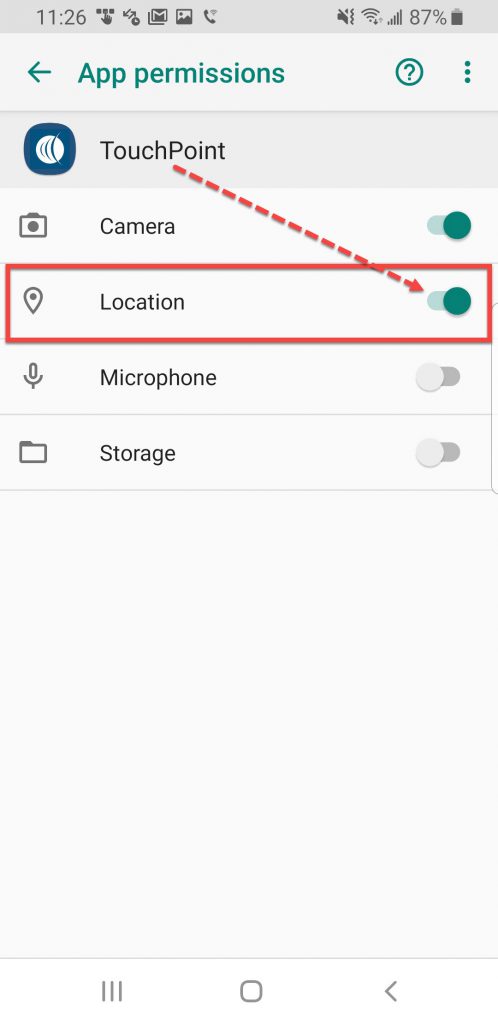 Android App permissions screen (click to enlarge) |
*With the variety of cell phones available, the information provided in this document is basic troubleshooting. Please inform your supervising authority and contact your cell phone provider if you are unable to resolve the issue.