Client Check-In Enrollment Image
Each time a Client Check-in is completed, the photos taken create a gallery of images. TouchPoint uses these images to “learn” and ensure higher accuracy of facial recognition. If the initial baseline image is poor in quality or does not display the client’s entire face, it may be necessary to request a new baseline image for the client. When a new baseline image is requested, you reset the baseline image and gallery for the client. TouchPoint will restart the learning process and build a new gallery of images.
Request a New Baseline Image
Start by navigating to the Clients tab in Optix and select the client’s name from the list.
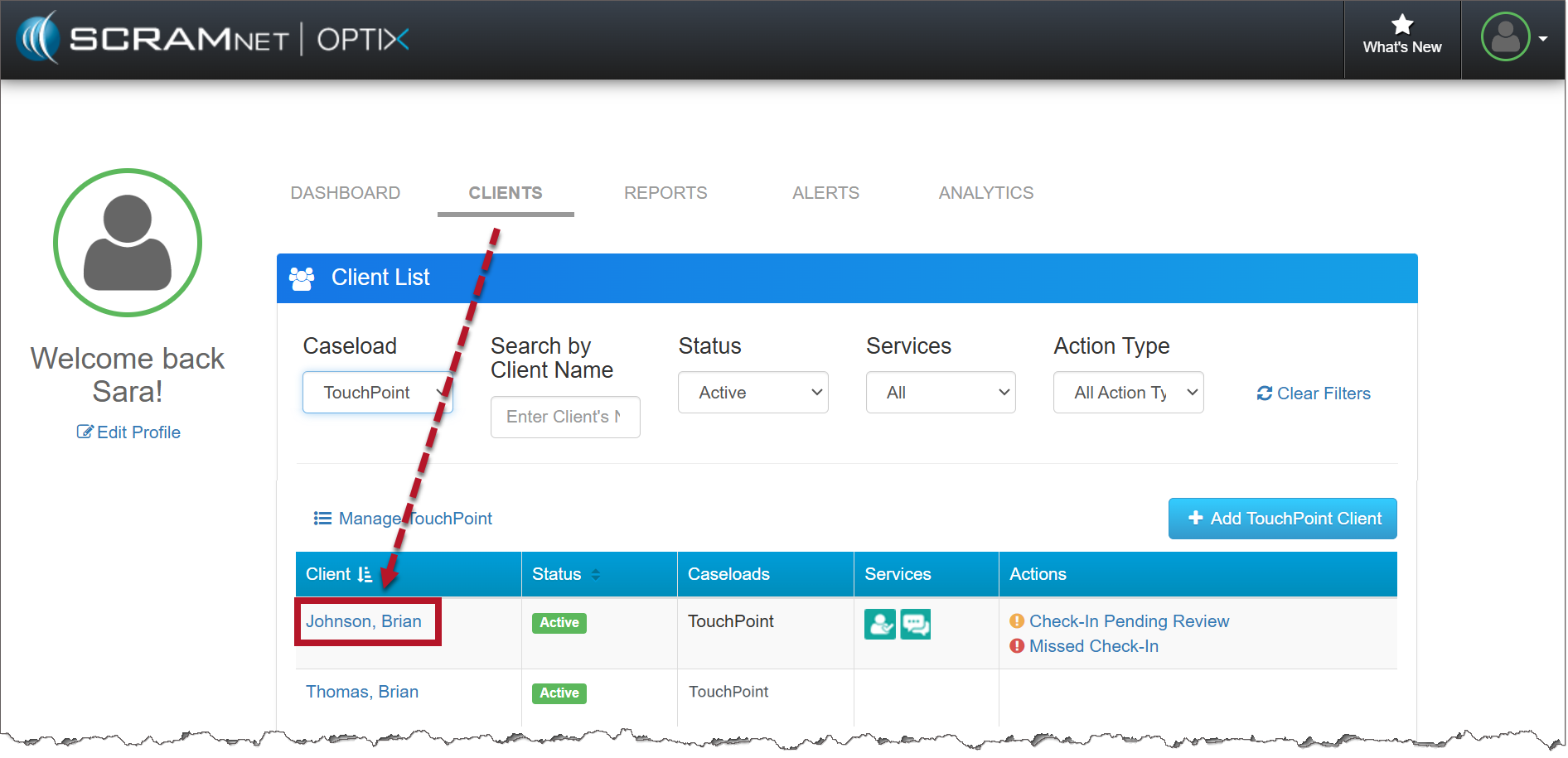
Optix Clients page (click to enlarge)
On the client’s profile page.
- Click the Request New Baseline Image button located the Client Check-In section.
- The button will disappear until the client completes a check-in.
- Instruct the client to complete a Client Check-In.
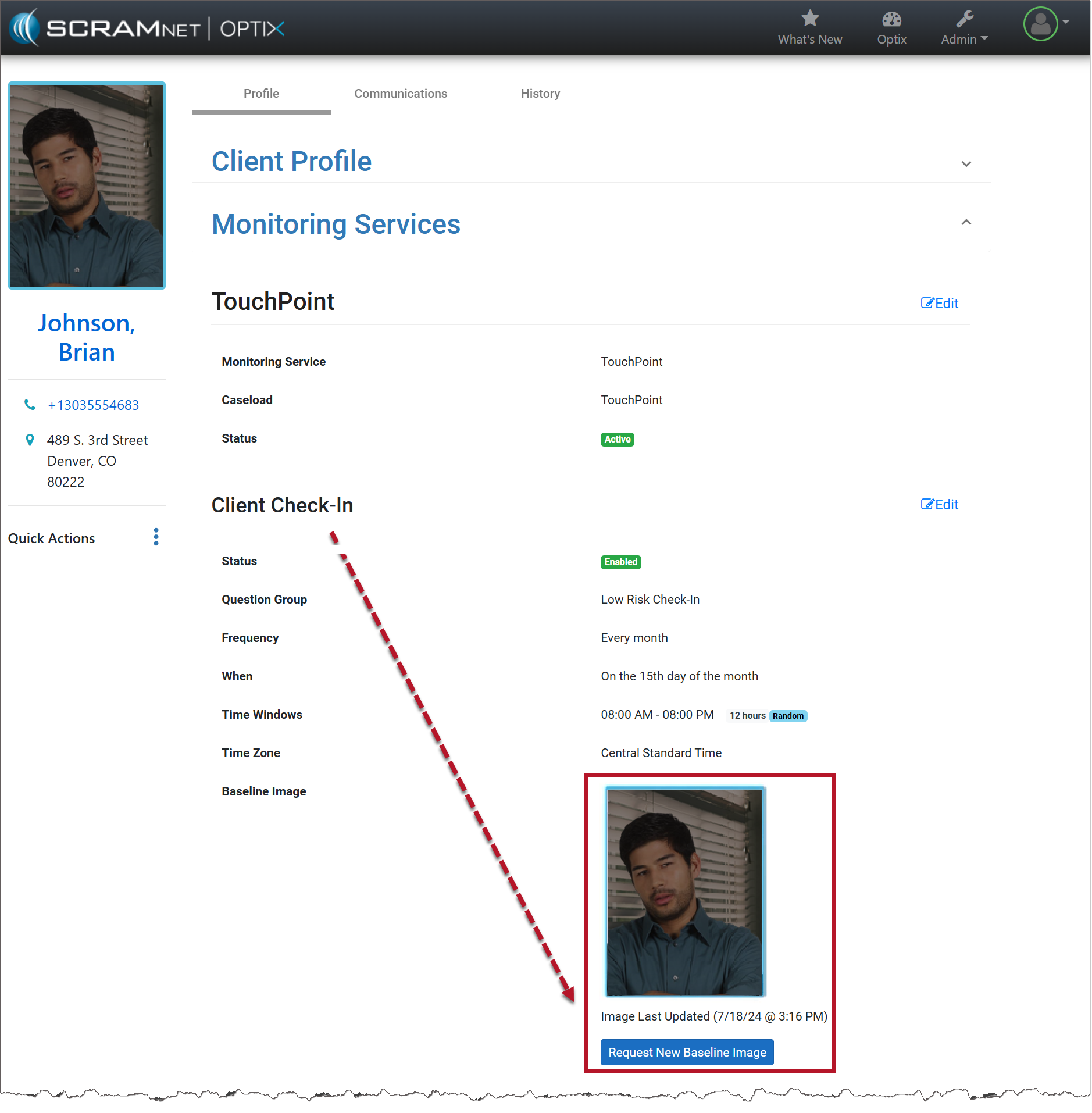
TouchPoint Client Profile page (click to enlarge)
Once the client has completed the check-in, the new baseline image will display on the client’s profile page.
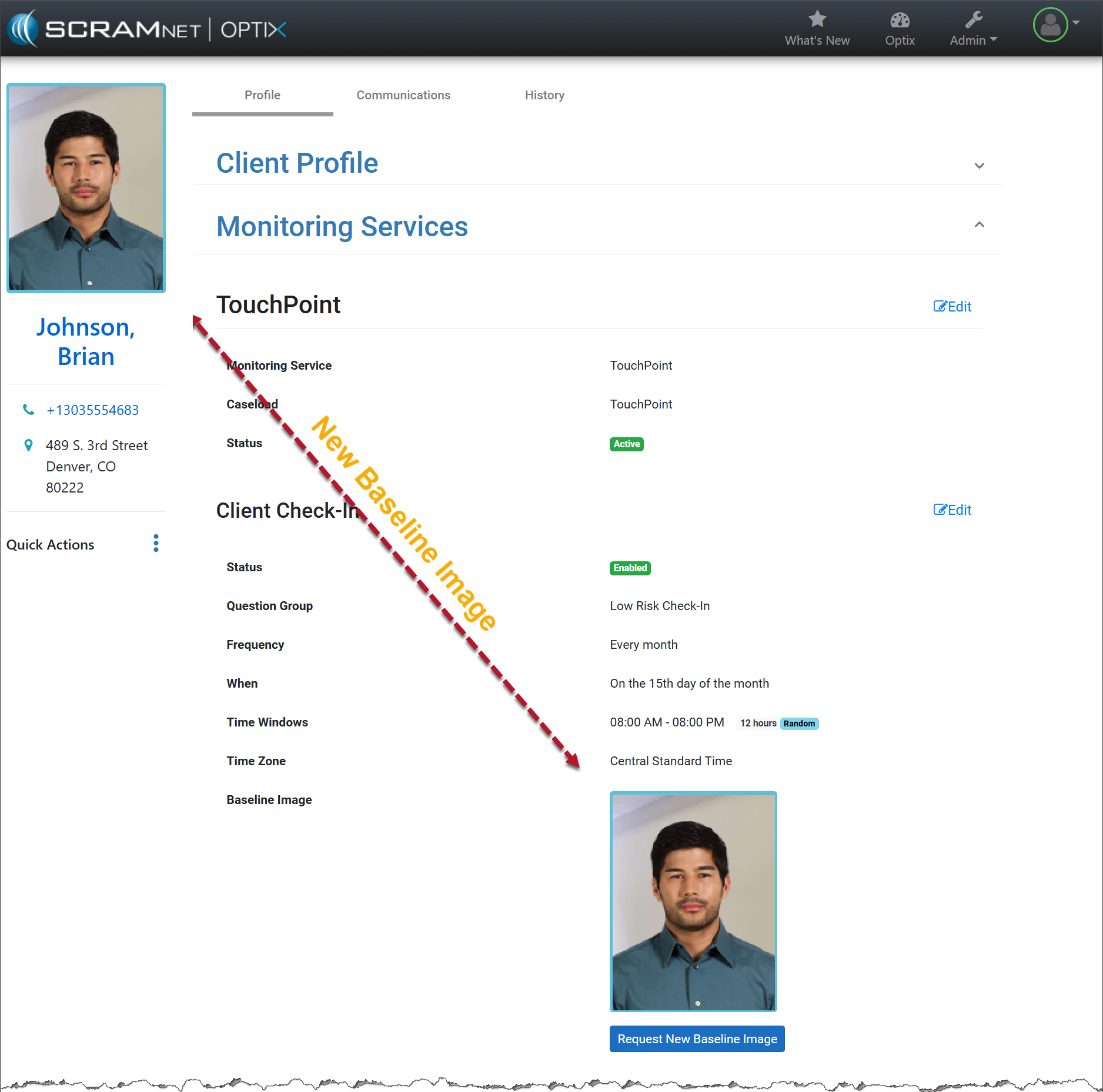
TouchPoint Client Profile page (click to enlarge)
On the client’s Check-In History page, that check-in’s Facial Recognition column will reflect a status of Baseline Photo Set.
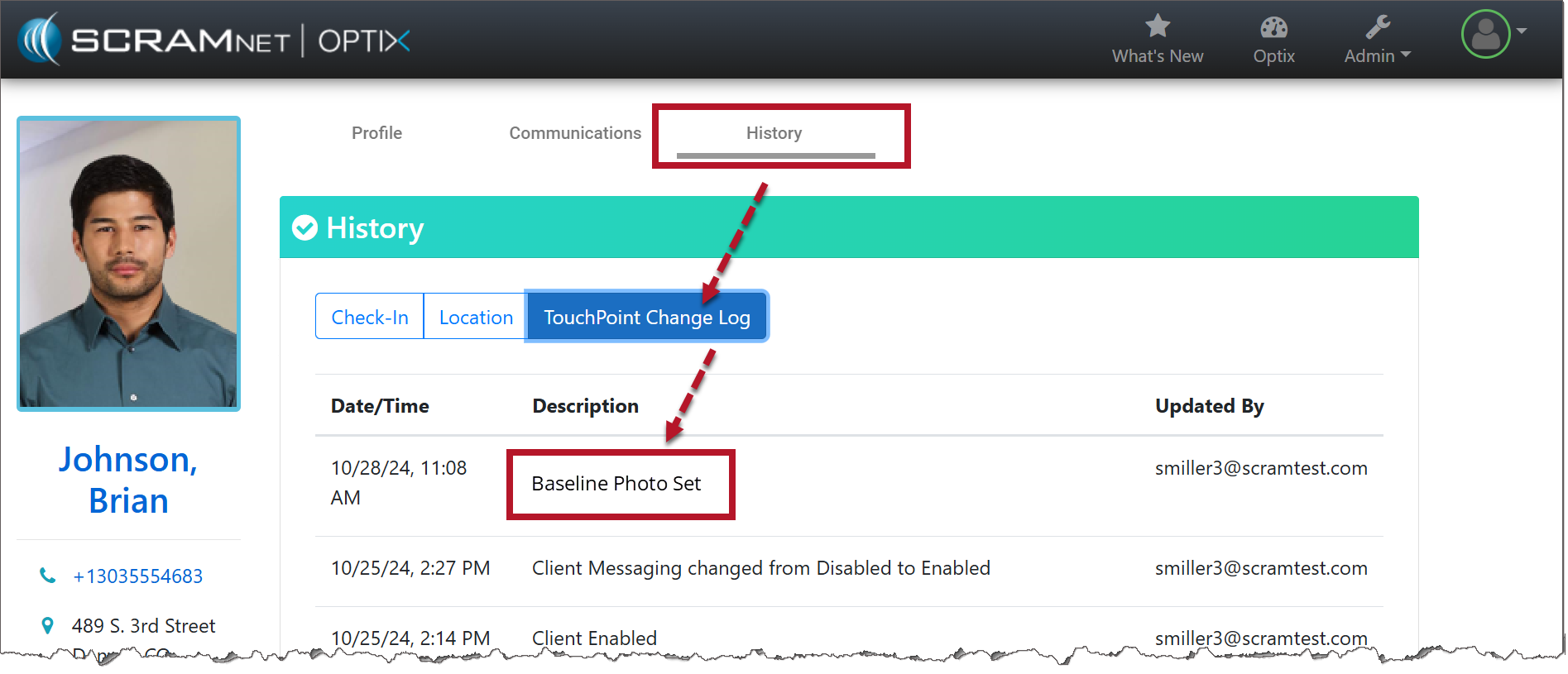
TouchPoint Client Check-In History page (click to enlarge)