The Video Conferencing feature in Optix allows agents to place video calls directly to clients’ TouchPoint applications on their smartphones. Once a video call has been initiated by an agent, they have the option to record the session. A history of all video calls, the call results, as well as recordings and transcripts are automatically stored under the client’s Communications tab for future reference.
 |
Your account must be enabled for video conferencing for these instructions to work. Contact your SCRAM Systems Account Representative if you are interested in activating this service. |
Enabling the Video Conferencing Feature
The Video Conferencing feature is enabled at the caseload level before it may be enabled for your clients.
To enable a specific Caseload:
- From the Optix Dashboard, locate the TouchPoint tile, and then select the Go to TouchPoint button.
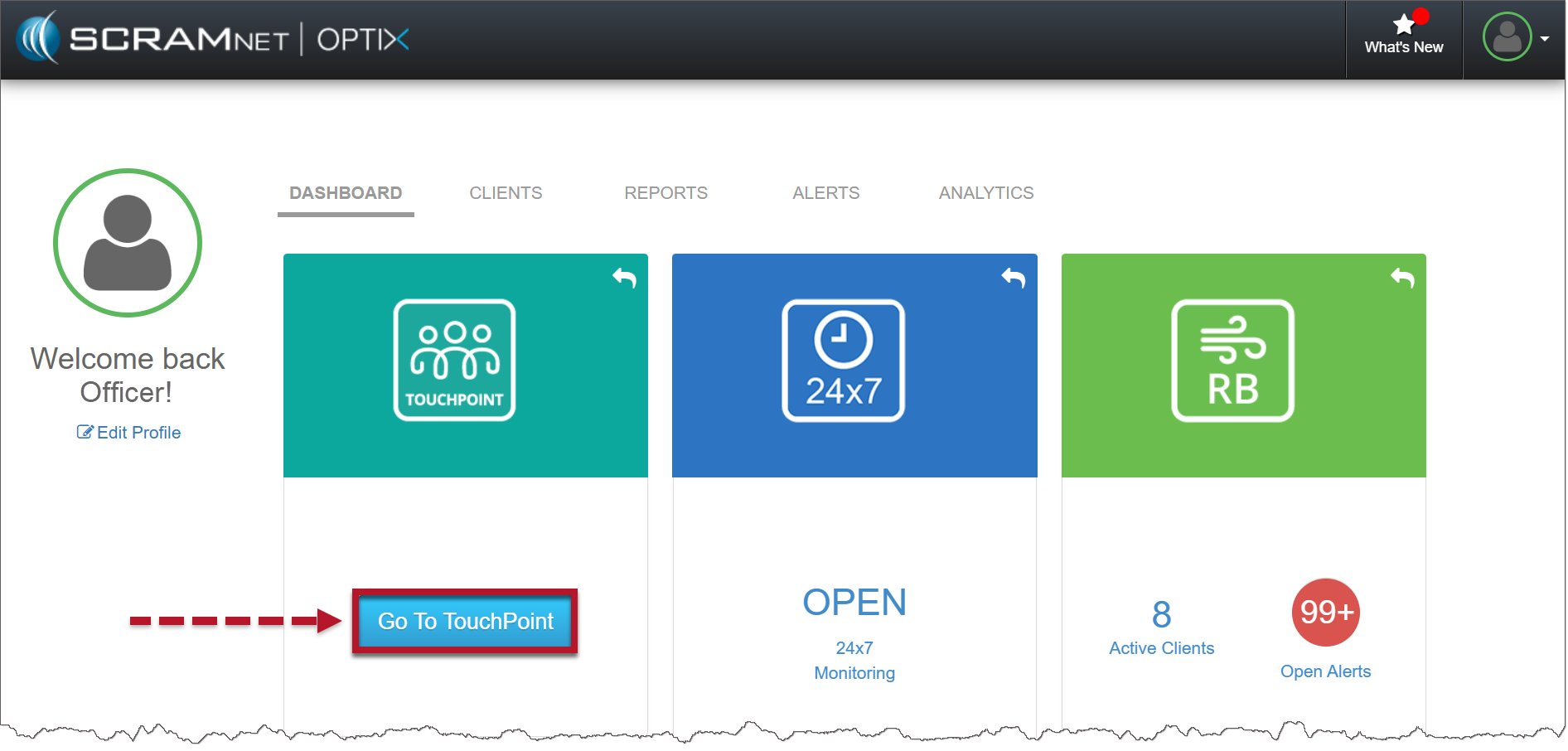
Optix Dashboard (click to enlarge)
- On the Manage Check-In page, select the Admin button on the top toolbar and then select the Manage Caseloads option from the dropdown menu.
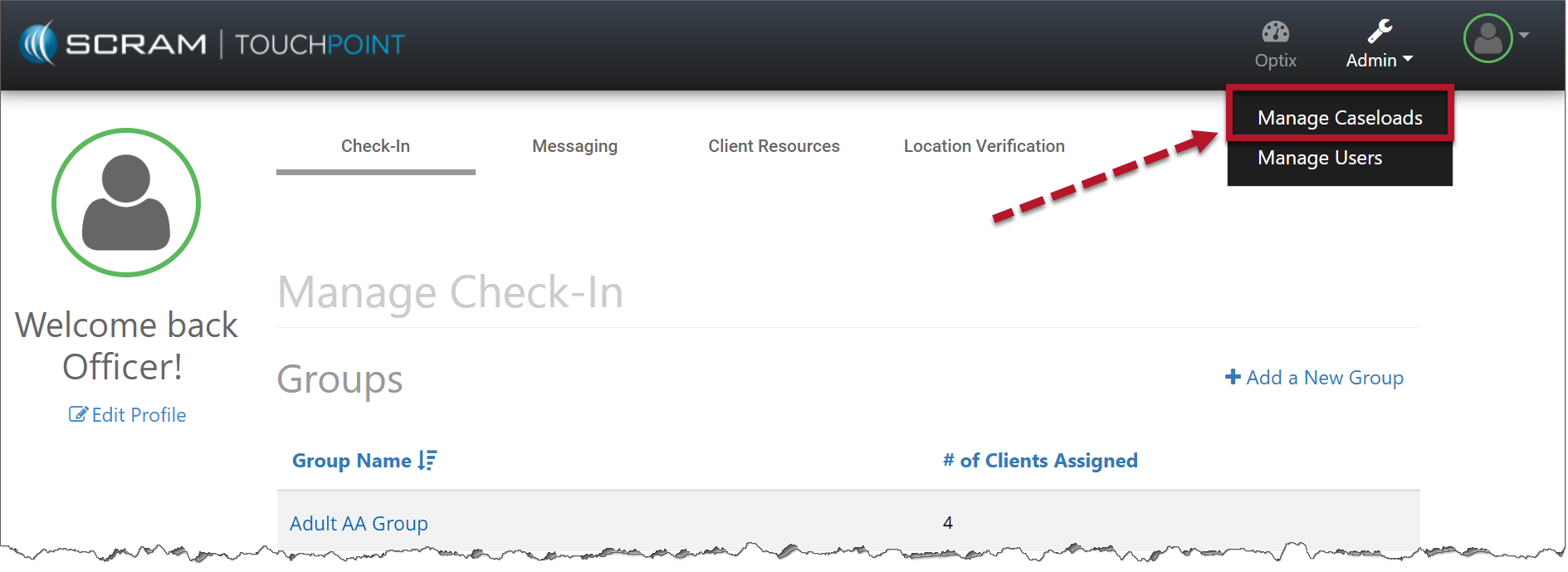
Manage Check-In Page (click to enlarge)
- Select the desired Caseload.
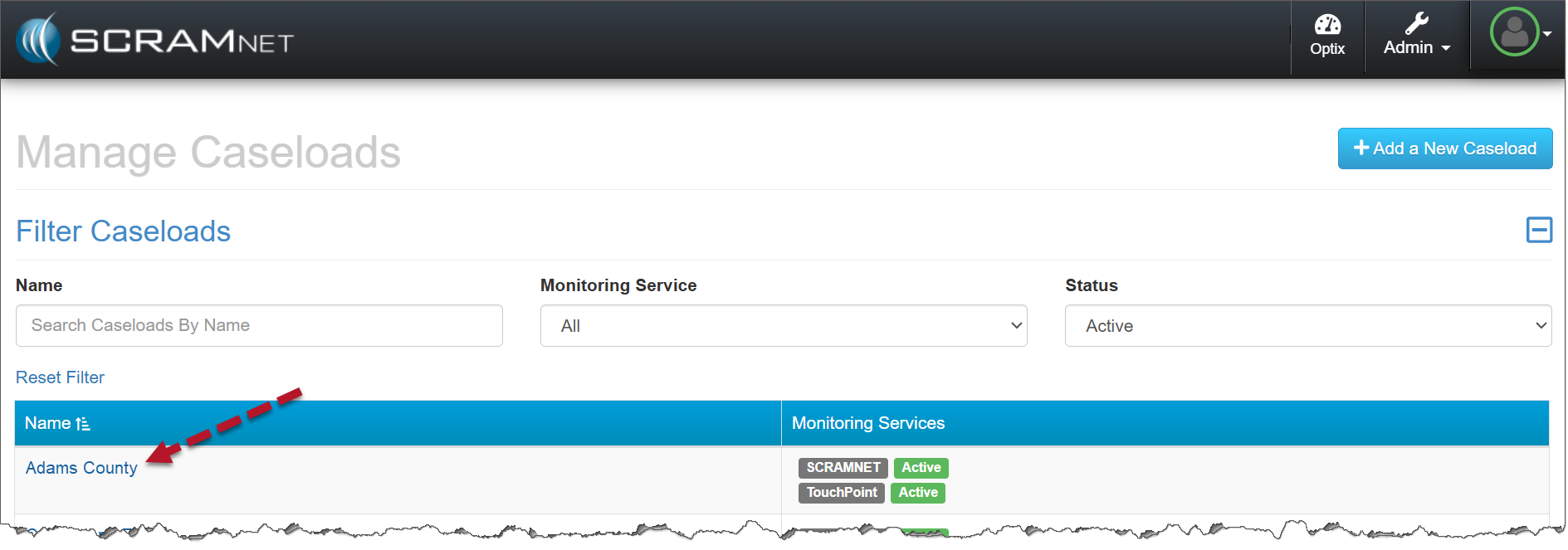
Manage Caseloads Page (click to enlarge)
- On the Caseload Detail page, select the View Settings hyperlink.
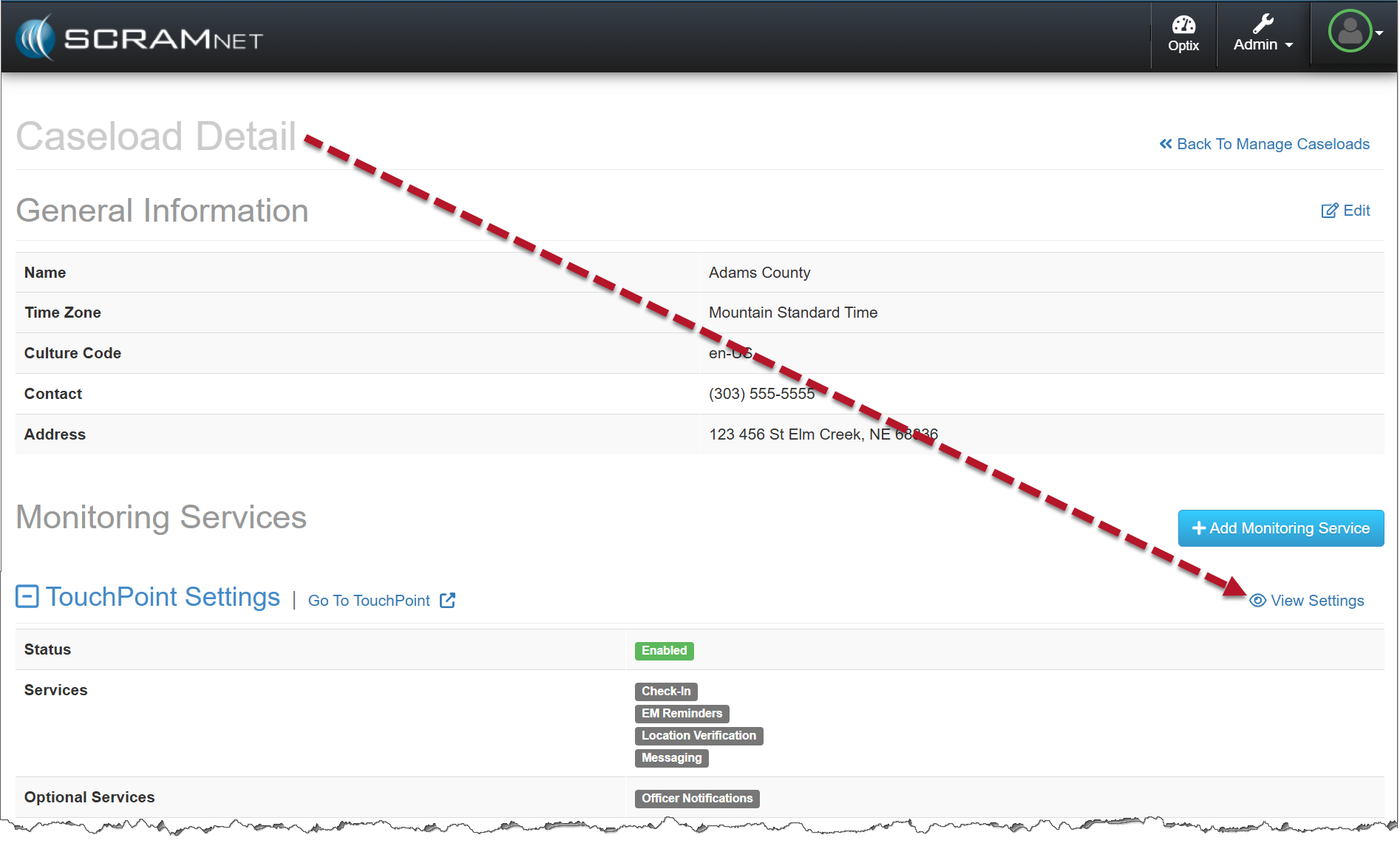
Caseload Detail Page (click to enlarge)
- On the Monitoring Service Detail page, select the checkbox next to Video Conferencing; then select the Save Changes button.
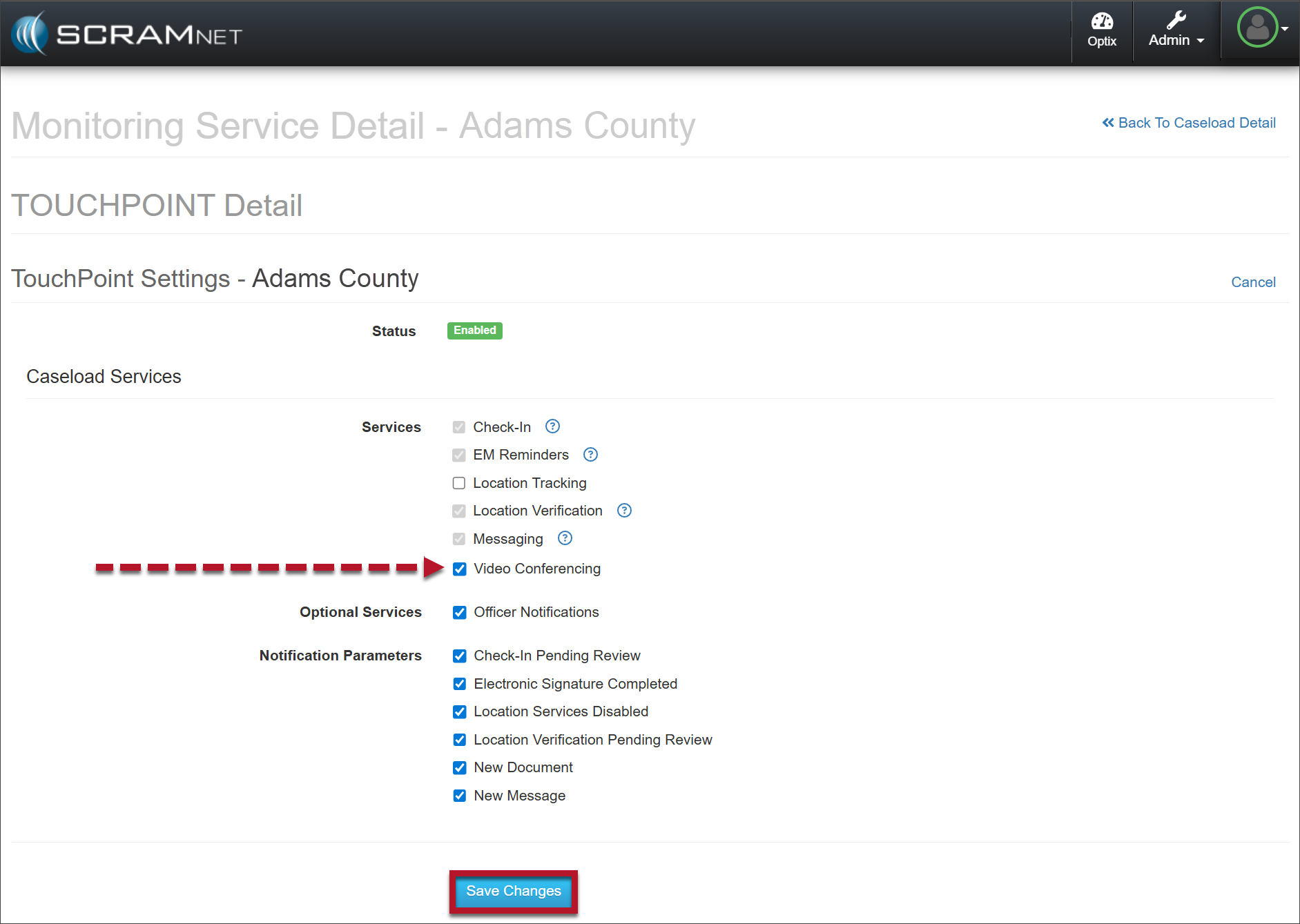
Monitoring Service Detail Page (click to enlarge)
- Once Video Conferencing is enabled for the caseload, it may be enabled for individual clients on that caseload.
To enable Video Conferencing for a client:
- Navigate to the client’s Profile page. Locate the Video Conferencing section and select the Edit hyperlink.
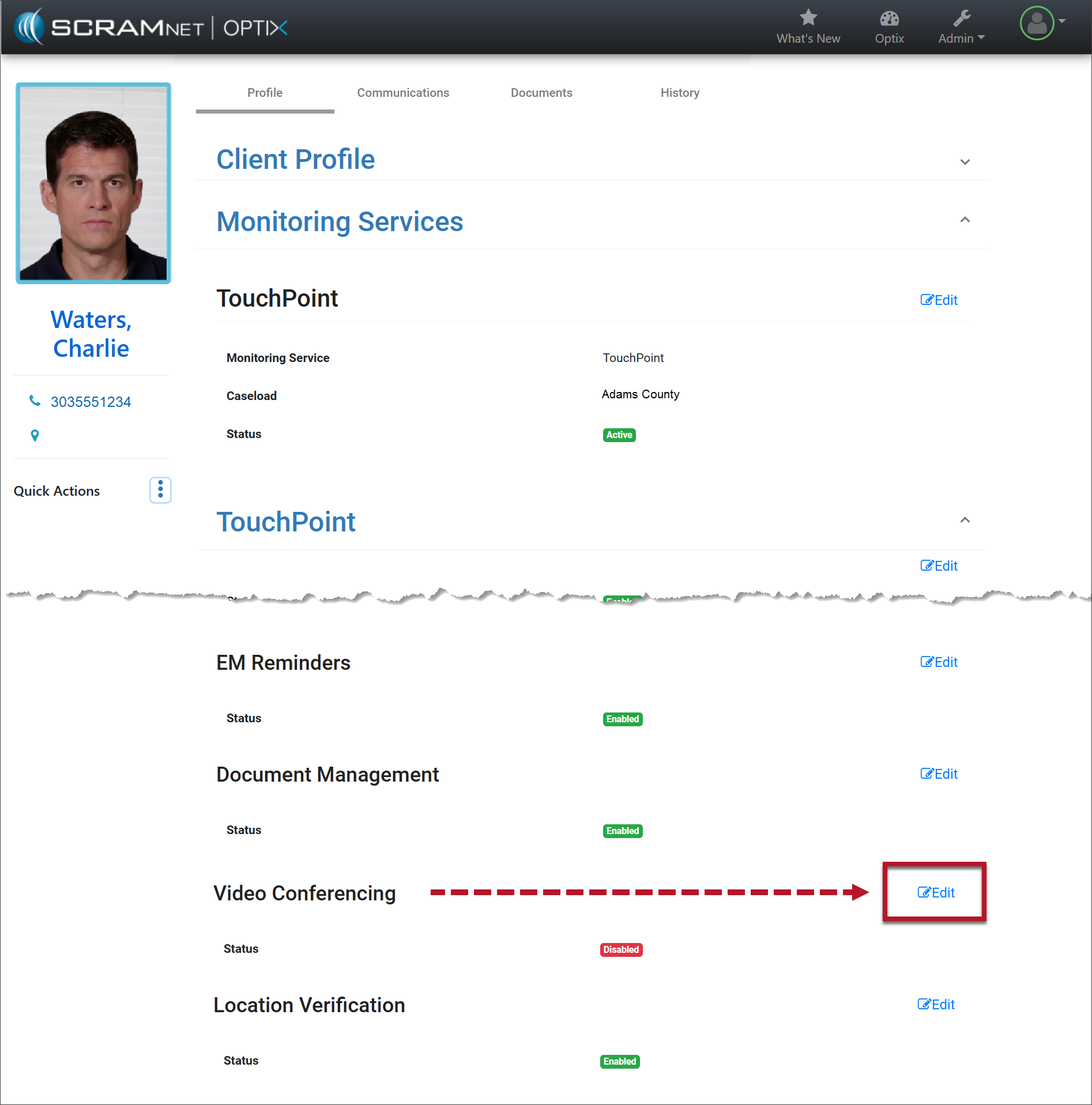
Client Profile Page (click to enlarge)
- Toggle the button from Disabled to Enabled.
- Select the Save Changes button.
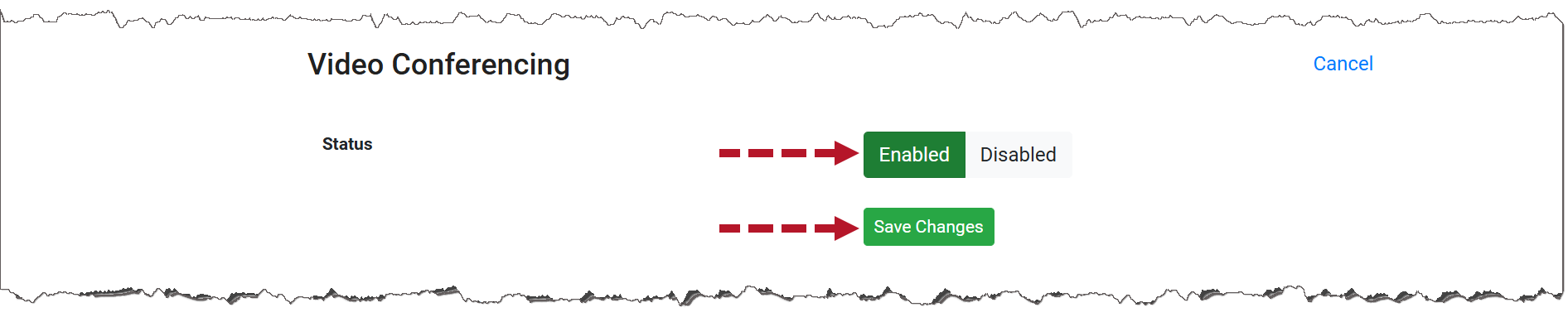
Enable Video Conferencing (click to enlarge)
Initiate a Video Call
- Once enabled, an Initiate Video Call hyperlink displays in the Quick Actions dropdown menu on the side panel of the client’s Profile page, as well as on the Communications tab on the Video Conference page.
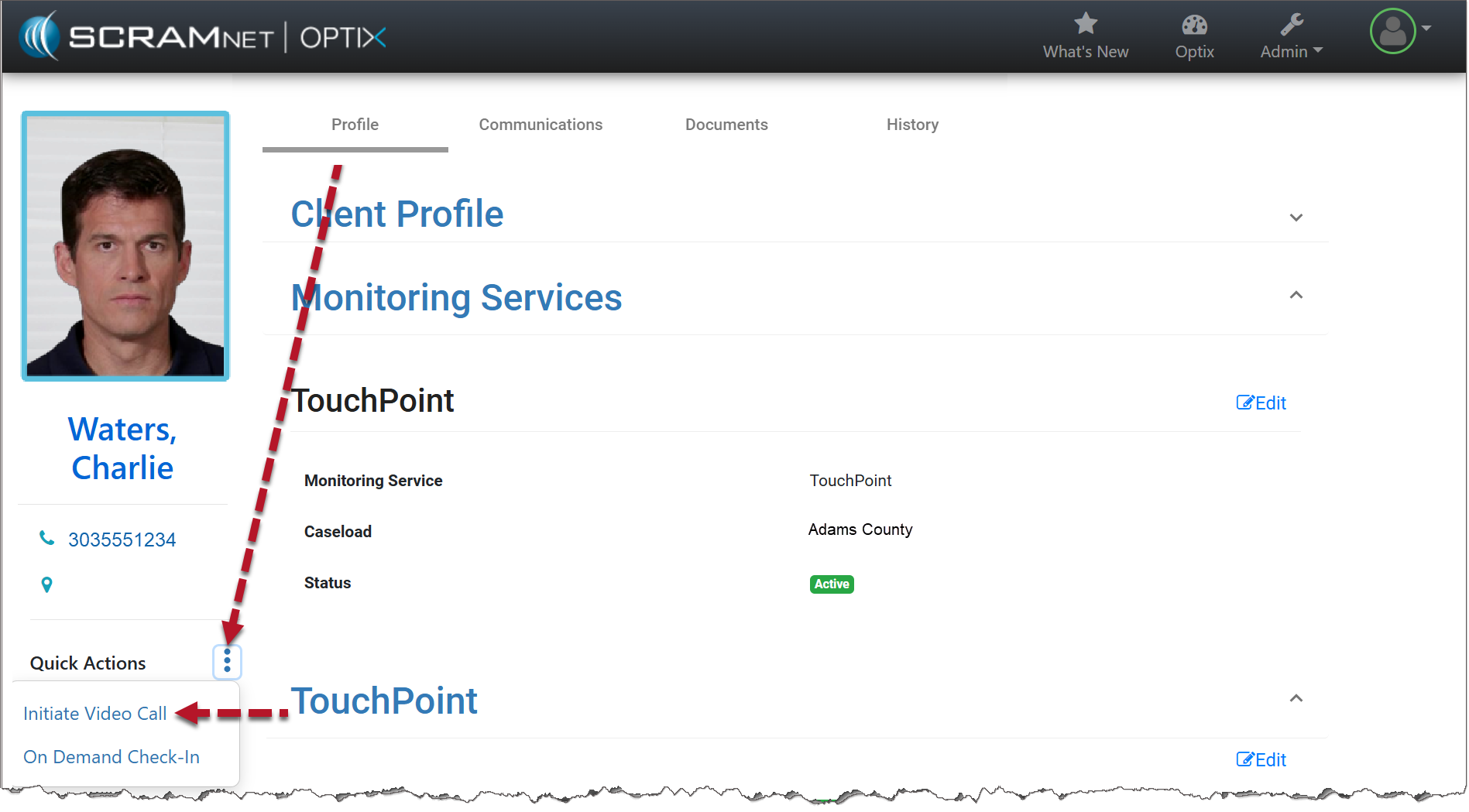
Initiate Video Call Hyperlink (click to enlarge)
- To start a video call, select the Initiate Video Call hyperlink.
- At this time, a video pop-up window appears and the video call is sent to the client’s TouchPoint mobile application. You are prompted to: Enable Audio. Would you like to enable audio for this session?
- Not Now: Mic remains disabled.
- Enable: Grants microphone access.
- The agent may select Record to begin recording the video and a transcript of the session.
Once recording is stopped, it may be accessed on the client’s Communications page for the video call.
|
The recorded file may take some time to generate before it is available for playback or download. |
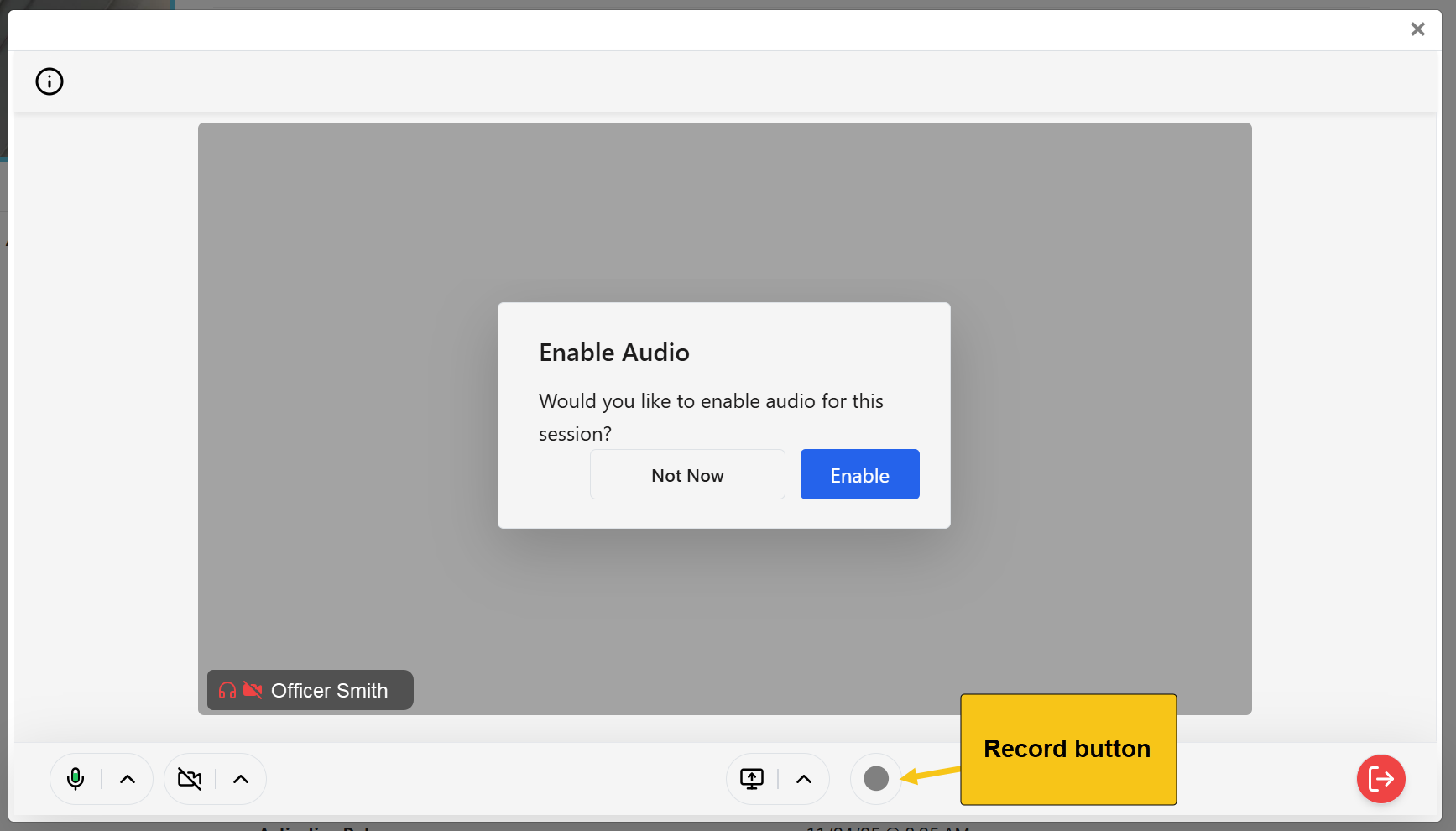
Record Video Call (click to enlarge)
Video and Call Controls
- Microphone Icon: The agent can use this to mute or unmute the audio during the call.
- Video Icon: Turn the camera on or off. This controls whether the client can see the agent’s video feed.
- Computer Screen Icon: When selected, a pop-up window appears where the agent may choose exactly what to share (an individual window, browser tab, or entire screen).
- Computer Screen Icon Menu: Open the Share Screen Settings menu. Select whether:
- Only the host/manager (agent) can share their screen, or
- Each participant (agent and client) can share in turns. Selecting this option allows the client to share their screen.
- Pause or stop the recording.
- Exit Session Icon: To end or leave the session, select the red exit session icon in the bottom right corner, then choose:
- End Session – Ends meeting for all users.
- Leave Session – Keeps the meeting open for others.
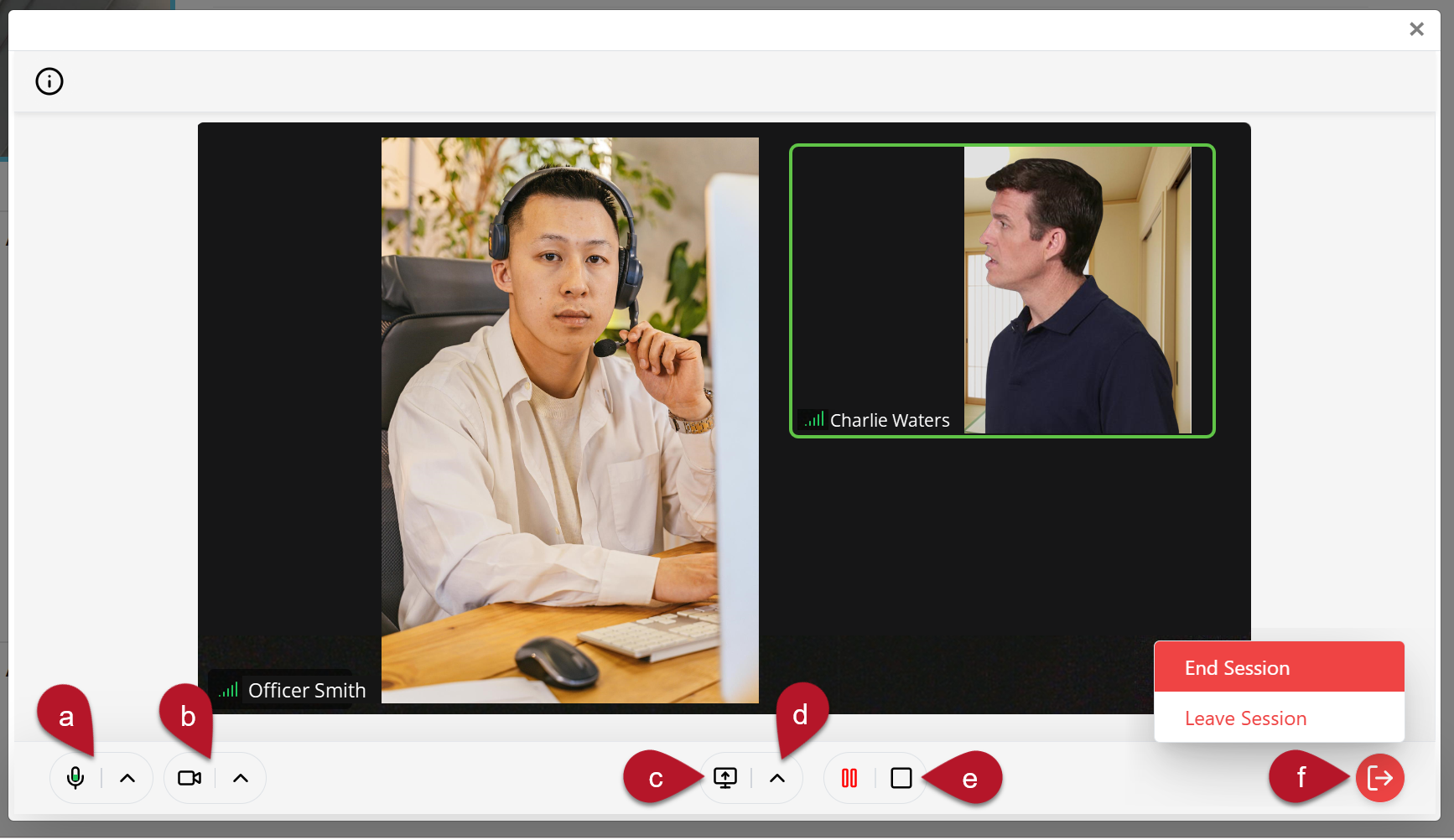
Video and Call Controls (click to enlarge)
View Video Conference Call Results, Recordings, and Transcripts
After the video call is ended, a record of the recordings and transcripts appear under the client’s Communications tab. To view all video call results, select the ‘More‘ ellipsis, and then the Video Conferencing option.
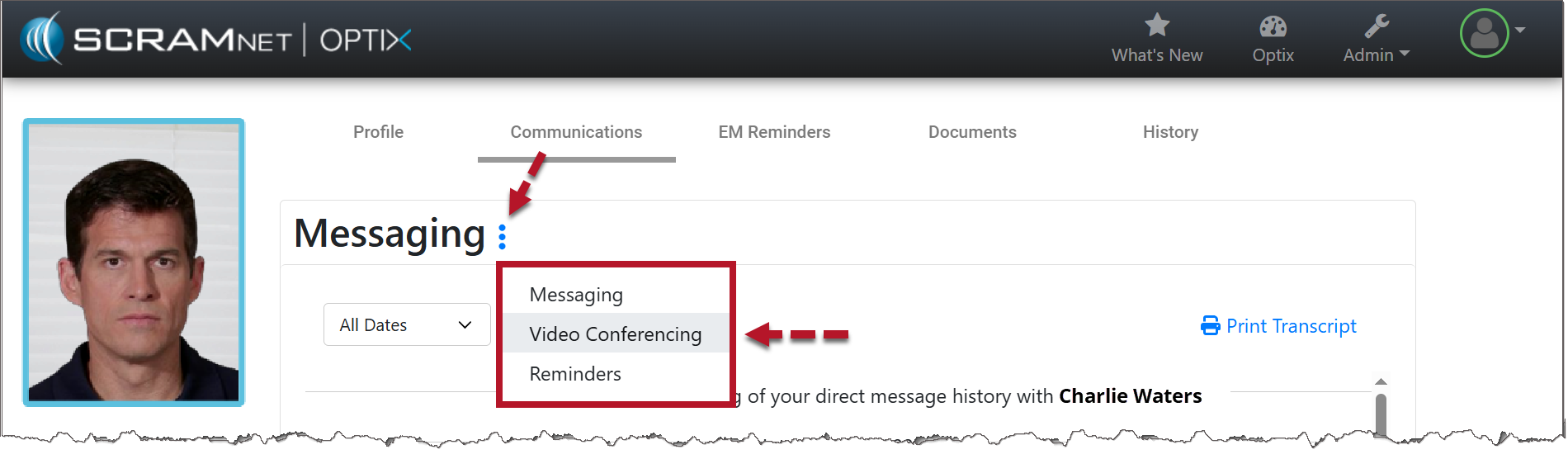
Communications Tab (click to enlarge)
The details display for each video call initiated. An entry may contain some or all of the following details:
- Date and time of the call: Shows when the call was inititated and when it ended.
- Agent who initiated the call.
- Video Recording and transcript hyperlinks (when initiated by the user at the time of the video call).
- If the video conference is paused or stopped and then restarted, separate transcript and recording files are generated for each segment of the call.
- “No Transcripts” and “No Recordings” indicates that the video conference was not recorded.
- “Unsuccessful” indicates that the agent failed to connect with the client or that the client rejected the call.
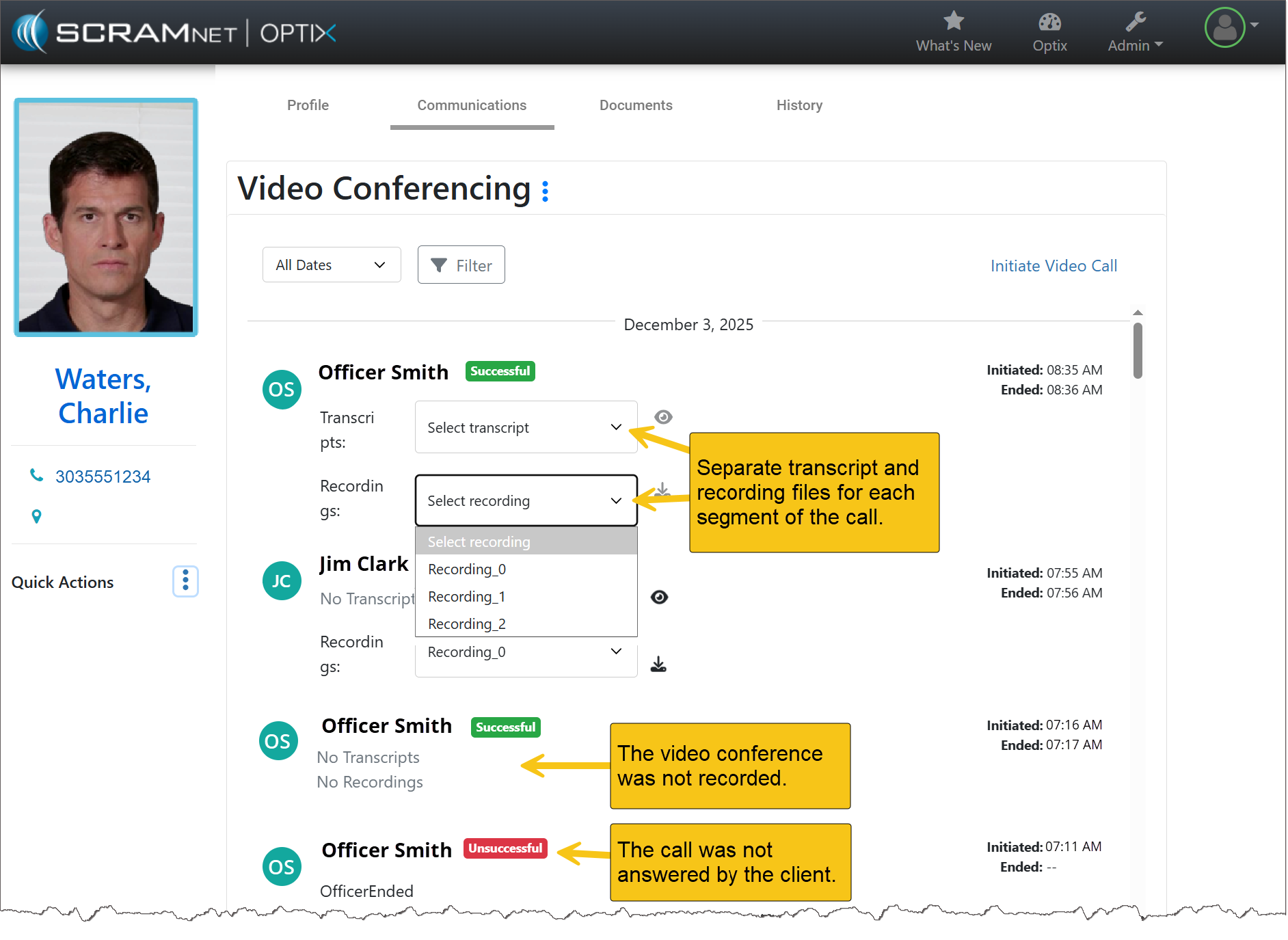
Video Conferencing Records (click to enlarge)