Transfer a Client to a New TouchPoint Caseload
Once a TouchPoint client has been added into the system, it may be necessary to transfer the client to a new TouchPoint caseload for monitoring.
To ensure you can transfer the client from one caseload to another, verify the services enabled for the caseload the client will be transferred into are identical to the services enabled in the caseload the client is currently in. This is true even if the client is not enabled for all the available services. For information on how to navigate and then verify the enabled services for the new caseload, click here.
To complete this task, start by navigating to the client’s Profile page from the Clients list in Optix.
On the client’s Profile page,
- Under the Monitoring Services section, select the Edit hyperlink to the right of the TouchPoint heading.
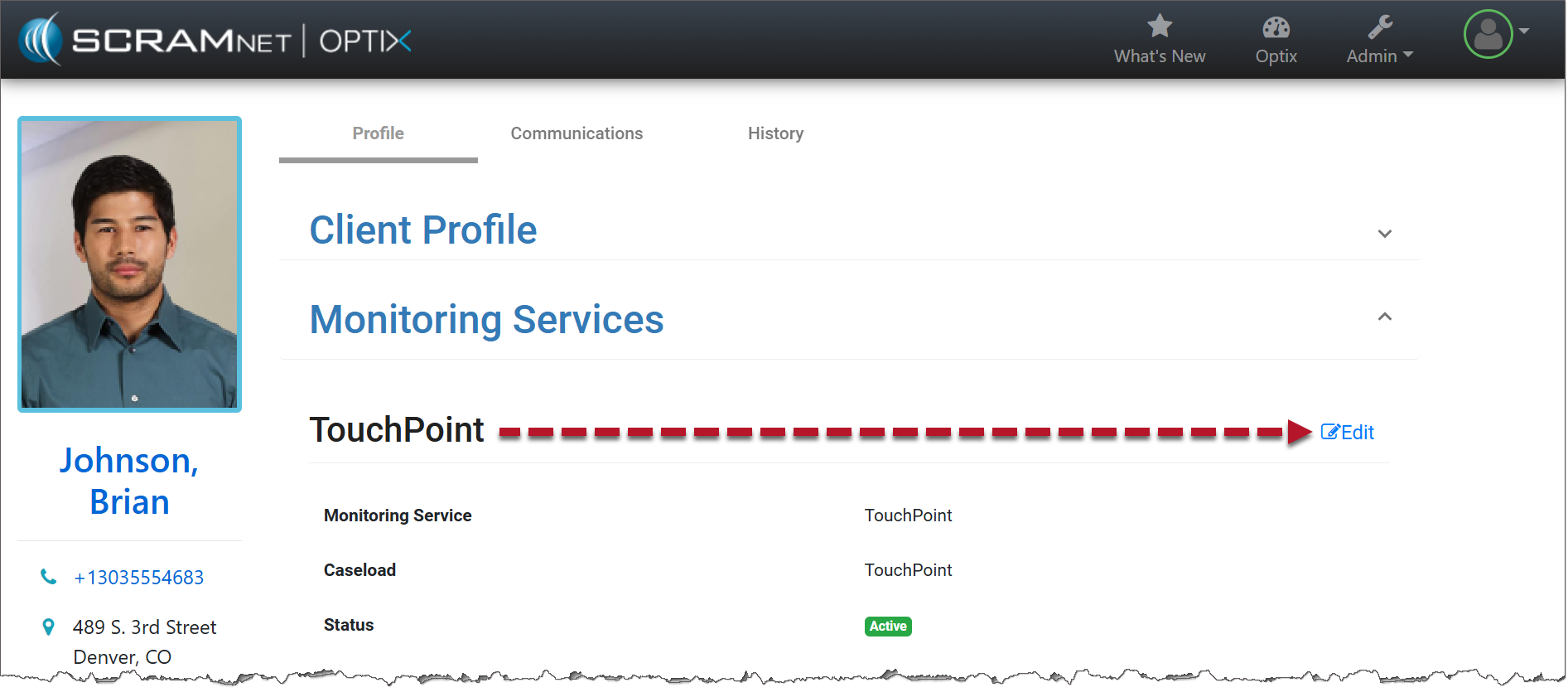
Client Profile Page (click to enlarge)
- Select the down arrow next to the caseload’s information.
-
- Only the caseloads with identical services enabled are displayed as options for the transfer.
- If the desired caseload is not displayed on the menu, you will need to edit/update the new caseload’s services. Click here for help.
-
- Select the caseload you wish to transfer the client to.
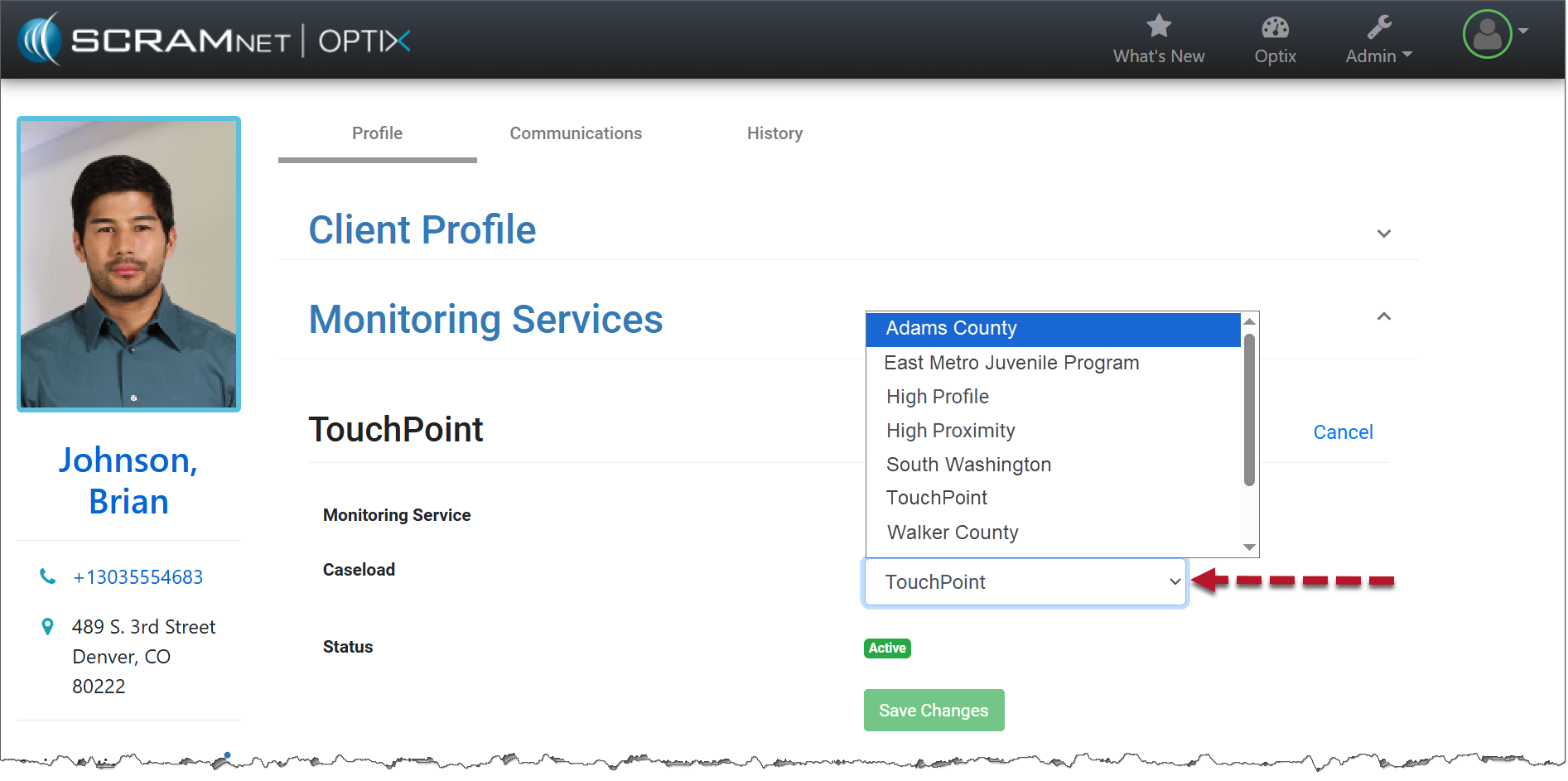
Select the Client’s New Caseload (click to enlarge)
- Select the Save Changes button.
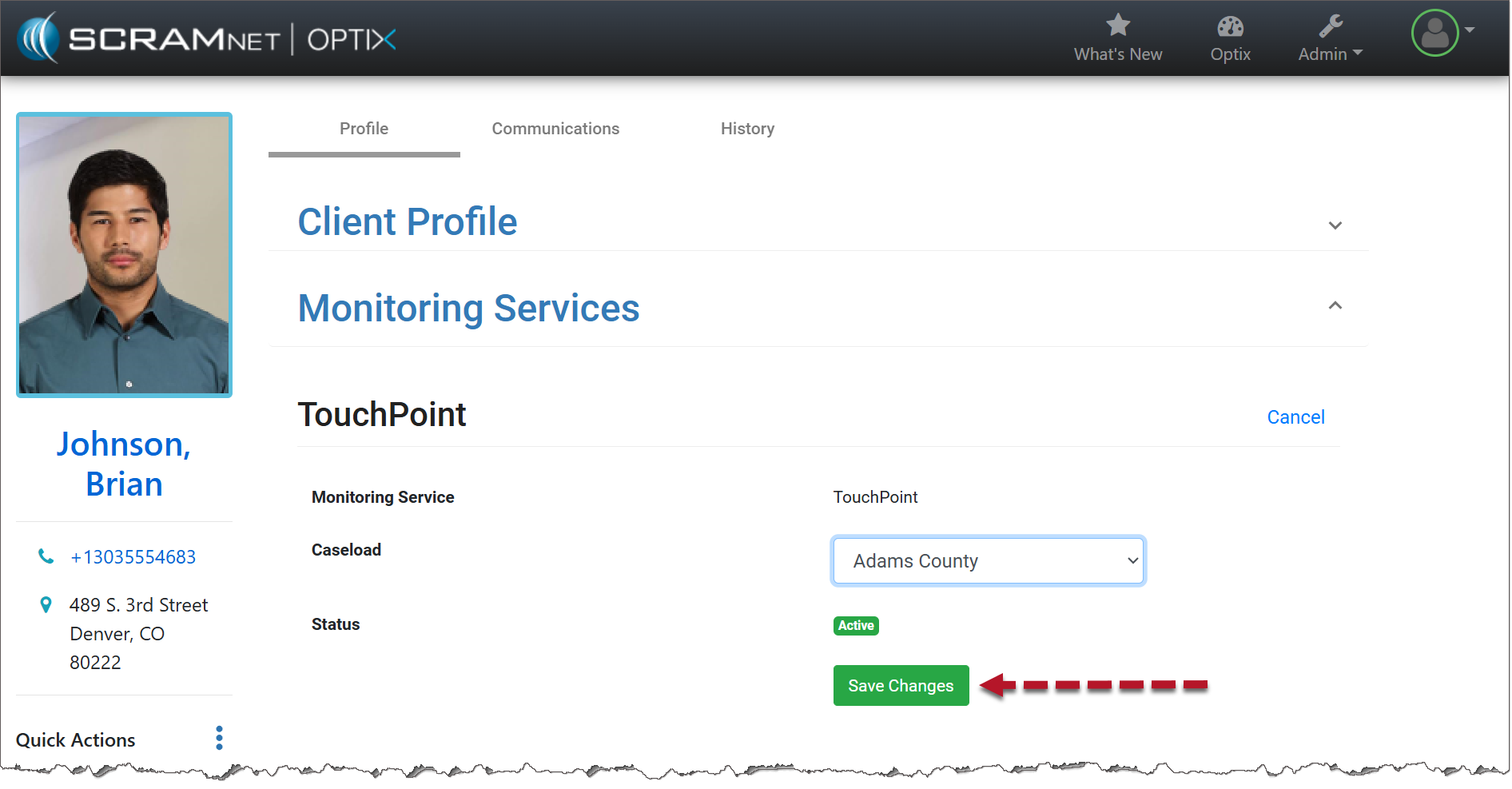
Save Your Changes (click to enlarge)
The new Caseload is now displayed.
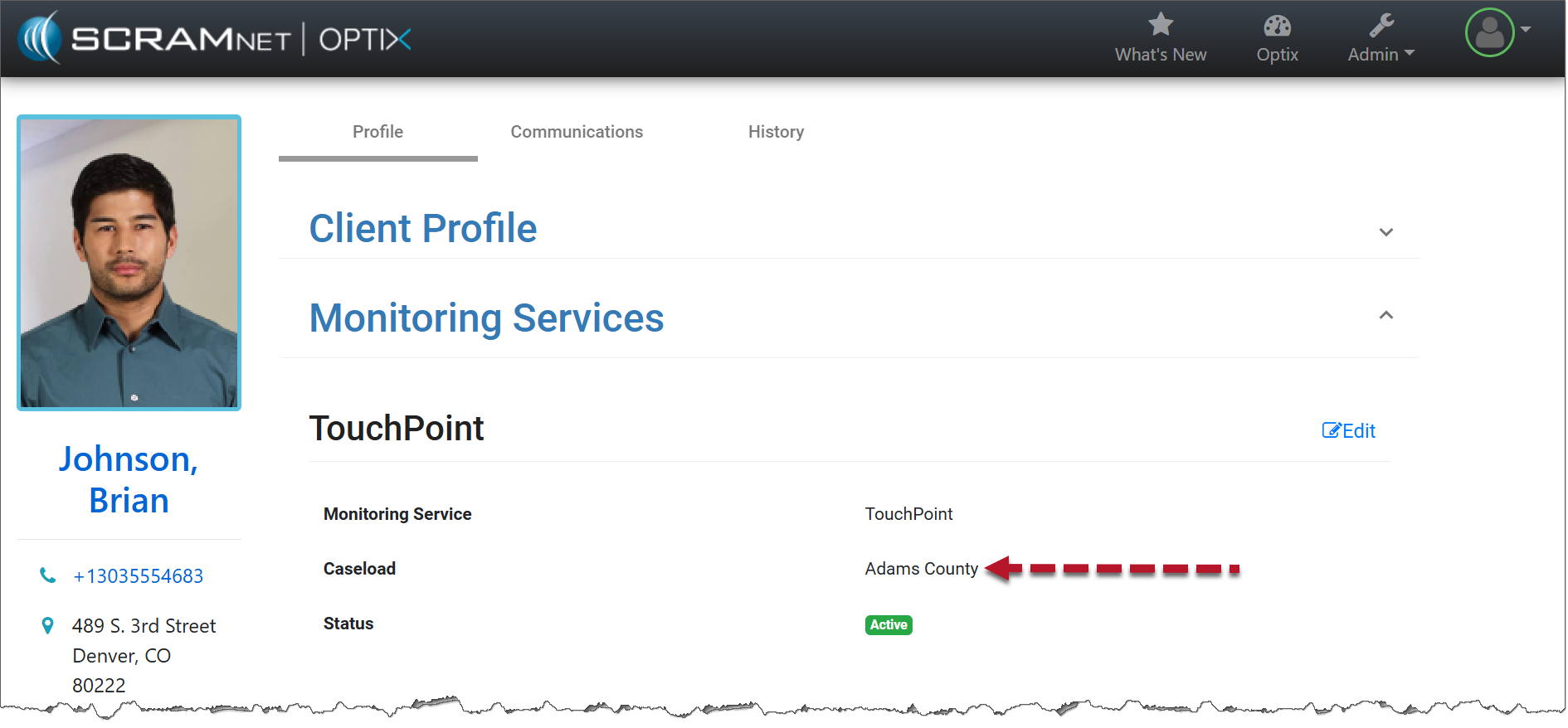
Client Profile Page Displaying New Caseload (click to enlarge)