The Client Resources section allows you to provide your clients with documents and other online resources within their TouchPoint app.
Adding Client Resources
- From the Optix Dashboard, select the Go To TouchPoint button located in the TouchPoint tile, or select the Manage TouchPoint hyperlink on the Optix Clients page to add a resource.
- Select the Client Resources tab.
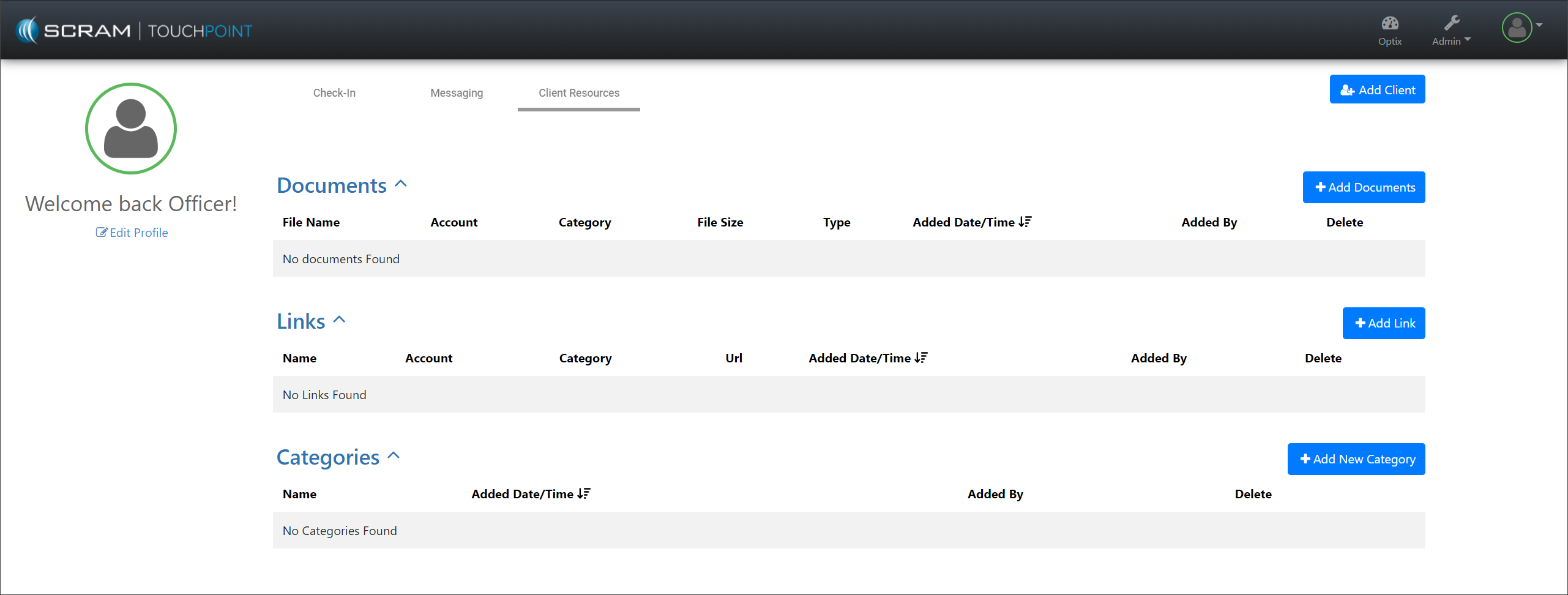
Client Resources page – click to enlarge
Create Resource Categories
- Select the +Add New Category button.
- Enter the Category name.
- Select the Save button.
Repeat steps 1 – 3 to create as many Categories as required.
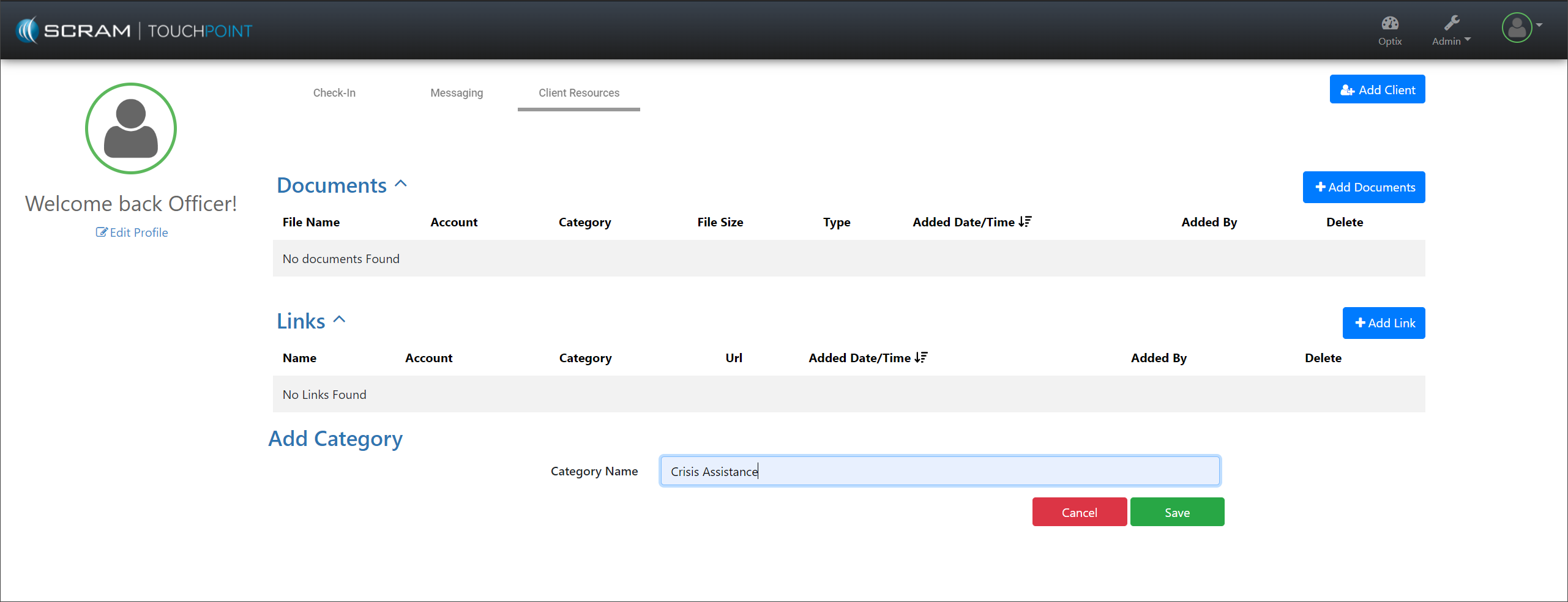
Add a Category – click to enlarge
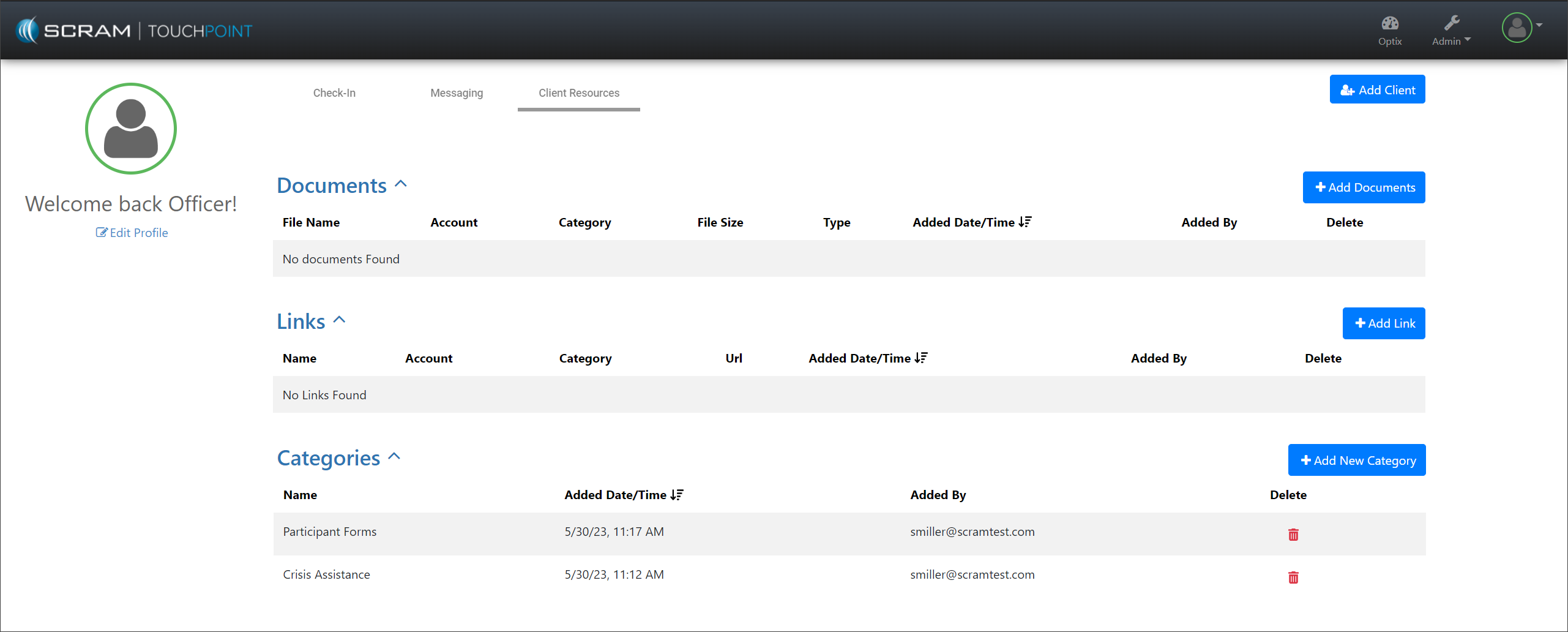
Client Resources Page – click to enlarge
Add Documents
- To add a document, select the +Add Documents button.
- Select a Category to associate the document with from the dropdown menu. If you do not select a Category, the document will be available under a Miscellaneous heading on the client’s app.
- Select a Caseload to associate the document with from the dropdown menu. If you do not select a Caseload, the document will be available to all clients on your program under a Miscellaneous heading on their app.
- Upload the file (accepted formats .docx, .pdf, .jpeg, and .png).
- Select the Save button.
Repeat steps 1 – 5 to add as many documents as required.
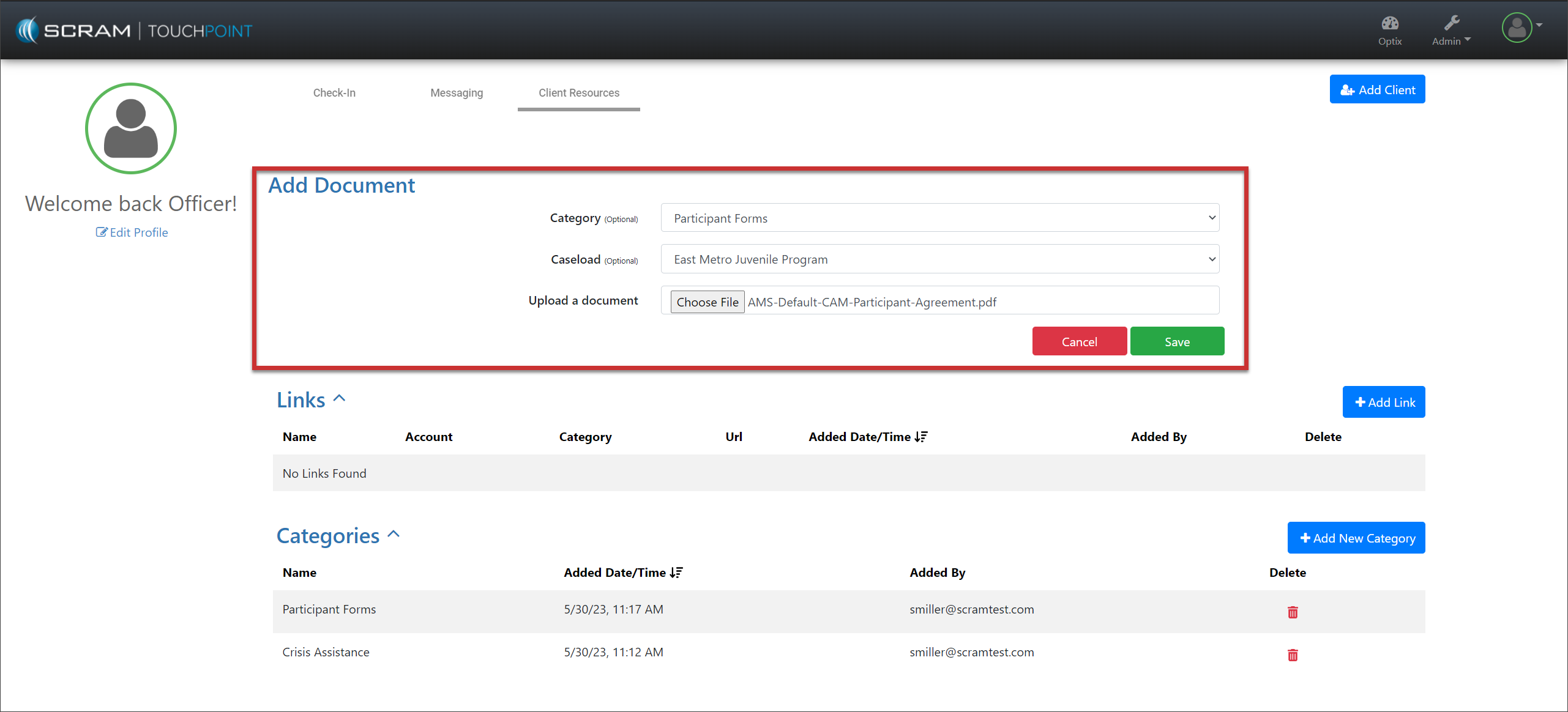
Client Resources Page – click to enlarge
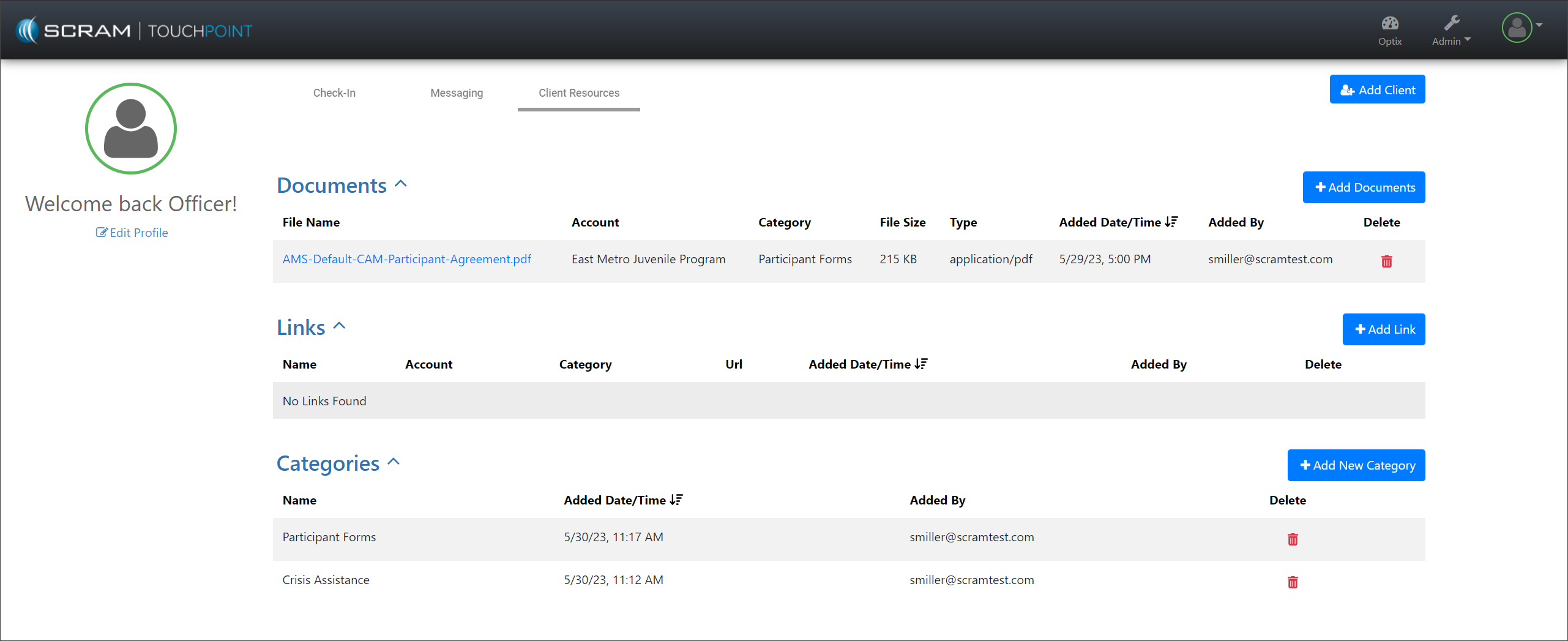
Client Resources Page – click to enlarge
Add Hyperlinks
- To add a hyperlink, select the +Add Link button.
- Select a Category to associate the hyperlink with from the dropdown menu. If you do not select a Category, the hyperlink will be available under a Miscellaneous heading on the client’s app.
- Select a Caseload to associate the hyperlink with from the dropdown menu. If you do not select a Caseload, the hyperlink will be available to all clients on your program under a Miscellaneous heading on their app.
- Add the Link’s name and URL.
- Select the Save button.
Repeat steps 1 – 5 to add as many hyperlinks as required.
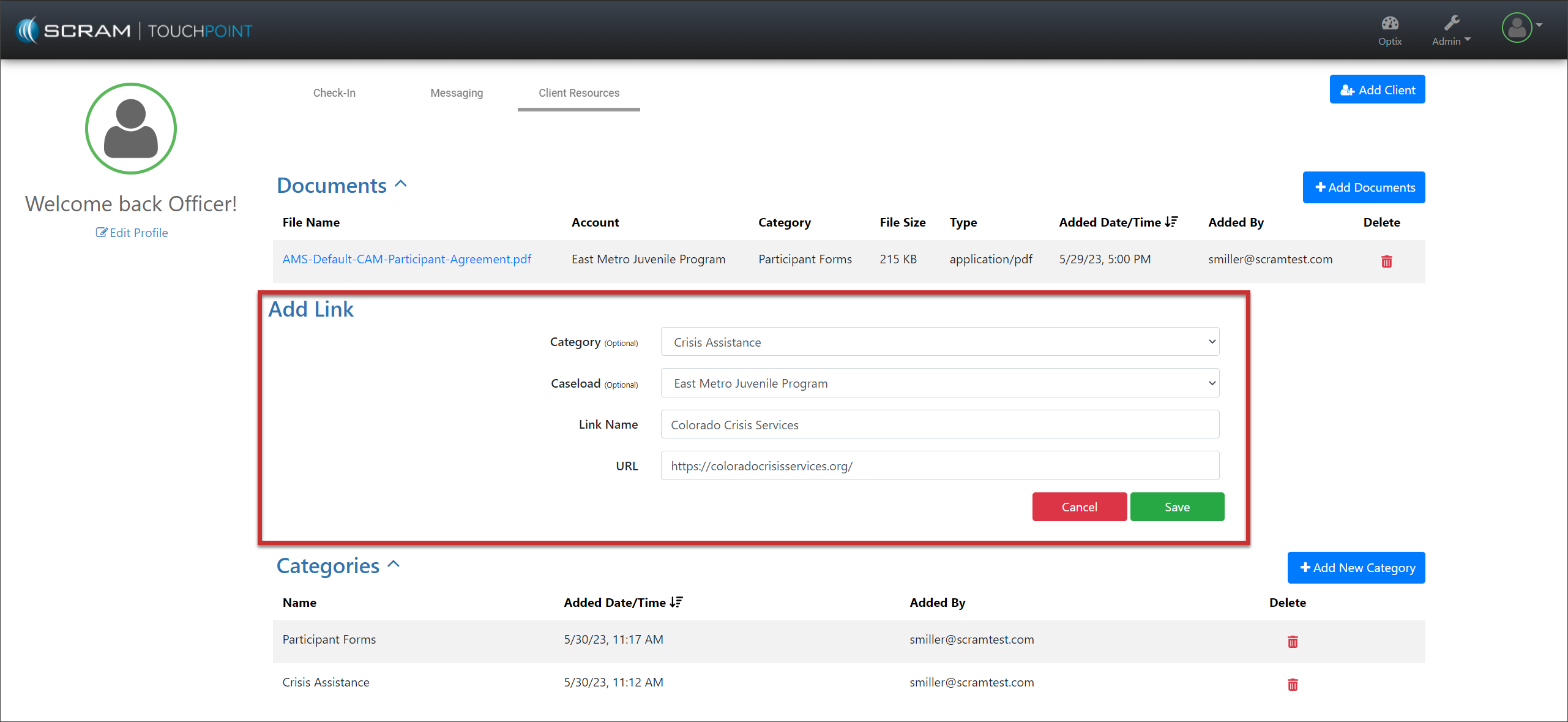
Client Resources Page – click to enlarge
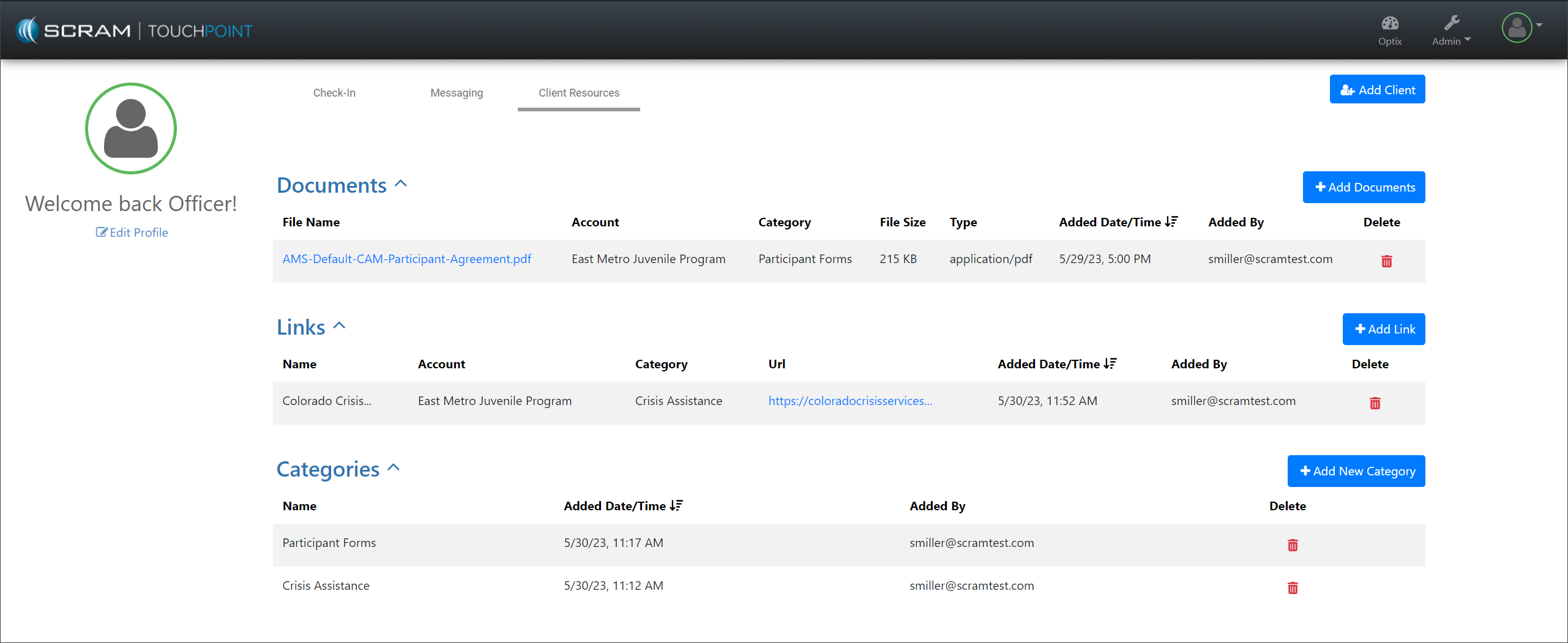
Client Resources – click to enlarge
 |
If a document or hyperlink is no longer needed or you wish to update the category or caseload association, delete the entry by selecting the red trash can and re-enter the information. |
Once you have updated the Client Resources page, the documents and hyperlinks are accessible from the client’s TouchPoint Mobile application’s Home screen by tapping the Resources tile. The client may need to log out and back into the app to see any changes.