Managing a Messaging Caseload
Managing a Messaging caseload consists of viewing notifications for new messages from a client, acknowledging the messages sent by the client, and printing a transcript of the message history for reporting purposes.
Notification of a New Message
There are two areas in Optix that alert you to a new message received from your client.
- The Messages tile on the Optix Dashboard.
- This tile will display the number of Active Clients enabled for Client Messaging and the number of Unread Messages that need your attention.
- The Clients tab in Optix.
- Under the Actions column, an Unread Messages notification will indicate a new message from the client.
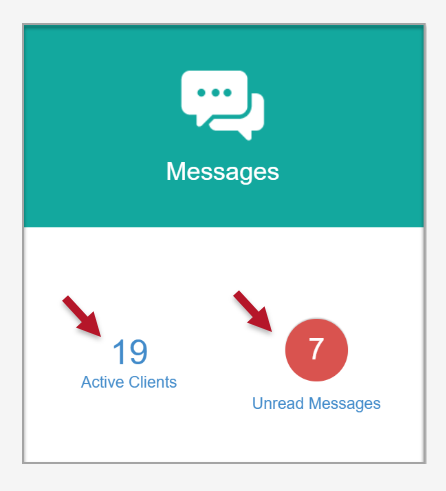
Optix Dashboard Messages Tile (click to enlarge)
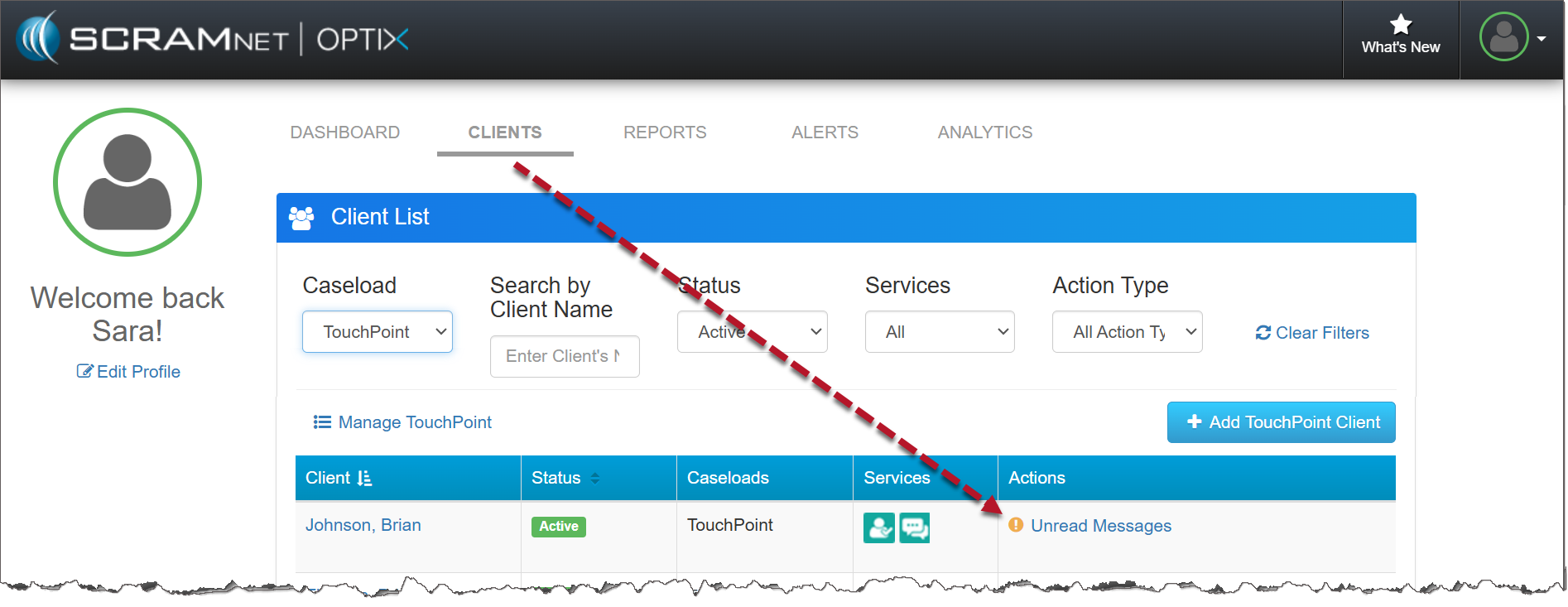
Optix Clients page (click to enlarge)
View a New Message
Start by either selecting the Unread Messages link on the Messages tile or simply navigate directly to the Clients tab.
Next, select the Unread Messages link under the Actions column to see the details on the client’s Messaging page.
On the Messaging page for the client – located on the Communications tab:
- The author for each message is displayed.
- View the Date, Delivered and Read time stamp for each message.
- A red badge indicates a new message from the client.
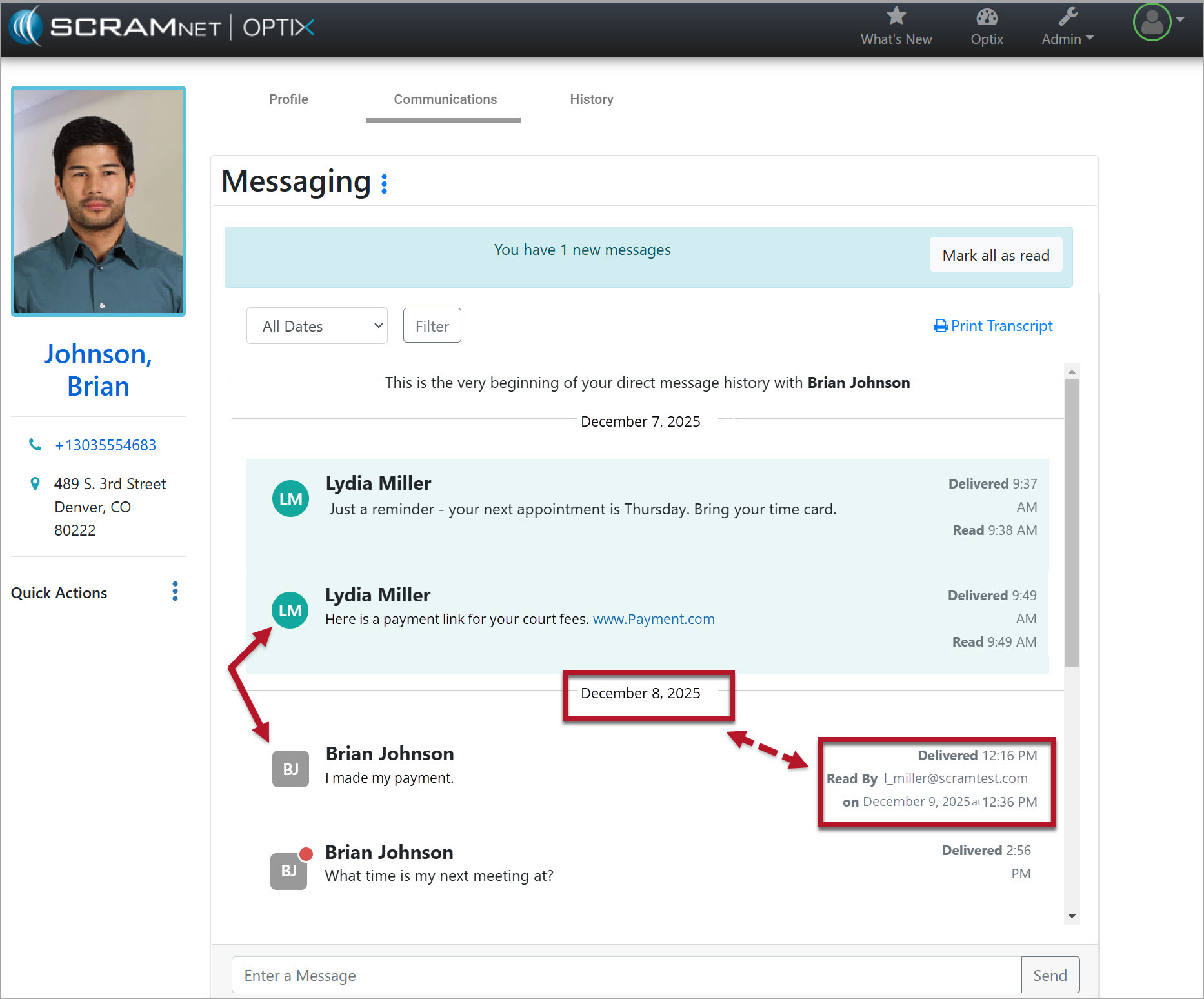
TouchPoint Client Messaging page (click to enlarge)
Mark a New Message As Read
All new messages will display a red badge. To clear the notification for the new message, select the Mark all as read button. Selecting the Mark all as read button:
- Removes the red badge on the notification.
- Removes the Unread Message alert from the Actions column for all users.
- Displays a “Read By” receipt to all users that shows the username, date, and time of the message read.
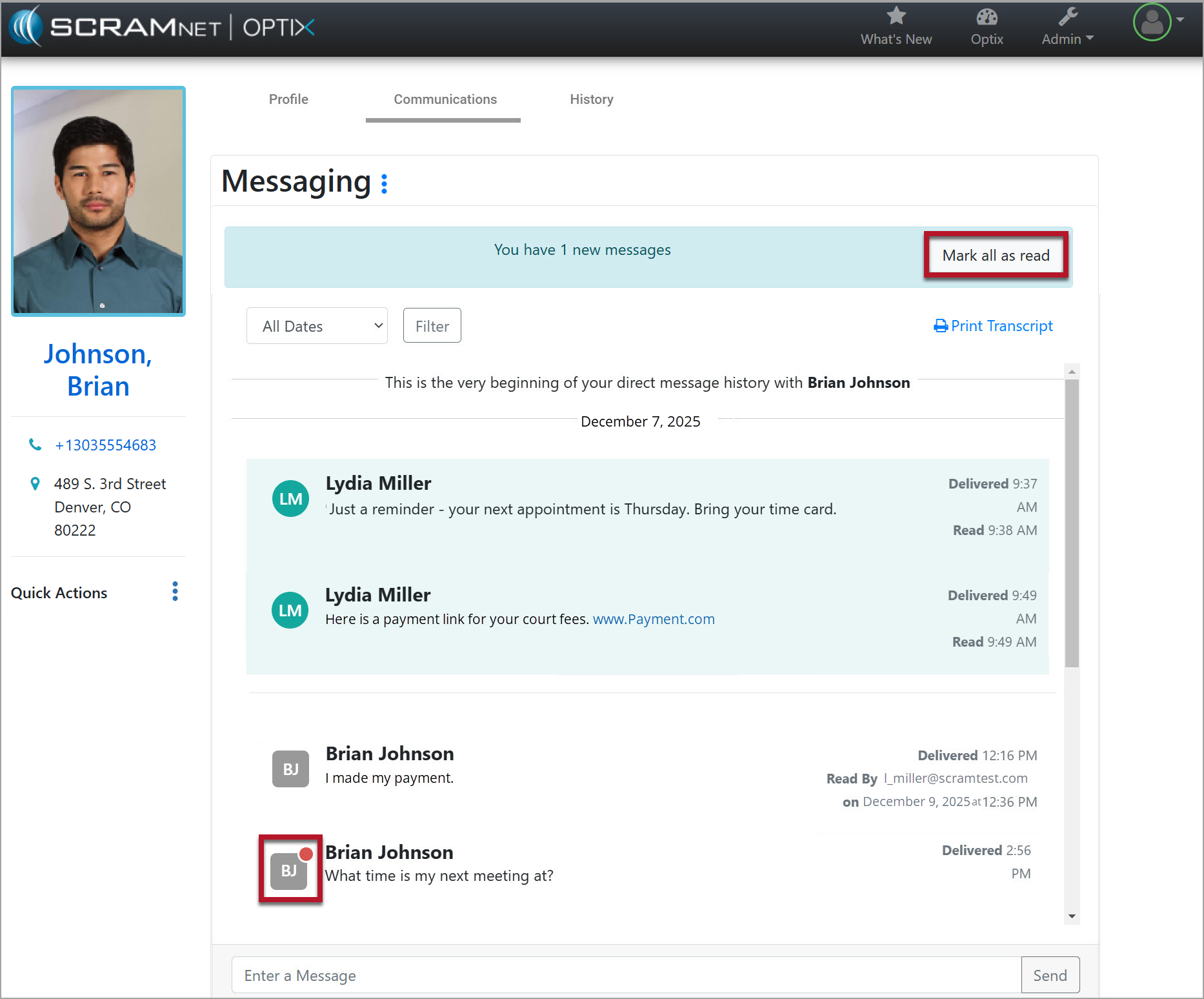
Unread Message Indicated with Red Badge
Print the Message History
Select the Print Transcript link to create a PDF of the entire message history. On the print pop-up, select the Save button.
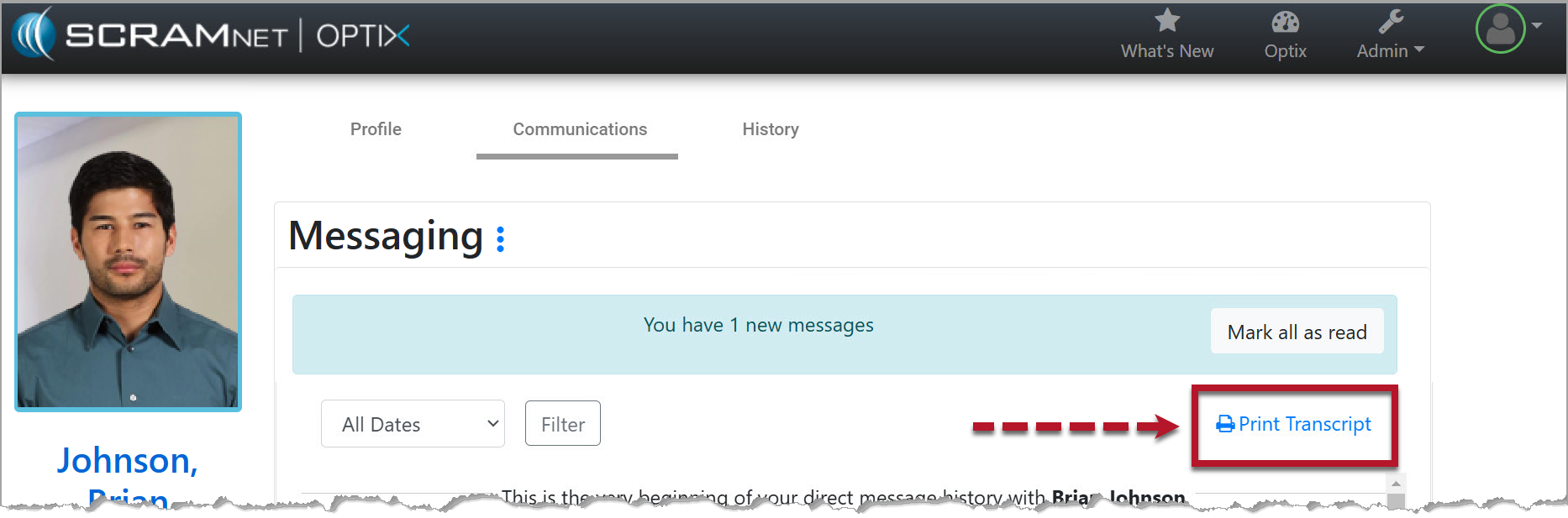
TouchPoint Client Messaging page (click to enlarge)
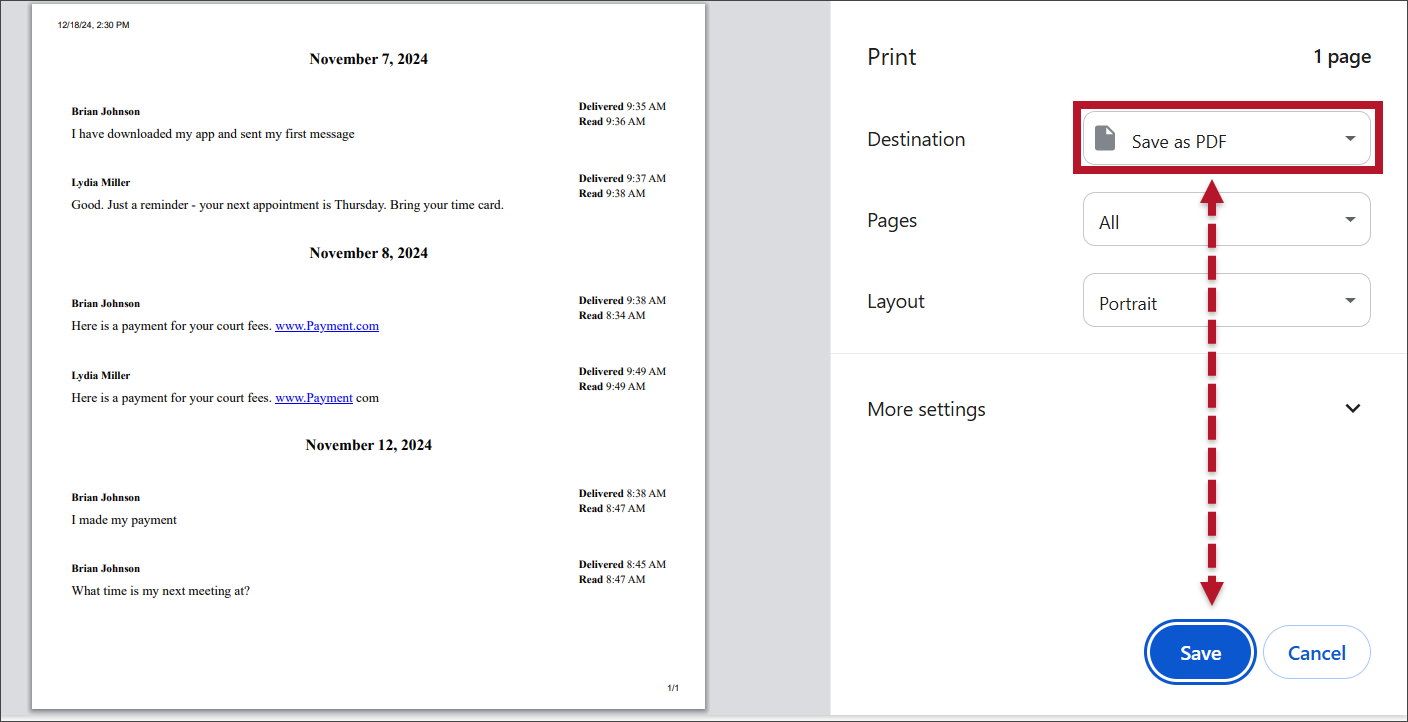
TouchPoint Messaging Print page
Preferred Client Language
When the client has selected their preferred language on the TouchPoint mobile app, in this example, the preferred language of Spanish has been selected, the messages sent from the app will display in that chosen language on the client’s Communications tab – Messaging section in Optix.
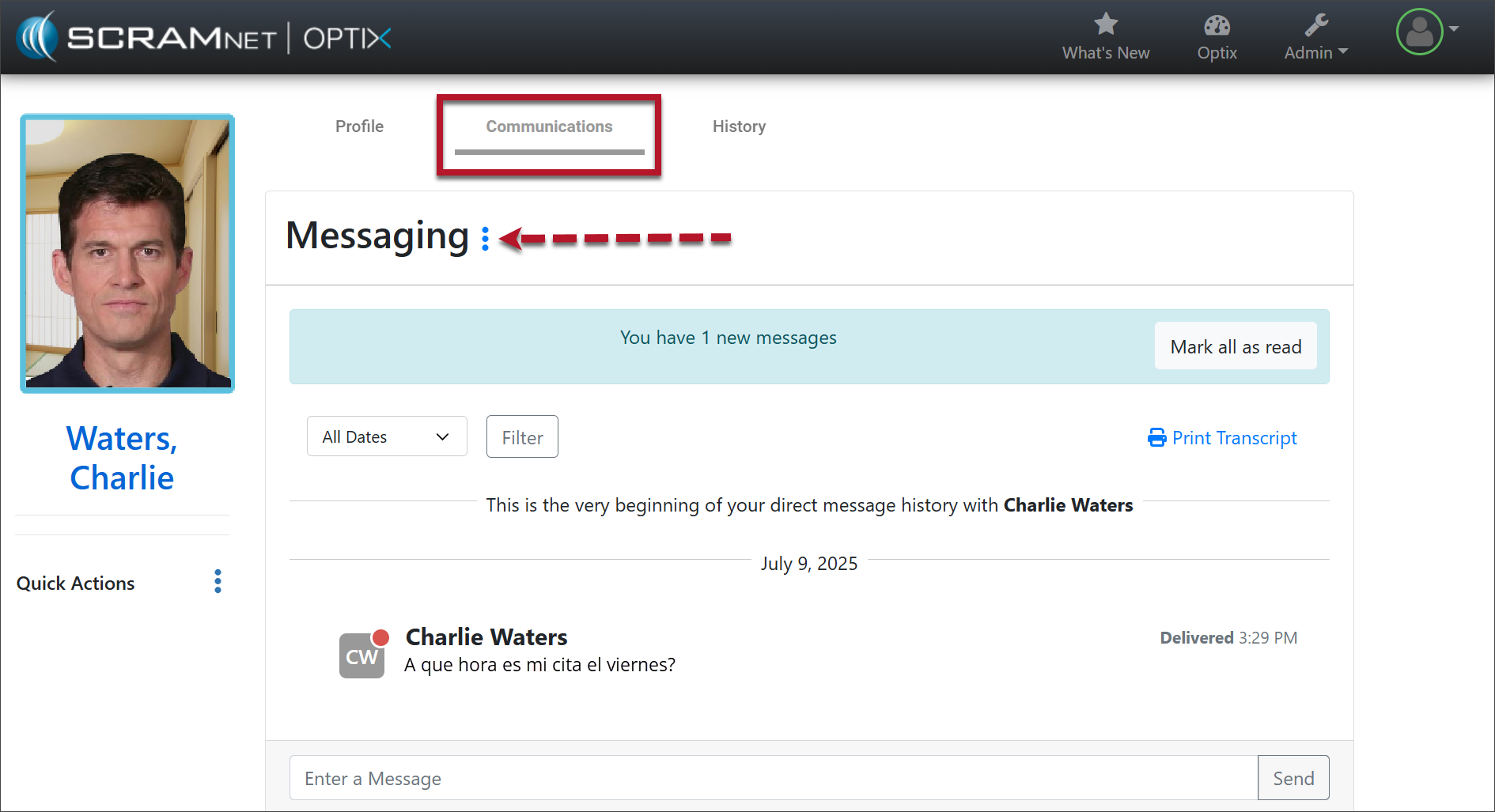
SCRAM Optix Communications Tab – Messaging (click to enlarge)
Use your browser’s “Translate” feature (or Google Translate) to read messages from clients written in languages other than English in SCRAM Optix. When using Google Chrome, highlight the text, then right-click and select the “Translate” option from the menu that appears.
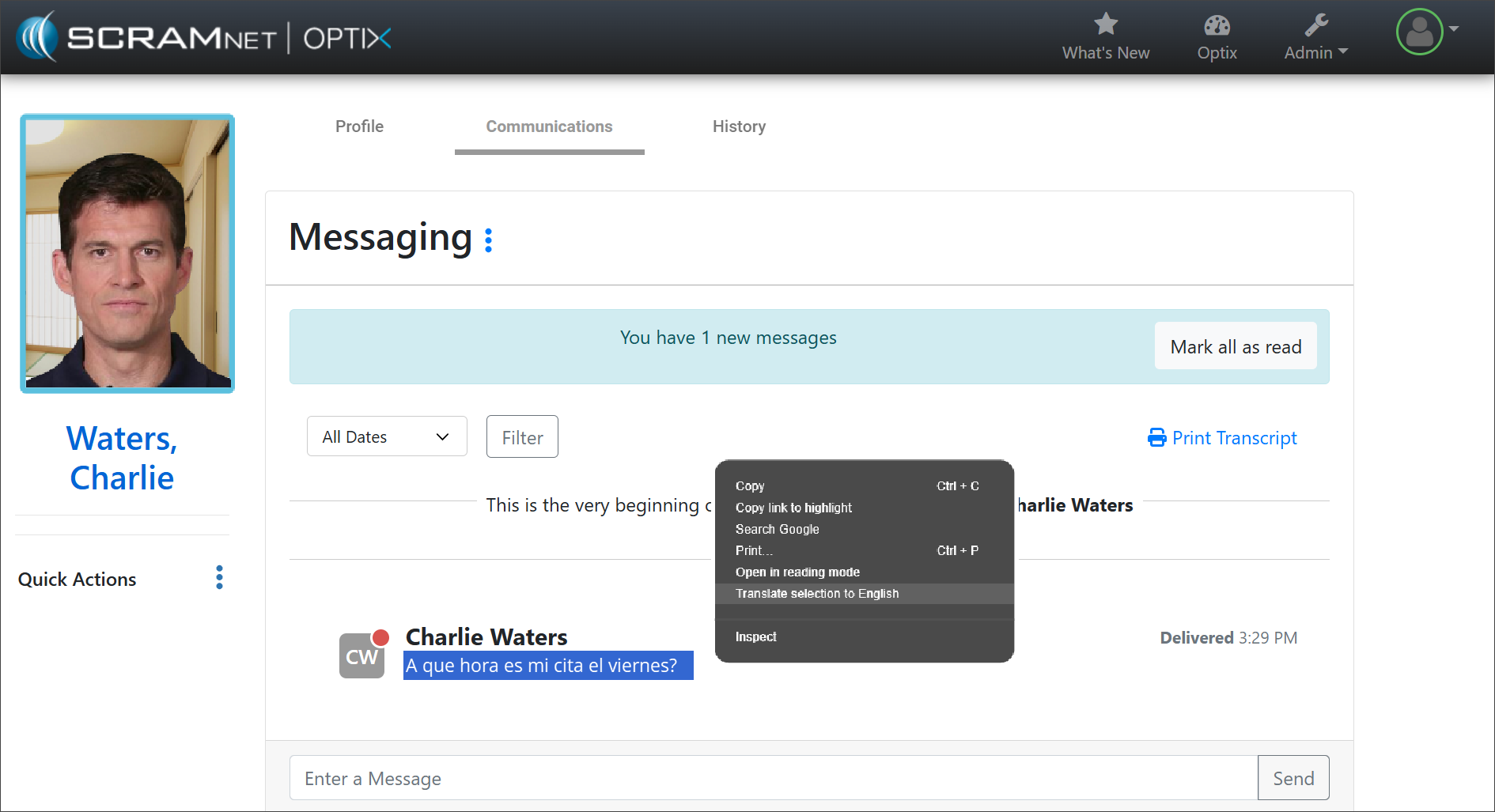
Translate to English (click to enlarge)
Select “Translate full page” and all messages will appear in English.
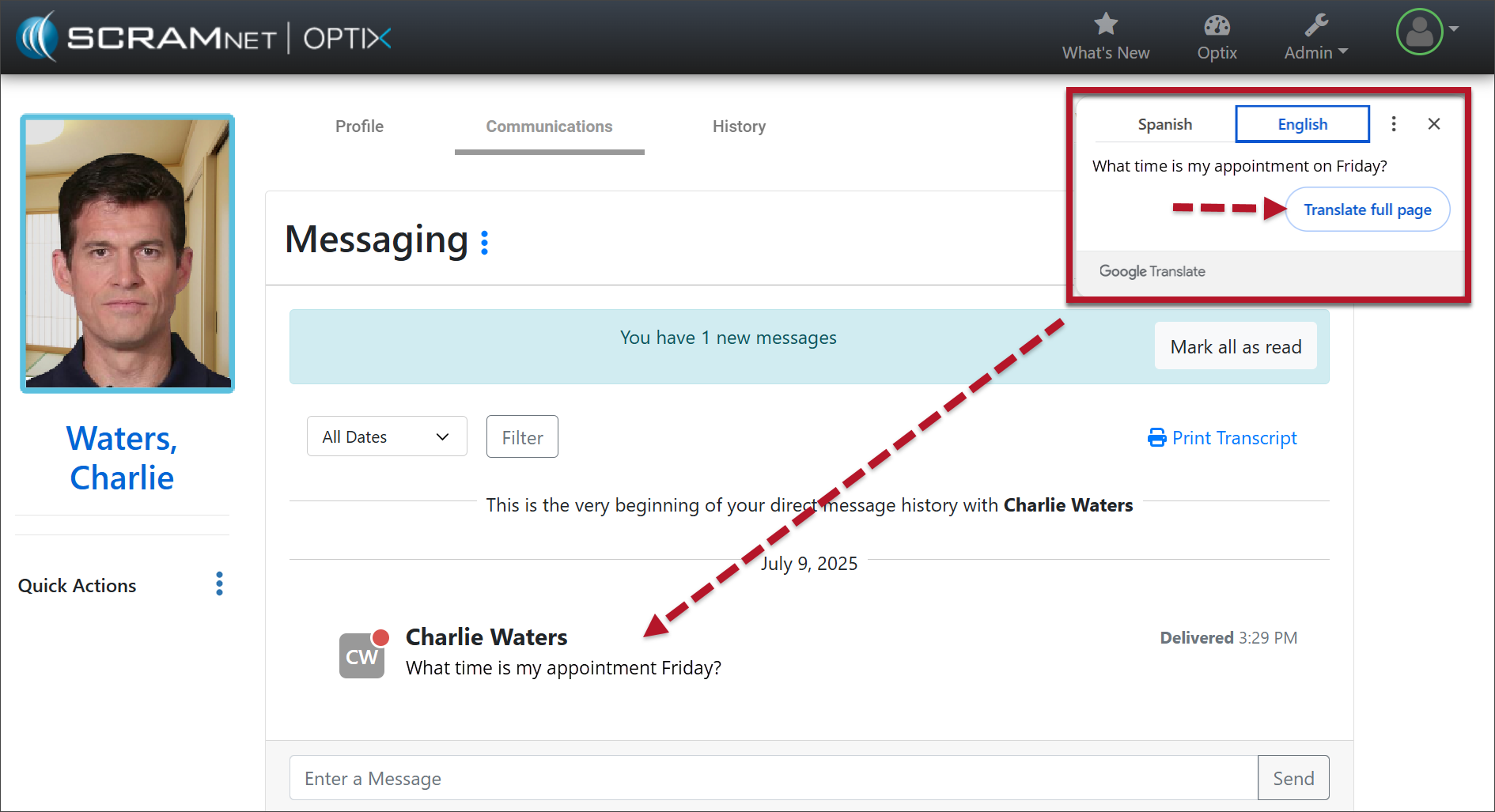
Translate Full Page (click to enlarge)
All messages sent to the client from the Messaging page are automatically displayed in the client’s preferred language.