With the TouchPoint Text to All™ feature , you can send a message to a selected set of clients or your entire TouchPoint Messaging caseload at one time. This comes in handy if your office is closing due to inclement weather or if you need to send payment reminders.
To access this feature, select the Manage TouchPoint link located on the Clients page in Optix, and then click the Messaging tab.
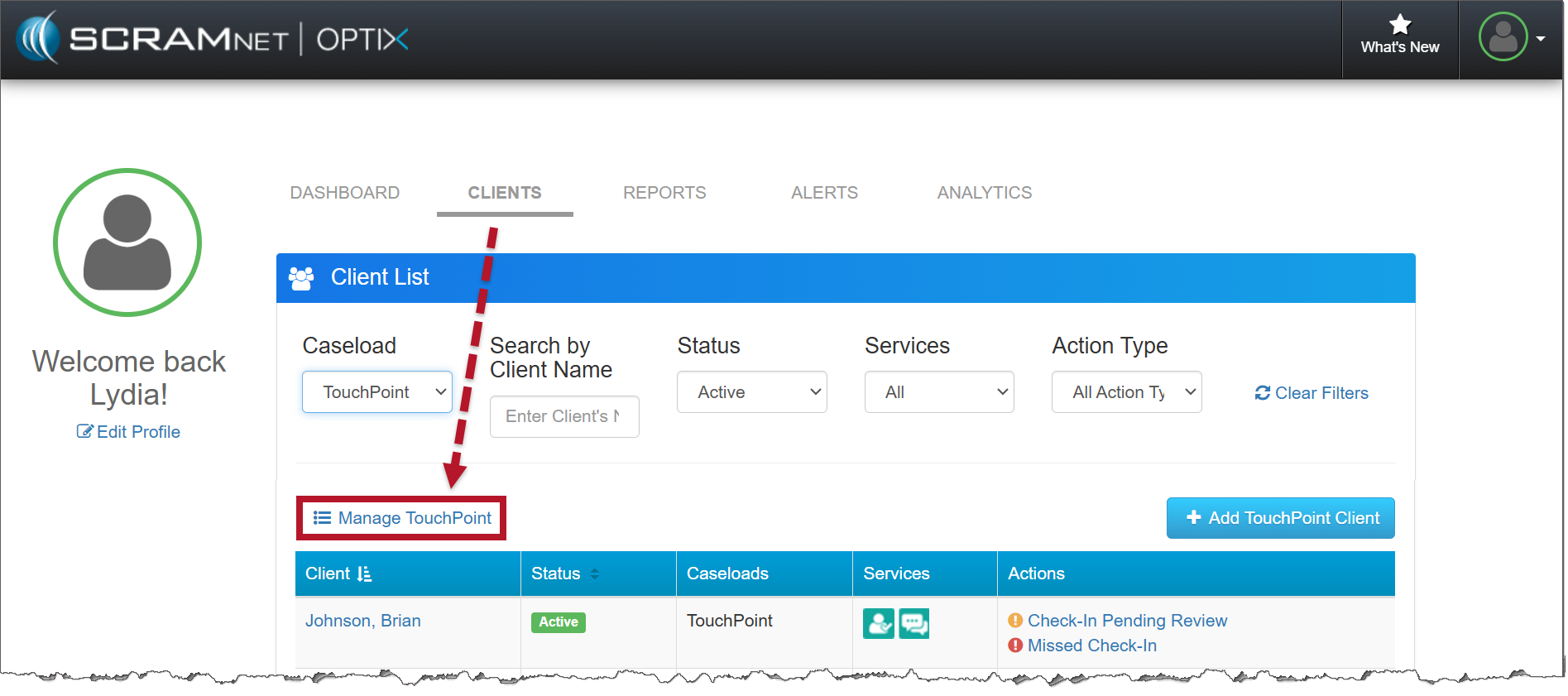
Optix Clients page (click to enlarge)
On the Create Message page:
- Select all the clients enabled for messaging by clicking the Client checkbox in the table header or select clients individually.
- Each client selected will appear in the Recipients area. If needed, select the x to remove the client from the list.
- Add your message.
- Select the Send button.
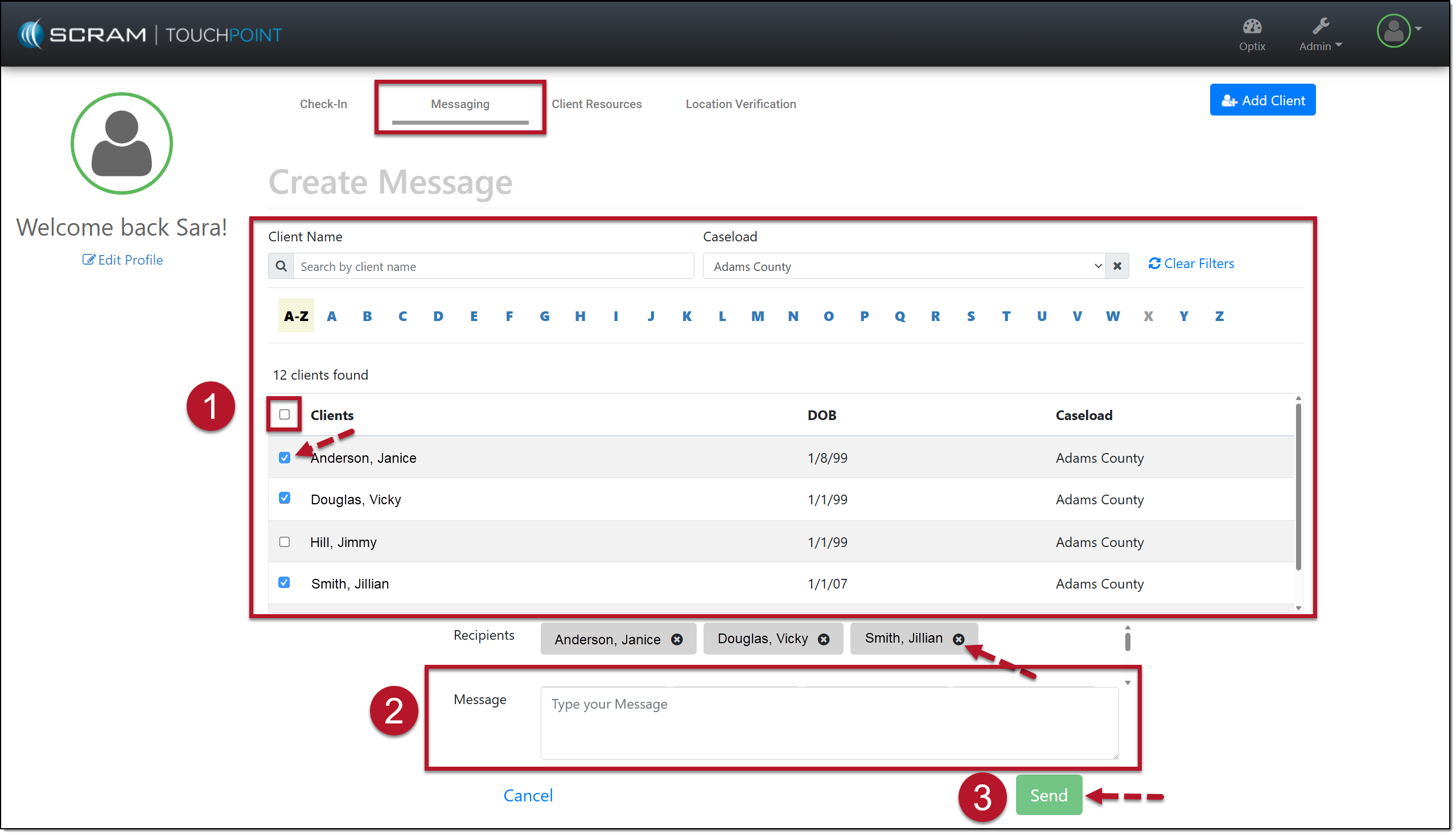
Manage TouchPoint Messaging page Text to All (click to enlarge)
To view Text to All message history:
- Navigate to the client’s Profile page.
- Select the Communications tab.
A record of the message will appear on each client’s Communication page.
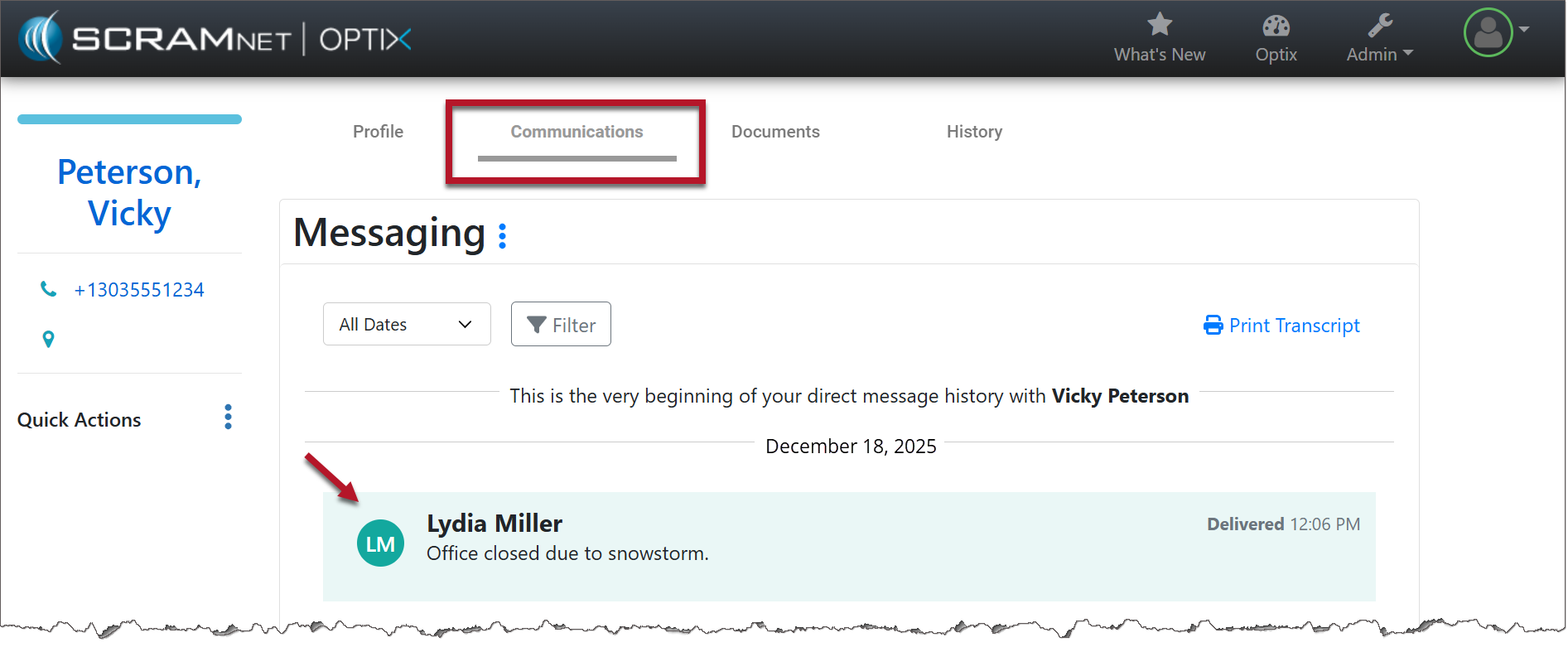
TouchPoint Client Communication page – Messaging section (click to enlarge)