Disabling the TouchPoint Services for a Client
Once your client has completed their TouchPoint participation on your program, the next step is to disable the service on the client’s profile in Optix.
Ensure you have addressed any unresolved Client Check-Ins or unread messages before disabling the TouchPoint service.
If your client has also completed any electronic monitoring requirements, remove their equipment and inactivate their profile in the appropriate monitoring software.
Start by accessing the Clients tab in Optix.
- Select the client’s name from the list.
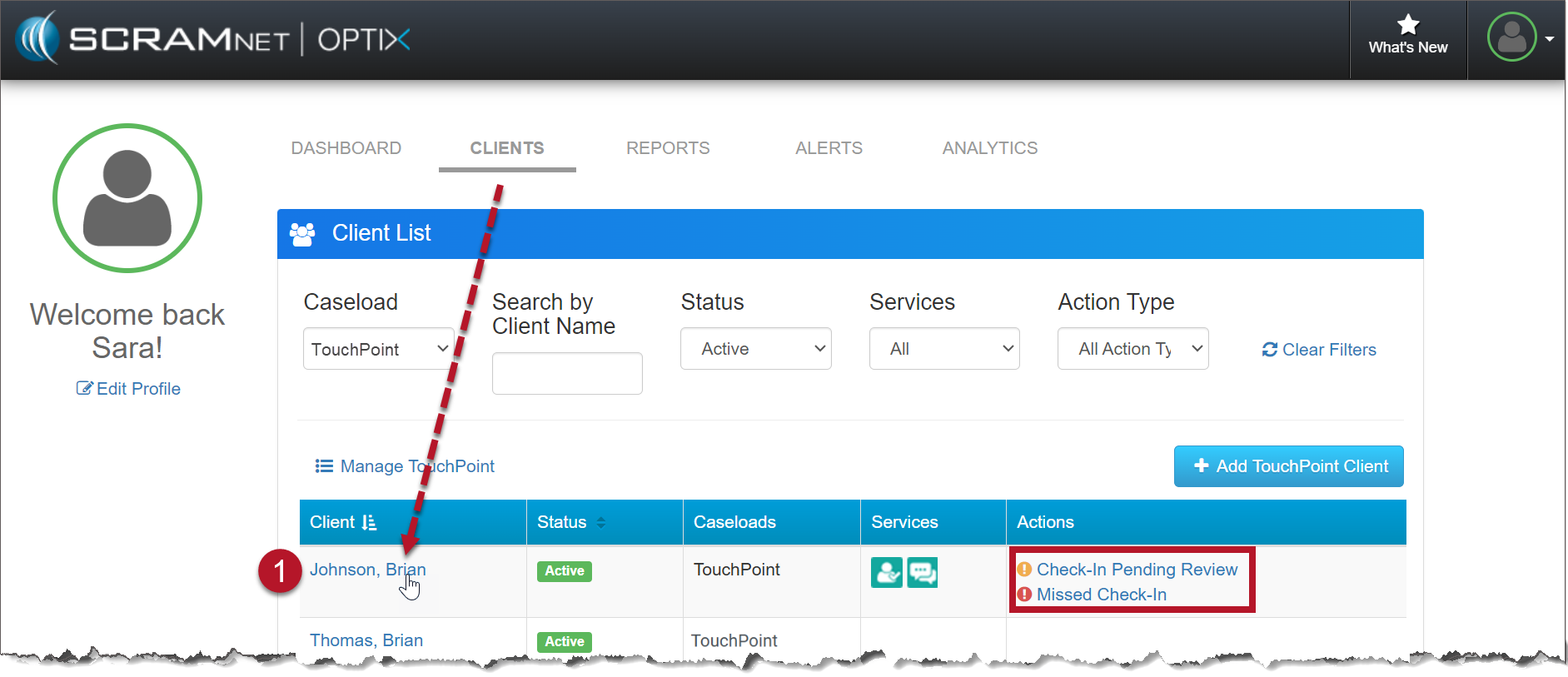
Optix Clients page (click to enlarge)
- Select the Edit link in the TouchPoint section.
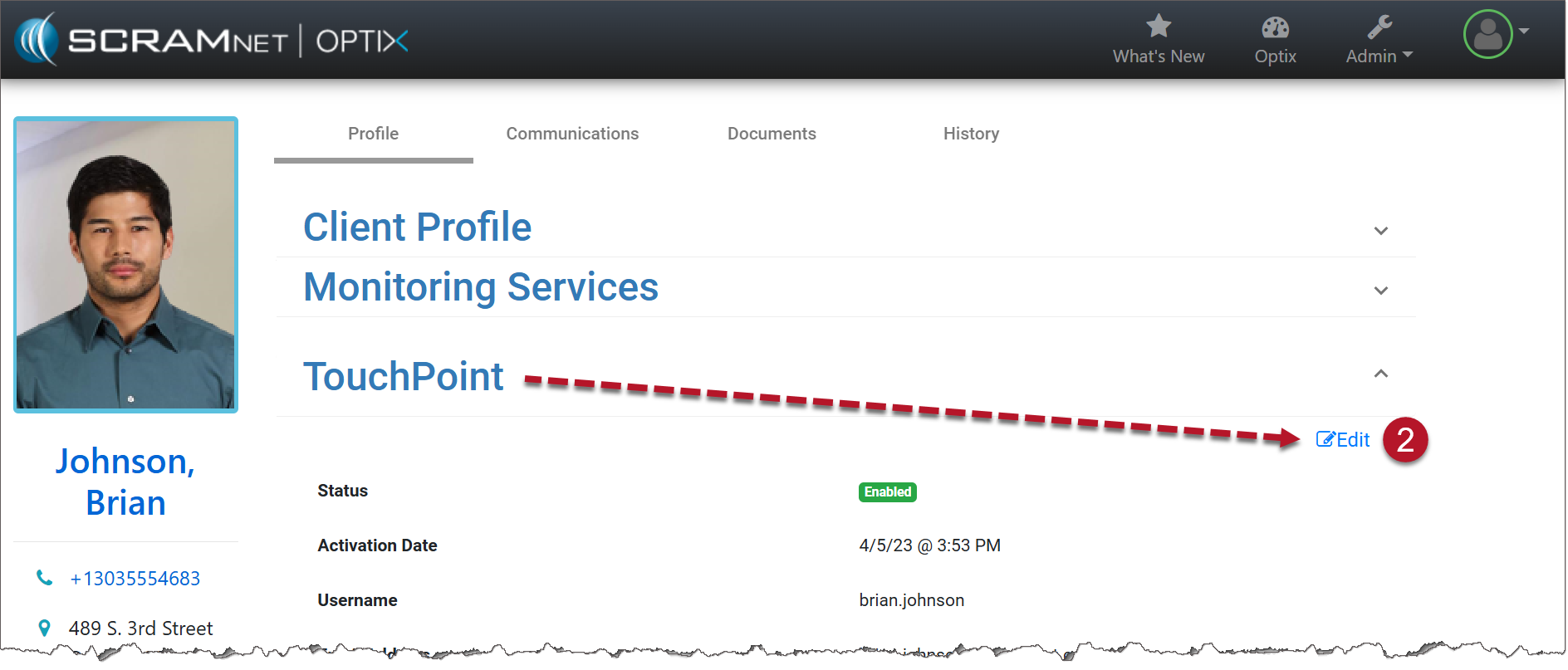
TouchPoint Client Profile Page (click to enlarge)
- Toggle the Enabled button to Disabled.
- Click the Save Changes button.
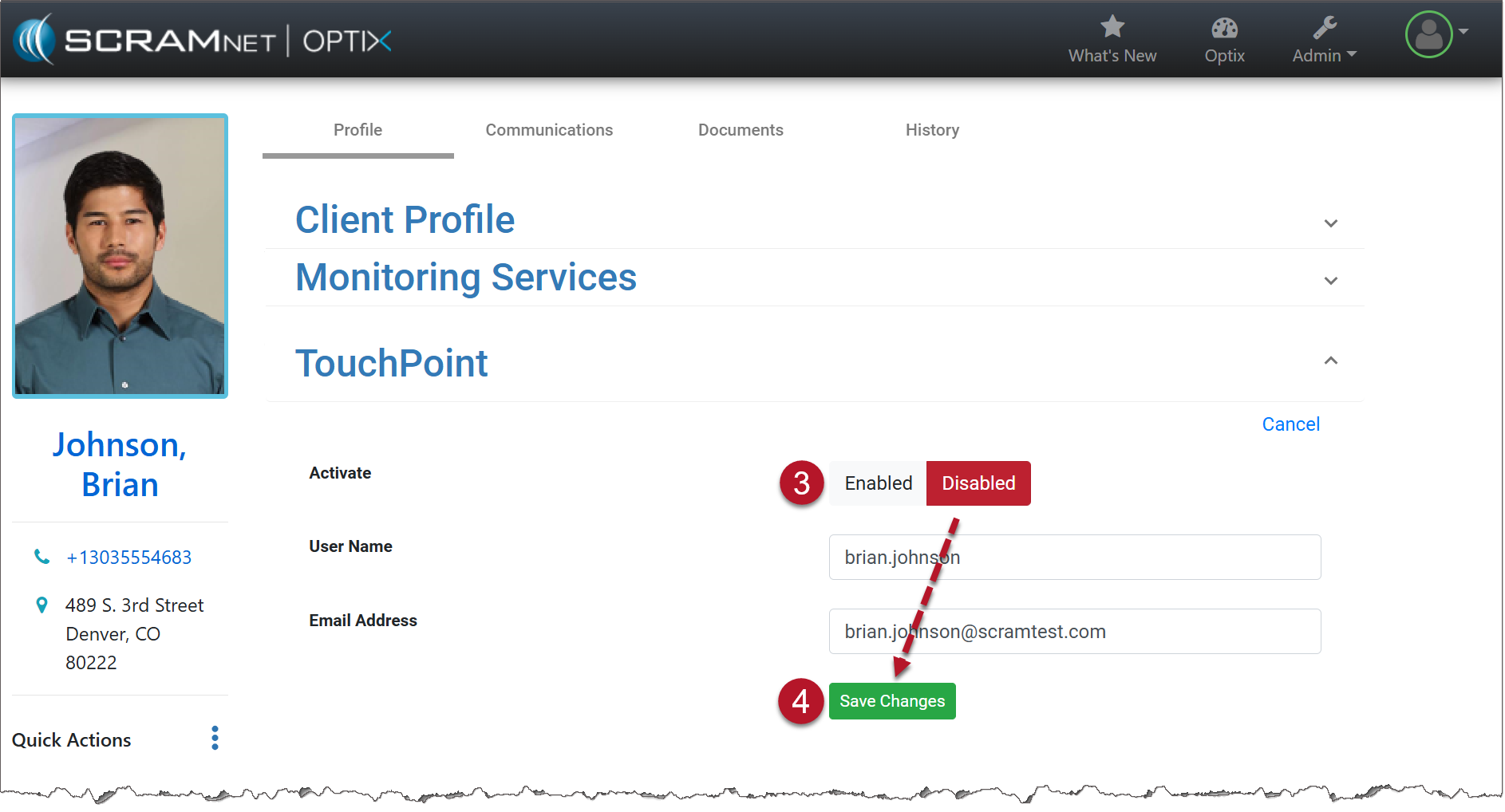
TouchPoint Client Profile Page (click to enlarge)
Any TouchPoint services that were active for the client will be automatically disabled.