SCRAM Systems continuously enhances and updates the SCRAM TouchPoint Mobile application, to improve its functionality and usability for your client. Once an update is available in the Apple App Store and the Google Play Store, the next step is to have the client update the application on their smartphone. An app update can be completed in two ways.
- Automatic application updates (Recommended)
- Manual application updates
As a best practice, we recommend you encourage your clients to enable automatic app updates – this ensures they are always using the latest version of the TouchPoint app.
Setup Automatic Application Updates
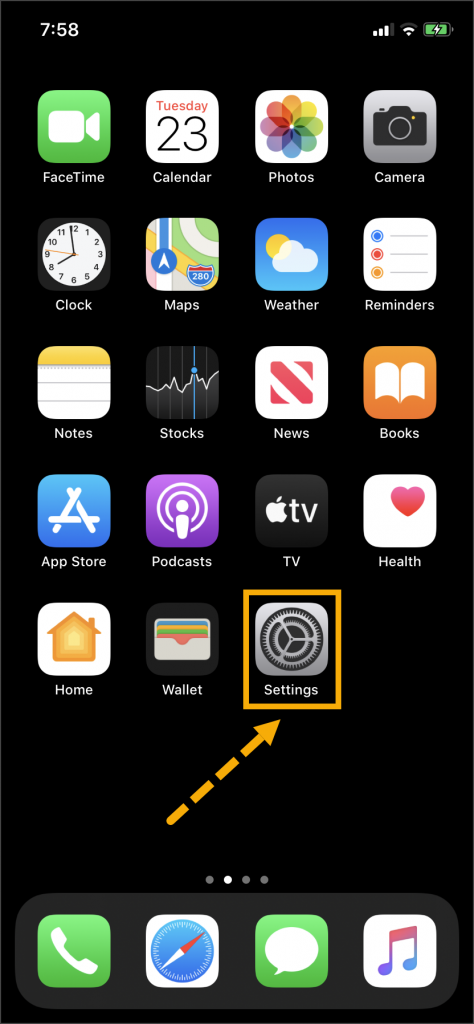
- On the client’s smartphone, tap the Settings icon.
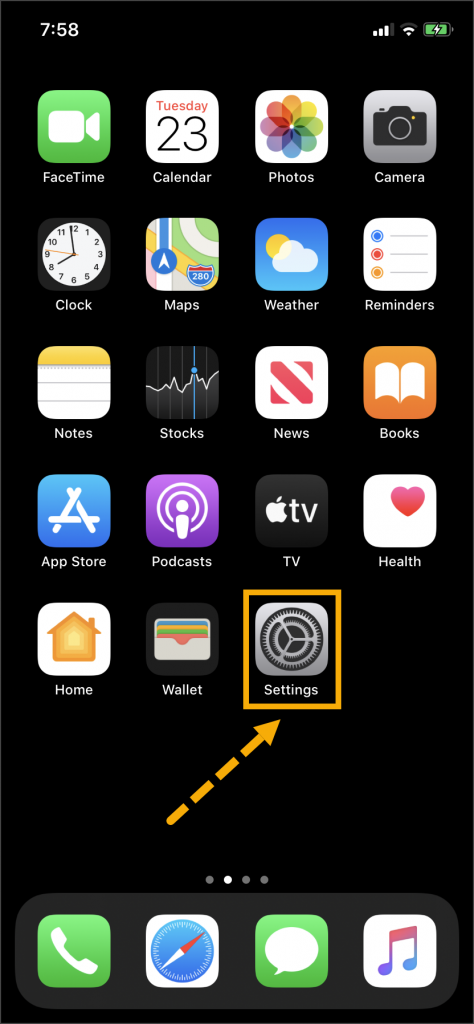
Tap ‘Settings’
- On the Settings screen, tap the iTunes & App Store option.
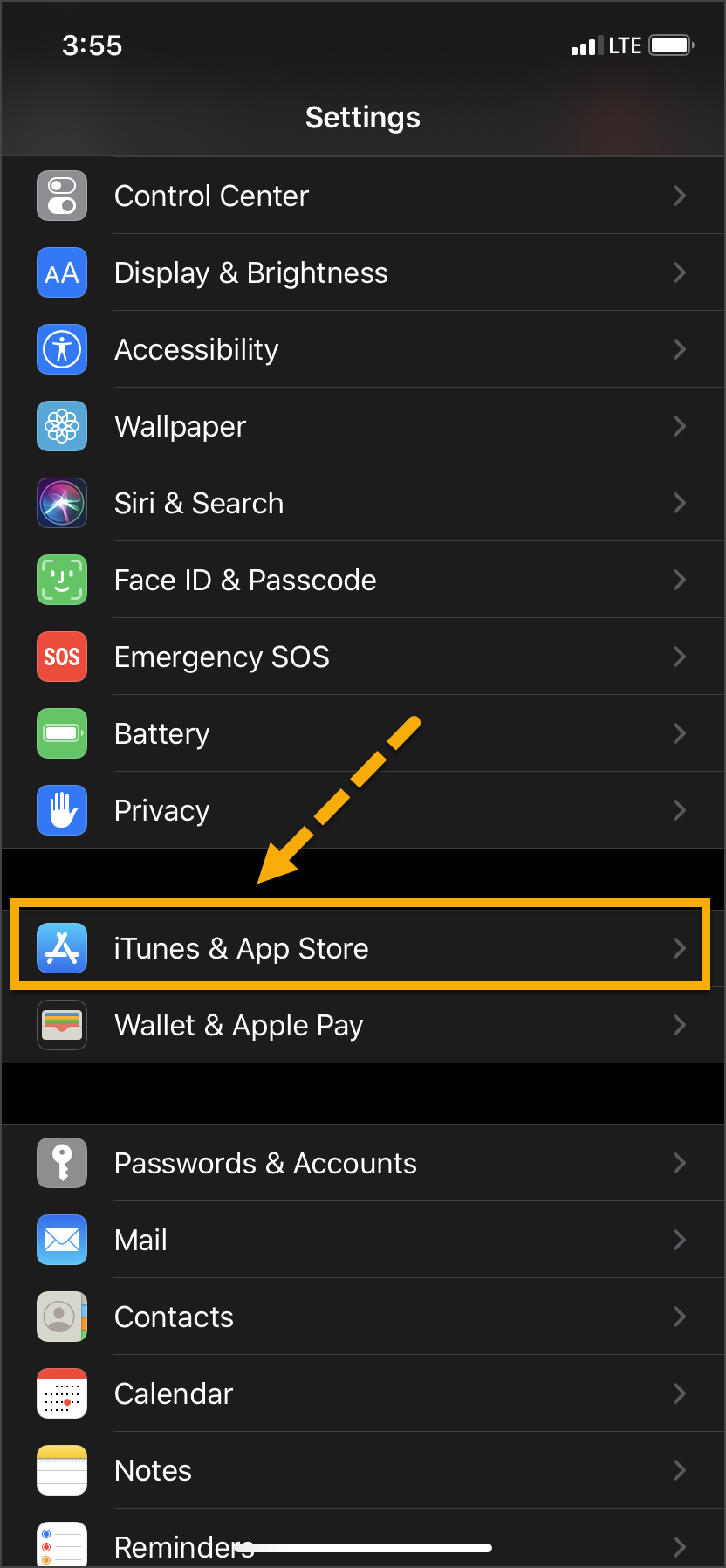
Select ‘iTunes & App Store’
- Under the Automatic Downloads section, ensure the App Updates option is enabled.
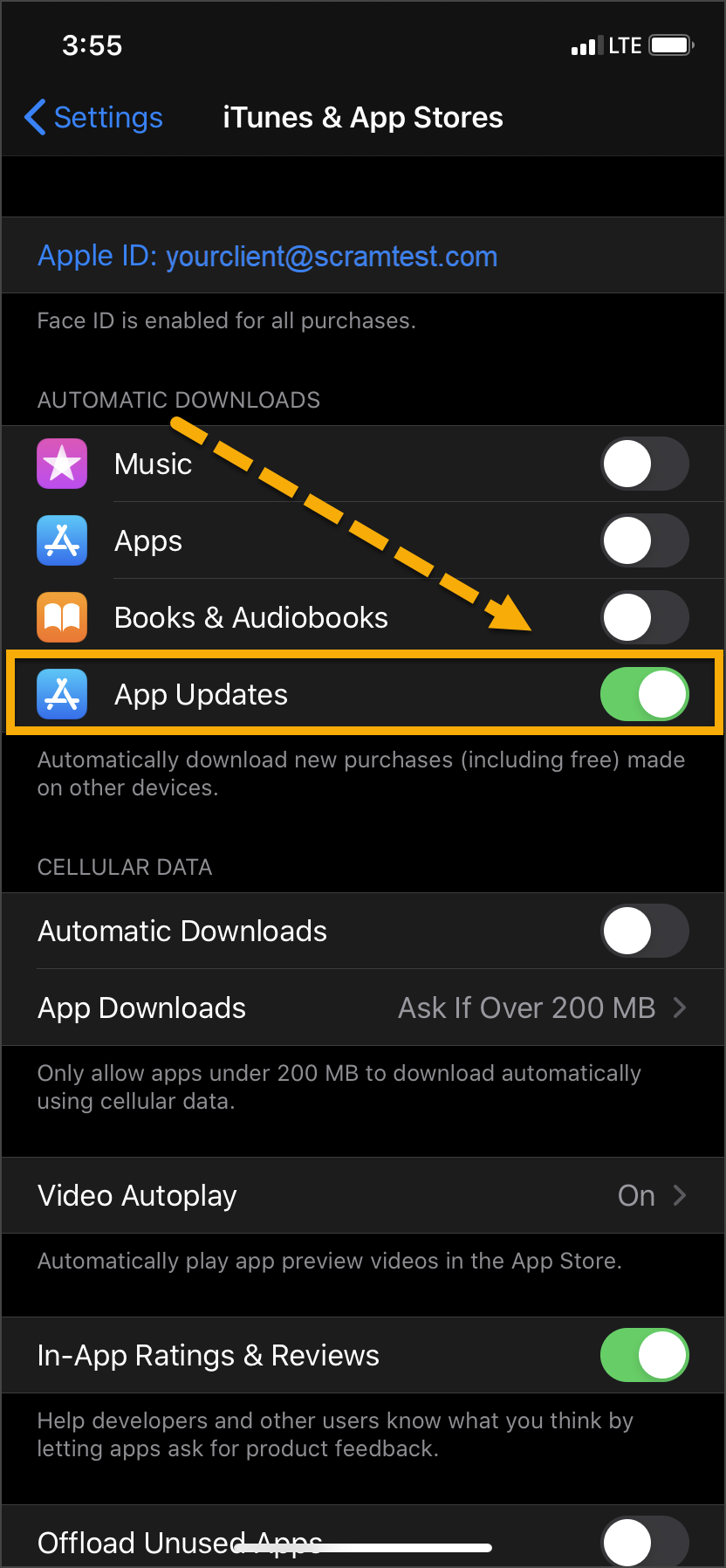
Toggle ‘App Updates’ to the “On” Position
- On the client’s smartphone, swipe up on the Home screen.
- Tap the Play Store icon.
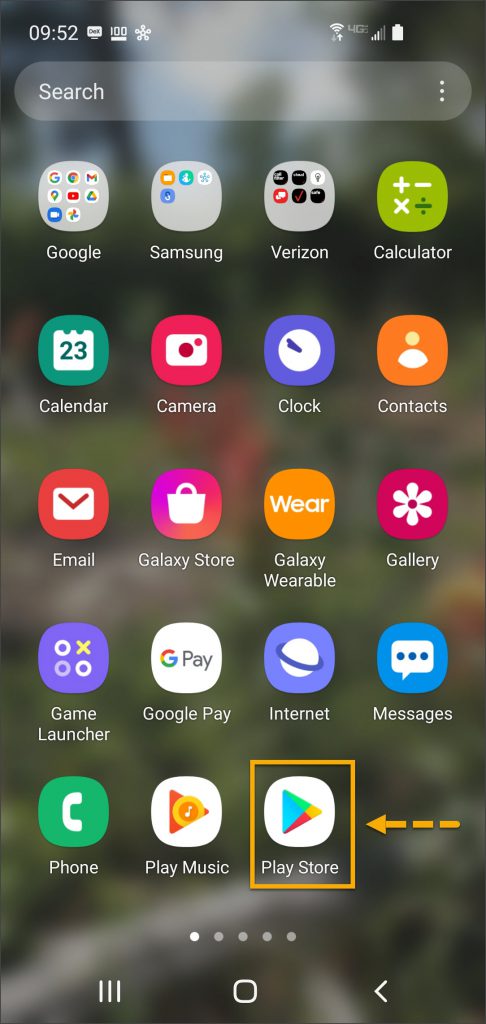
Tap the ‘Play Store’ App Icon
- On the Google Play store screen, tap the menu icon in the search field.
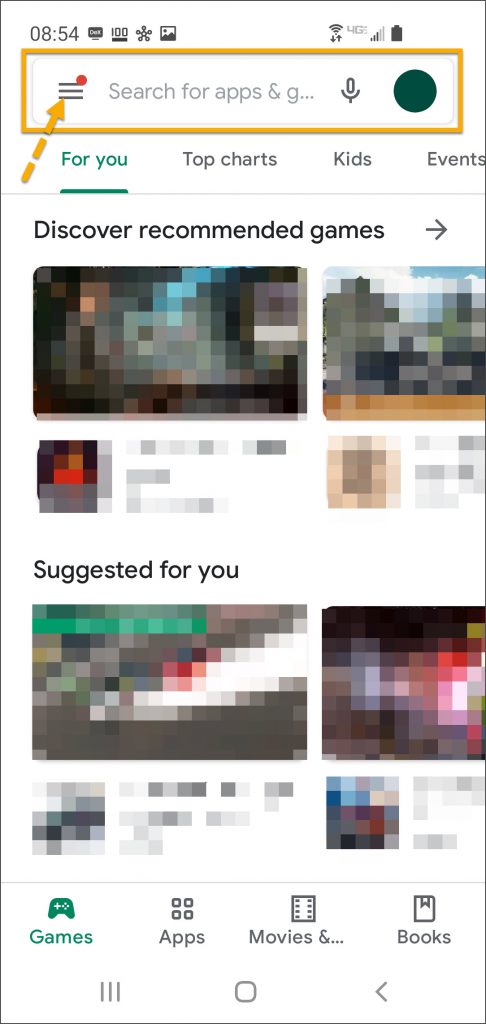
Select the “Hamburger” Menu
- Locate and tap the Settings option.
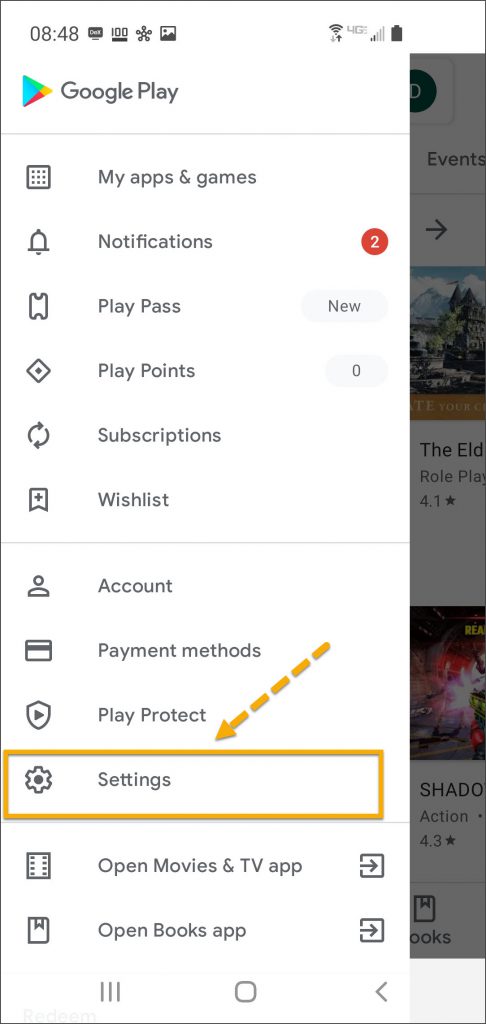
Select ‘Settings’
- Tap the Auto-update apps option.
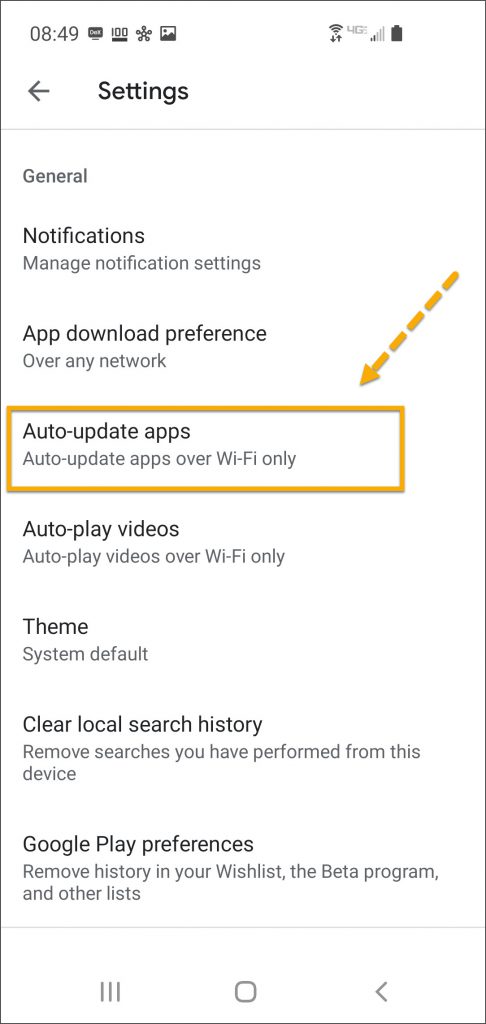
Select ‘Auto-Update Apps’
- In the Auto-Update apps window, select the Option of,
- Over any network (Data charges may apply)
- Over Wi-Fi Only
- After making the selection, tap Done.
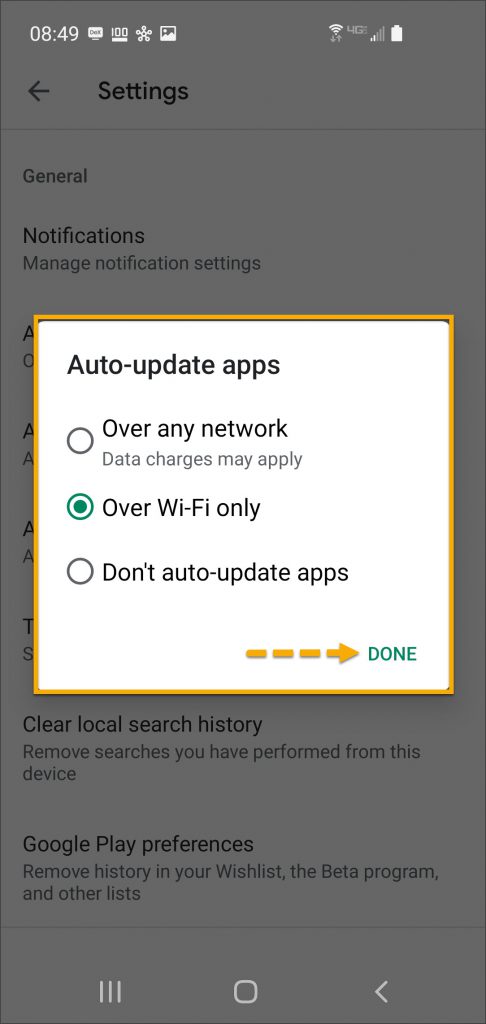
Select the Desired Update Communication Method and Tap ‘Done’
Manual Application Update
Once an update to the TouchPoint application is available, a reminder banner will be displayed when logging in to TouchPoint. Selecting the link will take the client to the Apple App Store or the Google Play Store to download and install the update.
If clients select the x in the banner, it will close the alert. The next time the client logs in, the banner will reappear until the app is updated.
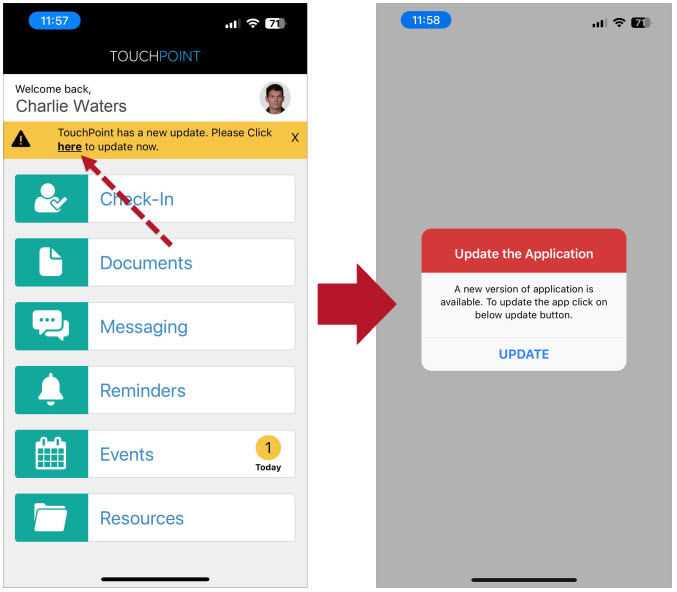
TouchPoint’s App Update Reminder
Instruct the client to:
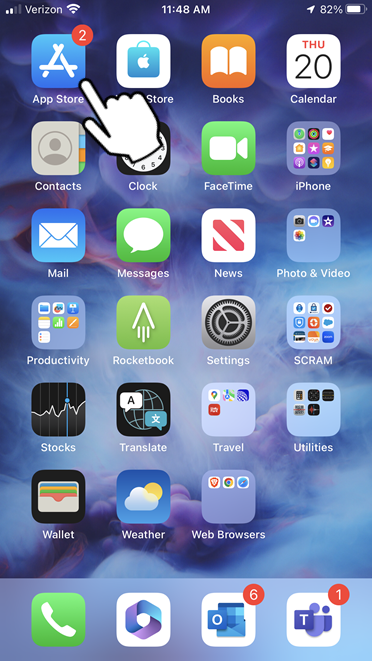
- Access the App Store.
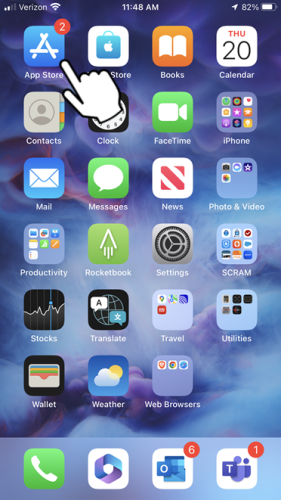
App Store Tile
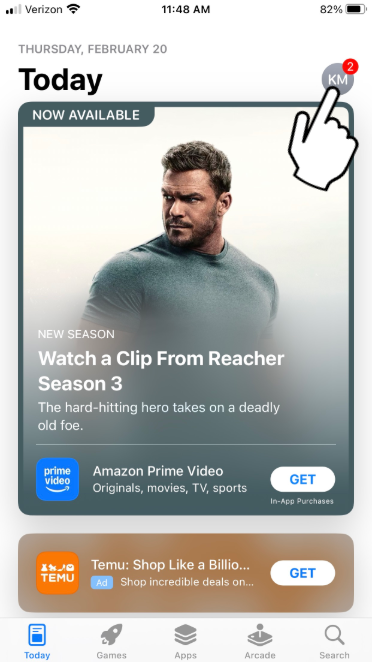
- Locate and tap on your Profile icon.
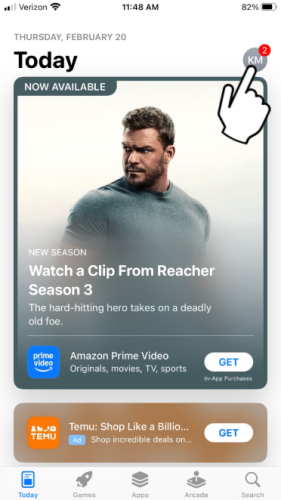
Profile Icon (click to enlarge)
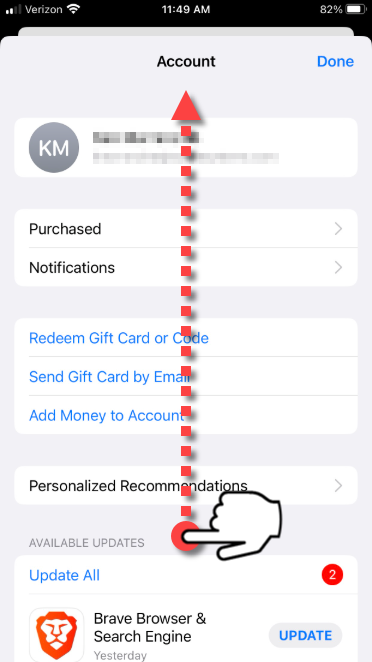
- Navigate to Available Updates on your Account screen.
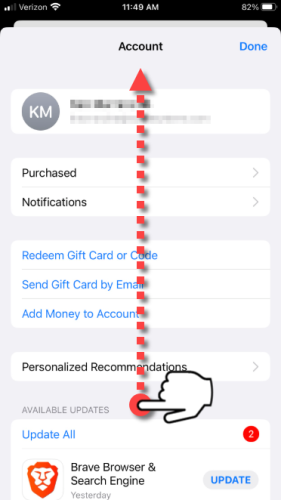
Available Updates (click to enlarge)
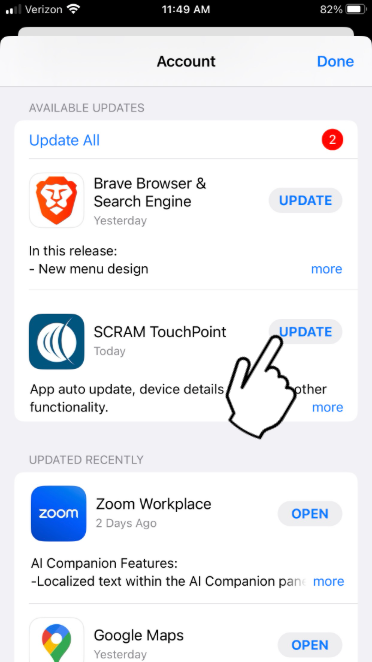
- Select the Update button next to SCRAM TouchPoint.
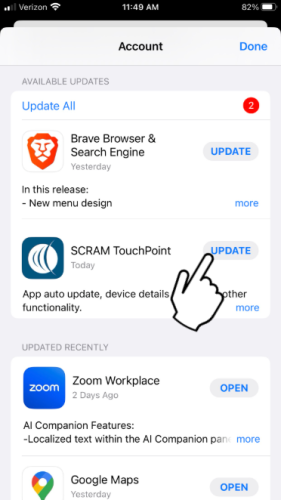
Update App Button (click to enlarge)
- On the Google Play store screen, tap the menu icon in the search field.
Select the “Hamburger” Menu
- Tap the My apps & games option.
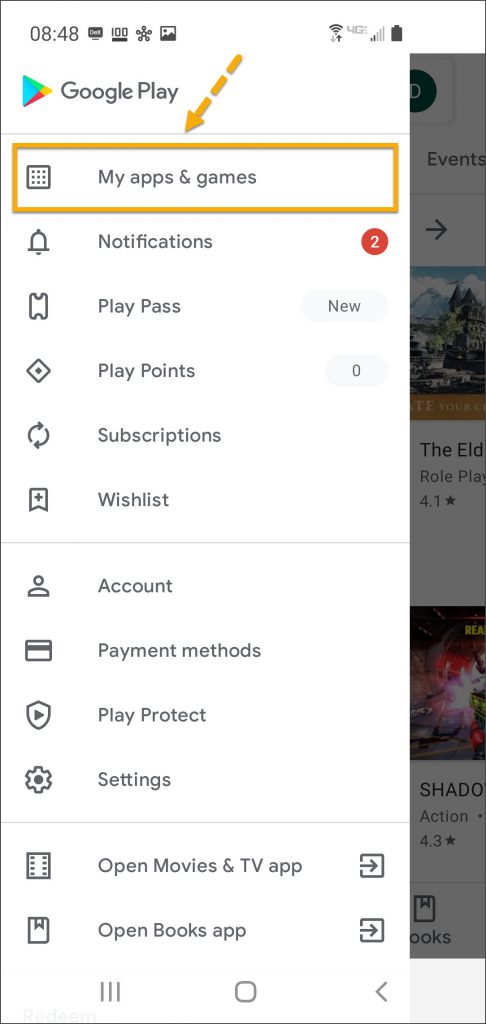
Select ‘My apps & games’
- Under the Updates Available section, locate the SCRAM TouchPoint app and tap the Update button.
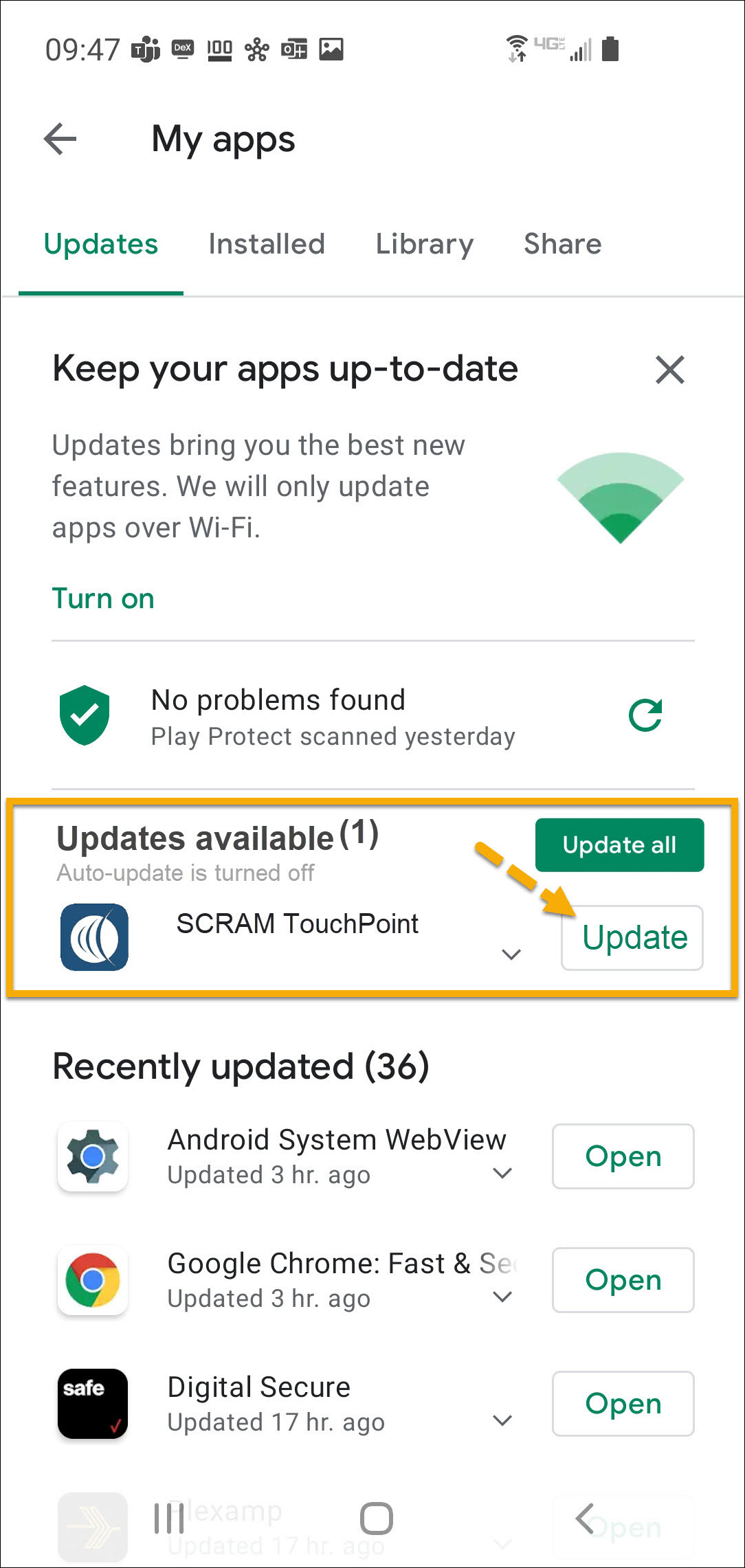
Locate the SCRAM TouchPoint App in the List and Select ‘Update’
- As a best practice, we recommend you encourage your clients to enable automatic app updates – this ensures they are always using the latest version of the TouchPoint app. On the My apps screen, tap the Turn on button to enable automatic app updates.
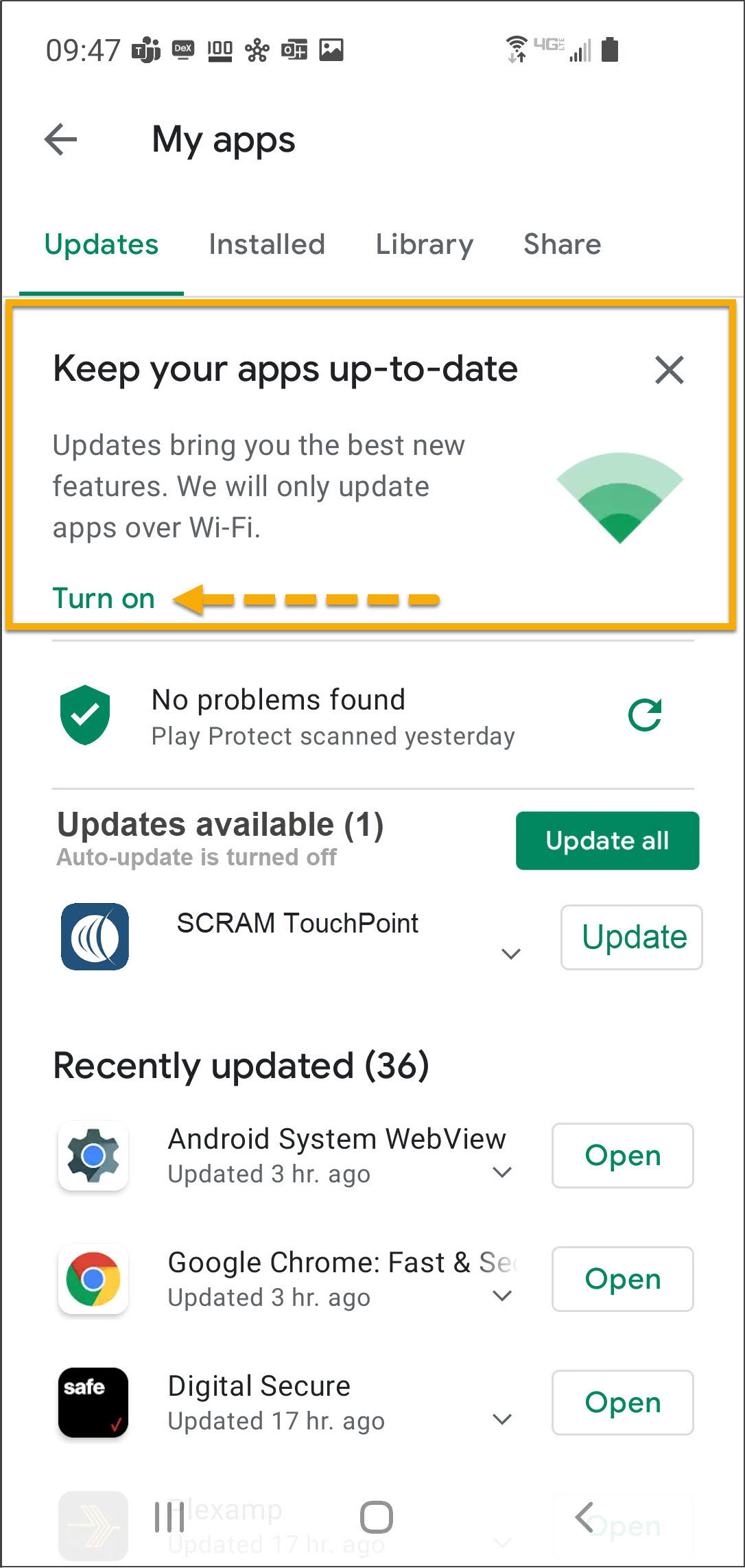
Tap ‘Turn On’ to Automatically Keep Apps Up-to-Date Over Wi-Fi
As a best practice, we recommend you encourage your clients to enable automatic app updates – this ensures they are always using the latest version of the TouchPoint app.