Sending a New Message to a Client
Once your client is enabled for Messaging, select the Communications tab on the client’s Profile page in Optix to get started.
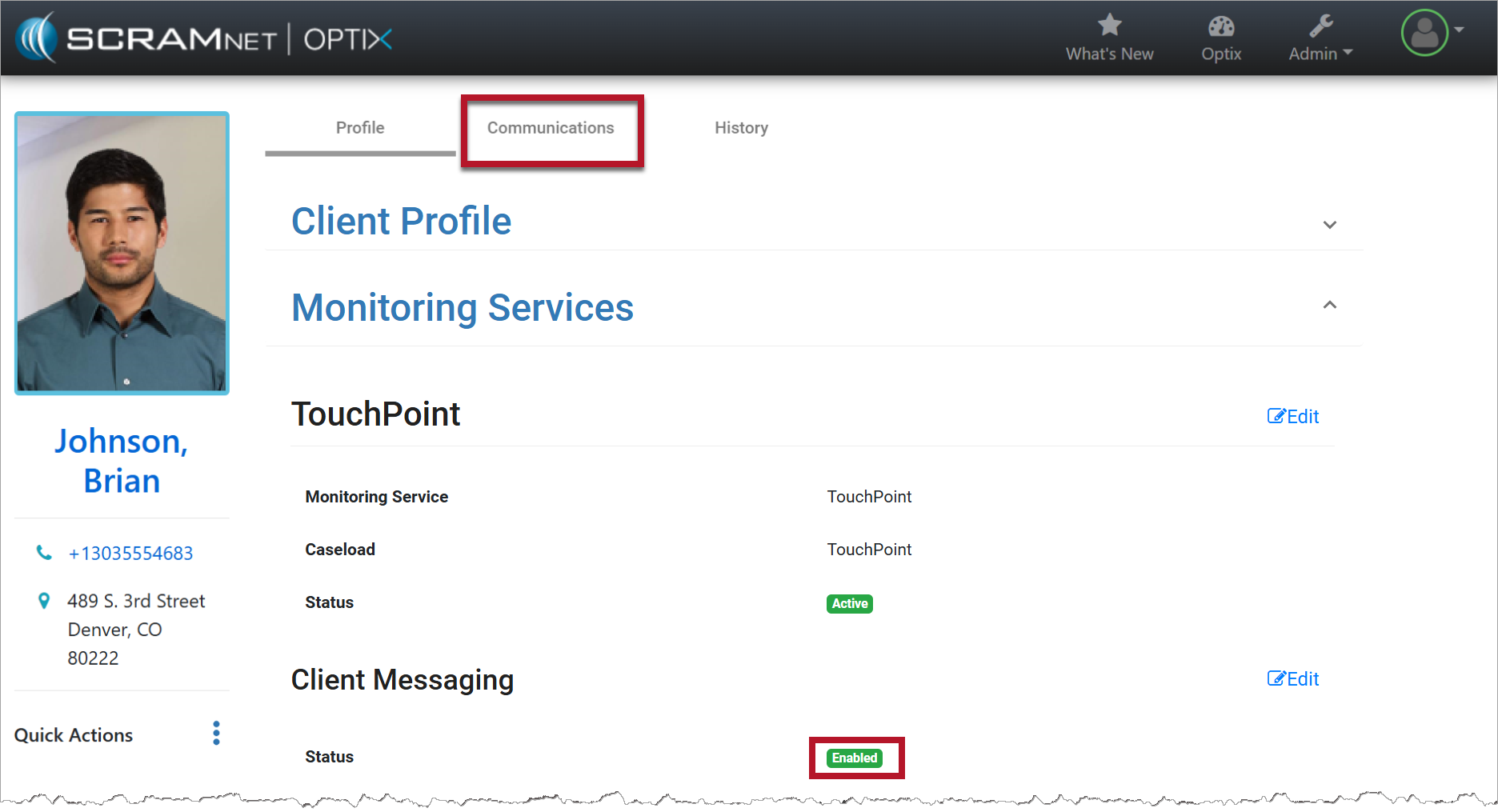
TouchPoint Client Profile page (click to enlarge)
- Type your message in the Enter a Message field.
- Select the Send button.
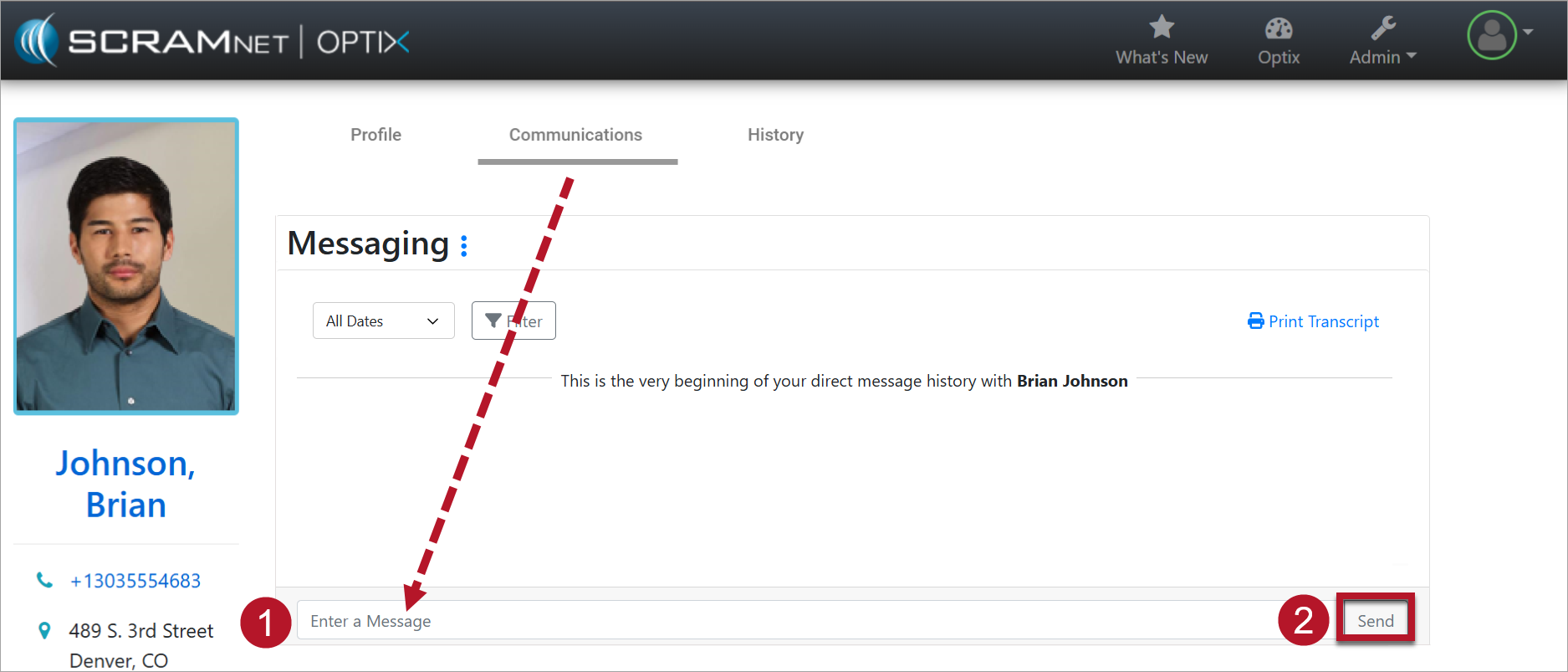
TouchPoint Communications Tab – Messaging (click to enlarge)
The new message will now display under the message history. You will notice there is a Date and Delivered time stamp next to the message. Once the client has viewed the message in the TouchPoint app, a Read receipt will display.
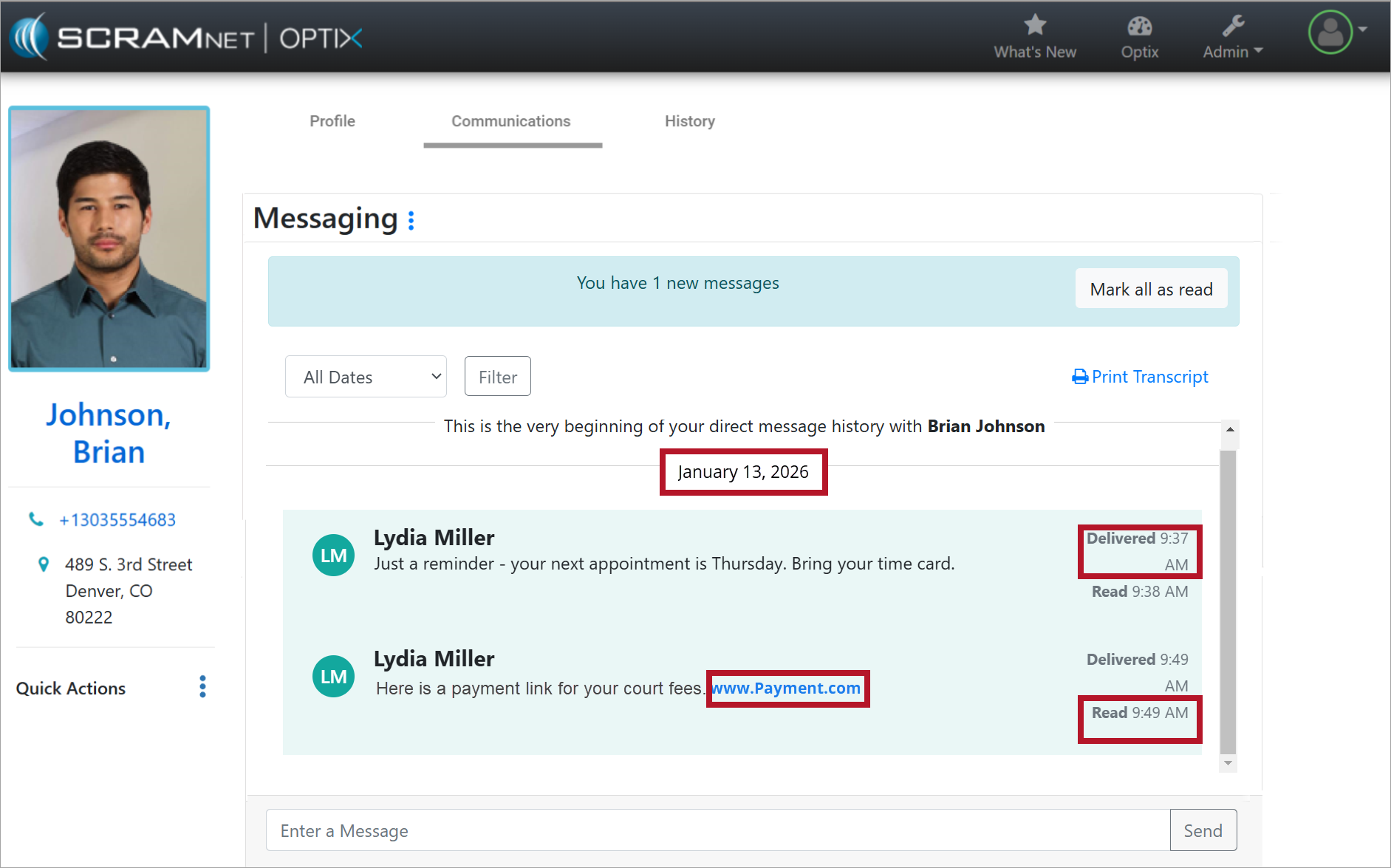
Message Displayed with Read Receipt (click to enlarge)
Send a link to your client by entering the website address in the Enter a Message field. Once you hit Send, the link will display in a lighter color under the message history.