The first time you log into the TouchPoint application on your phone, you have the option to allow push notification for TouchPoint. If you select the Don’t Allow option or disable these notifications, it could be considered a violation of your participation in the TouchPoint program or of the terms and conditions of your supervision plan. To verify and reactivate disabled notifications follow the below steps.
For iPhone*
Start by navigating to the Settings icon on your phone.
- Select the Notifications option.
- On the Notification screen, locate and select the TouchPoint app.
- Ensure the Allow Notifications option is enable.
- Select the Banner Style
- Turn on the Sounds
- Turn on the Badges
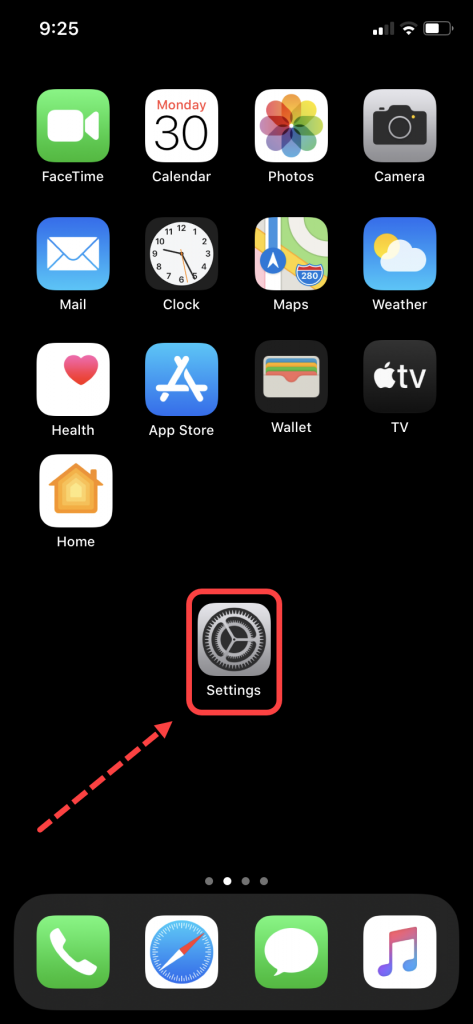 iPhone Settings Icon (click to enlarge) |
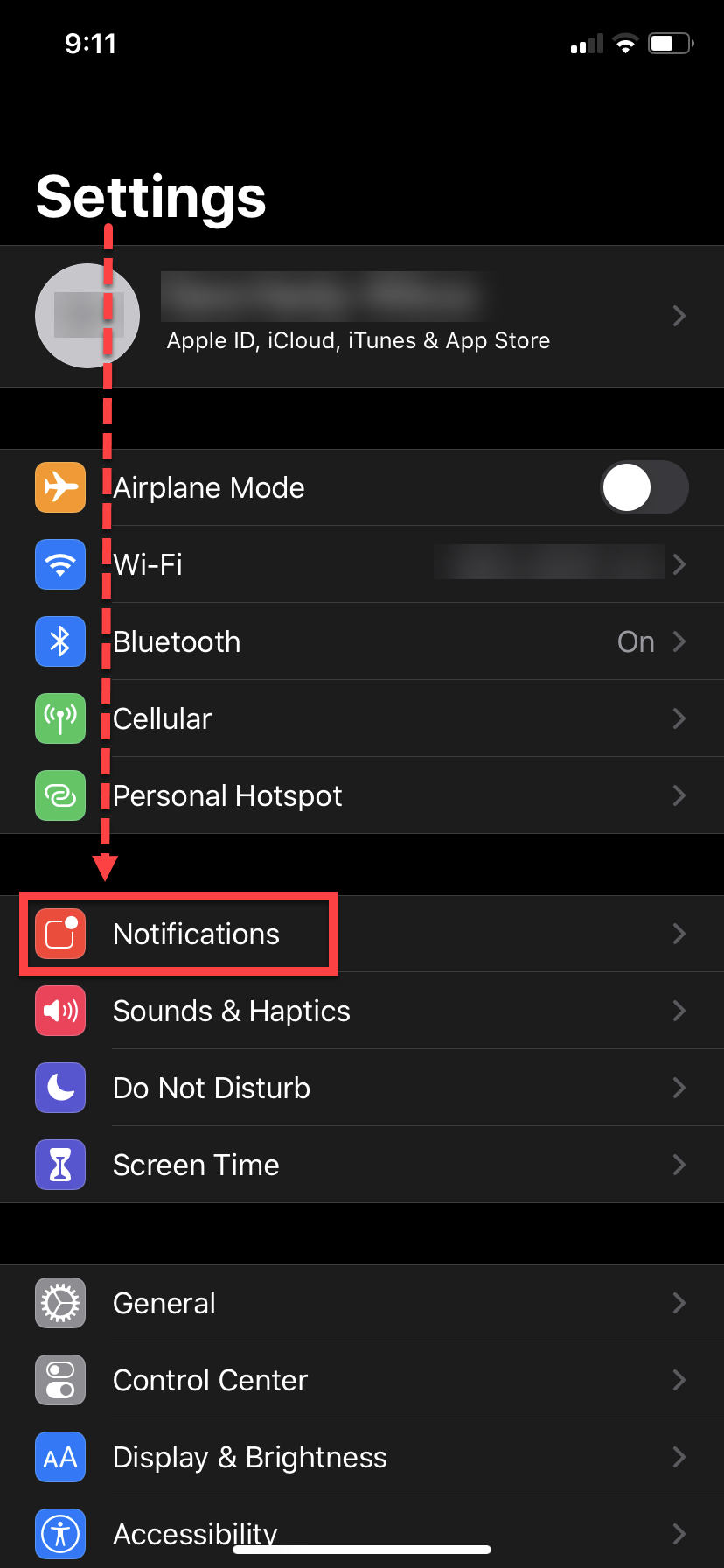 iPhone Settings screen (click to enlarge) |
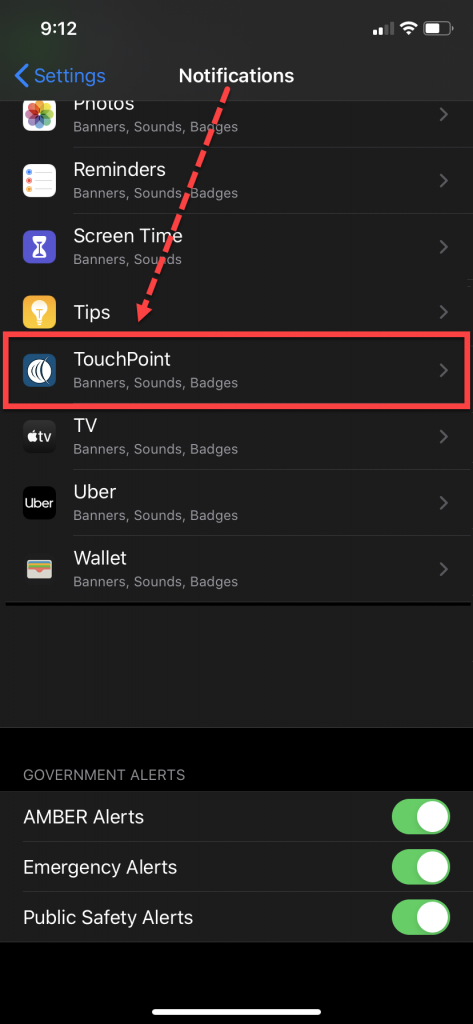 iPhone Notifications screen (click to enlarge) |
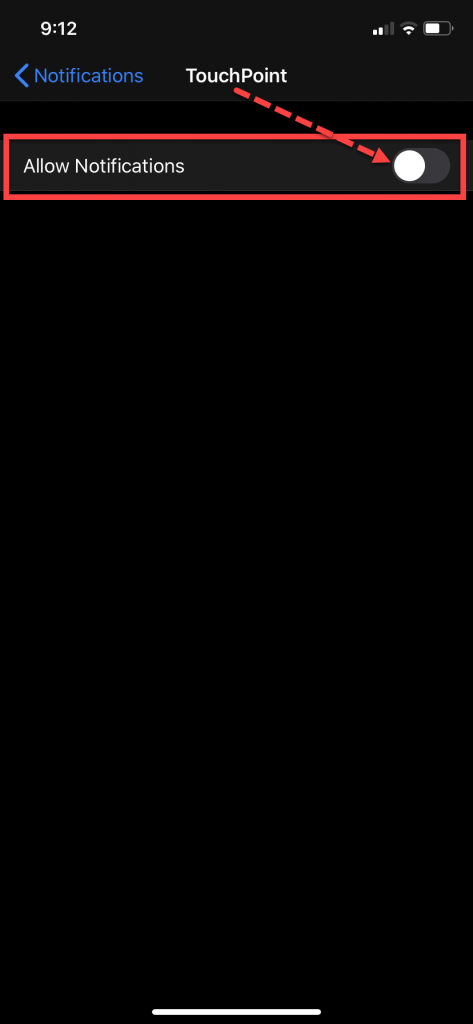 iPhone TouchPoint Notifications screen (click to enlarge) |
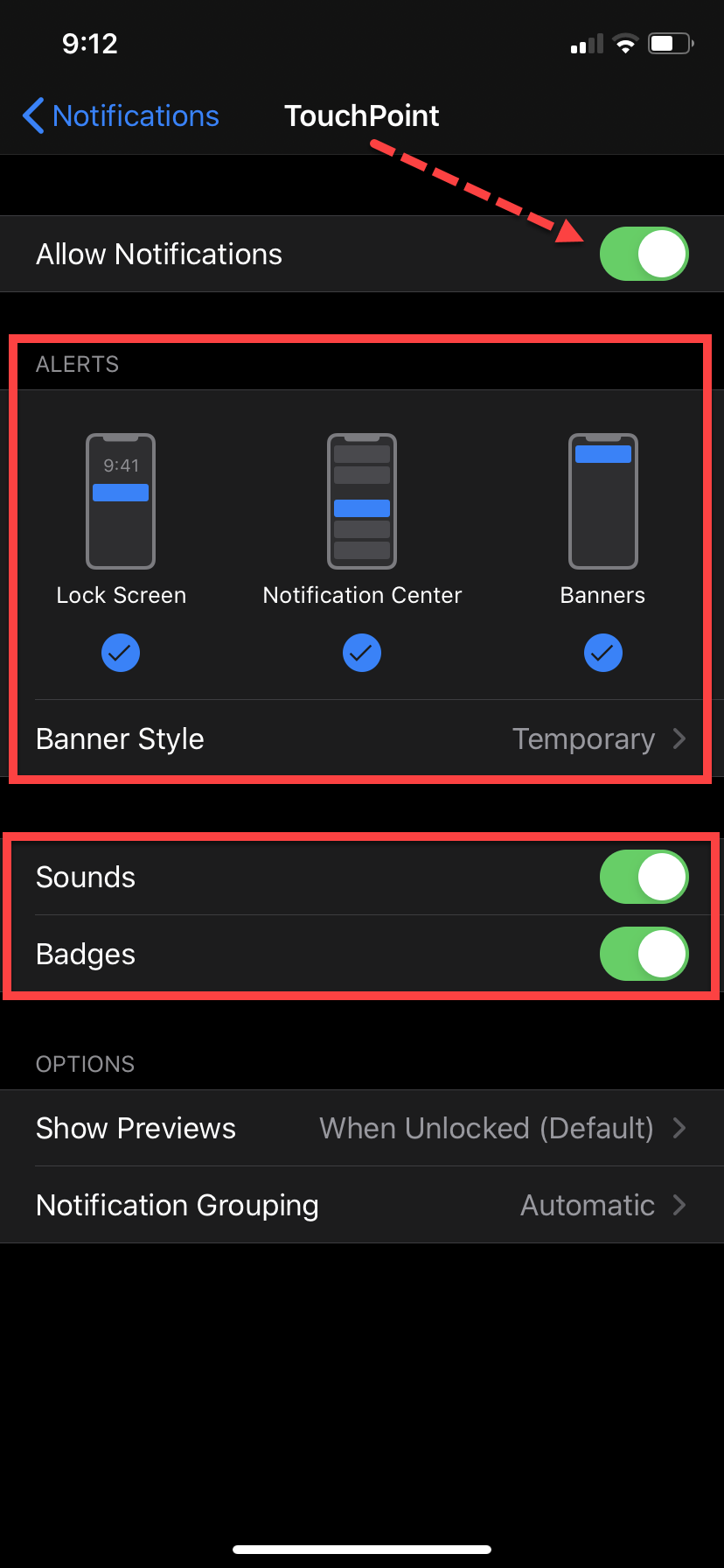 iPhone TouchPoint Notifications screen (click to enlarge) |
For Android*
Start by navigating to the Settings icon on your phone.
- Select the Apps option.
- On the Apps screen, locate and select the TouchPoint app.
- On the TouchPoint app screen, locate and select the Notifications under the App settings section.
- Ensure Show notifications is enabled.
- Enable the App icon badges.
- Ensure the Default Sound is enabled.
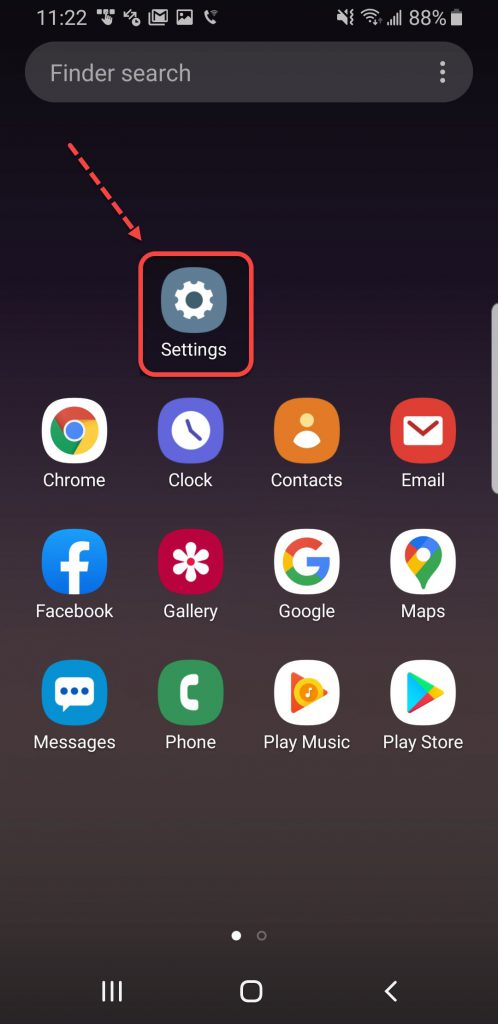 Android Settings icon (click to enlarge) |
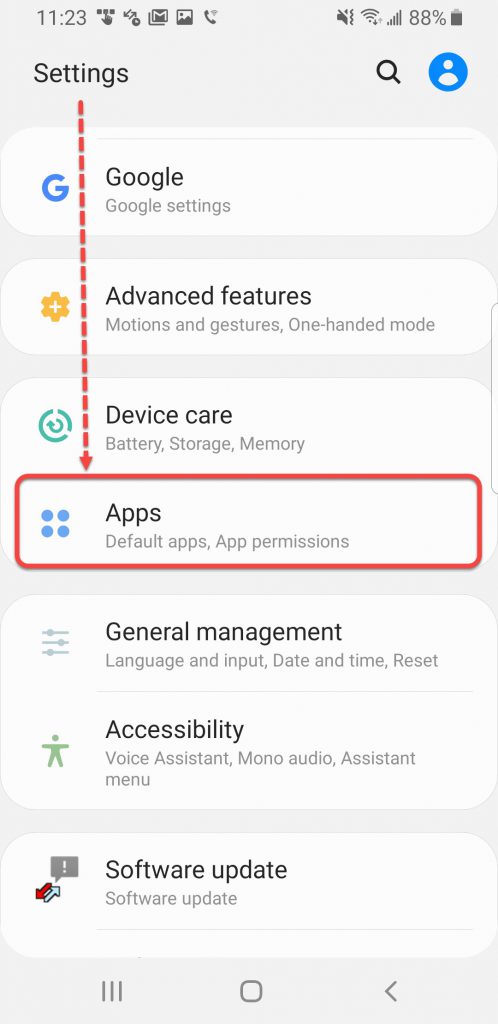 Android Settings screen (click to enlarge) |
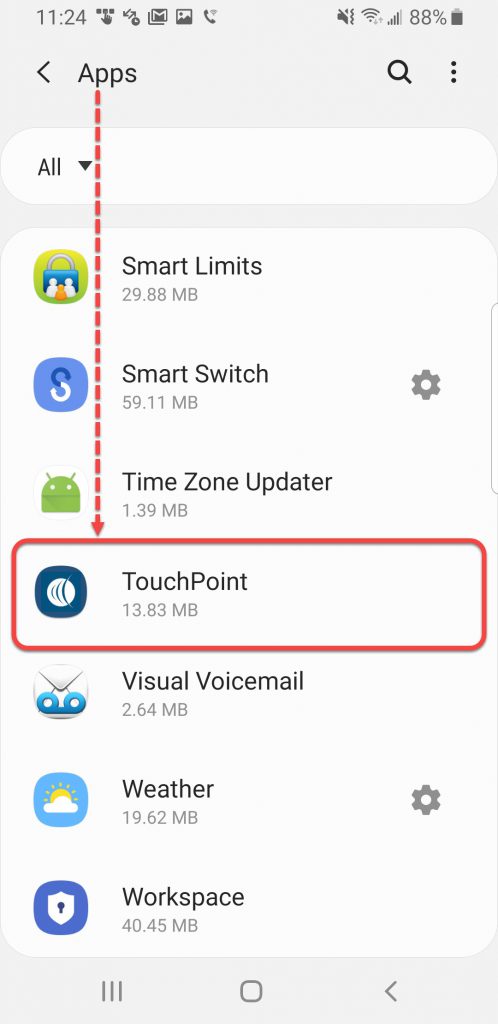 Android Apps screen (click to enlarge) |
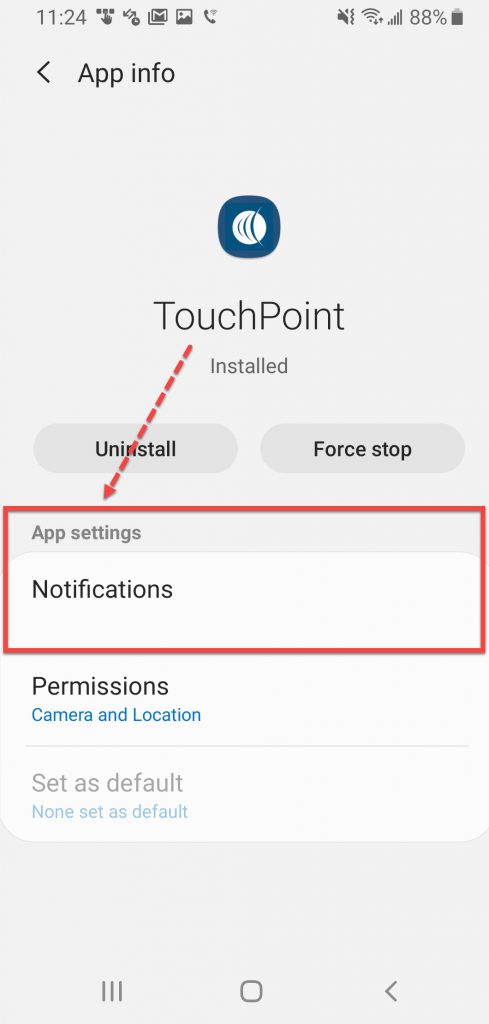 Android Apps info screen (click to enlarge) |
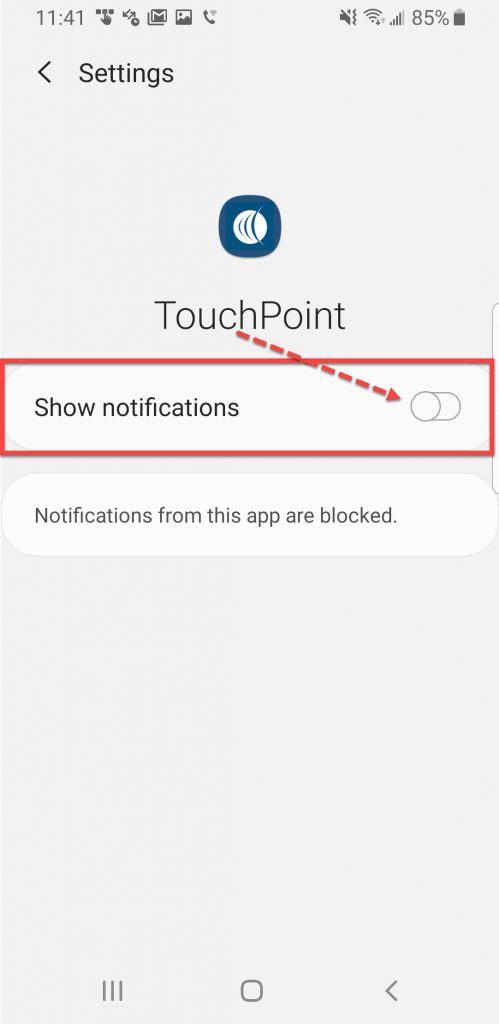 Android Settings screen (click to enlarge) |
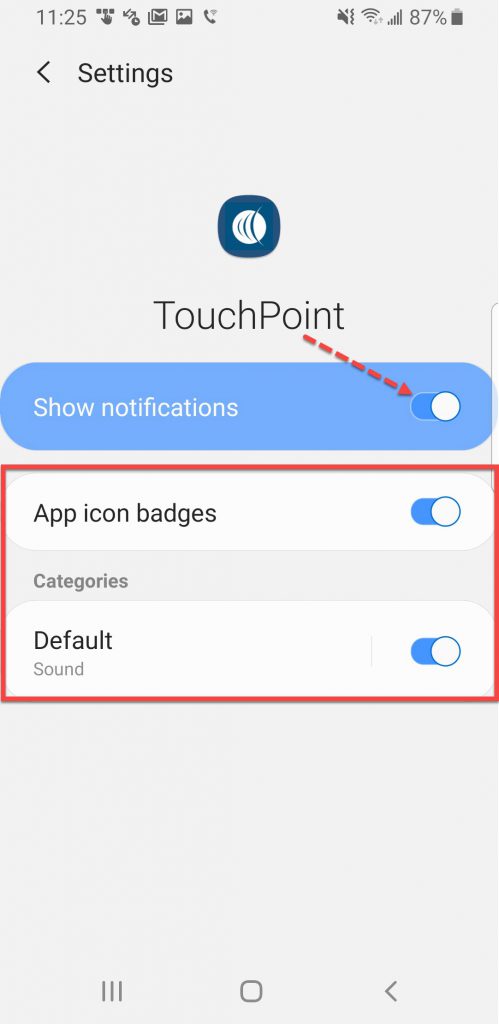 Android Settings screen (click to enlarge) |
*With the variety of cell phones available, the information provided in this document is basic troubleshooting. Please inform your supervising authority and contact your cell phone provider if you are unable to resolve the issue.