After adding a new TouchPoint client’s profile to the system, the client’s Profile page in SCRAM Optix™ will display an auto generated temporary password for the client. You can use the temporary password to walk the client through the app setup and initial login during the orientation meeting.
By default, the temporary password is hidden from view. To view the temporary password, select the Show link.
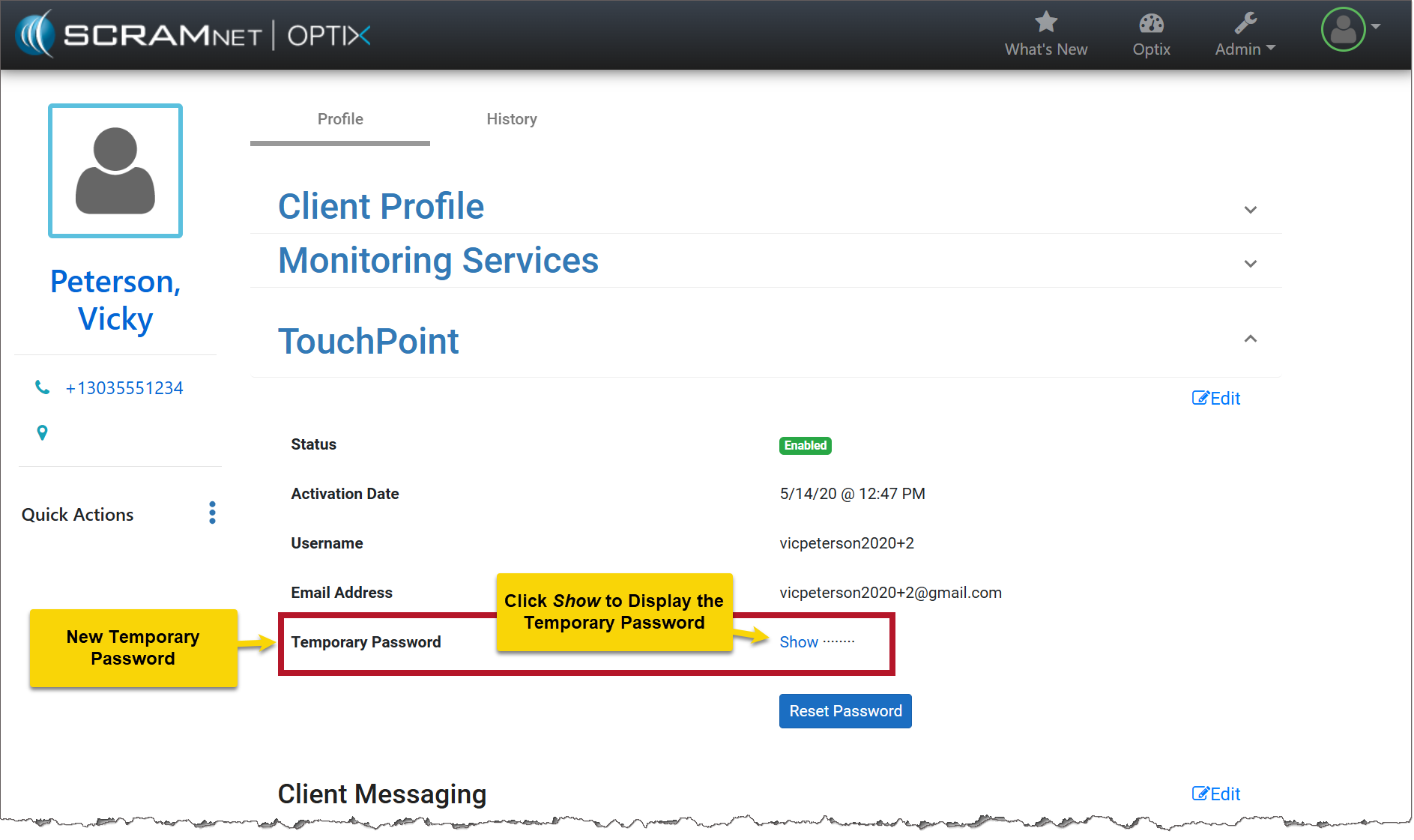
TouchPoint Client Profile page (click to enlarge)
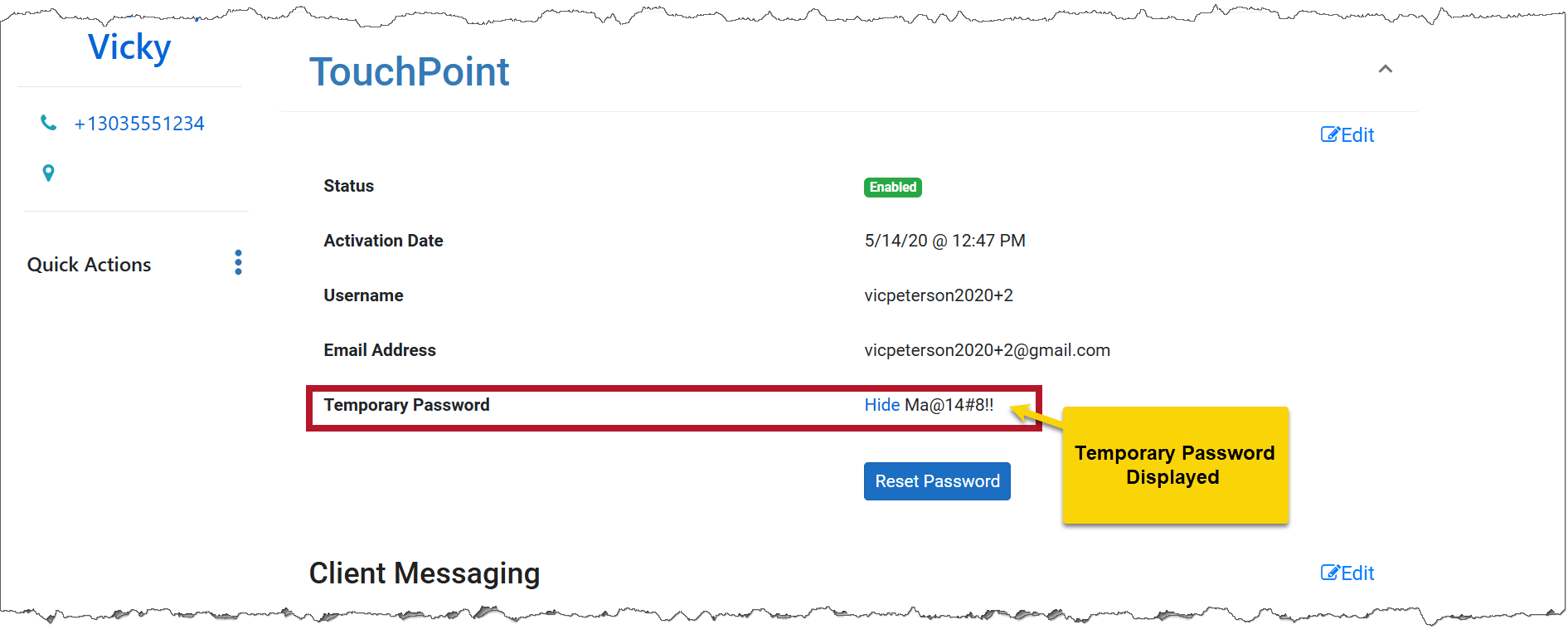
TouchPoint Client Profile page (click to enlarge)
After the client has logged into the application for the first time, the temporary password will no longer be displayed on the page.
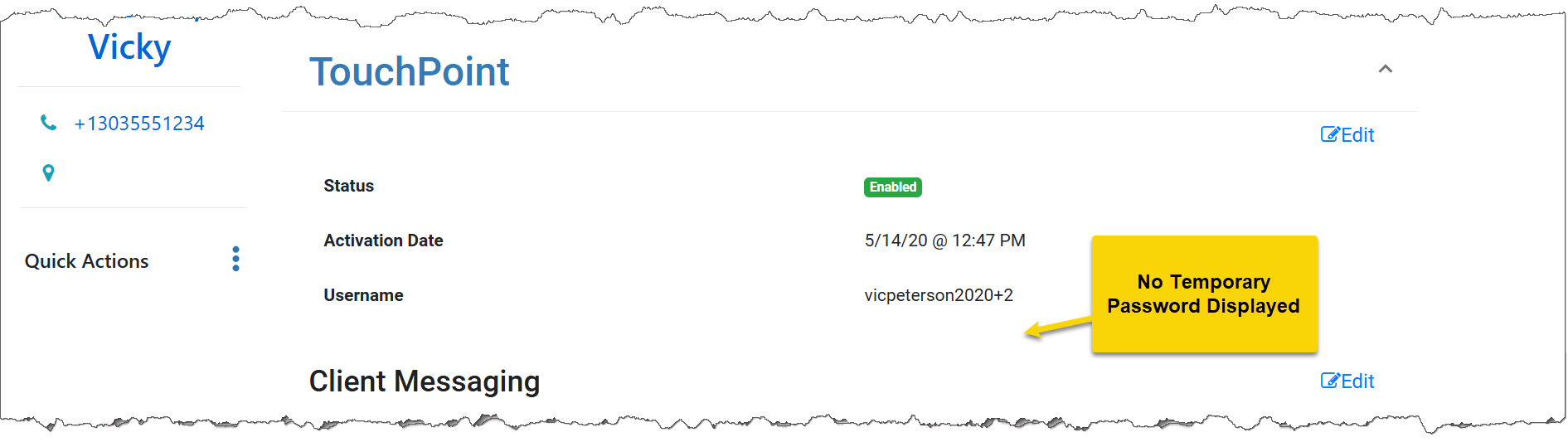
TouchPoint Client Profile page (click to enlarge)
After the initial login and orientation, have the client select the forgotten password link on the app’s home screen and create a new secure password to access the app moving forward.
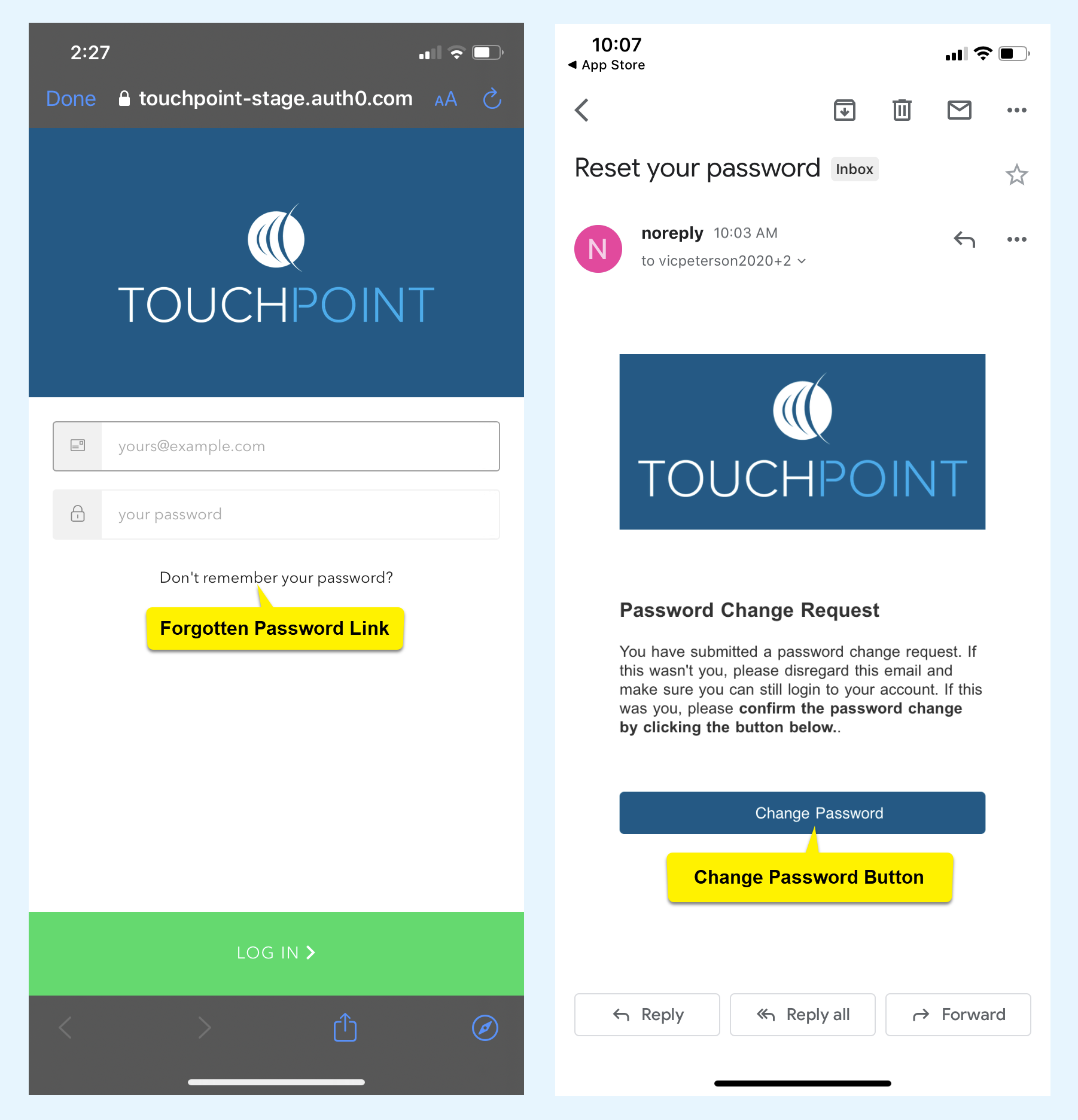
TouchPoint iPhone screens (click to enlarge)