With a next release scheduled for tomorrow, August 3, 2021 at 8:30 PM MT, two new features are being introduced in SCRAM Nexus. They are:
“Other” option for contact notes
New time selector
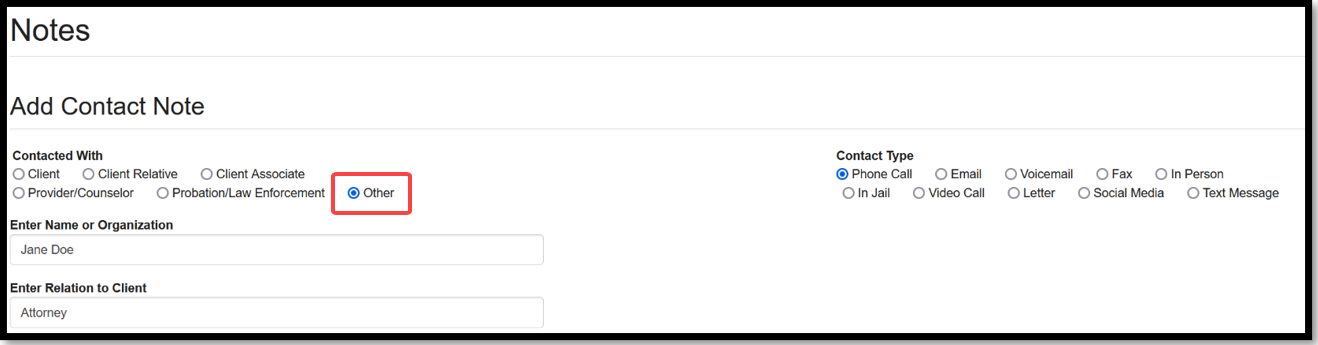
Client: “Other” Option for Contact Notes
When recording a contact note, you now have the option to select an Other radio button, as shown below. With this option selected, you must then enter the name or organization associated with the contact and the relation of the contact to the client.
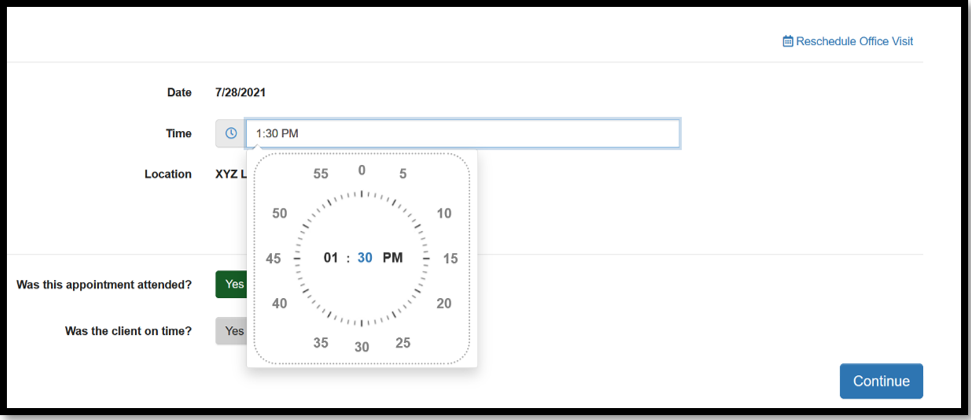
Client: New Time Selector
A new, more intuitive time selector is being made available in SCRAM Nexus. The tool allows for times to be quickly selected in five-minute intervals. You still have the option to enter a specific minute in the field if needed.
Displaying Past Pending Appointments on the Client Side Profile
Redesign of the Client History Page
Remove Magnitude Recommendation with On-Demand Incentives
Additional Filtering Options on the Workload Page
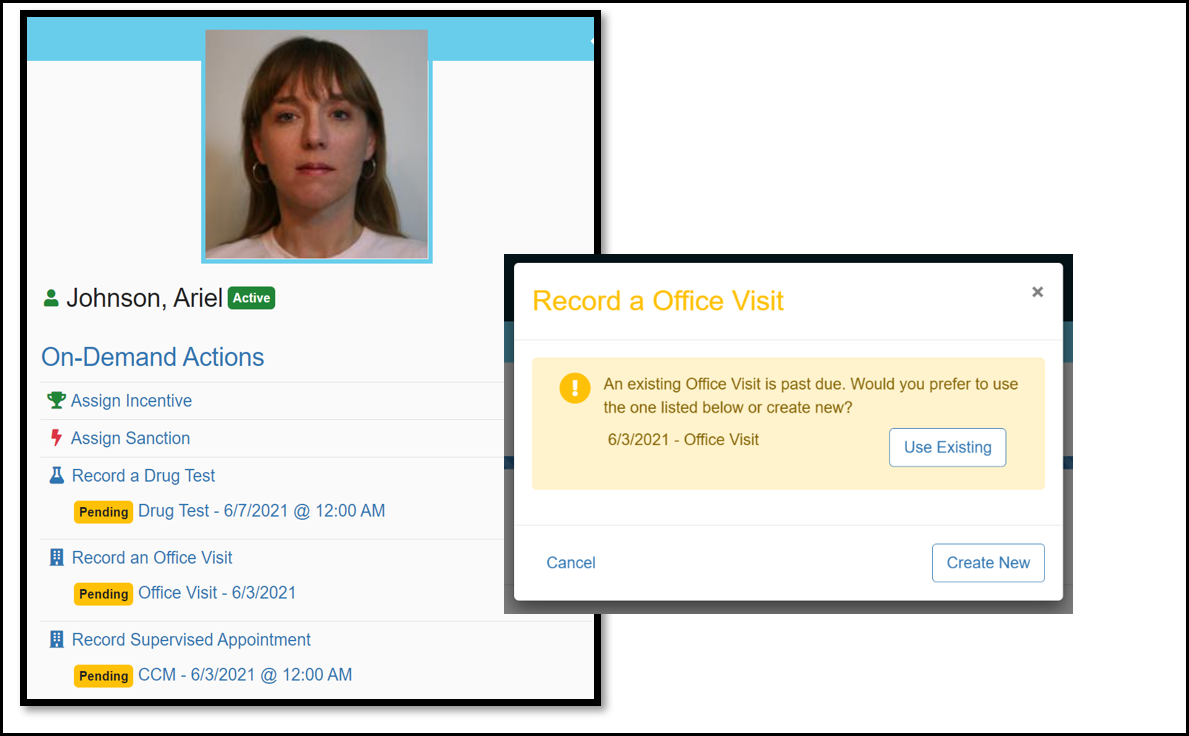
Client: Displaying Past Pending Appointments on the Client Side Profile
In past versions of Nexus, an officer had a difficult time knowing if the client had a previously scheduled pending appointment and would often record an On-Demand appointment causing the pending appointment to go unrecorded. With this change, an officer will now have visibility into already scheduled past appointments and In Progress appointments. This improvement will help prevent duplicate appointments from being created and will make managing of appointments cleaner and easier. If the officer initiates an On-Demand appointment, the system will ask if they want to use the already scheduled appointment.
Click to Enlarge
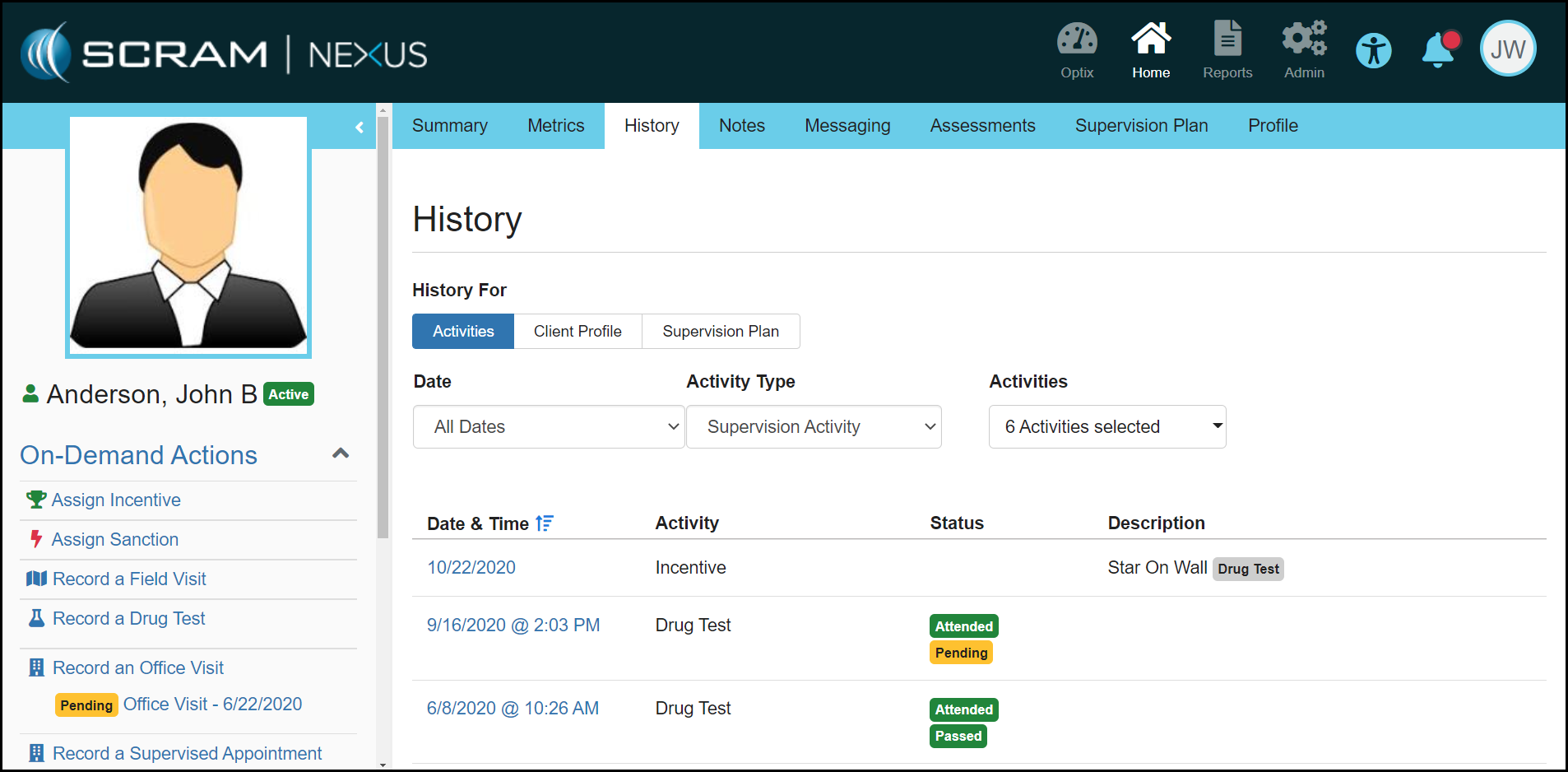
Client: Redesign of the Client History Page
The client History page has been redesigned to make it easier for an officer to get a holistic view of the clients Activities and Client Profile and Supervision Plan changes. As shown below, the officer can now filter by a Date, Activity Type and all Activities.
Click to Enlarge
Officer: Remove Magnitude Recommendation with On-Demand Incentives
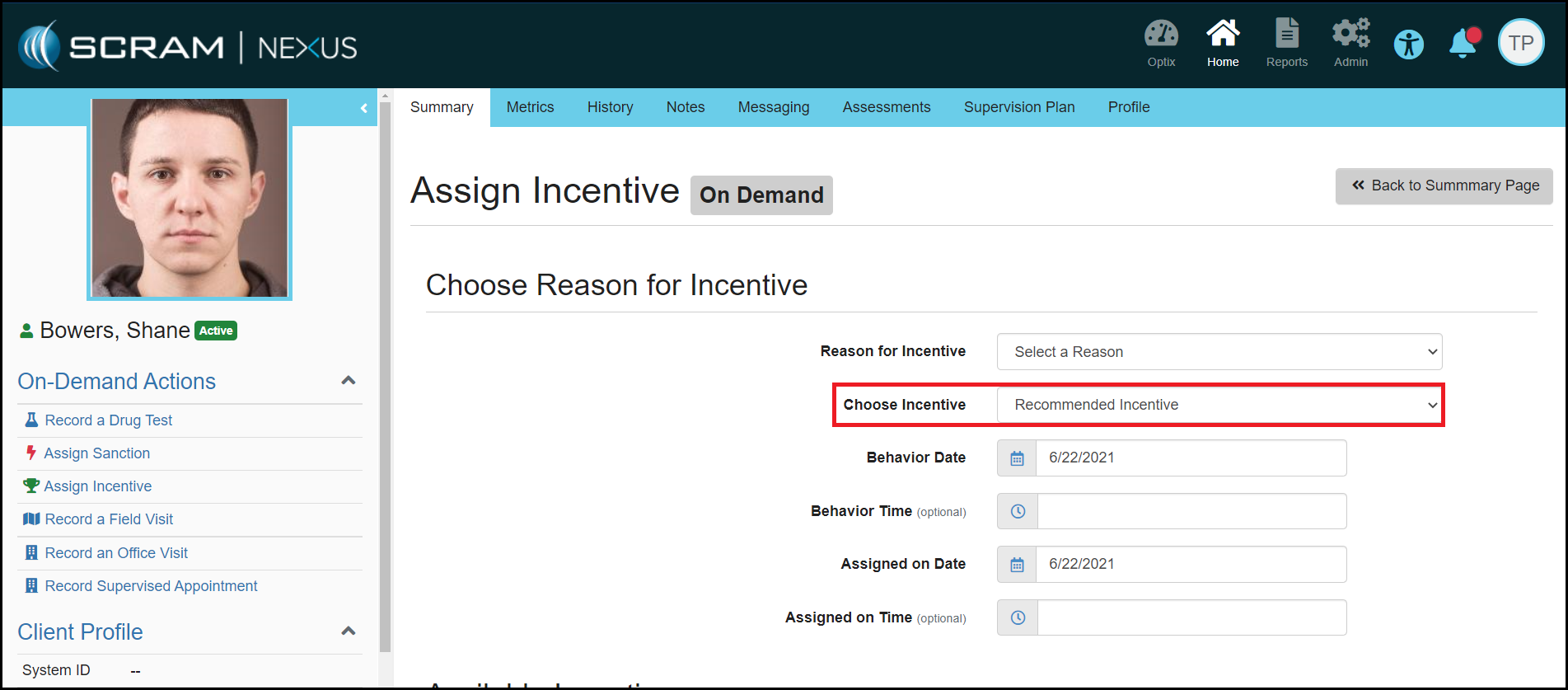
Nexus will no longer recommend a magnitude for On-Demand Incentives. Since On-Demand Incentives do not have an expectancy associated with them, the level of incentive should not be recommended. Instead, the officer can select which level of incentive they would like to assign.
Click to Enlarge
Officer: Additional Filtering Options on Workload Page
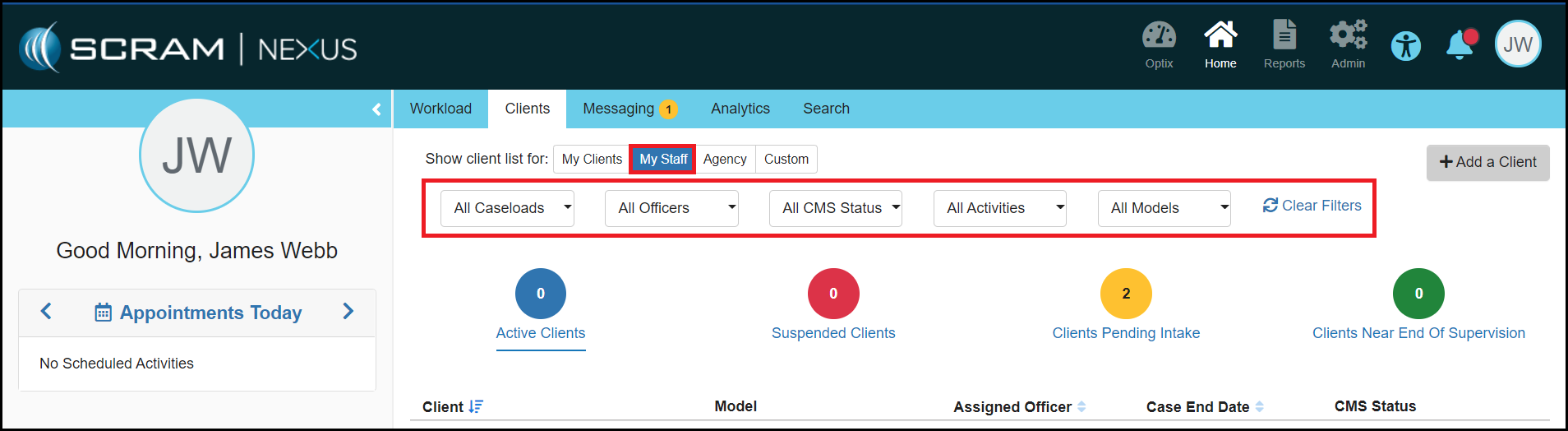
SCRAM Systems has added additional filter options to the Officer Workload page. These additional options will appear for officers when they are on the ‘My Clients’, ‘My Staff’, ‘My Caseloads’ and ‘Agency’ views. The additional filtering options include:
Caseloads
Activities
Actions
Models
Feedback:
As always, please contact SCRAM Systems Customer Services with any recommendations for system improvements.
A Link to the Client Supervision Plan has been Added to the SCRAM TouchPoint Section in the Client Profile
Change to when the First Appointment Date is Displayed when Changing a Model or Completing a Phase Advancement
On-Demand Incentives and Sanctions are now Included in the Analytics Reports
Client: A Link to the Client Supervision Plan has been Added to the SCRAM TouchPoint Section in the Client Profile
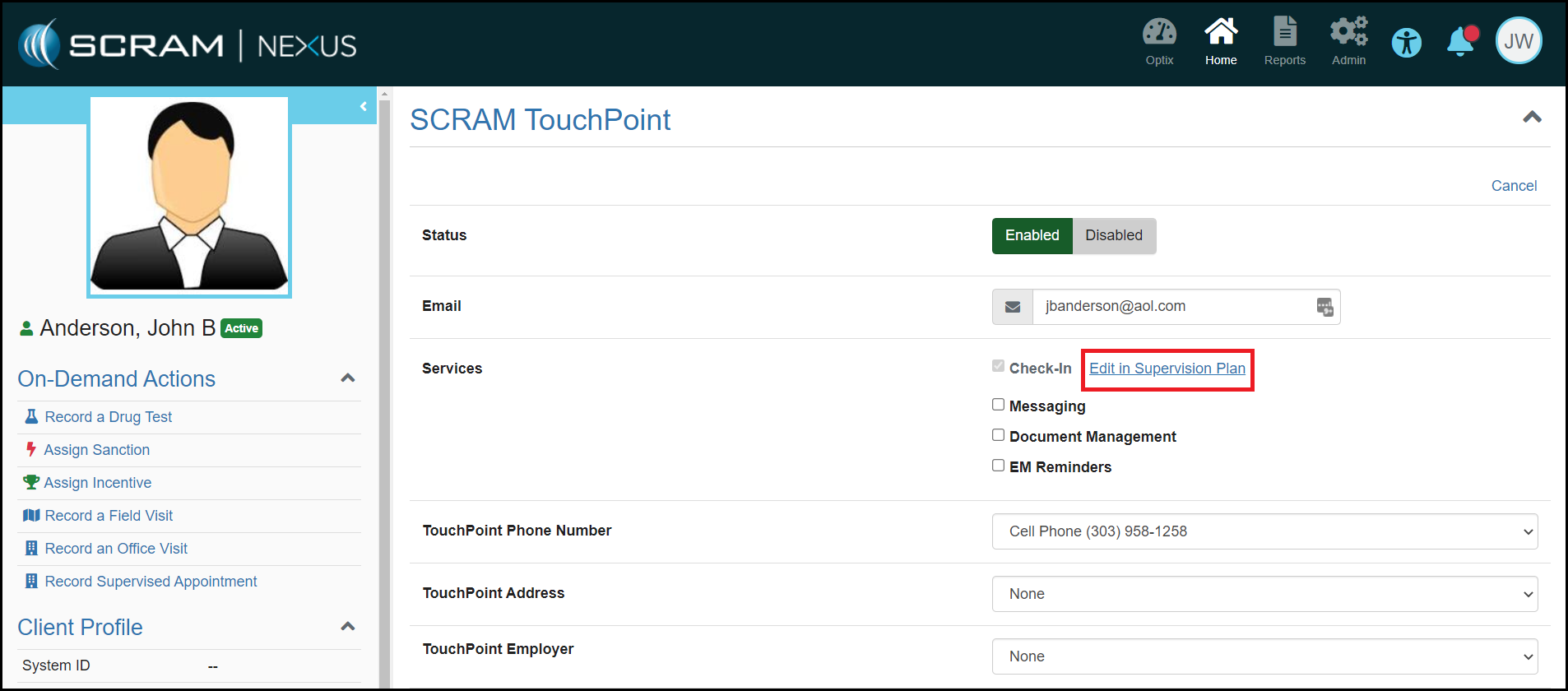
The SCRAM TouchPoint section on the Client Profile page displays a read-only view of TouchPoint Check-In Activity Details. With this enhancement, a link has been added, as shown below, that will redirect you to the client’s TouchPoint Check-In Activity Details page so that you can manage the activity.
Click to Enlarge
Client: Change to when the First Appointment Date is Displayed when Changing a Model or Completing a Phase Advancement
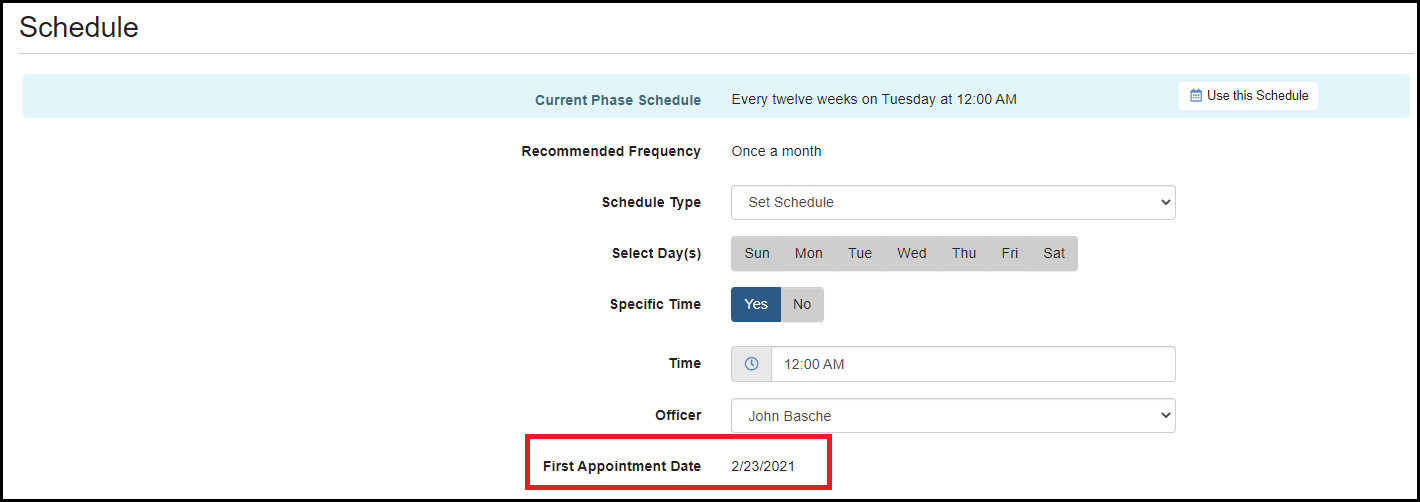
In previous versions of Nexus, the First Appointment Date was displayed for activities when changing Models and Advancing Phases. Because this date can only be changed if the first appointment has not occurred, this date will now be hidden until it can be modified, if needed.
Click to EnlargeClick to Enlarge
Analytics: On-Demand Incentives and Sanctions are now Included in the Analytics Reports
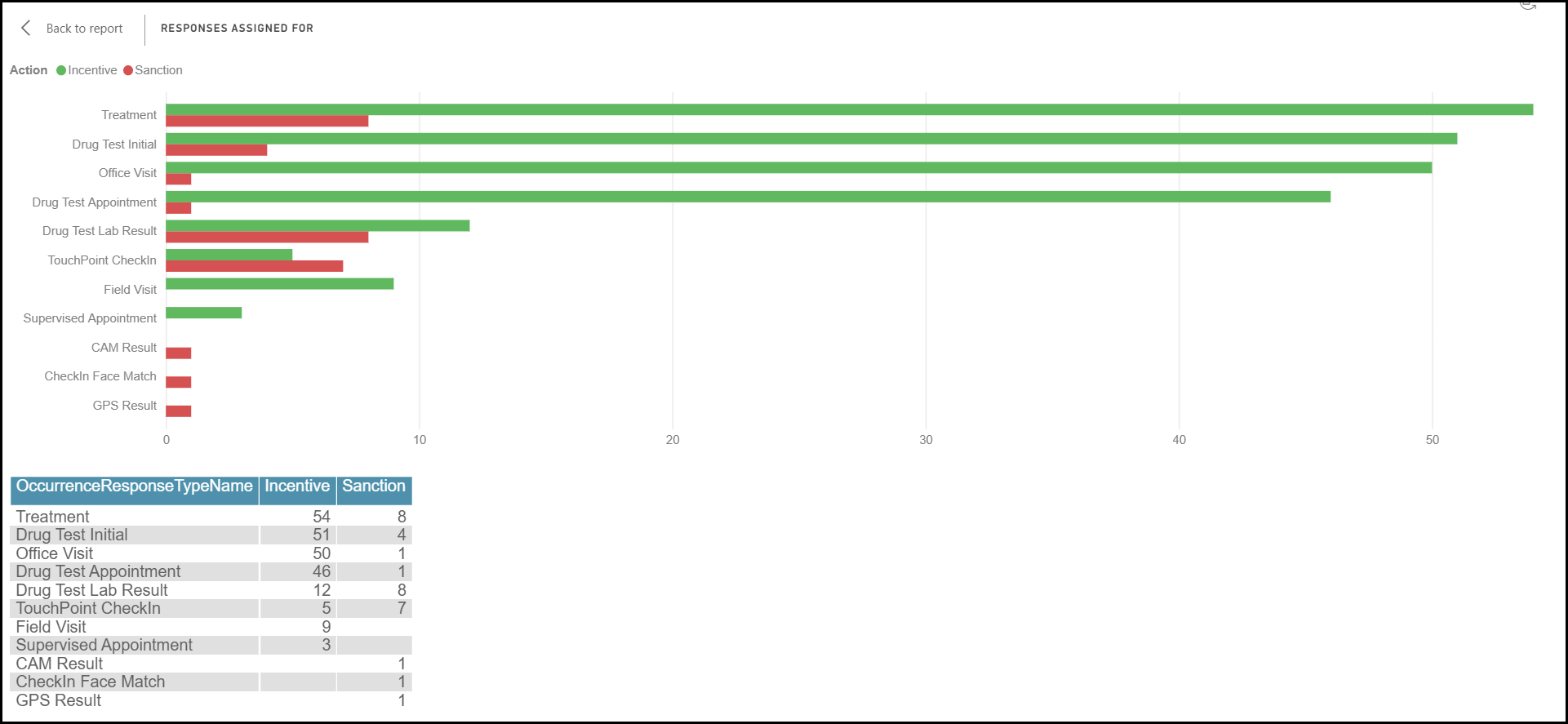
On-Demand Incentives and Sanctions will now be included in all Analytics Reports. This change will affect the overall number of responses assigned and the average number of Incentives/Sanctions assigned per client, as well as additional activities that will be listed on the reports.
Click to Enlarge
Feedback:
As always, please contact SCRAM Systems Customer Services with any recommendations for system improvements.
At 8:30 PM MDT on Thursday May 13, 2021, SCRAM Nexus® will release several enhancements to the system, including:
The ability to edit Field Visit dates
Recording a Directive – new Result status
A change to how Nexus recommends sanctions for Distal behaviors
An “activate now” option in the Supervision Plan Suspension banner
Client: Edit Field Visit Dates
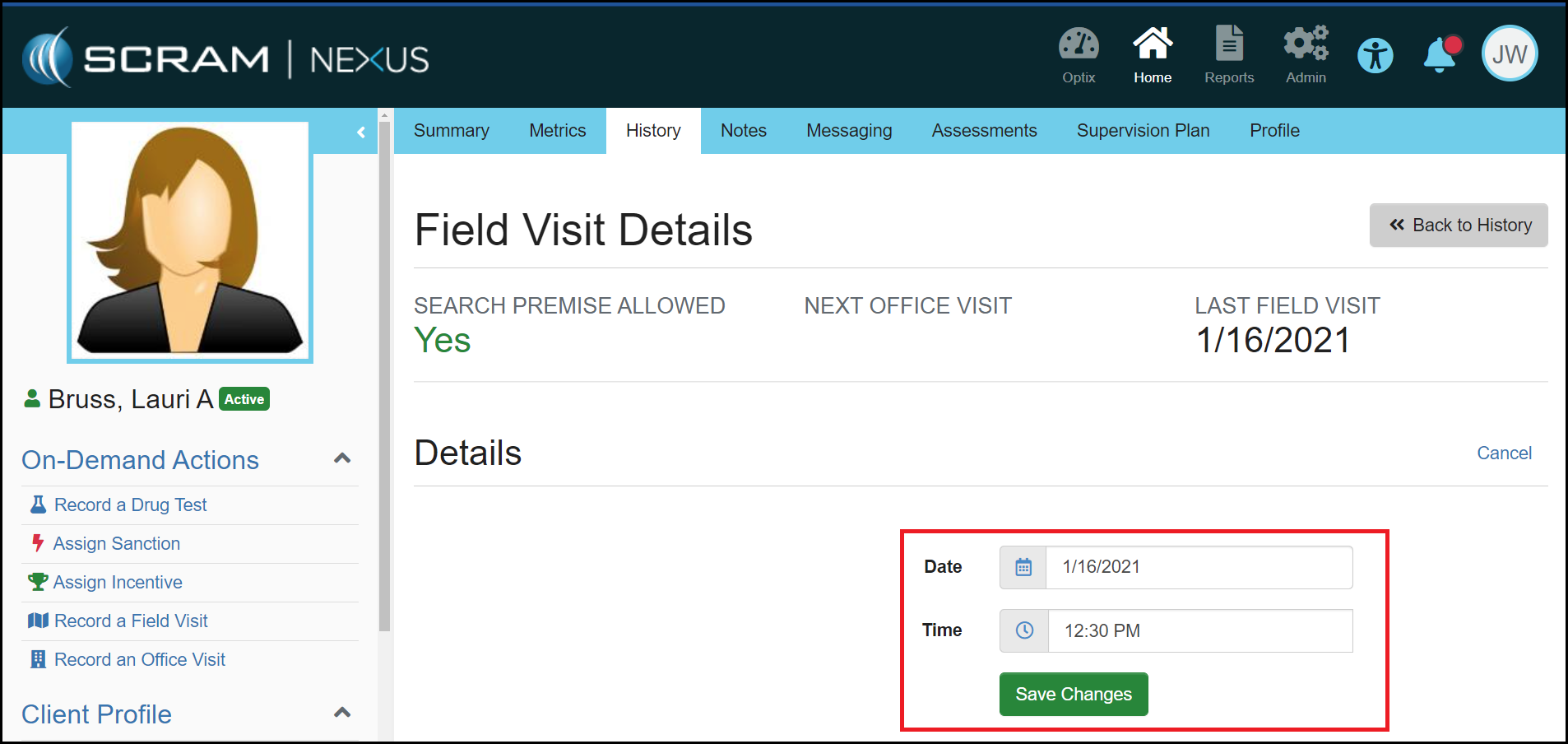
To make Field Visits consistent with other activities in Nexus, the date of a Field Visit can now be changed to any past date, as long as that date is after the date the activity was assigned. For example, if the Field Visit activity was assigned on January 15, 2021, you would not be able to backdate the Field Visit to January 14, 2021 or earlier.
Click to Enlarge
Client: Recording a Directive
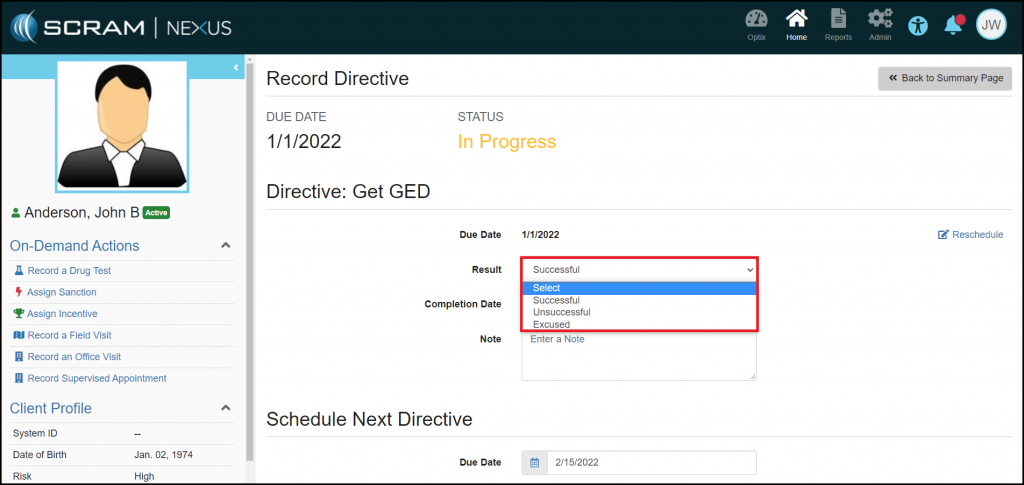
Now when you record a Directive, you must indicate the Result of the Directive by selecting Unsuccessful, Excused, or Successful. This status will help make it clear if the client was compliant with this activity.
Click to Enlarge
Client: Change to How Nexus Recommends Sanctions for Distal Behaviors
To better support clients that have long-term Distal behaviors, Nexus will no longer escalate to a High Magnitude sanction. Recommendations will start at a Low Magnitude and escalate to Moderate Magnitude after five negative outcomes.
Client: “Activate Now” Option in Suspension Banner
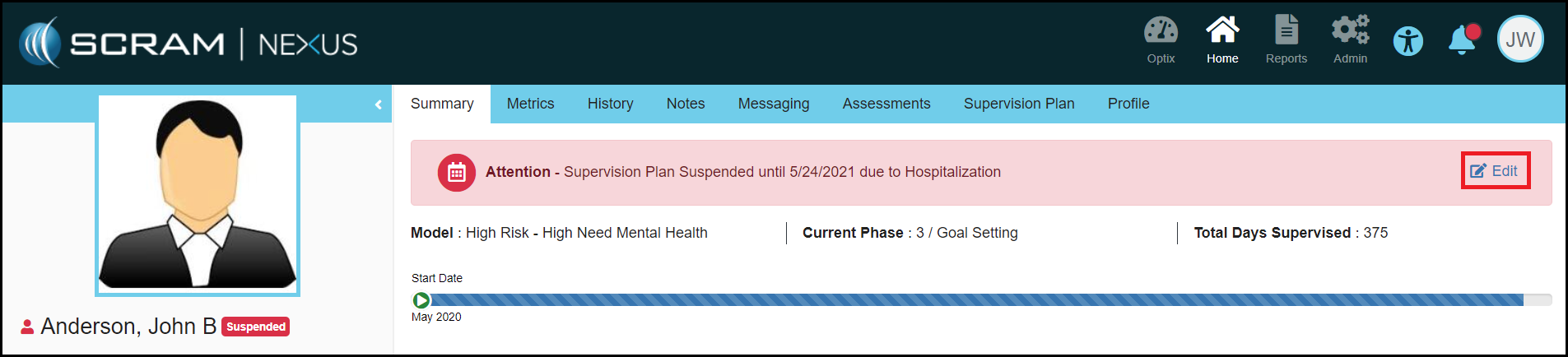
When a client’s Supervision Plan is suspended, you may now activate the Supervision Plan from the red ‘Supervision Plan Suspended’ banner that appears at the top of the client’s pages. This makes activation of a client’s Supervision Plan more accessible and convenient. Simply select the Edit link, which appears on the right side of the banner itself, to jump directly to the Suspend Supervision Plan Details page.
Click to Enlarge
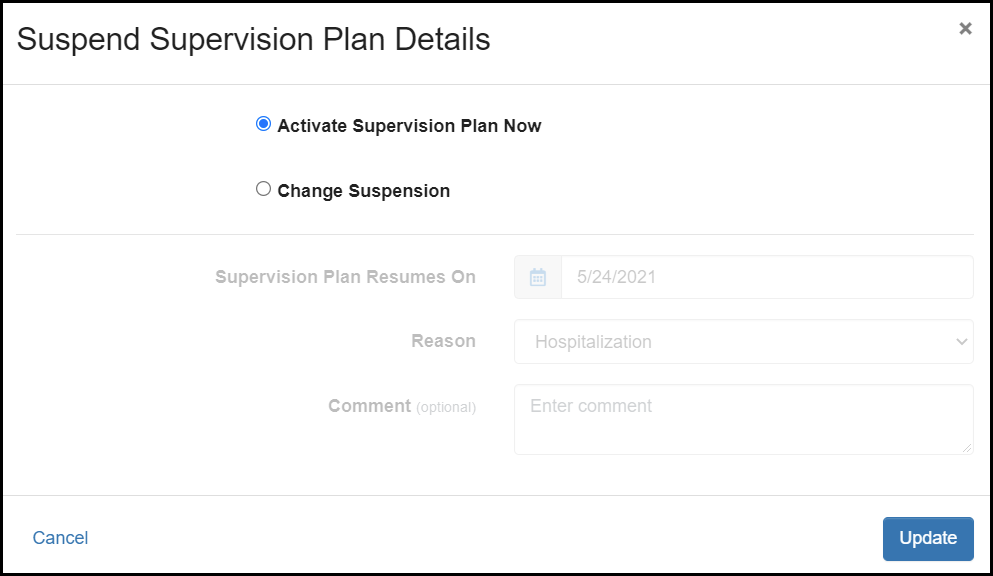
Once on the details page, you may reschedule when the Supervision Plan resumes, or select Activate Supervision Plan Now to reactivate it immediately. Update the suspended status to ensure your changes take effect.
Click to Enlarge
Feedback:
As always, please contact SCRAM Systems Customer Services with any recommendations for system improvements.
Enable EM Reminders and Document Management in Nexus
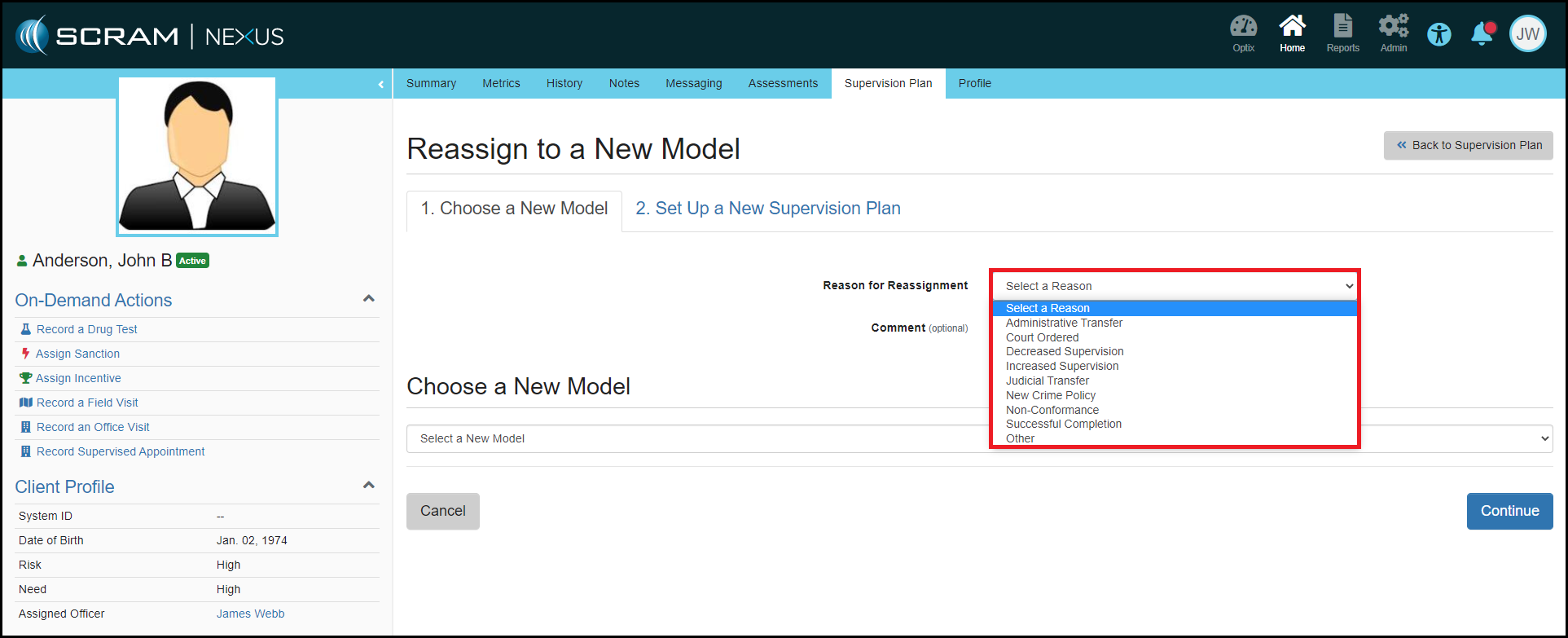
Select a Reason for Reassigning a Model
Client: Share Custom Court Case Fields with Nexus
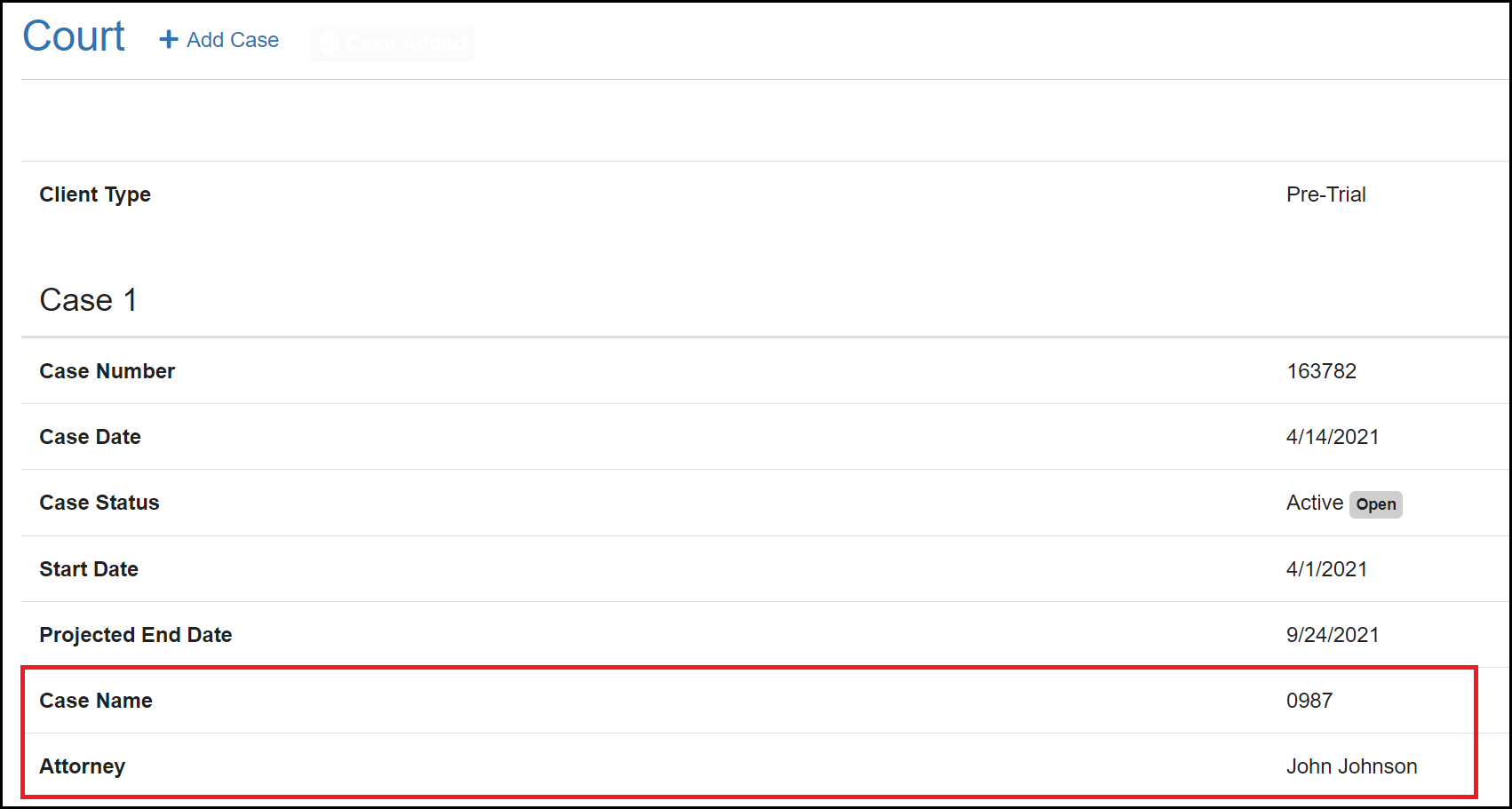
Custom court information can now be sent to Nexus through Nexus Sync and will be displayed under each court case in the Client Profile. For this sync to work properly, an Administrator must first create the Custom Court Fields in the Admin Settings.
Click to Enlarge
Client: Enable EM Reminders and Document Management in Nexus
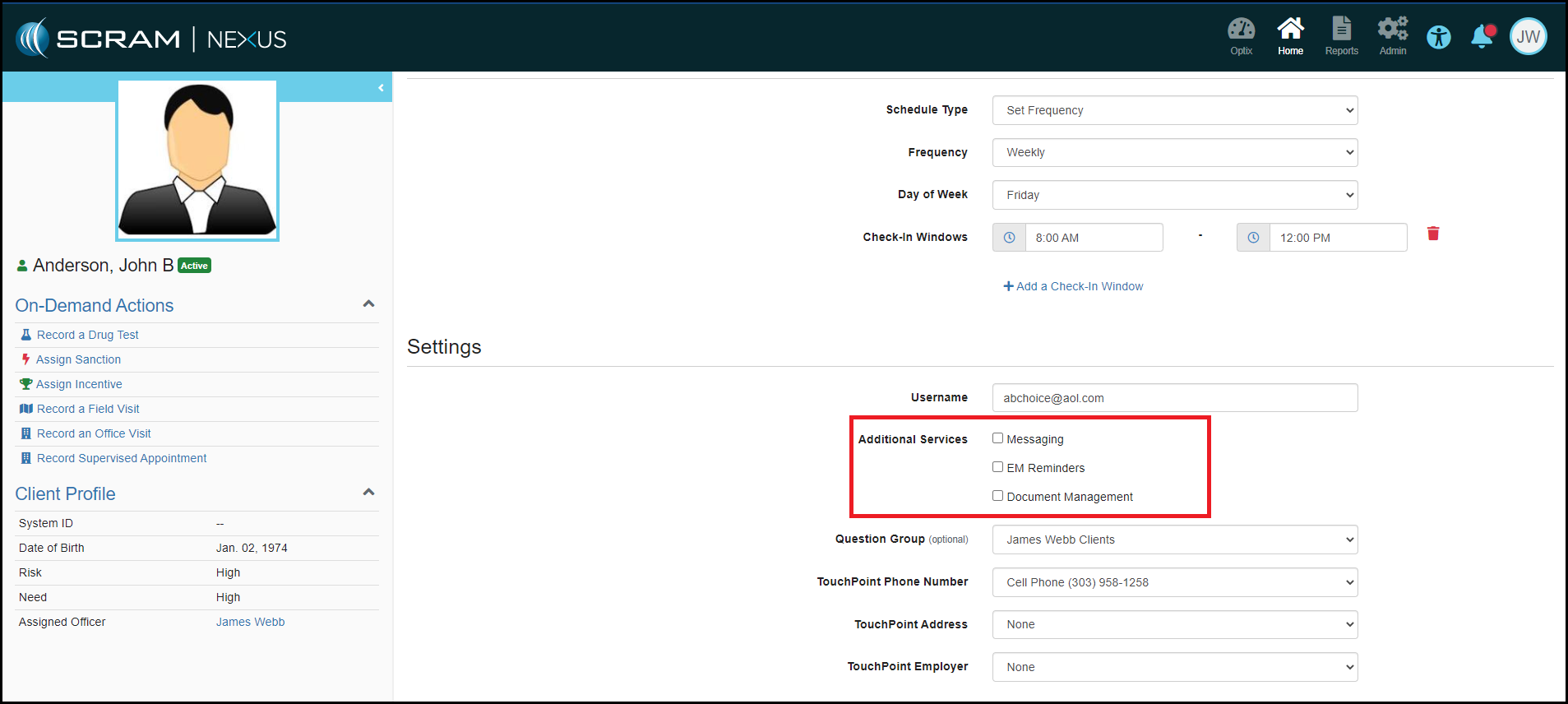
With this enhancement, you can now enable a client for TouchPoint EM Reminders and Document Management by editing the TouchPoint Activity Details, either when assigning the TouchPoint activity, or after the activity has been assigned. This allows you to manage TouchPoint settings from within Nexus and no longer requires you to navigate to the Client’s Optix profile to enable or disable services.
Click to Enlarge
Client: Select Reason for Reassigning a Model
To enhance the analytics that Nexus provides, selecting a Reason for Reassignment has been added to the Reassignment process. This field will provide visibility into why Officers are changing a client’s model and will help ensure better client outcomes.
Click to Enlarge
Feedback:
As always, please contact SCRAM Systems Customer Services with any recommendations for system improvements.
A series of Nexus enhancements will be released the evening of April 6, 2021. This release includes the following enhancements:
Redesign of the Administration Pages
Adding Custom Court Cases Fields
Quickly Select Commonly-Used Functions from the Workload Page
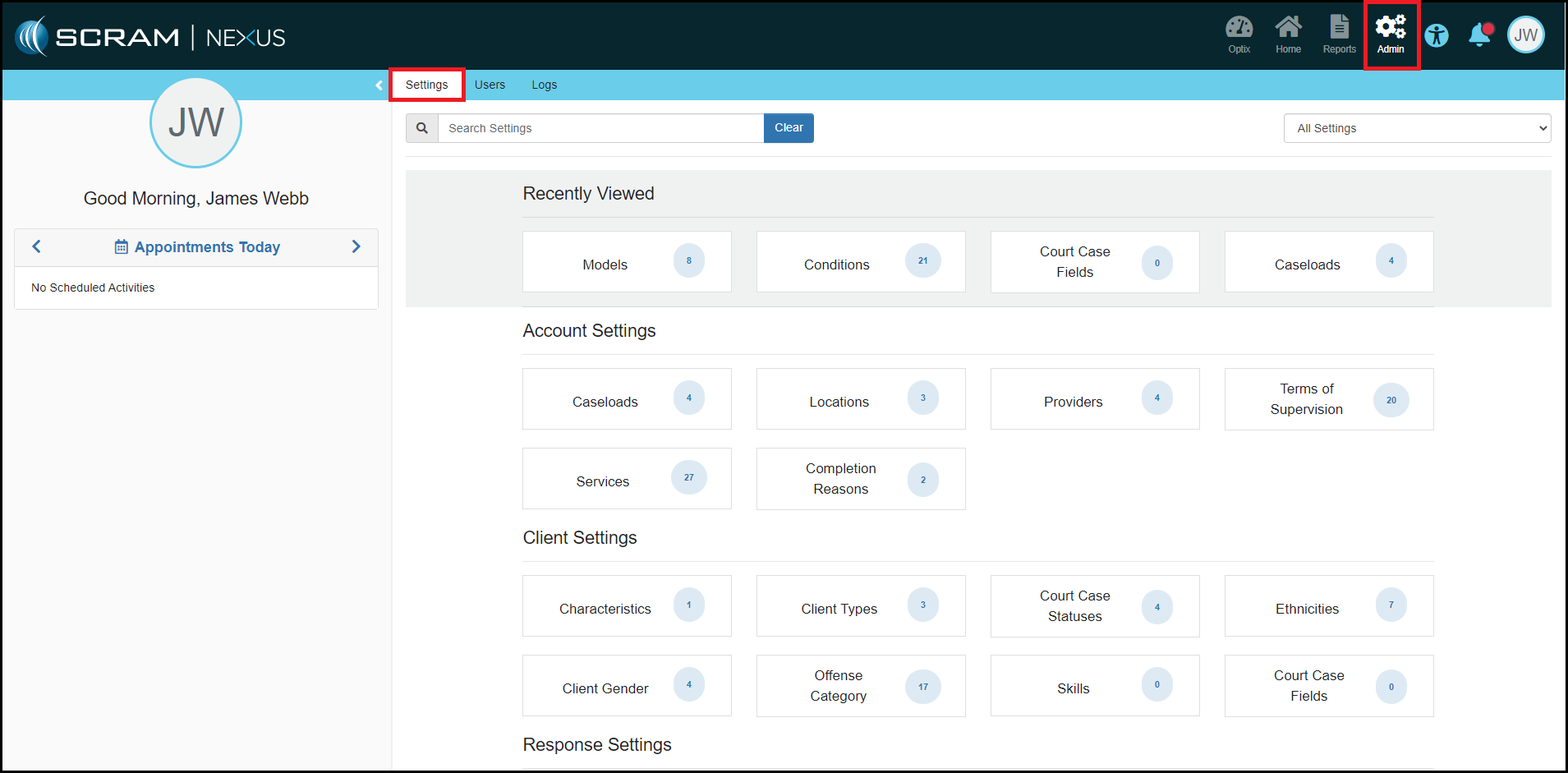
Administrator: Redesign of the Administration Pages
The Administrator pages have been redesigned to a more organized view that will allow for a more manageable experience. The catalogs have been converted into “Cards” and moved into a “Settings” tab. The Catalog Cards themselves have been classified in four setting types: Account Settings, Client Settings, Response Settings and Models. This design allows for these Settings and Catalogs to be filtered by a keyword search or category selection. The four most recently viewed Catalog Cards will populate at the top of the page for easier navigation.
Click to Enlarge
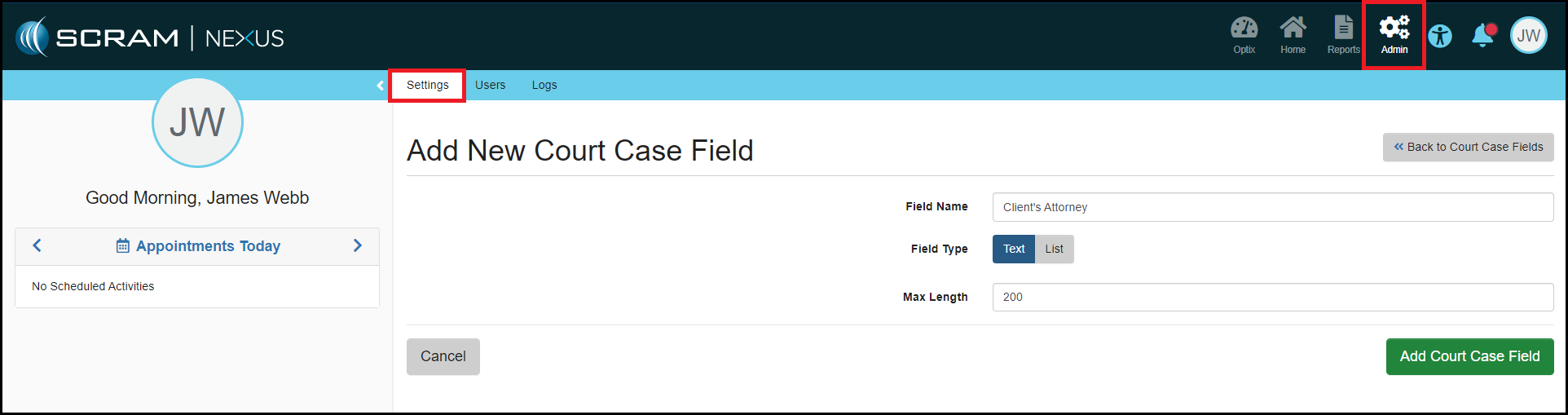
Administrator: Custom Court Case Field Catalog
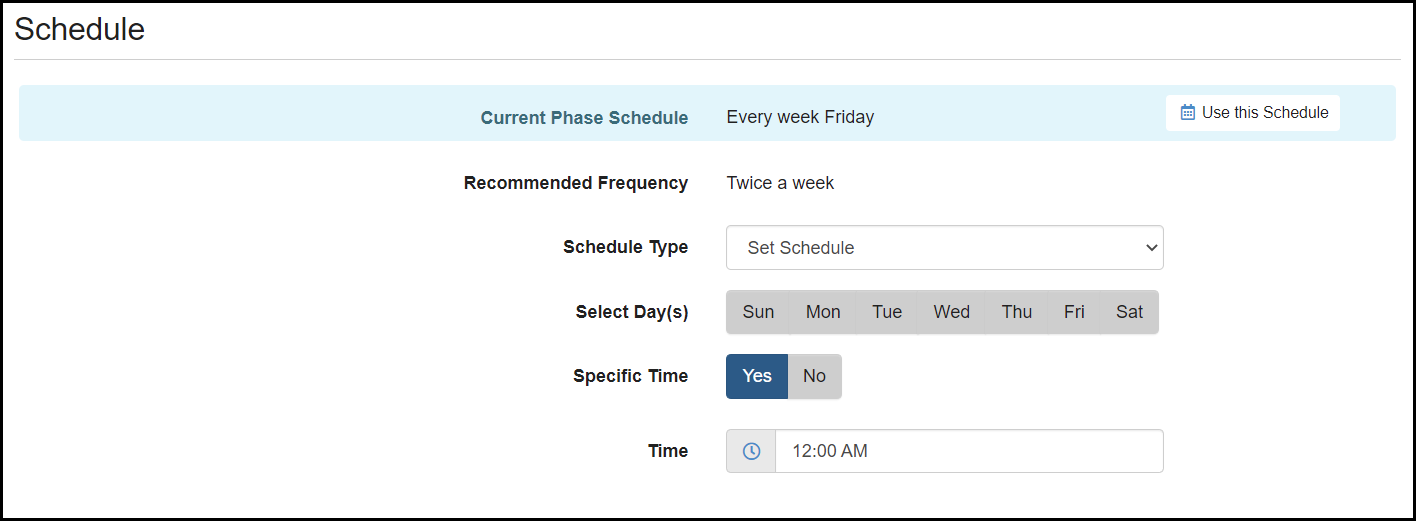
Administrators can now create custom text or drop-down fields underneath each Court Case for a client. This will allow Nexus to receive and capture specific information from your Case Management System. An example of this might be capturing the client’s Attorney contact information.
Click to EnlargeClick to Enlarge
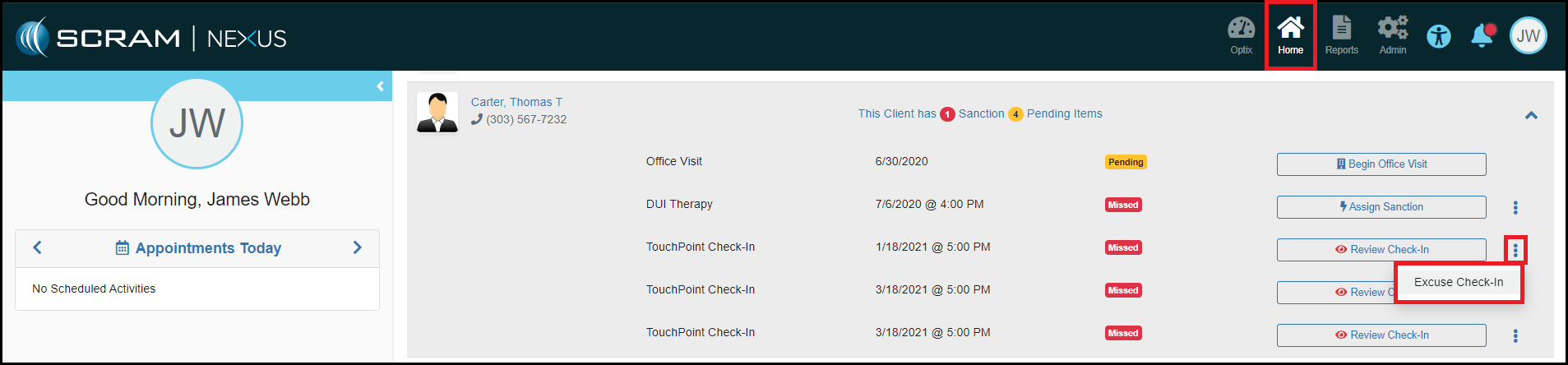
Officer: Quickly Select Commonly-Used Functions from the Workload Page
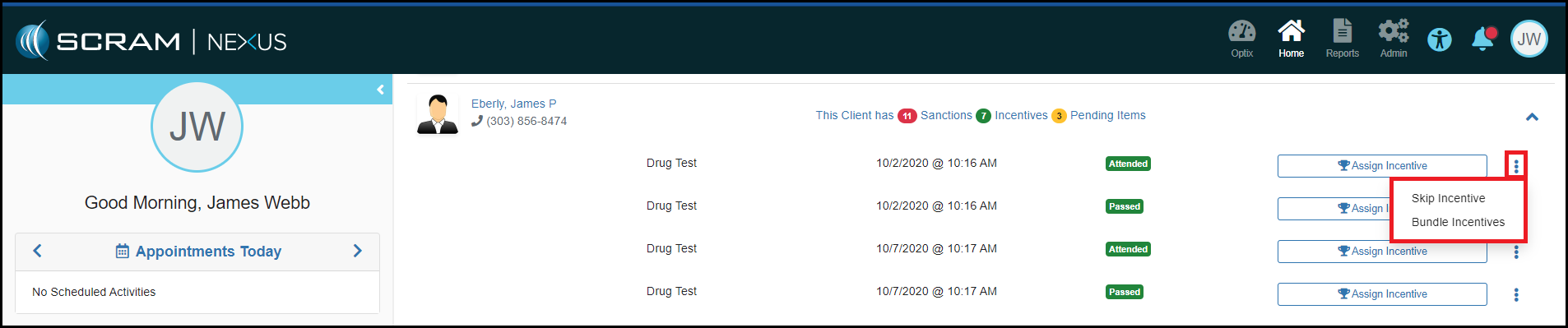
To reduce the time it takes to excuse multiple missed TouchPoint Check-Ins, you can now quickly and efficiently Excuse Missed Check-Ins from the Officer Workload page by clicking on the vertical ellipsis (⋮) drop-down menu. You also can also use the vertical ellipsis menu to skip Incentives or Sanctions and quickly jump to the Bundling page if there is more than one response to assign for a client.
Click to EnlargeClick to Enlarge
Feedback:
Please contact SCRAM SystemsCustomer Servicewith any recommendations for system improvements.
On April 1, 2021, SCRAM Systems® will simplify your SCRAM TouchPoint™ client’s first experience when logging
into the SCRAM TouchPoint Mobile app. Moving forward, all your new TouchPoint
clients will use the same temporary password. The temporary password of Touchpoint1!
is visible on their TouchPoint client profile page in SCRAMNET OPTIX™.
Moving forward, your client will use their email address
and the temporary password of Touchpoint1! to log into their app for the first
time. Once your client has successfully logged into the app for the first time,
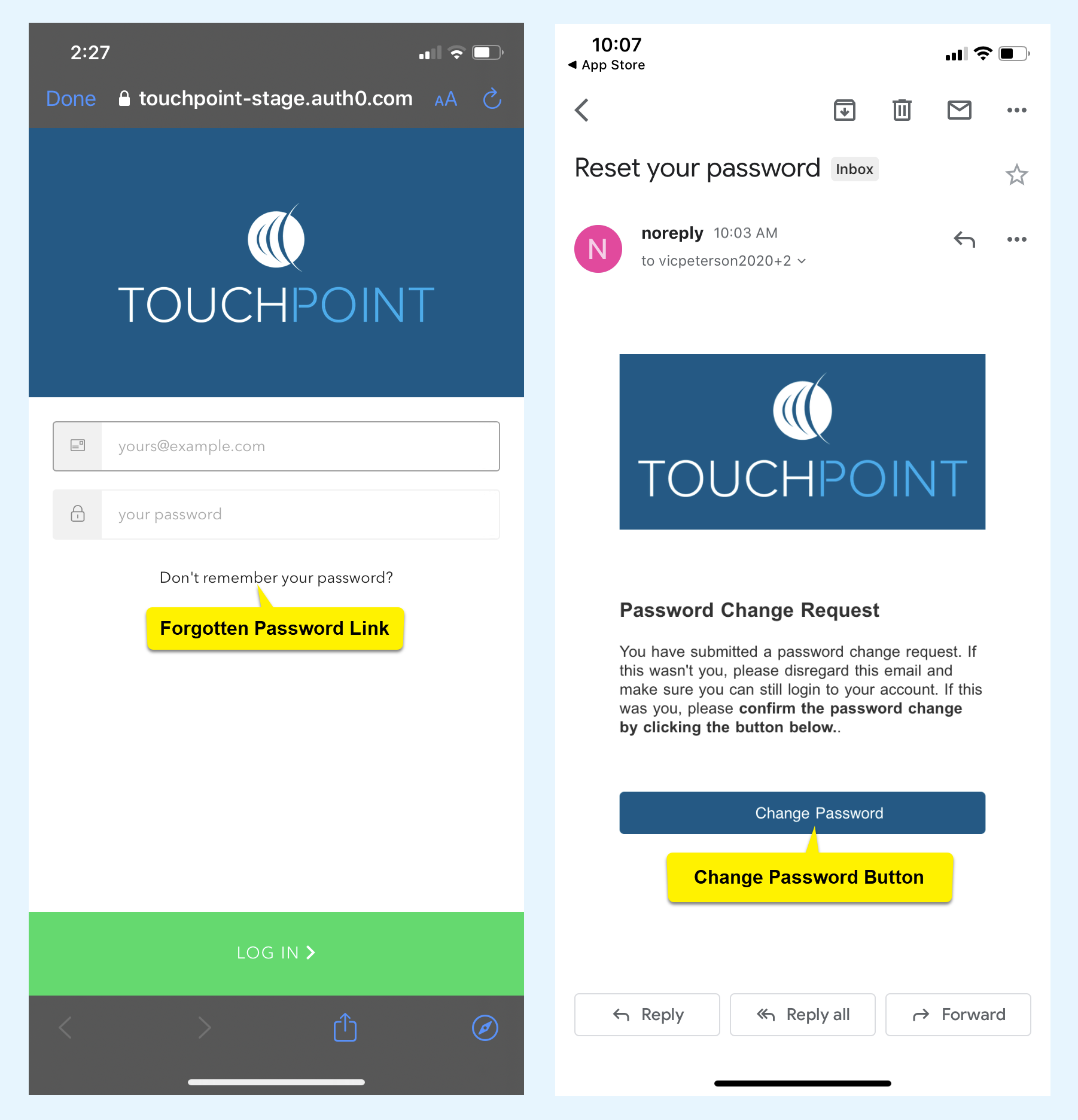
SCRAM Systems recommends your client access the forgotten password link on the app’s
Log In screen and follow the instructions to create a secure password to use
moving forward.
click to enlarge
Feedback
Please contact SCRAM Systems Customer Service with any recommendations for system improvements.
SCRAM Systems® provides enhancements and updates to the SCRAM TouchPoint™ Mobile application on a continual basis. These updates improve the functionality and usability of the application for your client. Once an update is available in the Apple App store and the Google Play store, the next step is to have the client update the application on their smartphone.
An app update can be completed in two ways.
Automatic application updates (Recommended)
Manual application updates
As a best
practice, we recommend you encourage your clients to enable automatic app
updates – this ensures they are always using the latest version of the
TouchPoint app.
Setup Automatic Application Updates
iPhone
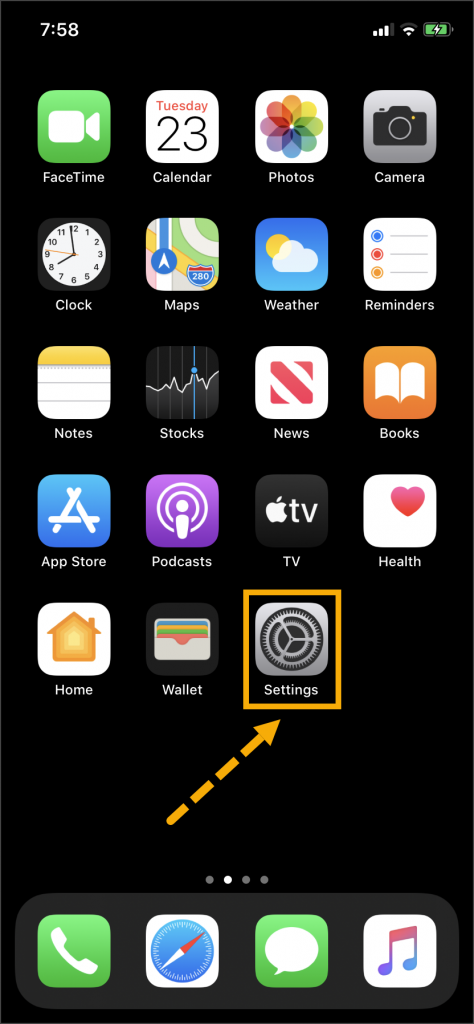
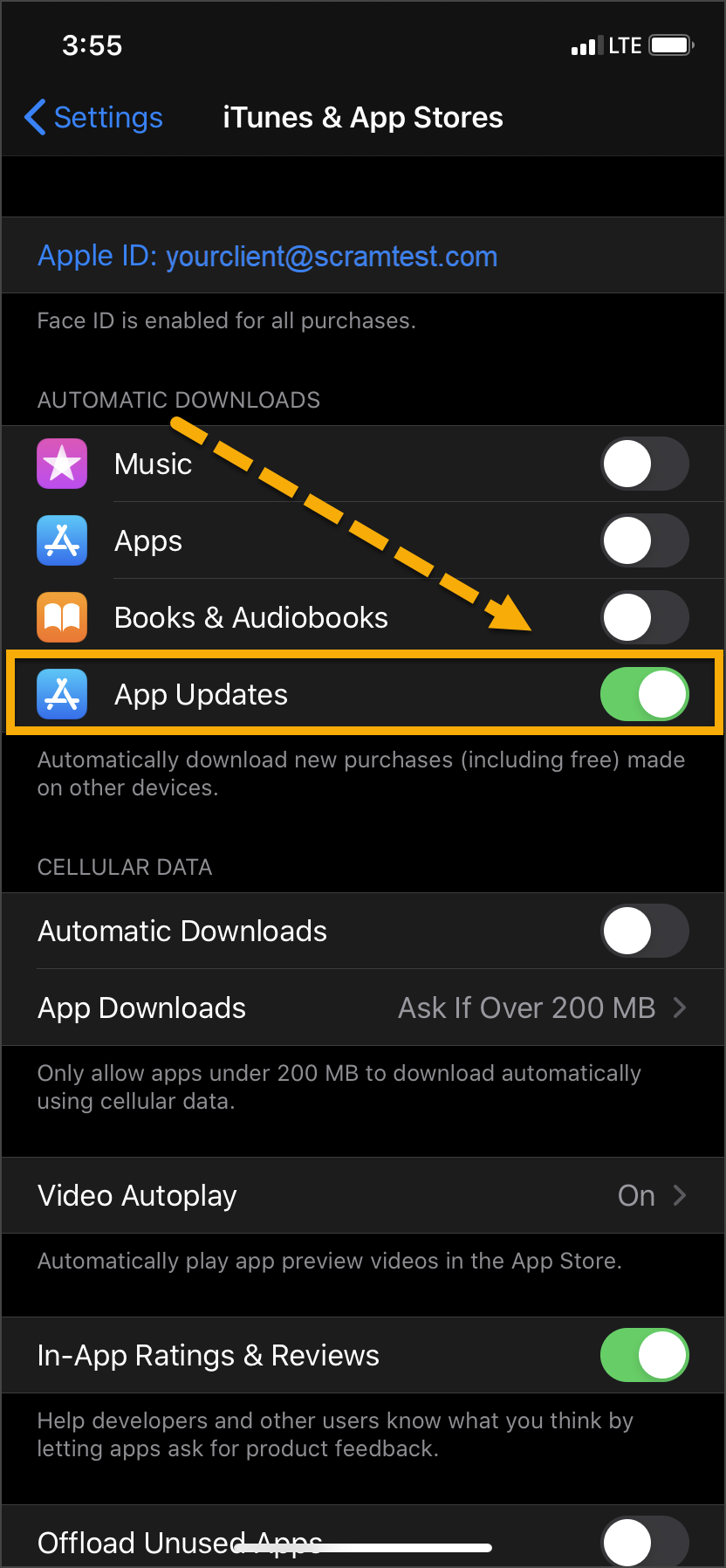
On the client’s smartphone, tap the Settings
icon.
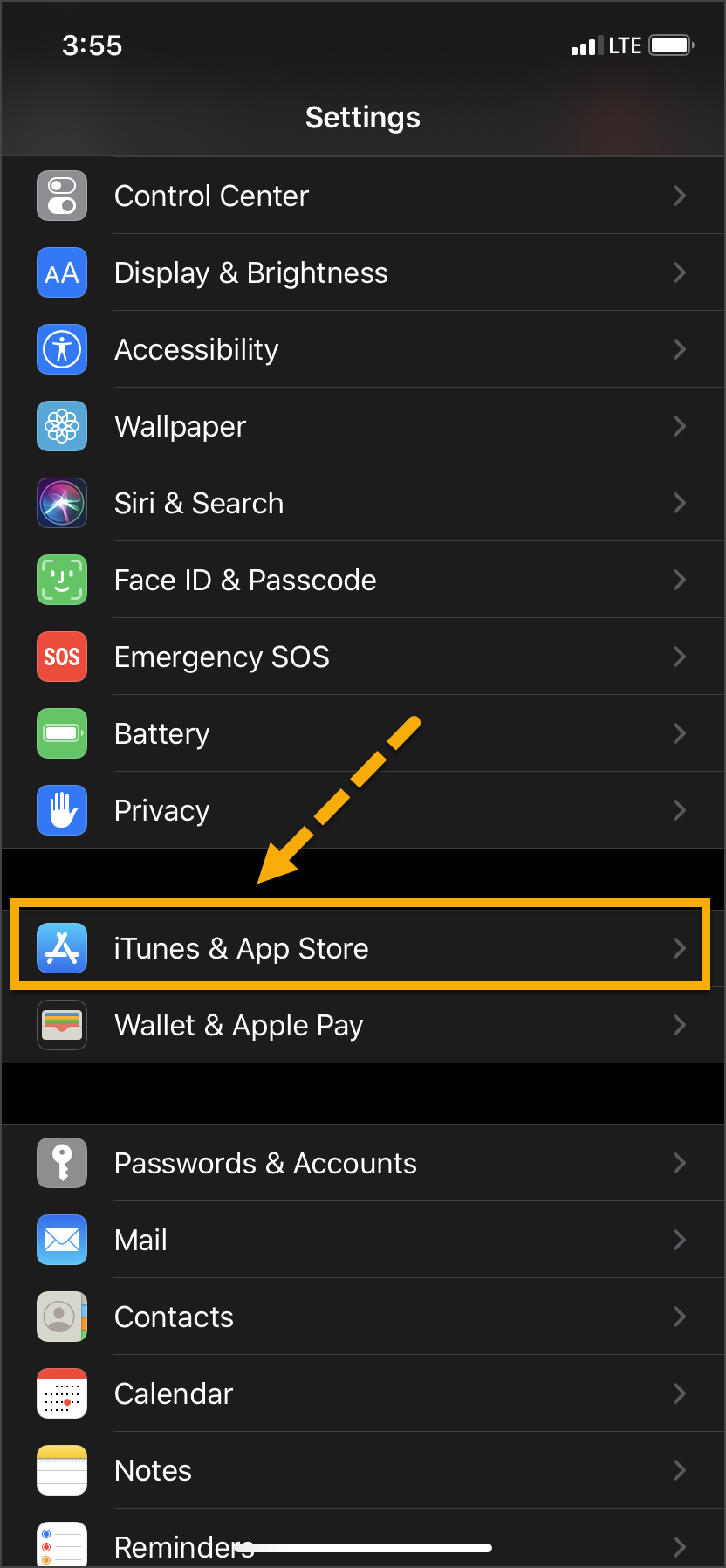
On the Settings screen, tap the iTunes
& App Store option.
Under the Automatic Downloads section,
ensure the App Updates option is enabled.
Click on any image to enlarge it.
Android
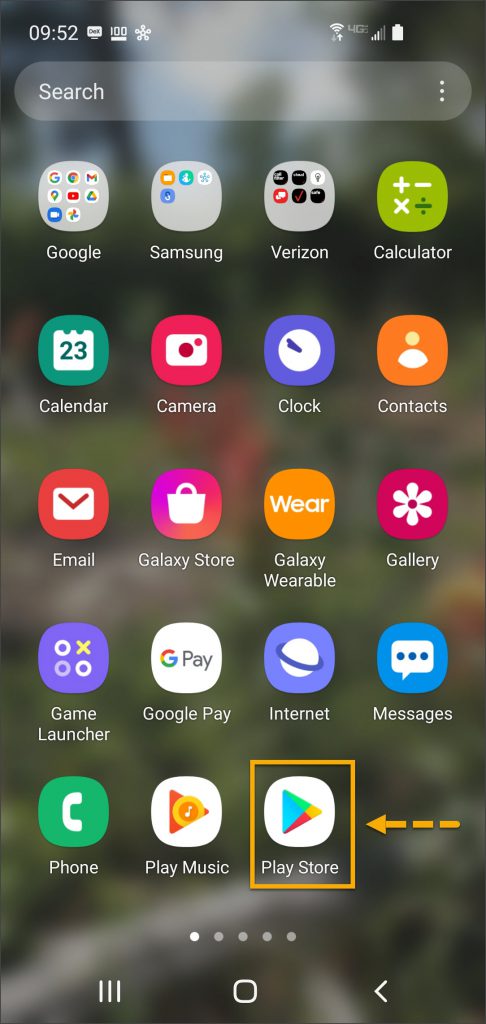
On the client’s smartphone, swipe up on the Home screen.
Tap the Play Store icon.
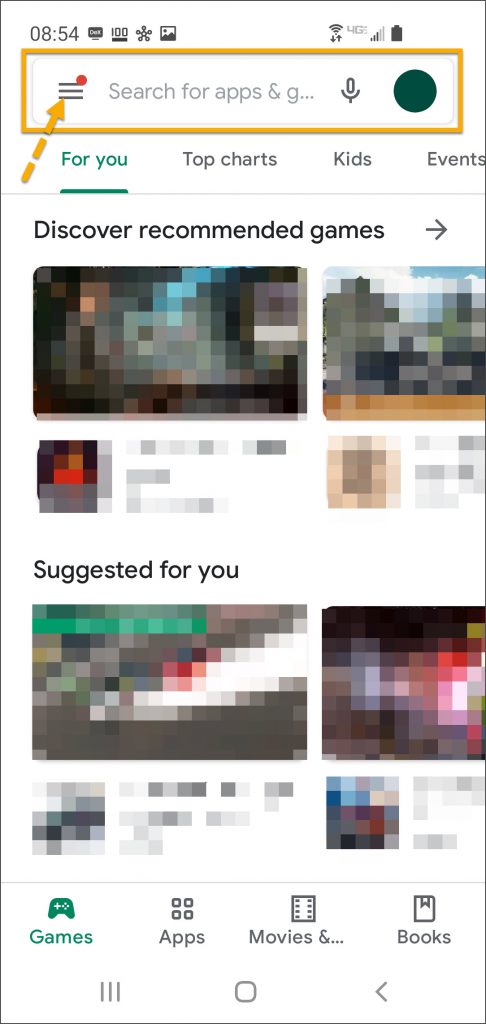
On the Google Play store screen, tap the menu icon in the search field.
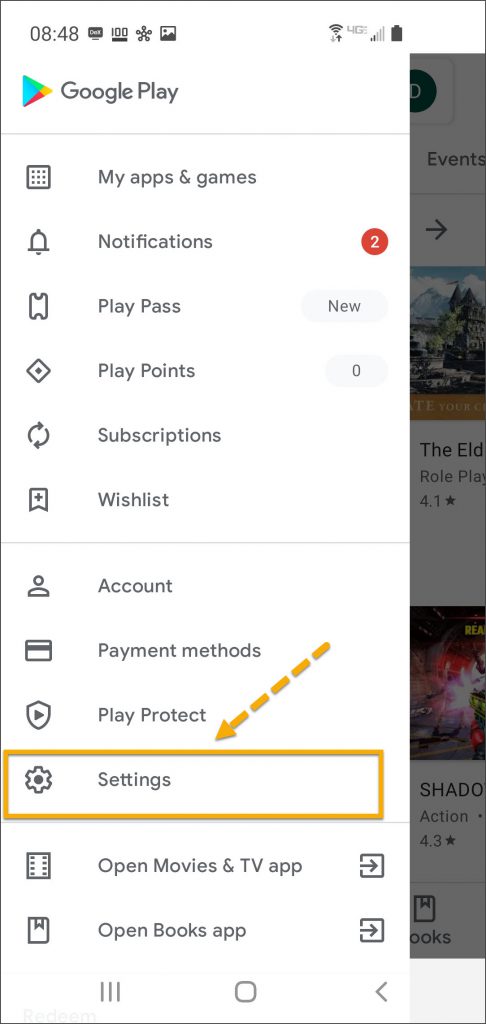
Locate and tap the Settings option.
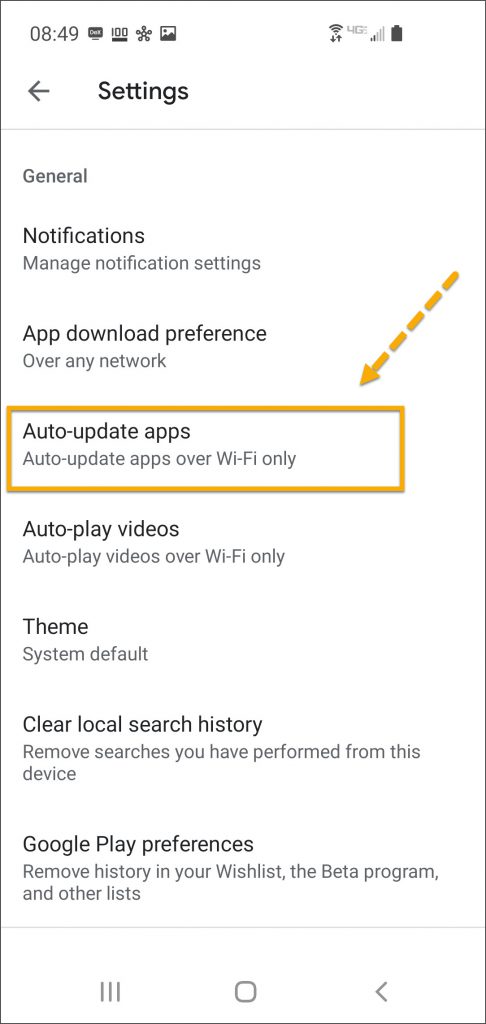
Tap the Auto-update apps option.
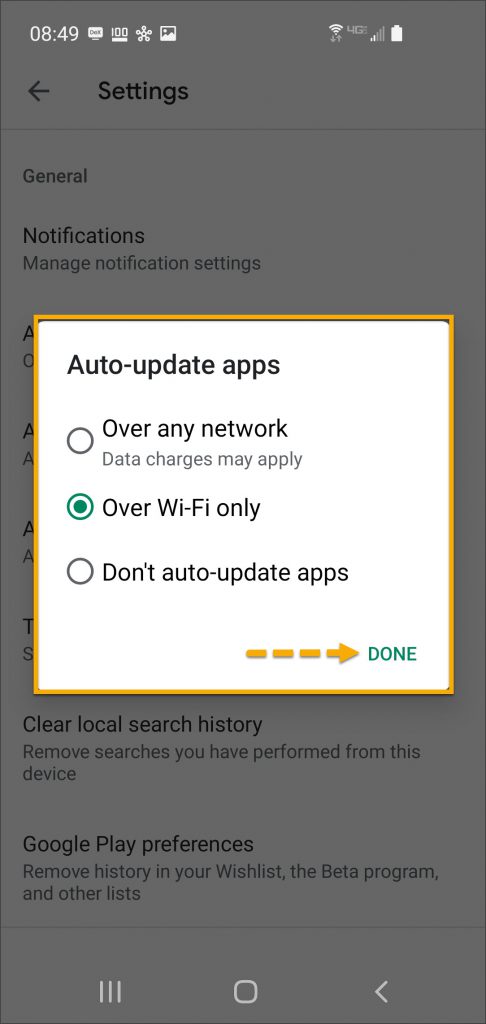
In the Auto-update apps window, select the option of,
Over any network (Data charges may apply)
Over Wi-Fi only
After making the selection, tap Done.
Click on any image to enlarge it.
Manual Application Update
iPhone
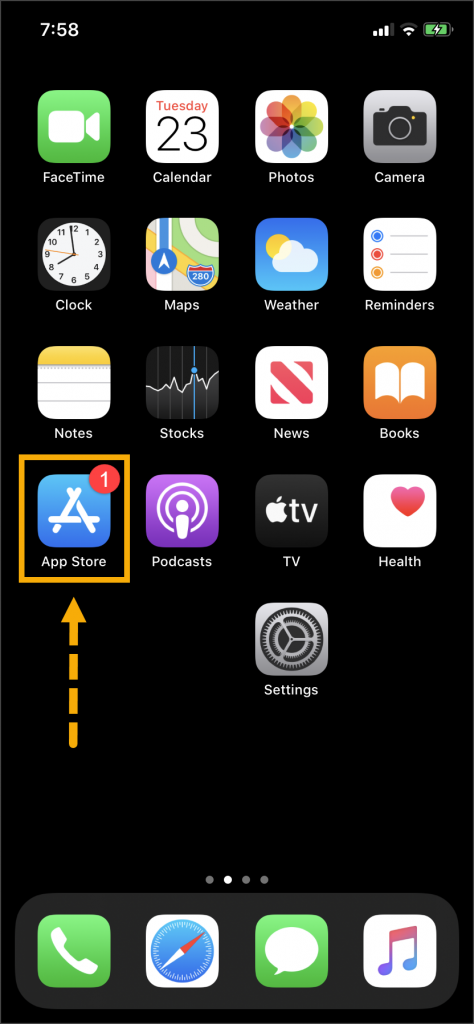
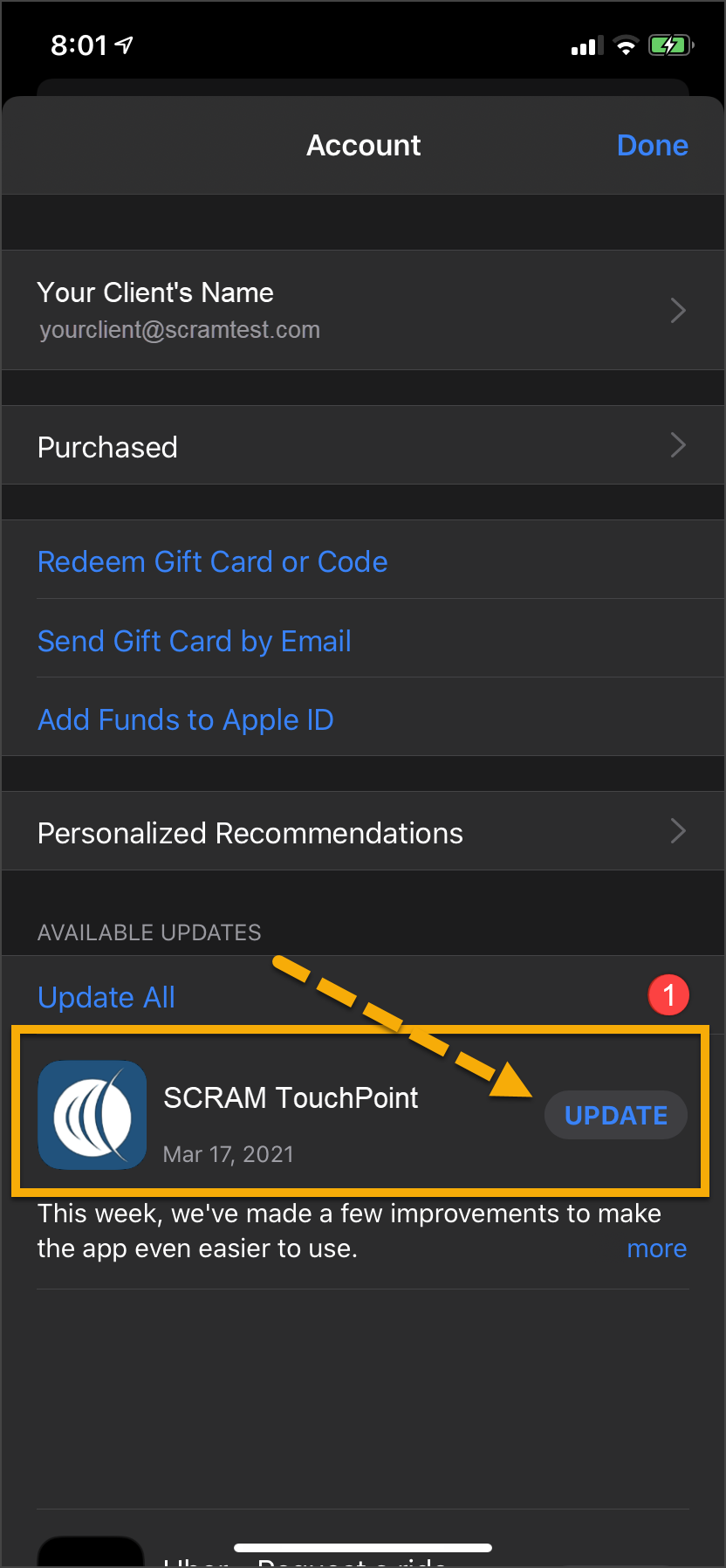
Once an update to the TouchPoint application is available,
the App Store icon will display a red badge.
Instruct the client to:
Tap the App Store icon.
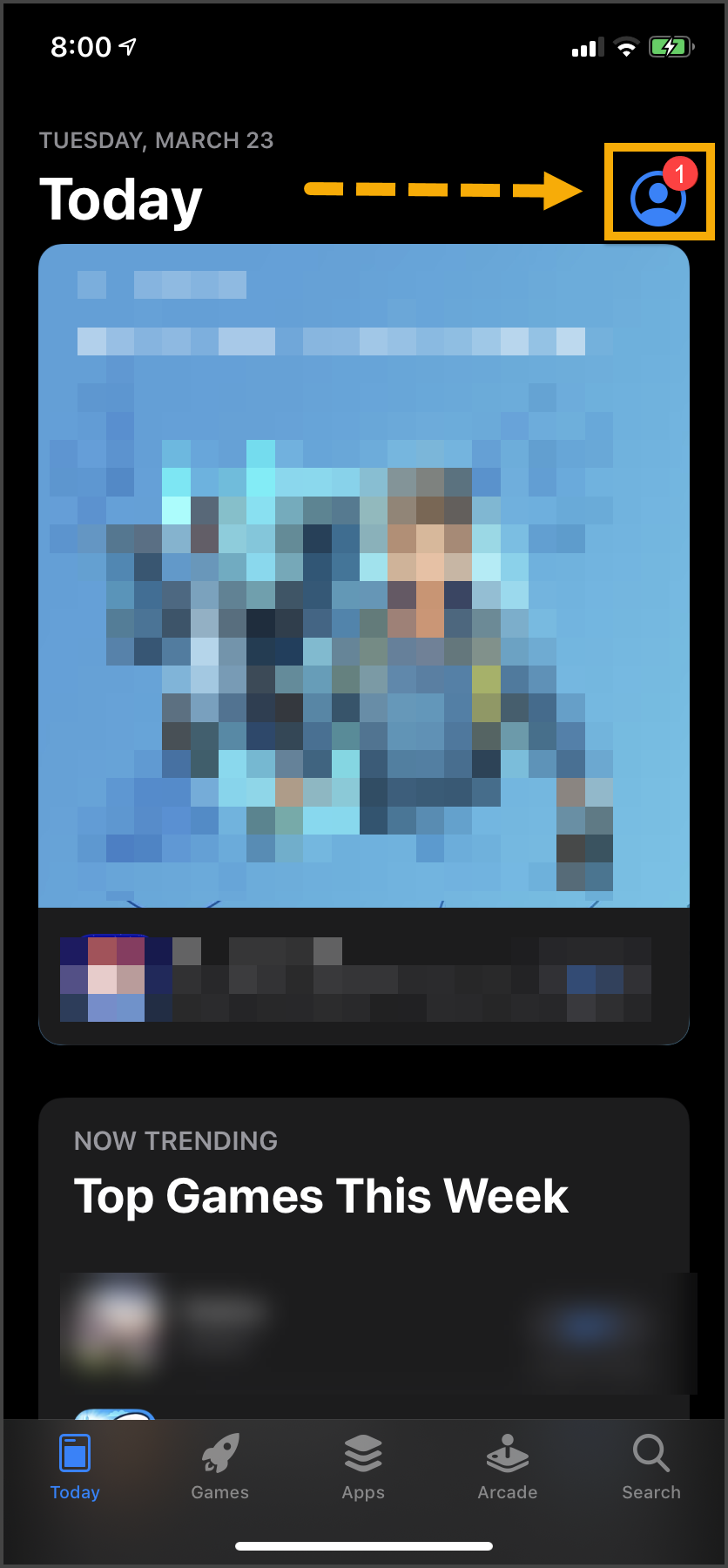
Tap their profile icon.
Under the Available Updates heading,
locate the SCRAM TouchPoint app.
Tap the Update button.
As a best
practice, we recommend you encourage your clients to enable automatic app
updates – this ensures they are always using the latest version of the
TouchPoint app.
Click on any image to enlarge it.
Android
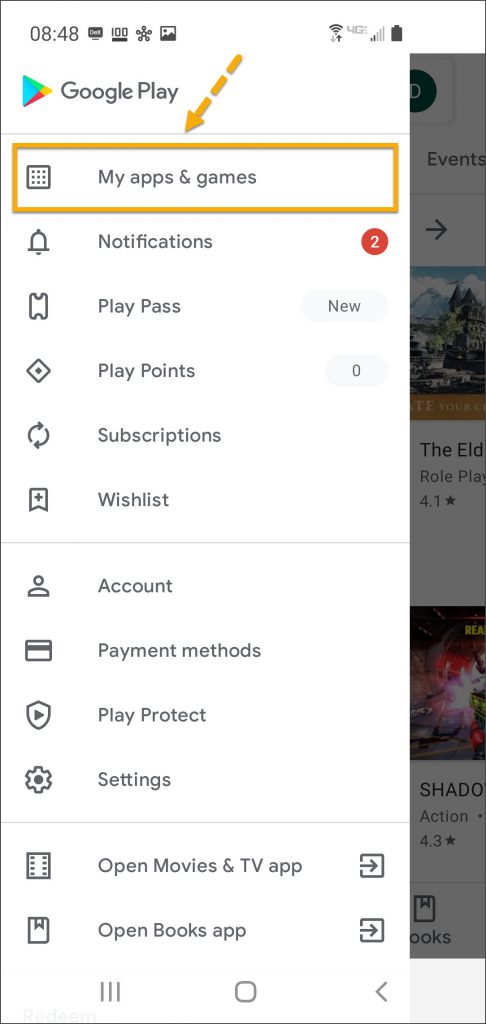
Swipe up on the Home screen and tap the Play Store
icon.
On the Google Play store screen, tap the menu
icon in the search field.
Tap the My apps & games option.
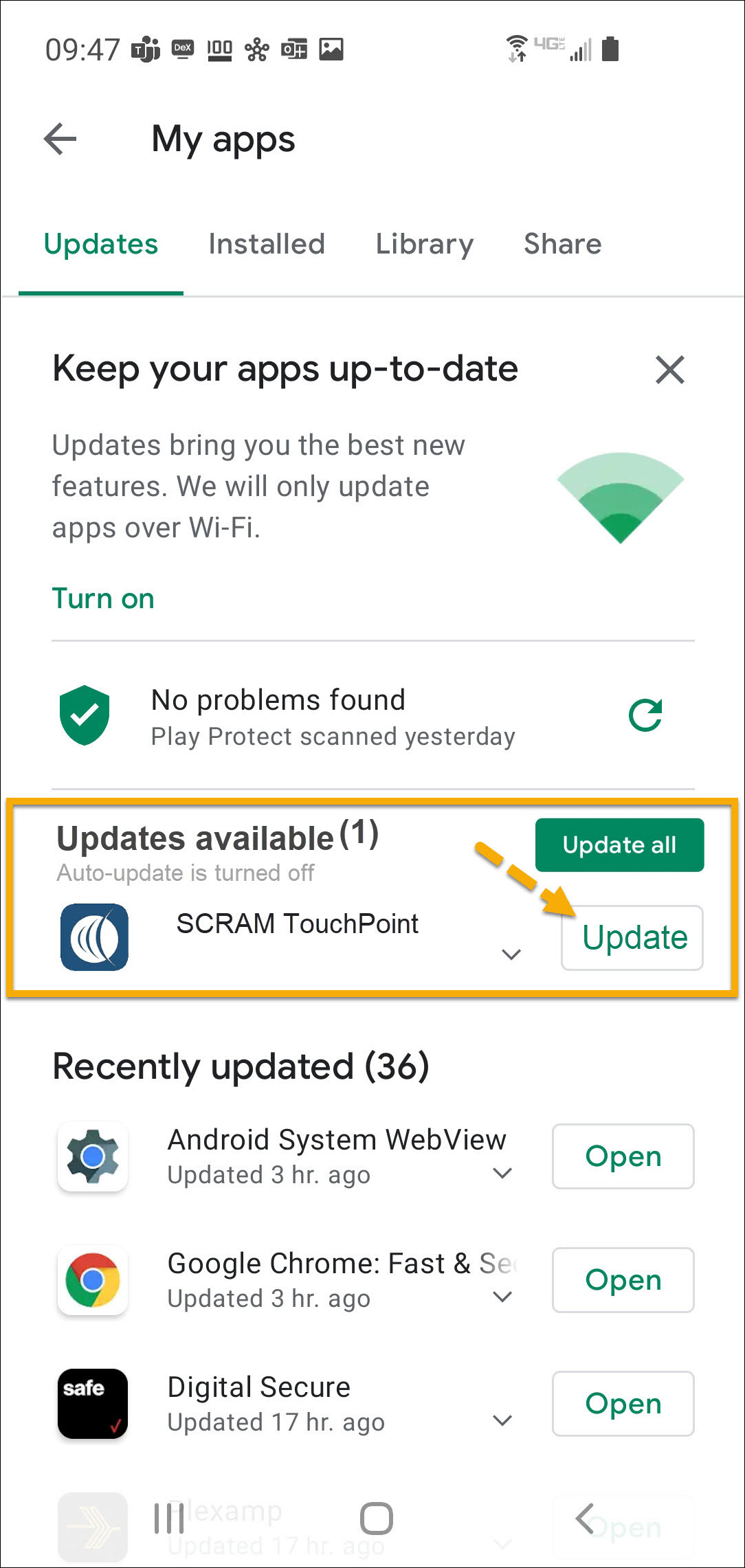
Under the Updates Available section, locate the
SCRAM TouchPoint app and tap the Update button.
As a best
practice, we recommend you encourage your clients to enable automatic app
updates – this ensures they are always using the latest version of the
TouchPoint app.
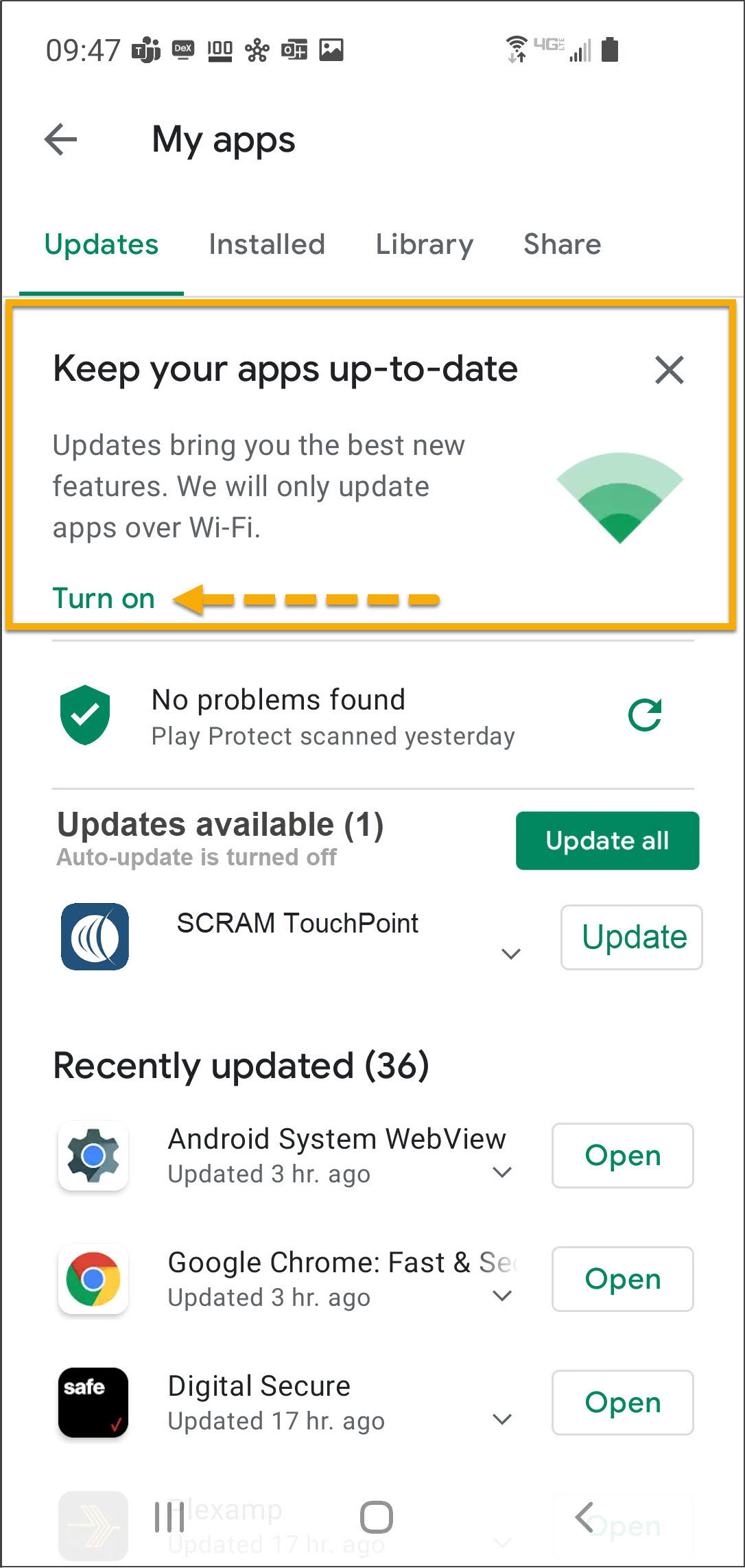
On the My apps screen, tap the Turn on button to
enable automatic app updates.
New process when adding the TouchPoint Check-In activity to a client’s Supervision Plan.
Adding WCAG 2.1 Accessibility Controls to SCRAM Nexus.
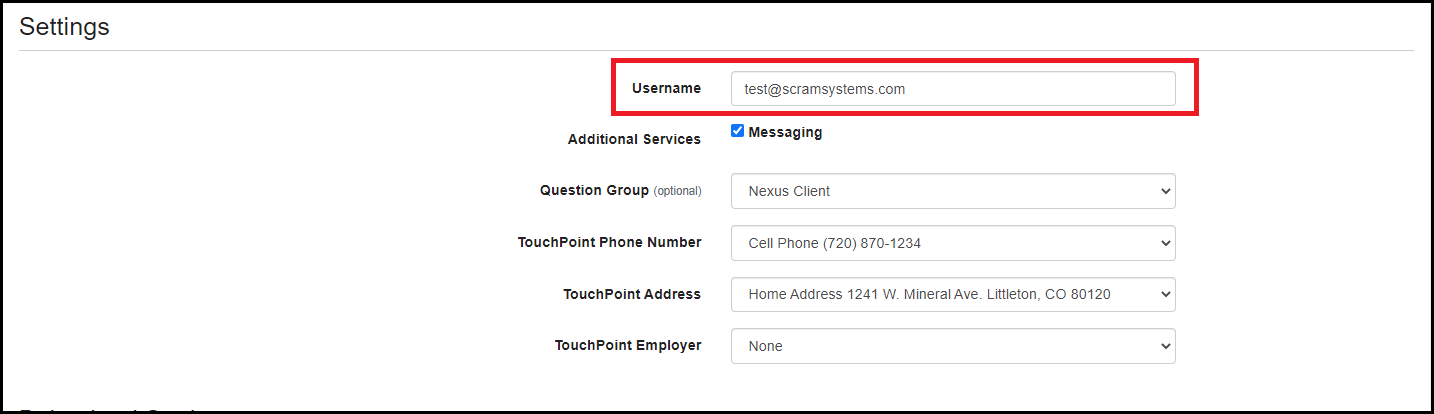
Officer: TouchPoint Username/Email
Nexus will no longer require the officer to enter the TouchPoint username/email while adding TouchPoint Check-In as an activity to the client’s Supervision Plan. This allows the officer to obtain the email information from the client and then enter it in when they are ready to complete the setup and registration of the client in TouchPoint.
Nexus: WCAG 2.1 Accessibility
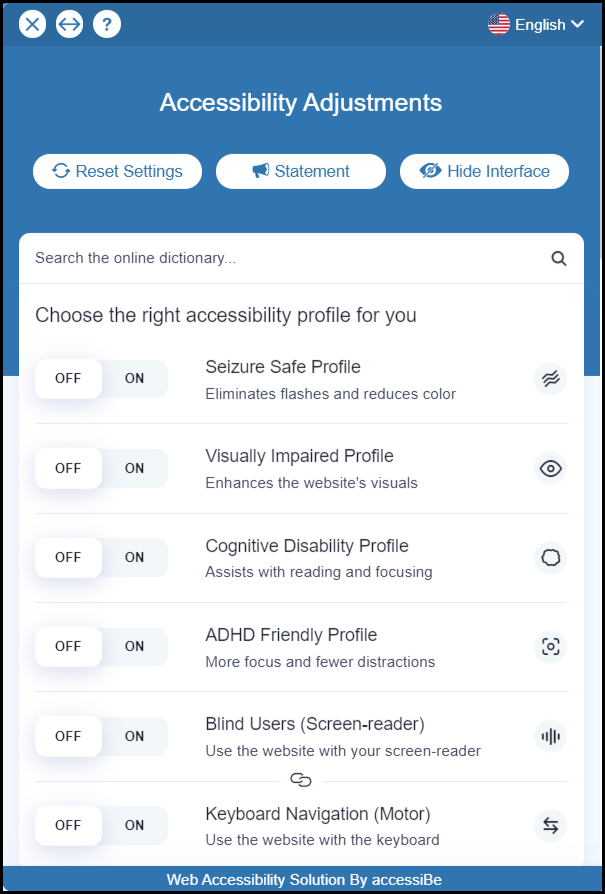
With this enhancement, Nexus now meets the standards of WCAG 2.1 Web Content Accessibility Guidelines by allowing a user to choose their accessibility settings. There will be an icon in the top right navigation for a user to access the accessibility settings for Nexus. A user can choose settings that allow for screen reading, color and display adjustments, navigation adjustments, content adjustments and keyboard navigation.
Feedback:
As always, please contact SCRAM Systems Customer Services with any recommendations for system improvements.
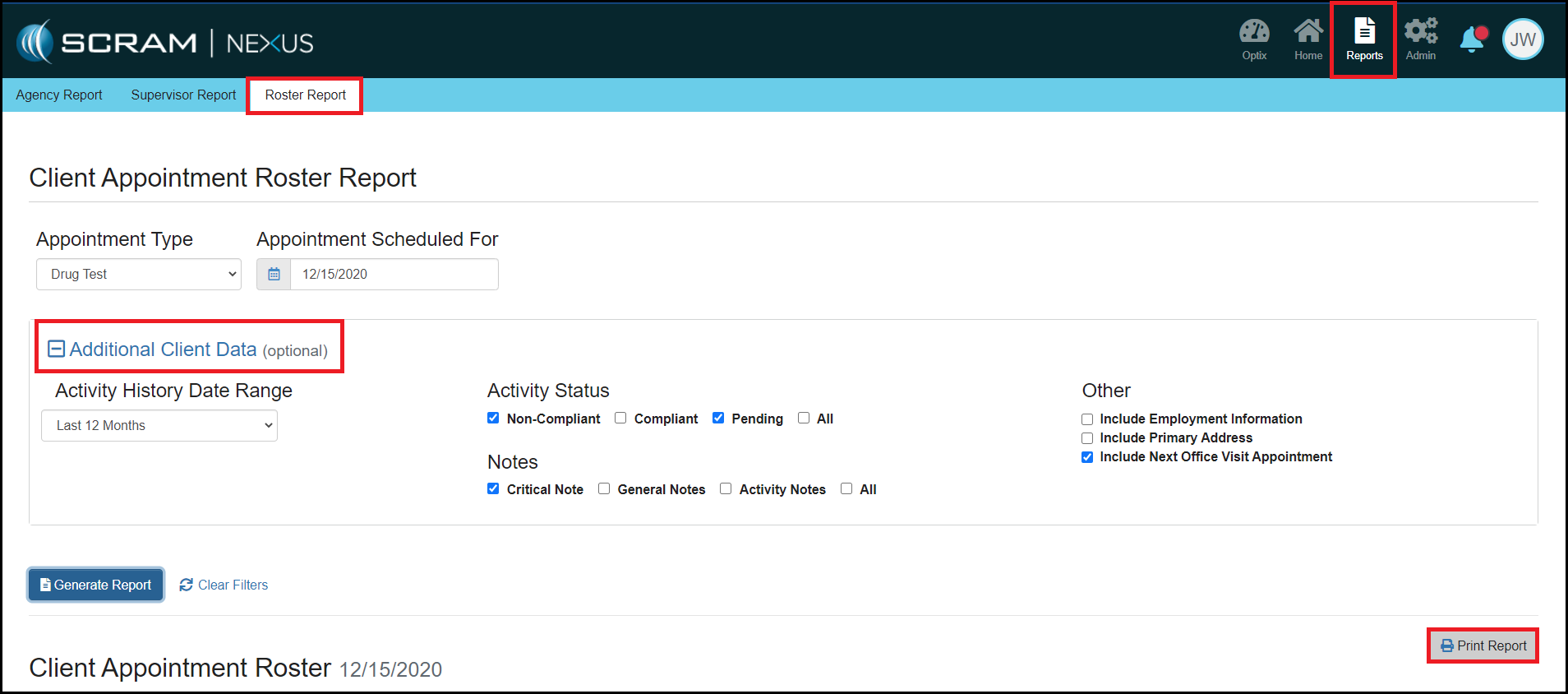
We have made formatting changes to the printable version of the Roster Report. These changes will allow for 30 clients to be displayed on each page if additional data isnot selected for the report. If additional data is selected for the report, each page of the report will be limited to one client.
Officer: Redesign of the Setup Supervision Workflow
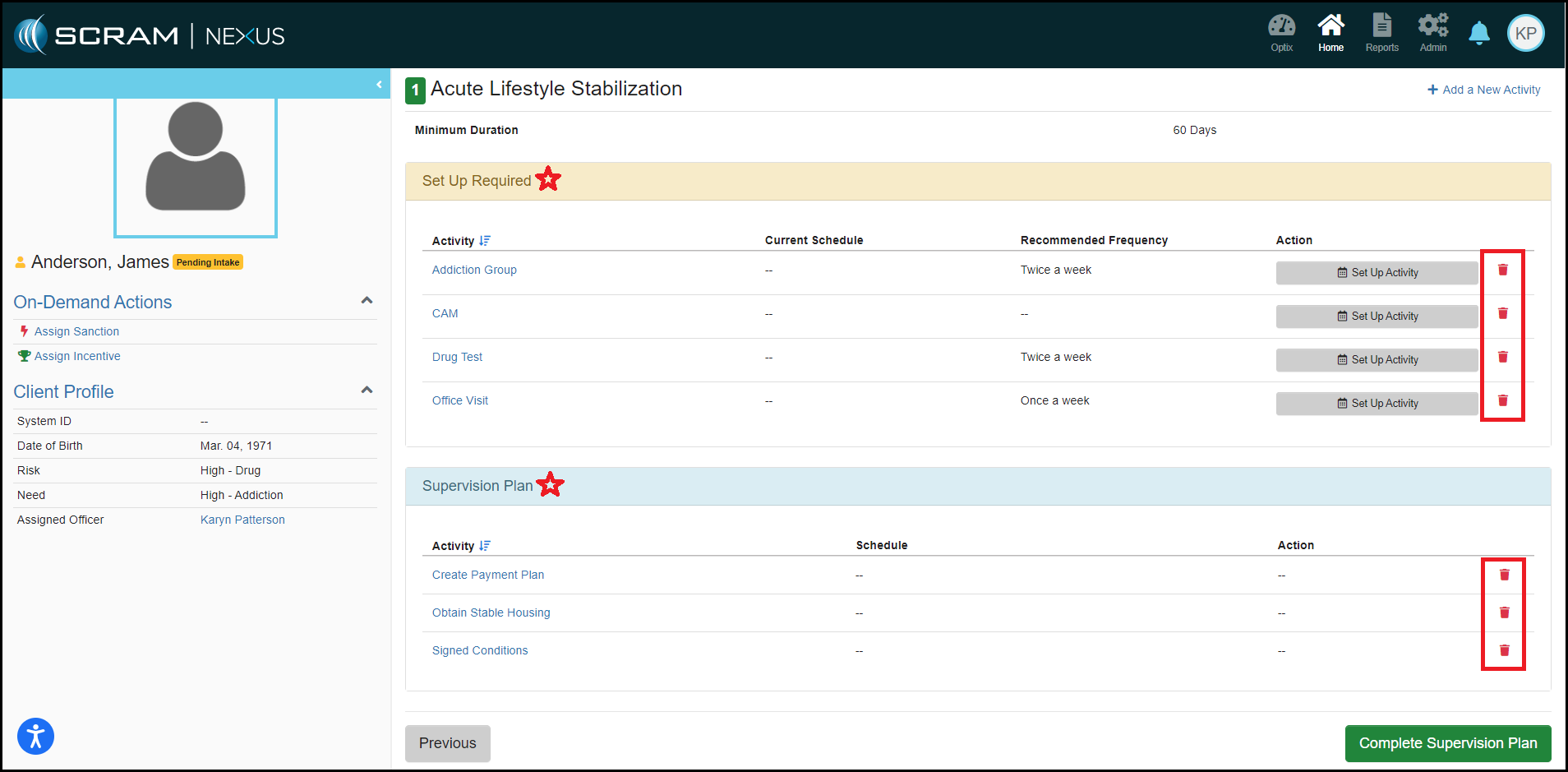
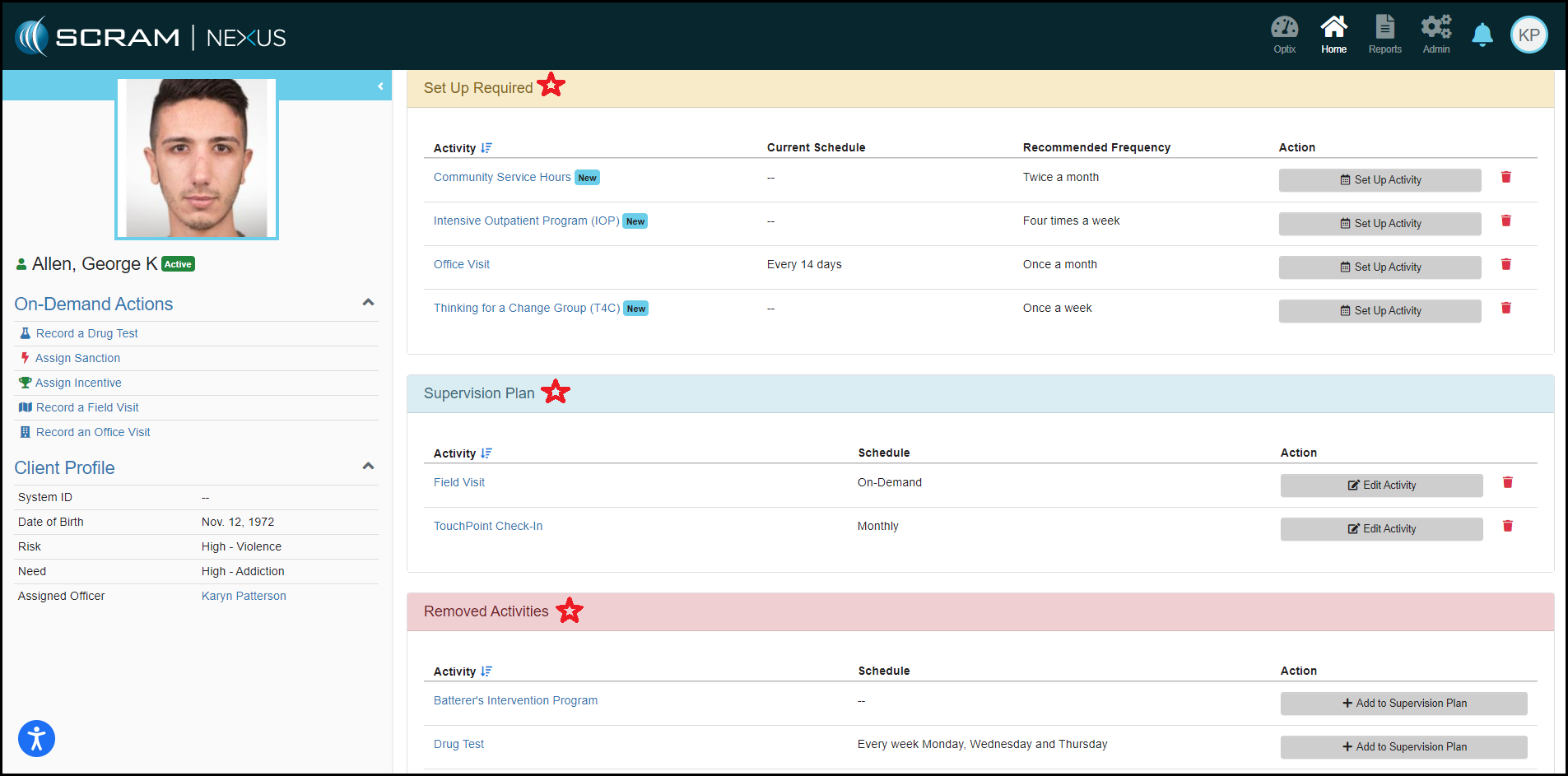
With this enhancement, it is now easier to assign a client to a model. We have made changes that designate which activities need a schedule created, which activities need no action, and an easier process in removing an activity from the supervision plan.
In addition, we have added a new section that will display
which activities will be removed during a phase advancement.
Client: Displaying TouchPoint Notes in Nexus
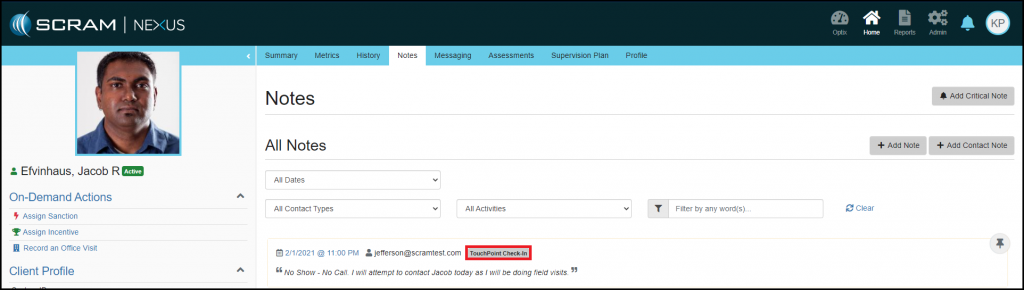
TouchPoint Check-In notes will now be displayed on the Client Notes tab. If more than one note is added to a Check-In Review, all the notes will be consolidated into one note and will show a tag of TouchPoint Check-In.
Feedback:
As always, please contact SCRAM Systems Customer Services with any recommendations for system improvements.