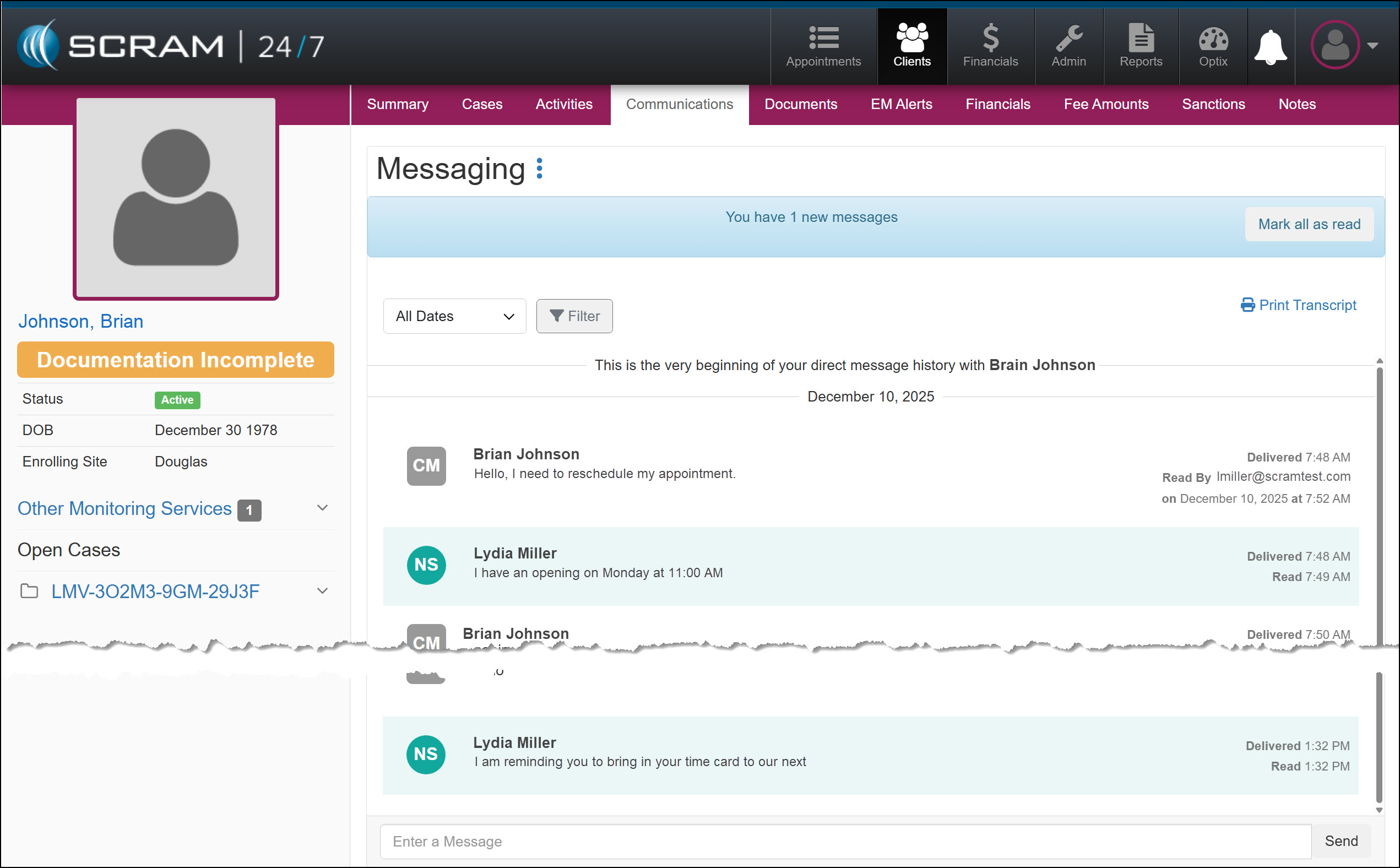
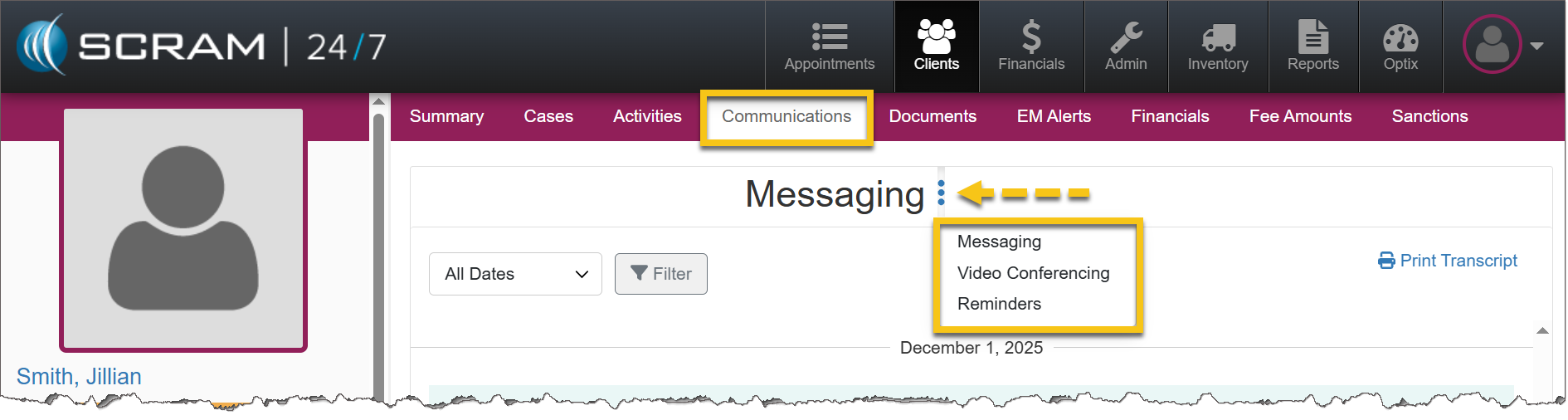
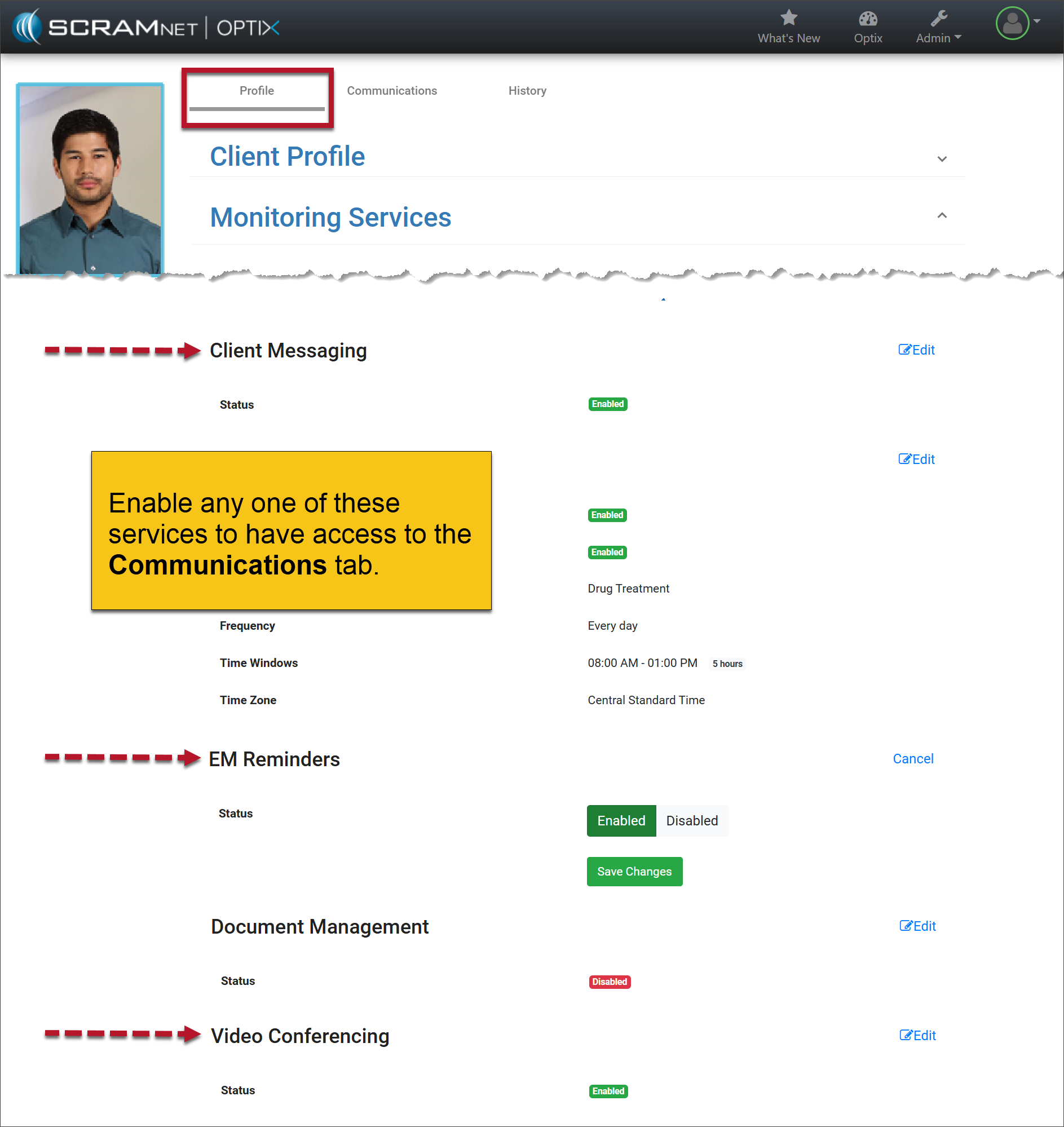
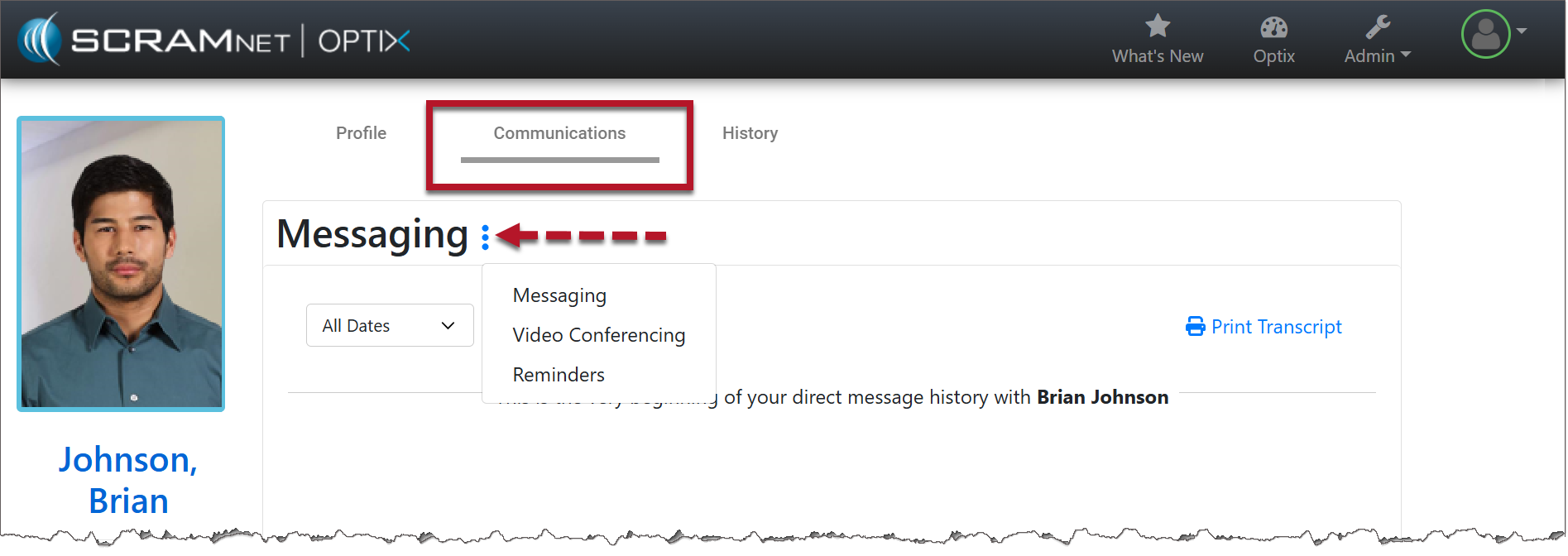
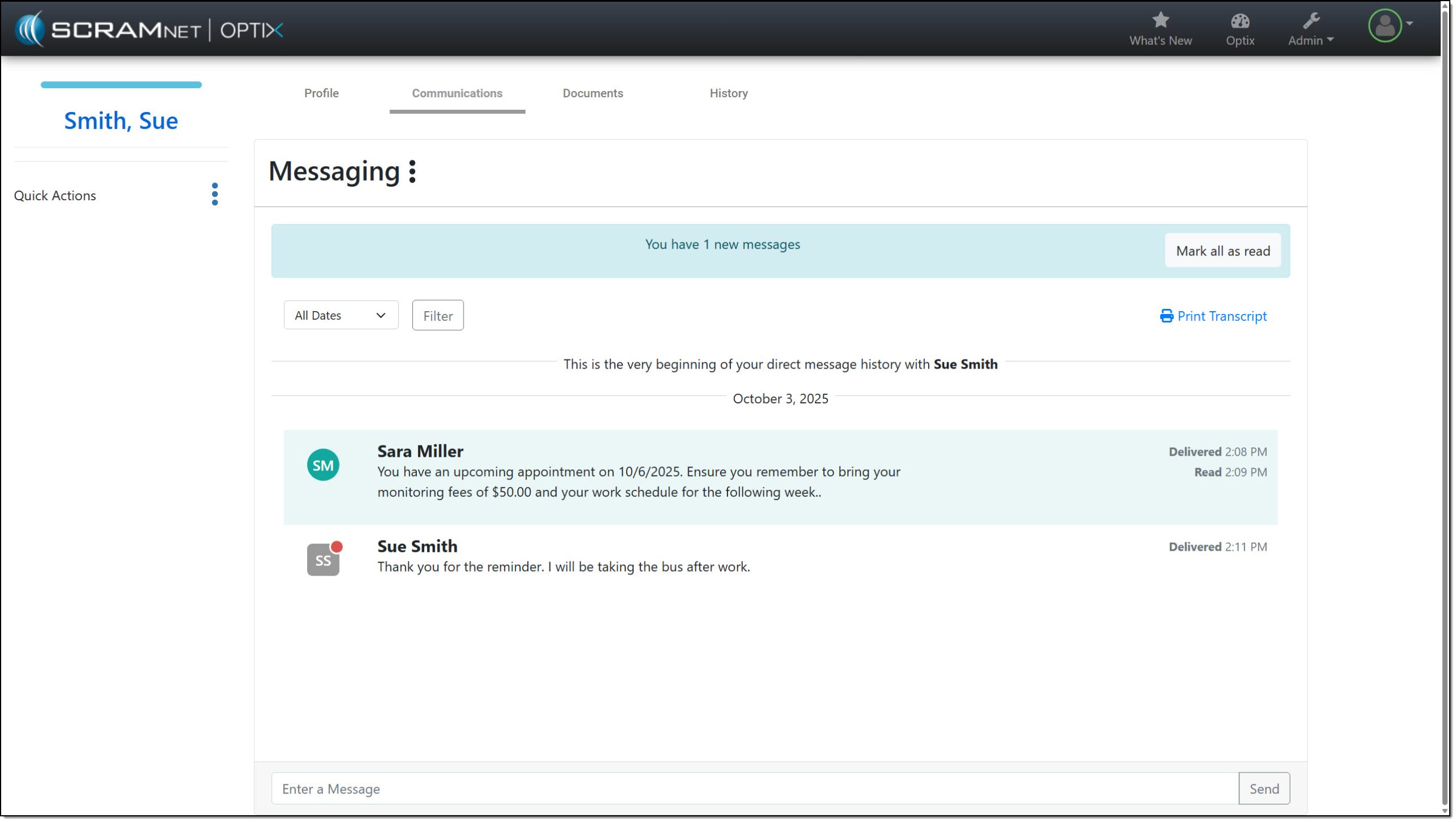
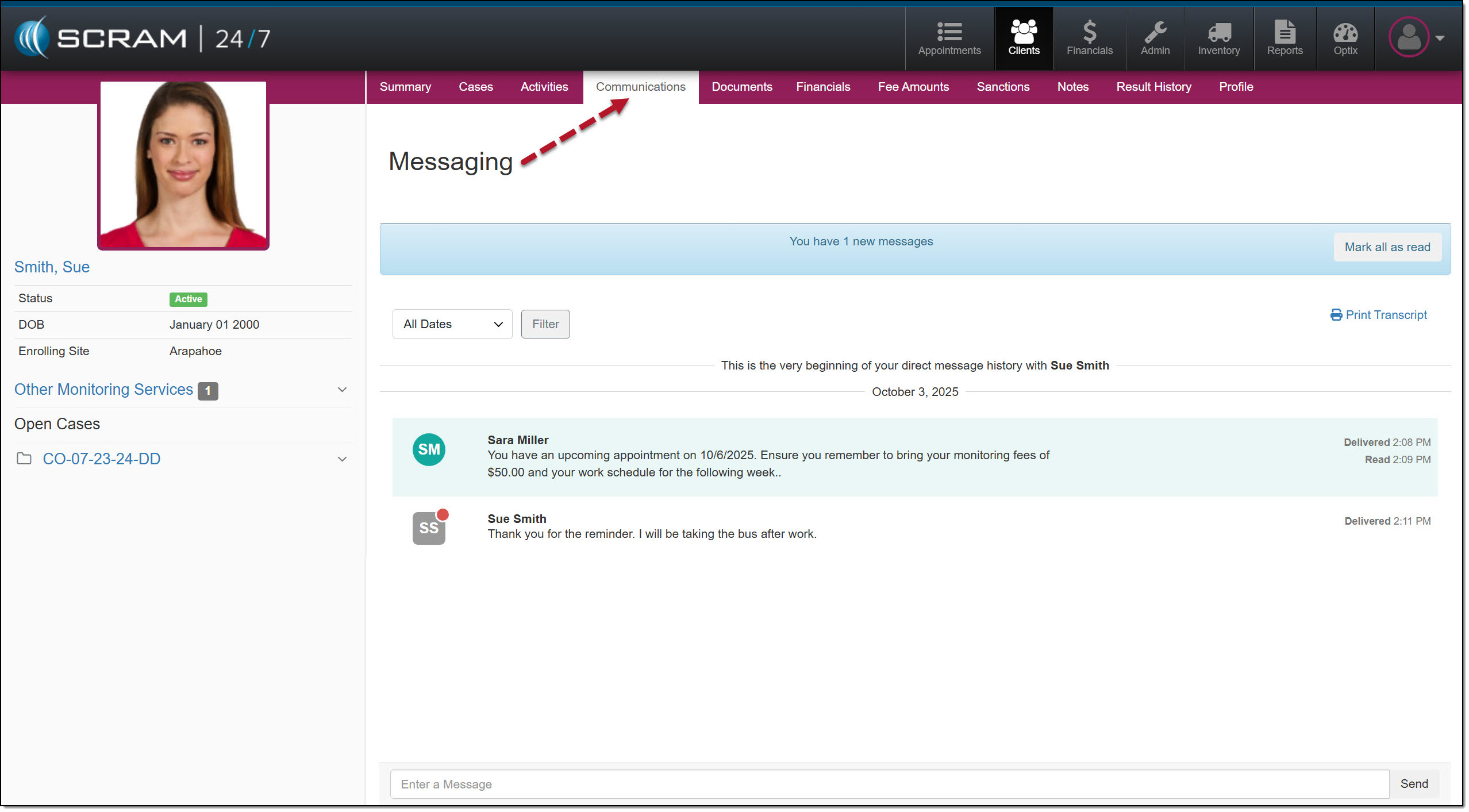
On December 17,th, 2025, SCRAM Systems will release a new Notifications “bell” button in SCRAM 24/7. This Notification dropdown window displays new messages sent from your clients who have a TouchPoint Activity with Messaging enabled. With this feature, you may view, clear, mark messages as read, or respond to your clients’ messages from within SCRAM 24/7. All actions completed within the Notifications dropdown window are reflected on the client’s Communication tab and within their SCRAM Optix TouchPoint profile.
Notifications in SCRAM 24/7
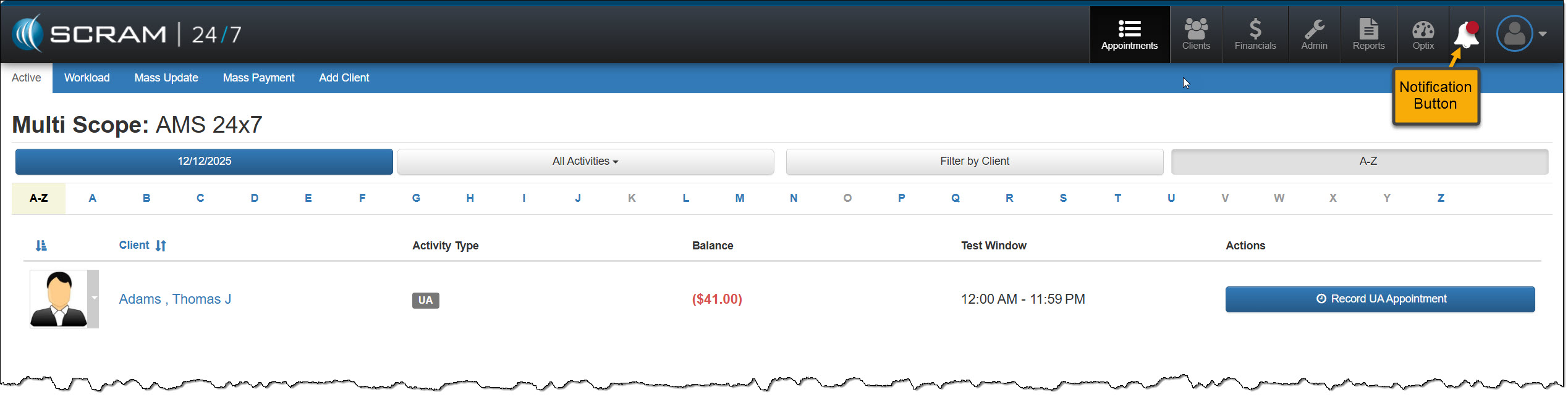
When your client sends a new message via their SCRAM TouchPoint mobile app, the Notifications button in SCRAM 24/7 will display a red badge. To view the message, select the button.
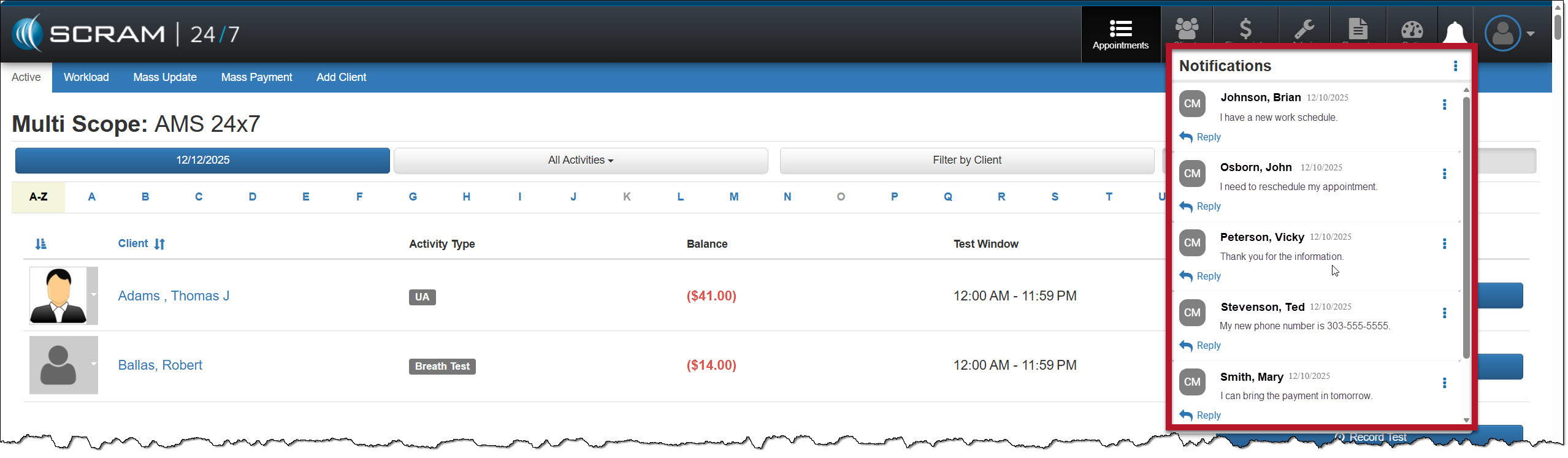
On the Notifications dropdown window, the client’s name, date, and message are displayed.
Managing the Notifications Window
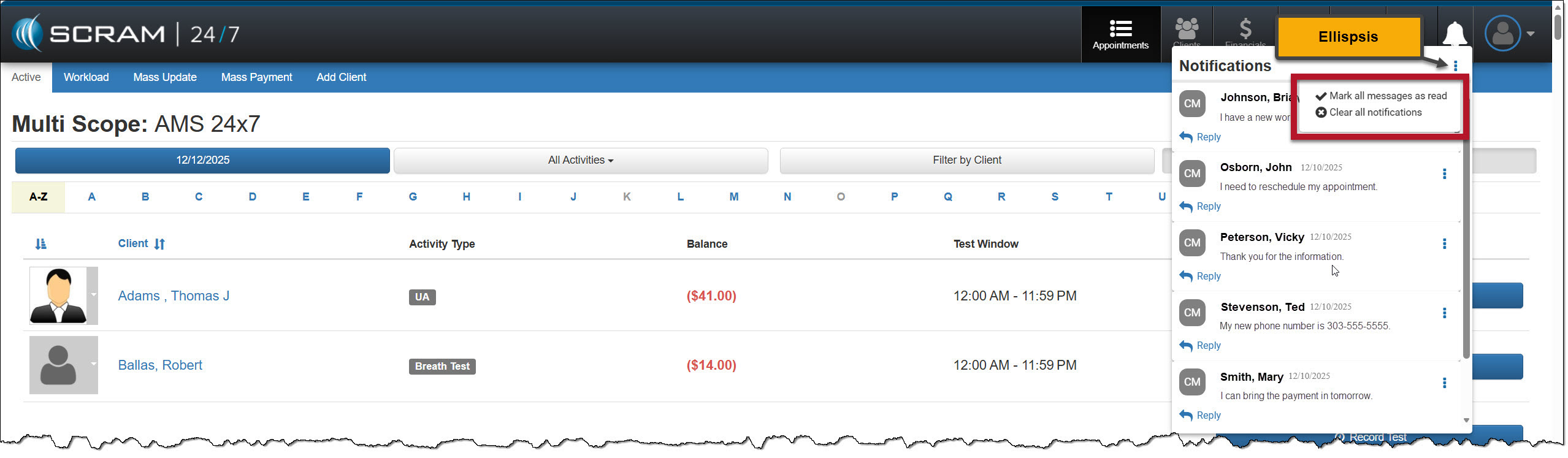
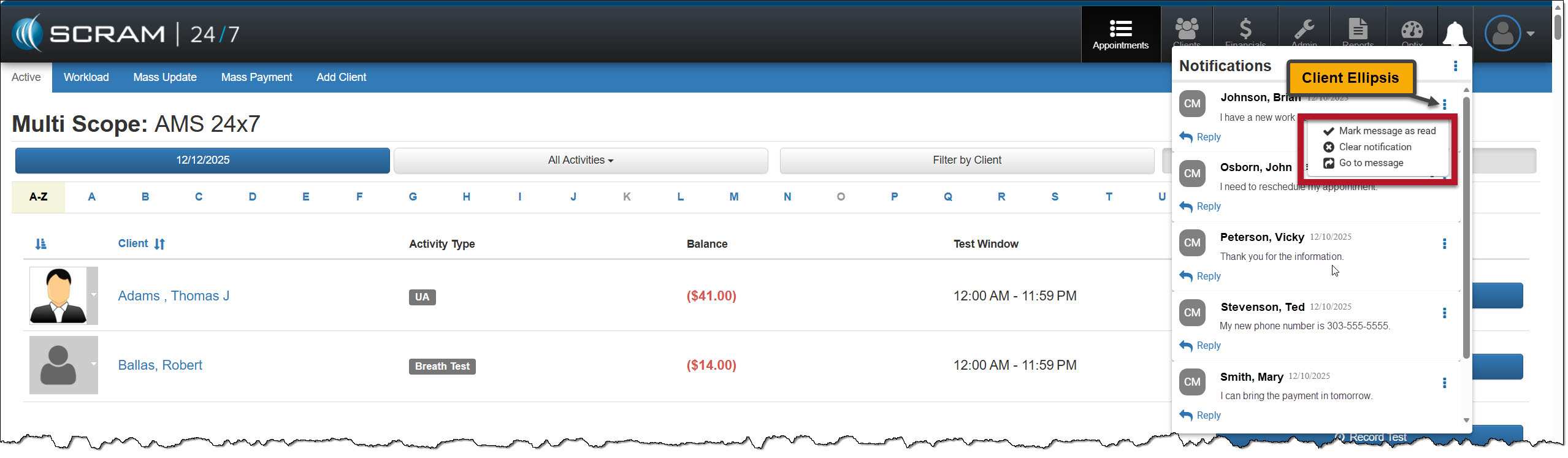
Selecting the ellipsis next to the Notifications heading at the top of the dropdown window, or next to the client’s name, will display a menu with following options:
- Mark all messages as read, or mark a message as read: When selected, the message will be removed from the Notifications window. On the client’s Communication Messaging page in SCRAM 24/7 and their Optix TouchPoint Messaging page, the message will display as Read for the client.
- Clear all Notifications or Clear Notification: When selected, this option clears all messages from the Notifications window in SCRAM 24/7. This does not mark the message as Read on the client’s Communication Messaging page in SCRAM 24/7 and their Optix TouchPoint Messaging page; it simply clears the message from the Notifications window.
- Go to Message: This option will open a new tab that displays the client’s Optix TouchPoint Messaging page. This action will clear the message from the Notifications window.
Option One
Mark all messages as read or clear all notifications by selection the ellipsis to the right of the Notifications heading.
Option Two
Manage each message individually by selecting the ellipsis next to the message.
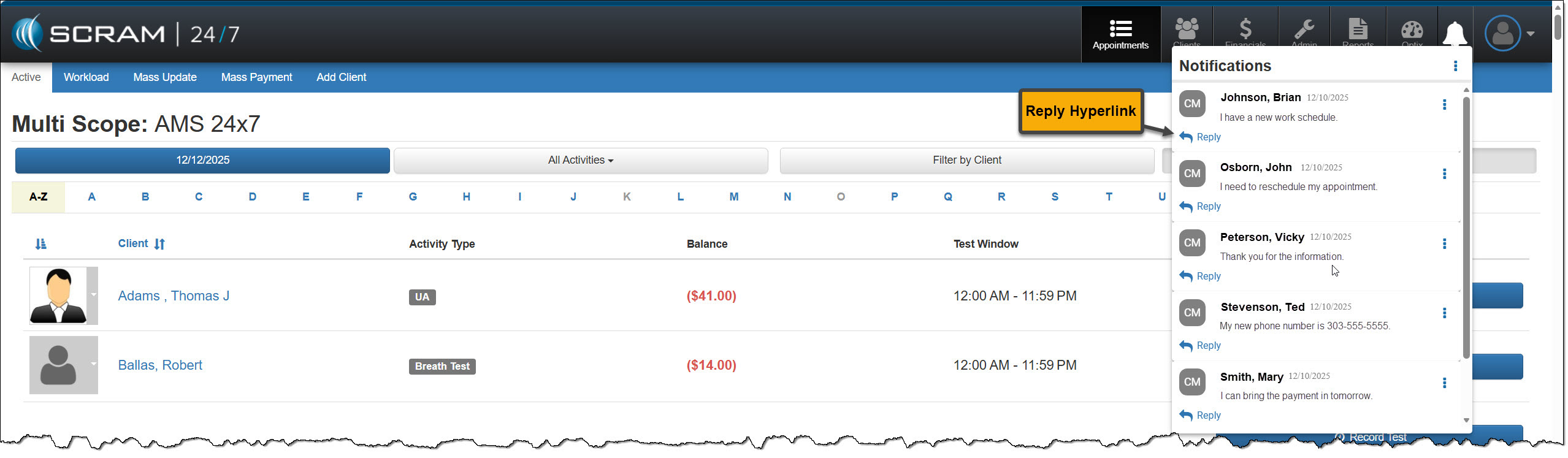
Reply
Click the Reply hyperlink to respond to the client’s message. After entering a response, select the Send button.
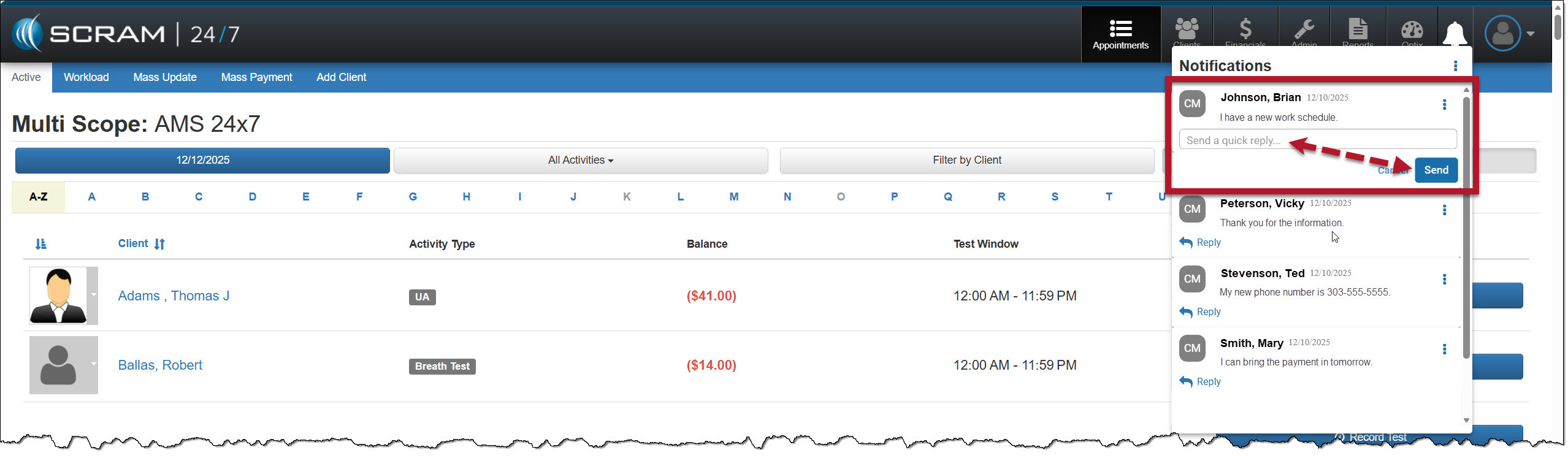
The message will no longer be displayed in the Notifications window.
On the client’s Communications / Messaging page, the message will be marked as Read, and the user’s response will be displayed.