On April 1, 2021, SCRAM Systems® will simplify your SCRAM TouchPoint™ client’s first experience when logging
into the SCRAM TouchPoint Mobile app. Moving forward, all your new TouchPoint
clients will use the same temporary password. The temporary password of Touchpoint1!
is visible on their TouchPoint client profile page in SCRAMNET OPTIX™.
Moving forward, your client will use their email address
and the temporary password of Touchpoint1! to log into their app for the first
time. Once your client has successfully logged into the app for the first time,
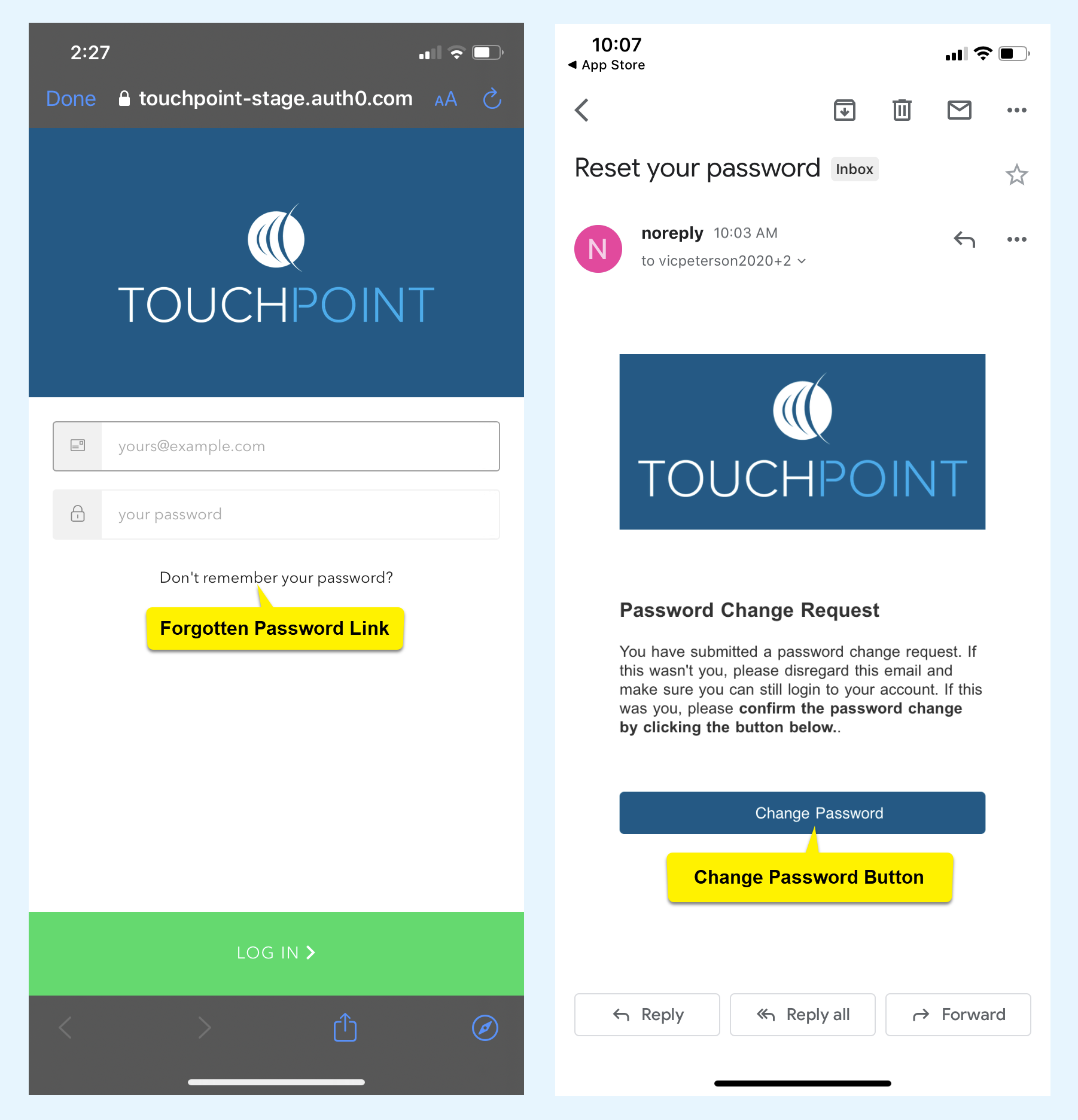
SCRAM Systems recommends your client access the forgotten password link on the app’s
Log In screen and follow the instructions to create a secure password to use
moving forward.
click to enlarge
Feedback
Please contact SCRAM Systems Customer Service with any recommendations for system improvements.
SCRAM Systems® provides enhancements and updates to the SCRAM TouchPoint™ Mobile application on a continual basis. These updates improve the functionality and usability of the application for your client. Once an update is available in the Apple App store and the Google Play store, the next step is to have the client update the application on their smartphone.
An app update can be completed in two ways.
Automatic application updates (Recommended)
Manual application updates
As a best
practice, we recommend you encourage your clients to enable automatic app
updates – this ensures they are always using the latest version of the
TouchPoint app.
Setup Automatic Application Updates
iPhone
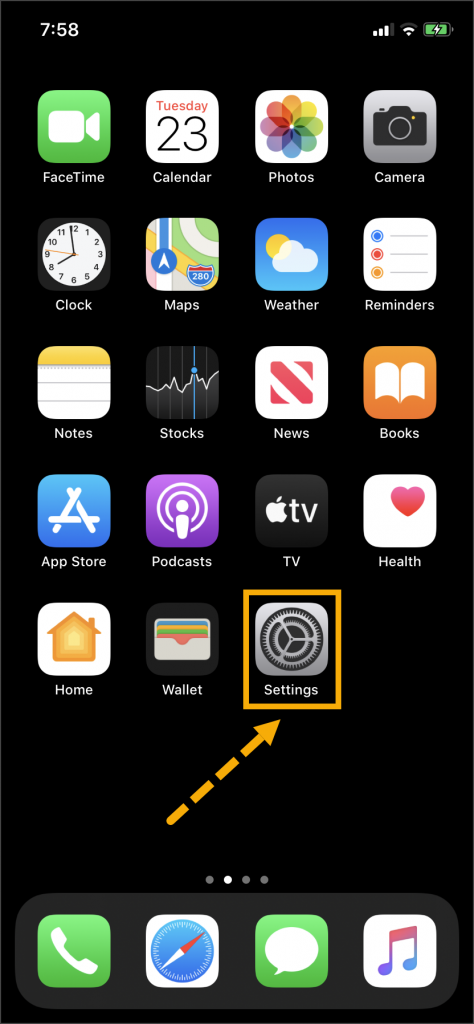
On the client’s smartphone, tap the Settings
icon.
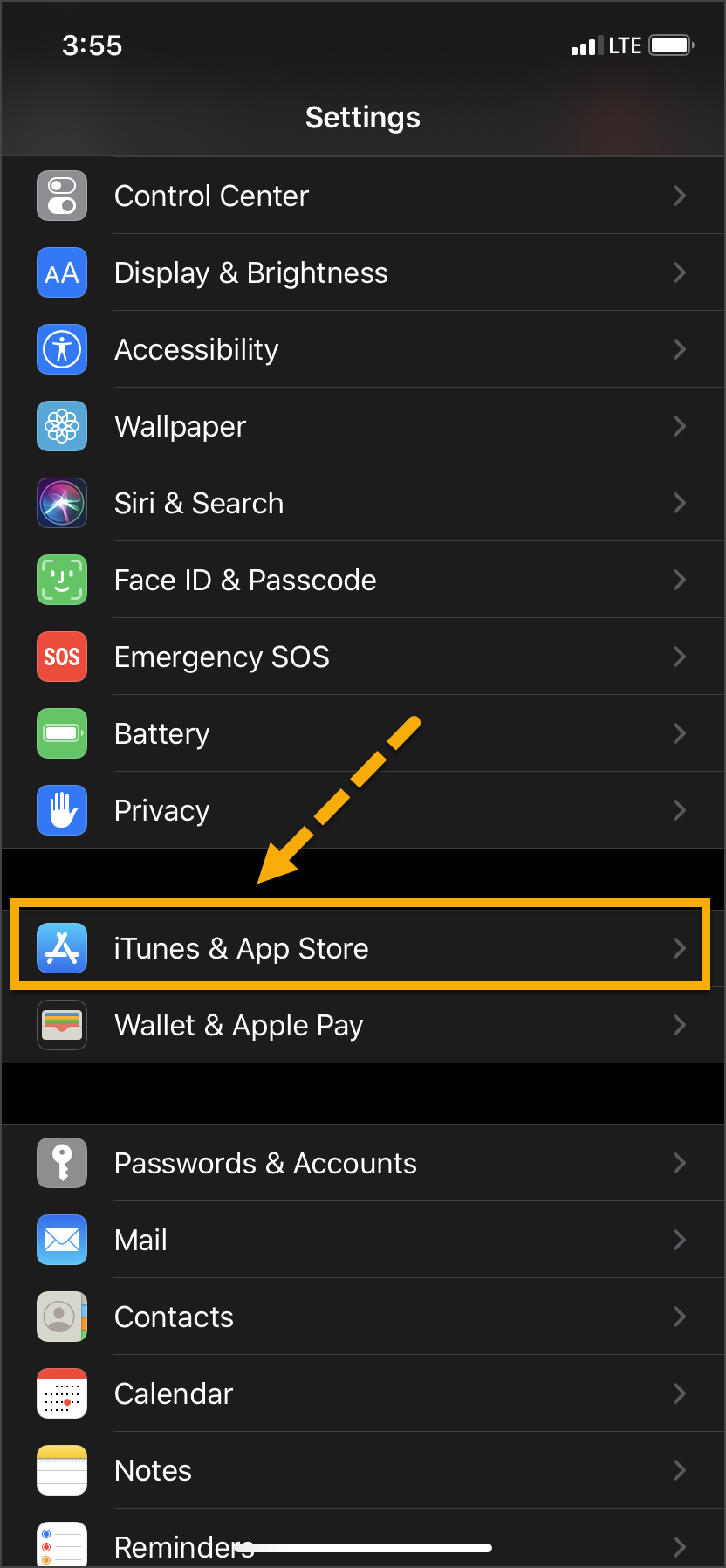
On the Settings screen, tap the iTunes
& App Store option.
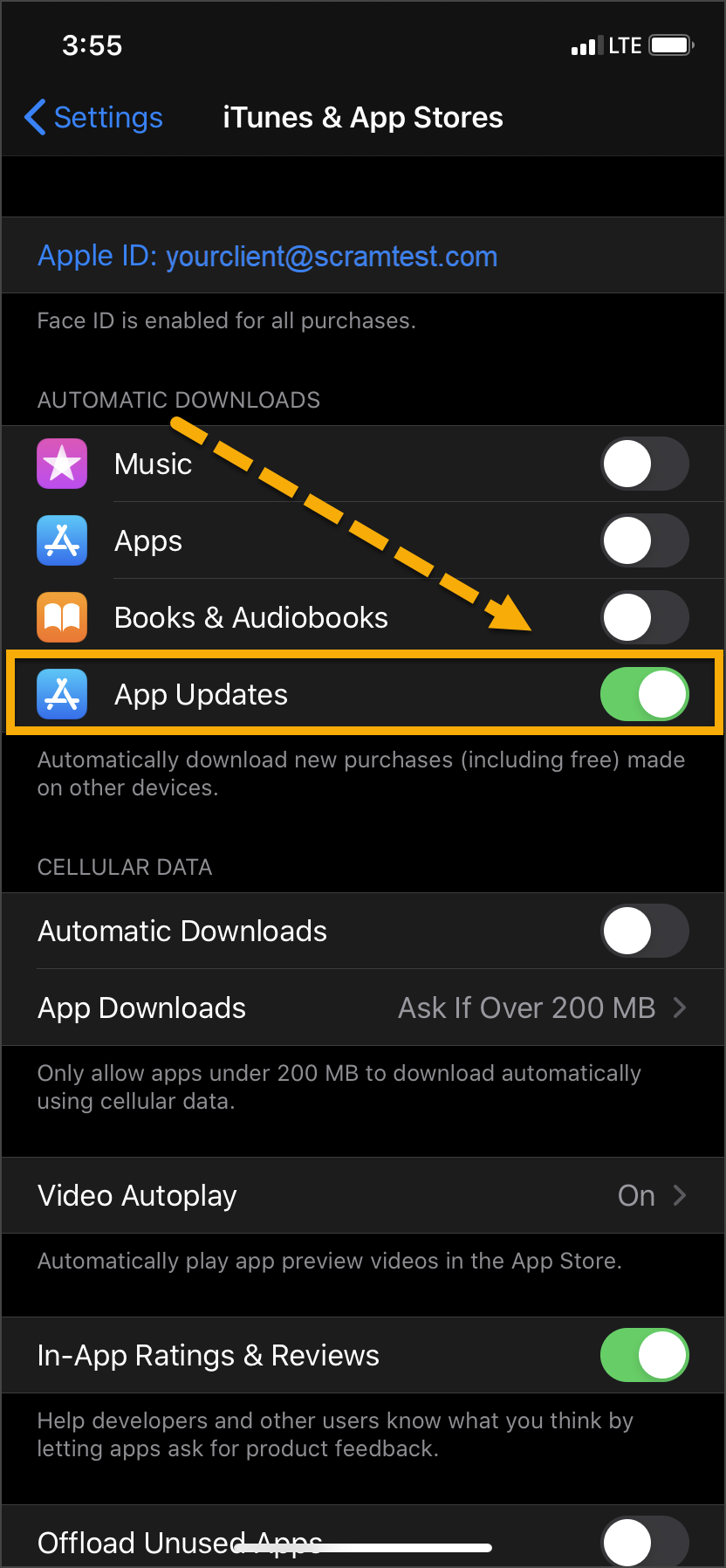
Under the Automatic Downloads section,
ensure the App Updates option is enabled.
Click on any image to enlarge it.
Android
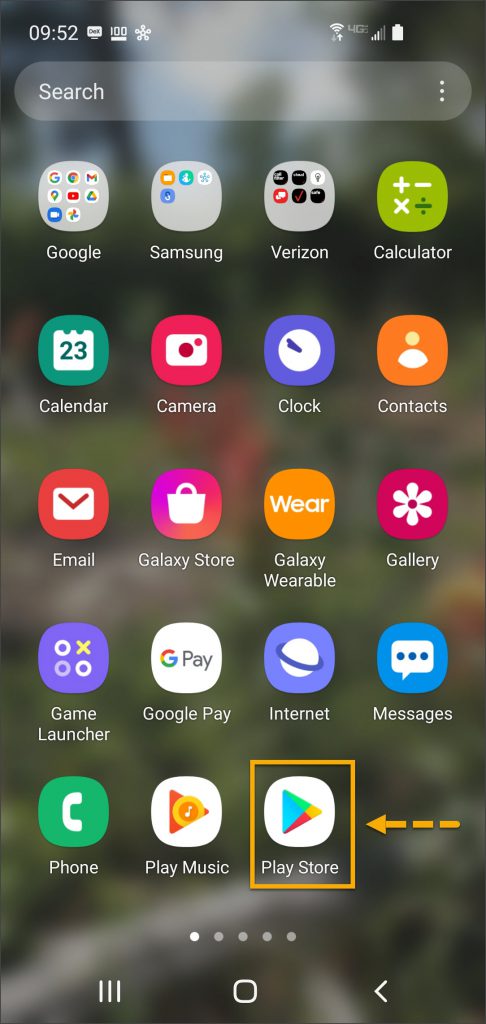
On the client’s smartphone, swipe up on the Home screen.
Tap the Play Store icon.
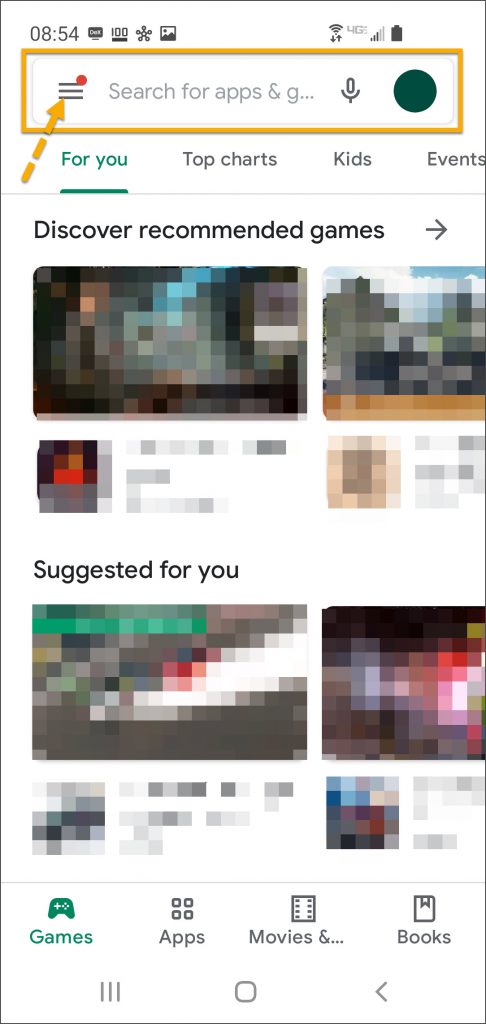
On the Google Play store screen, tap the menu icon in the search field.
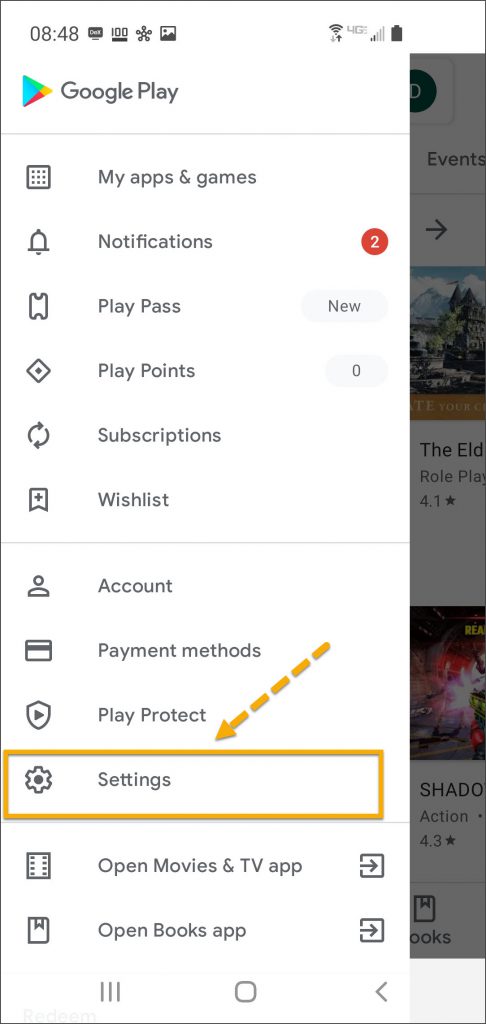
Locate and tap the Settings option.
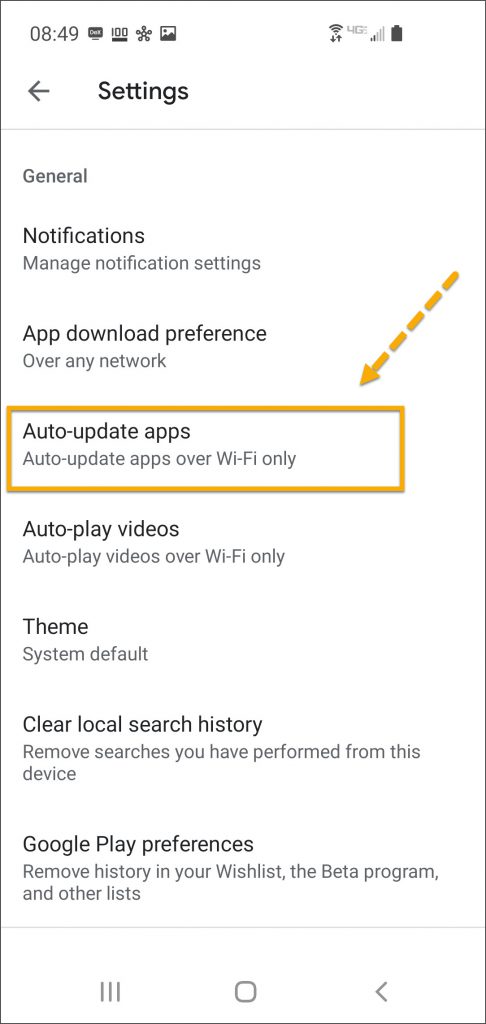
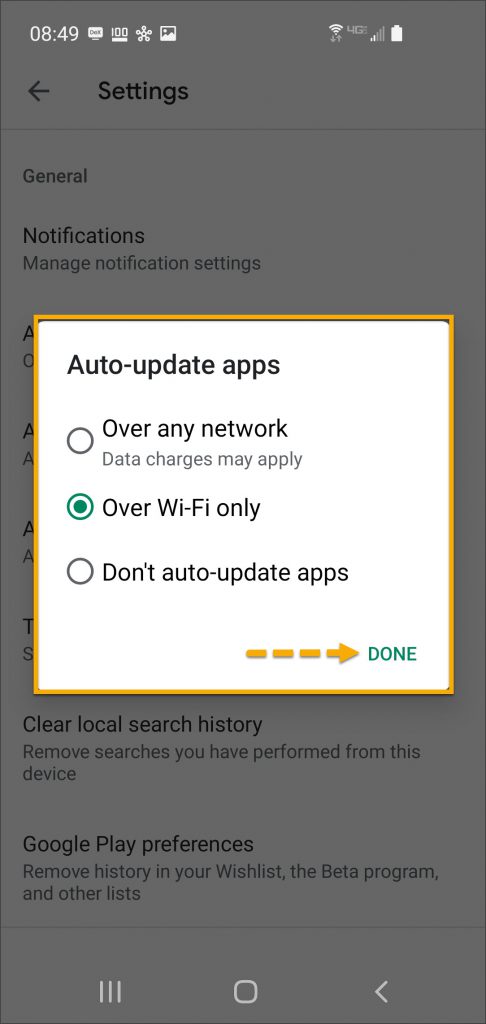
Tap the Auto-update apps option.
In the Auto-update apps window, select the option of,
Over any network (Data charges may apply)
Over Wi-Fi only
After making the selection, tap Done.
Click on any image to enlarge it.
Manual Application Update
iPhone
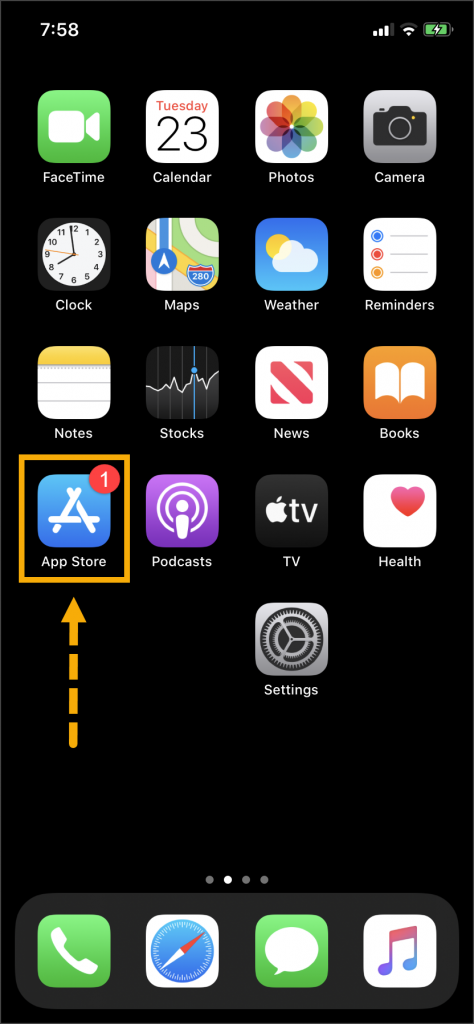
Once an update to the TouchPoint application is available,
the App Store icon will display a red badge.
Instruct the client to:
Tap the App Store icon.
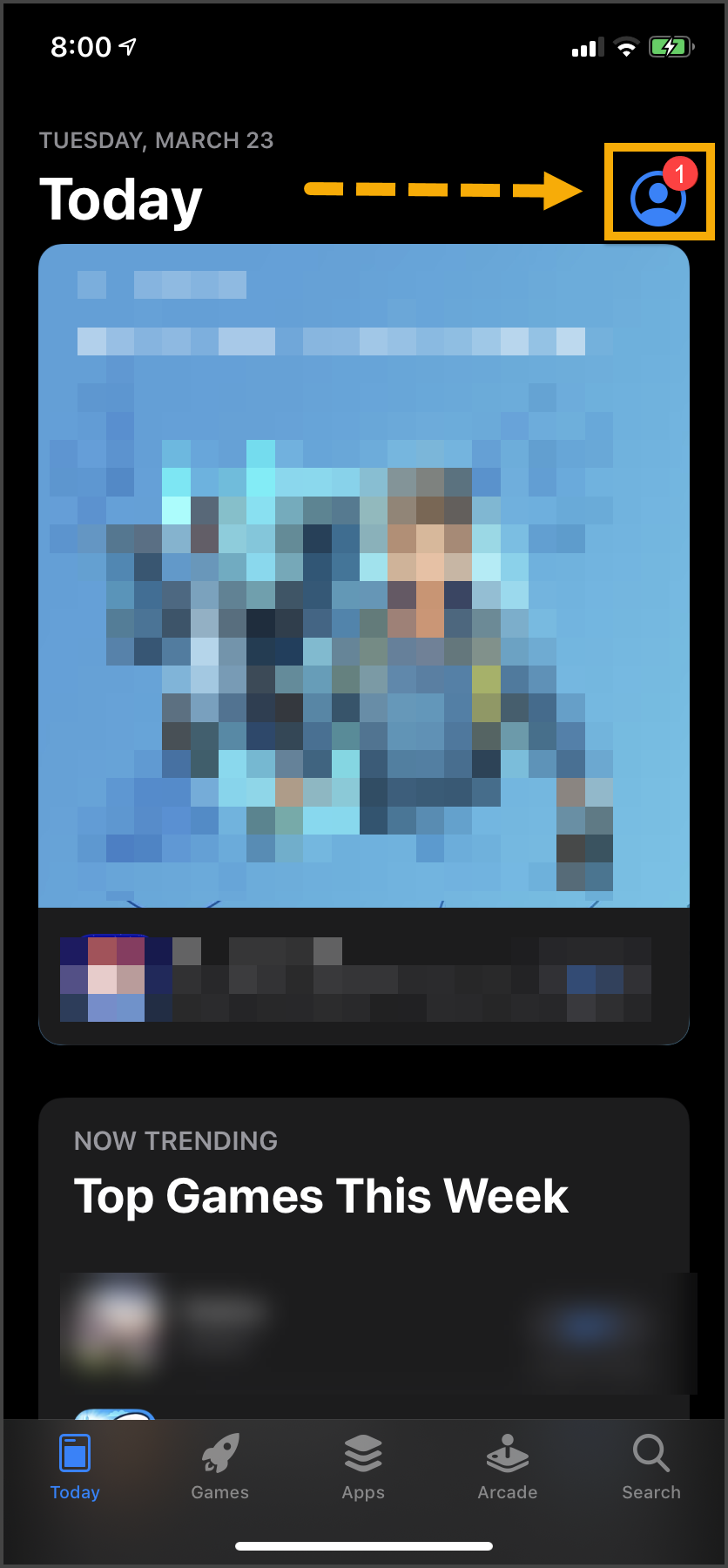
Tap their profile icon.
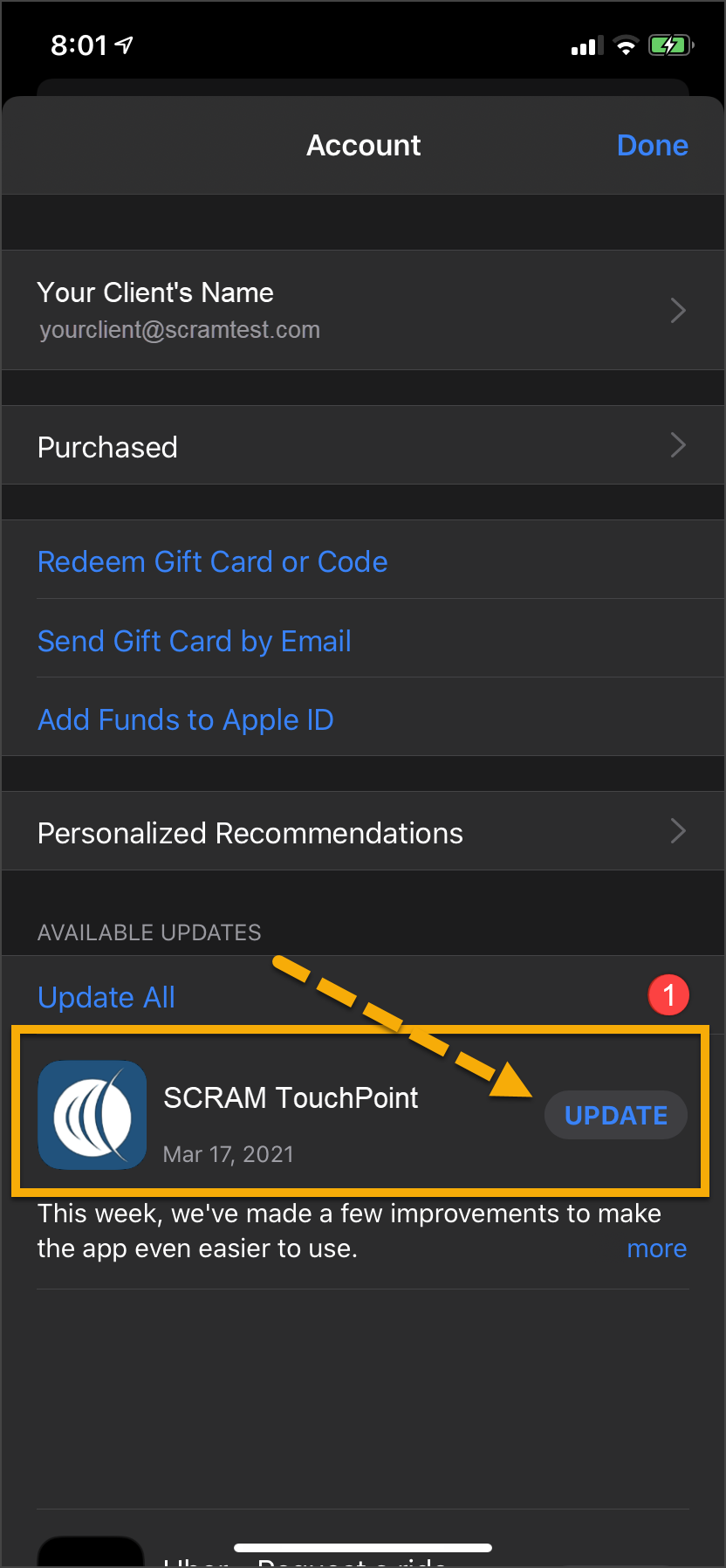
Under the Available Updates heading,
locate the SCRAM TouchPoint app.
Tap the Update button.
As a best
practice, we recommend you encourage your clients to enable automatic app
updates – this ensures they are always using the latest version of the
TouchPoint app.
Click on any image to enlarge it.
Android
Swipe up on the Home screen and tap the Play Store
icon.
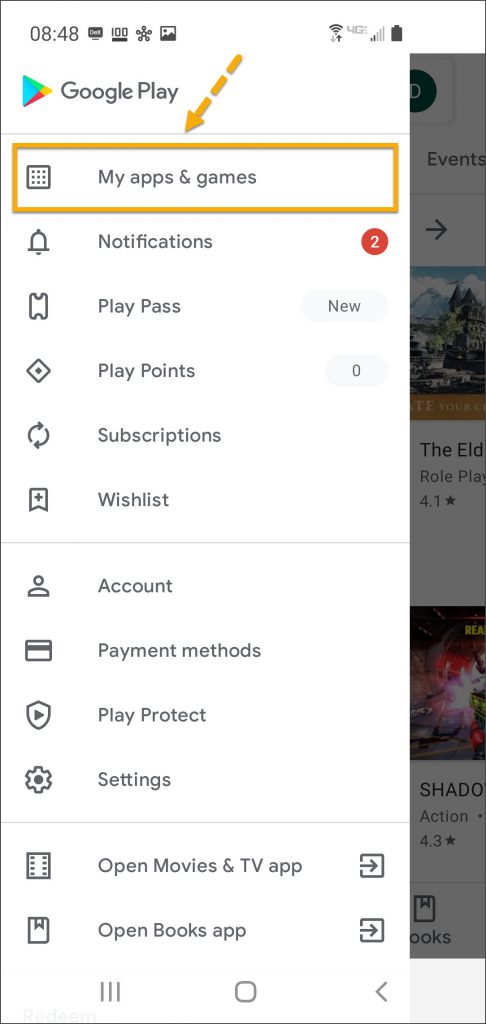
On the Google Play store screen, tap the menu
icon in the search field.
Tap the My apps & games option.
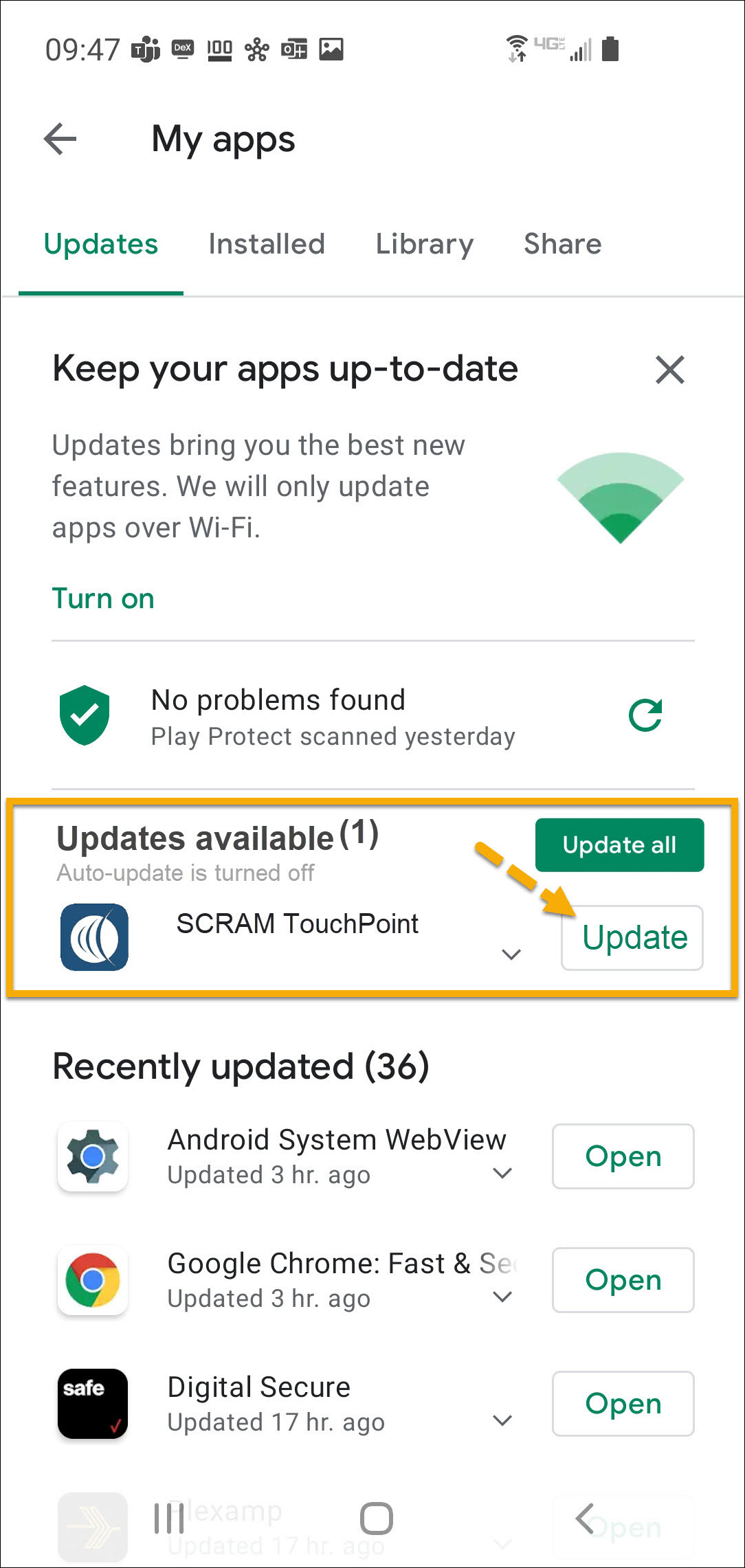
Under the Updates Available section, locate the
SCRAM TouchPoint app and tap the Update button.
As a best
practice, we recommend you encourage your clients to enable automatic app
updates – this ensures they are always using the latest version of the
TouchPoint app.
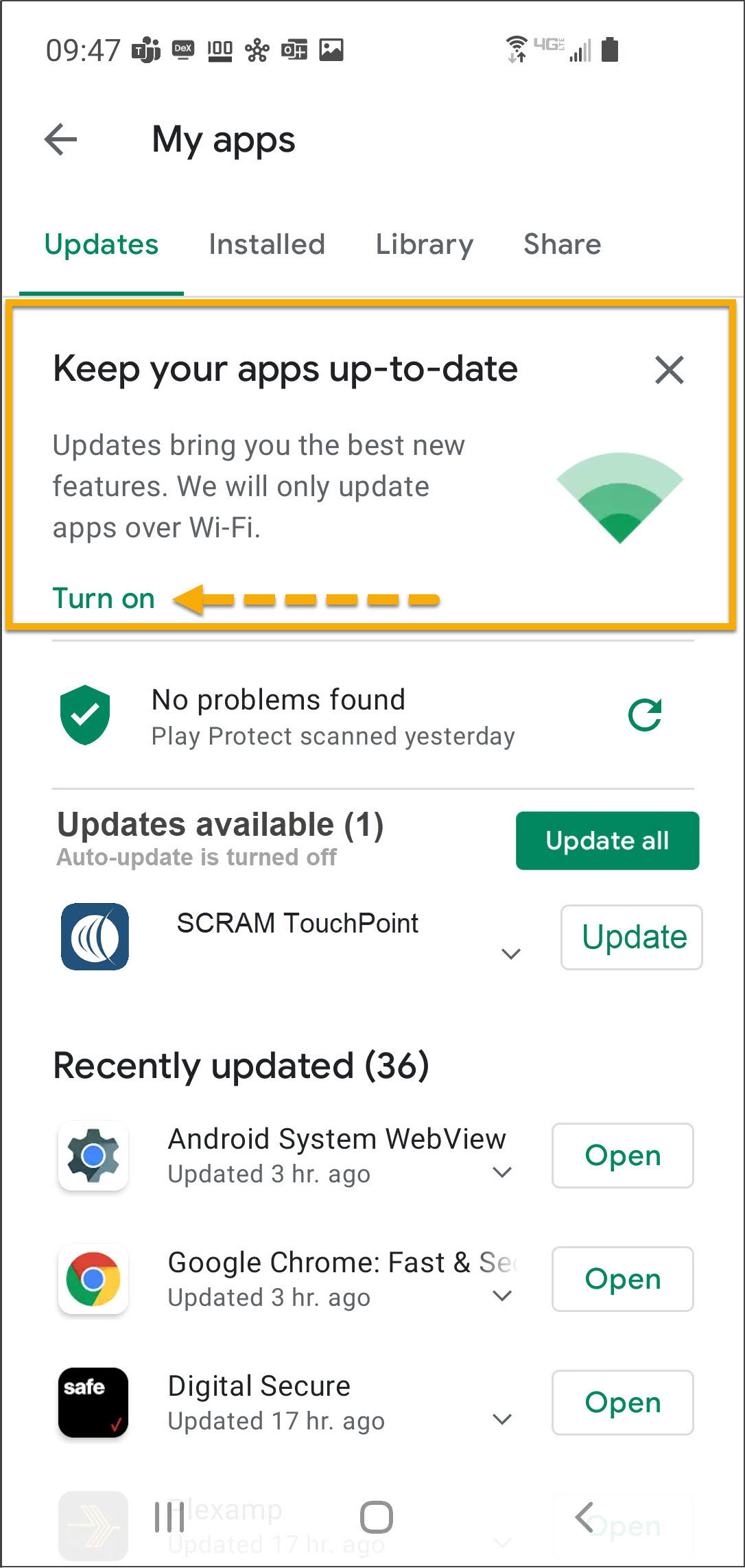
On the My apps screen, tap the Turn on button to
enable automatic app updates.
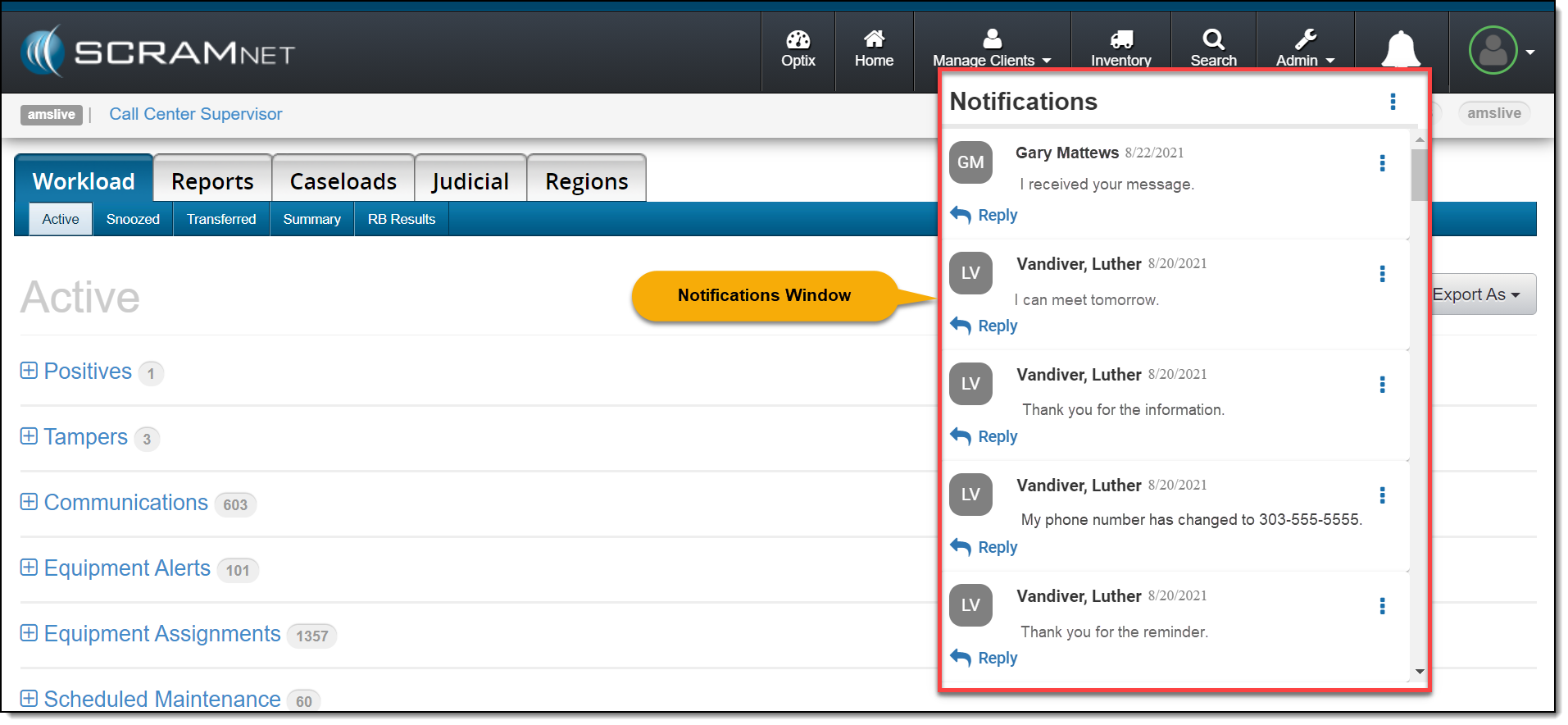
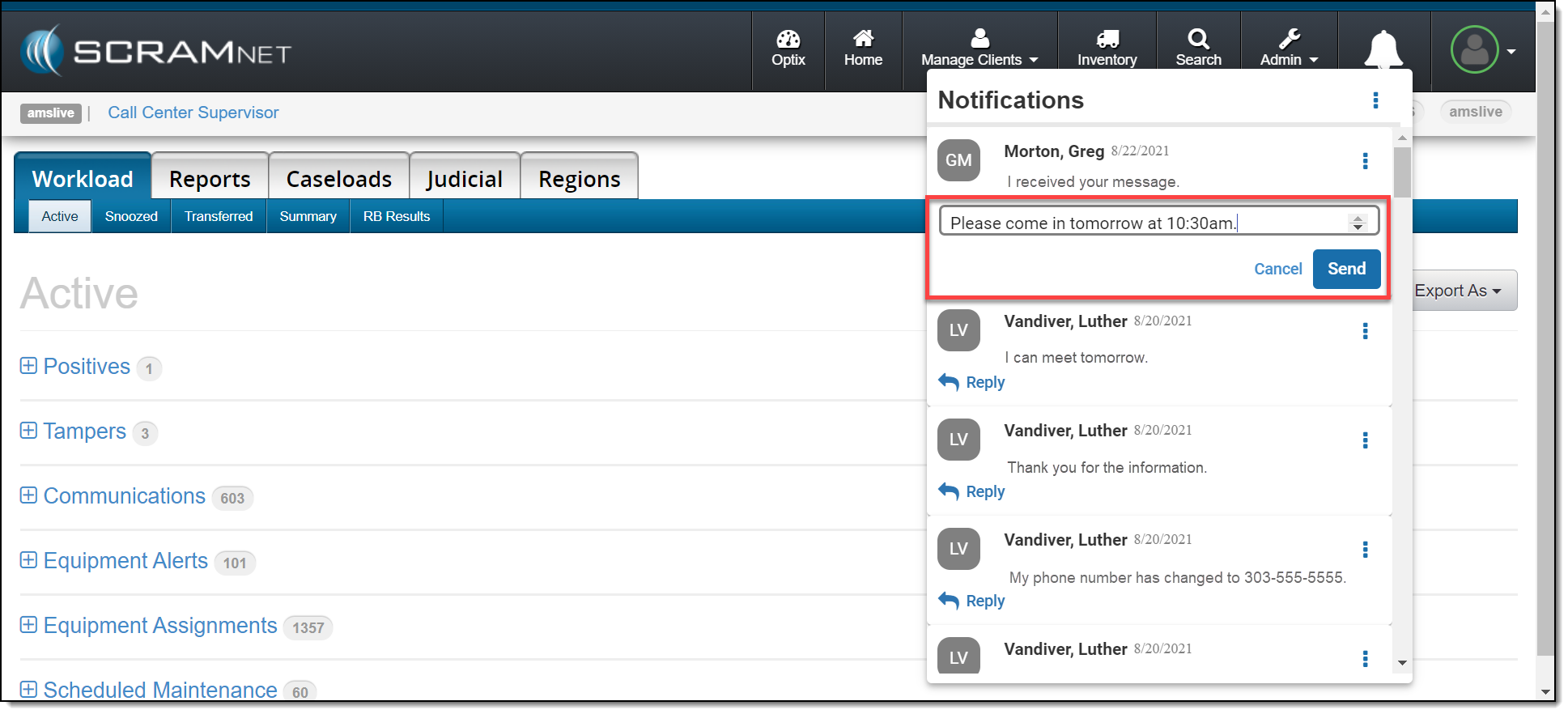
On March 4, 2021, SCRAM Systems® will release a new Notifications Window in SCRAMNET®. This Notification Window displays new messages sent from your SCRAM TouchPoint™ client caseload. With this feature you can view, clear, mark messages as read, or respond to your clients’ messages from within SCRAMNET. All actions completed within the Notifications Window are reflected on each client’s TouchPoint Messaging page.
Notifications in SCRAMNET
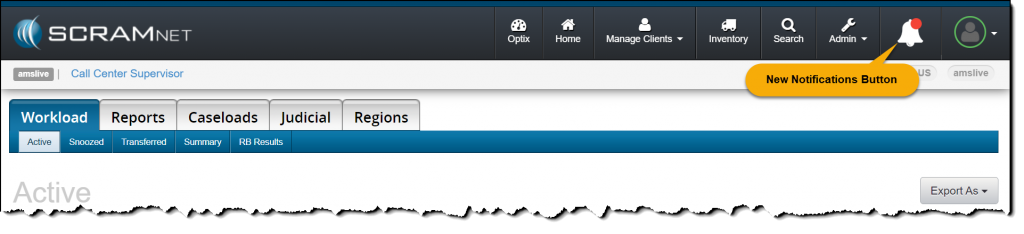
When a new message is sent by your client through the SCRAM
TouchPoint app, the Notifications button in SCRAMNET will display a red badge. To view the message, click the button.
click to enlarge
On the Notifications Window, the client’s name, date, and message is displayed.
click to enlarge
Managing the Notifications Window
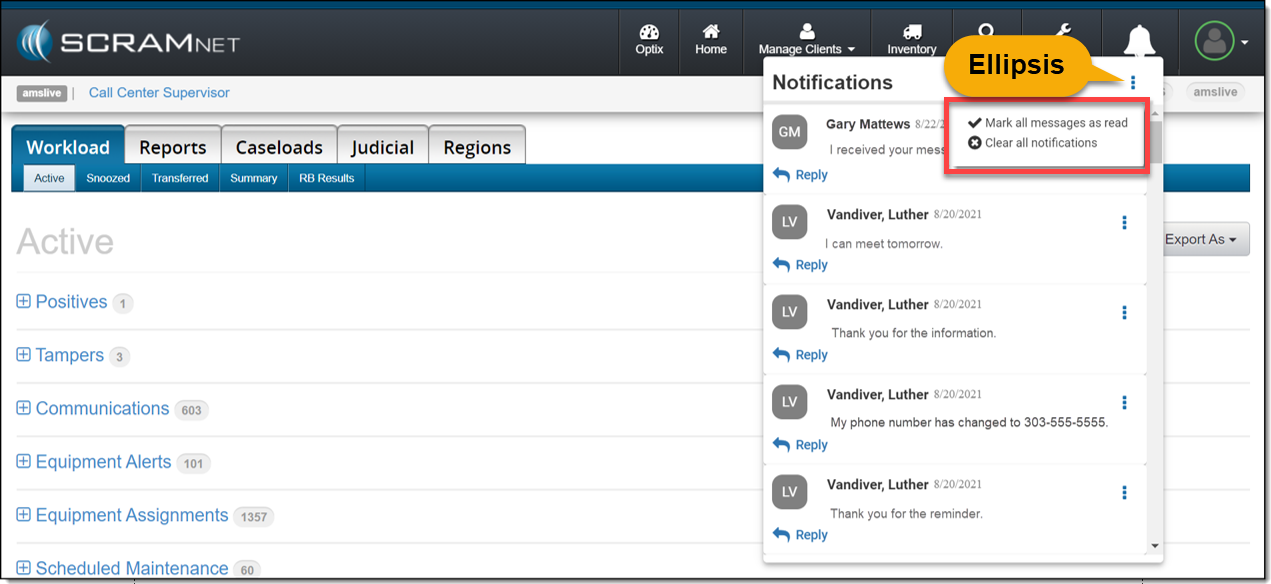
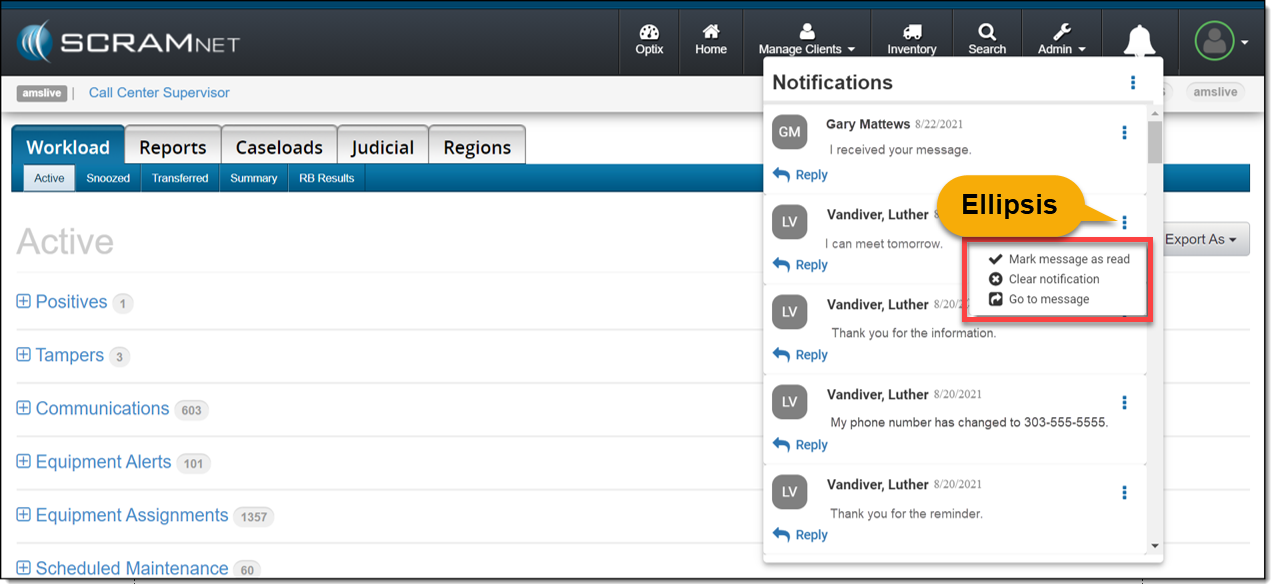
Selecting the ellipsis next to the Notifications
heading or next to the client’s name will display a menu with following options:
Mark all messages as read or Mark message as read: When selected, the message will be cleared from the Notifications Window. On the client’s TouchPoint Messaging page, the message will display as Read for the client.
Clear all Notifications or Clear Notification: When selected, this option will clear the message from the Notifications Window in SCRAMNET. This does not mark the message as Read on the client’s TouchPoint Messaging page; it simply clears the message from the Notifications Window.
Go to Message: This option will open a new tab that displays the client’s TouchPoint Messaging page. This action will clear the message from the Notifications Window.
Option One
Mark all messages as read or clear all notifications by selection the ellipsis to the right of the Notifications heading.
click to enlarge
Option Two
Manage each message individually by selection the ellipsis next to the message.
click to enlarge
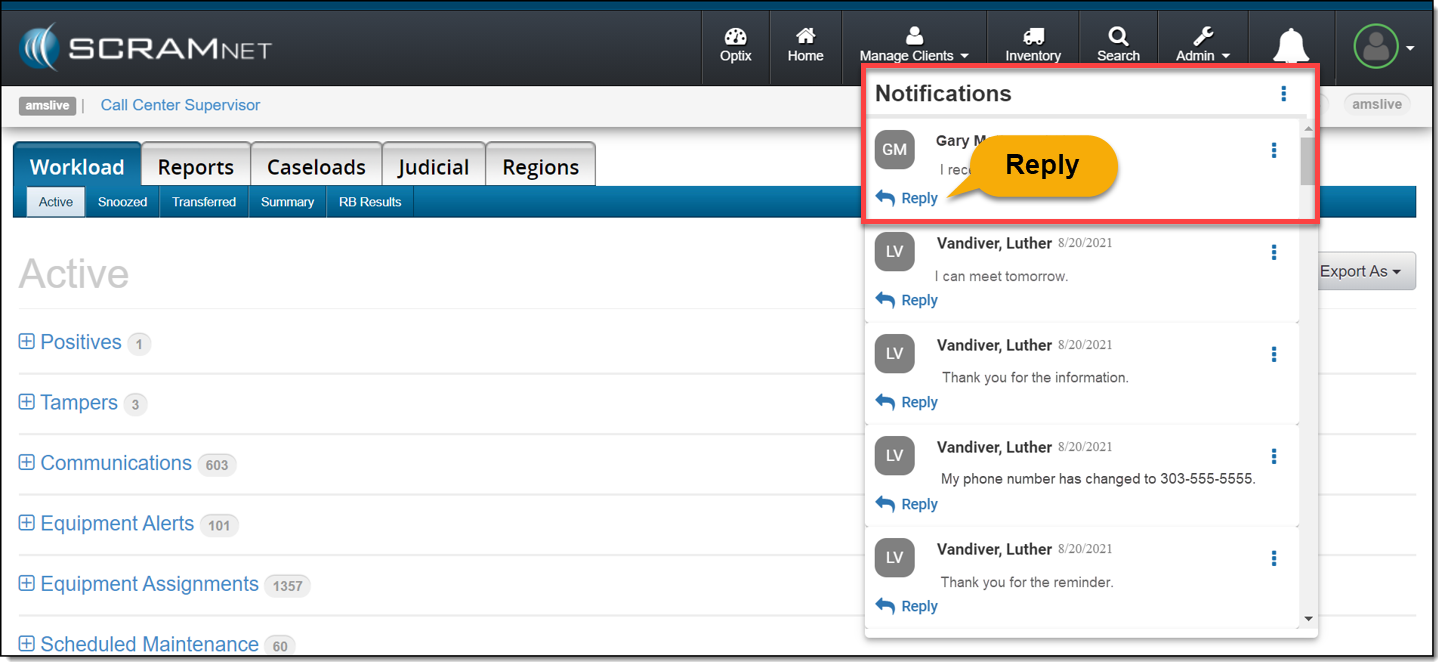
Reply
Click the Reply link to respond to the client’s message. After entering a response, click the Send button.
click to enlargeclick to enlarge
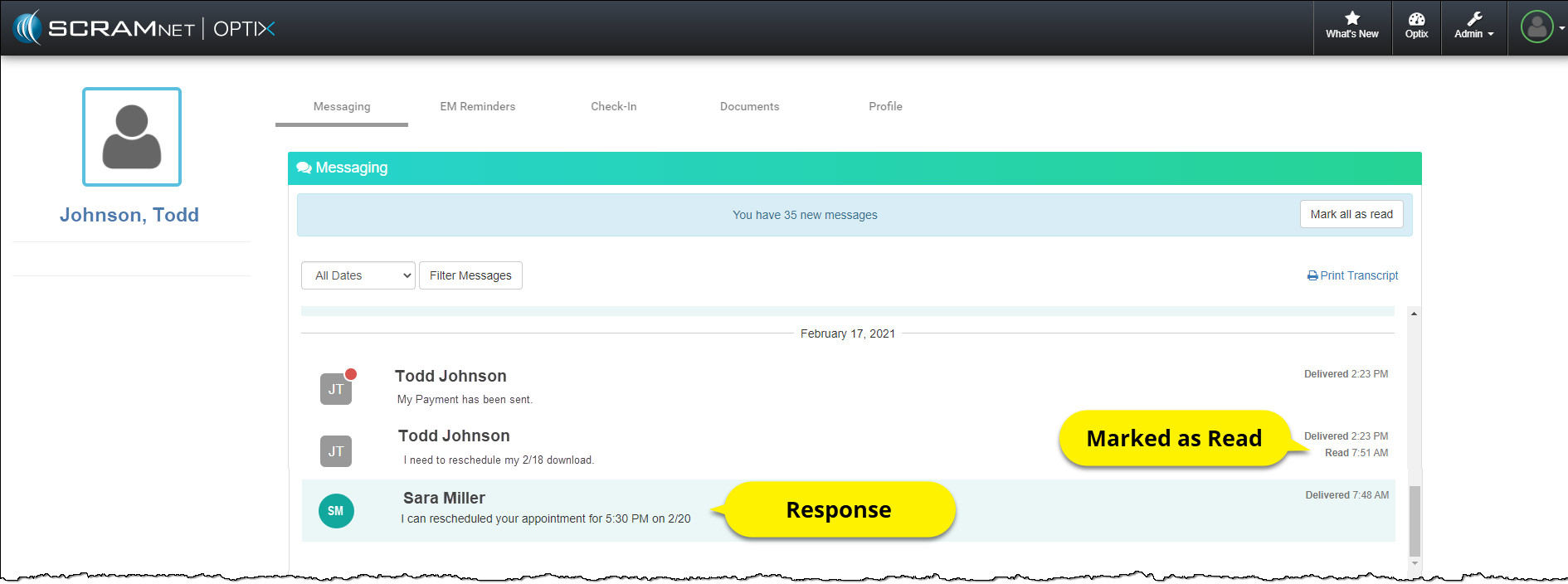
The message will no longer be displayed in the
Notifications Window.
On the client’s TouchPoint Messaging page, the
message will be marked as Read and the response sent by the user will be
displayed.
click to enlarge
Feedback
As always, please contact SCRAM Systems Customer Service with any
recommendations for system improvements.
On February 18, 2021, SCRAM Systems® will release a new option on the Stop Monitoring and Change Client Status pages in SCRAMNET®. This new option will allow you to inactivate/disable a SCRAMNET client and their linked SCRAM TouchPoint™ profile simultaneously.
Inactivate the SCRAMNET
Client Profile
Option One:
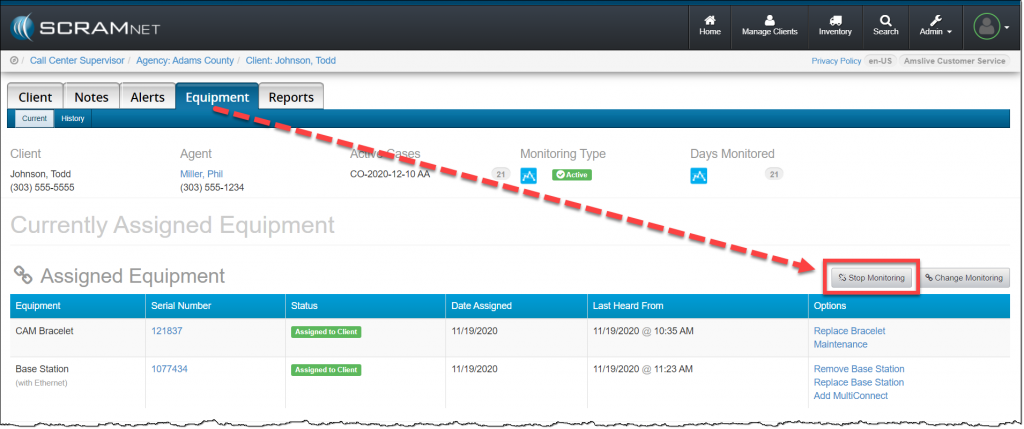
In SCRAMNET click the
Stop Monitoring button on the client’s Equipment page.
click to enlarge
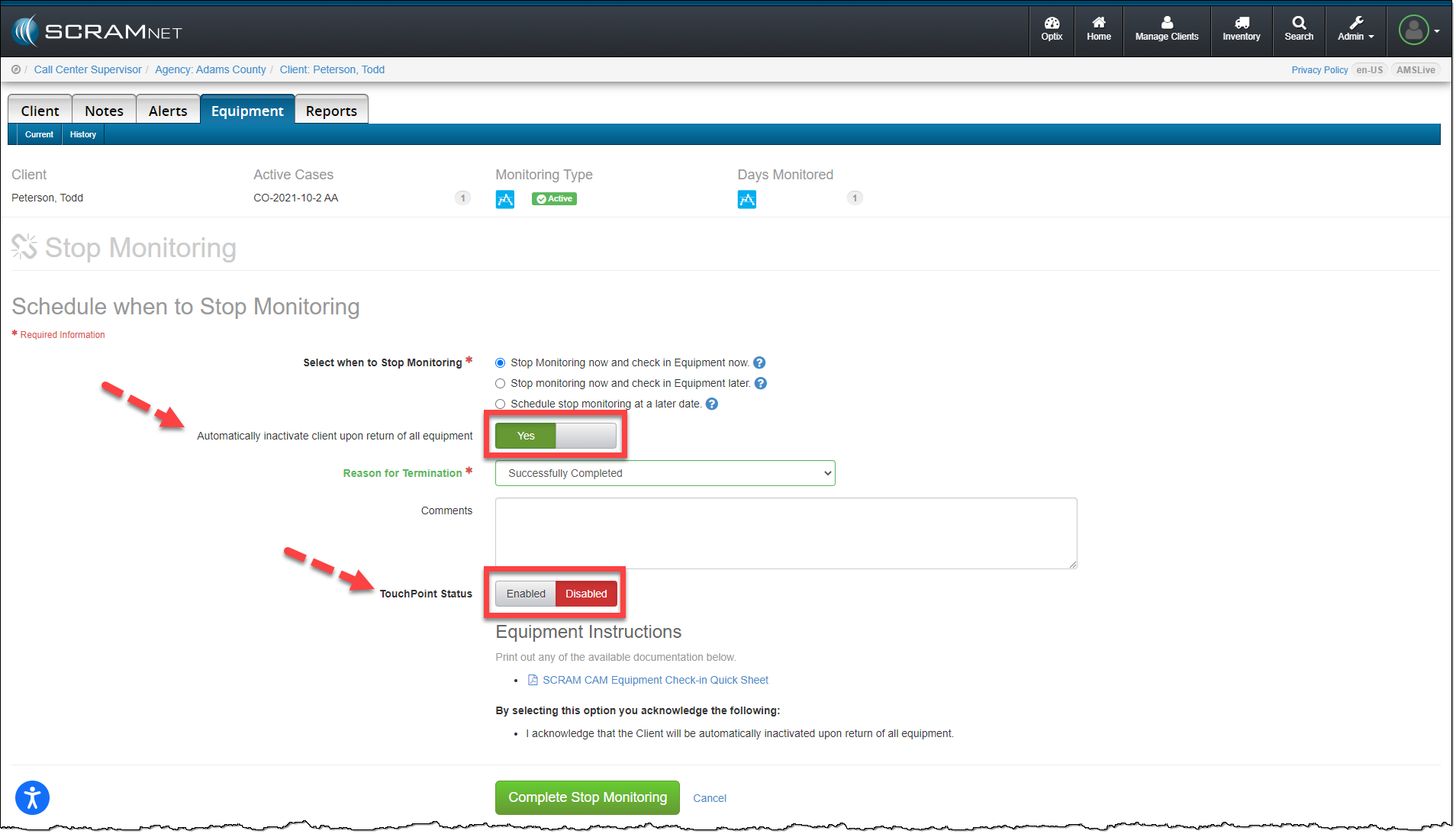
On the Stop Monitoring page, you have the option to
automatically inactivate the client upon return of all equipment. When this
option is updated to Yes, you now have the option to disable the
client’s linked TouchPoint profile at the same time. Next to the TouchPoint
Status option, simply toggle the Enabled option to Disabled and
click the Complete Stop Monitoring button.
click to enlarge
Option Two:
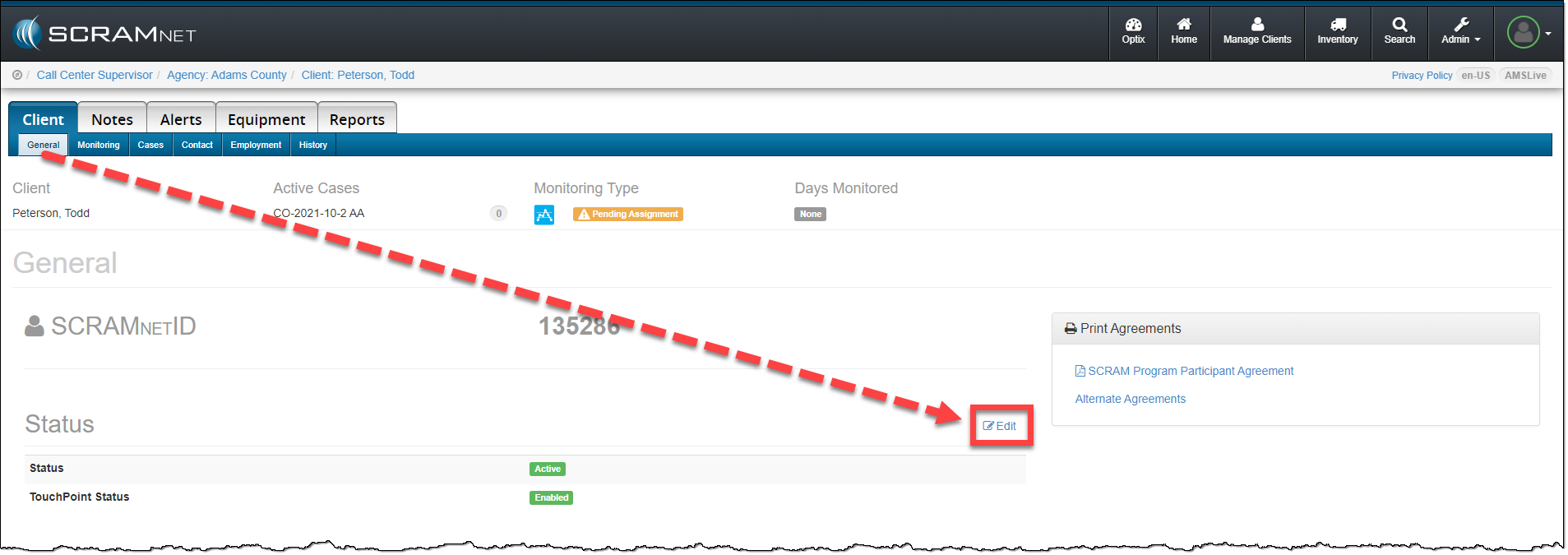
When inactivating the client’s SCRAMNET profile from the Status section, click
the Edit link on the Client page.
click to enlarge
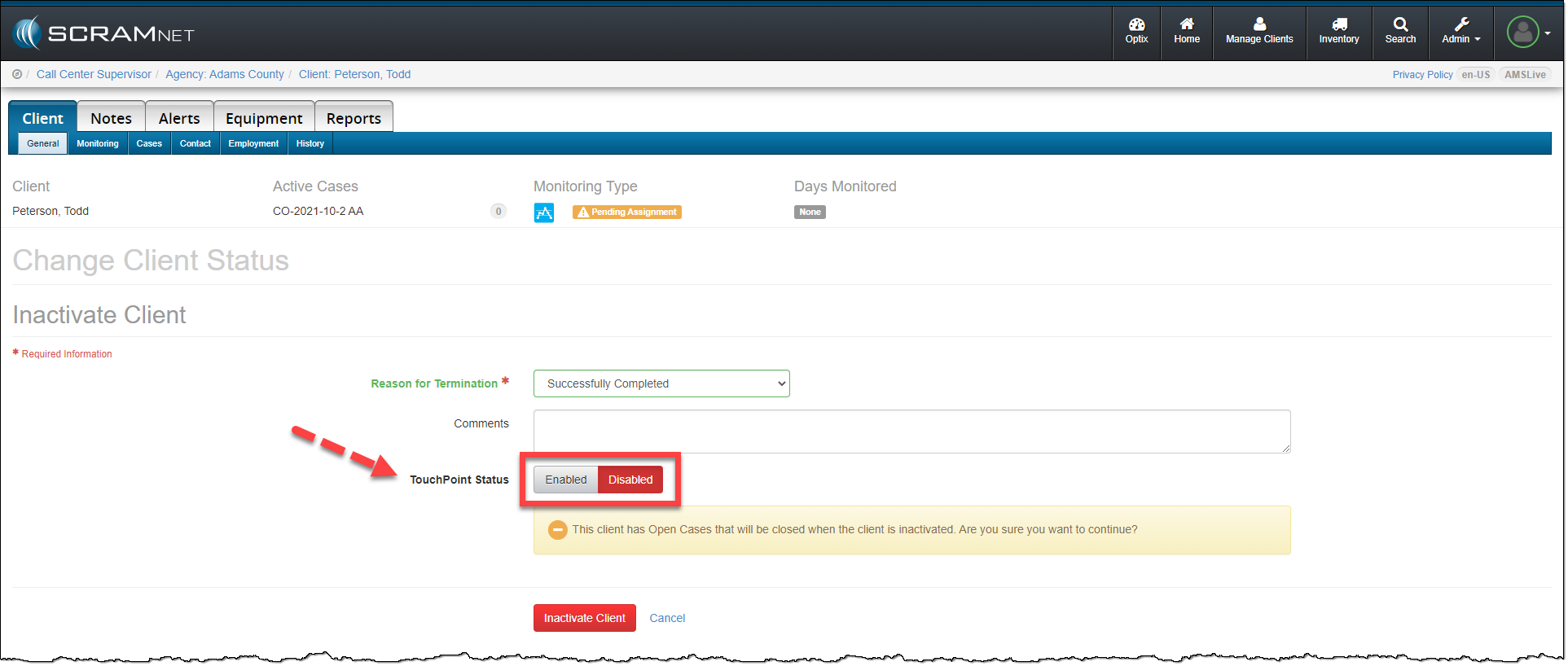
On the Change Client Status page, toggle the
TouchPoint Status from Enabled to Disabled. To complete the
process, click the Inactivate Client button.
click to enlarge
The SCRAMNET client profile is inactivated and the client’s TouchPoint profile and any enabled services are automatically disabled.
On February 4, 2021, SCRAM Systems® will be releasing two new
enhancements to the Clients page in SCRAMNET
Optix™ to support a focused management
of the notifications generated by your SCRAM TouchPoint™ client caseload.
New Action Type dropdown filter
New Clear Filters link
Action Type Filter
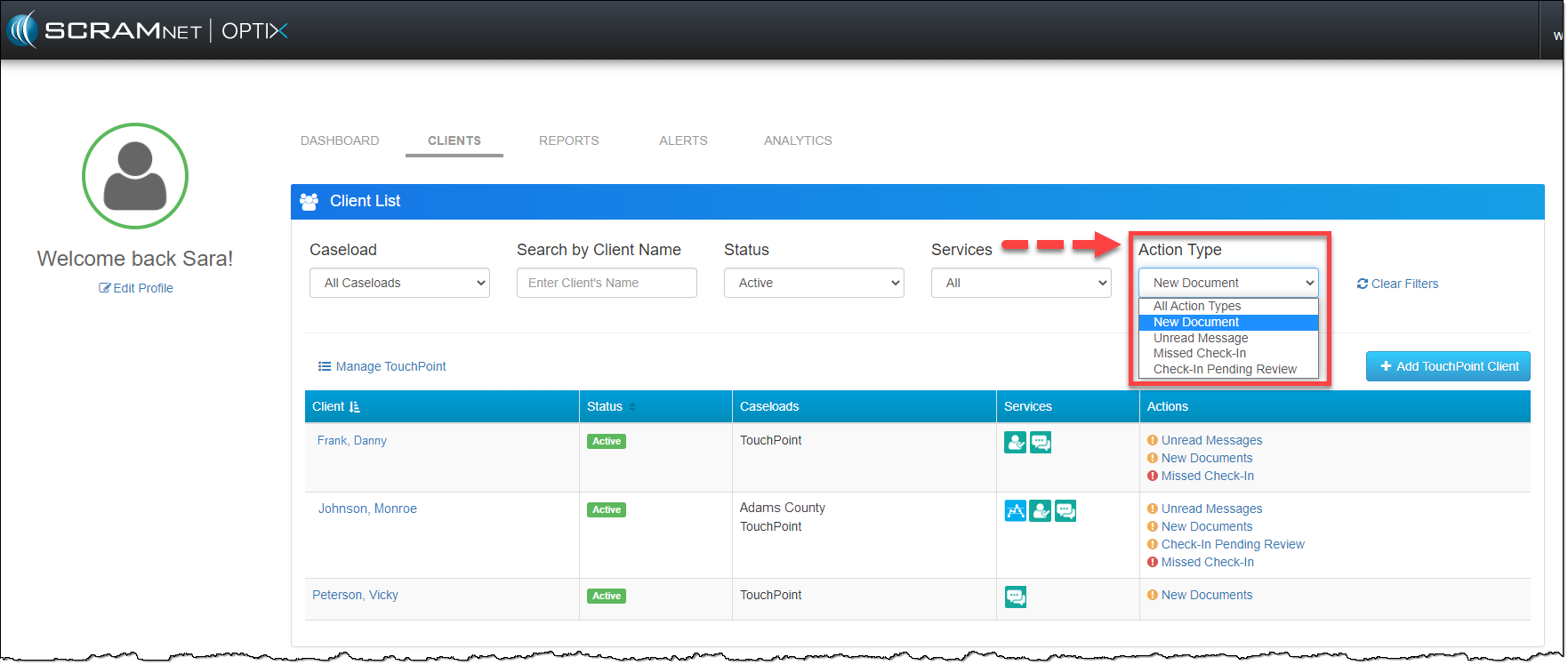
Use the Action
Type filter menu to select the specific notification type you are looking for.
Once you have selected the desired notification type, the Actions column
will dynamically update and reflect all clients with that specific notification
type. You can also combine the new Actions Type filter with any of the other
dropdown filters available at the top of the page
Click to enlarge
Clear Filters
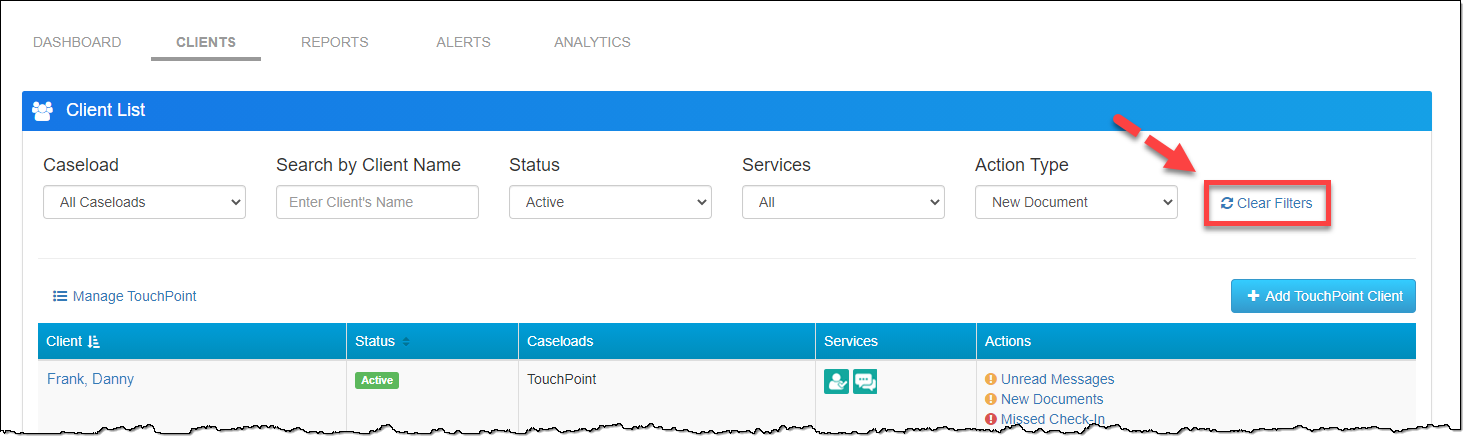
The Clear Filters link will reset all the filters
to the default settings when selected.
Click to enlarge
Feedback
As always, contact SCRAM Systems Customer Service with any recommendations for system improvements.
On December 17, 2020, SCRAM Systems® will release the new transfer
client feature in SCRAM OPTIX™ for
your SCRAM TouchPoint™
caseloads. With this new feature, you will be able to transfer a TouchPoint client to a new TouchPoint caseload for
monitoring. Here is how it works.
Once a TouchPoint client has been added into the system,
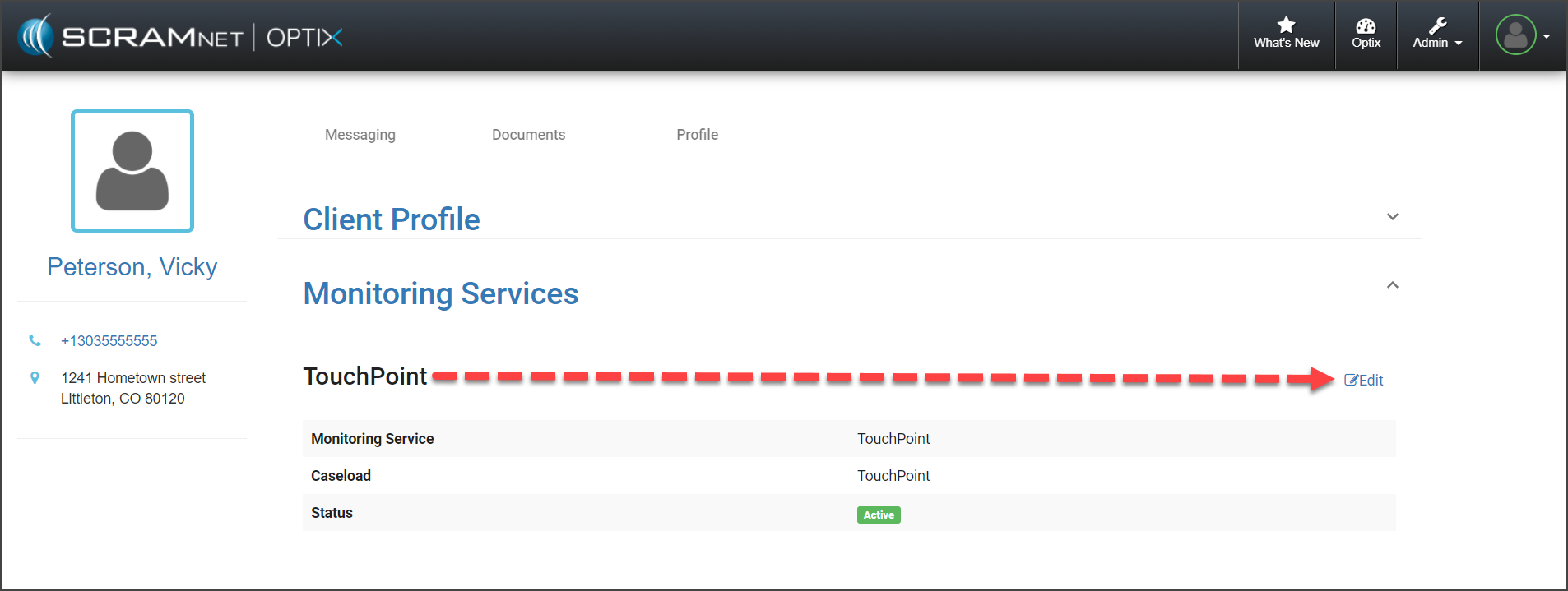
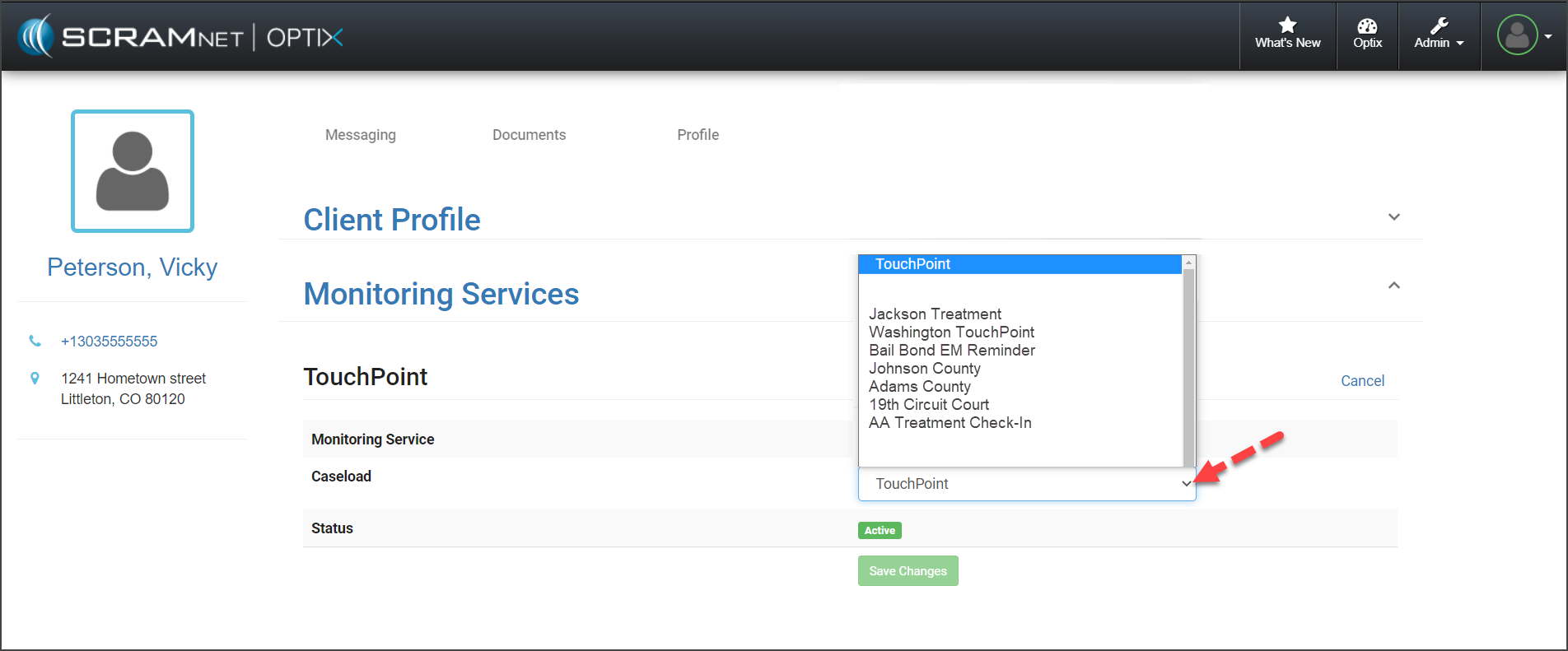
you are able to transfer the client to a new TouchPoint caseload by selecting
the Edit link next to the Monitoring Services on the client’s OPTIX Profile
page.
Click image to enlarge
To view step-by-step instructions on how to transfer a client to a new caseload, click here.
TouchPoint Caseload Management
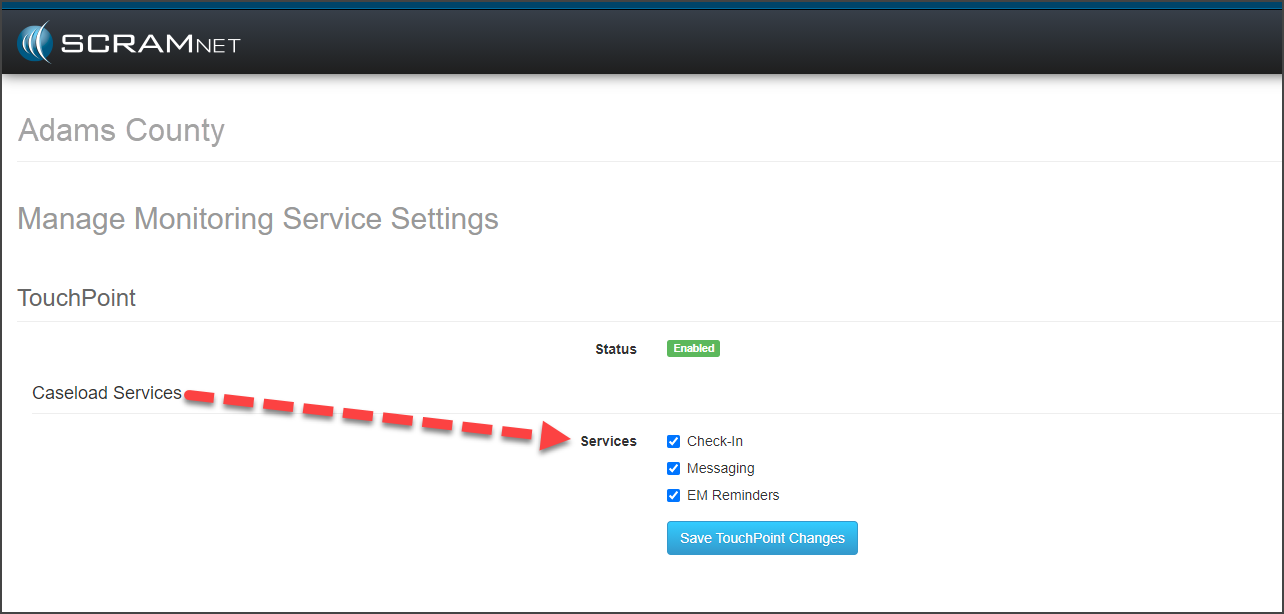
To ensure you can transfer a client from one caseload to
another, the services enabled for the caseload the client will be transferred
into must be identical to the services enabled in the caseload the client is
currently in. This is true even if the client is not enabled for all the available
services.
As a best practice, SCRAM Systems recommends you enable all
TouchPoint services for all of your TouchPoint caseloads. Keeping the services consistent
across all caseloads ensures there will not be any issues when you transfer a
client to a different TouchPoint caseload for monitoring.
Click image to enlarge
To view information on creating a TouchPoint caseload or how to update a current caseload, click here.
Feedback
As always, please contact SCRAM Systems Customer Service with any recommendations for system improvements.
On December 9, 2020, SCRAM Systems® will be adding Base Station notification reminders to your Electronic Monitoring (EM) Reminders client caseloads, and a New Documents message on the Clients list in SCRAM OPTIX™ alerting you to a new document shared from your client’s SCRAM TouchPoint™ application.
EM Reminders Service
EM Reminders are push
notifications sent to clients being monitored on one of SCRAM Systems’
electronic monitoring devices. These reminders are triggered by events
generated in SCRAMNET® or SCRAMNET GPS®. The EM Reminders consist of generalized device communication and charging reminders with instructions for the client to follow.
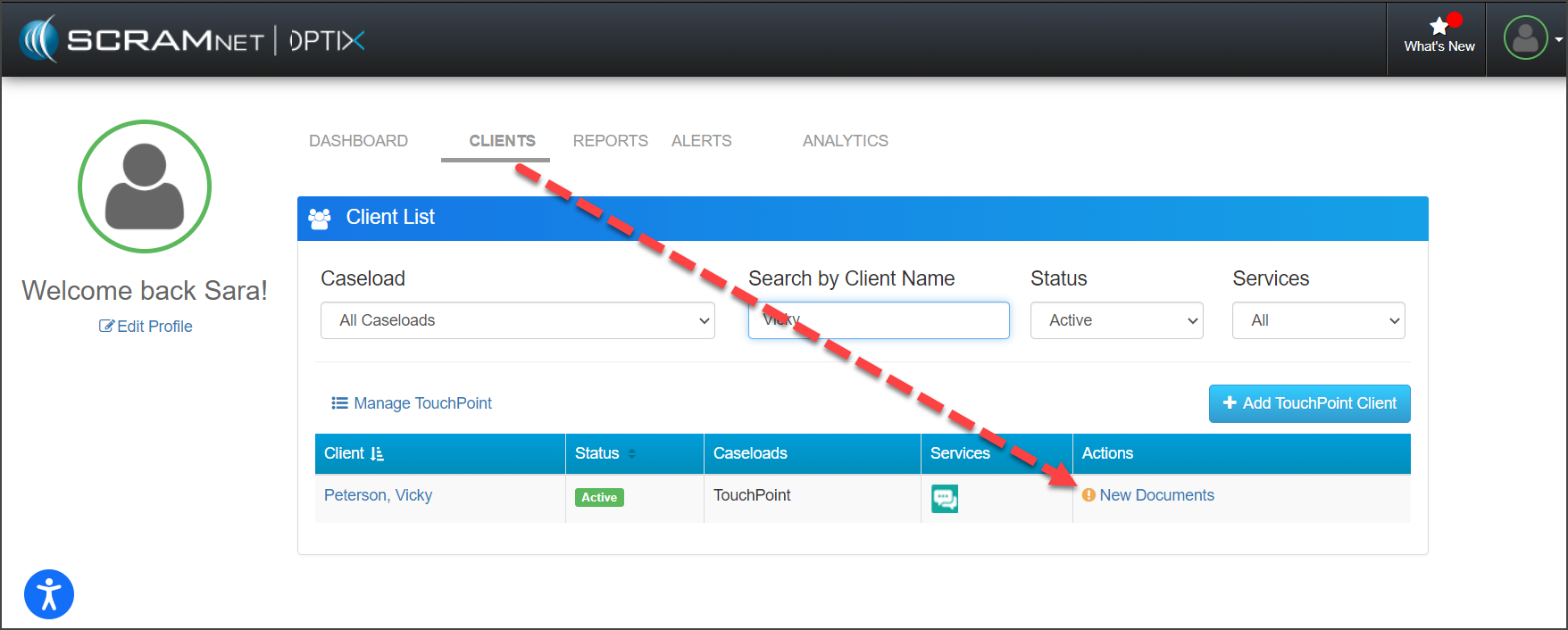
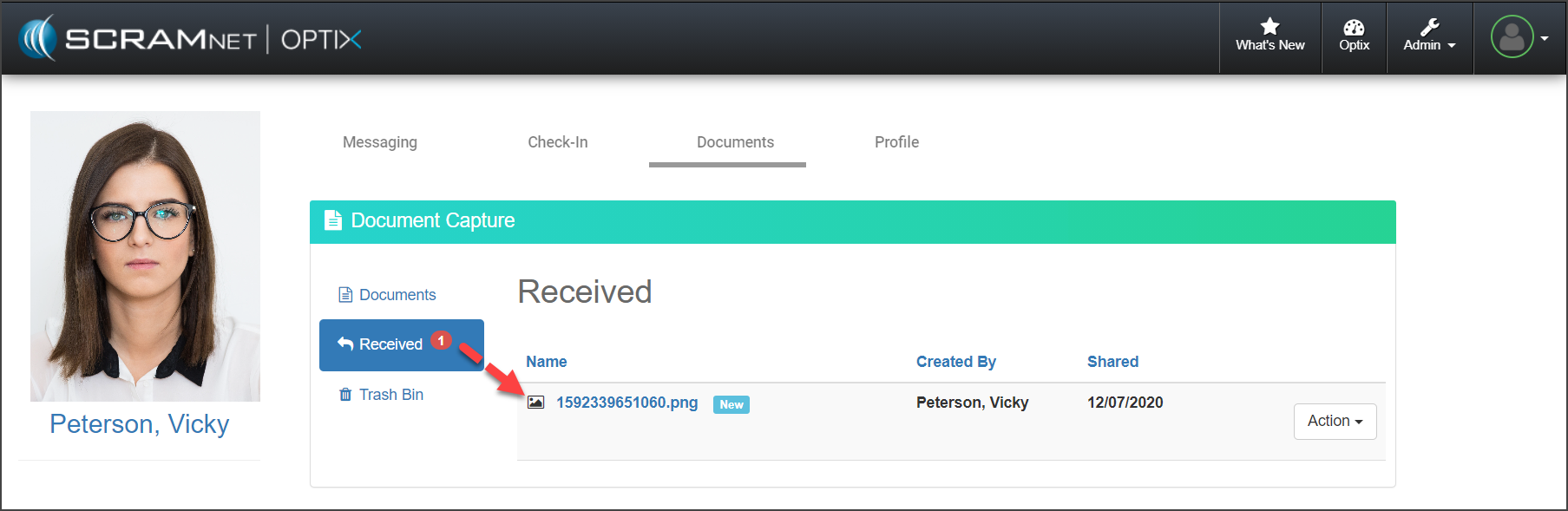
Once a client has shared a new image from their SCRAM
TouchPoint app on their smartphone, the Actions column on the OPTIX Clients
page will now display a message of New Documents. Click on the message
link to navigate to the client’s Documents page and select the Received
tab to view the shared image.
On November 4, 2020, SCRAM Systems® will release two new SCRAM TouchPoint™ client application enhancements for the Documents service and for the Client Check-In service.
Documents Service
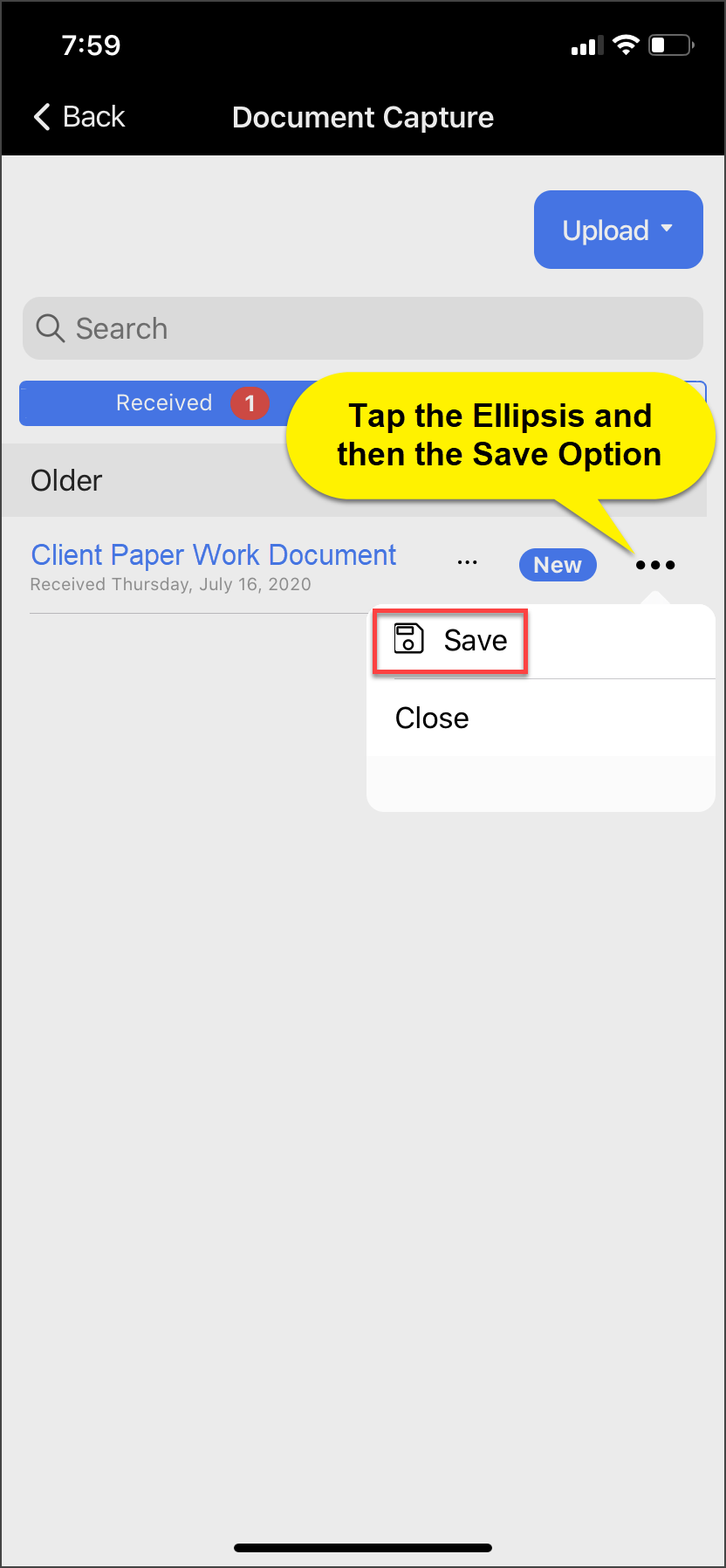
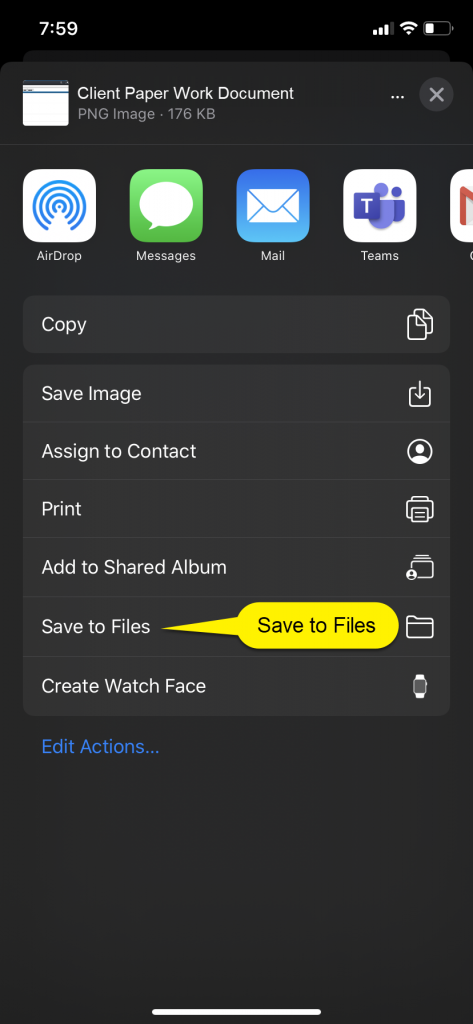
Clients can now save all shared documents to their smartphones. This gives clients better access to complete required forms and return them to you, as well as improved document management capabilities.
TouchPoint Client Application Document Capture Screen (click to enlarge)
iPhone Social Sharing Window (click to enlarge)
Client Check-In
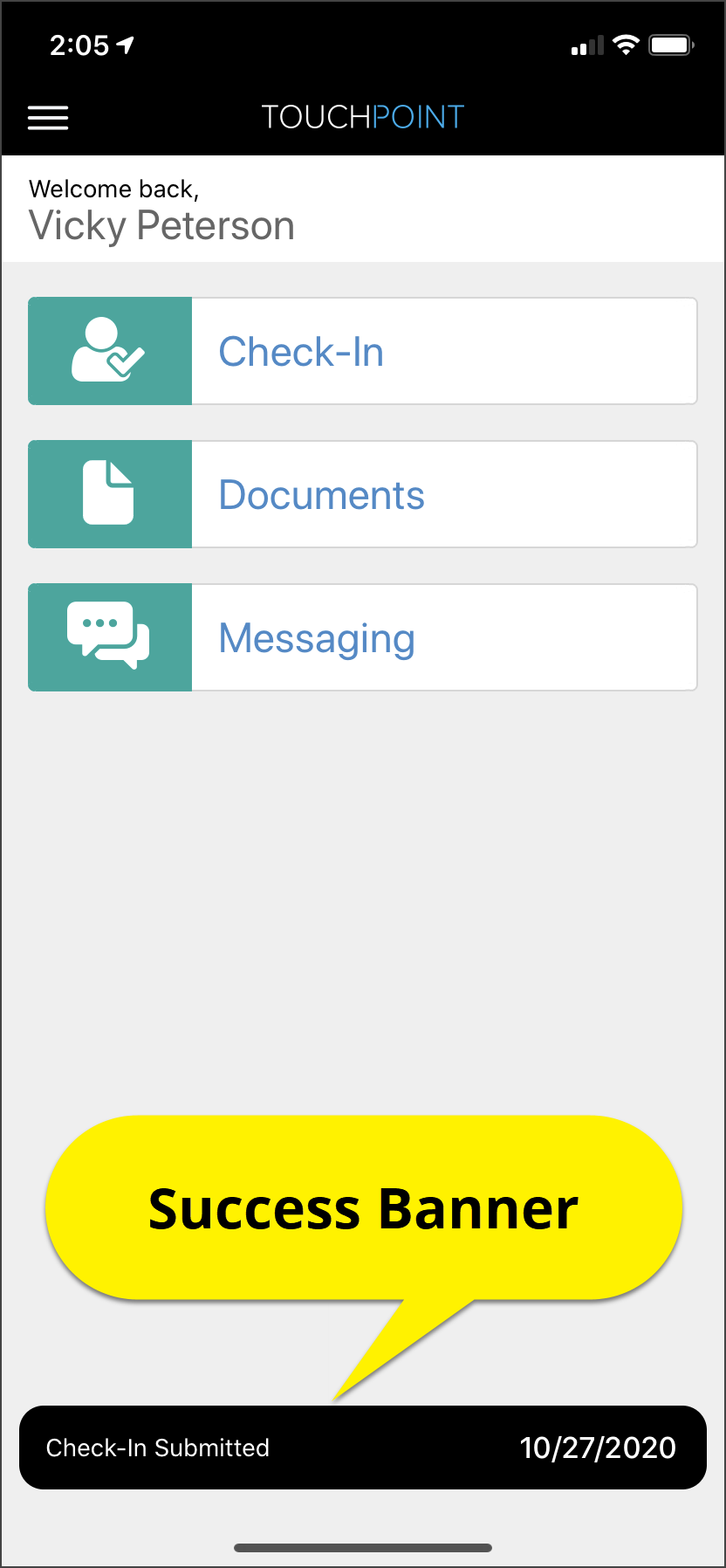
After a client completes a check-in and taps the Submit button, a banner will display on the bottom of the screen with a message of Check-In Submitted and the date. This verifies the check-in has been completed successfully.
TouchPoint Client Application Home Screen (click to enlarge)
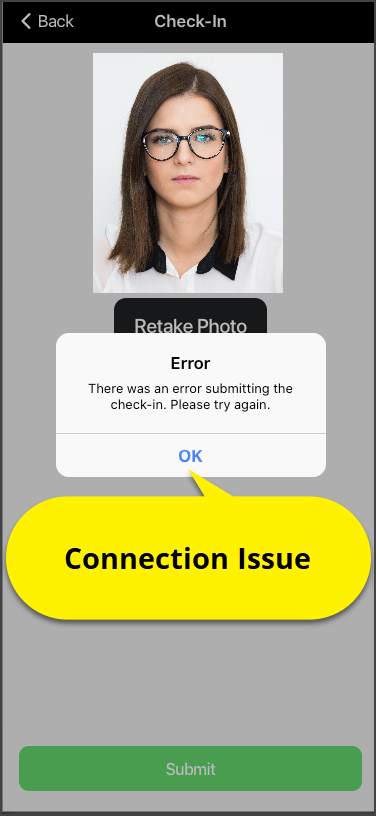
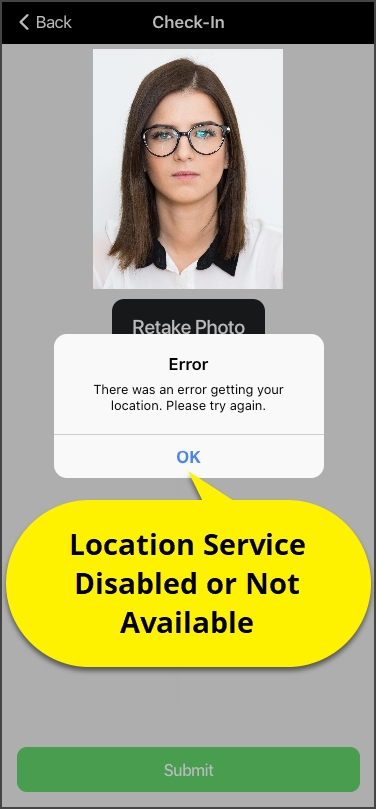
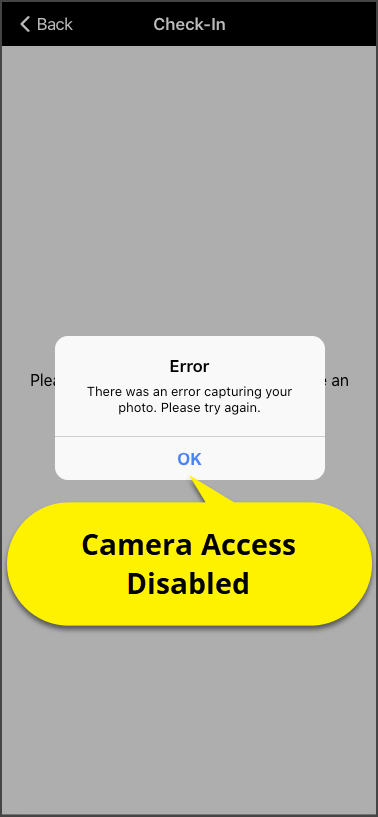
Error Banners
In addition, three new error banners help to identify issues that may prevent a check-in from being completed by the client. Quickly troubleshoot the possible cause for the error based on the error message.
TouchPoint Client Application Check-In Error Message (click to enlarge)
TouchPoint Client Application Check-In Error Message (click to enlarge)
TouchPoint Client Application Check-In Error Message (click to enlarge)
With a release scheduled for Wednesday October 28, 2020, SCRAM TouchPoint™ users with a permission set of Administrator or Manage Caseloads can create new TouchPoint caseloads, as well edit current caseloads. With this enhancement you have more control over which services are available for each of your TouchPoint caseload and better management of your SCRAM TouchPoint program.
For more information, visit the Caseload Management Help page where you can view the step by step instructions on,
How to Navigate
to the Manage Caseloads Page
How to Add a New
TouchPoint Caseload
Edit/Update a
Current TouchPoint Caseload
How to Add
TouchPoint to a Current Electronic Monitoring Caseload
Effective September 22, 2020, SCRAM Systems® will release four new updates for your SCRAM TouchPoint™ caseload. Updates included in this release:
A New TouchPoint Tile Icon
New Document Shared Confirmation Banner
New Notification Badge for a Received Document in the SCRAM TouchPoint App
New SCRAM TouchPoint Client Self Help Link
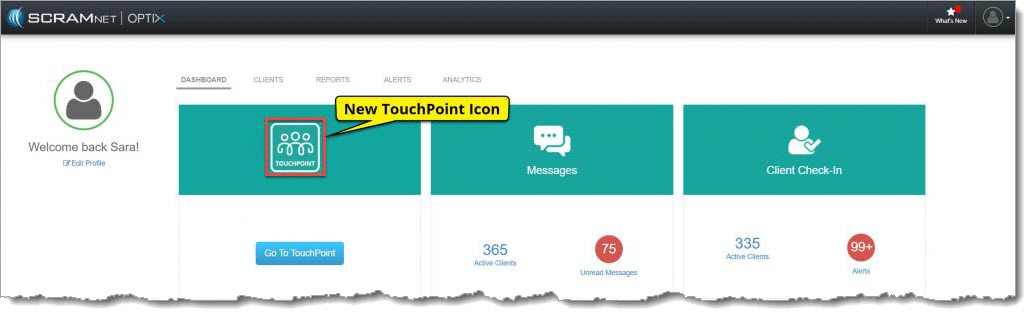
New TouchPoint Tile
The TouchPoint tile on the SCRAM OPTIX® Dashboard has a new icon. The administrative functionality remains the same. Click on the Go To TouchPoint button within the tile, to open the Manage TouchPoint page. From here, access the ManageCheck-In information and the Messaging Text to All feature.
OPTIX Dashboard TouchPoint Tile (click to enlarge)
New Document Shared Confirmation Banner
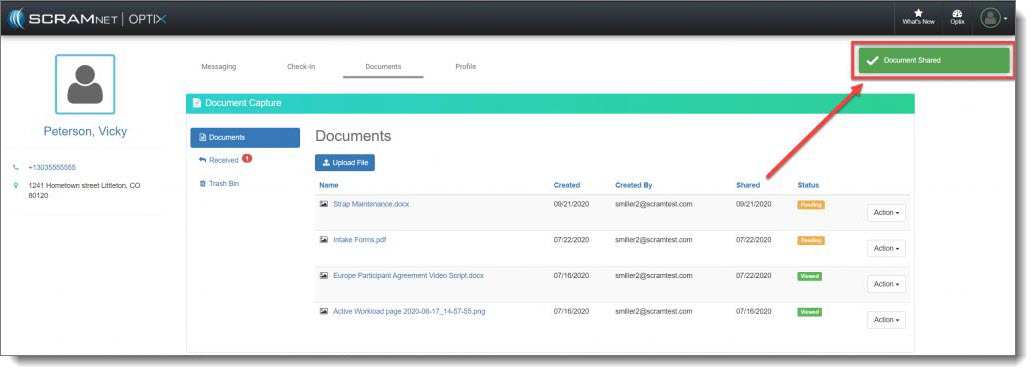
On the client’s Document
page, once you have uploaded a document and then selected the Share option, a
green Document Shared verification banner will display on the top of the
screen confirming you have successfully shared the document with your client.
Client’s Documents Page (click to enlarge)
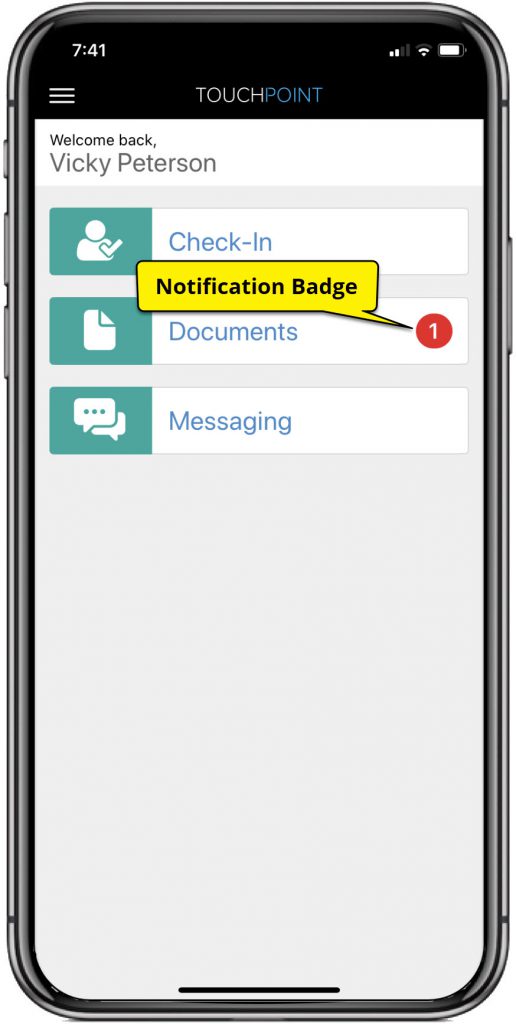
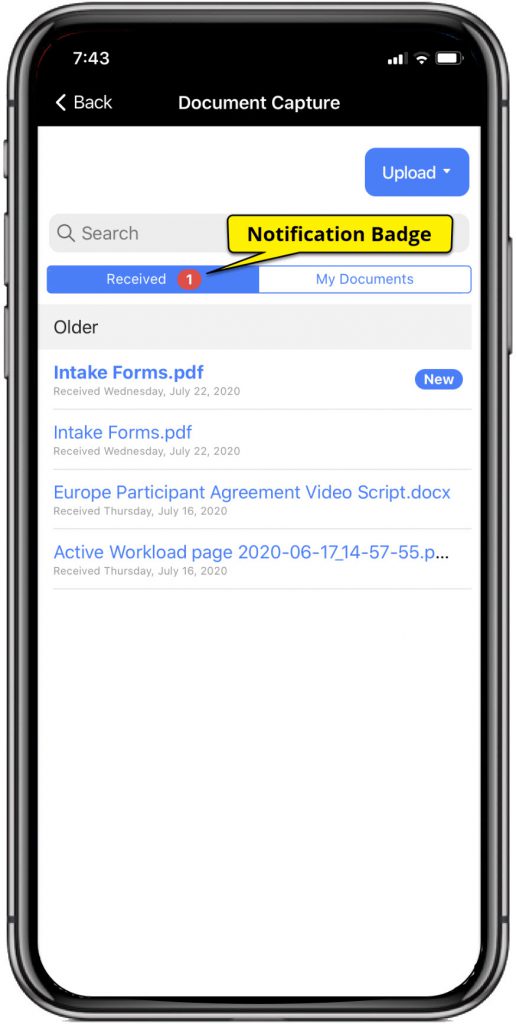
New Notification Badge for a Received Document in the SCRAM TouchPoint App
After sharing a document
from the client’s Document page in SCRAMNET
OPTIX, the Documents tile within the client’s app will display a red
notification badge. In addition, when the client taps the Documents tile, the
Received tab will also display a red notification badge alerting them to a new
document shared by you.
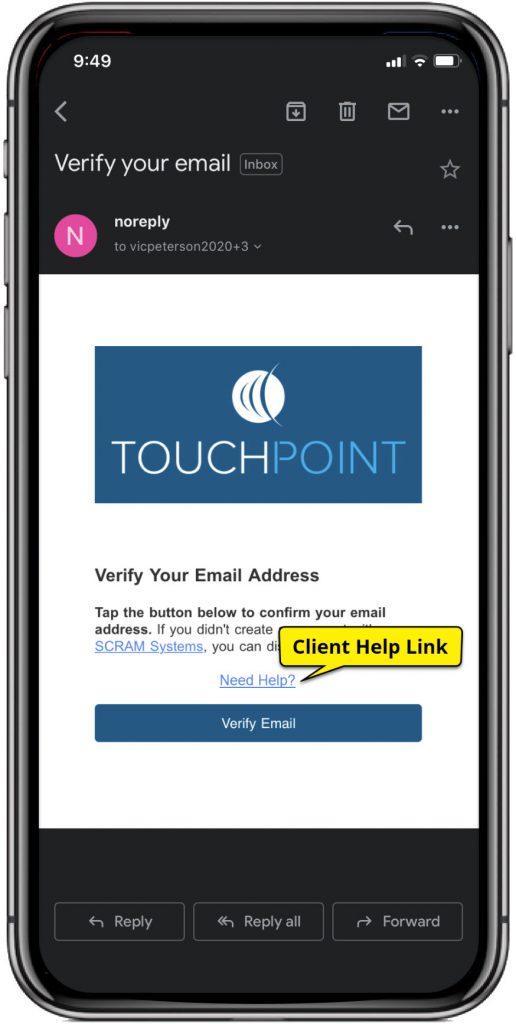
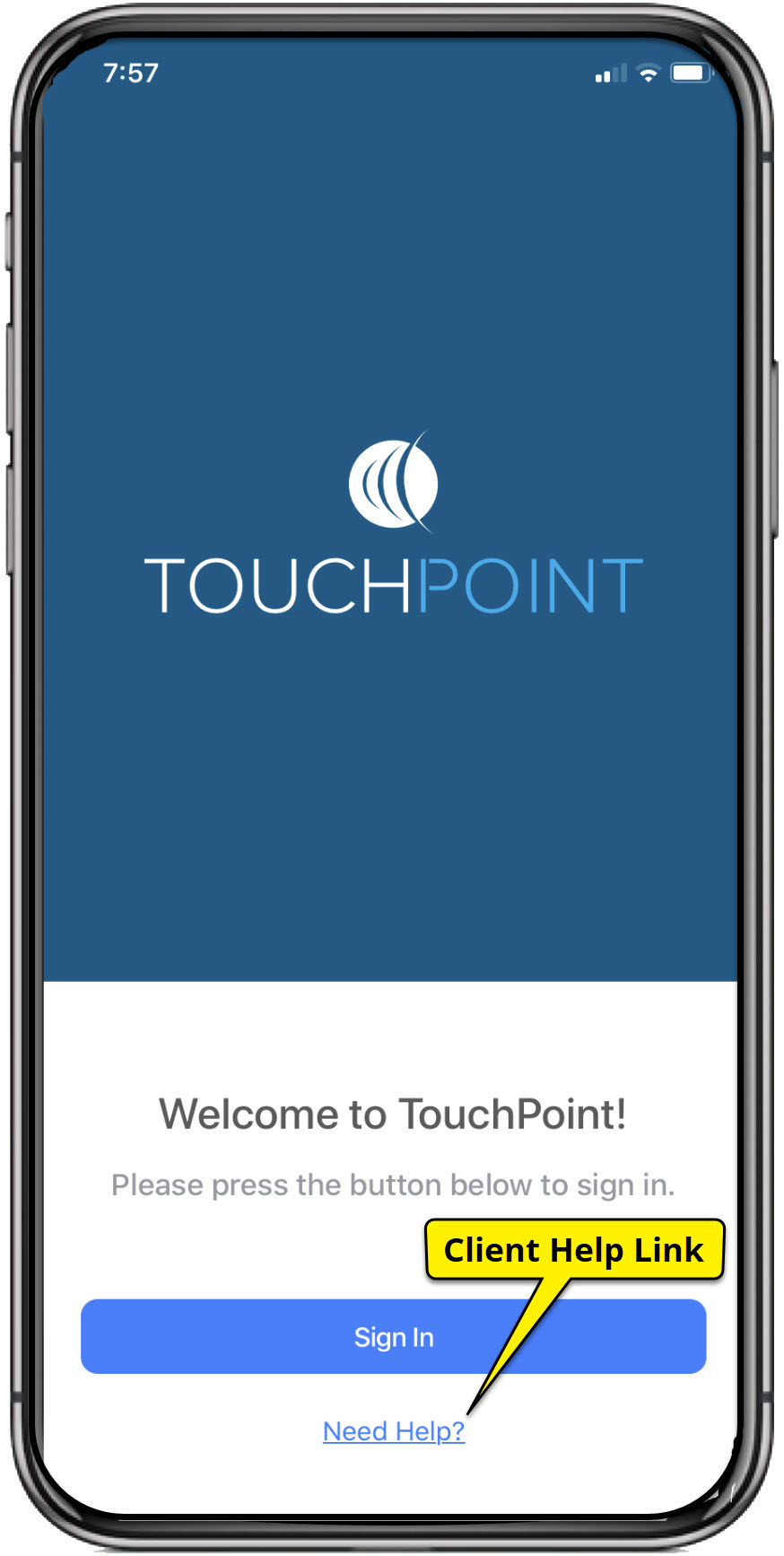
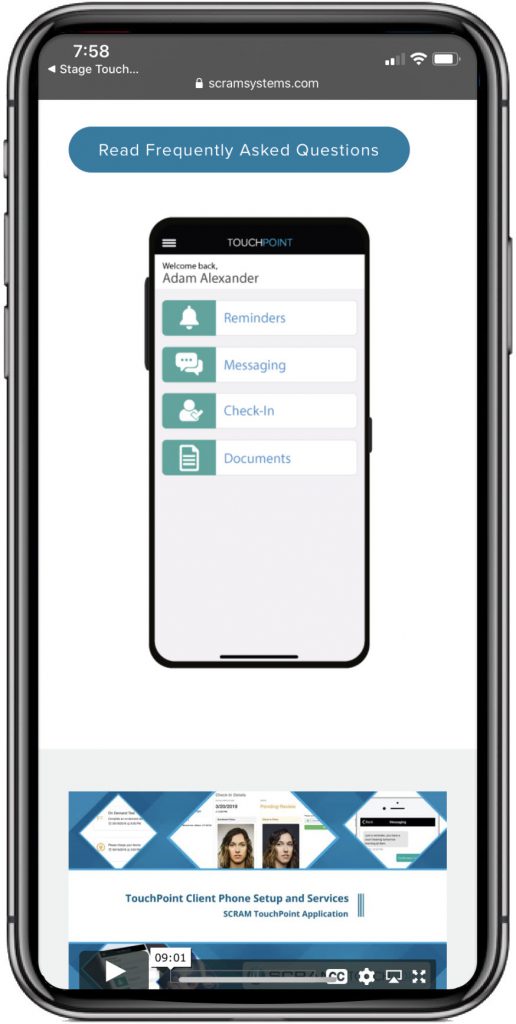
SCRAM TouchPoint App Client Self Help
Your TouchPoint clients can
now access the Client TouchPoint Installation document, video installation instructions
and Frequently Asked Questions document by selecting the Need Help? link
located on the email entitled Verify Your Email Address, and on the SCRAM
TouchPoint app Sign In screen.
Tap the Need Help?
link, to open the support page where the documents and video can be found.
Feedback
As always, please feel free to contact SCRAM Systems
Customer Services at 1-303-785-7879 with
any recommendations for system improvements.