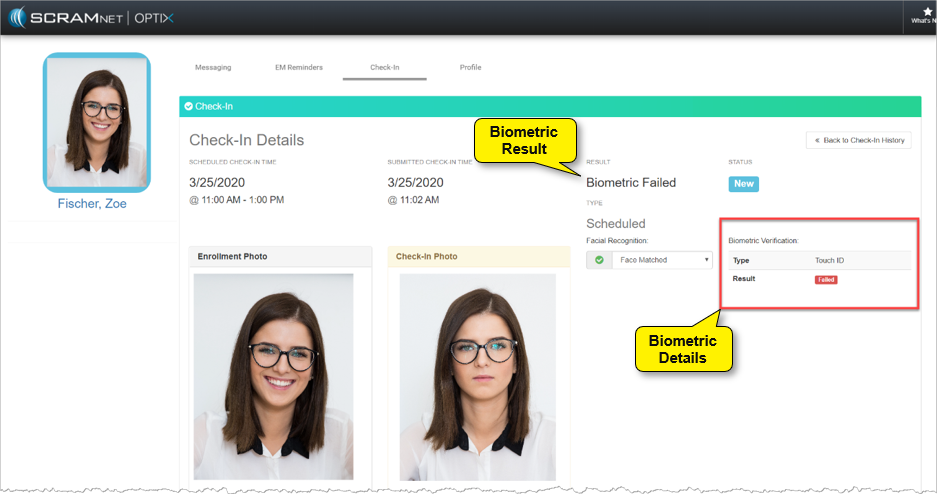
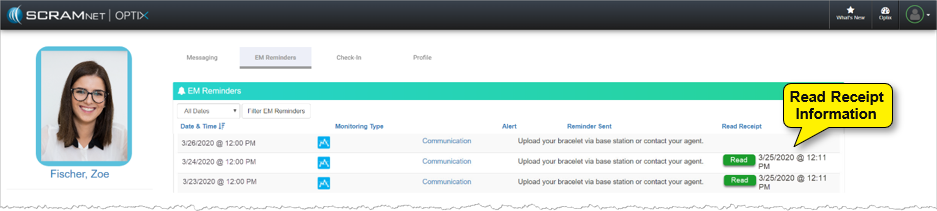
Effective July 23, 2020, SCRAM Optix™ and the SCRAM TouchPoint™ app will be updated to enhance the Documents service and improve the client enrollment process. These enhancements will improve usability and management of your TouchPoint caseload.
The enhancements for this release include:
- New SCRAM TouchPoint Client Temporary Password
- A new client will be able to access the SCRAM TouchPoint App using their email address and an auto-generated temporary password.
- The SCRAM TouchPoint Documents Service
- Send a document or image directly to the client’s SCRAM TouchPoint app from the system.
- New features on the Documents page designed to improve management of documents and images.
- The SCRAM TouchPoint Client App
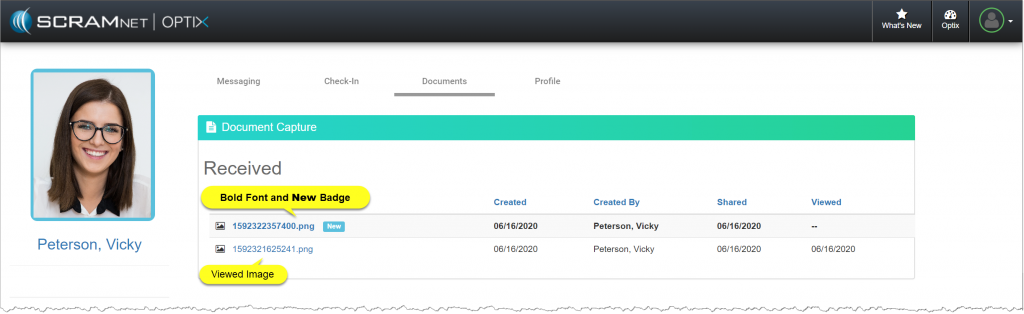
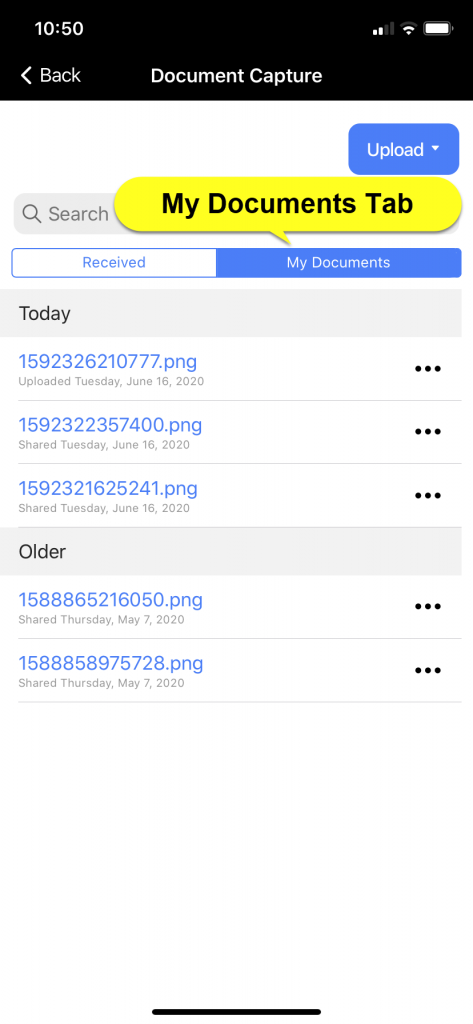
- The Received tab on the Documents Capture screen within the TouchPoint app, will display all documents or images shared with the client.
- The Client can view and print the document or image from the app.
Let’s look at the individual updates.
New Temporary Password
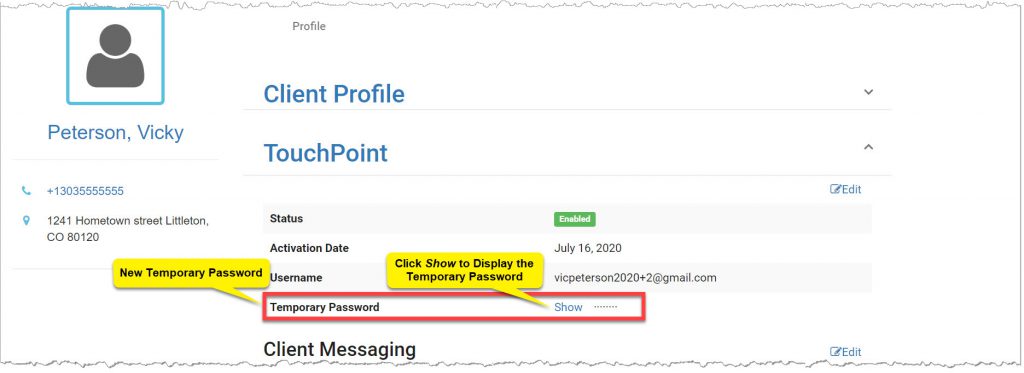
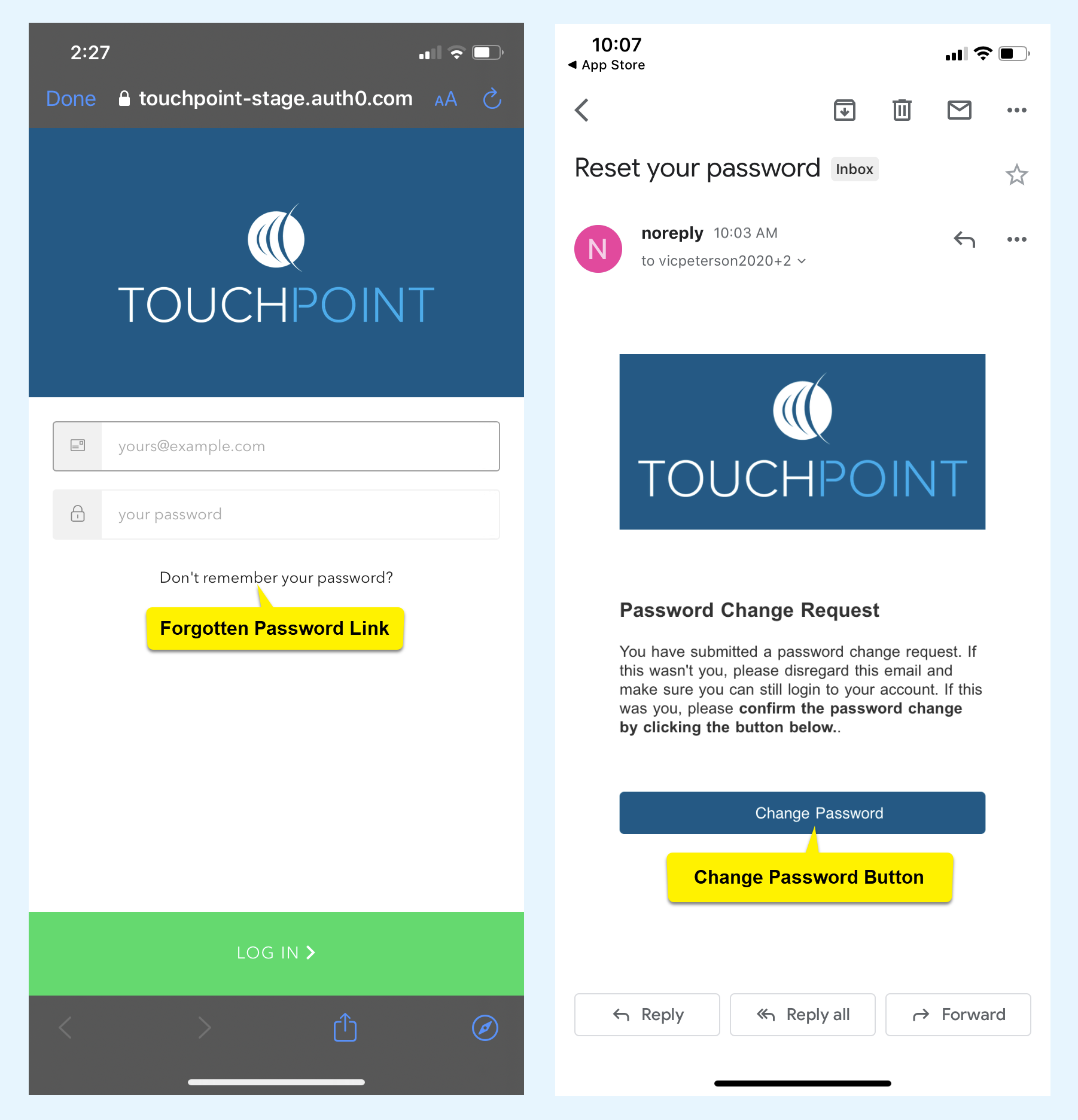
After adding a new TouchPoint client’s profile to the system, the client’s Profile page in SCRAM Optix will now display an auto generated temporary password for the client. Using the temporary password, the process of walking the client through the app setup and initial login will run more smoothly, without any delay due to a lag in the delivery of the Reset Password email.
By default, the temporary password is hidden from view. To view the temporary password, select the Show link.

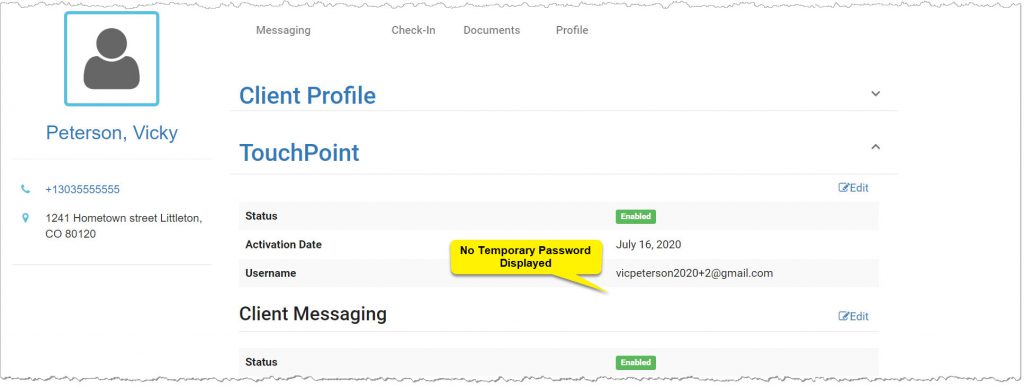
After the client has logged into the application for the first time, the temporary password will no longer be displayed on the page.
After the initial login and client orientation, have the client select the forgotten password link on the app’s home screen and create a new secure password to access the app moving forward.
TouchPoint Documents Service Updates
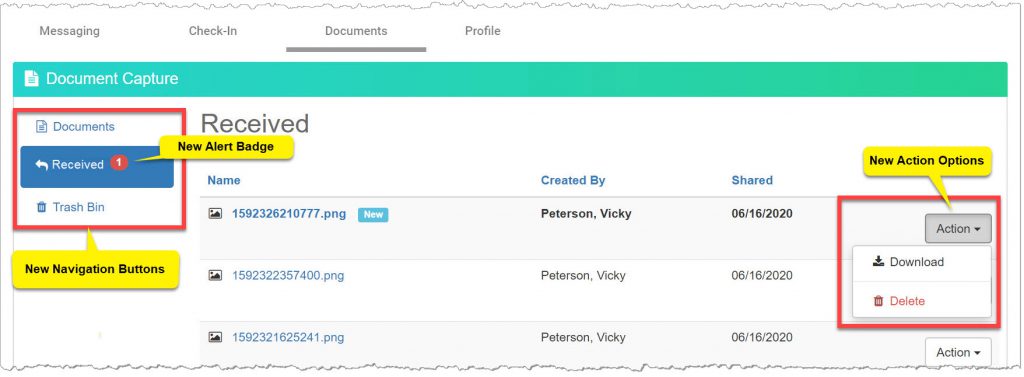
On the Documents tab for your client, new functionality is now available for improved management of the images received by the client. Additionally, you can now share a document or image with your client.
Sending a Document
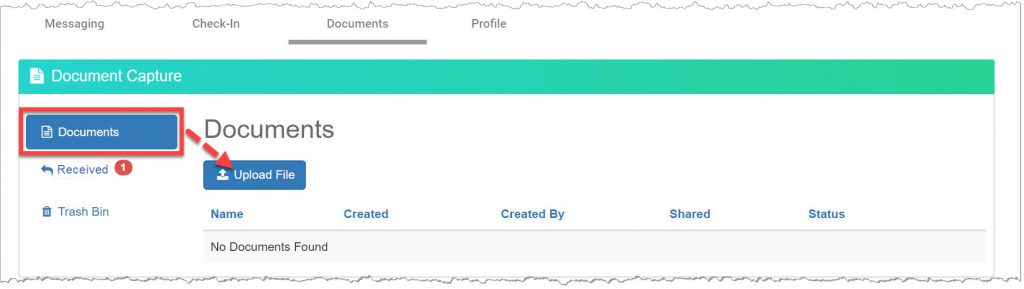
On the Documents tab, select the Documents button. There are two steps to follow when sharing a document or image with your client.
Step One: Upload the Document or Image
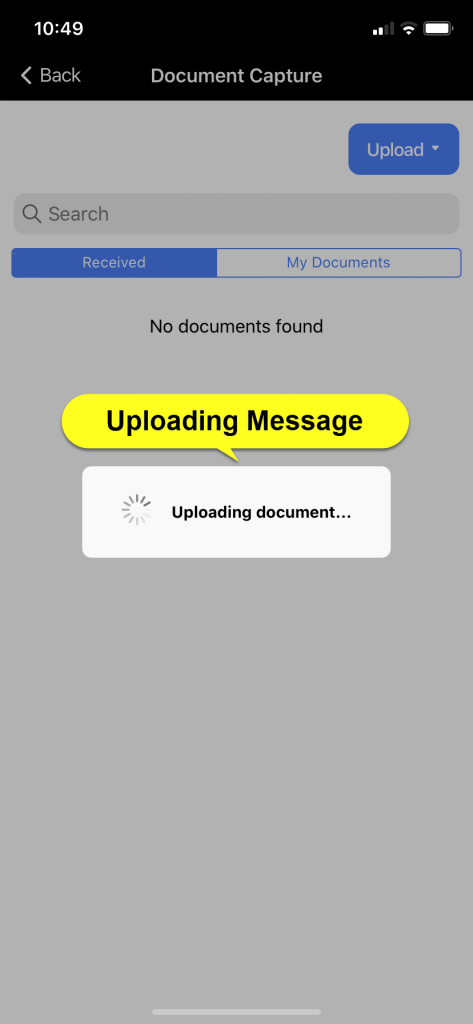
Start by selecting the Upload File button.
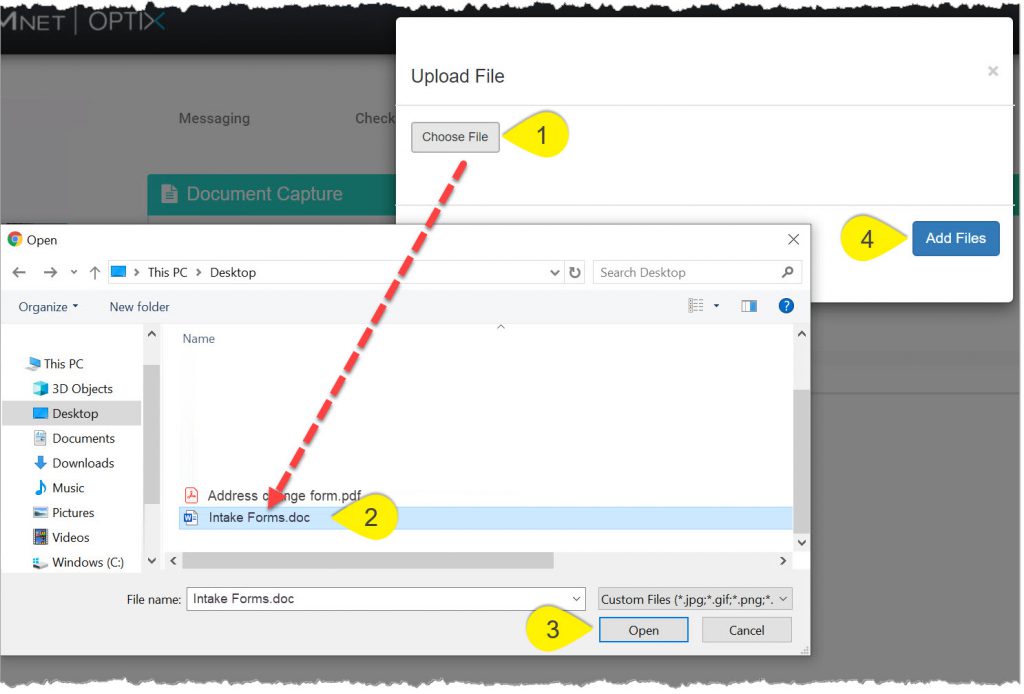
- On the Upload File pop-up, select the Choose File button.
- Select the file to upload. The selected file name will display in the File Name field. Supported file types include:
- .doc
- .docx
- .png
- .jpeg
- .gif
- Select the Open button. The select file will display on the Upload File pop-up.
- Click the Add Files button.
The document is now displayed on the Documents page.
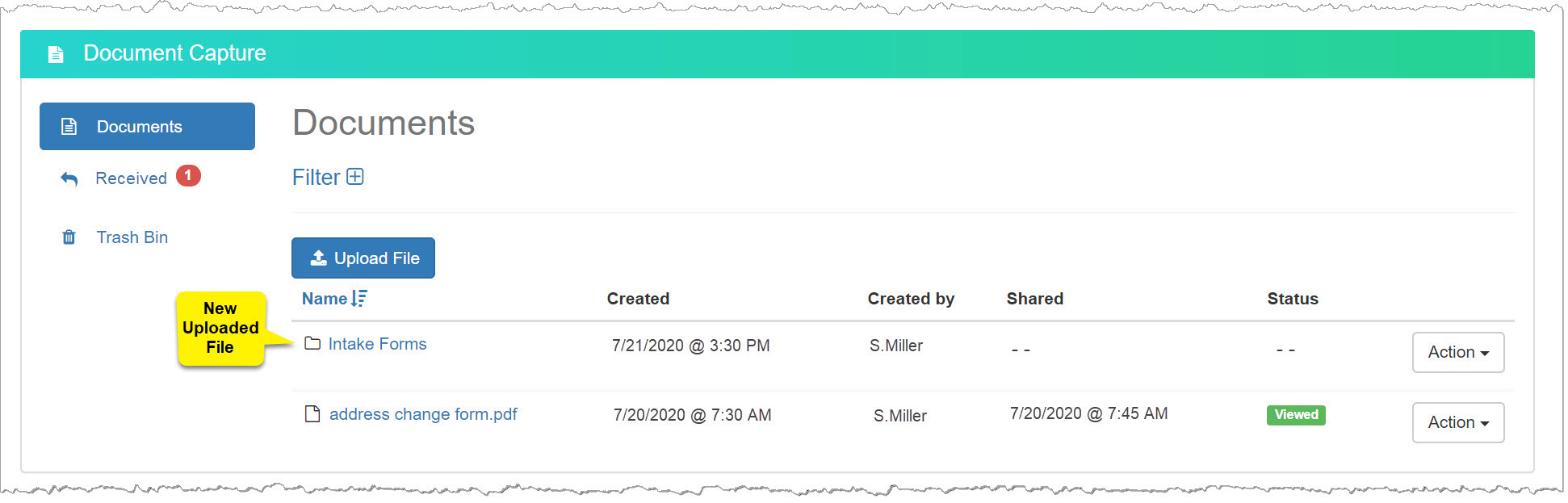
Step Two: Share the Document
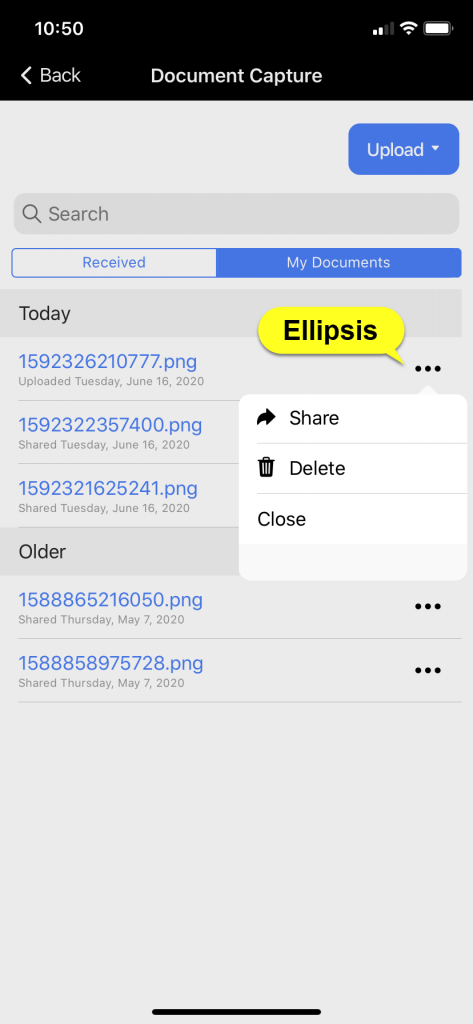
From the Action drop-down menu to the right of the document to be shared with the client, select the Share option
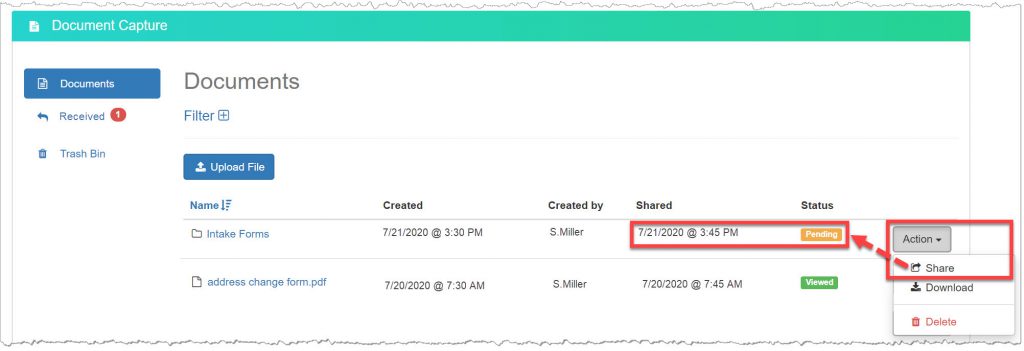
The Shared column for that document will now display a date and time stamp. Once the client has viewed the document in the TouchPoint app, the status will update from Pending to Viewed.
Other actions that can be completed for each file uploaded to the system includes,
- Downloading the document.
- Deleting the document.
Received Page
Updates to the Received page include,
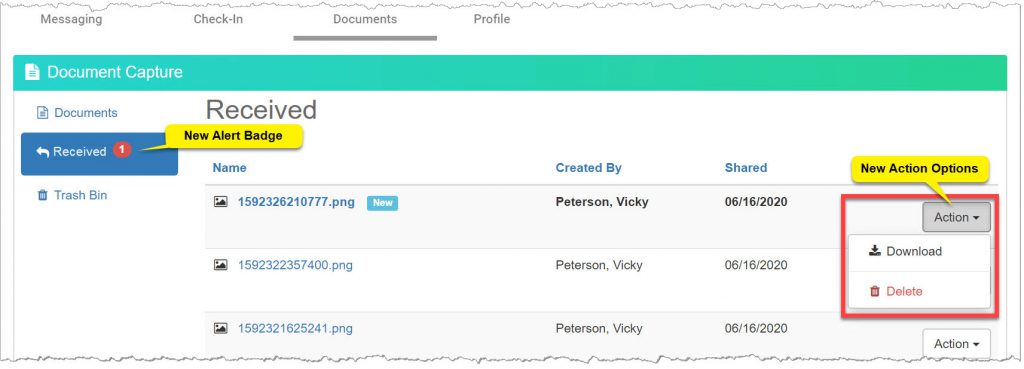
- A red badge icon on the Received button indicating a new image has been shared from the client’s app.
- An Action menu located to the right of each image provides options to Download or Delete an image.
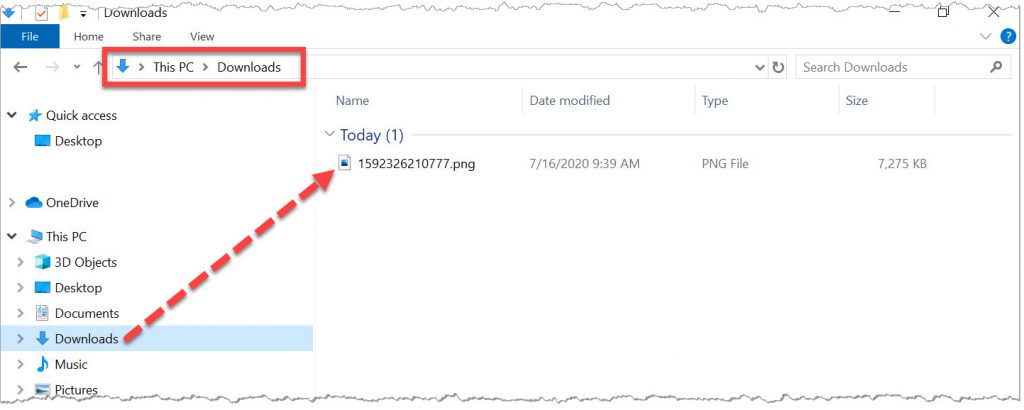
 | When utilizing the Download option, the downloaded image can be found in your computer’s Downloads folder. For assistance locating the downloaded image, contact Customer Service. |
Trash Bin
The Trash Bin page displays all images and documents deleted from either the Documents page or the Received page. The Action menu to the right of each image allows you to restore or download the image or document from the system.
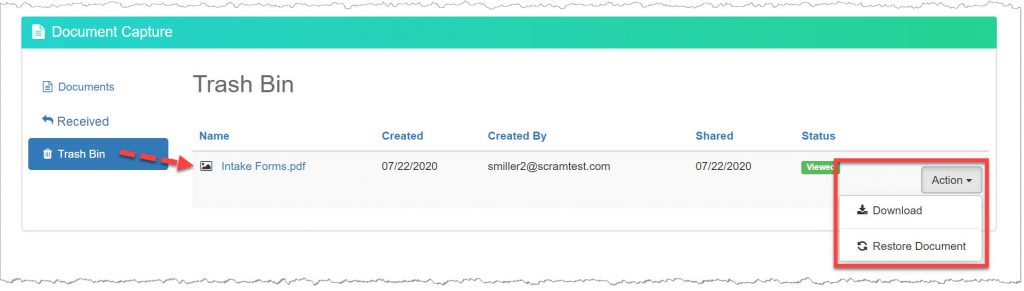
| Deleting a shared document or image from the system, does not delete the document or image from the client’s Documents tile in the TouchPoint app. |
TouchPoint Client App Update
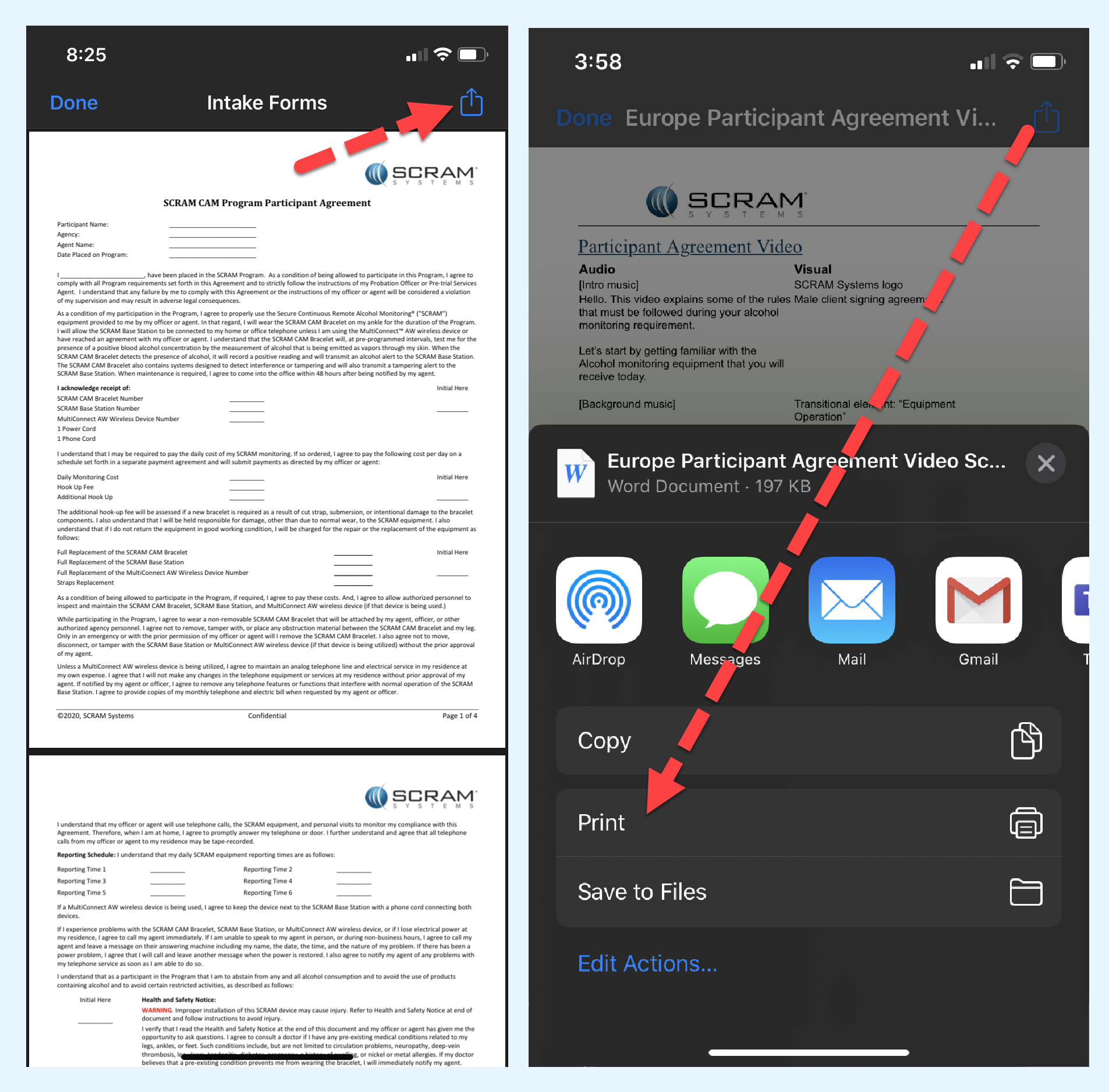
Once a new document has been shared with the client, have the client tap the Documents tile within the app. On the Document capture screen, the Received tab will display all documents shared from the system. Tapping the name of the document will open the document on the client’s phone. From here the client can view and print the document.
 IMPORTANT:
- TouchPoint app updates are made available by the Apple App Store and the Google Play store dependent upon their approval processes; therefore, the enhanced TouchPoint app functionality may not be available to clients right away.
- Once available, clients must update the TouchPoint app to the current version in order to view the documents or images you have shared with them.
Feedback
As always, please contact SCRAM Systems Customer Service at 1-303-785-7879 with any recommendations for system improvements.