SCRAM Systems has moved from its Mineral Avenue address in Littleton, Colorado. When conducting business with us, be sure to use the appropriate address:
RMA Address
When a Return Merchandise Authorization (RMA) is issued for one of your SCRAM Systems devices, please ensure that the return shipping address on the label reads:
SCRAM Systems (AMS) 8100 Southpark Way Littleton, CO 80120
If your return shipping labels have the old, now-obsolete Mineral Avenue address on them, please discard them and request new labels from your SCRAM Systems Account Manager or Regional Sales Manager.
Payments Address
When making a bill payment to SCRAM Systems for monitoring services, equipment purchases and rentals, or any other reason, please remit payment to the SCRAM Systems bank lockbox:
Alcohol Monitoring Systems, Inc. PO Box 561097 Denver, CO 80256-1097
Do not remit payments to the now-obsolete Mineral Avenue address or to the Southpark Way address.
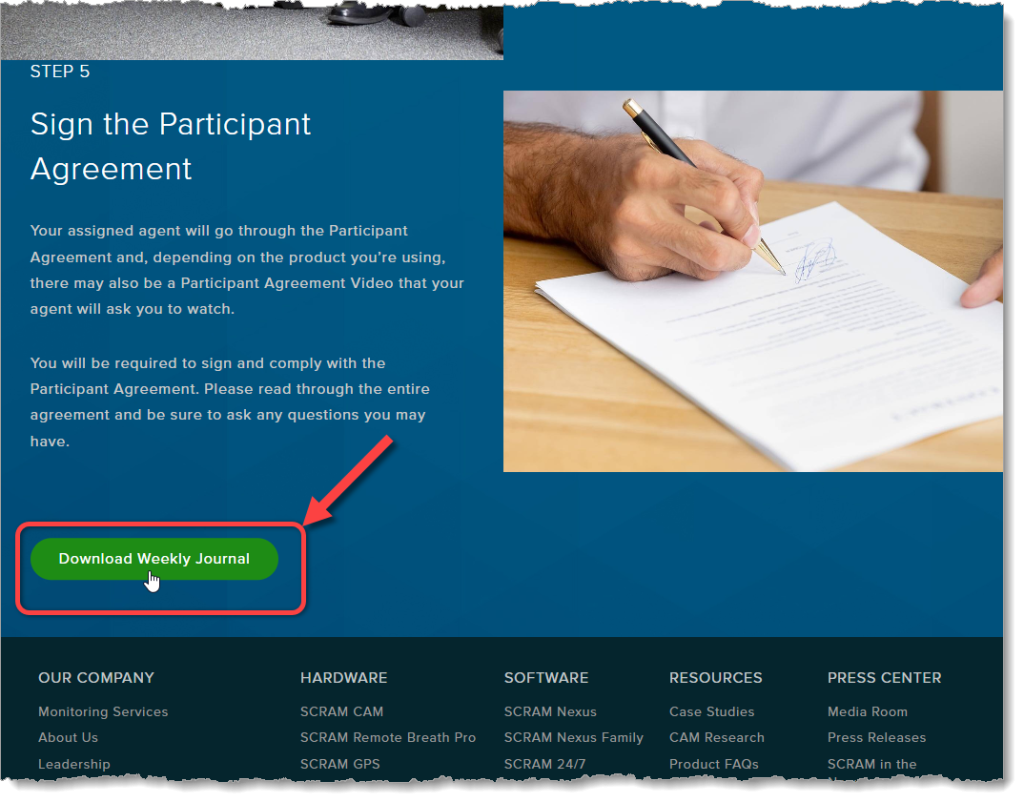
As part of our ongoing effort to improve the experience for our customers, agents, officers, and clients, we at SCRAM Systems have developed a simple weekly journal page that clients may download and print to help them keep track of their daily activities while they are participating in the SCRAM Systems Monitoring Program.
Where to Find It
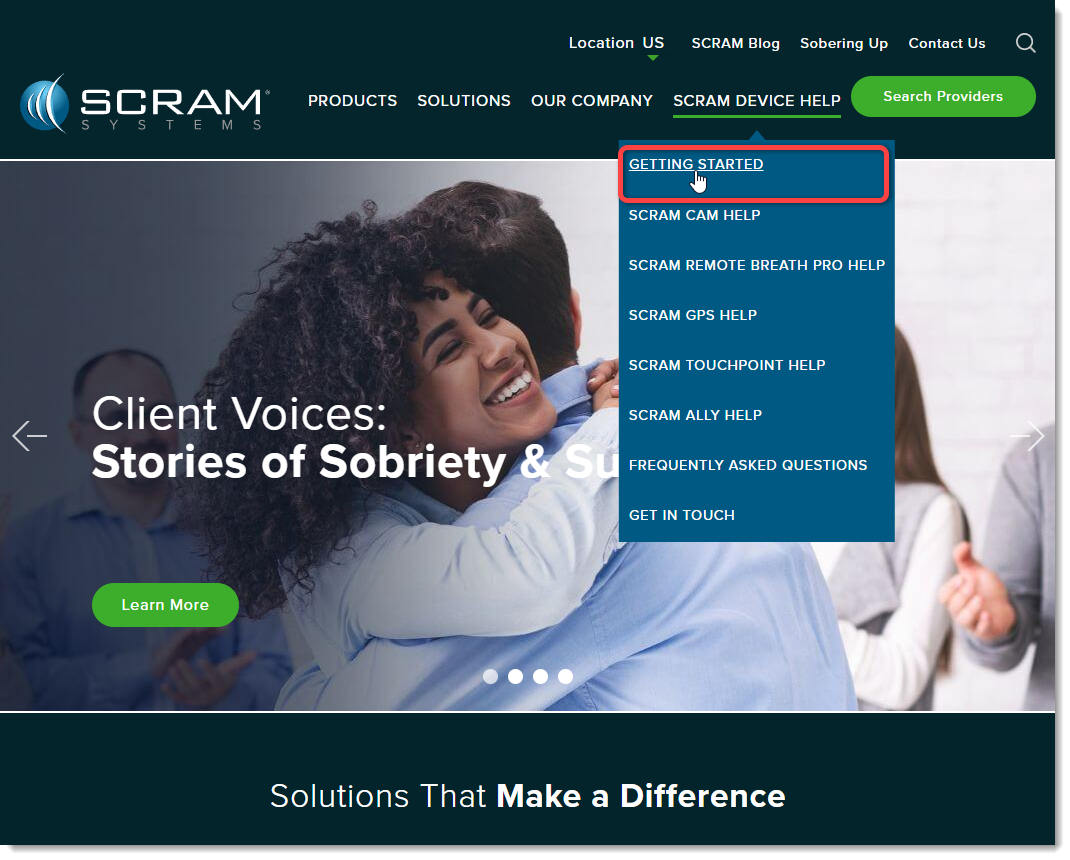
In addition to being available to customers, agents, and officers on the SCRAM Systems Help & Support homepage under the “Quick Links” heading, the simple two-page (one page front-and-back) PDF download is also available directly to clients on our public website (www.scramsystems.com) on the Getting Started page under the SCRAM Device Help dropdown menu:
Select ‘Getting Started’ from the SCRAM Device Help Menu
On June 12, 2024, SCRAM Systems will release two enhancements centered around the process of checking in a device as damaged.
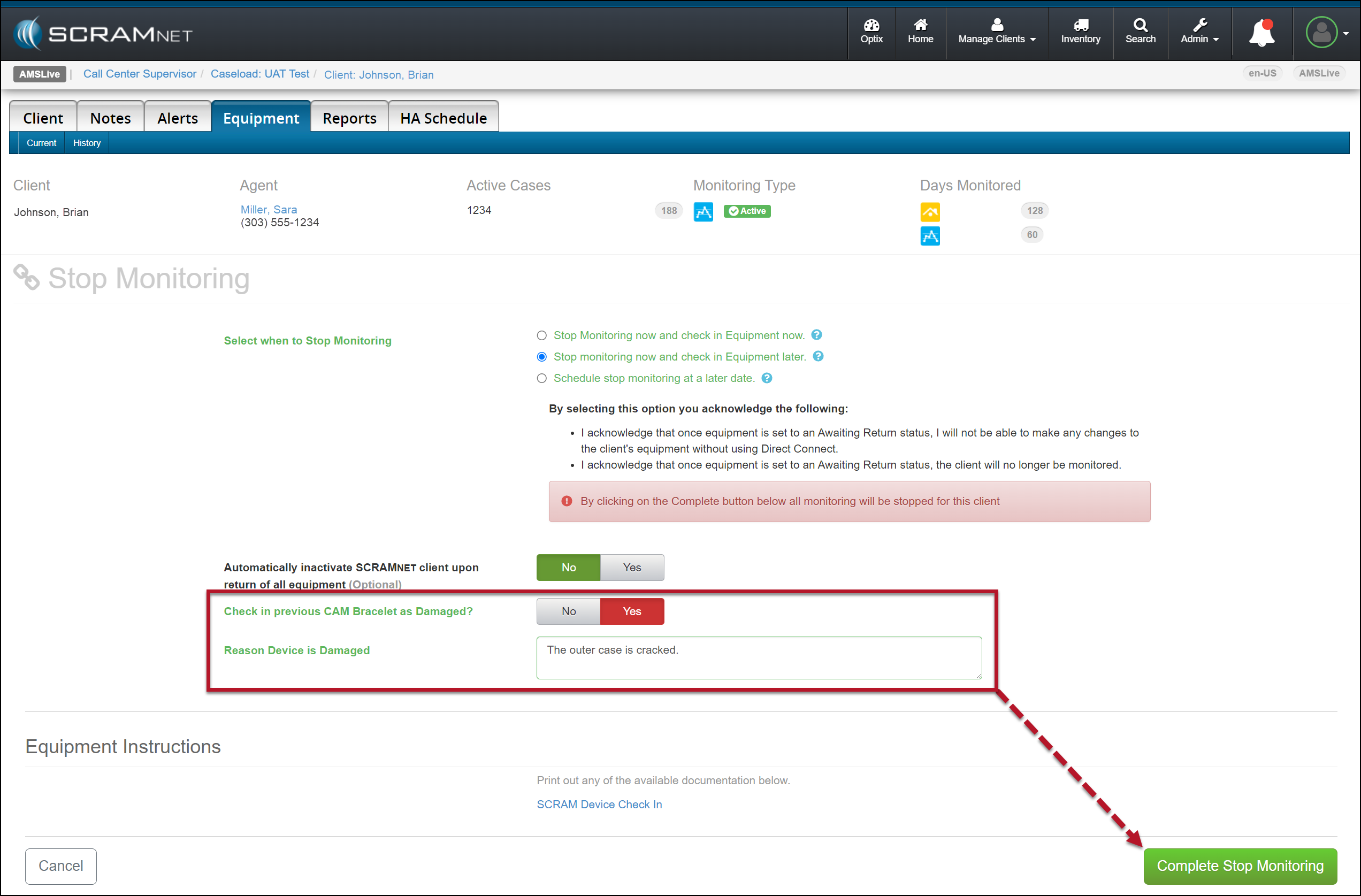
You will now have the option to flag a device as damaged when stopping the monitoring for the client.
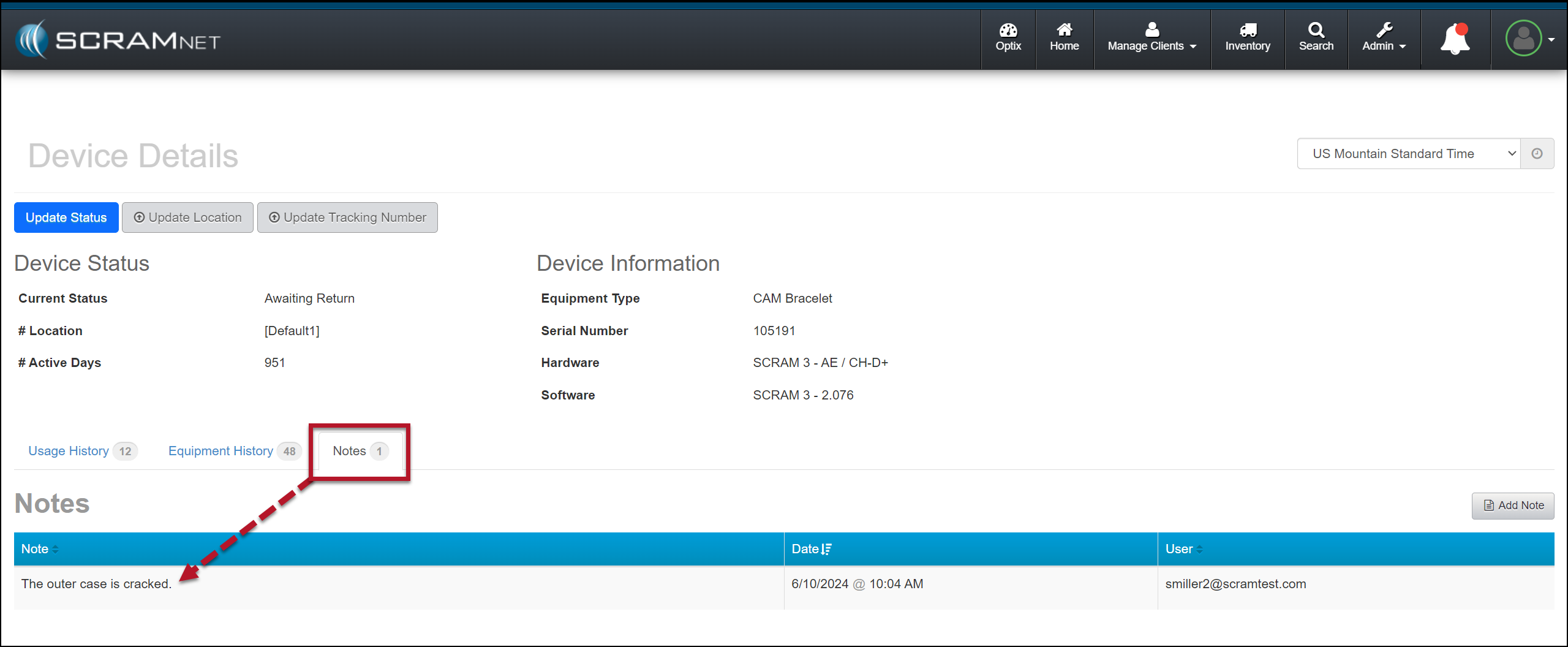
The notes entered for a device being checked in as damaged will now be visible on the Device Details page in SCRAMNET.
Not seeing the enhancement in SCRAMNET? Clear your cache and cookies and refresh your browser window.
Stop Monitoring and Check In Device as Damaged
When stopping the monitoring, for your client in SCRAMNET, you may flag a device as damaged by setting the “Check in previous [Device type] as Damaged?” option to Yes. Once set, add a note explaining why you flagged the device as damaged, and then complete the stop-monitoring process as usual.
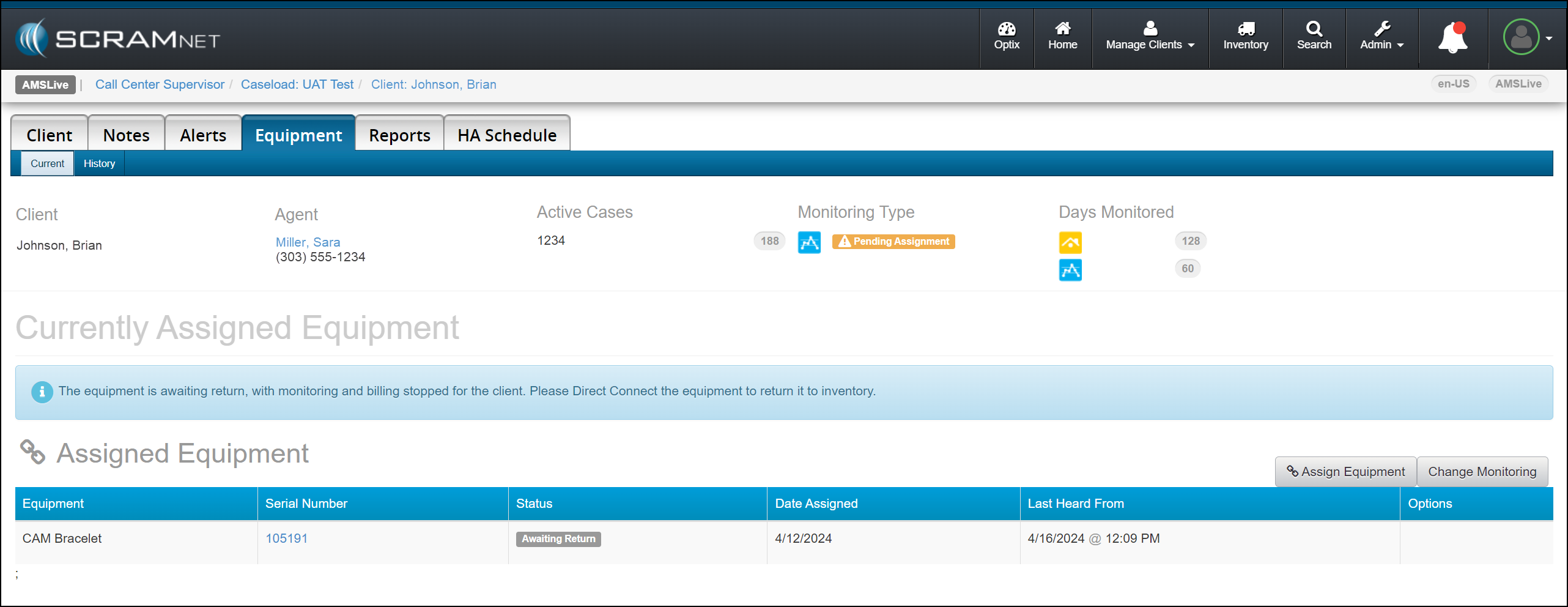
Example of a SCRAM CAM Client in SCRAMNET
Stop Monitoring page, Device Flagged as Damaged (click to enlarge)Client’s Equipment page Device Awaiting Return Status Displayed (click to enlarge)
Once the device status is updated to either “Pending Removal” or “Awaiting Return” based on the Stop Monitoring page selection, complete the process to return the device to your inventory.
SCRAM Systems recommends selecting the “Stop monitoring now and check in Equipment later” option when flagging a damaged device. This ensures billing is stopped for the client when a device cannot be checked in following the normal process.
When scheduling the stop monitoring for a later date, you cannot flag a device as damaged.
Flagging a device as damaged on the Stop Monitoring page does not automatically update its status to “In Inventory.” You must complete the check-in process to ensure billing and monitoring for the client are stopped.
When a device is flagged as damaged on the Replace Equipment page, it will automatically be updated to an “In Inventory” status.
Device Details Damage Notes
Once a device has been flagged as damaged, you may view the notes associated with the damaged device on the Device Details page in SCRAMNET.
Device Details Page with Notes Tab Selected (click to enlarge)
This information is helpful to reference when troubleshooting a device or requesting an RMA.
The damage notes will remain visible on your Device Details page until the device is returned and serviced at SCRAM Systems. At that time, they will no longer be visible.
When a Return Merchandise Authorization (RMA) is issued for one of your SCRAM Systems devices, please ensure that the return shipping address on the label reads:
Alcohol Monitoring Systems 8100 Southpark Way Littleton, CO 80120
If your return shipping labels have the old Mineral Avenue address on them, please discard them and request new labels from your SCRAM Systems Account Manager or Sales representative.
At 11:00 PM MDT on April 30, 2024, SCRAM Systems® will release a firmware update to the SCRAM Remote Breath Pro (RB Pro) device, which will result in multiple enhancements to your Remote Breath client Caseloads.
Firmware Download Tips:
SCRAM Systems recommends you power on and update the firmware on your inventory devices before you assign them to clients.
It will take up to 15 minutes for the device to download and install the firmware update.
You and your clients may see the RB Pro device power cycle itself several times during the download and installation process. This is normal behavior.
If it is taking longer than 30 minutes to download and install the firmware update, then follow these tips for troubleshooting Extended Firmware Download Times
Currently, when the device prompts the client to provide a breath sample, it will “wake up,” provide visual instructions on screen, an audible tone, and a solid red light to alert the client that it is time to give a breath sample. The screen will continue to display the instructions and an audible alert sound until the client completes the breath test or the Grace Period expires. If the client does not provide a breath sample in a timely manner, this causes the device to consume a lot of its battery power.
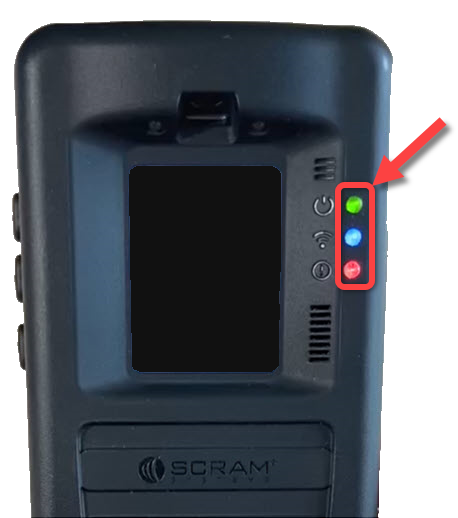
With this update – to conserve power and extend battery life between charges – if the client is not actively blowing into the breath tube 30 seconds after the initial breath test alert, then the screen will “sleep.” All three of the green, blue, and red indicator lights will remain on. Specifically, the red light remains on to remind the client a breath test is pending.
Red Light Remains On While in Sleep Mode When a Test is Pending
At set intervals throughout the Grace Period, the device’s screen will “wake up” and produce an audible tone to remind the client to complete the breath test as well.
When the client sees a solid red light on the device, with or without on-screen instructions, this indicates a pending breath test. If the screen is asleep, instruct the client to press one of the buttons on the side of the device to “wake” it, and then follow the on-screen prompts.
When the device’s battery level is Low or Critically Low, the red indicator light flashes continuously and does not stay solid to signify a pending breath test. Instruct the client to press one of the buttons on the side of the device if the screen is asleep, follow the on-screen prompts to complete a breath test, and then connect the device to a charging cable.
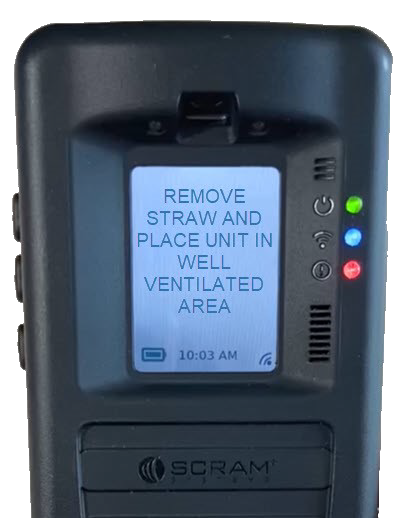
Once a breath test has been requested for the client, and before the RB Pro prompts the client to “Align Eyes,” the device will complete a VOC (Volatile Organic Compound) flow path check. When the device detects a VOC in the breath flow path, “Remove Straw and Place Unit In Well Ventilated Area” will be displayed on the screen:
RB Pro Device Displays ‘Remove Straw and Place Unit In Well Ventilated Area’
Instruct the client to follow the on-screen instructions by having the client:
Remove the breath tube from the device.
Relocate the RB Pro device to an area of fresh air and free of chemicals (like air fresheners) and cleaning agents (including freshly cleaned countertops).
Ensure the RB Pro device is not in its carrying case. Place the device on its side on a tabletop or other clean surface away from contaminants, with the vent and breath tube port unobstructed.
After a period of time, the RB Pro’s screen will update to “Blow Again” and the device will complete a second VOC flow path check.
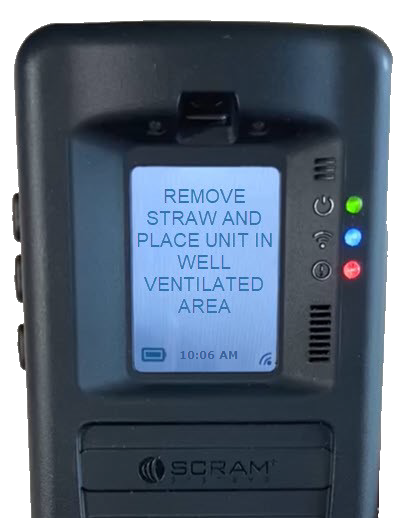
If VOCs are still detected, the screen will update to “Please Wait,” then “Remove Straw and Place Unit In Well Ventilated Area” for an additional period of time…
RB Pro Device Displays ‘Remove Straw and Place Unit In Well Ventilated Area’ Again
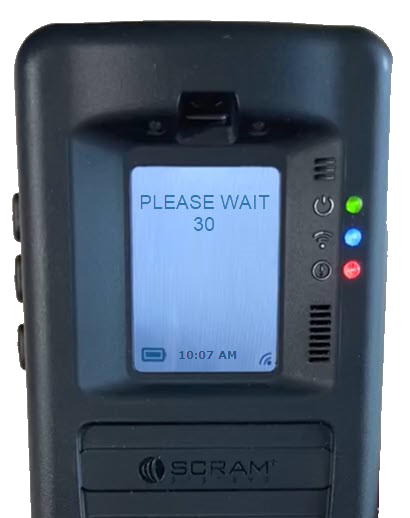
…followed by “Please Wait” with a timed countdown:
RB Pro Device Displays ‘Please Wait’ and Counts Down
At the end of the countdown, the device will complete another VOC flow path check.
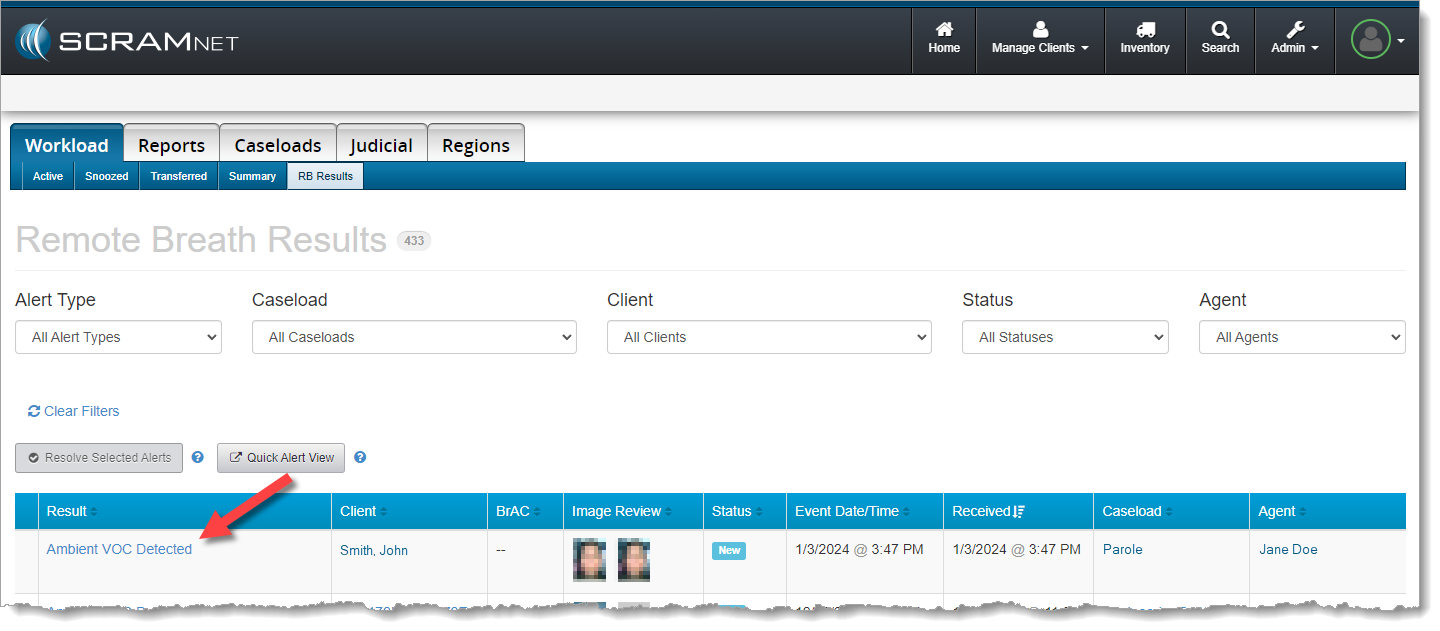
After three to four attempts (depending on the level of VOCs detected), if VOCs are still being detected, the screen will update to “Monitoring.” In SCRAMNET, an “Ambient VOC Detected“ result will be displayed on the client’s RB Results page.
‘Ambient VOC Detected’ on RB Alerts Page in SCRAMNET (click to enlarge)
When the client is set up for Test to Zero, an On-Demand test will be sent – automatically – 20 minutes after the “Ambient VOC Detected” test result is received in SCRAMNET.
New “Stop Blowing” Message
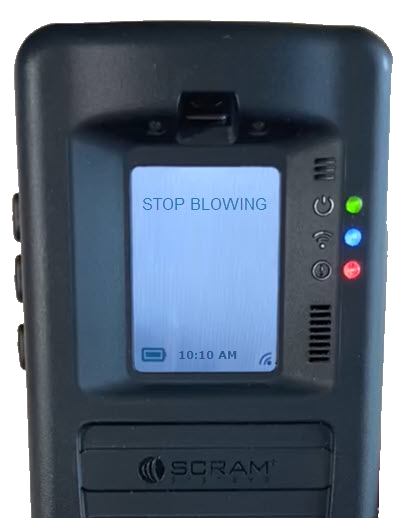
When a breath test is requested, if the client is actively blowing into the device without being prompted, a new “Stop Blowing” message will be displayed on the device’s screen. The client should follow the on-screen instructions when providing a breath sample.
RB Pro Device Displays ‘Stop Blowing’
Additional Usability Improvements
RB Pro Indicator Lights
Currently, when an RB Pro is in “sleep” mode, the green, blue, and red lights to the right of the RB Pro display screen will turn off. With this firmware update, the lights will remain on, even during sleep.
Indicator Lights Remains On Even While in Sleep Mode
In addition to the lights remaining on, the blue and red lights will display as solid or flashing, based on the device’s current status. Indicator light statuses are:
Green Light: Active, assigned device
Solid Blue Light: Connected to a Data or Wi-Fi Network
Flashing Blue Light: Establishing a Data or Wi-Fi Network Connection
No Blue Light: No Data or Wi-Fi Network Connection
Solid Red Light: Breath Test Required
Slow Flashing Red Light: Low Battery
Quick Flashing Red Light: Critically Low Battery
Periodically, the screen will wake up when the device is in sleep mode. This occurs during communication with SCRAMNET, or when an indicator light’s status changes. The client should be instructed to follow on-screen prompts when appropriate.
Wi-Fi Sleep Mode
With this update, the device will now go to sleep during inactive periods while connected to a Wi-Fi network. This will extend the battery life between charges while connected to Wi-Fi.
Internal testing has revealed that – thanks to this firmware update – battery life more than doubled as compared to the current battery life of an RB Pro device connected to a Wi-Fi network. Regardless of this improvement, the client should still be instructed to connect the device to a charging cable whenever possible to ensure proper device operation.
On March 1, 2024, SCRAM Systems® will release an updated SCRAM Remote Breath Participant Agreement in the SCRAMNET® monitoring system. This updated Agreement better represents the current Remote Breath Pro (RB Pro) Device and better protects your organization and its agents.
What is Changing
Product evolution, feedback from customers, and input from our own internal legal team led us to make the following improvements in our RB Agreement:
References to the now-obsolete first generation Remote Breath “Classic” Device have been removed.
Terminology used throughout the Agreement is more clearly defined in the opening paragraphs.
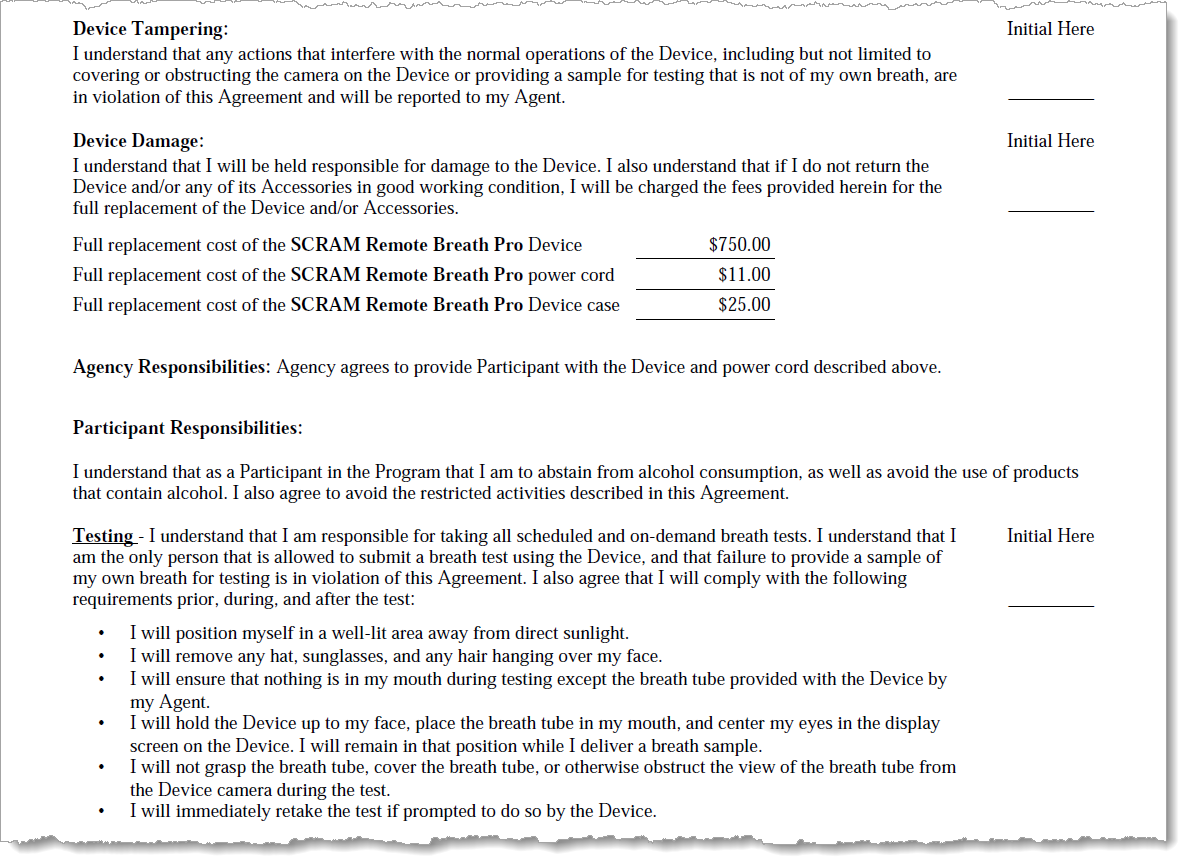
Language that explicitly describes what qualifies as “Device Tampering” and how it is a violation of the Agreement has been added.
The Participant Responsibilities – Testing section has been bolstered to discourage clients from (a) placing anything in their mouths except the breath tube supplied with the RB Pro Device and (b) grasping or otherwise obstructing the camera’s view of the breath tube while performing a breath test.
Updated RB Participant Agreement Excerpt (click to enlarge)
Who is Impacted
All Remote Breath customers who access and print their Remote Breath Participant Agreements from SCRAMNET will see the updated Agreement take effect March 1st. If your organization uses a customized version of the RB Agreement, your customizations will be “ported over” to the updated Agreement and made available in SCRAMNET as they are today.
If you are unsure about the type of Remote Breath Participation Agreement used by your organization, ask your supervisor or program administrator.
An extremely small number of customers have made major material changes to their versions of the RB Participant Agreement. Those customers will be contacted by their SCRAM account representative to discuss options for making the update to the newer Agreement language.
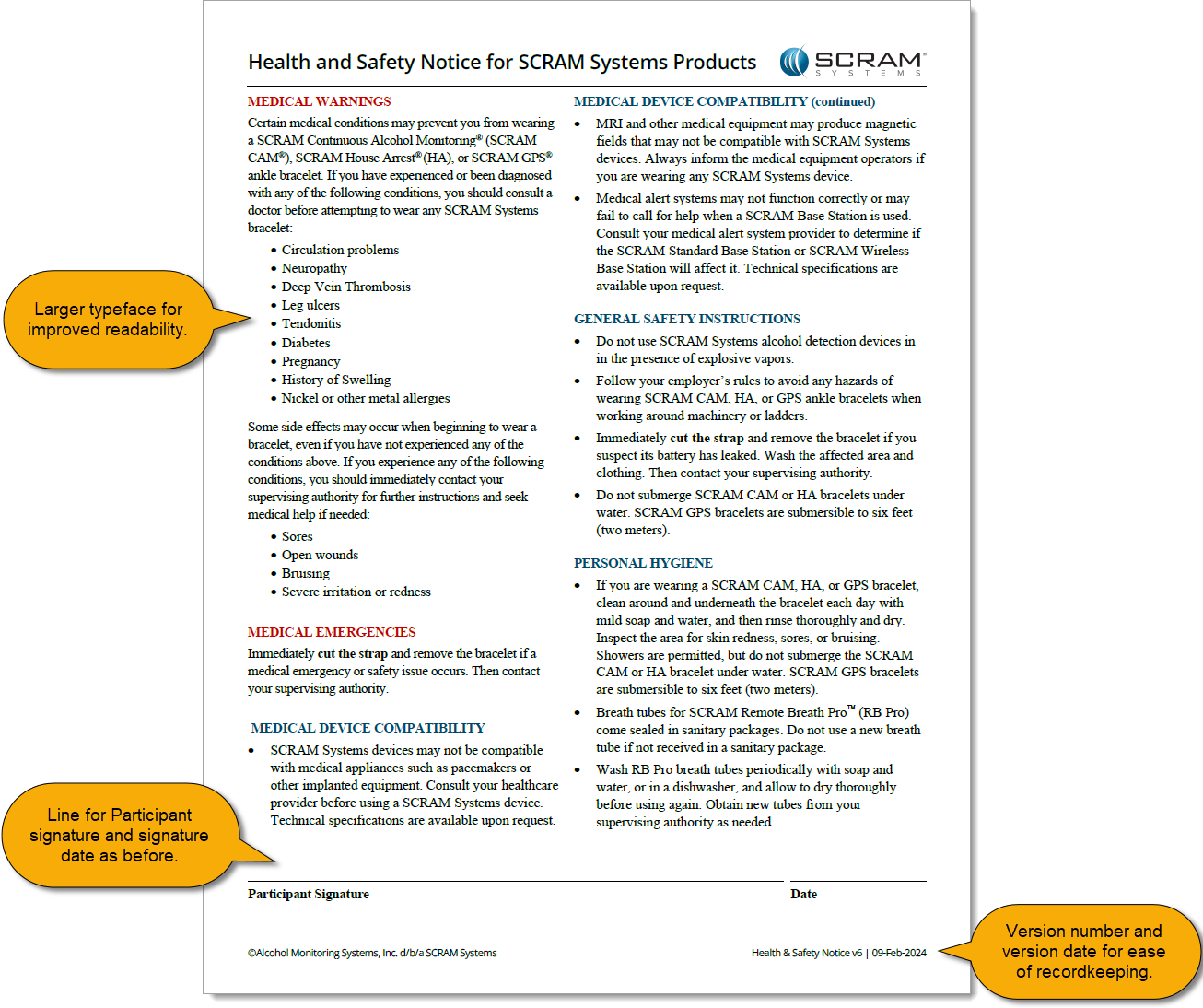
On February 9, 2024, SCRAM Systems will release Version 6 of its Health and Safety Notice for SCRAM Systems Products. This updated version will automatically append itself to the end of your SCRAM-Approved Participant Agreements (the Agreements you download and print from SCRAMNET), and will also be available separately for download from the SCRAM Systems website.
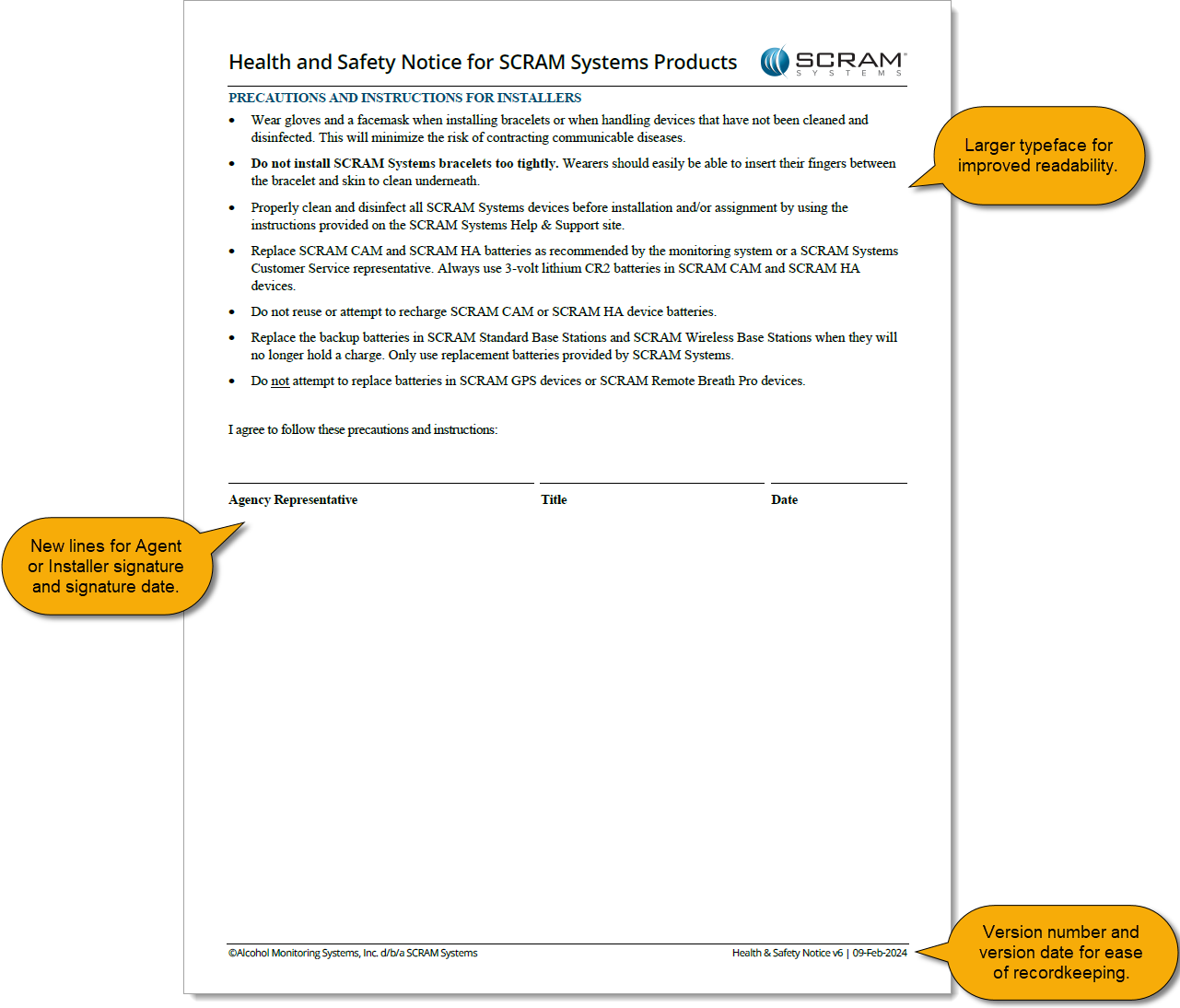
The SCRAM Systems product line has evolved significantly over the years, and this update brings the Health and Safety Notice up to date with the current line of EM devices. Upon review of the updates by a third-party Human Factors and Safety Evaluation firm, it was determined that the Health and Safety Notice will now be separated into two pages.
Page 1: Participant Warnings and Instructions
The first page will continue to house medical warnings, general safety instructions, and personal hygiene recommendations targeted towards the client, and as before will require the client’s signature:
Health and Safety Notice v6 pg 1 (click to enlarge)
Page 2: Installer Precautions and Instructions
The second page relocates the “PRECAUTIONS AND INSTRUCTIONS FOR INSTALLERS” section from the first page, and adds a new “Agency Representative” signature line to be signed by the installer at the time of installation:
Health and Safety Notice v6 pg 2 (click to enlarge)
This update to the Health and Safety Notice for SCRAM Systems Products provides greater clarity to both your clients and your agents, and provides greater legal protection to your agents and your overall monitoring program.
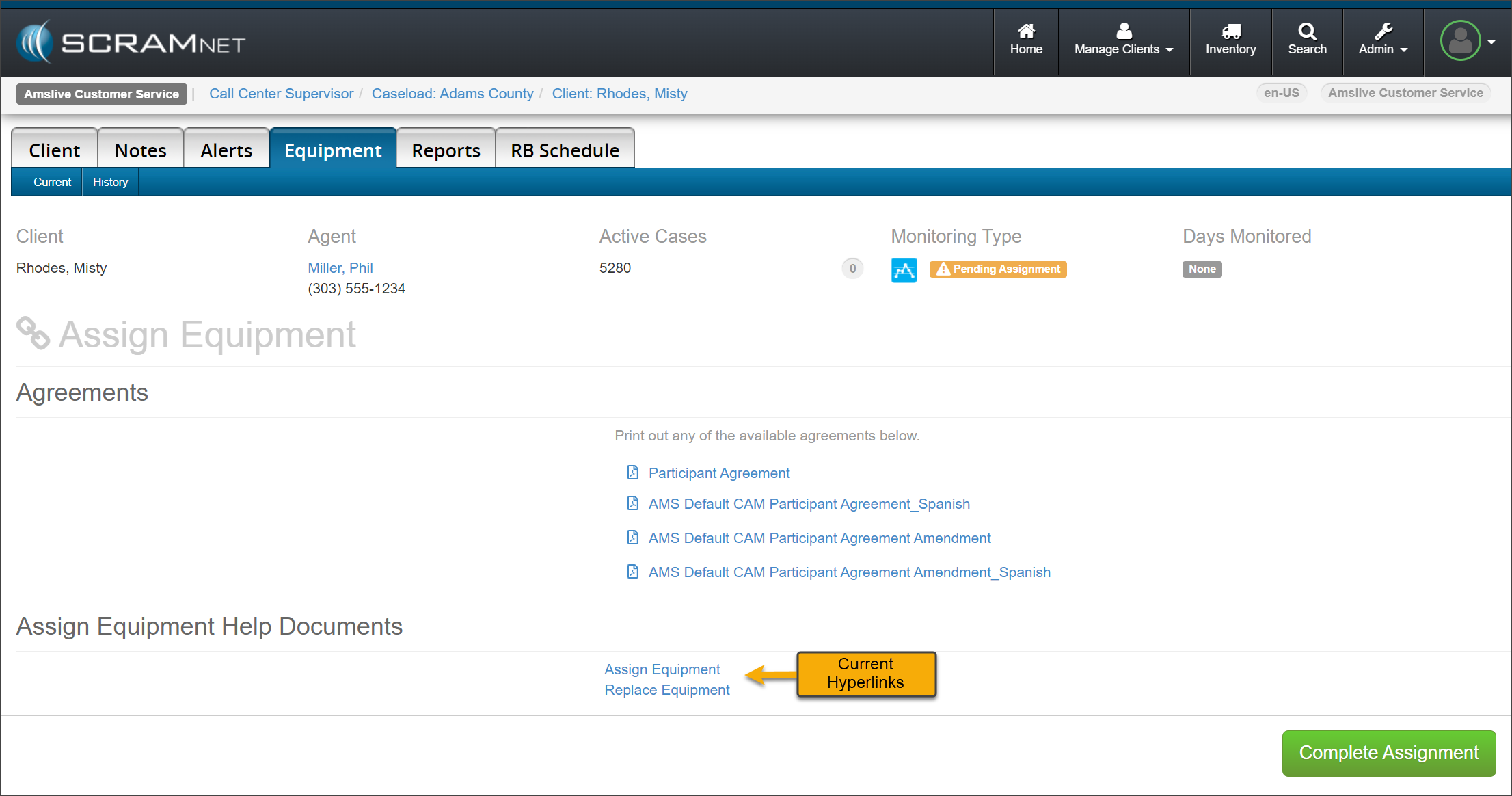
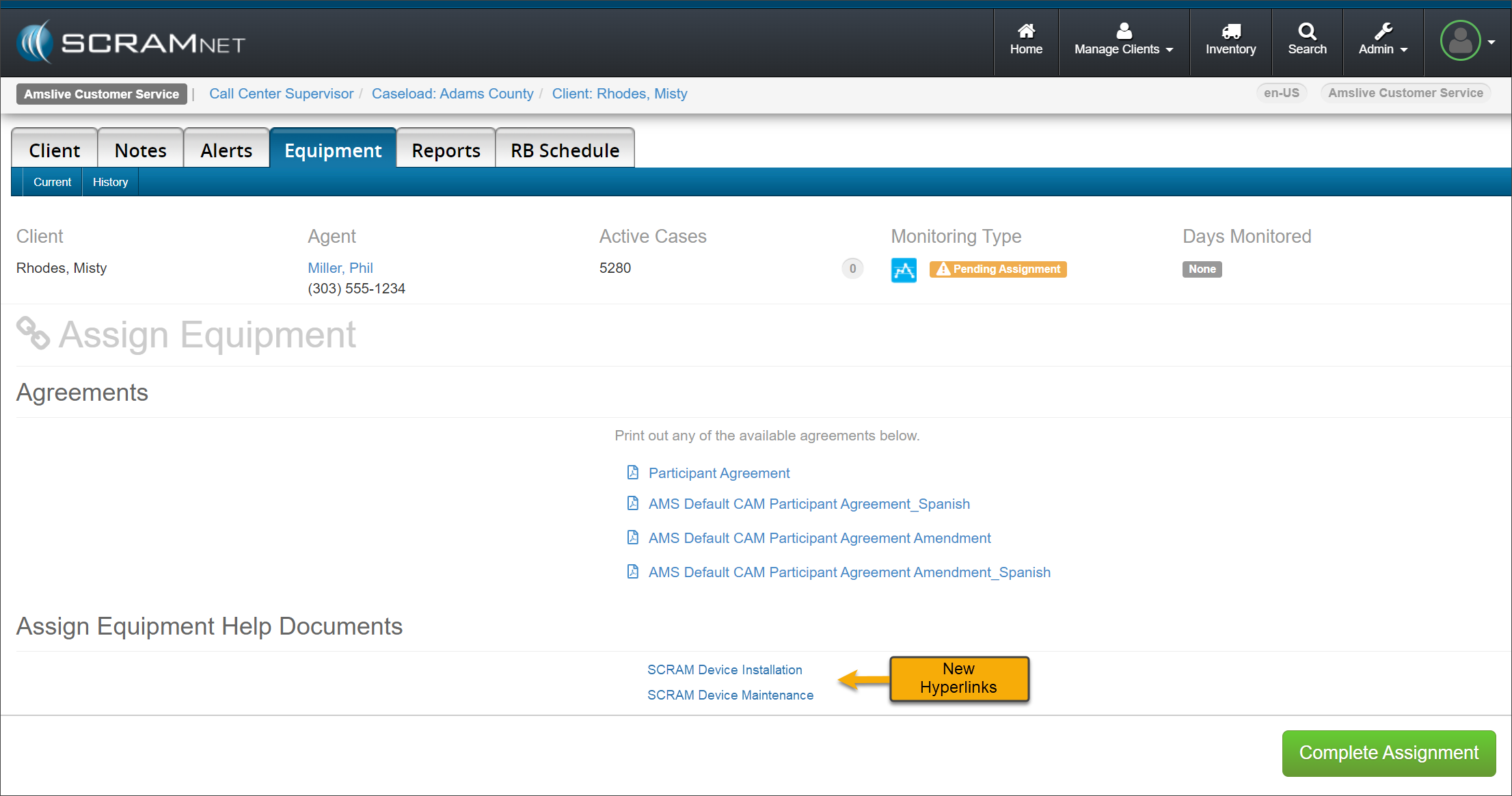
On November 1, 2023, SCRAM Systems® will release an enhancement for your SCRAMNET client caseloads. The “Assign Equipment Help Documents” hyperlinks will be updated on the Assignment, Maintenance, and Stop Monitoring pages.
Current Assign Equipment Help Document Hyperlinks – click to enlarge
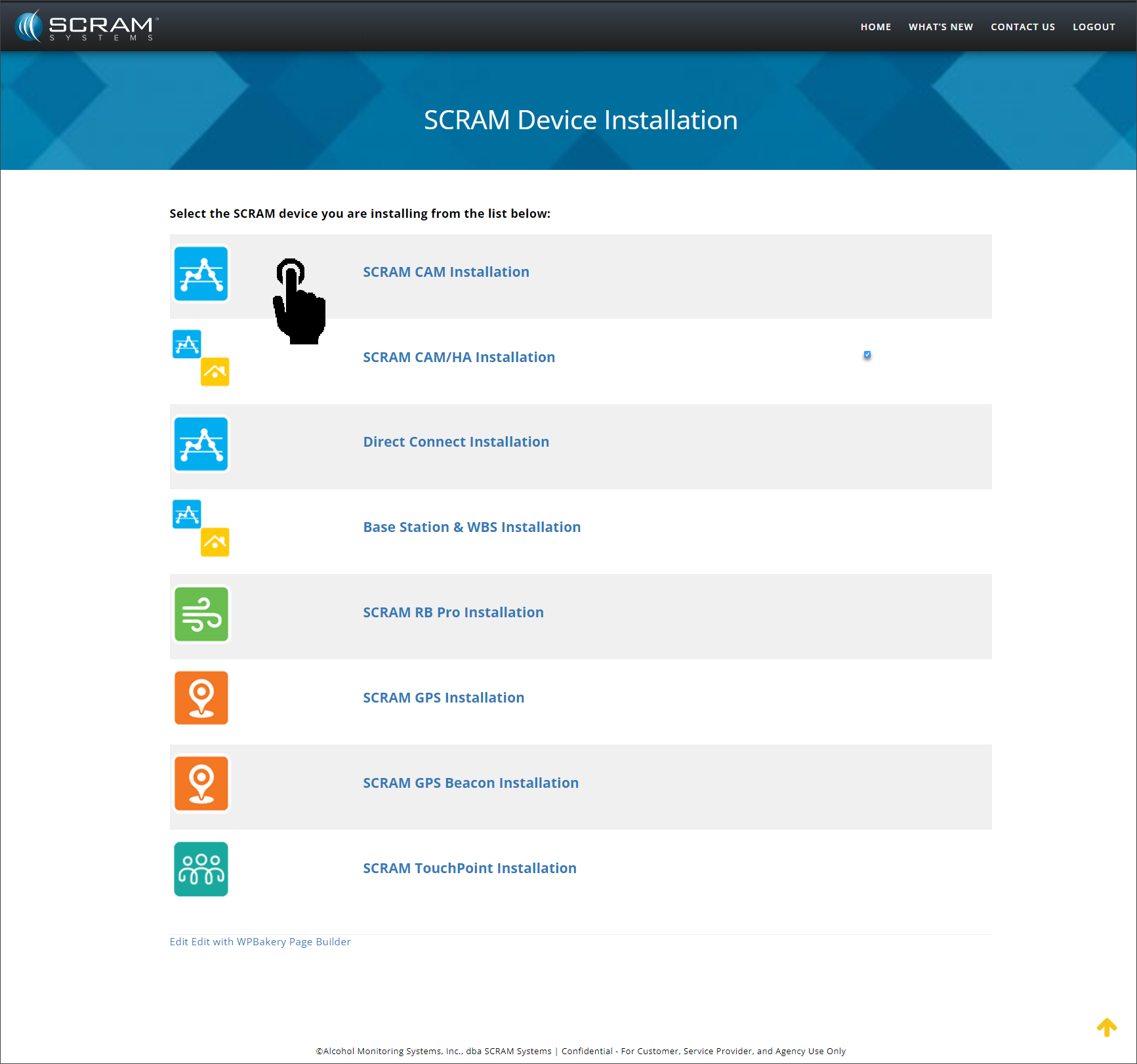
The Help Documents hyperlinks will display SCRAM Device Installation, SCRAM Device Maintenance, and SCRAM Device Check-In based on the current equipment activity.
New Assign Equipment Help Document Hyperlinks – click to enlarge
Selecting the hyperlink will open the specific device activity Help landing page. The landing page will display a list of SCRAM’s monitoring technologies from which to choose. For example, select the SCRAM CAM Installation hyperlink…
SCRAM Device Installation Help Article – click to enlarge
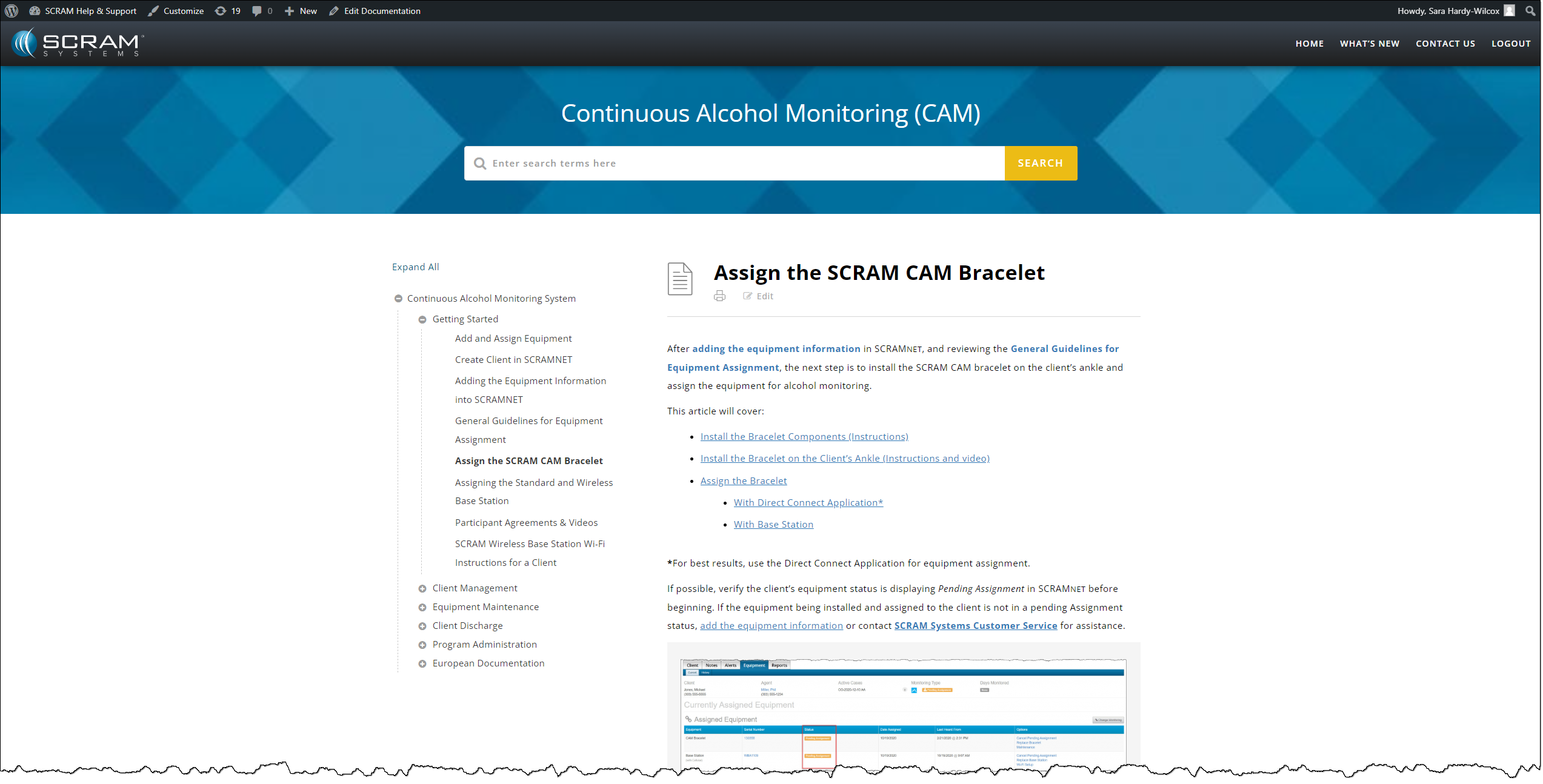
…to access step-by-step instructions on assigning the SCRAM CAM Bracelet to your client.
Assign the SCRAM CAM Bracelet Help Article – click to enlarge
With an enhancement that goes into effect the afternoon of October 18, 2023, SCRAM Remote Breath caseloads will include a new third-party notification feature, which will allow Agents to designate additional recipients of Remote Breath client notifications, regardless of the recipients’ ability to access the SCRAMNET monitoring system. This feature is especially useful in Family Court scenarios, where spouses, ex-spouses, caretakers, lawyers, or other interested parties require notification of a client’s compliance or non-compliance with the SCRAM Remote Breath Monitoring Program.
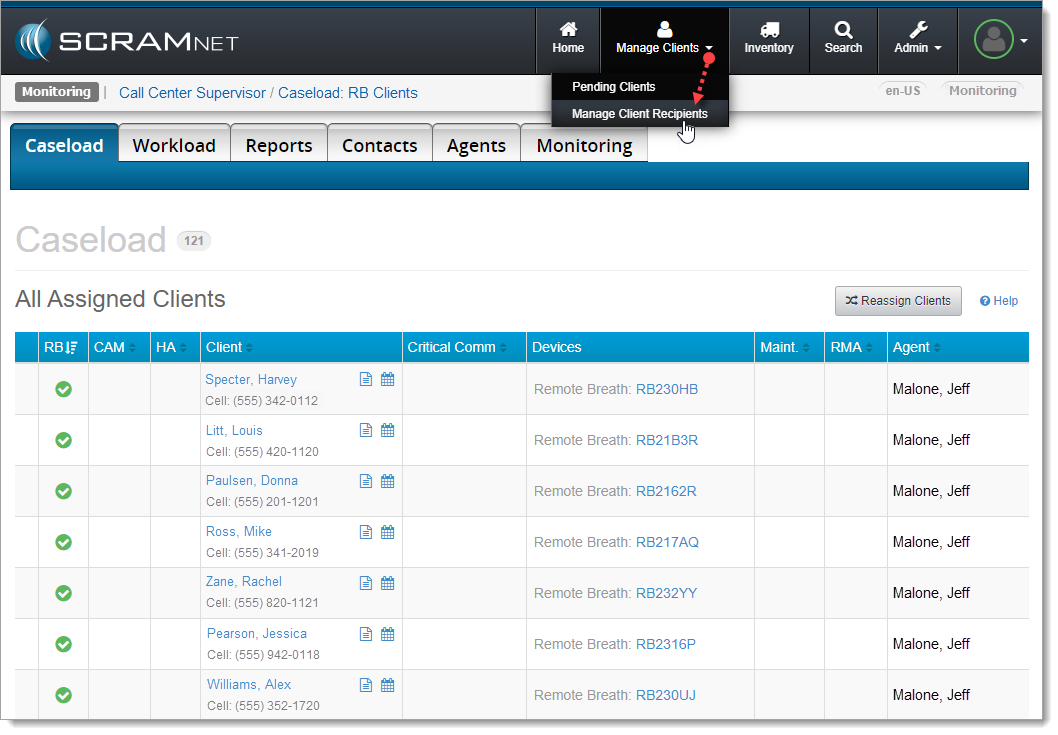
These new notifications may be set up at the Caseload level…
Select New ‘Manage Client Recipients’ Menu Item (click to enlarge)
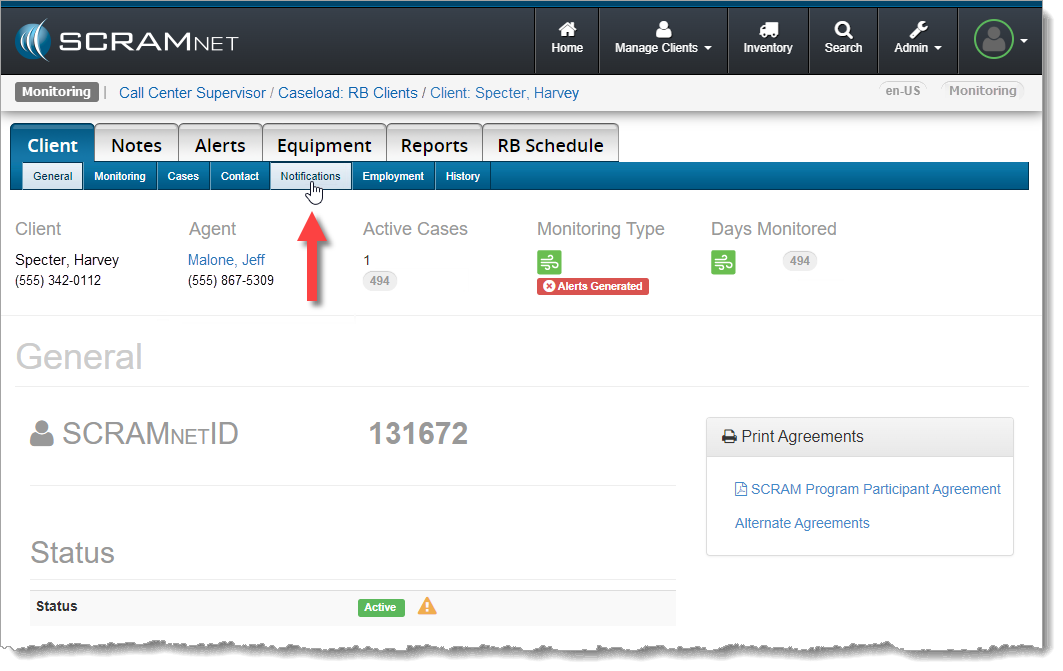
…or at the Client level.
New ‘Notifications’ Sub-tab on the Client Page in SCRAMNET (click to enlarge)
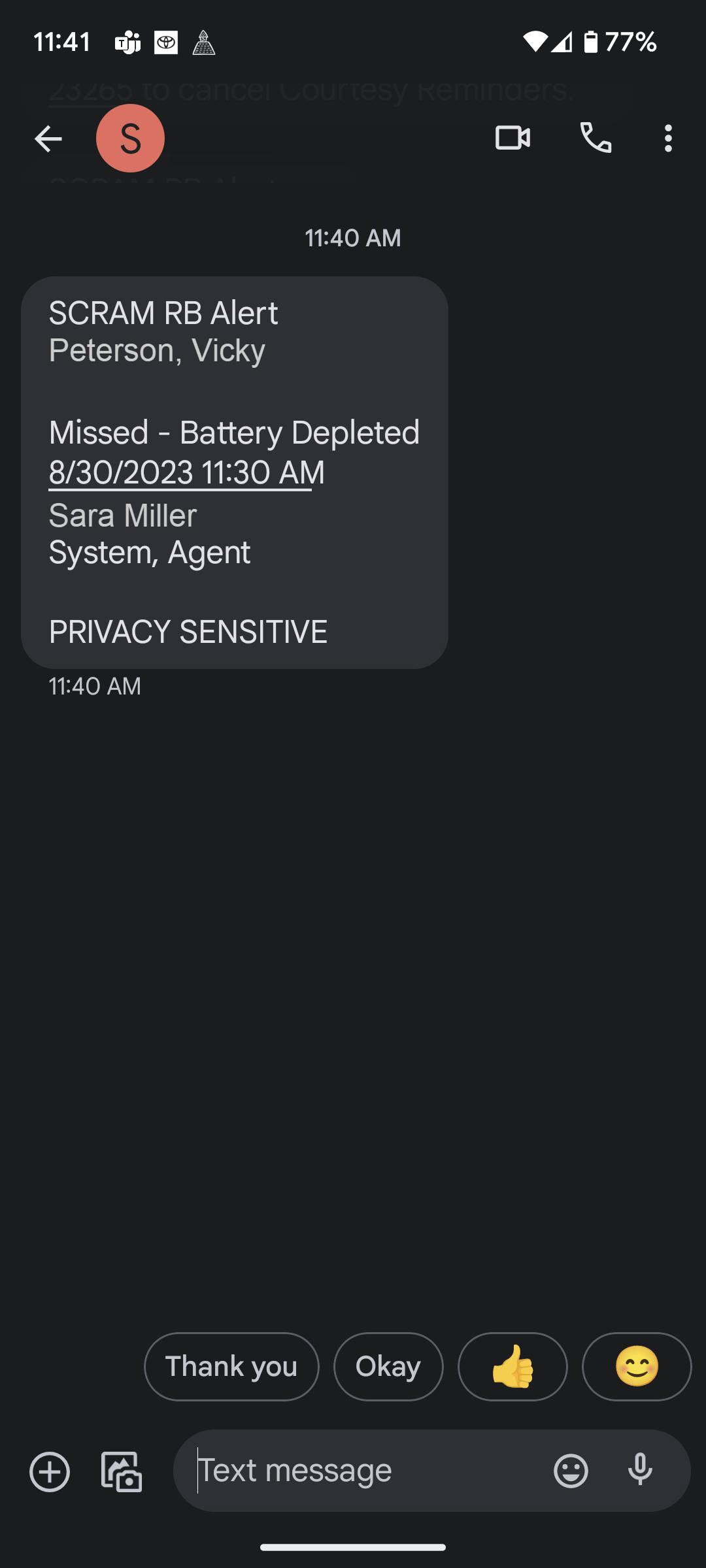
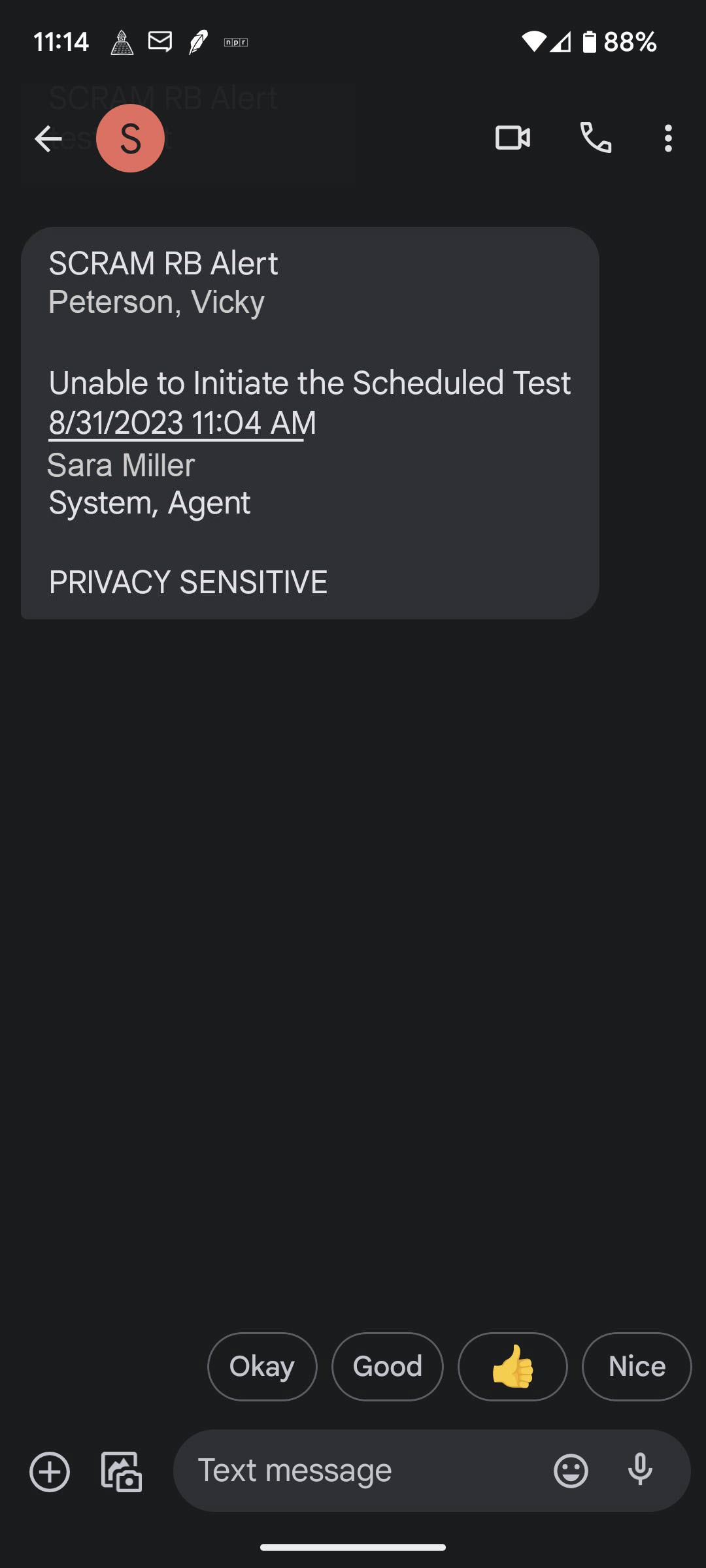
On September 20, 2023, SCRAM Systems® will release an enhancement for your Priority Notification Remote Breath Pro client Caseloads. With this enhancement, breath test results of Missed – Battery Depleted and Missed – Temperature are included in notifications sent via email or text messages.
Missed – Battery Depleted (click to enlarge)
Missed – Temperature (click to enlarge)
In cases where multiple Missed Test events are received simultaneously, only one notification will be sent.
The Missed – Temperature notification message states, “Unable to Initiate the Scheduled Test.” Access the client’s RB Results page and the “Missed – Temperature” event in SCRAMNET to view additional details.