On February 9, 2024, SCRAM Systems will release Version 6 of its Health and Safety Notice for SCRAM Systems Products. This updated version will automatically append itself to the end of your SCRAM-Approved Participant Agreements (the Agreements you download and print from SCRAMNET), and will also be available separately for download from the SCRAM Systems website.
The SCRAM Systems product line has evolved significantly over the years, and this update brings the Health and Safety Notice up to date with the current line of EM devices. Upon review of the updates by a third-party Human Factors and Safety Evaluation firm, it was determined that the Health and Safety Notice will now be separated into two pages.
Page 1: Participant Warnings and Instructions
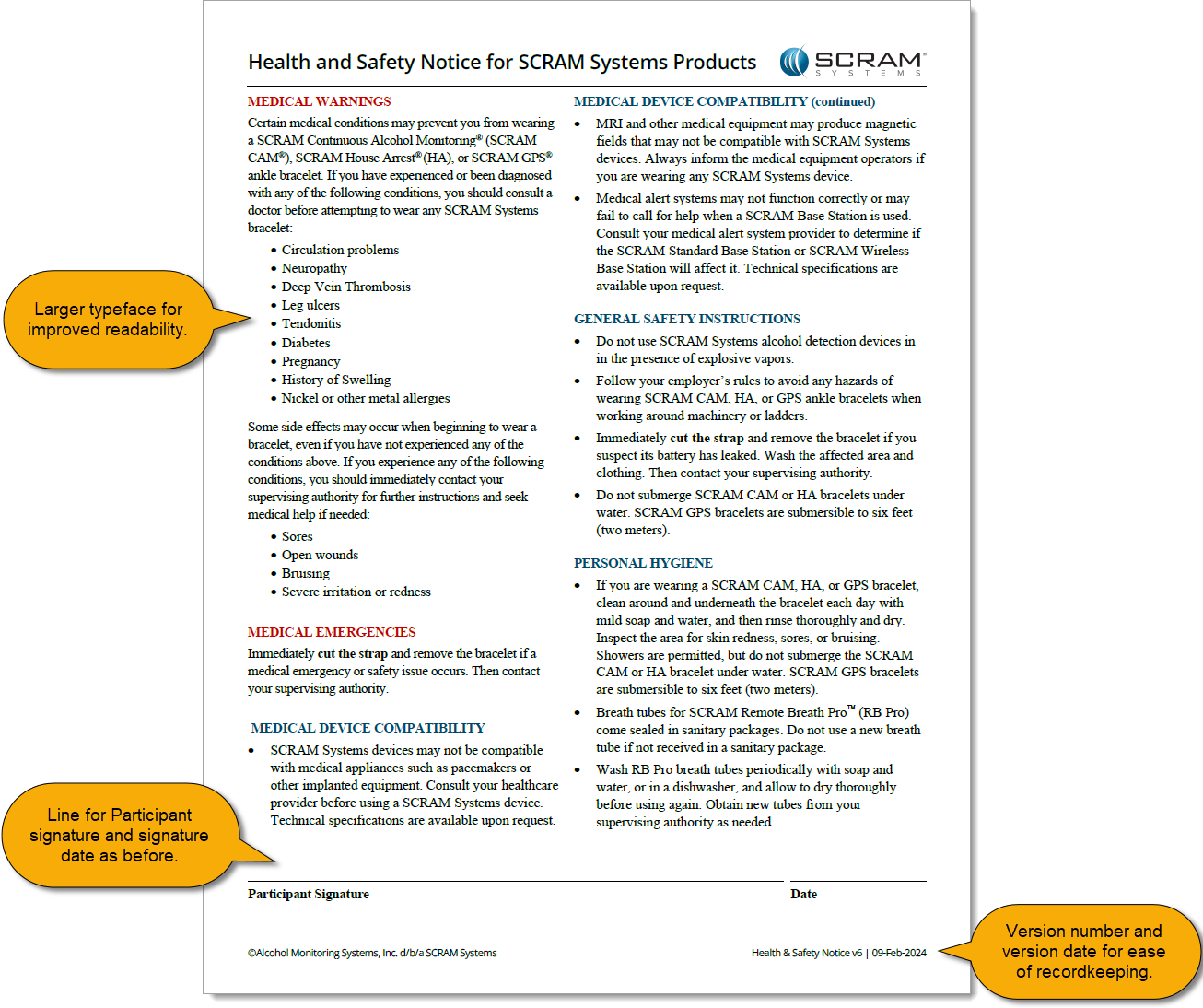
The first page will continue to house medical warnings, general safety instructions, and personal hygiene recommendations targeted towards the client, and as before will require the client’s signature:
Health and Safety Notice v6 pg 1 (click to enlarge)
Page 2: Installer Precautions and Instructions
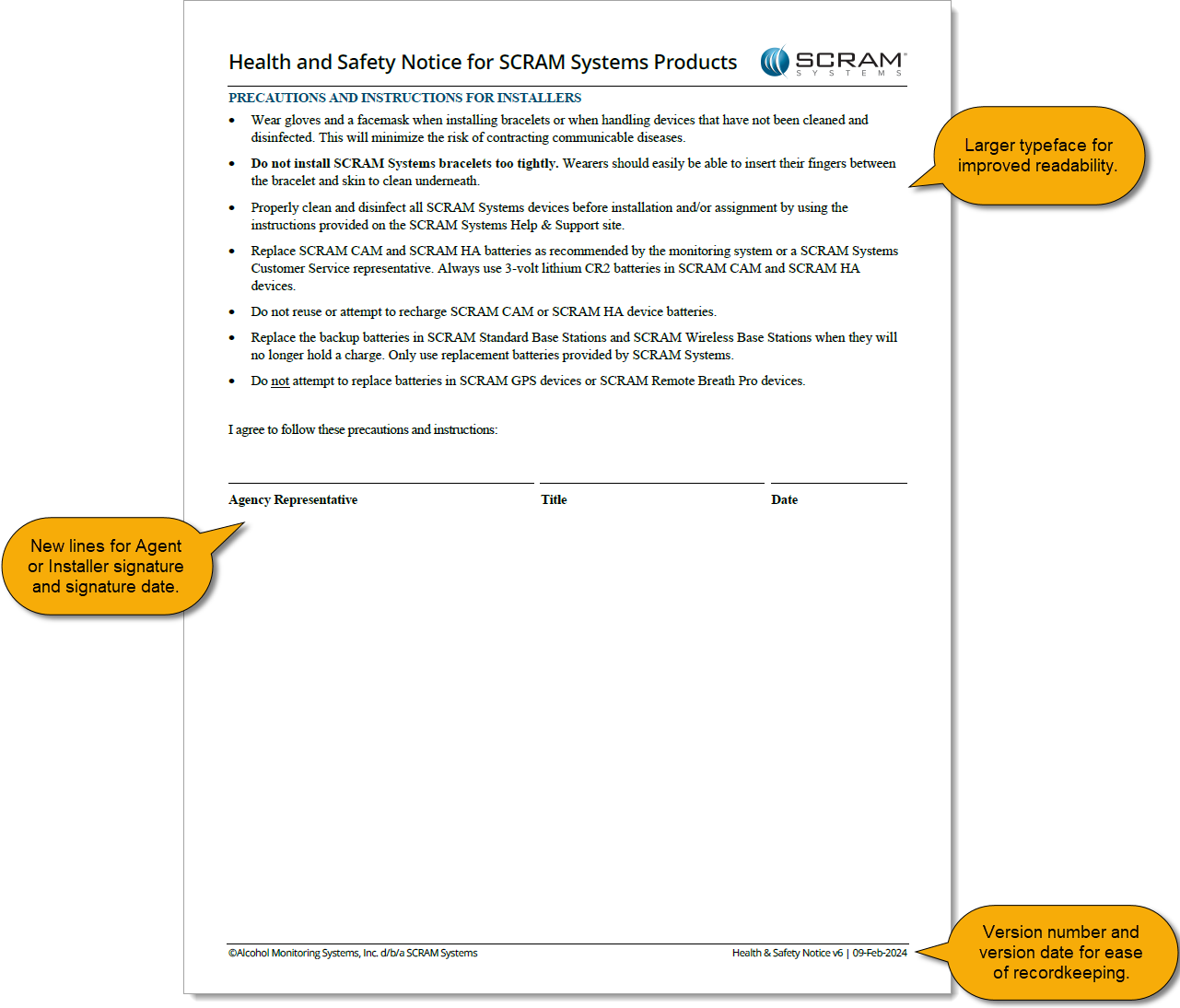
The second page relocates the “PRECAUTIONS AND INSTRUCTIONS FOR INSTALLERS” section from the first page, and adds a new “Agency Representative” signature line to be signed by the installer at the time of installation:
Health and Safety Notice v6 pg 2 (click to enlarge)
This update to the Health and Safety Notice for SCRAM Systems Products provides greater clarity to both your clients and your agents, and provides greater legal protection to your agents and your overall monitoring program.
When current employment information is entered in the Occupation field in SCRAMNET, our Data Analysts are better able to determine the client’s actions and environment during an alert. This will save time and frustration for both you and your client by reducing the number times you must contact your client to determine their actions during the time period of the alert.
To Update Employment Information:
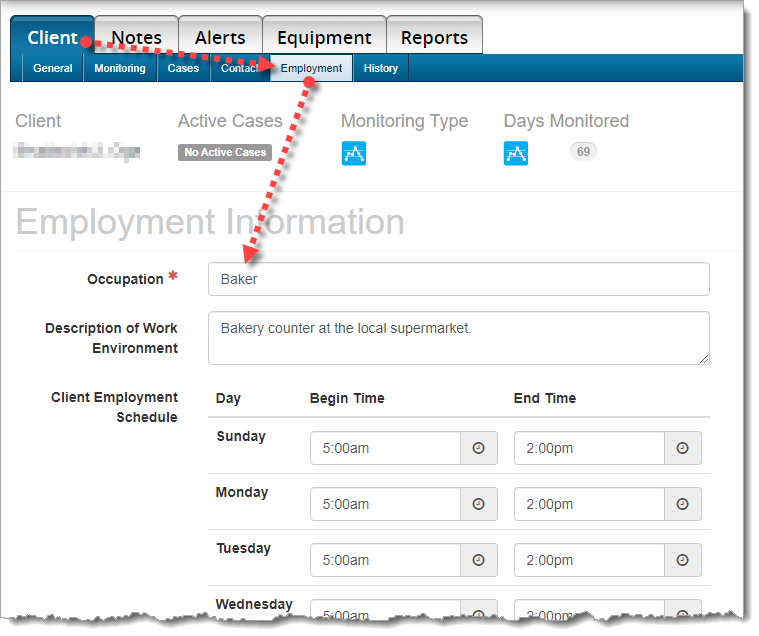
Choose the Client tab, then the Employment sub-tab. Please update the client’s occupation, description of the work environment, and most importantly, the client’s work schedule.
Employment Information on the ‘Employment’ sub-tab (click to enlarge)
SCRAM Systems recently made a change to some existing tamper logic to better refine the actionable alerts you have to handle in your SCRAM CAM alcohol monitoring programs. Through extensive review, it was determined that only a very small percentage of tampers were meeting the previously-defined “downward” criteria, which indicate a potential tamper due to a 17% (or greater) drop in the IR voltage below the established baseline.
Since the majority of these alerts were not confirmable, there should be no disruption to your alert volumes. However, you may see a reduction in the number of resolved tamper alerts that were previously visible on the client profile. The Non-Compliance Report tamper criteria verbiage will also be updated to reflect this change.
Please reach out to Customer Service with any questions about this change.
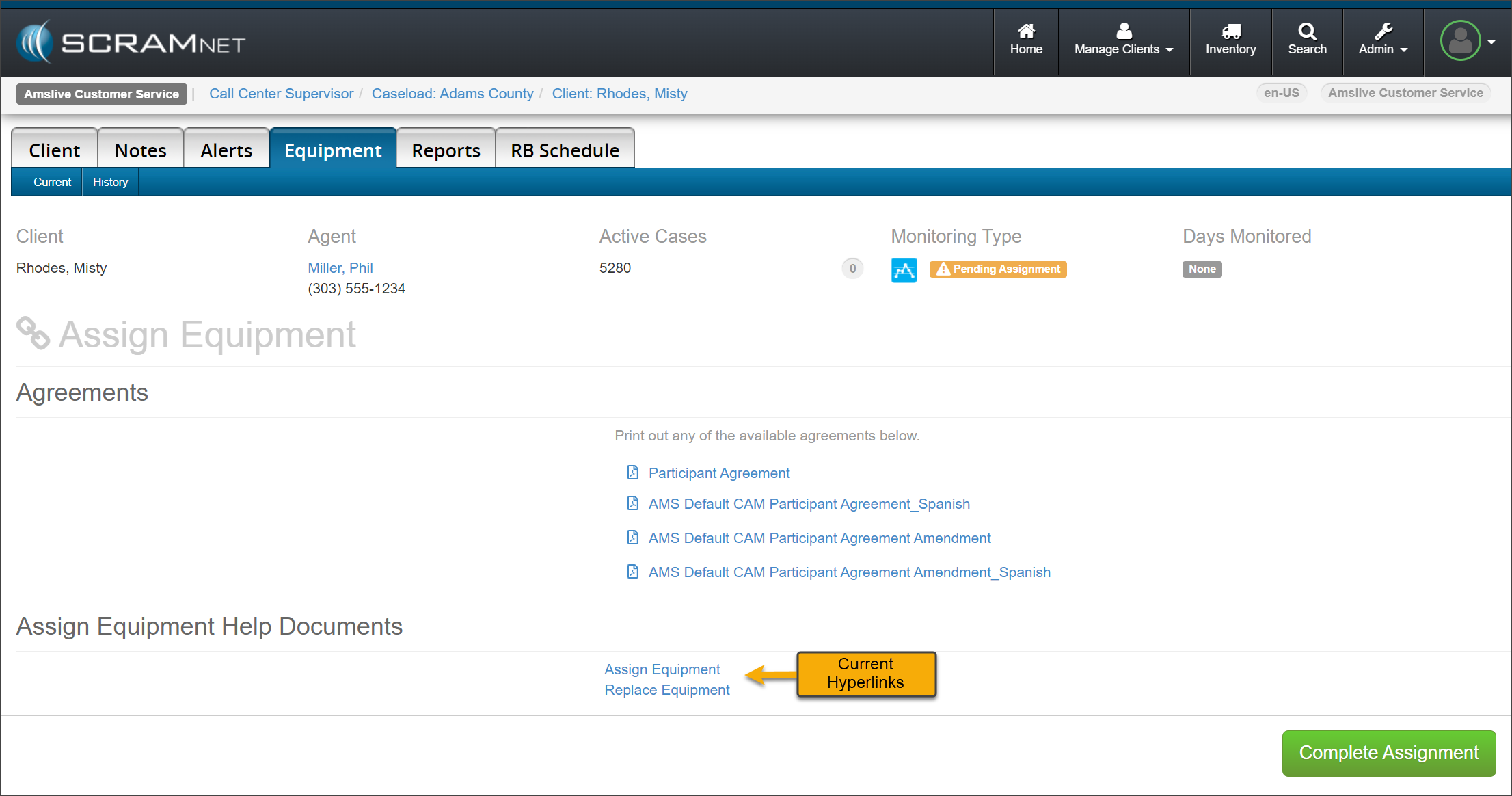
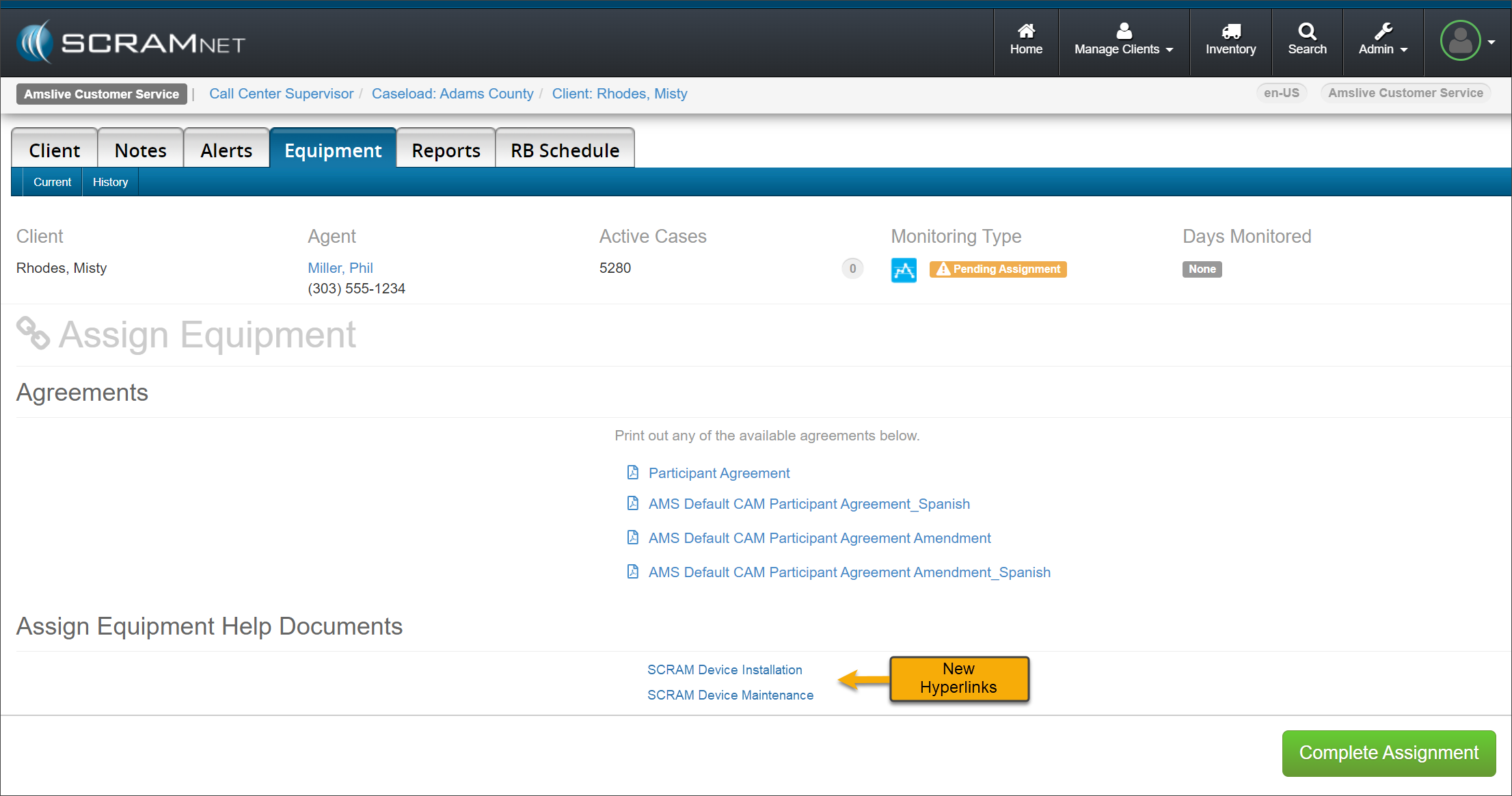
On November 1, 2023, SCRAM Systems® will release an enhancement for your SCRAMNET client caseloads. The “Assign Equipment Help Documents” hyperlinks will be updated on the Assignment, Maintenance, and Stop Monitoring pages.
Current Assign Equipment Help Document Hyperlinks – click to enlarge
The Help Documents hyperlinks will display SCRAM Device Installation, SCRAM Device Maintenance, and SCRAM Device Check-In based on the current equipment activity.
New Assign Equipment Help Document Hyperlinks – click to enlarge
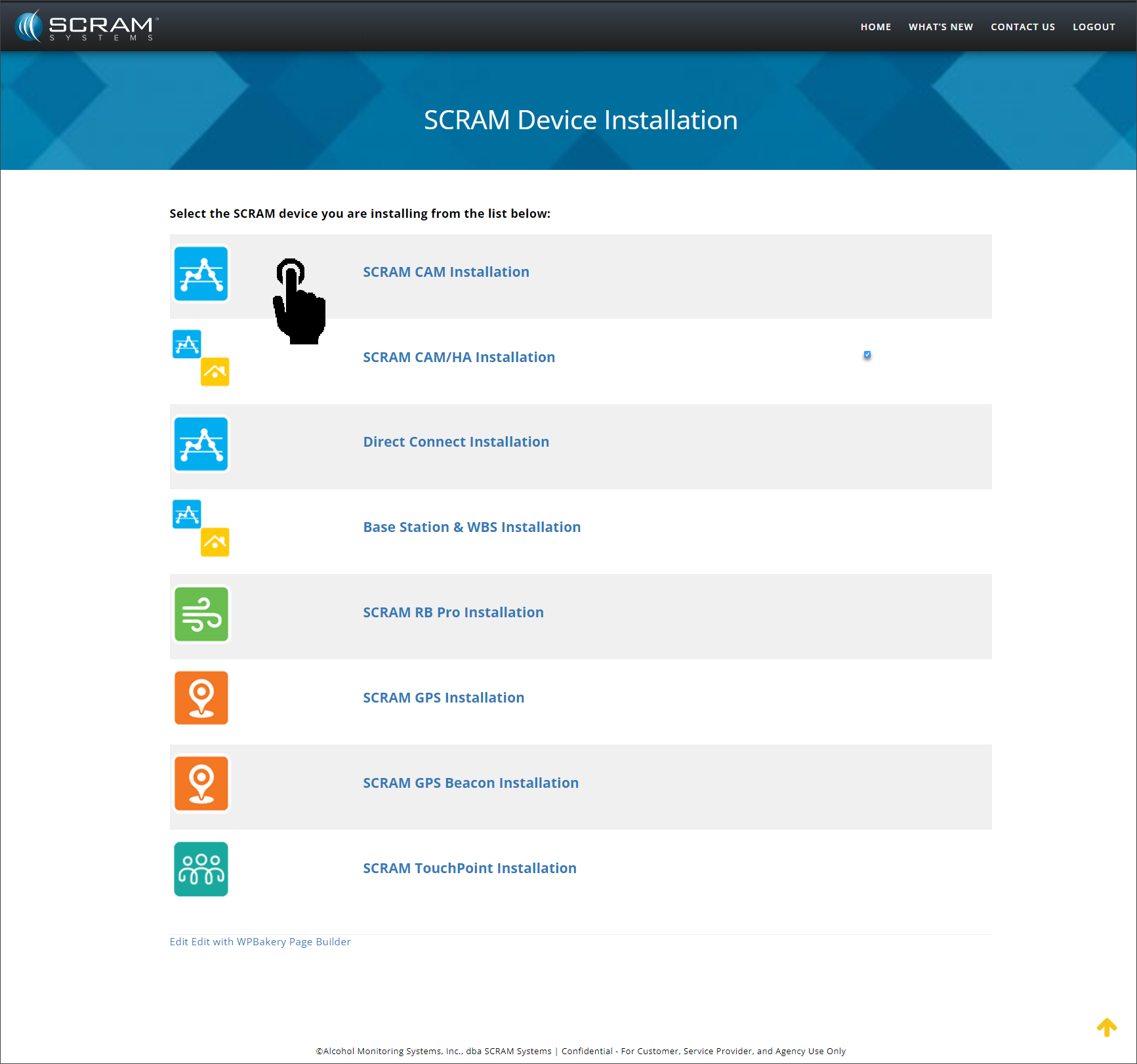
Selecting the hyperlink will open the specific device activity Help landing page. The landing page will display a list of SCRAM’s monitoring technologies from which to choose. For example, select the SCRAM CAM Installation hyperlink…
SCRAM Device Installation Help Article – click to enlarge
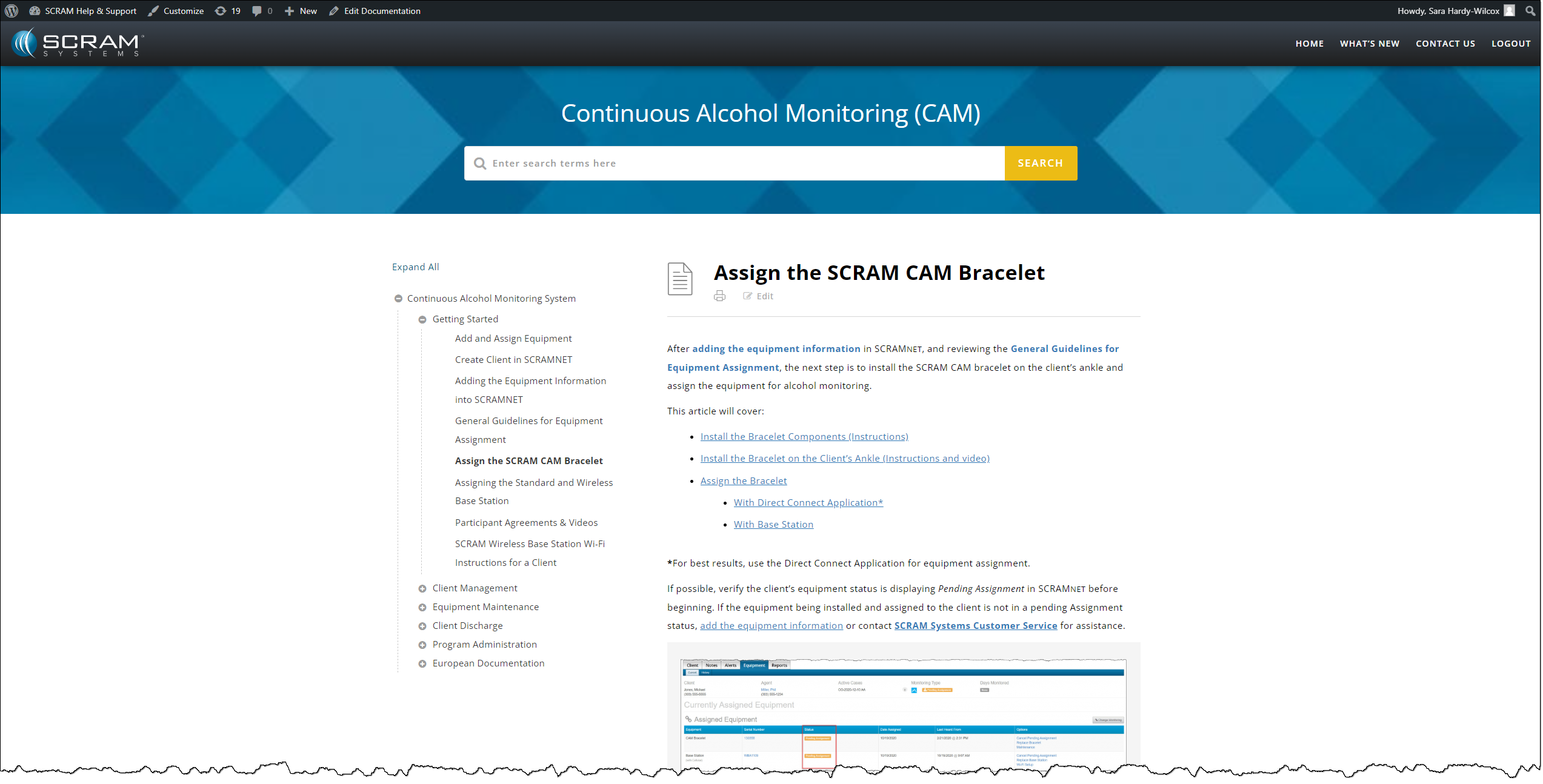
…to access step-by-step instructions on assigning the SCRAM CAM Bracelet to your client.
Assign the SCRAM CAM Bracelet Help Article – click to enlarge
If your client reports that their SCRAM Wireless Base Station (WBS) is beeping incessantly, that is an indicator of one of three possibilities:
The WBS device has been unplugged from its wall outlet
There is a power outage in the client’s home (or a tripped breaker on the WBS wall outlet circuit)
The WBS device has lost its cellular connection to SCRAMNET
Once the power-related possibilities (1 & 2) are eliminated, that means the WBS has lost its connection to the cellular wireless network and SCRAMNET.
Switch to Wi-Fi
If your client’s in-home wireless router supports Wi-Fi Protected Setup (WPS) connections, which is usually indicated by a “WPS” button on the front of the router, you can get the WBS to reconnect to SCRAMNET by instructing your client to switch their WBS from cellular to Wi-Fi connectivity.
Here’s how to instruct your client:
On the front of the base station, repeatedly press-and-release the button to scroll through a list of nearby wireless networks until the Network Name (SSID) of your wireless router appears on the LCD screen.
Once the correct network name is displayed, press-and-hold the button until the base station’s LCD screen displays: PRESS WPS BUTTON ON ROUTER AND WAIT
Press the WPS button on your router and then check the LCD display on the front of the base station. After a few minutes the LCD screen on the base station should update from NONE to WIFI.
Your client may need to repeat these steps a couple of times before the WBS connects to the router successfully.
If your client’s WBS is connected to the cellular network, but you or your client would like to switch to Wi-Fi anyway (for a more reliable connection, e.g.), have your client visit the SCRAM CAM Client Help Portal and download the printable Wi-Fi setup instructions for clients.
Once the Wi-Fi connection is successfully established, the WBS display will show “MONITORING” and the device will begin relaying stored data from the SCRAM CAM bracelet. Notifications and alerts will then begin populating in SCRAMNET for the client.
SCRAM Systems® will be moving to QR code-based “Help” cards for nearly all of its products and services by the end of this week. The switch from static instruction cards to QR codes helps to ensure that customers – and clients – always have the most up-to-date instructions for their SCRAM Systems devices at their fingertips.
There will be two separate QR code-driven Help cards:
SCRAM Systems Device Help for customers (Service Providers and Agencies) – the blue card
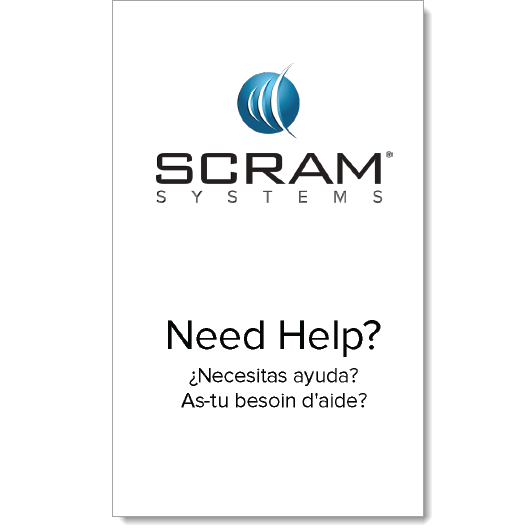
SCRAM Systems User Support for clients – the white card
Quick Reference Guides will still continue to be printed for all SCRAM Systems products.
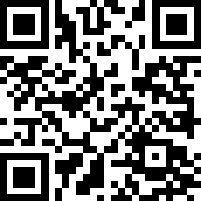
What’s a QR Code?
A QR code is a type of two-dimensional matrix barcode consisting of an array of black and white squares. QR codes are typically used for storing web addresses (URLs), which can be read by the camera on a smartphone to open a web page.
QR Code Example
How Will SCRAM Systems Use QR Codes?
Rather than including device-specific instruction cards in the boxes we ship to you, we will instead include two packs of 25 business-card-sized Help cards – one pack of customer Help cards and one pack of client Help cards – in each of our Customer Care Kits. Additional 25-card packs of each type will be available for purchase on the SCRAMNET Equipment Order Form if needed.
Help for Service Providers and Agencies
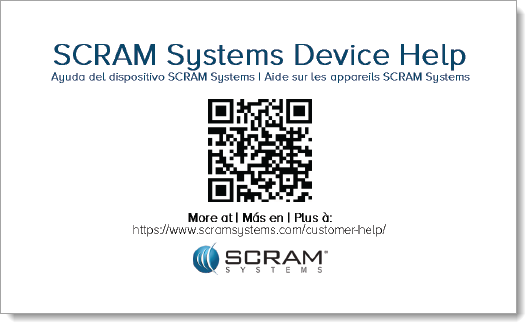
You and the other Officers, Agents, and Case Managers who are responsible for monitoring clients in your SCRAM Systems Program, can carry one of the blue customer cards with you, or post them around the office. Then whenever you need help installing or removing a device, for example, you may simply pull out the SCRAM Systems Device Help card and scan it with your smartphone:
SCRAM Systems Device Help Card – Front
SCRAM Systems Device Help Card – Back
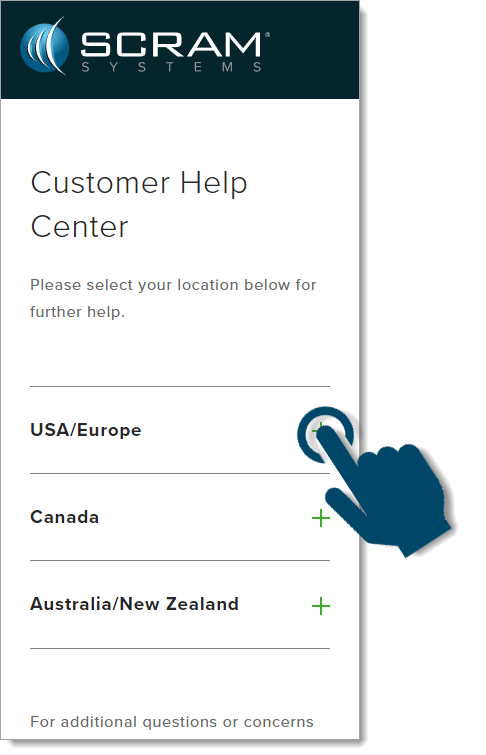
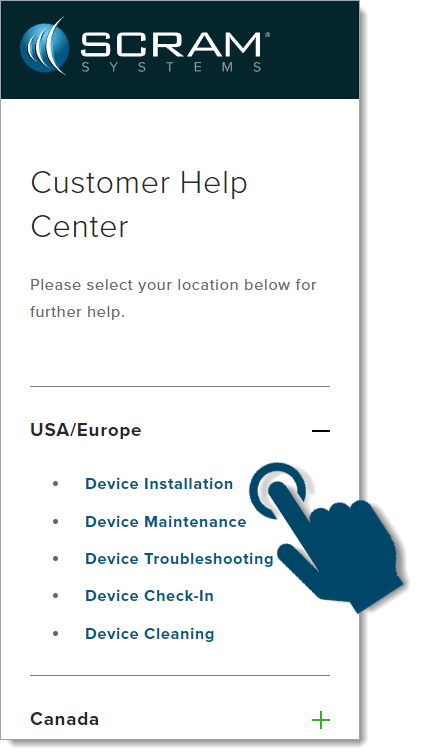
Once you scan the QR code on the card, your smartphone will launch the SCRAM Systems Customer Help Center (www.scramsystems.com/customer-help/), where you will tap on your location, and then tap on the type of Help you need:
Scan the card with your smartphone and then select your location:
Select Your Geographical Location (USA/Europe Shown)
Select the type of device help you seek:
Select the Type of Help (Device Installation Shown)
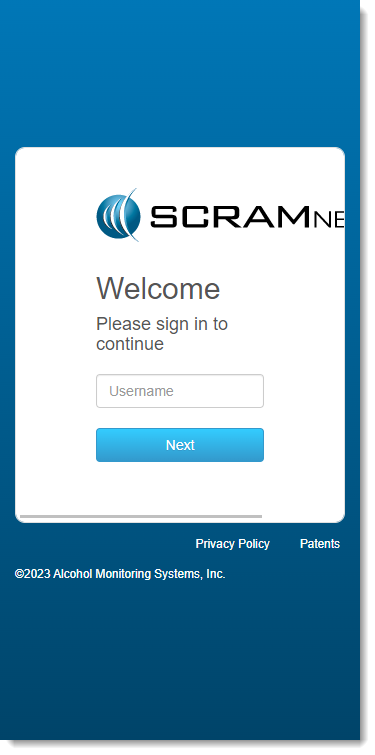
Login with your SCRAM monitoring system credentials:
Login with SCRAM Credentials
Requiring a login ensures that nobody except SCRAM Systems customers can access SCRAM Device Help.
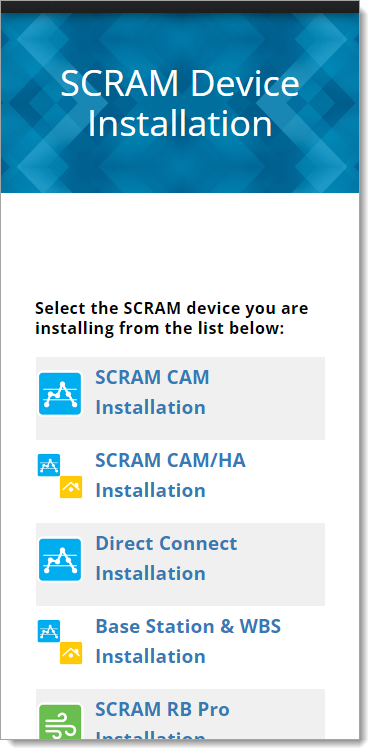
Select the specific SCRAM Systems product for which you want help:
Select the Appropriate Product (Installation Help Example)
Help for Clients
SCRAM Systems will also be eliminating most product-specific client instruction cards, and will instead make QR code-driven SCRAM Systems User Support help cards available:
SCRAM Systems User Support Help Card – Front
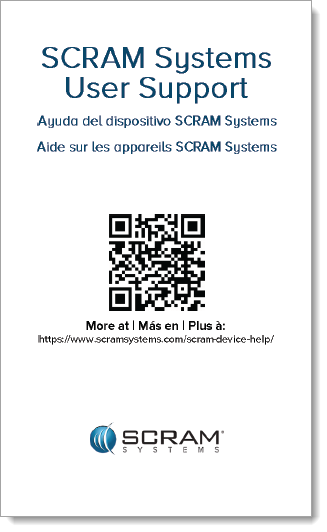
SCRAM Systems User Support Help Card – Back
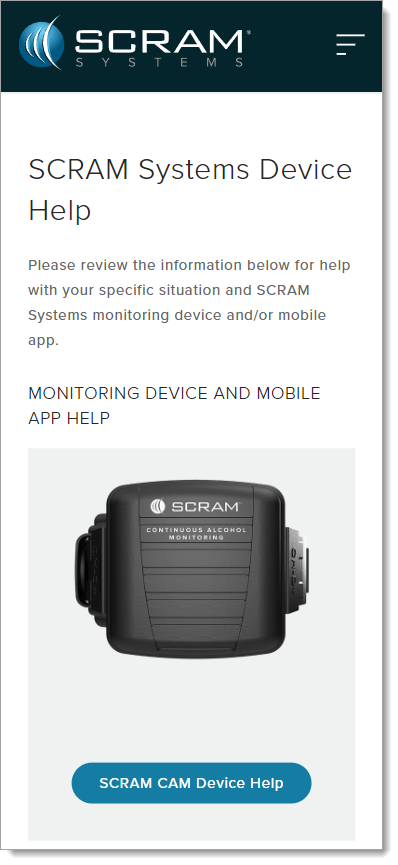
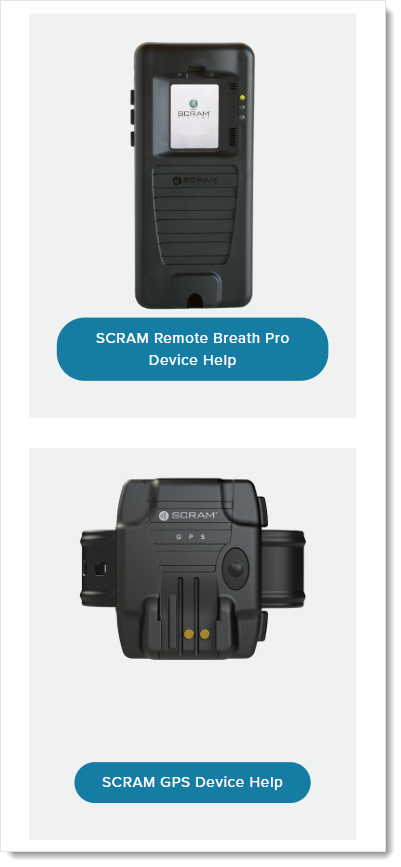
Once the client scans the QR code on the white card, their smartphone will launch SCRAM Systems Device Help for clients (www.scramsystems.com/scram-device-help/), where they may scroll through a list of SCRAM Systems devices, mobile apps, and FAQs, and simply tap on the type of help they need:
SCRAM Systems Device Help for Clients – SCRAM CAM
SCRAM Systems Device Help for Clients – SCRAM RB Pro & GPS
If you feel that a piece of SCRAM Systems equipment may pose a specific health hazard, and you decide it is not worth the risk to clean or reuse the device, please:
Contact SCRAM Systems Customer Service at 303.785.7879 or support@scramsystems.com with the serial number of the device being removed and/or decremented from your inventory.
In a message dated June 24, 2022 and in a follow-up message delivered June 20, 2023, SCRAM Systems notified its SCRAM Remote Breath Classic (RB Classic) customers that SCRAM RB Classic devices and SCRAM Remote Breath LTE Adapters (“RB LTE Adapters”) would be decommissioned. The purpose of this message is to remind you that:
As of July 1, 2023, RB Classic devices – with or without RB LTE Adapter – will no longer be supported by SCRAM Systems.
Please dispose of or recycle all RB Classic devices and RB LTE Adapters on or afterJuly 1, 2023, in accordance with e-waste disposal guidelines in your area. There is no need to return the equipment to SCRAM Systems.
Please contact your SCRAM Systems Sales Manager to discuss upgrading to SCRAM Remote Breath Pro. Clients still assigned to RB Classic devices willno longer be monitored.
How long should I charge the device before starting an enrollment?
SCRAM Systems recommends charging the device for at least 90 minutes prior to starting an enrollment.
Should I power on the device before or after entering the serial number into SCRAMNET?
Do not power on the RB Pro device until after you have entered the the device serial number into SCRAMNET. This will prevent a firmware download from delaying the enrollment process.
What are best practices for enrollment photos?
The tester should be positioned in a moderately well-lit area away from direct sunlight.
Tester should remove any hat, sunglasses, and any hair hanging over the face.
Ensure there is nothing in the tester’s mouth during testing.
Tester should stand with the back to a wall, hold head upright, and look directly forward.
Tester should hold the device up to their mouth with eyes centered in the mirror if using SCRAM Remote Breath, or display screen if using SCRAM Remote Breath Pro, and remain in that position while delivering a breath sample.
How many initial enrollment photos can be taken?
After providing the enrollment photo, the device will provide feedback regarding the quality of the photo. If the enrollment photo is poor, the client can provide two additional enrollment photos. Once three enrollment photos have been taken, the system will select the best enrollment photo to use as the baseline photo.
How many practice tests can be taken?
As many as needed for the client to get comfortable with taking a breath test.
How do I complete the enrollment process?
To end enrollment and practice tests, access the menu and select the “End Enrolment” option.
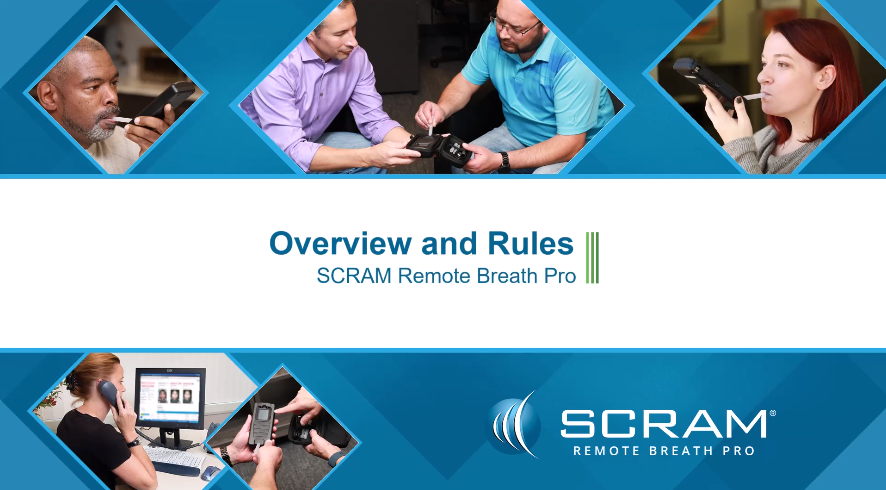
SCRAM Systems is pleased to announce the addition of the NEW client RB Pro participant video to the Help page. This video (English and Spanish) describe what is expected of a client as a participant in the SCRAM Remote Breath Pro monitoring program. Have your clients view the video prior to having them sign the Participant Agreement.