SCRAM Systems now offers emailed copies of your order tracking numbers to allow you to track order delivery timeframes. If you are interested in this service, please send an email to orders@scramsystems.com with the name(s) and email address(es) of the contact(s) within your organization who wish(es) to receive emailed copies of your order tracking numbers.
If you do not wish to receive this information via email, there is nothing you need to do.
SCRAM Systems® provides enhancements and updates to the SCRAM TouchPoint™ Mobile application on a continual basis. These updates improve the functionality and usability of the application for your client. Once an update is available in the Apple App store and the Google Play store, the next step is to have the client update the application on their smartphone.
An app update can be completed in two ways.
Automatic application updates (Recommended)
Manual application updates
As a best
practice, we recommend you encourage your clients to enable automatic app
updates – this ensures they are always using the latest version of the
TouchPoint app.
Setup Automatic Application Updates
iPhone
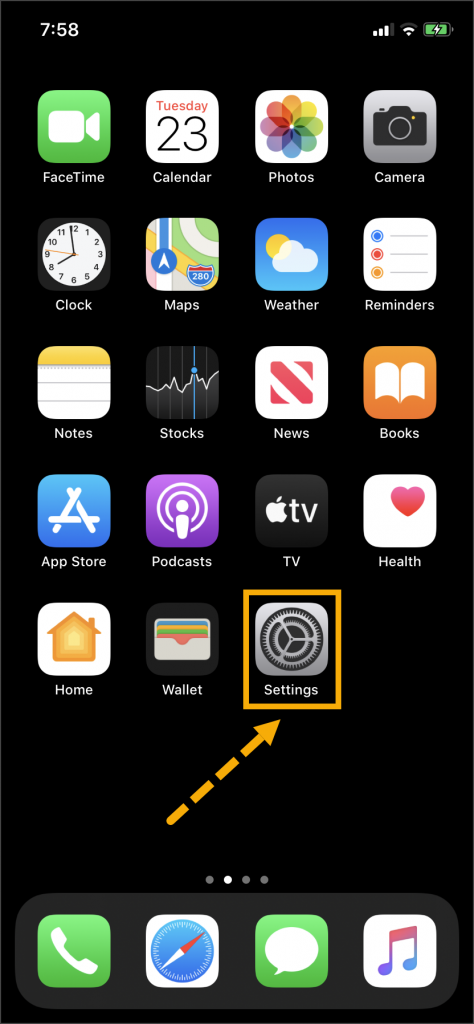
On the client’s smartphone, tap the Settings
icon.
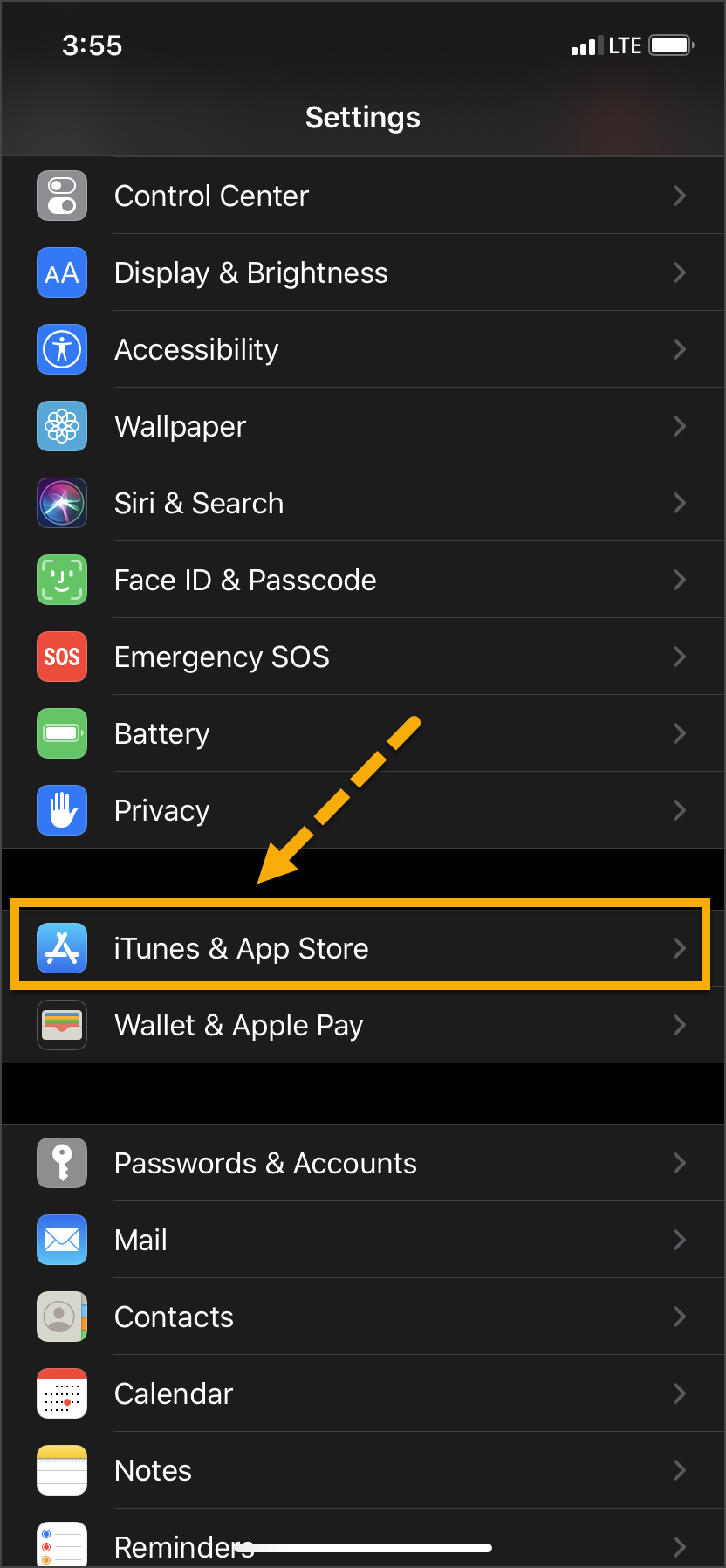
On the Settings screen, tap the iTunes
& App Store option.
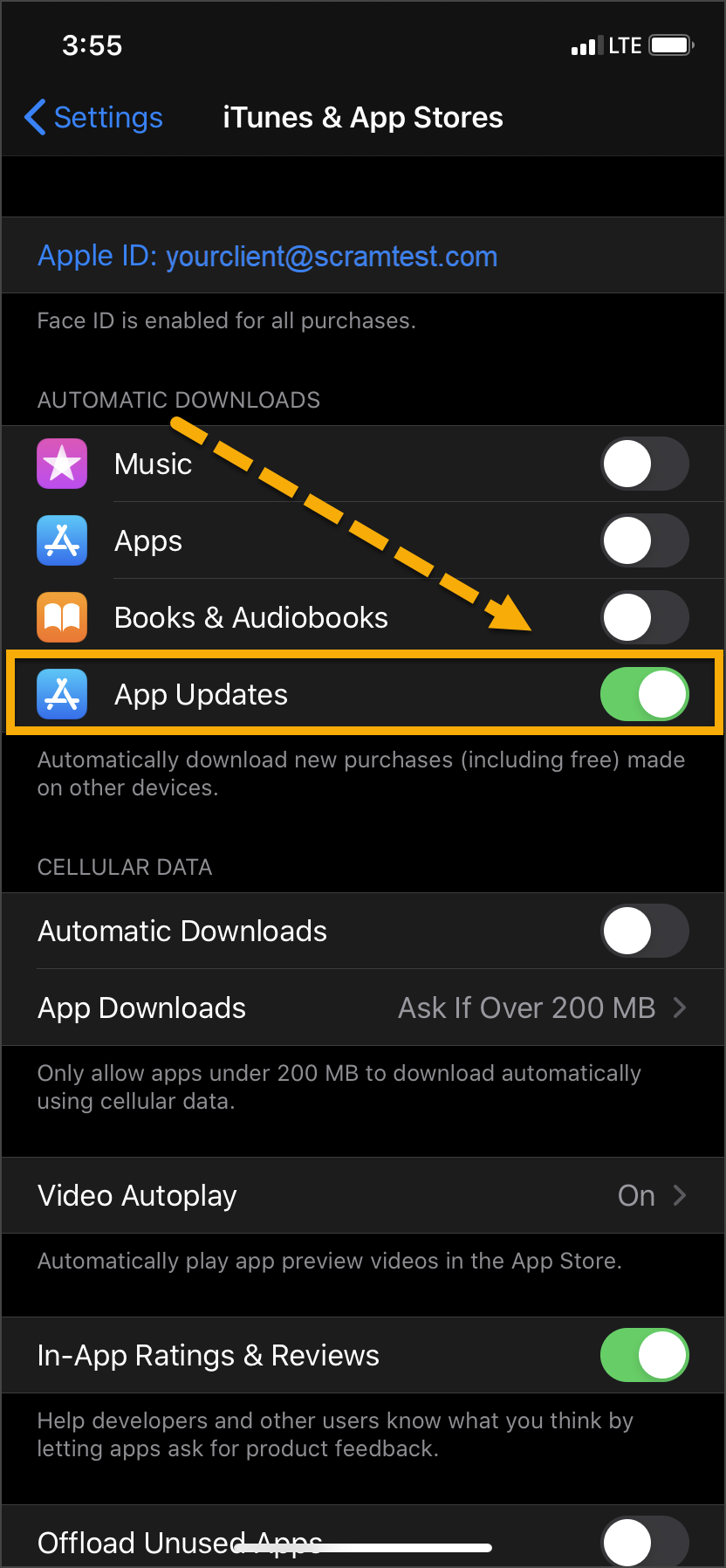
Under the Automatic Downloads section, ensure the App Updates option is enabled.
Tap ‘Settings’
Tap ‘iTunes & App Store’
Toggle ‘App Updates’ to the “On” Position
Android
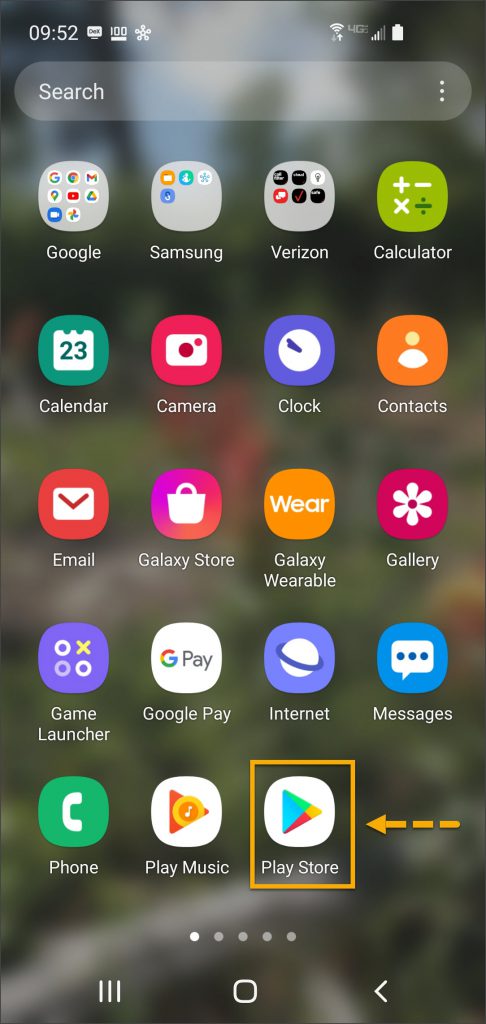
On the client’s smartphone, swipe up on the Home screen.
Tap the Play Store icon.
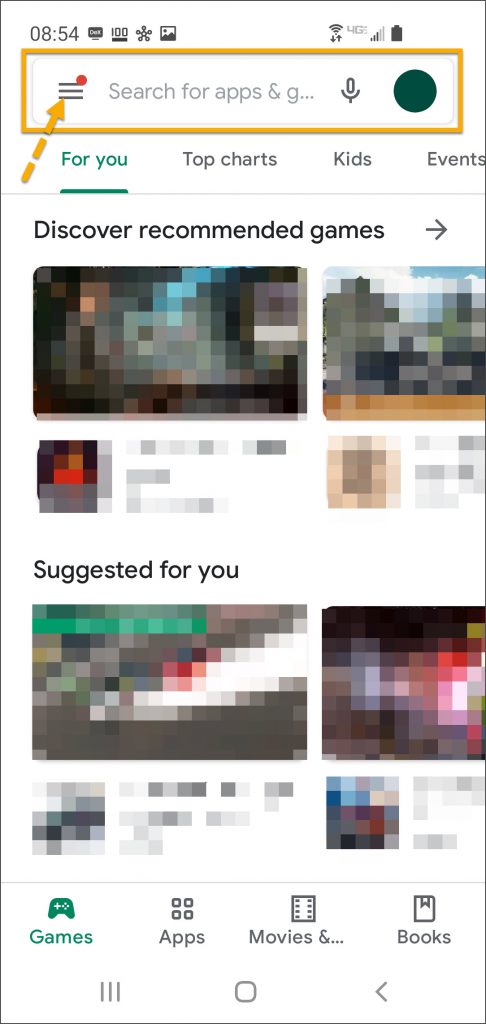
On the Google Play store screen, tap the menu icon in the search field.
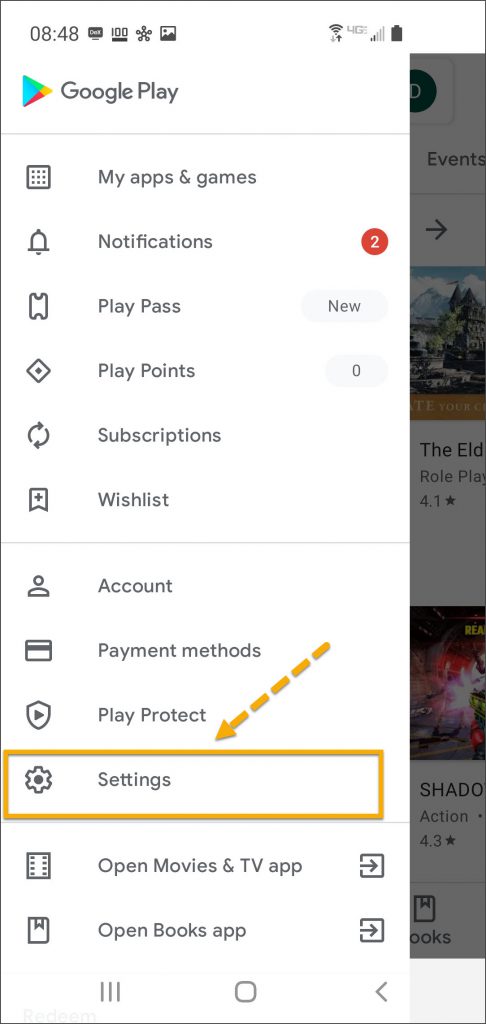
Locate and tap the Settings option.
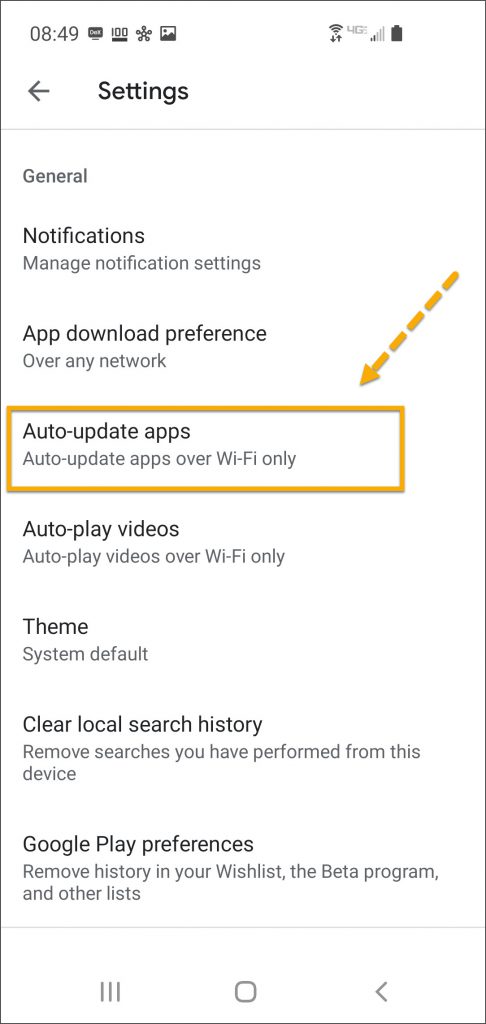
Tap the Auto-update apps option.
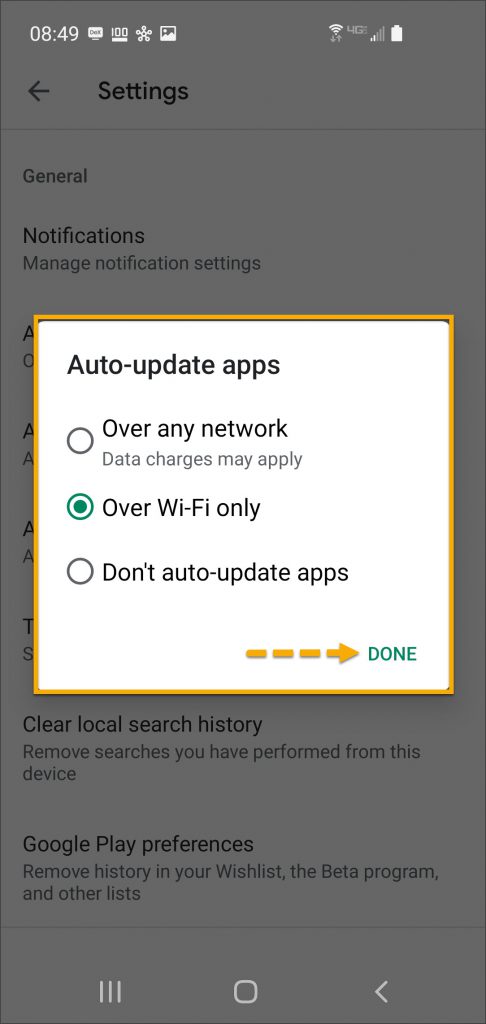
In the Auto-update apps window, select the option of,
Over any network (Data charges may apply)
Over Wi-Fi only
After making the selection, tap Done.
Tap the ‘Play Store’ App Icon
Select the “Hamburger” Menu
Tap ‘Settings’
Select ‘Auto-update apps’
Select the Desired Update Communication Method and Tap ‘Done’
Manual Application Update
iPhone
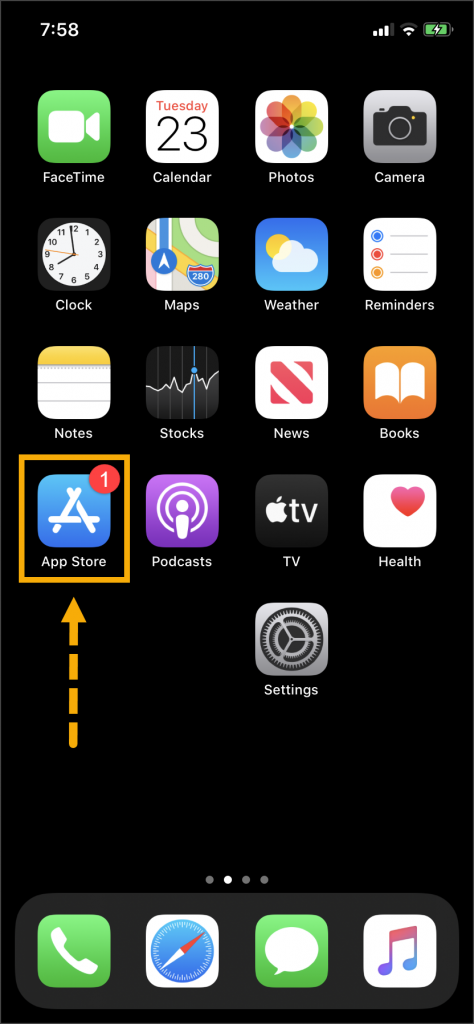
Once an update to the TouchPoint application is available,
the App Store icon will display a red badge.
Instruct the client to:
Tap the App Store icon.
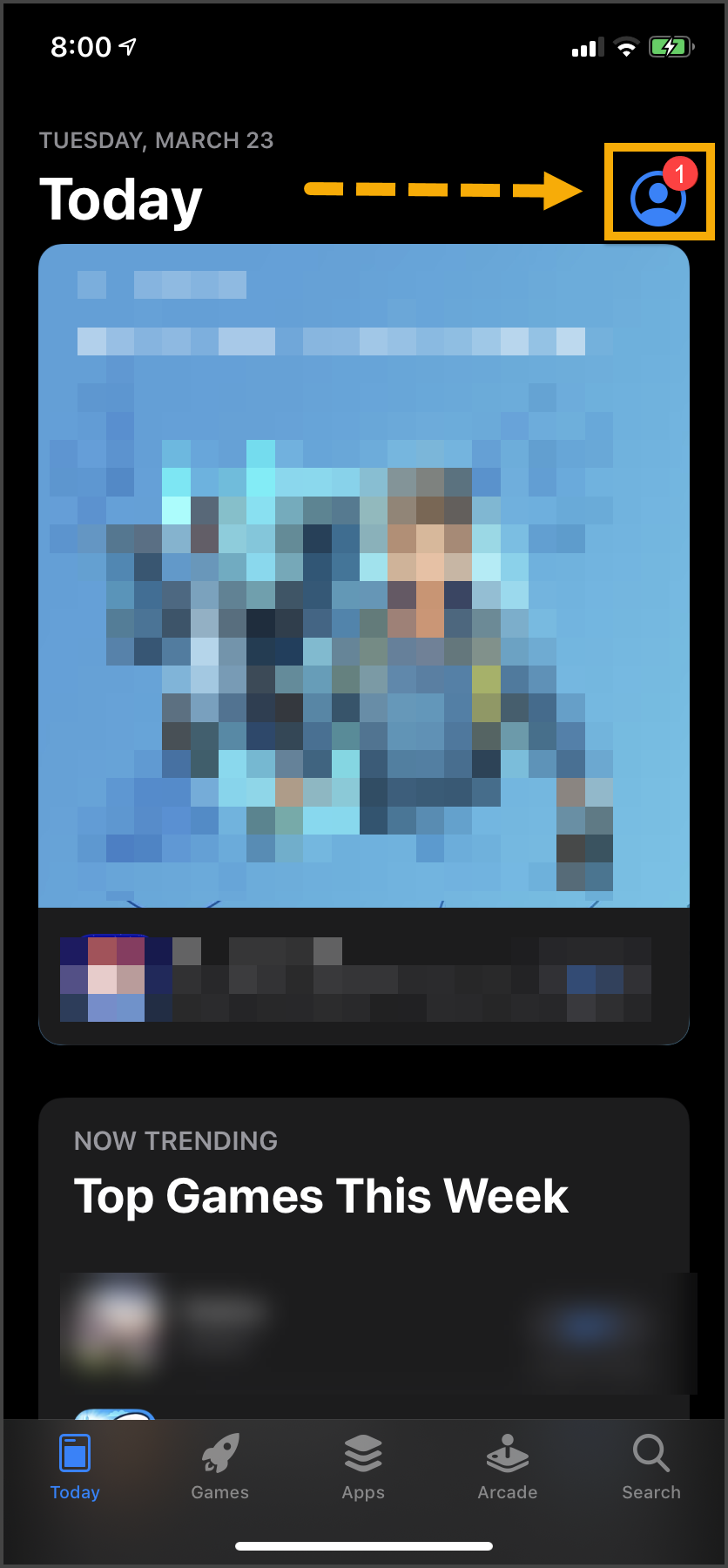
Tap their profile icon.
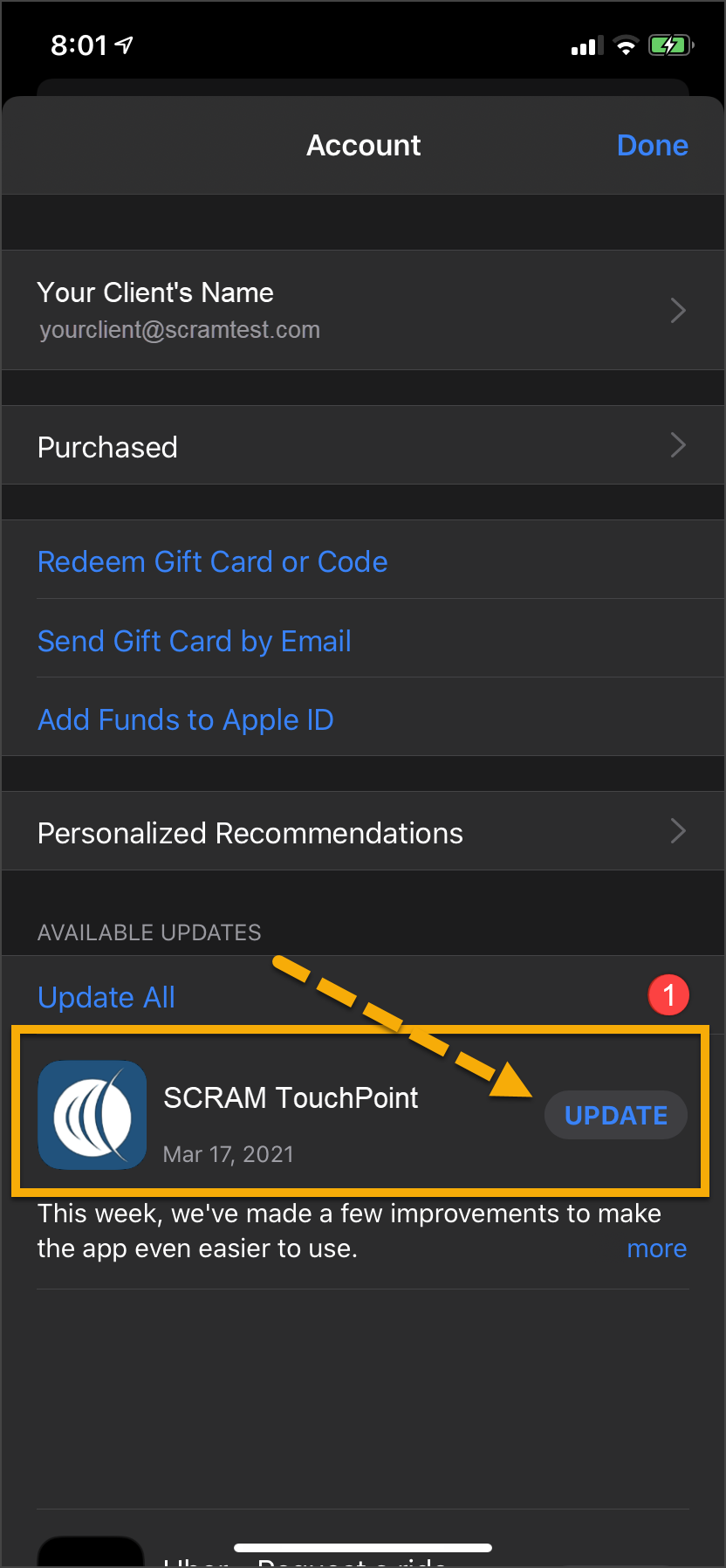
Under the Available Updates heading,
locate the SCRAM TouchPoint app.
Tap the Update button.
As a best practice, we recommend you encourage your clients to enable automatic app updates – this ensures they are always using the latest version of the TouchPoint app.
Tap the ‘App Store’ Icon
Select the “My Account” Icon
Locate the SCRAM TouchPoint App in the List and Select ‘UPDATE’
Android
Swipe up on the Home screen and tap the Play Store
icon.
On the Google Play store screen, tap the menu
icon in the search field.
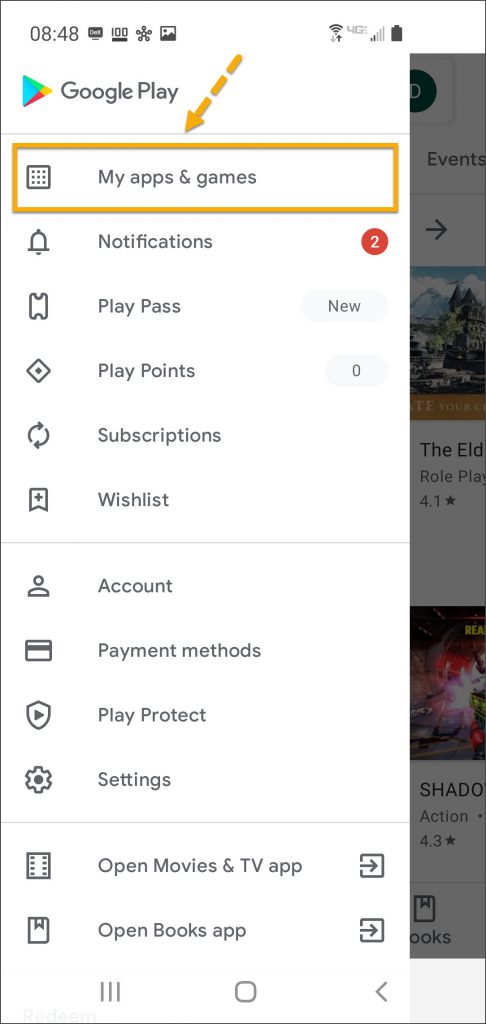
Tap the My apps & games option.
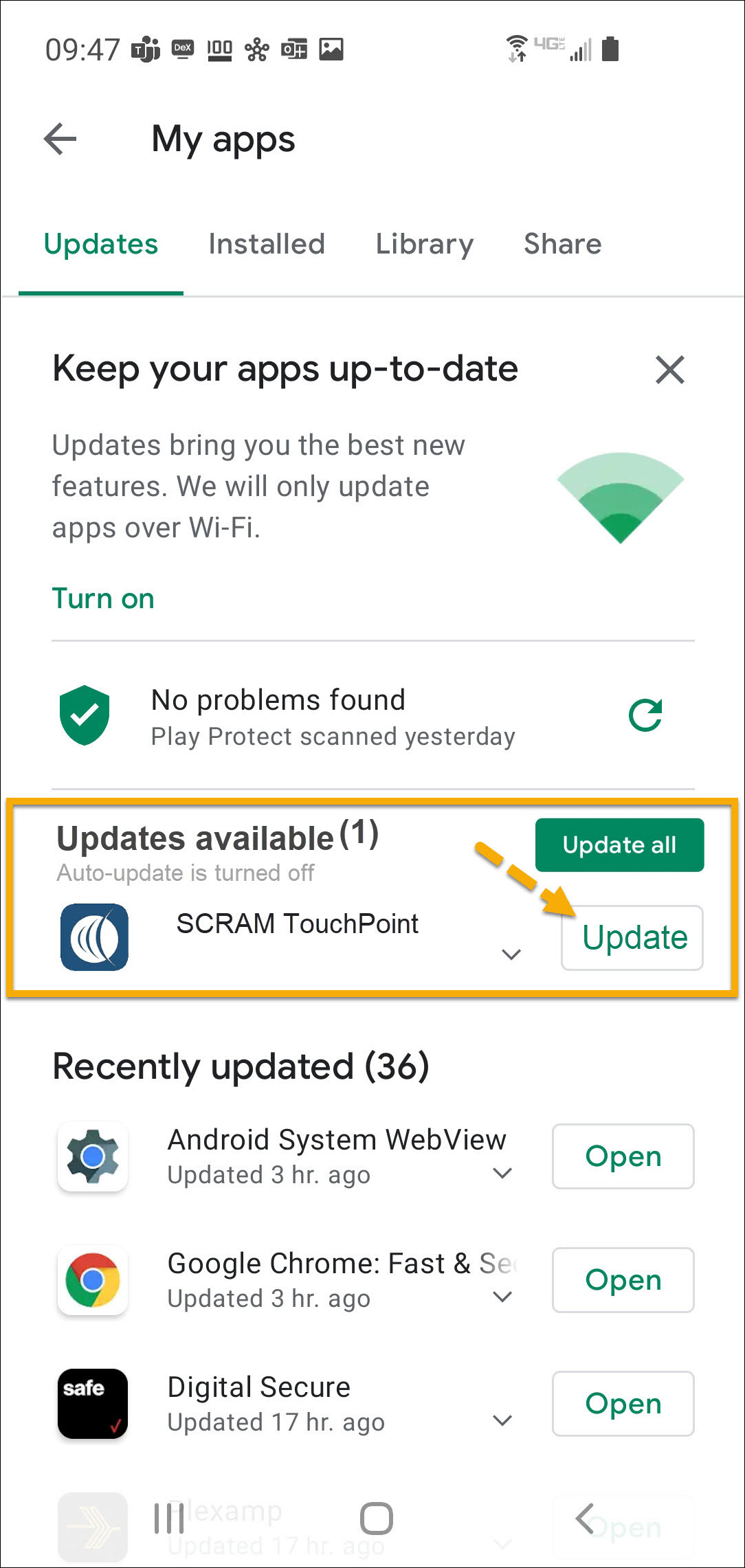
Under the Updates Available section, locate the
SCRAM TouchPoint app and tap the Update button.
As a best
practice, we recommend you encourage your clients to enable automatic app
updates – this ensures they are always using the latest version of the
TouchPoint app.
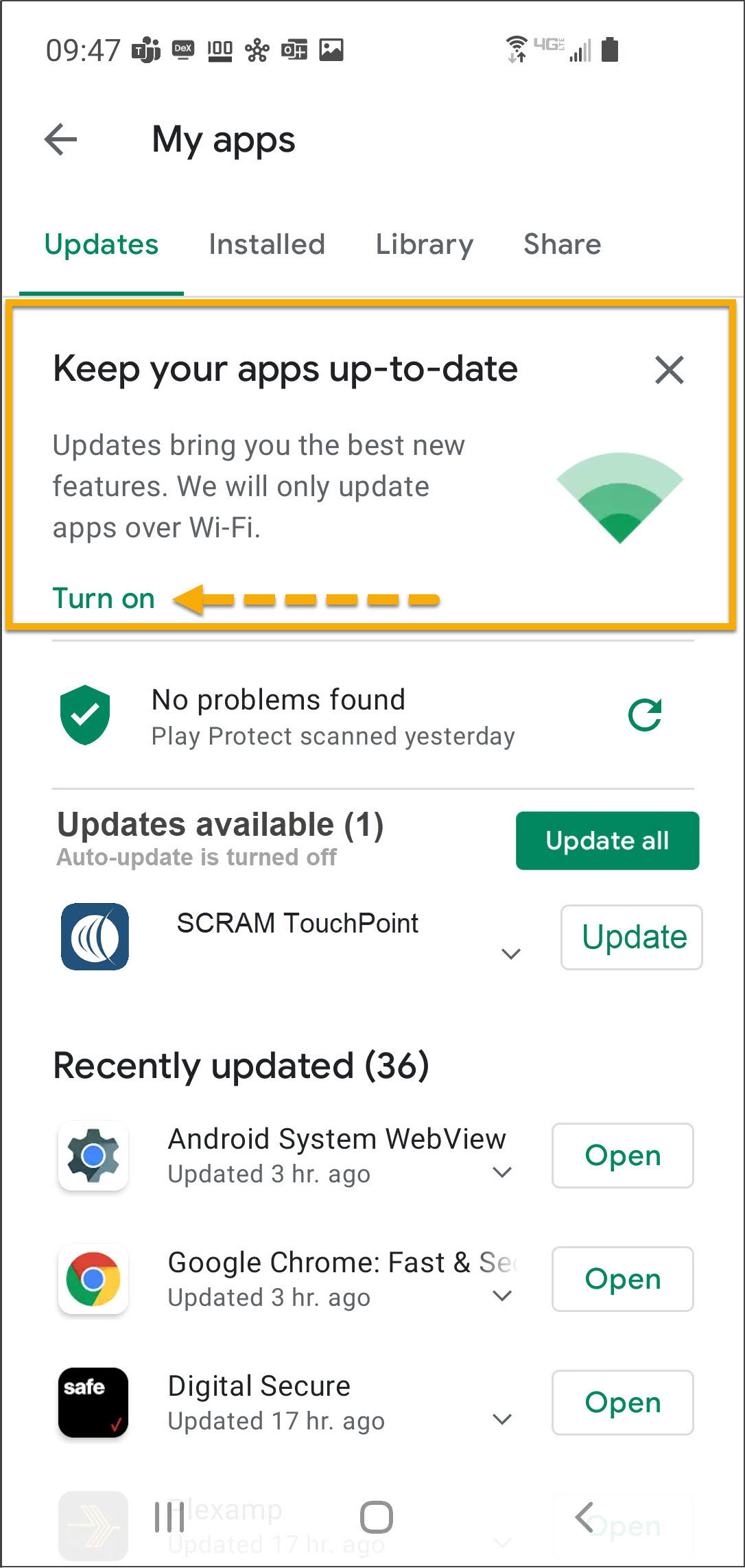
On the My apps screen, tap the Turn on button to enable automatic app updates.
Tap the ‘Play Store’ App Icon
Select the “Hamburger” Menu
Select ‘My apps & games’
Locate the SCRAM TouchPoint App in the List and Select ‘Update’
Tap ‘Turn On’ to Automatically Keep Apps Up-to-Date Over Wi-Fi
To help decrease the possibility of skin irritation, rashes, or infections developing on your SCRAM CAM clients’ ankles, encourage them to exercise a daily cleansing routine. SCRAM Systems strongly recommends clients follow these steps to wash their ankles under and around the device:
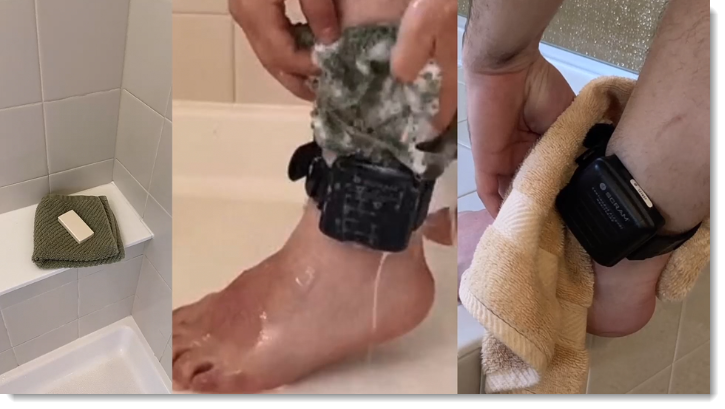
Apply soap to a clean, damp washcloth and wash your ankle by inserting the washcloth between the device and your skin, and then removing it.
Repeat the motion until all areas between the device and your ankle have been washed.
When you are done cleaning your ankle, rinse the area off to remove the soap.
Lastly, use a dry washcloth or towel to thoroughly dry underneath and around the device.
Wash the skin around the ankle with a washcloth, rinse, and dry the area completely
WARNINGS:
The device should not be submerged under water – showers are recommended.
If your client has a specific health condition or concern, be sure they discuss it with you, their supervising authority, and a medical practitioner.
…that is the question this Tip of the Month will attempt to answer.
RMA Requests
Generally speaking, the decision to request a Return Merchandise Authorization boils down to device functionality. SCRAM devices are used daily; so normal wear and tear – scratches, scuffs, and even minor dents in plastic casings – is to be expected. As long as the wear on the device does not impede its functional ability to monitor clients, then the device is not eligible for an RMA.
As long as the wear on the device does not impede its functional ability to monitor clients, then the device is not eligible for an RMA.
If, however, a SCRAM device is not operating as expected, please follow the appropriate troubleshooting steps for the device prior to requesting an RMA. You may also contact SCRAM Systems Customer Service for device troubleshooting assistance prior to requesting an RMA. Regardless of how you request an RMA, you will be required to describe how you attempted to troubleshoot the device first.
Requesting an Inspection Report
If you require SCRAM Systems to inspect a returned device and write a report of our findings – because the device’s functionality is in question, or because the report is needed so you may charge a client for billable damage, e.g. – then please be sure to provide the name and mailing address of the individual within your organization who should receive the report when you request it.
SCRAM Systems has moved from its Mineral Avenue address in Littleton, Colorado. When conducting business with us, be sure to use the appropriate address:
RMA Address
When a Return Merchandise Authorization (RMA) is issued for one of your SCRAM Systems devices, please ensure that the return shipping address on the label reads:
SCRAM Systems (AMS) 8100 Southpark Way Littleton, CO 80120
If your return shipping labels have the old, now-obsolete Mineral Avenue address on them, please discard them and request new labels from your SCRAM Systems Account Manager or Regional Sales Manager.
Payments Address
When making a bill payment to SCRAM Systems for monitoring services, equipment purchases and rentals, or any other reason, please remit payment to the SCRAM Systems bank lockbox:
Alcohol Monitoring Systems, Inc. PO Box 561097 Denver, CO 80256-1097
Do not remit payments to the now-obsolete Mineral Avenue address or to the Southpark Way address.
As part of our ongoing effort to improve the experience for our customers, agents, officers, and clients, we at SCRAM Systems have developed a simple weekly journal page that clients may download and print to help them keep track of their daily activities while they are participating in the SCRAM Systems Monitoring Program.
Where to Find It
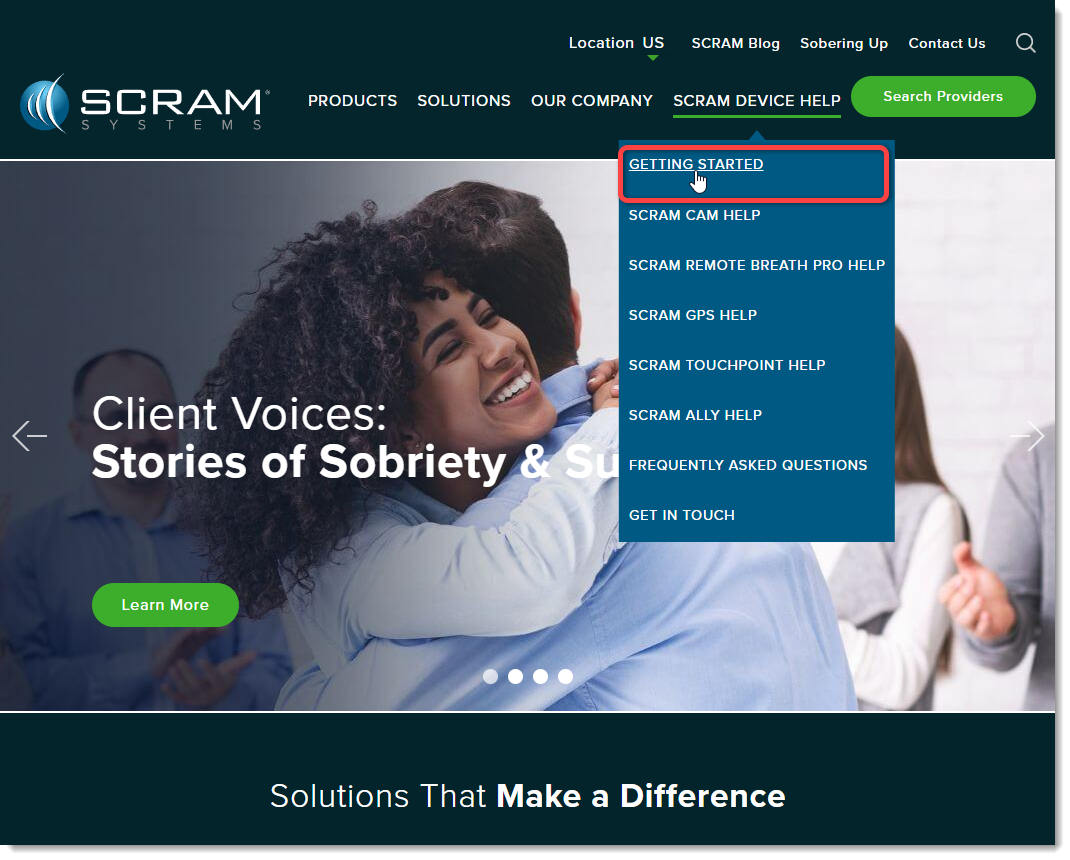
In addition to being available to customers, agents, and officers on the SCRAM Systems Help & Support homepage under the “Quick Links” heading, the simple two-page (one page front-and-back) PDF download is also available directly to clients on our public website (www.scramsystems.com) on the Getting Started page under the SCRAM Device Help dropdown menu:
Select ‘Getting Started’ from the SCRAM Device Help Menu
When a Return Merchandise Authorization (RMA) is issued for one of your SCRAM Systems devices, please ensure that the return shipping address on the label reads:
Alcohol Monitoring Systems 8100 Southpark Way Littleton, CO 80120
If your return shipping labels have the old Mineral Avenue address on them, please discard them and request new labels from your SCRAM Systems Account Manager or Sales representative.
To help decrease the possibility of skin irritation, rashes, or infections developing on your SCRAM CAM clients’ ankles, encourage them to exercise a daily cleansing routine. SCRAM Systems strongly recommends clients follow these steps to wash their ankles under and around the device:
Apply soap to a clean, damp washcloth and wash your ankle by inserting the washcloth between the device and your skin, and then removing it.
Repeat the motion until all areas between the device and your ankle have been washed.
When you are done cleaning your ankle, rinse the area off to remove the soap.
Lastly, use a dry washcloth or towel to thoroughly dry underneath and around the device.
Wash the skin around the ankle with a washcloth, rinse, and dry the area completely
WARNINGS:
The device should not be submerged under water – showers are recommended.
If your client has a specific health condition or concern, be sure they discuss it with you, their supervising authority, and/or a medical practitioner.
When it is time to discharge a client from the SCRAM CAM program, be sure you have a clear understanding of the status in which you should place the equipment.
Awaiting Return
If the bracelet or base station is NOT on-hand, select Stop Monitoring and complete the Stop Monitoring process to set the status to Awaiting Return. This status ends the monitoring program and stops the billing associated with it. The bracelet will remain in this status until it is checked in or until 30 days elapses, at which time it will automatically move to Lost status.
Pending Removal
If you will be completing the Stop Monitoring process with the client in person and the equipment is on-hand, select Stop Monitoring and complete the Stop Monitoring process to set the status to Pending Removal. This status prepares the bracelet for final connection with the Direct Connect device and application, and monitoring and billing both continue until the Direct Connect process is complete and the bracelet moves to In Inventory status.
On March 1, 2024, SCRAM Systems® will release an updated SCRAM Remote Breath Participant Agreement in the SCRAMNET® monitoring system. This updated Agreement better represents the current Remote Breath Pro (RB Pro) Device and better protects your organization and its agents.
What is Changing
Product evolution, feedback from customers, and input from our own internal legal team led us to make the following improvements in our RB Agreement:
References to the now-obsolete first generation Remote Breath “Classic” Device have been removed.
Terminology used throughout the Agreement is more clearly defined in the opening paragraphs.
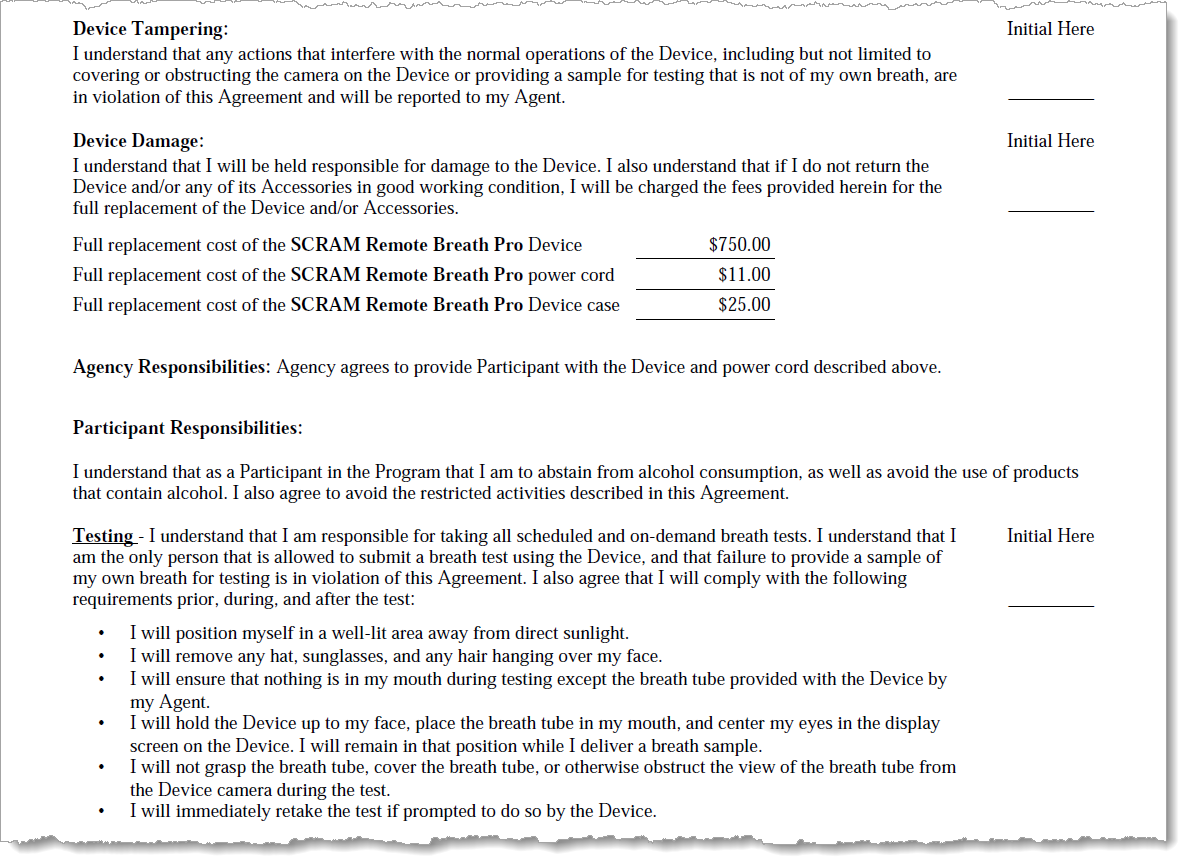
Language that explicitly describes what qualifies as “Device Tampering” and how it is a violation of the Agreement has been added.
The Participant Responsibilities – Testing section has been bolstered to discourage clients from (a) placing anything in their mouths except the breath tube supplied with the RB Pro Device and (b) grasping or otherwise obstructing the camera’s view of the breath tube while performing a breath test.
Updated RB Participant Agreement Excerpt (click to enlarge)
Who is Impacted
All Remote Breath customers who access and print their Remote Breath Participant Agreements from SCRAMNET will see the updated Agreement take effect March 1st. If your organization uses a customized version of the RB Agreement, your customizations will be “ported over” to the updated Agreement and made available in SCRAMNET as they are today.
If you are unsure about the type of Remote Breath Participation Agreement used by your organization, ask your supervisor or program administrator.
An extremely small number of customers have made major material changes to their versions of the RB Participant Agreement. Those customers will be contacted by their SCRAM account representative to discuss options for making the update to the newer Agreement language.