Hardware

SCRAM Systems® provides enhancements and updates to the SCRAM TouchPoint™ Mobile application on a continual basis. These updates improve the functionality and usability of the application for your client. Once an update is available in the Apple App store and the Google Play store, the next step is to have the client update the application on their smartphone.

An app update can be completed in two ways.

  • Automatic application updates (Recommended)
  • Manual application updates

As a best practice, we recommend you encourage your clients to enable automatic app updates – this ensures they are always using the latest version of the TouchPoint app.

Setup Automatic Application Updates

iPhone

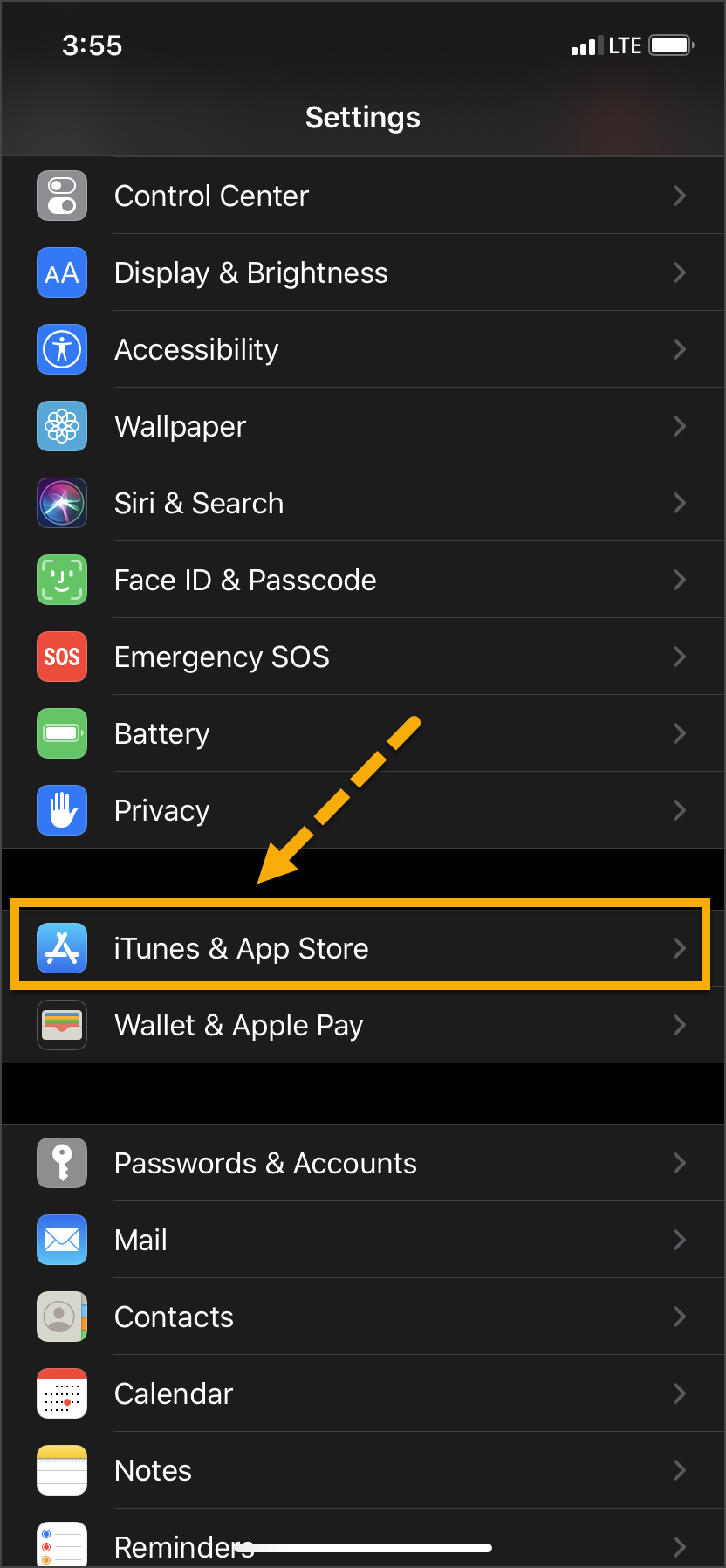
  1. On the client’s smartphone, tap the Settings icon.
  2. On the Settings screen, tap the iTunes & App Store option.
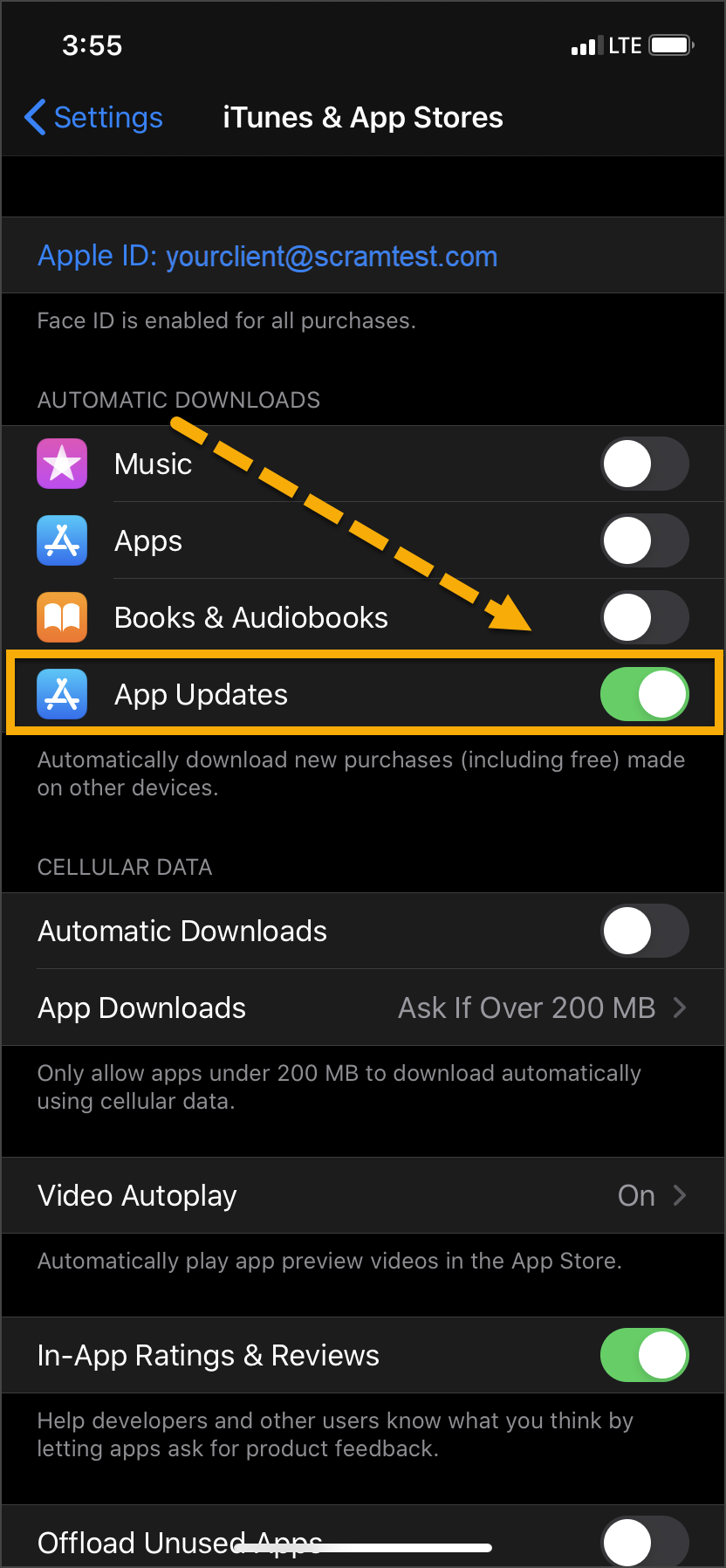
  3. Under the Automatic Downloads section, ensure the App Updates option is enabled.   
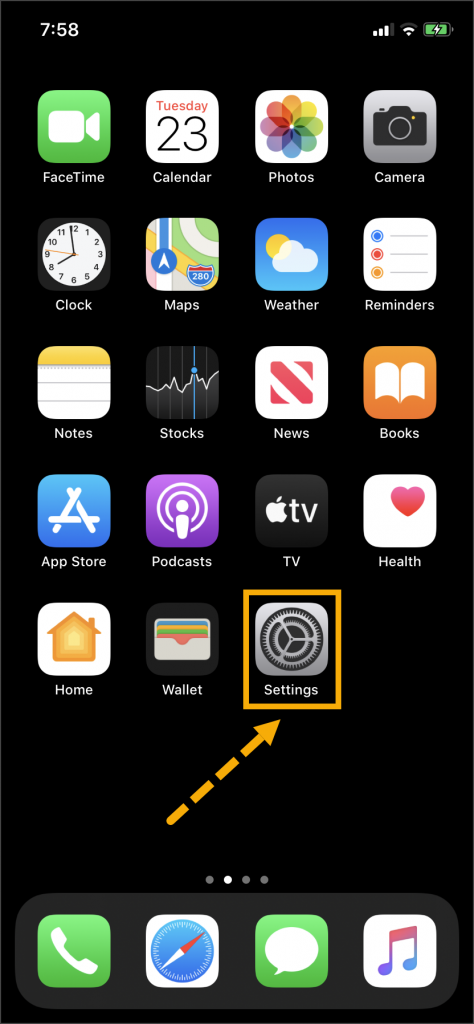
iPhone home screen Settings icon iPhone settings screen iPhone Settings screen

Click on any image to enlarge it.

Android

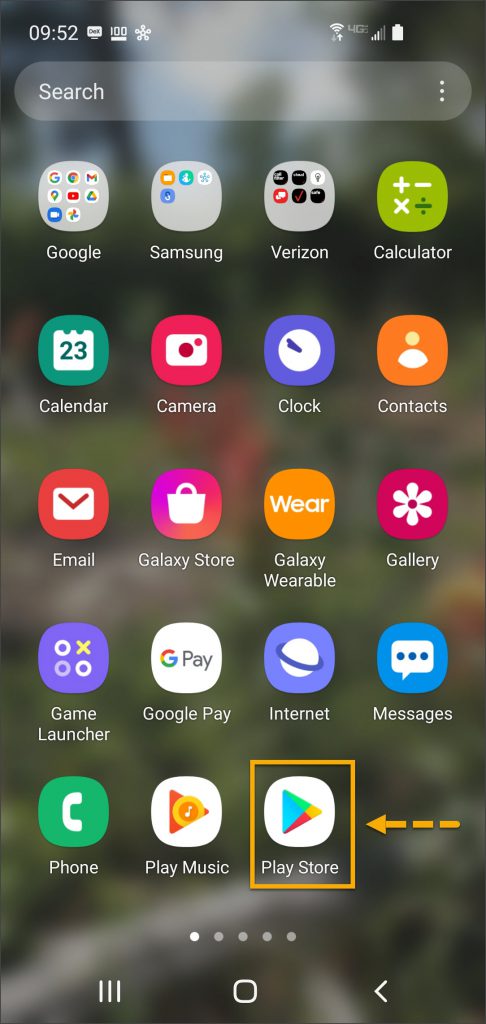
  1. On the client’s smartphone, swipe up on the Home screen.
  2. Tap the Play Store icon.
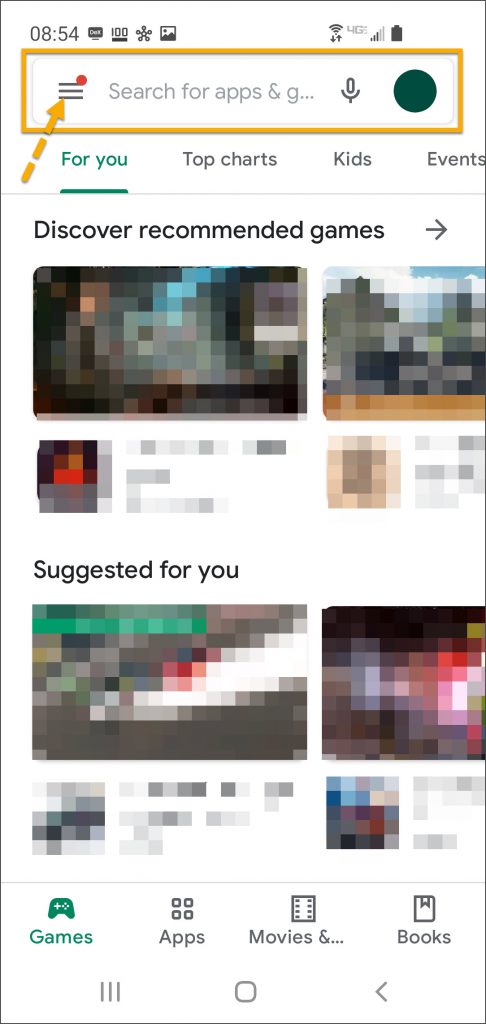
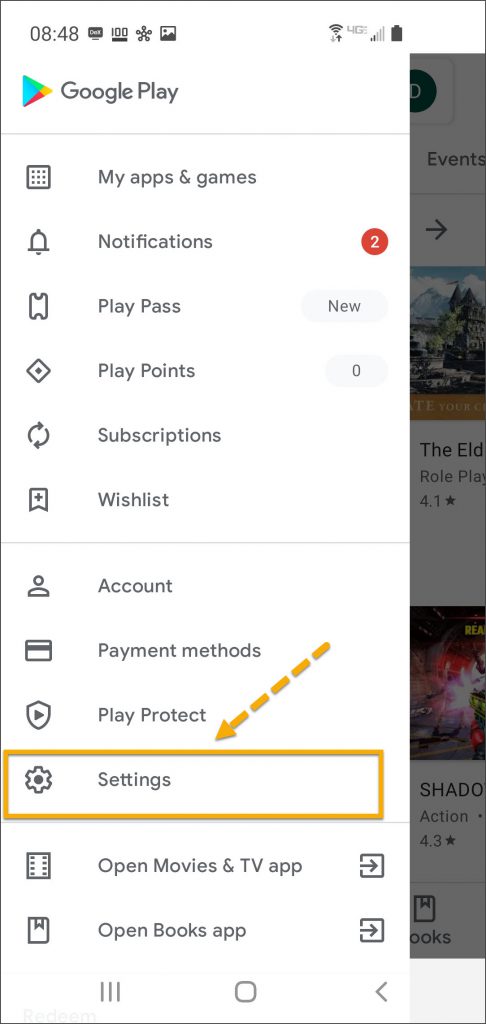
  3. On the Google Play store screen, tap the menu icon in the search field.
  4. Locate and tap the Settings option.
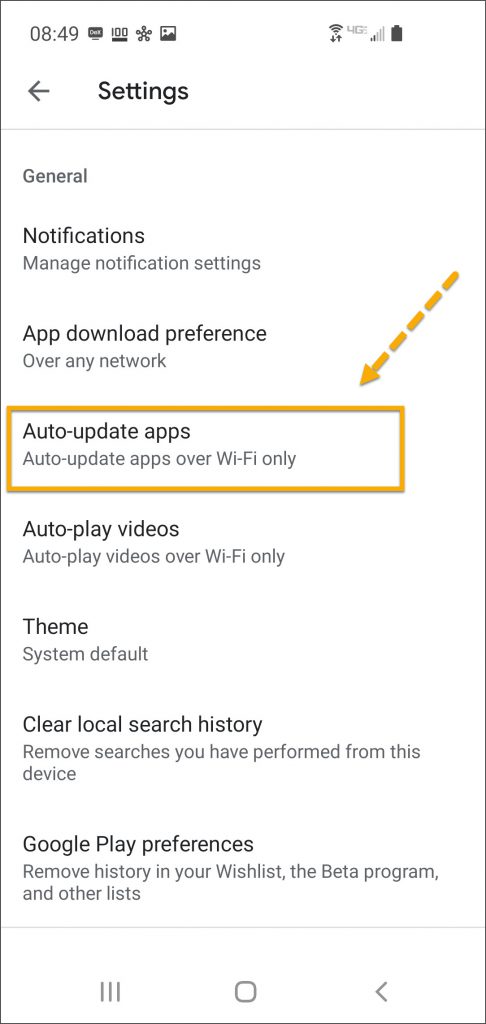
  5. Tap the Auto-update apps option.
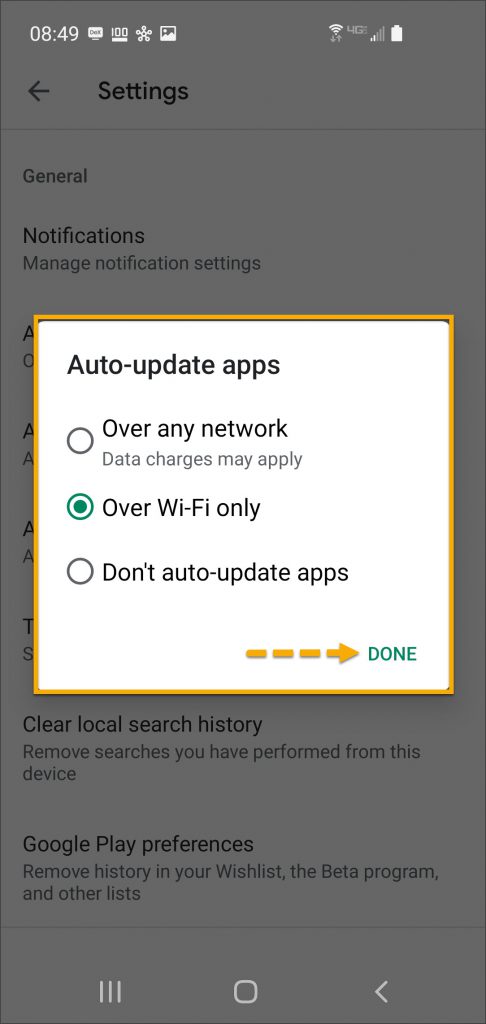
  6. In the Auto-update apps window, select the option of,
    • Over any network (Data charges may apply)
    • Over Wi-Fi only
  7. After making the selection, tap Done.
Android app screen Play Store app Android Google Play screen menu Android Google Play store screen
Android Settings screen Auto-Update appsAndroid Auto Update apps window options  

Click on any image to enlarge it.

Manual Application Update

iPhone

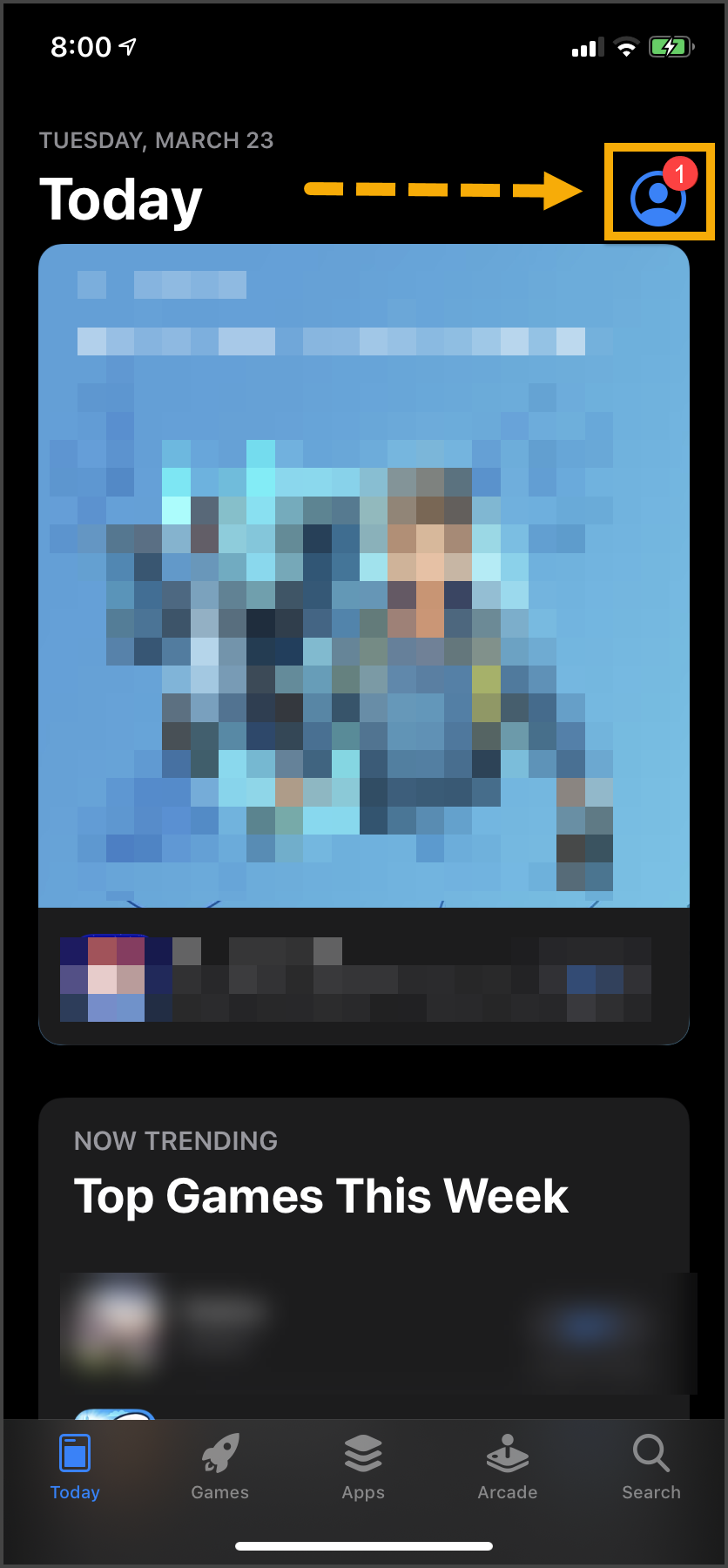
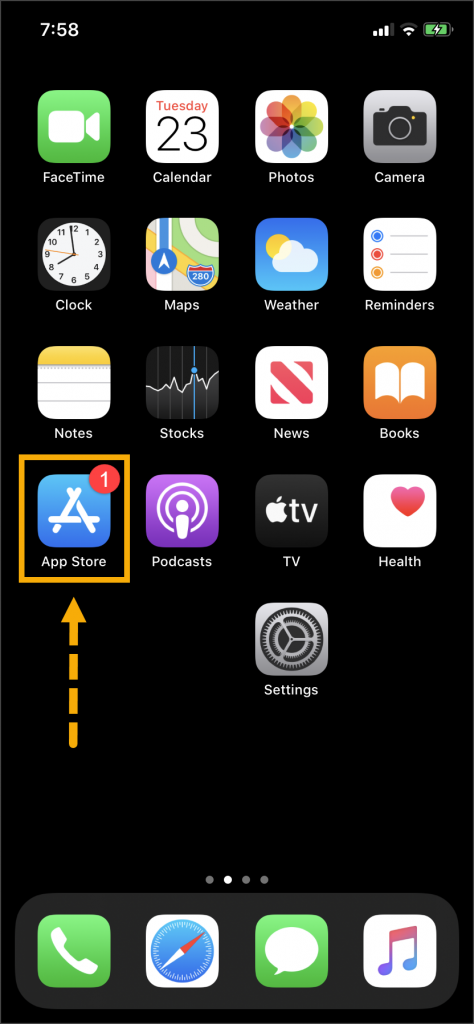
Once an update to the TouchPoint application is available, the App Store icon will display a red badge.

Instruct the client to:

  1. Tap the App Store icon.
  2. Tap their profile icon.
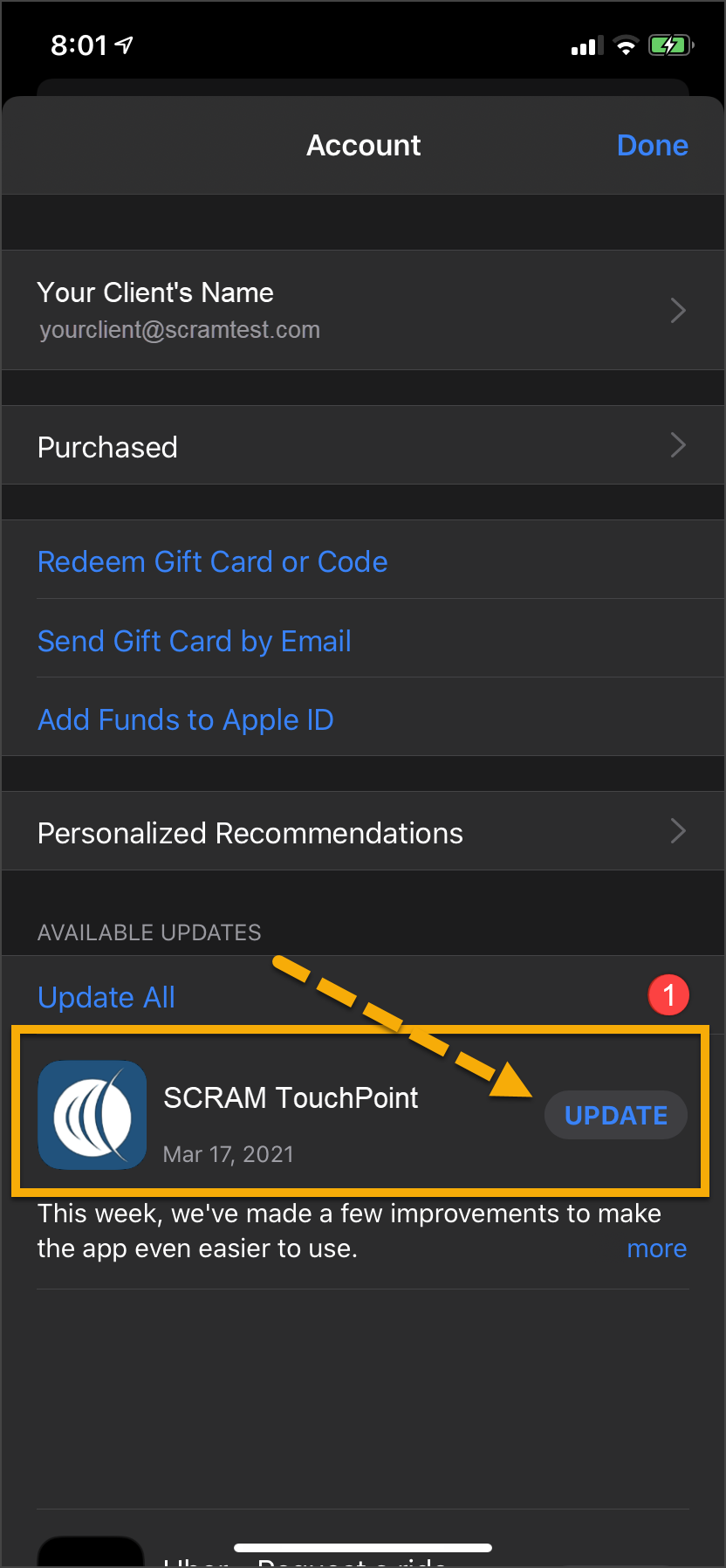
  3. Under the Available Updates heading, locate the SCRAM TouchPoint app.
  4. Tap the Update button. 

As a best practice, we recommend you encourage your clients to enable automatic app updates – this ensures they are always using the latest version of the TouchPoint app.
iPhone Home screen App Store icon iPhone App screeniPhone App update screen

Click on any image to enlarge it.

Android

  1. Swipe up on the Home screen and tap the Play Store icon.
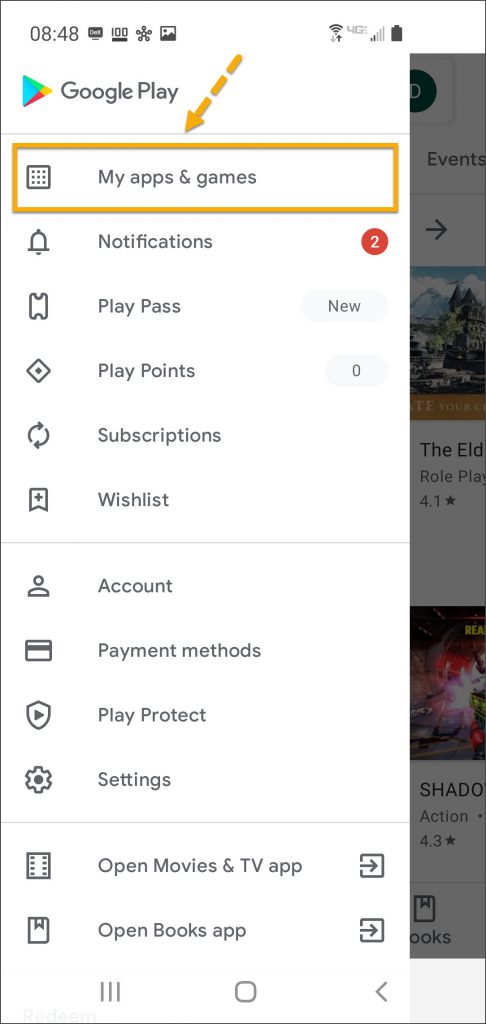
  2. On the Google Play store screen, tap the menu icon in the search field.
  3. Tap the My apps & games option.
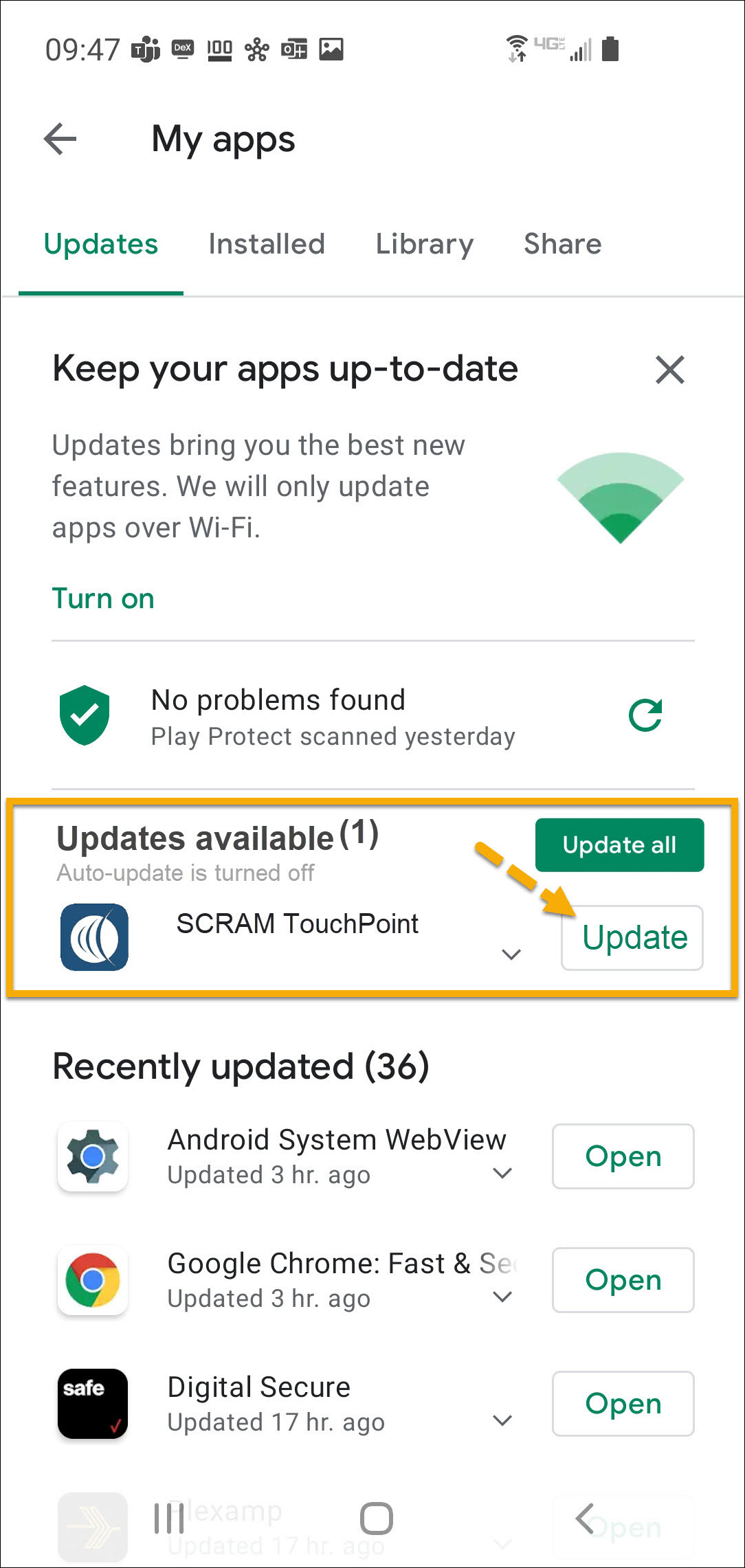
  4. Under the Updates Available section, locate the SCRAM TouchPoint app and tap the Update button.

As a best practice, we recommend you encourage your clients to enable automatic app updates – this ensures they are always using the latest version of the TouchPoint app.

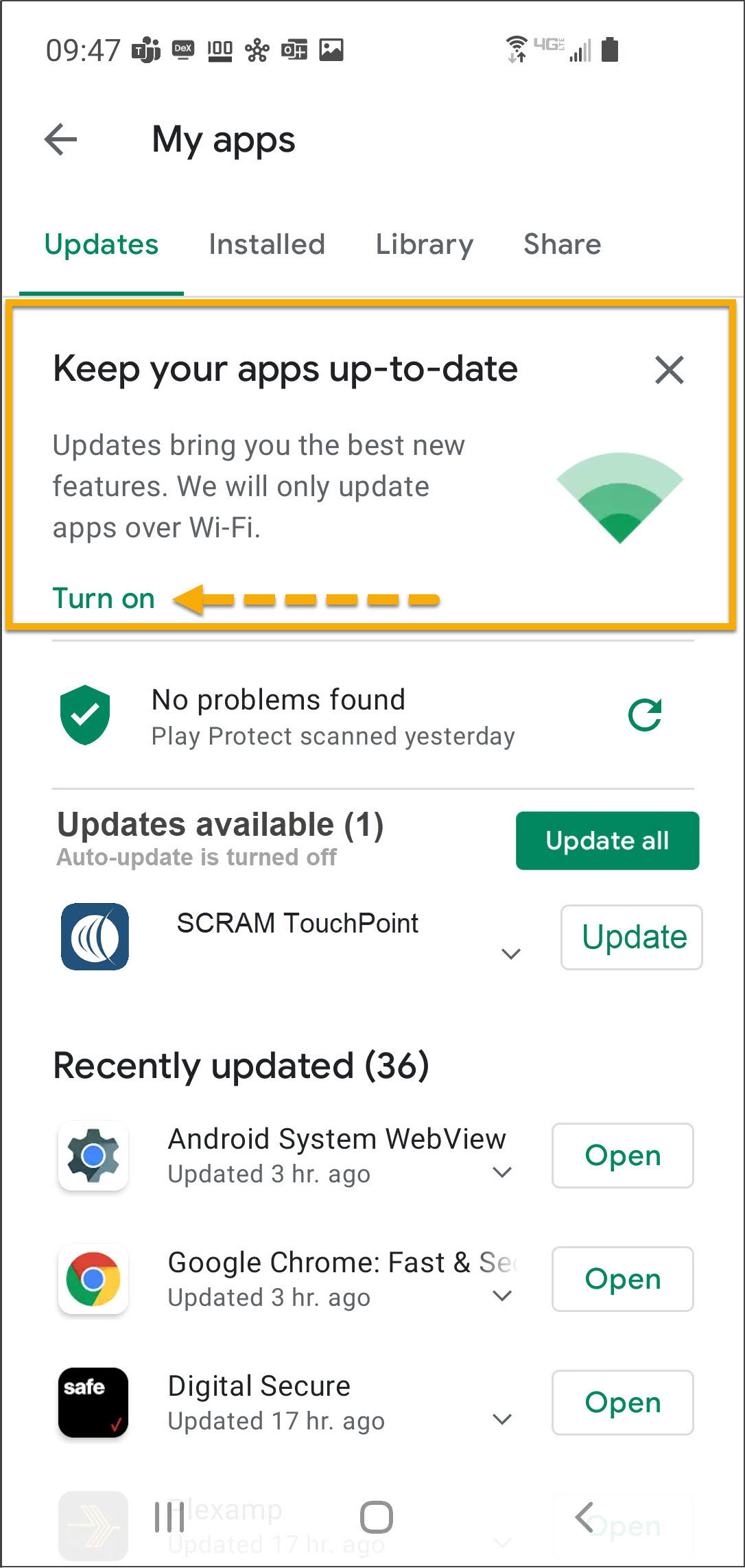
On the My apps screen, tap the Turn on button to enable automatic app updates.

Android app screen Play Store app Android Google Play screen menu Android Google Play store screen
Android My apps screen update availableAndroid My apps screen  

Click on any image to enlarge it.

Feedback

Please contact SCRAM Systems Customer Service with any recommendations for system improvements.
Continue Reading

At 5:00 AM MDT on Thursday, March 25, 2021, SCRAM Systems® is introducing several new features in SCRAMNET GPS. During the 15-minute deployment, you may not be able to access SCRAMNET® GPS but messages from the SCRAM GPS® Bracelet will continue to be processed uninterrupted. Enhancements/changes included are:

  • New Charger Maintenance alert
  • Improvements to the Schedule Calendar page when viewed on mobile devices
  • The Event Report can be run for longer periods

New Charger Maintenance Alert

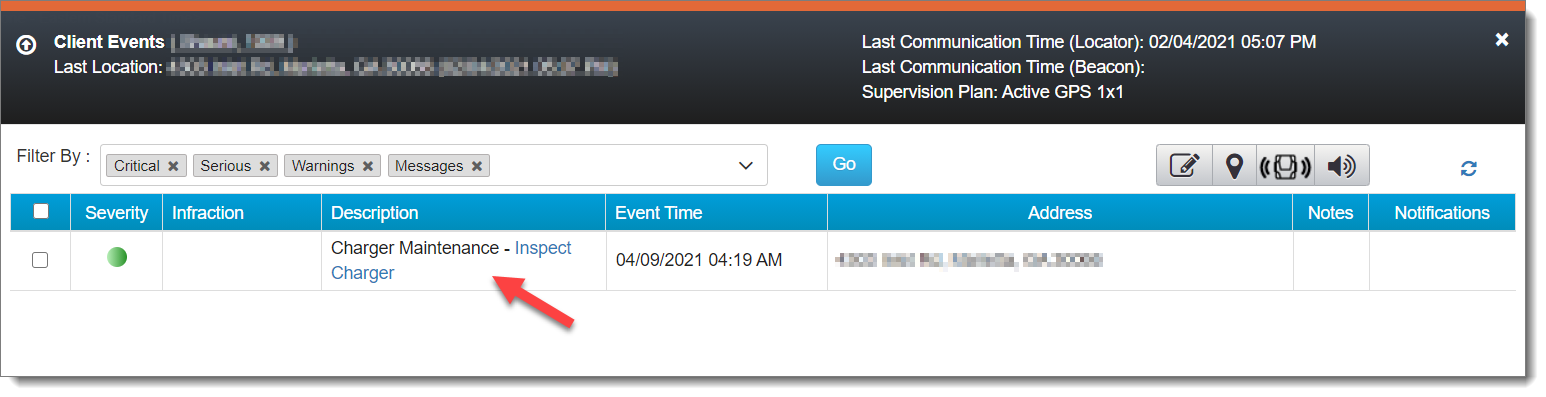
All mechanical equipment deteriorates with use over time. As a result, SCRAMNET GPS has introduced a Charger Maintenance Alert to remind users to inspect GPS Chargers for signs of wear.

GPS Charger Maintenance Alert (click to enlarge)

Charger Maintenance alerts are generated for:

  • All clients who have been assigned the same bracelet for 14 months or more.
  • Any client who has had 150 or more plug-in events in the last seven days.
InformationThis alert does not appear on or affect the Dashboard page, and it auto-clears from the Client Events pop up.

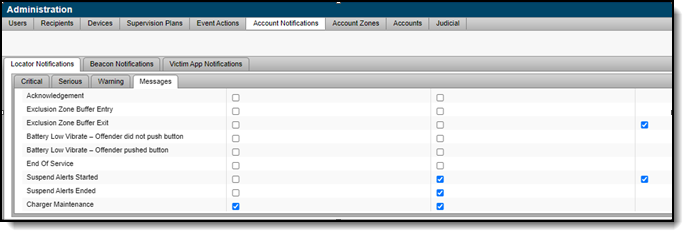
For those users with “Admin” access, the Charger Maintenance alert has been added to the Messages sub-tab of the Locator Notifications tab (Admin > Account Settings > Account Notifications tab > Locator Notifications tab). By default, the alert is selected to receive notifications via text message and email.

If selected, a notification is also sent to all designated recipients when a Charger Maintenance alert is generated. To adjust the notification settings for a specific client, navigate to that client’s Notifications page.

Note: Any designated recipient who is a victim using the SCRAM Ally mobile application will NOT receive a text message and email notification when a Charger Maintenance alert is generated.

Improvements to Schedule Calendar Page When Viewed on Mobile Devices

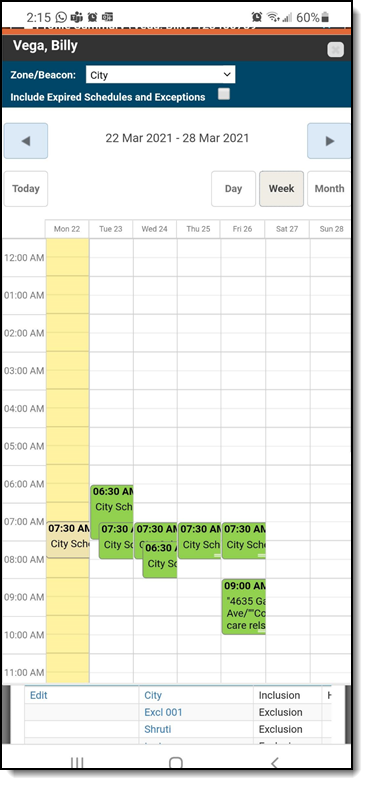
The Schedule Calendar page has been updated for better read-only viewing on a mobile device.

Note: In the next release, you will be able to add or edit a schedule from your mobile device.

The Event Report can be Run for Longer Periods

When running the Event report for a single client, up to a year of data can now be viewed. When more than one client is selected, the report can be run for a period of up to three months.

Continue Reading

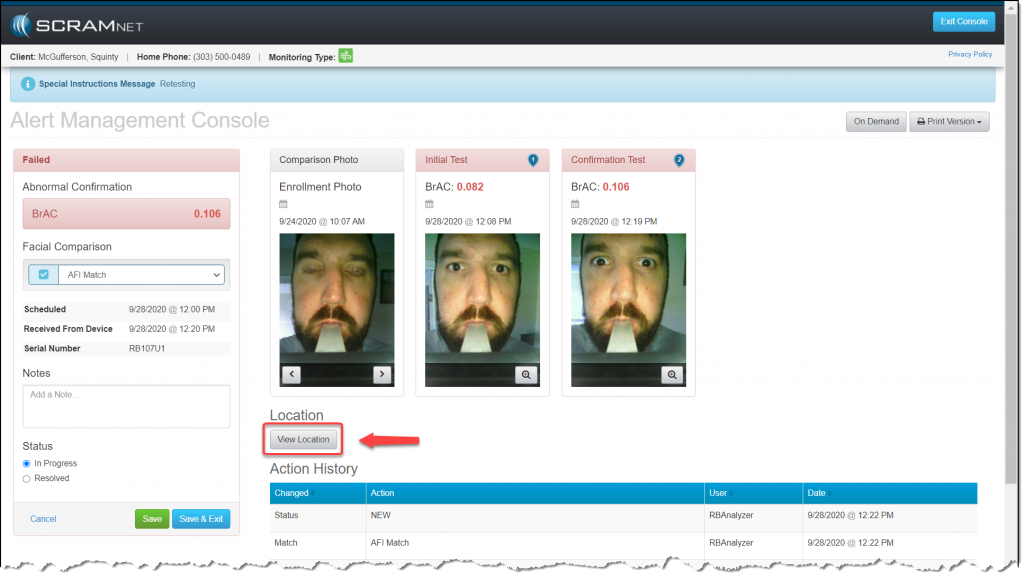
At 5:00 AM MST on Thursday, March 11, 2021, SCRAM Systems is introducing a new map-viewing feature that can be activated when analyzing an alert for a SCRAM Remote Breath client.

New View Location Button

Your SCRAM Remote Breath client’s geographical location is not always relevant to your analysis; so SCRAMNET now makes it your choice to view your client’s location, rather than display it automatically. To view a SCRAM Remote Breath client’s location on a map while reviewing RB alert details, click the new View Location button on the Alert Management Console.

Continue Reading

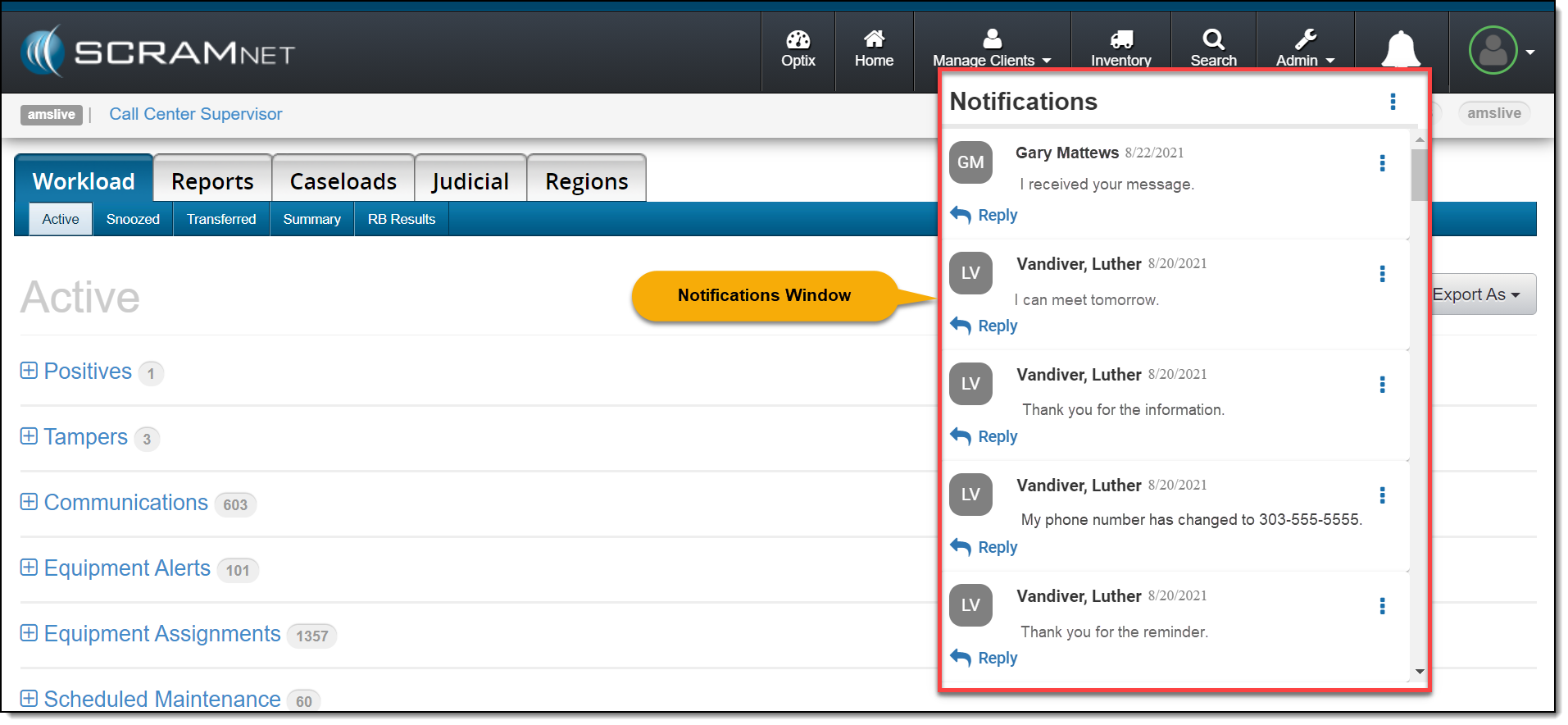
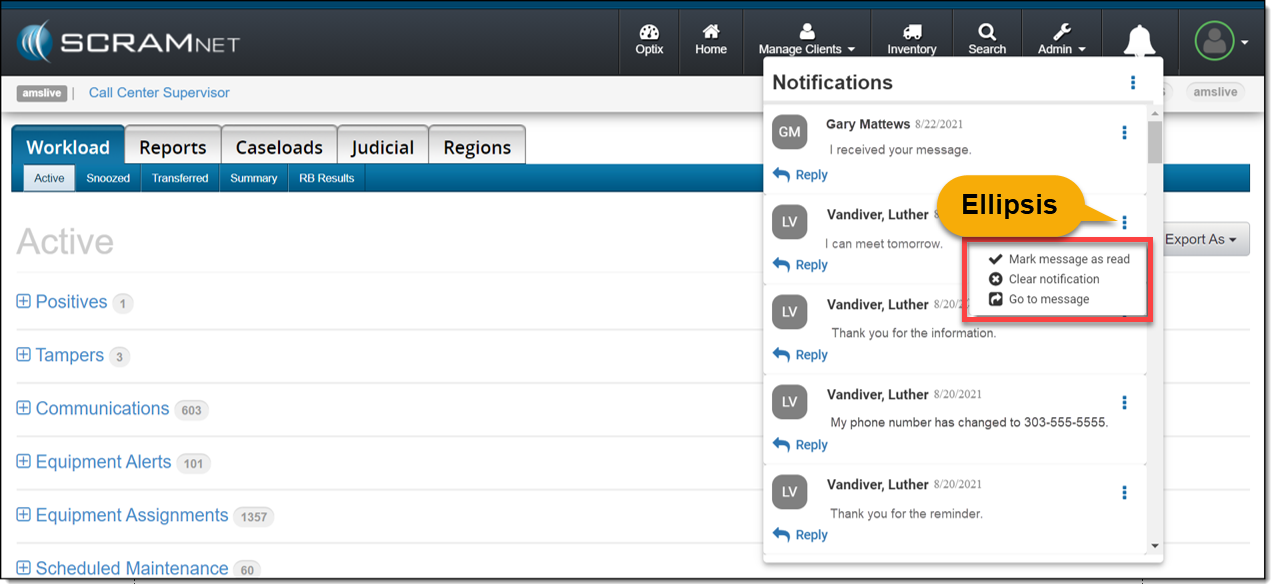
On March 4, 2021, SCRAM Systems® will release a new Notifications Window in SCRAMNET®. This Notification Window displays new messages sent from your SCRAM TouchPoint™ client caseload. With this feature you can view, clear, mark messages as read, or respond to your clients’ messages from within SCRAMNET. All actions completed within the Notifications Window are reflected on each client’s TouchPoint Messaging page.

Notifications in SCRAMNET

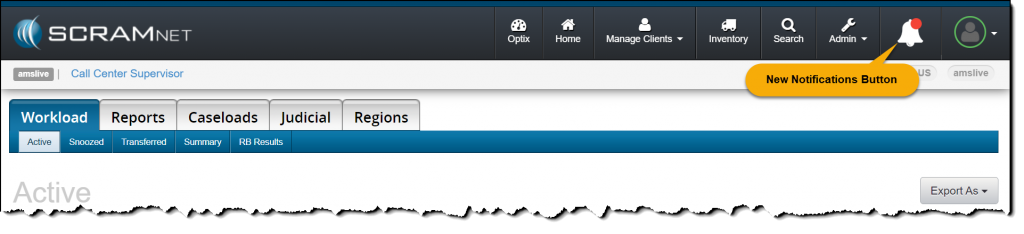
When a new message is sent by your client through the SCRAM TouchPoint app, the Notifications button in SCRAMNET will display a red badge. To view the message, click the button.

click to enlarge

On the Notifications Window, the client’s name, date, and message is displayed.

click to enlarge

Managing the Notifications Window

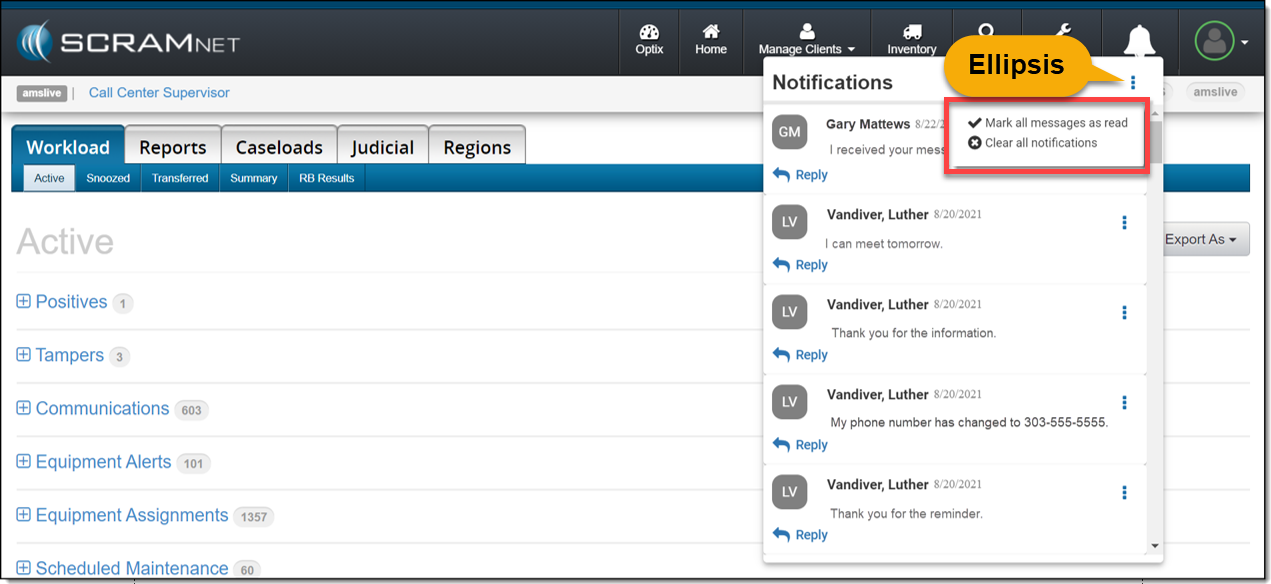
Selecting the ellipsis next to the Notifications heading or next to the client’s name will display a menu with following options:  

  • Mark all messages as read or Mark message as read: When selected, the message will be cleared from the Notifications Window. On the client’s TouchPoint Messaging page, the message will display as Read for the client.
  • Clear all Notifications or Clear Notification: When selected, this option will clear the message from the Notifications Window in SCRAMNET. This does not mark the message as Read on the client’s TouchPoint Messaging page; it simply clears the message from the Notifications Window.
  • Go to Message: This option will open a new tab that displays the client’s TouchPoint Messaging page. This action will clear the message from the Notifications Window.

Option One

Mark all messages as read or clear all notifications by selection the ellipsis to the right of the Notifications heading.

click to enlarge

Option Two

Manage each message individually by selection the ellipsis next to the message.

click to enlarge

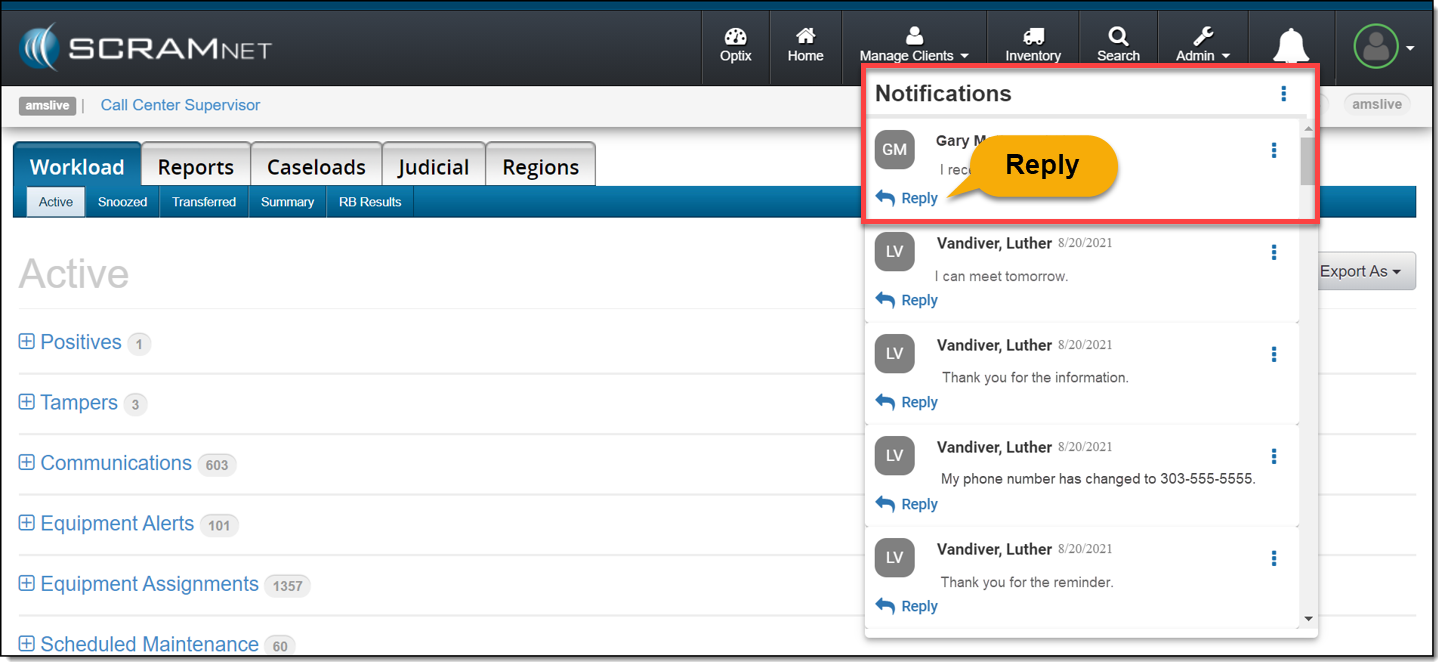
Reply

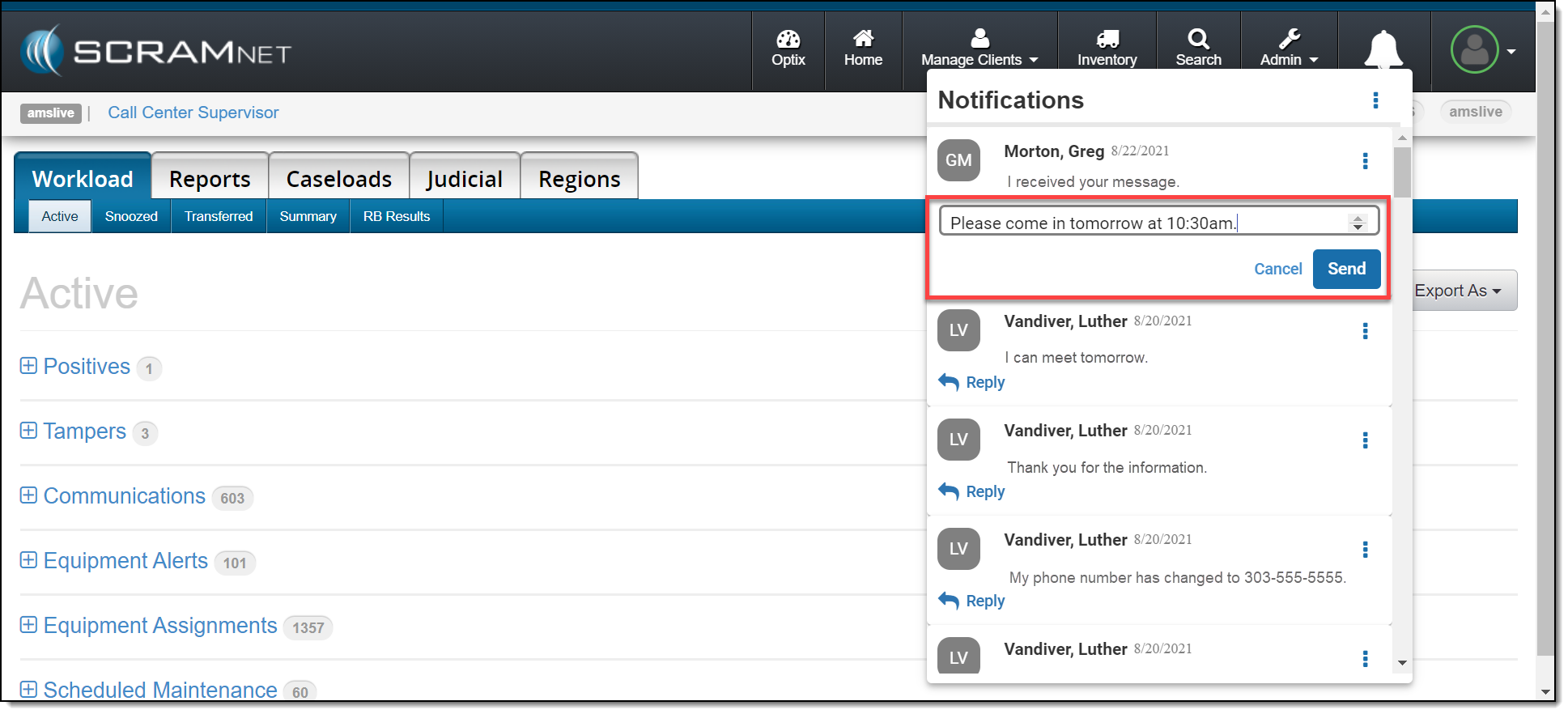
Click the Reply link to respond to the client’s message. After entering a response, click the Send button.

click to enlarge
click to enlarge

The message will no longer be displayed in the Notifications Window.

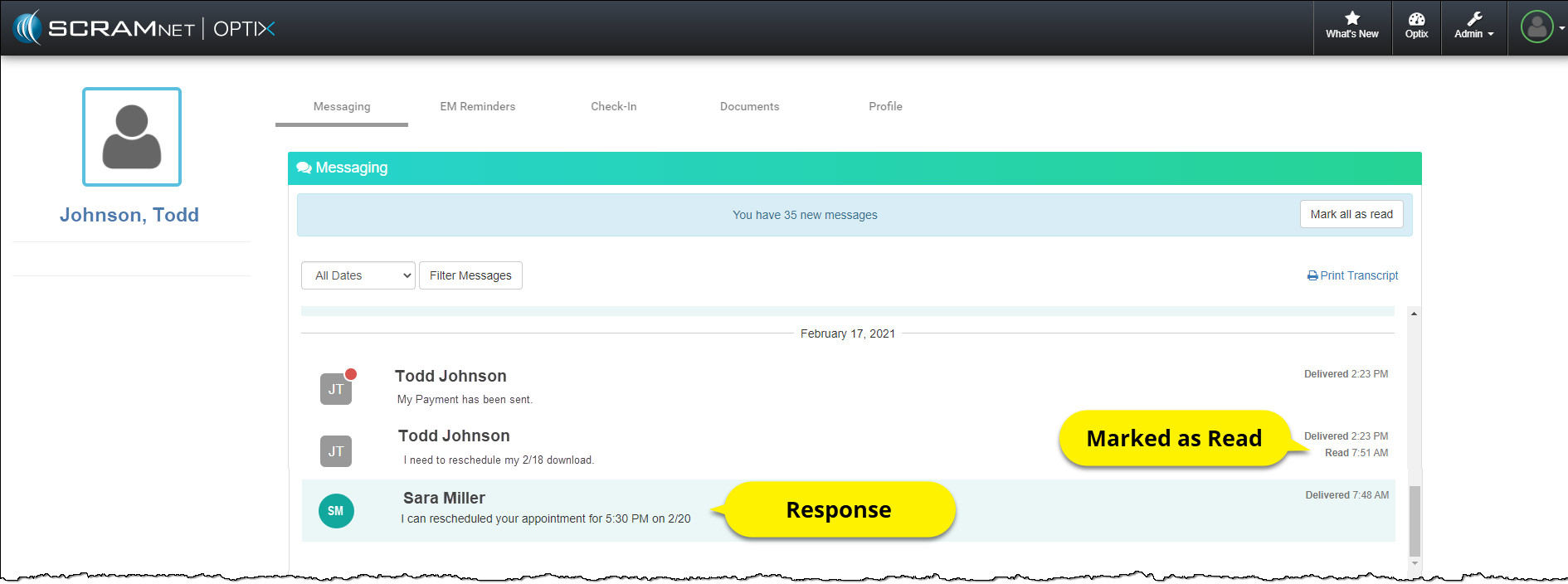
On the client’s TouchPoint Messaging page, the message will be marked as Read and the response sent by the user will be displayed.

Client Messaging page
click to enlarge

Feedback

As always, please contact SCRAM Systems Customer Service with any recommendations for system improvements.

Continue Reading

On February 18, 2021, SCRAM Systems® will release a new option on the Stop Monitoring and Change Client Status pages in SCRAMNET®. This new option will allow you to inactivate/disable a SCRAMNET client and their linked SCRAM TouchPoint™ profile simultaneously.  

Inactivate the SCRAMNET Client Profile

Option One:

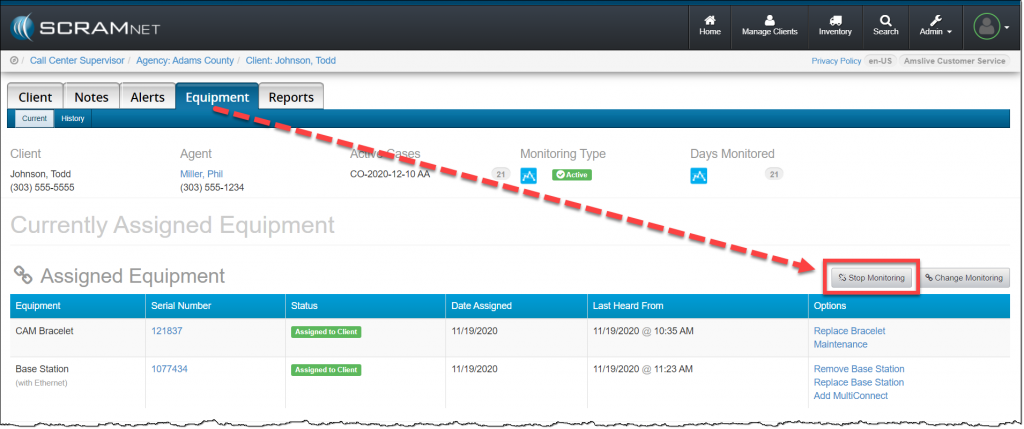
In SCRAMNET click the Stop Monitoring button on the client’s Equipment page.   

SCRAMNET Equipment page
click to enlarge

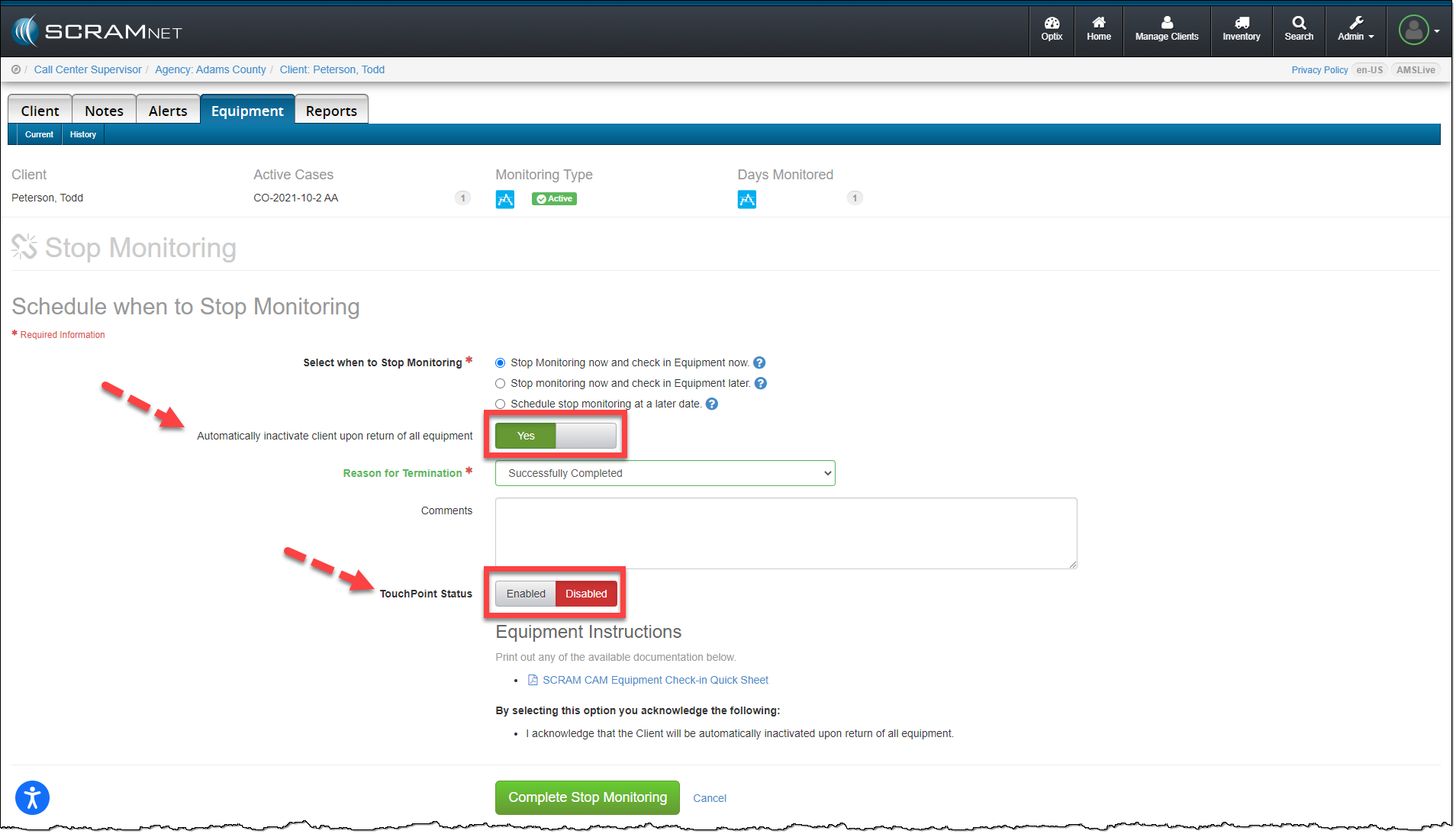
On the Stop Monitoring page, you have the option to automatically inactivate the client upon return of all equipment. When this option is updated to Yes, you now have the option to disable the client’s linked TouchPoint profile at the same time. Next to the TouchPoint Status option, simply toggle the Enabled option to Disabled and click the Complete Stop Monitoring button.

SCRAMNET Equipment page Stop Monitoring Options
click to enlarge

Option Two:

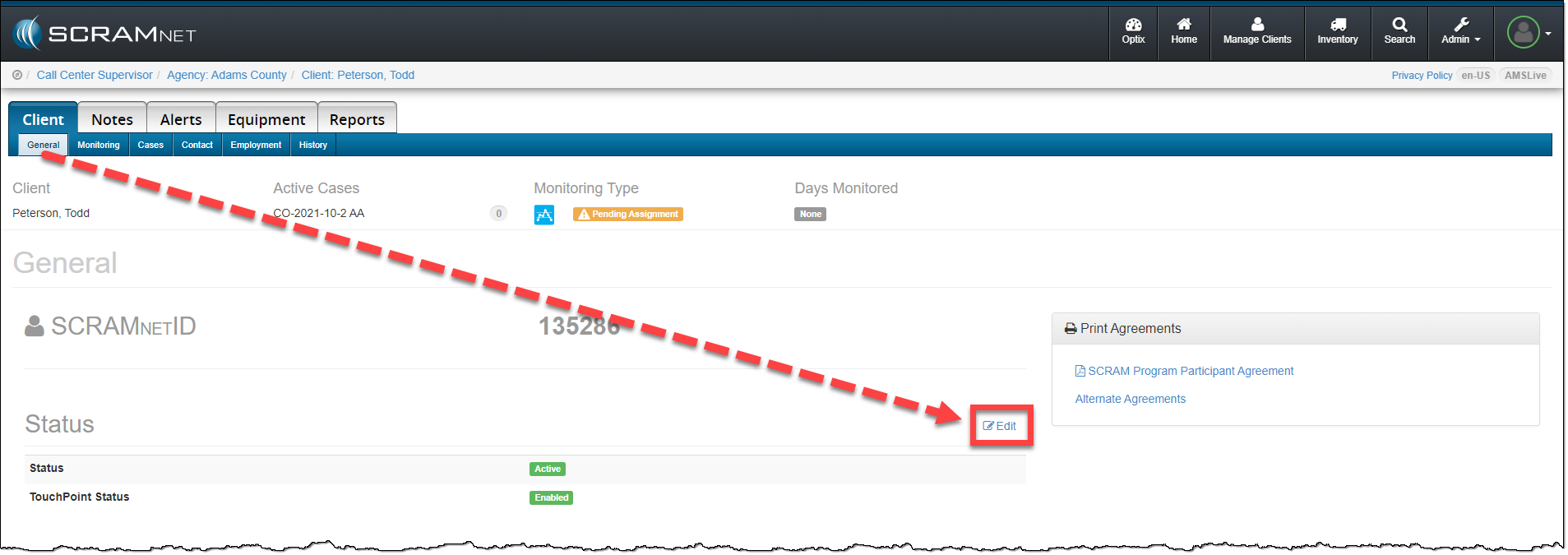
When inactivating the client’s SCRAMNET profile from the Status section, click the Edit link on the Client page.

SCRAMNET Client page
click to enlarge

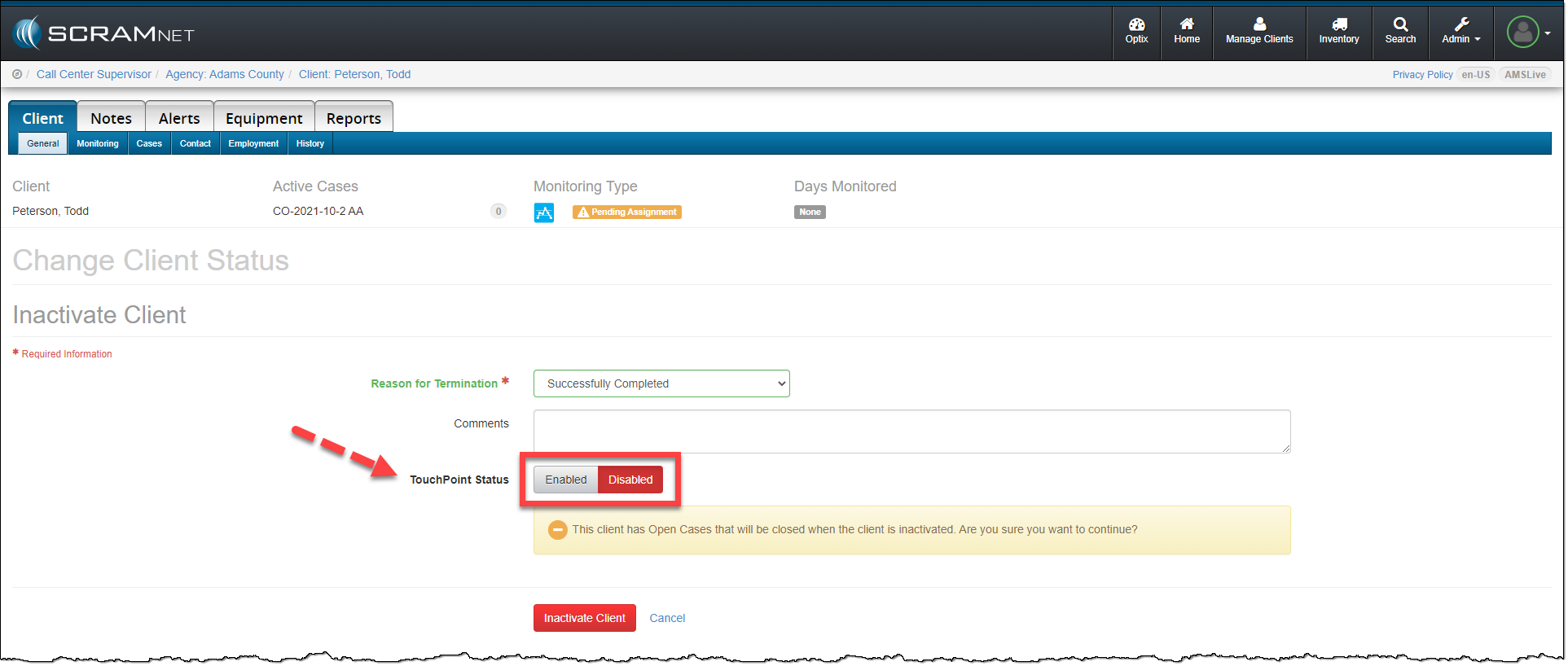
On the Change Client Status page, toggle the TouchPoint Status from Enabled to Disabled. To complete the process, click the Inactivate Client button.

SCRAMNET Client page Change Client Status options
click to enlarge

The SCRAMNET client profile is inactivated and the client’s TouchPoint profile and any enabled services are automatically disabled.

Feedback

As always, please contact SCRAM Systems Customer Service with any recommendations for system improvements.
Continue Reading

New SCRAM Faceplate Removal Tool

SCRAM Systems® continues to refine the tools that are used in your everyday operations to maximize their effectiveness and save you time. Our new spring-loaded SCRAM CAM® and SCRAM House Arrest® faceplate removal tool makes it easier to remove the faceplate – without prying – and helps prevent damage to the outer casing. We understand how important it is for you to keep your SCRAM CAM/HA devices operational and in your available inventory, and our new faceplate removal tool is designed to help you keep them operating at peak performance so you get the most out of your investment.

During the month of January 2021, we began shipping the new faceplate removal tool. If you received one, please watch this short instructional video to learn best practices for positioning and using the new spring-loaded removal tool on the bracelet, and how best to remove faceplates that don’t readily disengage. Failure to use the tool as shown in the video may result in damage to your CAM/HA device.

To order more faceplate removal tools, look for part number 00178 on the SCRAM Equipment Order Form (SCRAMNET login required).

Please contact Customer Service if you have questions about the new Faceplate Removal Tool and how to use it.

Continue Reading

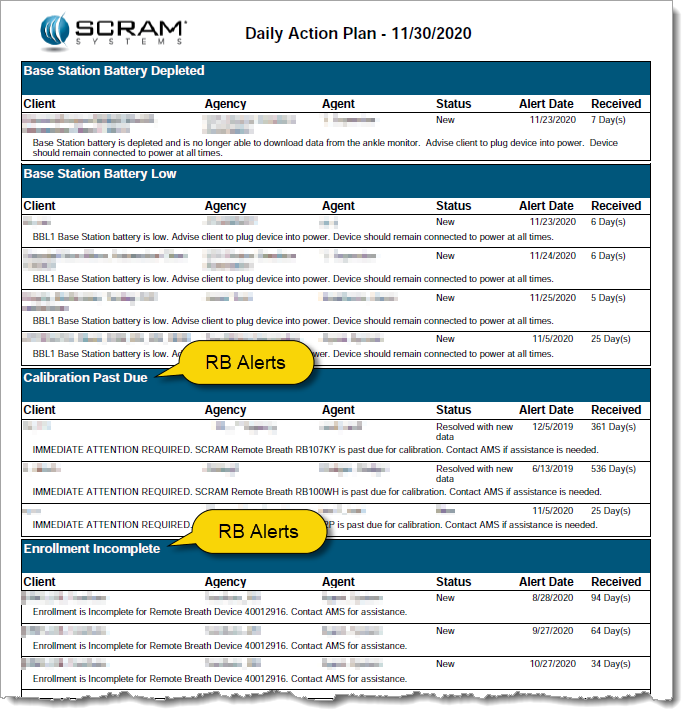
Every customer has unique operational needs and SCRAM Systems strives to meet those needs whenever possible. To this end, we are expanding the types of alerts that you can choose to include in the Daily Action Plan (DAP) that you receive each morning. In addition to the CAM alerts that are included by default, the Remote Breath (RB) alerts displayed on the RB Results page can also be included on the DAP.

RB Alerts on the Daily Action Plan Report

Potential Time-Saver

Adding Remote Breath alerts enables you to use the DAP as a starting point to address CAM and RB alerts that require some type of action on your part. This allows you to easily see the RB alerts you need to work before logging into SCRAMNET, which saves you precious processing time.

Something to Consider: 500 Max

If you are interested in activating this new feature, please note that a maximum of 500 RB alerts can appear on the DAP. If your RB Results page has not been managed for some time and you have a high number of alerts, you may want to reduce the alert count to a more manageable level before enabling this feature on the DAP report.

If you elect to enable this feature and there are more than 500 alerts listed on the RB Results page, only the most recent 500 alerts will be included in the DAP. As you work alerts and they drop off the DAP report, older alerts will “backfill” the completed ones overnight each night, until all the outstanding alerts on the RB Results page have been addressed.

Activate Feature (Administrator only)

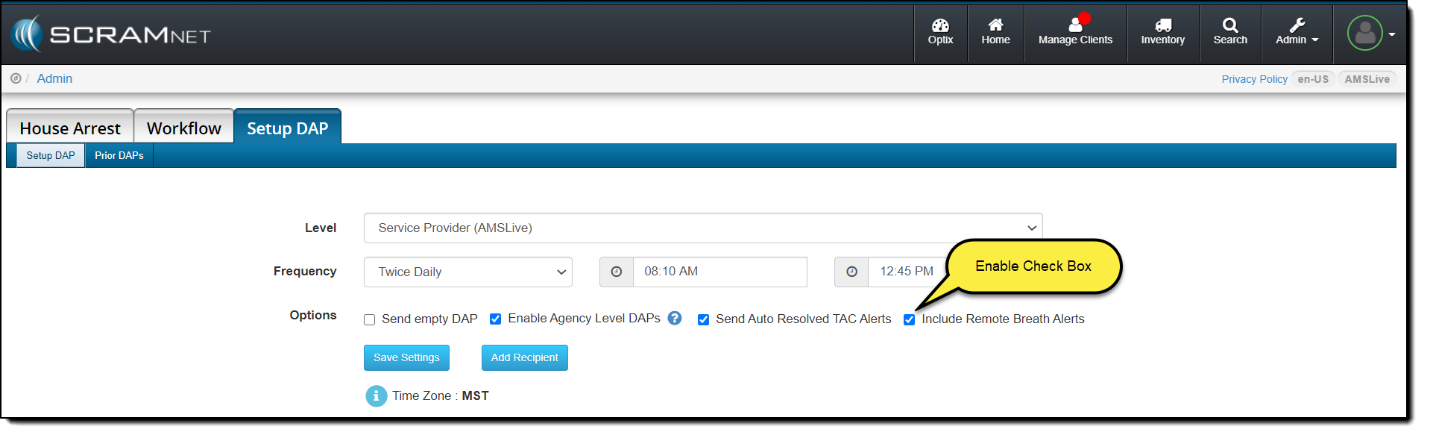
To activate this feature so RB alerts appear on the DAP, an administrator must access the Setup DAP page in SCRAMNET and select the Include Remote Breath Alerts check box, as shown below.

Continue Reading

Awaiting Return vs. Pending Removal

When it is time to discharge a client from the SCRAM CAM program, be sure you have a clear understanding of the status in which you should place the equipment.

Awaiting Return

If the bracelet or base station is NOT on-hand, select Stop Monitoring and complete the Stop Monitoring process to set the status to Awaiting Return. This status ends the monitoring program and stops the billing associated with it. The bracelet will remain in this status until it is checked in or until 30 days elapses, at which time it will automatically move to Lost status.

Pending Removal

If you will be completing the Stop Monitoring process with the client in person and the equipment is on-hand, select Stop Monitoring and complete the Stop Monitoring process to set the status to Pending Removal. This status prepares the bracelet for final connection with the Direct Connect device and application, and monitoring and billing both continue until the Direct Connect process is complete and the bracelet moves to In Inventory status.

More Help

For more detailed Client Discharge instructions please visit the Check In SCRAM CAM Bracelet help article on SCRAM Systems Help & Support.

Continue Reading

As you know, when a SCRAM CAM® Bracelet and Wireless Base Station (WBS) are checked in without you having one or both devices in hand, you set the status of those devices to “Awaiting Return.” However, because the WBS continues to communicate via a wireless network with SCRAMNET®, the device automatically sets its status to “In Inventory” the next time it communicates, which requires you to manually change the status back to “Awaiting Return.”

With this release, the WBS will no longer communicate when set to the “Awaiting Return” status. Consequently, the WBS will stay in that status until you retrieve the device and manually change the status to “In Inventory” yourself, or 30 days elapses at which time the device status is automatically set to “Lost.”

To allow you to manually set a returned WBS to “In Inventory”, a new Move to Inventory link will appear on the client’s Equipment page when the device is set to “Awaiting Return”, as shown below. When you click the link, the device is returned to inventory and is removed from the client’s Equipment page.

Continue Reading

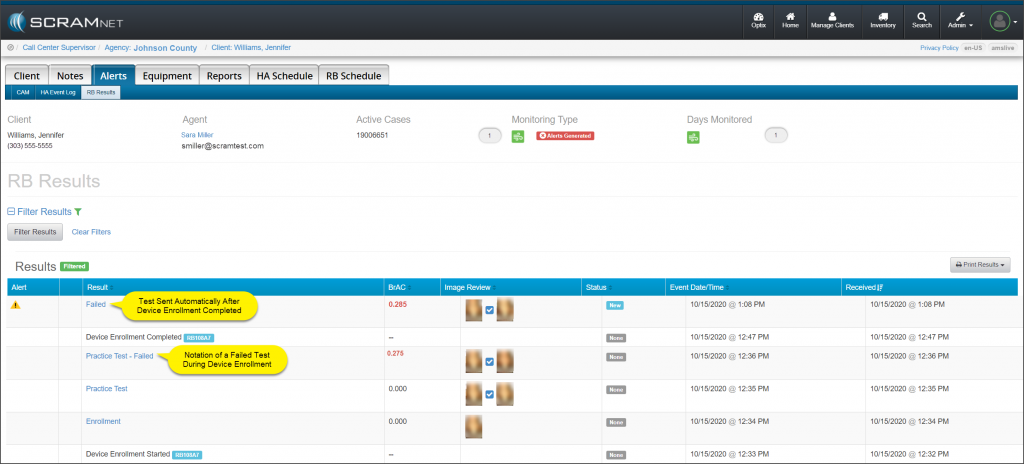
On Thursday October 22, 2020, SCRAM Systems® will release an update to the Device Enrollment process for clients who provide a positive breath test during the Device Enrollment period. After the release, all practice tests with a BrAC above the agency’s threshold will be noted as Practice Test – Failed on the RB Results page. In addition, once the Device Enrollment is completed by powering down the device, the device will automatically power back up and request a test be completed by the client.  This automatic test will follow the same process followed when a positive breath sample has been provided.

SCARMNET Client's RB Results page
SCARMNET Client’s RB Results page (click to enlarge)

Feedback

As always, please contact SCRAM Systems Customer Service with any recommendations for system improvements.
Continue Reading