Effective today, SCRAM Systems® released a new Agent filter and associated column on the RB Results page in SCRAMNET®.
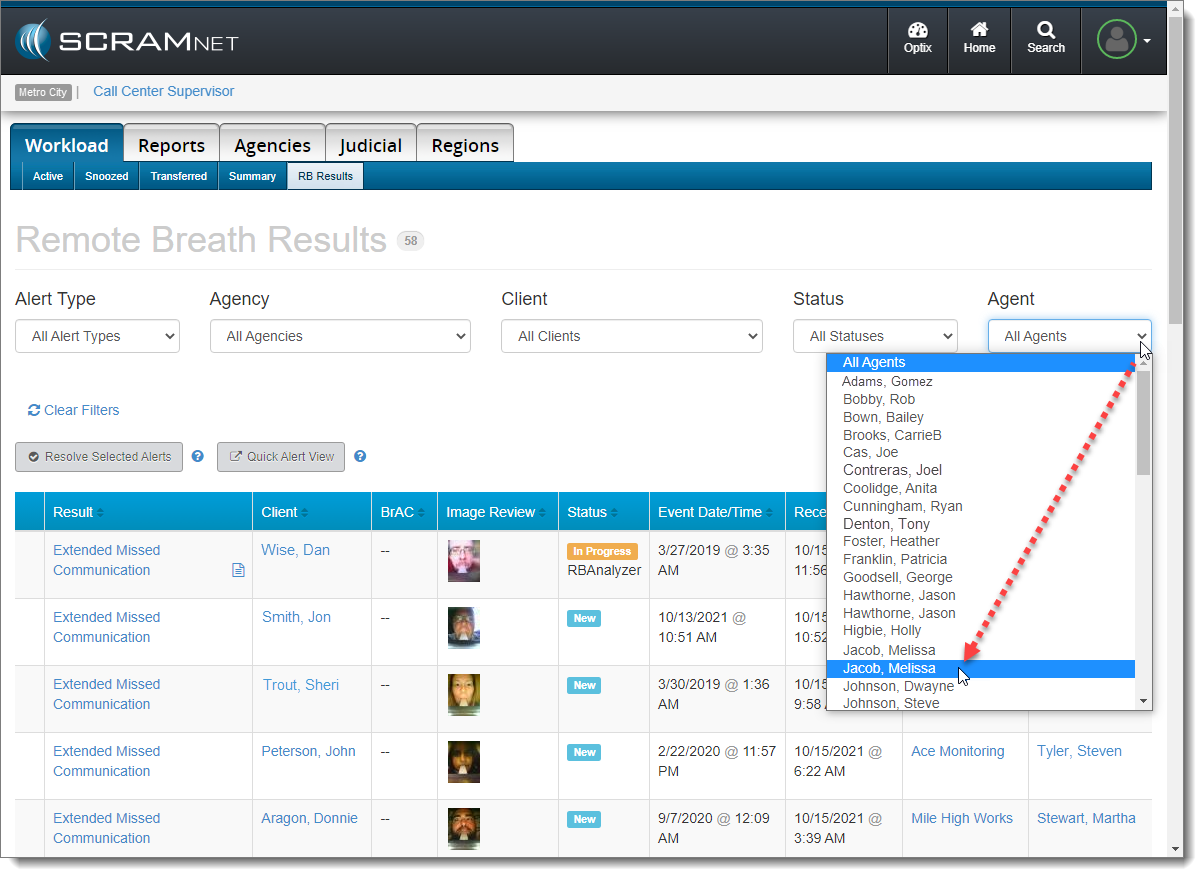
The Agent filter appears as a new dropdown menu on the far-right of the screen, and allows you to filter the list of results by a single agent. If an agent is assigned to more than one caseload, that agent will appear in the dropdown list multiple times, and you may have to select each instance of the agent until you get the desired agent/caseload combination.
Agent Filter (click to enlarge)
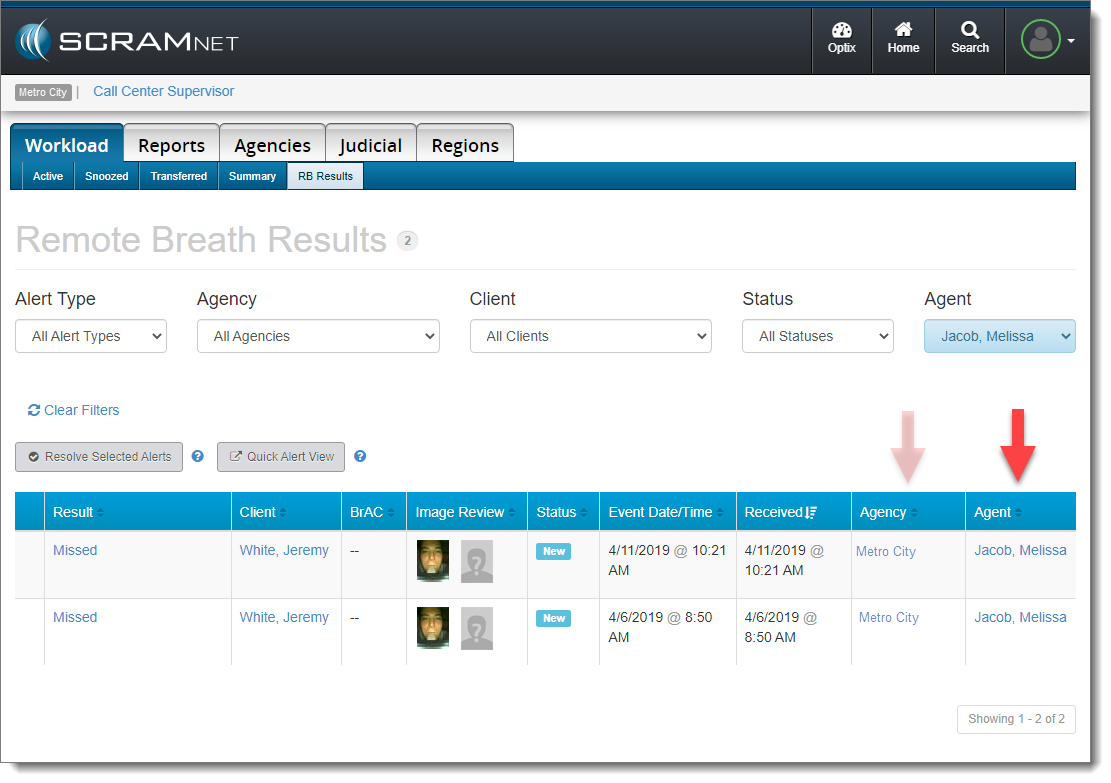
A new Agent column now appears on the Remote Breath Results page as well. Use this new column in conjunction with the existing Agency column to clarify which set of results you are viewing for that agent.
Agent-Related Columns (click to enlarge)
Effective October 28, 2021, “Agencies” will be referred to as “Caseloads” in the SCRAMNET monitoring system. This change will bring SCRAMNET up-to-date with current terminology.
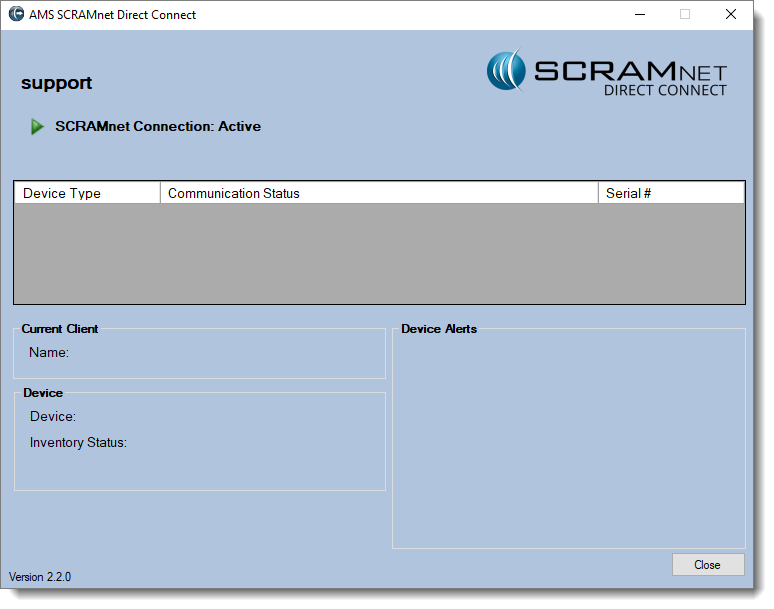
Since its launch three months ago, SCRAM Systems has supported both the new Direct Connect Version 2 – or “DC v2” – and the previous Direct Connect Version 1 – or “DC v1.” Effective November 1, 2021, SCRAM Systems will be retiring DC v1, and the DC v1 software will no longer work with your SCRAM Systems equipment.
On June 17, 2021, SCRAM Systems® released Direct Connect Version 2. This new version of the Direct Connect application no longer requires you to log in each time you launch it. Instead, the application uses your Microsoft Windows login credentials to automatically log you in. In other words, if agent John Doe logs into Windows on a computer and then launches Direct Connect, it will record John Doe’s Windows Username on SCRAMNET, which may or may not match John Doe’s SCRAMNET login ID. What this means is:
If your monitoring organization has one computer you use to do all your Direct Connects, then SCRAMNET will reflect the username of whomever logged into that computer last; so if the agent who logs in first thing in the morning neglects to log out, it’s possible it will look like that agent did all the DCs for all clients all day long.
DC v2 Installation Instructions
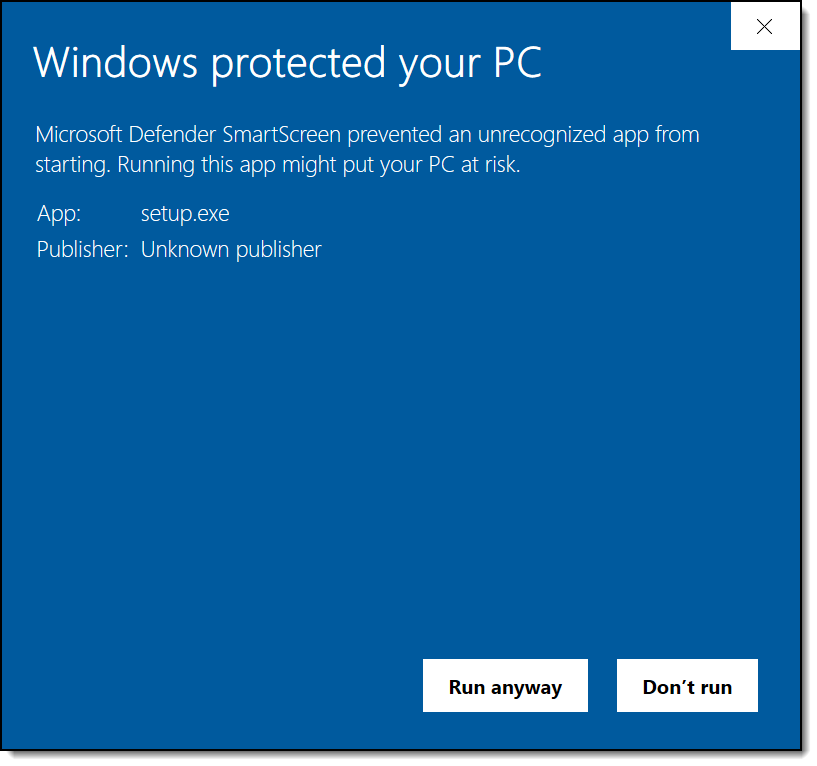
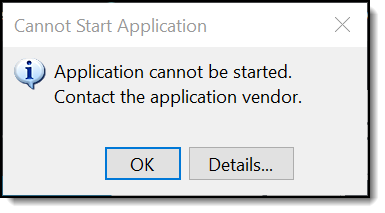
Visit the Direct Connect Installation page of the SCRAM Systems Help & Support site to learn how to install the Direct Connect v2 application on your organization’s monitoring program computers. SCRAM Systems is not able to remotely identify which computers have been upgraded to the new Direct Connect software; so to avoid any issues in downloading and assigning devices, it is recommended that you uninstall Direct Connect v1 from your monitoring program computers, since DC v1 will no longer work after November 1st.
SCRAM Systems is pleased to announce the addition of two NEW client participant videos to the Help page in addition to the SCRAM CAM participant agreement video already available! These videos describe what is expected of a client as a participant in the SCRAM CAM, Remote Breath, and GPS monitoring programs. Have your clients view the video prior to having them sign the Participant Agreement.
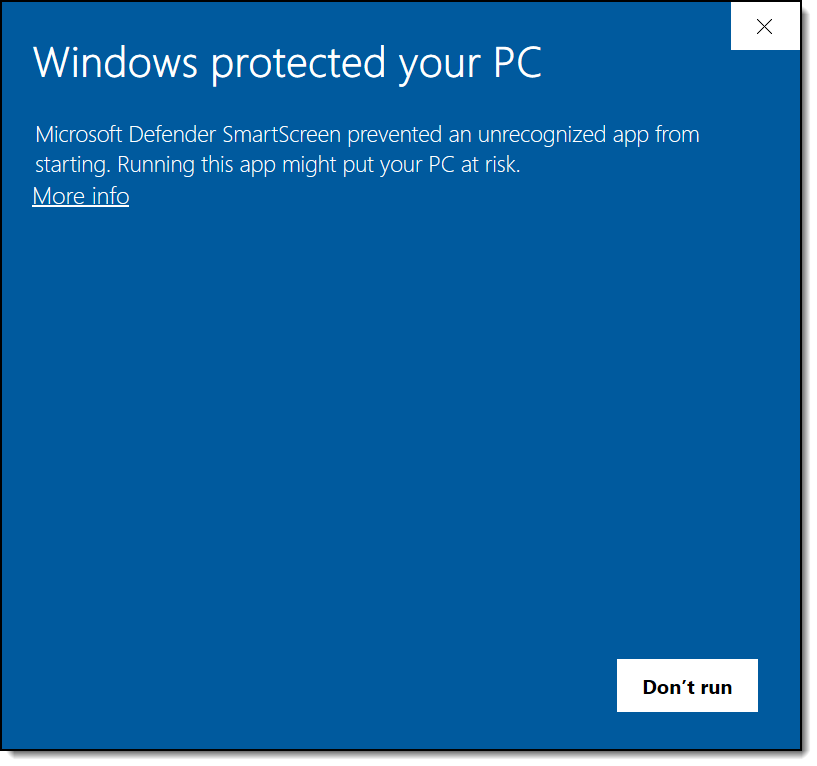
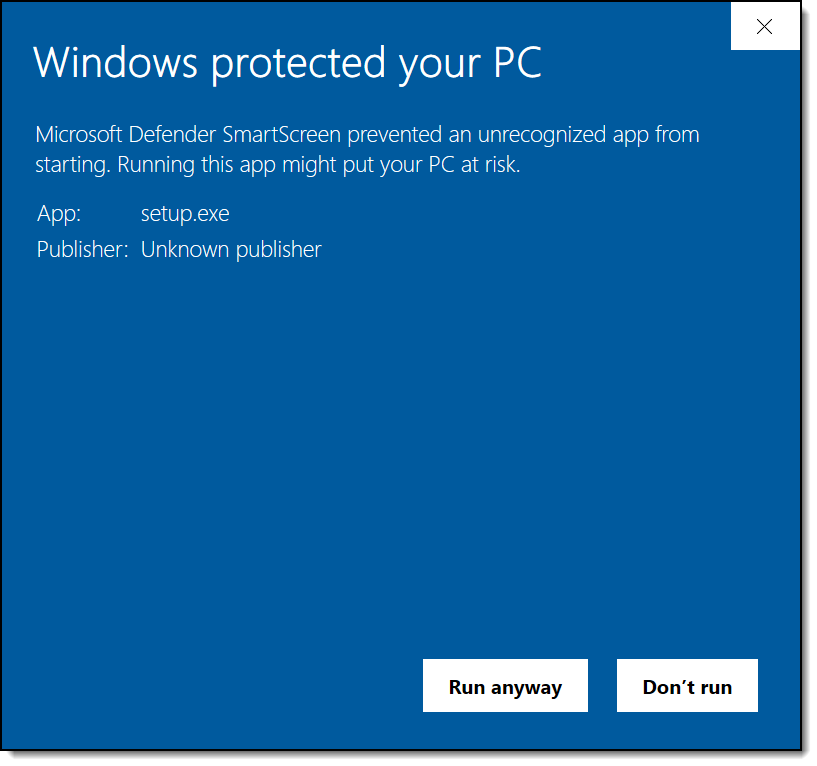
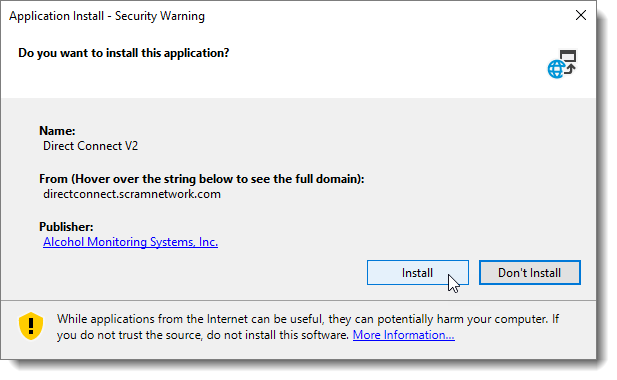
On the afternoon of June 17, 2021, SCRAM Systems® released Direct Connect v2. Once installed, this new version of the Direct Connect application will no longer require that you log in each time you launch the tool. Instead, the application uses your Microsoft credentials to automatically log you in.
Installing the new application will entail:
Ensuring that the application is closed.
Validating that the correct back-end framework is installed.
Completing the installation steps.
For now, the Direct Connect application currently installed on your computer can continue to be used to upload data. Instructions for removing the old application are included below at the end of this article.
Installation
To install Direct Connect v2:
If Direct Connect is open, close the application before proceeding.
As of today, June 11, 2021, the SCRAM CAM Level 1 training course has been updated to the new SCRAM CAM Caseload Fundamentals course.
The SCRAM CAM Caseload Fundamentals course prepares an agent to manage a caseload of clients on an alcohol monitoring program from induction to discharge. The training program consists of six topic-based modules. Each module includes hands-on software simulations, detailed step-by-step instructions, and some video demonstrations.
The module topics included
are:
SCRAM CAM Bracelet and Base Station Technology Overview
SCRAMNET Navigation Overview
SCRAM CAM Client Setup and Equipment Assignment
SCRAM Equipment Maintenance
SCRAM Critical Alert Management
SCRAM CAM Equipment Removal and Stop Monitoring
The course includes a certification exam so successful learners who pass with a score of 80% or better will be considered certified in SCRAM CAM Caseload Fundamentals.
Learning Objectives
By the end of this e-learning program, the
successful learner will be able to:
Navigate the SCRAM Optix and SCRAMNET monitoring systems
Add a SCRAM CAM client to the system for
alcohol monitoring and install the SCRAM CAM bracelet
Perform the duties required to effectively
manage and maintain a SCRAM CAM client caseload
Discharge a client from the SCRAM CAM
monitoring program and check-in the client’s monitoring equipment
How to Enroll
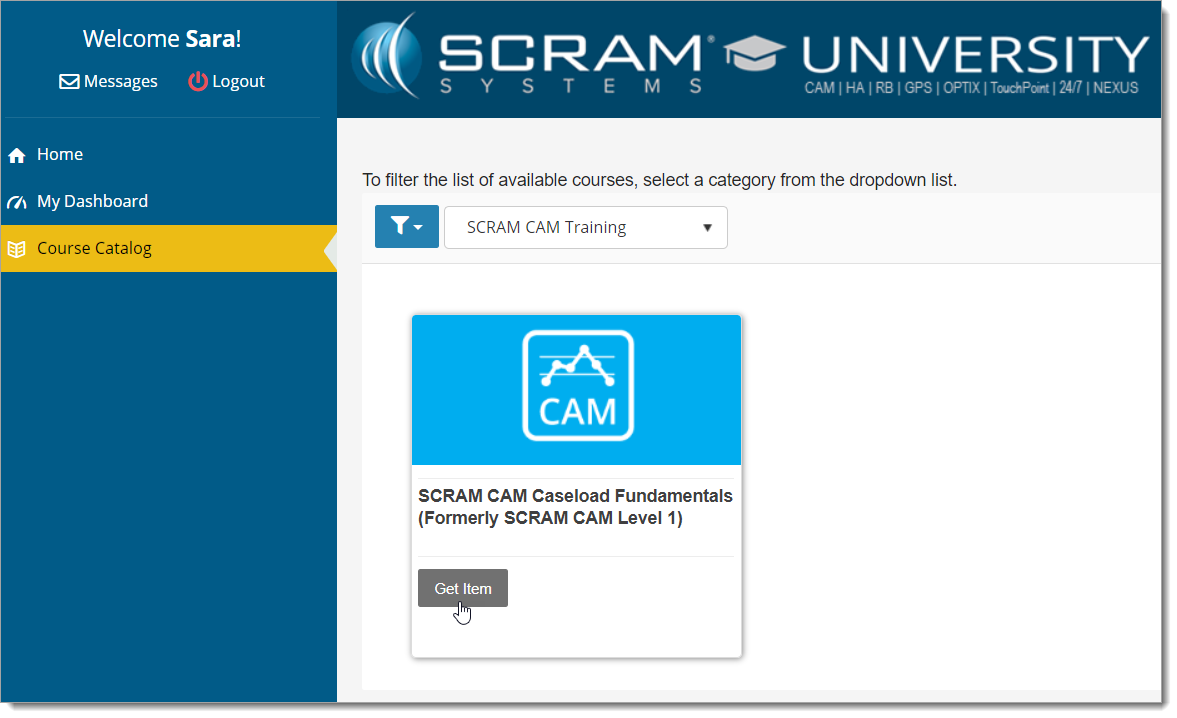
To enroll in this new course, please log into the SCRAM Systems University and select the Get Item button for the SCRAM CAM Caseload Fundamentals course in the Course Catalog.
click to enlarge
If you do not yet have an account, access the loginpage and click the Register Now! link. Use your organization’s unique registration key to fill out the registration form to request access to the site. Once your request for access is approved, you will receive an email with all the information you need to access the course catalog and enroll in our course offerings.
If a registration key has not been provided to you, or if you need help with the site, please email us at training@scramsystems.com.
At 5:00 AM MDT on Thursday, May 6, 2021, SCRAM Systems introduces several new features in SCRAMNET GPS. During the 15-minute deployment, you may not be able to access SCRAMNET GPS but messages from the SCRAM GPS bracelet will continue to be processed uninterrupted. The enhancements and updates include:
New Criteria for the Charger Maintenance Alert
Improvements to the Events Dialog When Viewed on Mobile Devices
Additional Information Added to Device Inventory Page
New Criteria for Charger Maintenance Alert
SCRAMNET GPS recently introduced a Charger Maintenance Alert as a reminder to inspect GPS Chargers. When this alert was first introduced, it was generated when a client had the same SCRAM GPS bracelet assigned for 18 months or longer or had over 200 plug-ins in a week, either of which could indicate worn charger components. Later, the interval was reduced to every 16 months. With this deployment and out of an abundance of caution, the criteria for generating this alert have been reduced to the same bracelet being assigned for 14 months or longer, or over 150 plug-ins in the last week.
Reminder: The Charger Maintenance alert is only generated once per client.
Improvements to the Schedule Details Page When Viewed on Mobile Devices
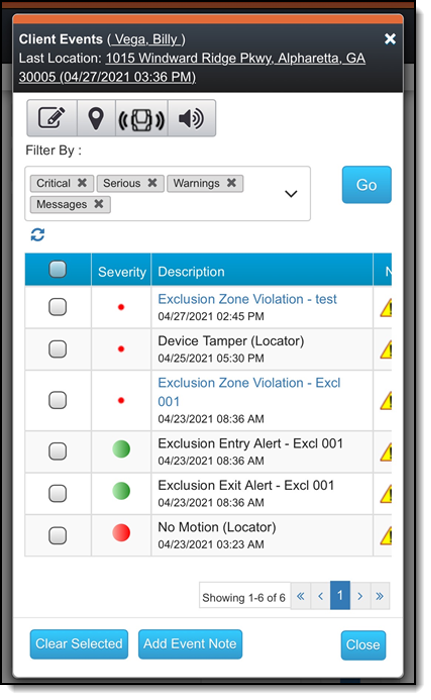
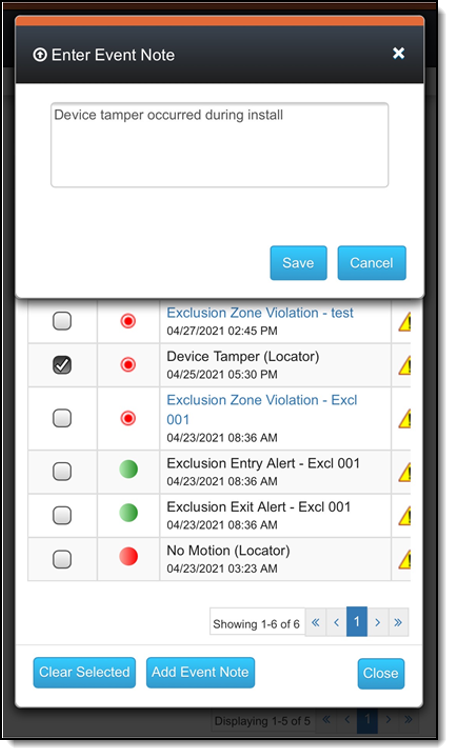
The Client Events and Victim Events screens have been updated for better viewing on mobile devices. In addition, with this release users can now clear alerts, enter notes, and view alert notifications from a mobile device.
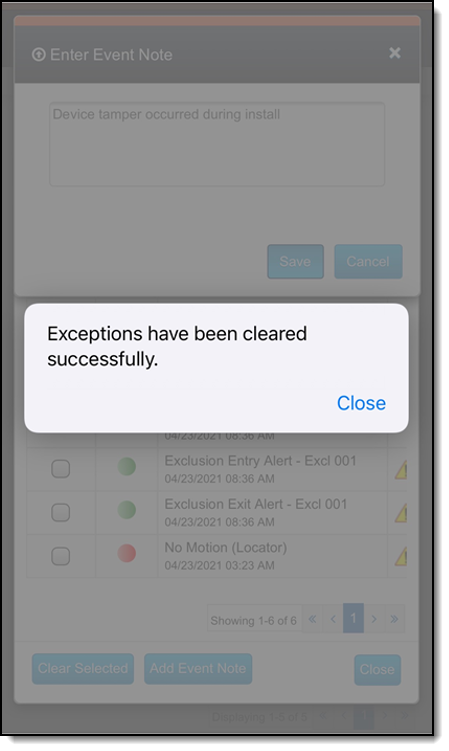
To clear an event:
In the left column, select one or more events.
Tap the Clear Selected button.
Enter a note.
Tap the Save button.
The pop up below appears.
Additional Information Added to Device Inventory Page
Users in the Admin role can manage device inventory by navigating to the Admin > Account Settings > Devices tab. The following new columns have been added:
Protocol – The communication protocol the device uses to communicate with the server. The two possible values are UDP and MQTT (IoT).
Carrier – The wireless communications carrier the device’s SIM card uses.
CountryCode – The country in which the device was configured to operate.
Initially, these columns may not display any information, which is as-designed and does NOT indicate that a problem has occurred.
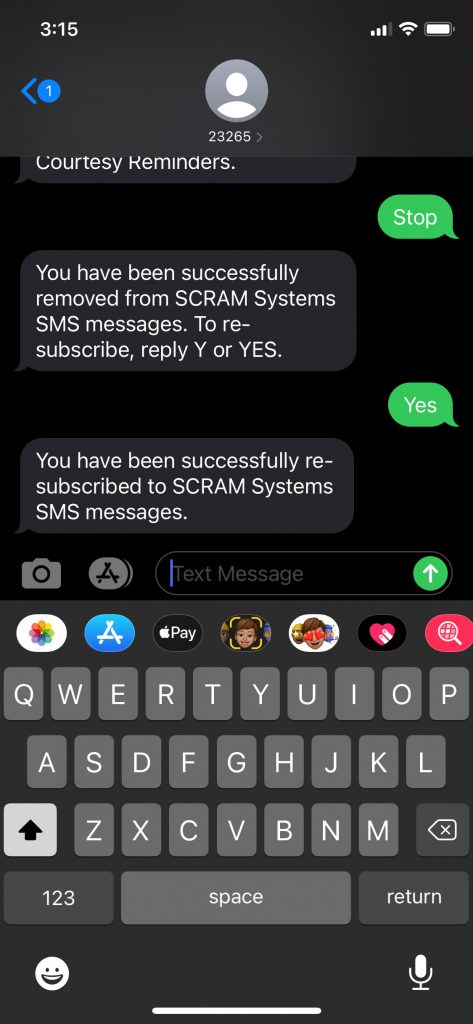
On April 29, 2021, SCRAMNET
will display the text number and instructions a client can use to opt back into
SCRAM Remote Breath Courtesy Reminders.
To view the opt-in text number and instructions in SCRAMNET,
Navigate to the client’s RB Schedule
page.
Hover your mouse over the Invalid Phone
number notification box.
Provide the client with the information provided
in the hover text box.
The client will need to text 23265 with a “Y” or “YES” to get opted back in for Courtesy Reminders.
click to enlarge
If the client has access to the text message from which they opted out of Courtesy Reminders by texting STOP, they can reply Y or YES to the same text message to be opted back in.
click to enlarge
Feedback
Please contact SCRAM Systems Customer Service with any recommendations for system improvements.
At 5:00 AM MT, Tuesday, April 20, 2021, AMS is introducing several new features in SCRAMNET GPS. During the 15-minute deployment, you may not be able to access SCRAMNET GPS but messages from the SCRAM GPS bracelet will continue to be processed uninterrupted. Enhancements/changes included are:
New Criteria for Charger Maintenance Alert
Show the Exclusion Zone Buffer Entry/Exit Alert on the Dashboard Page
Improvements to the Schedule Details Page When Viewed on Mobile Devices
New Criteria for Charger Maintenance Alert
SCRAMNET GPS recently introduced a Charger Maintenance alert as a reminder to inspect GPS Chargers. This alert is generated when a client has had the same bracelet for 18 months or longer or has over 200 plug-ins in a week, which could indicate a worn charger.
In an effort to ensure the safety of our customers and their clients, SCRAM Systems has re-evaluated its new GPS Charging Cable Warning criteria and made some adjustments. As a result you may see the warning that reminds you to inspect your charging cables appear more frequently.
To ensure that the electrical components are not worn, the criteria for generating this alert have been reduced to the same bracelet being assigned for 16 months or longer or has over 150 plug-ins in the last week.
Note: Be aware that the Charger Maintenance alert will be generated only once per client.
Show the Exclusion Zone Buffer Entry/Exit Alert on the Dashboard Page
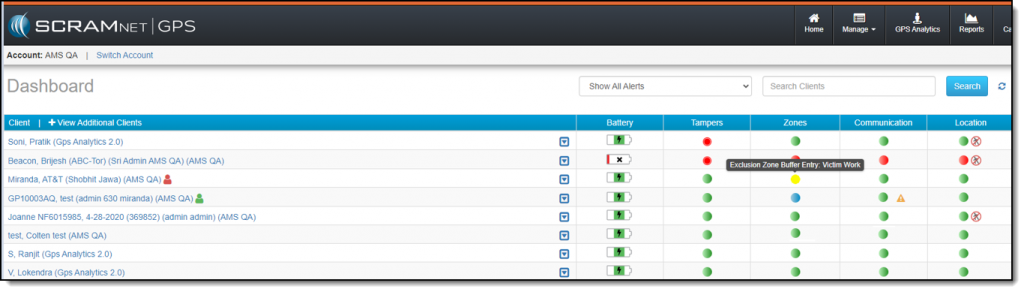
Exclusion zones that are circle shaped can also include a buffer zone that is associated with the Exclusion Zone Buffer Entry and Exclusion Zone Buffer Exit alerts. Users can elect to receive notifications for these alerts. Additionally, these alerts are now displayed on the Dashboard page.
A client entering an exclusion zone buffer is now indicated on the Dashboard page with a yellow flashing icon. The icon is in yellow to indicate it is not yet a zone violation. This alert’s severity is considered a “Message” so the icon appears below other alerts on the Dashboard page.
If the client exits the buffer zone, the icon will clear according to the clear settings. If the client enters the Exclusion zone, the icon will turn to flashing red and the severity will move the client to the top of the list.
Improvements to the Schedule Details Page When Viewed on Mobile Devices
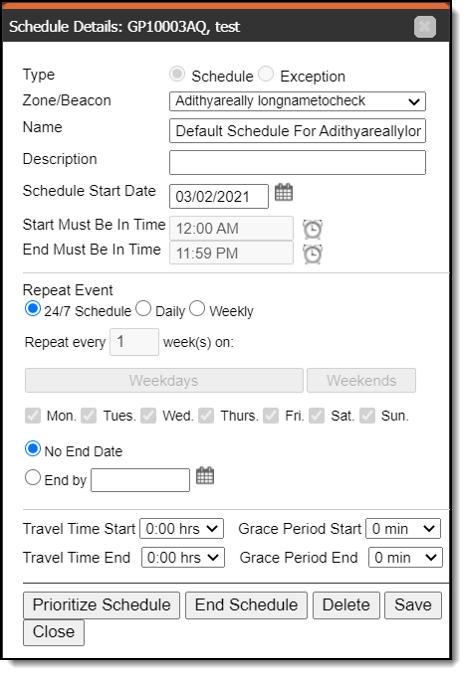
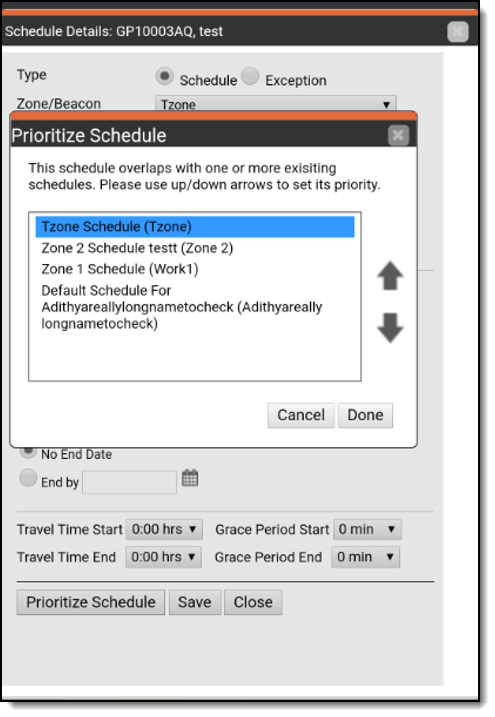
The Schedule Details page has been updated for better viewing on mobile devices. With this release, along with other pages that were previously updated for better viewing, users can now create, edit, and delete schedules from a mobile device, as shown below.
Beginning on Tuesday, April 13, 2021, a firmware update will be downloaded and installed on your SCRAM Remote Breath devices whenever:
A device is being assigned to a client.
An assigned device is being checked in.
You
also have the option to power up your “on the shelf” devices at any time to
perform the update.
The firmware update will take approximately two
minutes to complete. Please contact our Customer Service department at 303-785-7879
or support@scramsystems.com if any issues arise during the update.
A deployment scheduled for Thursday, April 8, 2021 introduces a new report and a change in how SCRAMNET reacts when a device is in the “Awaiting Return” status for 30 days.
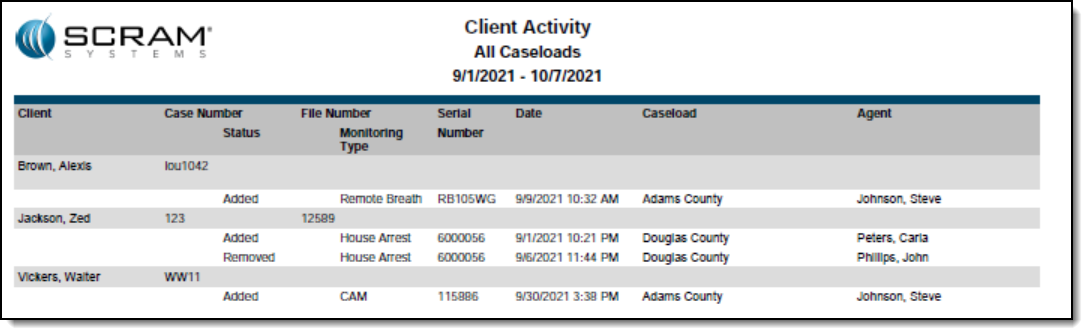
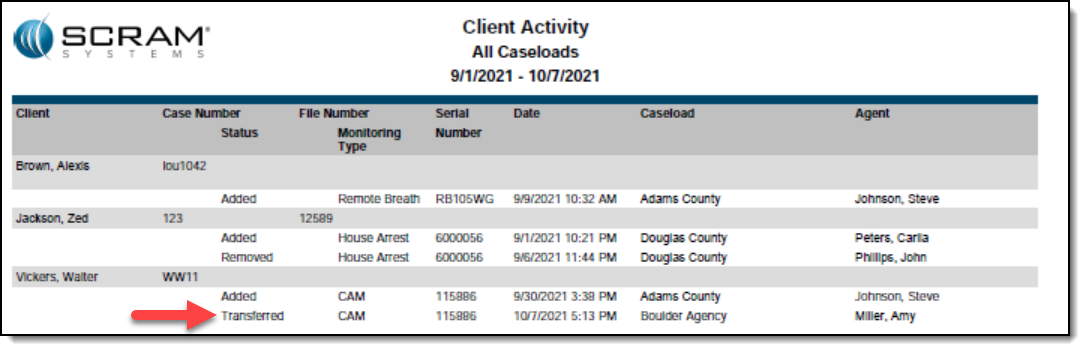
New Client Activity Report
This report allows customers to review all client activity within a selected date range for a specific location or for all locations. To access the report in SCRAMNET, click the Reports tab then click the Management sub-tab.
The Client Activity report also shows client transfers between agencies, as shown below.
Equipment No Longer Set to “Lost” After 30 Days in “Awaiting Return” Status
At the end of a client’s monitoring program, a SCRAM CAM or House Arrest bracelet and/or base station can be placed in the “Awaiting Return” status in SCRAMNET if the equipment is NOT on hand when the client is being removed from the program. Presently, SCRAMNET will automatically change the equipment status to “Lost” if the equipment is not checked in within 30 days.
However, customer feedback has informed us that equipment is often not returned within 30 days, but is also not lost. In response to your feedback, moving forward SCRAMNET will no longer automatically change the status of any device to “Lost” after 30 days. All equipment will remain in the “Awaiting Return” status until you check it in or designate it as “Lost” yourself.