Important: Never reuse a SCRAM CAM battery. Once removed, dispose of it or recycle it in accordance with local regulations and replace it with a new battery.
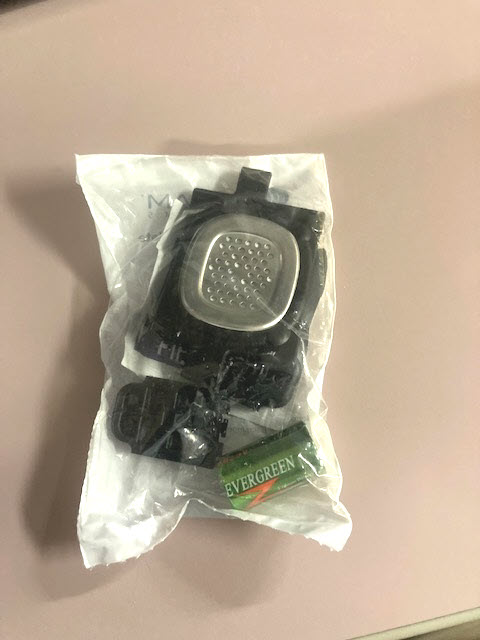
Open a Battery/Faceplate Kit (P/N 03628 on the SCRAM Equipment Order Form).
SCRAM Battery/Faceplate Kit (click to enlarge)
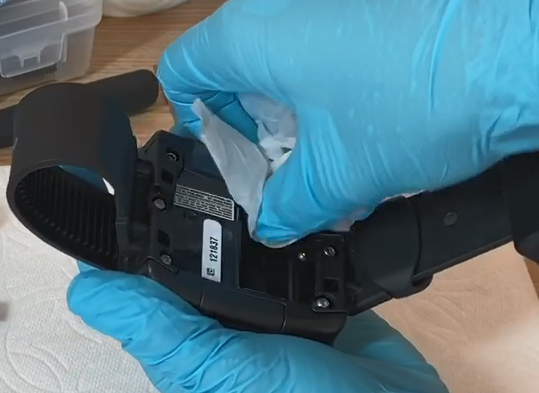
Using the wipe provided in the kit, wipe the battery contacts in the device battery compartment, and then dry the contacts with a paper towel or microfiber cloth.
Cleaning Bracelet Battery Contacts (click to enlarge)
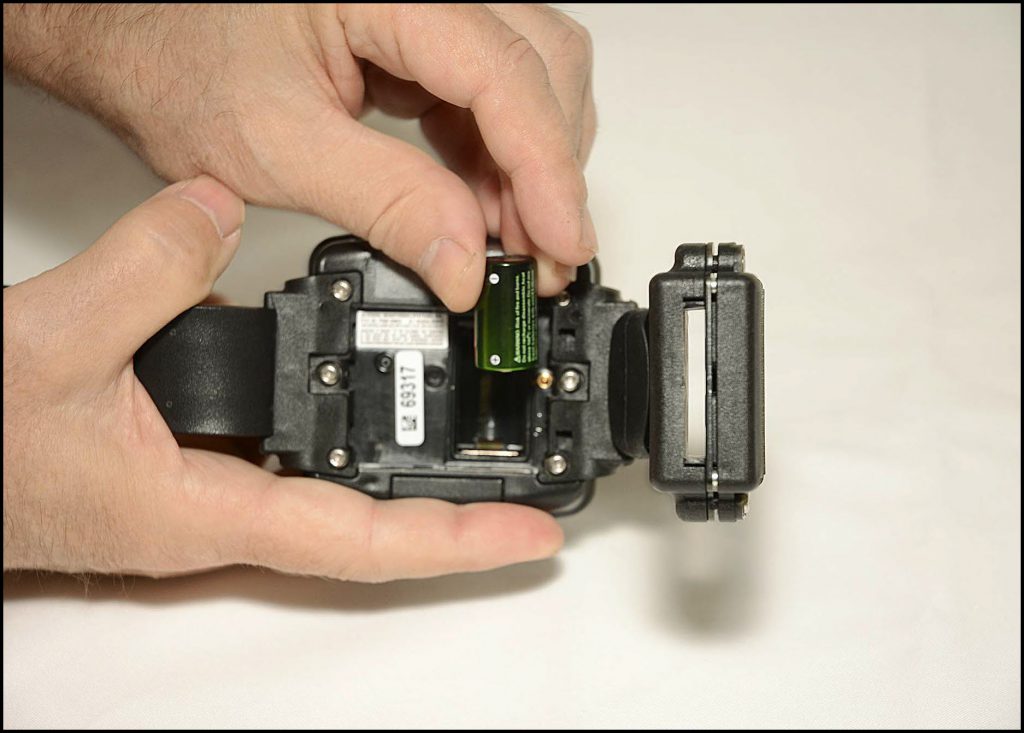
Install the Battery
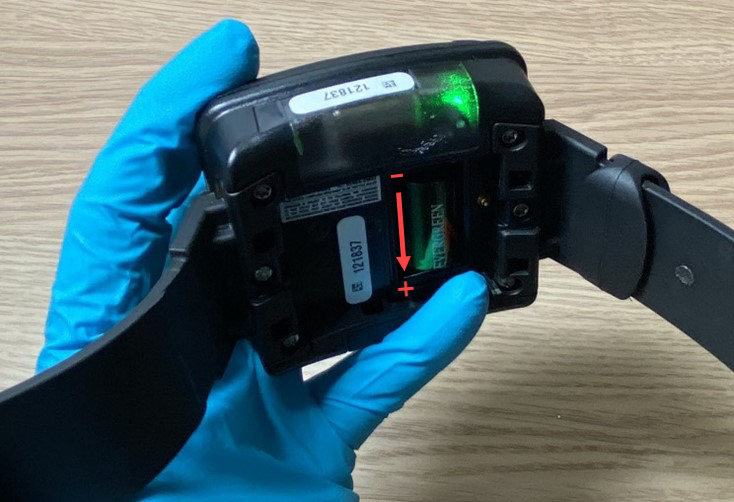
Install Battery Positive (+) Side Down (click to enlarge)
Place the battery in the battery compartment with the positive end of the battery positioned towards the bottomof the bracelet body (it points downward).
Ensure you see a green light when the battery is installed. The green light will turn off after five seconds.
Battery Installed in Bracelet with Green Light On (click to enlarge)
Install the Faceplate
Lay the replacement faceplate over the battery compartment.
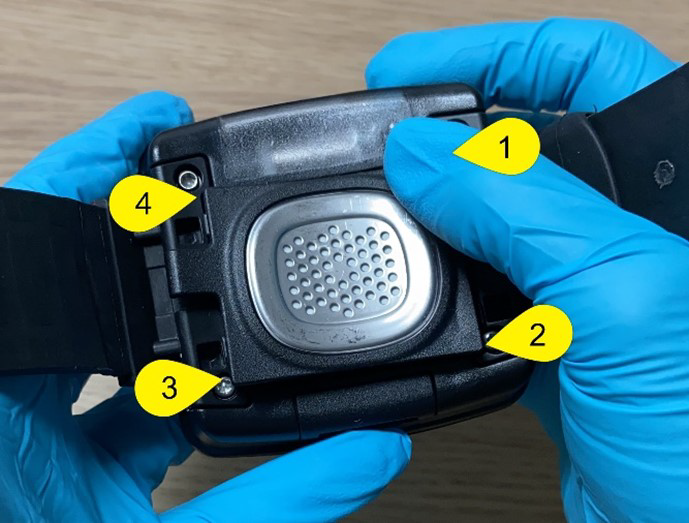
Starting in the upper right corner, press down firmly until you hear/feel a click.
Moving clockwise on the faceplate, press down firmly in each of the remaining corners. Ensure you hear/feel a click in each corner.
It may be necessary to remove the faceplate and reinstall if you do not hear or feel a click in each corner of the faceplate.
Installing Faceplate on Bracelet (click to enlarge)
Warning: Moisture may seep through the faceplate seals and corrode internal components if the faceplate is not thoroughly attached – you must hear/feel four distinct clicks!
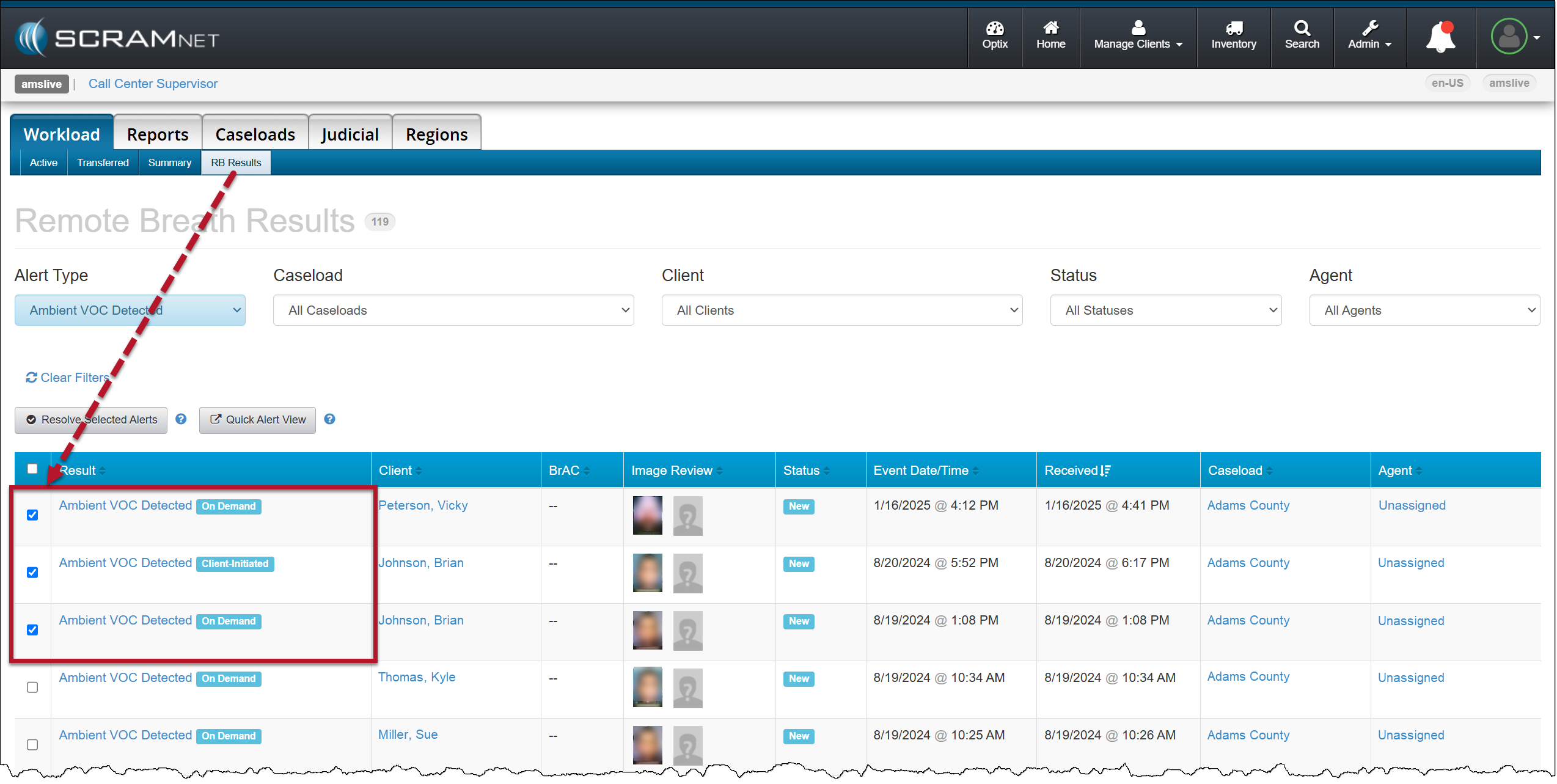
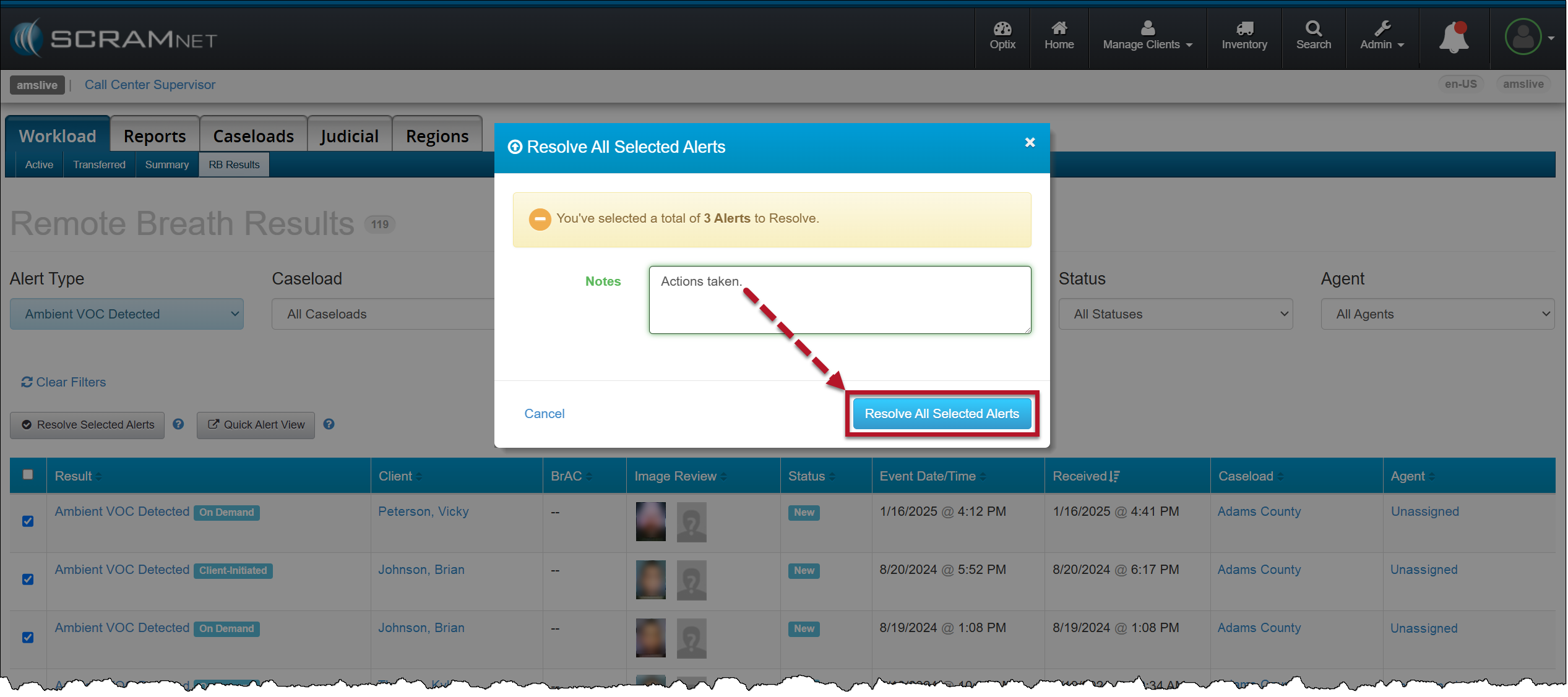
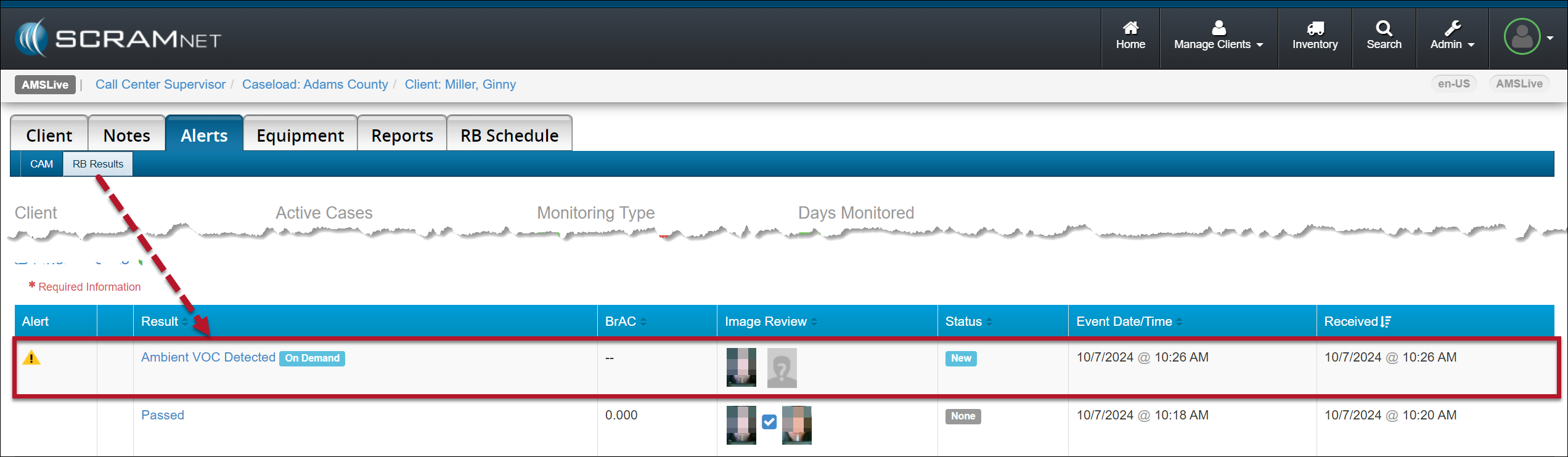
On the RB Results page for your Caseload, you may select the checkbox next to multiple Ambient VOC detected alerts and then select the Resolve Selected Alerts button to “bulk” resolve of them all at once.
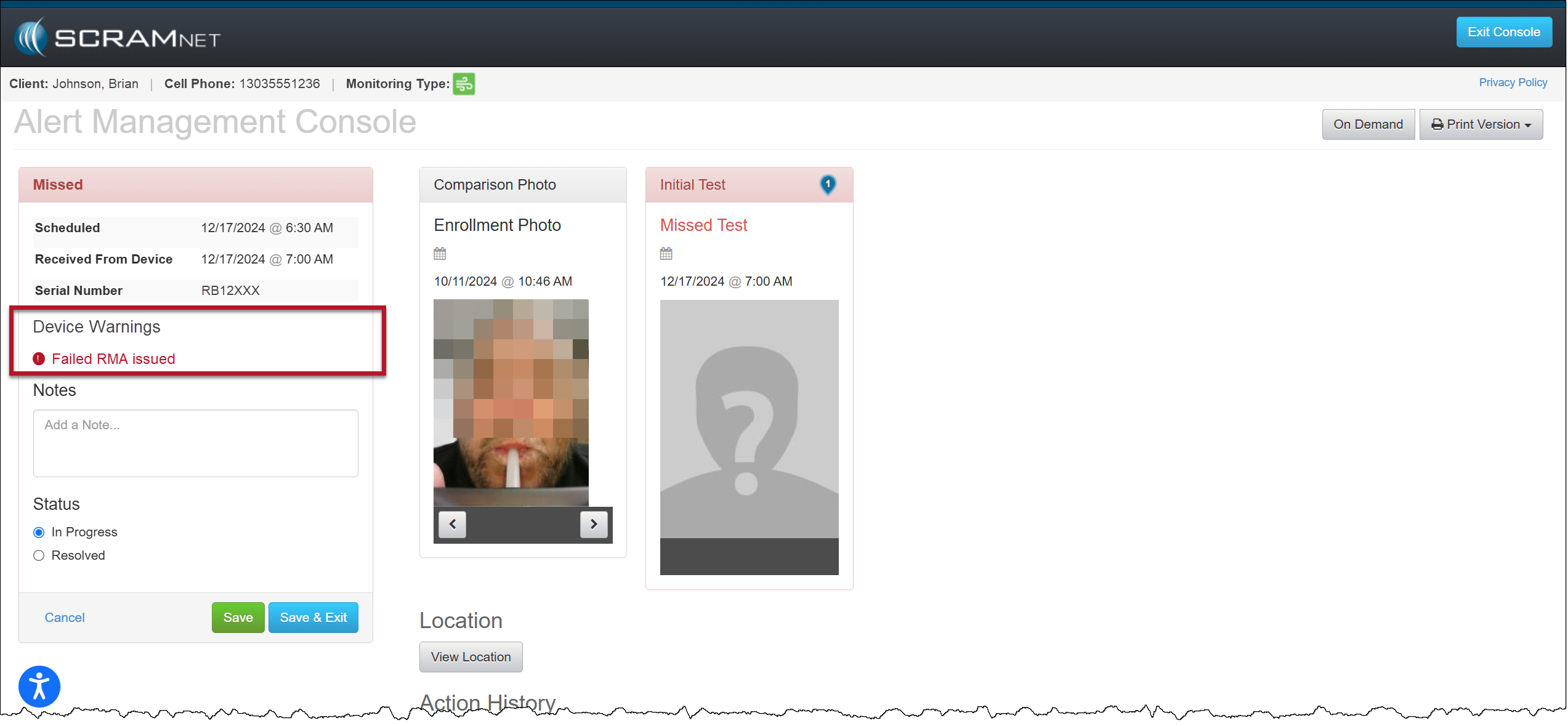
On December 18, 2024, SCRAM Systems® will release an enhancement for your Remote Breath Pro client Caseloads. With this enhancement, when an RMA has been issued for an RB Pro device that has failed, the Alert Management Console (AMC) will include a new Device Warnings section that displays a “Failed RMA issued” warning for all breath test results (for example, Passed, Missed, or Scheduled Test Not Received alerts) received after the RMA is created.
AMC with Device Warning Message – click to enlarge
A “failed RMA” is issued when the device is not operating within normal parameters.
When utilizing the Remote Breath Carousel, the “Device Warning” section will not display regardless of the device’s RMA status.
Once the client’s RB Pro device has been replaced or checked in, the Device Warning section and “Failed RMA issued” message will no longer be displayed on the alert’s AMC.
If SCRAM Systems cancels the RMA, the Device Warning section and “Failed RMA issued” message will no longer be displayed on the alert’s AMC.
Tomorrow, December 4th, 2024, SCRAM Systems will release an enhancement to the Ambient VOC Detected test results.
When an excess of Volatile Organic Compounds (VOCs) – usually picked up from the device’s surroundings – is detected in the SCRAM Remote Breath Pro (RB Pro) device’s breath testing flow path, the RB Pro device prevents breath tests from being performed, and an Ambient VOC Detected alert is displayed in SCRAMNET. With this enhancement, SCRAMNET will automatically initiate flow path checks every 10 minutes for up to two hours until the flow path is clear and the client may test.
Here is the complete process:
The device will generate a descending arpeggio (“uh-oh”) sound.
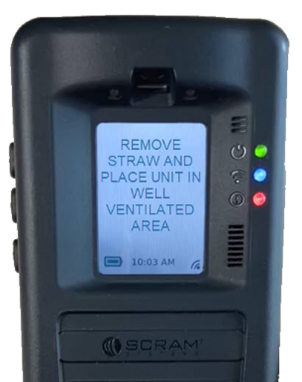
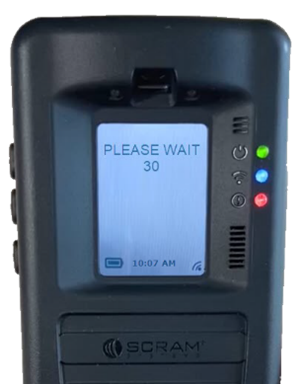
The device’s screen will display, “REMOVE STRAW AND PLACE UNIT IN A WELL VENTILATED AREA,” followed by, “PLEASE WAIT with a 30-second count down.”
RB Pro Device Message – click to enlarge
RB Pro Device Message – click to enlarge
The device will repeat this process automatically for two minutes. If the VOC does not clear, the device will end the current breath test process, and the screen will display “MONITORING …” At this time, an “Ambient VOC Detected” alert will be generated in SCRAMNET.
Advise the client to take the following steps to help clear the device’s breath-testing flow path:
Remove the breath tube from the device, wash it with dish soap, rinse it with water, and then thoroughly dry the breath tube before using it again. Moisture in the breath tube could impact test results.
Relocate the RB Pro device to an area of fresh air that is free of chemicals (like air fresheners) and cleaning agents (including freshly cleaned countertops).
Remove the device from its carrying case and place it on its side on a tabletop or other clean surface away from contaminants, with the vent on the bottom and the breath tube port unobstructed.
Once an Ambient VOC Detected alert has been generated:
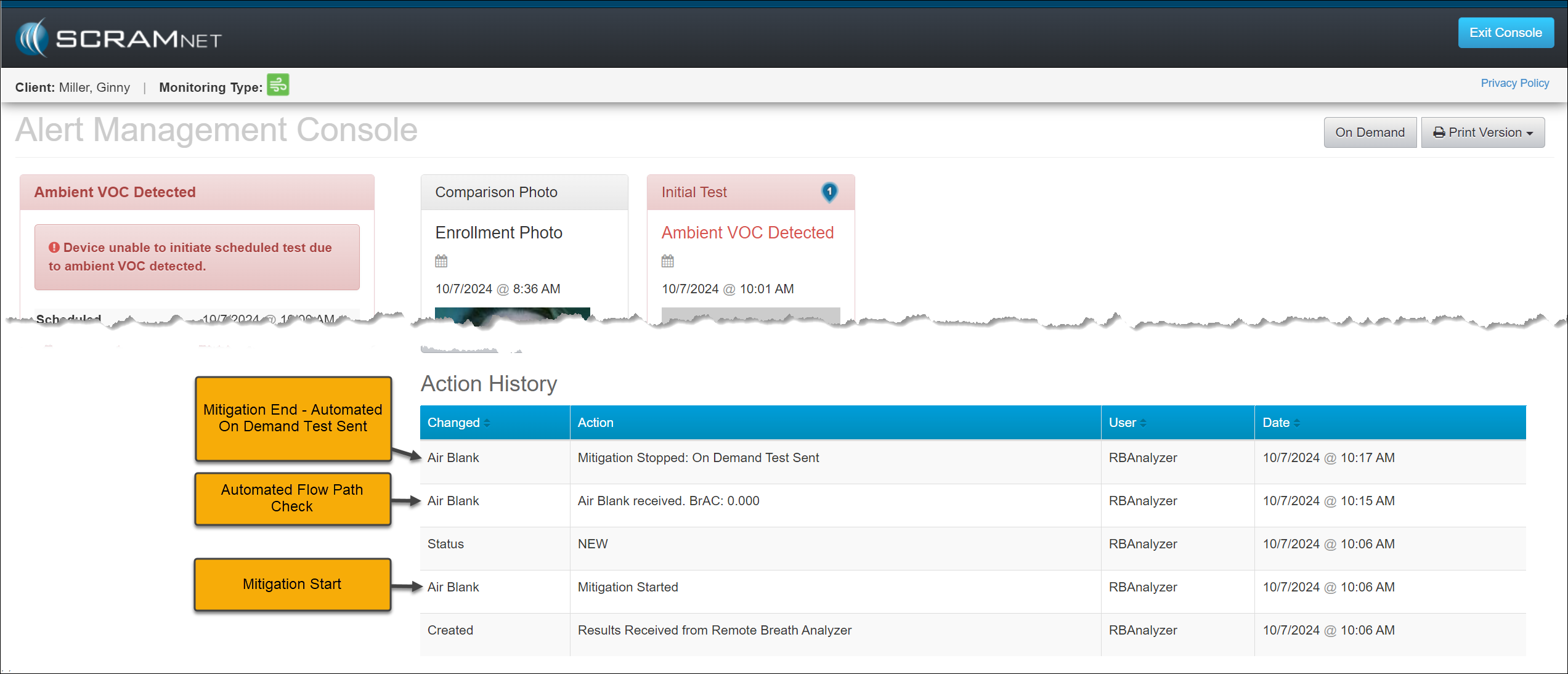
SCRAMNET will record a “Mitigation Started” entry in the event’s Action History section of the Alert Management Console.
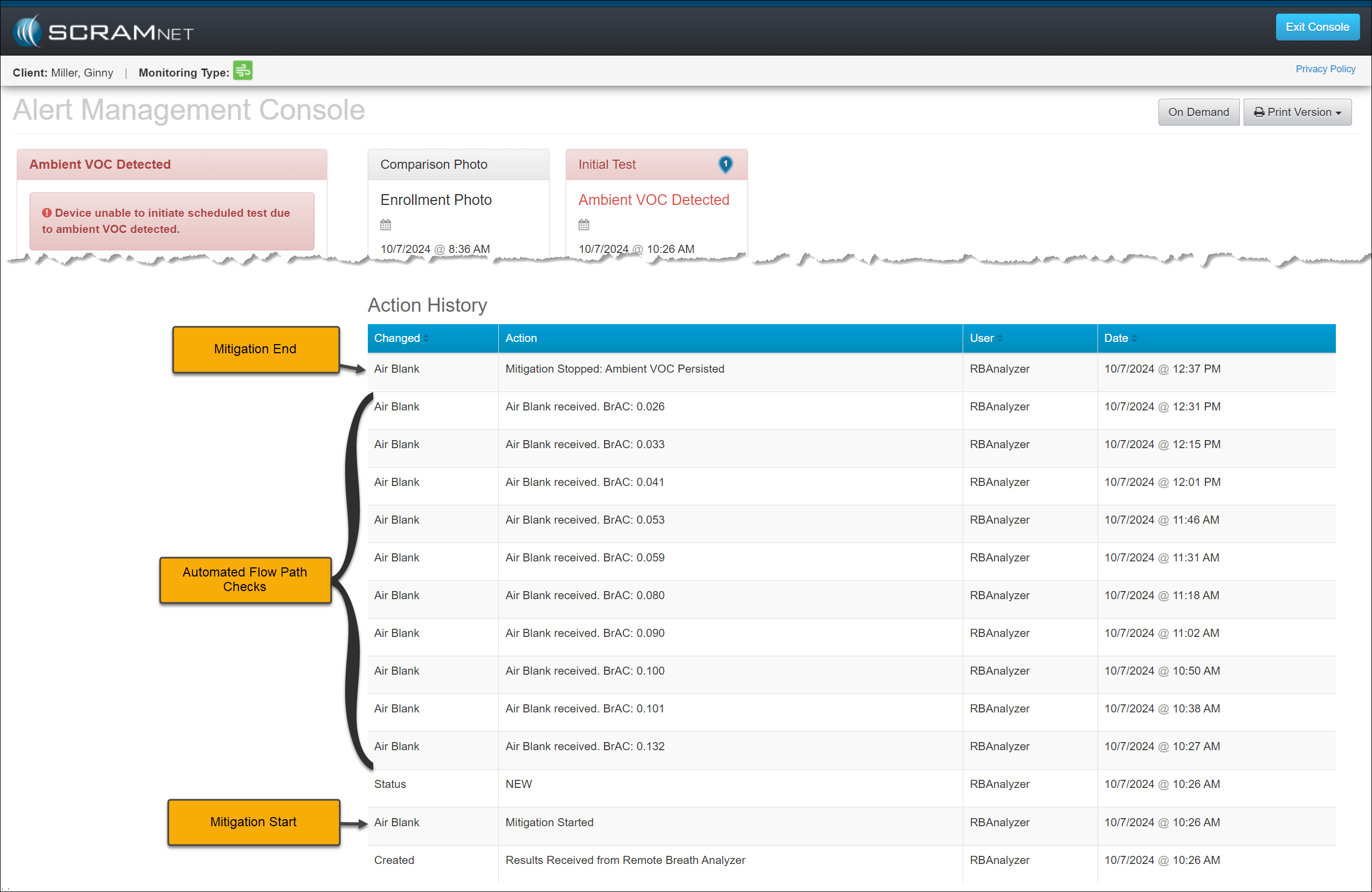
SCRAMNET will automatically initiate flow path checks (Air Blank Tests) every 10 minutes for two hours. These checks will also be recorded in the event’s Action History.
SCRAMNET will automatically send the device an On-Demand test once environmental ethanol (Ambient VOC) is no longer detected. The Action History will record this as a “Mitigation Stopped: On Demand Test Sent” entry.
Ambient VOC Detected Alert Management Console -click to enlarge
If environmental ethanol is still detected after two hours of flow path checks, SCRAMNET will stop requesting Air Blank checks and record a “Mitigation Stopped – Ambient VOC Persisted” entry in the Action History for the event.
Ambient VOC Detected Alert Management Console -click to enlarge
If the Ambient VOC Mitigation process is interrupted by another breath test (scheduled, on-demand, or client-initiated), this event’s mitigation process is discontinued.
A new mitigation process will begin if the latest test request exceeds the Ambient VOC threshold.
If, however, the level of VOCs detected in the flow path drops below the detection threshold but is still above 0.000, then the RB Pro device will allow a breath test. So, it is possible that a client’s breath test result that interrupts the Ambient VOC Mitigation process may register a very low-level alcohol detection.
SCRAM Systems advises against violating clients for this very low-level alcohol detection, as the alcohol detected in the breath test could be from residual environmental VOCs still in the flow path and/or fuel cell.
Important Notes:
Typically, the low-level alcohol detection we see following a lengthy VOC-clearing scenario is well below the monitoring program’s Lower Level of Detection (LLOD), which is the threshold at which alerts are generated in SCRAMNET. Most monitoring programs’ LLOD threshold is 0.020 BrAC.
Based on SCRAM Systems internal testing, residual VOCs present in the device will not influence a BrAC value above 0.020.
For customers with the LLOD threshold set below 0.020, the confirmation process of initial and confirmation tests being both positive and not drastically different is still required.
If the LLOD threshold is set very low (0.005, e.g.), then the potential for a low-level VOC contaminant to influence both the initial and confirmation tests is increased. For these caseloads, SCRAM Systems recommends that customers allow the automated Ambient VOC Mitigation process to be completed uninterrupted.
SCRAM Systems now offers emailed copies of your order tracking numbers to allow you to track order delivery timeframes. If you are interested in this service, please send an email to orders@scramsystems.com with the name(s) and email address(es) of the contact(s) within your organization who wish(es) to receive emailed copies of your order tracking numbers.
If you do not wish to receive this information via email, there is nothing you need to do.
At 5:00 AM MDT on Tuesday, October 22, 2024, SCRAM Systems is introducing a new feature in SCRAMNET GPS that will allow Officers, Agents, and Case Managers to send audible alarms to SCRAM GPS devices for longer than the standard 30-second duration.
SCRAMNET GPS deployments typically occur on Thursdays at 7:00 AM EST in the US, 10:00 PM AEST in Australia, and the following 12:00 AM EST (Friday) in Canada. Please refer to the official SCRAM Systems email communication associated with this release for more details. During the 15-minute deployment, you may not be able to access SCRAMNET GPS, but messages from the SCRAM GPS device will continue to be processed uninterrupted.
Send the Audible Alarm for Longer Duration
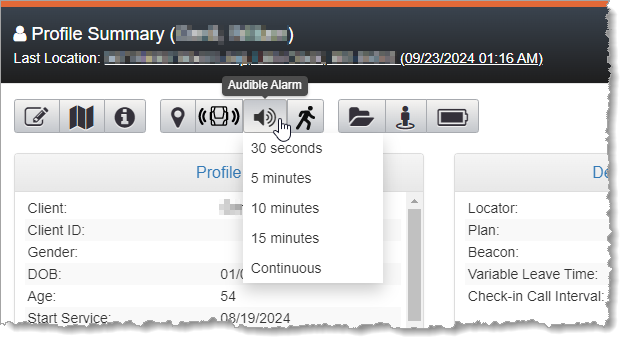
SCRAMNET GPS users may now send the Audible Alarm for durations longer than 30 seconds. This can be useful when the client is in a loud environment, or to help you find a lost bracelet.
The Audible Alarm can be sent from various pages in SCRAMNET GPS. The Audible Alarm now supports the following durations:
30 seconds
5 minutes
10 minutes
15 minutes
Continuous
Audible Alarm Duration Dropdown
SCRAMNET GPS will automatically send audible alarms in 30-second intervals followed by a brief pause between alarms, until the client presses the button or until the selected duration has elapsed.
To stop an Audible Alarm that has been set for a long (or continuous) duration, change the duration to 30 seconds.
The Client Events Dialog
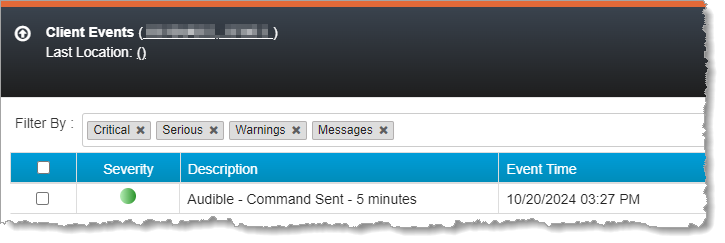
The “Audible – Command Sent” message is shown in the Client Events dialog. The message shows the duration selected by the user.
Audible Alarm on Client Events Dialog
If the client presses the button for the Audible Alarm, then an “Audible – Offender pushed button event” is shown in the Client Events dialog. If the client has not pressed the button and the selected duration is reached, then an “Audible – Offender did not push button” event is shown.
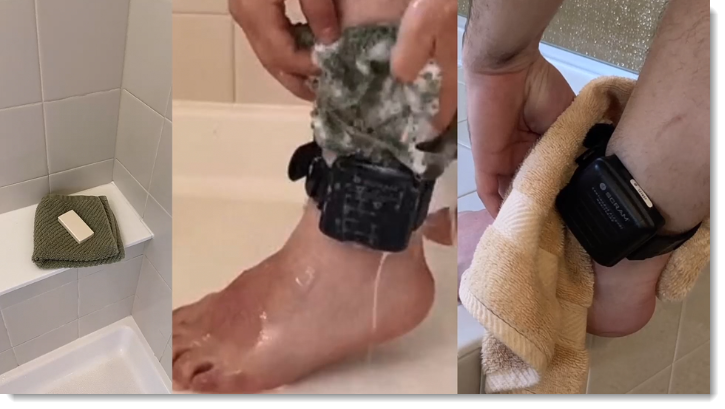
To help decrease the possibility of skin irritation, rashes, or infections developing on your SCRAM CAM clients’ ankles, encourage them to exercise a daily cleansing routine. SCRAM Systems strongly recommends clients follow these steps to wash their ankles under and around the device:
Apply soap to a clean, damp washcloth and wash your ankle by inserting the washcloth between the device and your skin, and then removing it.
Repeat the motion until all areas between the device and your ankle have been washed.
When you are done cleaning your ankle, rinse the area off to remove the soap.
Lastly, use a dry washcloth or towel to thoroughly dry underneath and around the device.
Wash the skin around the ankle with a washcloth, rinse, and dry the area completely
WARNINGS:
The device should not be submerged under water – showers are recommended.
If your client has a specific health condition or concern, be sure they discuss it with you, their supervising authority, and a medical practitioner.
…that is the question this Tip of the Month will attempt to answer.
RMA Requests
Generally speaking, the decision to request a Return Merchandise Authorization boils down to device functionality. SCRAM devices are used daily; so normal wear and tear – scratches, scuffs, and even minor dents in plastic casings – is to be expected. As long as the wear on the device does not impede its functional ability to monitor clients, then the device is not eligible for an RMA.
As long as the wear on the device does not impede its functional ability to monitor clients, then the device is not eligible for an RMA.
If, however, a SCRAM device is not operating as expected, please follow the appropriate troubleshooting steps for the device prior to requesting an RMA. You may also contact SCRAM Systems Customer Service for device troubleshooting assistance prior to requesting an RMA. Regardless of how you request an RMA, you will be required to describe how you attempted to troubleshoot the device first.
Requesting an Inspection Report
If you require SCRAM Systems to inspect a returned device and write a report of our findings – because the device’s functionality is in question, or because the report is needed so you may charge a client for billable damage, e.g. – then please be sure to provide the name and mailing address of the individual within your organization who should receive the report when you request it.
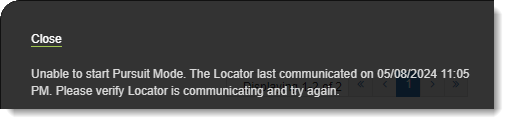
Pursuit Mode in SCRAMNET GPS is often used in critical scenarios where quick access to information can be crucial. For this reason, the status messages displayed to the user while starting and running Pursuit Mode have been updated to provide status messages in a more timely fashion. These messages will be useful if there are delays starting Pursuit Mode.
Example: “Unable to Start Pursuit Mode” Message
Threshold Points Allowed for Exclusion Zones
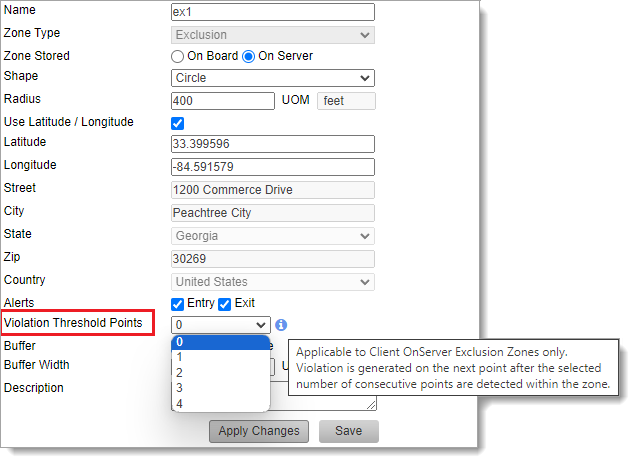
Users can now allow up to four location points inside an Exclusion Zone before generating a violation. This may be useful to allow a client to briefly pass through an Exclusion Zone without generating a violation.
Enabling GPS Violation Threshold Points in Admin (click to enlarge)
For OnServer Exclusion Zones, set the number of Violation Threshold Points to allow up to four location points inside the zone before generating the violation. The violation will be generated on the subsequent (fifth, e.g.) point.
Tip: Each time the Violation Threshold Points value is changed, an entry is logged in the SCRAMNET GPS Audit Report.
Effective the afternoon of August 7, 2024, SCRAM Systems will deploy a new automatic face obstruction scanning feature and release a new “Possible Face Obstruction” alert to go with it. This new feature automatically detects irregularities with the RB Pro device’s breath tube in the breath test photo.
Irregularities that trigger a Possible Face Obstruction alert include, but are not limited to:
Anything – like hands, fingers, clothing, the RB Pro case itself, etc. – that blocks the camera’s view of the entire breath tube, from where it leaves the RB Pro device to where it enters the client’s mouth.
Irregularities in the color, size, or shape of the breath tube.
Attachments connected to the breath tube.
Breath tube is missing altogether.
Reviewing a Possible Face Obstruction Alert
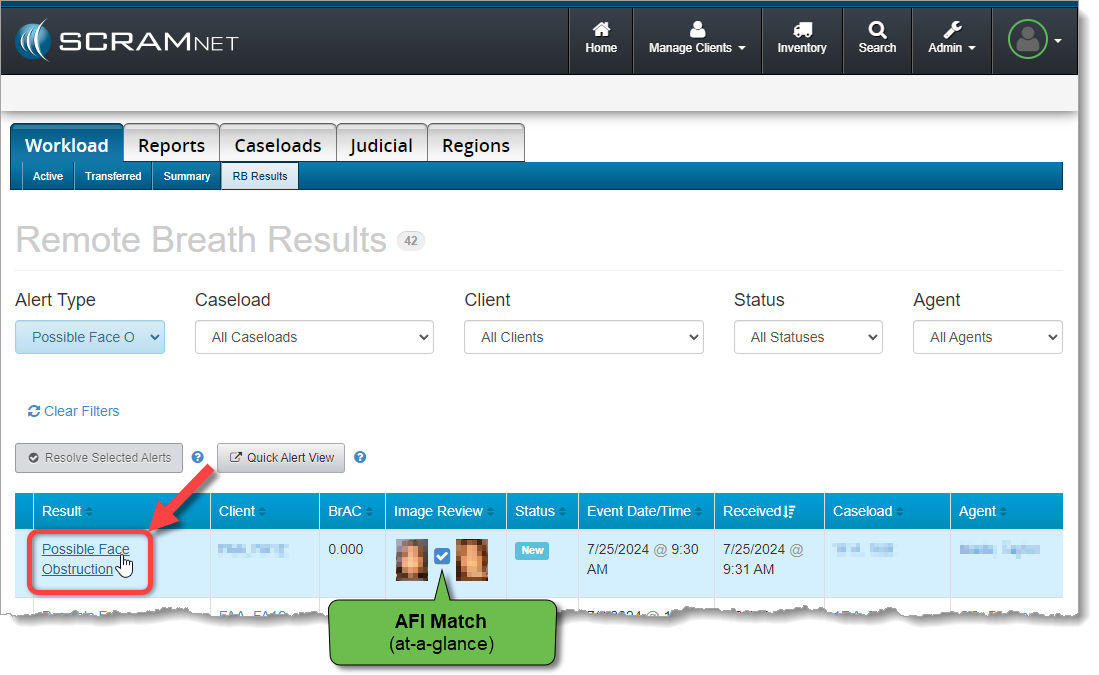
Select the Possible Face Obstruction result from the table of breath test results found on the SCRAMNET Workload RB Results page to open it in the Alert Management Console:
Select the ‘Possible Face Obstruction’ Result Hyperlink (click to enlarge)
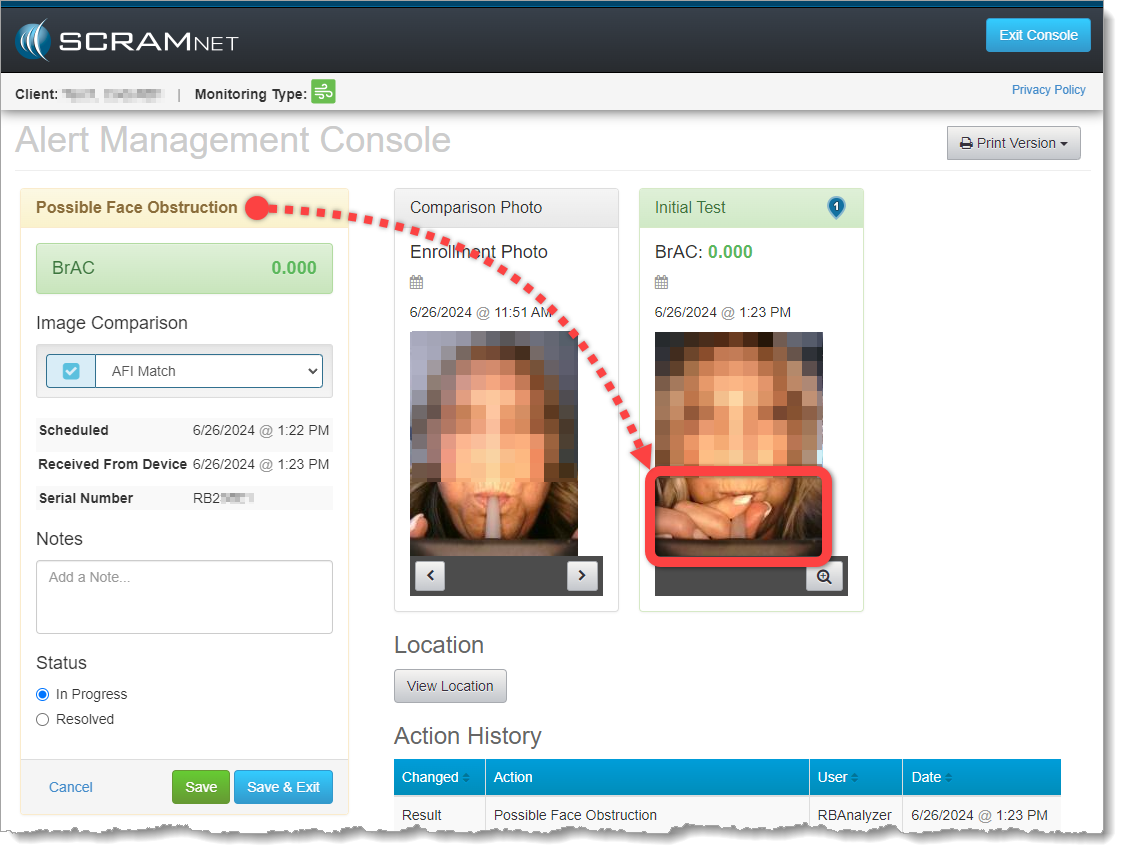
Review the breath test photo for obstructions to the breath tube. In this example, the client is grasping the breath tube near her mouth and obscuring the view of the breath tube entering her mouth:
Possible Face Obstruction Alert on the Alert Management Console (click to enlarge)
If you are fairly confident that the client did not grasp the breath tube in an effort to obscure a circumvention, then this may simply be a coaching opportunity. Pass this test, but reach out to the client to advise her NOT to grasp the tube while delivering a breath sample going forward.
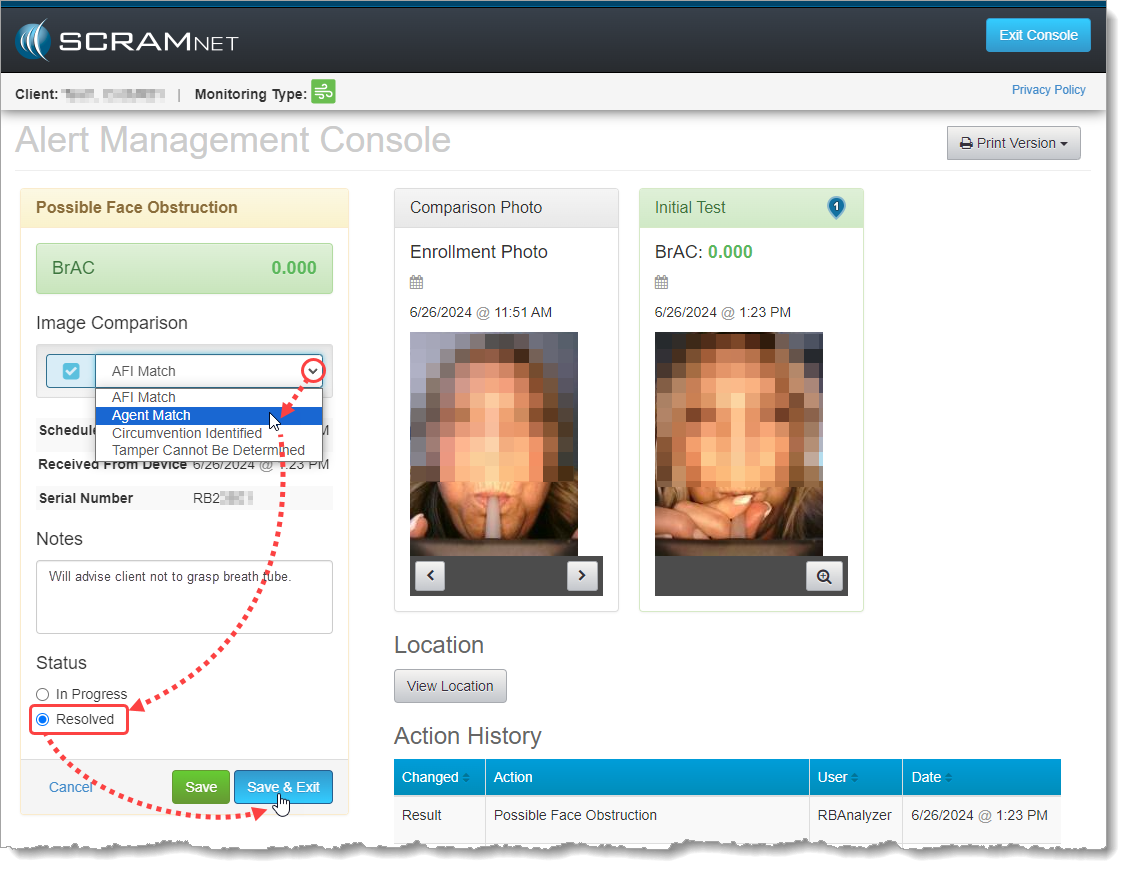
Perform the following actions:
Select Agent Match from the Image Comparison dropdown menu
Add Notes describing the coaching actions you plan to take with the client
Change the test result Status to Resolved
Save & Exit the Alert Management Console
Resolving the Possible Face Obstruction Alert as Passed (click to enlarge)
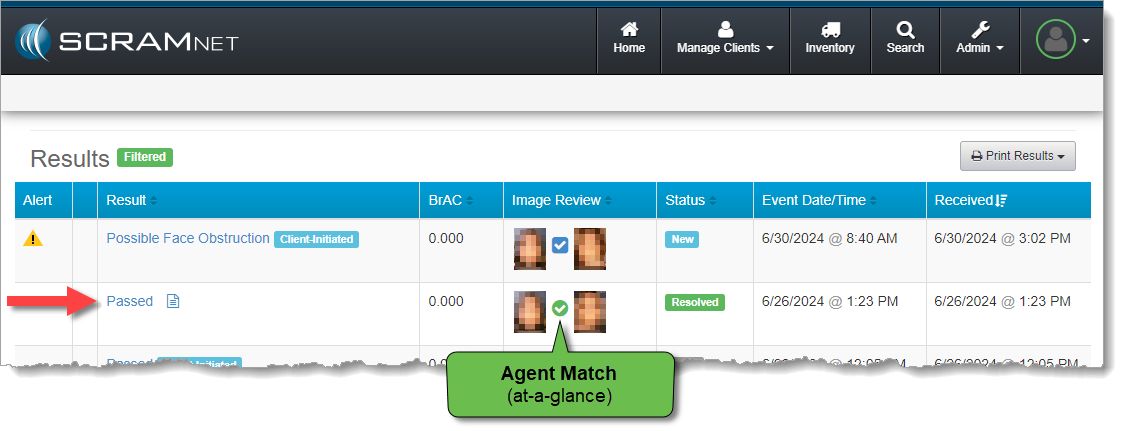
The test will fall off the SCRAMNET Workload RB Results page, but you will find it as a “Passed” test result on the individual client’s RB Results page:
Resolved Test Result Shows ‘Passed’ on Client RB Results Page (click to enlarge)
Detailed Help Available
Visit the Possible Face Obstruction Alert article in the Remote Breath section of the SCRAM Systems Help & Support site for a more detailed explanation of this new feature, and for additional alert resolution example scenarios.