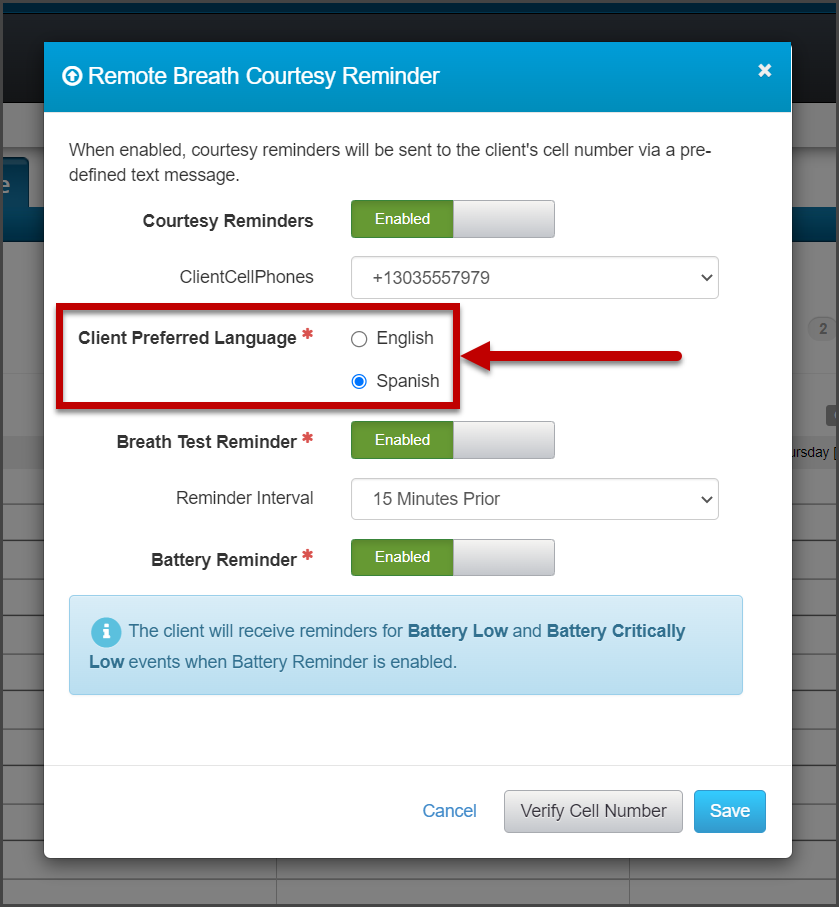
On, November 17, 2022, SCRAM Systems® will release an enhancement to Remote Breath and Remote Breath Pro Client Courtesy Reminders. With this update, you will select the client’s preferred language of English or Spanish when enabling Courtesy Reminders for your clients. Once selected, all courtesy reminders sent to the client will be in the selected language.
Remote Breath Courtesy Reminder Pop-Up (click to enlarge)
At 5:00 AM MDT Tuesday, October 18, 2022, SCRAM Systems® is introducing three new
features to SCRAMNET GPS.
These enhancements are:
Suspend Alerts for the SCRAM GPS Call Center Application
Pattern of Life Home (Inferred) Location
Pursuit Mode in Ally Mobile Application
During the 15-minute deployment, you may not be able to access SCRAMNET GPS but messages from the SCRAM GPS Bracelet will continue to be processed uninterrupted.
Suspend Alerts for the SCRAM GPS Call Center
The SCRAM GPS Call Center application is a centralized location
where client non-compliance events are displayed and managed according to pre-established
processes and procedures. The GPS Call Center can be managed by SCRAM Systems, or
by our service partners’ monitoring centers.
When a non-compliance event occurs – like when a client
enters an Exclusion Zone – an event ticket is generated in the Call Center
application where call center agents will take the appropriate action for the
alert. The actions taken might include calling the client or the officer. Once
the call center agents have completed the specific procedure for the alert, the
alert is then resolved.
On some occasions, the client may be allowed to temporarily enter an Exclusion Zone for example. With this release the supervising authority may temporarily suspend the specific alert, therefore the alert will not generate an alert ticket in the Call Center application. This feature is useful when no action should be taken by the call center agent for the violation.
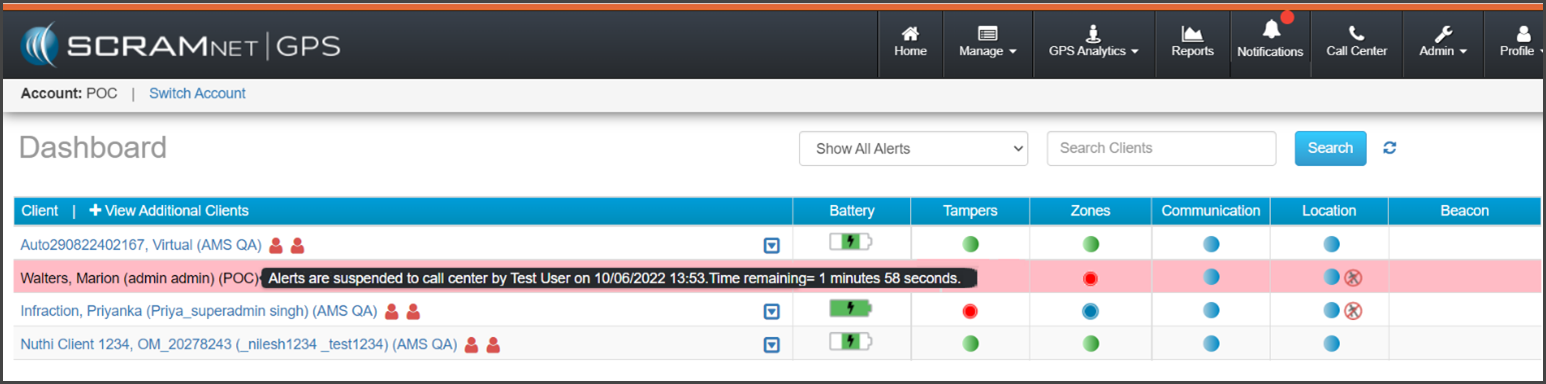
During the suspension period, the client’s information on
the Dashboard will be highlighted. To view the details of the suspension
period, hover your mouse over the highlighted area.
SCRAMNET GPS Dashboard – click to enlarge
All suspended non-compliant violations will display on the Dashboard and all notifications will be sent. Only the Call Center alert ticket is suspended (not sent).
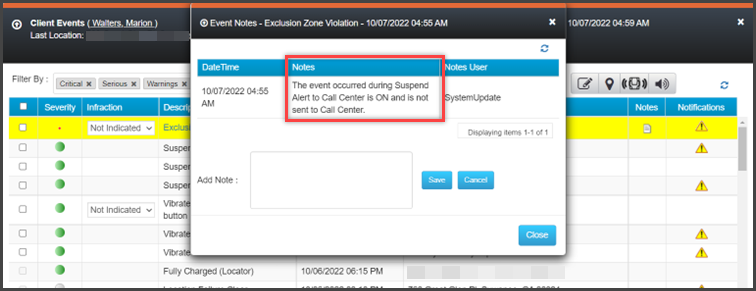
When the event
or alert generates during a suspension period, a system note is added to the Event Notes indicating that the Call Center ticket
was not sent to the Call Center:
Event Notes pop-up – click to enlarge
To temporarily suspend events and alert(s) from generating event
tickets in the Call Center application for a client:
Select
the client’s name on the Dashboard.
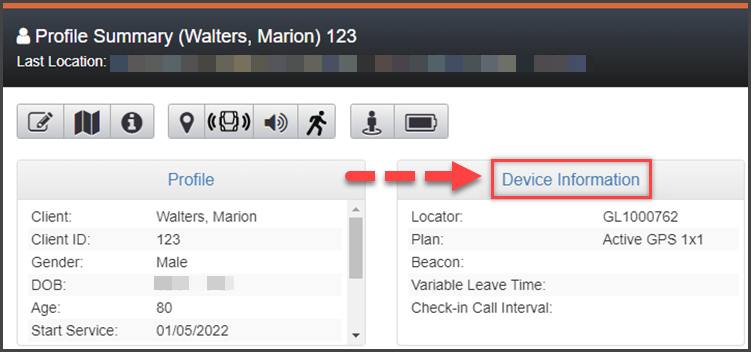
On
the Profile Summary dialog box, select the Device Information
hyperlink.
SCRAMNET GPS Client Profile Summary page – click to enlarge
On
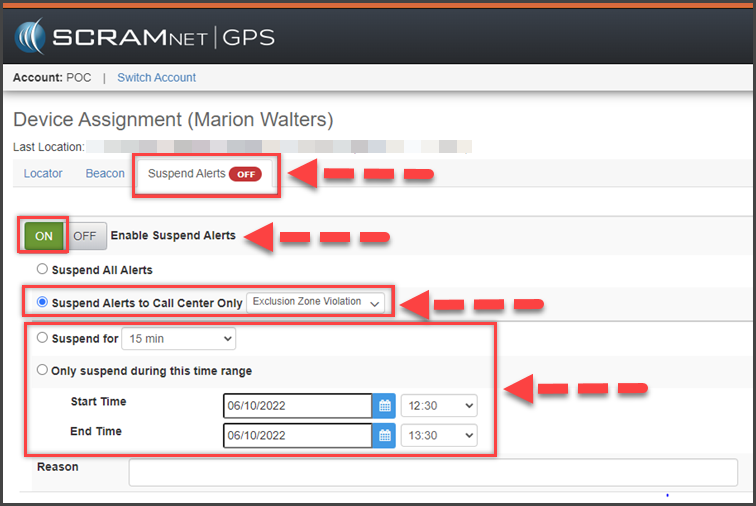
the Device Assignment page, toggle ON the Enable Suspend Alerts option.
Select the Suspend Alerts to Call Center Only radio button.
On the Select Alert dropdown menu, select which alert(s) you would like to suspend.
Next, set the duration or date and timeframe for the suspension:
If the suspension is to start now, select the radio button next to the “Suspend for” option, and then select the duration from the dropdown menu.
If the suspension is for a future date, select the radio button next to the “Only suspend during this range” option, and enter the Start Time and End Time.
Client Device Assignment page – click to enlarge
Enter
the reason for the suspension.
To
save the information, select the Save button.
Read
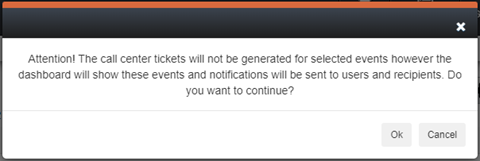
and acknowledge the information on the pop-up by selecting the Ok
button.
Suspend Alerts Acknowledgement pop-up
The
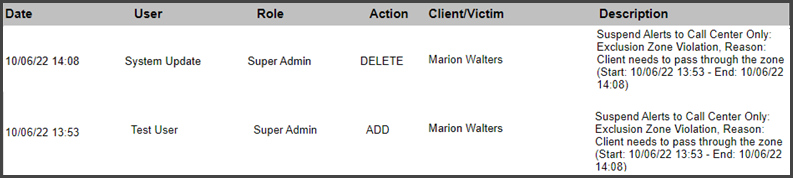
suspension details including the start and end times are recorded in the Audit Report.
Audit Report – click to enlarge
Pattern of Life – Home (Inferred) Location
SCRAMNET GPS® Pattern of Life identifies
and associates the client’s location to an activity location category. When
reporting the client’s “Home” location and activity category in Pattern of
life, the Home Zone created for the client is used. The location and activity
category’s label will reflect the Home Zone’s name entered in the system. For
example, “John’s Home Zone” would display in Pattern of Life as “John’s Home
Zone” on the map and reports.
When the client does not have a Home Zone recorded in the system, the Pattern of Life location may not be correctly identified or grouped into a different activity location category altogether.
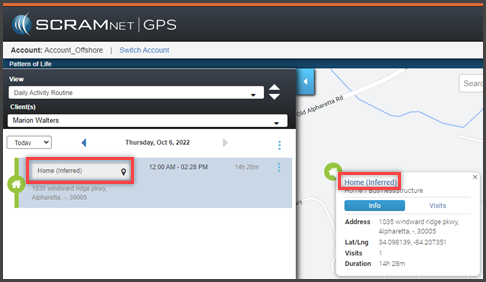
With this enhancement, if the client does not have a Home Zone saved in the system, Pattern of Life will use the client’s home address to identify the location and activity location’s category. Once identified, the label of “Home (Inferred)” will display on the map and report detail information. In addition, when the client’s address is updated, the “Home (Inferred)” location is also updated.
Pattern Of Life Daily Activity Routine – click to enlarge
Pursuit Mode in Ally Mobile Application
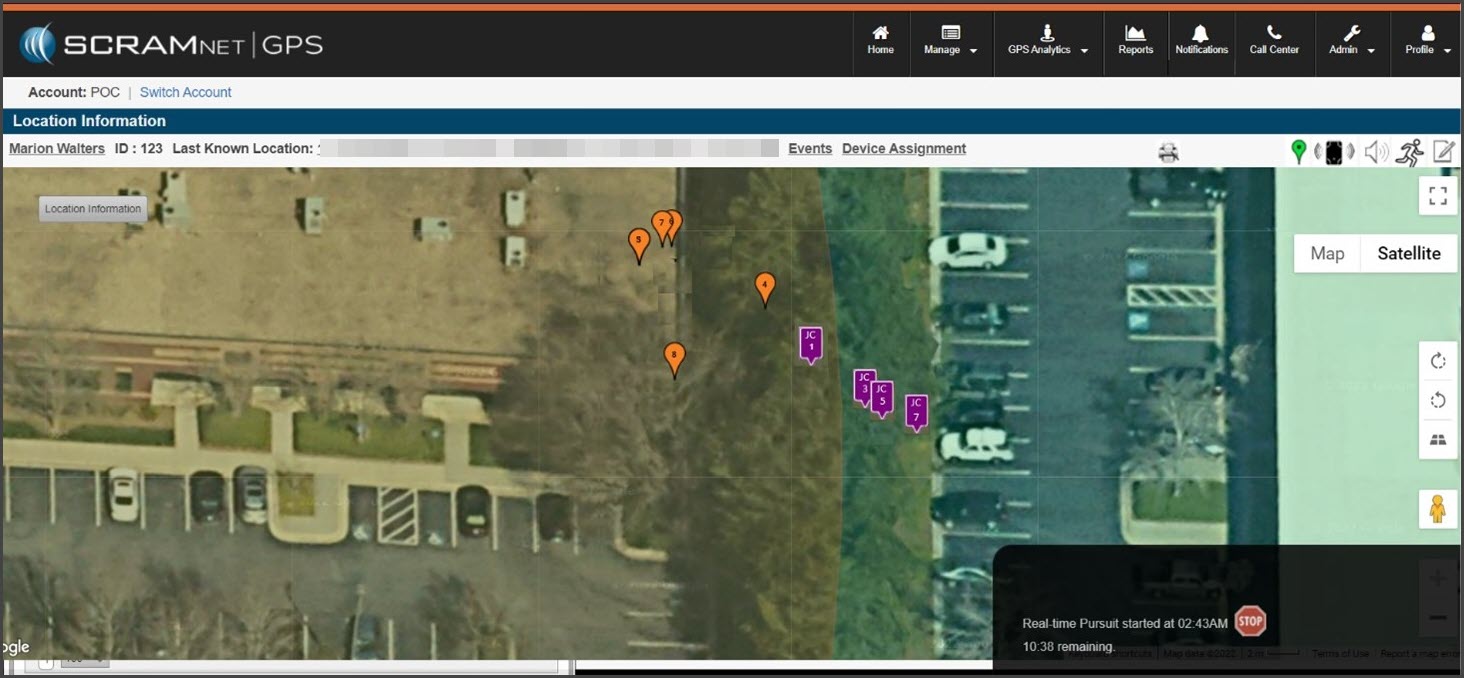
SCRAM Ally is a victim notification mobile app. The app is installed on the victim’s smartphone to create a moving exclusion zone around the victim. When paired to one or more clients, the SCRAMNET GPS application can alert the victim and officers when a client is inside the victim’s moving exclusion zone.
Pursuit Mode is started automatically on the client’s SCRAM GPS device when the following alerts occur:
Panic Button Pressed (from SCRAM Ally) – this will start Pursuit Mode for the victim who pressed the button, as well as all the clients associated with the victim.
Victim Zone Violation – this will start Pursuit Mode for the victim whose zone was breached, as well as the client who breached the zone
SCRAM Ally continues to send location points every minute (1) while in Pursuit Mode. Location points from both the client(s) and victim can be seen on the Location Information page in SCRAMNET GPS.
At 11:00 AM MDT on October 12, 2022, SCRAM Systems® will release enhancements designed to streamline equipment management for your clients with CAM, House Arrest, or Remote Breath (EM) Activities. With this release, many tasks that you completed in SCRAMNET, you may now complete within SCRAM 24/7.
These enhancements allow you to:
Create the client’s profile in SCRAMNET automatically
Add and assign equipment to the client
Access the Maintenance hyperlink
Replace equipment
Stop billing and monitoring of the EM equipment in
SCRAMNET
Adding an EM Activity
Once you have created the client’s profile in SCRAM 24/7, the next step is to add the EM (CAM, Remote Breath, or House Arrest) Activity.
SCRAM 24/7 and SCRAMNET User access required.
Select the Activities tab to get started.
Select
the +Add a New Activity button.
On
the Add an Activity page, open the Activity dropdown menu and
select the option of CAM, Remote Breath, or House Arrest. For this
example, CAM has been selected.
Add
the Activity Schedule details.
Verify/Enter
the Activity Fees (if applicable).
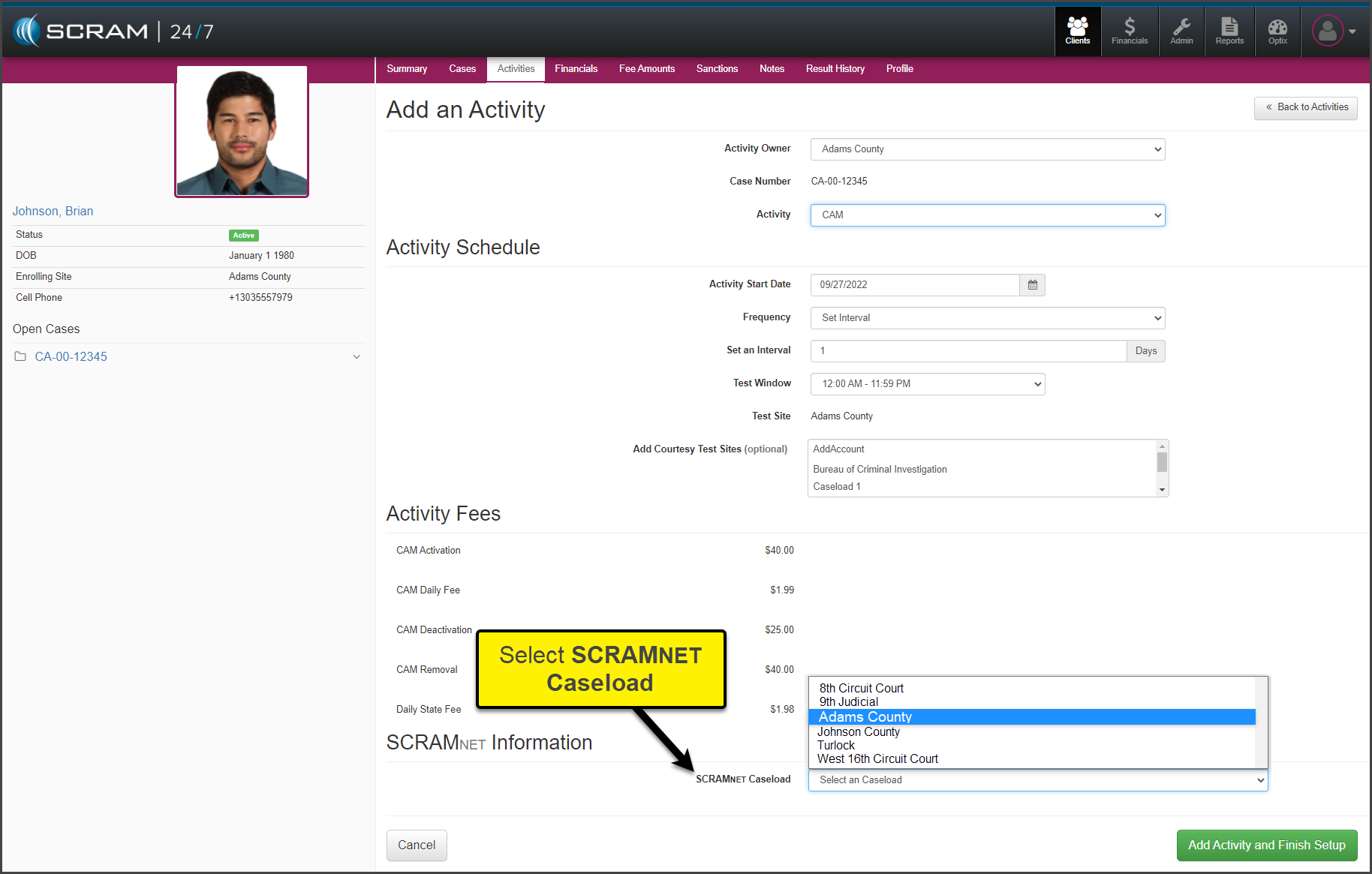
In
the SCRAMNET Information
section, select the SCRAMNET Caseload
the client will be associated to from the dropdown menu.
click to enlarge
Select
the Add Activity and Finish Setup button to save the information.
At this time, the client’s profile is automatically
created in SCRAMNET and linked to the
SCRAM 24/7 profile.
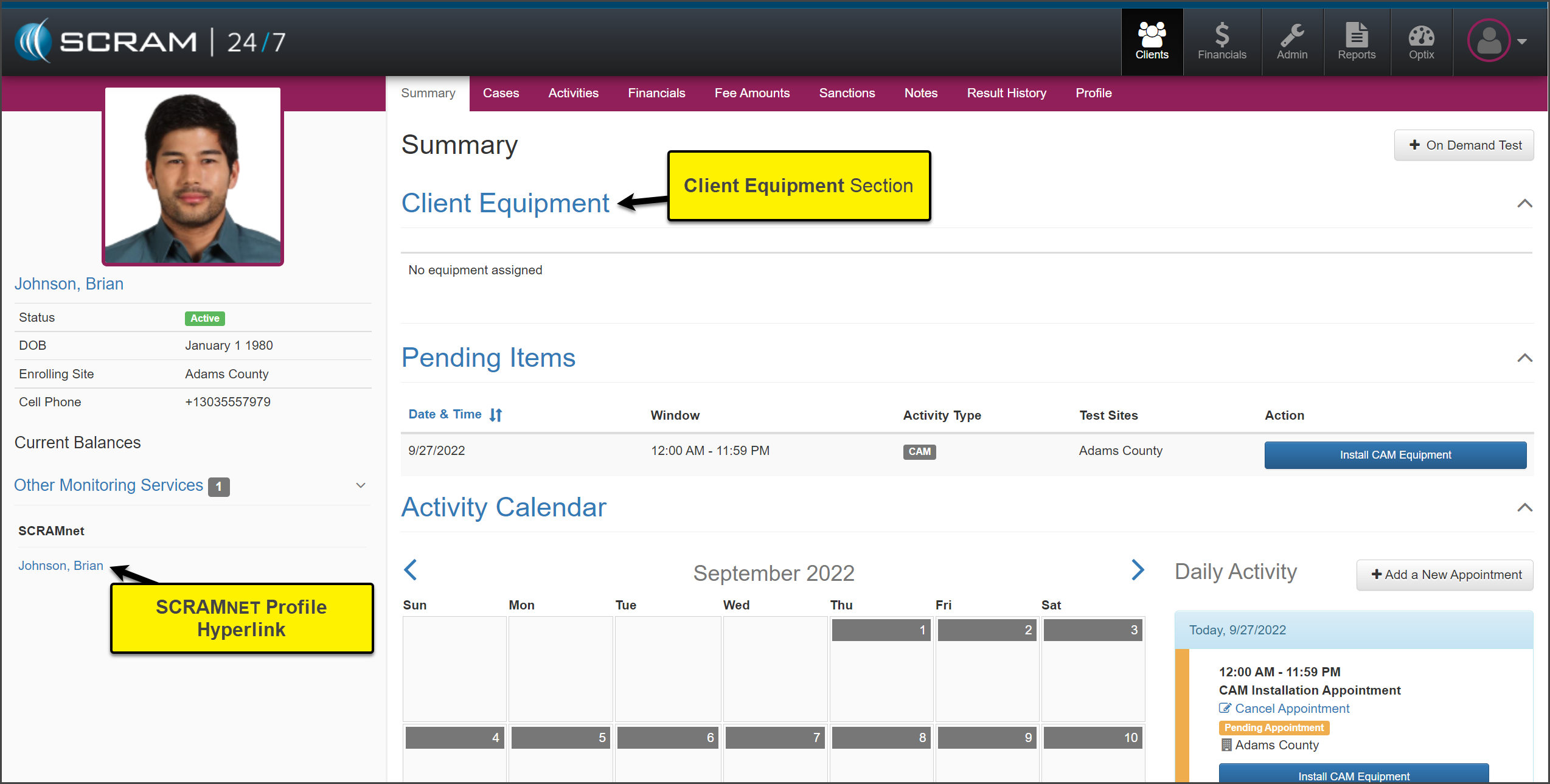
The Summary page is now
displayed. You will notice a new section entitled “Client Equipment.” Additionally,
SCRAMNET is listed under the Other
Monitoring Services on the client’s sidebar.
click to enlarge
Complete the Equipment Install Appointment
It is now time to add the equipment information and monitoring
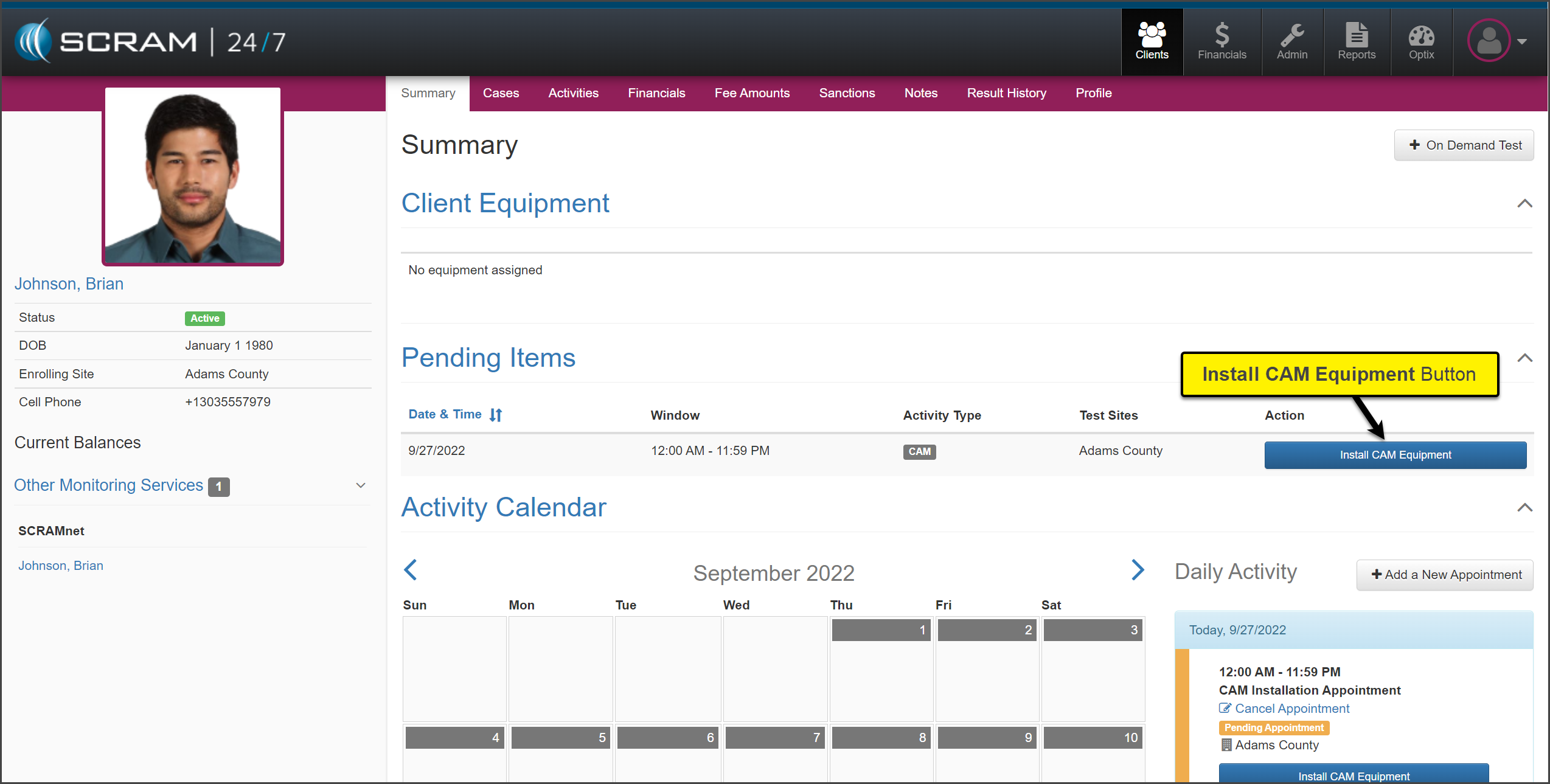
details for the client. Within SCRAM 24/7 locate the Install (EM) Equipment
appointment under the Pending Items section on the Summary page. For
this example, CAM is the activity.
Select
the Install CAM Equipment button.
click to enlarge
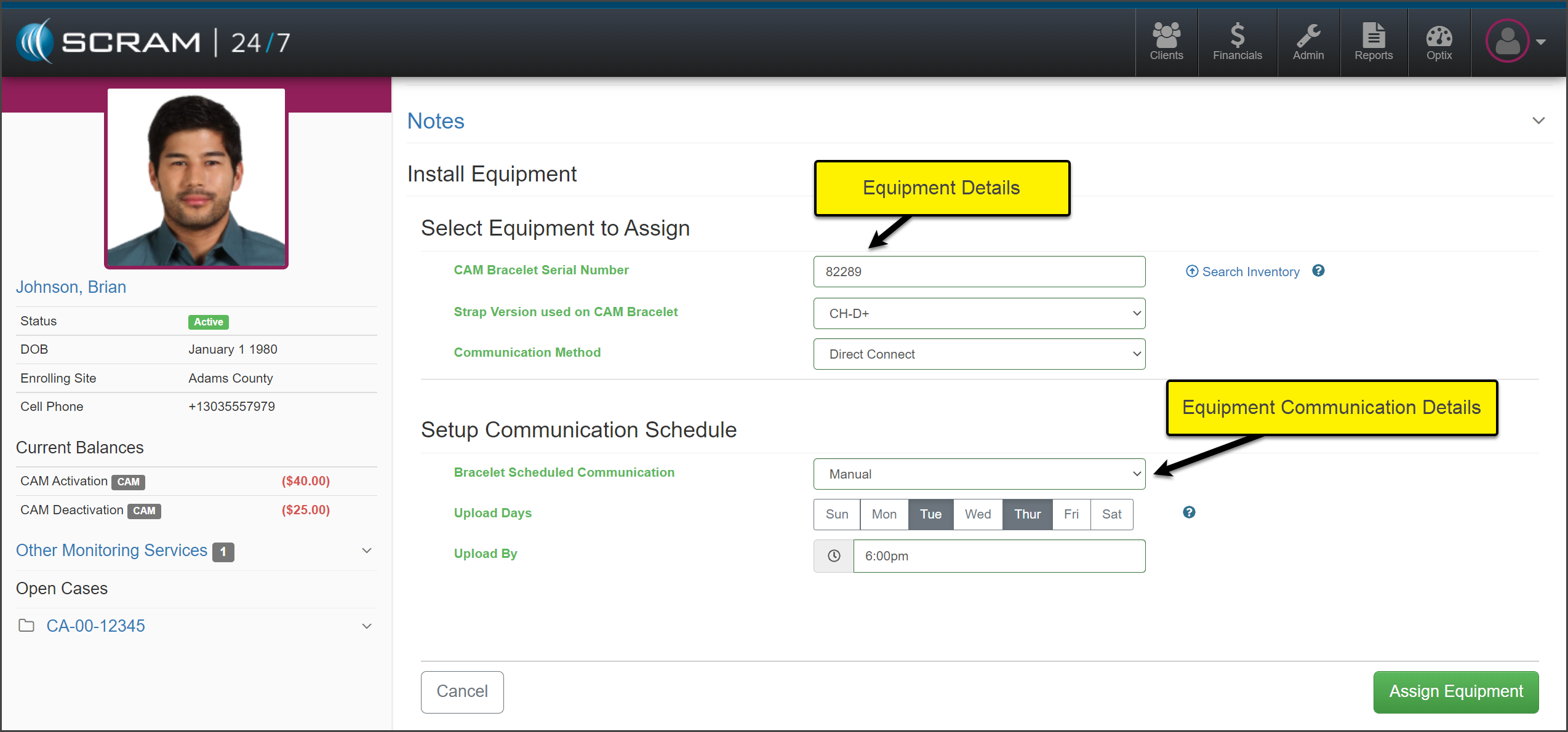
In SCRAM 24/7, on the Install Equipment page select the:
SCRAM equipment serial number(s)
Bracelet Communication method
Bracelet Communication Schedule
click to enlarge
Once
all information has been entered, select the Assign Equipment button to
save the selections.
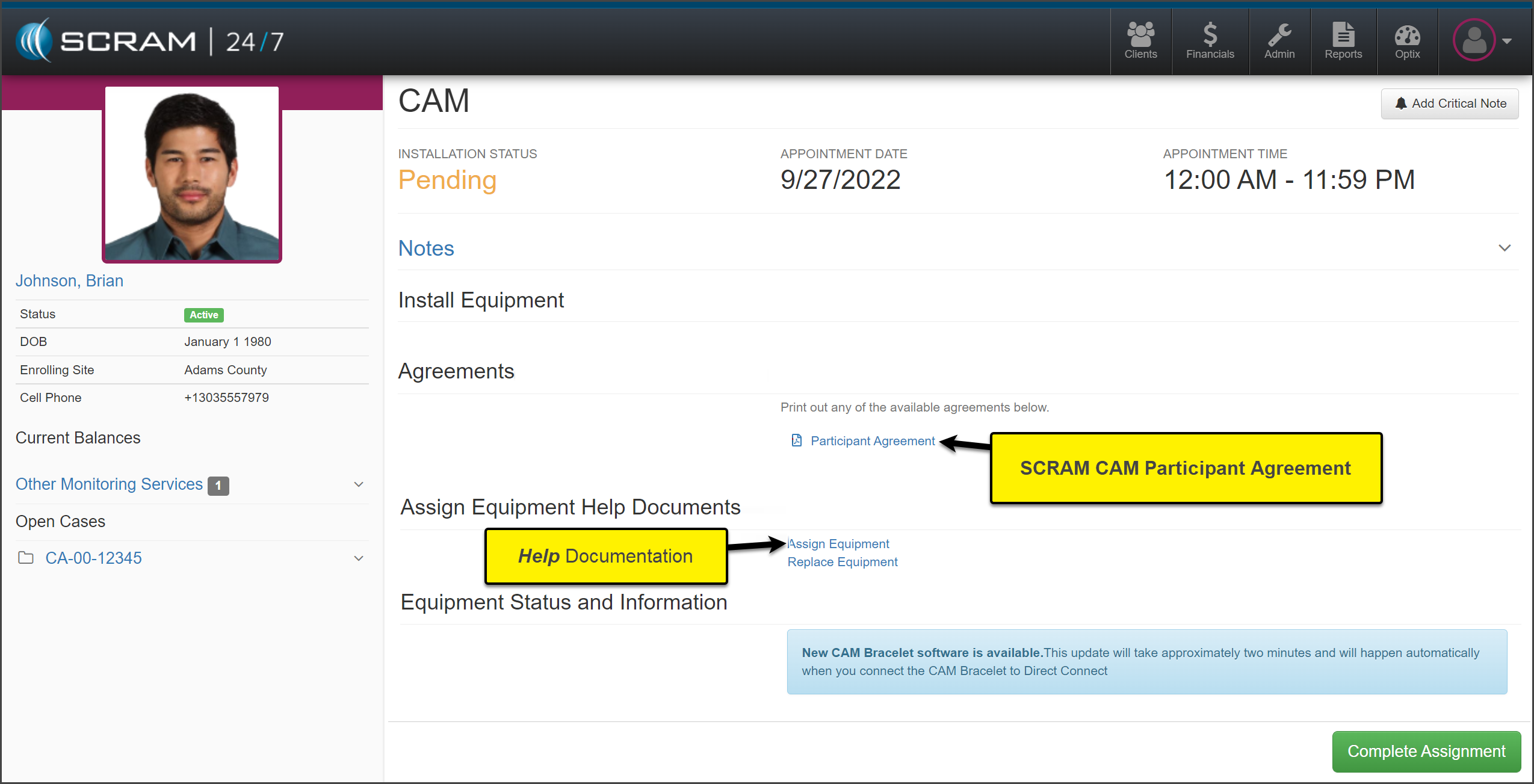
The
Participant Agreement form is available to select and print for the
client to sign. In addition, you can access the Assign Equipment Help
Document.
click to enlarge
Next,
select the Complete Assignment button to save the equipment information.
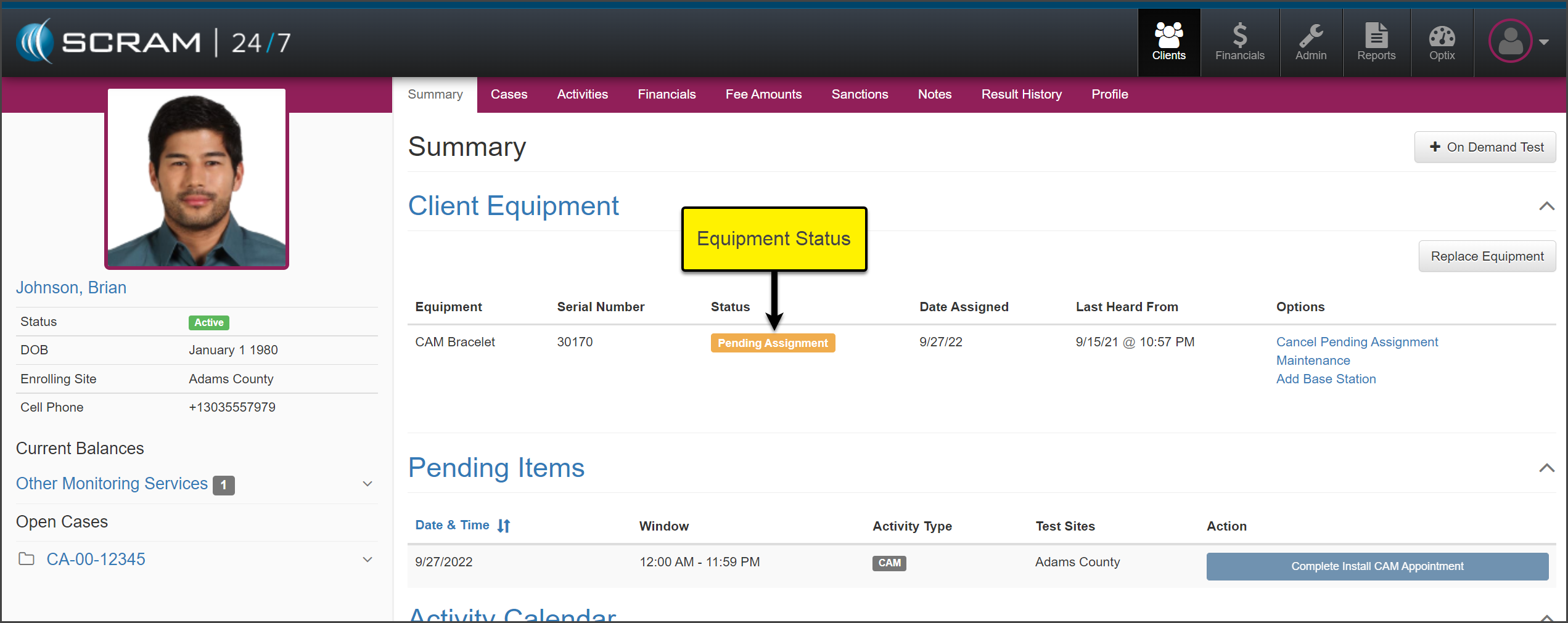
On the client’s SCRAM 24/7 Summary page, the Client
Equipment section will show the equipment status of “Pending Assignment.”
click to enlarge
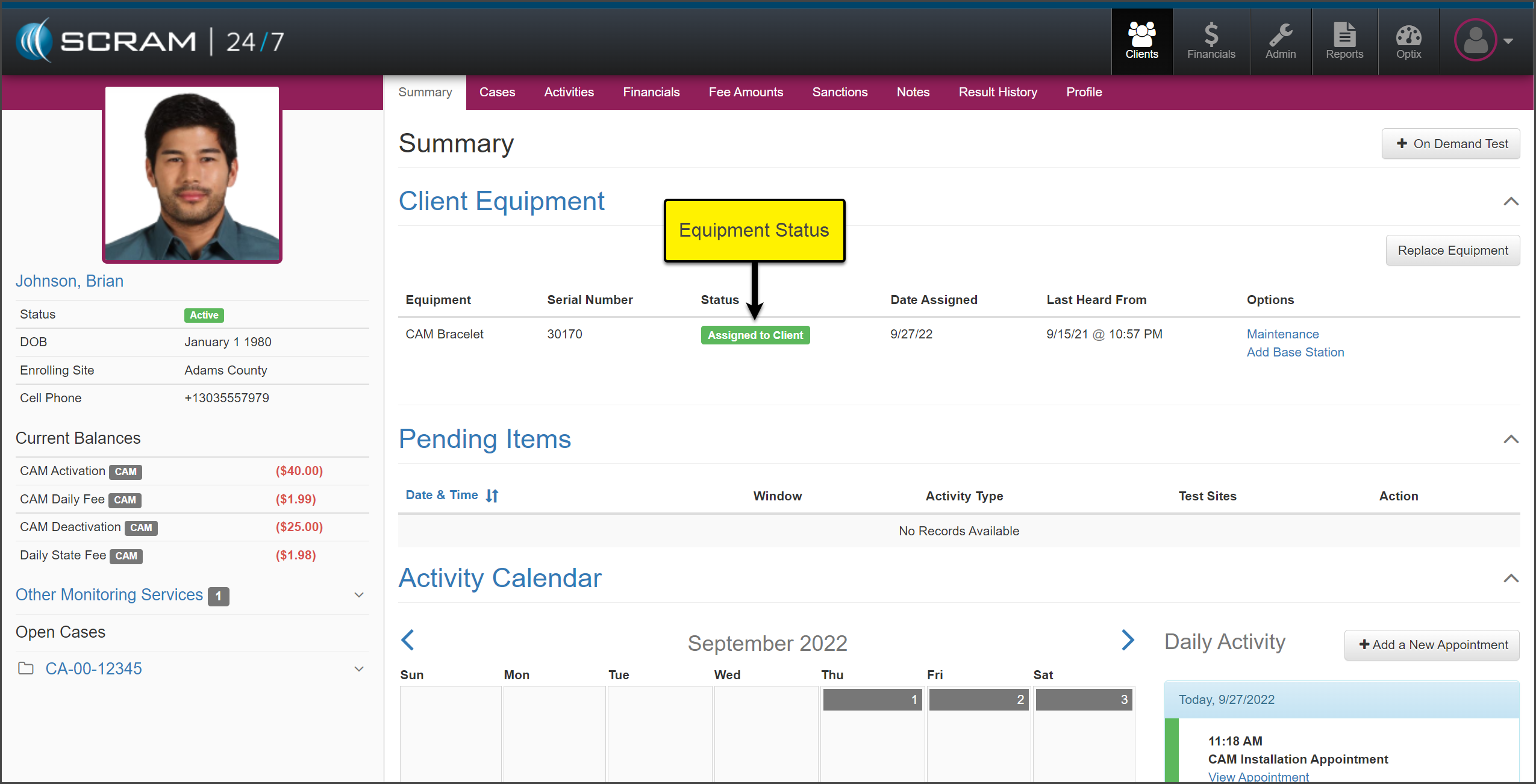
Once the assignment process
is complete, the Client Equipment section will reflect the current equipment
status.
click to enlarge
Once the equipment is
assigned, the monitoring fees will be associated with the client.
To update the House Arrest and Remote Breath notification parameters or add a Remote Breath testing schedule or House Arrest leave schedule for the client, select the client’s name under the SCRAMNET services on the sidebar to open the client’s profile in SCRAMNET.
Complete Equipment Maintenance
While the client is on your monitoring program, some
equipment tasks may need to be completed. All equipment maintenance alerts are
displayed in SCRAMNET on the Workload page,
as well as sent electronically on the Daily Action Plan (DAP).
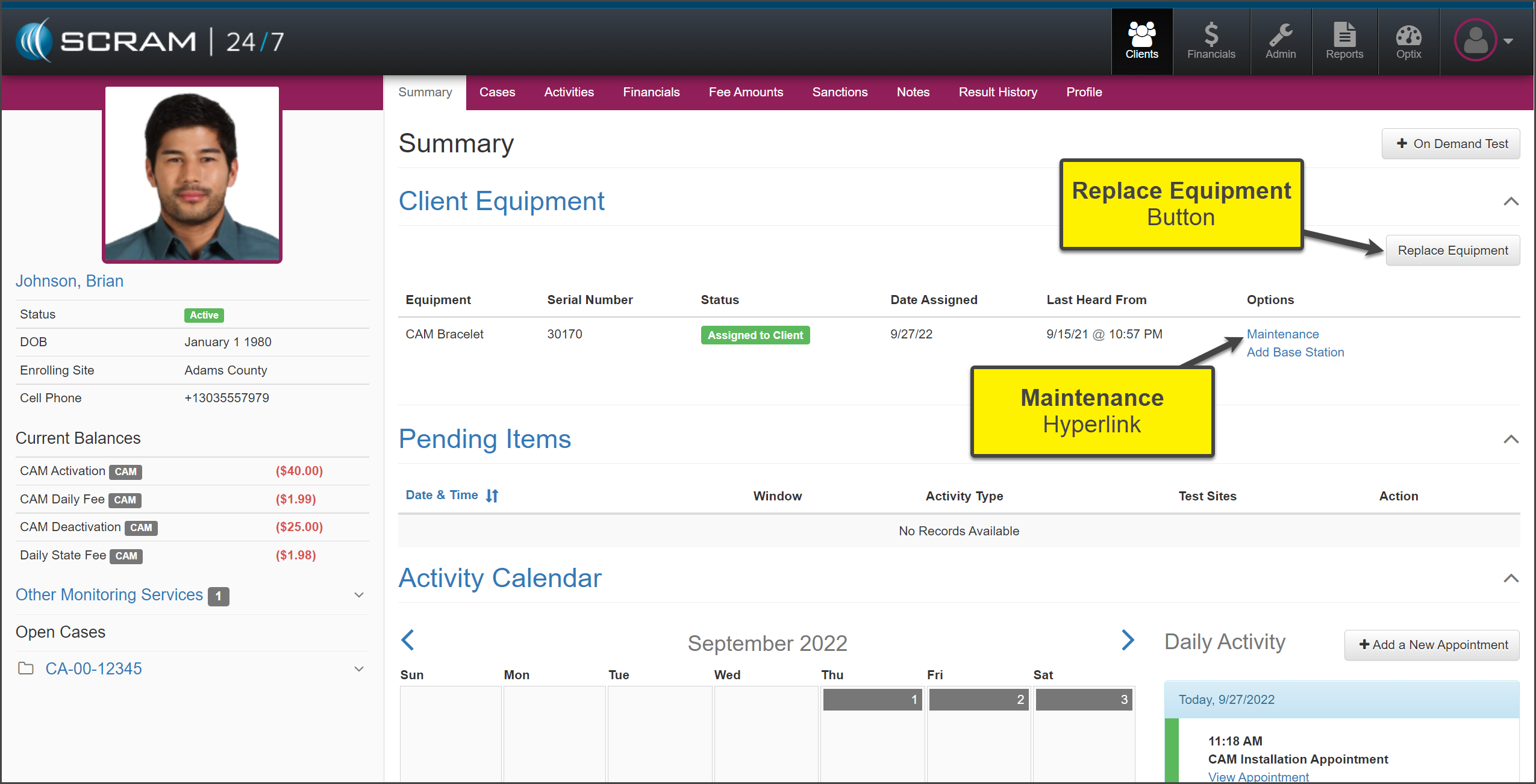
When it is time to Replace Equipment or complete a Maintenance
request (fit adjustment, Battery Faceplate Replacement, or Strap Replacement), start
on the client’s Summary page in SCRAM 24/7.
click to enlarge
Equipment Replacement
To replace the client’s monitoring equipment:
Select the Replace Equipment button.
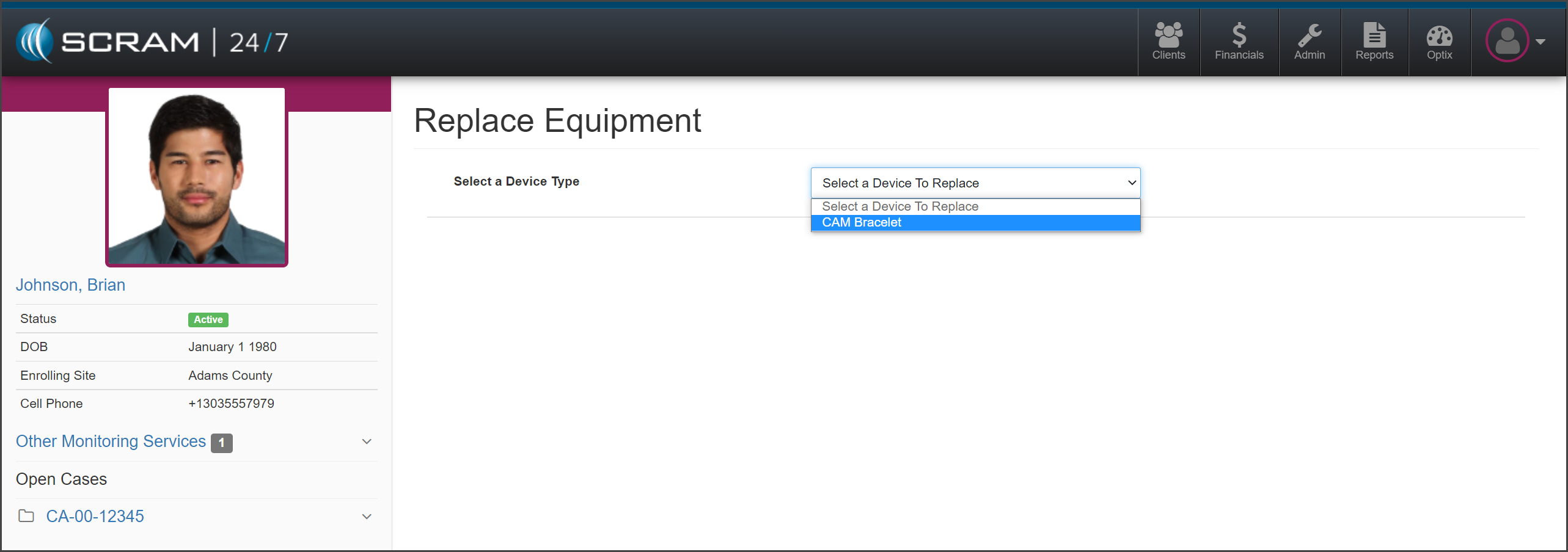
On the Replace Equipment page, “Select a
Device to Replace” from the dropdown menu. In this example the CAM Bracelet
is selected.
click to enlarge
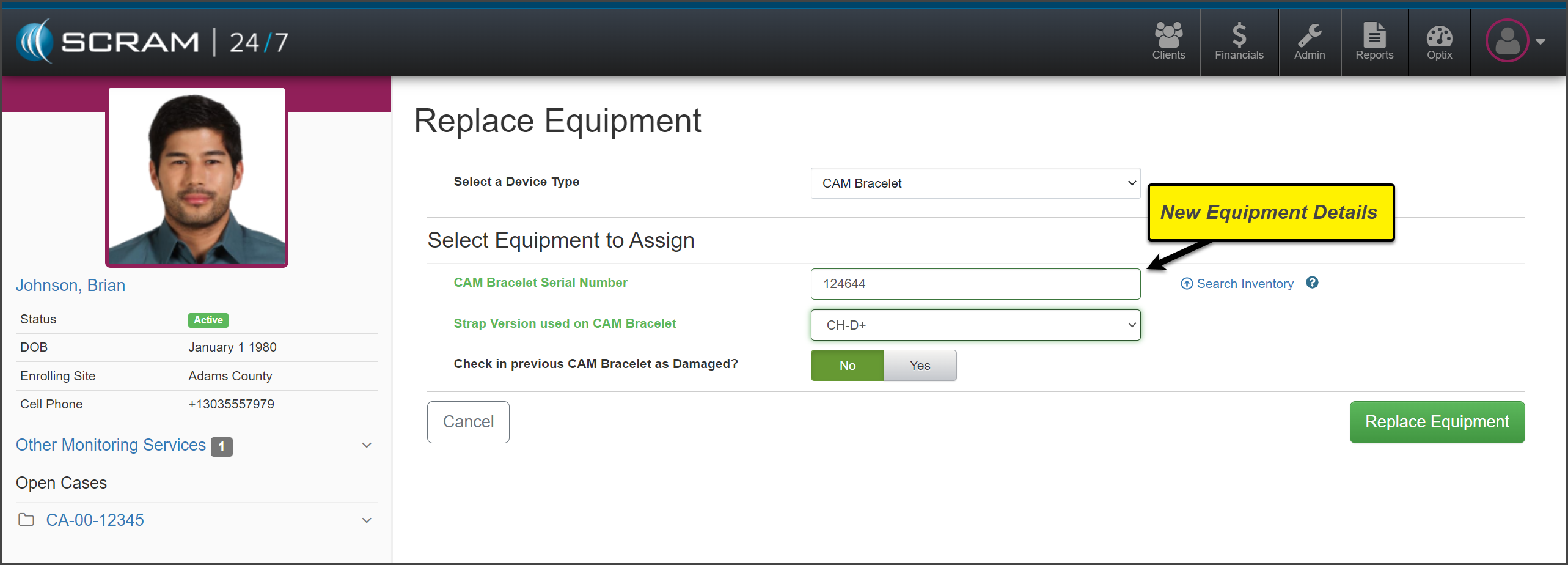
Add the new equipment information and select the
Replace Equipment button.
click to enlarge
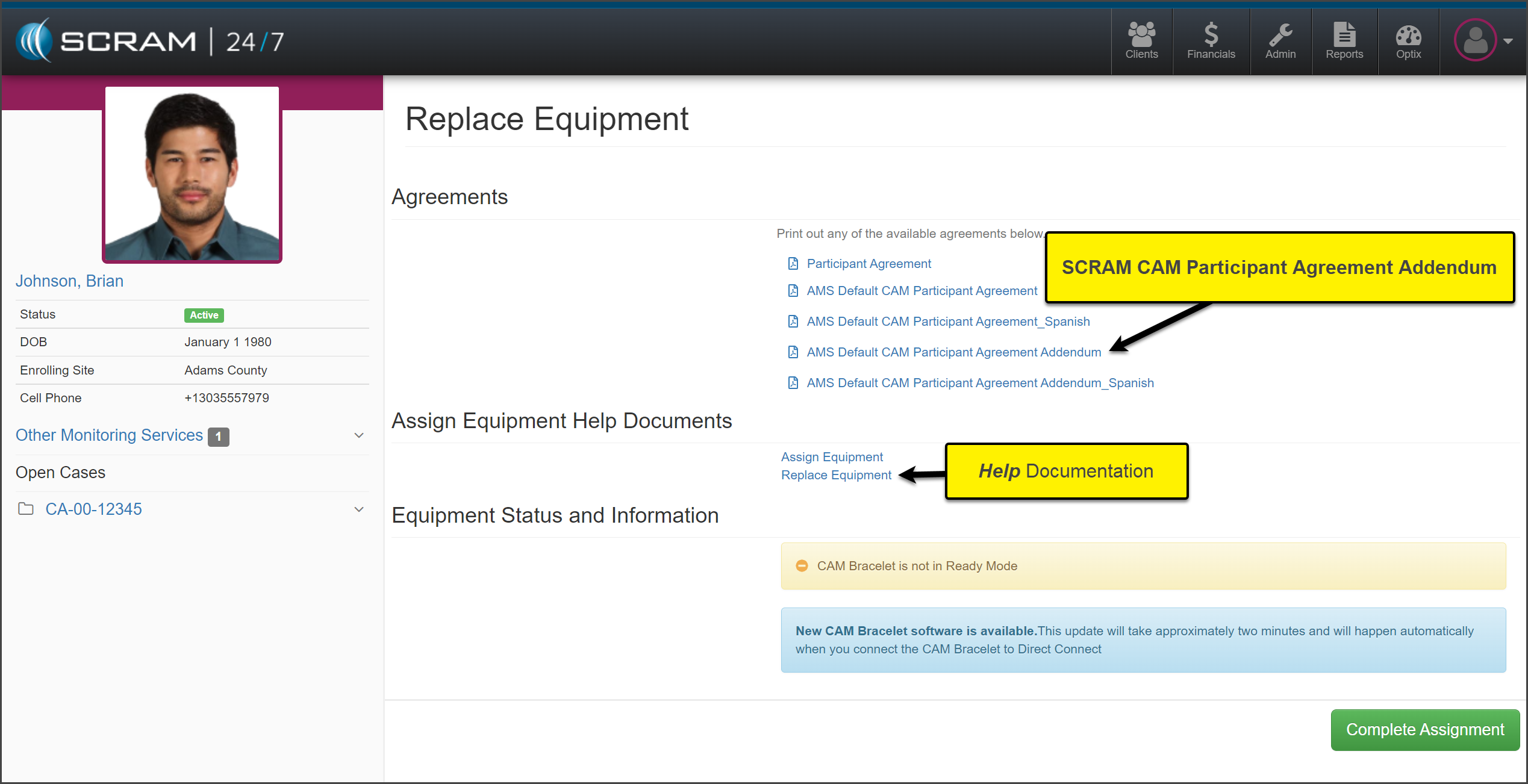
Select and print the AMS Default CAM
Participant Agreement Addendum for the client to sign and select the Complete
Assignment button.
click to enlarge
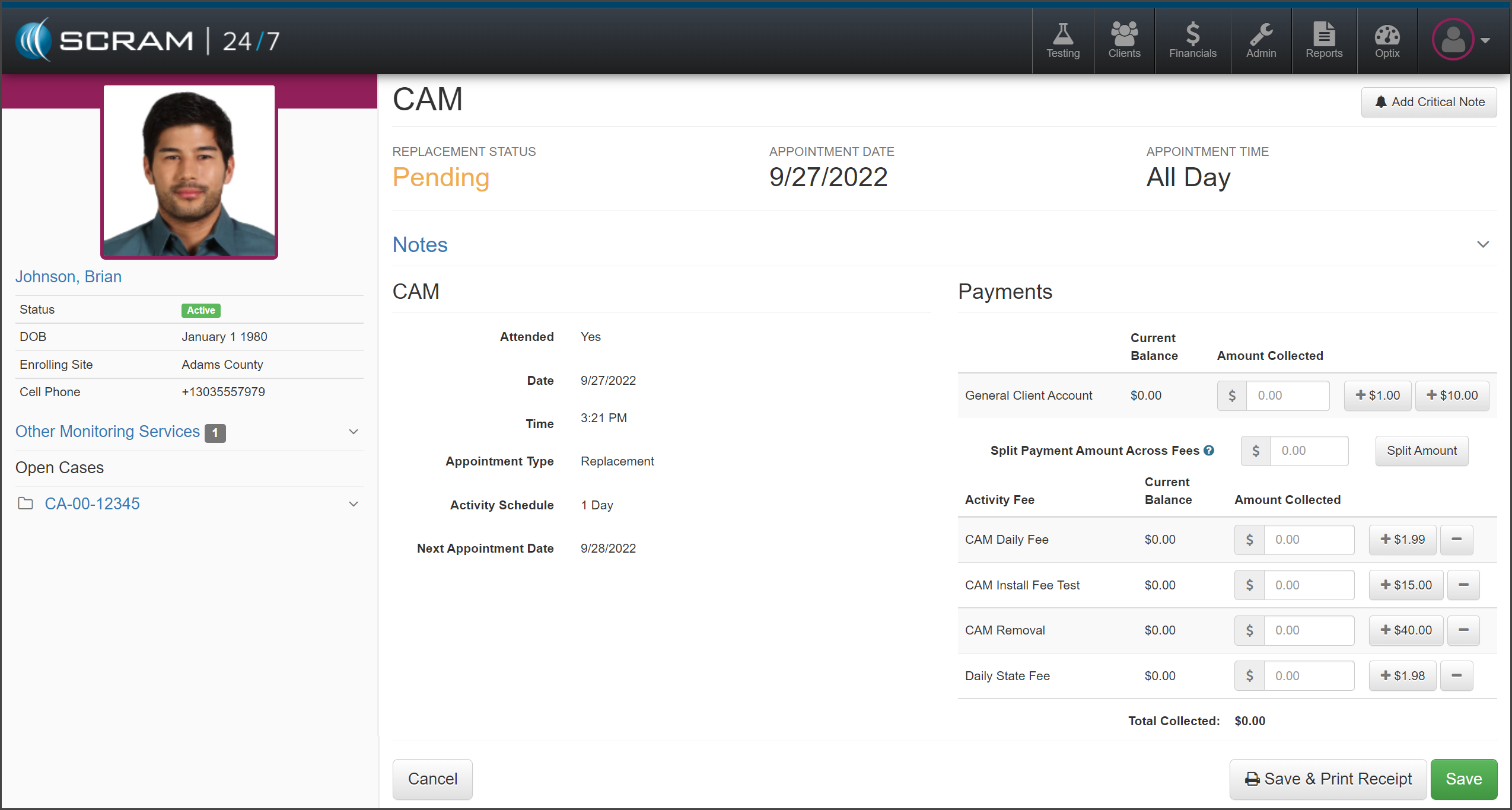
Collect any fees and select one of the Save
options.
click to enlarge
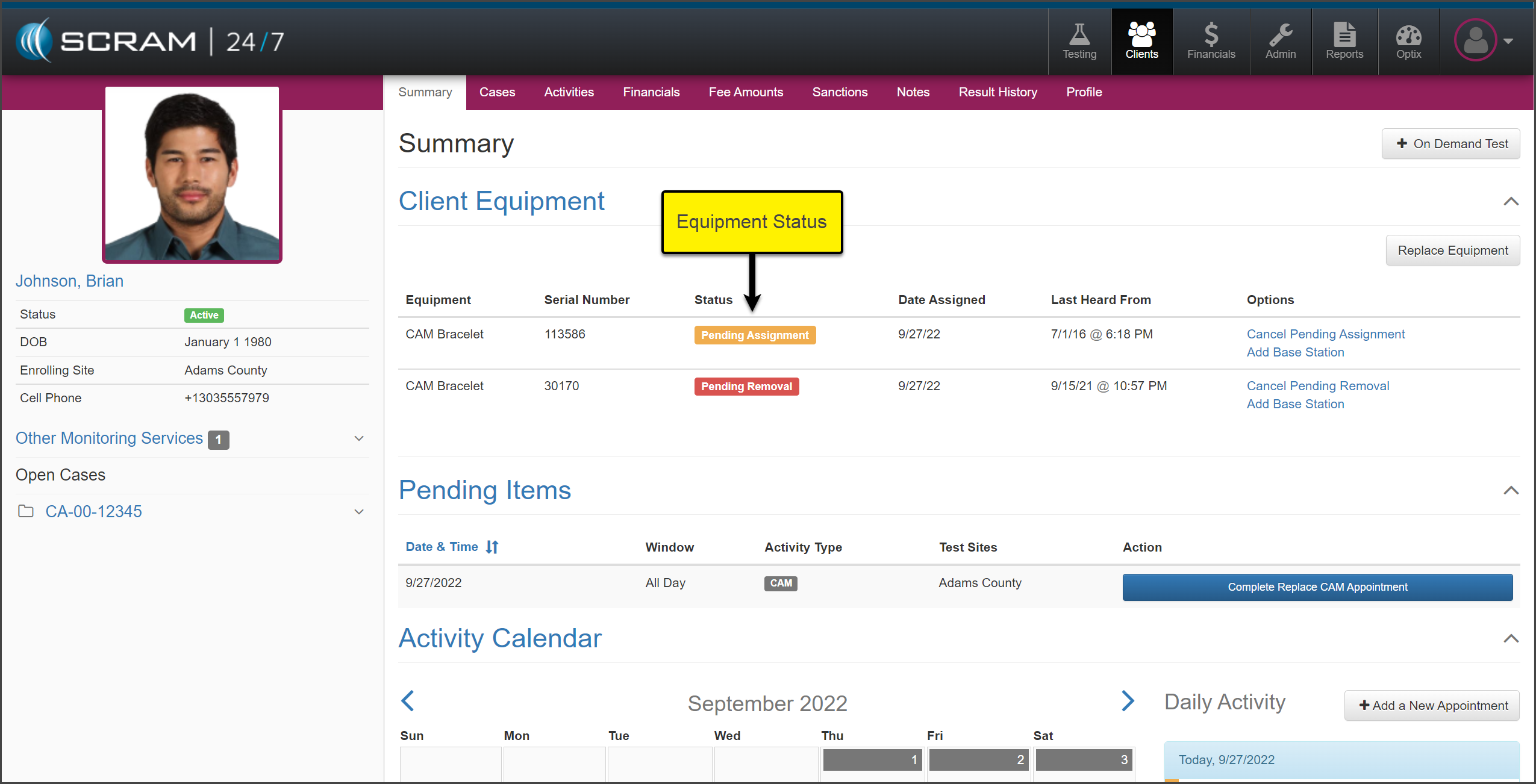
The Summary page will now display the
current equipment status.
click to enlarge
Check in the “Pending Removal” device, and
then complete the assignment of the “Pending Assignment” device.
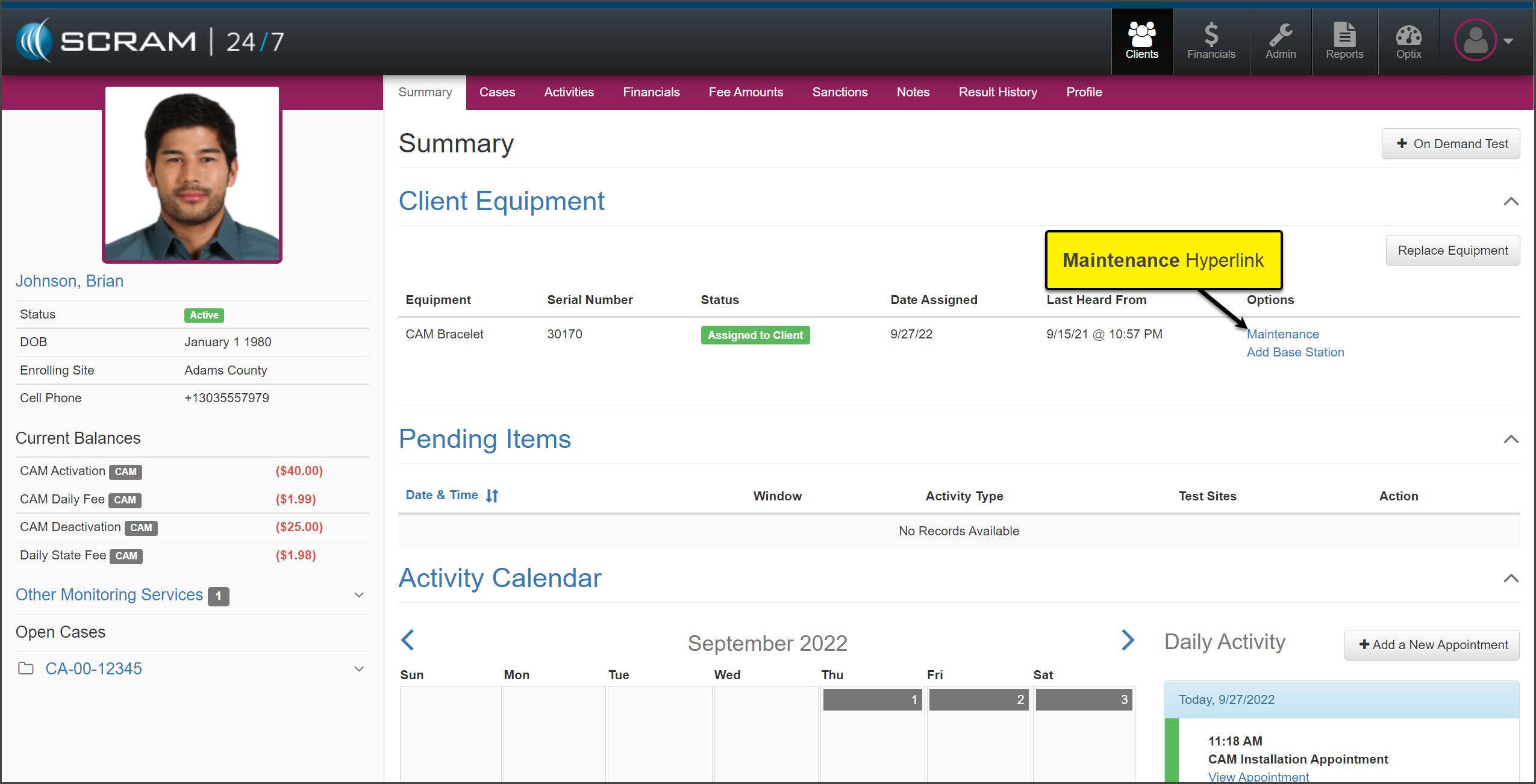
Once completed, the Summary page will display the
device status of “Assigned to Client.”
click to enlarge
Maintenance
To complete a
required Maintenance alert, select the Maintenance hyperlink located
under the Options section on the client’s Summary page in SCRAM
24/7.
click to enlarge
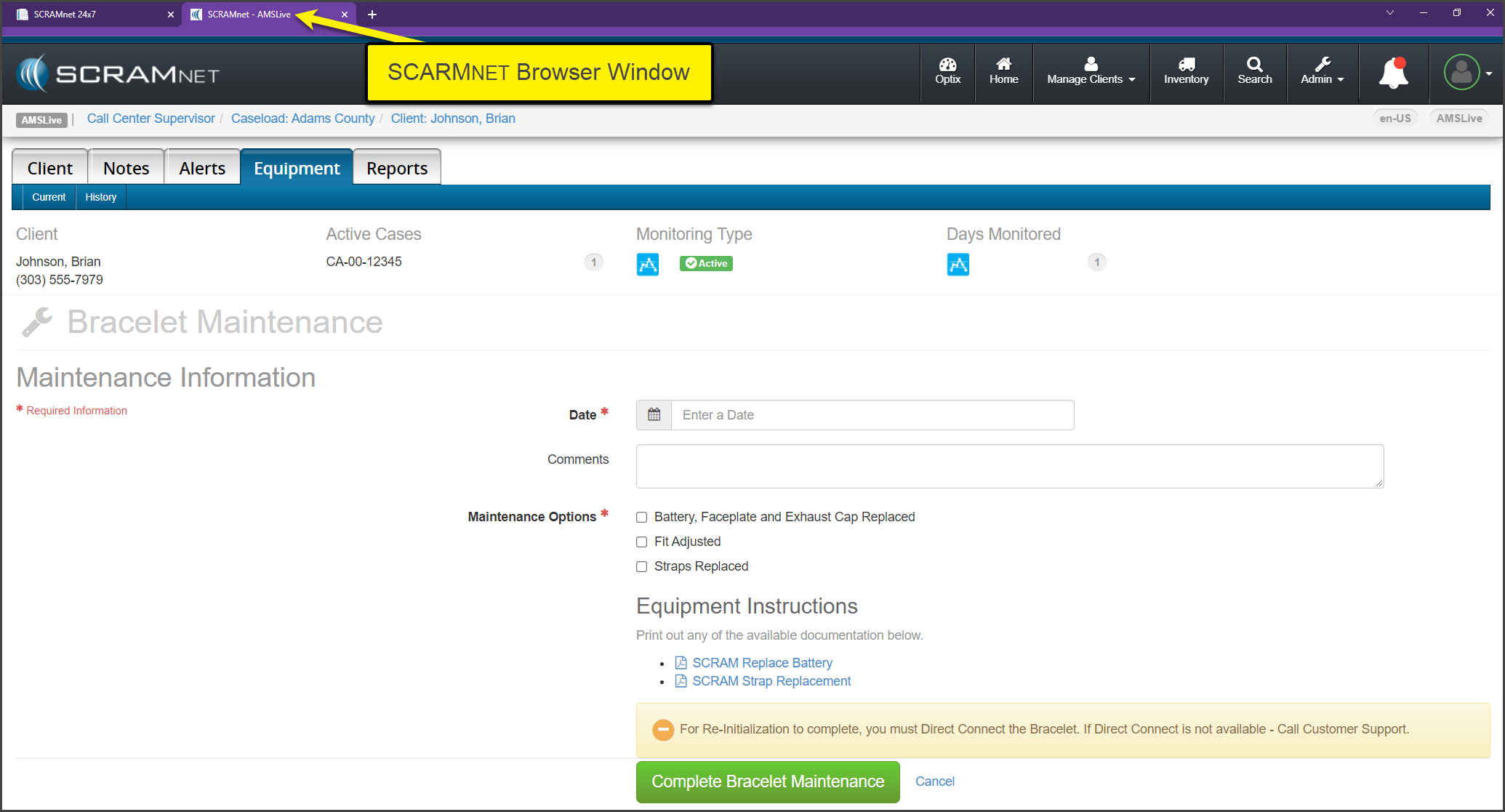
A new browser
window will open displaying the Maintenance page in SCRAMNET for the client. Follow the established
process for the specific maintenance request.
click to enlarge
Once you have completed the maintenance and the final Direct
Connect, simply close the SCRAMNET
browsing window.
Remove Activity / Suspend Activity
When the billing and
monitoring of the client needs to be stopped or suspended for the client, the
equipment status will need to be updated to an “Awaiting Return” status. This will
stop the monitoring fees from generating for the client in SCRAMNET.
Remove Activity
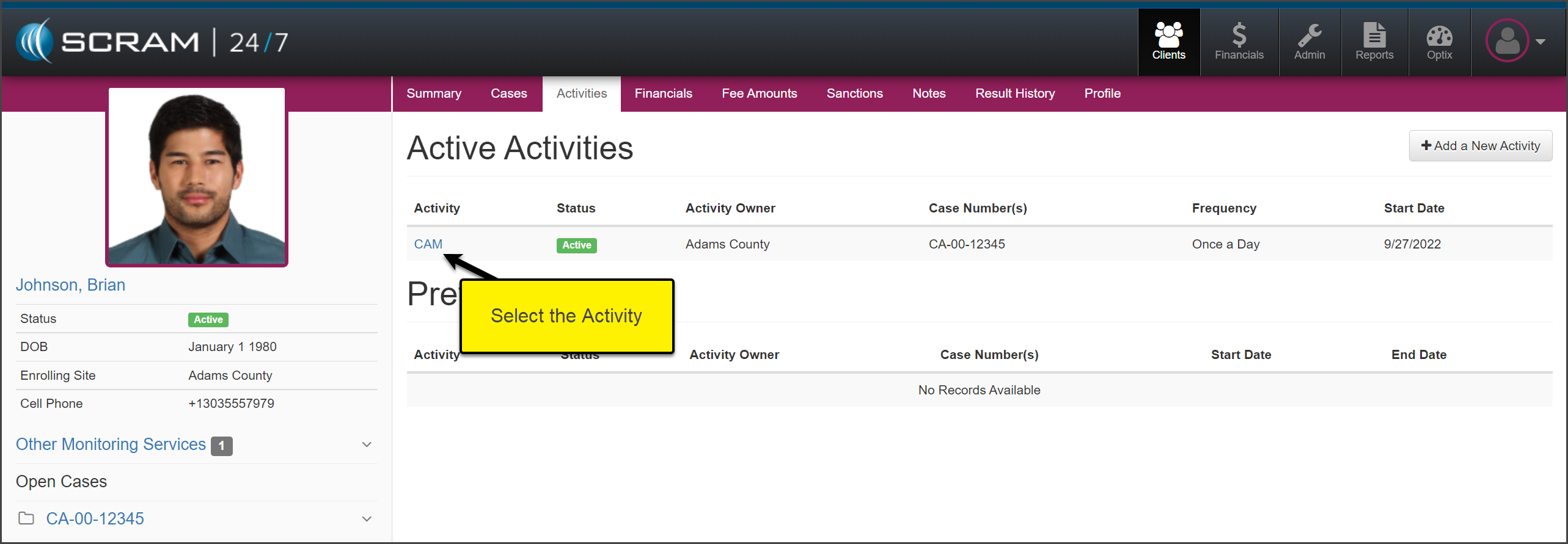
Select the Activities tab to get started.
Select
the activity you wish to remove. In this example the Activity of CAM is
selected.
click to enlarge
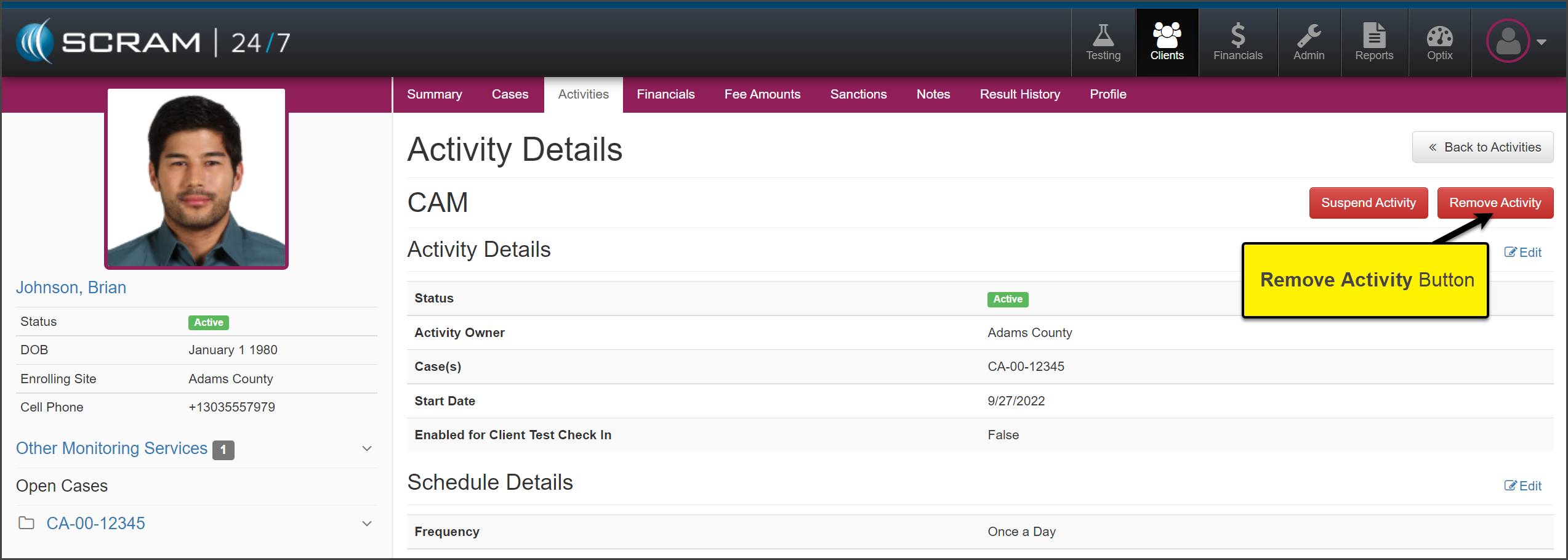
On
the Activity Details page, select the Remove Activity button.
click to enlarge
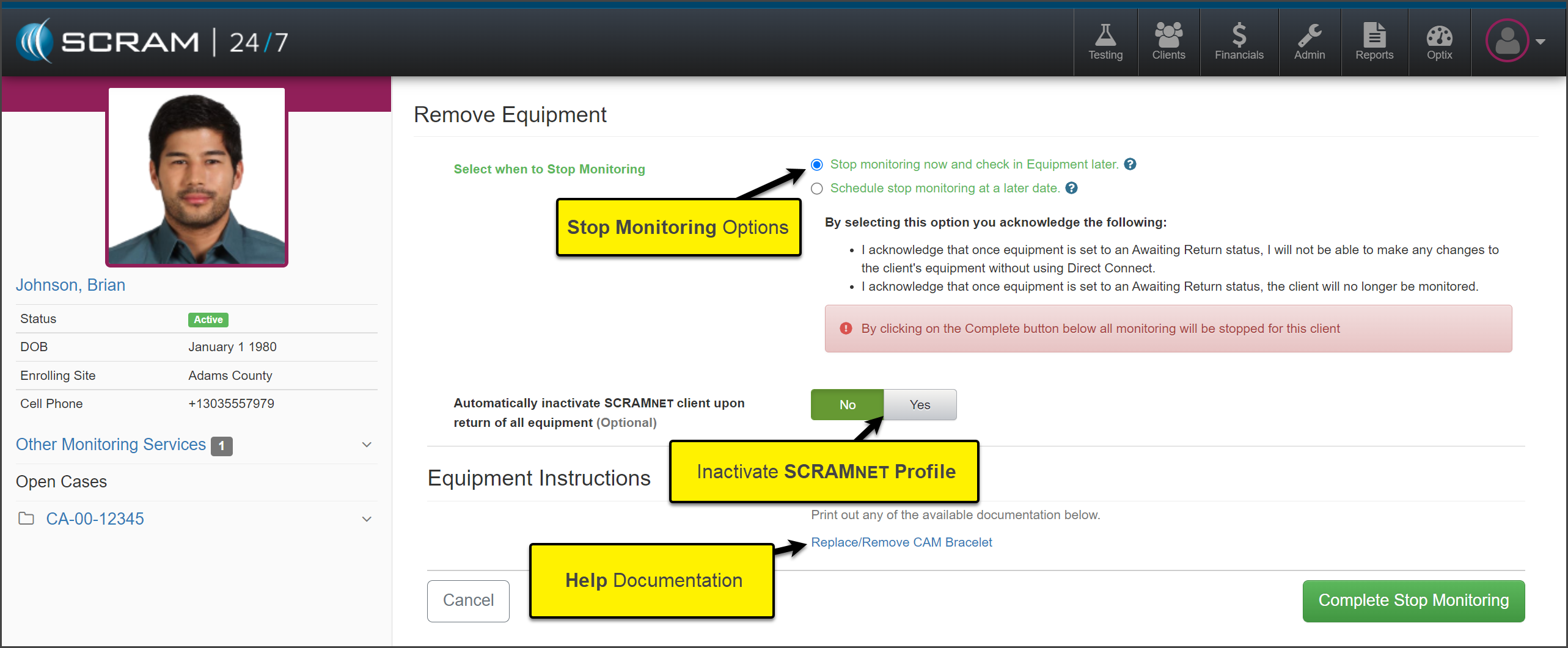
On
the Remove Equipment page, select when to Stop the Monitoring of
the client and whether to automatically inactivate the SCRAMNETprofile
once the equipment is checked in or leave the SCRAMNETprofile active.
click to enlarge
To save the selection, select the Complete Stop Monitoring button.
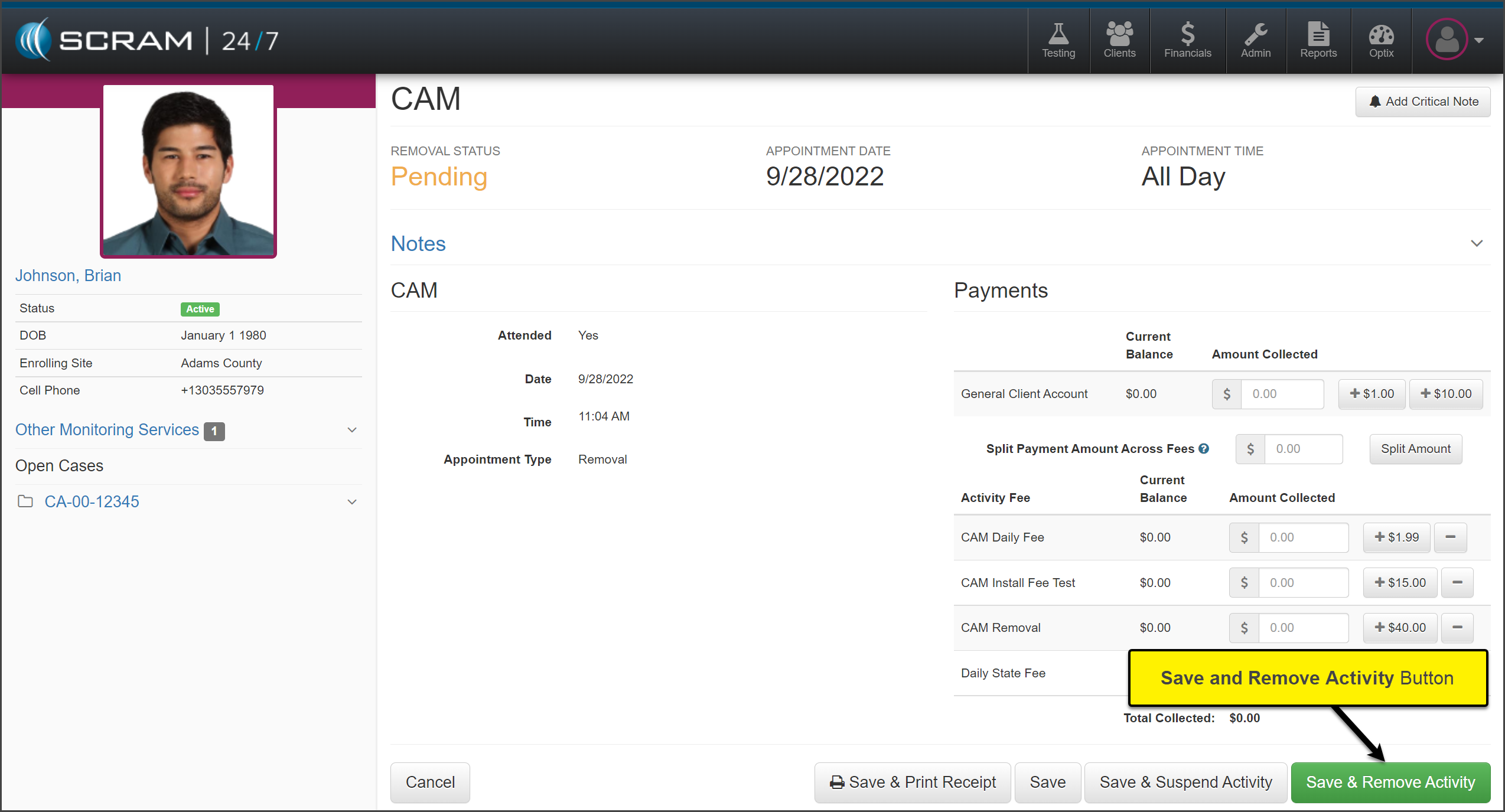
Collect any fees, and select the Save & Remove Activity button.
click enlarge
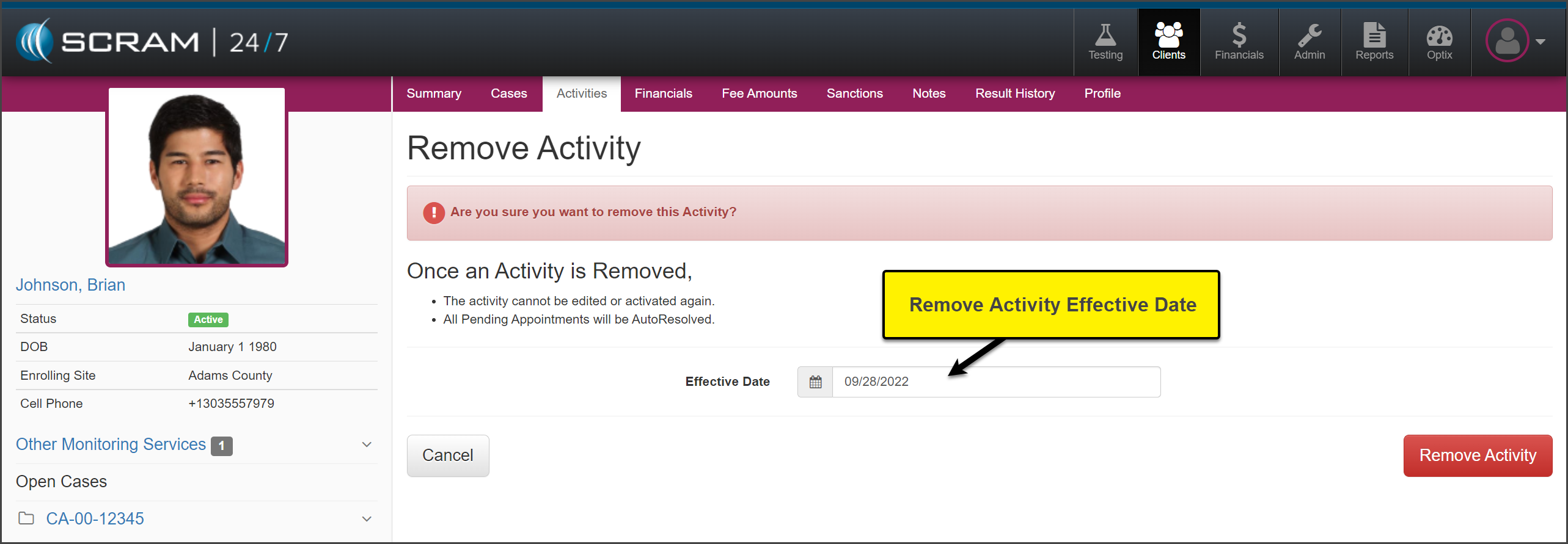
Verify the Effective Date and select the Remove Activity button.
click to enlarge
The Activity will now
display as Inactive.
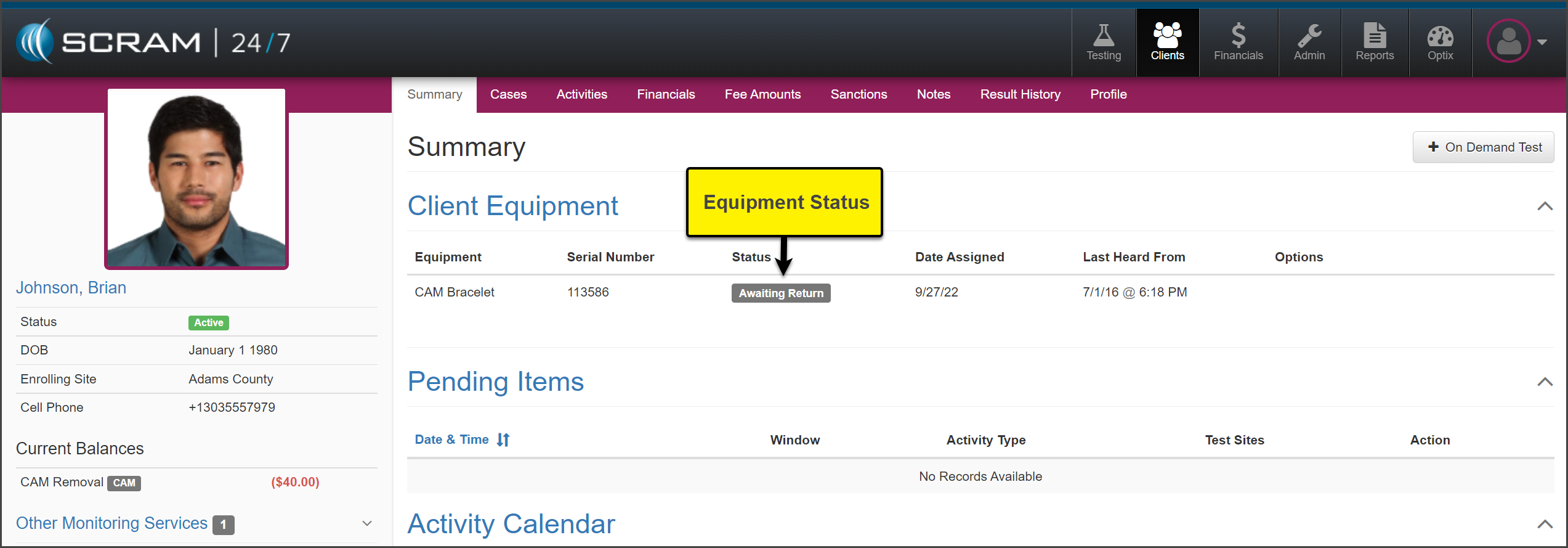
On the Summary page, the
equipment is now in an “Awaiting Return” status. Check in the equipment
following the established process.
click enlarge
Suspend Activity
Select the Activities tab to get started.
Select
the activity you wish to suspend. In this example the Activity of CAM is
selected.
click to enlarge
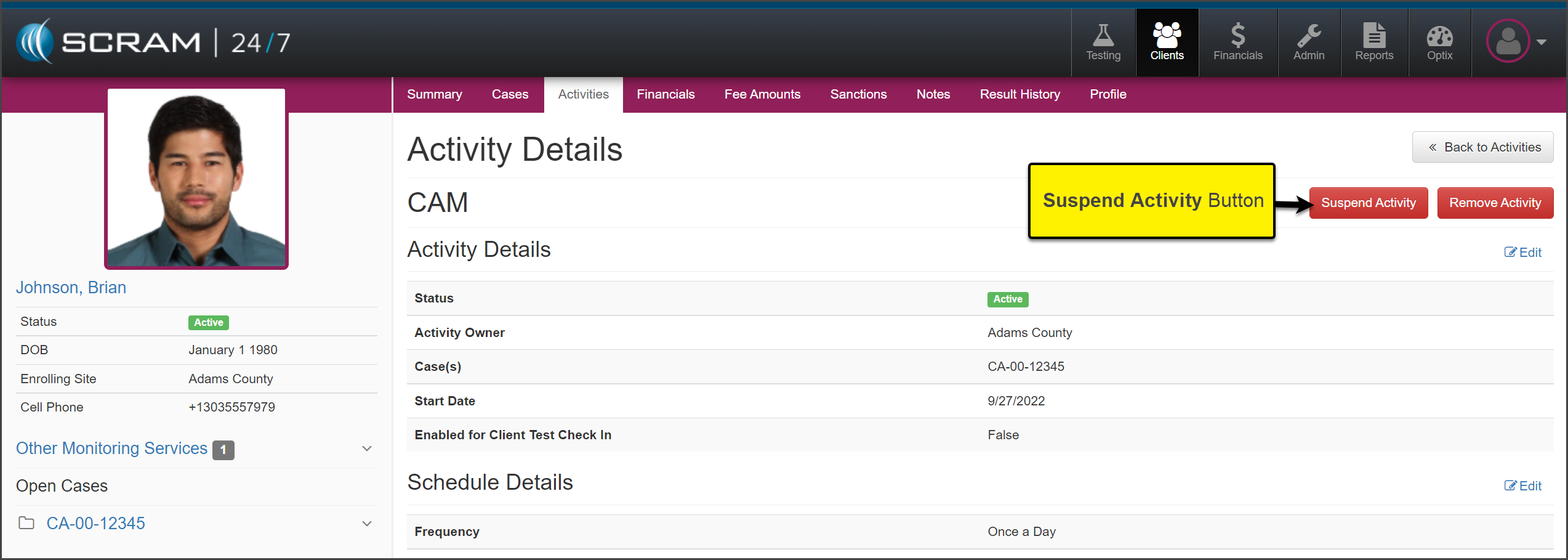
On
the Activity Details page, select the Suspend Activity button.
click to enlarge
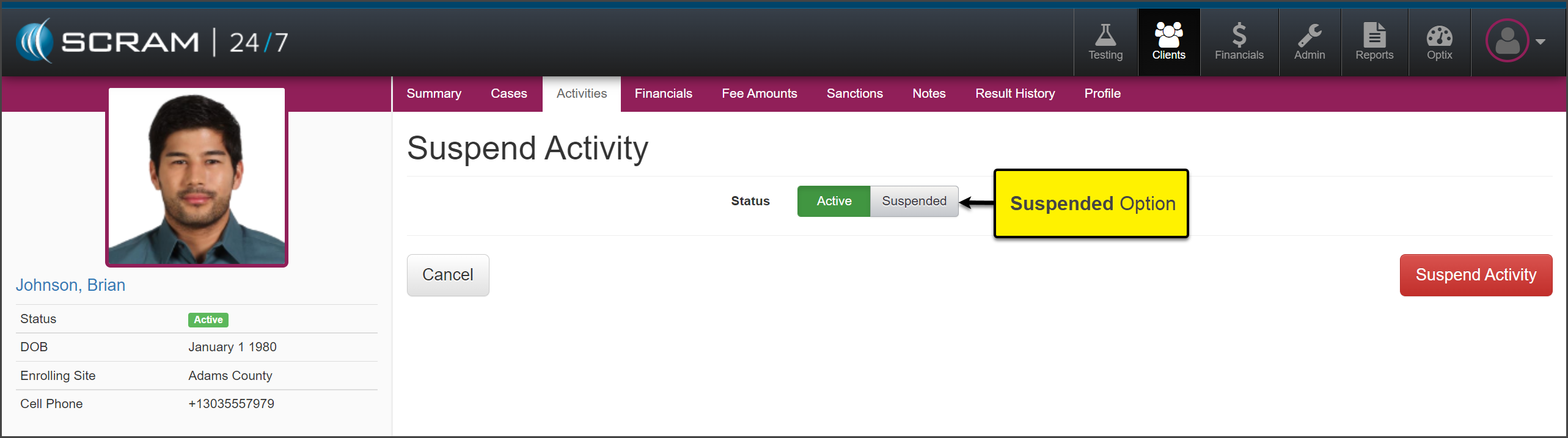
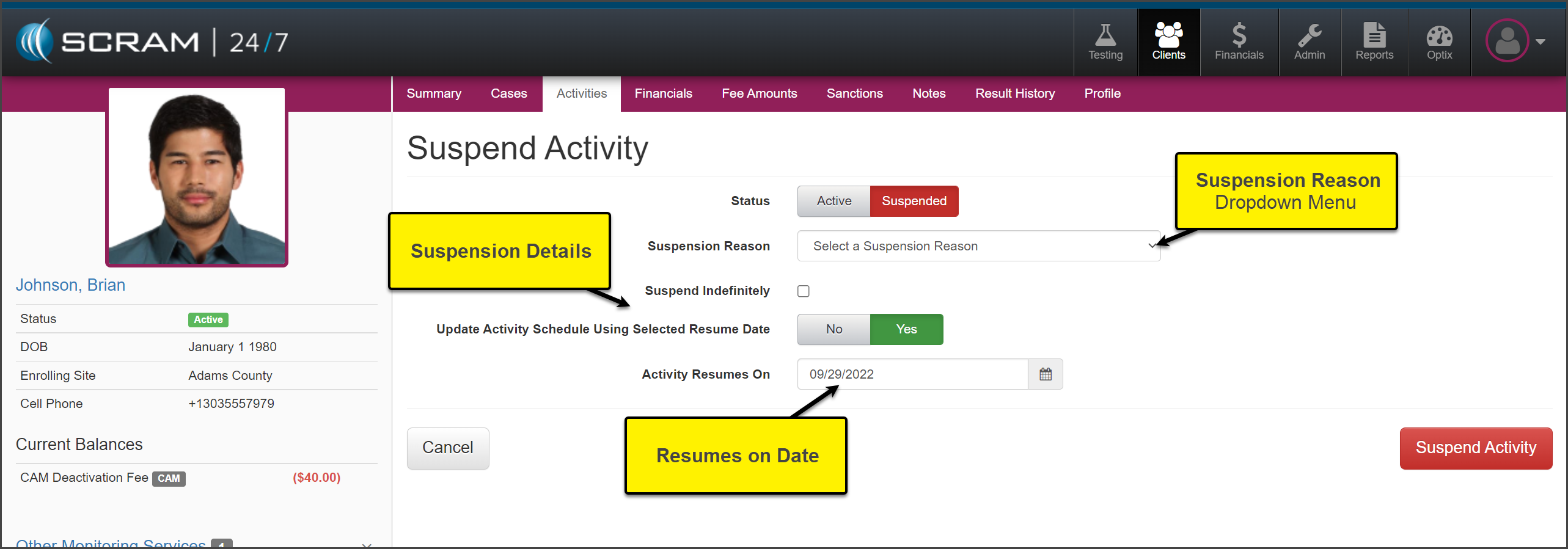
On
the Suspend Activity page, set the status to Suspended and select
the Suspend Activity button.
click to enlarge
Select
the Suspension Reason from the dropdown menu.
Select
the appropriate suspension details and verify the Activity Resumes On
date.
click to enlarge
Select
the Suspend Activity button.
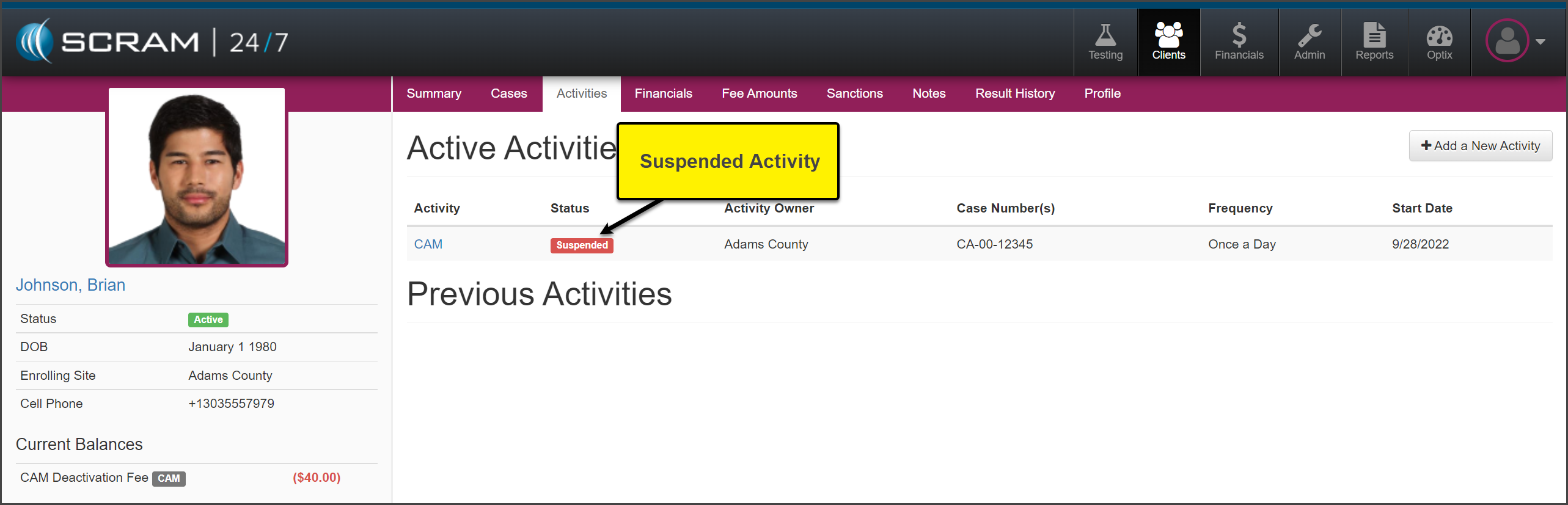
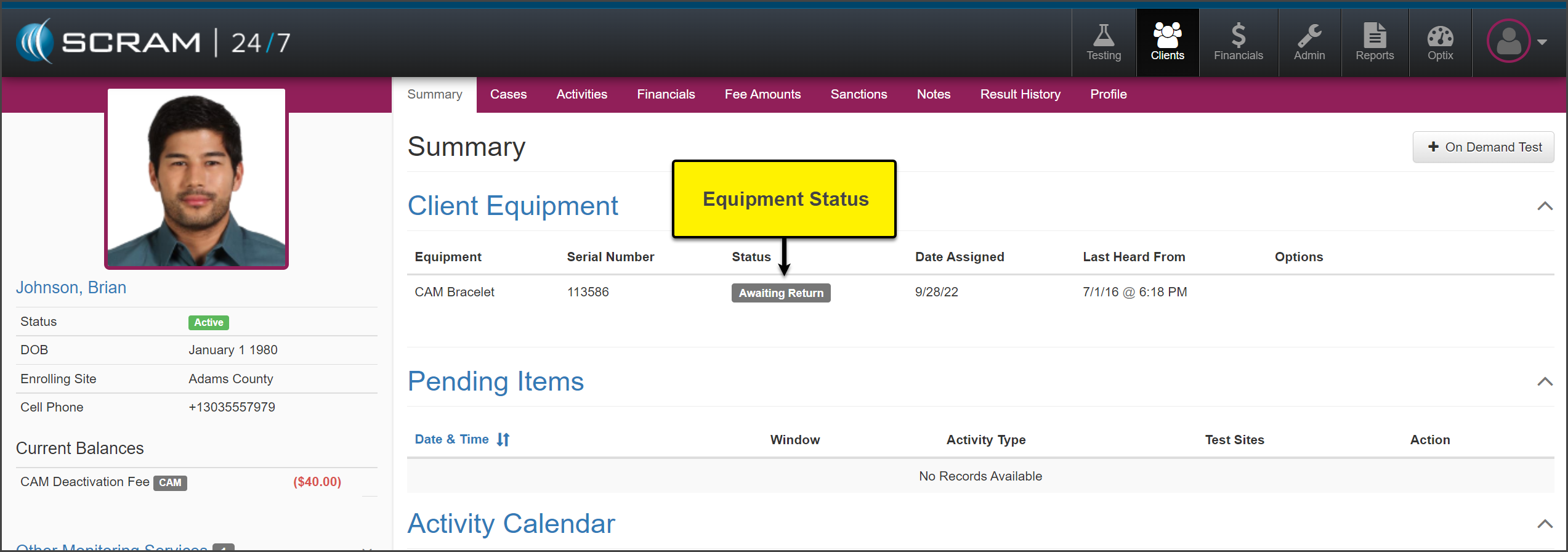
The activity will now
display as Suspended on the Activities page. On the Summary page, the equipment
is now in an “Awaiting Return” status. Check in the equipment following the
established process.
click to enlargeclick enlarge
When it is time to resume
the billing and monitoring of the client, you will assign the equipment within
SCRAM 24/7 to start the billing and monitoring.
On, October 5, 2022, SCRAM Systems® will release three enhancements to the Remote Breath Pro (RB Pro) device. These enhancements are designed to aid the client when completing a breath test.
After
the client provides a “Passed” breath test, the device will produce a
successful audible alert sound verifying the test is complete.
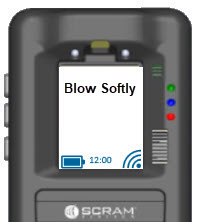
While
the client is actively providing a breath sample, if the client is blowing too hard
into the breath tube, “Blow Softly” will display on the screen. This visual
cue alerts the client to adjust the volume of airflow being provided.
click to enlarge
To
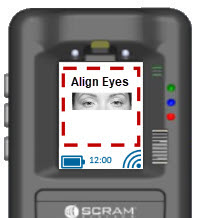
ensure accuracy, the visual prompt of “Align Face” will be updated to “Align
Eyes.”
click to enlarge
The
firmware download will be undetected by most clients as it will happen during
one of the device’s 30-minute SCRAMNET
check-in and synchronization intervals. If your client happens to be prompted
to take a breath test at the time of the firmware update, your client will see
verbiage on the screen that explains that firmware is being downloaded and
installed. The process should take 10-15 minutes and then your client may
resume as normal.
This morning, October 4, 2022, SCRAM Systems® deployed two enhancements for client management to the SCRAM Nexus® system. These enhancements provide the ability to:
Data Lock Client Notes
Add Alleged Probation Violation
Data Lock
If Data Lock settings are enabled, an Administrator will set the timeframe during which client notes may be edited in the system.
Access the Data Management Catalog (click to enlarge)
Once the set “Data Lock Delay” timeframe has expired, only an Administrator may edit client data as recorded by the original user.
Enable Data Lock and Set the Desired Delay Interval (click to enlarge)
Alleged Probation Violation
When requesting the appropriate response for client non-compliant behavior or a violation from the Court, the details may be recorded on the Alleged Probation Violation page. Select the AddAlleged Probation Violation hyperlink located on the On-Demand Actions section of the sidebar to get started.
On the Alleged Probation Violation page, enter in the violation details and your recommendation of an appropriate response to the client’s non-compliant behavior or violation.
Add an Alleged Probation Violation (click to enlarge)
Once the Hearing Date has passed, the Court’s response may be added.
Alleged Probation Violation on the Activity Calendar (click to enlarge)
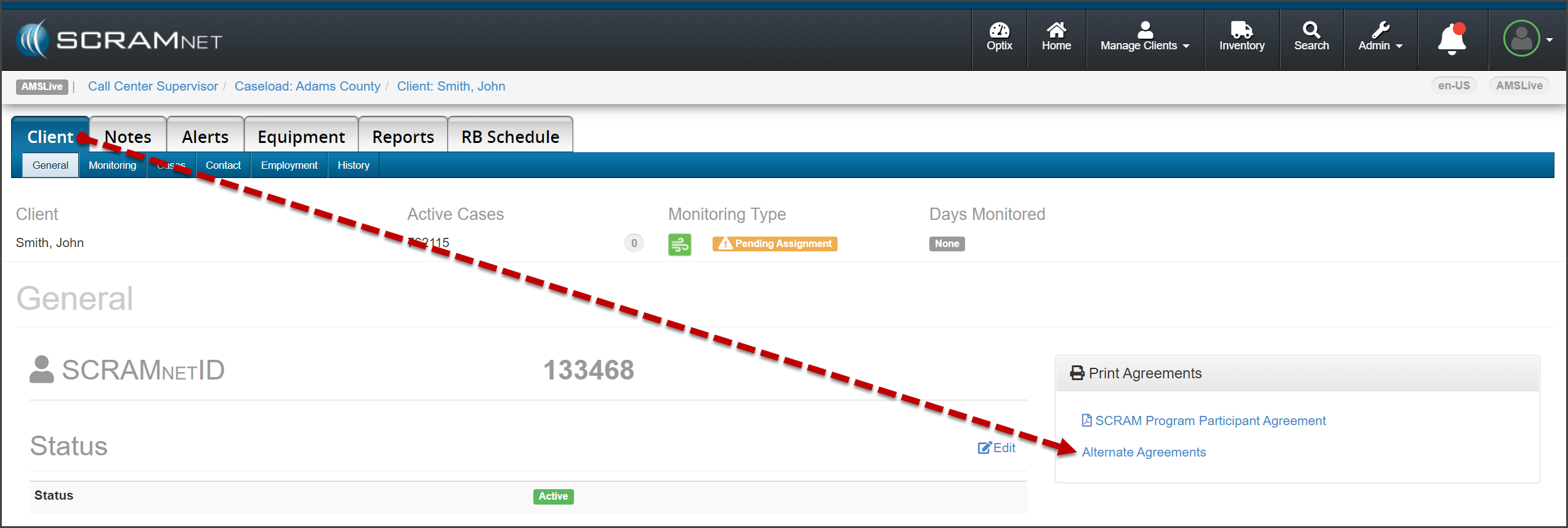
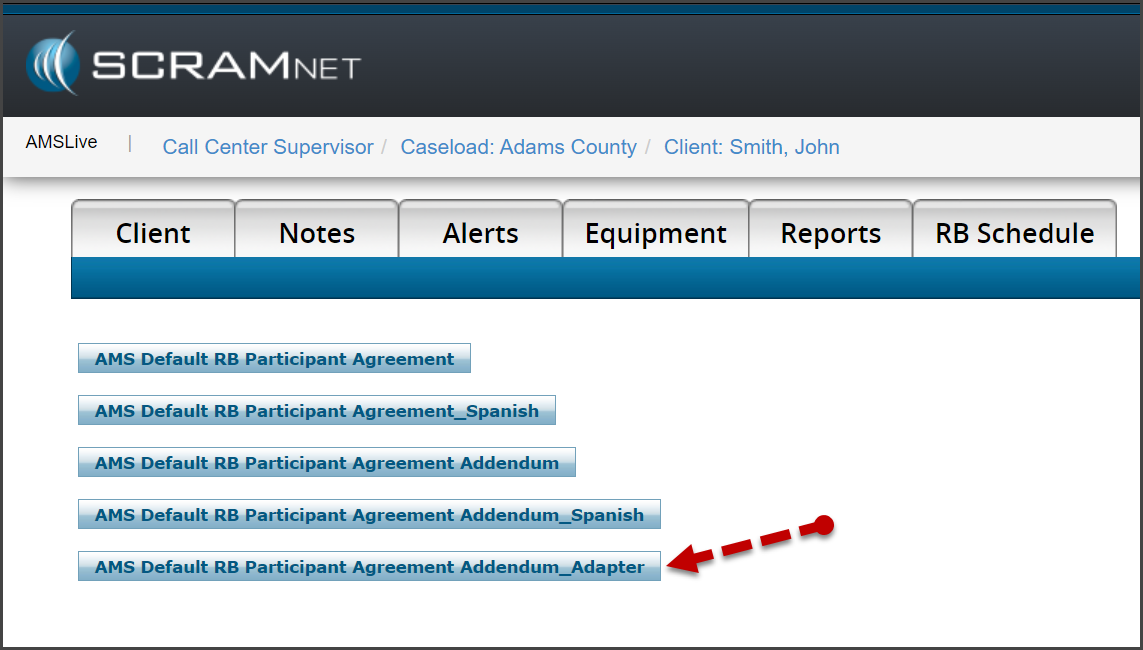
On, August 18, 2022, SCRAM Systems® will release a new SCRAM Remote Breath Participant Agreement Addendum – Adapter available on the Alternate Agreements page in SCRAMNET.
From the client’s page in SCRAMNET, access the SCRAM Remote Breath Participant Agreement Addendum – Adapter document whenever you assign a Remote Breath Adapter to the client for breath alcohol monitoring. This addendum to the SCRAM Remote Breath Participant Agreement contains specific adapter information, including the serial number and replacement cost.
On, August 18, 2022, SCRAM Systems® will release new inventory management features to SCRAMNET.
Enhancements made to the Inventory page in SCRAMNET include:
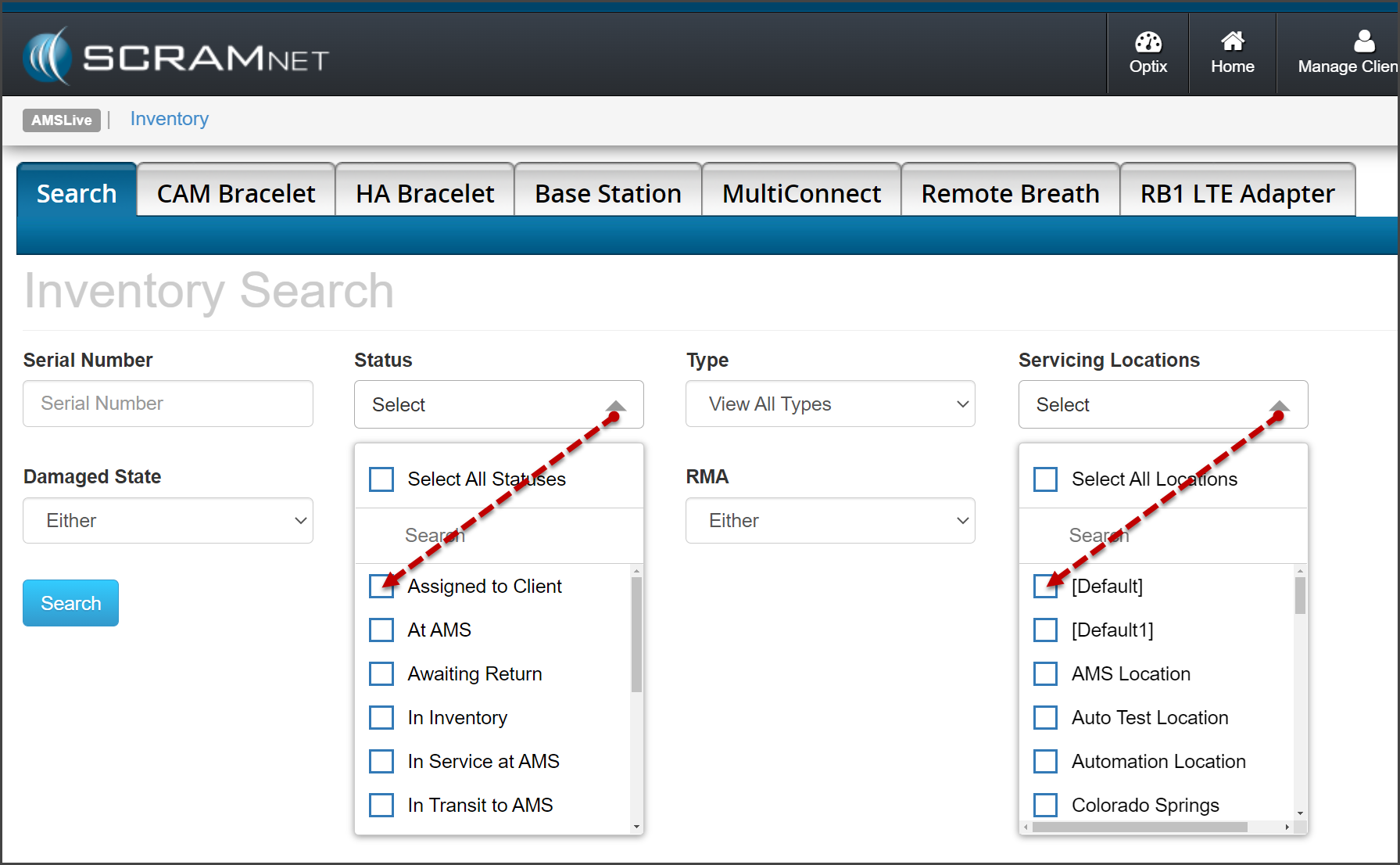
The Status, Servicing Locations,
and Region dropdown filters will allow you to select multiple options
when searching your inventory
You may update the Servicing Location for
equipment in a “Shipped from AMS” status to reflect the specific “branch
office” to which the equipment has been shipped
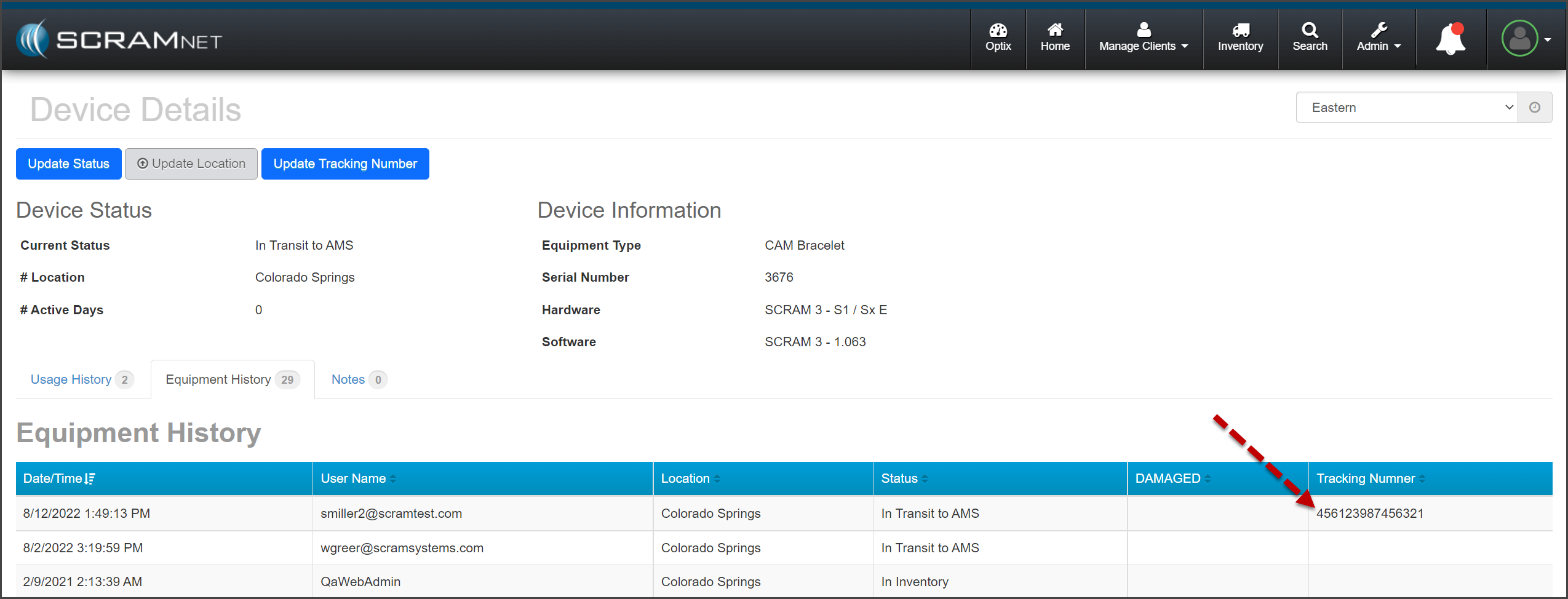
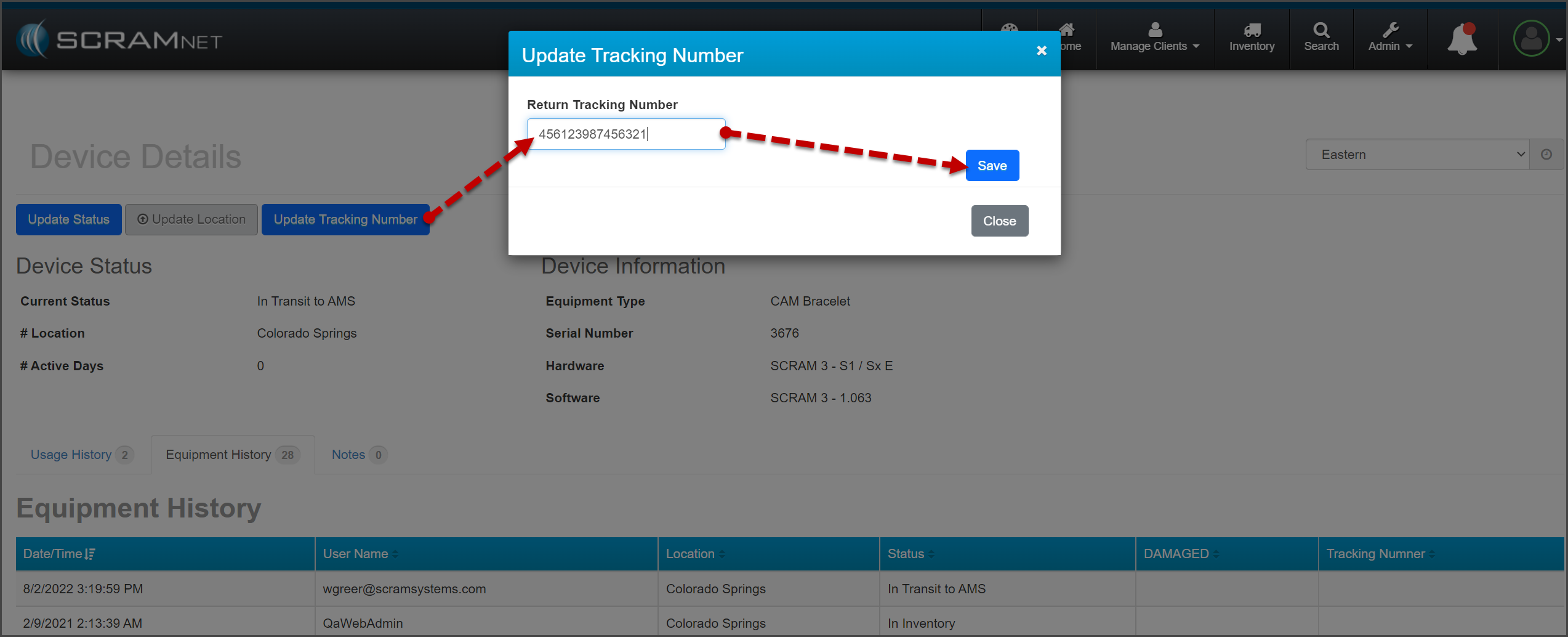
You may now record the FedEx tracking number in
SCRAMNET for “In Transit to AMS”
equipment
Multi Select Filters
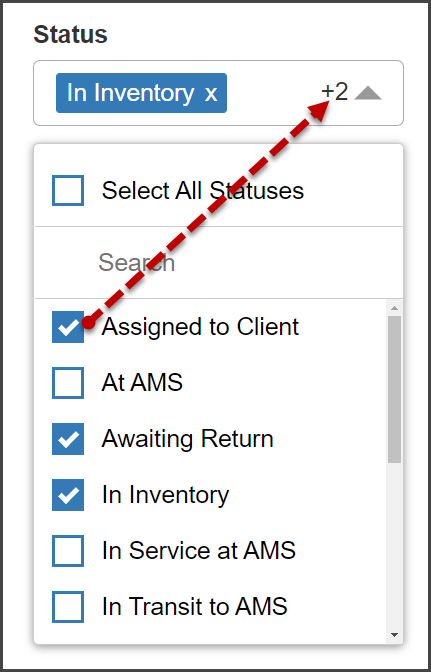
Starting on the Inventory page in SCRAMNET, open the dropdown filters and check the
checkboxes to select one or more filter options.
click to enlarge
After opening the dropdown
menu, the filter’s heading will display the first option selected, as well as
the total number of additional selections made. In this example, the option of “In Inventory” was selected first, and two
additional options were added.
click to enlarge
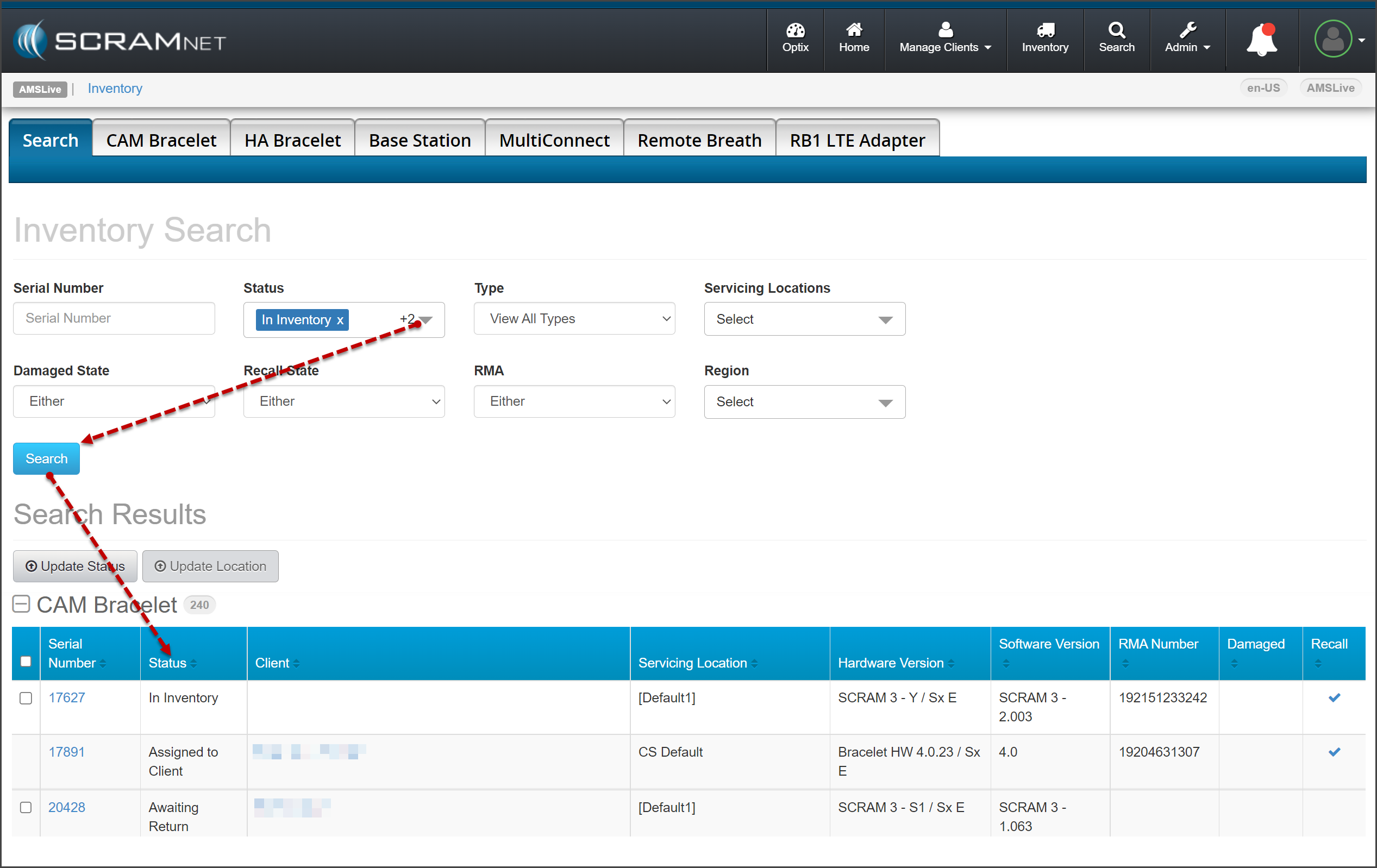
After choosing your
options, select the Search button.
click to enlarge
As a reminder, to make changes to multiple devices’ statuses or servicing locations, the selected devices must be in the identical status and location.
Update
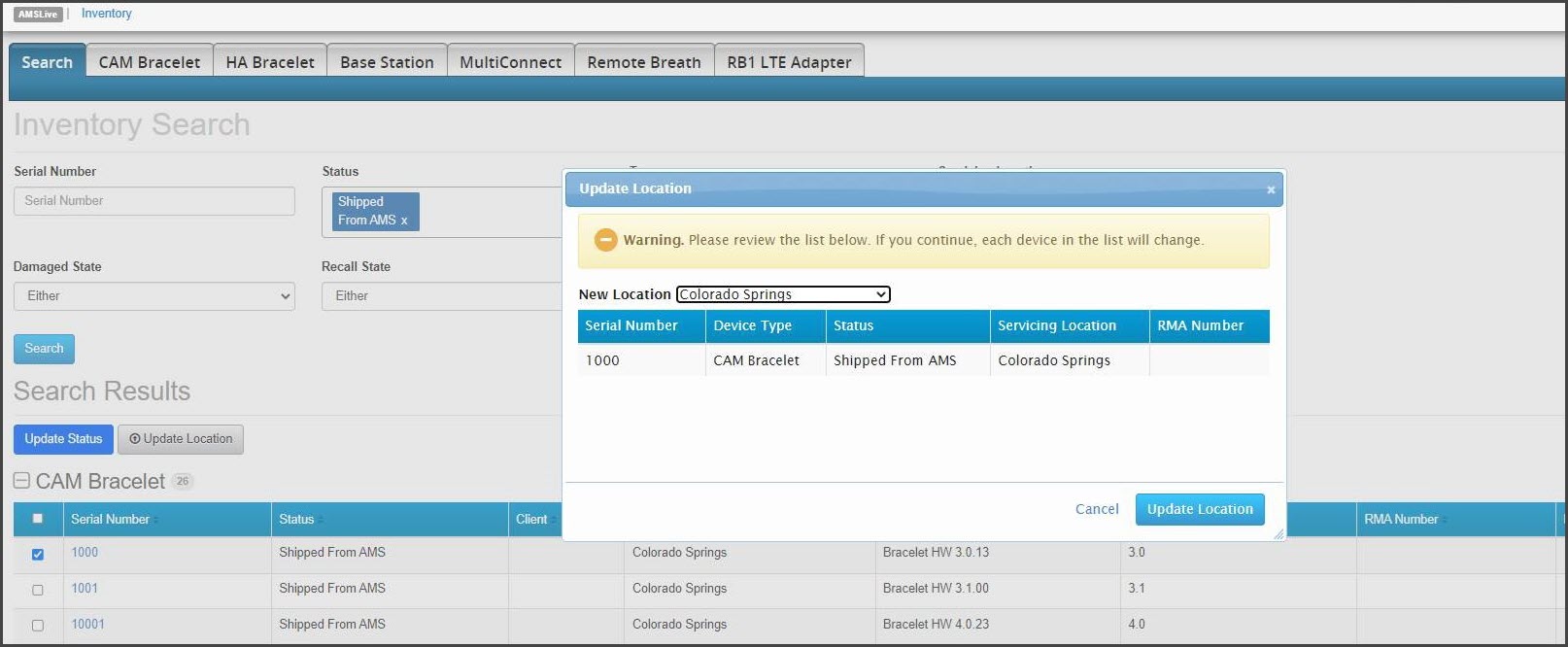
Servicing Location for “Shipped from AMS” Devices
In some scenarios, SCRAM Systems ships equipment directly to
our Service Providers’ separate inventory locations. With this update, the
inventory managers for these Service Providers may update the Servicing
Locations while the equipment is in a “Shipped from AMS” status. Once the
equipment is delivered to the location, the inventory manager for that
Servicing Location may update the equipment to an “In Inventory” status.
click to enlarge
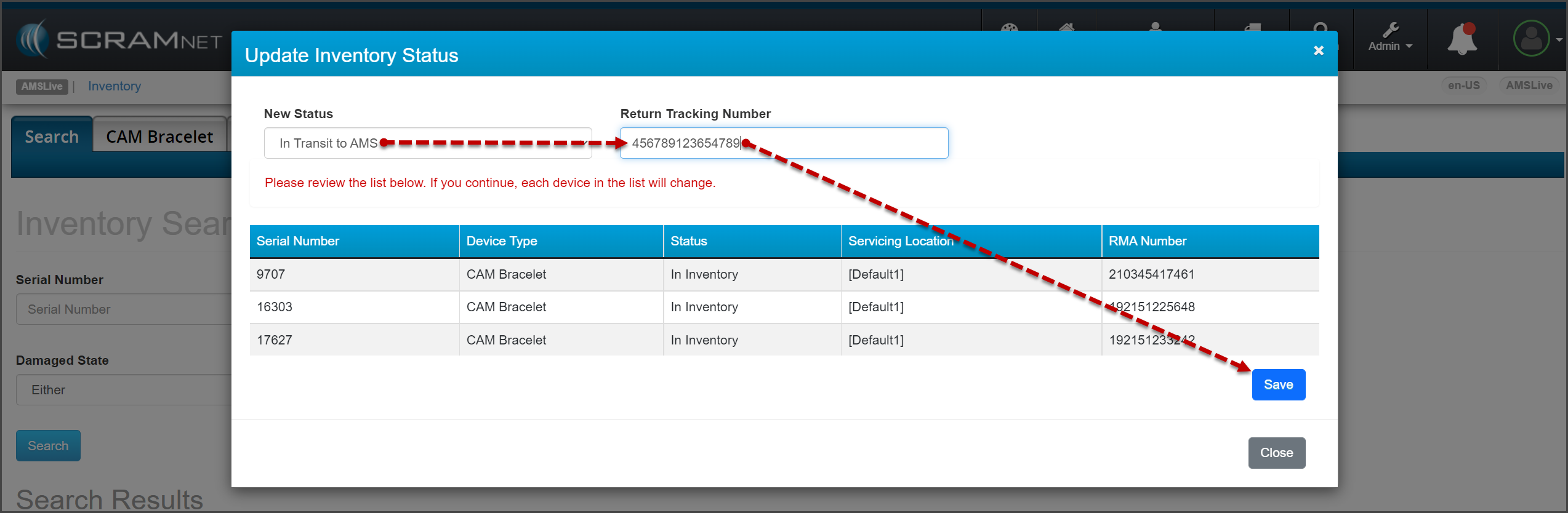
Add FedEx Tracking Numbers
When returning equipment to SCRAM Systems, after selecting
the status of “In Transit to AMS” on the Update Inventory Status
pop-up, you may add FedEx tracking information.
click to enlarge
Once you select the Save button on the pop-up, the tracking
information is recorded on the Device Details page for each device.
click to enlarge
If you do not have the tracking information at the time the status is updated to “In Transit to AMS,” or the information needs to be edited, you may update the tracking number on the Device Details page for the device instead.
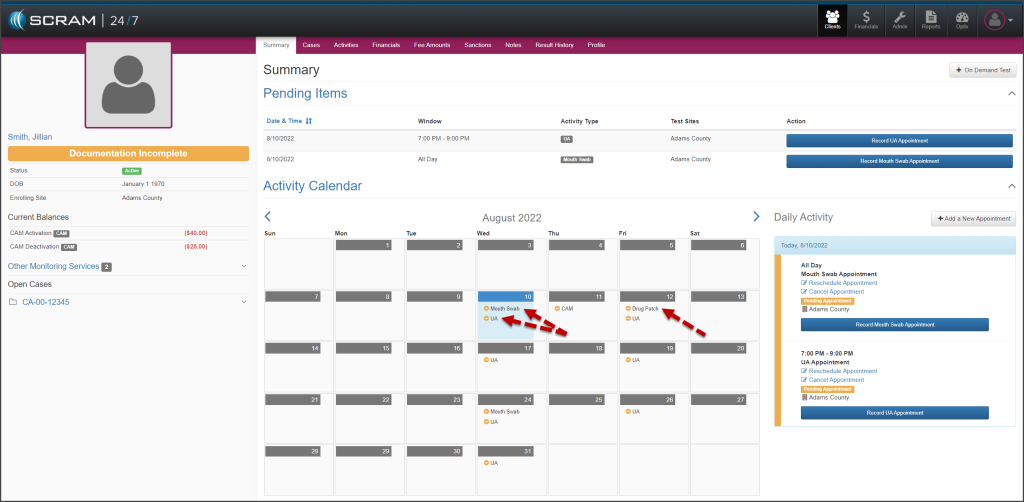
Effective, August 11, 2022, your SCRAM 24/7 clients who
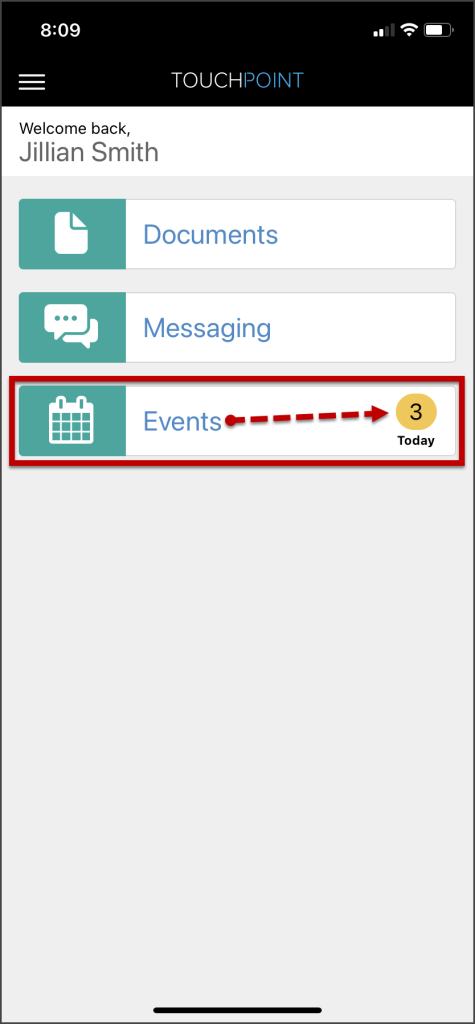
are active with the TouchPoint Activity will be able to view an Events
calendar on their TouchPoint mobile application. The events listed on the
calendar coincide with appointments associated to active Activities in SCRAM 24/7.
This provides the client visibility into future appointments, which enables
them to make plans to attend the appointments accordingly; thereby increasing
client attendance and success on their monitoring program.
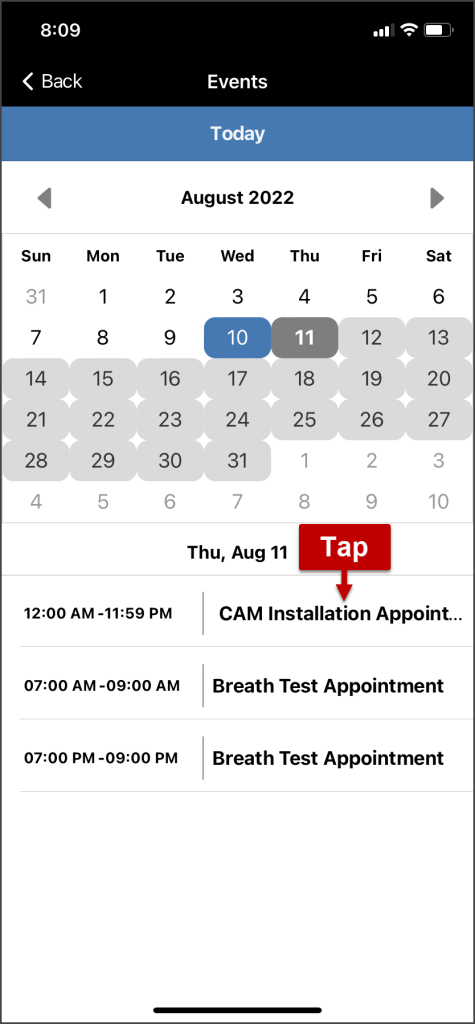
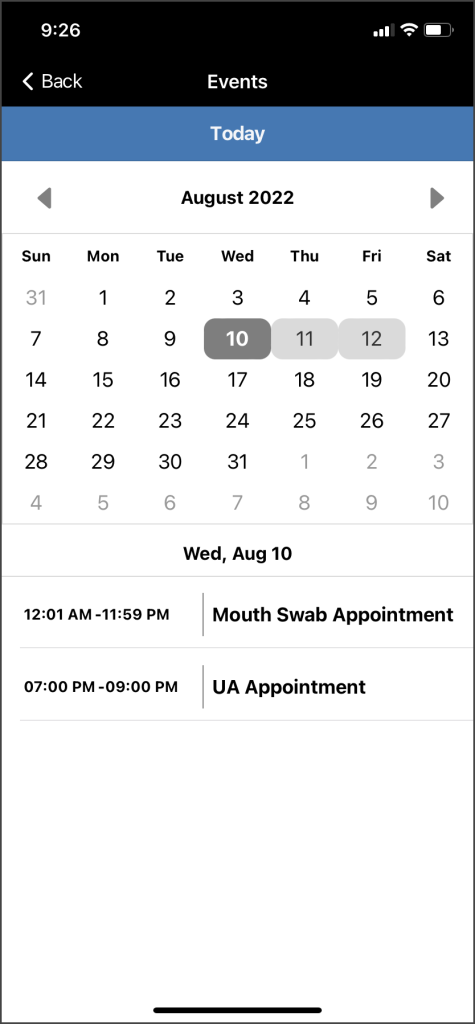
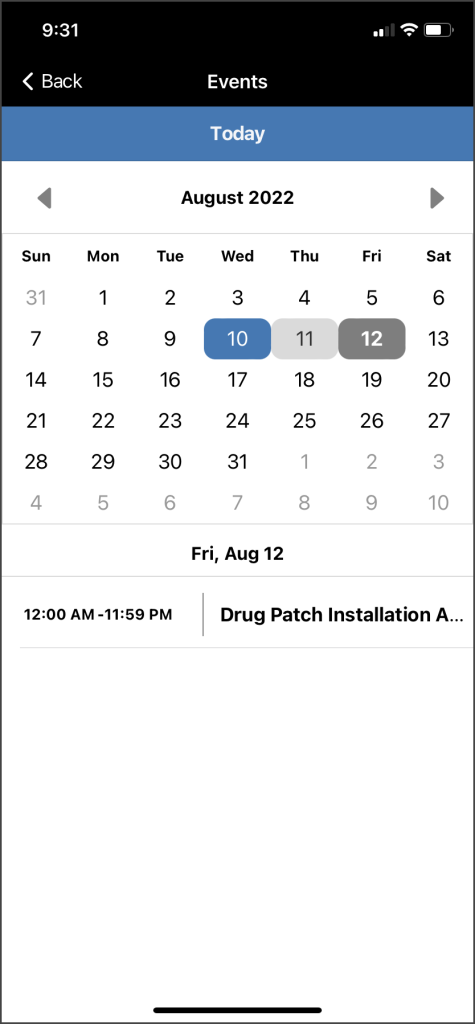
Once the client is active for the TouchPoint Activity and the mobile application has been downloaded to the client’s smartphone, an Events tile will be displayed on the TouchPoint app’s home screen. The Events tile will indicate the number of events for the current day.
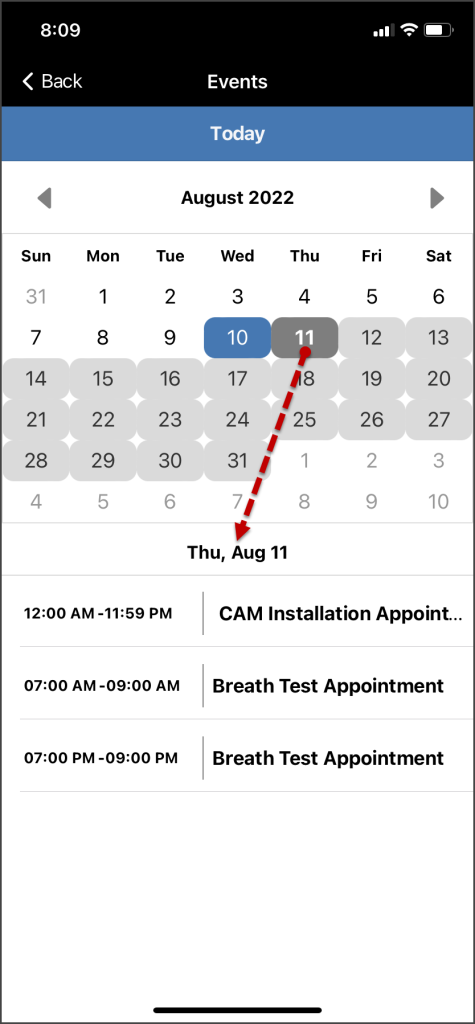
Tapping on the tile will open the calendar view. On the
calendar view screen, dates with an event are identified with a colored
background. Below the calendar, the details of the event are listed.
Light Gray – Dates with events
Dark Gray – Selected date
Blue – The current calendar date when not
selected
click to enlarge
click to enlarge
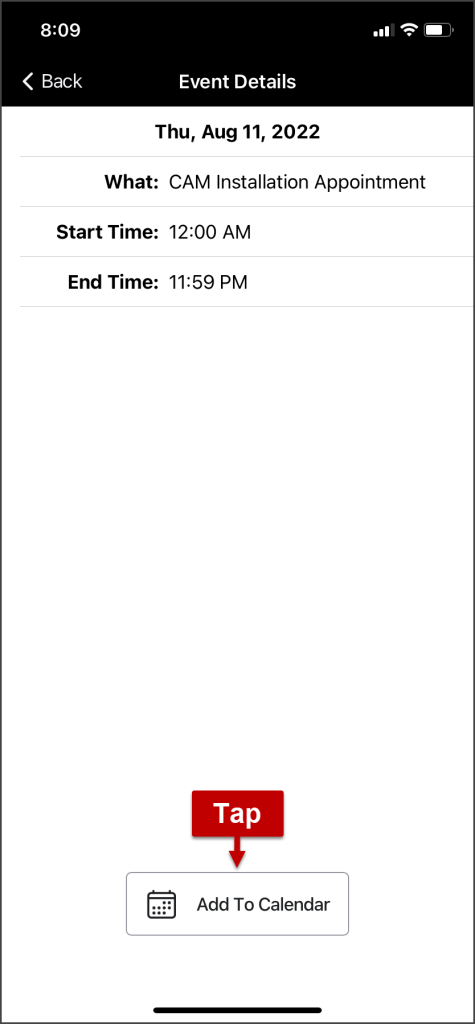
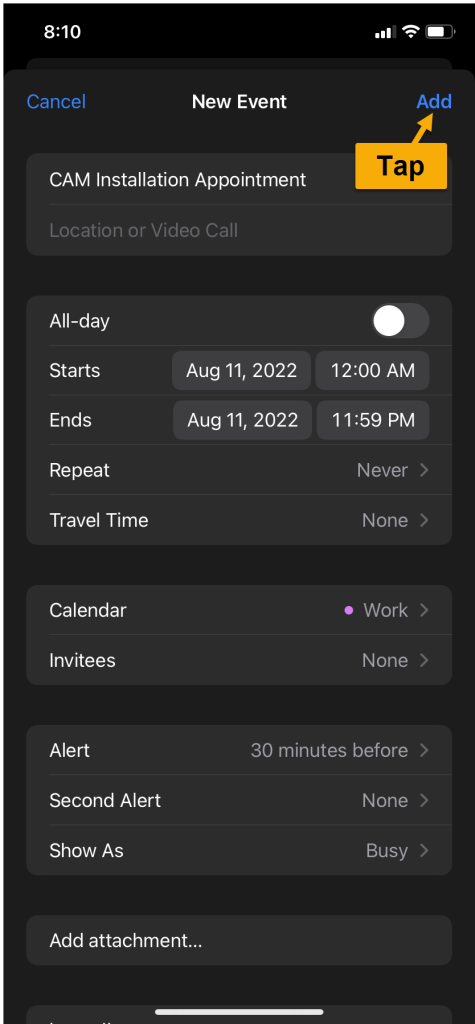
The new Events feature also allows a client to export an
event to their personal calendar on their smartphone. To accomplish this, the client
will tap the event and open the Event Details screen. Next, they will locate
and tap the Add to Calendar button. The client is then able to add the
event to their personal calendar by following their smartphone’s normal
process.
click to enlarge
click to enlarge
click to enlarge
Important Notes
Anytime there is an update made to an appointment or activity in SCRAM 24/7, the Events calendar is automatically updated.
Appointments updated in SCRAM 24/7 (and thus in the TouchPoint Events calendar), it will not automatically update on the client’s personal smartphone calendar.
A “random” test window is displayed on the Events calendar two (2) hours prior to the start of the random test window for that day.
Drug Patch, UA, and Mouth Swab appointments display a single calendar instance at a time.
On July 21, 2022, SCRAM Systems® will deploy a Document Management enhancement for clients within the SCRAM Nexus® system.
With this release, a user can access the Documents tab on the client’s profile and upload documents to the systems.
Document Capture (click to enlarge)
For clients who are utilizing SCRAM TouchPoint Mobile application as a part of their program, a user can share documents to the app from within SCRAM Nexus. (Document Management activation required). Once the document has been shared and viewed by the client, the Status column will display as “Viewed” next to the document name.
In addition, a client is able to share documents from their app to SCRAM Nexus.
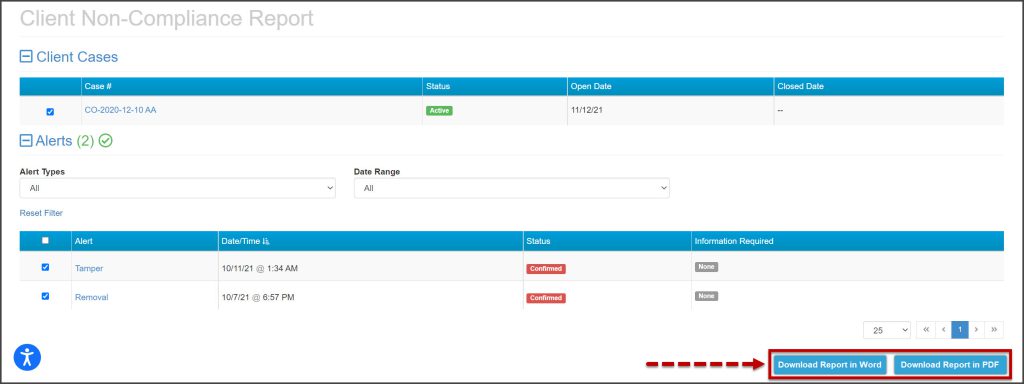
Effective July 14, 2022, SCRAM Systems® will release a printing enhancement for client non-compliance reporting within SCRAMNET. The report will now be available to print in either (Adobe) PDF or (MS Word) DOCX format.