Today July 21, 2021, SCRAM Systems will be releasing a new
enhancement to your client’s Financials page in SCRAM 24/7.
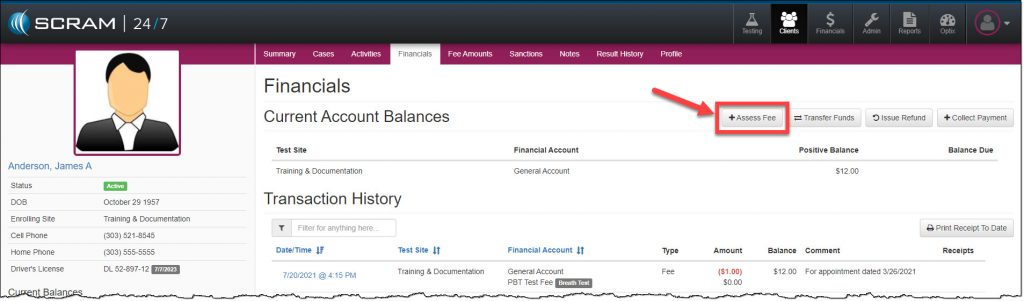
On the client’s Financials page, a new feature allows you to assess multiple fees to the client with one action.
To get started, click the +Assess Fee button.
click to enlarge
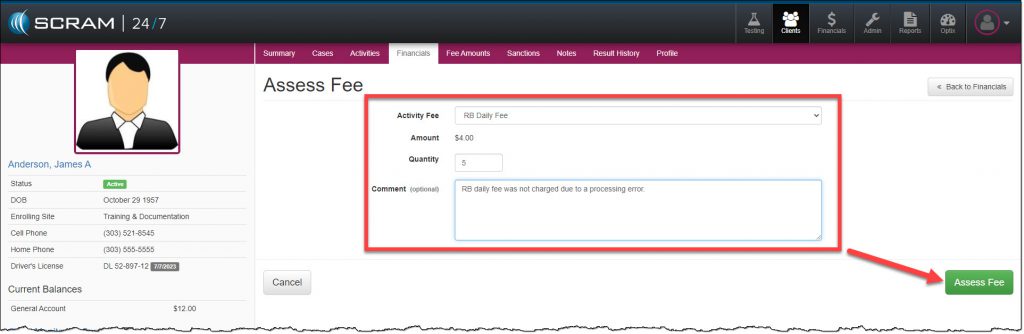
On the Assess Fee page:
Select the Activity Fee to be applied to the client from the drop-down menu. Once the Activity Fee is selected, the Amount field will display the dollar amount associated to that fee.
Enter in the Quantity. Enter the quantity of 1-999.
Add a Comment. As a best practice, always record the reason for adding a fee to a client.
Click the Assess Fee button to save the information.
click to enlarge
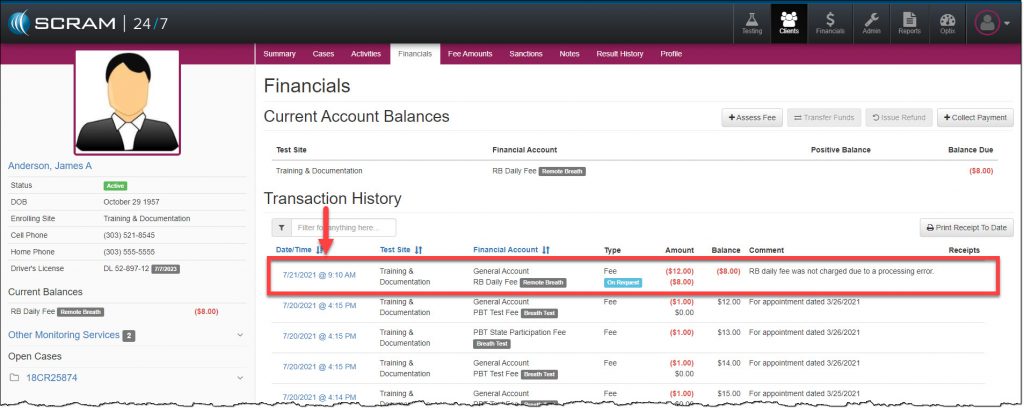
The assessed fee is now displayed under the client’s Transaction History section as an On Request fee.
As of today, June 11, 2021, the SCRAM CAM Level 1 training course has been updated to the new SCRAM CAM Caseload Fundamentals course.
The SCRAM CAM Caseload Fundamentals course prepares an agent to manage a caseload of clients on an alcohol monitoring program from induction to discharge. The training program consists of six topic-based modules. Each module includes hands-on software simulations, detailed step-by-step instructions, and some video demonstrations.
The module topics included
are:
SCRAM CAM Bracelet and Base Station Technology Overview
SCRAMNET Navigation Overview
SCRAM CAM Client Setup and Equipment Assignment
SCRAM Equipment Maintenance
SCRAM Critical Alert Management
SCRAM CAM Equipment Removal and Stop Monitoring
The course includes a certification exam so successful learners who pass with a score of 80% or better will be considered certified in SCRAM CAM Caseload Fundamentals.
Learning Objectives
By the end of this e-learning program, the
successful learner will be able to:
Navigate the SCRAM Optix and SCRAMNET monitoring systems
Add a SCRAM CAM client to the system for
alcohol monitoring and install the SCRAM CAM bracelet
Perform the duties required to effectively
manage and maintain a SCRAM CAM client caseload
Discharge a client from the SCRAM CAM
monitoring program and check-in the client’s monitoring equipment
How to Enroll
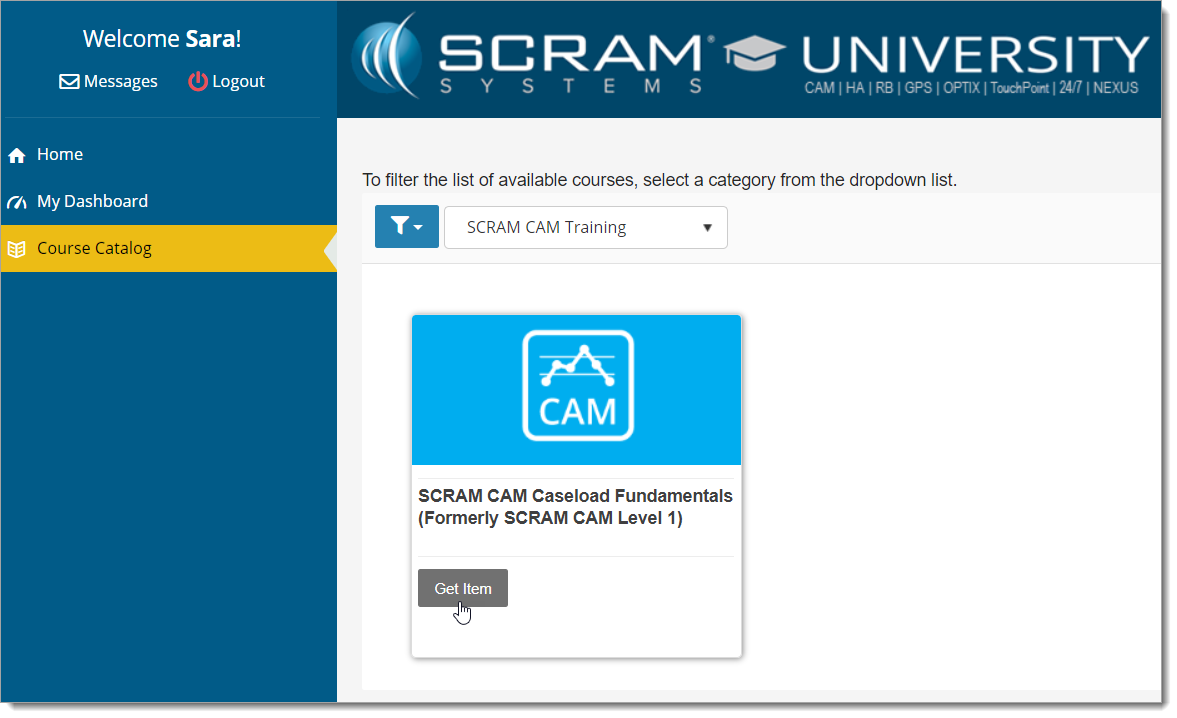
To enroll in this new course, please log into the SCRAM Systems University and select the Get Item button for the SCRAM CAM Caseload Fundamentals course in the Course Catalog.
click to enlarge
If you do not yet have an account, access the loginpage and click the Register Now! link. Use your organization’s unique registration key to fill out the registration form to request access to the site. Once your request for access is approved, you will receive an email with all the information you need to access the course catalog and enroll in our course offerings.
If a registration key has not been provided to you, or if you need help with the site, please email us at training@scramsystems.com.
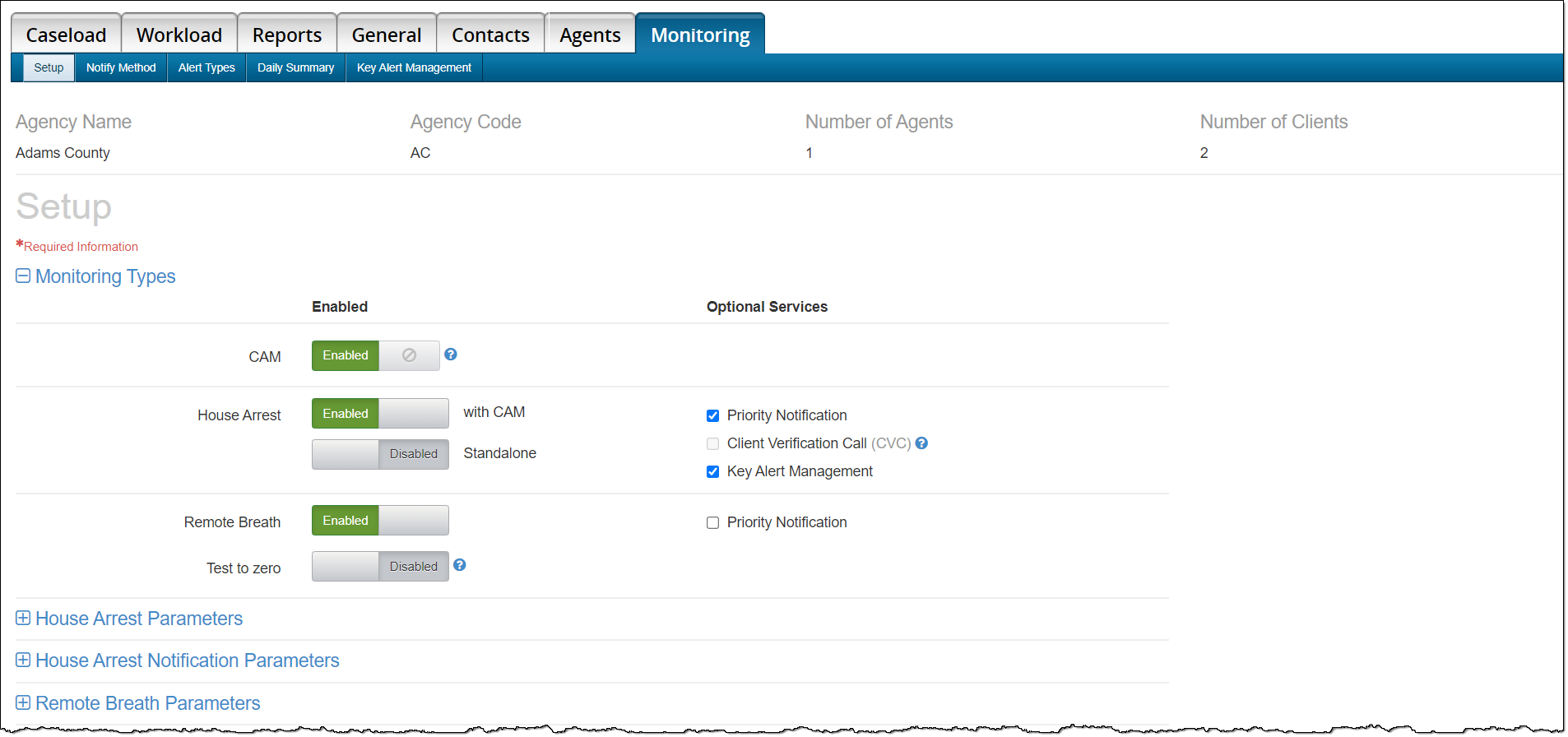
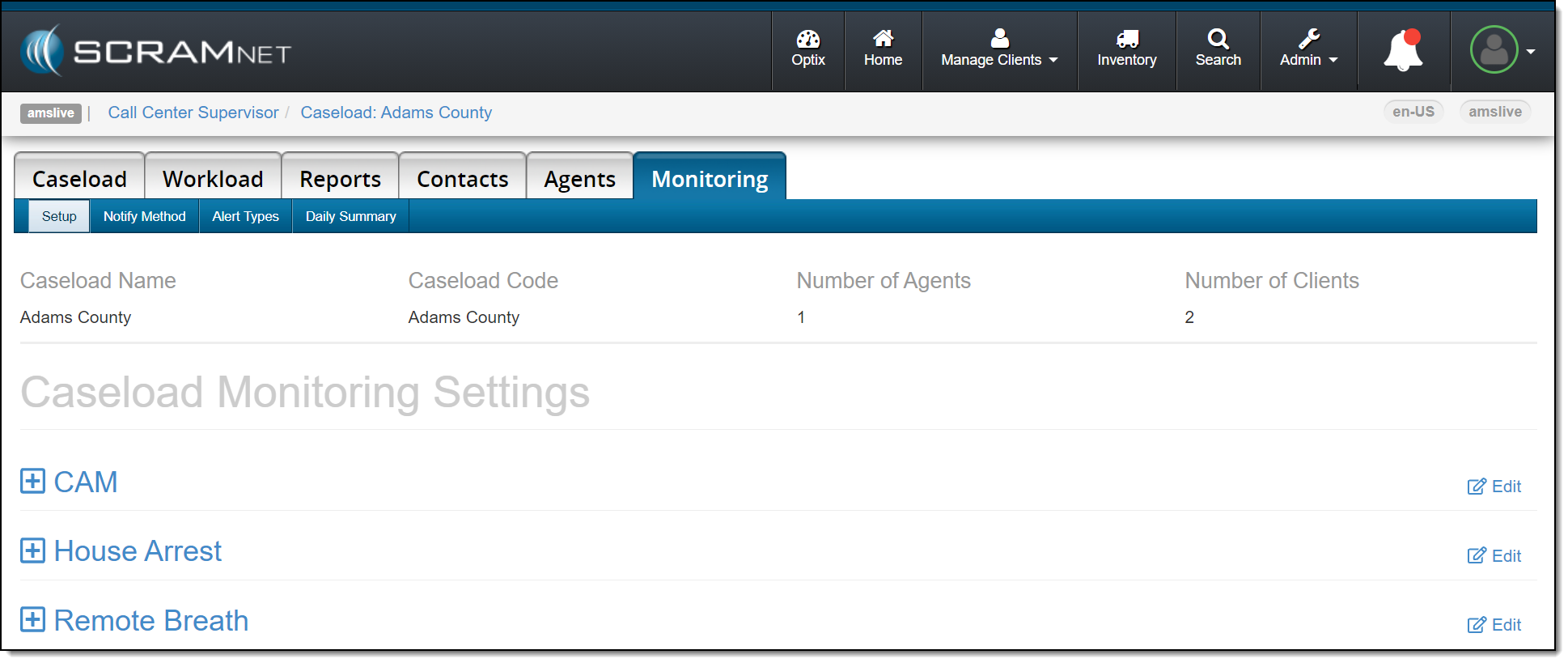
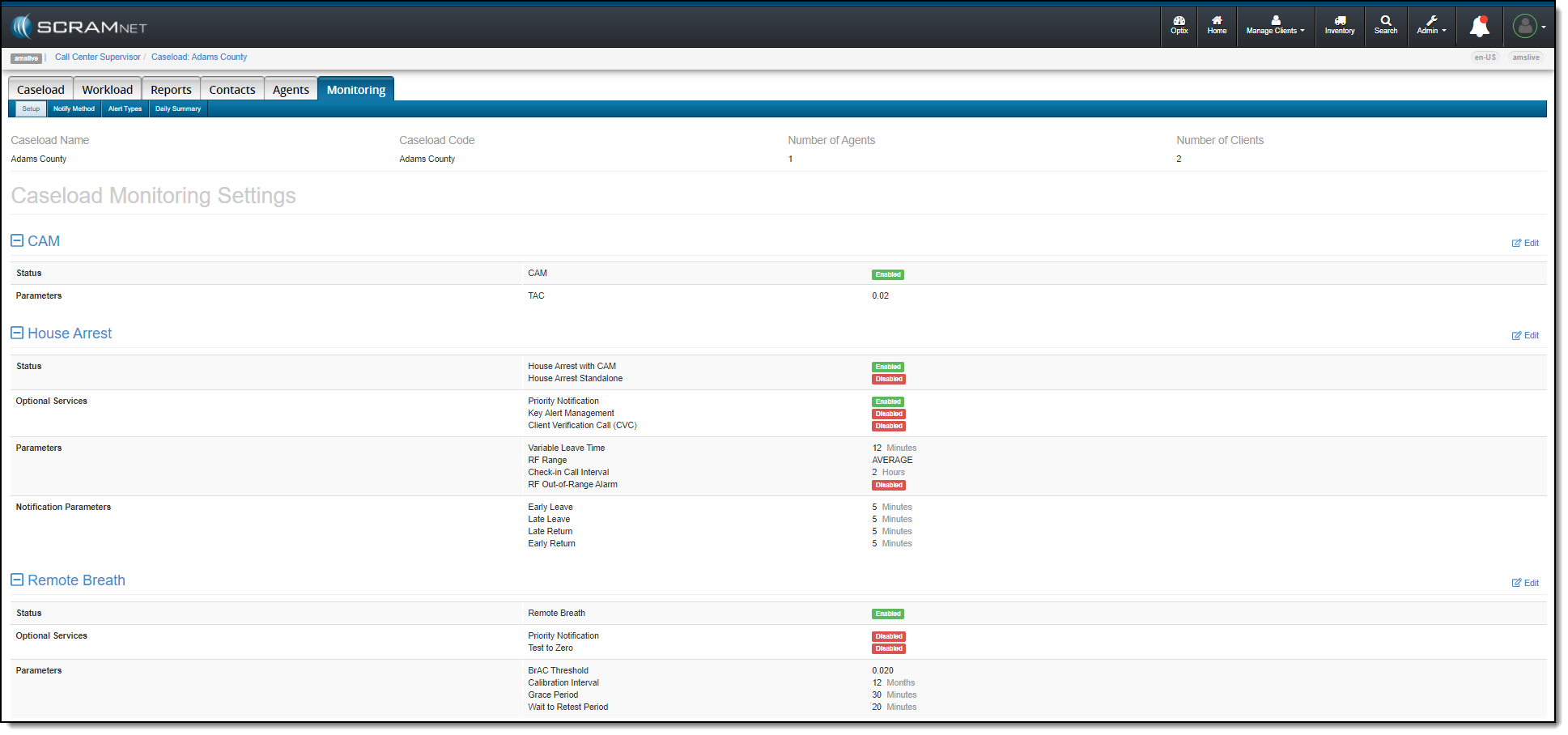
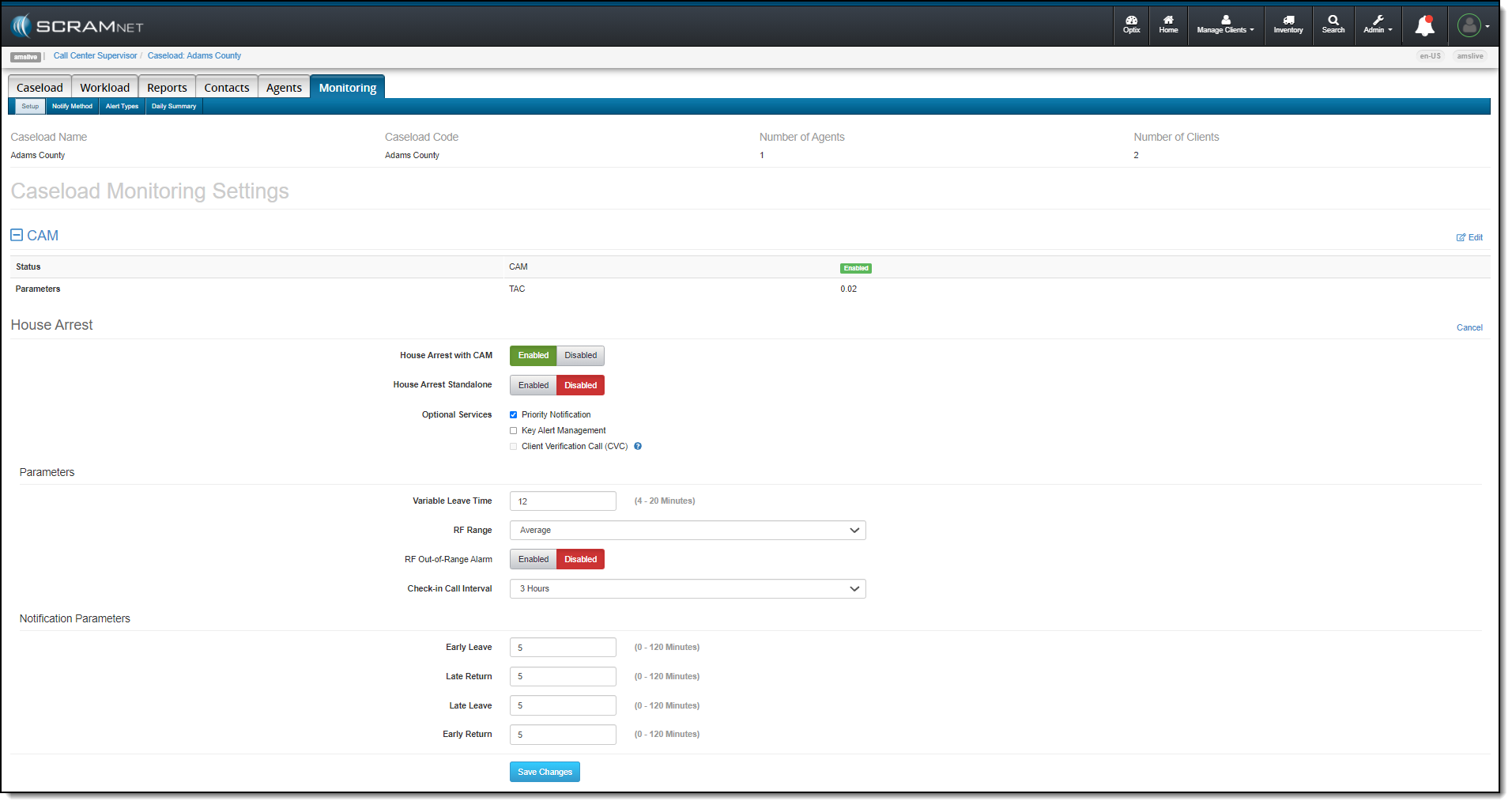
On June 10, 2021, SCRAM Systems® will be releasing an enhancement to the Monitoring tab on your Caseload page in SCRAMNET®. This enhancement updates how the monitoring types, optional services, and notification parameters selected for the caseload are displayed on the page. The functionality remains the same, the specific services and parameters are now grouped with the corresponding monitoring technology.
Current Page Layout
click to enlarge
New Page Layout
click to enlarge
View and Update the Monitoring Settings
To view the current setting
for a section, click the plus symbol next to the desired monitoring technology
to expand the section.
click to enlarge
Select the Edit hyperlink
to make any changes to the current settings. Once all changes have been made,
click the Save Changes button.
click to enlarge
Feedback
Please contact SCRAM Systems Customer Service with any recommendations for system improvements.
Today June 2, 2021, SCRAM Systems will be releasing a new
enhancement to your client’s Financials page in SCRAM 24/7.
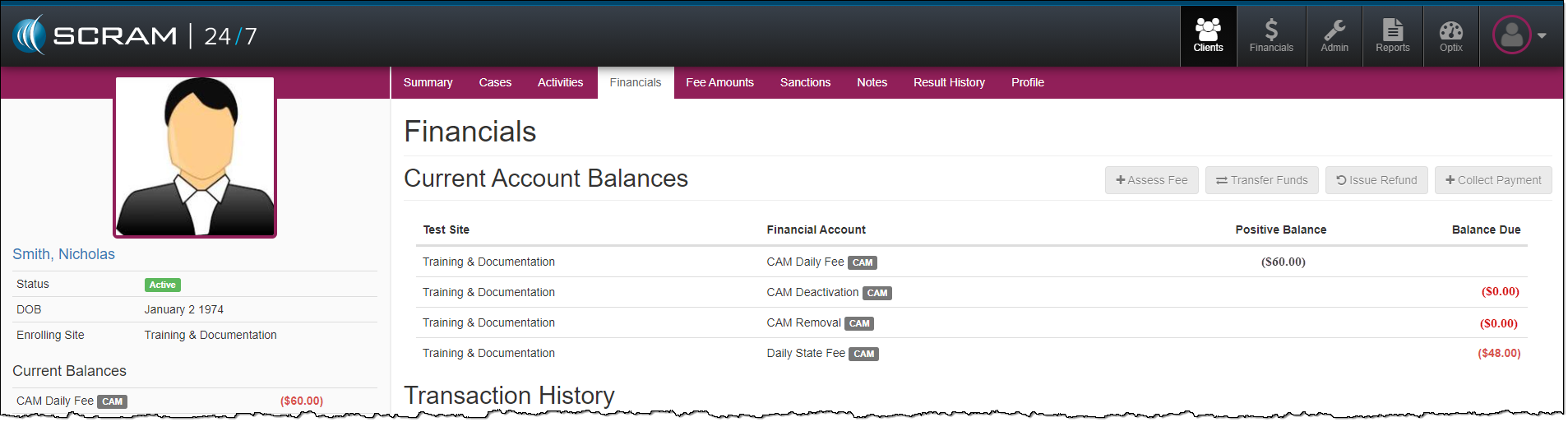
On the client’s Financials page, the Current Account
Balances section provides a balance snapshot of the program fees recorded for
the client. This includes fees with a positive, zero, or a balance due.
click to enlarge
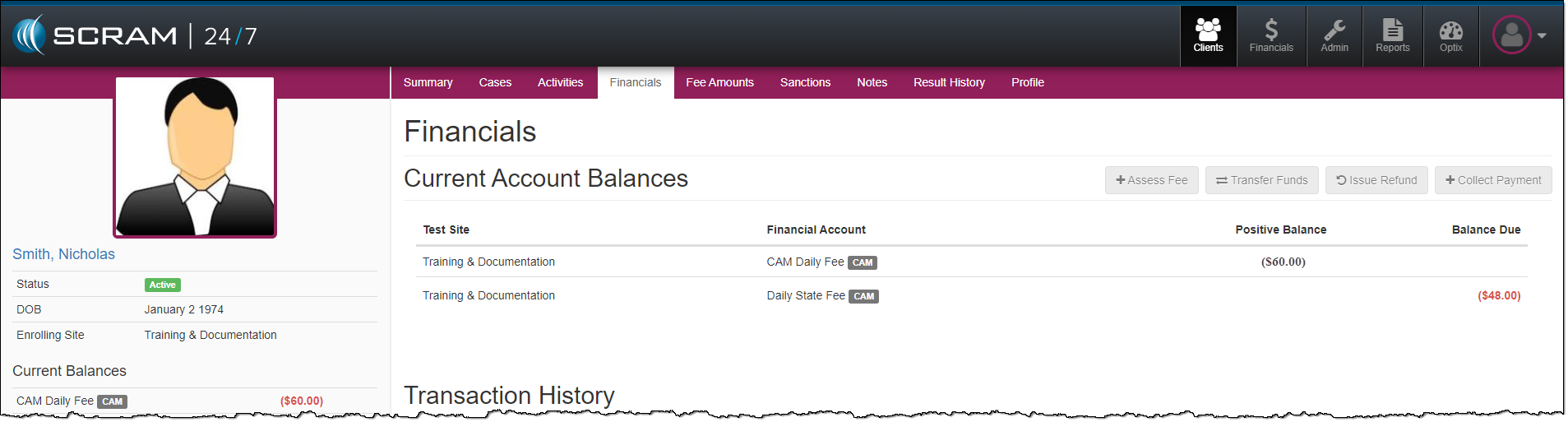
Moving forward, once a fee has a zero balance, the fee
line item will drop from the Current Account Balances section.
click to enlarge
If the balance for the fee changes due to a new balance due or credit applied to that fee item, the fee item will once again be displayed in the Current Account Balances section.
Feedback
Please contact SCRAM Systems Customer Service with any
recommendations for system improvements.
On April 29, 2021, SCRAMNET
will display the text number and instructions a client can use to opt back into
SCRAM Remote Breath Courtesy Reminders.
To view the opt-in text number and instructions in SCRAMNET,
Navigate to the client’s RB Schedule
page.
Hover your mouse over the Invalid Phone
number notification box.
Provide the client with the information provided
in the hover text box.
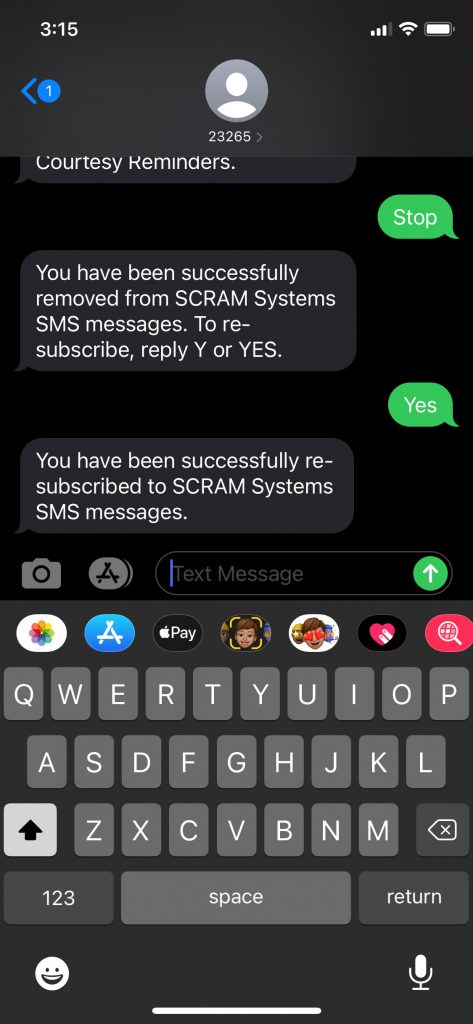
The client will need to text 23265 with a “Y” or “YES” to get opted back in for Courtesy Reminders.
click to enlarge
If the client has access to the text message from which they opted out of Courtesy Reminders by texting STOP, they can reply Y or YES to the same text message to be opted back in.
click to enlarge
Feedback
Please contact SCRAM Systems Customer Service with any recommendations for system improvements.
On April 1, 2021, SCRAM Systems® will simplify your SCRAM TouchPoint™ client’s first experience when logging
into the SCRAM TouchPoint Mobile app. Moving forward, all your new TouchPoint
clients will use the same temporary password. The temporary password of Touchpoint1!
is visible on their TouchPoint client profile page in SCRAMNET OPTIX™.
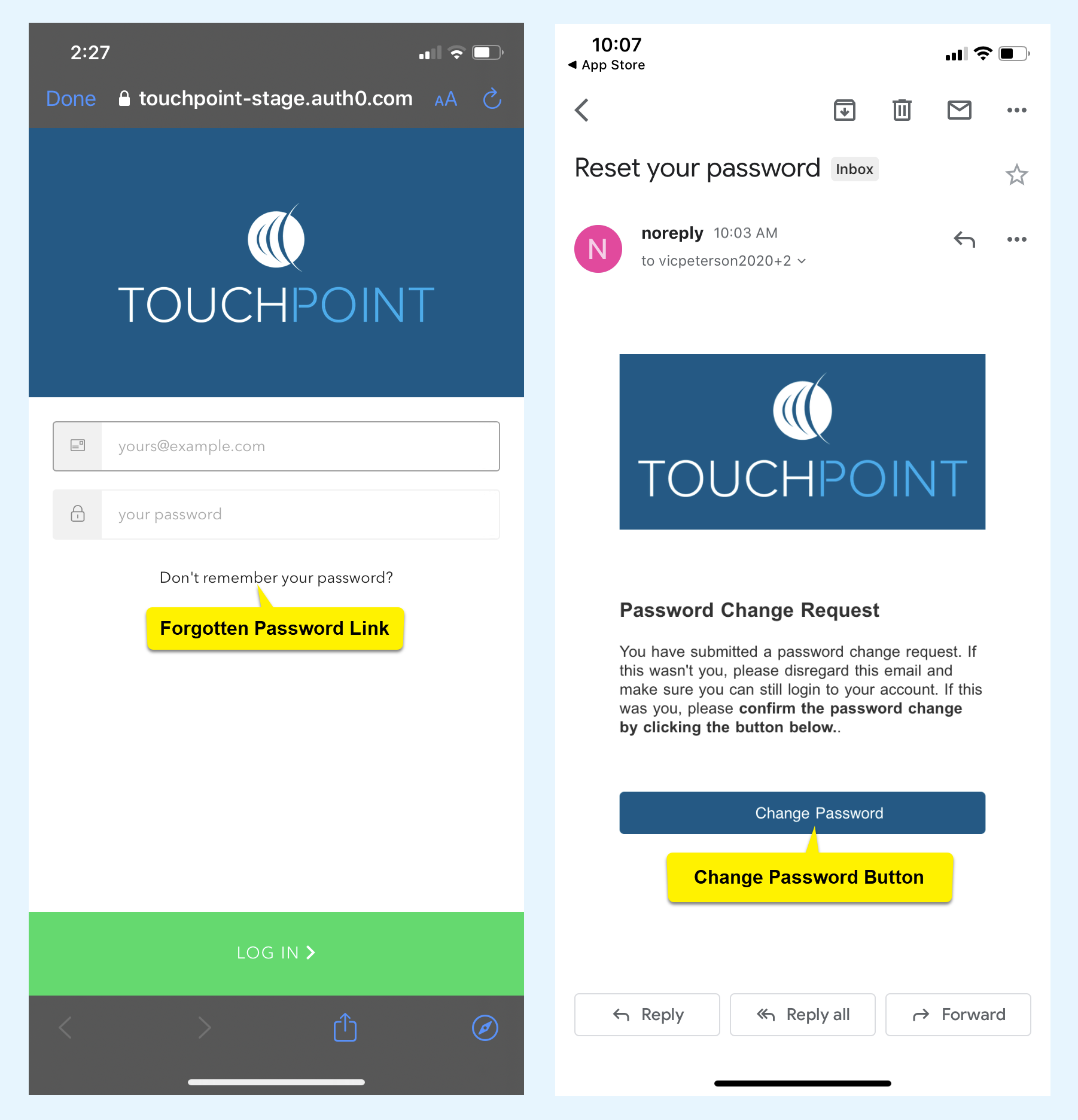
Moving forward, your client will use their email address
and the temporary password of Touchpoint1! to log into their app for the first
time. Once your client has successfully logged into the app for the first time,
SCRAM Systems recommends your client access the forgotten password link on the app’s
Log In screen and follow the instructions to create a secure password to use
moving forward.
click to enlarge
Feedback
Please contact SCRAM Systems Customer Service with any recommendations for system improvements.
SCRAM Systems® provides enhancements and updates to the SCRAM TouchPoint™ Mobile application on a continual basis. These updates improve the functionality and usability of the application for your client. Once an update is available in the Apple App store and the Google Play store, the next step is to have the client update the application on their smartphone.
An app update can be completed in two ways.
Automatic application updates (Recommended)
Manual application updates
As a best
practice, we recommend you encourage your clients to enable automatic app
updates – this ensures they are always using the latest version of the
TouchPoint app.
Setup Automatic Application Updates
iPhone
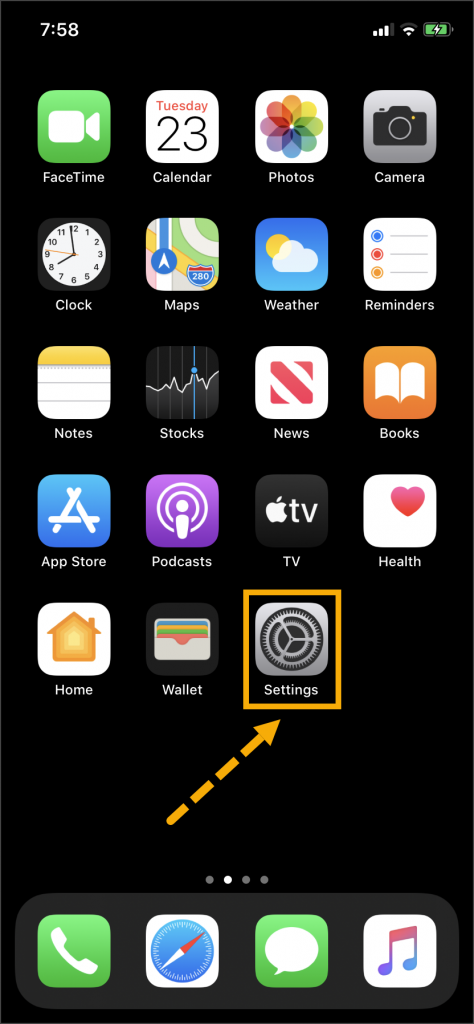
On the client’s smartphone, tap the Settings
icon.
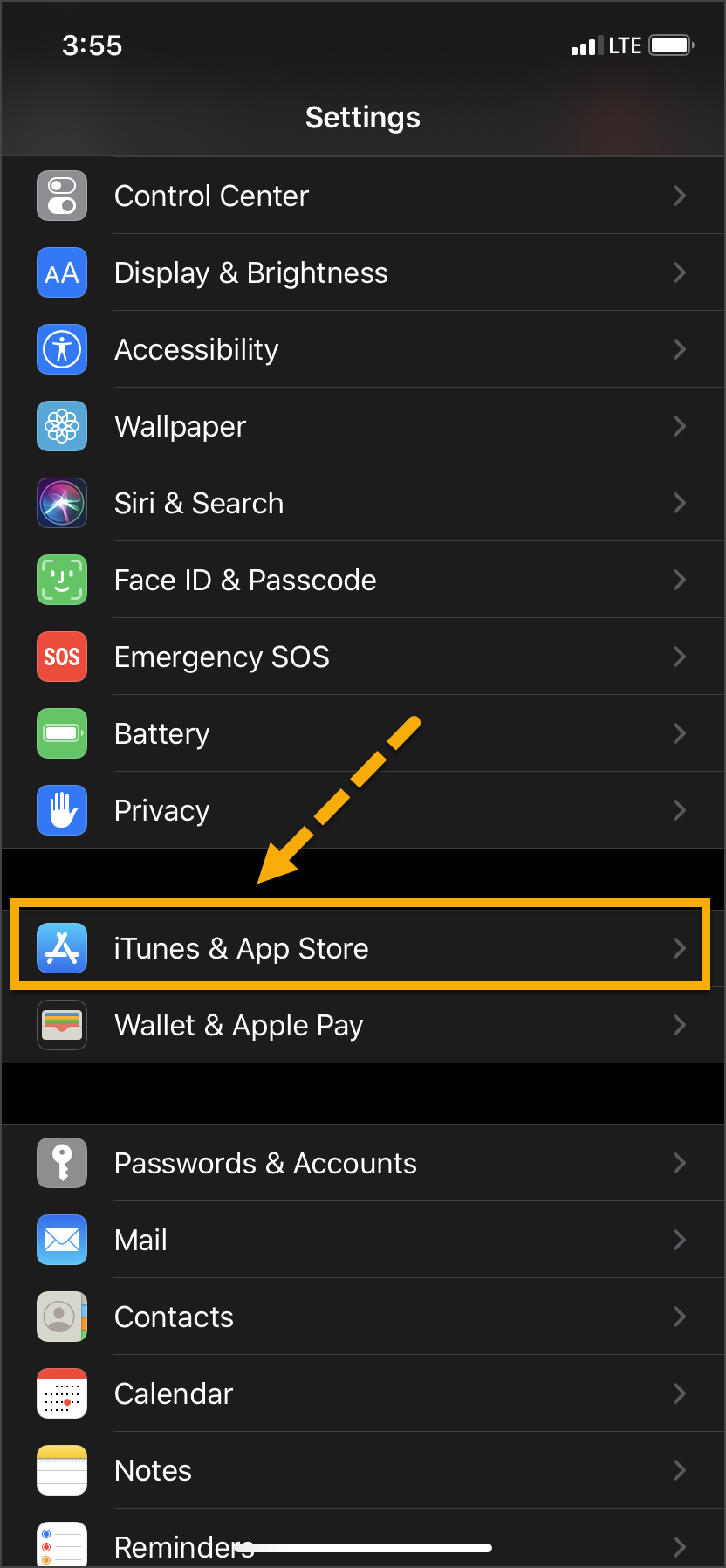
On the Settings screen, tap the iTunes
& App Store option.
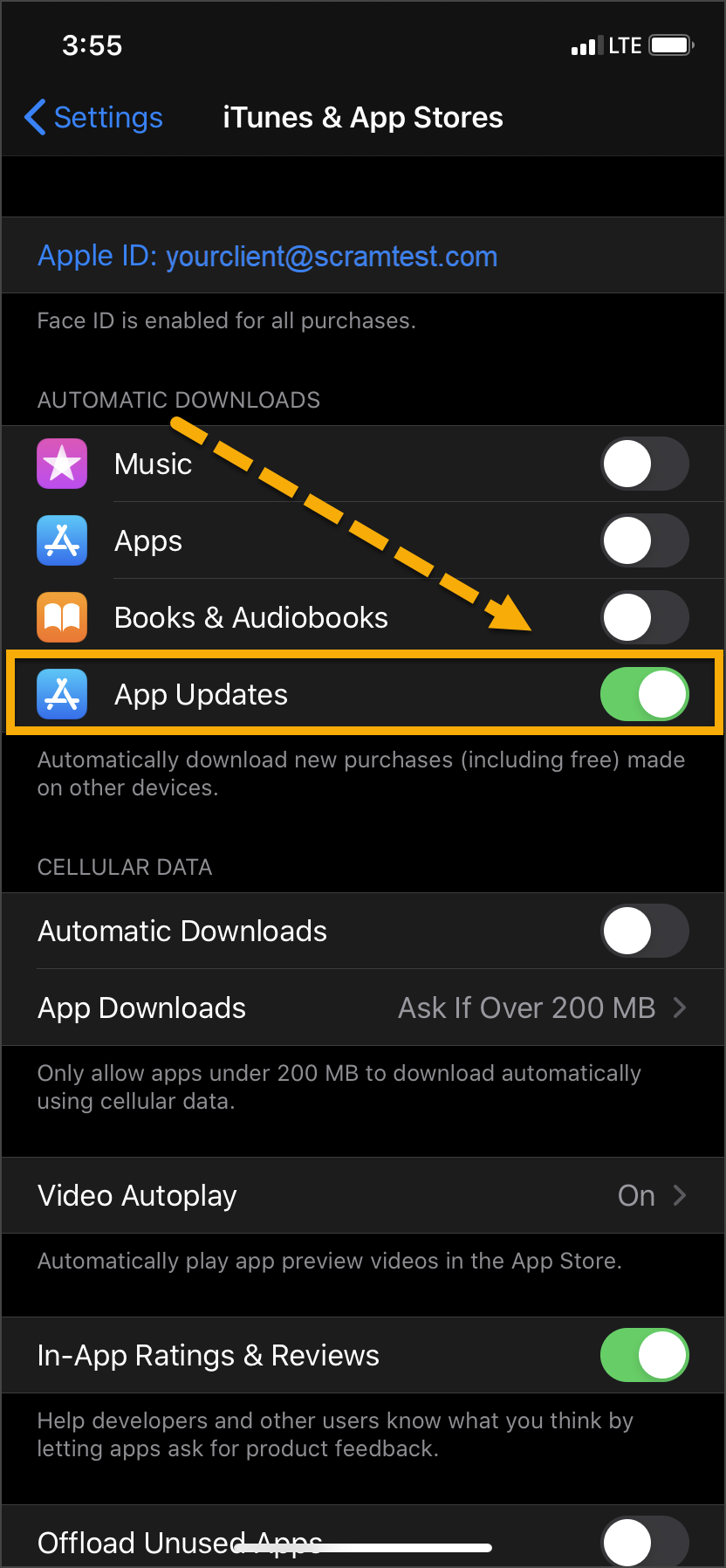
Under the Automatic Downloads section,
ensure the App Updates option is enabled.
Click on any image to enlarge it.
Android
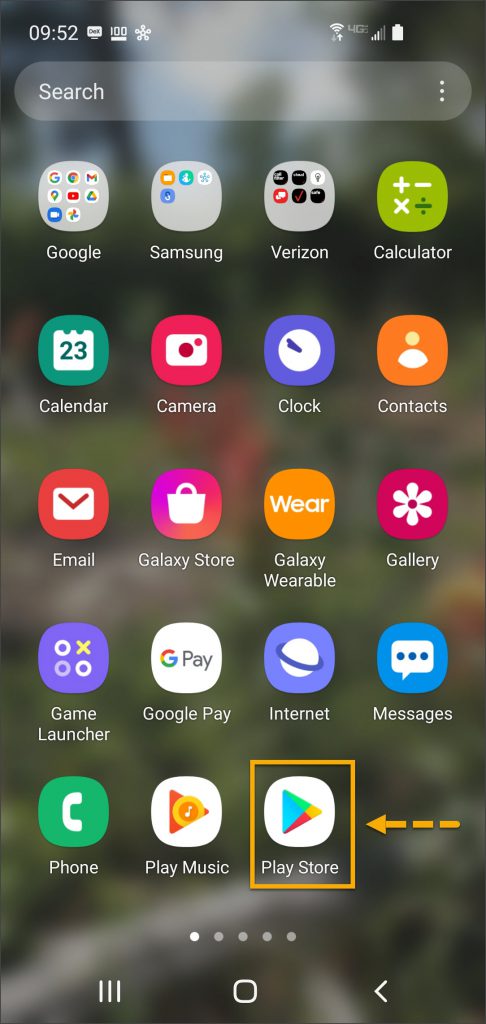
On the client’s smartphone, swipe up on the Home screen.
Tap the Play Store icon.
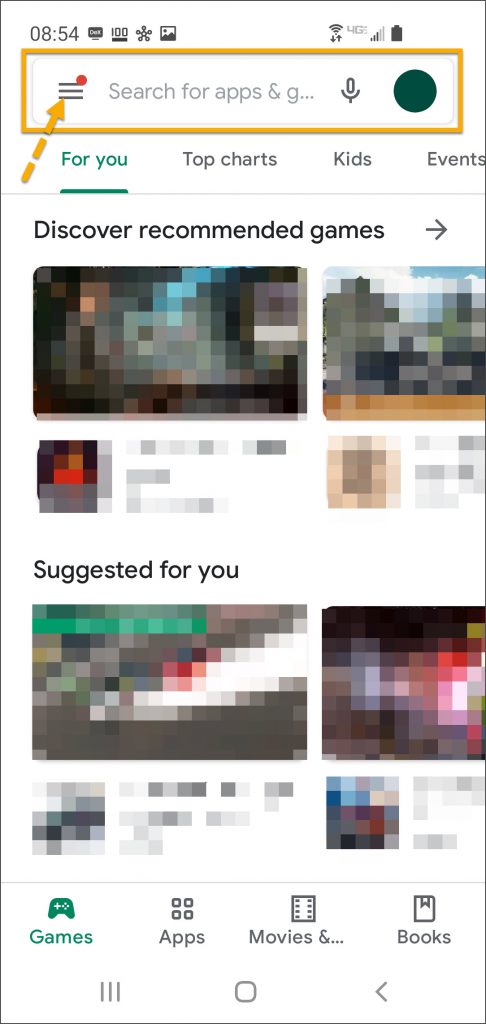
On the Google Play store screen, tap the menu icon in the search field.
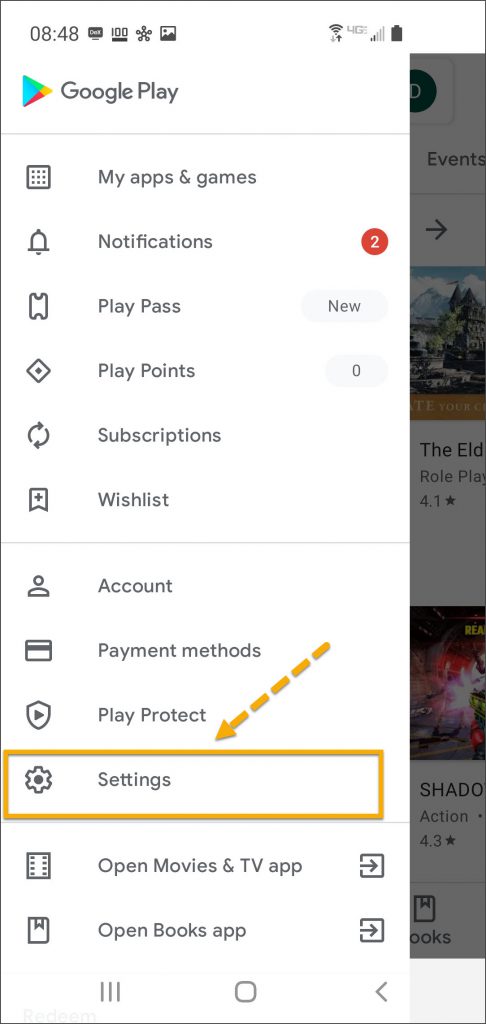
Locate and tap the Settings option.
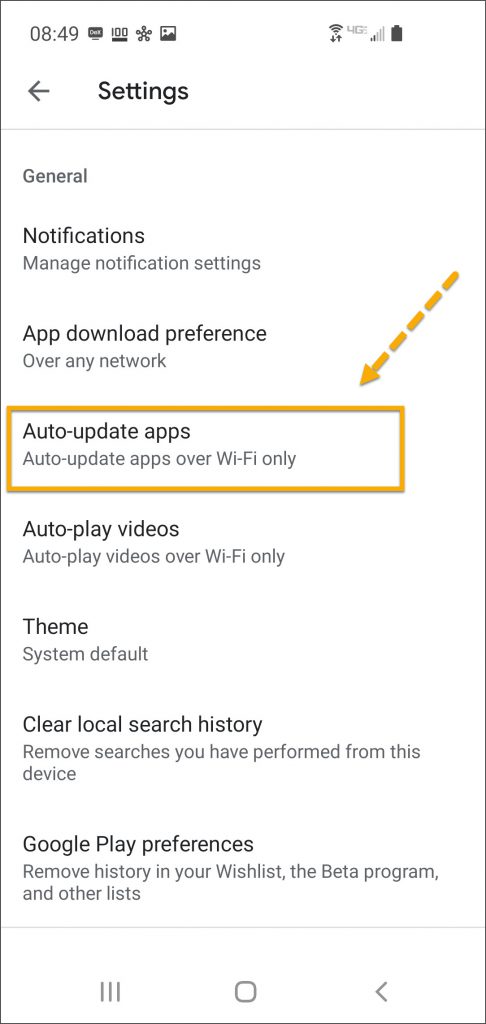
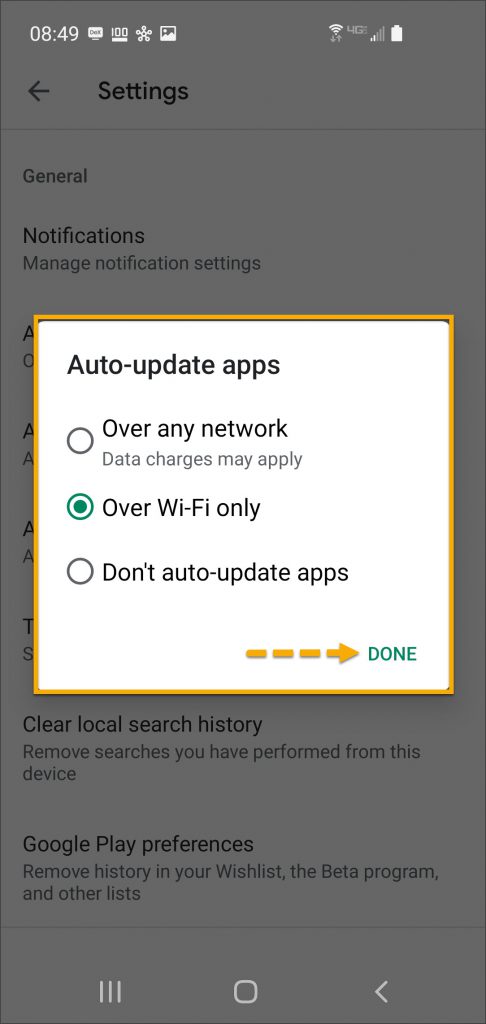
Tap the Auto-update apps option.
In the Auto-update apps window, select the option of,
Over any network (Data charges may apply)
Over Wi-Fi only
After making the selection, tap Done.
Click on any image to enlarge it.
Manual Application Update
iPhone
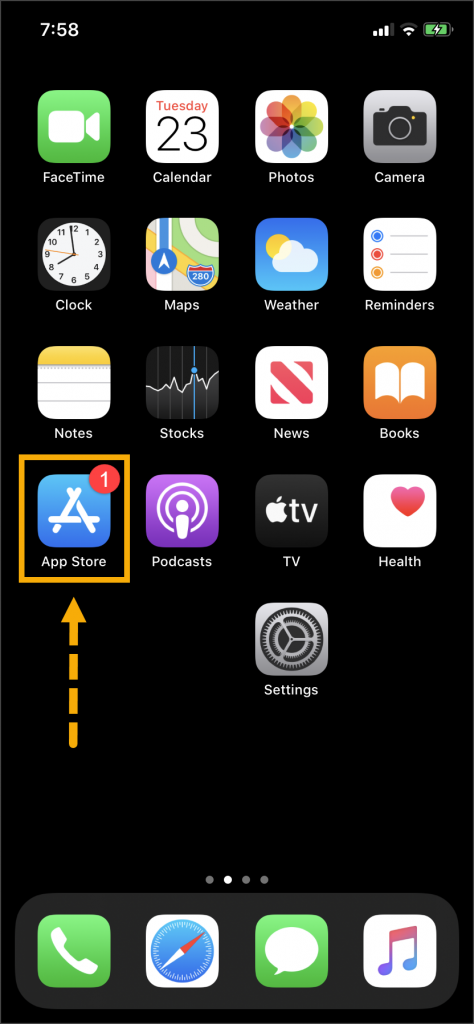
Once an update to the TouchPoint application is available,
the App Store icon will display a red badge.
Instruct the client to:
Tap the App Store icon.
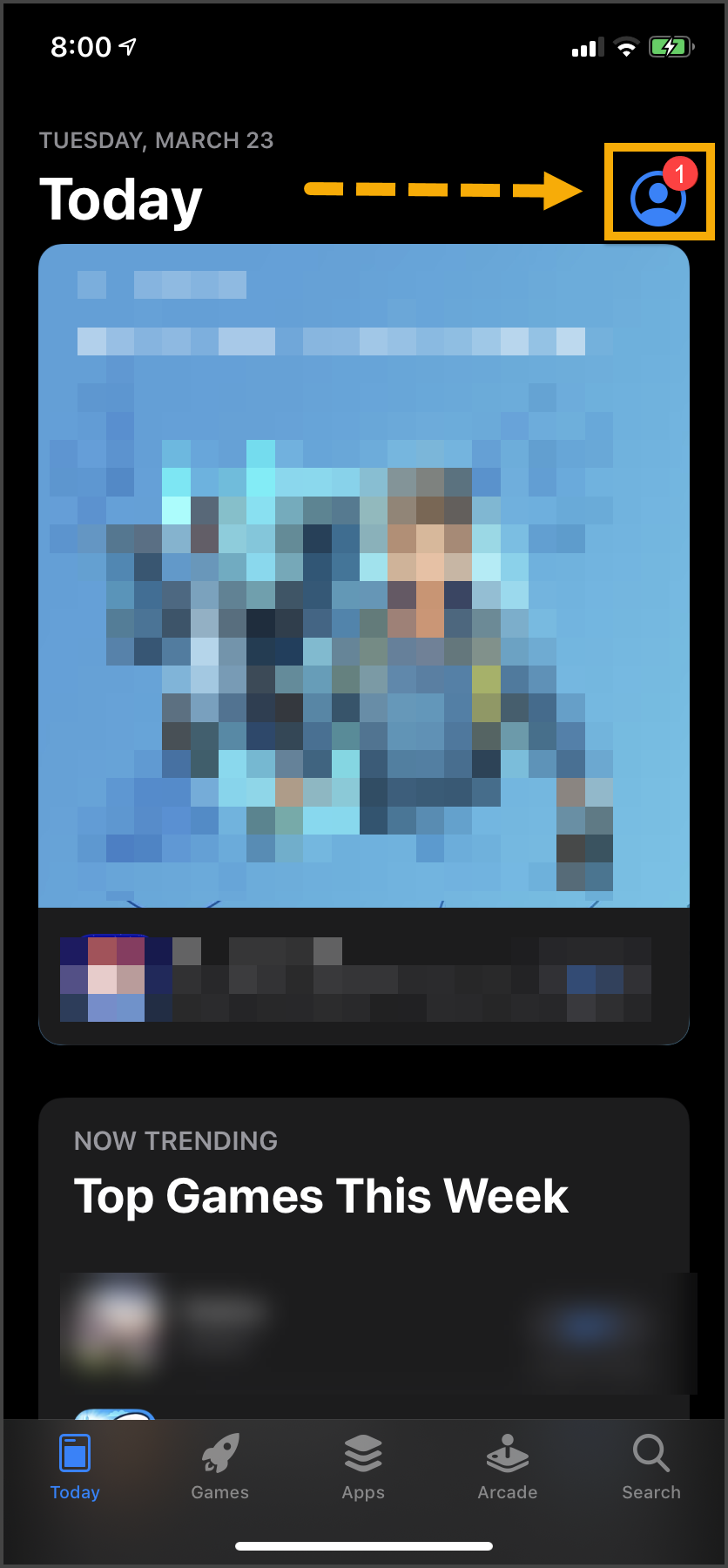
Tap their profile icon.
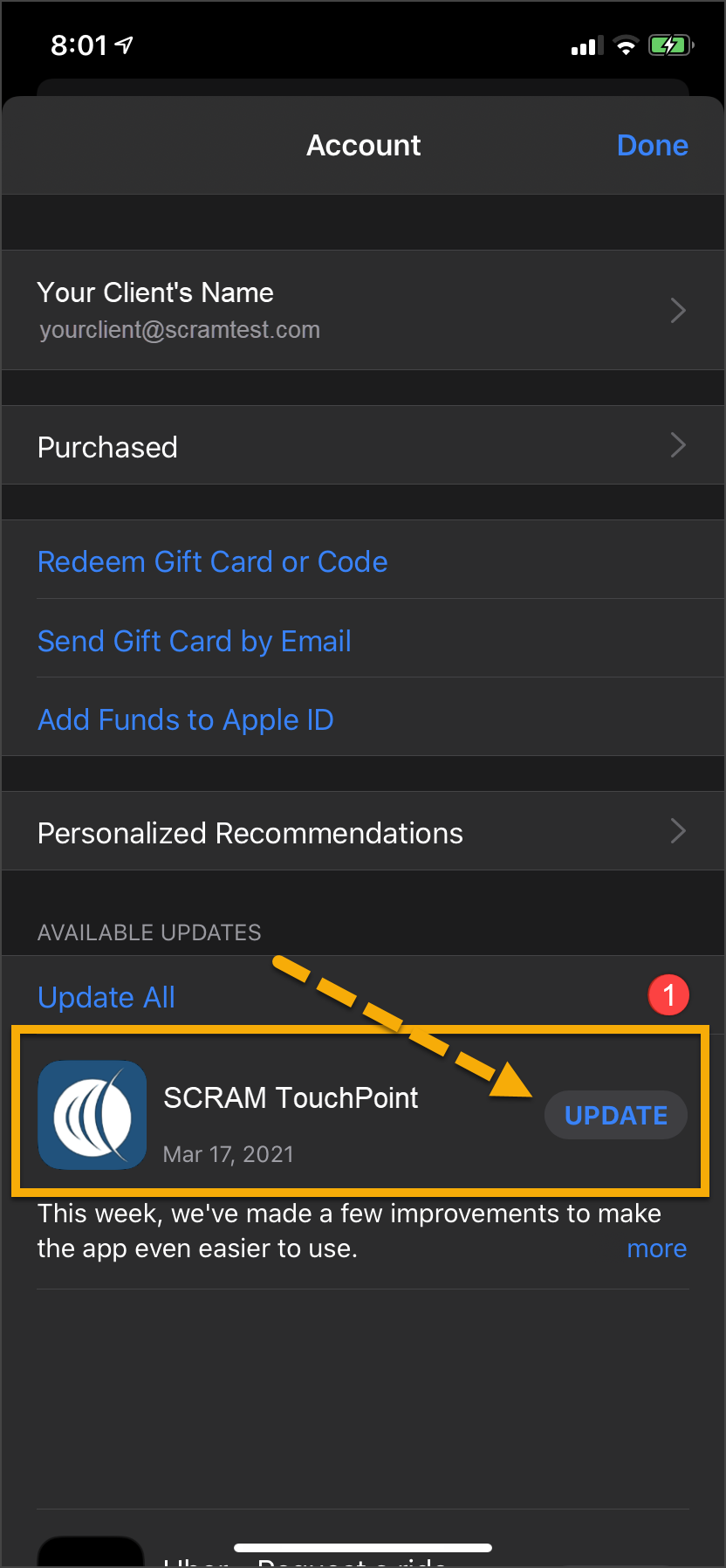
Under the Available Updates heading,
locate the SCRAM TouchPoint app.
Tap the Update button.
As a best
practice, we recommend you encourage your clients to enable automatic app
updates – this ensures they are always using the latest version of the
TouchPoint app.
Click on any image to enlarge it.
Android
Swipe up on the Home screen and tap the Play Store
icon.
On the Google Play store screen, tap the menu
icon in the search field.
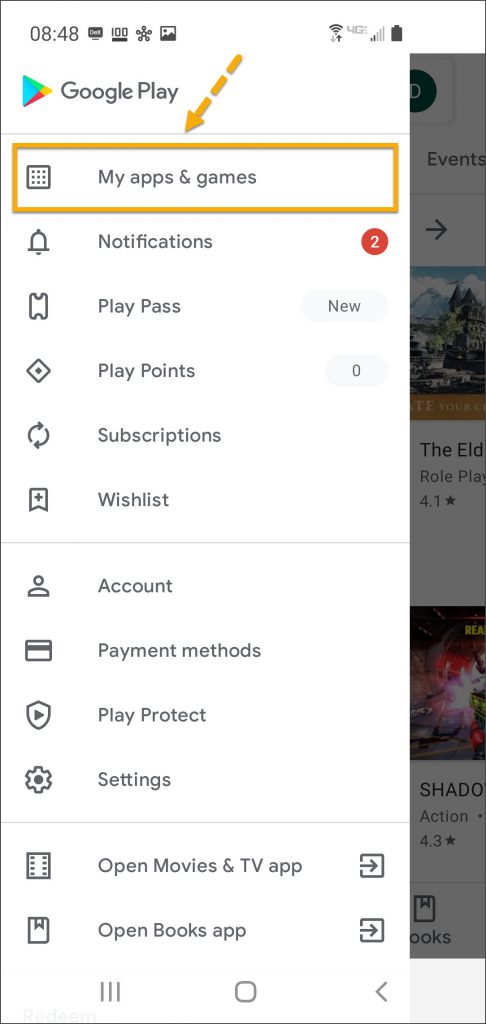
Tap the My apps & games option.
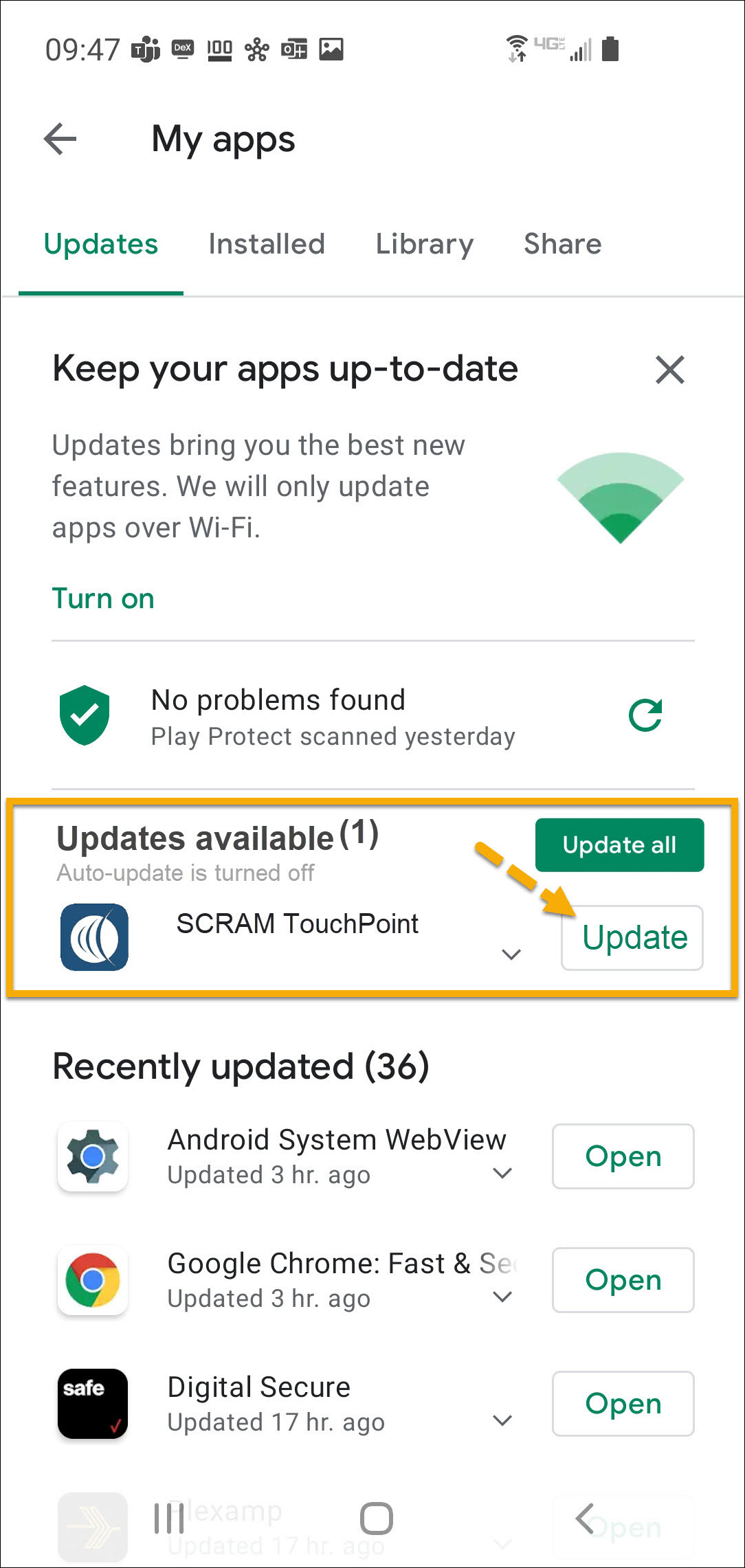
Under the Updates Available section, locate the
SCRAM TouchPoint app and tap the Update button.
As a best
practice, we recommend you encourage your clients to enable automatic app
updates – this ensures they are always using the latest version of the
TouchPoint app.
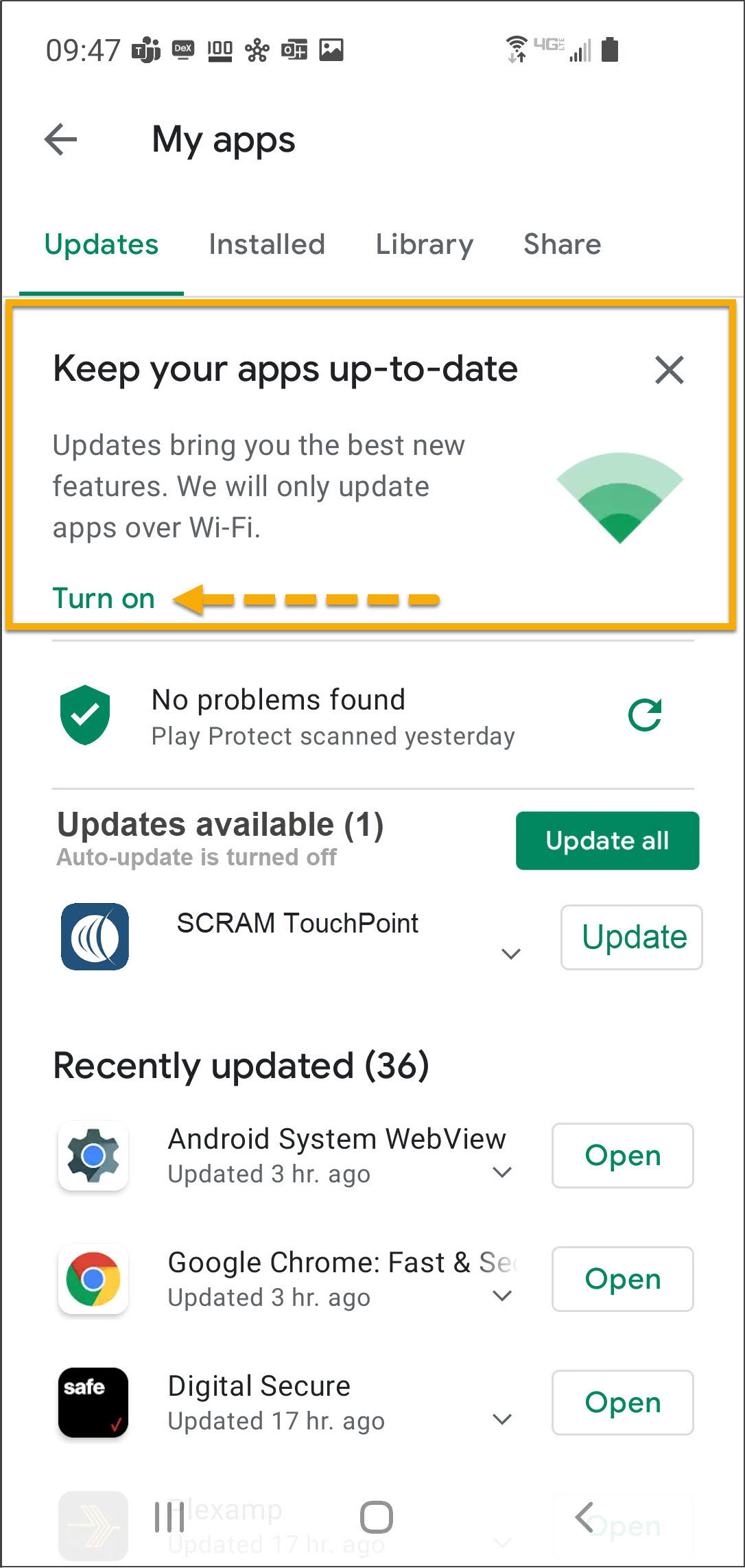
On the My apps screen, tap the Turn on button to
enable automatic app updates.
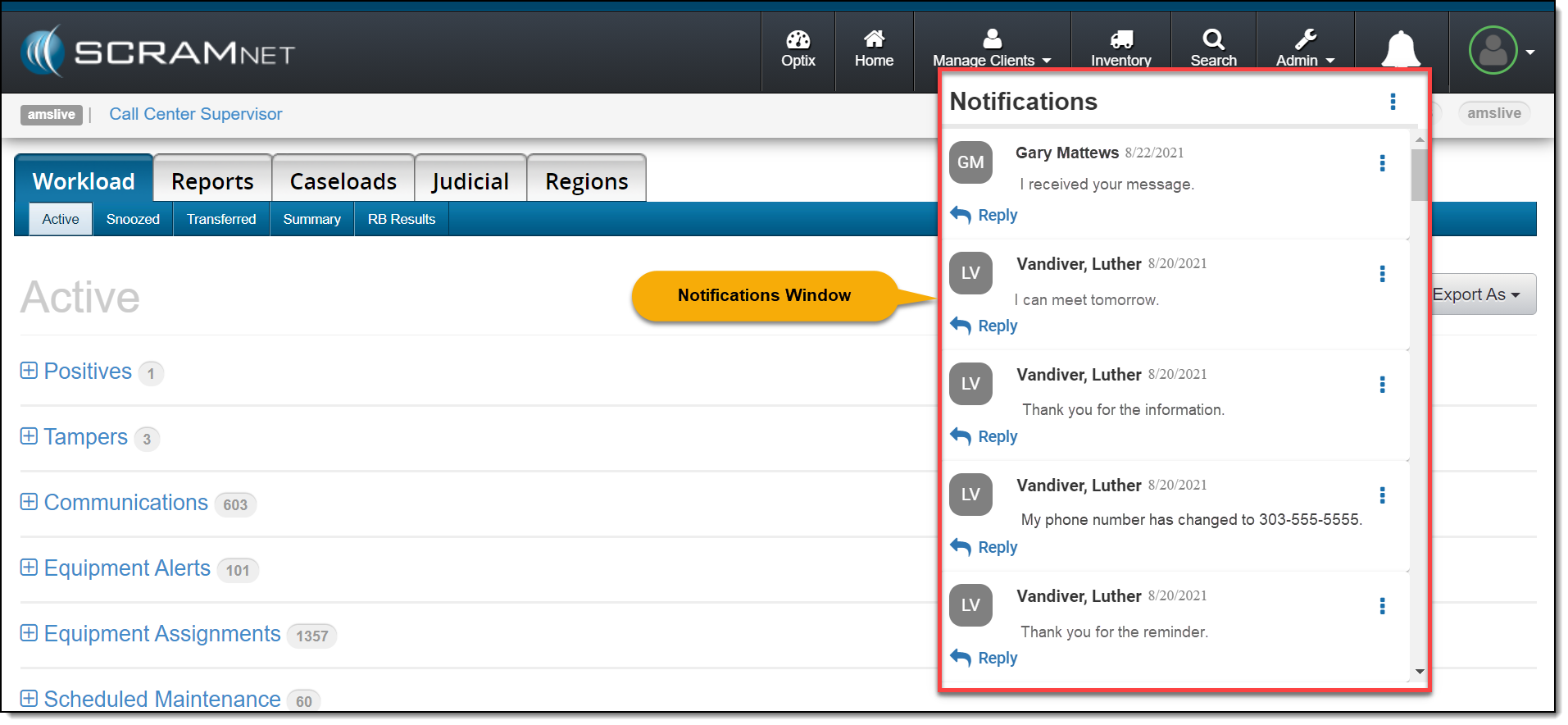
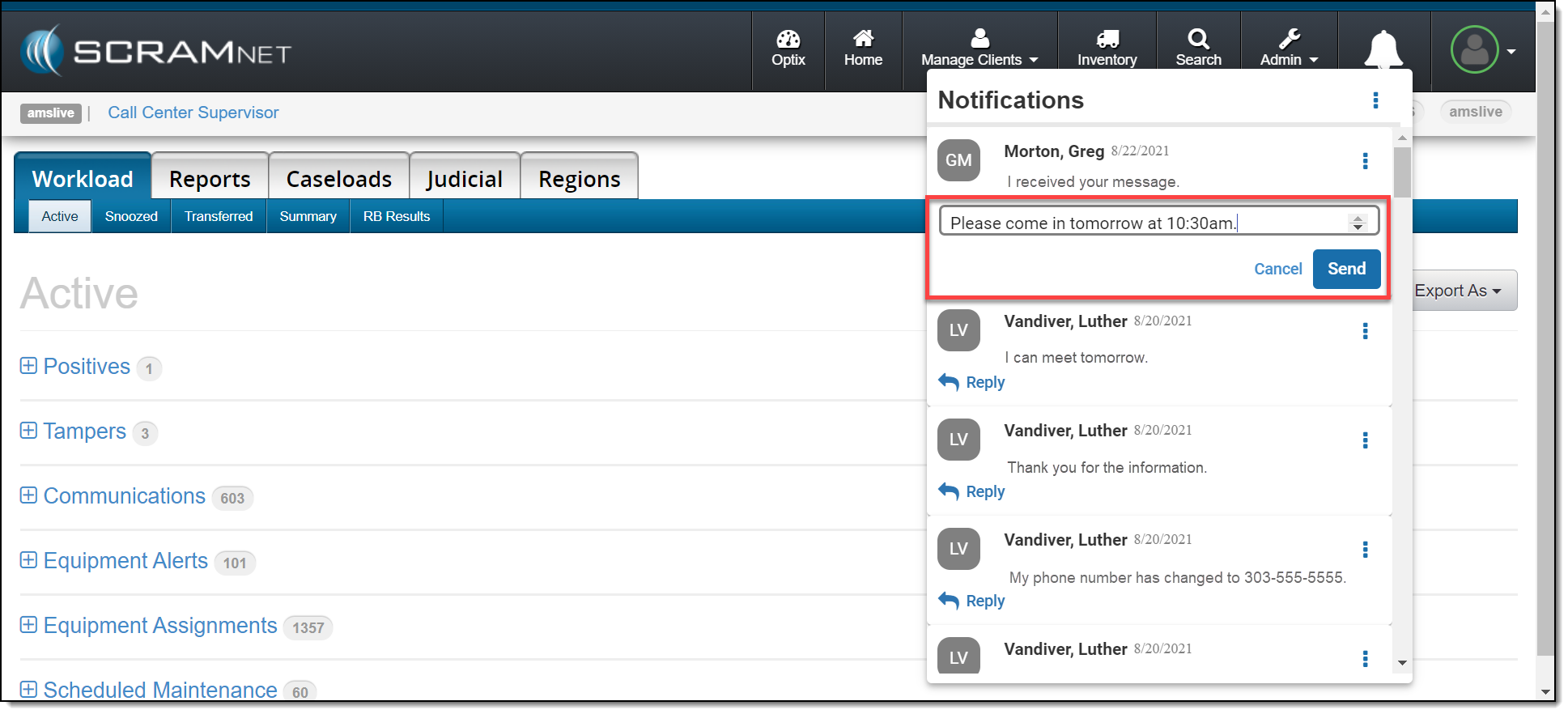
On March 4, 2021, SCRAM Systems® will release a new Notifications Window in SCRAMNET®. This Notification Window displays new messages sent from your SCRAM TouchPoint™ client caseload. With this feature you can view, clear, mark messages as read, or respond to your clients’ messages from within SCRAMNET. All actions completed within the Notifications Window are reflected on each client’s TouchPoint Messaging page.
Notifications in SCRAMNET
When a new message is sent by your client through the SCRAM
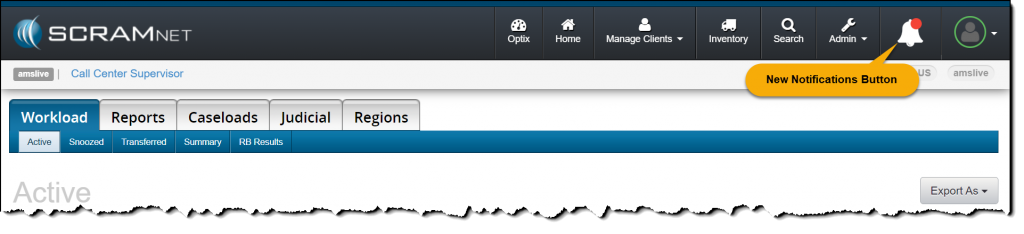
TouchPoint app, the Notifications button in SCRAMNET will display a red badge. To view the message, click the button.
click to enlarge
On the Notifications Window, the client’s name, date, and message is displayed.
click to enlarge
Managing the Notifications Window
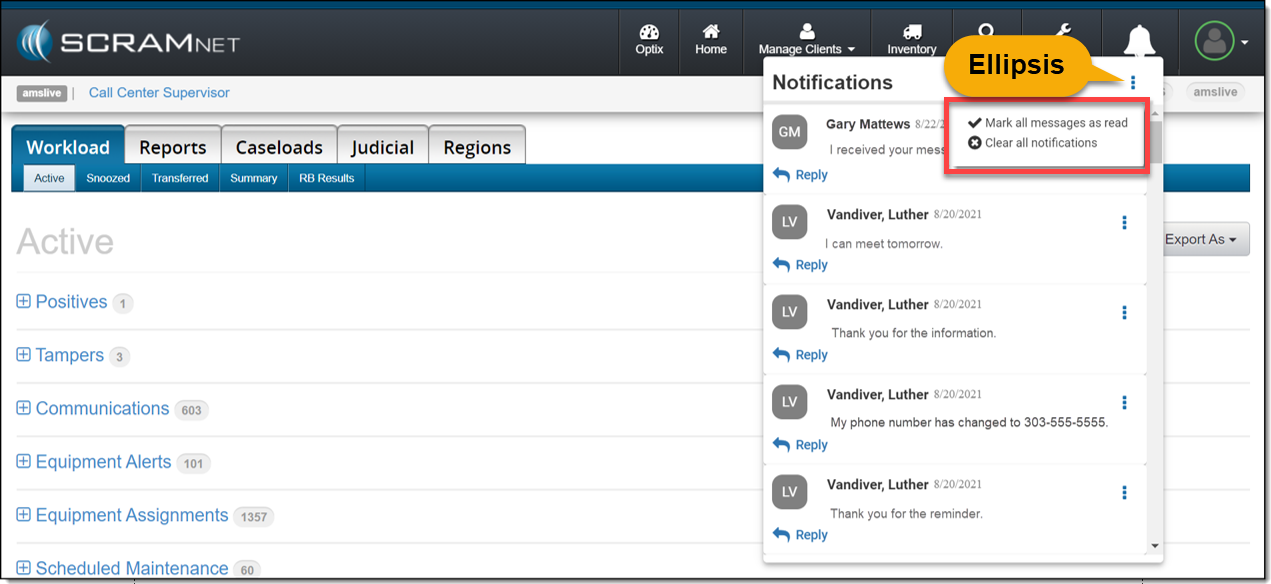
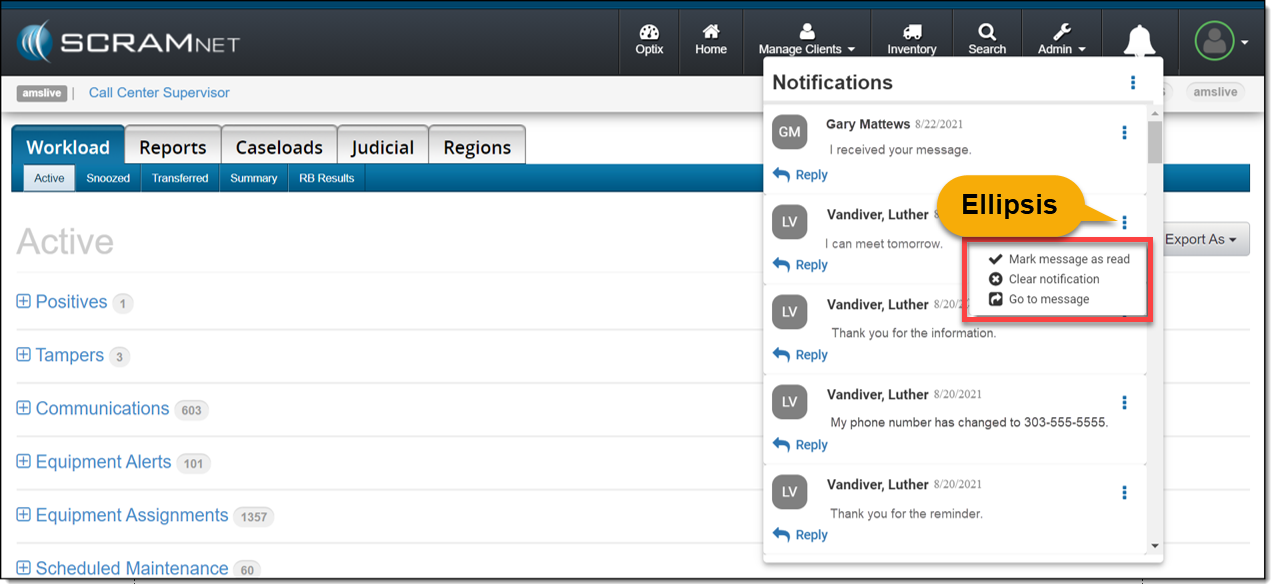
Selecting the ellipsis next to the Notifications
heading or next to the client’s name will display a menu with following options:
Mark all messages as read or Mark message as read: When selected, the message will be cleared from the Notifications Window. On the client’s TouchPoint Messaging page, the message will display as Read for the client.
Clear all Notifications or Clear Notification: When selected, this option will clear the message from the Notifications Window in SCRAMNET. This does not mark the message as Read on the client’s TouchPoint Messaging page; it simply clears the message from the Notifications Window.
Go to Message: This option will open a new tab that displays the client’s TouchPoint Messaging page. This action will clear the message from the Notifications Window.
Option One
Mark all messages as read or clear all notifications by selection the ellipsis to the right of the Notifications heading.
click to enlarge
Option Two
Manage each message individually by selection the ellipsis next to the message.
click to enlarge
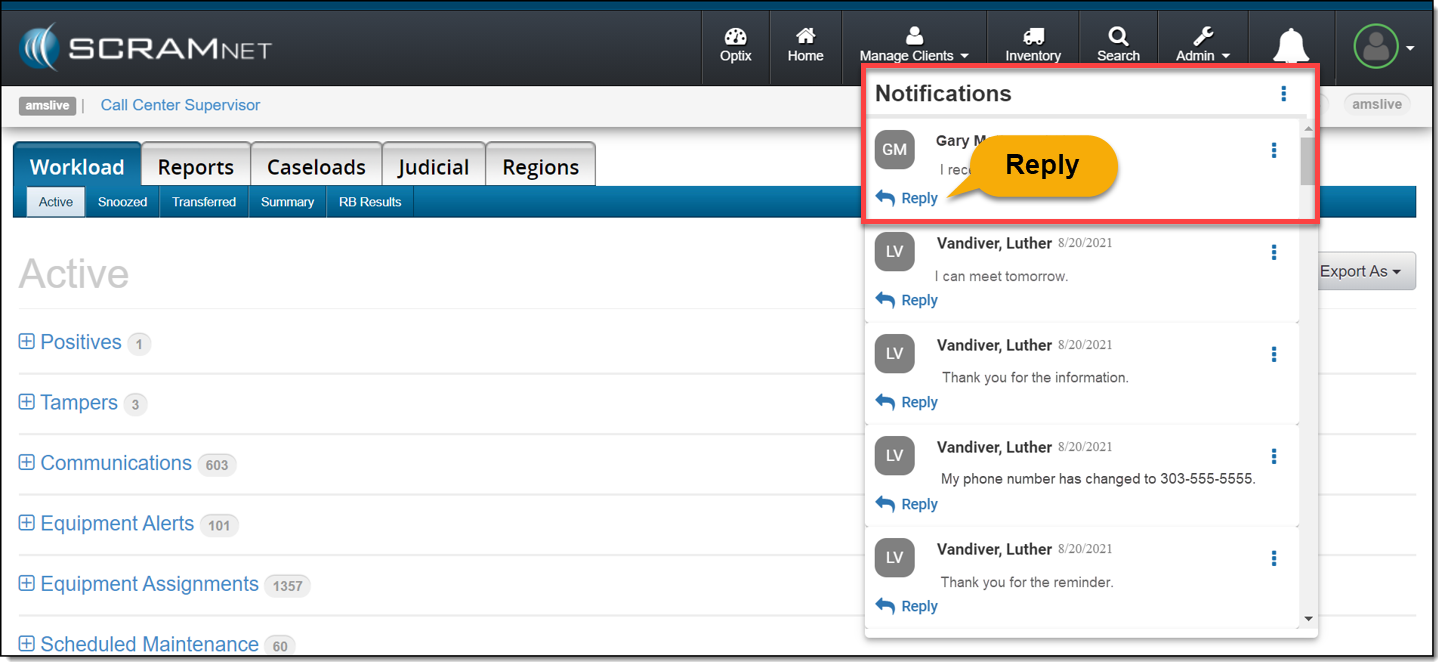
Reply
Click the Reply link to respond to the client’s message. After entering a response, click the Send button.
click to enlargeclick to enlarge
The message will no longer be displayed in the
Notifications Window.
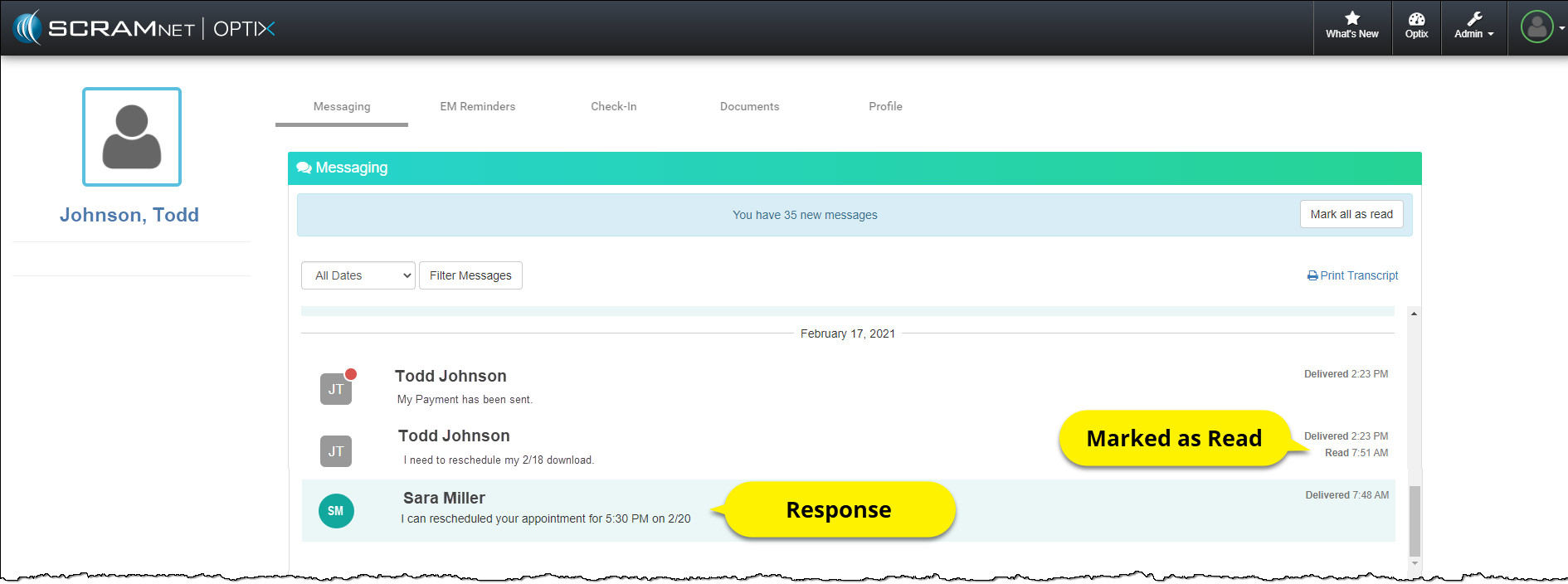
On the client’s TouchPoint Messaging page, the
message will be marked as Read and the response sent by the user will be
displayed.
click to enlarge
Feedback
As always, please contact SCRAM Systems Customer Service with any
recommendations for system improvements.
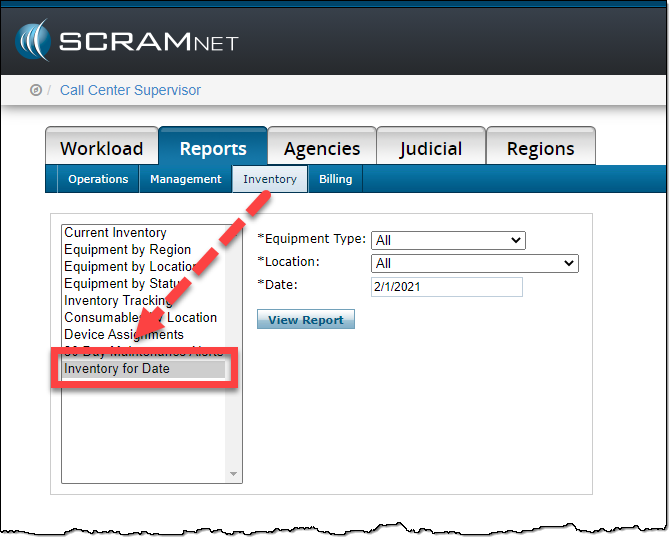
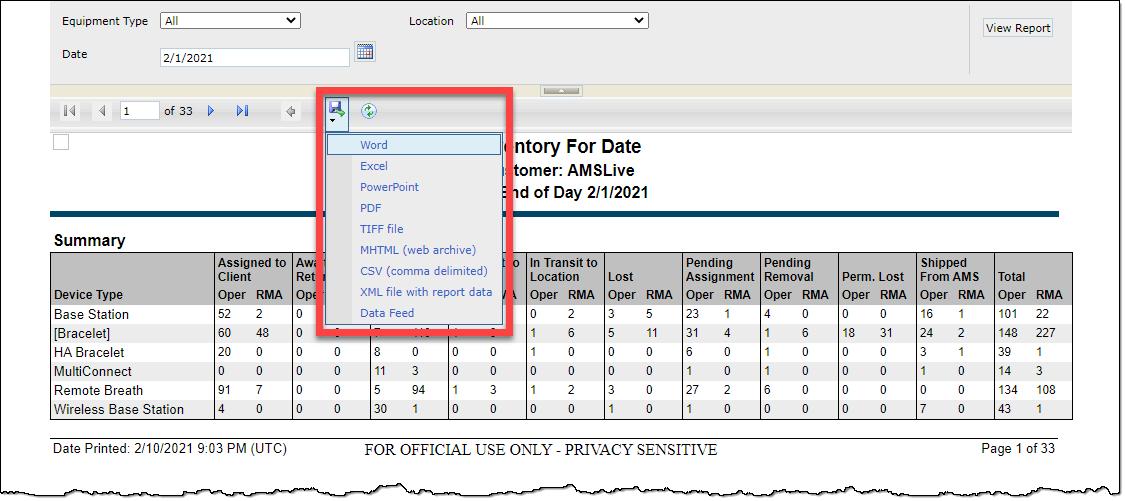
On February 18, 2021, SCRAM Systems® will be releasing a new inventory report available on the Reports tab in SCRAMNET®. The Inventory for Date report reflects the equipment location and status on a specific date. This report is helpful when determining your inventory count and availability for any given past day.
Filter the report by:
Equipment Type
Location
Date
click to enlarge
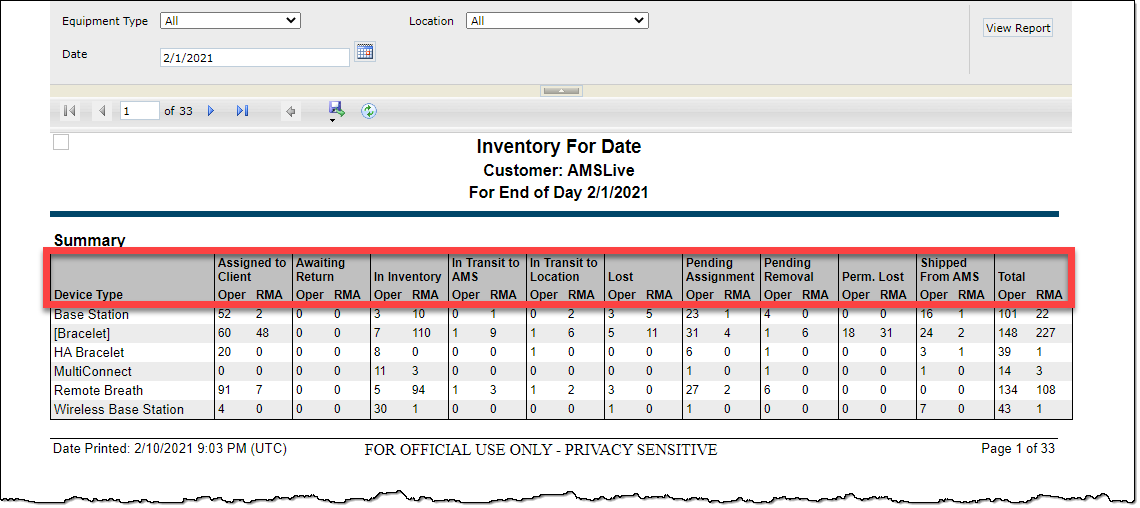
The report will display the number of devices in each
status, number of devices with an RMA, and the total number of operational
devices for the selected date.
click to enlarge
The report can be exported into several formats including excel, and .csv files.