At 7:00 AM EST (US) on Thursday December 10, 2020, SCRAM Systems® will perform scheduled maintenance on the SCRAMNET GPS® monitoring system. The maintenance implementation will take no longer than 15 minutes to complete and GPS devices will continue to monitor clients and store their movements during that time. If you experience unexpected system behavior during the maintenance window, simply refresh (CTRL+F5) your SCRAMNET GPS browser screen until the behavior returns to normal.
If you have questions about this notification, please Contact Us.
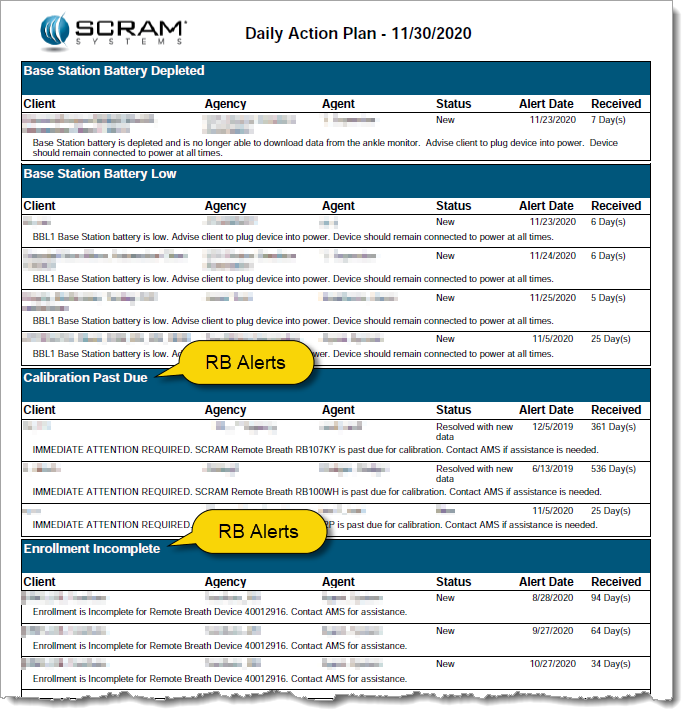
Every customer has unique operational needs and SCRAM Systems strives to meet those needs whenever possible. To this end, we are expanding the types of alerts that you can choose to include in the Daily Action Plan (DAP) that you receive each morning. In addition to the CAM alerts that are included by default, the Remote Breath (RB) alerts displayed on the RB Results page can also be included on the DAP.
RB Alerts on the Daily Action Plan Report
Potential Time-Saver
Adding Remote Breath alerts enables you to use the DAP as a starting point to address CAM and RB alerts that require some type of action on your part. This allows you to easily see the RB alerts you need to work before logging into SCRAMNET, which saves you precious processing time.
Something to Consider: 500 Max
If you are interested in activating this new feature, please note that a maximum of 500 RB alerts can appear on the DAP. If your RB Results page has not been managed for some time and you have a high number of alerts, you may want to reduce the alert count to a more manageable level before enabling this feature on the DAP report.
If you elect to enable this feature and there are more than 500 alerts listed on the RB Results page, only the most recent 500 alerts will be included in the DAP. As you work alerts and they drop off the DAP report, older alerts will “backfill” the completed ones overnight each night, until all the outstanding alerts on the RB Results page have been addressed.
Activate Feature (Administrator only)
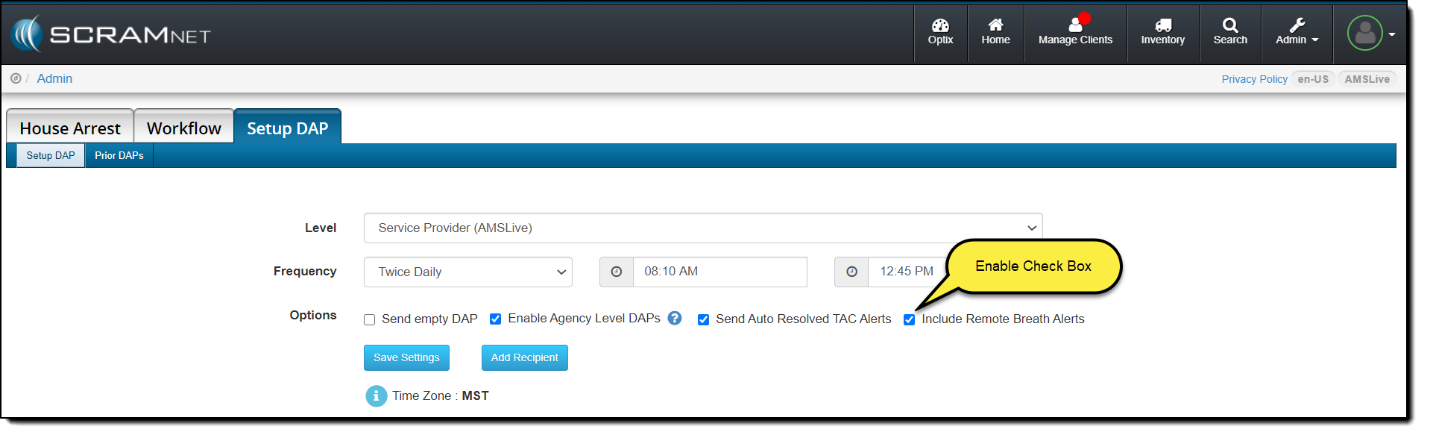
To activate this feature so RB alerts appear on the DAP, an administrator must access the Setup DAP page in SCRAMNET and select the Include Remote Breath Alerts check box, as shown below.
Today, Thursday, November 19, 2020 at 5:00 AM MST, SCRAM Systems will introduce a new “Pattern of Life” feature in SCRAMNET® GPS. During the 15-minute deployment, you may not be able to access SCRAMNET GPS but messages from the SCRAM GPS Bracelet will continue to be processed uninterrupted.
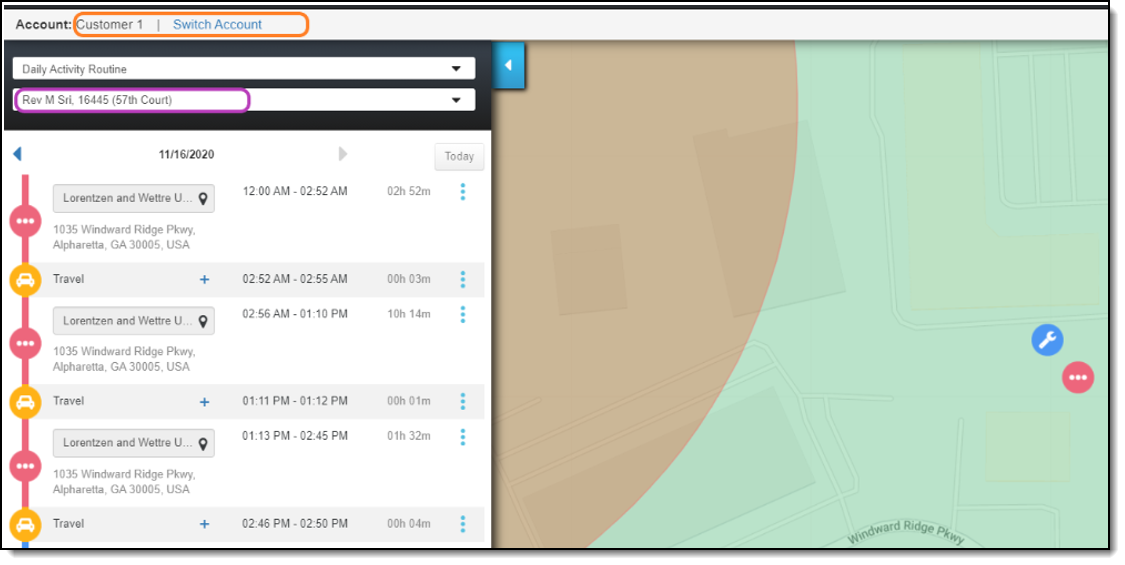
Prior to this implementation, when you viewed a client’s “Pattern of Life Analysis” in SCRAMNET GPS, you had the option to select another client using the lower drop-down menu (circled in purple below), but the list of clients was limited to only those clients associated with the specific account that you were viewing.
With this release, all clients assigned to you—even clients from other accounts—will appear in the drop-down list. What this means to you is you can now view any assigned client’s “Pattern of Life Analysis” or “Daily Activity Routine” information without switching accounts.
When it is time to discharge a client from the SCRAM CAM program, be sure you have a clear understanding of the status in which you should place the equipment.
Awaiting Return
If the bracelet or base station is NOT on-hand, select Stop Monitoring and complete the Stop Monitoring process to set the status to Awaiting Return. This status ends the monitoring program and stops the billing associated with it. The bracelet will remain in this status until it is checked in or until 30 days elapses, at which time it will automatically move to Lost status.
Pending Removal
If you will be completing the Stop Monitoring process with the client in person and the equipment is on-hand, select Stop Monitoring and complete the Stop Monitoring process to set the status to Pending Removal. This status prepares the bracelet for final connection with the Direct Connect device and application, and monitoring and billing both continue until the Direct Connect process is complete and the bracelet moves to In Inventory status.
As you know, when a SCRAM CAM® Bracelet and Wireless Base Station (WBS) are checked in without you having one or both devices in hand, you set the status of those devices to “Awaiting Return.” However, because the WBS continues to communicate via a wireless network with SCRAMNET®, the device automatically sets its status to “In Inventory” the next time it communicates, which requires you to manually change the status back to “Awaiting Return.”
With this release, the WBS will no longer communicate when set to the “Awaiting Return” status. Consequently, the WBS will stay in that status until you retrieve the device and manually change the status to “In Inventory” yourself, or 30 days elapses at which time the device status is automatically set to “Lost.”
To allow you to manually set a returned WBS to “In Inventory”, a new Move to Inventory link will appear on the client’s Equipment page when the device is set to “Awaiting Return”, as shown below. When you click the link, the device is returned to inventory and is removed from the client’s Equipment page.
At 5:00 AM MST on Monday, November 2, 2020, SCRAM Systems® will implement a series of updates and new features in SCRAMNET® GPS. During the 15-minute deployment, you may not be able to access SCRAMNET GPS, but messages from the SCRAM GPS® Bracelet will continue to be processed uninterrupted. Most notable is the addition of two new Range options for the SCRAM GPS Beacon.
Two Additional Range Options
In addition to the three existing Beacon Range options, two more will be added to the SCRAMNET GPS Device Assignment tab; specifically, Minimum Plus and Average Plus, which brings the total number of Range options up to five:
Minimum – Open field range of about 40 feet (12 m); approximate indoor range of a small one-bedroom apartment on a single floor
Minimum PlusNEW! – Open field range of about 60 feet (18 m); approximate indoor range of a two-bedroom apartment on a single floor
Average – Open field range of about 130 feet (40 m); approximate indoor range of a two-bedroom townhouse on two floors
Average PlusNEW! – Open field range of about 160 feet (49 m); approximate indoor range of a 1,700 sq. ft. (158 sq. m.) ranch house
Maximum – Open field range of about 170 feet (52 m); approximate indoor range of a 3,000 sq. ft. (279 sq. m.) multi-level house
These numbers represent a radius around the beacon and reflect outdoor open-range ideal conditions. Conditions are affected by many things in a home, including walls, Wi-Fi, electronics, etc. It is a best practice to perform a Range Test in the home while setting up the beacon, to determine the ideal range for the client’s home environment.
The two new options will only work on Beacons that have been updated to the latest version of the firmware.
How to Set the Range
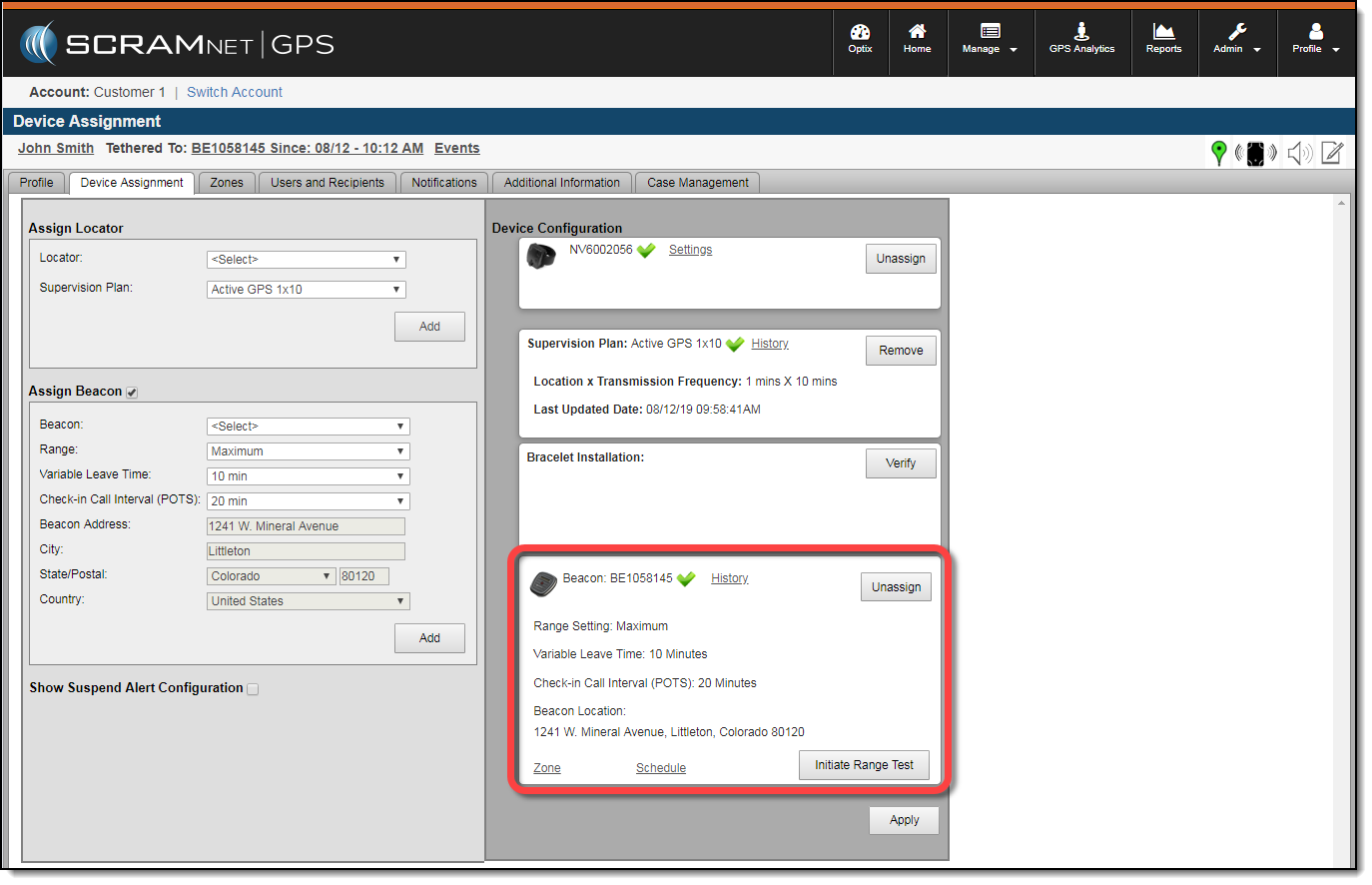
To set the Beacon Range, navigate to the Device Assignment tab of the Client Profile page. Visit the Assign Beacon page on the SCRAMNET GPS Help site for more detailed instructions.
Beacon Device Configuration Parameters (click to enlarge)
Changing the Range setting of a beacon that is already assigned to a client will cause a brief “untether” while the beacon updates the setting.
Below are some helpful tips to assist your team in maintaining the integrity of your monitoring program. Please contact SCRAM Customer Service for questions or if any assistance is needed.
Document, Document, Document
We recommend agents document each and every client interaction* – whether in-person or over the phone – in SCRAMNET®. This will promote clarity when preparing client updates. *Examples include bill payments, maintenance, phone discussions, etc.
Inspect the Equipment
Each time the client is in the office, regardless of the reason, inspect the bracelet.
Wake bracelet with magnet until you see the green light illuminate to ensure the bracelet powers up.
Check the fit of the bracelet to ensure it is properly tethered and is not loose enough to slide over the heel of the foot.
Visually inspect bracelet body, straps, and buckle for pry marks, scratches, and/or signs of tamper or removal.
Move tamper clips side-to-side with your fingers to ensure they are still securely fastened and have no visible signs of removal.
Alerts & Maintenance
Check the Alerts tab in SCRAMNET to see if client has any pending alerts that require additional information.
If the client will be away for an extended period, consider performing maintenance on the device to avoid near-future maintenance alerts from generating.
To properly reinitialize the bracelet:
Be sure to use the Maintenance link on the Equipment page first,
Perform physical maintenance second, and
Direct Connect the bracelet on the client’s leg last
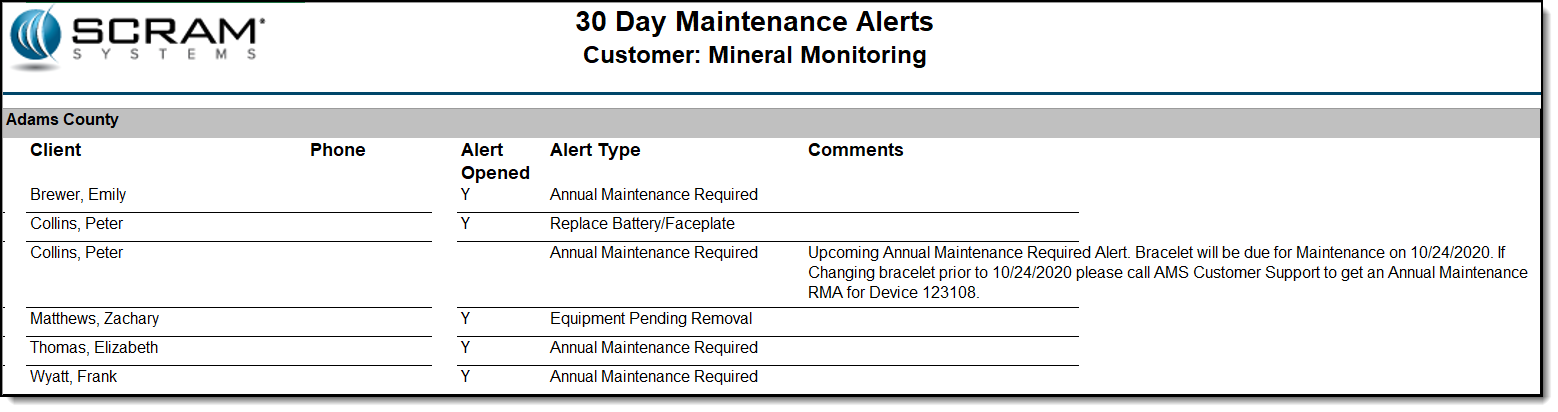
To facilitate efficient processing of specific SCRAM CAM® alert types, a new 30-Day Maintenance Alerts report is being made available in SCRAMNET®. The report, available at the Service Provider level for Admin-level users and sorted by caseload, lists all current and upcoming CAM maintenance alerts for the next 30 days.
In the example below, Peter Collins has a bracelet assigned that needs the battery and faceplate replaced. Viewing this report, you see that the bracelet is also scheduled for a maintenance replacement in the next few weeks. Knowing this, you can have the client come in for a bracelet replacement…saving you the cost of needlessly replacing the battery and faceplate when the bracelet itself is scheduled to be replaced in the near future. By having this complete picture, you will have reduced the number of times the client must be called in to meet with you in a very short time period.
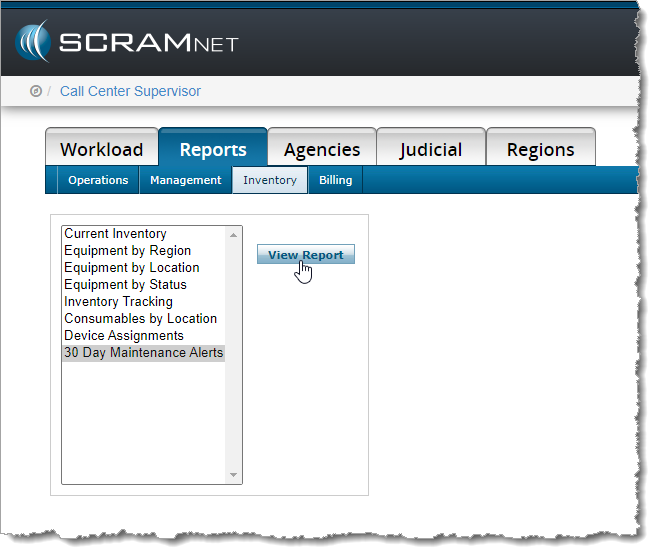
To run the report, click the Reports -> Inventory sub-tab, select the 30 Day Maintenance Alerts option, and click the View Report button.
How to access the 30-Day Maintenance Alerts Report
Currently, when creating overlapping GPS schedules in SCRAMNET GPS, the user must prioritize one schedule over the other. Only the GPS schedule with the highest priority generates an alert when a violation occurs. Users can now choose to generate violations for all overlapping GPS schedules, independent of the assigned priority.
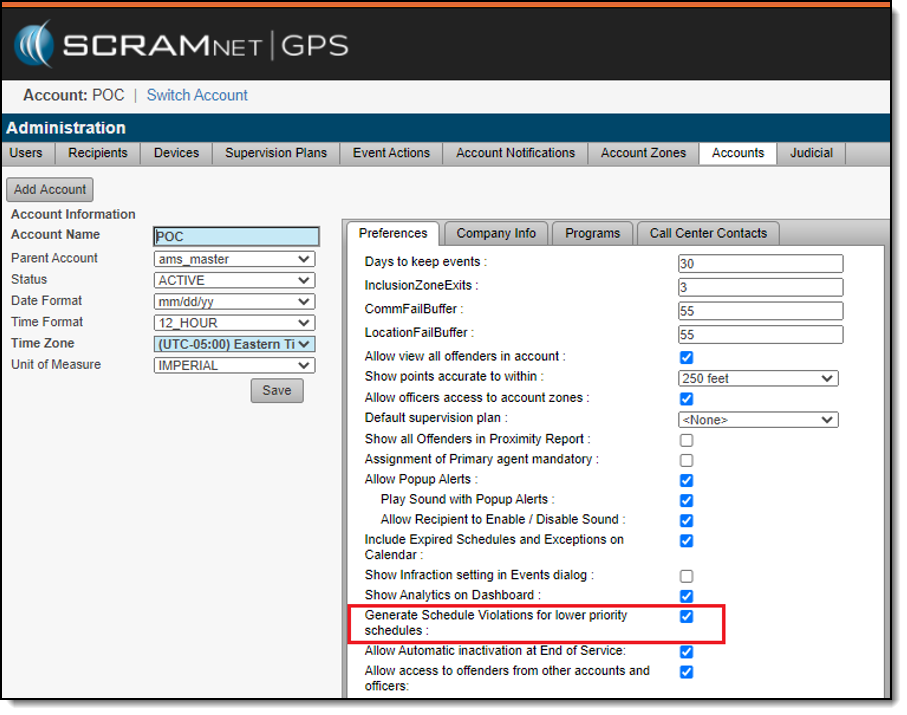
To enable this feature, a user with administrative permissions can navigate to the Admin -> Account Settings -> Accounts page and select the Generate Schedule Violations for lower priority schedules check box.
When the check box is selected, a Schedule Violation will be generated for all overlapping schedules for which the client is non-compliant.
Example
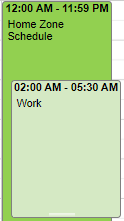
In the example below, the client has a 24/7 home schedule as well as an overlapping work schedule. The work schedule is the higher priority.
Now, if the client is not at work at the appropriate time, a violation is generated only for the work schedule. With this new feature enabled, if the client is also not at home, a Schedule Violation is also generated for the home schedule.
SCRAM Systems® is pleased to announce the arrival of its new consolidated SCRAM Systems Help & Support Home page! Effective Thursday September 10th at 1:00 PM MDT, regardless of which SCRAM monitoring system you are using, you can get help and support for all SCRAM Systems products, services, and software – in one place!
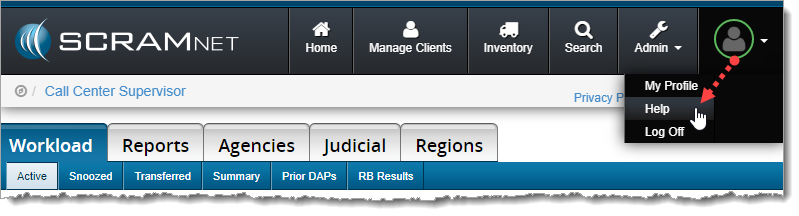
Select Help from the Profile dropdown menu (click to enlarge)
Easy Access
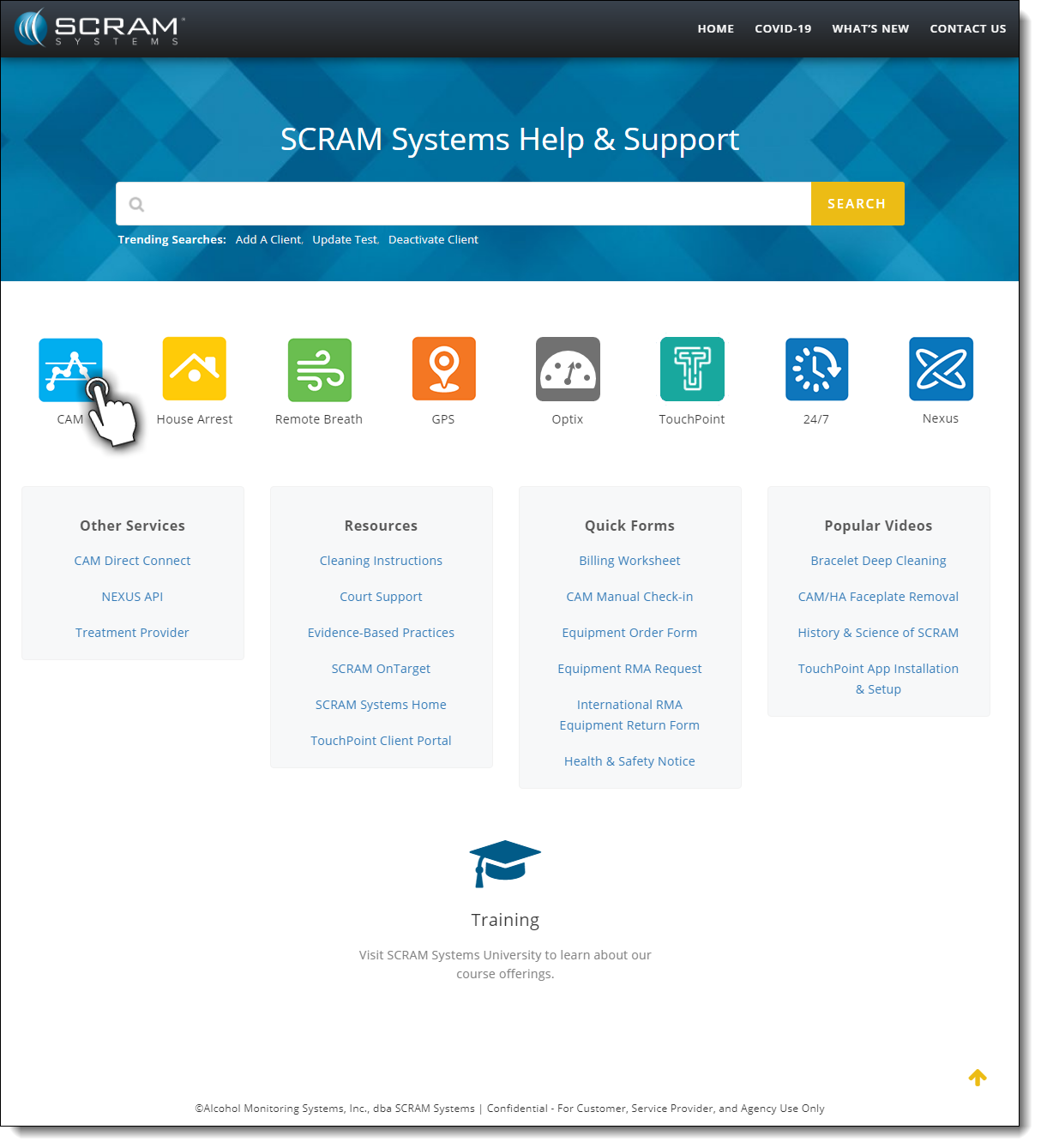
Once on the SCRAM Systems Help & SupportHome page, you’ll have easy access to systems help, resources, forms, and videos.
SCRAM Help & Support Home (click to view all)
One-Stop Shop
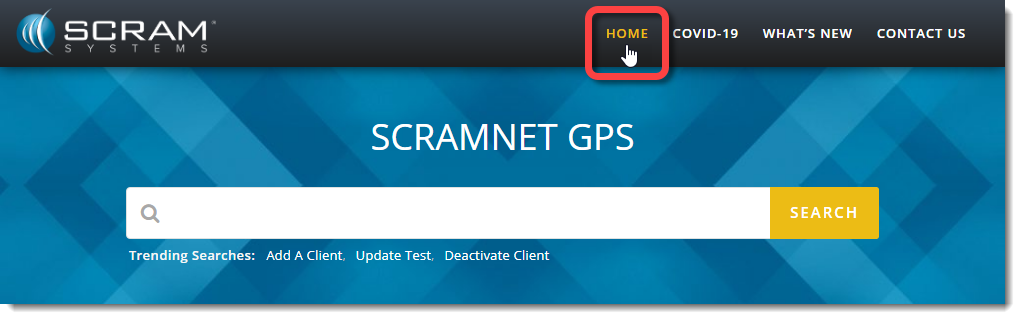
There’s no need to change which SCRAM monitoring system you’re accessing to get Help; just click the Help & Support Homelink at the top of any page to get access to help for all your SCRAM products and software.
Select the Home link from any page to return (click to enlarge).
Searchable Across Products
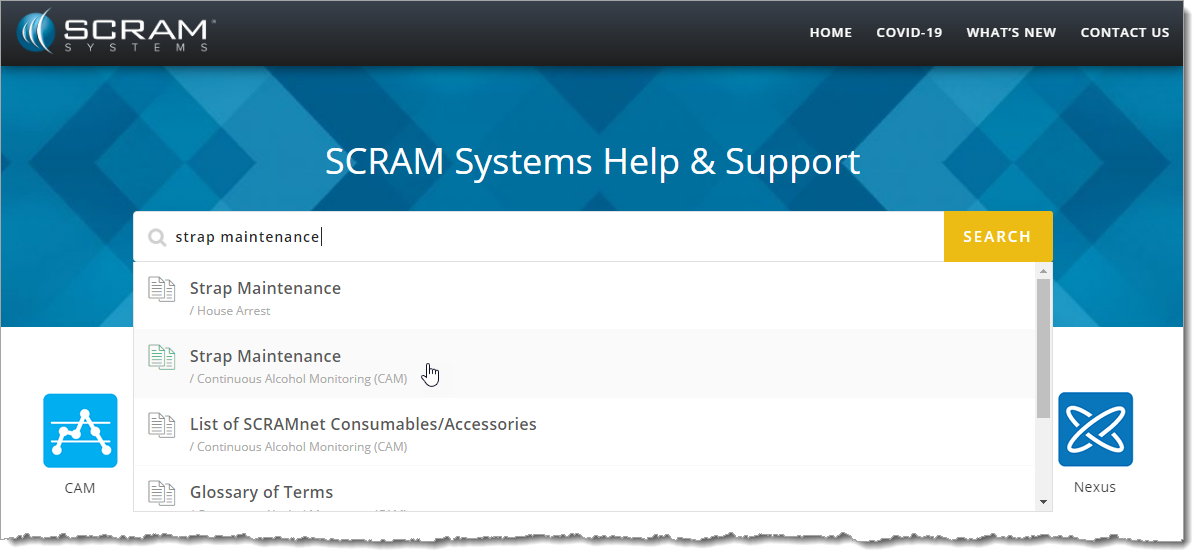
Not quite sure where to start? Enter a few words into the Search field at the top of the page to reveal the most relevant help topics and then select the most appropriate article.
Enter some keywords and then select the appropriate article (click to enlarge).
Feedback
Please contact our Customer Service department at 1-303-785-7879 if you have questions about about the new and improved SCRAM Help & Support Home page, or if you have recommendations for improvements.