archives

At 5:00 AM MT, Tuesday, April 20, 2021, AMS is introducing several new features in SCRAMNET GPS. During the 15-minute deployment, you may not be able to access SCRAMNET GPS but messages from the SCRAM GPS bracelet will continue to be processed uninterrupted. Enhancements/changes included are:

  • New Criteria for Charger Maintenance Alert
  • Show the Exclusion Zone Buffer Entry/Exit Alert on the Dashboard Page
  • Improvements to the Schedule Details Page When Viewed on Mobile Devices

New Criteria for Charger Maintenance Alert

SCRAMNET GPS recently introduced a Charger Maintenance alert as a reminder to inspect GPS Chargers. This alert is generated when a client has had the same bracelet for 18 months or longer or has over 200 plug-ins in a week, which could indicate a worn charger.

In an effort to ensure the safety of our customers and their clients, SCRAM Systems has re-evaluated its new GPS Charging Cable Warning criteria and made some adjustments. As a result you may see the warning that reminds you to inspect your charging cables appear more frequently.

To ensure that the electrical components are not worn, the criteria for generating this alert have been reduced to the same bracelet being assigned for 16 months or longer or has over 150 plug-ins in the last week.

Note: Be aware that the Charger Maintenance alert will be generated only once per client.

Show the Exclusion Zone Buffer Entry/Exit Alert on the Dashboard Page

Exclusion zones that are circle shaped can also include a buffer zone that is associated with the Exclusion Zone Buffer Entry and Exclusion Zone Buffer Exit alerts. Users can elect to receive notifications for these alerts. Additionally, these alerts are now displayed on the Dashboard page.

A client entering an exclusion zone buffer is now indicated on the Dashboard page with a yellow flashing icon. The icon is in yellow to indicate it is not yet a zone violation. This alert’s severity is considered a “Message” so the icon appears below other alerts on the Dashboard page.
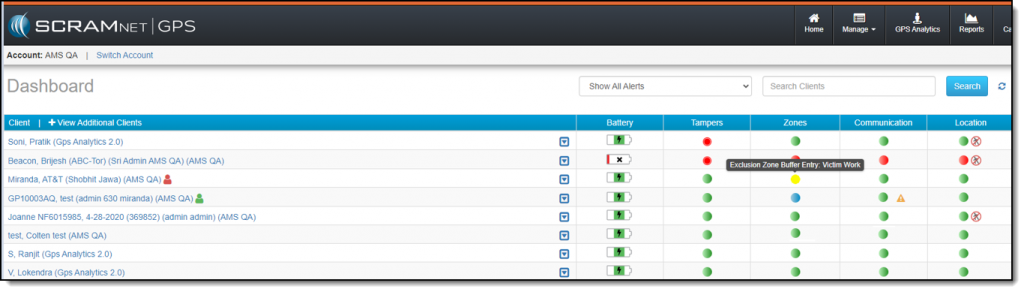
If the client exits the buffer zone, the icon will clear according to the clear settings. If the client enters the Exclusion zone, the icon will turn to flashing red and the severity will move the client to the top of the list.

Improvements to the Schedule Details Page When Viewed on Mobile Devices

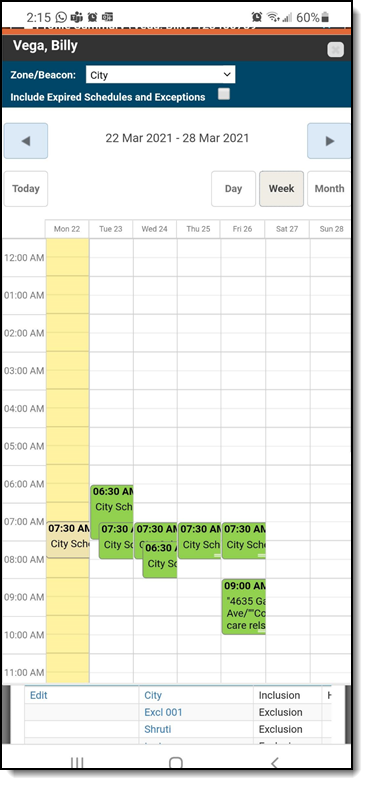
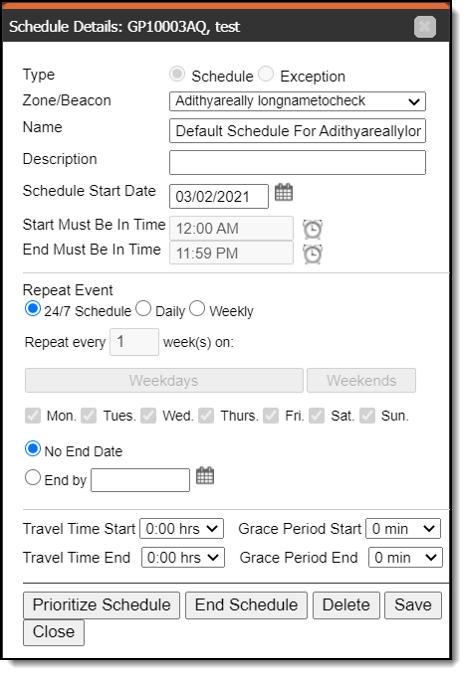
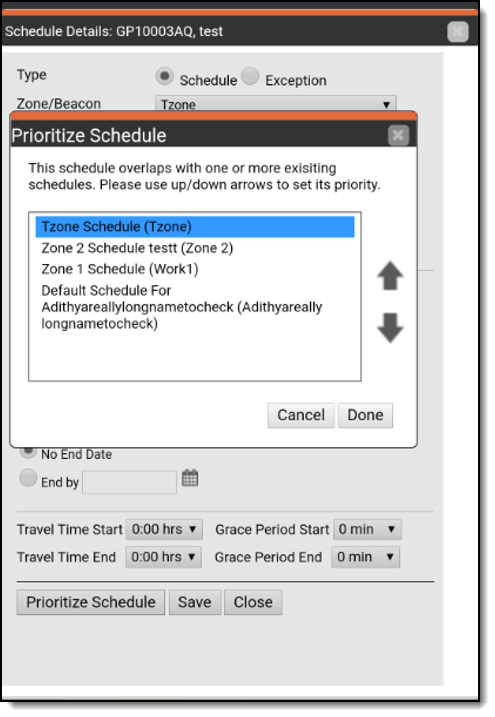
The Schedule Details page has been updated for better viewing on mobile devices. With this release, along with other pages that were previously updated for better viewing, users can now create, edit, and delete schedules from a mobile device, as shown below.
Continue Reading

Beginning on Tuesday, April 13, 2021, a firmware update will be downloaded and installed on your SCRAM Remote Breath devices whenever:

  • A device is being assigned to a client.
  • An assigned device is being checked in.

You also have the option to power up your “on the shelf” devices at any time to perform the update. The firmware update will take approximately two minutes to complete. Please contact our Customer Service department at 303-785-7879 or support@scramsystems.com if any issues arise during the update.

Continue Reading

A deployment scheduled for Thursday, April 8, 2021 introduces a new report and a change in how SCRAMNET reacts when a device is in the “Awaiting Return” status for 30 days.

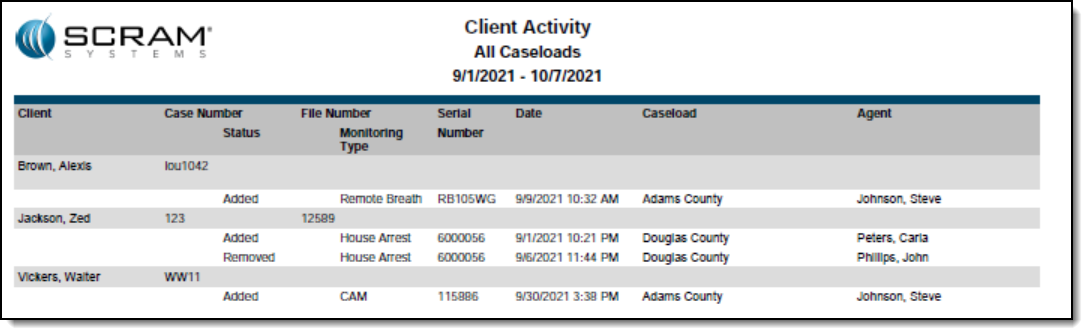
New Client Activity Report

This report allows customers to review all client activity within a selected date range for a specific location or for all locations. To access the report in SCRAMNET, click the Reports tab then click the Management sub-tab.

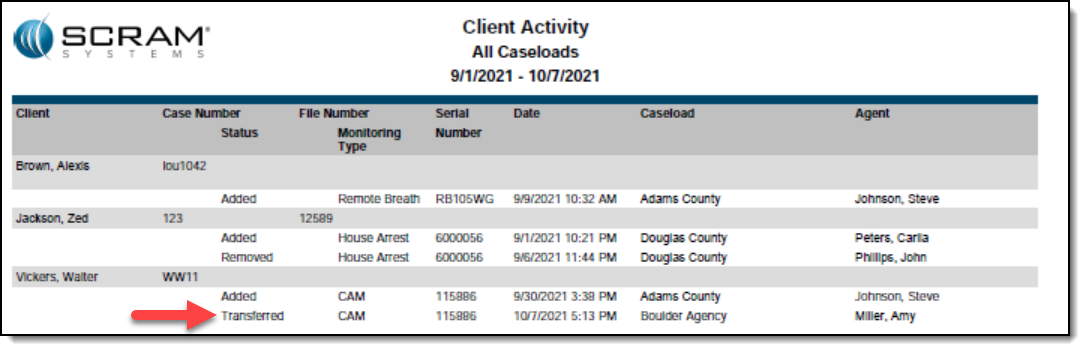
The Client Activity report also shows client transfers between agencies, as shown below.

Equipment No Longer Set to “Lost” After 30 Days in “Awaiting Return” Status

At the end of a client’s monitoring program, a SCRAM CAM or House Arrest bracelet and/or base station can be placed in the “Awaiting Return” status in SCRAMNET if the equipment is NOT on hand when the client is being removed from the program. Presently, SCRAMNET will automatically change the equipment status to “Lost” if the equipment is not checked in within 30 days.

However, customer feedback has informed us that equipment is often not returned within 30 days, but is also not lost. In response to your feedback, moving forward SCRAMNET will no longer automatically change the status of any device to “Lost” after 30 days. All equipment will remain in the “Awaiting Return” status until you check it in or designate it as “Lost” yourself.

Continue Reading

At 5:00 AM MDT on Thursday, March 25, 2021, SCRAM Systems® is introducing several new features in SCRAMNET GPS. During the 15-minute deployment, you may not be able to access SCRAMNET® GPS but messages from the SCRAM GPS® Bracelet will continue to be processed uninterrupted. Enhancements/changes included are:

  • New Charger Maintenance alert
  • Improvements to the Schedule Calendar page when viewed on mobile devices
  • The Event Report can be run for longer periods

New Charger Maintenance Alert

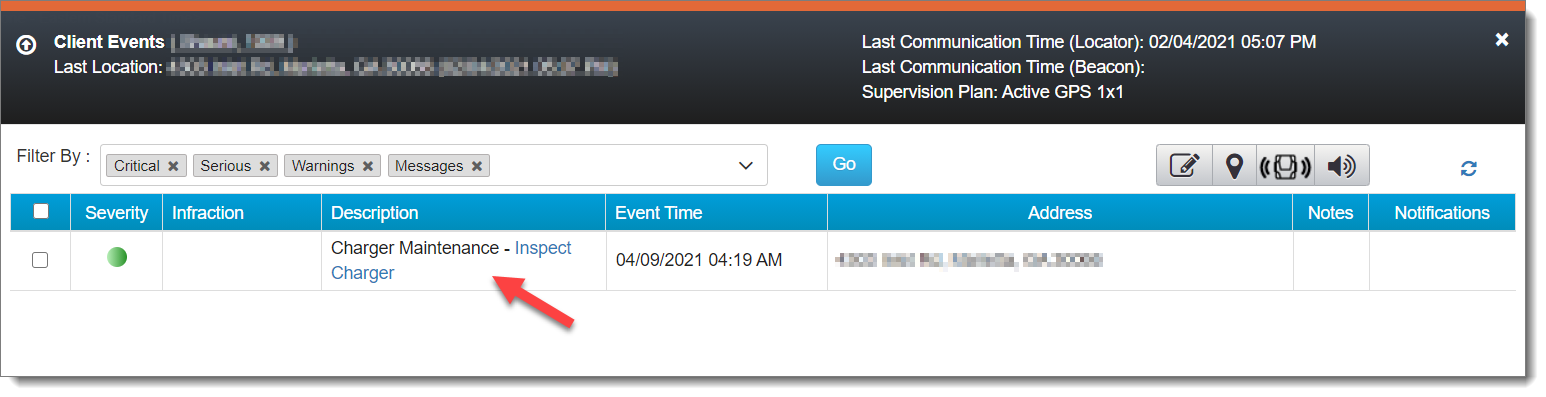
All mechanical equipment deteriorates with use over time. As a result, SCRAMNET GPS has introduced a Charger Maintenance Alert to remind users to inspect GPS Chargers for signs of wear.

GPS Charger Maintenance Alert (click to enlarge)

Charger Maintenance alerts are generated for:

  • All clients who have been assigned the same bracelet for 14 months or more.
  • Any client who has had 150 or more plug-in events in the last seven days.
InformationThis alert does not appear on or affect the Dashboard page, and it auto-clears from the Client Events pop up.

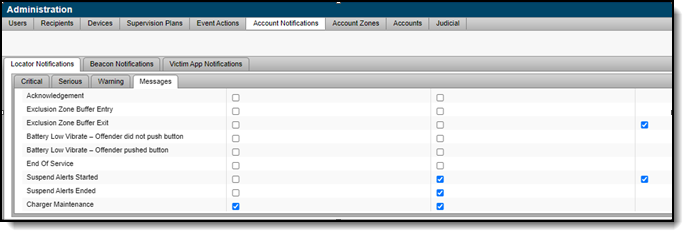
For those users with “Admin” access, the Charger Maintenance alert has been added to the Messages sub-tab of the Locator Notifications tab (Admin > Account Settings > Account Notifications tab > Locator Notifications tab). By default, the alert is selected to receive notifications via text message and email.

If selected, a notification is also sent to all designated recipients when a Charger Maintenance alert is generated. To adjust the notification settings for a specific client, navigate to that client’s Notifications page.

Note: Any designated recipient who is a victim using the SCRAM Ally mobile application will NOT receive a text message and email notification when a Charger Maintenance alert is generated.

Improvements to Schedule Calendar Page When Viewed on Mobile Devices

The Schedule Calendar page has been updated for better read-only viewing on a mobile device.

Note: In the next release, you will be able to add or edit a schedule from your mobile device.

The Event Report can be Run for Longer Periods

When running the Event report for a single client, up to a year of data can now be viewed. When more than one client is selected, the report can be run for a period of up to three months.

Continue Reading

At 5:00 AM MST on Thursday, March 11, 2021, SCRAM Systems is introducing a new map-viewing feature that can be activated when analyzing an alert for a SCRAM Remote Breath client.

New View Location Button

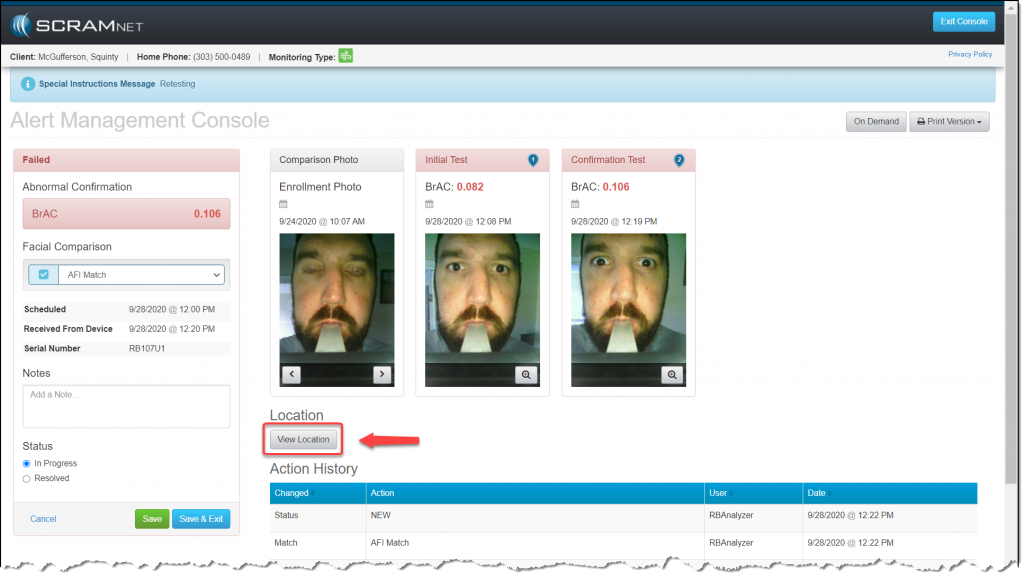
Your SCRAM Remote Breath client’s geographical location is not always relevant to your analysis; so SCRAMNET now makes it your choice to view your client’s location, rather than display it automatically. To view a SCRAM Remote Breath client’s location on a map while reviewing RB alert details, click the new View Location button on the Alert Management Console.

Continue Reading

Inspect GPS Charger Components Before Use

Prior to providing a power supply and charging cables to your clients, inspect the cables and power supply for signs of wear and tear. After GPS charger components have been in service for several months:

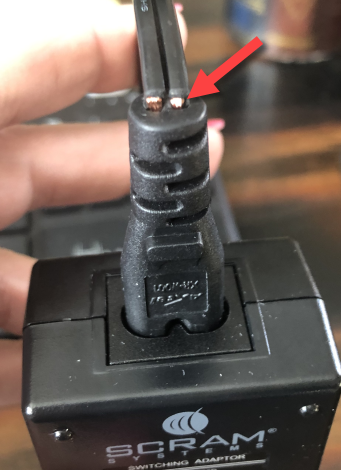
  • AC charging cables may become weakened at the junction where the cord plugs into the power supply and expose bare wires (pictured below) that can short out and spark when plugged into a wall outlet.
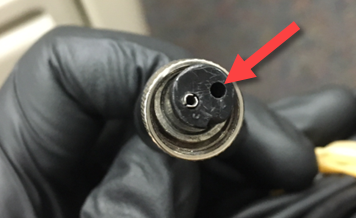
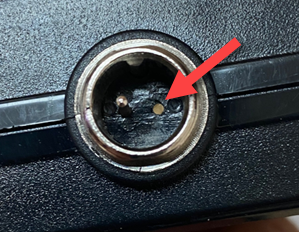
  • The contacts inside the connector on the GPS device charging cable that plugs into the two DC pins on the power supply may become damaged or completely fall out (pictured below) and will no longer carry electrical current to charge the GPS device.
  • The DC pins on on the power supply itself may become bent or broken (pictured below) and will no longer transfer power to the GPS device charging cable.
AC Power Cord with Exposed WiresMissing Contact in Damaged GPS Charging Cable ConnectorGPS Power Supply with Broken DC Pin

All three components of the GPS device charger are consumables; so if any of the above conditions is true, dispose of the component and order a replacement from the SCRAM Equipment Order Form or by contacting Customer Service.

Continue Reading

At 5:00 AM MST on Thursday, March 4, 2021, SCRAM Systems® is introducing an enhancement for an improved user experience when viewing SCRAMNET® GPS on a mobile device. During the 15-minute deployment, you may not be able to access SCRAMNET GPS but messages from the SCRAM GPS® bracelet will continue to be processed uninterrupted.

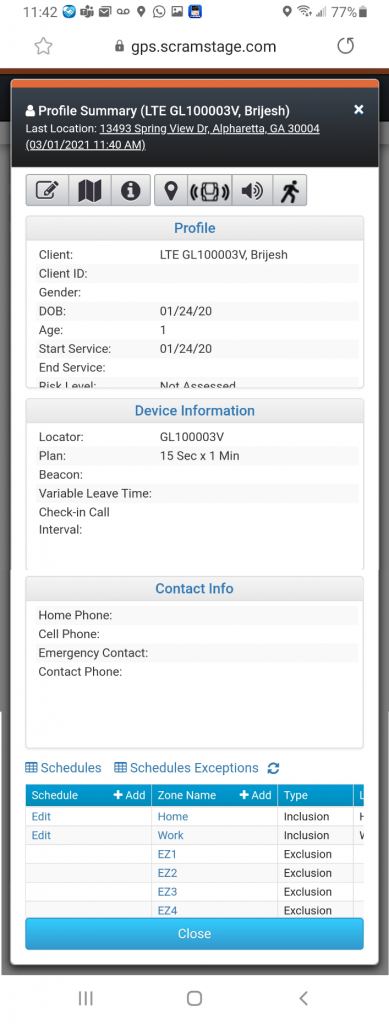
Improvements to Profile Summary Page When Viewed on Mobile Devices

The Profile Summary page has been updated for better viewing on mobile devices in portrait mode. Users can use the icons at the top to send Vibrate and Audible Alarm commands.

Continue Reading

At 5:00 AM MST tomorrow, Thursday, February 11, 2021, SCRAM Systems® is introducing a new feature related to monitoring a SCRAM GPS® client using a mobile device, as well as an enhancement to the SCRAM Ally™ victim notification app. During the 15-minute deployment, you may not be able to access SCRAMNET® GPS but messages from the SCRAM GPS bracelet will continue to be processed uninterrupted. Enhancements/changes included are:

  • Improvements to Dashboard page when viewed on mobile device
    Important Note:
    In order for this change to be implemented, you must clear cookies and cache on your computer.
  • Victim zone radius is displayed in SCRAM Ally

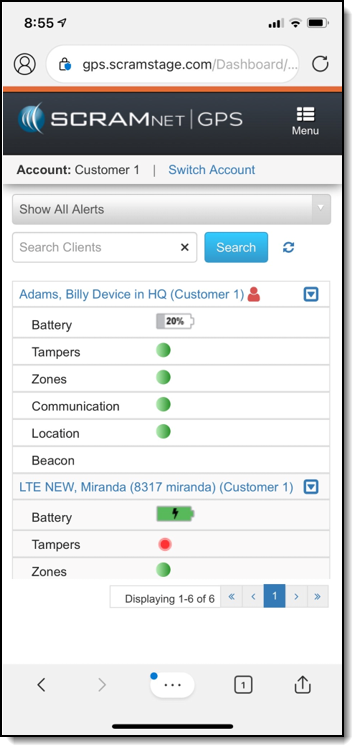
Improvements to Dashboard page

The Dashboard page has been updated for better viewing on mobile devices in “Portrait” mode. Users can use the filter options, search for clients, and view battery levels and alerts. Users can also use the “Quick Links” drop-down list to send Vibrate and Audible Alarm commands.

Victim Zone Radius is Displayed in SCRAM Ally

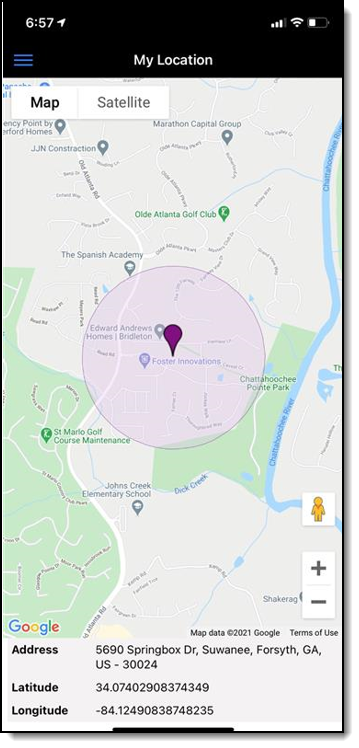
A new version of SCRAM Ally, our mobile app for victim notification, has been released on the Apple App Store (version 1.0.30) and Google Play Store (version 1.0.104). The app has been updated to show the victim zone radius on the My Location page. Adding this feature allows the victim to visually see the range of their moving zone based on where they are currently located.

Continue Reading

New SCRAM Faceplate Removal Tool

SCRAM Systems® continues to refine the tools that are used in your everyday operations to maximize their effectiveness and save you time. Our new spring-loaded SCRAM CAM® and SCRAM House Arrest® faceplate removal tool makes it easier to remove the faceplate – without prying – and helps prevent damage to the outer casing. We understand how important it is for you to keep your SCRAM CAM/HA devices operational and in your available inventory, and our new faceplate removal tool is designed to help you keep them operating at peak performance so you get the most out of your investment.

During the month of January 2021, we began shipping the new faceplate removal tool. If you received one, please watch this short instructional video to learn best practices for positioning and using the new spring-loaded removal tool on the bracelet, and how best to remove faceplates that don’t readily disengage. Failure to use the tool as shown in the video may result in damage to your CAM/HA device.

To order more faceplate removal tools, look for part number 00178 on the SCRAM Equipment Order Form (SCRAMNET login required).

Please contact Customer Service if you have questions about the new Faceplate Removal Tool and how to use it.

Continue Reading

Update Client Employment Information in the ‘Occupation’ Field

When current employment information is entered in the Occupation field in SCRAMNET, we are able to better determine the client’s actions and environment during an alert. This will save time and frustration for both you, and your client by reducing the number of calls you make to question your client’s actions.

To Update Employment Information:

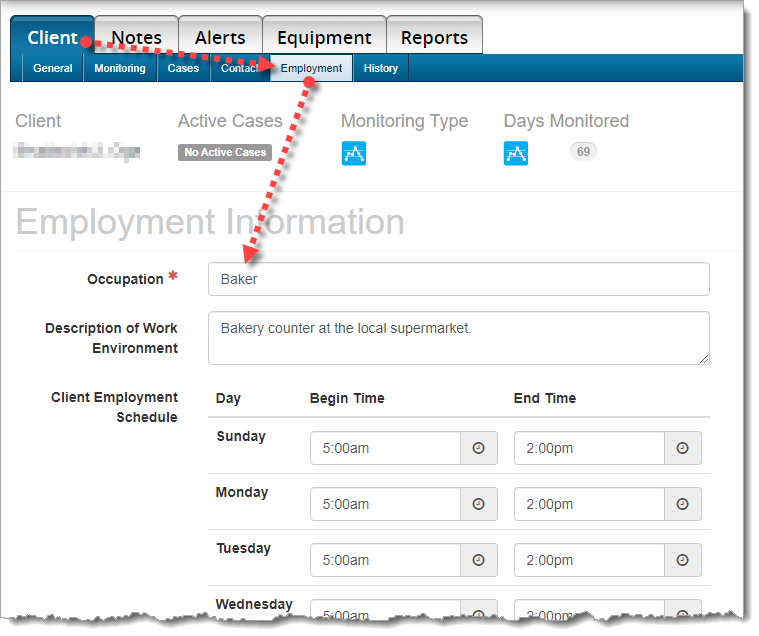
Choose the Client tab,  then choose the Employment sub-tab. Please update the client’s occupation, description of the work environment, and most importantly, the client’s work schedule.

Employment Information

Continue Reading