At 5:00 AM MDT on Thursday, August 19, 2021, SCRAM Systems is introducing two new features in SCRAMNET GPS. During the 15-minute deployment, you may not be able to access SCRAMNET GPS but messages from the SCRAM GPS Bracelet will continue to be processed uninterrupted. Enhancements/changes included are:
Changes to Device Inventory Report
New Options Added to the Gender Drop-Down List
Changes to the Device Inventory Report
To facilitate inventory management, the SCRAM GPS Bracelet’s cellular carrier has been added to the Device Inventory report. This report is available from the Reports menu, as well as the Devices tab from the Admin > Account Settings menu.
Currently, SCRAM GPS Bracelets support ATT and Verizon networks. The cellular carrier is only displayed for “Gen 7” bracelets, which have “GL” at the beginning of the device serial number, as shown below in the Device Name column.
New Options Added to the Gender Drop-Down List
In our continuing effort to unify client management across all SCRAM products, ‘Other’ and ‘Unknown’ have been added as options to the Gender drop-down list on the Client Profile page. These options will also be added to the Add Client page, which is a common page used by all SCRAM products.
With a next release scheduled for tomorrow, August 3, 2021 at 8:30 PM MT, two new features are being introduced in SCRAM Nexus. They are:
“Other” option for contact notes
New time selector
Client: “Other” Option for Contact Notes
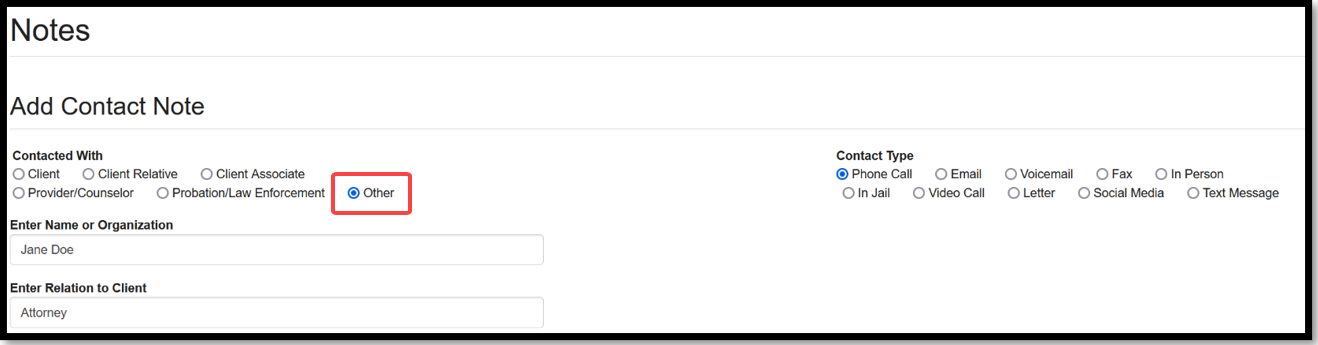
When recording a contact note, you now have the option to select an Other radio button, as shown below. With this option selected, you must then enter the name or organization associated with the contact and the relation of the contact to the client.
Client: New Time Selector
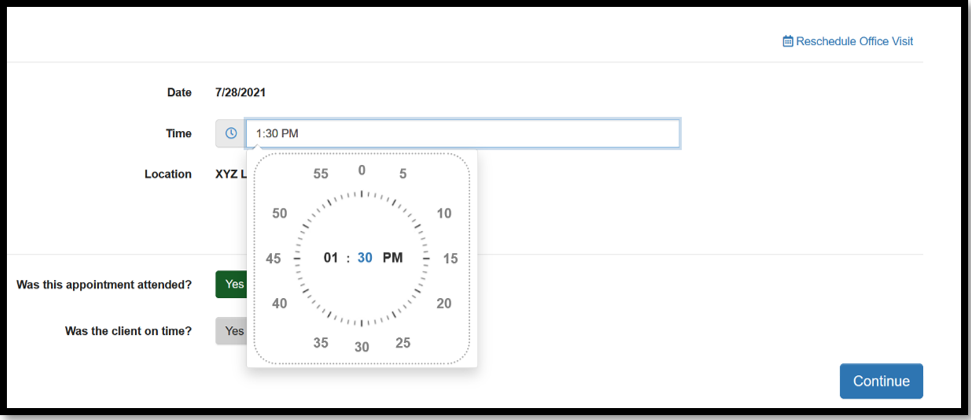
A new, more intuitive time selector is being made available in SCRAM Nexus. The tool allows for times to be quickly selected in five-minute intervals. You still have the option to enter a specific minute in the field if needed.
At 5:00 AM MDT on Thursday, July 29, 2021, SCRAM Systems is introducing two new features in SCRAMNET GPS. During the 15-minute deployment, you may not be able to access SCRAMNET GPS but messages from the SCRAM GPS Bracelet will continue to be processed uninterrupted. Enhancements/changes included are:
New Daily Activity Report
Improvements to Locate Now and Pursuit Mode When Used on a Mobile Phone
New Daily Activity Report
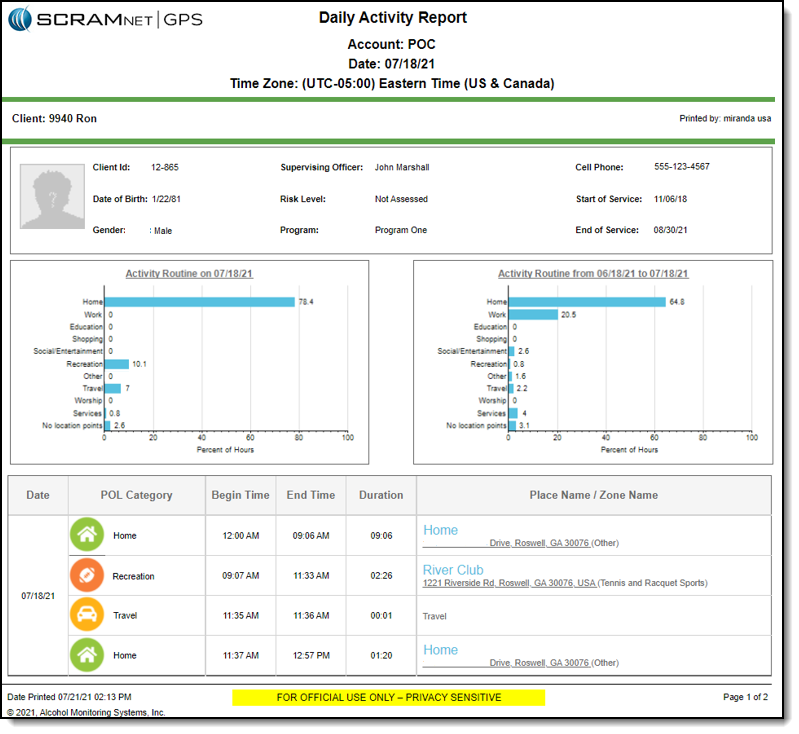
The Daily Activity report lists daily stops and travel for selected clients for a given date range.
The report can be accessed from two locations:
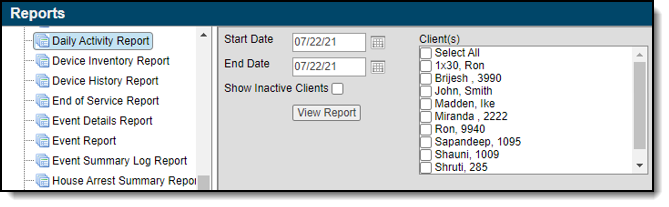
Reports > Daily Activity Report
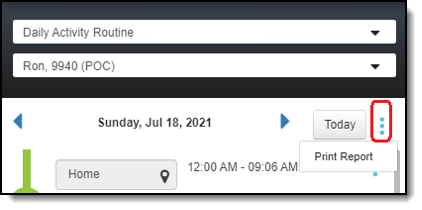
Pattern of Life > Daily Activity Routine (View) > More Options (Menu) > Print Report
When accessing the report from the Reports menu:
The Start Date can go back one year. Note: If Pattern of Life has recently been enabled for your account, a year of data will not be available.
The End Date can be six months from the Start Date for a single client. If multiple clients are selected, the total duration for all selected clients cannot exceed 180 days.
The report body has three sections:
Client Profile information
Charts of how time is spent for the given day, compared to the last 30 days
Daily activity of stops and travel
The stop address is a hyperlink that opens the address on Google Maps. When the report is exported to PDF, Word, or Excel, the hyperlink can still be used to display the address on the map.
Improvements to Locate Now and Pursuit Mode When Used on a Mobile Phone
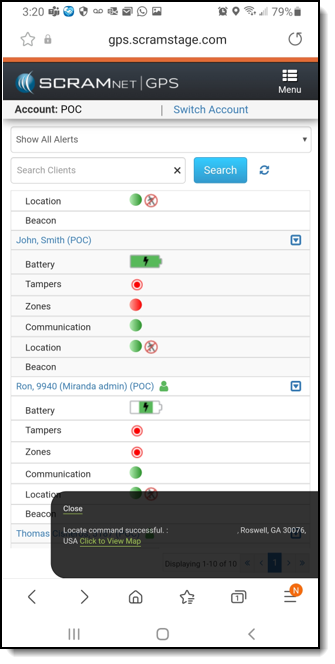
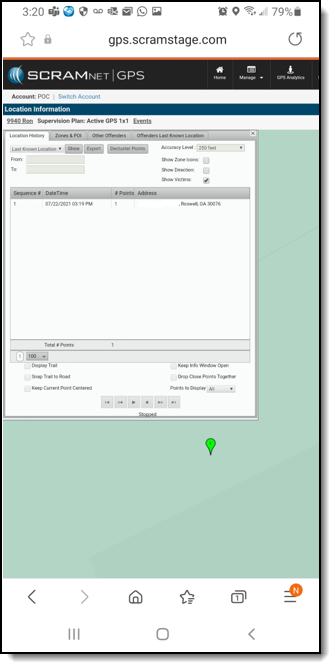
The Locate Now and Pursuit Mode commands can be initiated from the Dashboard, Profile Summary, and Client Events pages. These pages were recently updated for better viewing on a mobile phone.
Pinch the screen to zoom in or out of the map.
Note: Not all features of the map have been updated for better viewing on the map.
At 5:00 AM MDT on Thursday, July 8, 2021, SCRAM Systems is introducing several new features in SCRAMNET GPS. Most changes are related to “Pattern of Life” analysis, which was recently made available to all SCRAMNET GPS users. To view details on this analysis tool: GPS Analytics 2.0: Pattern of Life. During the 15-minute deployment, you may not be able to access SCRAMNET GPS but messages from the SCRAM GPS Bracelet will continue to be processed uninterrupted. Enhancements/changes included are:
Location Points View Added to Pattern of Life
Businesses Layer Added to Pattern of Life Map
Improvements to Pattern of Life When Viewed on a Mobile Phone
Update on Using SCRAMNET GPS on a Mobile Phone
Location Points View Added to Pattern of Life
A Location Points view has been added to Pattern of Life to show a client’s location points during a given time frame.
Pattern of Life provides more detailed information about a client’s stops, and groups them into meaningful categories of activities. Using this data, Pattern of Life shows how a client, generally, spends their time. This view promotes a better understanding of the client’s patterns and behaviors. Users with appropriate permissions can access a client’s Pattern of Life from the Dashboard page by selecting the Pattern of Life Analysis option from the “Quick Links” drop-down list.
(click to enlarge)
The existing views provide different levels of summarization:
Pattern of Life Analysis – Summarizes time spent on various activities by week or month
Daily Activity Routine – Shows specific locations visited for a given day
Location Points – Shows location points for a given time frame
Selecting the Location Points View
From the Pattern of Life page, select the Location Points option from the drop-down list of available views.
(click to enlarge)
Setting the Time Frame
By default, the view shows all points for Today. The time frame can be adjusted by clicking the Show button and selecting a predefined range.
(click to enlarge)
Select the Custom option to set a specified time frame. To set the time frame:
Click the Start and End date time.
Set the desired time frame using the calendar.
Click the Show button.
(click to enlarge)
Configuring the Data Grid
By default, the Location Points view displays the Sequence Number, DateTime of the location point, and the Address. Additional properties of the location point can be viewed. Click the Columns button at the bottom of the grid to add/remove columns.
(click to enlarge)
Once any changes are made, click the Save button. You also have the option to select the Make this default view check box to show the selected columns each time the view is displayed. Click and drag the column headers to arrange the columns.
Use the pagination control to set the number of rows to show per page.
Using More Options
Click the More Options icon (three vertical dots) to decluster the points or to export the points to a csv file.
(click to enlarge)
Interacting with the Map
Click on a row in the grid to highlight that location point on the map by opening the point’s details pop up. The pop up shows additional information about the location point.
(click to enlarge)
Other features include:
Click on a location point on the map to highlight that point in the grid.
Mouse over a location point on the map to open the Info Window.
Select Layers > Zones to layer zones on the map.
Select Layers > Businesses to layer nearby businesses on the map (see below).
Interacting with the Daily Activity Routine View
From the Daily Activity Routine view, you can quickly see points that make up an activity. Select the Show Points option from the More Options drop-down list to drill to a lower-level view (Location Points view) of the selected activity. The date range is automatically filtered to only show points during the activity’s time frame.
(click to enlarge)
To return to the Daily Activity view, select the Switch to previous view option from the More Options drop-down list.
(click to enlarge)
Businesses Layer Added to Pattern of Life Map
Users can now overlay businesses on the Pattern of Life Map using the Layers map feature. The image below of the Daily Activity Routine view shows a client stop at a gas station. Click on the stop in the grid to see a list of nearby businesses.
(click to enlarge)
To see nearby businesses on the map, select the Businesses option from the Layers drop-down list on the map. Nearby businesses are displayed based on the map’s zoom level.
(click to enlarge)
Improvements to Pattern of Life When Viewed on a Mobile Phone
The Pattern of Life page has been updated for better viewing on a mobile device.
(click to enlarge)
Slide the divider bar in the middle of the screen up or down to show more or less of the map.
Update on Using SCRAMNET GPS on a Mobile Phone
Recently, several pages in SCRAMNET GPS were updated to adapt to mobile phones. To date, the following pages have been updated:
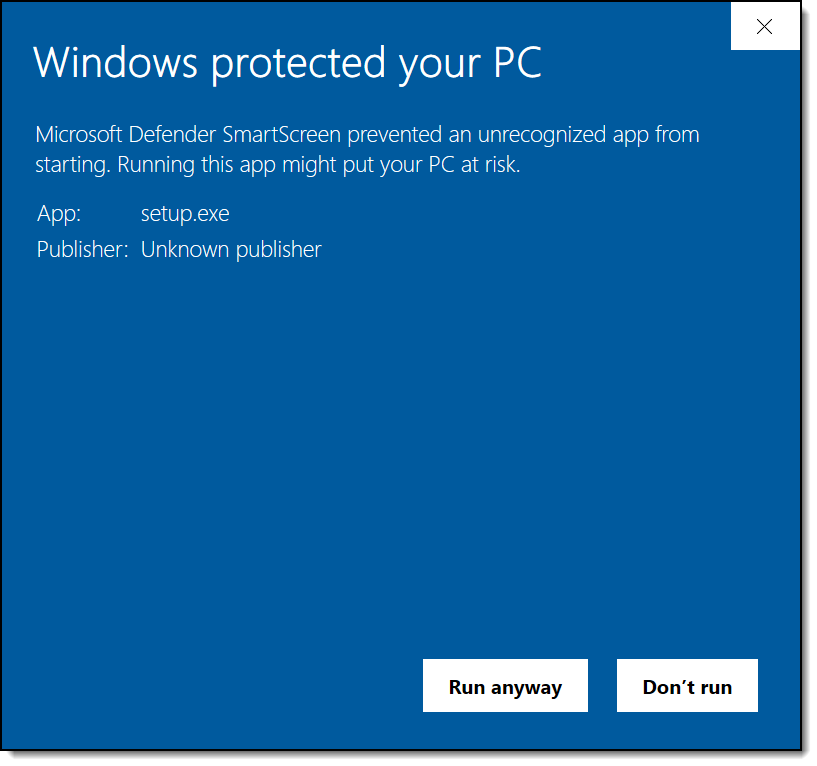
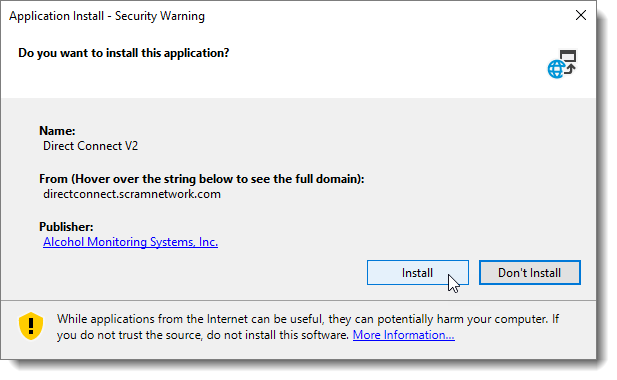
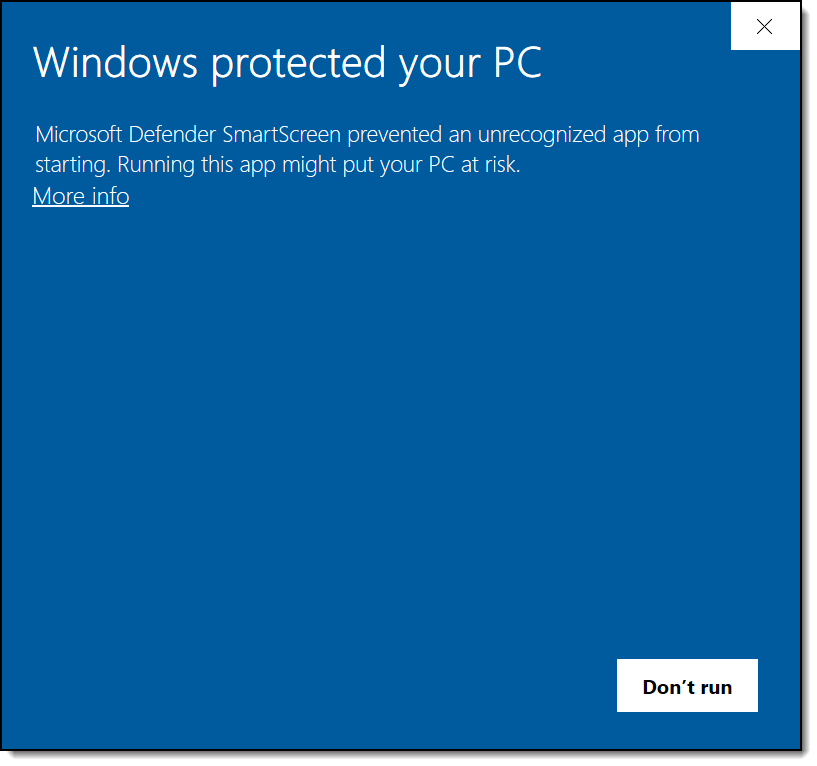
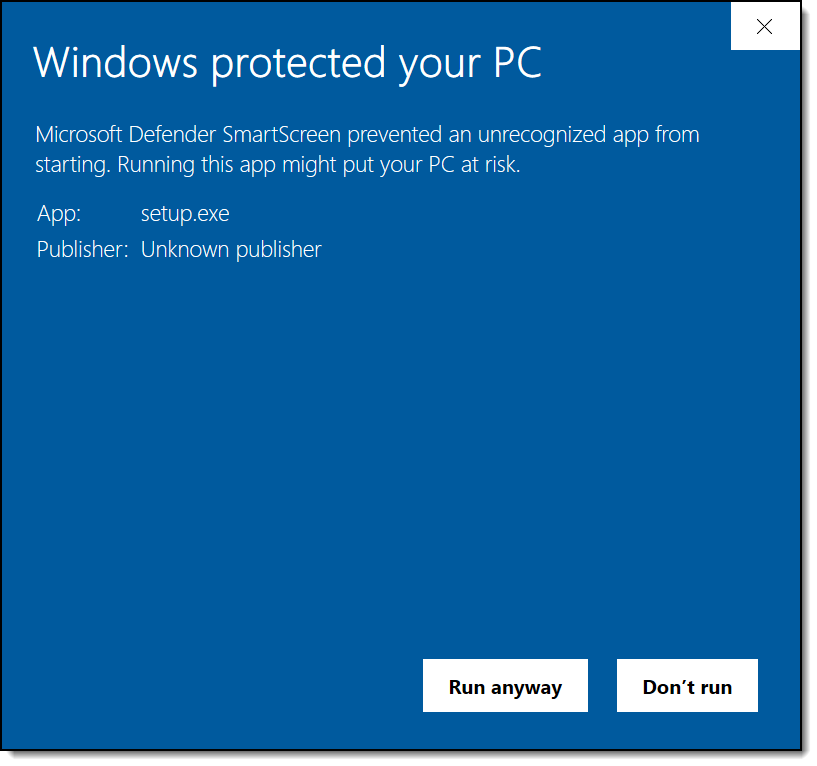
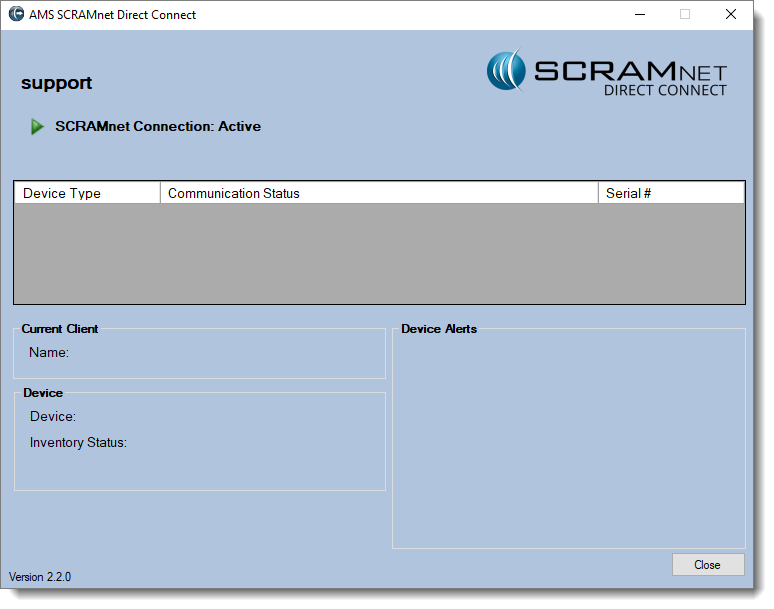
On the afternoon of June 17, 2021, SCRAM Systems® released Direct Connect v2. Once installed, this new version of the Direct Connect application will no longer require that you log in each time you launch the tool. Instead, the application uses your Microsoft credentials to automatically log you in.
Installing the new application will entail:
Ensuring that the application is closed.
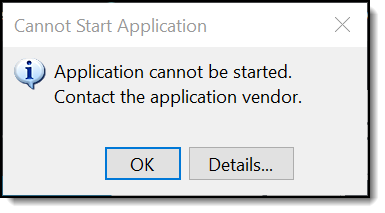
Validating that the correct back-end framework is installed.
Completing the installation steps.
For now, the Direct Connect application currently installed on your computer can continue to be used to upload data. Instructions for removing the old application are included below at the end of this article.
Installation
To install Direct Connect v2:
If Direct Connect is open, close the application before proceeding.
At 5:00 AM MDT on Thursday, June 17, 2021, SCRAM Systems is introducing three new features in SCRAMNET GPS. During the 15-minute deployment, you may not be able to access SCRAMNET GPS, but messages from the SCRAM GPS bracelet will continue to be processed uninterrupted. Enhancements/changes included are:
New Criteria for Charger Maintenance Alert
Minimum Zone Size Has Been Decreased
Users Can View Zones of Inactive Clients
New Criteria for Charger Maintenance Alert
SCRAMNET GPS recently introduced a Charger Maintenance alert as a reminder to inspect GPS Chargers. The criteria for generating this alert have been updated to the same SCRAM GPS bracelet being assigned for 12 months or longer, or the bracelet having over 150 plugins in the last week.
Minimum Zone Size Has Been Decreased
Zones can now be created as small as 75 feet (23 meters). Previously, the smallest zone allowed was 200 feet (61 meters). This change applies to:
All Zone Types – Inclusion, Exclusion, and Neutral
All Zone Shapes – Circle, Rectangle, and Polygon
Client Zones and Account Zones
On Board and On Server Zones
Users are encouraged to consider the possible ramifications of creating a smaller zone. For example, it may be possible for a client to drive through a small Exclusion Zone undetected.
To optimize your GPS monitoring, consider increasing the size of the zone. As a reminder of these risks, the warning message below is displayed when creating a zone smaller than 200 feet (61 meters).
Users Can View Zones of Inactive Clients
With this release, you can easily view the zones for an inactive client. This feature may be very useful in a situation where a client has been incarcerated for a zone violation and inactivated in SCRAMNET GPS, and you need to view the zone that caused the violation. To view the zones of an inactive client:
Select the Manage > Clients option.
Select the Show Inactive Clients check box.
Click the Profile link.
Click to enlarge
From the client’s Profile page, you have the option to:
Select the Zones tab to view zones in read-only mode.
Select a specific zone to view the zone settings.
Click a Map It check box to view that zone on the map.
New reports have been added to Optix Analytics to help optimize how you use TouchPoint to meet the needs of your community. These reports have been designed to provide you with a high-level overview of the performance of your SCRAM TouchPoint® program. This information can be used to measure check-in compliance and to track utilization of the TouchPoint-enabled services provided by your monitoring program.
There are three TouchPoint reports available to you within Optix Analytics:
Check-In Overview: This report provides you with the total number of active TouchPoint clients, as well as a breakdown of clients by TouchPoint-enabled services.
Check-In Table: This report provides you with similar information to the Check-In Overview, but presents the data in a table rather than on a chart. This report also displays the verification method used by the client’s smartphone, and whether or not the check-in passed verification.
Check-In Heat Map: This report provides you with a visual of the geographical locations from which the greatest concentration of your clients submit their TouchPoint check-ins.
Visit the TouchPoint Reports help page to learn more about these new reports.
At 5:00 AM MDT on Wednesday, May 26, 2021, SCRAM Systems is introducing three new features in SCRAMNET GPS. During the 15-minute deployment, you may not be able to access SCRAMNET GPS but messages from the SCRAM GPS Bracelet will continue to be processed uninterrupted. The enhancements are:
Automated Notifications are Sent from a New Number
Email Notifications are Sent from a New Email Address
Improvements to Notes Pop Up when Viewed on Mobile Device
Automated Notifications are Sent from a New Number
SCRAMNET GPS notifications sent via text messages will now come from 23265.
This change applies to the U.S. and Canada. For other countries, the number remains the same.
Email Notifications are Sent from a New Email Address
SCRAMNET GPS notifications and reports sent via email will come from a new email address: noreply@scramnetwork.com. Please work with your IT department to adjust your network and/or email settings to “whitelist” the “@scramnetwork.com” email domain, to ensure this new address is not blocked or moved to a “Junk” folder.
Improvements to Notes Pop Up When Viewed on Mobile Device
The Add Notes pop up field has been updated for better viewing on your mobile device, as shown below.
At 5:00 AM MDT on Thursday, May 6, 2021, SCRAM Systems introduces several new features in SCRAMNET GPS. During the 15-minute deployment, you may not be able to access SCRAMNET GPS but messages from the SCRAM GPS bracelet will continue to be processed uninterrupted. The enhancements and updates include:
New Criteria for the Charger Maintenance Alert
Improvements to the Events Dialog When Viewed on Mobile Devices
Additional Information Added to Device Inventory Page
New Criteria for Charger Maintenance Alert
SCRAMNET GPS recently introduced a Charger Maintenance Alert as a reminder to inspect GPS Chargers. When this alert was first introduced, it was generated when a client had the same SCRAM GPS bracelet assigned for 18 months or longer or had over 200 plug-ins in a week, either of which could indicate worn charger components. Later, the interval was reduced to every 16 months. With this deployment and out of an abundance of caution, the criteria for generating this alert have been reduced to the same bracelet being assigned for 14 months or longer, or over 150 plug-ins in the last week.
Reminder: The Charger Maintenance alert is only generated once per client.
Improvements to the Schedule Details Page When Viewed on Mobile Devices
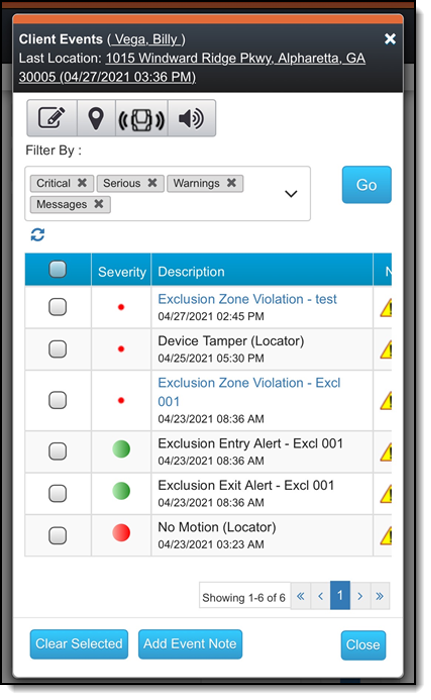
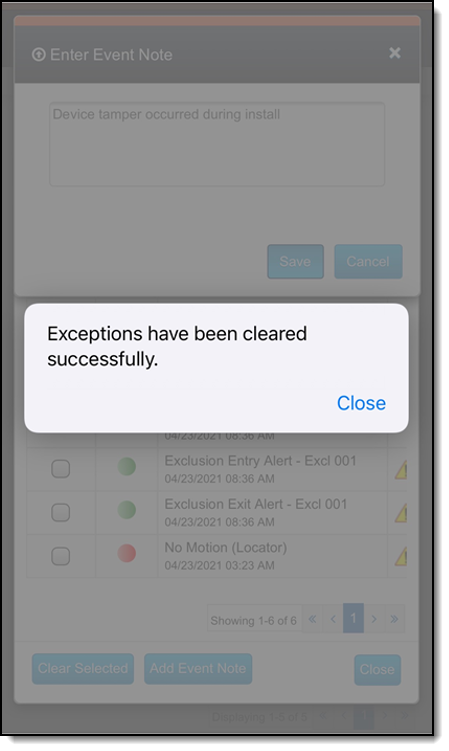
The Client Events and Victim Events screens have been updated for better viewing on mobile devices. In addition, with this release users can now clear alerts, enter notes, and view alert notifications from a mobile device.
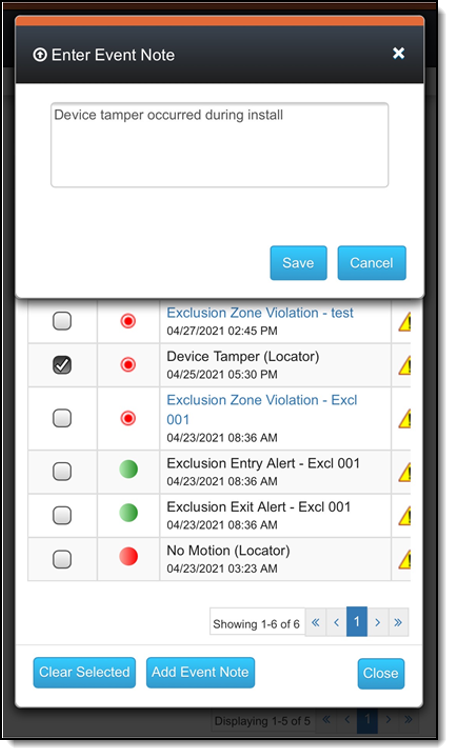
To clear an event:
In the left column, select one or more events.
Tap the Clear Selected button.
Enter a note.
Tap the Save button.
The pop up below appears.
Additional Information Added to Device Inventory Page
Users in the Admin role can manage device inventory by navigating to the Admin > Account Settings > Devices tab. The following new columns have been added:
Protocol – The communication protocol the device uses to communicate with the server. The two possible values are UDP and MQTT (IoT).
Carrier – The wireless communications carrier the device’s SIM card uses.
CountryCode – The country in which the device was configured to operate.
Initially, these columns may not display any information, which is as-designed and does NOT indicate that a problem has occurred.
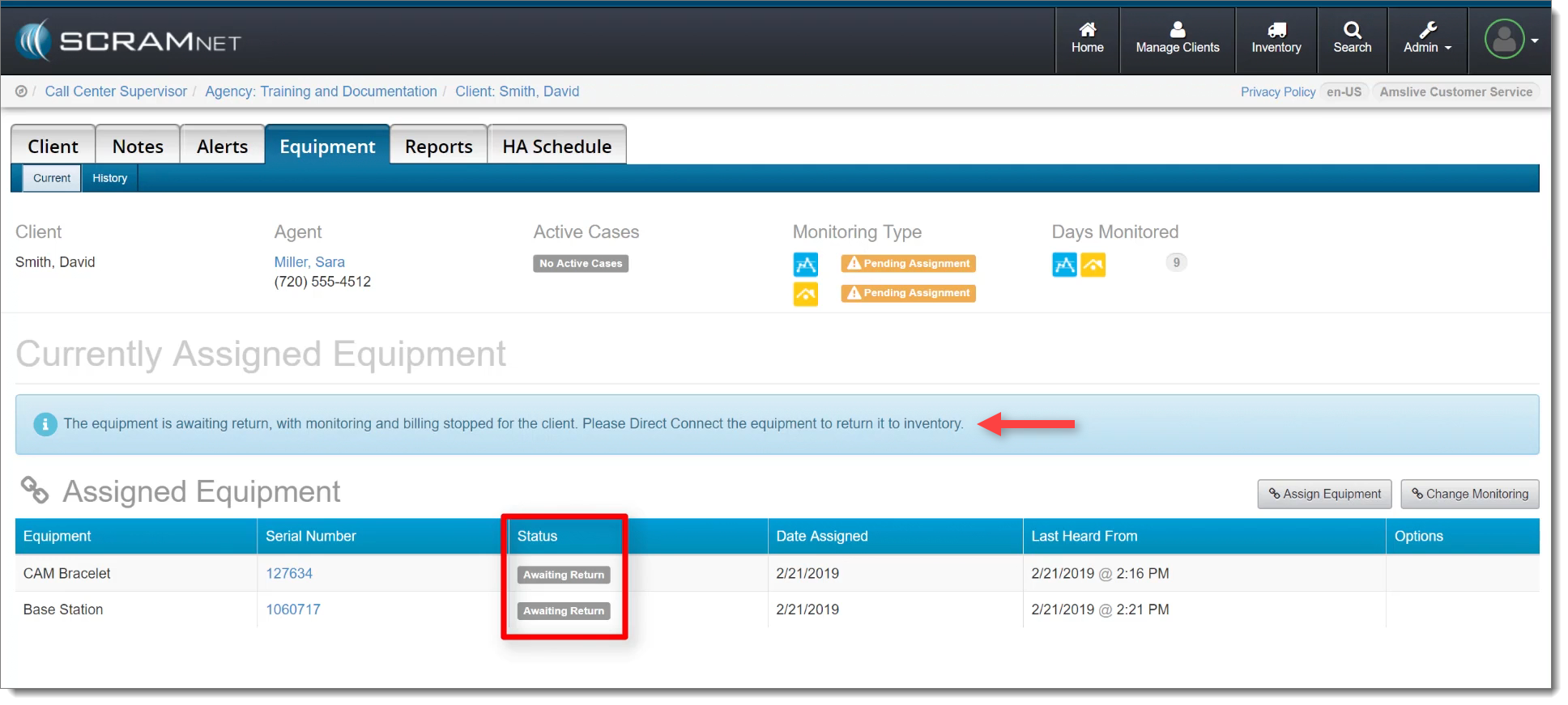
Equipment No Longer Set to “Lost” After 30 Days in “Awaiting Return” Status
At the end of a client’s monitoring program, a SCRAM CAM or House Arrest bracelet and/or base station may be placed in the Awaiting Return status in SCRAMNET if the equipment is NOT on hand when the client is being removed from the monitoring program. Previously, SCRAMNET would automatically change the equipment status to Lostif the equipment was not checked in within 30 days.
Awaiting Return Status in SCRAMNET (click to enlarge)
However, customer feedback informed us that oftentimes equipment that is not returned within 30 days is NOT lost. Therefore, in response to your feedback, SCRAMNET no longer automatically changes the status of an Awaiting Return device to Lost after 30 days. All equipment will remain in Awaiting Return status until you check it in, or designate it as Lost yourself.