SCRAMNET GPS

At 5:00 AM MT, Tuesday, April 20, 2021, AMS is introducing several new features in SCRAMNET GPS. During the 15-minute deployment, you may not be able to access SCRAMNET GPS but messages from the SCRAM GPS bracelet will continue to be processed uninterrupted. Enhancements/changes included are:

  • New Criteria for Charger Maintenance Alert
  • Show the Exclusion Zone Buffer Entry/Exit Alert on the Dashboard Page
  • Improvements to the Schedule Details Page When Viewed on Mobile Devices

New Criteria for Charger Maintenance Alert

SCRAMNET GPS recently introduced a Charger Maintenance alert as a reminder to inspect GPS Chargers. This alert is generated when a client has had the same bracelet for 18 months or longer or has over 200 plug-ins in a week, which could indicate a worn charger.

In an effort to ensure the safety of our customers and their clients, SCRAM Systems has re-evaluated its new GPS Charging Cable Warning criteria and made some adjustments. As a result you may see the warning that reminds you to inspect your charging cables appear more frequently.

To ensure that the electrical components are not worn, the criteria for generating this alert have been reduced to the same bracelet being assigned for 16 months or longer or has over 150 plug-ins in the last week.

Note: Be aware that the Charger Maintenance alert will be generated only once per client.

Show the Exclusion Zone Buffer Entry/Exit Alert on the Dashboard Page

Exclusion zones that are circle shaped can also include a buffer zone that is associated with the Exclusion Zone Buffer Entry and Exclusion Zone Buffer Exit alerts. Users can elect to receive notifications for these alerts. Additionally, these alerts are now displayed on the Dashboard page.

A client entering an exclusion zone buffer is now indicated on the Dashboard page with a yellow flashing icon. The icon is in yellow to indicate it is not yet a zone violation. This alert’s severity is considered a “Message” so the icon appears below other alerts on the Dashboard page.
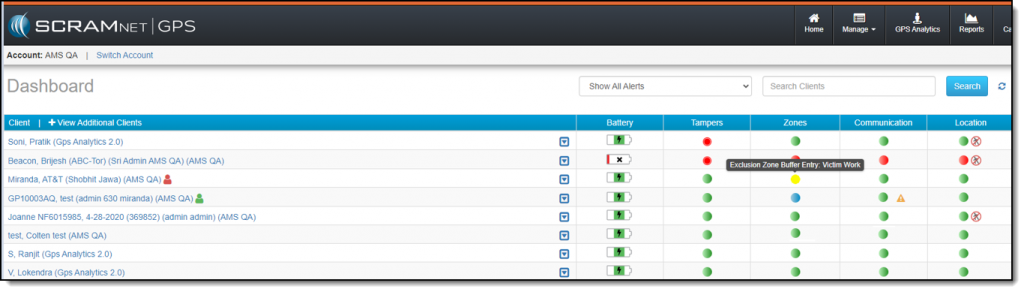
If the client exits the buffer zone, the icon will clear according to the clear settings. If the client enters the Exclusion zone, the icon will turn to flashing red and the severity will move the client to the top of the list.

Improvements to the Schedule Details Page When Viewed on Mobile Devices

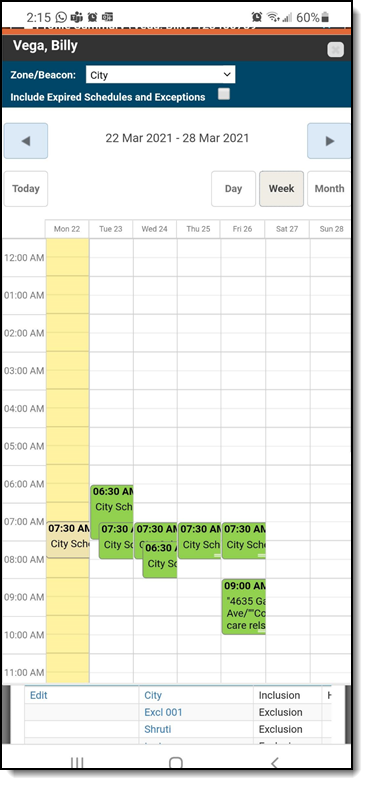
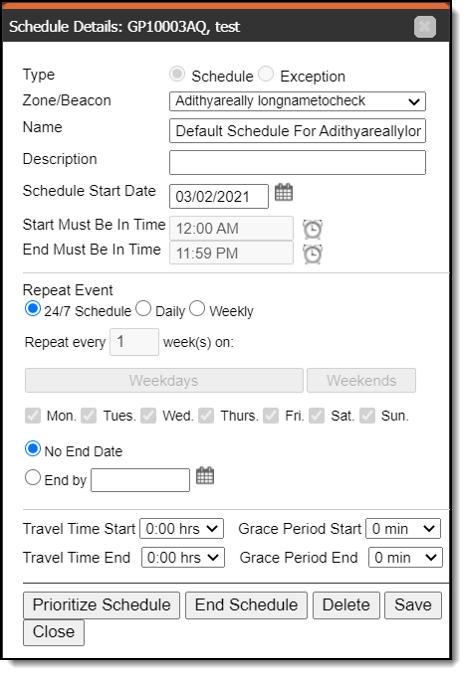
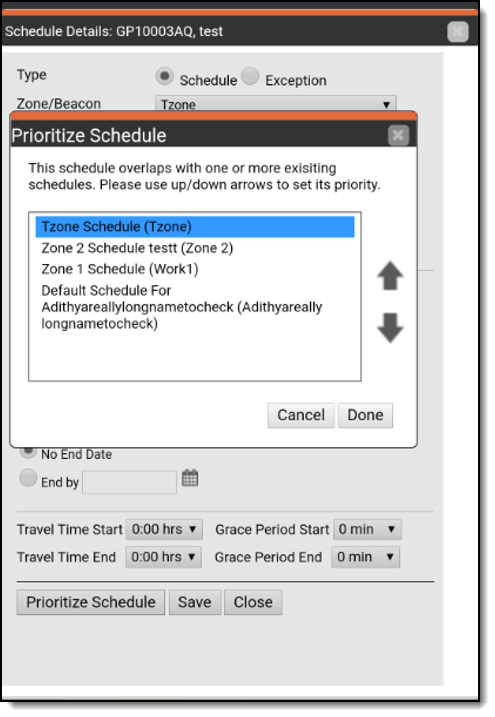
The Schedule Details page has been updated for better viewing on mobile devices. With this release, along with other pages that were previously updated for better viewing, users can now create, edit, and delete schedules from a mobile device, as shown below.
Continue Reading

On April 1, 2021, SCRAM Systems® will simplify your SCRAM TouchPoint™ client’s first experience when logging into the SCRAM TouchPoint Mobile app. Moving forward, all your new TouchPoint clients will use the same temporary password. The temporary password of Touchpoint1! is visible on their TouchPoint client profile page in SCRAMNET OPTIX™.     

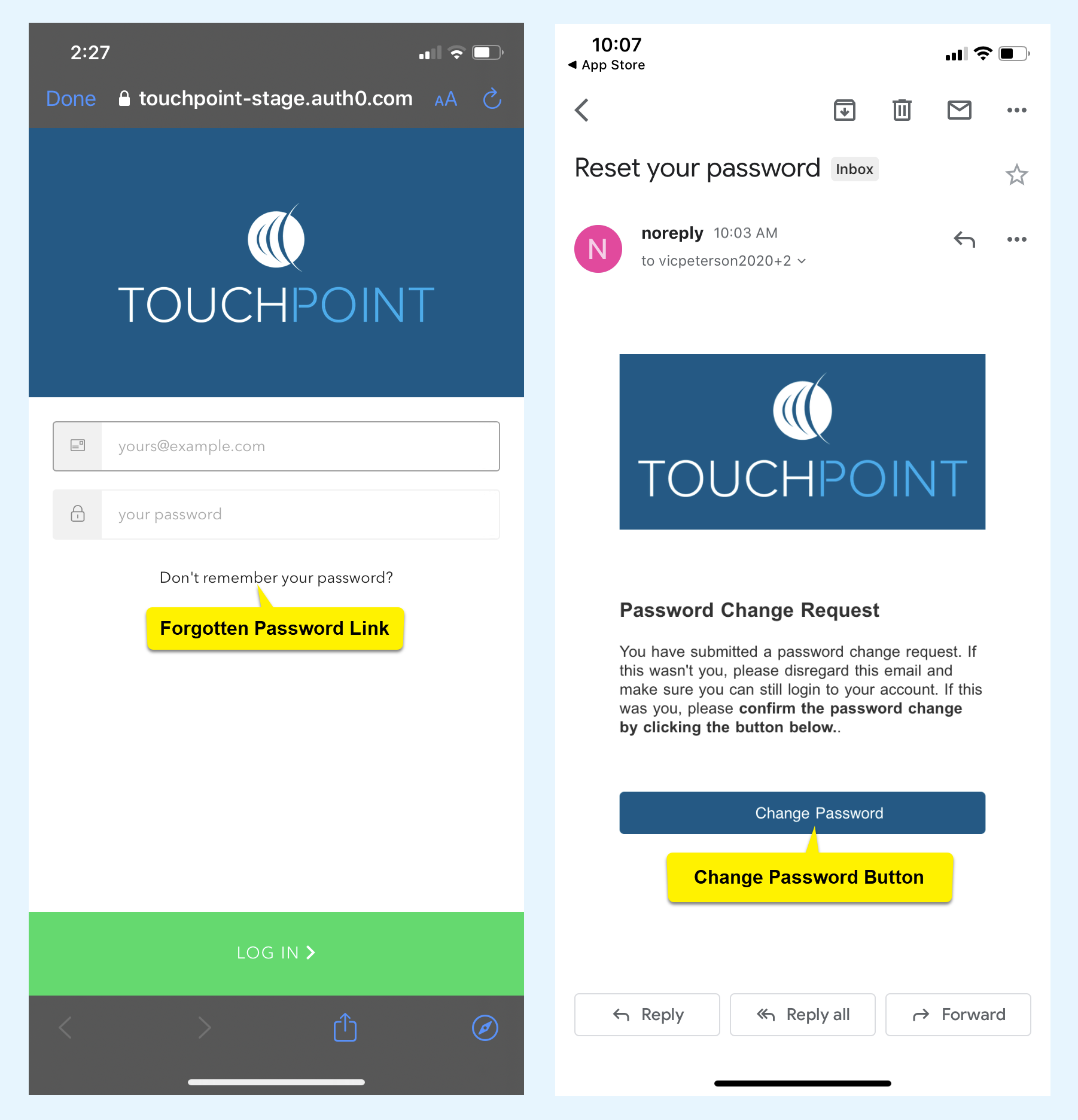
Moving forward, your client will use their email address and the temporary password of Touchpoint1! to log into their app for the first time. Once your client has successfully logged into the app for the first time, SCRAM Systems recommends your client access the forgotten password link on the app’s Log In screen and follow the instructions to create a secure password to use moving forward.

TouchPoint phone images for forgot password link and email with change password button highlighted.
click to enlarge

Feedback

Please contact SCRAM Systems Customer Service with any recommendations for system improvements.

Continue Reading

SCRAM Systems® provides enhancements and updates to the SCRAM TouchPoint™ Mobile application on a continual basis. These updates improve the functionality and usability of the application for your client. Once an update is available in the Apple App store and the Google Play store, the next step is to have the client update the application on their smartphone.

An app update can be completed in two ways.

  • Automatic application updates (Recommended)
  • Manual application updates

As a best practice, we recommend you encourage your clients to enable automatic app updates – this ensures they are always using the latest version of the TouchPoint app.

Setup Automatic Application Updates

iPhone

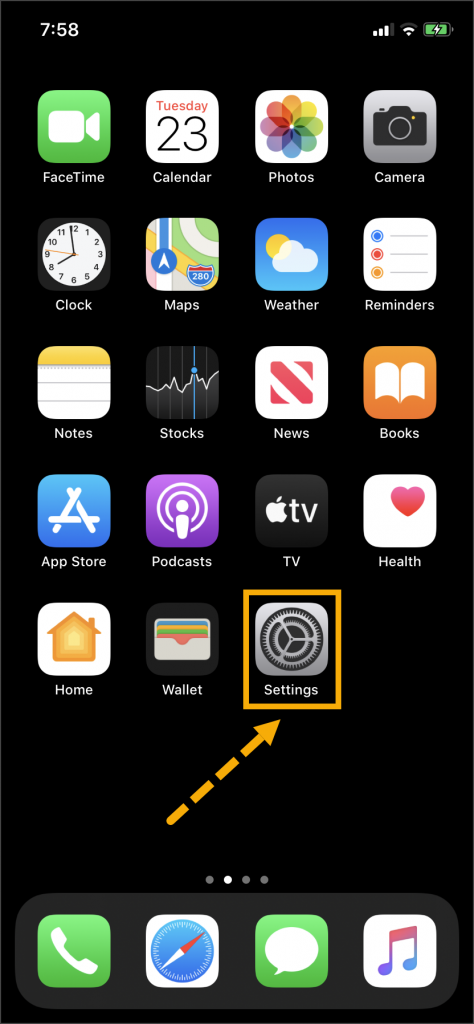
  1. On the client’s smartphone, tap the Settings icon.
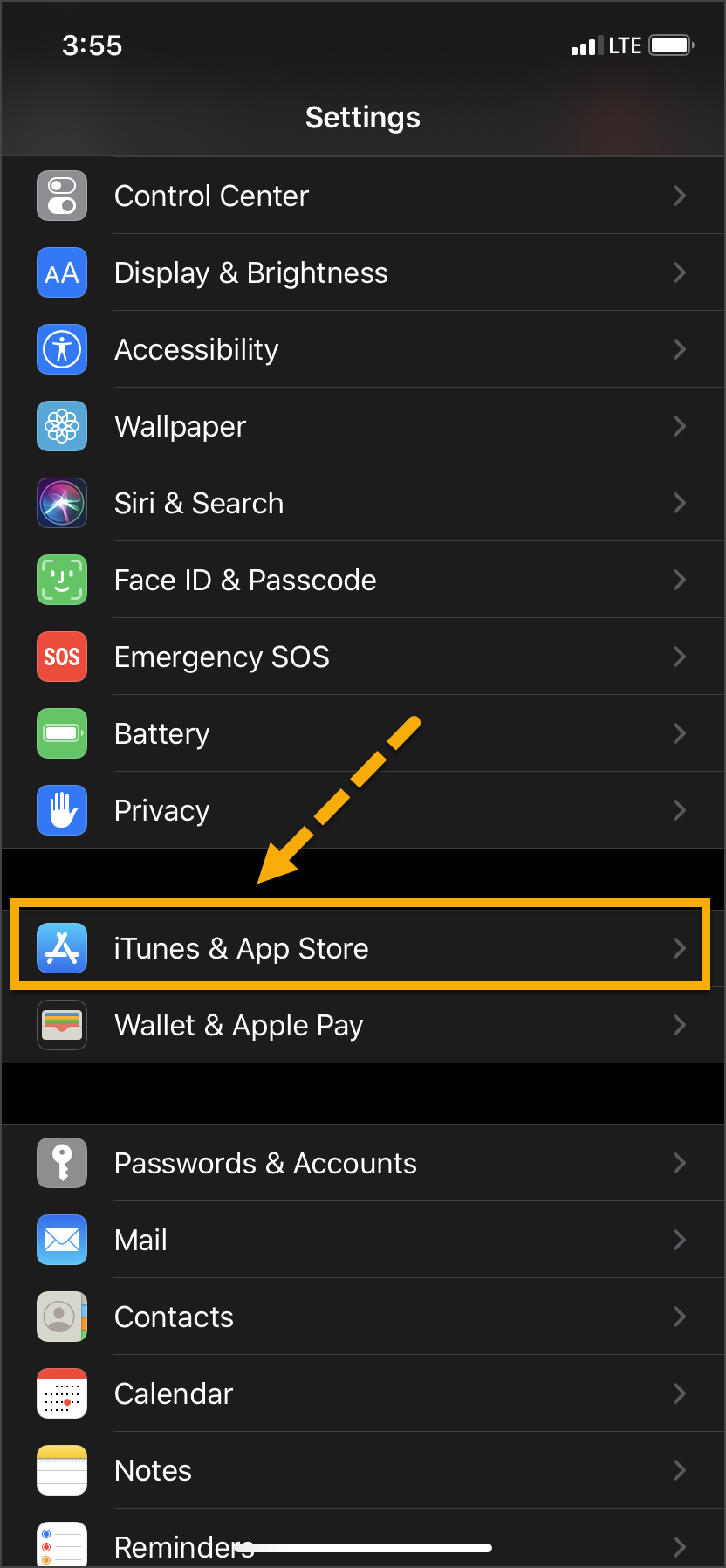
  2. On the Settings screen, tap the iTunes & App Store option.
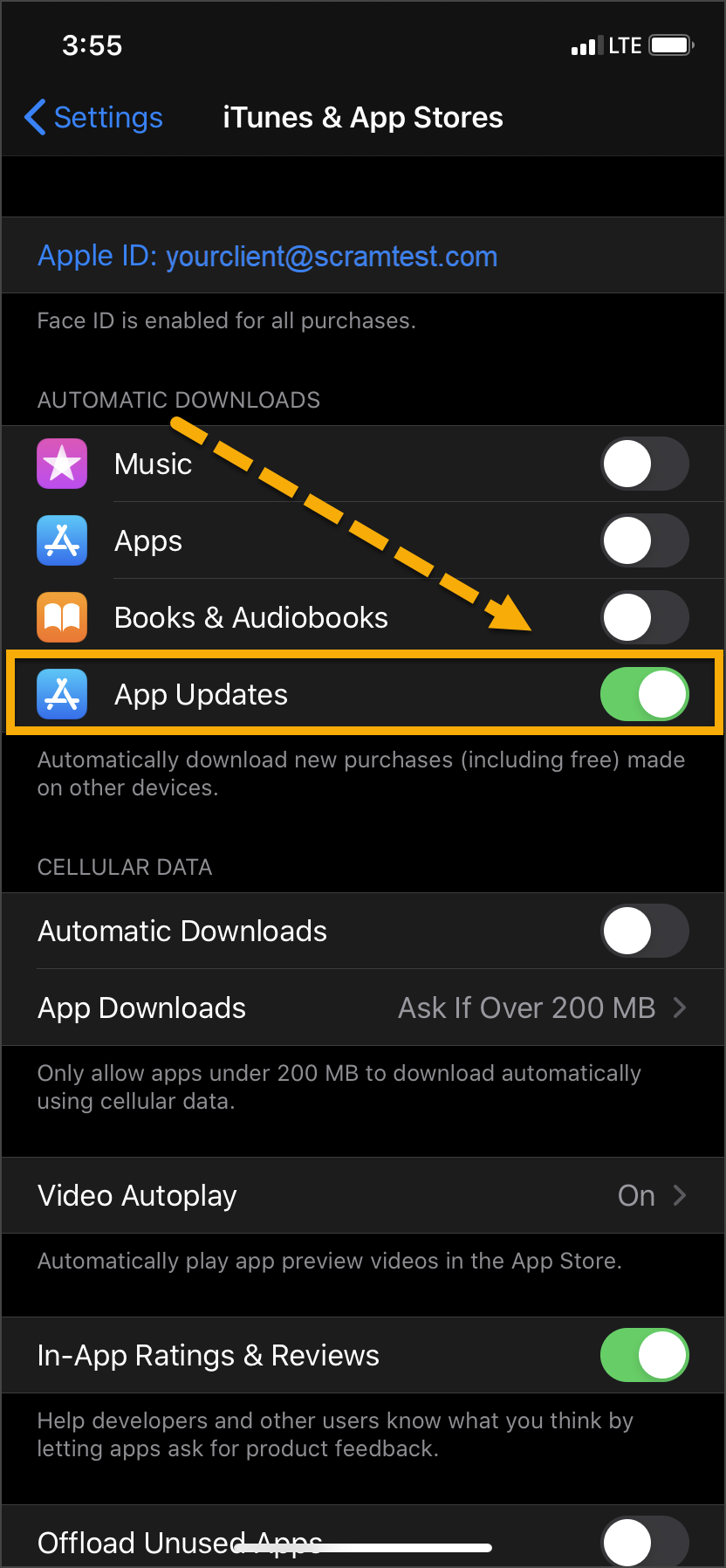
  3. Under the Automatic Downloads section, ensure the App Updates option is enabled.   
iPhone home screen Settings icon iPhone settings screen iPhone Settings screen

Click on any image to enlarge it.

Android

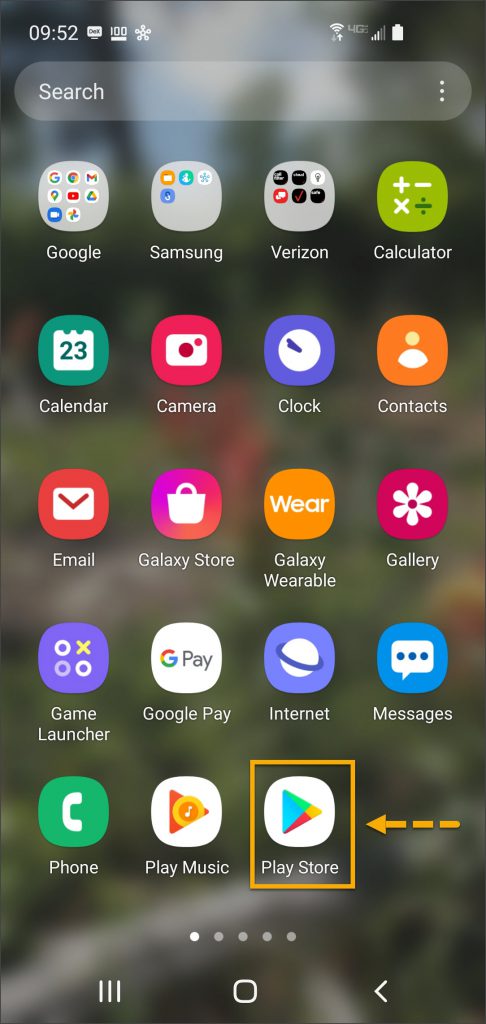
  1. On the client’s smartphone, swipe up on the Home screen.
  2. Tap the Play Store icon.
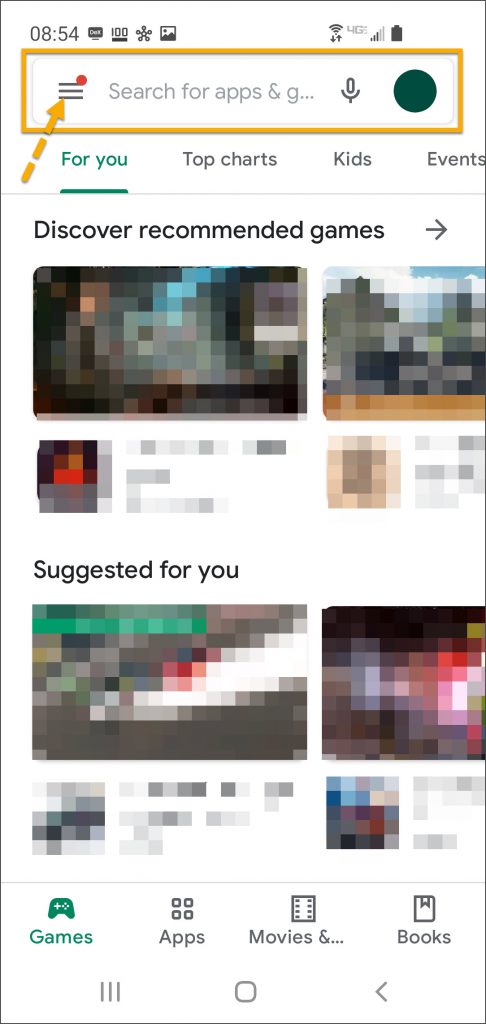
  3. On the Google Play store screen, tap the menu icon in the search field.
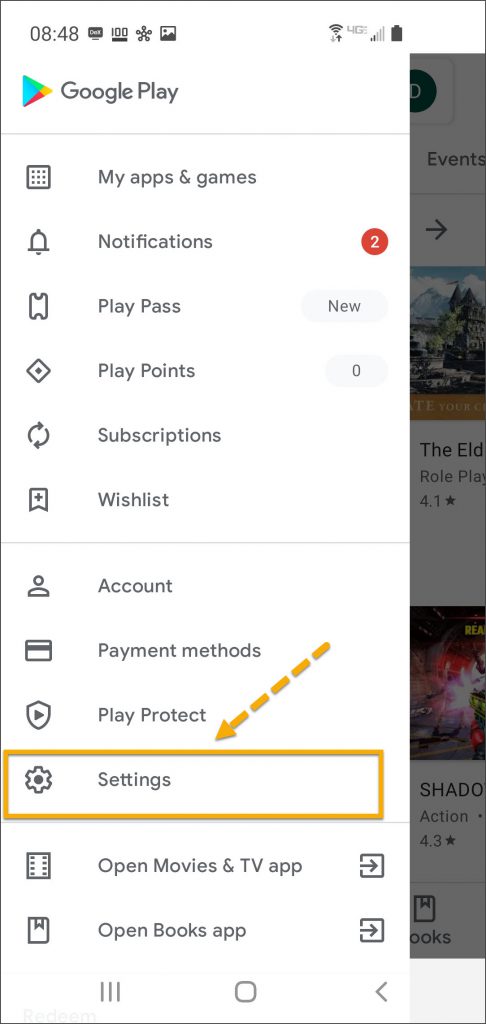
  4. Locate and tap the Settings option.
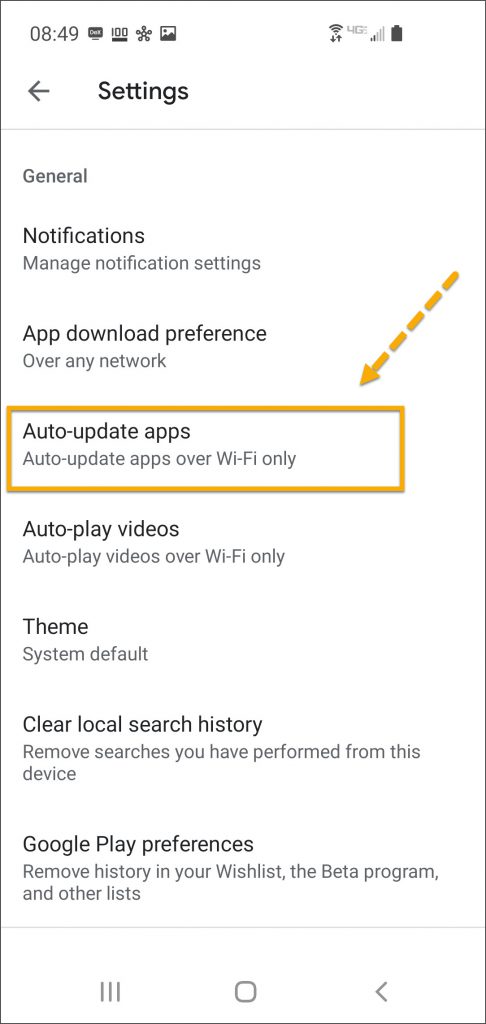
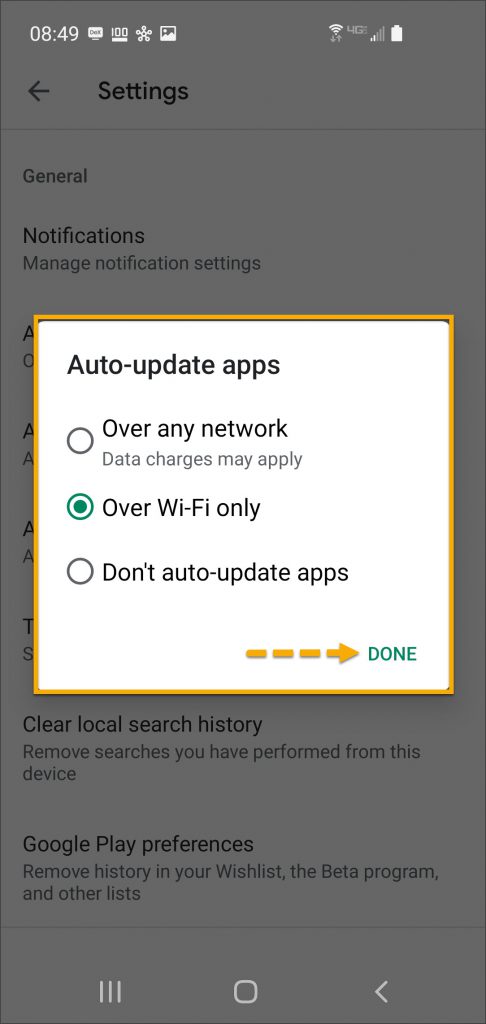
  5. Tap the Auto-update apps option.
  6. In the Auto-update apps window, select the option of,
    • Over any network (Data charges may apply)
    • Over Wi-Fi only
  7. After making the selection, tap Done.
Android app screen Play Store app Android Google Play screen menu Android Google Play store screen
Android Settings screen Auto-Update appsAndroid Auto Update apps window options  

Click on any image to enlarge it.

Manual Application Update

iPhone

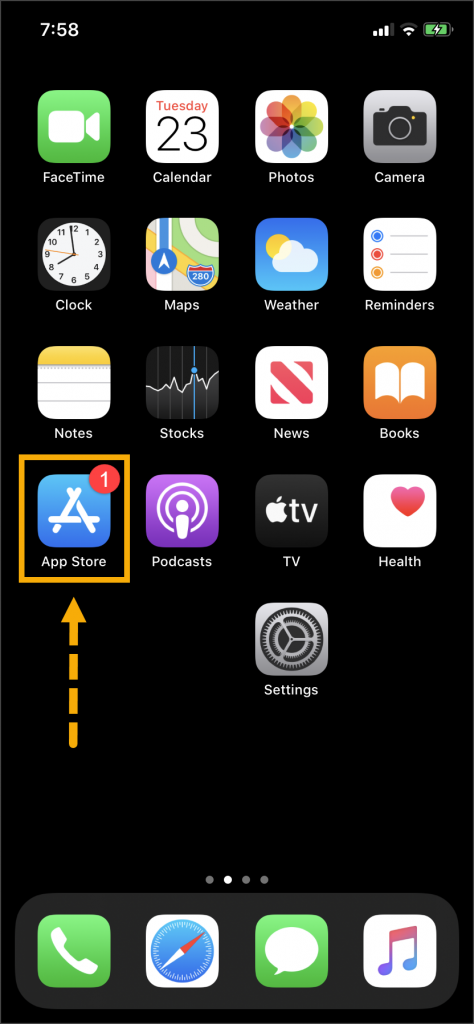
Once an update to the TouchPoint application is available, the App Store icon will display a red badge.

Instruct the client to:

  1. Tap the App Store icon.
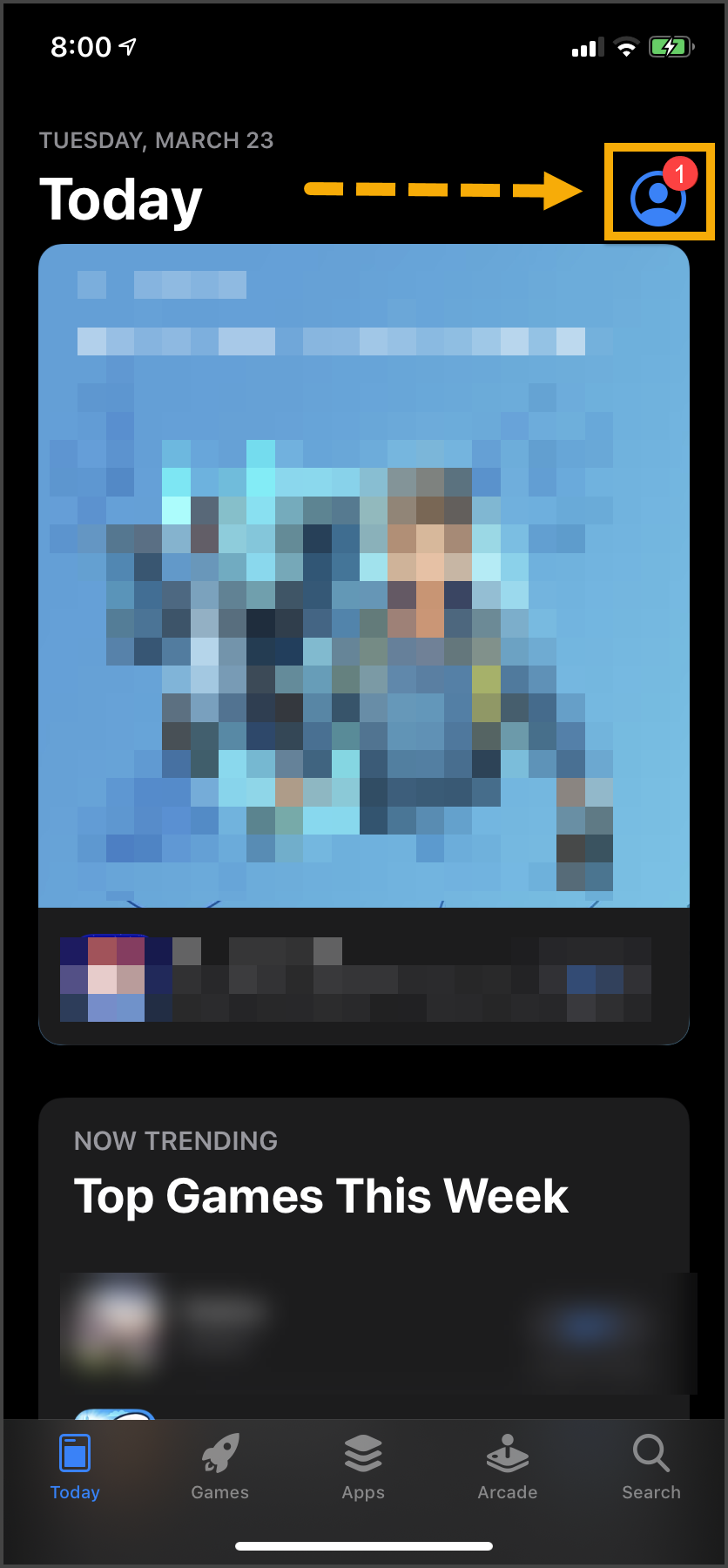
  2. Tap their profile icon.
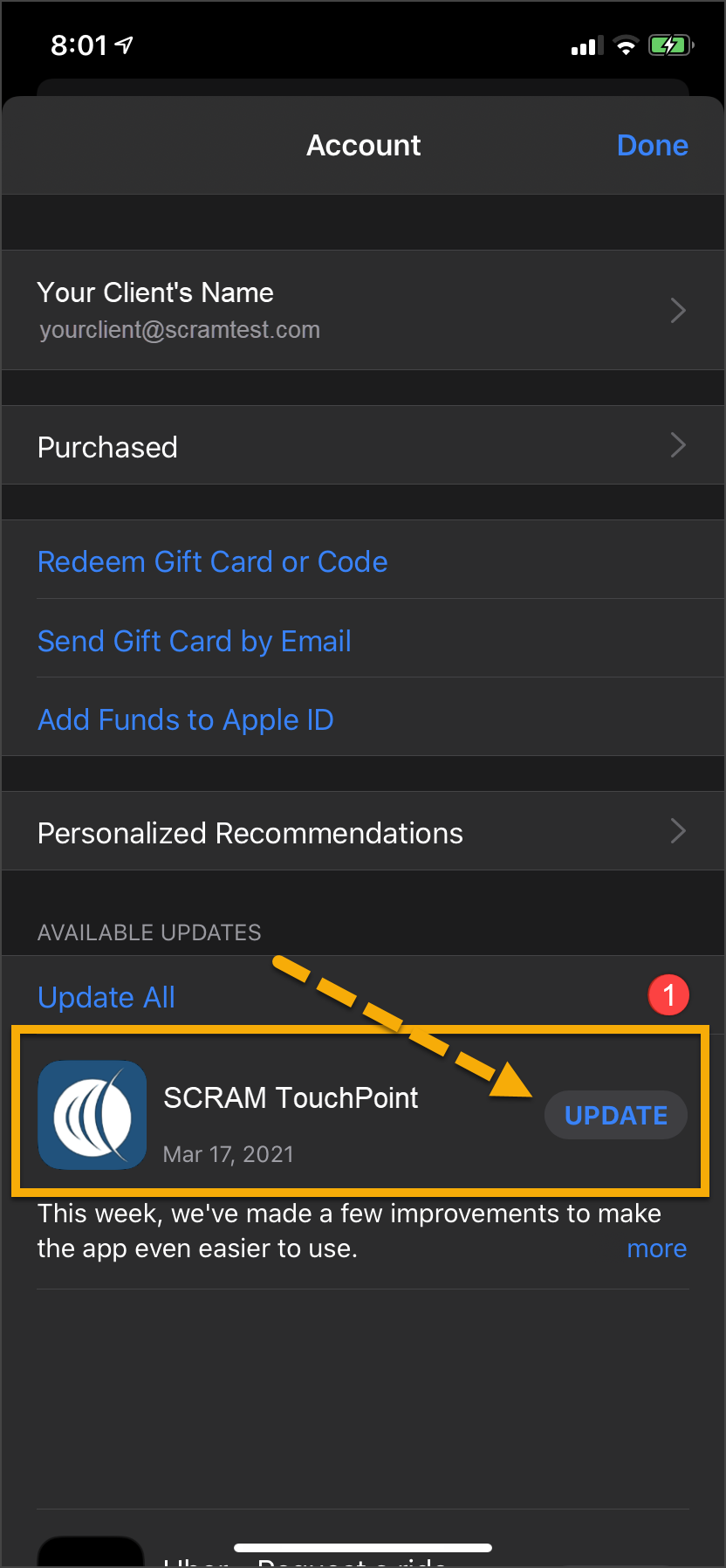
  3. Under the Available Updates heading, locate the SCRAM TouchPoint app.
  4. Tap the Update button. 

As a best practice, we recommend you encourage your clients to enable automatic app updates – this ensures they are always using the latest version of the TouchPoint app.

iPhone Home screen App Store icon iPhone App screeniPhone App update screen

Click on any image to enlarge it.

Android

  1. Swipe up on the Home screen and tap the Play Store icon.
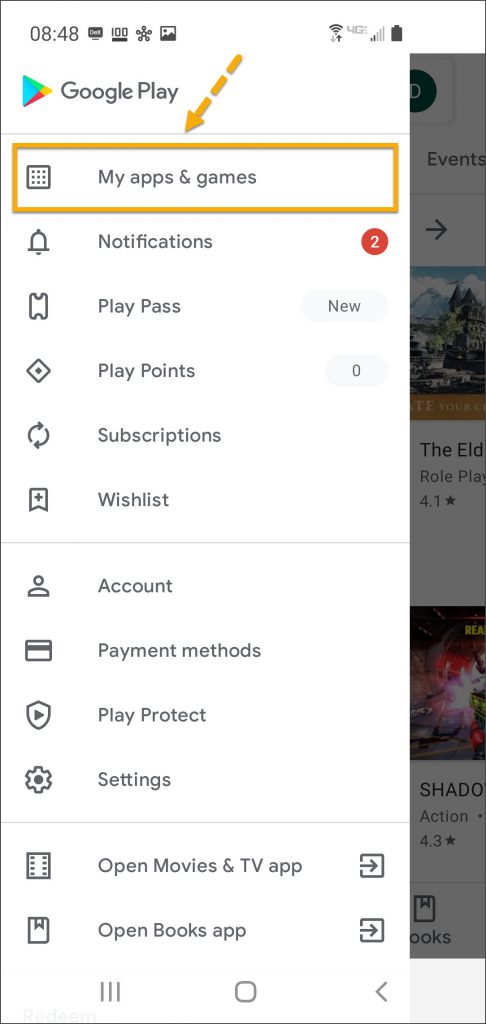
  2. On the Google Play store screen, tap the menu icon in the search field.
  3. Tap the My apps & games option.
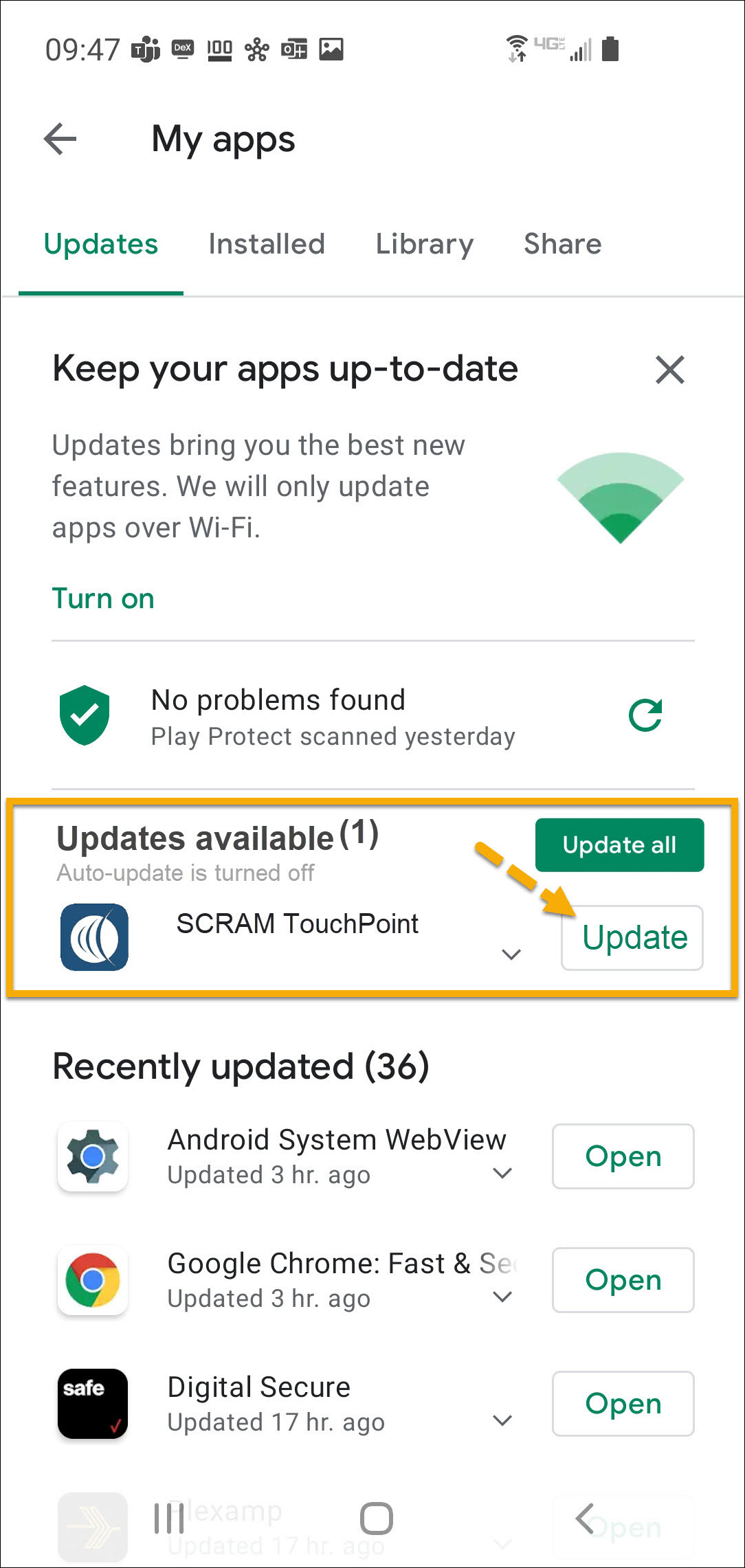
  4. Under the Updates Available section, locate the SCRAM TouchPoint app and tap the Update button.

As a best practice, we recommend you encourage your clients to enable automatic app updates – this ensures they are always using the latest version of the TouchPoint app.

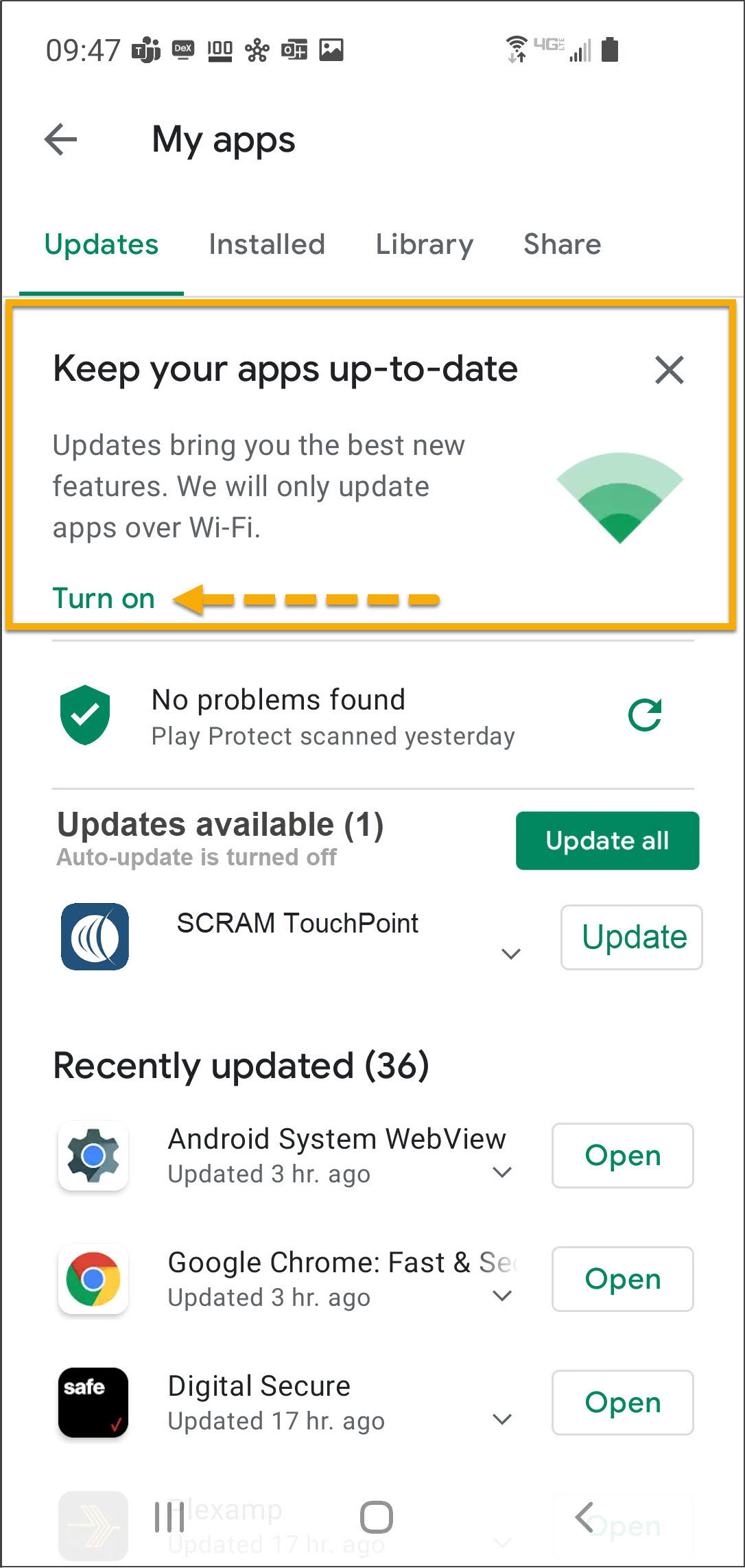
On the My apps screen, tap the Turn on button to enable automatic app updates.

Android app screen Play Store app Android Google Play screen menu Android Google Play store screen
Android My apps screen update availableAndroid My apps screen  

Click on any image to enlarge it.

Feedback

Please contact SCRAM Systems Customer Service with any recommendations for system improvements.

Continue Reading

At 5:00 AM MDT on Thursday, March 25, 2021, SCRAM Systems® is introducing several new features in SCRAMNET GPS. During the 15-minute deployment, you may not be able to access SCRAMNET® GPS but messages from the SCRAM GPS® Bracelet will continue to be processed uninterrupted. Enhancements/changes included are:

  • New Charger Maintenance alert
  • Improvements to the Schedule Calendar page when viewed on mobile devices
  • The Event Report can be run for longer periods

New Charger Maintenance Alert

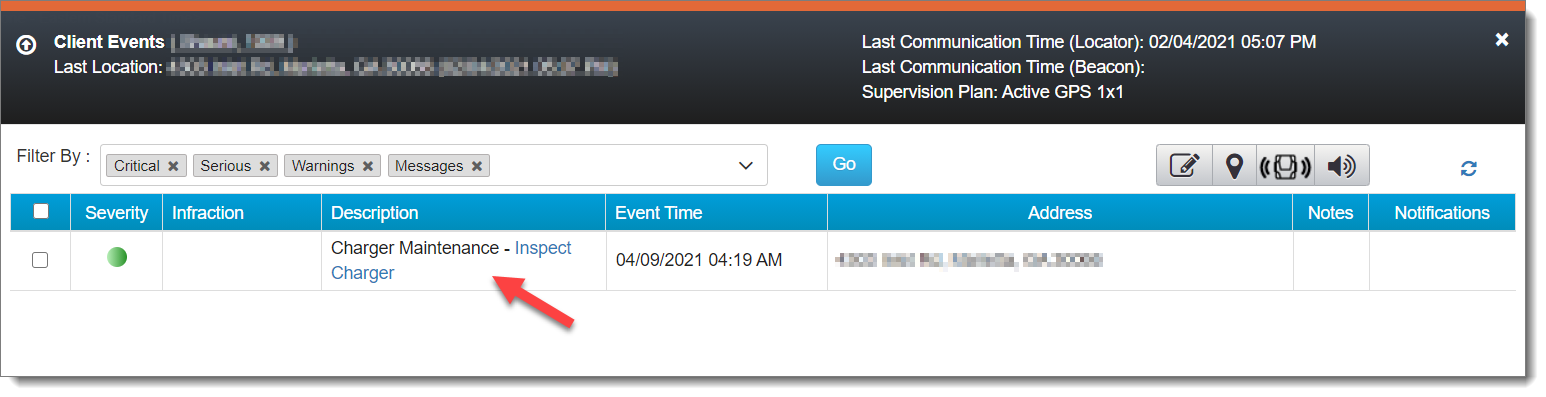
All mechanical equipment deteriorates with use over time. As a result, SCRAMNET GPS has introduced a Charger Maintenance Alert to remind users to inspect GPS Chargers for signs of wear.

GPS Charger Maintenance Alert (click to enlarge)

Charger Maintenance alerts are generated for:

  • All clients who have been assigned the same bracelet for 14 months or more.
  • Any client who has had 150 or more plug-in events in the last seven days.
InformationThis alert does not appear on or affect the Dashboard page, and it auto-clears from the Client Events pop up.

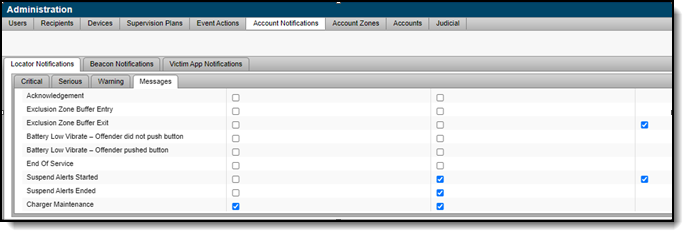
For those users with “Admin” access, the Charger Maintenance alert has been added to the Messages sub-tab of the Locator Notifications tab (Admin > Account Settings > Account Notifications tab > Locator Notifications tab). By default, the alert is selected to receive notifications via text message and email.

If selected, a notification is also sent to all designated recipients when a Charger Maintenance alert is generated. To adjust the notification settings for a specific client, navigate to that client’s Notifications page.

Note: Any designated recipient who is a victim using the SCRAM Ally mobile application will NOT receive a text message and email notification when a Charger Maintenance alert is generated.

Improvements to Schedule Calendar Page When Viewed on Mobile Devices

The Schedule Calendar page has been updated for better read-only viewing on a mobile device.

Note: In the next release, you will be able to add or edit a schedule from your mobile device.

The Event Report can be Run for Longer Periods

When running the Event report for a single client, up to a year of data can now be viewed. When more than one client is selected, the report can be run for a period of up to three months.

Continue Reading

Inspect GPS Charger Components Before Use

Prior to providing a power supply and charging cables to your clients, inspect the cables and power supply for signs of wear and tear. After GPS charger components have been in service for several months:

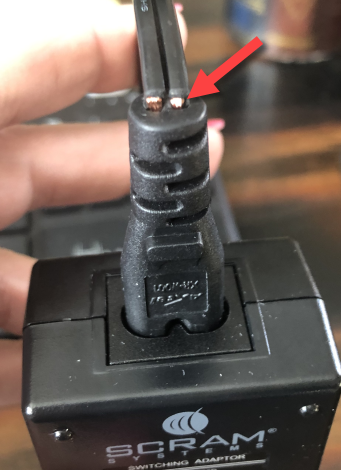
  • AC charging cables may become weakened at the junction where the cord plugs into the power supply and expose bare wires (pictured below) that can short out and spark when plugged into a wall outlet.
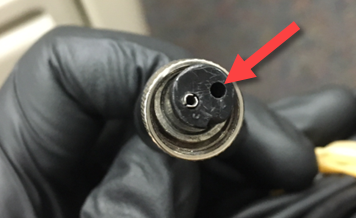
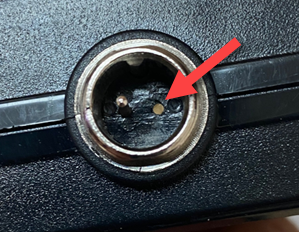
  • The contacts inside the connector on the GPS device charging cable that plugs into the two DC pins on the power supply may become damaged or completely fall out (pictured below) and will no longer carry electrical current to charge the GPS device.
  • The DC pins on on the power supply itself may become bent or broken (pictured below) and will no longer transfer power to the GPS device charging cable.
AC Power Cord with Exposed WiresMissing Contact in Damaged GPS Charging Cable ConnectorGPS Power Supply with Broken DC Pin

All three components of the GPS device charger are consumables; so if any of the above conditions is true, dispose of the component and order a replacement from the SCRAM Equipment Order Form or by contacting Customer Service.

Continue Reading

At 5:00 AM MST on Thursday, March 4, 2021, SCRAM Systems® is introducing an enhancement for an improved user experience when viewing SCRAMNET® GPS on a mobile device. During the 15-minute deployment, you may not be able to access SCRAMNET GPS but messages from the SCRAM GPS® bracelet will continue to be processed uninterrupted.

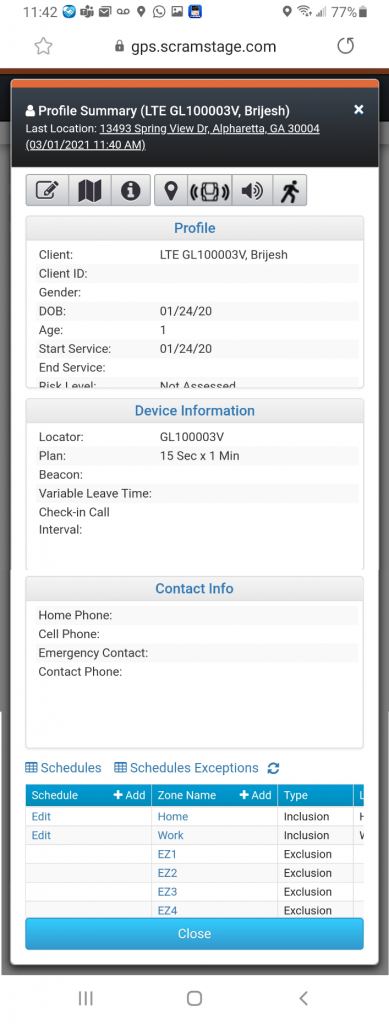
Improvements to Profile Summary Page When Viewed on Mobile Devices

The Profile Summary page has been updated for better viewing on mobile devices in portrait mode. Users can use the icons at the top to send Vibrate and Audible Alarm commands.

Continue Reading

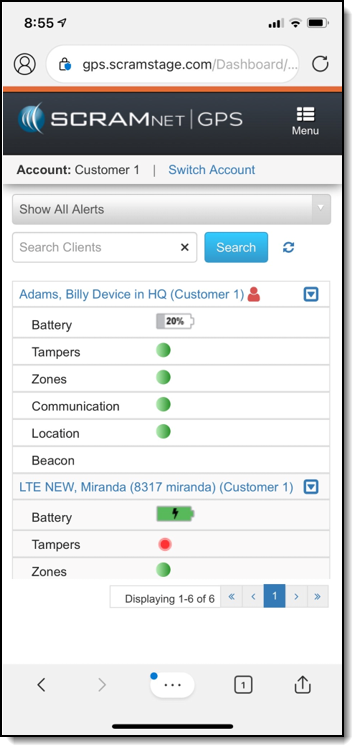
At 5:00 AM MST tomorrow, Thursday, February 11, 2021, SCRAM Systems® is introducing a new feature related to monitoring a SCRAM GPS® client using a mobile device, as well as an enhancement to the SCRAM Ally™ victim notification app. During the 15-minute deployment, you may not be able to access SCRAMNET® GPS but messages from the SCRAM GPS bracelet will continue to be processed uninterrupted. Enhancements/changes included are:

  • Improvements to Dashboard page when viewed on mobile device
    Important Note:
    In order for this change to be implemented, you must clear cookies and cache on your computer.
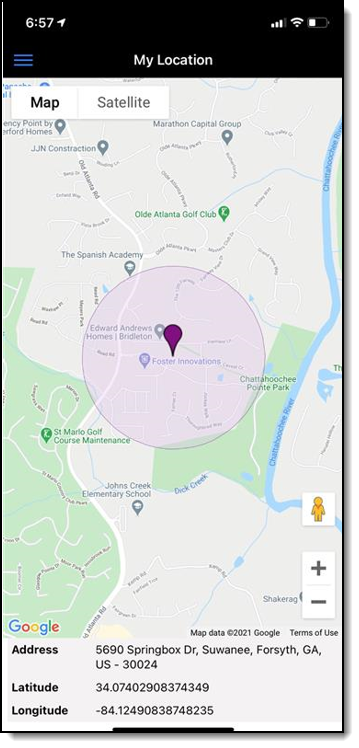
  • Victim zone radius is displayed in SCRAM Ally

Improvements to Dashboard page

The Dashboard page has been updated for better viewing on mobile devices in “Portrait” mode. Users can use the filter options, search for clients, and view battery levels and alerts. Users can also use the “Quick Links” drop-down list to send Vibrate and Audible Alarm commands.

Victim Zone Radius is Displayed in SCRAM Ally

A new version of SCRAM Ally, our mobile app for victim notification, has been released on the Apple App Store (version 1.0.30) and Google Play Store (version 1.0.104). The app has been updated to show the victim zone radius on the My Location page. Adding this feature allows the victim to visually see the range of their moving zone based on where they are currently located.

Continue Reading

At 7:00 AM EST (US) on Thursday December 10, 2020, SCRAM Systems® will perform scheduled maintenance on the SCRAMNET GPS® monitoring system. The maintenance implementation will take no longer than 15 minutes to complete and GPS devices will continue to monitor clients and store their movements during that time. If you experience unexpected system behavior during the maintenance window, simply refresh (CTRL+F5) your SCRAMNET GPS browser screen until the behavior returns to normal.

If you have questions about this notification, please Contact Us.

Continue Reading

Today, Thursday, November 19, 2020 at 5:00 AM MST, SCRAM Systems will introduce a new “Pattern of Life” feature in SCRAMNET® GPS. During the 15-minute deployment, you may not be able to access SCRAMNET GPS but messages from the SCRAM GPS Bracelet will continue to be processed uninterrupted.

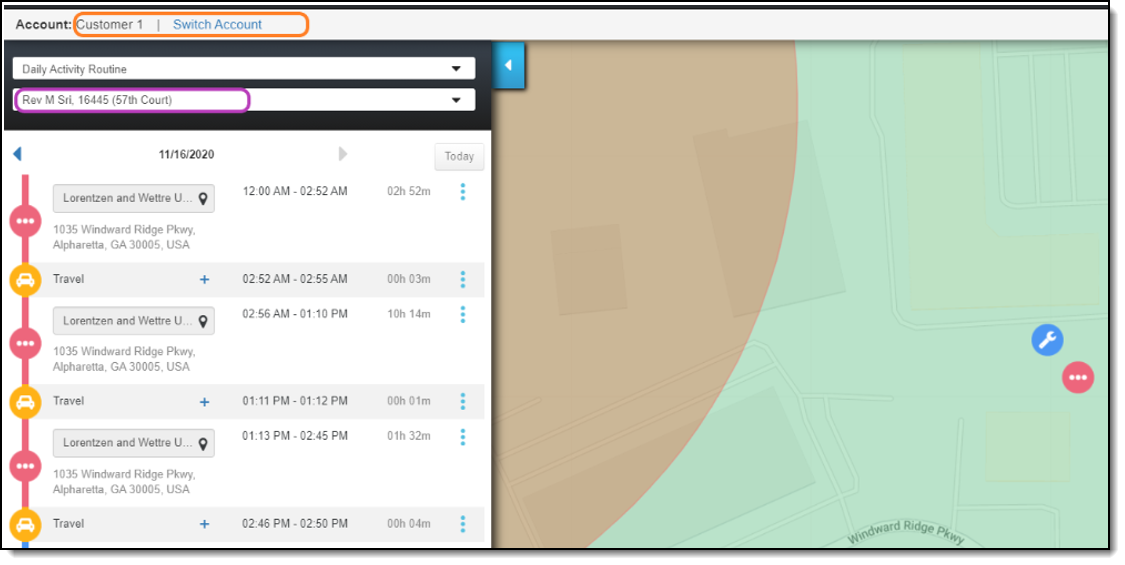
Prior to this implementation, when you viewed a client’s “Pattern of Life Analysis” in SCRAMNET GPS, you had the option to select another client using the lower drop-down menu (circled in purple below), but the list of clients was limited to only those clients associated with the specific account that you were viewing.

With this release, all clients assigned to you—even clients from other accounts—will appear in the drop-down list. What this means to you is you can now view any assigned client’s “Pattern of Life Analysis” or “Daily Activity Routine” information without switching accounts.

Continue Reading

At 5:00 AM MST on Monday, November 2, 2020, SCRAM Systems® will implement a series of updates and new features in SCRAMNET® GPS. During the 15-minute deployment, you may not be able to access SCRAMNET GPS, but messages from the SCRAM GPS® Bracelet will continue to be processed uninterrupted. Most notable is the addition of two new Range options for the SCRAM GPS Beacon.

Two Additional Range Options

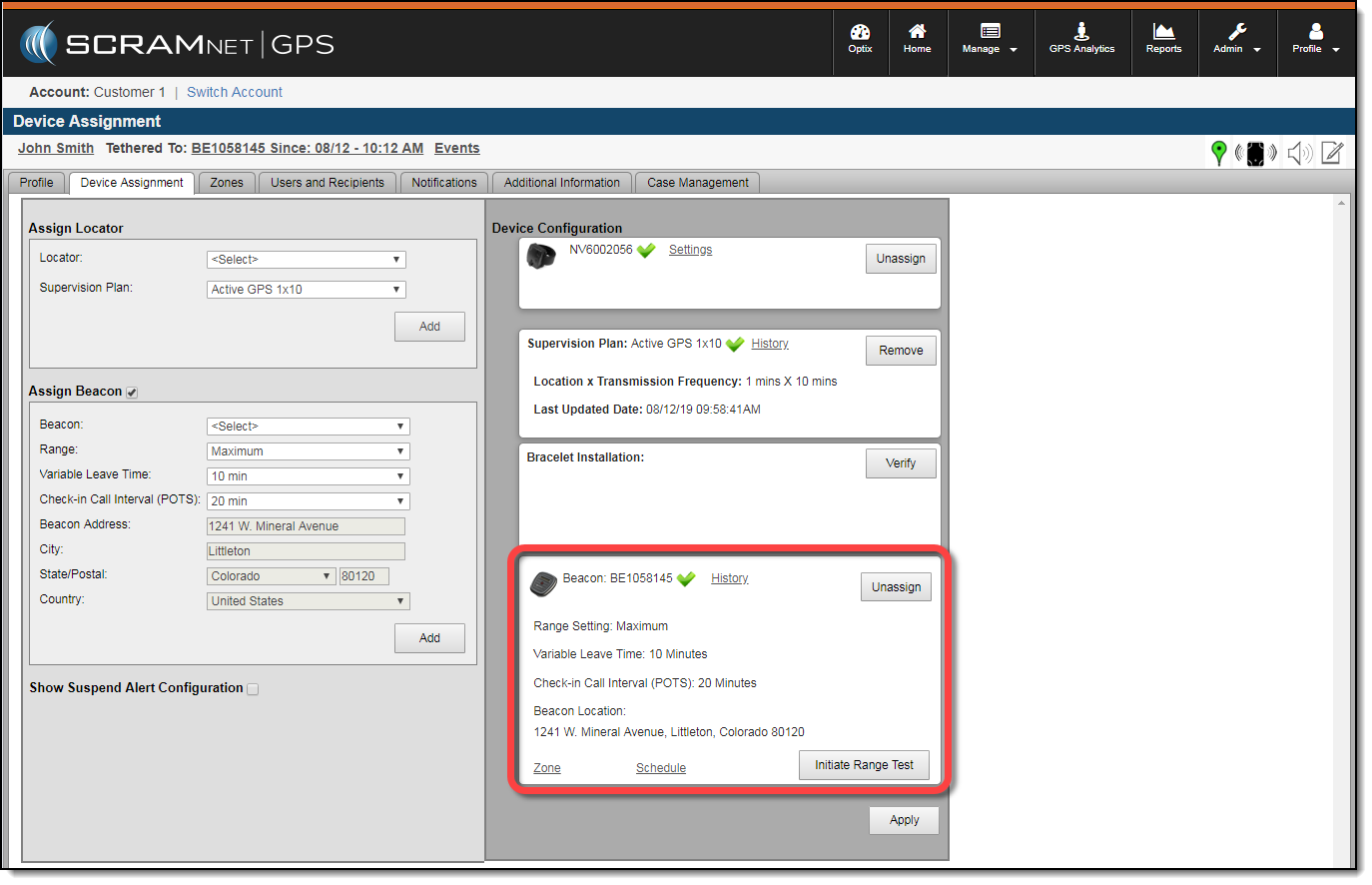
In addition to the three existing Beacon Range options, two more will be added to the SCRAMNET GPS Device Assignment tab; specifically, Minimum Plus and Average Plus, which brings the total number of Range options up to five:

  1. Minimum – Open field range of about 40 feet (12 m); approximate indoor range of a small one-bedroom apartment on a single floor
  2. Minimum PlusNEW! – Open field range of about 60 feet (18 m); approximate indoor range of a two-bedroom apartment on a single floor
  3. Average – Open field range of about 130 feet (40 m); approximate indoor range of a two-bedroom townhouse on two floors
  4. Average PlusNEW! – Open field range of about 160 feet (49 m); approximate indoor range of a 1,700 sq. ft. (158 sq. m.) ranch house
  5. Maximum – Open field range of about 170 feet (52 m); approximate indoor range of a 3,000 sq. ft. (279 sq. m.) multi-level house
Information These numbers represent a radius around the beacon and reflect outdoor open-range ideal conditions. Conditions are affected by many things in a home, including walls, Wi-Fi, electronics, etc. It is a best practice to perform a Range Test in the home while setting up the beacon, to determine the ideal range for the client’s home environment.
Warning The two new options will only work on Beacons that have been updated to the latest version of the firmware.

How to Set the Range

To set the Beacon Range, navigate to the Device Assignment tab of the Client Profile page. Visit the Assign Beacon page on the SCRAMNET GPS Help site for more detailed instructions.

A screenshot of the SCRAMNET GPS Device Assignment tab where Beacon Configuration parameters are selected and displayed
Beacon Device Configuration Parameters (click to enlarge)
Information Changing the Range setting of a beacon that is already assigned to a client will cause a brief “untether” while the beacon updates the setting.

Feedback

As always, please contact SCRAM Systems Customer Service with any recommendations for system improvements.

Continue Reading