Currently, when creating overlapping GPS schedules in SCRAMNET GPS, the user must prioritize one schedule over the other. Only the GPS schedule with the highest priority generates an alert when a violation occurs. Users can now choose to generate violations for all overlapping GPS schedules, independent of the assigned priority.
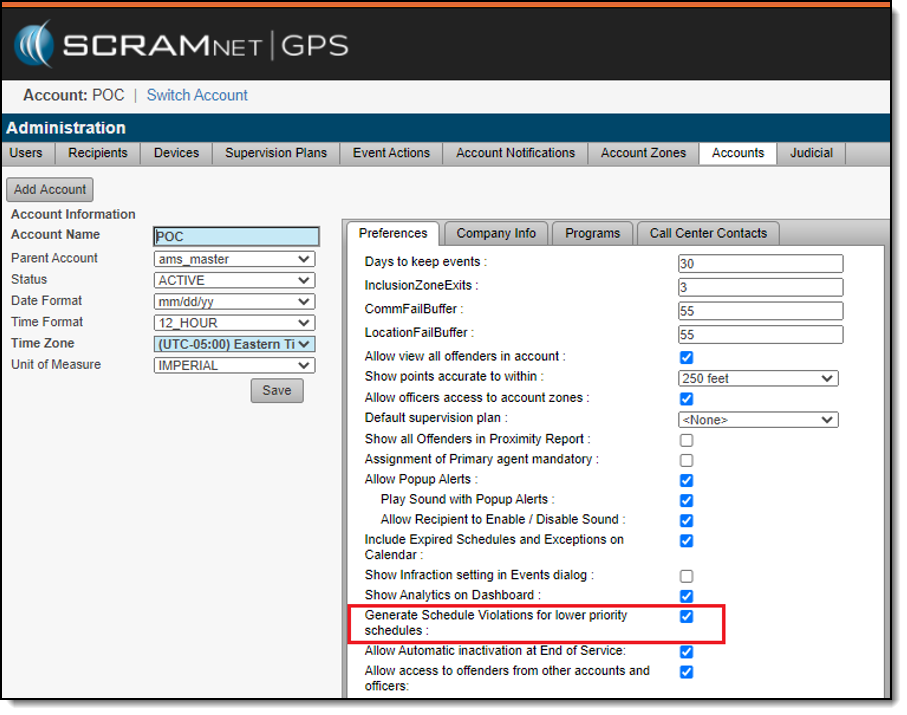
To enable this feature, a user with administrative permissions can navigate to the Admin -> Account Settings -> Accounts page and select the Generate Schedule Violations for lower priority schedules check box.
When the check box is selected, a Schedule Violation will be generated for all overlapping schedules for which the client is non-compliant.
Example
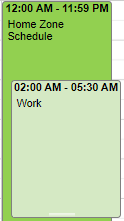
In the example below, the client has a 24/7 home schedule as well as an overlapping work schedule. The work schedule is the higher priority.
Now, if the client is not at work at the appropriate time, a violation is generated only for the work schedule. With this new feature enabled, if the client is also not at home, a Schedule Violation is also generated for the home schedule.
SCRAM Systems® is pleased to announce the arrival of its new consolidated SCRAM Systems Help & Support Home page! Effective Thursday September 10th at 1:00 PM MDT, regardless of which SCRAM monitoring system you are using, you can get help and support for all SCRAM Systems products, services, and software – in one place!
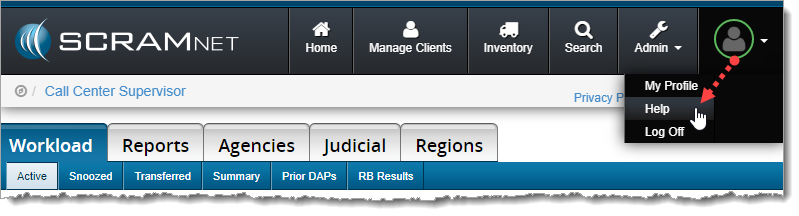
Select Help from the Profile dropdown menu (click to enlarge)
Easy Access
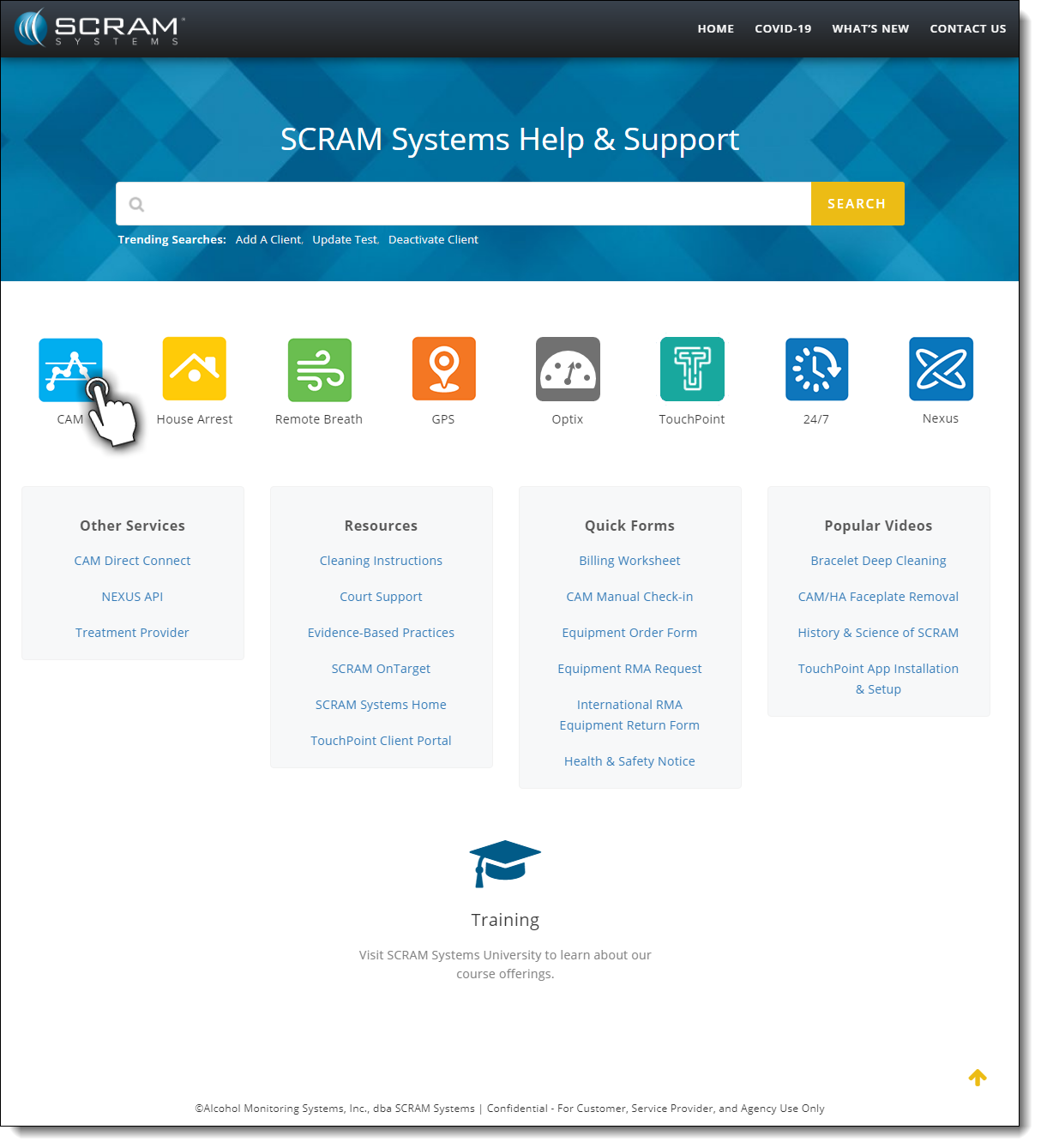
Once on the SCRAM Systems Help & SupportHome page, you’ll have easy access to systems help, resources, forms, and videos.
SCRAM Help & Support Home (click to view all)
One-Stop Shop
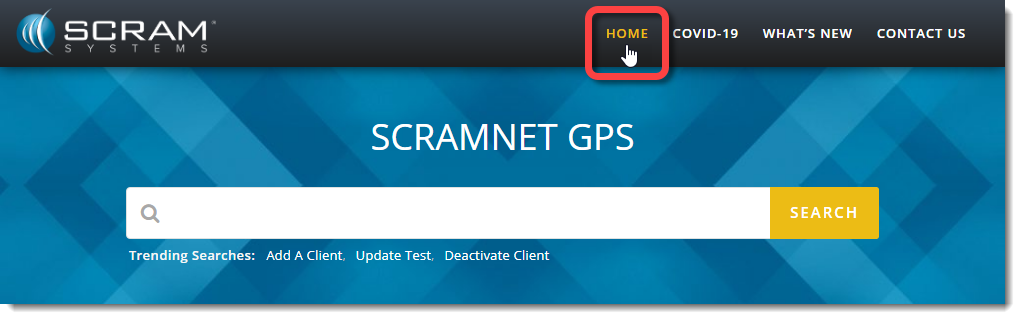
There’s no need to change which SCRAM monitoring system you’re accessing to get Help; just click the Help & Support Homelink at the top of any page to get access to help for all your SCRAM products and software.
Select the Home link from any page to return (click to enlarge).
Searchable Across Products
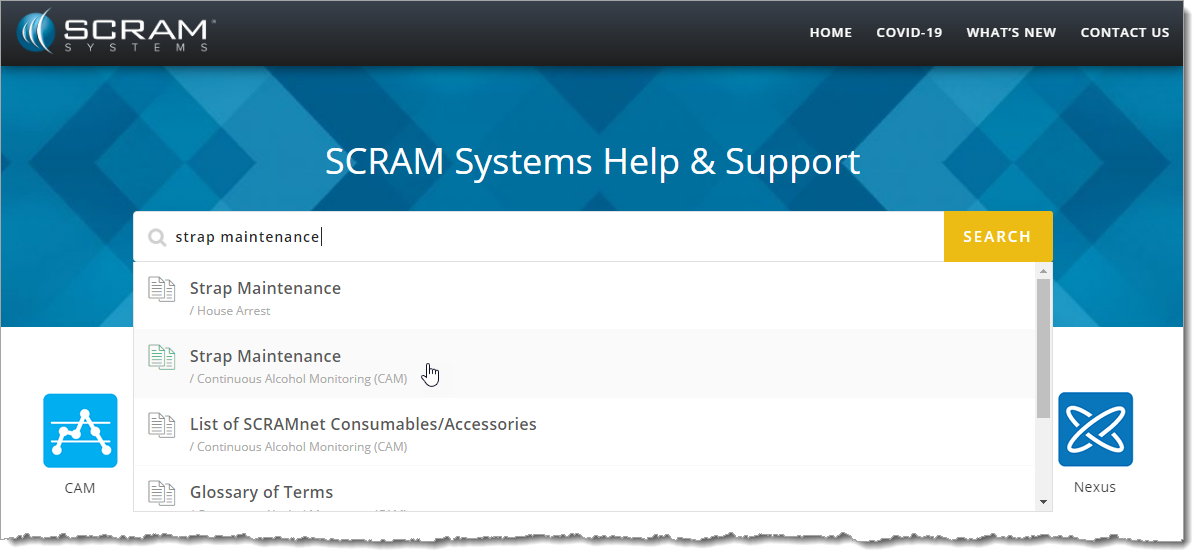
Not quite sure where to start? Enter a few words into the Search field at the top of the page to reveal the most relevant help topics and then select the most appropriate article.
Enter some keywords and then select the appropriate article (click to enlarge).
Feedback
Please contact our Customer Service department at 1-303-785-7879 if you have questions about about the new and improved SCRAM Help & Support Home page, or if you have recommendations for improvements.
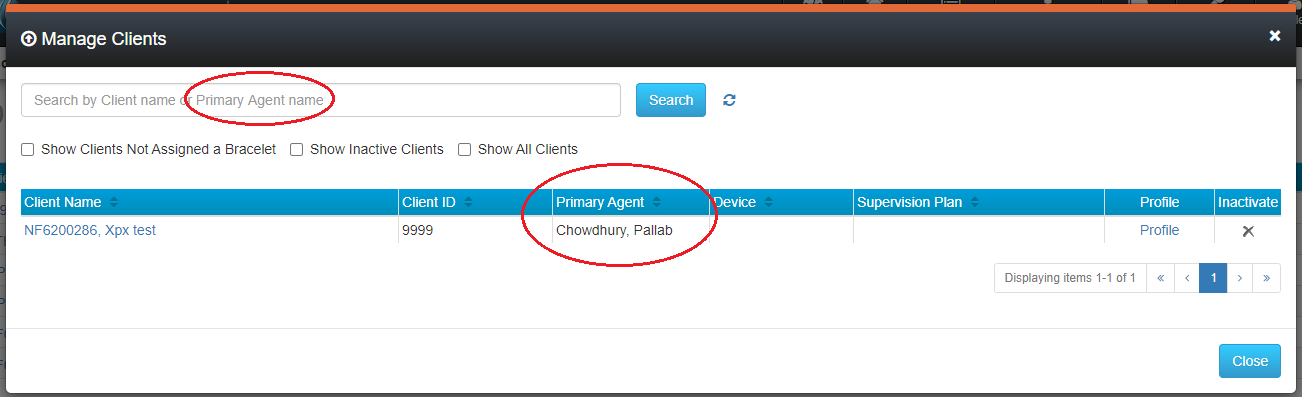
Two new features have been added to the Manage Clients pop up. To access the pop up, select the Manage->Clients top menu option. The Primary Agent assigned to a client will be listed in the Manage Clients pop up window, as shown below. Additionally, you may search clients by Primary Agent.
To search clients by Primary Agent, enter all or part of the Primary Agent’s first or last name in the search bar and click the Search button.
Move Clients Between Sub Accounts
Designated users can now move clients between sub accounts. While clients are being moved, all messages from the SCRAM GPS® bracelet continue to be processed, and the client continues to be monitored. Moving a client from one sub account to another also moves all historical data associated with that client to the new sub account. No reference to the client remains in the prior account. The following conditions apply:
Only users in the Admin role can move clients
Clients can only be moved within accounts in which the Admin user has access
Clients can only be moved within the account’s hierarchy
The following enhancements have been introduced to help you manage Account Zones more easily:
Make Account Zones available in sub accounts
Page through Account Zones
Sort Account Zones
Search Account Zones
Display Account Zones on the map
Make Account Zones Available in Sub Accounts
Users can now make Account Zones available in sub accounts without having to recreate the zones in the sub account. To make an Account Zone available in a sub account:
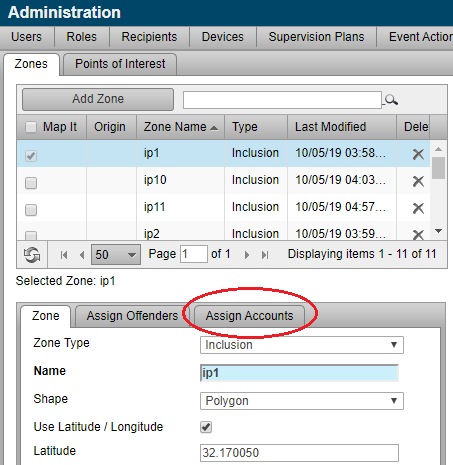
Navigate to the Account Zones tab (Admin > Account Settings > Account Zones tab). Note that the catalog headings now also display a number badge that allows you to see, at a glance, how many items fall into each filtered category.
Click the Assign Accounts tab and select the sub accounts in which this zone will be available.
Click the Save button. The current zone is now available in the selected sub accounts. Account Zones made available in sub accounts are “linked” instead of copied. The original zone in the parent account is referred to as the “parent zone.” The linked zone in the sub account is referred to as a “linked” or “child” zone. This means:
Changes to the parent zone are automatically reflected in the linked child zones.
Linked/child zones cannot be edited. Instead, users must edit the parent zone.
A parent zone cannot be deleted if it is linked to a zone in a subaccount, and that linked/child zone is assigned to clients. In this scenario, users must navigate to the sub account and remove clients from the linked child zone.
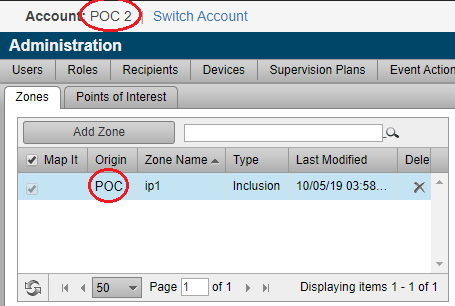
Linked/child zones are identified in the Origin column. Hover your mouse pointer over the origin name to see the parent account where the parent zone resides. The example below shows the Account Zones in sub account POC 2. Zone Name ip1 is a child zone managed in the parent account POC.
Page Through Account Zones
Some customers have thousands of Account Zones, such an Exclusion Account Zone for all schools, that may result in an increase in the time needed to display the zones on screen. To ensure the zones appear quickly, we’ve separated the list of zones into pages. The default is to display 50 zones per page, but you can choose the number of zones displayed per page by selecting the it from a dropdown menu. You may also advance to the next page or return to the previous page, or jump to a specific page number.
Sort Account Zones
To locate zones more quickly, you can now click the column header to sort zones by Zone Name, Type, or Last Modified. Clicking the column header again reverses the sort order direction. A direction indicator in the column header indicates if zones are sorted in ascending or descending order.
Search Account Zones
Another way to locate zones more quickly is to search for zones. Use the Search text box to search by Zone Name, or by partial Zone Name. For example, typing “P” will search all Zone Names that start with the letter “P.”
Search does NOT support full wildcard searches. For example, performing a search using “*p*” will NOT result in listing all zones that include a “p” in the name.
Display Account Zones on the Map
All Account Zones can now be displayed on the map at the same time. Use this feature to see all zones at the same time to ensure proper coverage. To display a zone on the map, check its corresponding check box in the Map It column. To remove the zone from the map, uncheck the box.
Enhancements to Client Zones Management
The following enhancements have been introduced to help you manage zones at the client level more easily:
Page through Zones
Sort Zones
Display Zones on the map
Distinguish between client zones, account zones, and linked zones
These features function in the same way as the Account Zones described above.
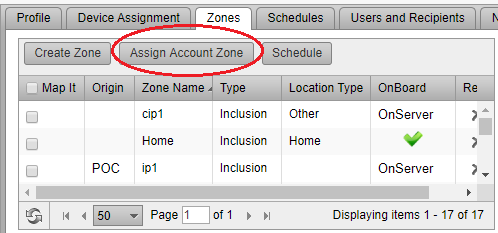
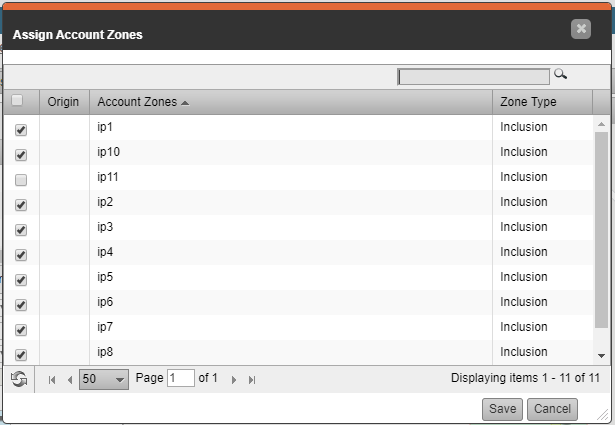
The same features have also been added to the Assign Account Zones popup dialog. On the client’s Profile page, click the Assign Account Zone button to open the Assign Account Zones pop up:
Added to this pop up is:
Pagination
Sorting
Search
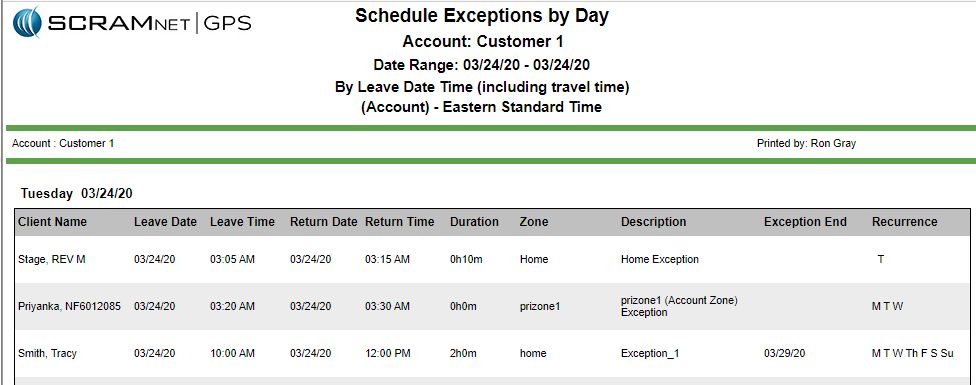
New Report – Schedule Exceptions by Day
The new Schedule Exceptions by Day report lists all schedule exceptions for selected clients, that will either begin or end on a given day. The exceptions are listed in order of occurrence, either by when the exception starts or when it ends. This report may be useful for work release programs by allowing the customer to print a list of all clients, sorted by when the client will be leaving for work. The sort order can be reversed to see when clients will be returning from work.
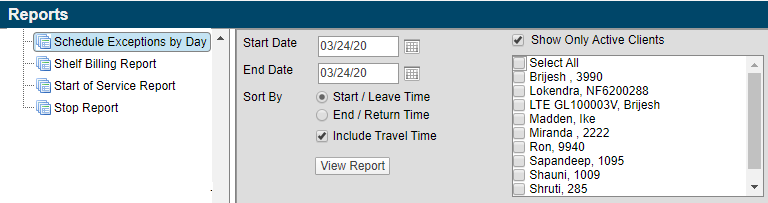
To run the report, click the Reports main menu option then select the Schedule Exceptions by Day node.
Filters available include:
Start Date & End Date – Lists all schedule exceptions that occur in the given date range. Each day is separated by a page break. The start date can be up to one year ago. The maximum allowable report duration is seven days.
Sort By – The report can be sorted by the start of the schedule exception, or the end of the exception. When the report is sorted by end/return time, the columns on the report are altered so that the return time column is before the start time.
Include Travel Time – When this filter is selected, any travel time assigned to the schedule exception is used when sorting the report. For example, if a schedule exception begins at 3:00 PM, and allows one hour of travel time, it will appear on the report as 2:00 PM, representing the time that the client will leave. Similarly, if the schedule exception ends at 5:00 PM and allows one hour of travel time, the exception will appear on the report as ending at 6:00 PM.
Show Only Active Clients – When this filter is selected, only clients with “Active” status are displayed. When the filter is unchecked, only clients with an “Inactive” status are displayed.
Modified Report – Case Assignment Report
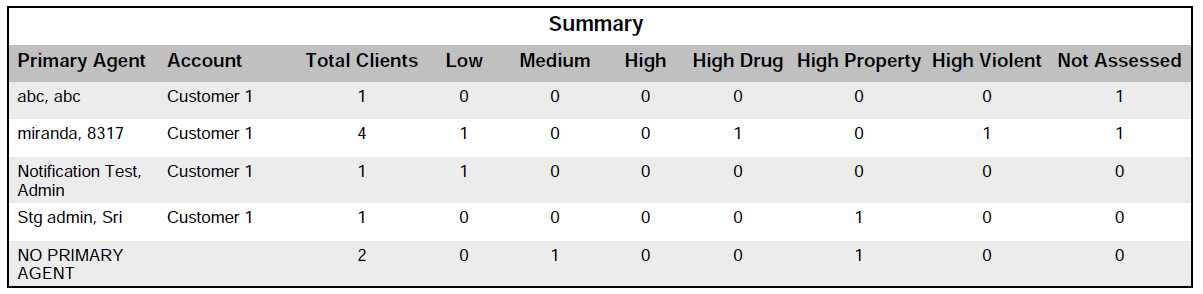
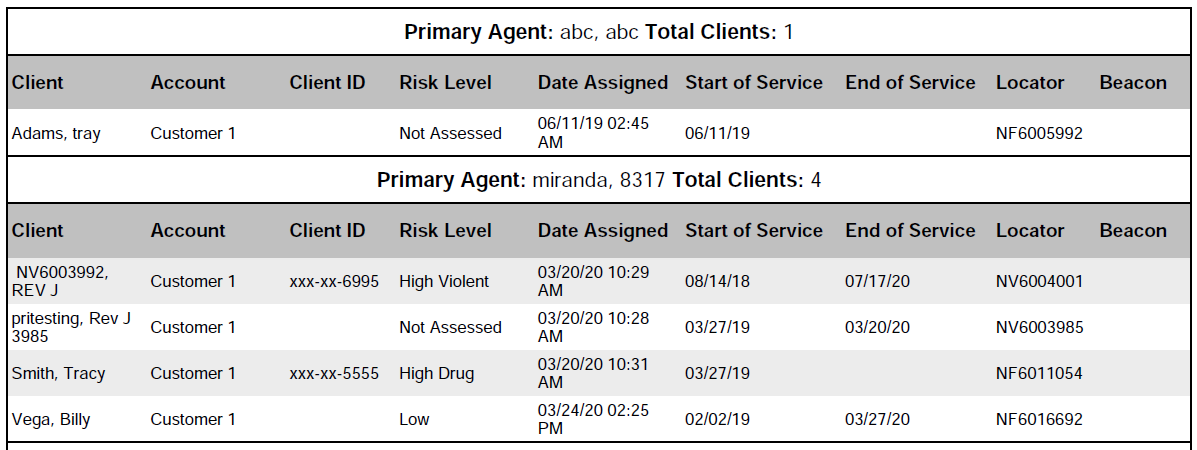
The existing Case Assignment report has been updated to include the client’s risk levels. Use this report to view each primary agent’s caseload. The report includes a summary section that shows the total number of clients, by risk level, for each primary agent. The report also includes a details section that lists each client.
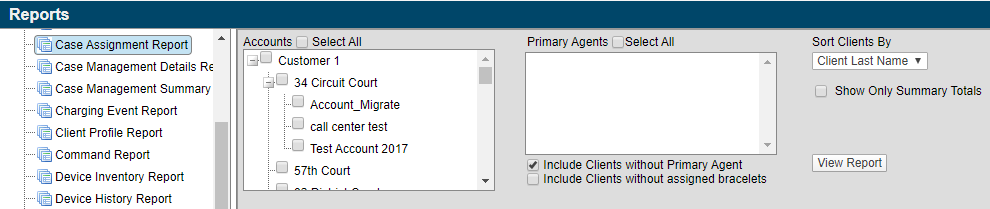
To run the report, click the Reports main menu option then select the Case Assignment Report node.
Filters available include:
Accounts – Select the account(s) being included in the report.
Primary Agents – Select the primary agents being included in the report.
Include Clients without Primary Agent – Select this check box to group clients who do not have a primary agent assigned.
Include Clients without Assigned Bracelets – Select this check box to include clients without an assigned bracelet.
Sort Clients By – Clients can be sorted by client last name or by their risk level.
Show Only Summary Totals – Select this check box to only print the summary section of the report. The summary section displays the total number of assigned clients but does not list each client.
Microsoft Corporation discontinued support of
older versions of its Internet Explorer (IE) browser on January 12, 2016, which
impacted IE 10 and older versions. Although IE 11 is still being supported,
Microsoft itself is phasing out IE 11 in favor of a browser that better
supports today’s modern web capabilities.
The SCRAM Systems platform utilizes leading-edge web technologies to deliver comprehensive and informative data and reports that enable you to monitor clients efficiently and effectively. Effective March 9, 2020, SCRAM Systems will no longer develop content or provide technical support for any version of IE. Instead, for the best possible experience utilizing SCRAM Systems’ monitoring platforms, we recommend switching to the Google Chrome, Mozilla Firefox, or Microsoft Edge browsers.
Browser icons
Please contact our Customer Service department at 1-303-785-7879 if you have questions or concerns regarding this change.
The Schedule Exceptions reports have been modified to display entries in chronological descending order by exception start date. There are two ways to view schedule exceptions:
The GPS Monitoring Center is an application that allows either SCRAM Systems or you, the customer, to manage alerts in a Call Center environment. The following events can now be configured and managed in the GPS Monitoring Center:
Designate User as Primary Agent for Multiple Accounts
A user with “Admin” permissions can now enter SCRAMNET GPS and designate another user as a primary agent under multiple accounts. Providing your “Admin” users with this capability saves you time by no longer having to contact SCRAM Systems Customer Services to complete this type of user configuration.
New SCRAMNET GPS Online Help
SCRAM Systems is pleased to announce a new, enhanced online help facility. You will find the new Help facility in the same place you’ve always gone for support materials and documentation.
IMPORTANT: The expandable Help navigation menu requires the Google Chrome or Microsoft Edge browser. The menu does NOT function properly using Microsoft Internet Explorer (IE).
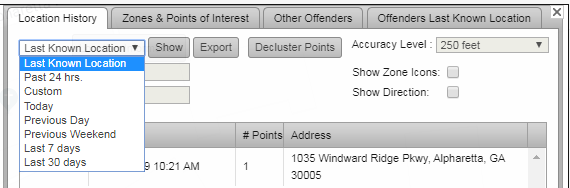
The option to display a client’s Last Known Location has been added to the list of “time frame” options on the Location Information page. Now, when you access the page:
The client’s last known location is the default view.
The point information is displayed in the associated table.
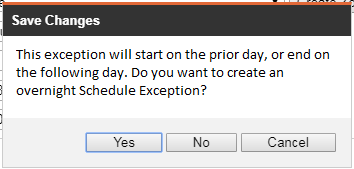
Overnight schedule exceptions can be created from the Schedule Exceptions Details pop up. An overnight schedule exception occurs when the end time of the schedule exception (including the travel time allowance) is prior to the start time. For example, if the schedule exception is from 11:00 PM to 7:00 AM, a confirmation pop up appears, as shown below:
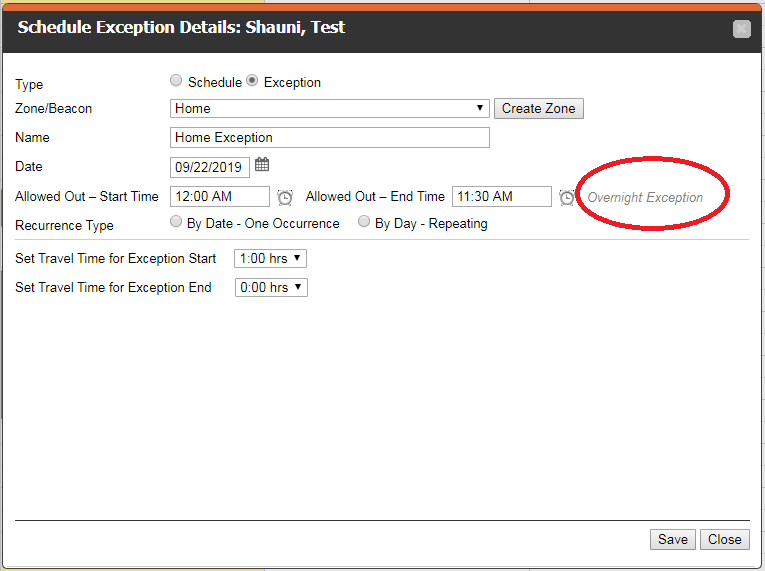
In addition, the Schedule Exceptions Details pop up indicates when an exception is overnight. In the example below, although the exception starts at midnight, the travel allowance results in the exception starting the prior day.