At 5:00 AM MDT Tuesday, June 14, 2022, SCRAM Systems® will introduce several new Victim Notification features in both SCRAMNET GPS and the SCRAM Ally mobile app for victims.
 |
During the 15-minute deployment, you may not be able to access SCRAMNET GPS but messages from the SCRAM GPS Bracelet will continue to be processed uninterrupted. |
SCRAM Ally App Update
Version 2.0 of the SCRAM Ally app has been released to the Google Play and Apple App stores. Although the following features will be visible in the SCRAMNET GPS application. The victim must install Ally 2.0 for the features to work:
Text-to-911
Always contact 911 by making a voice call whenever possible. However, for those who are hearing impaired, speech disabled, or in a situation where using voice is not possible or potentially dangerous, use SCRAM Ally Text-to-911.
 |
Not all 911 dispatch call centers are equipped with text capability. Visit the FCC website to download a list of call centers that accept Text-to-911. |
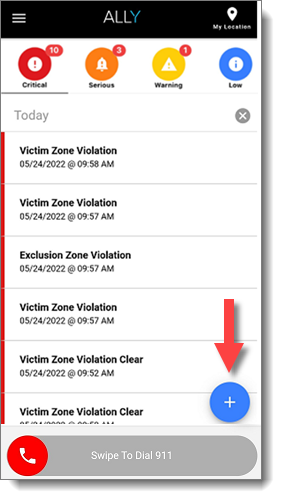
Tap the floating blue “plus” button to start a text to the emergency number. The address of the smartphone’s current location is automatically pasted into the text box.
Moving Zone Buffer
Officers may add a buffer around a victim’s Moving Zone. If a client enters the buffer area, a “Victim Zone Buffer Entry” event is generated. A “Victim Zone Buffer Exit” event is generated when the client moves out of the buffer zone.
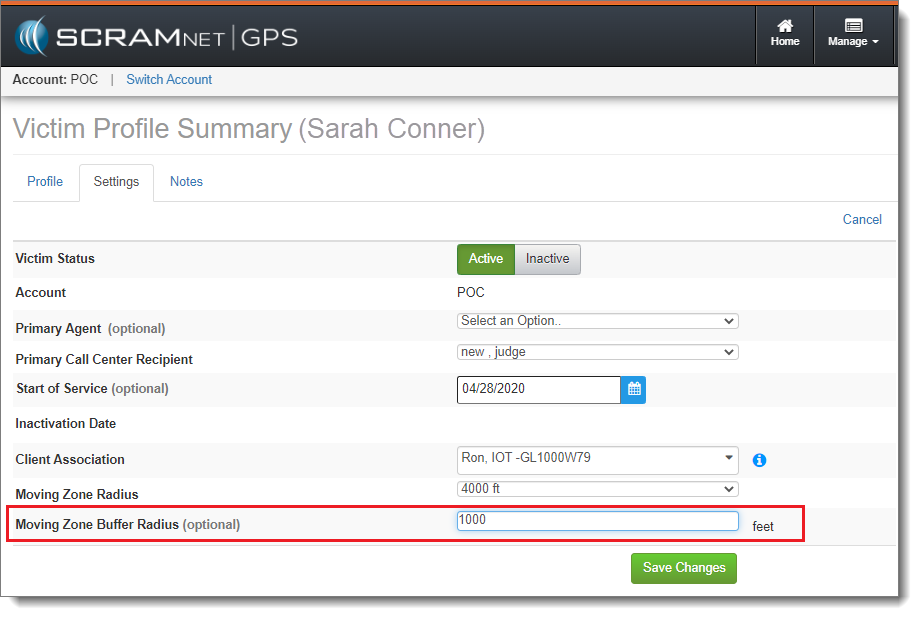
To set the Moving Zone Buffer Radius, navigate to Manage Victims > [select victim] > Victim Profile Summary > Settings tab.
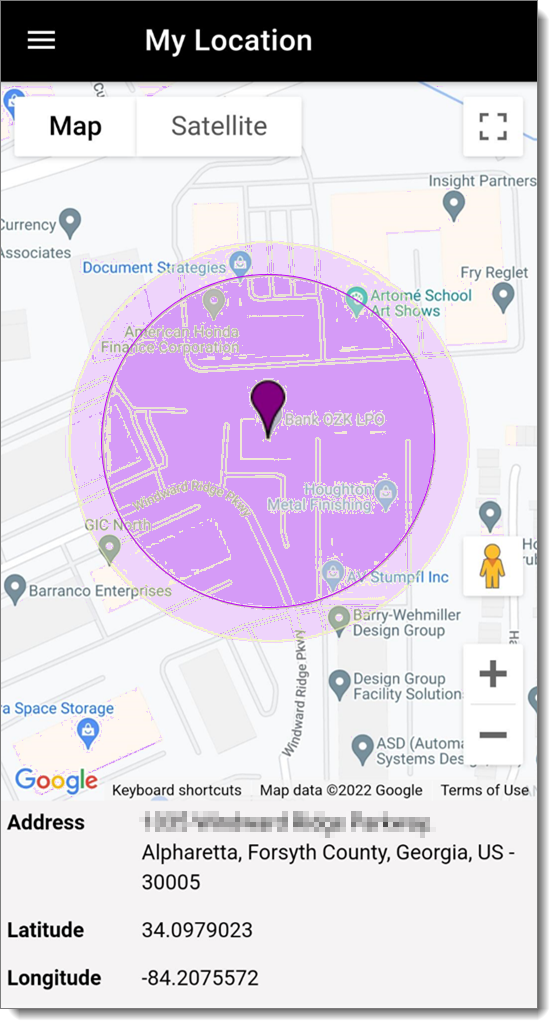
In the SCRAM Ally app, the buffer zone is visible (light purple) from the My Location screen:
(click to enlarge)
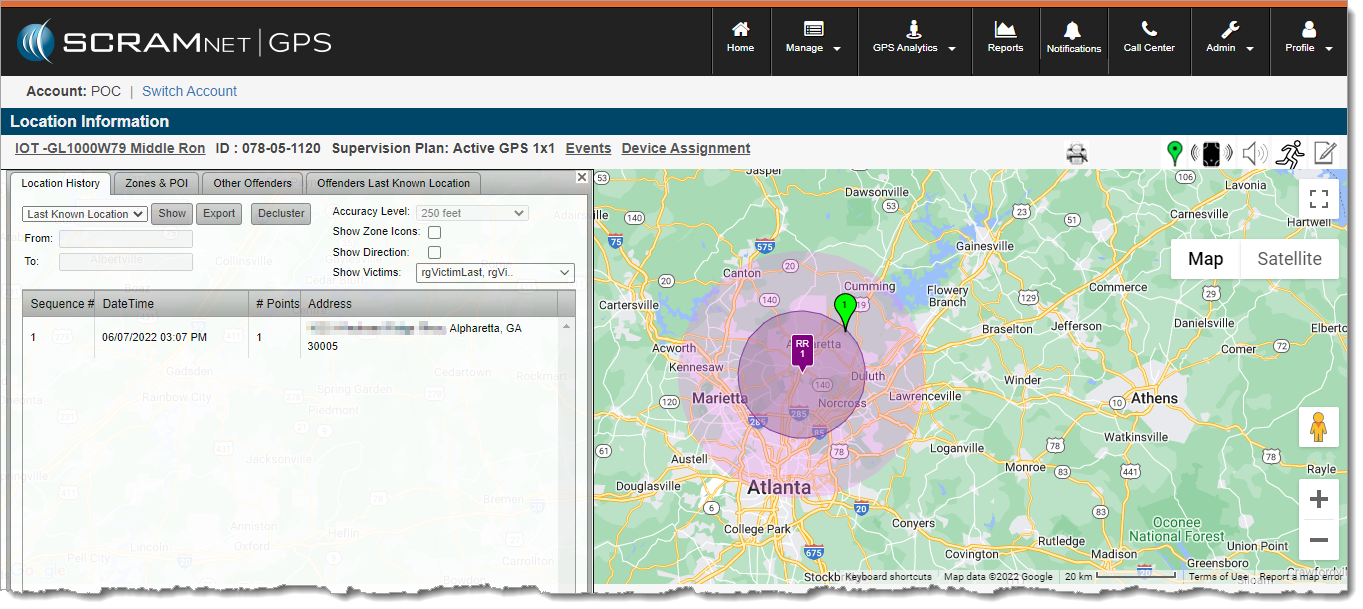
In SCRAMNET GPS, the buffer zone is visible (light purple) when victims are displayed on the Location Information page:
Moving Zone Buffer Entry and Exit Events
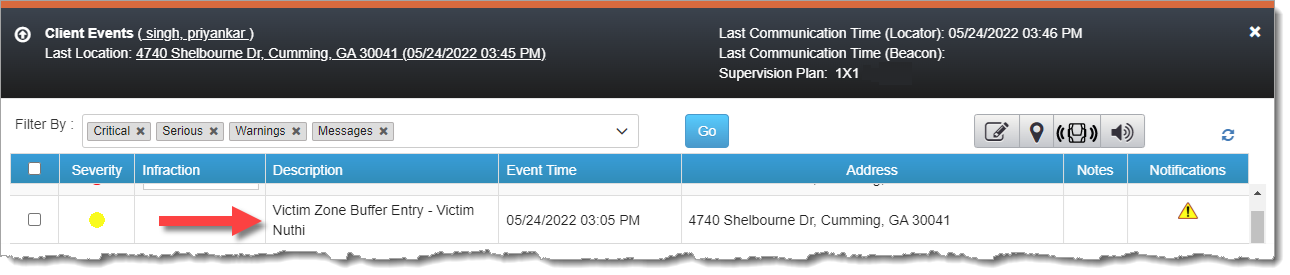
If a client enters the victim’s Moving Zone Buffer, a ‘Victim Zone Buffer Entry’ event is generated. When the client is no longer in the buffer zone, then a ‘Victim Zone Buffer Exit’ event is generated.
These events appear in the Client Events dialog:
These events also appear in the following reports:
- Active Events Report
- Event Details Report
- Event Report
Notifications for these two events can be sent to Users, Recipients, and Victims. To set notifications, navigate to the client’s Profile page, and click the Notifications tab. The Victim Zone Buffer Entry and Exit events can be found in the Locator Notifications > Warning tab.
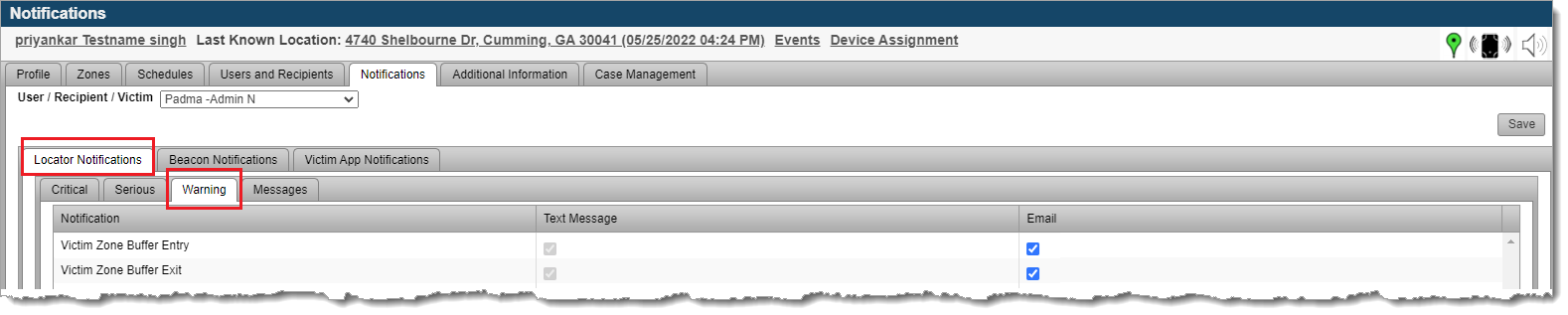
When notifications are sent, they can be seen in the Client Events dialog (above) in the ‘Notifications’ column, as well as on the Notification Report.
Additional Victim Notification Enhancements
Associate Multiple Clients to a Victim
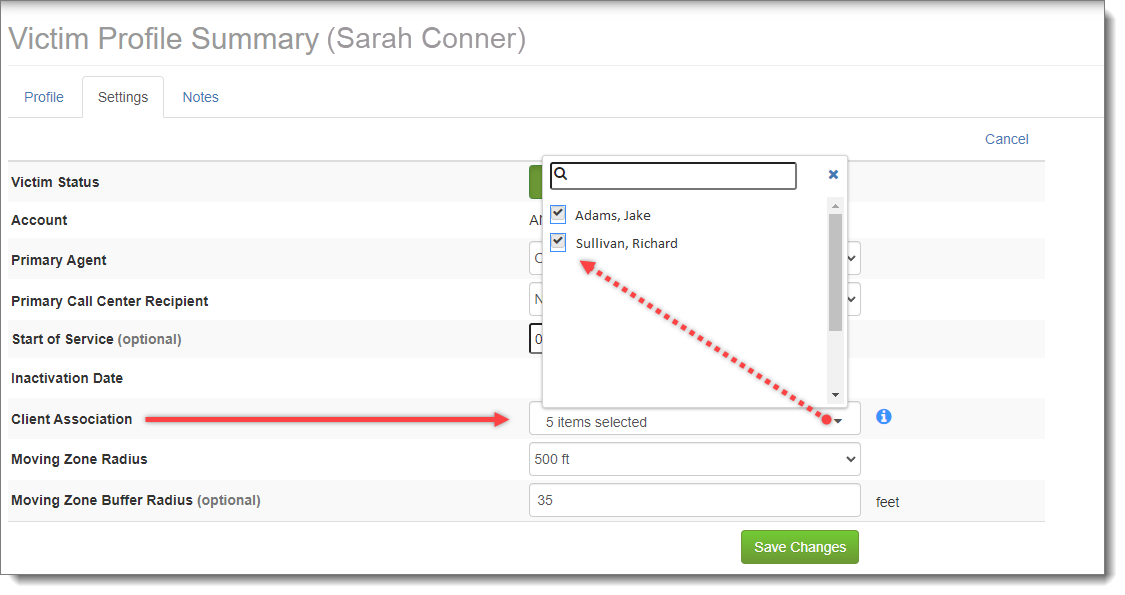
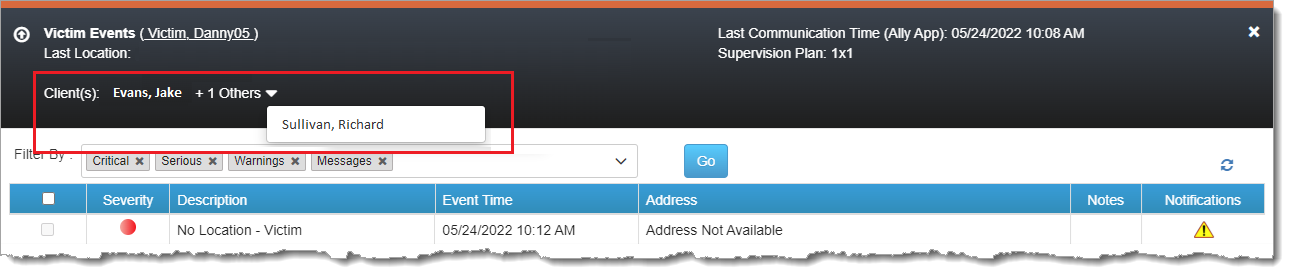
Multiple clients may be associated with a single victim. To associate clients, navigate to Manage Victims > [select victim] > Victim Profile Summary > Settings tab. Use the Client Association dropdown menu to associate (or disassociate) up to 10 clients with the victim.
|
The Client Association dropdown list only shows those clients on a 1 x 1 rate plan and have not already been associated with 10 other victims. |
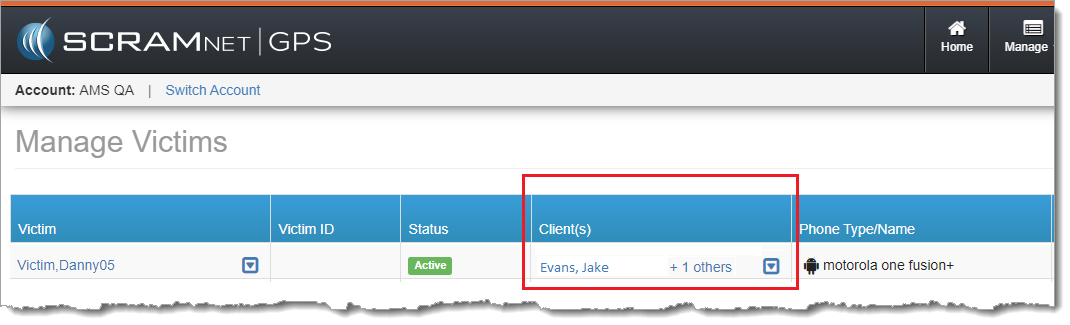
All clients associated with the victim can be seen on the Manage Victims page:
The Victim Events dialog also shows all clients associated with the victim:
Associate Multiple Victims to a Client
A single client can be monitored for several victims. For each victim, use the same steps outlined above (Manage Victims > [select victim] > Victim Profile Summary > Settings tab) to associate the same client with each victim.
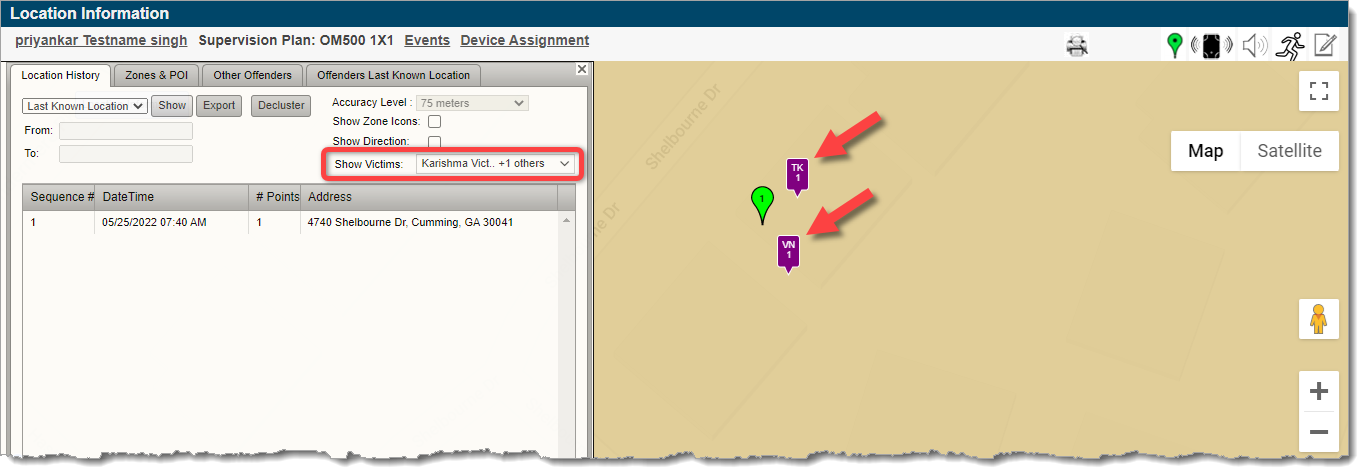
All associated victims can be seen on the Location Information page using the Show Victims dropdown menu. When the timeframe is set to ‘Last Known Location,’ all associated victims are automatically selected to show their Last Known Location. Because multiple victims may be associated with a single client, the victim’s map marker has been updated to include the victim’s initials.
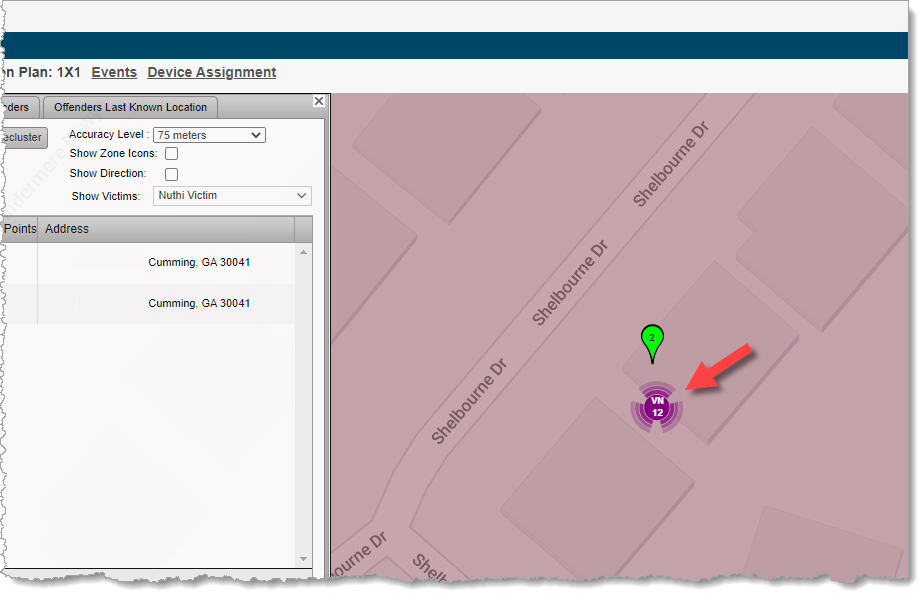
When a timeframe other than Last Known Location is selected, each victim’s points are grouped in a separate cluster using the victim’s initials.
Client Notifications to Victims
When victims are subscribed to receive notifications, victim-specific notifications are only sent to the specific victim, and not sent to all associated victims. Consider the scenario where Client 1 is associated to Victim A and Victim B, and both victims are subscribed to receive notifications for the Victim Zone Violation. If Client 1 breaches Victim A’s moving zone, then only Victim A receives the Victim Zone Violation notification. The notification is not sent to Victim B because Victim B’s moving zone was not breached.