SCRAM Remote Breath caseloads include a third-party recipient notification feature that allows Agents to designate additional recipients of Remote Breath client notifications, regardless of the recipients’ ability to access the SCRAMNET monitoring system. This feature is especially useful in Family Court scenarios, where spouses, ex-spouses, lawyers, caretakers, or other interested parties require notification of a client’s compliance or non-compliance with the SCRAM Remote Breath Monitoring Program.
 |
Tip: This feature is for non-SCRAMNET users only. To ensure other Users and Agents in your Program receive appropriate alerts, enable and use Priority Notifications instead. |
Setup Instructions
Client Notification recipients can be set up at both the Caseload level and the Client level.
Caseload Level Setup
Start by accessing one of your RB-enabled caseloads, and then select “Manage Client Recipients” from the Manage Clients dropdown menu:
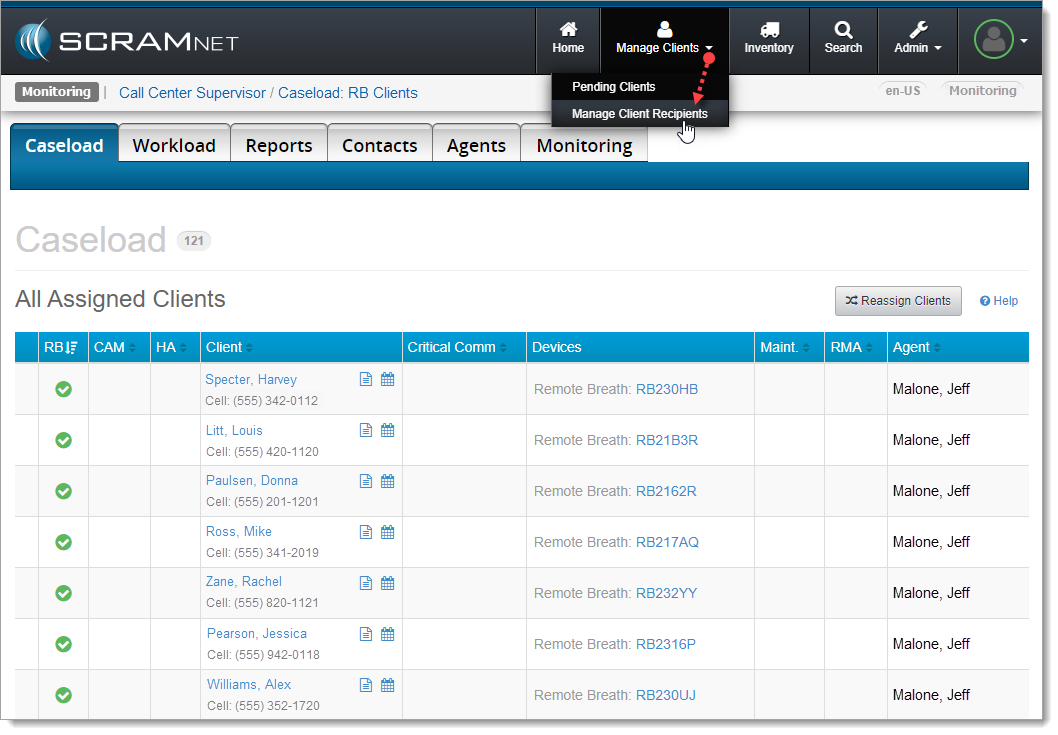
Select Manage Client Recipients (click to enlarge)
On the Manage Client Recipients screen, select the Add a New Recipient button:
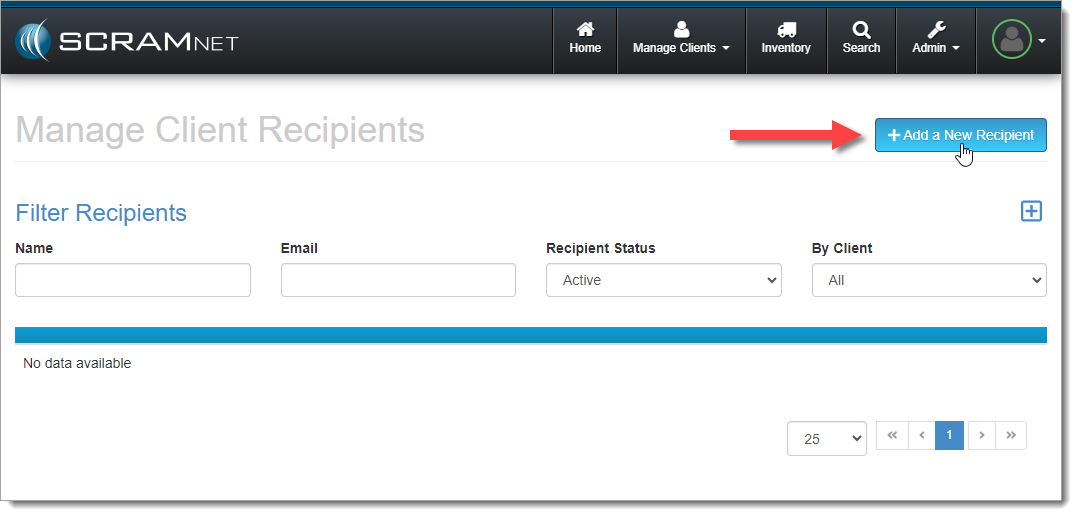
Select the Add a New Recipient Button (click to enlarge)
Fill out the Add Recipient form and select the client(s) for whom your recipient should receive notifications. Be sure to select the appropriate “Media Type,” (HTML-formatted) email or text message:
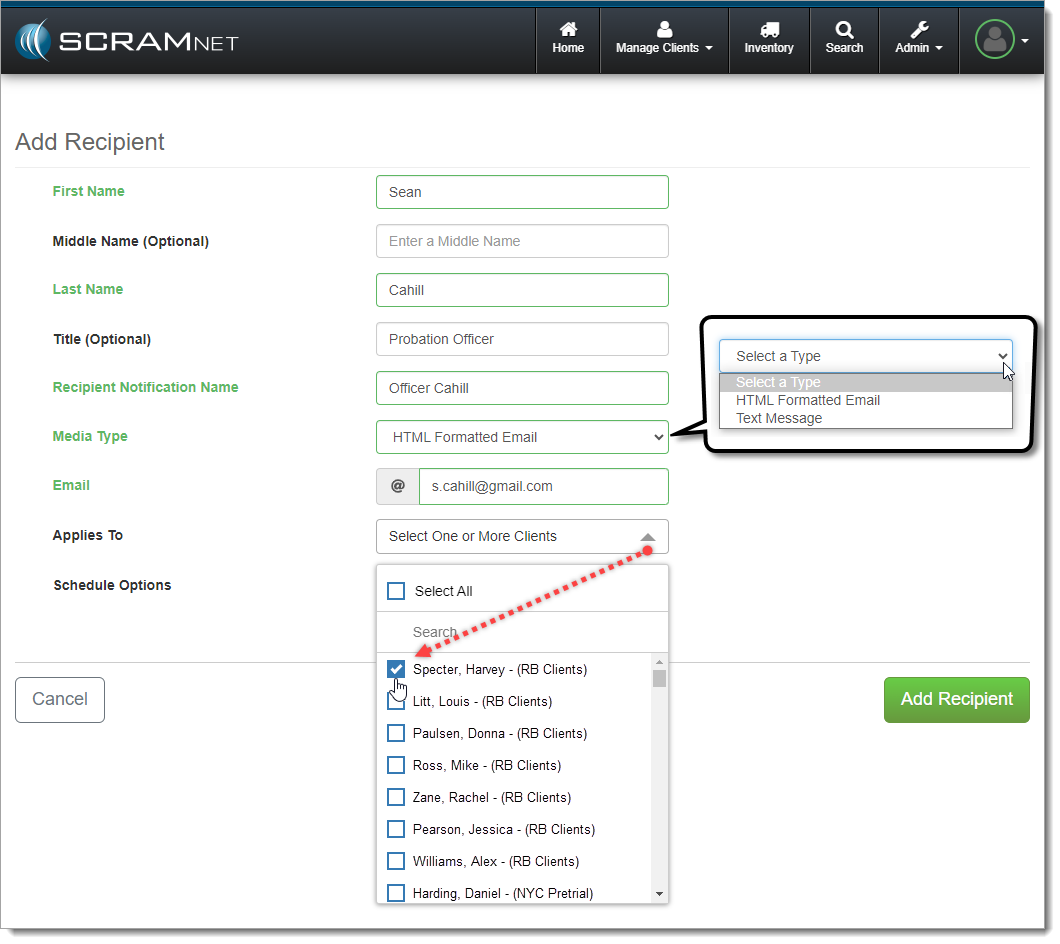
Fill Out the Form and Select Client(s) (click to enlarge)
|
‘Applies To’ Client List Tips:
|
Indicate if your recipient should receive RB event and alert notifications as they happen (24 x 7), or if they should be only be delivered during specific days and times during the week (Custom). Once the form is filled out, select the Add Recipient button:
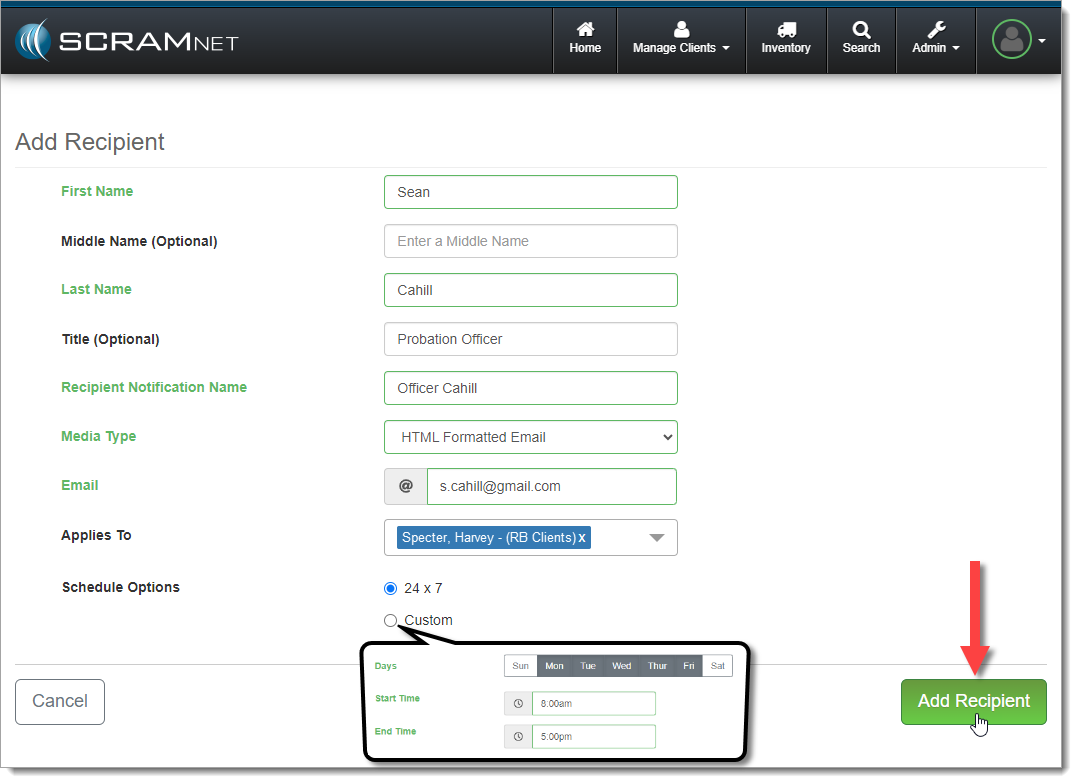
Add Recipient (click to enlarge)
The Manage Client Recipients page will update to reflect that your recipient has been added, but we are still awaiting validation of the recipient’s Notification Method (text or email):
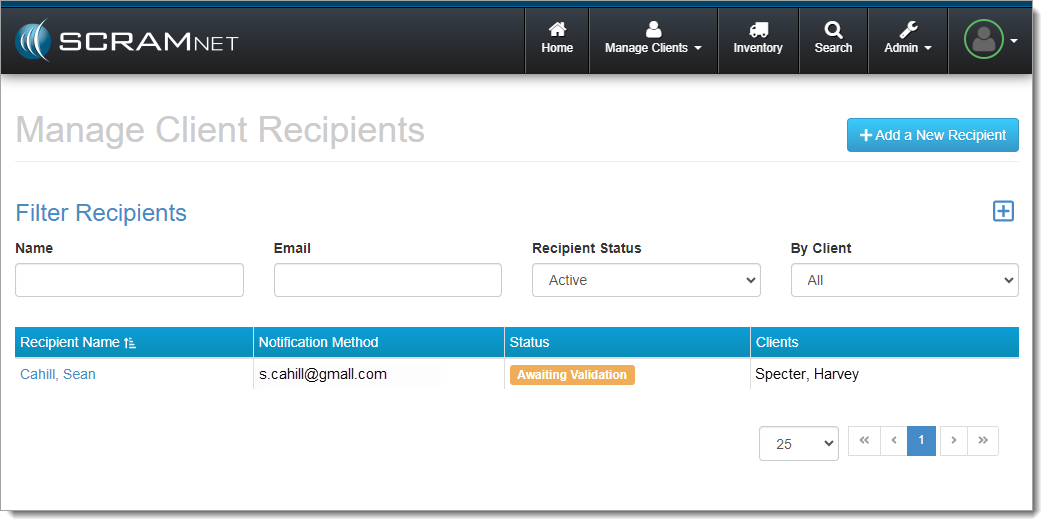
Awaiting Validation (click to enlarge)
The recipient will receive a SCRAM Systems Notifications Validation message email (or a validation text message) from “ScramNotify:”
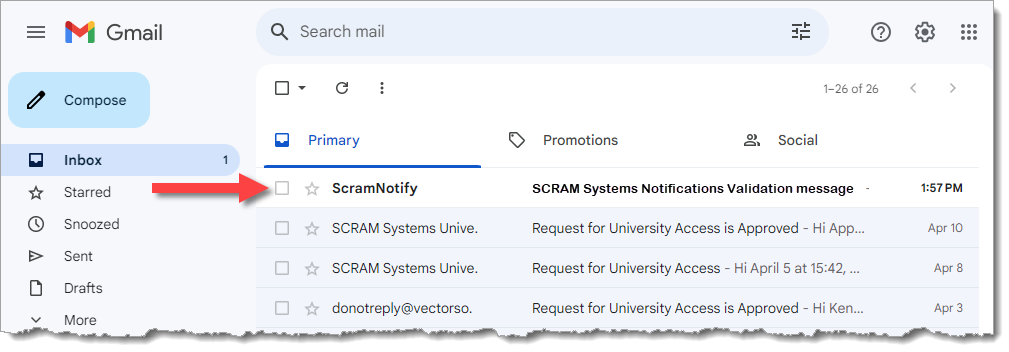
Email from ScramNotify Received (click to enlarge)
The recipient will have 48 hours to validate their email address (or an unlimited amount time to validate their mobile number for text messages) and that they wish receive (or refuse) client RB notifications via the method (email or text) chosen:
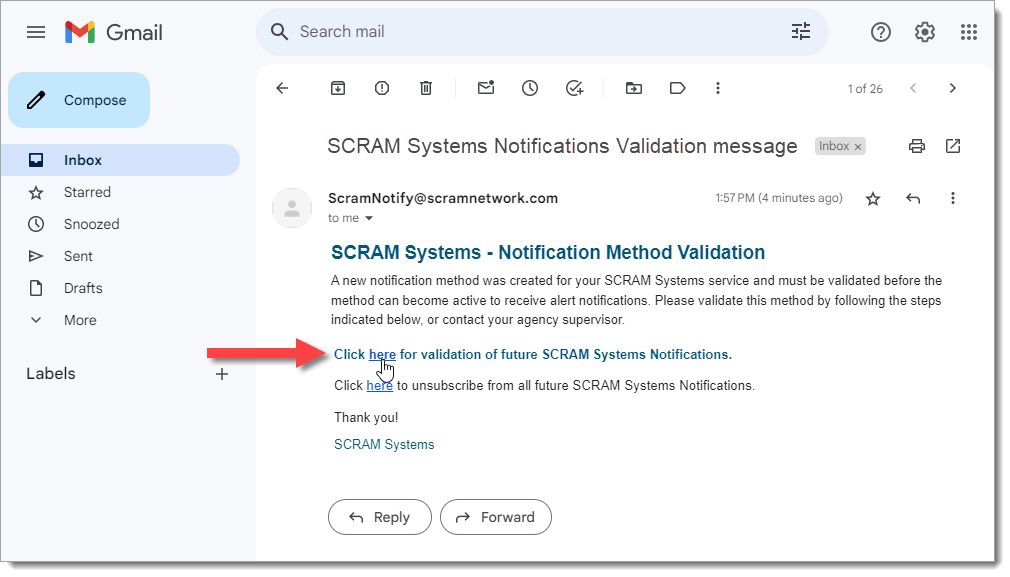
Recipient Validates Email Address and Chooses to Receive Client Notifications (click to enlarge)
In SCRAMNET, the Manage Client Recipients page will update to reflect that your recipient has validated the Notification Method and is “Active:”
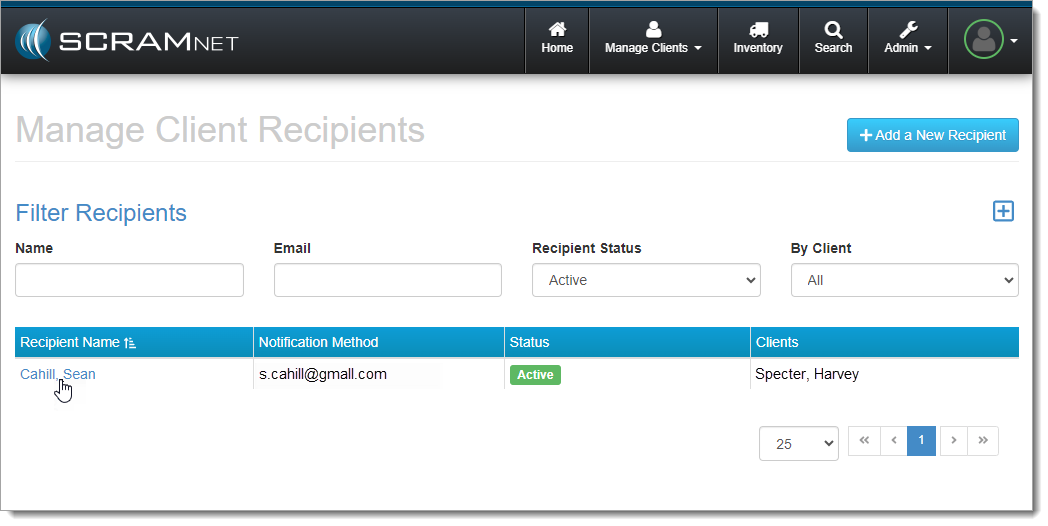
Recipient’s Notification Method is Active (click to enlarge)
Select the name of the recipient (see above) to open the Recipient Detail page, where you may make edits to the recipient information, edit the recipient notification method, deactivate the recipient, or delete the recipient altogether:
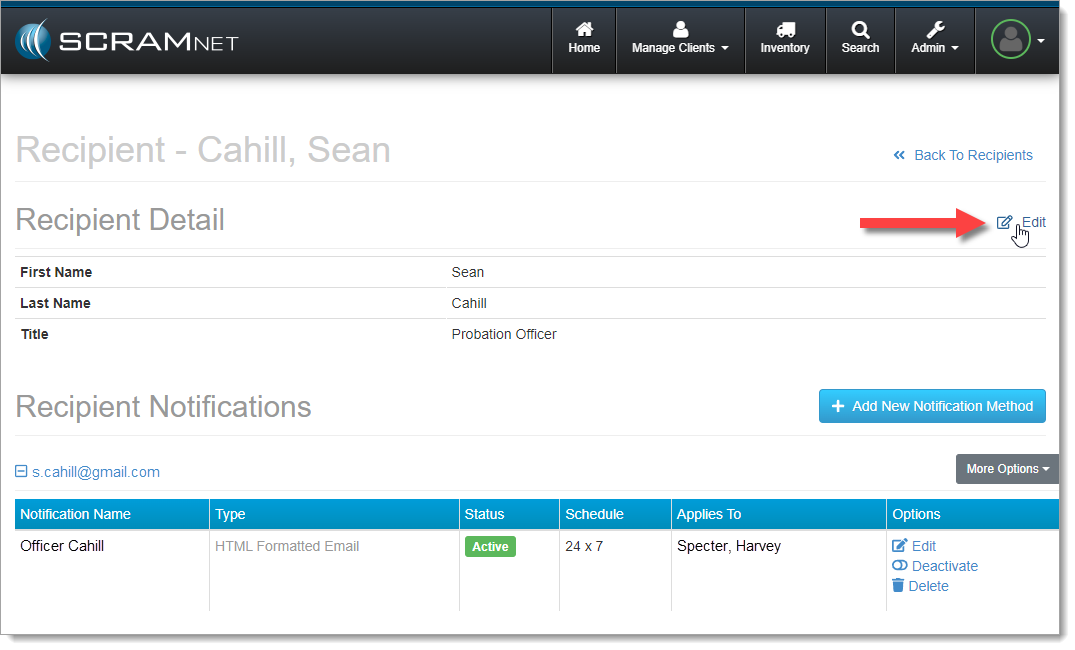
Recipient Detail Page (click to enlarge)
Select Edit in the upper Recipient Detail section (shown above) to make changes to the recipient’s name and title:
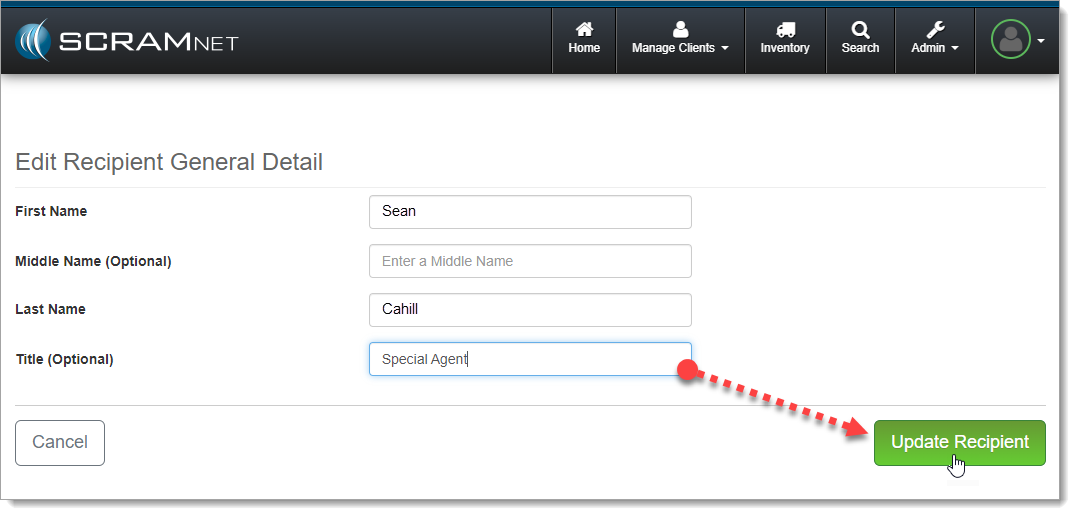
Edit Recipient General Detail and Select Update Recipient (click to enlarge)
Select Edit in the lower Recipient Notification table:
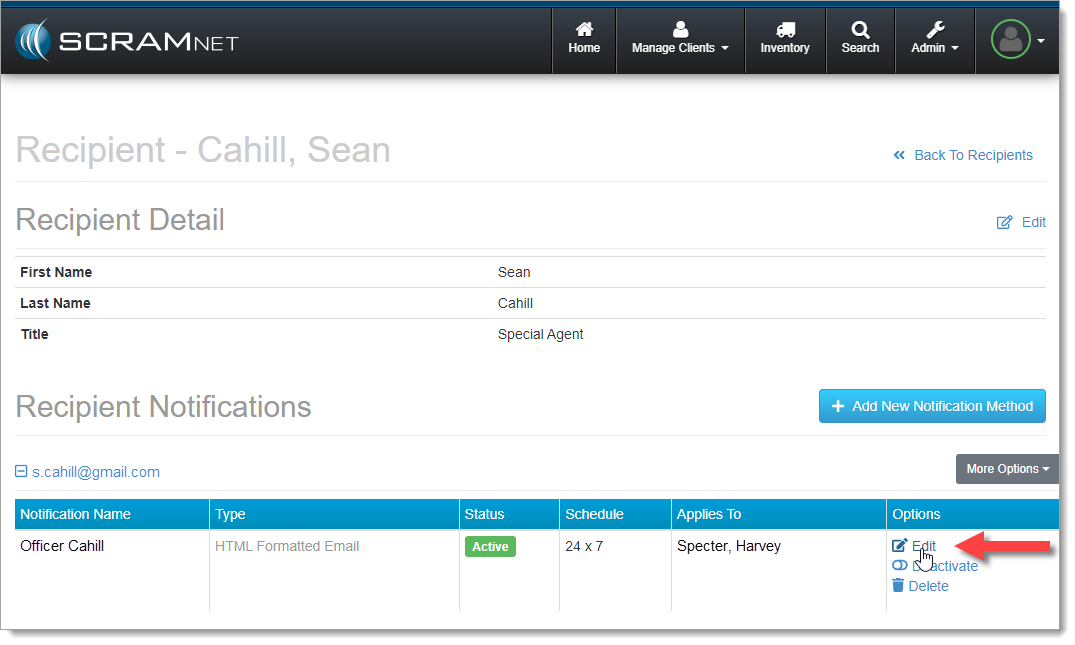
Select Edit in the Recipient Notification Table (click to enlarge)
To make changes to the recipient’s notification name, status, notification method, clients, and/or notification delivery schedule:
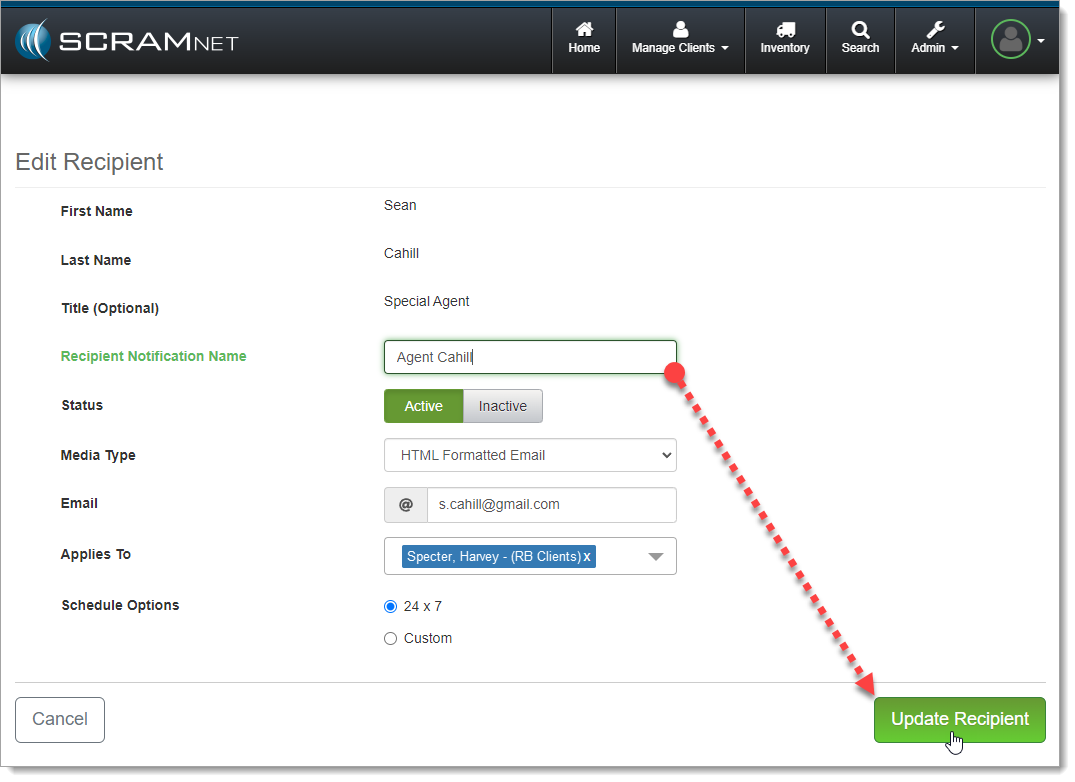
Edit Recipient Notification Information and then Update Recipient (click to enlarge)
Client Level Setup
Start by accessing the Client tab for one of your SCRAM Remote Breath clients, then select the Notifications sub-tab:
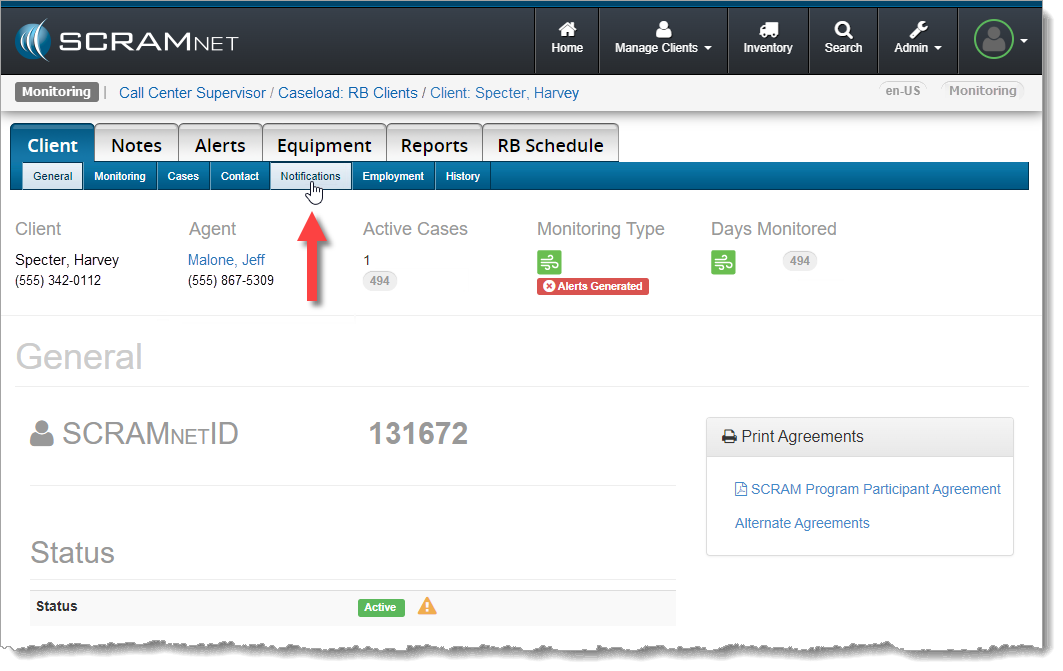
Select the Notifications Sub-tab on the Client Page in SCRAMNET (click to enlarge)
The Notification Recipients page allows you to: Add, Edit, Deactivate, or Delete a recipient, as well as Resend Validation Notification messages or Send a Test message.
Select the Add a Recipient button to add a new recipient, or to add a new notification method for an existing recipient:
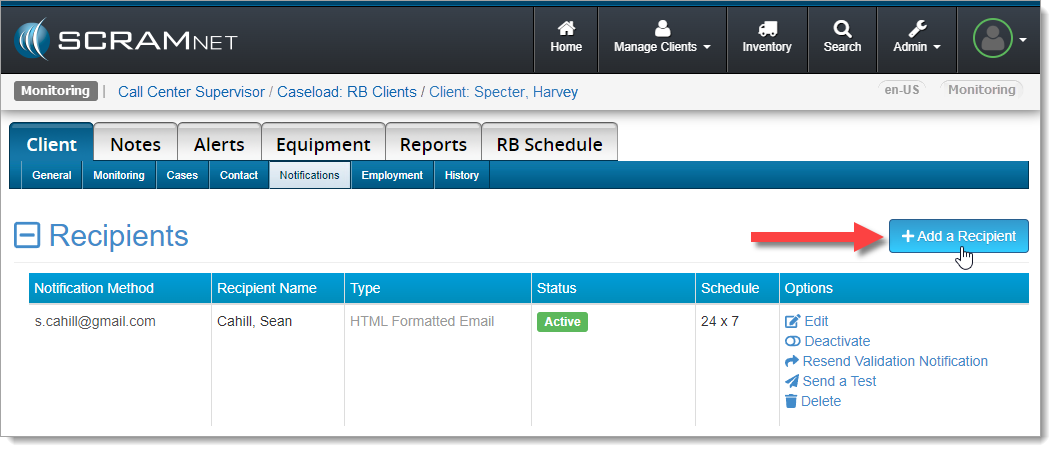
Select Add a Recipient (click to enlarge)
Fill out the Add Recipient form:
- Select the appropriate “Media Type,” (HTML-formatted) email or text message.
- Indicate if your recipient should receive RB event and alert notifications as they happen (24 x 7), or if they should be only be delivered during specific days and times during the week (Custom).
- Once the form is filled out, select the Add Recipient button:
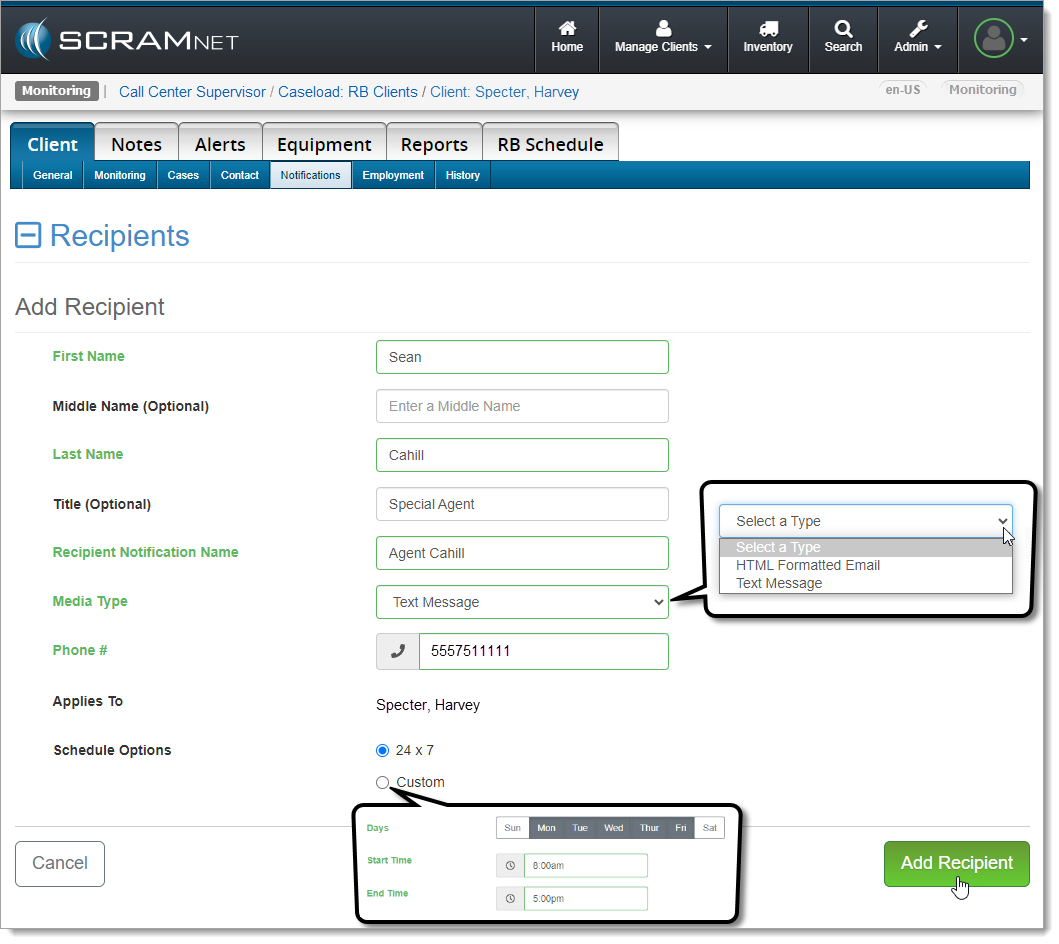
Complete the Add Recipient Form (click to enlarge)
The Notification Recipients page will update to reflect that your recipient has been added, but we are still ‘Awaiting Validation’ of the recipient’s Notification Method (text or email):
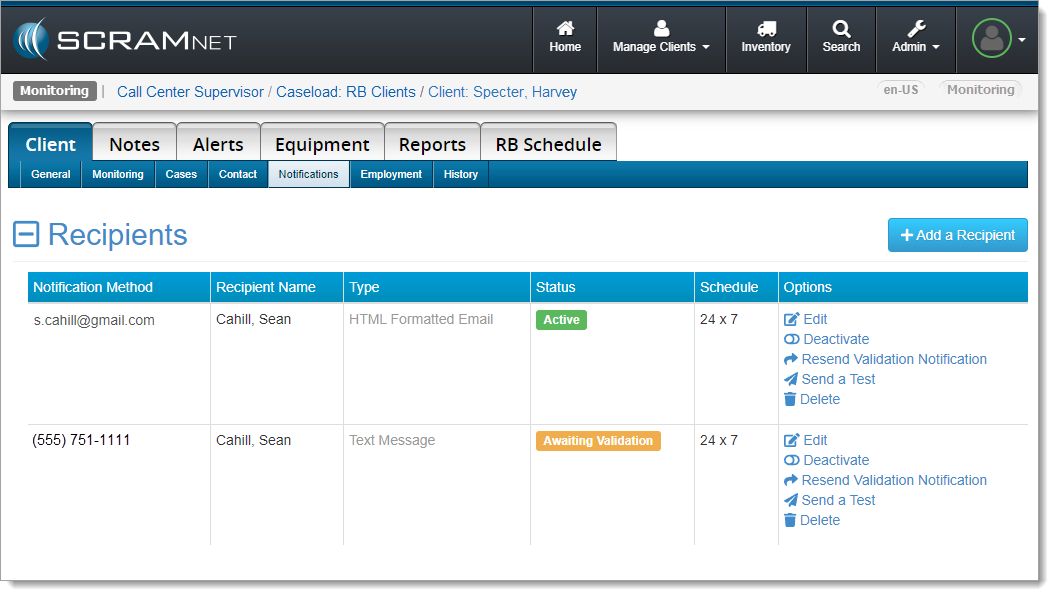
New Notification Method Awaiting Validation (click to enlarge)
The recipient will have an unlimited amount of time to validate their mobile number for text messages (or 48 hours to validate their email address) and that they wish receive (or refuse) client RB notifications via the method (email or text) chosen:
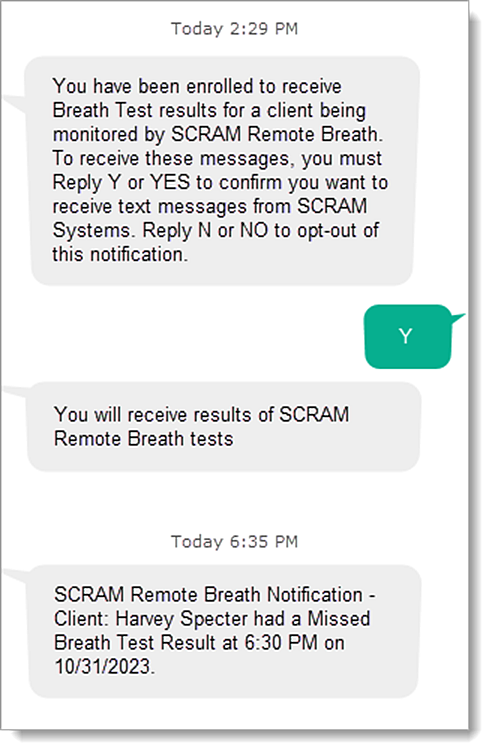
Recipient Validates Text Message and Begins Receiving Notifications (click to enlarge)
The Notification Recipients page will update to reflect that your recipient is ‘Active.’
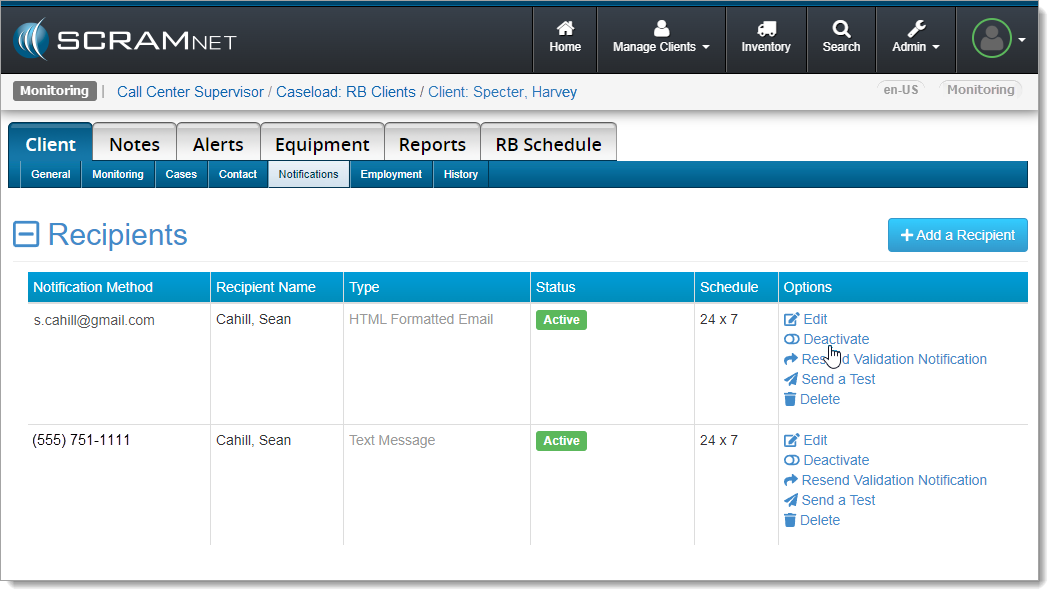
New Notification Method is Active (click to enlarge)
Select Deactivate (shown above) to switch off a notification method for a recipient. You will be prompted to confirm this change:
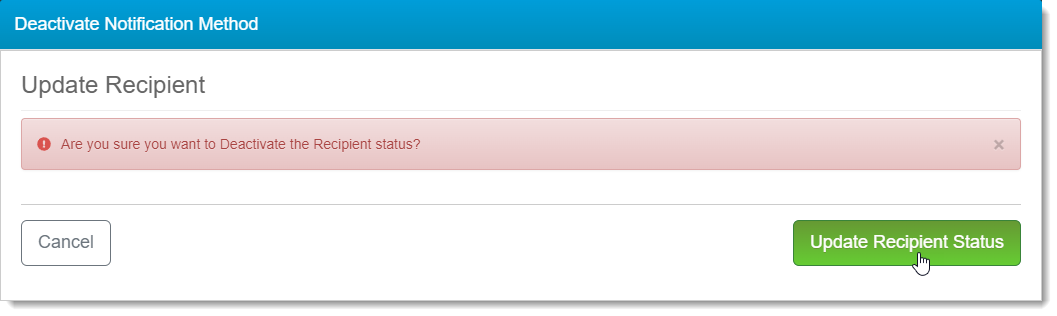
Confirm Notification Method Deactivation (click to enlarge)
Once deactivated, the recipient’s notification method will remain in the Recipients table, but will reflect an ‘Inactive’ status. This will allow you to easily reactivate the notification method in the future if needed.
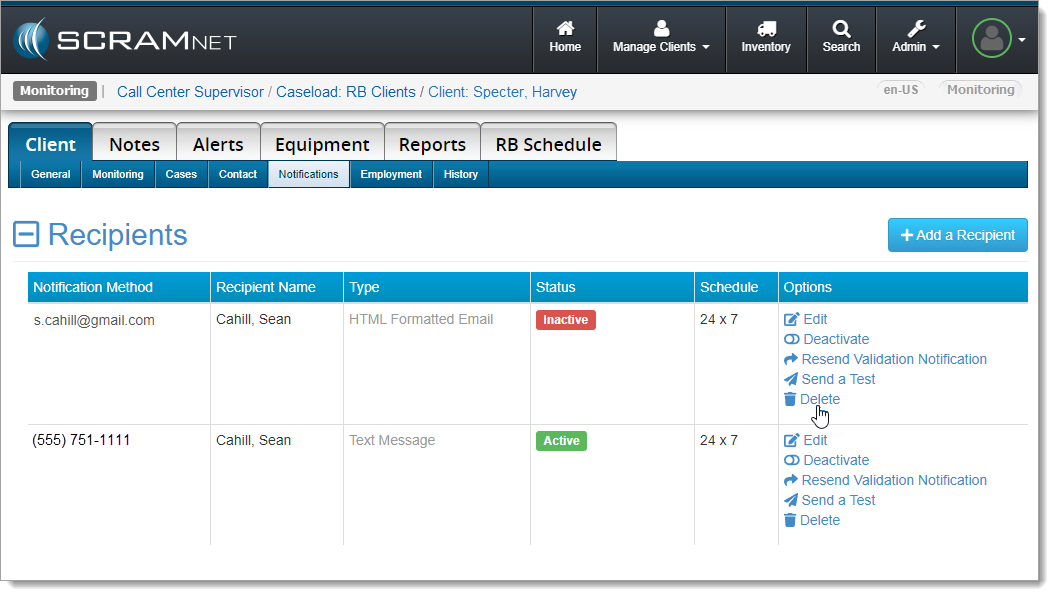
Recipient Inactive (click to enlarge)
To completely remove a recipient and the associated notification method from the Recipients table, select the Delete link (shown above). You will be prompted to confirm deletion:
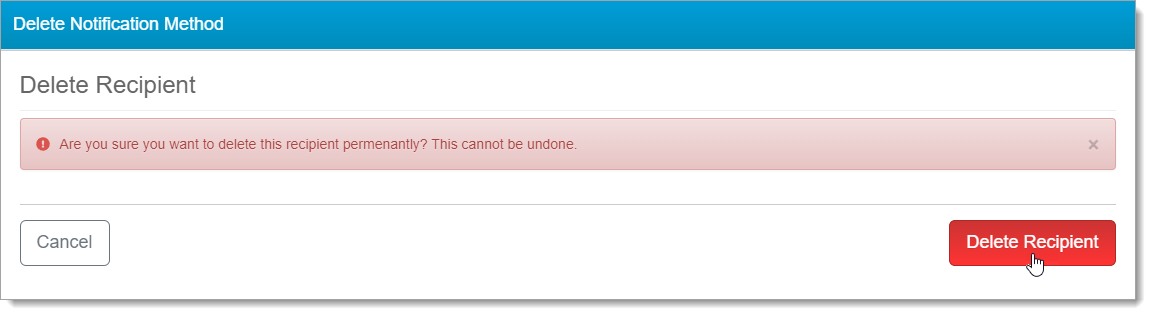
Confirm Deletion (click to enlarge)
Once deleted, the recipient’s notification method is removed from the Recipients table:
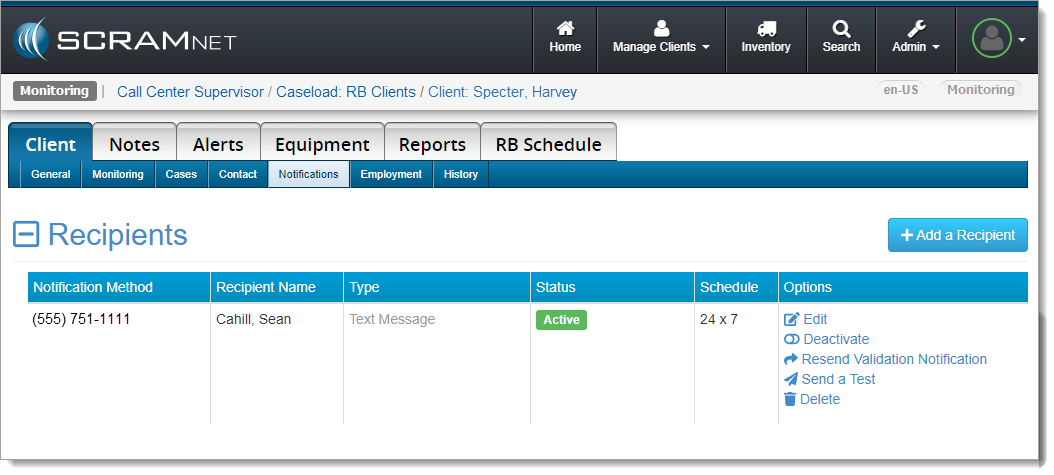
Notification Method Removed (click to enlarge)