On July 12, 2023, SCRAM Systems will release an enhancement to how SCRAMNET displays the SCRAM Remote Breath Pro EnrollmentPractice Test results.
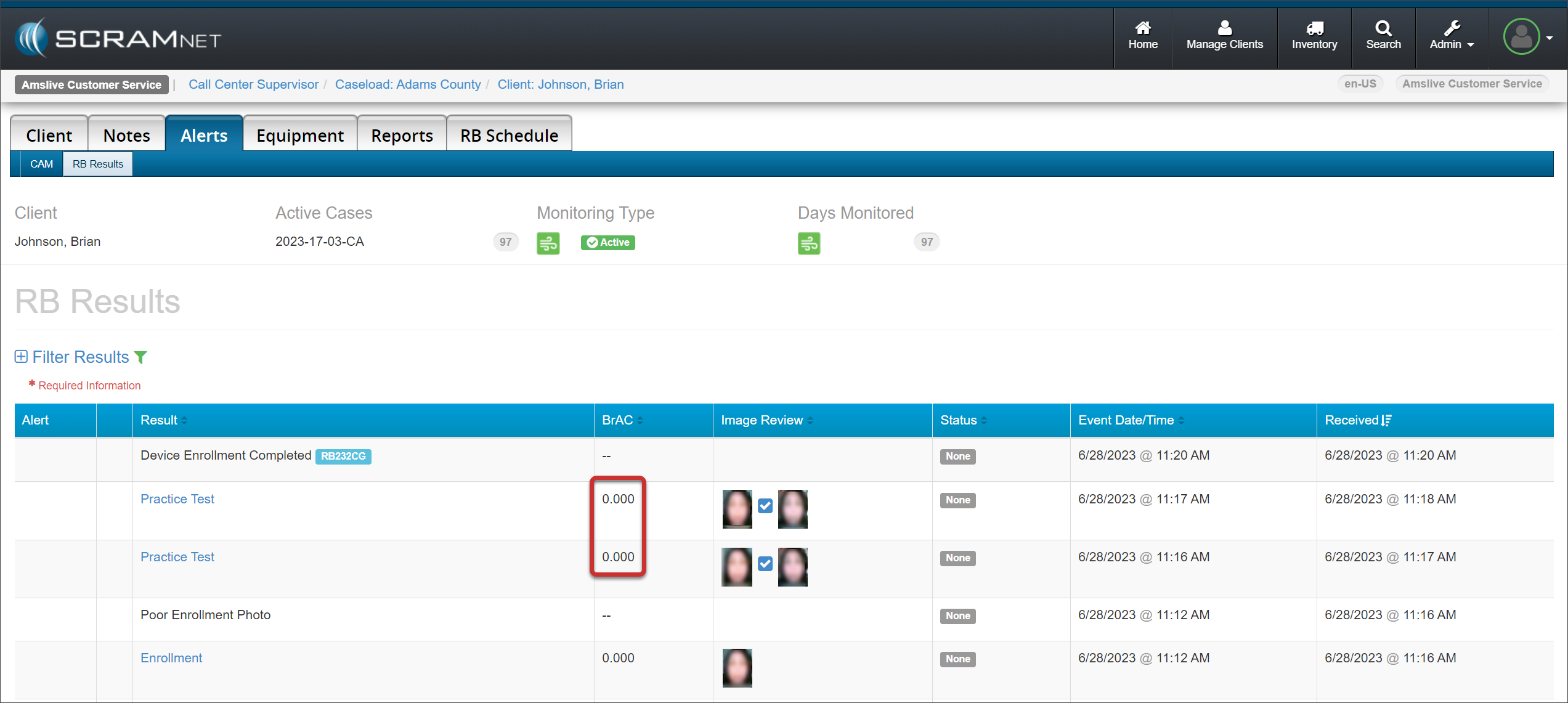
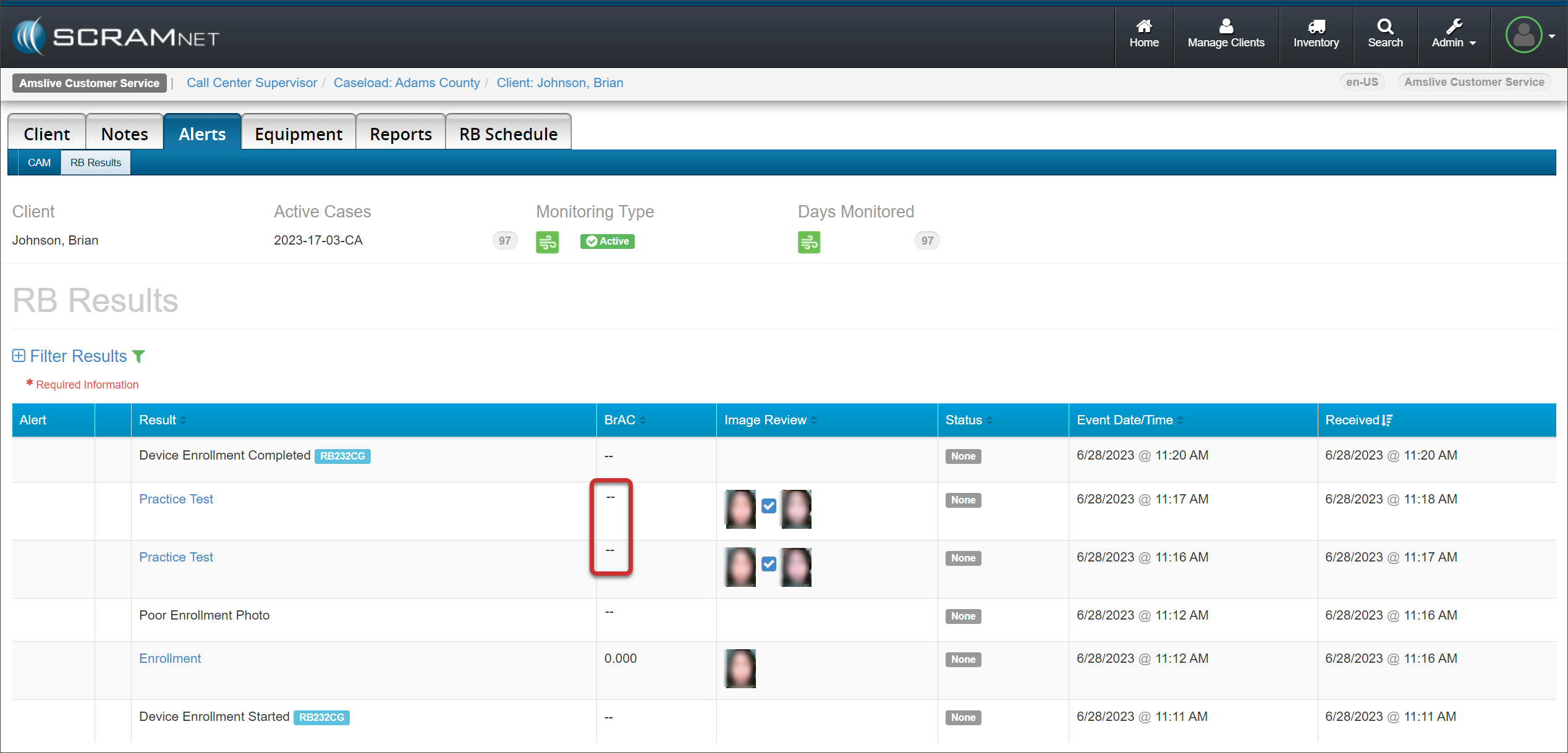
During enrollment, the Enrollment breath test result will still reflect a BrAC value, but the Practice Test breath results will display as “- -” on the RB Results page.
Before Enhancement:
RB Results page – click to enlarge
After Enhancement:
RB Results page – click to enlarge
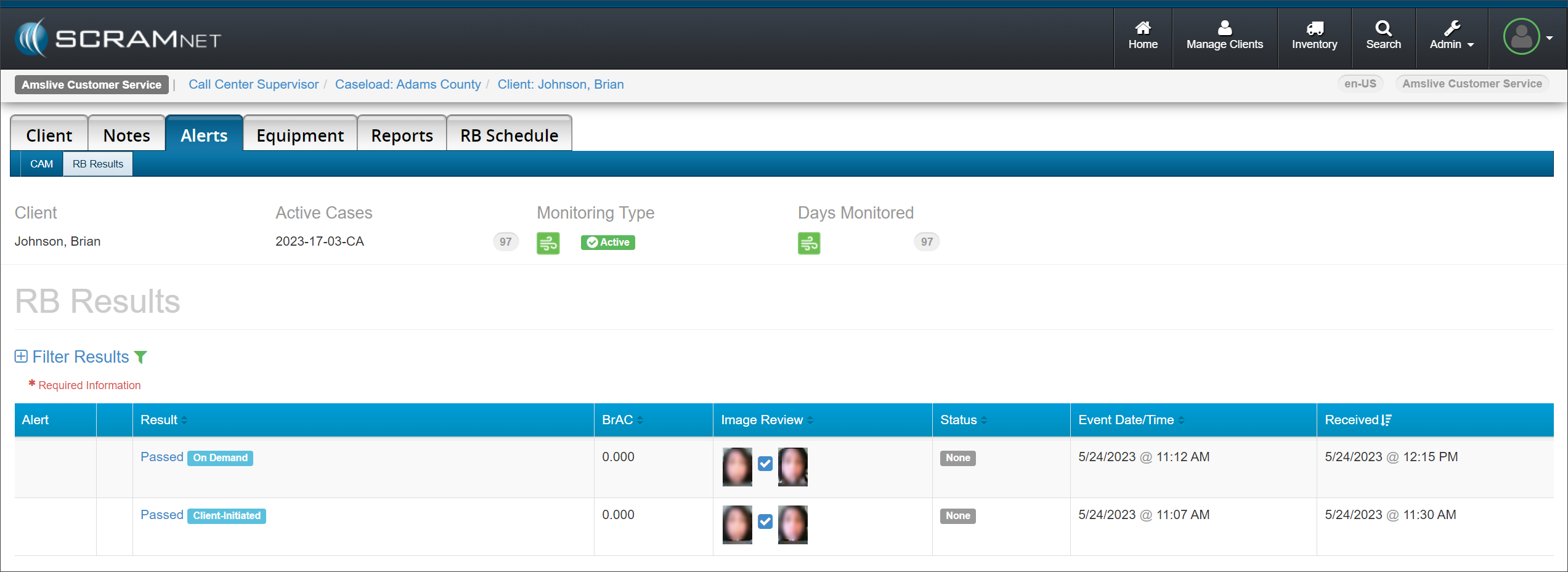
During the enrollment process, if you suspect the client has been drinking, complete the enrollment and practice tests process on the device. After ending the enrollment, send an On Demand test to the client’s device, or have the client complete a “voluntary” (Client-Initiated) breath test.
Scheduled, On Demand, and Client-Initiated breath test results are unaffected by this enhancement and will continue displaying the BrAC result value.
In a message dated June 24, 2022 and in a follow-up message delivered June 20, 2023, SCRAM Systems notified its SCRAM Remote Breath Classic (RB Classic) customers that SCRAM RB Classic devices and SCRAM Remote Breath LTE Adapters (“RB LTE Adapters”) would be decommissioned. The purpose of this message is to remind you that:
As of July 1, 2023, RB Classic devices – with or without RB LTE Adapter – will no longer be supported by SCRAM Systems.
Please dispose of or recycle all RB Classic devices and RB LTE Adapters on or afterJuly 1, 2023, in accordance with e-waste disposal guidelines in your area. There is no need to return the equipment to SCRAM Systems.
Please contact your SCRAM Systems Sales Manager to discuss upgrading to SCRAM Remote Breath Pro. Clients still assigned to RB Classic devices willno longer be monitored.
You may recall that on Monday, May 22, 2023, SCRAM Systems released a new firmware package (226/200) to SCRAM Remote Breath Pro (RB Pro) devices. Among the many enhancements and improvements included in this new firmware package was the ability to detect fuel-cell contaminants in the breath testing flow path. This enhancement helped to reduce occurrences of “0.999 BrAC” test results.
When an excess of Volatile Organic Compounds (VOCs) is detected – usually picked up from the device’s surroundings – the RB Pro device prevents breath tests from being performed. When this occurs, the device displays, “PLEASE WAIT,” generates a descending arpeggio (“uh-oh”) sound, and then goes back into sleep mode. Such an event also generates the alert, “Unable to Test – Contaminated” in SCRAMNET.
Beginning this afternoon, June 21, 2023, when RB Pro detects an excess of VOCs and prevents a client from taking a breath test, the device will now generate the new alert, “Ambient VOC Detected.” When this occurs, advise the client to take the following steps to help clear the device’s breath testing flow path.
On June 14, 2023, SCRAM Systems will release enhancements to aid you when adding an Agent, Priority Notification, and Daily Summary email methods to your SCRAMNET Caseloads. With this enhancement, you may simultaneously add the Agent or Notifications to one or multiple Caseloads. Additionally, this enhancement eliminates the requirement for duplicate contact information entries for the same user within SCRAMNET.
As an Administrator with “Manage User” or Manage Caseloads” permissions, once the user’s profile has been created, you may add them as an Agent, as well as add their Priority Notification and Daily Summary Report delivery methods to one or more caseloads from the user’s Profile page.
Manage Agents
Add a New User as an Agent to One or More Caseloads
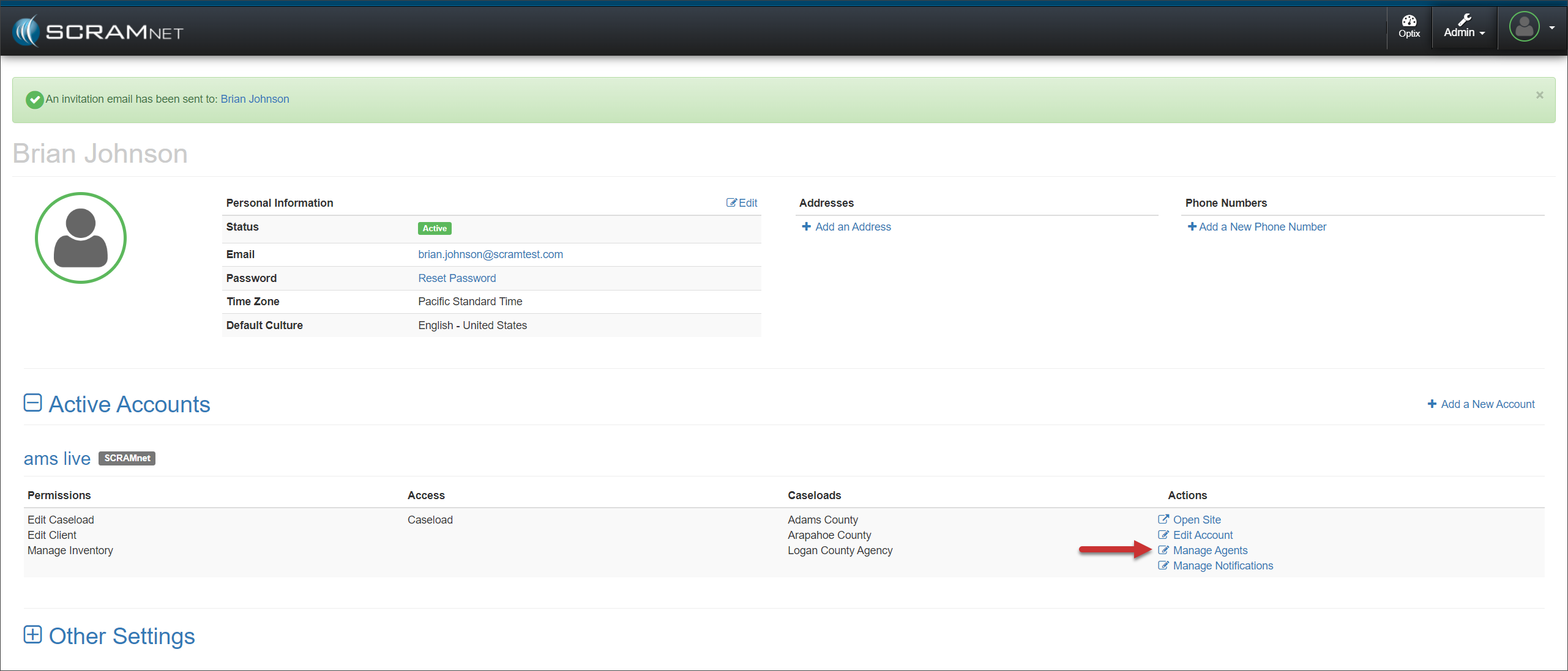
Once you have created the new user from the Manage Users page, access the user’s Profile page to locate their SCRAMNET Active Account settings; then select the Manage Agents hyperlink found under the “Actions” column.
User Profile Page – click to enlarge
On their Manage Agents page, select the +Add Agent button.
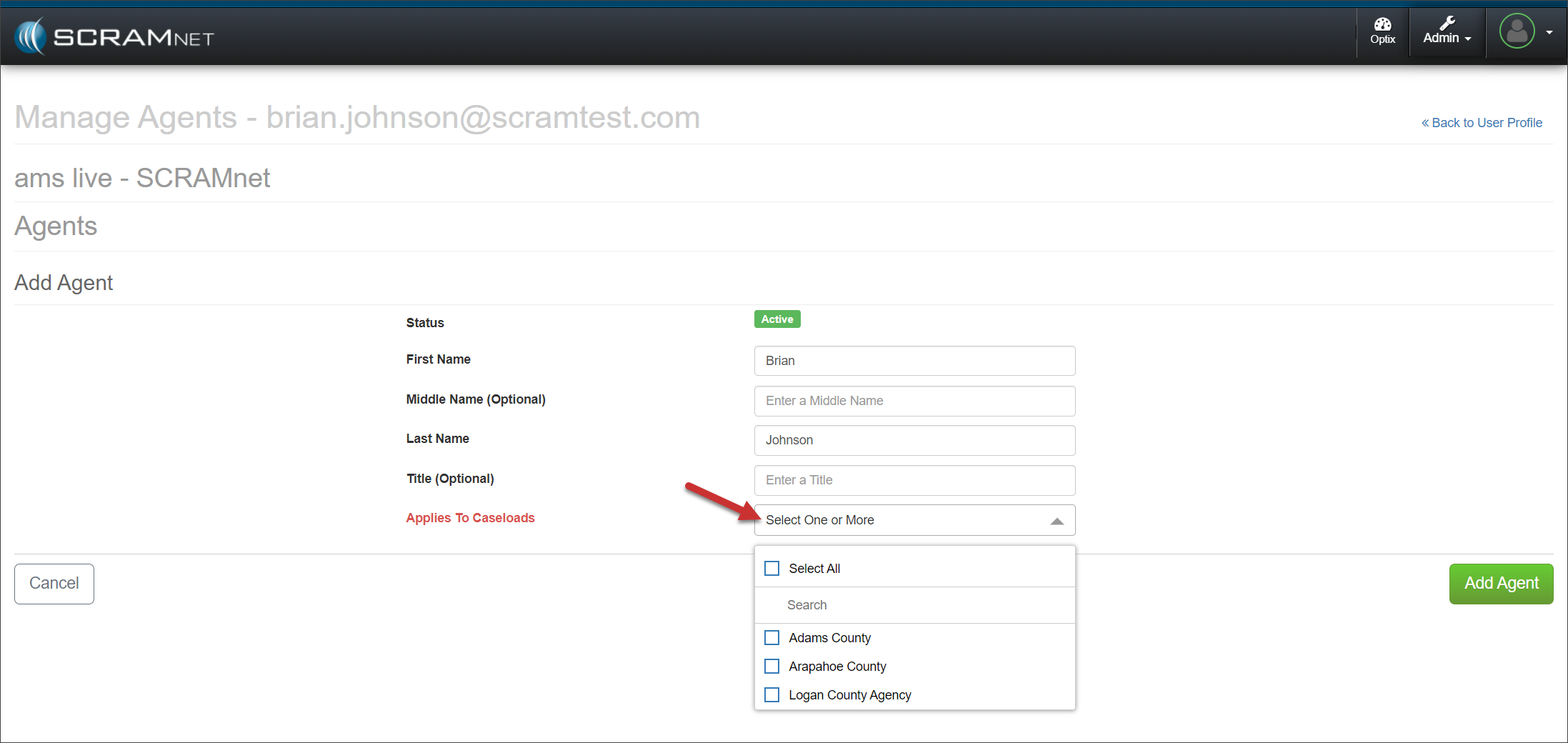
Select the one or more Caseloads in which the user will be an Agent from the Select one or More dropdown menu.
Manage Agents Page – click to enlarge
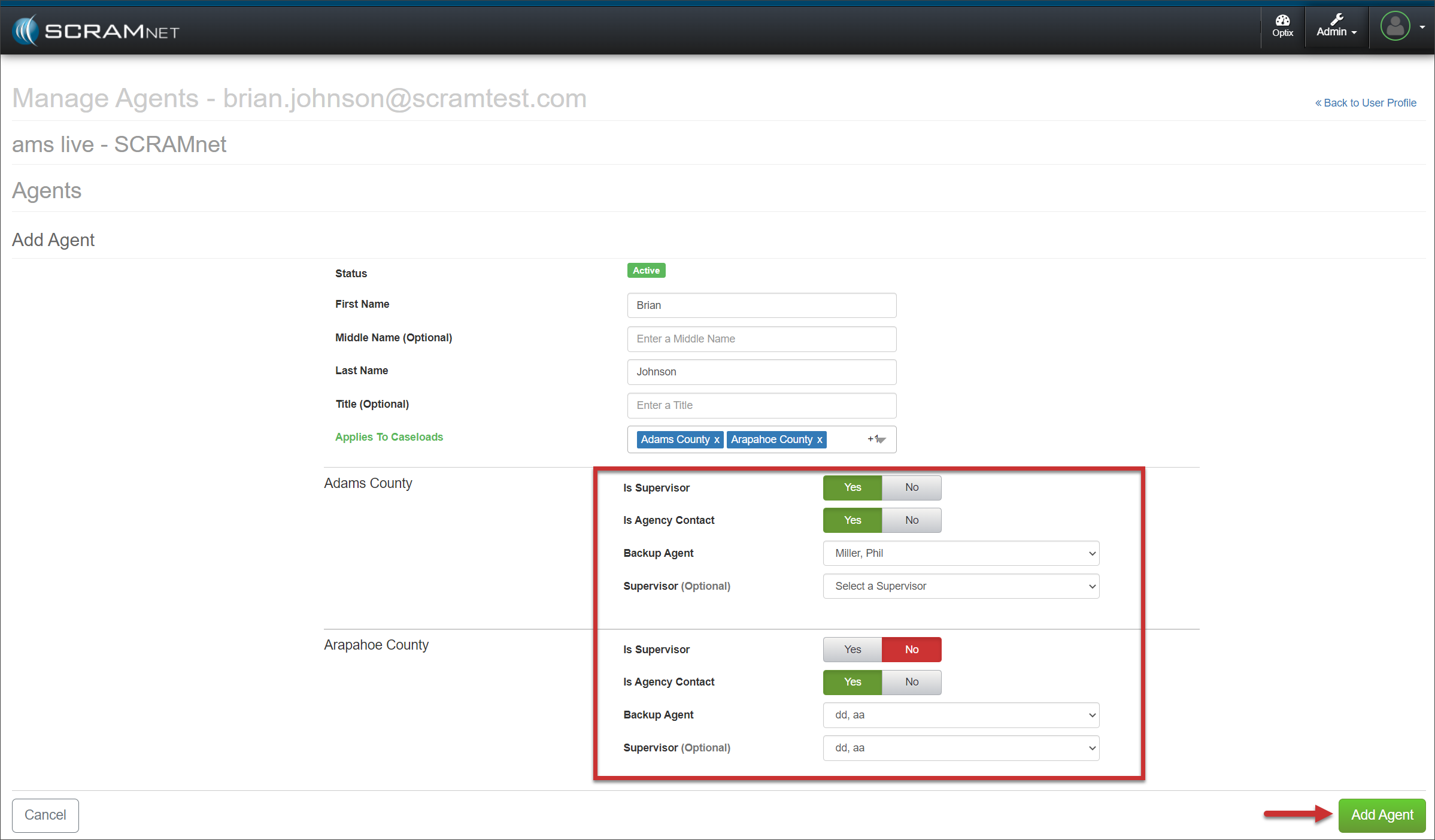
Select the appropriate options for each Caseload chosen and then select the +Add Agent button.
Manage Agents Page – click to enlarge
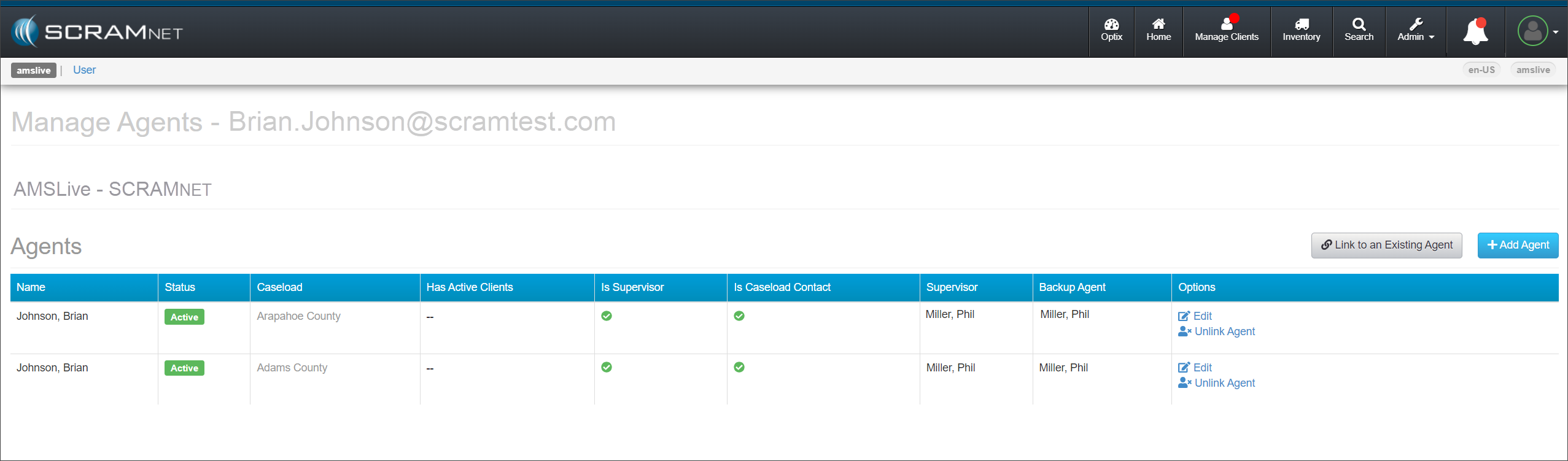
The Manage Agents page for the user will now display all the Caseloads associated with them.
Manage Agents Page – click to enlarge
You may link an existing caseload to a user. To do this:
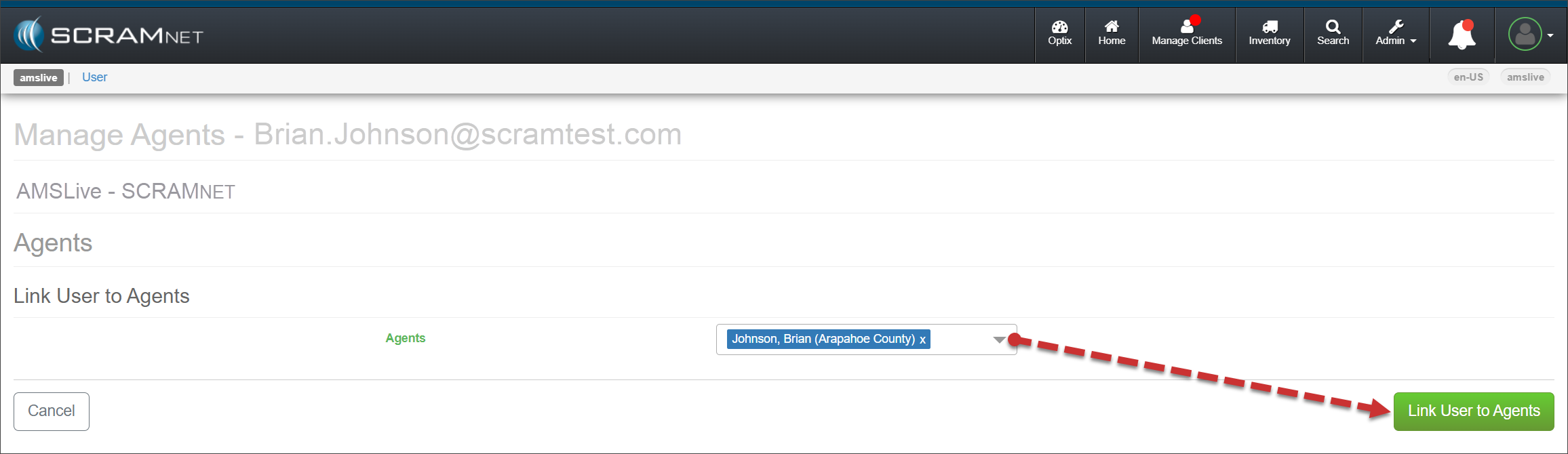
Select the Link to an Existing Agent button on the Manage Agents page for the user.
Open the Agents dropdown menu and select each instance of the agent listed.
Select the Link User to Agents button.
Manage Agents Page – click to enlarge
The user’s Manage Agents page will display each Caseload associated with that user.
Manage Notifications
Set up a New User for Priority Notifications and Daily Summary Reports
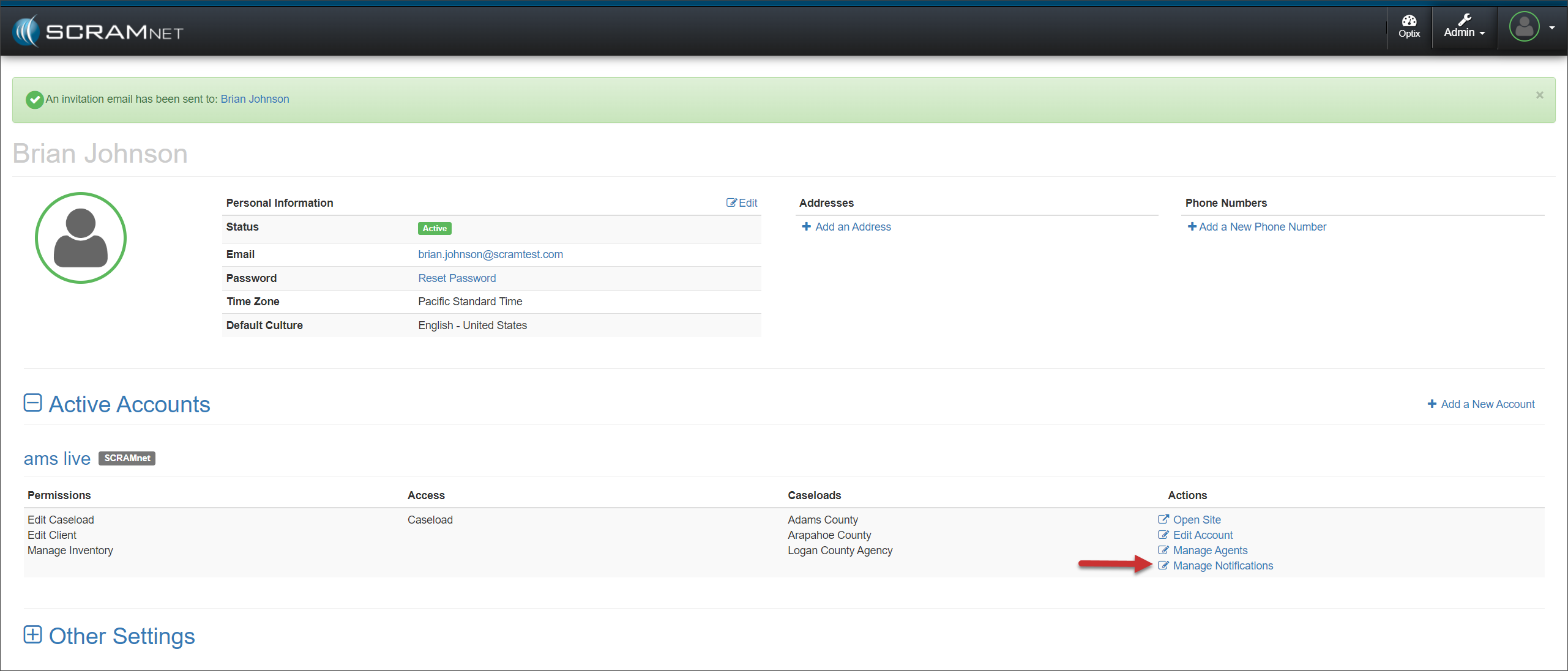
Select the Manage Notifications hyperlink under the Actions column for their SCRAMNET account.
User Profile Page – click to enlarge
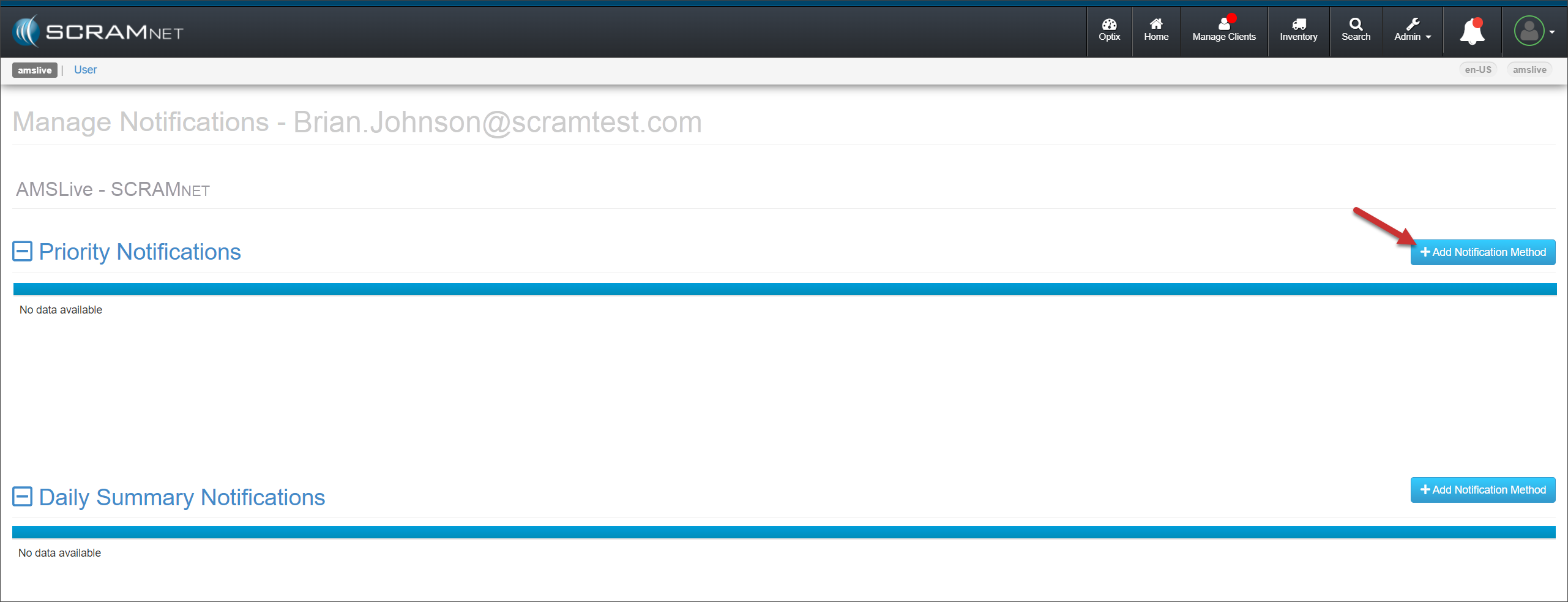
On the Manage Notifications page for that user, select the +Add Notification Method button in the Priority Notification section.
Manage Notifications Page – click to enlarge
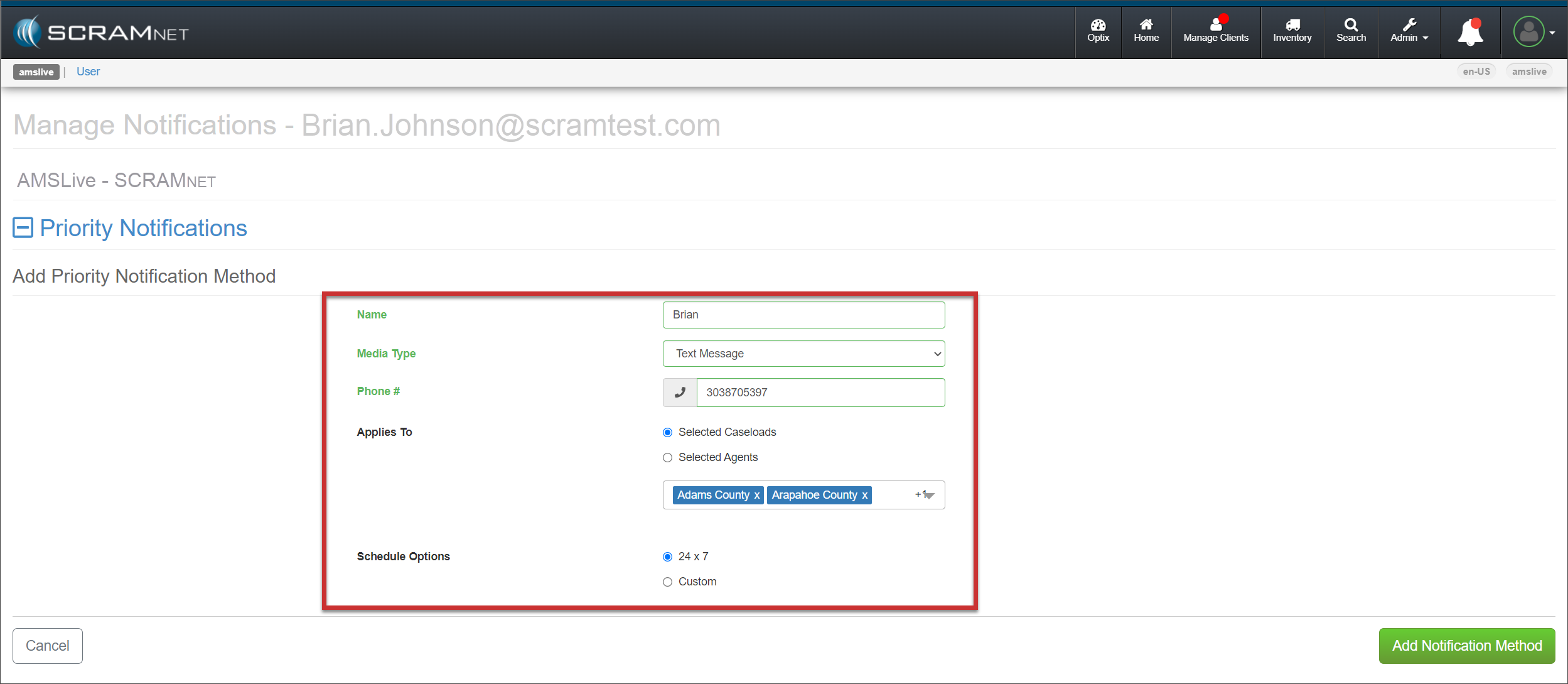
Add the details for the Priority Notification Method.
You may select one or more Caseloads to associate with this notification method.
The scheduling options chosen for this notification method will apply to each Caseload selected.
Manage Notifications Page – click to enlarge
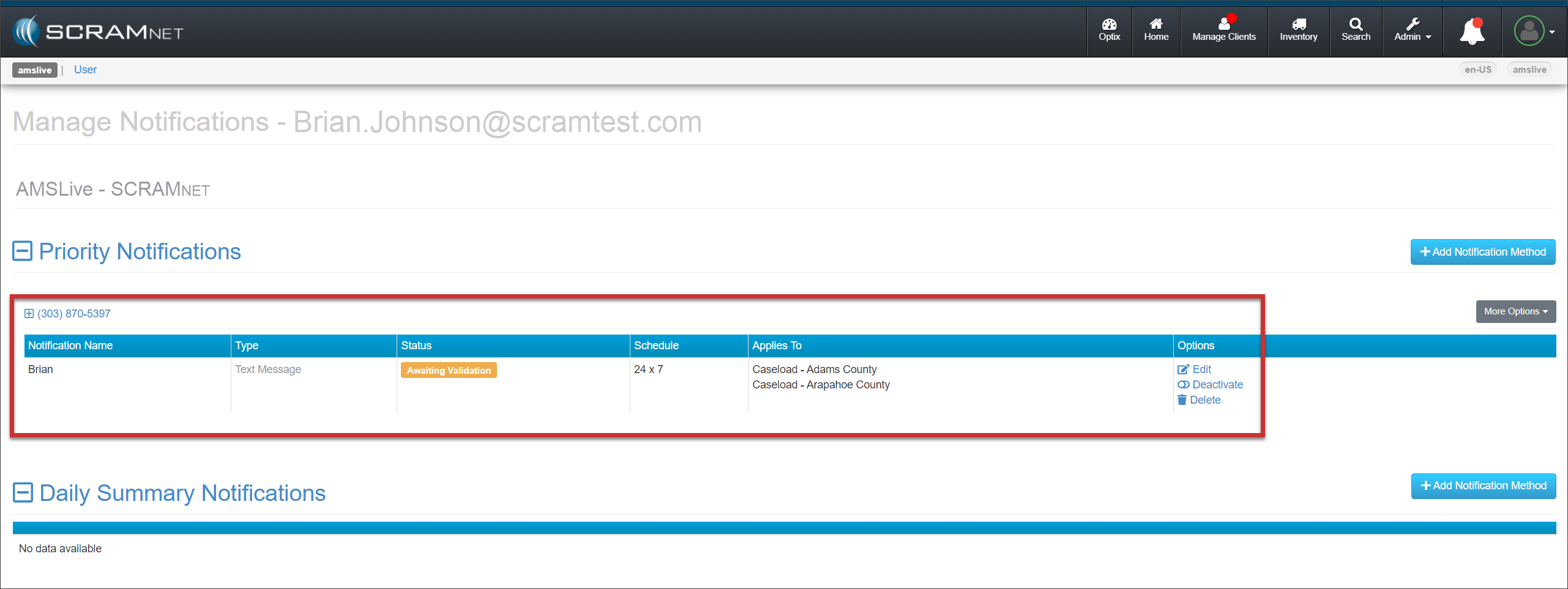
Select the Add Notification Method button to save the information and send the Validation Code via the Media Type selected. The notification method is displayed on the page with each Caseload associated with that notification method.
Manage Notifications Page – click to enlarge
Once the user receives the validation code, have them:
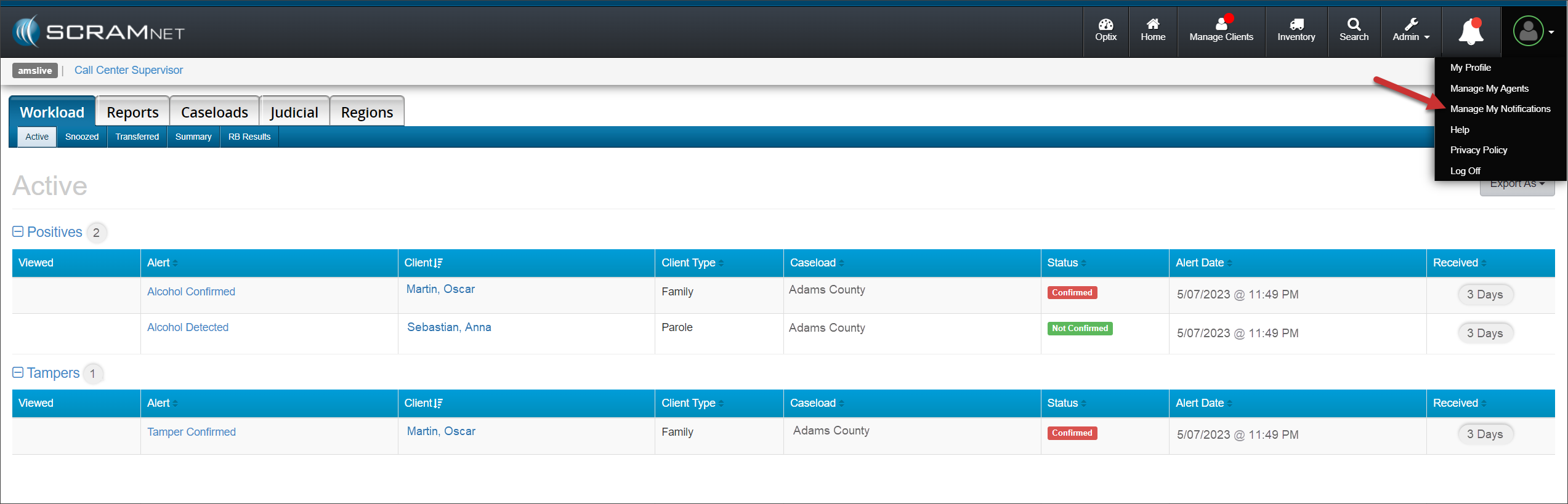
Select “Manage My Notifications” from their Profile dropdown menu in SCRAMNET.
Workload Page – click to enlarge
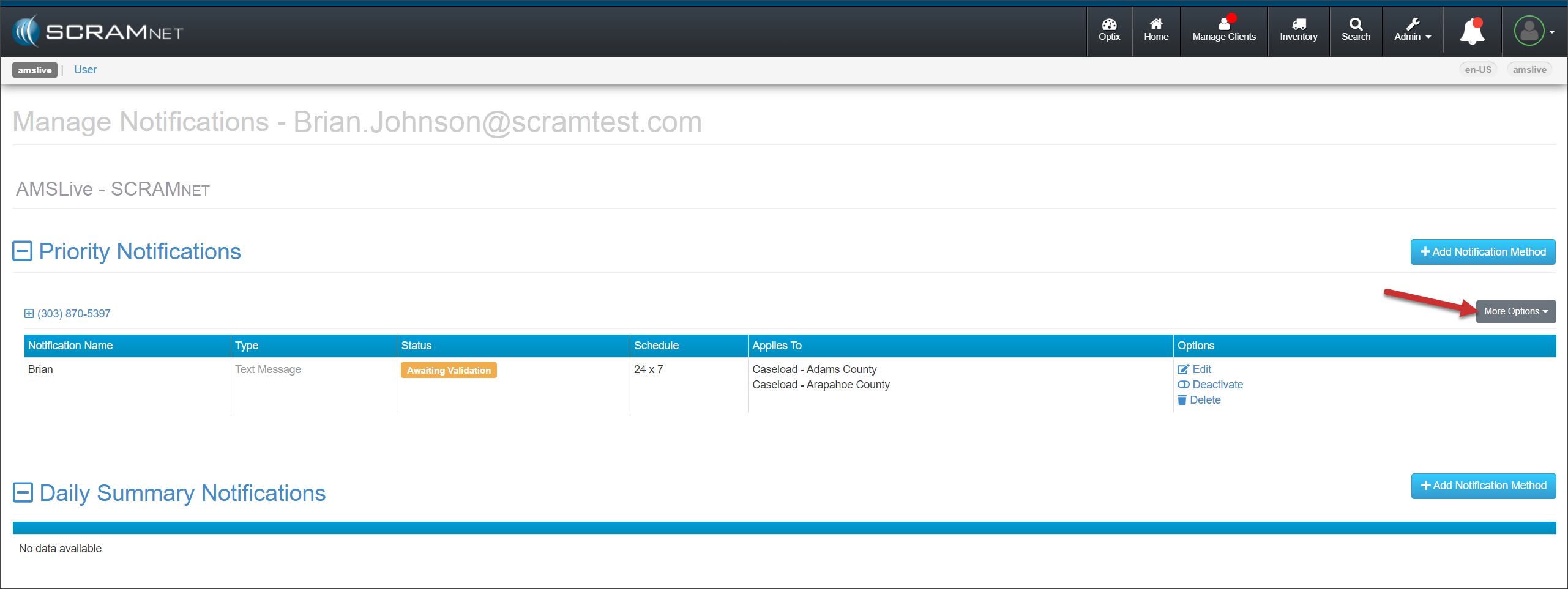
On their Manage Notifications page, locate Priority Notifications and open the More Options dropdown menu.
Manage Notifications Page – click to enlarge
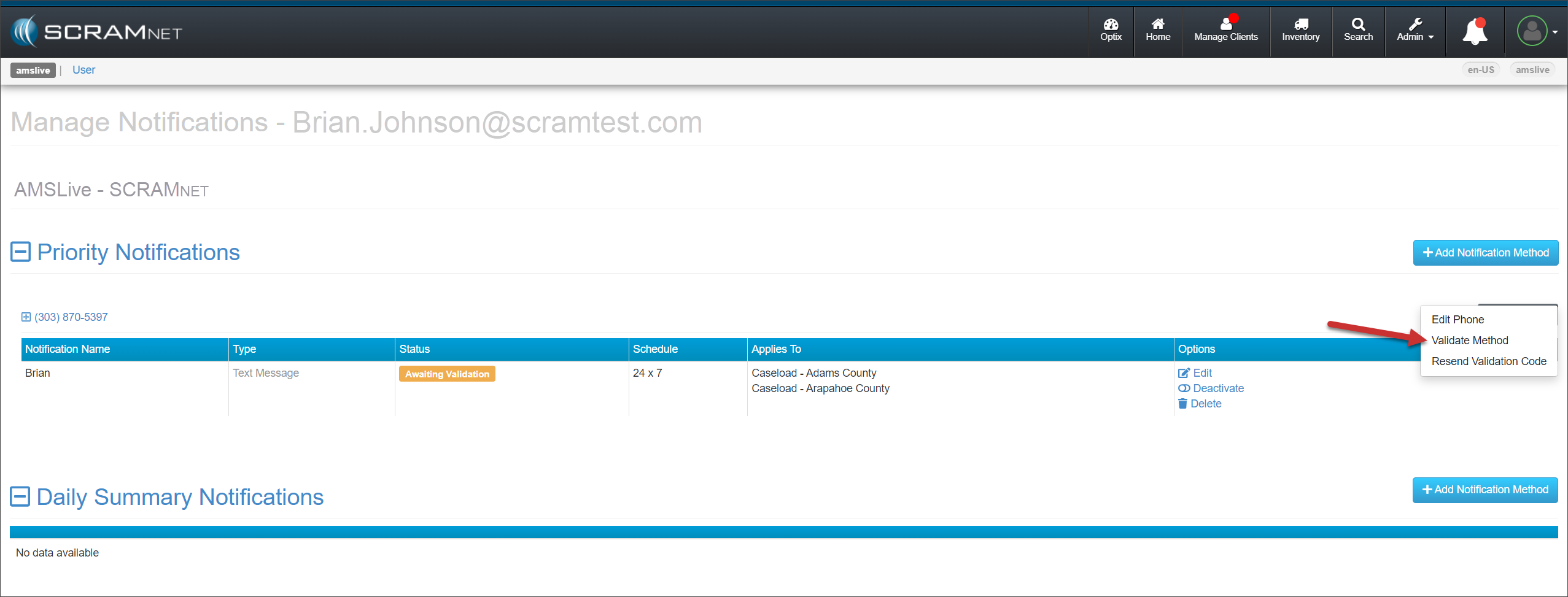
Select “Validate Method” from the More Options dropdown menu.
Manage Notifications Page – click to enlarge
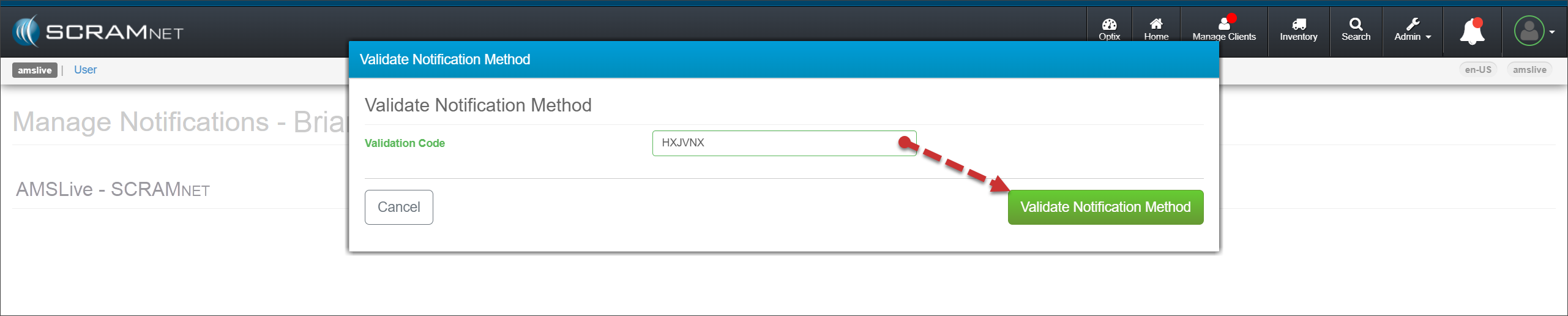
Enter the Validation Code you sent to them via the Media Type you selected, and then select the ValidateNotification Method button.
Validate Notification Method Pop-Up – click to enlarge
Repeat this process to create and validate Daily SummaryReport delivery methods for the user.
Based on their access level and permissions, users may accomplish all of the above tasks by accessing their Profile icon, selecting the “Manage My Agents” or “Manage My Notifications” options from the dropdown menu, and then following the process of entering their information and delivery methods.
You may continue to manage agents and notification methods from the Agents and Monitoring tabs within an individual Caseload.
How long should I charge the device before starting an enrollment?
SCRAM Systems recommends charging the device for at least 90 minutes prior to starting an enrollment.
Should I power on the device before or after entering the serial number into SCRAMNET?
Do not power on the RB Pro device until after you have entered the the device serial number into SCRAMNET. This will prevent a firmware download from delaying the enrollment process.
What are best practices for enrollment photos?
The tester should be positioned in a moderately well-lit area away from direct sunlight.
Tester should remove any hat, sunglasses, and any hair hanging over the face.
Ensure there is nothing in the tester’s mouth during testing.
Tester should stand with the back to a wall, hold head upright, and look directly forward.
Tester should hold the device up to their mouth with eyes centered in the mirror if using SCRAM Remote Breath, or display screen if using SCRAM Remote Breath Pro, and remain in that position while delivering a breath sample.
How many initial enrollment photos can be taken?
After providing the enrollment photo, the device will provide feedback regarding the quality of the photo. If the enrollment photo is poor, the client can provide two additional enrollment photos. Once three enrollment photos have been taken, the system will select the best enrollment photo to use as the baseline photo.
How many practice tests can be taken?
As many as needed for the client to get comfortable with taking a breath test.
How do I complete the enrollment process?
To end enrollment and practice tests, access the menu and select the “End Enrolment” option.
SCRAM Systems is pleased to announce the addition of the NEW client RB Pro participant video to the Help page. This video (English and Spanish) describe what is expected of a client as a participant in the SCRAM Remote Breath Pro monitoring program. Have your clients view the video prior to having them sign the Participant Agreement.
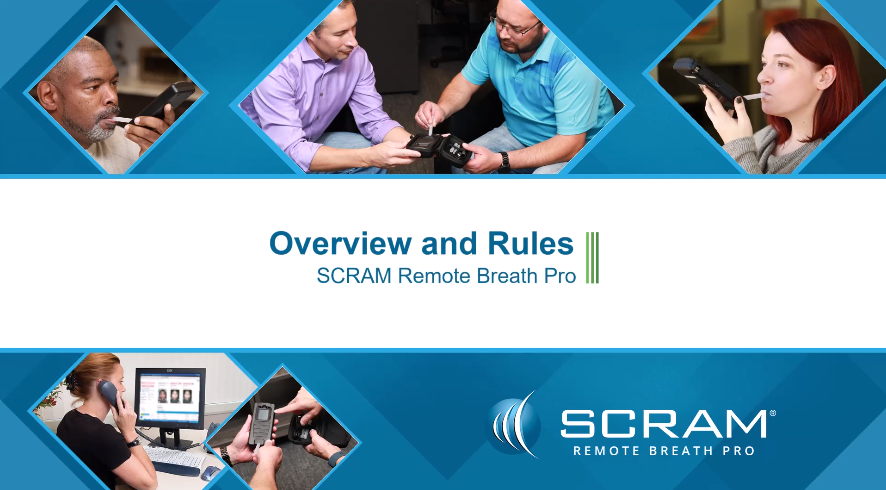
As of, February 1st, 2023, two new product certification courses, SCRAM Remote Breath Pro Fundamentals(Level 1) and SCRAM CAM Installer Fundamentals(Level 1), are available in the SCRAM Systems University Course Catalog.
Remote Breath Pro Fundamentals Course
Overview
SCRAM Remote Breath Pro Fundamentals training
consists of three tutorials covering the different aspects of managing a breath
alcohol monitoring program. The course begins with how to use the SCRAMNET
monitoring system, introduces you to the SCRAM Remote Breath Pro device, and
concludes with a certification exam.
The tutorial topics included are:
SCRAM Remote Breath Pro Client Setup and Equipment
Assignment
SCRAM Remote Breath Pro Client Management
SCRAM Remote Breath Pro Client Discharge
The course includes a certification exam, so successful learners who pass with a score of 80% or better will be considered certified in SCRAM Remote Breath Pro Fundamentals (Level 1).
Learning
Objectives
By
the end of this e-learning program, the successful learner will be able to:
Assign
a SCRAM Remote Breath Pro device to a client.
Create
a breath-testing schedule.
Enable
Courtesy Reminders for the client.
Locate
equipment-related and non-compliance alerts in SCRAMNET.
Set
up the appropriate equipment-related and non-compliance notifications for your
monitoring program.
Generate
client monitoring program reporting.
Discharge
a client from the monitoring program.
Navigate
to the relevant SCRAM Help pages and contact information for additional
support.
SCRAM CAM Installer Fundamentals Course
Overview
SCRAM CAM Installer Fundamentals (level 1) training consists of three tutorials covering different aspects of
managing a SCRAM CAM monitoring program. The course begins with how to use the
SCRAMNET monitoring system and install and assign the SCRAM CAM Bracelet and
SCRAM Base Stations. Next, it covers how to complete required equipment
maintenance and finishes with how to end the client’s monitoring program. You
are required to pass a certification exam to complete the course.
The tutorial topics included are:
SCRAM CAM Client Setup and Equipment Assignment
SCRAM Equipment Maintenance
SCRAM CAM Client Discharge
The course includes a certification exam, so successful learners who pass with a score of 80% or better will be considered certified in SCRAM CAM Installer Fundamentals (Level 1).
Learning
Objectives
By
the end of this e-learning program, the successful learner will be able to:
Assign
a SCRAM CAM Bracelet to a client.
Complete
equipment-related maintenance alerts in SCRAMNET.
Discharge
a client from the monitoring program.
Navigate
to the relevant SCRAM Help pages and contact information for additional
support.
How to Enroll
To enroll in these new courses, please log into SCRAM Systems University and select the Get Item button for the SCRAM Remote Breath Pro Fundamentals and SCRAM CAM Installer Fundamentals courses in the Course Catalog.
SCRAM Remote Breath Pro – click to enlargeSCRAM CAM Installer Fundamentals – click to enlarge
If you do not yet have an account, access the login page and click the Register Now! link. Use your organization’s unique registration key to fill out the registration form to request access to the site. Once your access request is approved, you will receive an email with all the information you need to access the course catalog and enroll in our course offerings.
If a registration key has not been provided to
you, or if you need help with the site, please email us at training@scramsystems.com.
Starting this afternoon, December 8, 2022, SCRAM Systems® will release a series of enhancements to support Wi-Fi communication for your Remote Breath Pro (RB Pro) devices. This first phase is designed to assist you during in-office client assignments, removals, and firmware updates for RB Pro devices, where a cellular network connection may be an issue. For example, a courthouse, an office building, or a remote location.
Phase One
Thursday, December 8th:
Remote Breath Pro firmware update #1: This update will change how the signal strength icon on the device’s screen is displayed. After the update, when the device is connected to a cellular network, the icon will display as vertical bars ranging in size. When connected to a Wi-Fi network, the icon will display semi-circular “waves” ranging in size.
Monday, December 12th:
Remote Breath Pro firmware update #2: This update will enable the Wi-Fi capabilities on the device.
SCRAMNET monitoring system enhancement: A Wi-Fi Setup option will become available on the RB Pro Device and client Equipment pages.
For devices that are currently “Assigned to Client,” the system will verify there is not a scheduled breath test within the next two hours before beginning each firmware update. Once verified, the update will automatically begin. Each update should complete within 15 – 25 minutes.
Wi-Fi Functionality
Once the RB Pro device has connected to a Wi-Fi network, it will automatically connect to that network, whenever it is available. For example, if you connect the RB Pro device to the Wi-Fi in your office, then every time the device is within range of your office Wi-Fi it will reconnect to it. Once the Wi-Fi connection is no longer available, the device will connect to the cellular telecom network.
If a new connection is required, access the Wi-Fi Setup page to “override” the current network settings and enter in the new information.
For phase one, the RB Pro device will not “sleep” while connected to Wi-Fi. You, or the client, will observe that the screen remains illuminated while on Wi-Fi.
Because the screen is always on, the device’s battery will require frequent charging while on Wi-Fi. When a client is utilizing Wi-Fi for communication (at home, e.g.), the device should be charging whenever possible. This will eliminate possible missed breath tests due to a depleted battery.
Wi-Fi Setup
Ensure the device can connect to the cellular network and has a sufficient battery charge.
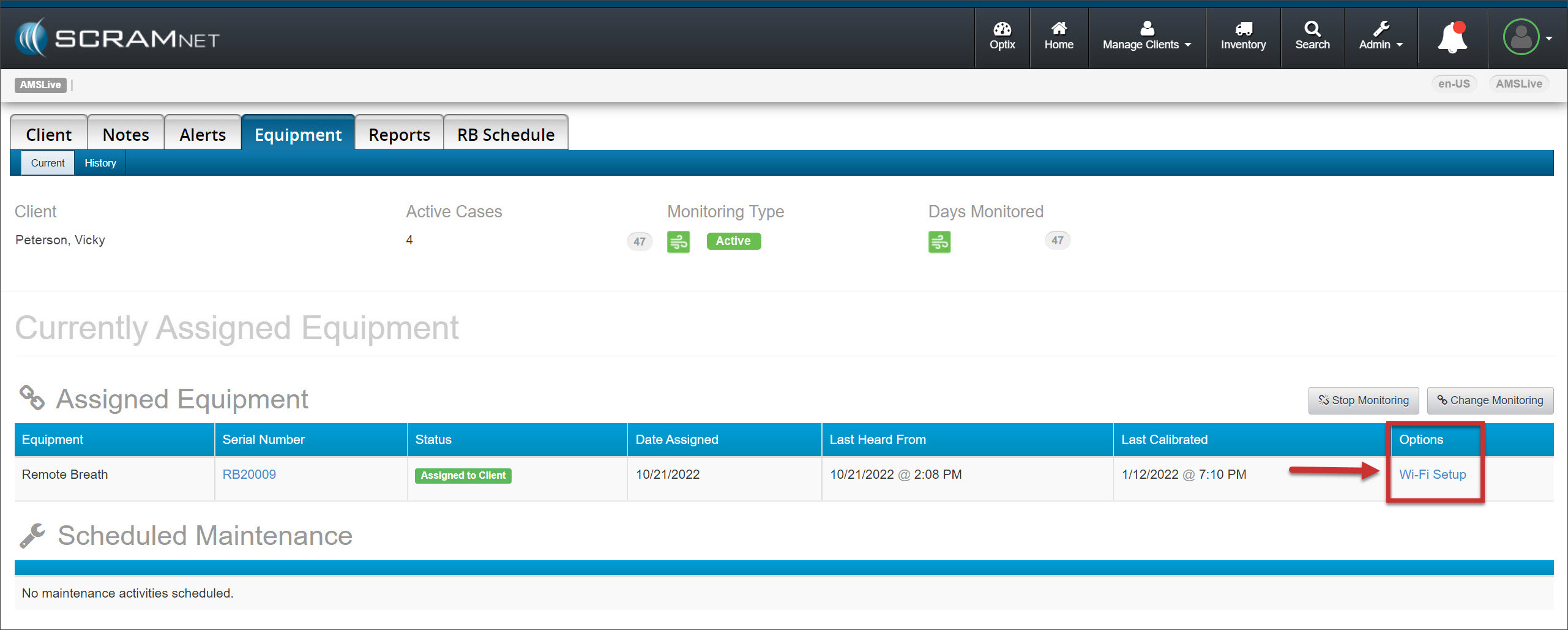
From the client’s Equipment page:
Select the Wi-fi Setup hyperlink.
Client Equipment Page – click to enlarge
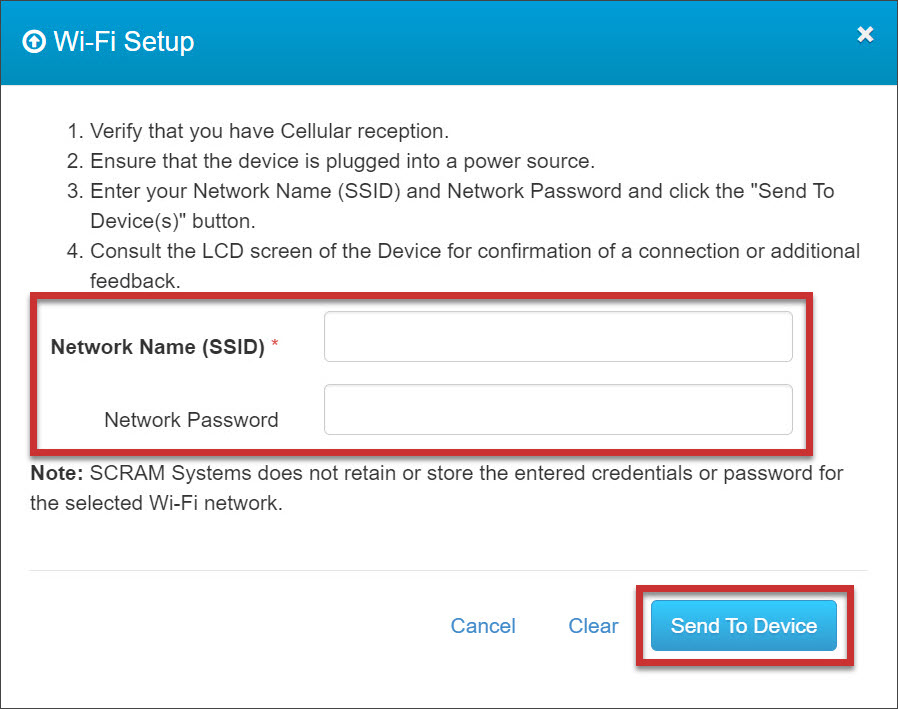
Enter the Network Name (SSID) and Network Password in the Wi-Fi Setup pop-up window.
Select the Send to Device button.
Wi-Fi Setup Pop-Up – click to enlarge
If the RB Pro device does not connect to the Wi-Fi network within 24 hours of you entering the SSID and password information into SCRAMNET, you will be required to resend the information by accessing the Wi-Fi Setup pop-up window again, from either the client’s Equipment page or the RB Pro Device page.
Disconnect from Wi-Fi
To disconnect the device from a Wi-Fi network, use the “Wi-Fi Setup” process above to resend the same ‘Network Name (SSID)’, but input an incorrect password in the ‘Network Password’ field. It will then not be able to connect to that particular Wi-Fi network and will revert to cellular.
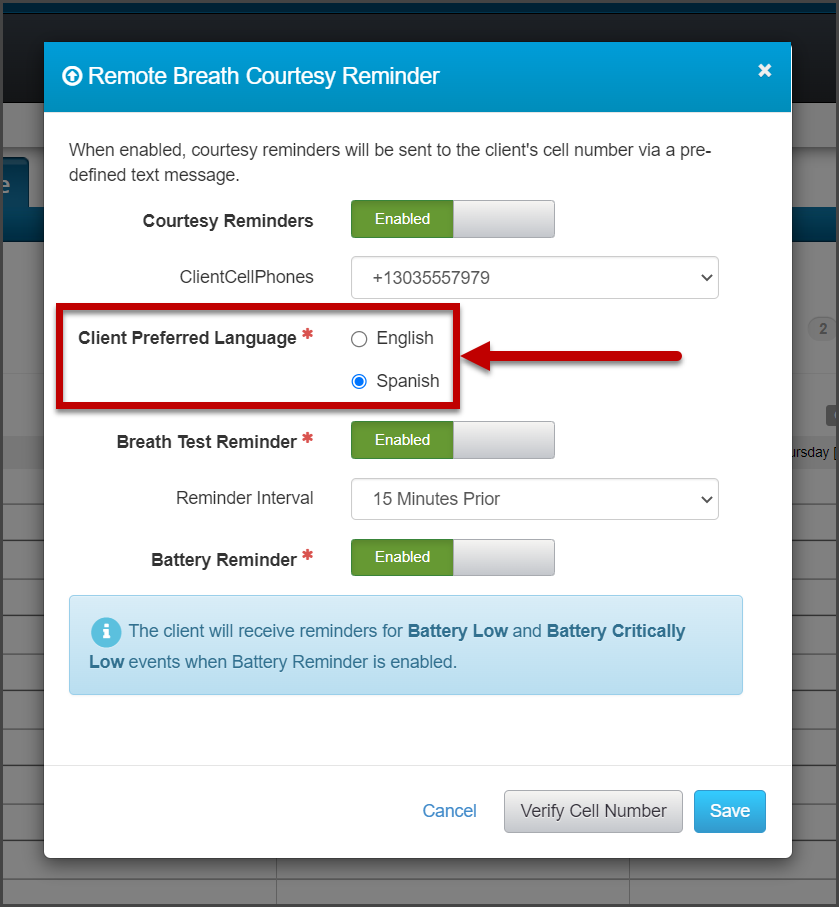
On, November 17, 2022, SCRAM Systems® will release an enhancement to Remote Breath and Remote Breath Pro Client Courtesy Reminders. With this update, you will select the client’s preferred language of English or Spanish when enabling Courtesy Reminders for your clients. Once selected, all courtesy reminders sent to the client will be in the selected language.
Remote Breath Courtesy Reminder Pop-Up (click to enlarge)
On, October 5, 2022, SCRAM Systems® will release three enhancements to the Remote Breath Pro (RB Pro) device. These enhancements are designed to aid the client when completing a breath test.
After
the client provides a “Passed” breath test, the device will produce a
successful audible alert sound verifying the test is complete.
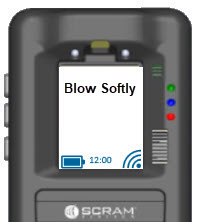
While
the client is actively providing a breath sample, if the client is blowing too hard
into the breath tube, “Blow Softly” will display on the screen. This visual
cue alerts the client to adjust the volume of airflow being provided.
click to enlarge
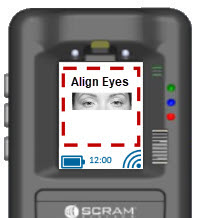
To
ensure accuracy, the visual prompt of “Align Face” will be updated to “Align
Eyes.”
click to enlarge
The
firmware download will be undetected by most clients as it will happen during
one of the device’s 30-minute SCRAMNET
check-in and synchronization intervals. If your client happens to be prompted
to take a breath test at the time of the firmware update, your client will see
verbiage on the screen that explains that firmware is being downloaded and
installed. The process should take 10-15 minutes and then your client may
resume as normal.