On June 14, 2023, SCRAM Systems will release enhancements to aid you when adding an Agent, Priority Notification, and Daily Summary email methods to your SCRAMNET Caseloads. With this enhancement, you may simultaneously add the Agent or Notifications to one or multiple Caseloads. Additionally, this enhancement eliminates the requirement for duplicate contact information entries for the same user within SCRAMNET.
As an Administrator with “Manage User” or Manage Caseloads” permissions, once the user’s profile has been created, you may add them as an Agent, as well as add their Priority Notification and Daily Summary Report delivery methods to one or more caseloads from the user’s Profile page.
Manage Agents
Add a New User as an Agent to One or More Caseloads
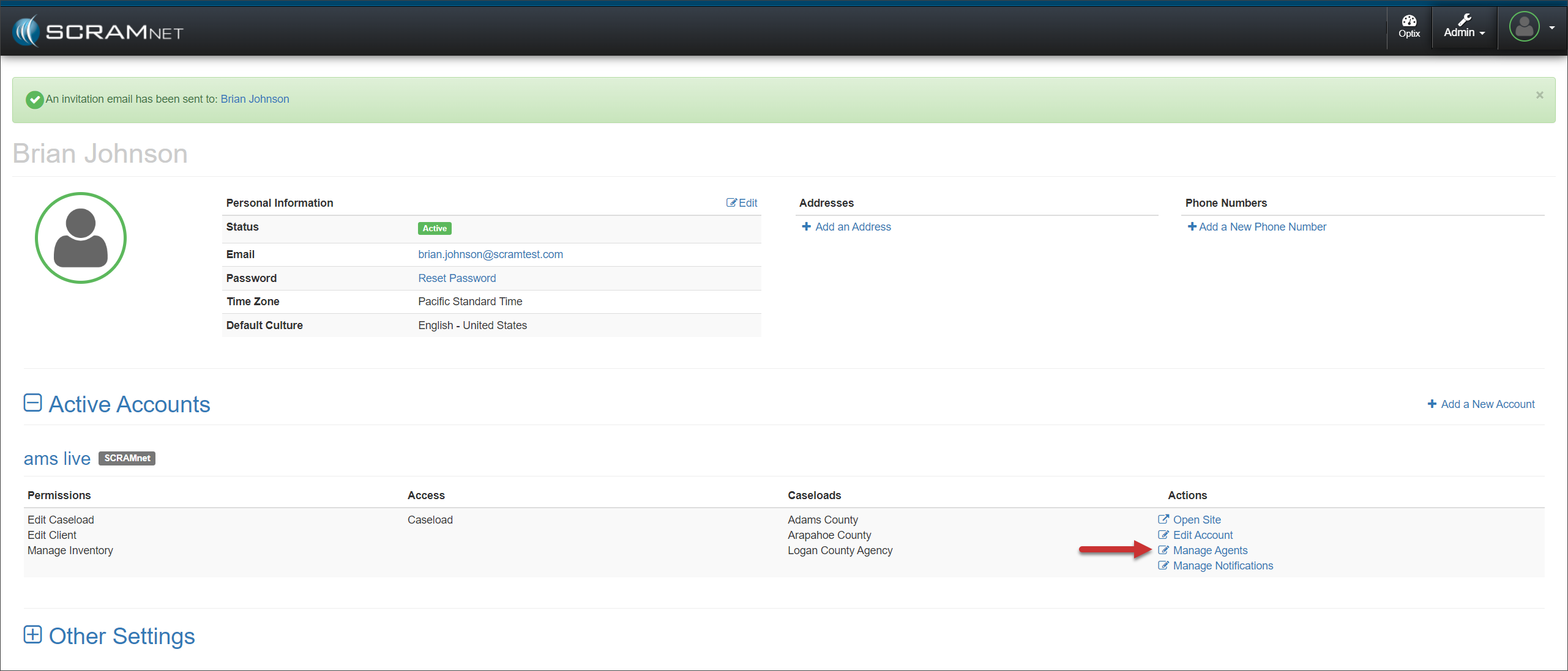
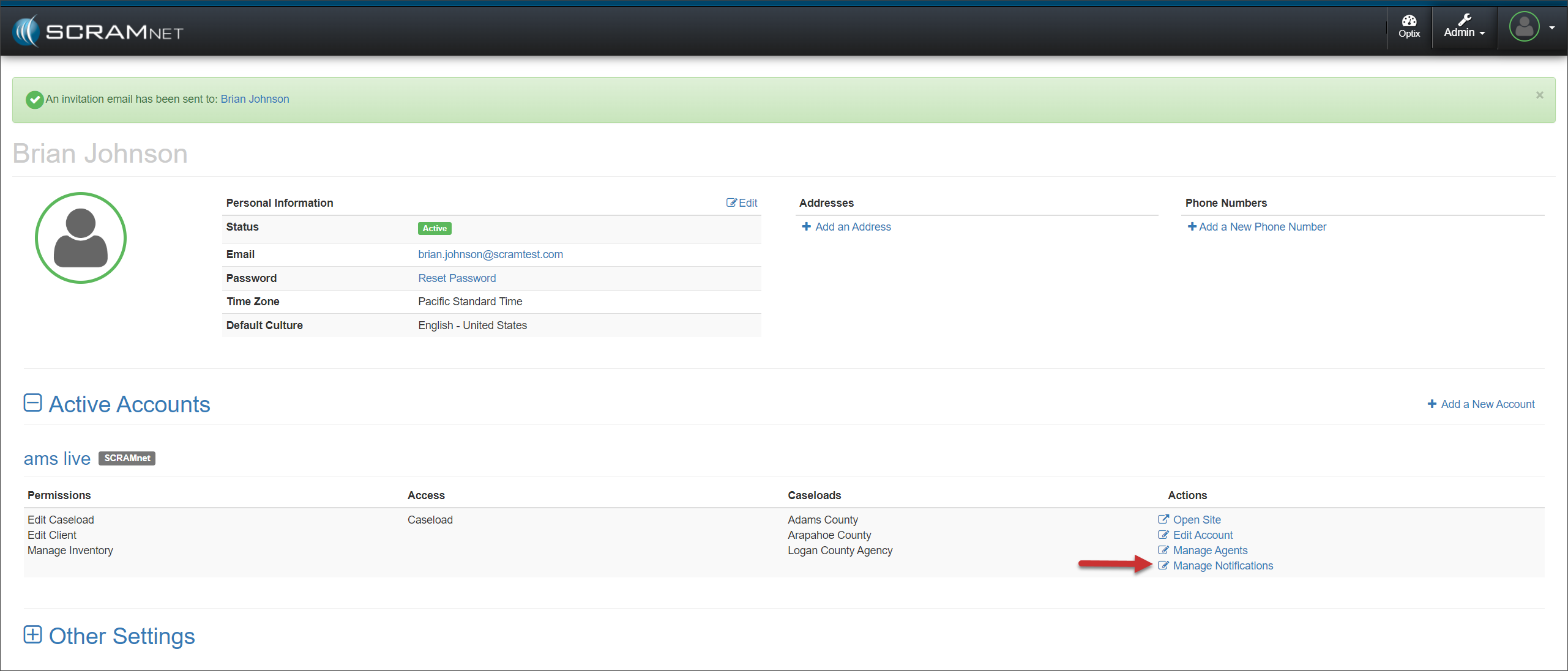
- Once you have created the new user from the Manage Users page, access the user’s Profile page to locate their SCRAMNET Active Account settings; then select the Manage Agents hyperlink found under the “Actions” column.
- On their Manage Agents page, select the +Add Agent button.
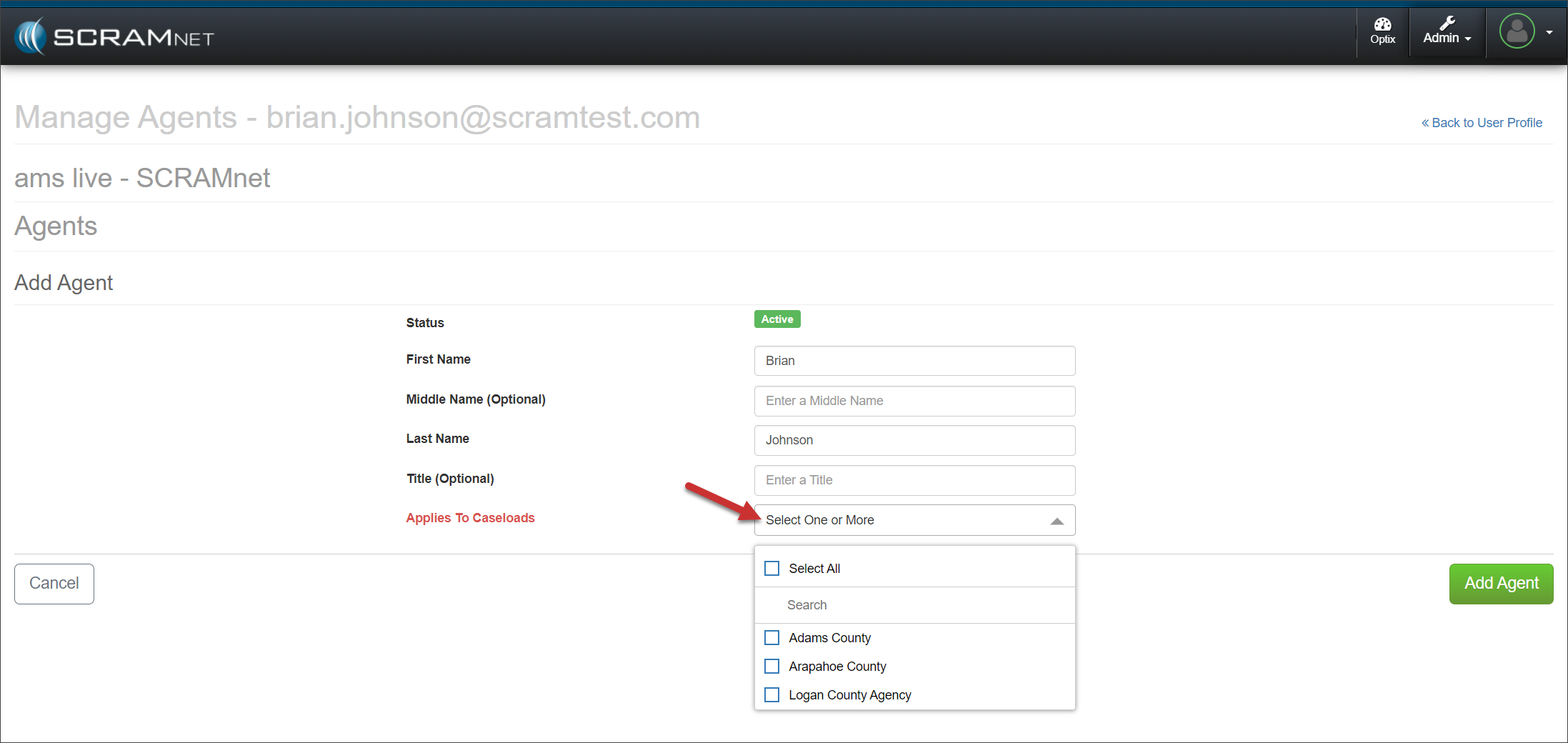
- Select the one or more Caseloads in which the user will be an Agent from the Select one or More dropdown menu.
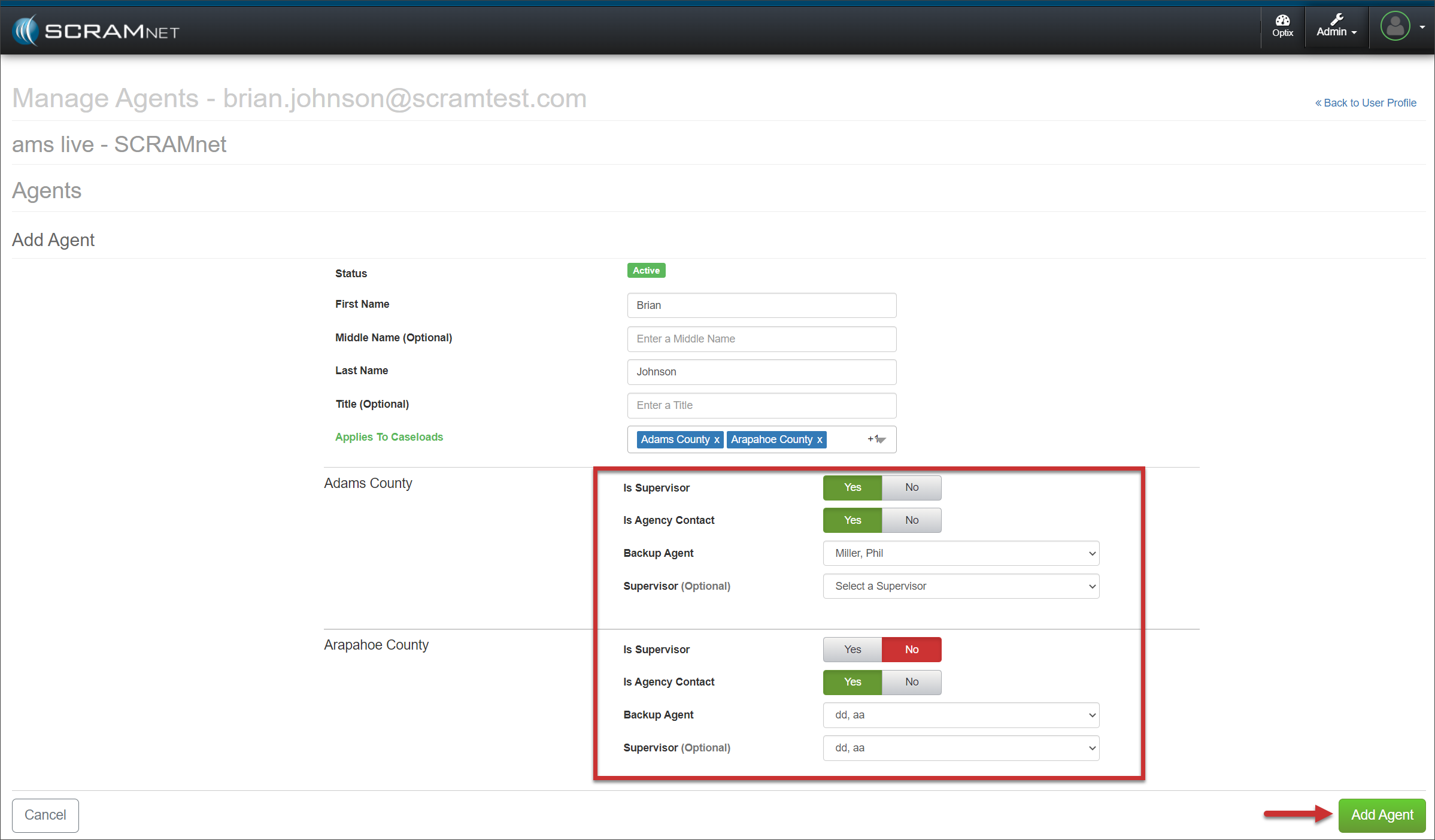
- Select the appropriate options for each Caseload chosen and then select the +Add Agent button.
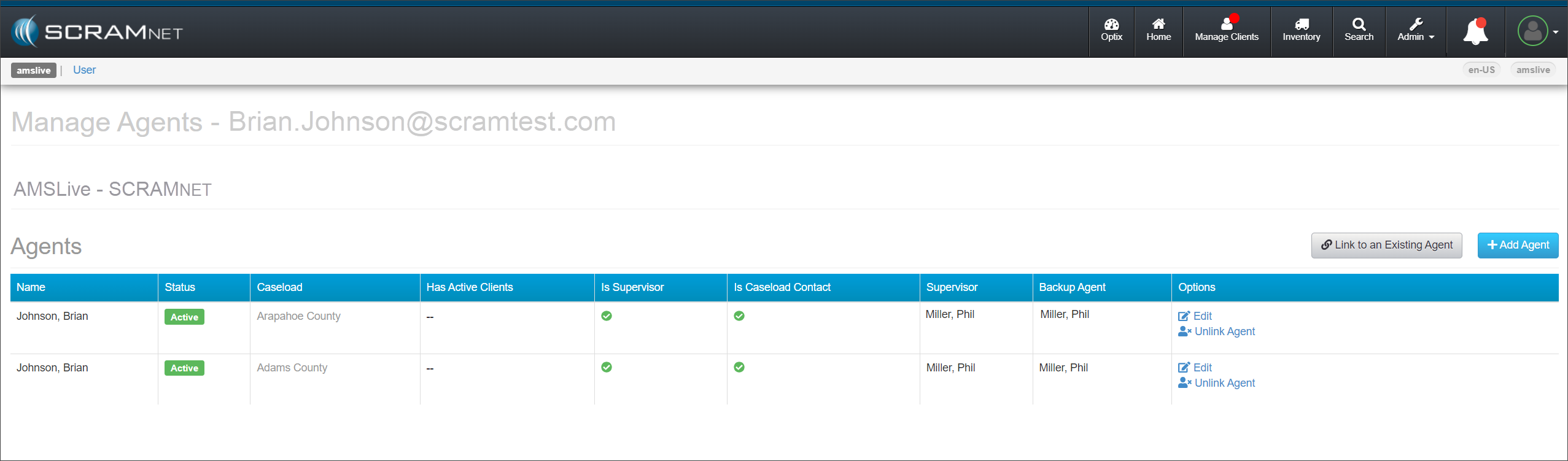
The Manage Agents page for the user will now display all the Caseloads associated with them.
You may link an existing caseload to a user. To do this:
- Select the Link to an Existing Agent button on the Manage Agents page for the user.
- Open the Agents dropdown menu and select each instance of the agent listed.
- Select the Link User to Agents button.
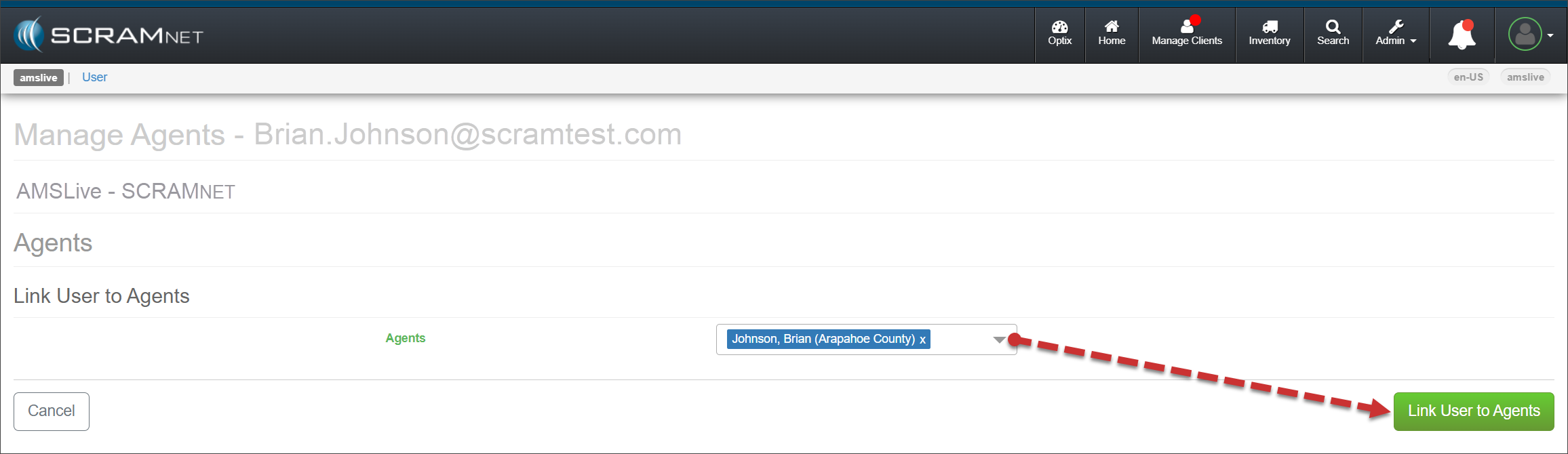
The user’s Manage Agents page will display each Caseload associated with that user.
Manage Notifications
Set up a New User for Priority Notifications and Daily Summary Reports
- Select the Manage Notifications hyperlink under the Actions column for their SCRAMNET account.
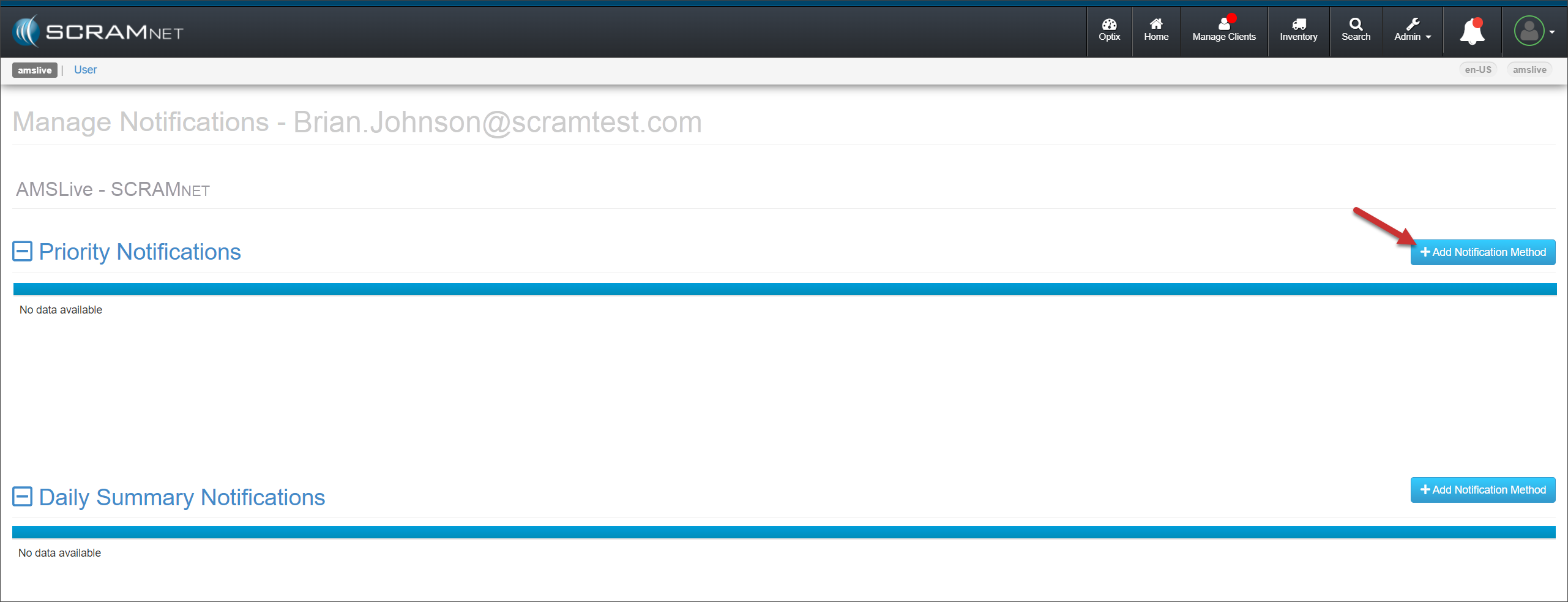
- On the Manage Notifications page for that user, select the +Add Notification Method button in the Priority Notification section.
- Add the details for the Priority Notification Method.
- You may select one or more Caseloads to associate with this notification method.
- The scheduling options chosen for this notification method will apply to each Caseload selected.
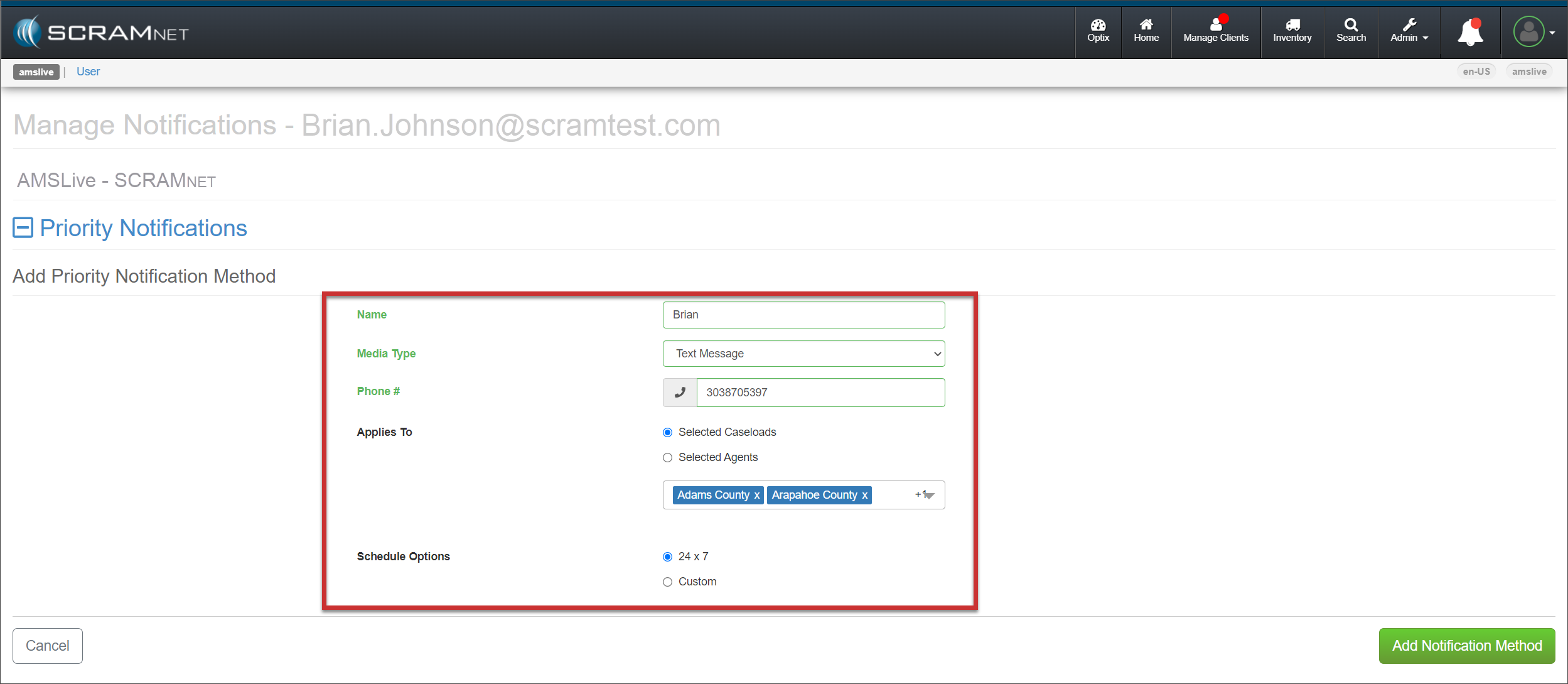
- Select the Add Notification Method button to save the information and send the Validation Code via the Media Type selected. The notification method is displayed on the page with each Caseload associated with that notification method.
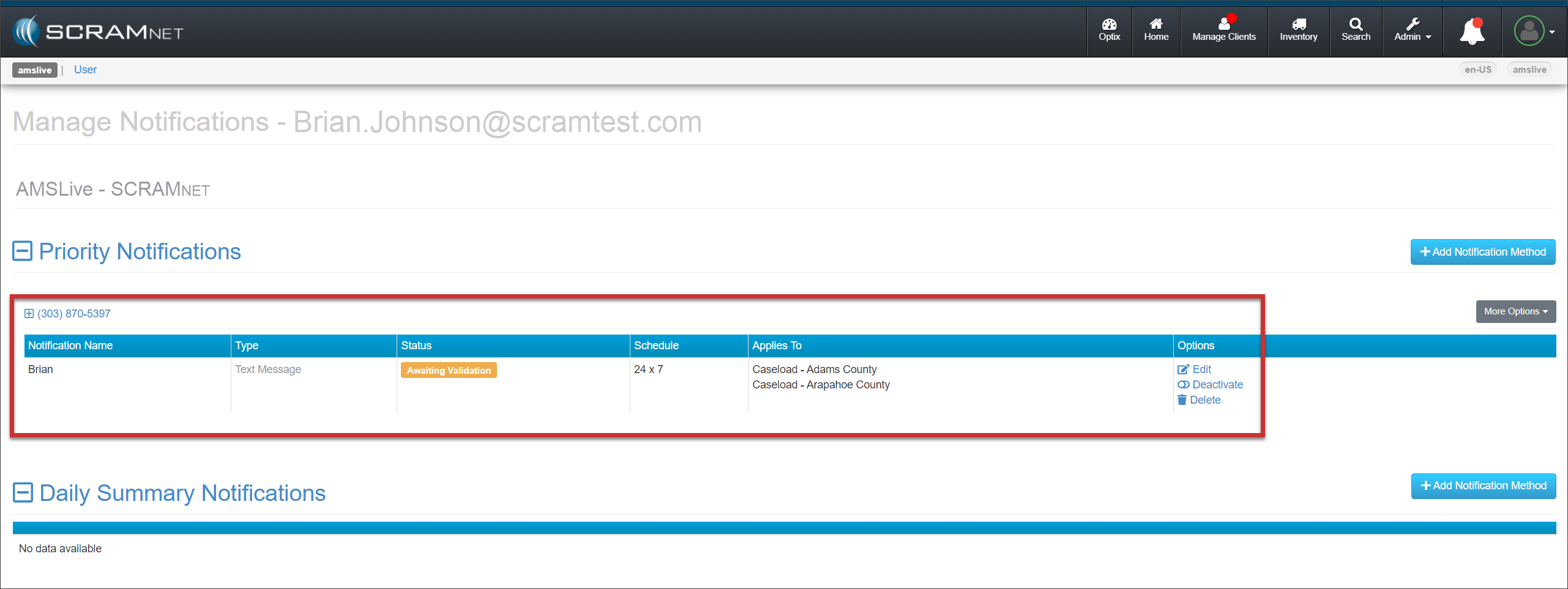
Once the user receives the validation code, have them:
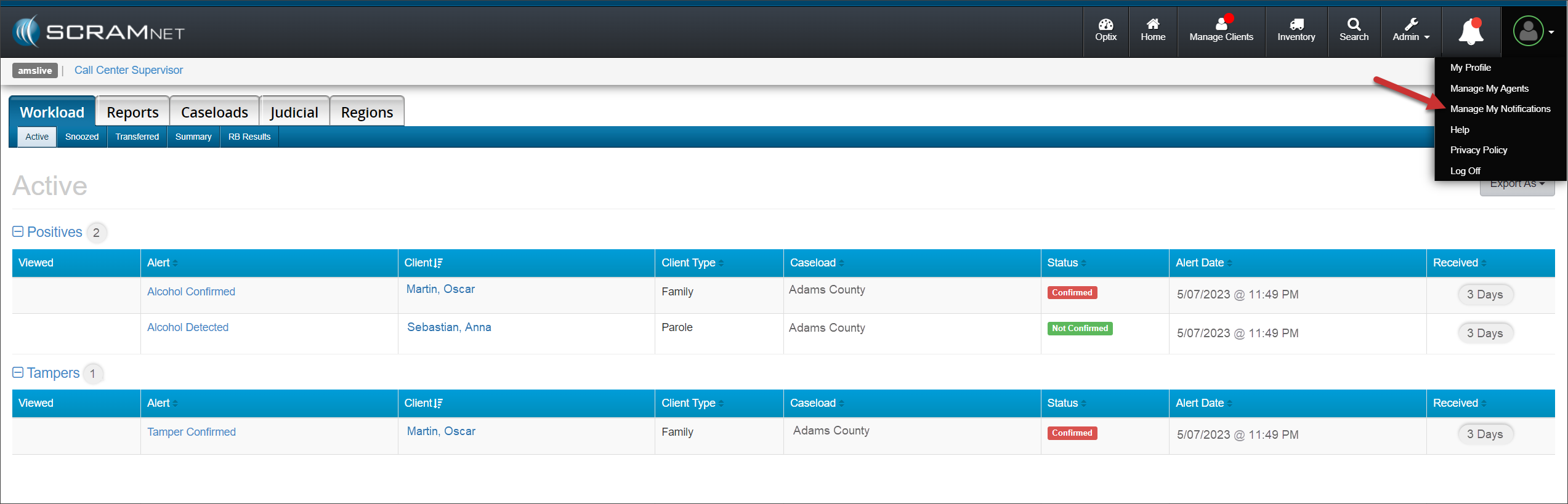
- Select “Manage My Notifications” from their Profile dropdown menu in SCRAMNET.
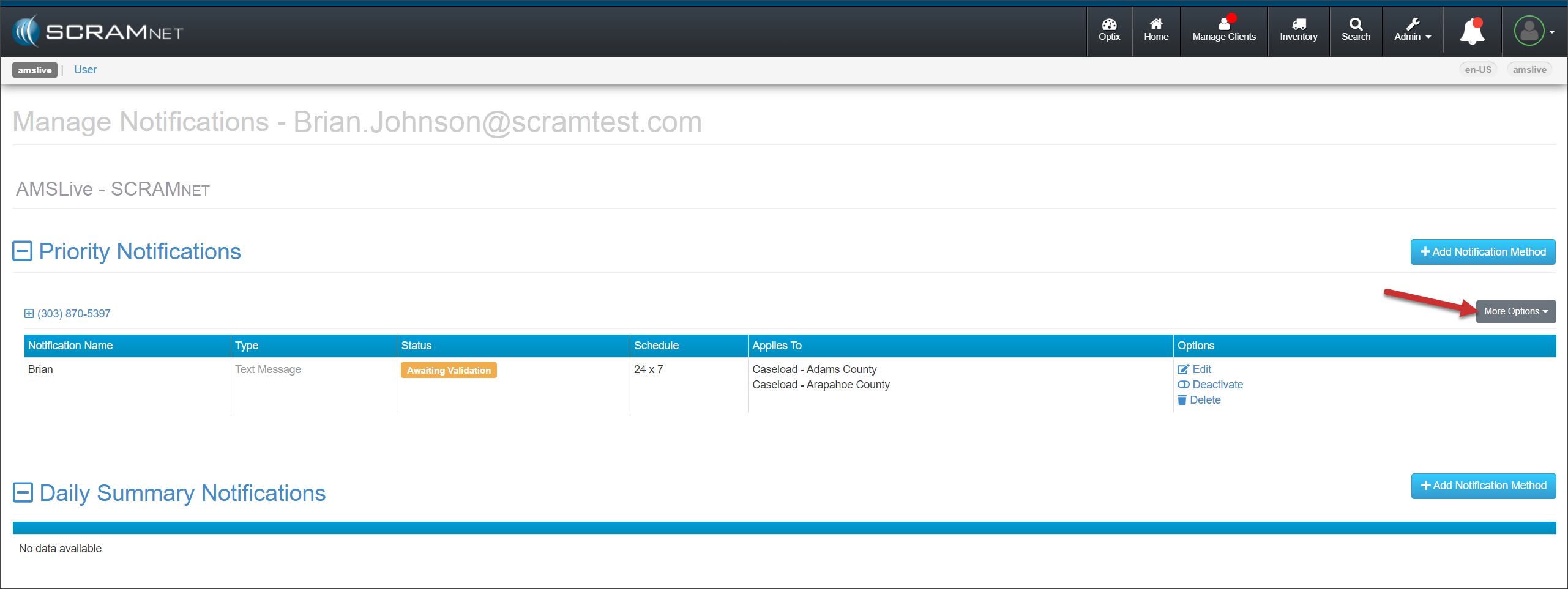
- On their Manage Notifications page, locate Priority Notifications and open the More Options dropdown menu.
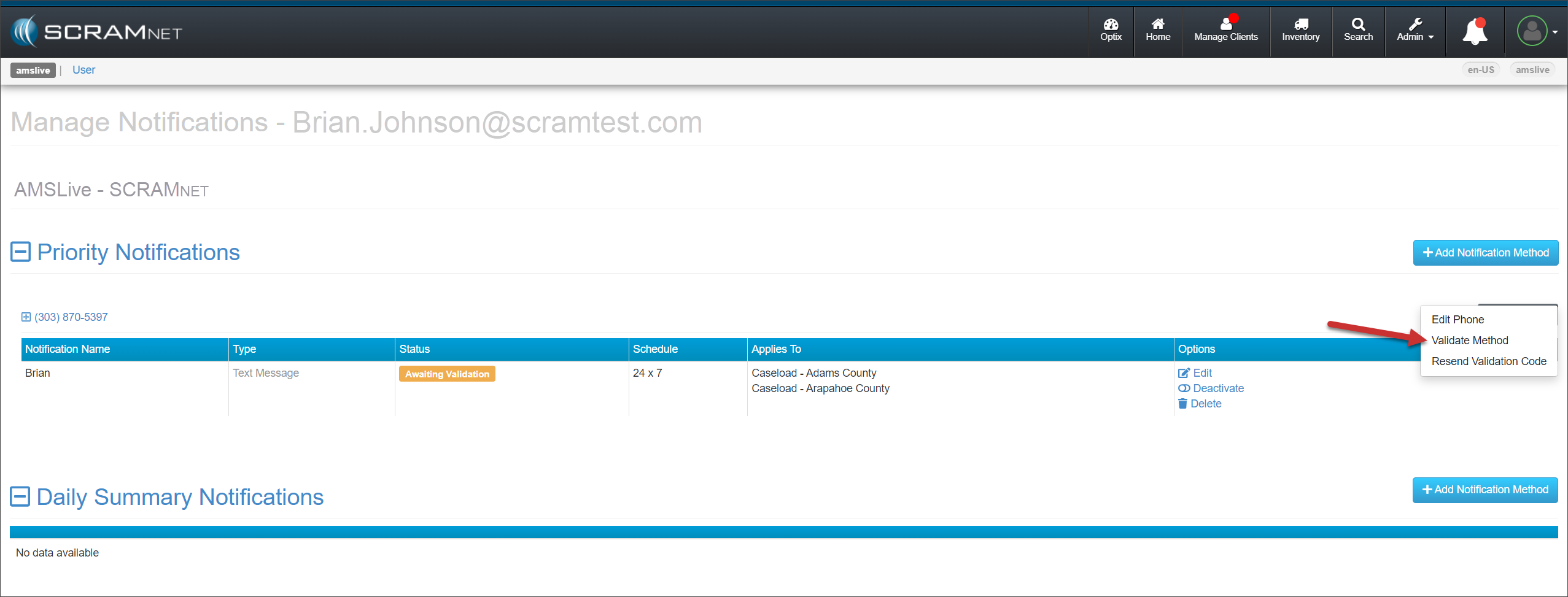
- Select “Validate Method” from the More Options dropdown menu.
- Enter the Validation Code you sent to them via the Media Type you selected, and then select the Validate Notification Method button.
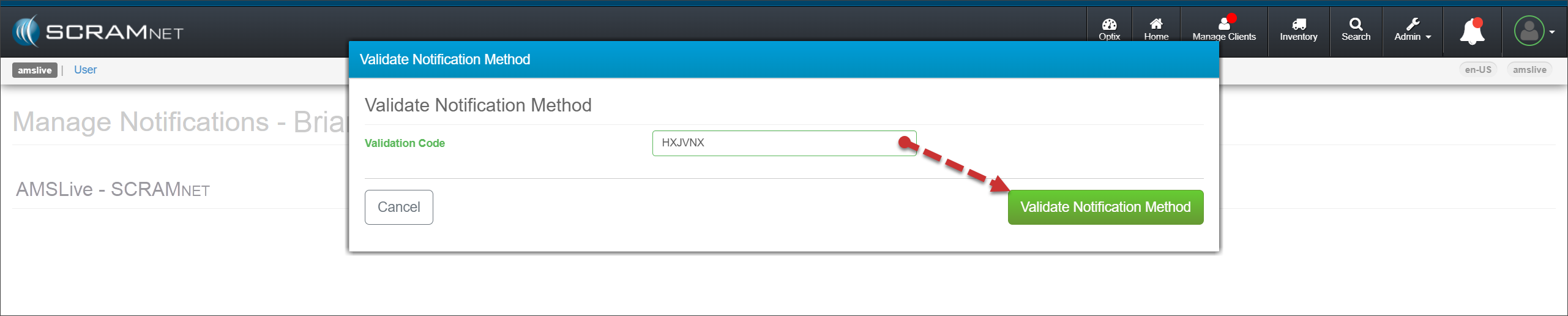
Repeat this process to create and validate Daily Summary Report delivery methods for the user.
Based on their access level and permissions, users may accomplish all of the above tasks by accessing their Profile icon, selecting the “Manage My Agents” or “Manage My Notifications” options from the dropdown menu, and then following the process of entering their information and delivery methods.
 | You may continue to manage agents and notification methods from the Agents and Monitoring tabs within an individual Caseload. |