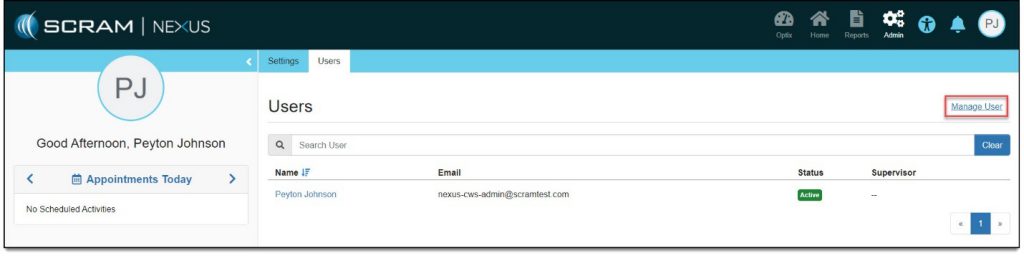
An administrator can select the Admin top-navigation option then click the Users tab to add new users into the system, as well as manage access settings for existing users.
To add a new user:
- Click the Manage User link in the upper-right area of the Users page.
The Manage Users page appears in another browser.
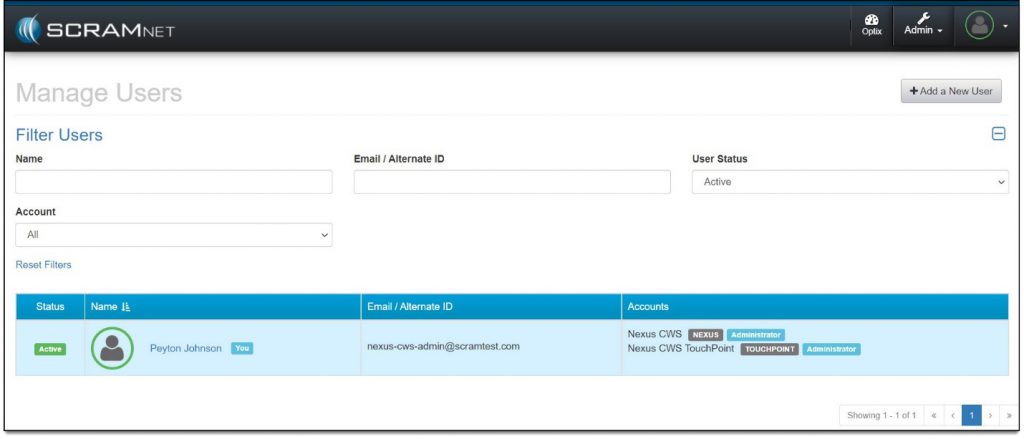
- Click the Add a New User button.
The Add a New User page appears.
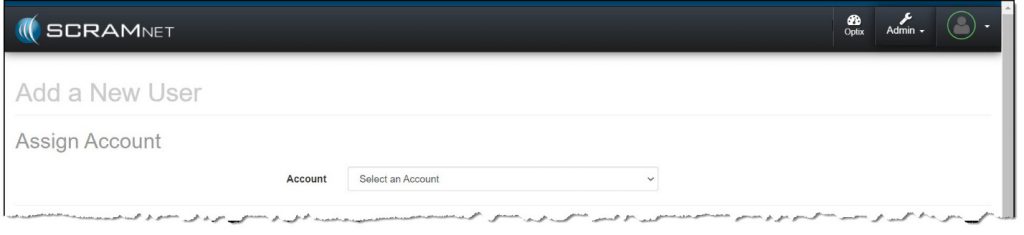
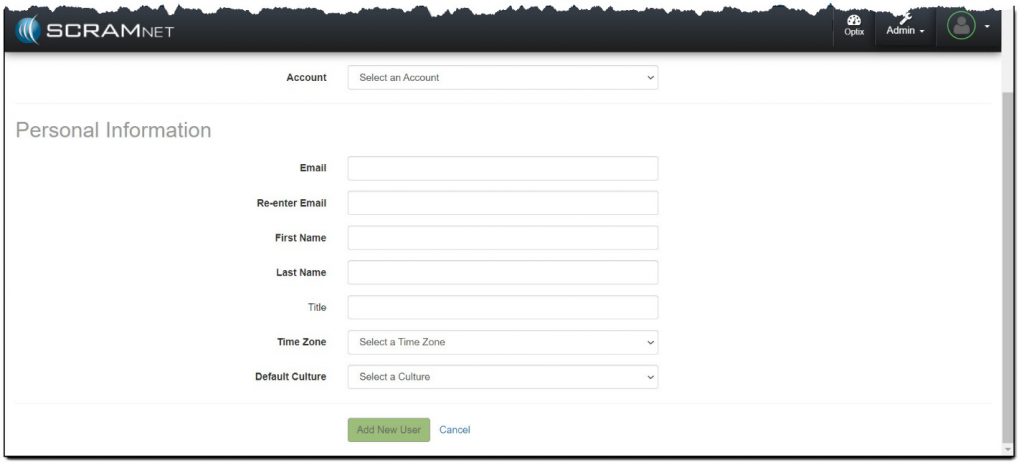
- Select the account in which the new user will be associated.
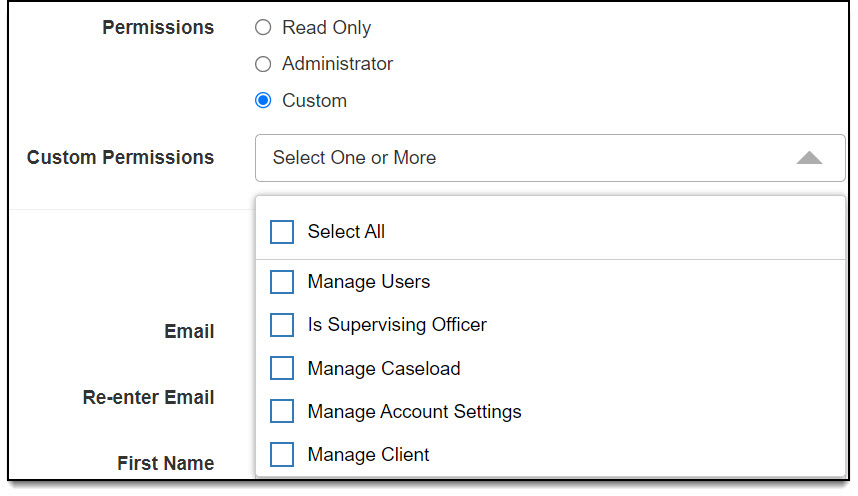
- Select the account access level:
- Access to Entire Account
- Read Only – Can view all areas of SCRAM Nexus Family but cannot edit data.
- Administrator – Can view all areas of SCRAM Nexus Family and can create, edit, and/or delete data in the system.
- Custom:
- Manage Users – Can edit user information.
- Is Supervising Officer – Can view and edit client data for all direct reports.
- Manage Caseload – Can view and edit client data for a specific caseload.
- Manage Account Settings – Can view and edit account settings.
- Manage Client – Can view and edit data for all clients assigned to the user.
- Limit Access to Caseload(s)
- Select caseload(s)
- Add/select all user profile information.
- Click the Add New User button.
A message appears at the top of the page indicating that an email has been sent to the new user to complete the process.
