Perform the following steps to manually upload data from the SCRAM CAM® Bracelet to SCRAMNET®.
What you will need:
- The SCRAM CAM Bracelet assigned to the client
- Direct Connect device with USB cable
Procedure
- Open the Direct Connect application.
- Connect Direct Connect Device with Direct Connect Application.
To connect the Direct Connect device with the Direct Connect application:- Plug the small (mini-B type) USB connector into the Direct Connect device.
- Plug the large (A type) USB connector into a USB port on your computer.
The red and blue lights on the Direct Connect device blink for approximately 5 seconds then remain on.
Bracelet status in Direct Connect Application: Waiting for Bracelet
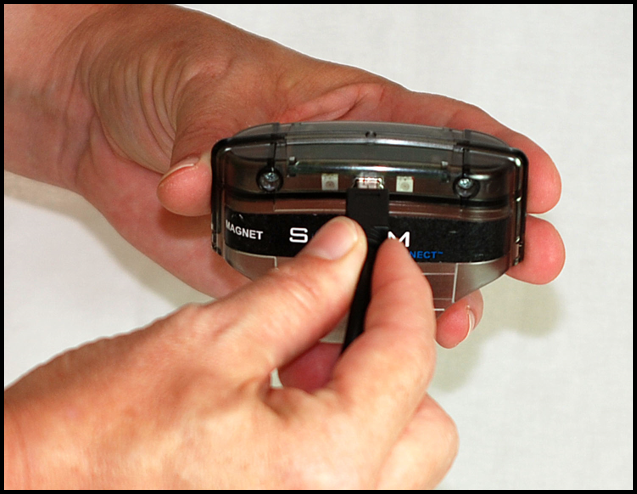
Connecting USB Cable to Direct Connect Device
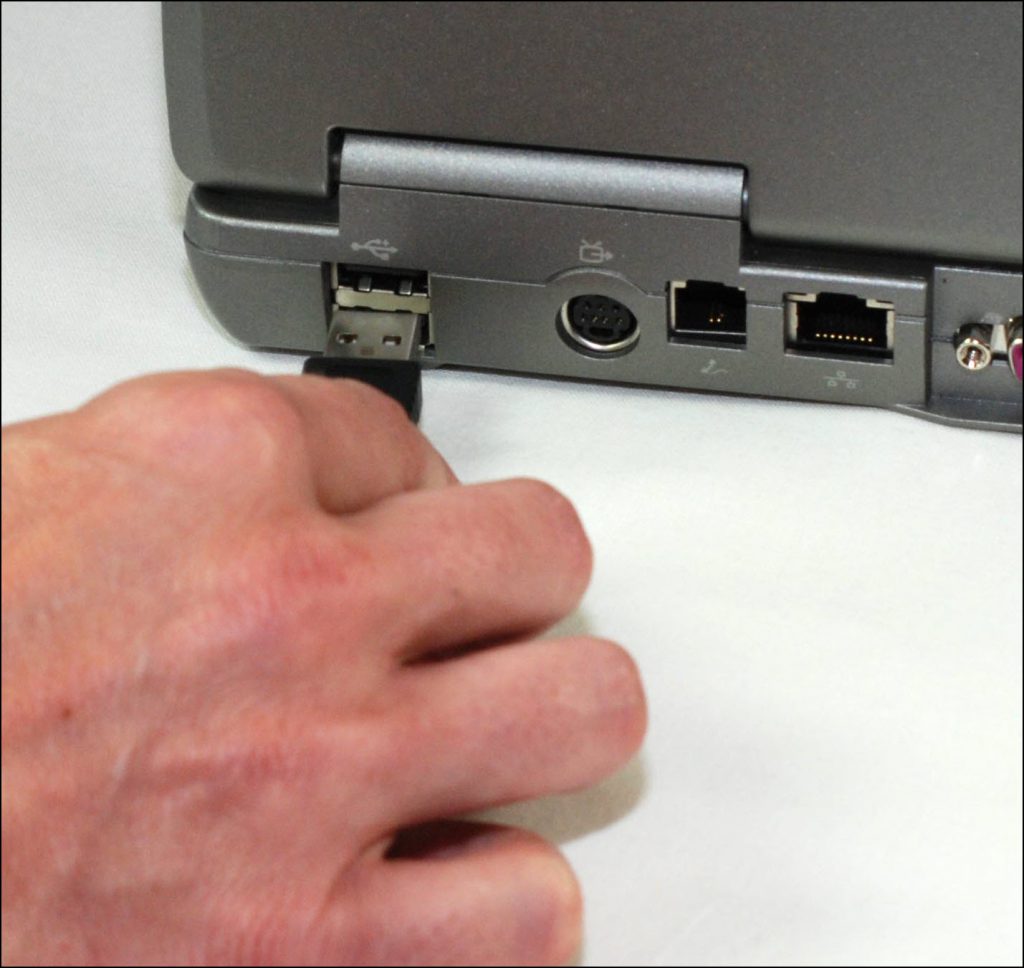
Connecting USB Cable to Your Computer
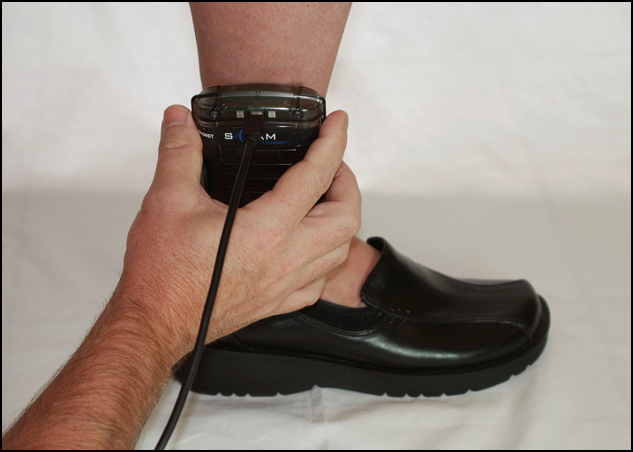
- Attach Direct Connect Device to Bracelet.
To attach the Direct Connect device:- Align the Direct Connect device with the top of the bracelet.
- Slide the Direct Connect device down over the bracelet.
- Wake Up Bracelet.
To wake up the bracelet:- Momentarily place the magnet on the Direct Connect device where the word Magnet appears.
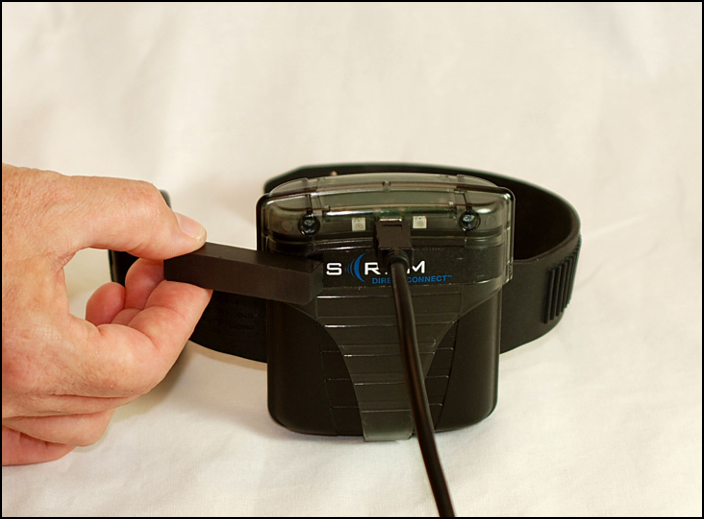
Placing Magnet on SCRAM CAM Bracelet
At this time:- Bracelet status in Direct Connect Application: Communicating
- On the Direct Connect device, the red light turns off while the blue light remains on.
- Any remaining data is transferred from the bracelet to SCRAMNET.
- The bracelet software is checked and updated, if necessary.
When complete:
- The blue light turns off for approximately 5 seconds then both lights turn back on.
- Bracelet status in Direct Connect Application: Communication Complete
Note: After 10 seconds, the status changes to: Waiting for Bracelet
- Remove the Direct Connect device.
- Momentarily place the magnet on the Direct Connect device where the word Magnet appears.
- Contact AMS Customer Services.
Contact AMS Customer Services to verify that all data was retrieved from the bracelet.