Click the link for the type of base station that is being removed.
Remove a SCRAM Standard Base Station
Purpose
Use this quick sheet to remove a wired SCRAM Base Station that is currently assigned to a SCRAM CAM® client so that Direct Connect can be used to upload client data to SCRAMNET®.
What you will need:
SCRAM Base Station assigned to client (including power cord, phone cable and Direct Connect USB cable)
Procedure
Perform the following steps when the client arrives with the SCRAM Base Station being removed.
- Set Base Station to In Inventory.
To set the base station to In Inventory:- Access the client’s Equipment page.
- Click the Remove Base Station link.
- Select the “Direct Connect” option in the Communication Method drop-down list.
- Adjust bracelet communication schedule if necessary.
- Click the Complete Base Station Removal button.
The status of the base station is set to In Inventory.
- Open the Direct Connect application.
- Connect Base Station with Direct Connect Application.
To connect the base station with the Direct Connect application using the Direct Connect USB cable:- Plug the power cord into the new base station and into an electrical outlet.
- Base station display:
- Line 1 – TIME/DATE
- Line 2 – CHECK PHONE LINE
- Base station display:
- Plug the small (mini-B type) USB connector into the base station.
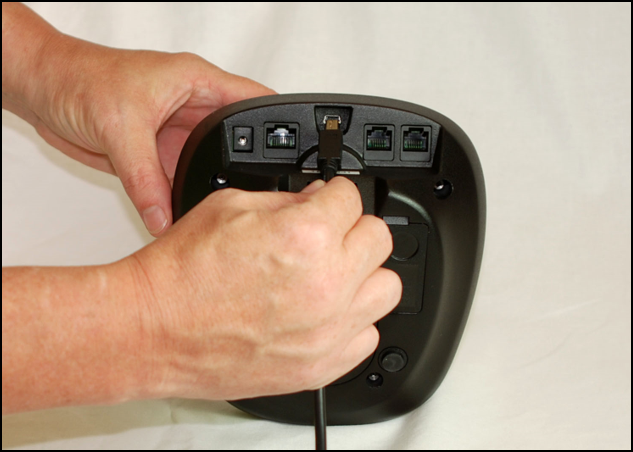
Connecting Direct Connect USB Cable to SCRAM Base Station
At this time:- Base station status in Direct Connect Application: Communicating
- Base station display:
- Line 1 – DIRECT CONNECT
- Line 2 – ONLINE
- Any remaining data is transferred from the base station to SCRAMNET.
- The base station software is checked and updated, if necessary.
When complete:
-
- Base station status in Direct Connect Application: Communication Complete
- Base station display:
- Line 1 – STORAGE MODE
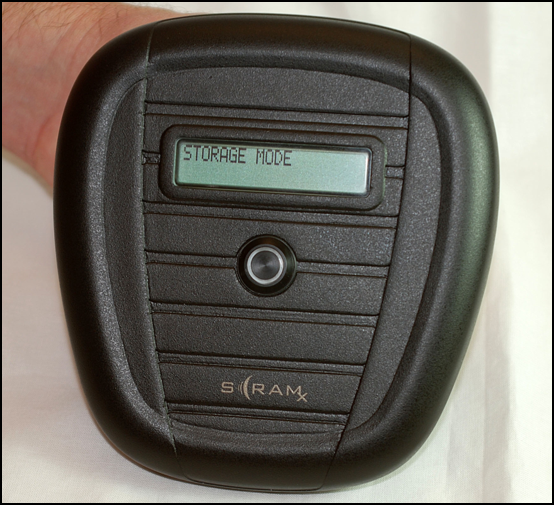
Base Station Display – “STORAGE MODE”
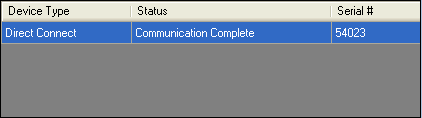
Direct Connect Application – “Communication Complete” - Unplug the power cord and USB cable from the base station.
- Plug the power cord into the new base station and into an electrical outlet.
- Ship or Store Equipment.
Prepare equipment for shipment or return to inventory as directed by the agent. To charge the battery in the base station:- Plug the base station into an AC outlet.
At this time:
The battery in the base station is being charged.- Base station display:
- Line 1 – STORAGE MODE
- Line 2 – BATTERY CHARGING
When complete:
- Base station display:
- Line 1 – STORAGE MODE
- Line 2 – BATTERY CHARGED
- Base station display:
- Unplug the base station.
- Plug the base station into an AC outlet.
Remove a SCRAM Wireless Base Station
Purpose
Use this quick sheet to remove a wireless SCRAM Base Station that is currently assigned to a SCRAM CAM® client so that Direct Connect can be used to upload client data to SCRAMNET®.
What you will need:
SCRAM Base Station assigned to client including power cord
Procedure
Perform the following steps when the client arrives with the SCRAM Base Station being removed.
- Set Base Station to In Inventory.
To set the base station to In Inventory:- Access the client’s Equipment page.
- Click the Remove Base Station link.
- Select the new method of communication in the Bracelet Scheduled Communication drop-down list.
- Click the Complete Base Station Removal button.
The status of the base station is set to In Inventory.
- Store Equipment.
To charge the battery in the base station:- Plug the base station into an AC outlet.
At this time:
The battery in the base station is being charged.- Base station display:
- Line 1 – STORAGE MODE
- Line 2 – BATT CHARGING
When complete:
- Base station display:
- Line 1 – STORAGE MODE
- Line 2 – FULLY CHARGED
- Base station display:
- Unplug the base station.
- Plug the base station into an AC outlet.