Once the client’s profile is created in SCRAMNET, the next step is to associate the equipment to the client for alcohol monitoring.
This article will cover:
- Adding the equipment information into SCRAMNET
- Communication Methods
- Communication Schedule
- Device Assignment
Add the equipment information into SCRAMNET
After creating the client’s profile and selecting the monitoring type in SCRAMNET, the next step is to associate the equipment information to the client.
On the client’s equipment page, select the Assign Equipment button.
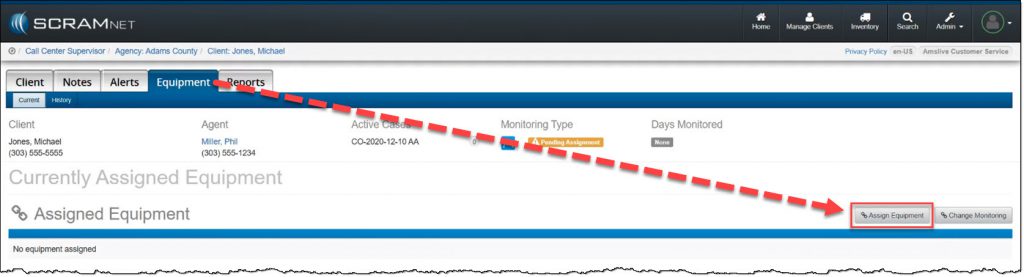
SCRAMNET Client’s Equipment Page (click to enlarge)
On the Assign Equipment page,
- Enter the CAM Bracelet Serial Number.
- The serial number is located on the top of the bracelet, as well as next to the battery compartment on the back of the bracelet.
- Enter the Strap Version used on the Bracelet.
- The strap version is located on the end of the long strap and next to the bracelet on the buckle strap. The versions on the straps should match.
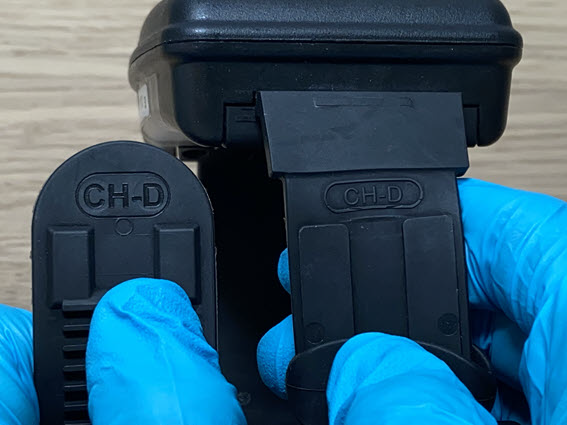
SCRAM CAM Strap Version (click to enlarge)
Communication Methods
The Communication Method determines how the data collected by the bracelet is transferred to SCRAMNET for analysis. Depending on the method, additional resources or equipment may be required.
- Select the Communication Method from the menu options.
- Direct Connect: A supervising authority, the Direct Connect application and tool are required
- Ethernet: Base Station and Internet required
- Land line: Base Station and phone service required
- Wi-Fi: Wireless Base Station required
- Cellular: Wireless Base Station required
- If additional equipment is required based on the Communication Method selected, enter in the additional equipment serial number(s).
- If the client will be utilizing a Wireless Base Station and have their Wi-Fi network information available, select the Wi-Fi Setup button. On the Wi-Fi Setup pop-up, enter the Network Name (SSID) and Network Password and then click the Send to Base Station button.
- If the client will be connecting to their Wi-Fi network from home, provide the client with the Options for Establishing a Wi-Fi Connection document. This document provides step by step instructions for the client to follow. The Wireless Base Station will communicate over the cellular network until connected to Wi-Fi.

SCRAMNET Client’s Equipment Page (click to enlarge)
Communication Schedule
Now that the communication method has been established, the next step is to set the cadence for the transfer of data stored in the bracelet to SCRAMNET.
SCRAM Systems recommends a Daily cadence of data transfer from the bracelet to SCRAMNET whenever possible. For best results, this option should be selected when a base station or Wireless base station is provided to the client and the communication method is connected 24/7. For example, in the client’s resident or in an area where cellular connection is available. A Daily schedule provides an automatic transfer of data from the bracelet to the base station and then from the base station to SCRAMNET. This provides the most effective monitoring of your client.
When a Daily cadence is not possible or practical, a Manual or Periodic schedule can be selected. Depending on the equipment that has been assigned to the client, when a Manual or Periodic communication schedule has been selected, additional actions may need to be completed by the client in order to transfer the data to SCRAMNET for analysis. This may include, travel to a supervising authority/location for a bracelet direct connect, or providing additional instructions the client must follow in order to transfer the data from the bracelet to the base station, and then transfer the data from the base station to SCRAMNET.
- Select the Bracelet Schedule Communication from the menu options.
- Daily: Communication every day
- Manual: Communication on a specific day(s) of the week (Requires additional steps be completed by the client)
- Periodic: Communication every set number of days (Requires additional steps be completed by the client)
- Set the Scheduled Bracelet Communication Time.
- Click the +Add a Time
- Enter in the time frame.
- Click the Save Time (Up to six time frames can be saved in the system)
Device Assignment
When it is time to assign equipment after adding your client to SCRAMNET, before you may continue with the assignment process, you will have to make a “Participant Agreement Acknowledgement.” The addition of this acknowledgement to the enrollment process grew out of a need for better recordkeeping. It is simply a record of which Agreement is being used at the time of enrollment and does not impact the support you receive from SCRAM Systems.
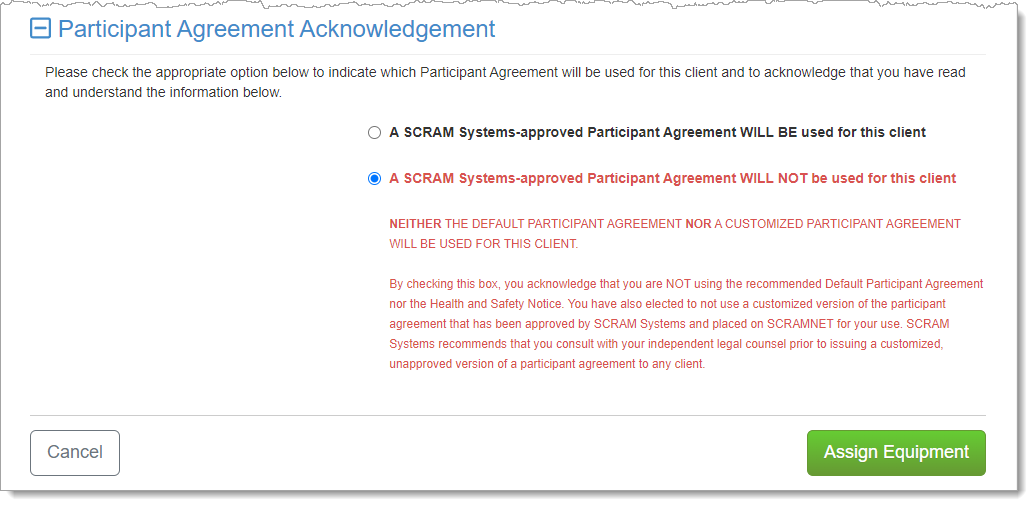
You will be presented with two choices:
- A SCRAM Systems-approved Participant Agreement WILL BE used for this client
- A SCRAM Systems-approved Participant Agreement WILL NOT be used for this client
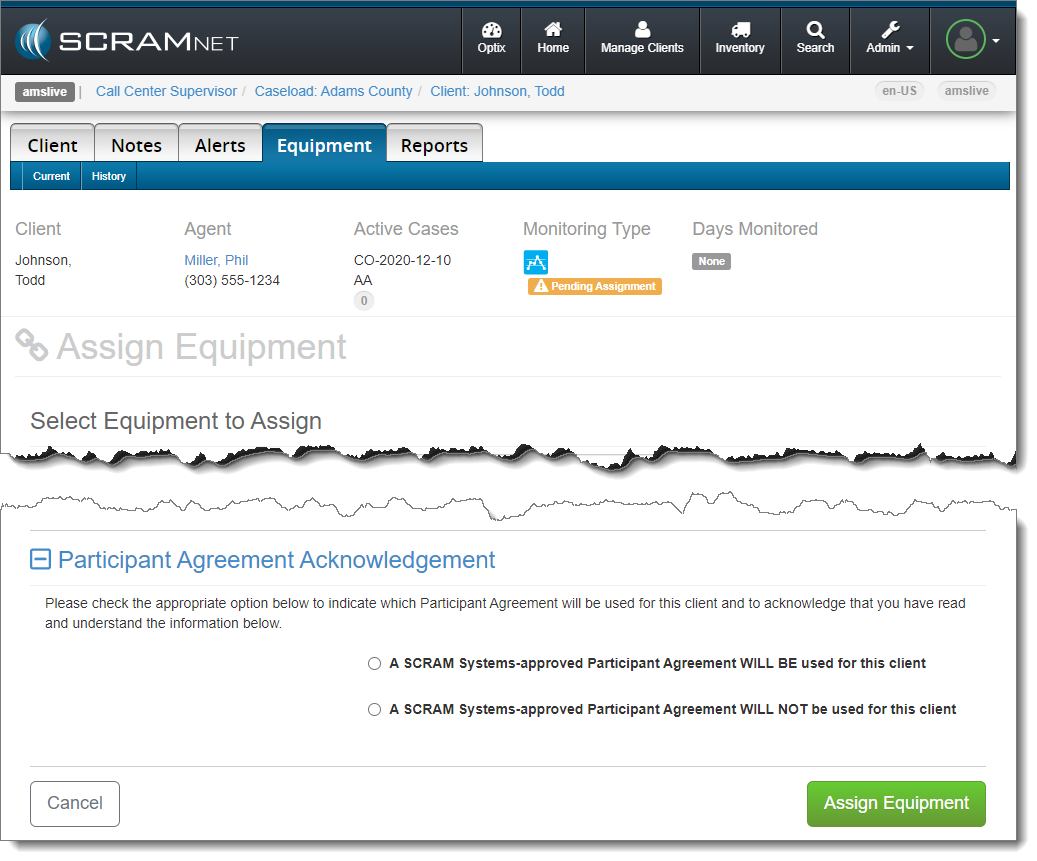
The vast majority of SCRAM Systems customers will choose the first option, “A SCRAM Systems-approved Participant Agreement WILL BE used for this client.” This option indicates that you are using a Participant Agreement that is currently available to you as a link in the SCRAMNET monitoring system.
Once you have chosen an option, a more detailed explanation of the choice you have made will appear:
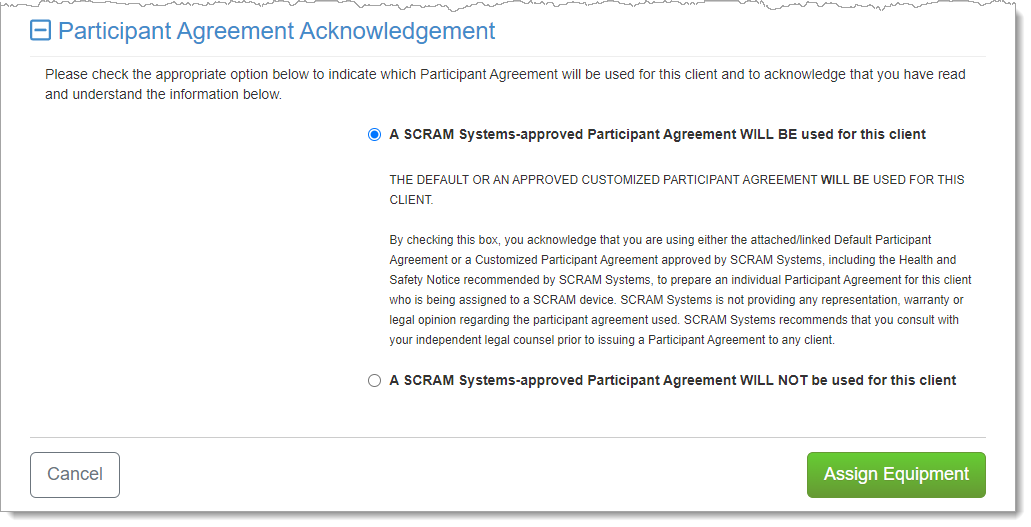
Customers who use their own monitoring program participation agreements, which they have developed in-house, independent of SCRAM Systems, and are NOT stored on or accessed from SCRAMNET, should choose the second option:
 |
If you are unsure about the type of monitoring program participation agreement used by your organization, ask your supervisor or program administrator. |
Completing the Device Assignment – Option 1
If you chose the “SCRAM Systems-approved” Participant Agreement Acknowledgement (first option), then a page with links to the available Agreements will appear.
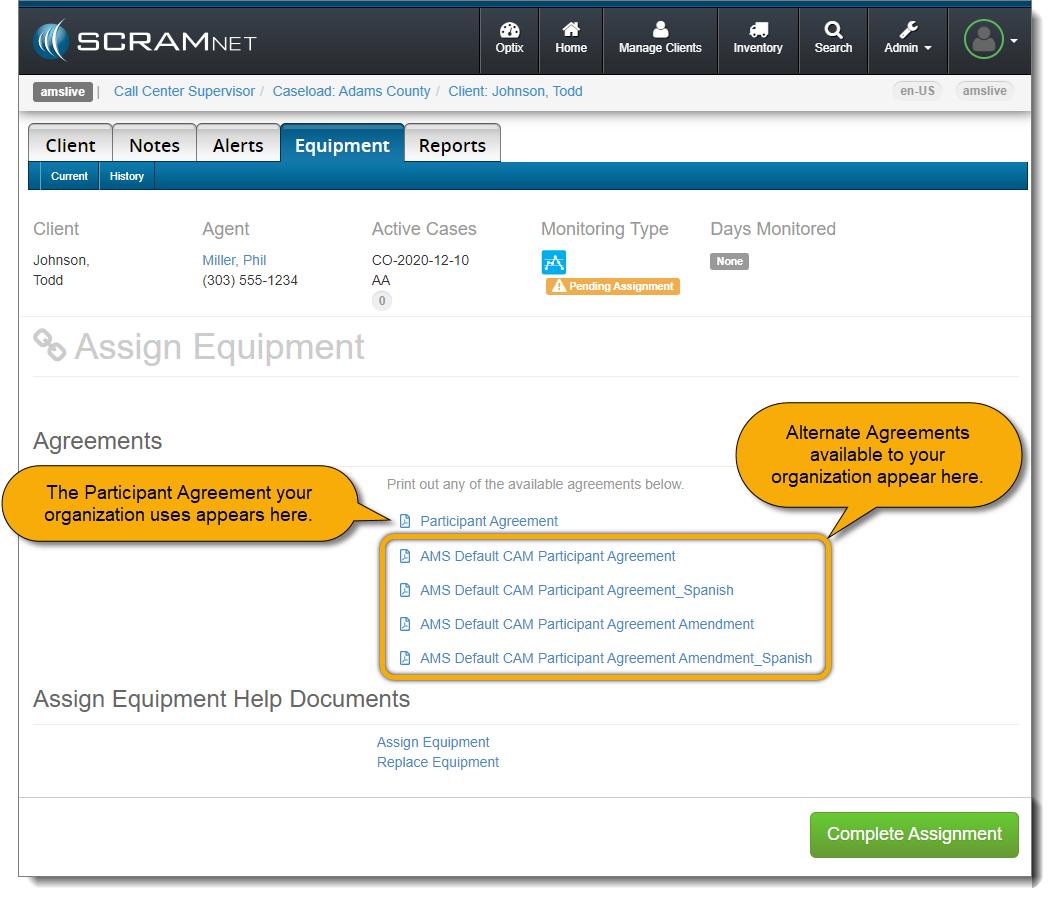
Print two copies (one for your records and one for the client) of the Participant Agreement and then select Complete Assignment.
Completing the Device Assignment – Option 2
If you chose the “NOT SCRAM Systems-approved” Participant Agreement Acknowledgement (second option), then the following page will not include links to any Agreements, and will instead display language that confirms your choice to NOT use a SCRAM Systems-approved Agreement.
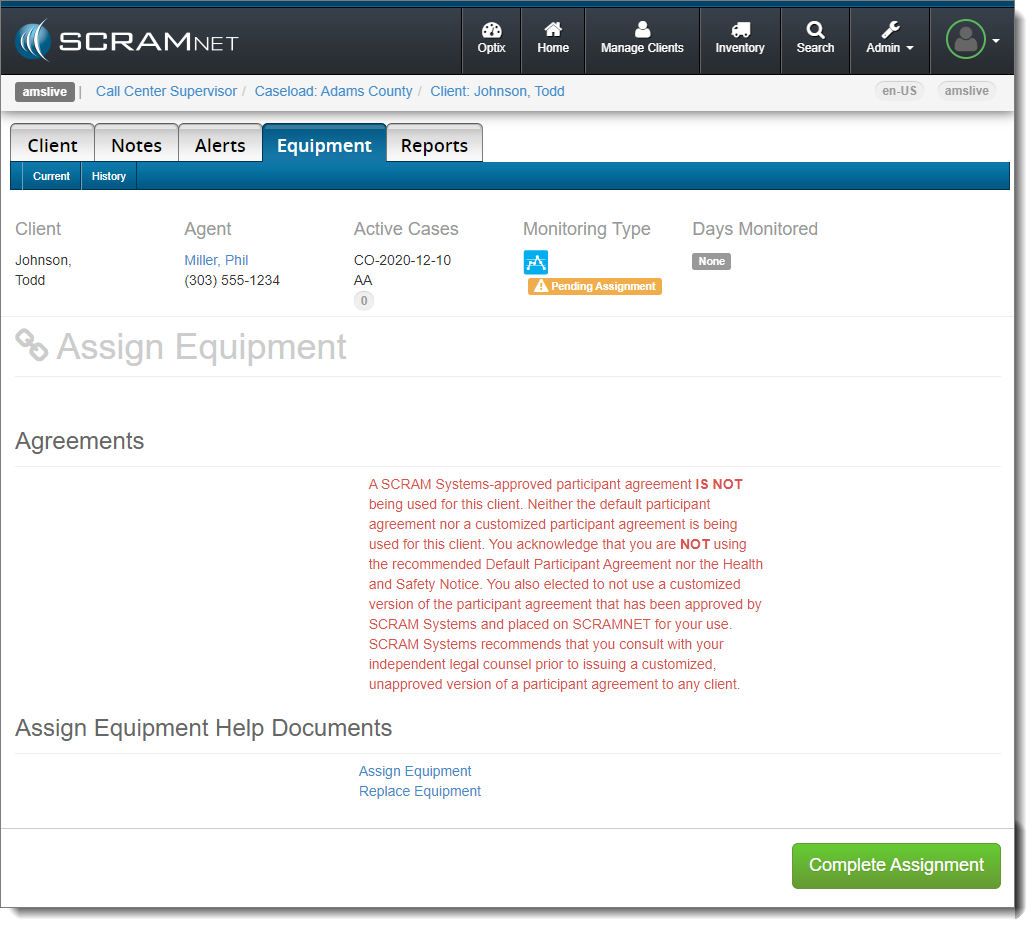
Provide the client with a copy of your program’s participation agreement from wherever it is housed in your organization’s internal storage resource as you normally would, and then select the Complete Assignment button to continue with the device assignment.
The equipment status for the client will display as Pending Assignment.
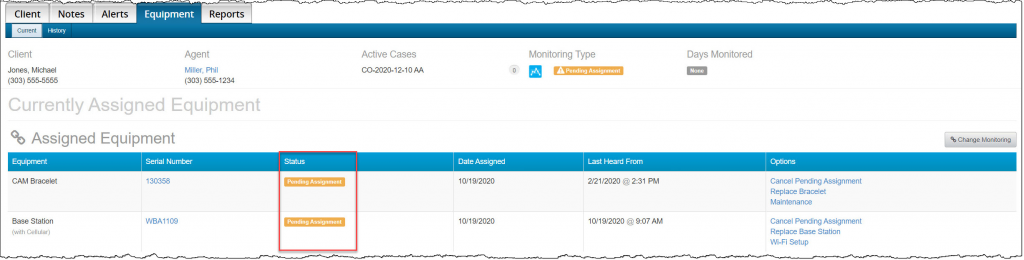
SCRAMNET Client’s Equipment Page (click to enlarge)
Now the equipment has been associated to the client in SCRAMNET, the next step is to view the General Guidelines for Equipment Assignment and then install the bracelet on the client and assign the equipment to begin monitoring.