The Daily Action Plan (DAP) is a .PDF file that is attached to an email that you can receive each day. The information in the DAP is an identical snapshot of the Workload page at the time that it is generated and sent to you. Contact your SCRAM administrator if you would like to begin receiving the DAP.

DAP Email
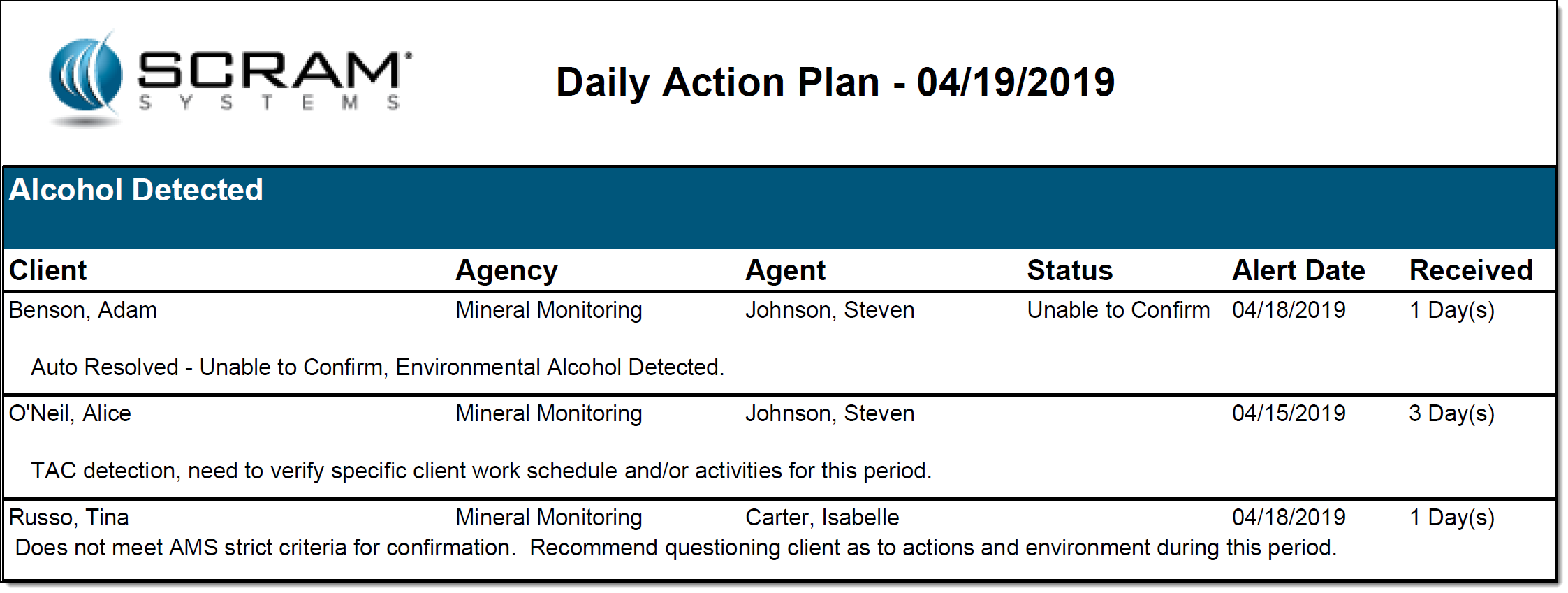
DAP PDF Attachment
Administration
As a SCRAMNET Administrator (or someone with “Manage Account Settings” permissions), you have settings available that allow you to configure the number of DAPs (once or twice) that will be sent out each day, as well as additional options for further customization. To access the settings:
- Select the Admin/Account Settings option.
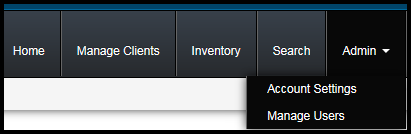
- Click the Setup DAP tab.
The Setup DAP page appears.
Set Up DAPs
By default, the Service Provider level appears in the Level drop-down list when you access the Setup DAP page, with all previously established DAP recipients at that level listed below the set-up options. From here, you can set up:
- Frequency – Receive one or two DAPs each day and enter the time of day that the DAP(s) will be sent.
- Options
- Send Empty DAP check box – DAP will be sent even though no alerts are displayed on the Workload page.
- Enable Caseload Level DAPs check box – Only appears when the “Service Provider” option in the Level drop-down list is selected. Allows caseload-level DAPs to be sent to all recipients set up to receive that caseload’s DAP.
- Send Auto Resolved TAC Alerts check box – When selected, all Alcohol Detected alerts generated and auto-resolved since the last DAP was sent will be included in the current DAP.
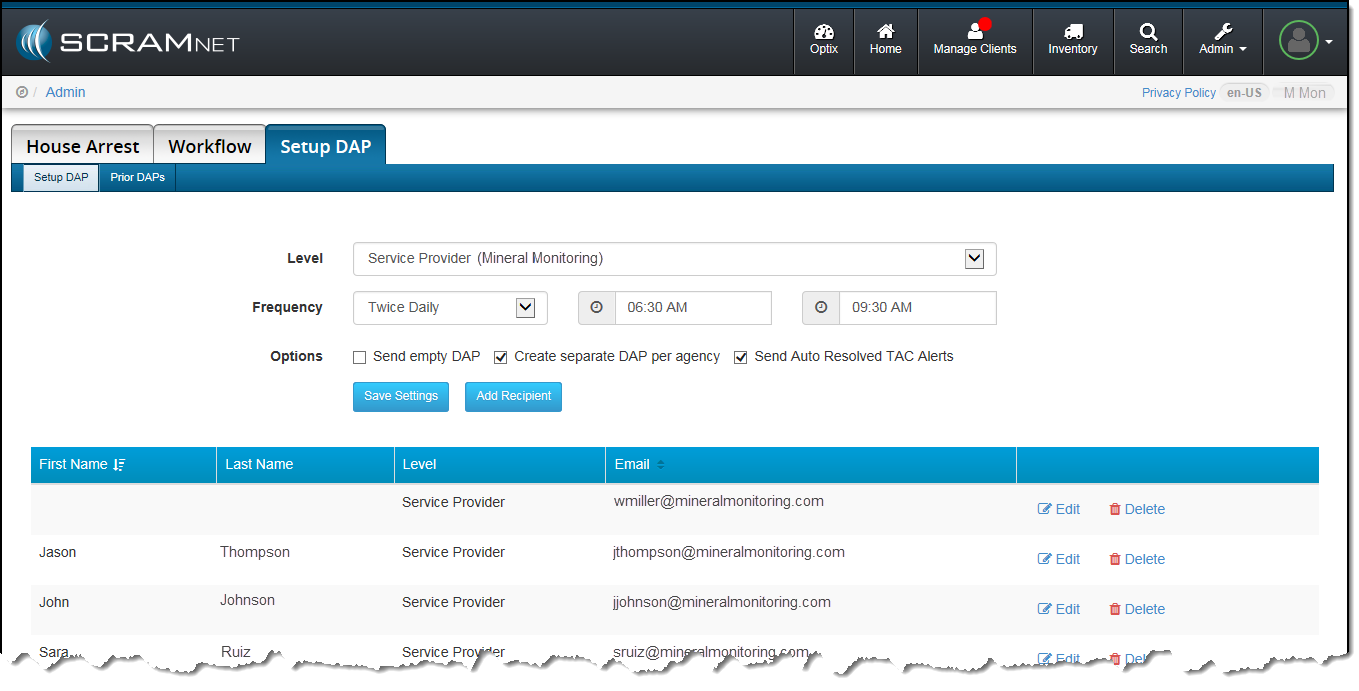
To set up a unique configuration for a specific caseload, locate the caseload in the Level drop-down list then make any necessary changes.
Set Up New DAP Recipient
To set up an individual to receive a DAP:
- From the Setup DAP page, click the Add Recipient button.
The Add a New Recipient section appears. - Enter the recipient’s first name, last name, and email address.
- Click the Save Recipient button.
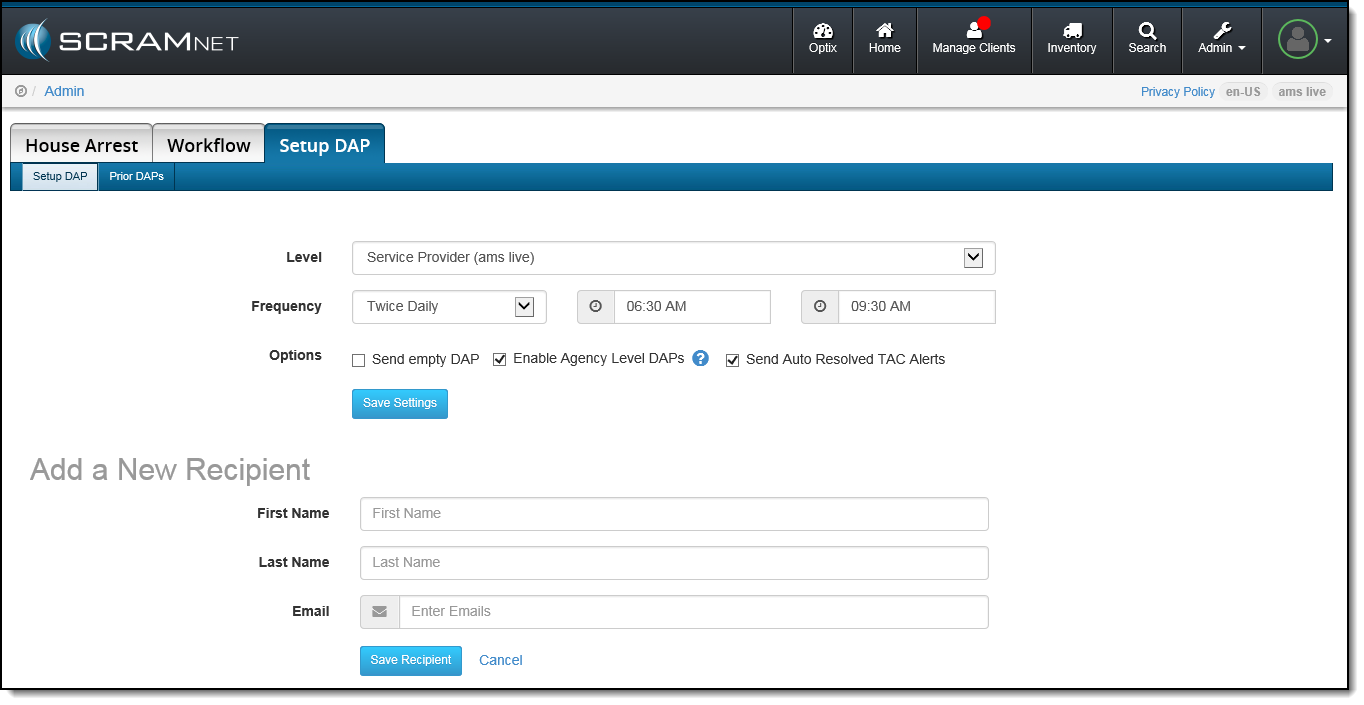
Note: If a recipient is set up to receive a DAP for a specific caseload, but the Enable Caseload Level DAPs check box is NOT selected at the Service Provider level, that recipient will NOT receive a DAP.
Resend Prior DAP
At some point, you may receive a request to resend a DAP that was previously distributed. To do this:
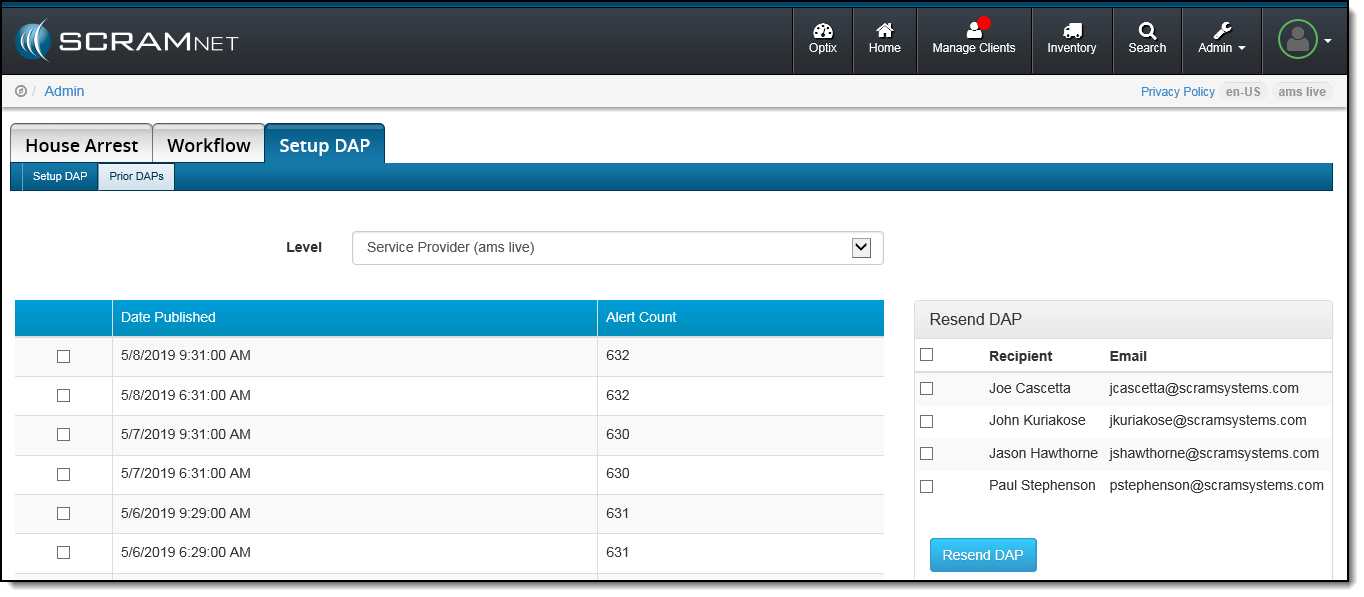
- Select the Prior DAPs tab.
- Select the check box to the left of the prior DAP that you wish to resend.
- In the Resend DAP section on the right side of the page, select the check box for the individual(s) requesting that the DAP be resent.
Note: Select the check box at the top of the column if the DAP is being sent to all recipients. - Click the Resend DAP button.
Automatic Transfers
The system automatically transfers high-priority alerts back to SCRAM Systems when additional information is needed, and a final disposition has not been determined (confirmed/not confirmed).
The table below describes the alerts that will be automatically transferred, how long after the alert appears on the Active Workload page that it will be transferred to SCRAM Systems if not addressed, and the follow-up action that you can expect from your Data Analyst if the alert is NOT resolved in the specified period of time.
| Alert | Automatic Transfer | Data Analyst Follow-Up Action |
| Alcohol Detected Alert | After 48 hours | Contact after one week or four transfers |
| Potential Tamper/Potential Removal Alerts | After 72 hours | Contact after two weeks or five transfers |
| Remote Diagnostic Alert (Bracelet Power Up) |
After 72 hours | Contact after one week |