“Positive” Alerts
The SCRAM Systems secure data analyzer first analyzes all readings received by the SCRAM CAM bracelet. The data analyzer will flag all readings that meet the alert generation criteria. These flagged readings generate an alert in SCRAMNET. Once flagged, your Data Analyst will analyze the data. They are specially trained and certified to interpret the information provided for each positive alert.
Your Part
Once the system and your Data Analyst have completed their analysis of the data, depending on the outcome, they will post the alert to the Workload page for you to view and complete any necessary action. When handling the alerts in the “Positives” section on the Workload page, take note of the alert’s status:
- Confirmed – the Data analyst has completed their analysis of the data, and the alert meets the criteria for confirmation.
- In Process – Additional information or actions must be completed on your part before final analysis can be completed.
- Not Confirmed – The Data Analyst has completed their analysis of the data, and the alert does not meet the criteria for confirmation.
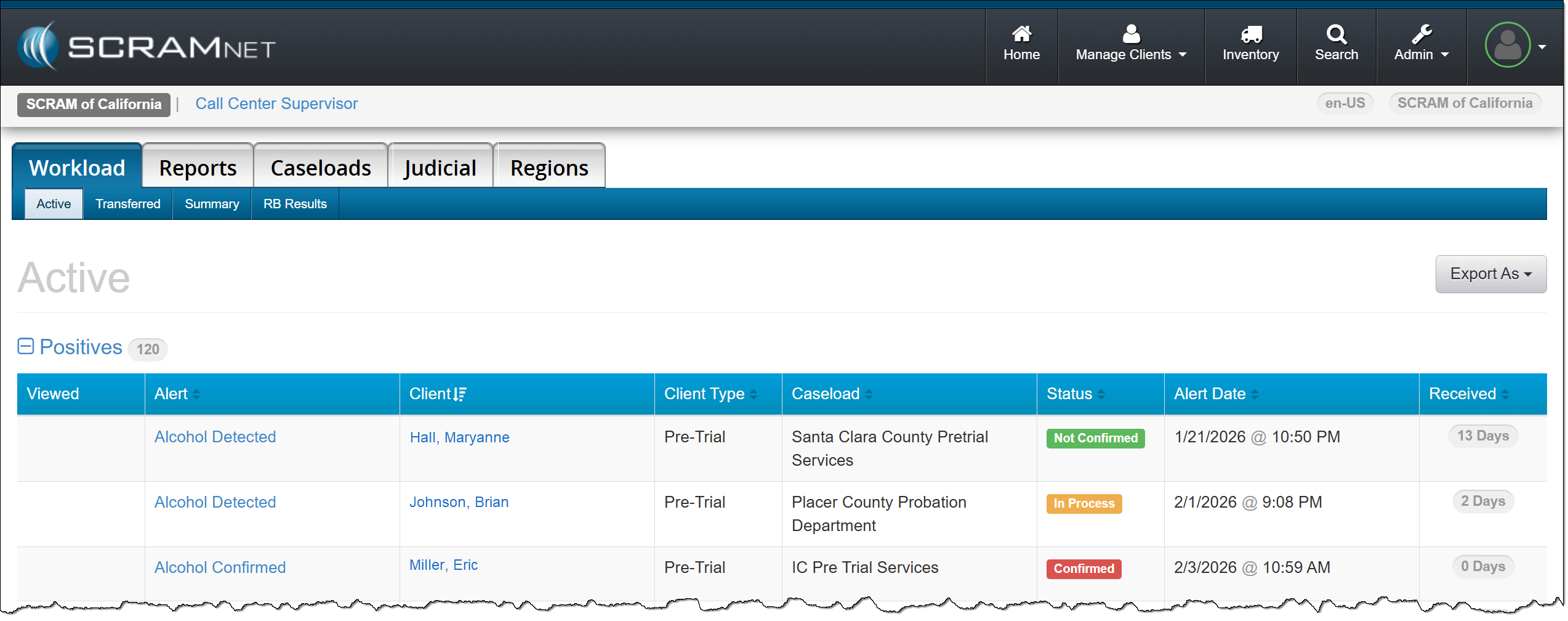
SCRAMNET Workload Page – click to enlarge
Confirmed Alerts
When viewing alerts with a “Confirmed” status, it indicates the Data Analyst has confirmed the alert as a consumption. The next step is to report the violation, add any comments to this alert, and then resolve the alert. Resolving the alert does not change the alert disposition. It simply removes the alert from the Workload page.
Start by accessing the Alert Management Console (AMC) for the alert:
- From the Workload page, select the Alcohol Confirmed hyperlink.
- View the confirmation information added by your Data Analyst, and complete any actions required by your monitoring program.
- Locate the Actions section and select the Comments button.
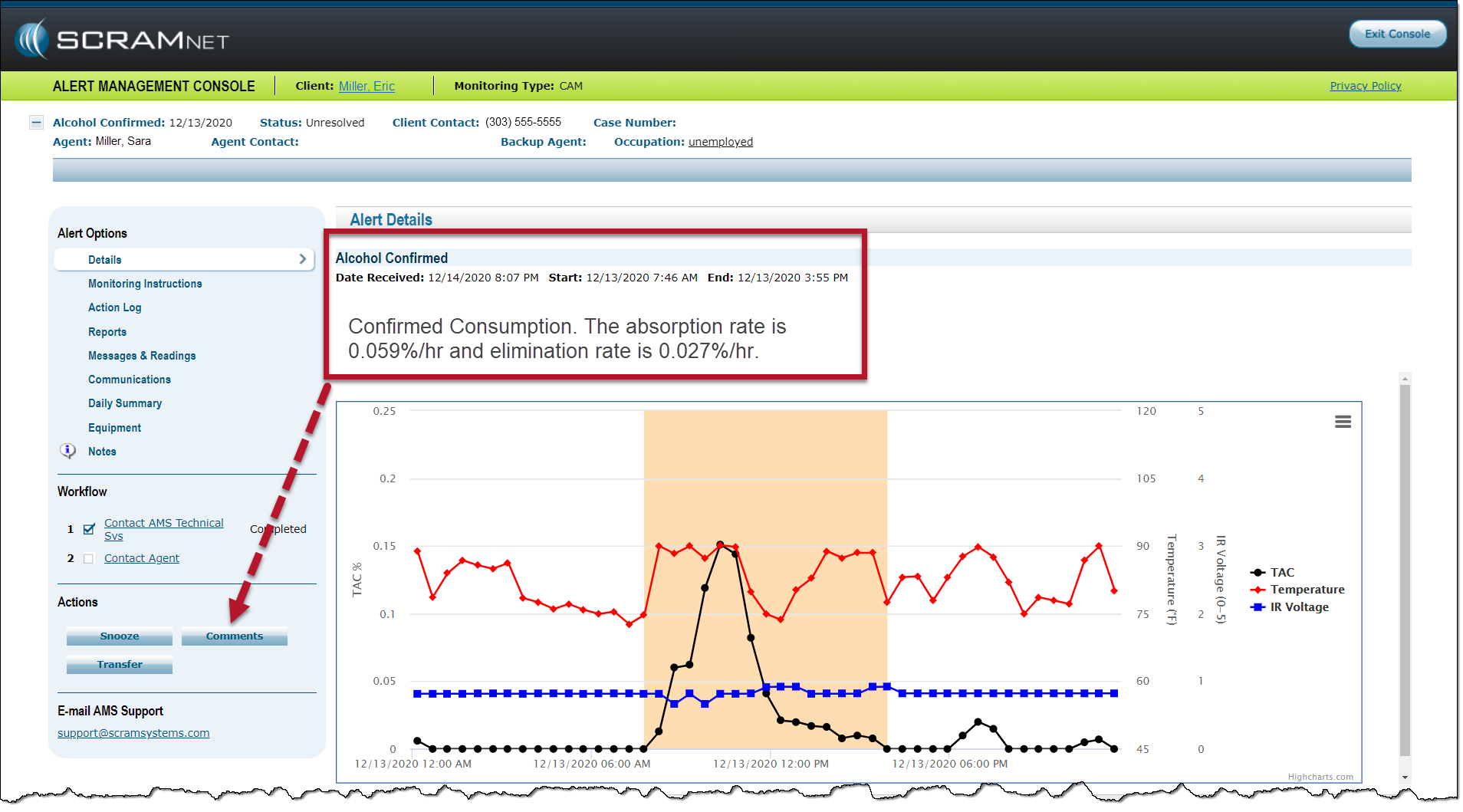
Confirmed Consumption AMC – click to enlarge
- On the Comments page, enter any actions taken in the Notes For example, a non-compliance report is sent to the reporting authority.
- Select the Resolve button.
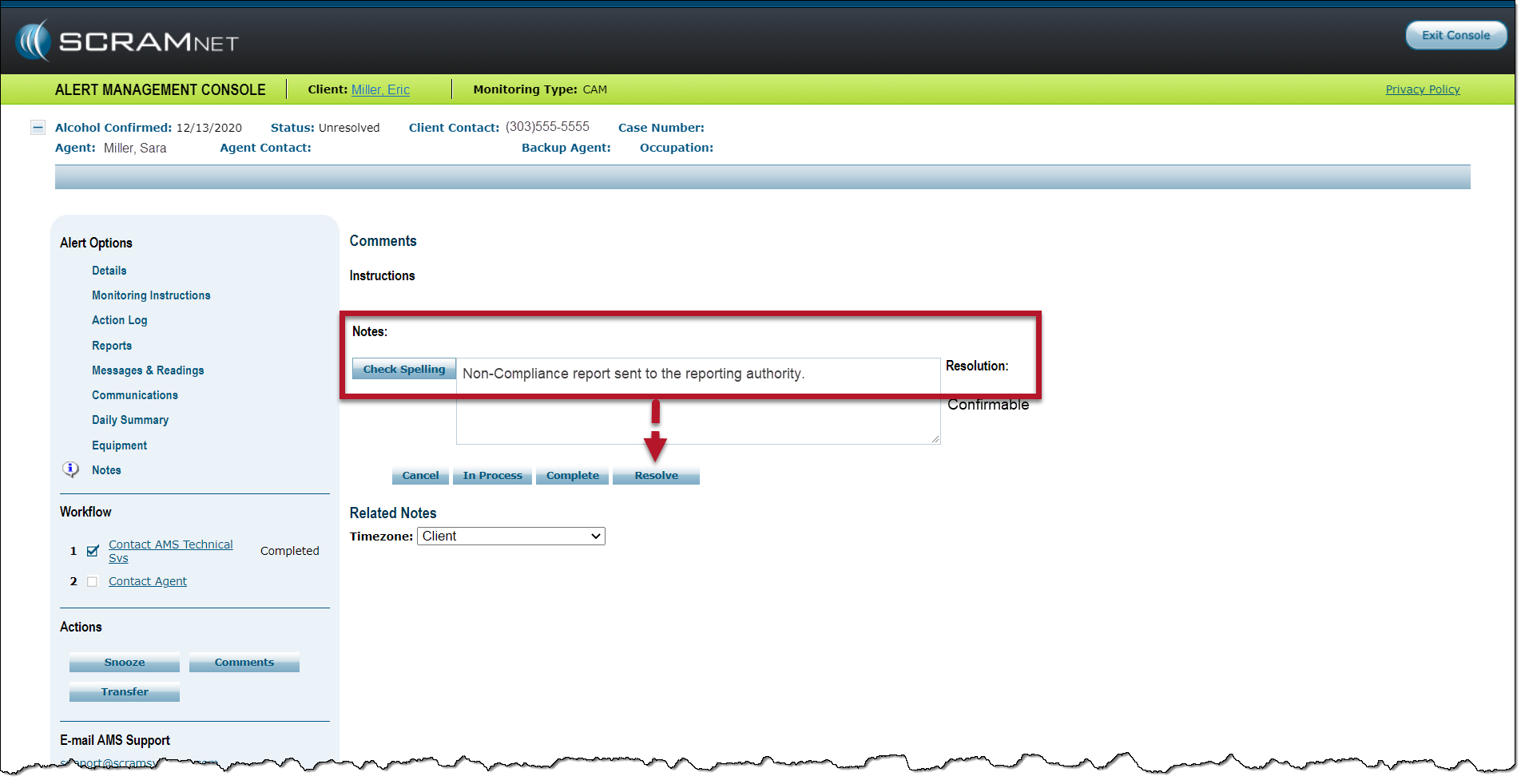
Comments Page for a Confirmed Alert – click to enlarge
- Exit the AMC by selecting the Exit Console
The alert is no longer displayed on the Workload page.
In Process Alerts
When viewing alerts with an “In Process” status, the Data Analyst is requesting additional information or actions you must complete before final analysis can be completed. The alert disposition has not yet been documented. In most cases, the Data Analyst requests specific client activities within the alert’s Start and End timeframes. Until this specified information is provided, the Data Analyst cannot complete their analysis.
Start by accessing the Alert Management Console (AMC) for the alert:
- From the Workload page, select the Alcohol Detected hyperlink.
- View the requested information or actions added by your Data Analyst.
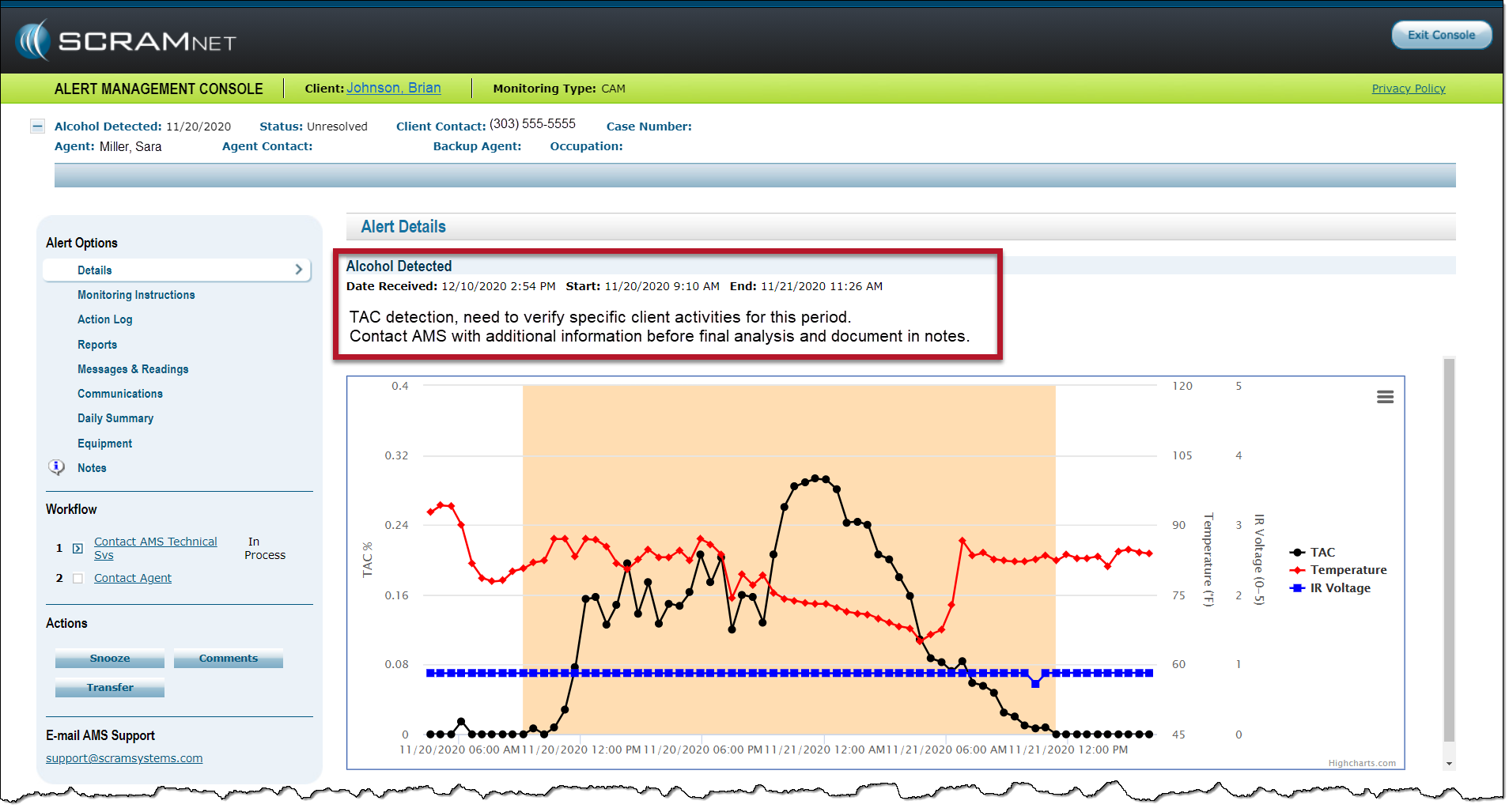
Alcohol Detected AMS – click to enlarge
- Contact the client and gather the requested information or schedule an appointment to complete any tasks, such as a Direct Connect of the bracelet or base station.
 |
When questioning the client about their work environment and schedule, be specific with your questions. For example:
|
- Once you have the requested information or completed the task, navigate to the alert’s AMC and select the Transfer button.
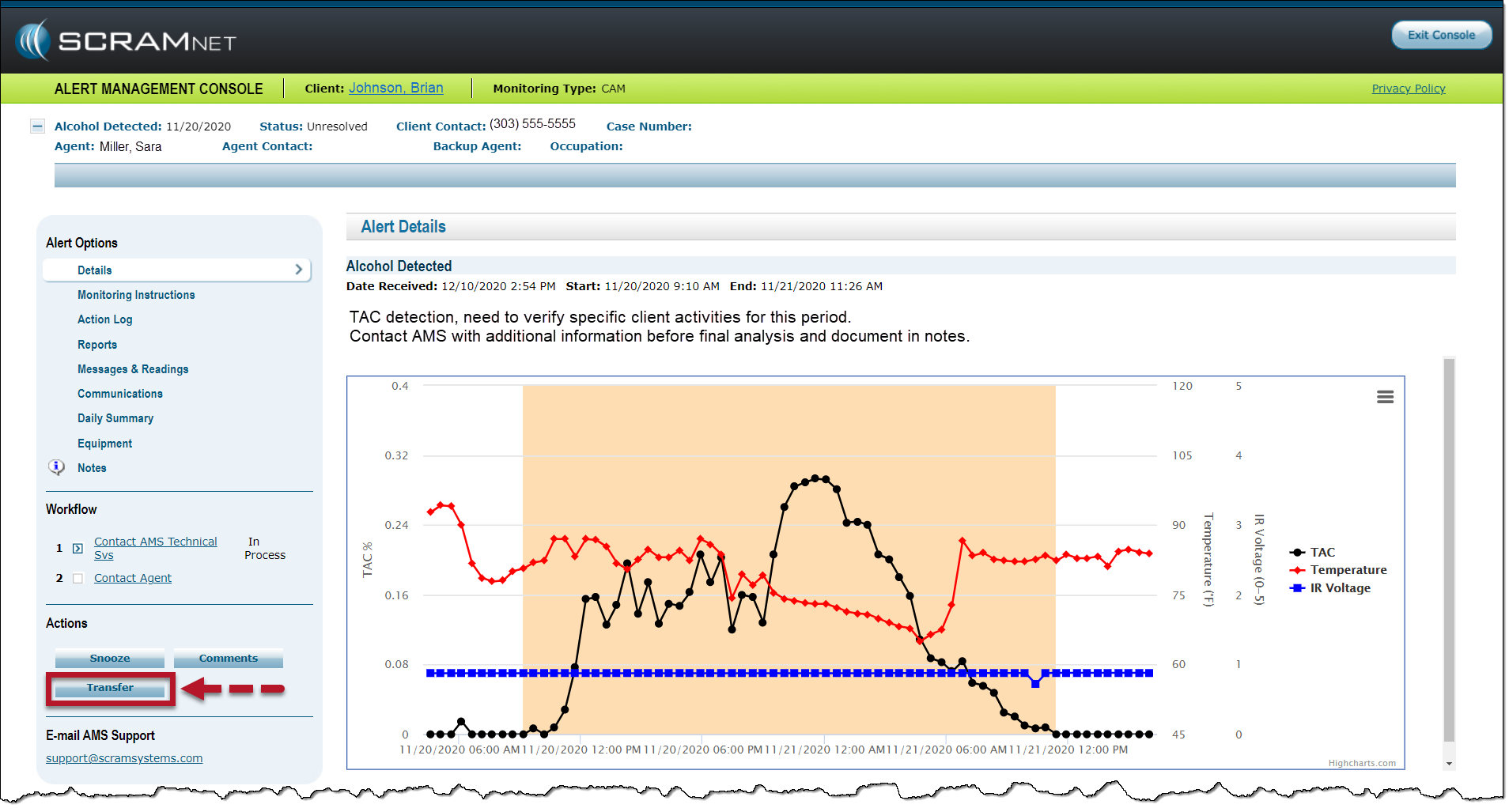
Transfer Button for an In Process Alert – click to enlarge
- On the Transfer page, select the AMS radio button.
- In the Notes section, add all the details you have collected from the client. Ensure your information is specific to the alert timeframe and in response to your Data Analysis request. You must follow all their instructions. Otherwise, you will delay the alert disposition.
|
If the client is not cooperating with your efforts to gather additional information, provide that information in the Notes section. |
- After adding the information, select the Save button.
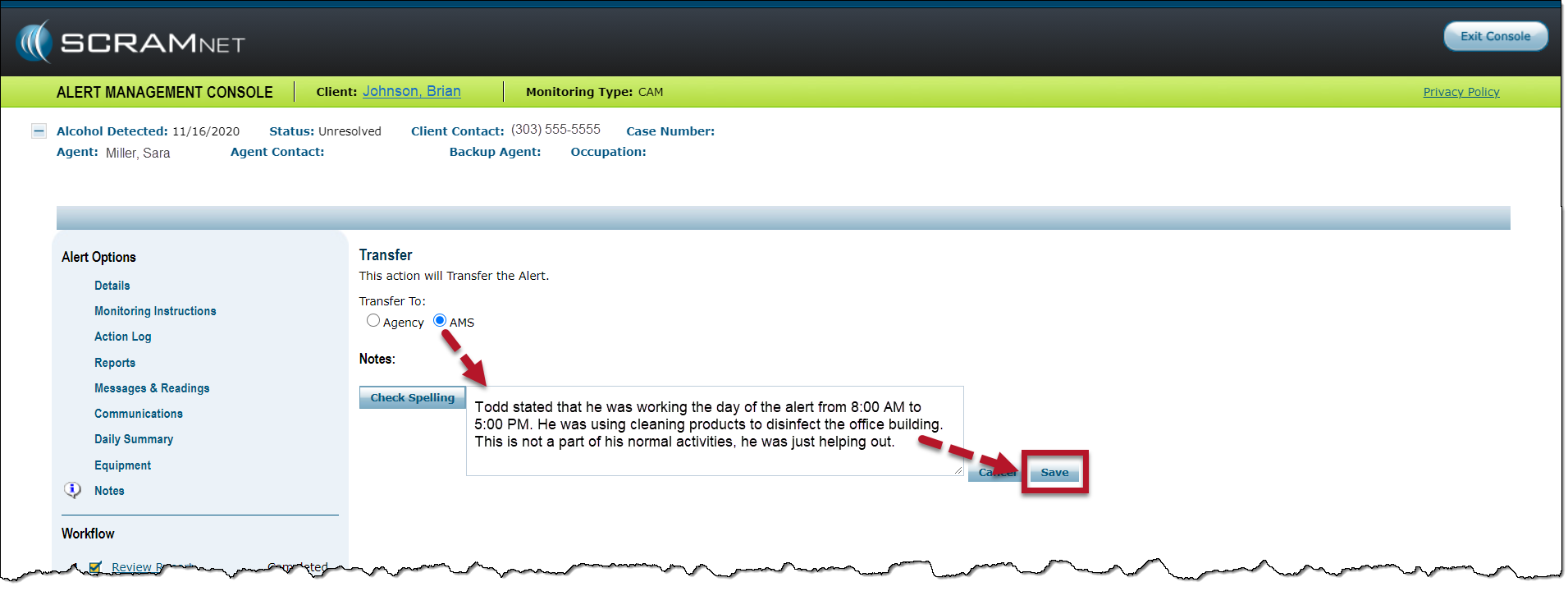
Transfer Page – click to enlarge
- Exit the AMC by selecting the Exit Console button.
The alert is no longer displayed on the Workload page. The alert is now with the Data Analyst, who will complete the final analysis.
Not Confirmed Alerts
When an alert is marked “Not Confirmed,” it means a Data Analyst has analyzed the alert and that it did not meet SCRAM Systems’ strict criteria for confirmation. Since the alert is not confirmed, no further action is required. The next step is to resolve the alert.
Start by accessing the Alert Management Console (AMC) for the alert:
- From the Workload page, select the Alcohol Detected hyperlink.
- View the information added by your Data Analyst, and complete any actions requested.
- Locate the Actions section and select the Comments button.
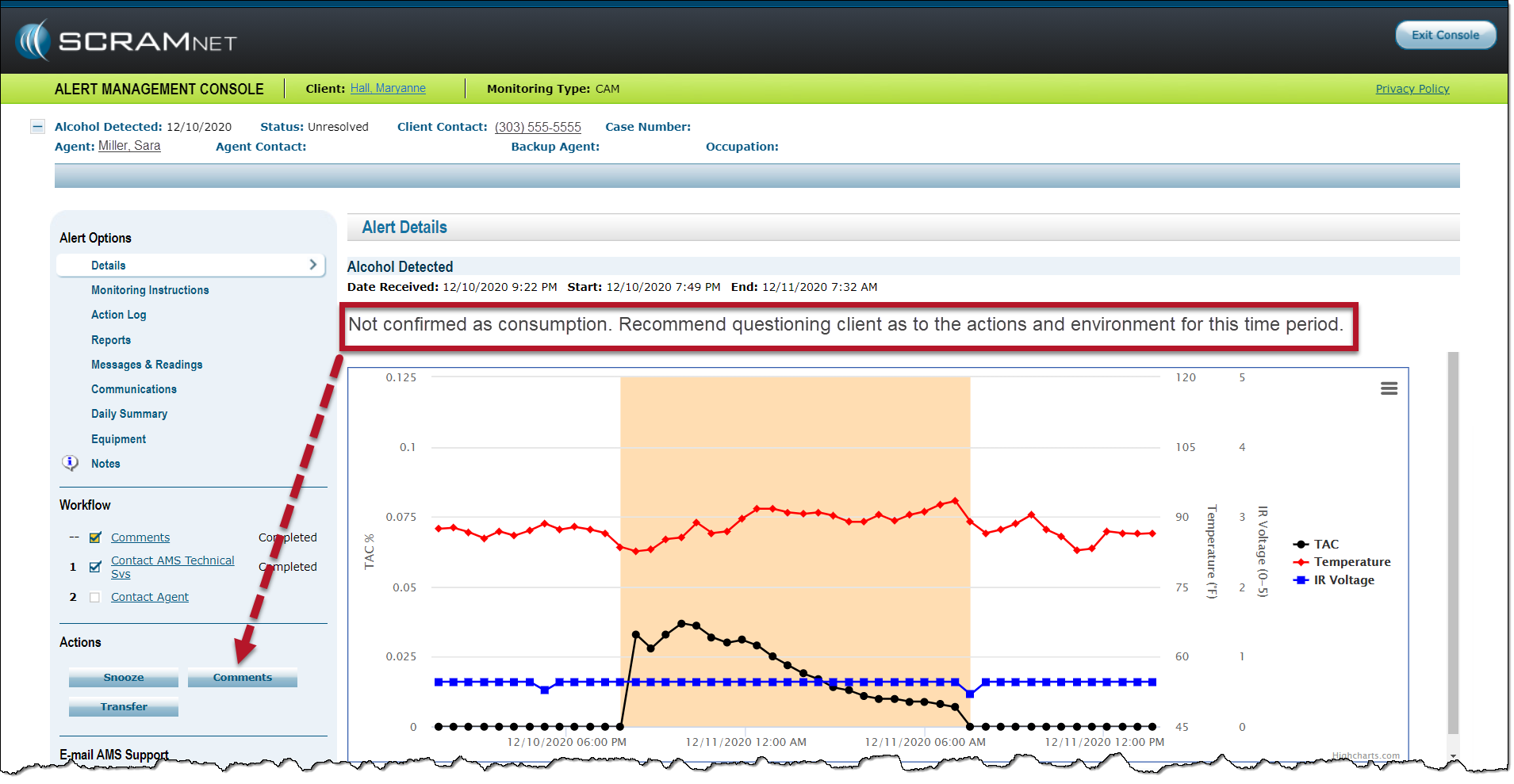
Not Confirmed AMC – click to enlarge
- On the Comments page, enter any actions or information gathered in the Notes section.
- Select the Resolve button.
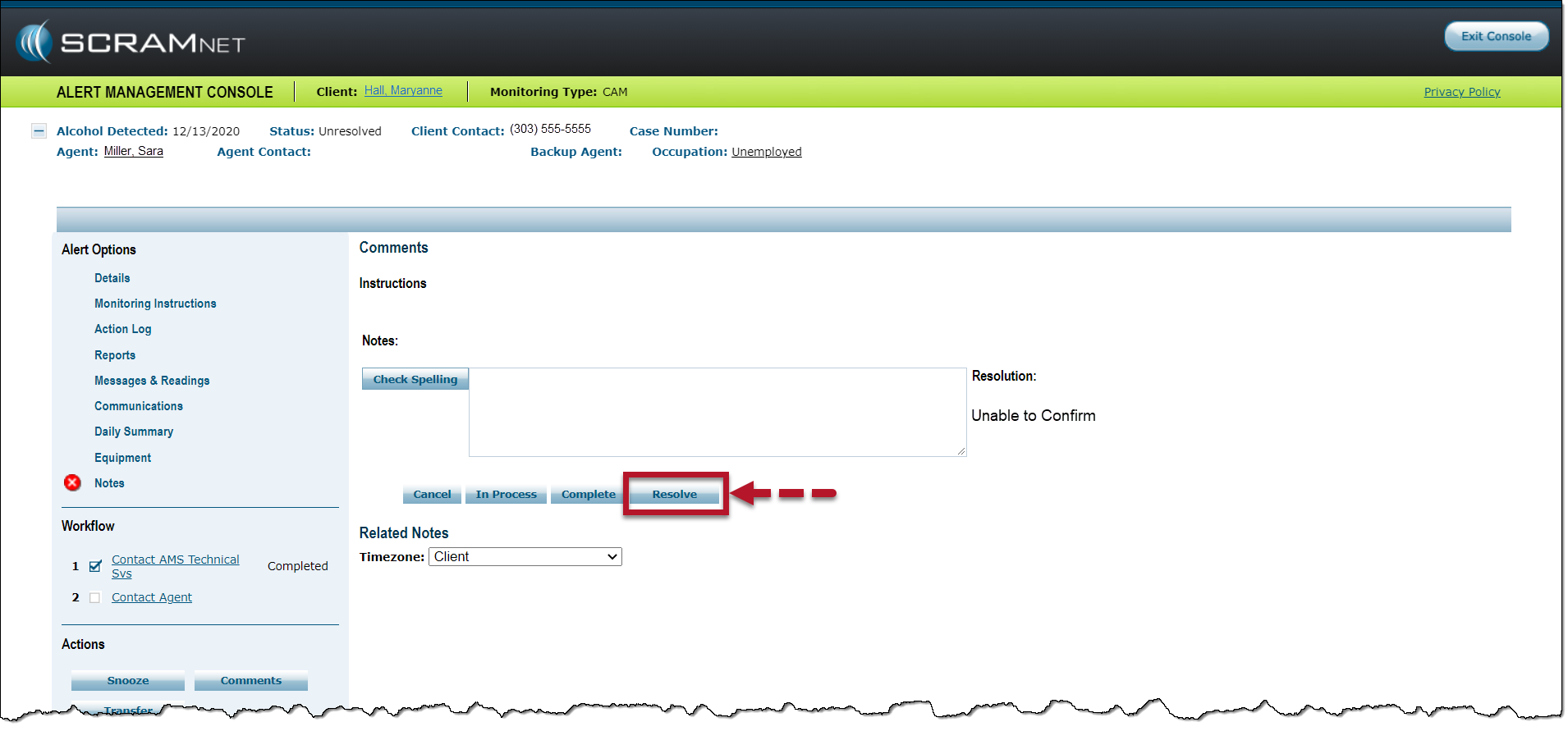
Not Confirmed Alert Comments Page – click to enlarge
- Exit the AMC by selecting the Exit Console button.
The alert is no longer displayed on the Workload page.
 |
If at any time the client admits to consuming alcohol during the timeframe of a Not Confirmed event, follow the instructions provided in the “In Process” Alert section. DO NOT RESOLVE THE ALERT.
If the client provides any information that raises questions or concerns, contact Customer Service. |