SCRAM Systems® will be moving to QR code-based “Help” cards for nearly all of its products and services by the end of this week. The switch from static instruction cards to QR codes helps to ensure that customers – and clients – always have the most up-to-date instructions for their SCRAM Systems devices at their fingertips.
There will be two separate QR code-driven Help cards:
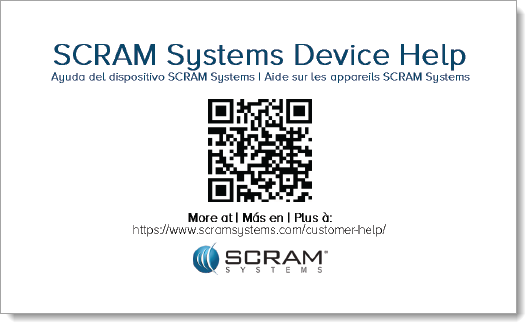
SCRAM Systems Device Help for customers (Service Providers and Agencies) – the blue card
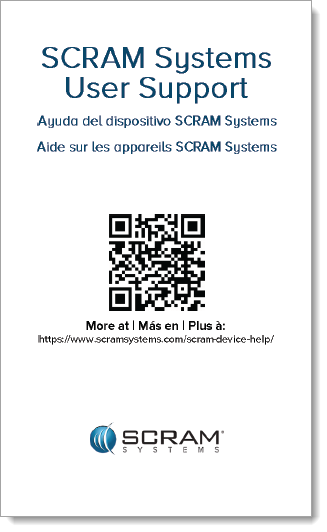
SCRAM Systems User Support for clients – the white card
Quick Reference Guides will still continue to be printed for all SCRAM Systems products.
What’s a QR Code?
A QR code is a type of two-dimensional matrix barcode consisting of an array of black and white squares. QR codes are typically used for storing web addresses (URLs), which can be read by the camera on a smartphone to open a web page.
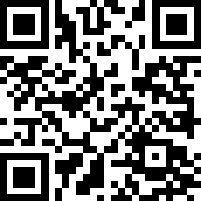
QR Code Example
How Will SCRAM Systems Use QR Codes?
Rather than including device-specific instruction cards in the boxes we ship to you, we will instead include two packs of 25 business-card-sized Help cards – one pack of customer Help cards and one pack of client Help cards – in each of our Customer Care Kits. Additional 25-card packs of each type will be available for purchase on the SCRAMNET Equipment Order Form if needed.
Help for Service Providers and Agencies
You and the other Officers, Agents, and Case Managers who are responsible for monitoring clients in your SCRAM Systems Program, can carry one of the blue customer cards with you, or post them around the office. Then whenever you need help installing or removing a device, for example, you may simply pull out the SCRAM Systems Device Help card and scan it with your smartphone:
SCRAM Systems Device Help Card – Front
SCRAM Systems Device Help Card – Back
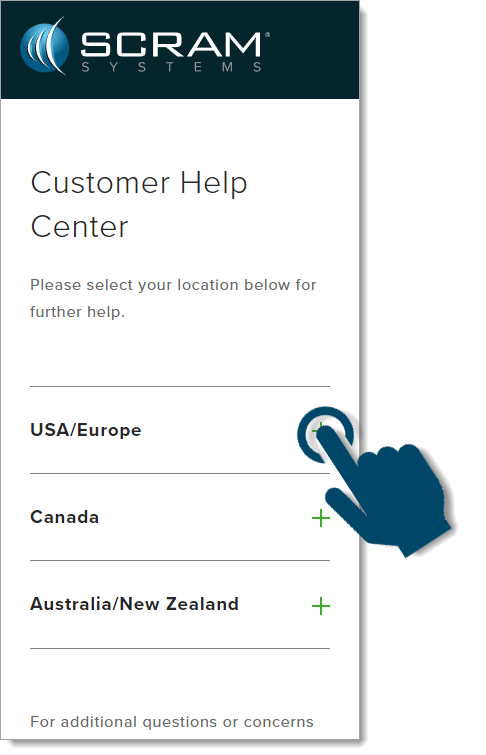
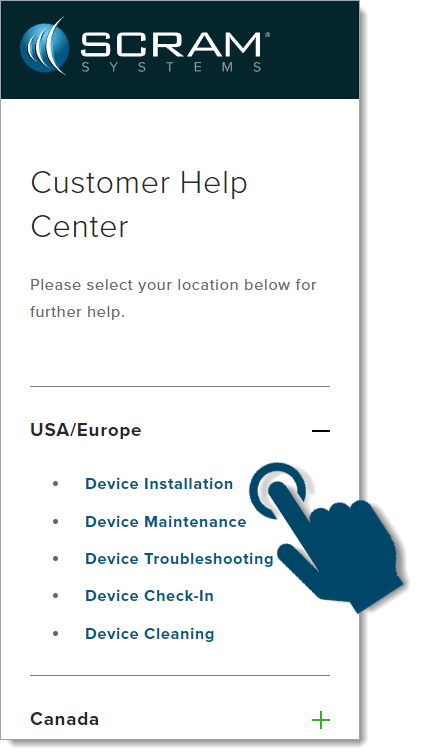
Once you scan the QR code on the card, your smartphone will launch the SCRAM Systems Customer Help Center (www.scramsystems.com/customer-help/), where you will tap on your location, and then tap on the type of Help you need:
Scan the card with your smartphone and then select your location:
Select Your Geographical Location (USA/Europe Shown)
Select the type of device help you seek:
Select the Type of Help (Device Installation Shown)
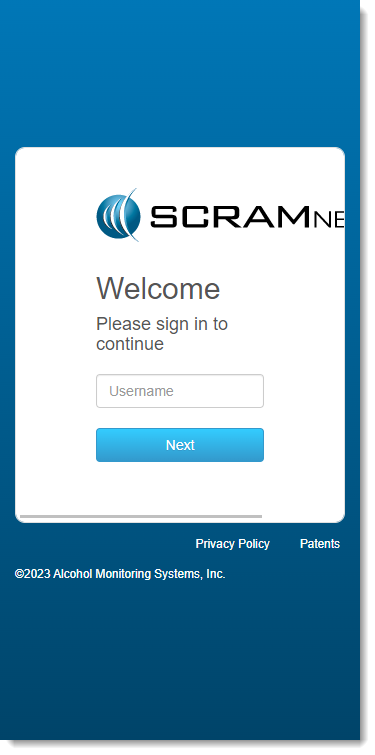
Login with your SCRAM monitoring system credentials:
Login with SCRAM Credentials
Requiring a login ensures that nobody except SCRAM Systems customers can access SCRAM Device Help.
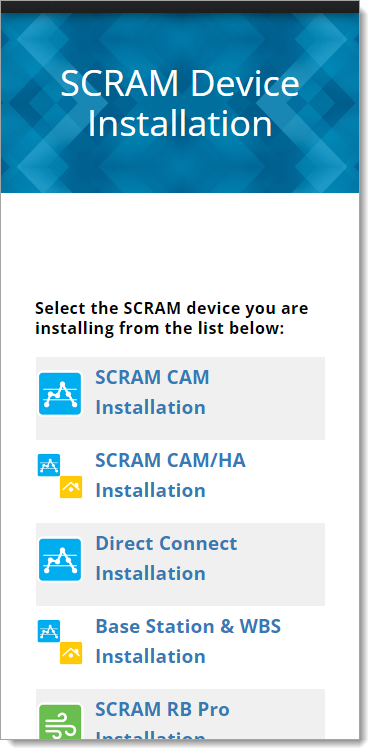
Select the specific SCRAM Systems product for which you want help:
Select the Appropriate Product (Installation Help Example)
Help for Clients
SCRAM Systems will also be eliminating most product-specific client instruction cards, and will instead make QR code-driven SCRAM Systems User Support help cards available:
SCRAM Systems User Support Help Card – Front
SCRAM Systems User Support Help Card – Back
Once the client scans the QR code on the white card, their smartphone will launch SCRAM Systems Device Help for clients (www.scramsystems.com/scram-device-help/), where they may scroll through a list of SCRAM Systems devices, mobile apps, and FAQs, and simply tap on the type of help they need:
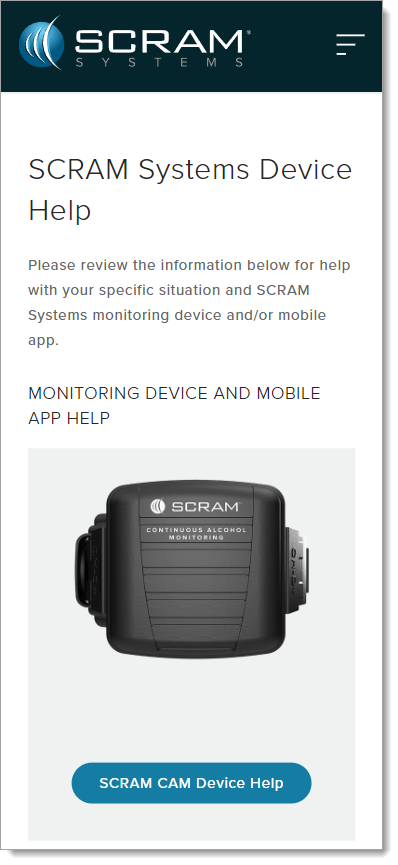
SCRAM Systems Device Help for Clients – SCRAM CAM
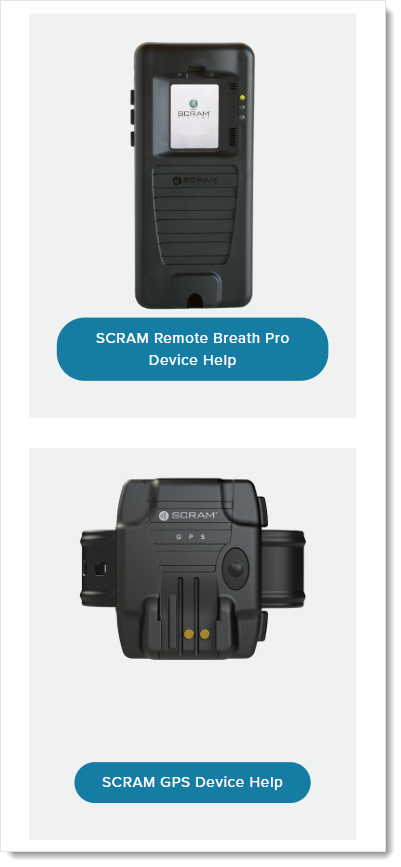
SCRAM Systems Device Help for Clients – SCRAM RB Pro & GPS
On, July 27, 2023, SCRAM Systems will release an enhancement to your client’s Documents page. Currently, you must download the .pdf, .png, or .jpeg files to your computer before viewing the file. With this enhancement, a Document Preview pop-up will display the file’s contents when you select that document’s hyperlink.
SCRAMNET GPS Client Documents page (click to enlarge)Document Preview pop-up (click to enlarge)
Once previewed, select the Actions button to “Download” a copy to your computer, or “Delete” it.
Document Preview pop-up (click to enlarge)
The Download, and Delete options are also still available from the Action dropdown menu to the right of the document’s information, as before.
Documents page (click to enlarge)
The Document Preview pop-up does not support .doc or .docx file formats. Select the hyperlink to download the document to your computer and view the information.
Documents page (click to enlarge)Downloads Folder (click to enlarge)
For clients utilizing the SCRAM TouchPoint Mobile Application along with GPS monitoring, the Action dropdown menu will include the “Share” option in addition to the “Download” and “Delete” options.
At 5:00 AM MDT on Thursday, March 30, 2023, SCRAM Systems is introducing a new indicator in SCRAMNET GPS that will inform you when an Exclusion Zone does NOT have a daily 24/7 schedule associated with it.
During the 15-minute deployment, you may not be able to access SCRAMNET GPS, but messages from the SCRAM GPS device continue to be processed uninterrupted.
Indicate On Zones Page When Exclusion Zone Doesn’t Have a Daily 24/7 Schedule
By default, all exclusion zones automatically have a 24/7/365 schedule associated with it. Users can now adjust these schedules as needed. For example, perhaps an area is an exclusion zone only after work hours.
A notice indicator has been added to the Zones page when an exclusion zone does not have a 24/7/365 schedule. No action is required; this indicator is for informational purposes only.
This image shows that the exclusion zone does not have a 24/7 schedule. (click to enlarge)
At 5:00 AM MDT Tuesday, March 14, 2023, SCRAM Systems deployed several new features in SCRAMNET GPS. Enhancements include:
Schedules for Exclusion Zones
Users May Use a Filter to Distinguish Between Case Notes and Event Notes
New Location Accuracy Report
During the 15-minute deployment, you may not have been able to access SCRAMNET GPS, but messages from the SCRAM GPS device continued to be processed uninterrupted.
Schedules for Exclusion Zones
Users can now create schedules to indicate specific times clients are not allowed in an exclusion zone. The ability to create schedules for exclusion zones could be useful in scenarios where a client is allowed to be in a location during the day for business reasons, but not allowed in the location at night because the area becomes a party spot.
For exclusion zones that are always off limits, no
action is needed. Exclusion zones will continue to work as expected. By
default, all exclusion zones create a 24/7 schedule.
Create / Modify a Schedule for an Exclusion Zone
By default, there is no need to create a schedule
for an exclusion zone. When an exclusion zone is created, a 24/7 schedule is
automatically created. To modify the schedule:
Open
the Zones and Schedule dialog
Select
“Exclusion Zone” from the Zone Type dropdown
Select
the exclusion zone from the Zone/Beacon dropdown
Double-click the schedule to open the Schedule Details dialog (click to enlarge)
Double-click the schedule to open the Schedule Details dialog. Note if the current day is selected, the schedule must be ended to modify the time.
The schedule must be ended to modify the time. (click to enlarge)
Set the time and recurrence the client is not allowed in the zone. The following schedule indicates the client is not allowed in the “Buckhead Bar Area”, every day, between 6:30 PM and 5:00 AM.
Set the time and recurrence the client is not allowed in the zone. (click to enlarge)
Overlapping Schedules
Although it’s possible to create overlapping
schedules for exclusion zones, it should not be necessary because, unlike
schedules for inclusion zones, schedules for exclusion zones cannot be
prioritized. All overlapping schedules are treated equally. However, only one
zone violation will be generated.
Create a Schedule Exception for an Exclusion Zone
To create an exception, drag or click in the timeframe slot to open the Schedule Exceptions Details dialog.
To create an exception, drag or click in the timeframe slot to open the Schedule Exceptions Details dialog. (click to enlarge)
Verify Type is set to “Exception”, and that Zone/Beacon is the Exclusion Zone for which you want to create an exception. Set the exception start Date, Start Time, End Time, and Recurrence Type. The time is when the client is allowed in the Exclusion Zone, without generating an Exclusion Zone Violation. Click Save to confirm the exception.
The Schedule Exception is shown on the calendar. Hover over the exception to see the details.
The Schedule Exception is shown on the calendar. Hover over the exception to see the details. (click to enlarge)
Users Can Filter Between Case Notes and Event Notes
The Notes dialog can be filtered on Case Notes or
Event Notes. This can be useful to present specific note types to court.
The Notes dialog can be accessed from multiple entry
points:
Dashboard
> [Client name] > Context Menu > Notes
Client Profile Summary dialog > Notes
Client Profile page > Notes
Client Events dialog > Notes
Location Maps > Notes
Device Assignment page > Notes
New Client Profile page > Notes
From the Notes dialog, select the drop down to filter on Case Notes or Event Notes.
From the Notes dialog, select the drop down to filter on Case Notes or Event Notes. (click to enlarge)
Click the Print Notes icon to print the Event and Case Notes Report. The printed report follows the filter settings.
Click the Print Notes icon to print the Event and Case Notes Report. The printed report follows the filter settings. (click to enlarge)
New Location Accuracy Report
To help comply with Indiana Senate
Bill 9, a new “Location Accuracy Report” has been added to SCRAMNet GPS. This
report shows the total number of location points that fall above or below a
given threshold for determining each location point’s accuracy.
To run the report, select Location Accuracy Report from the Reports menu:
To run the report, select Location Accuracy Report from the Reports menu (click to enlarge)
Select the date range for the report. The date range can span up to three months (to allow for quarterly reporting). The Start Date can go back one year.
Select the Accounts and Client(s) to include in the report. The Client(s) list contains clients who were active during the selected timeframe
Set the threshold values for determining when a point is considered NOT accurate. In the example above, any point with an accuracy greater than 150 feet AND six or less satellites, is considered not accurate.
Click the View Report button. Depending on the report time frame, and number of clients selected, the report could potentially analyze hundreds of millions of location points. For this reason, the report could take several minutes to generate.
Depending on the report time frame, and number of clients selected, the report could potentially analyze hundreds of millions of location points. For this reason, the report could take several minutes to generate. (click to enlarge)
The report shows 23 clients
monitored during the 4th quarter 2022. Of 930,983 location points
collected, 5,011 had an accuracy greater than or equal to 150 feet AND used six
or fewer satellites.
At 5:00 AM MT on Thursday, February 16, 2023, SCRAM Systems® will introduce new victim notification features, including:
A new version of the Ally app for Android users
Changes in SCRAMNET GPS® to prevent some victim events from dropping off the Victim Events dialog
During the 15-minute deployment, you may not be able to access SCRAMNET GPS, but messages from the SCRAM GPS device will continue to be processed uninterrupted.
New Version of Ally App Available in Google Play Store
Ally version 2.0.30 for Android mobile devices is available on the Google Play Store. Customers are encouraged to have victims update to this version to address the following issues:
Under certain scenarios, when a victim has Ally open to the Homepage, the page won’t automatically refresh when a new alert is received
Under certain scenarios, Ally for Android may stop communicating with the SCRAMNET GPS server
Changes to Prevent Some Victim Events from Dropping Off Victim Events Dialog
The Days to keep events setting (in Admin > Account Settings > Accounts page), indicates when events will no longer be visible on the Client Events dialog. This setting also applies to the Victim Events dialog.
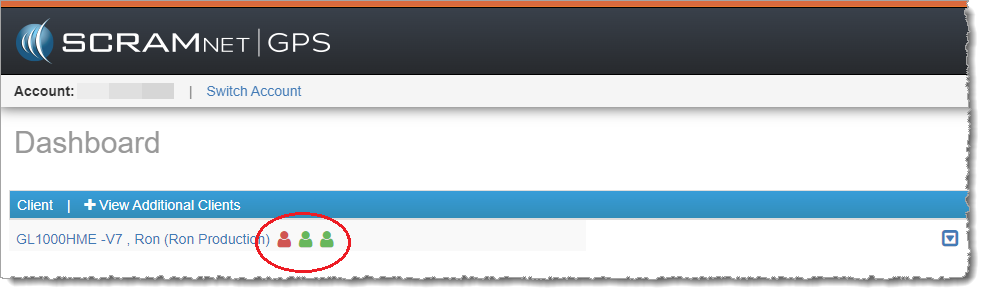
For some victims, Ally has been in No Communication and/or No Location longer than the ‘Days to keep events’ setting. As these events roll off the Victim Events dialog, this causes the “victim” avatar on the Dashboard to show green. After Thursday’s release, these events will reappear on the Victim Event dialog, and the victim avatar will show red.
Victim Avatar on the Dashboard (click to enlarge)
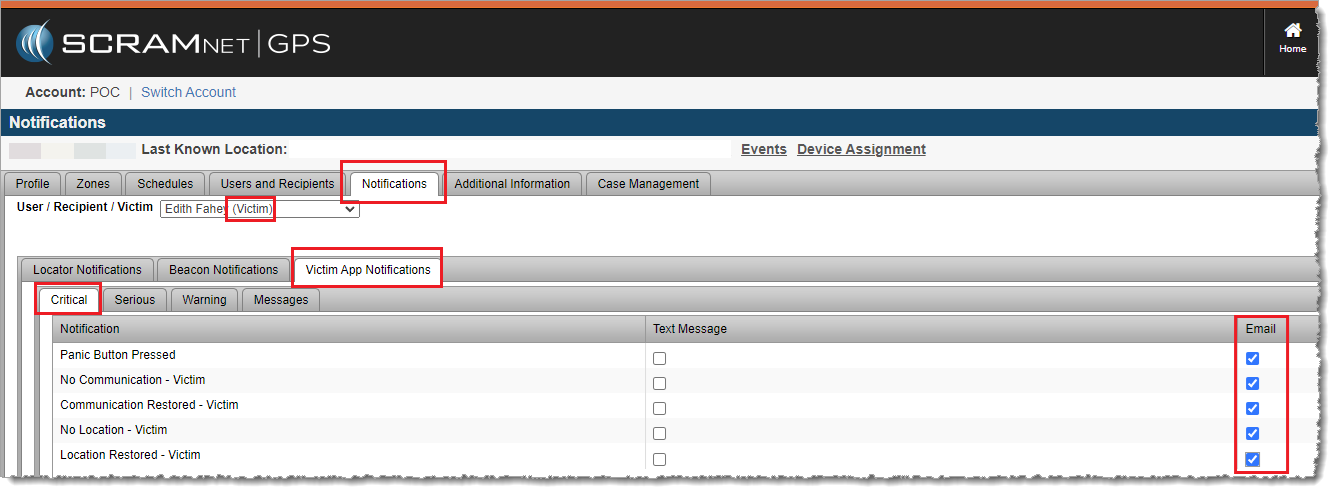
Customers are also encouraged to subscribe victims to the No Communication – Victim, and No Location – Victim events so they will receive an email or text notification when Ally is not communicating or sending location points.
Subscribe Victims to No Communication – Victim and No Location – Victim Events (click to enlarge)
At 5:00 AM MT on Tuesday, January 31, 2023, SCRAM Systems® introduces three new features in SCRAMNET GPS®:
Creating Zone Defaults to On Board
Changes to Creating Event Notes
Upload Documents to SCRAMNET GPS
During the 15-minute deployment, you may not be able to access SCRAMNET GPS, but messages from the SCRAM GPS device will continue to be processed uninterrupted.
Creating Zone Defaults to On Board
Newly created zones are now stored On Board by default. To change where the zone is stored, select the desired location (On Board or On Server):
Select Where to Store the Zone
If zones are created prior to assigning a bracelet, they can still be saved On Board. The zones are temporarily saved as On Server and will automatically be moved to On Board once the bracelet is assigned.
Changes to Creating Event Notes
To create an Event Note from the Client Events dialog, select the event and click Add Event Note.
In some scenarios, the selection checkbox is disabled because the event is associated with another event. For example, the checkbox for the Location Failure Clear event in the image above, is disabled because it is directly associated with the Location Failure event. To add an Event Note, alternatively click on the +Add link in the Notes column.
Upload Documents to SCRAMNET GPS
SCRAMNET GPS now supports the ability to upload documents and associate them with clients. To access the Document Management page, click the Client Documents icon on the Client Profile Summary dialog:
To upload a file, click the Upload File button, and then click Choose File, and locate the file to upload:
In the example below, the client’s Participant Agreement form has been uploaded:
To delete a document, click the Action button and click Delete:
Deleted documents are moved to the Trash Bin. Click the Trash Bin menu item to restore deleted documents. To open a document, click the document name, or select Download from the Action menu.
Integration with TouchPoint
The Document Management feature is integrated with the SCRAM TouchPoint mobile app. Clients can securely upload documents via TouchPoint. If the TouchPoint client is monitored in SCRAMNET GPS, then their documents can be seen from within SCRAMNET GPS.
Click on the Received menu to see documents uploaded from Clients via TouchPoint.
At 5:00 AM MST Tuesday, January 10, 2023 (USA) and 1:00 AM EST Wednesday, January 11, 2023 (Canada), SCRAM Systems® will deploy an enhancement to the Auto-Inactivation at End of Service feature in the SCRAMNET GPS monitoring system.
During the 15-minute deployment, you may not be able to access SCRAMNET GPS, but messages from the SCRAM GPS device will continue to be processed uninterrupted.
Auto-Inactivation is a feature available in SCRAMNET GPS , which allows you to automatically inactivate a client when their End-of-Service date is reached.
Enable this setting by navigating to: Admin > Account Settings > Accounts > Allow Automatic Inactivation at End of Service.
Enable ‘Allow Automatic Inactivation at End of Service’ (click to enlarge)
This feature has been updated to inactivate clients who reach their End-of-Service date and do not have a bracelet assigned, as well as clients who do have a bracelet assigned.
At 5:00 AM MST Wednesday, December 21, 2022 (USA) and 1:00 AM EST Thursday, December 22, 2022 (Canada), SCRAM Systems® deployed/will deploy two new enhancements to SCRAMNET GPS®:
Events & Alerts May Be Layered onto the Pattern of Life Location Points View
‘Duration’ Added to the Event Report
During the 15-minute deployment, you may not be able to access SCRAMNET GPS, but messages from the SCRAM GPS device will continue to be processed uninterrupted.
Events & Alerts Layered onto Location Points View
With this enhancement, the Pattern of Life Location Points view supports overlaying Events on the map. To navigate to the Location Points view:
Select Pattern of Life Analysis from the ‘GPS Analytics’ menu.
Then select Location Points from the ‘View’ dropdown menu.
Finally, select the client and date range to analyze.
Access Pattern of Life ‘Location Points’ View (click to enlarge)
To display events associated with location points on the map, select “Events” from the Layers dropdown menu:
Select ‘Events’ from the Layers Dropdown Menu (click to enlarge)
After activating the “Events” layer, if an Event or Alert took place at one of the location points displayed on the map, that location point will display a red badge icon:
Location Point with ‘Event’ Badge
Hover over the badged location point to display an information window. Select (click on) the location point to highlight it in the table to the left of the map:
Select the Location Point to Highlight it in the Table (click to enlarge)
Display Events in the Map Table
To display events on the table:
Click the Columns button
Check the Events column checkbox – if you would like the Events column to always be visible, also check the Make this the default view checkbox
Click Save
Add the ‘Events’ Column to the Table Display
Once the Events column has been added, that row of the table will display the Event, the Zone Name, and any applicable action taken, and may be accessed by clicking the Events button on the Info window for the badged location point.
Events on Table Grid (click to enlarge)
The example above shows an ‘Inclusion Zone Violation Clear’ event along with the zone name and clear reason.
Matching Events to Location Points
There are scenarios where Events cannot be directly associated with a location point. For example, a bracelet might be in ‘No Location,’ but can send a ‘Battery Low’ event. In these cases, the event is matched to the Last Known Location. This is indicated on the Client Events dialog:
Client Events Dialog Window (click to enlarge)
Duration Added to the Event Report
The Event Report now includes the total time certain events are active. Durations are displayed for the following events:
Exclusion Zone
Violation
Victim Zone
Violation
Communication
Failure
Location Failure
Inclusion Zone
Violation
Victim Zone
Buffer Entry
Exclusion Zone
Entry
Inclusion Zone
Exit
Exclusion Zone Buffer
Entry
Neutral Zone Entry
New ‘Duration’ Column on the Event Report (click to enlarge)
At 5:00 AM MST Tuesday, November 22, 2022 (USA) and 1:00 AM EST Wednesday, November 23, 2022 (Canada), SCRAM Systems® will deploy a Search enhancement to the SCRAMNET GPS® Dashboard.
During the 15-minute deployment, you may not be able to access SCRAMNET GPS but messages from the SCRAM GPS device will continue to be processed uninterrupted.
Additional Client Search Options
The client Search field on the Dashboard has been updated to support additional search options.
Search Field on the SCRAMNET GPS Dashboard (click to enlarge)
With this release, clients may be searched using the following criteria:
At 5:00 AM MDT Tuesday, October 18, 2022, SCRAM Systems® is introducing three new
features to SCRAMNET GPS.
These enhancements are:
Suspend Alerts for the SCRAM GPS Call Center Application
Pattern of Life Home (Inferred) Location
Pursuit Mode in Ally Mobile Application
During the 15-minute deployment, you may not be able to access SCRAMNET GPS but messages from the SCRAM GPS Bracelet will continue to be processed uninterrupted.
Suspend Alerts for the SCRAM GPS Call Center
The SCRAM GPS Call Center application is a centralized location
where client non-compliance events are displayed and managed according to pre-established
processes and procedures. The GPS Call Center can be managed by SCRAM Systems, or
by our service partners’ monitoring centers.
When a non-compliance event occurs – like when a client
enters an Exclusion Zone – an event ticket is generated in the Call Center
application where call center agents will take the appropriate action for the
alert. The actions taken might include calling the client or the officer. Once
the call center agents have completed the specific procedure for the alert, the
alert is then resolved.
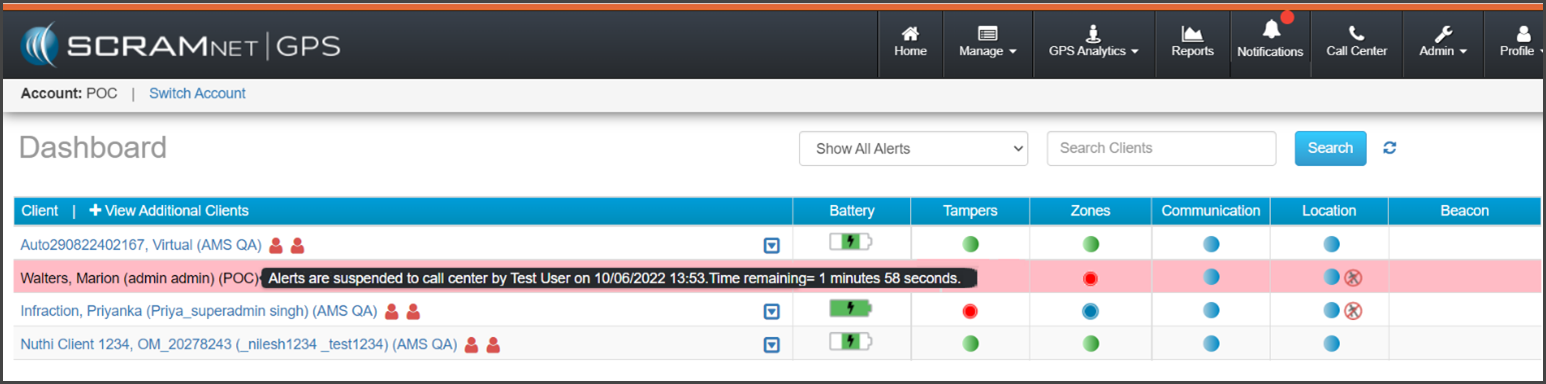
On some occasions, the client may be allowed to temporarily enter an Exclusion Zone for example. With this release the supervising authority may temporarily suspend the specific alert, therefore the alert will not generate an alert ticket in the Call Center application. This feature is useful when no action should be taken by the call center agent for the violation.
During the suspension period, the client’s information on
the Dashboard will be highlighted. To view the details of the suspension
period, hover your mouse over the highlighted area.
SCRAMNET GPS Dashboard – click to enlarge
All suspended non-compliant violations will display on the Dashboard and all notifications will be sent. Only the Call Center alert ticket is suspended (not sent).
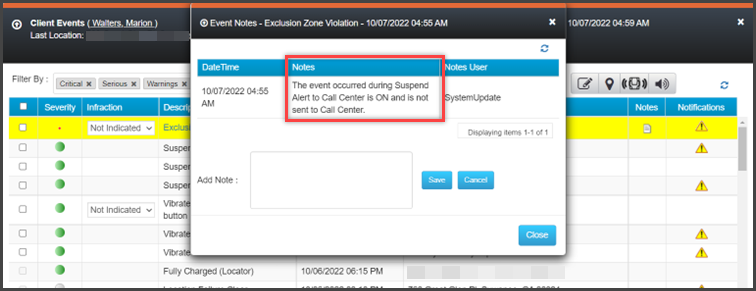
When the event
or alert generates during a suspension period, a system note is added to the Event Notes indicating that the Call Center ticket
was not sent to the Call Center:
Event Notes pop-up – click to enlarge
To temporarily suspend events and alert(s) from generating event
tickets in the Call Center application for a client:
Select
the client’s name on the Dashboard.
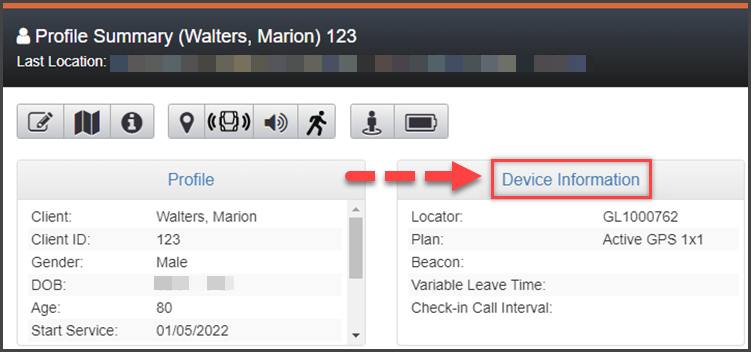
On
the Profile Summary dialog box, select the Device Information
hyperlink.
SCRAMNET GPS Client Profile Summary page – click to enlarge
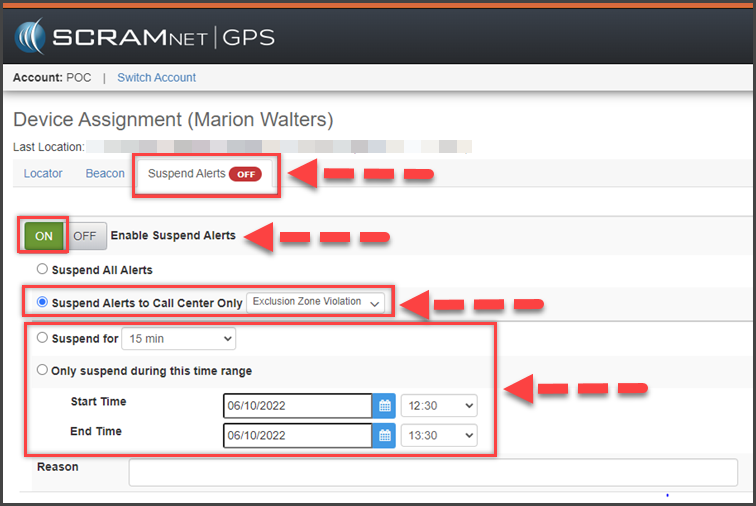
On
the Device Assignment page, toggle ON the Enable Suspend Alerts option.
Select the Suspend Alerts to Call Center Only radio button.
On the Select Alert dropdown menu, select which alert(s) you would like to suspend.
Next, set the duration or date and timeframe for the suspension:
If the suspension is to start now, select the radio button next to the “Suspend for” option, and then select the duration from the dropdown menu.
If the suspension is for a future date, select the radio button next to the “Only suspend during this range” option, and enter the Start Time and End Time.
Client Device Assignment page – click to enlarge
Enter
the reason for the suspension.
To
save the information, select the Save button.
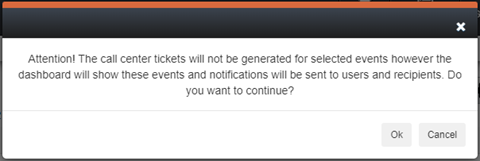
Read
and acknowledge the information on the pop-up by selecting the Ok
button.
Suspend Alerts Acknowledgement pop-up
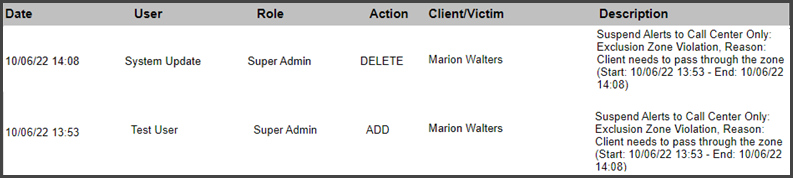
The
suspension details including the start and end times are recorded in the Audit Report.
Audit Report – click to enlarge
Pattern of Life – Home (Inferred) Location
SCRAMNET GPS® Pattern of Life identifies
and associates the client’s location to an activity location category. When
reporting the client’s “Home” location and activity category in Pattern of
life, the Home Zone created for the client is used. The location and activity
category’s label will reflect the Home Zone’s name entered in the system. For
example, “John’s Home Zone” would display in Pattern of Life as “John’s Home
Zone” on the map and reports.
When the client does not have a Home Zone recorded in the system, the Pattern of Life location may not be correctly identified or grouped into a different activity location category altogether.
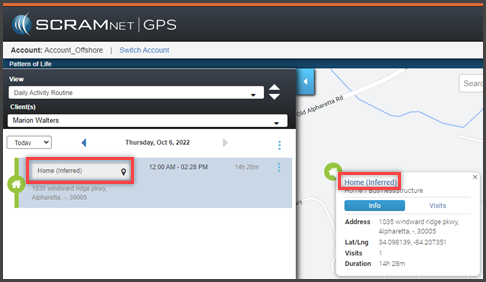
With this enhancement, if the client does not have a Home Zone saved in the system, Pattern of Life will use the client’s home address to identify the location and activity location’s category. Once identified, the label of “Home (Inferred)” will display on the map and report detail information. In addition, when the client’s address is updated, the “Home (Inferred)” location is also updated.
Pattern Of Life Daily Activity Routine – click to enlarge
Pursuit Mode in Ally Mobile Application
SCRAM Ally is a victim notification mobile app. The app is installed on the victim’s smartphone to create a moving exclusion zone around the victim. When paired to one or more clients, the SCRAMNET GPS application can alert the victim and officers when a client is inside the victim’s moving exclusion zone.
Pursuit Mode is started automatically on the client’s SCRAM GPS device when the following alerts occur:
Panic Button Pressed (from SCRAM Ally) – this will start Pursuit Mode for the victim who pressed the button, as well as all the clients associated with the victim.
Victim Zone Violation – this will start Pursuit Mode for the victim whose zone was breached, as well as the client who breached the zone
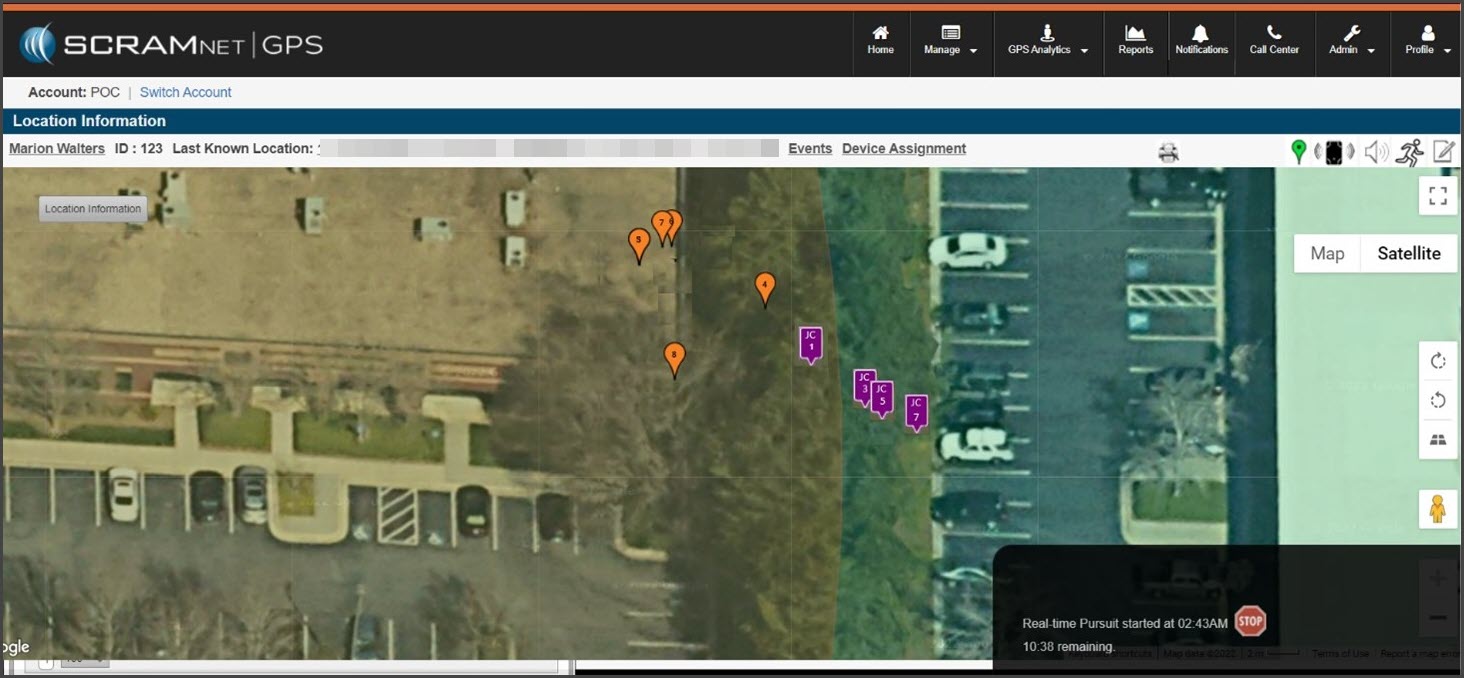
SCRAM Ally continues to send location points every minute (1) while in Pursuit Mode. Location points from both the client(s) and victim can be seen on the Location Information page in SCRAMNET GPS.