Beginning on Tuesday, April 13, 2021, a firmware update will be downloaded and installed on your SCRAM Remote Breath devices whenever:
A device is being assigned to a client.
An assigned device is being checked in.
You
also have the option to power up your “on the shelf” devices at any time to
perform the update.
The firmware update will take approximately two
minutes to complete. Please contact our Customer Service department at 303-785-7879
or support@scramsystems.com if any issues arise during the update.
A deployment scheduled for Thursday, April 8, 2021 introduces a new report and a change in how SCRAMNET reacts when a device is in the “Awaiting Return” status for 30 days.
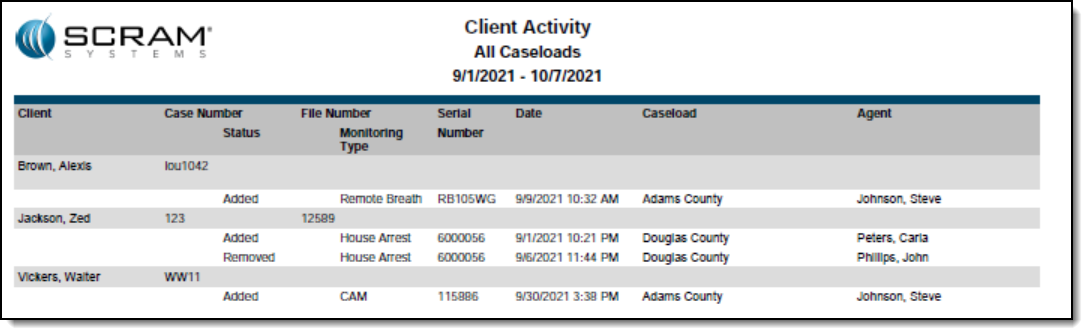
New Client Activity Report
This report allows customers to review all client activity within a selected date range for a specific location or for all locations. To access the report in SCRAMNET, click the Reports tab then click the Management sub-tab.
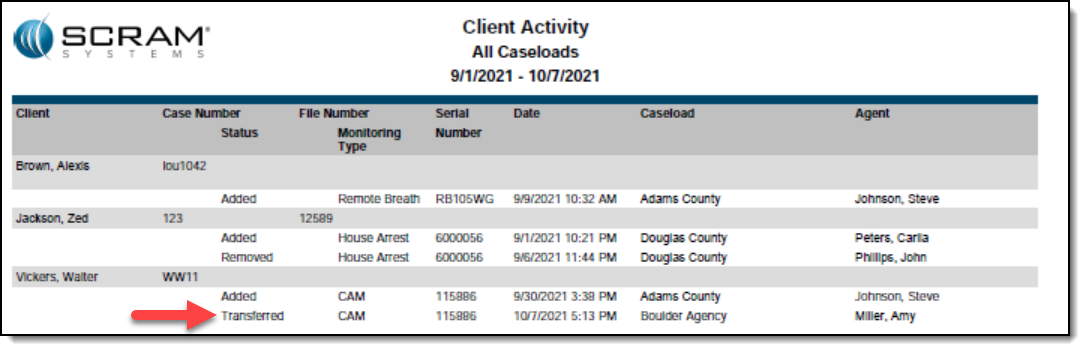
The Client Activity report also shows client transfers between agencies, as shown below.
Equipment No Longer Set to “Lost” After 30 Days in “Awaiting Return” Status
At the end of a client’s monitoring program, a SCRAM CAM or House Arrest bracelet and/or base station can be placed in the “Awaiting Return” status in SCRAMNET if the equipment is NOT on hand when the client is being removed from the program. Presently, SCRAMNET will automatically change the equipment status to “Lost” if the equipment is not checked in within 30 days.
However, customer feedback has informed us that equipment is often not returned within 30 days, but is also not lost. In response to your feedback, moving forward SCRAMNET will no longer automatically change the status of any device to “Lost” after 30 days. All equipment will remain in the “Awaiting Return” status until you check it in or designate it as “Lost” yourself.
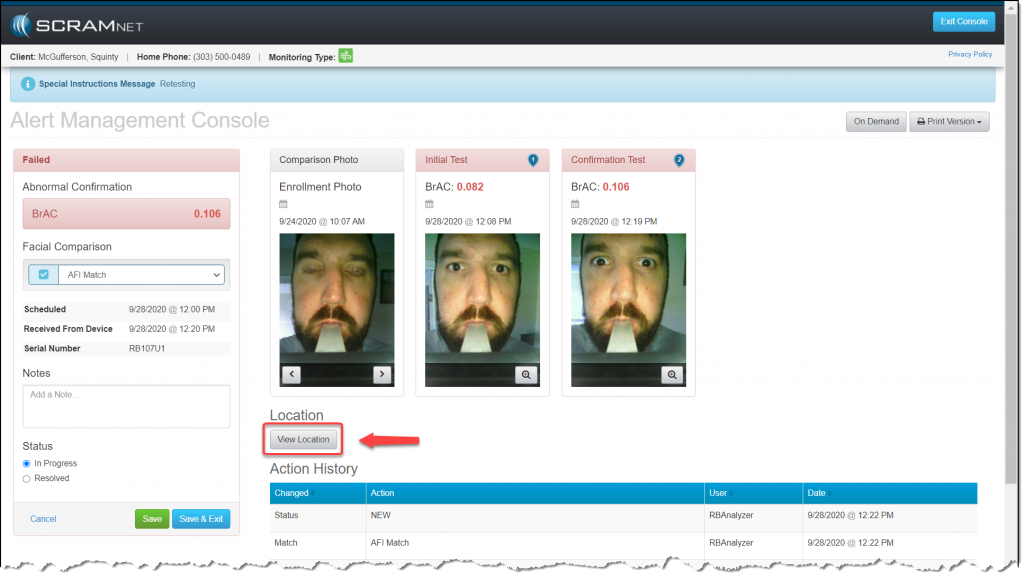
At 5:00 AM MST on Thursday, March 11, 2021, SCRAM Systems is introducing a new map-viewing feature that can be activated when analyzing an alert for a SCRAM Remote Breath client.
New View Location Button
Your SCRAM Remote Breath client’s geographical location is not always relevant to your analysis; so SCRAMNET now makes it your choice to view your client’s location, rather than display it automatically. To view a SCRAM Remote Breath client’s location on a map while reviewing RB alert details, click the new View Location button on the Alert Management Console.
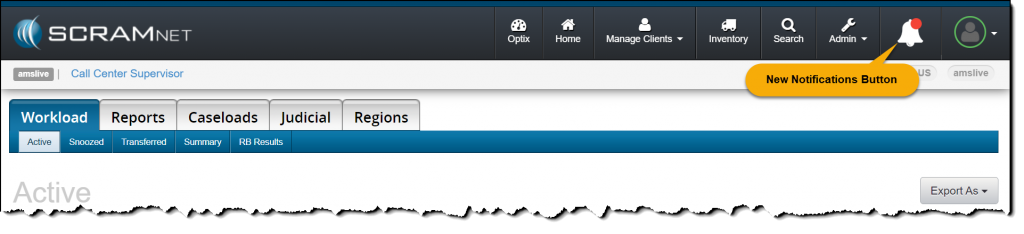
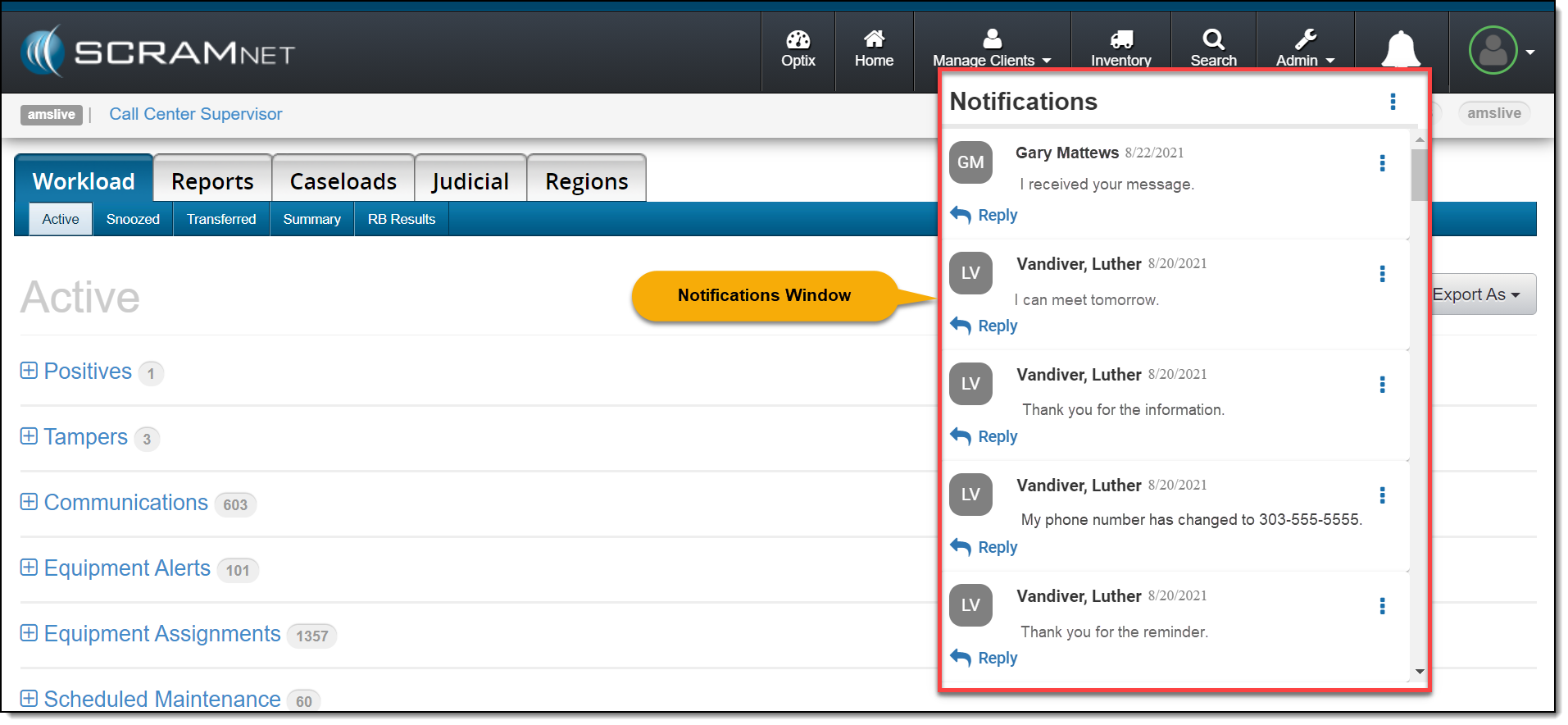
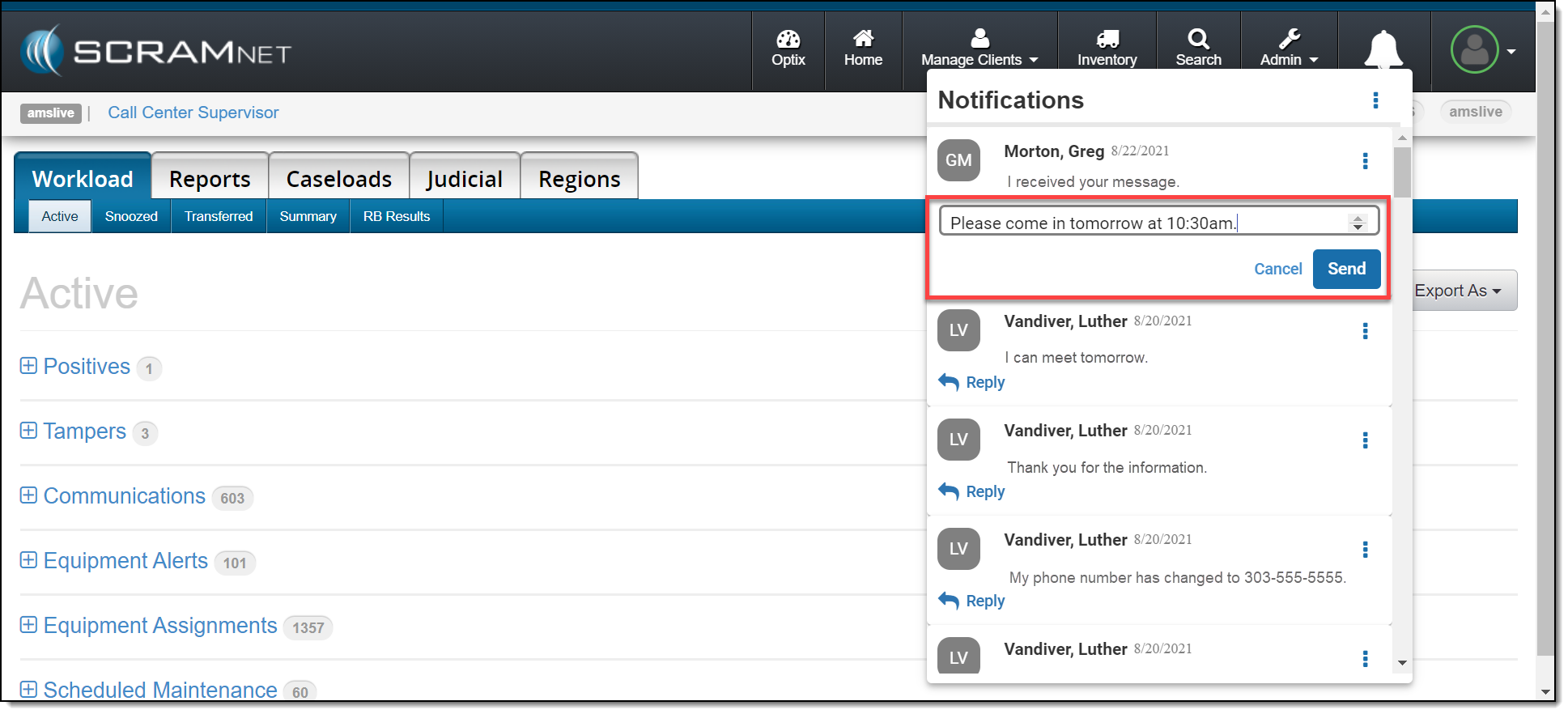
On March 4, 2021, SCRAM Systems® will release a new Notifications Window in SCRAMNET®. This Notification Window displays new messages sent from your SCRAM TouchPoint™ client caseload. With this feature you can view, clear, mark messages as read, or respond to your clients’ messages from within SCRAMNET. All actions completed within the Notifications Window are reflected on each client’s TouchPoint Messaging page.
Notifications in SCRAMNET
When a new message is sent by your client through the SCRAM
TouchPoint app, the Notifications button in SCRAMNET will display a red badge. To view the message, click the button.
click to enlarge
On the Notifications Window, the client’s name, date, and message is displayed.
click to enlarge
Managing the Notifications Window
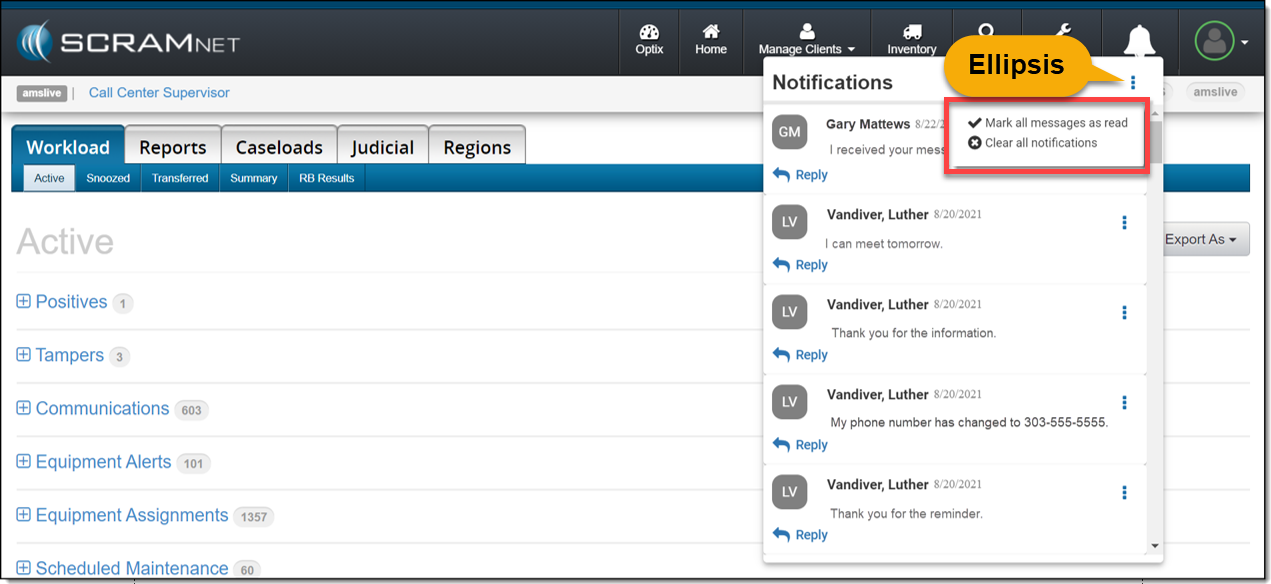
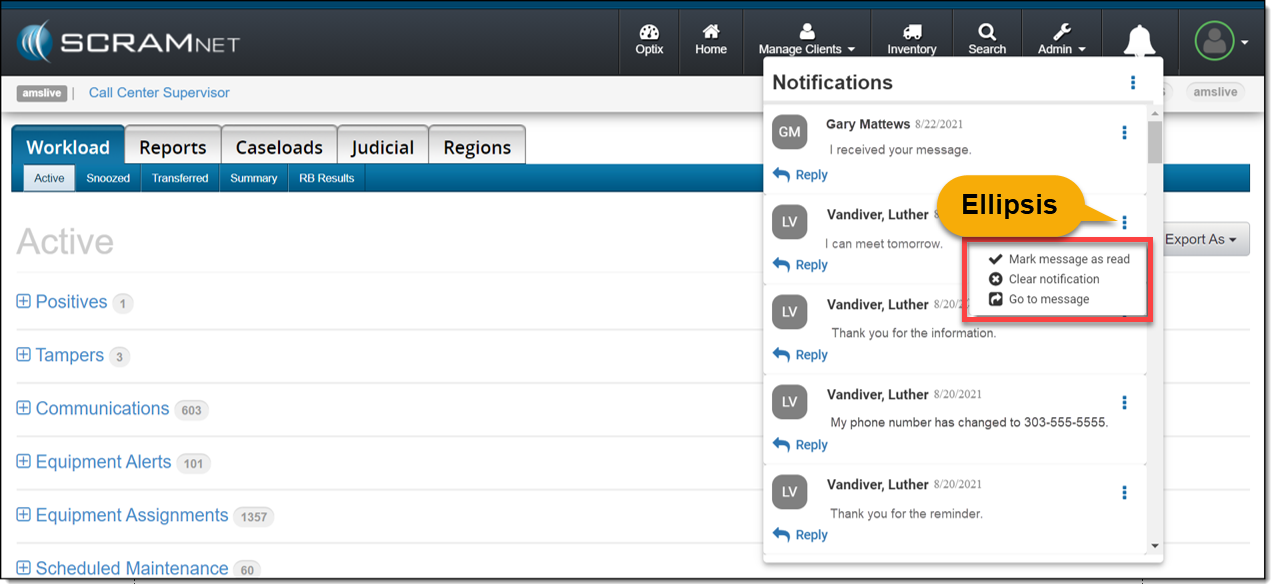
Selecting the ellipsis next to the Notifications
heading or next to the client’s name will display a menu with following options:
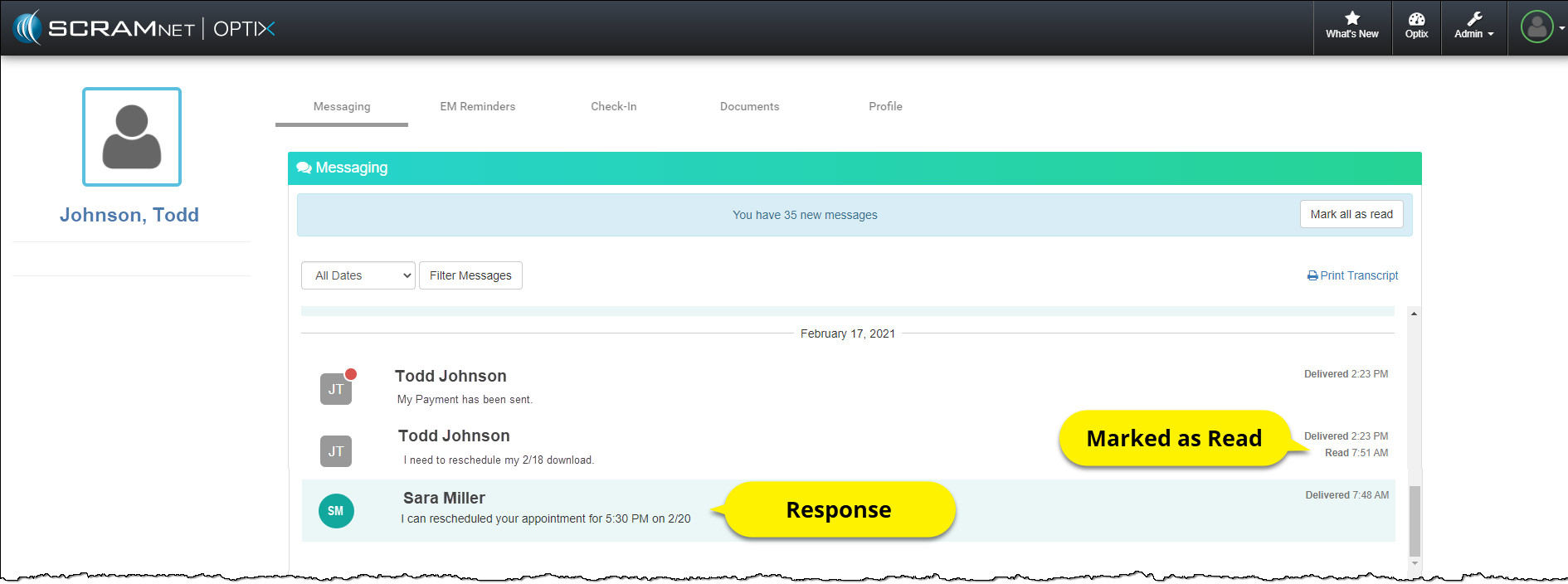
Mark all messages as read or Mark message as read: When selected, the message will be cleared from the Notifications Window. On the client’s TouchPoint Messaging page, the message will display as Read for the client.
Clear all Notifications or Clear Notification: When selected, this option will clear the message from the Notifications Window in SCRAMNET. This does not mark the message as Read on the client’s TouchPoint Messaging page; it simply clears the message from the Notifications Window.
Go to Message: This option will open a new tab that displays the client’s TouchPoint Messaging page. This action will clear the message from the Notifications Window.
Option One
Mark all messages as read or clear all notifications by selection the ellipsis to the right of the Notifications heading.
click to enlarge
Option Two
Manage each message individually by selection the ellipsis next to the message.
click to enlarge
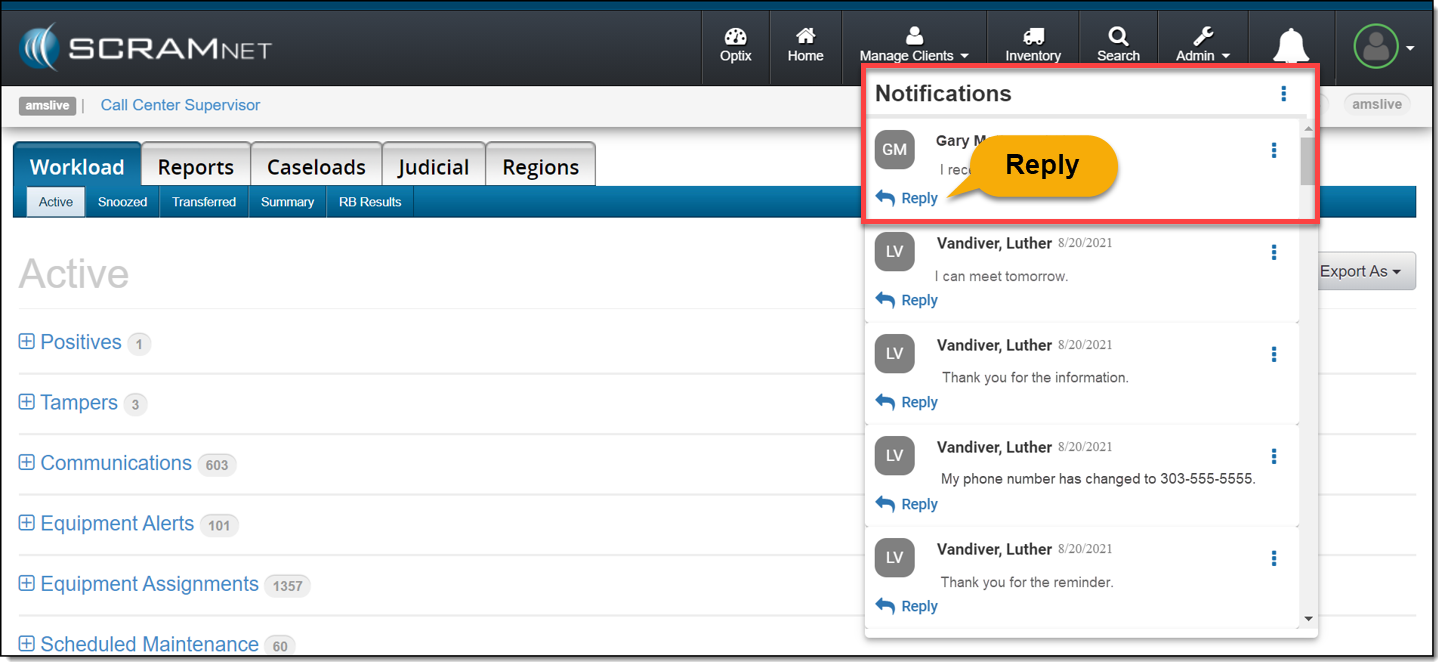
Reply
Click the Reply link to respond to the client’s message. After entering a response, click the Send button.
click to enlargeclick to enlarge
The message will no longer be displayed in the
Notifications Window.
On the client’s TouchPoint Messaging page, the
message will be marked as Read and the response sent by the user will be
displayed.
click to enlarge
Feedback
As always, please contact SCRAM Systems Customer Service with any
recommendations for system improvements.
On February 18, 2021, SCRAM Systems® will release a new option on the Stop Monitoring and Change Client Status pages in SCRAMNET®. This new option will allow you to inactivate/disable a SCRAMNET client and their linked SCRAM TouchPoint™ profile simultaneously.
Inactivate the SCRAMNET
Client Profile
Option One:
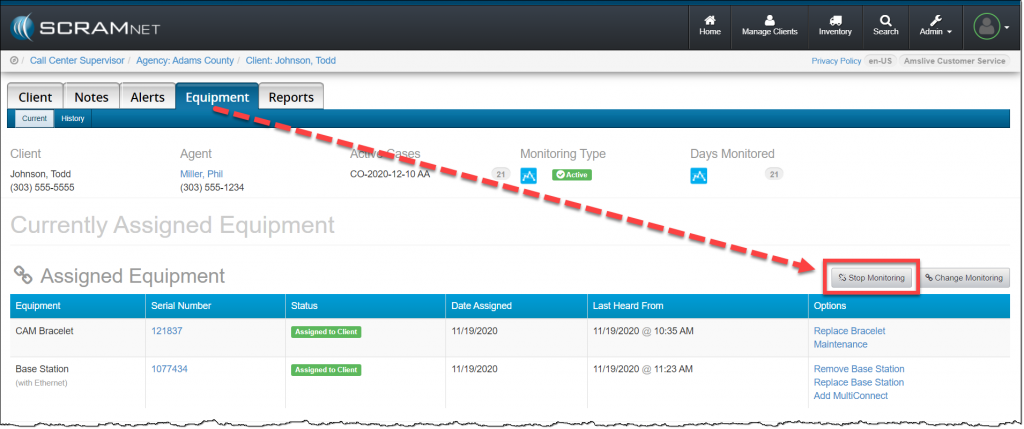
In SCRAMNET click the
Stop Monitoring button on the client’s Equipment page.
click to enlarge
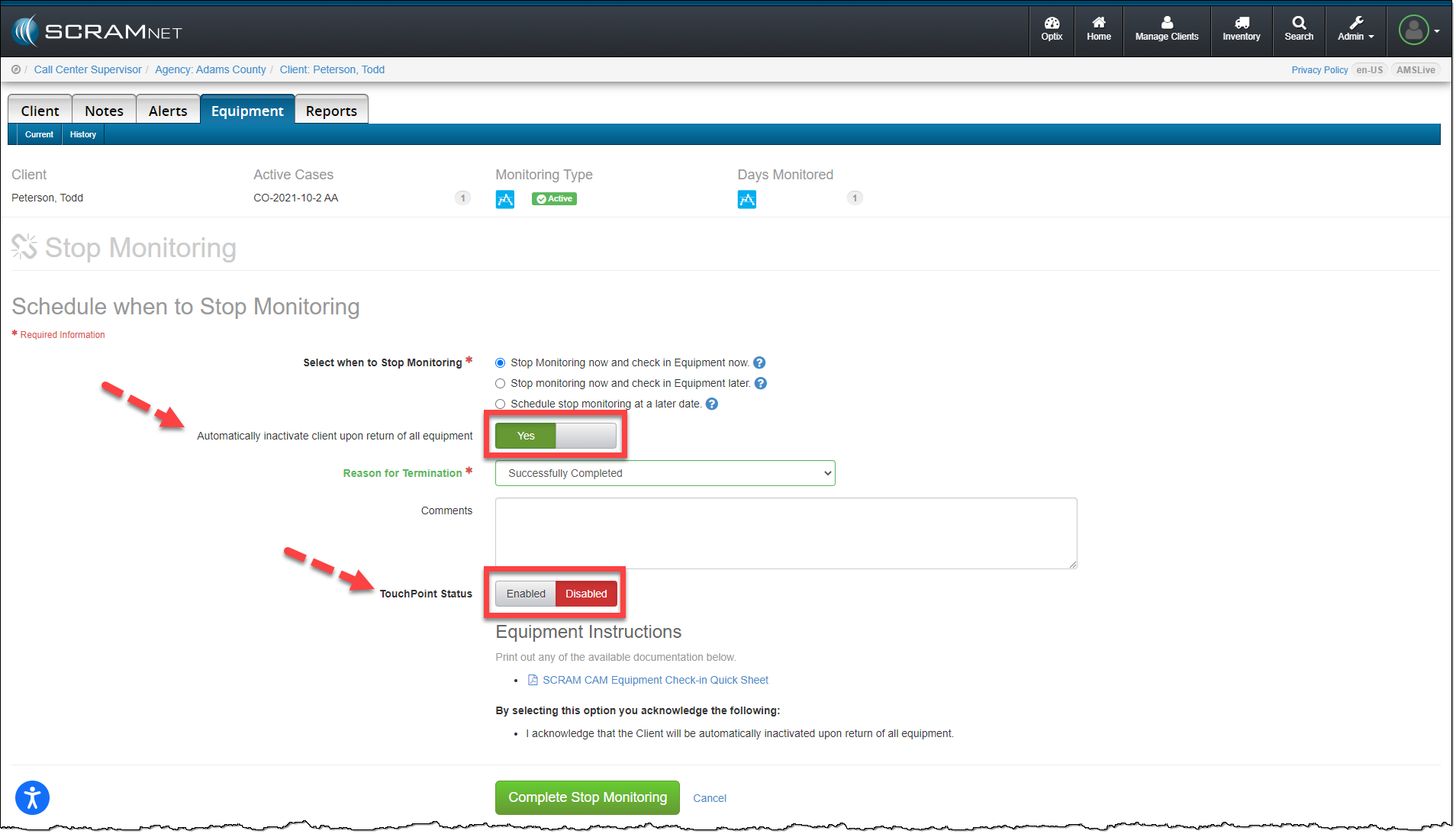
On the Stop Monitoring page, you have the option to
automatically inactivate the client upon return of all equipment. When this
option is updated to Yes, you now have the option to disable the
client’s linked TouchPoint profile at the same time. Next to the TouchPoint
Status option, simply toggle the Enabled option to Disabled and
click the Complete Stop Monitoring button.
click to enlarge
Option Two:
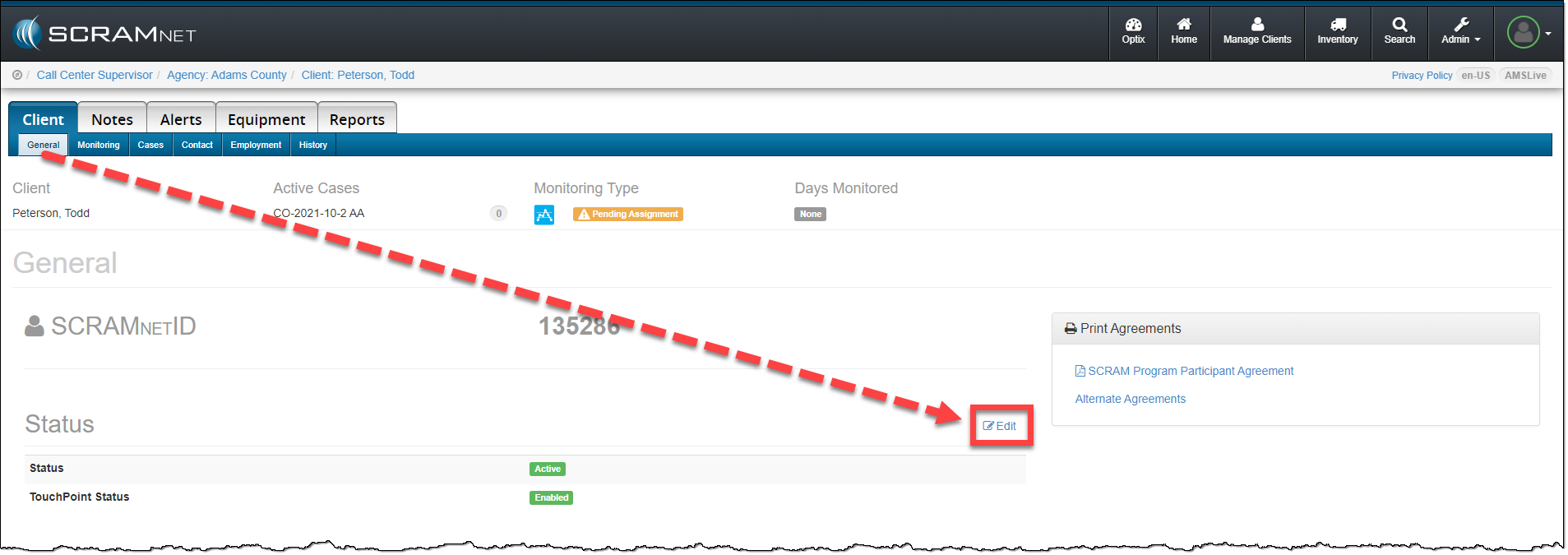
When inactivating the client’s SCRAMNET profile from the Status section, click
the Edit link on the Client page.
click to enlarge
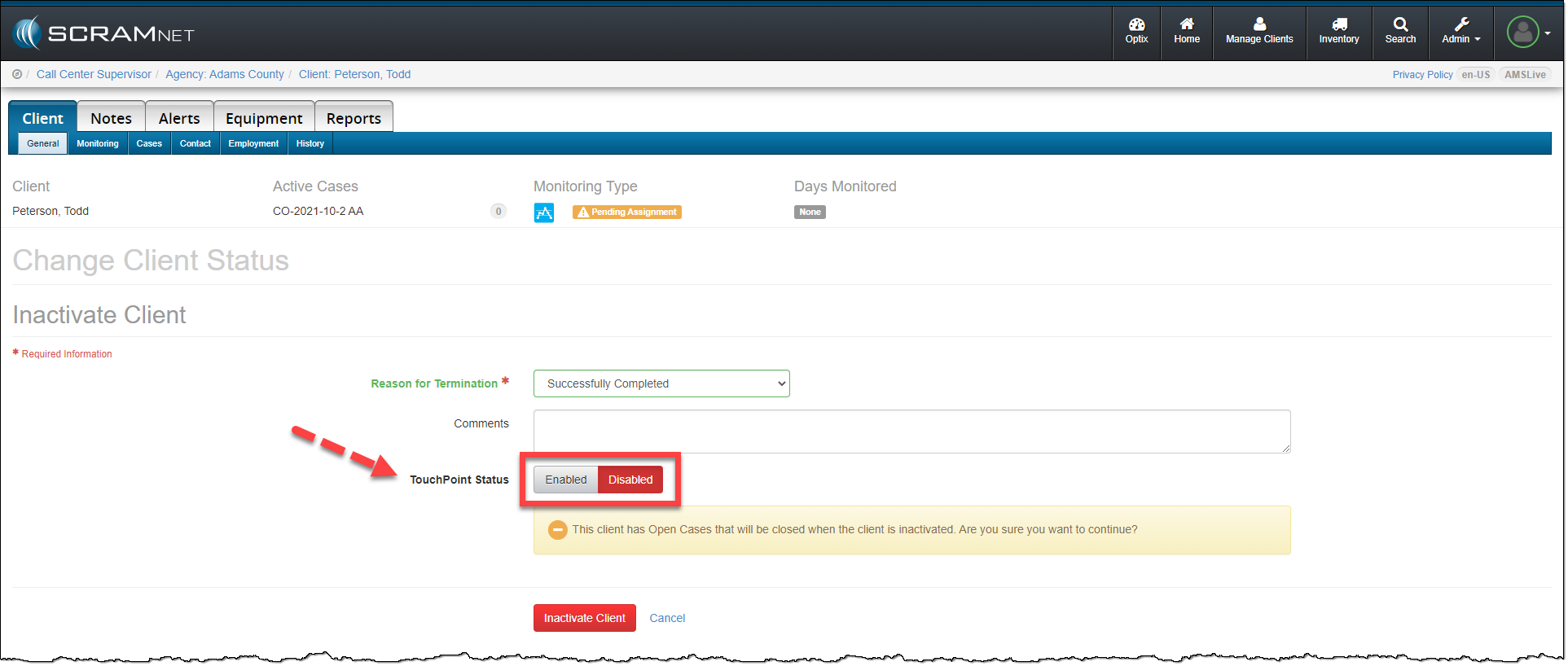
On the Change Client Status page, toggle the
TouchPoint Status from Enabled to Disabled. To complete the
process, click the Inactivate Client button.
click to enlarge
The SCRAMNET client profile is inactivated and the client’s TouchPoint profile and any enabled services are automatically disabled.
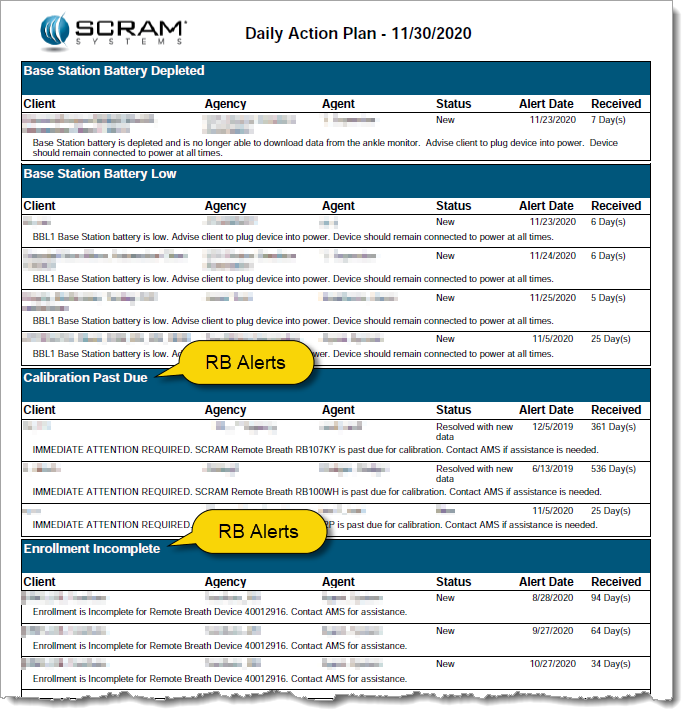
Every customer has unique operational needs and SCRAM Systems strives to meet those needs whenever possible. To this end, we are expanding the types of alerts that you can choose to include in the Daily Action Plan (DAP) that you receive each morning. In addition to the CAM alerts that are included by default, the Remote Breath (RB) alerts displayed on the RB Results page can also be included on the DAP.
RB Alerts on the Daily Action Plan Report
Potential Time-Saver
Adding Remote Breath alerts enables you to use the DAP as a starting point to address CAM and RB alerts that require some type of action on your part. This allows you to easily see the RB alerts you need to work before logging into SCRAMNET, which saves you precious processing time.
Something to Consider: 500 Max
If you are interested in activating this new feature, please note that a maximum of 500 RB alerts can appear on the DAP. If your RB Results page has not been managed for some time and you have a high number of alerts, you may want to reduce the alert count to a more manageable level before enabling this feature on the DAP report.
If you elect to enable this feature and there are more than 500 alerts listed on the RB Results page, only the most recent 500 alerts will be included in the DAP. As you work alerts and they drop off the DAP report, older alerts will “backfill” the completed ones overnight each night, until all the outstanding alerts on the RB Results page have been addressed.
Activate Feature (Administrator only)
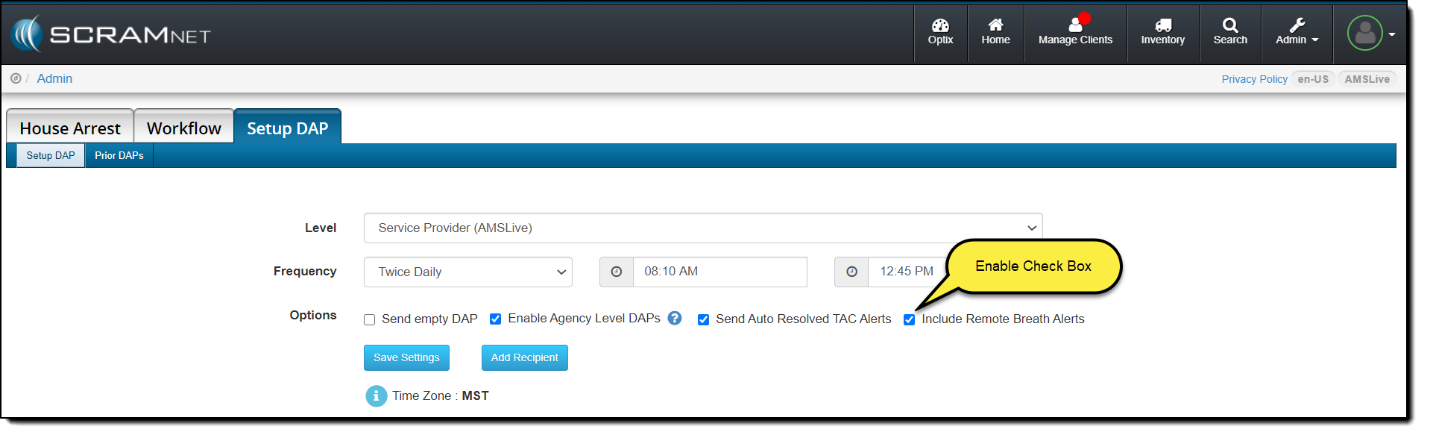
To activate this feature so RB alerts appear on the DAP, an administrator must access the Setup DAP page in SCRAMNET and select the Include Remote Breath Alerts check box, as shown below.
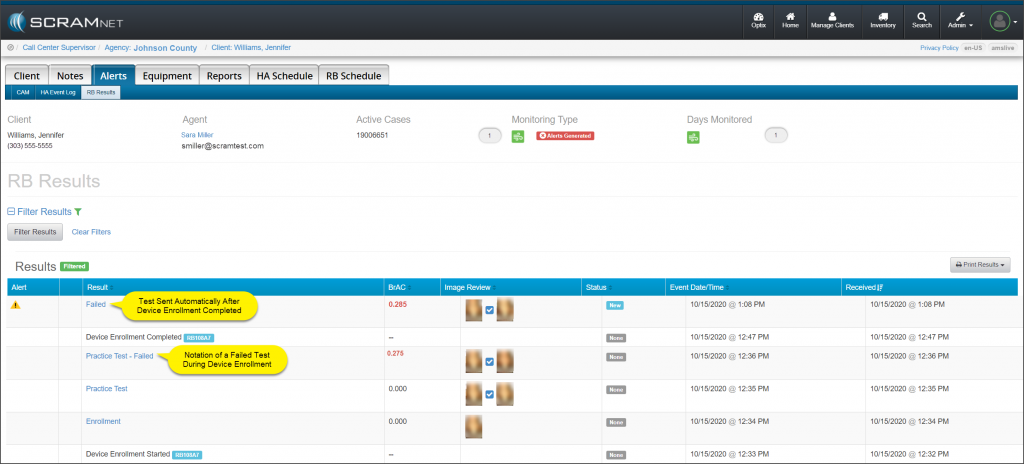
On Thursday October 22, 2020, SCRAM Systems® will release an update to the
Device Enrollment process for clients who provide a positive breath test during
the Device Enrollment period. After the release, all practice tests with a BrAC
above the agency’s threshold will be noted as Practice Test –Failed
on the RB Results page. In addition, once the Device Enrollment is completed by
powering down the device, the device will automatically power back up and
request a test be completed by the client. This automatic test will follow the same
process followed when a positive breath sample has been provided.
SCARMNET Client’s RB Results page (click to enlarge)
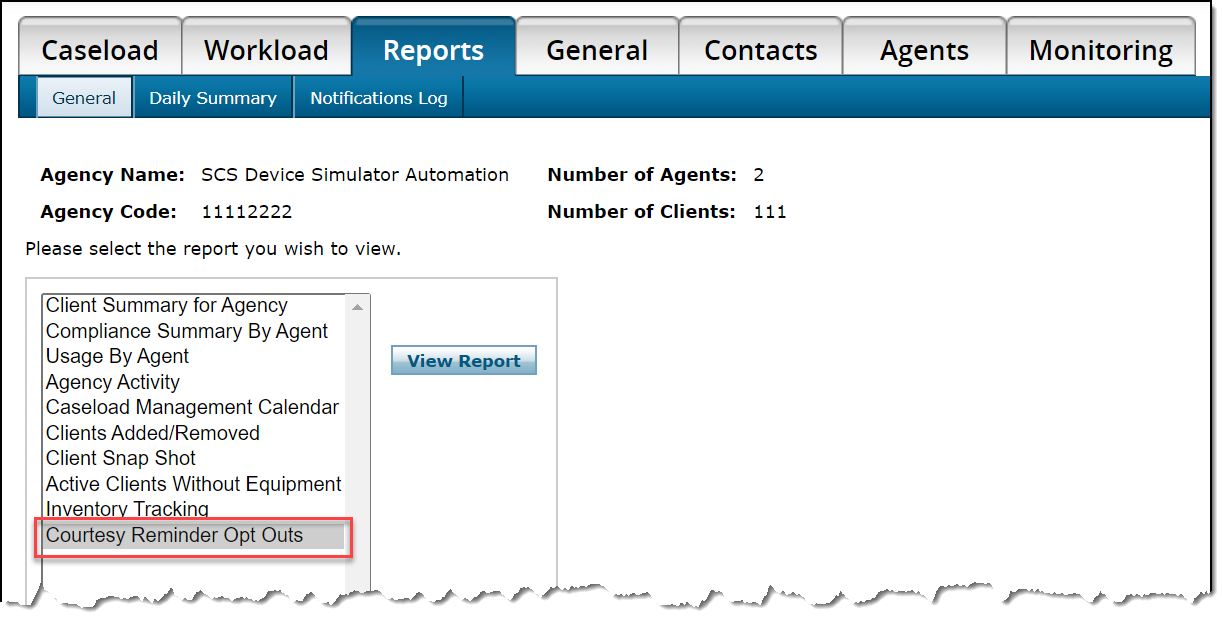
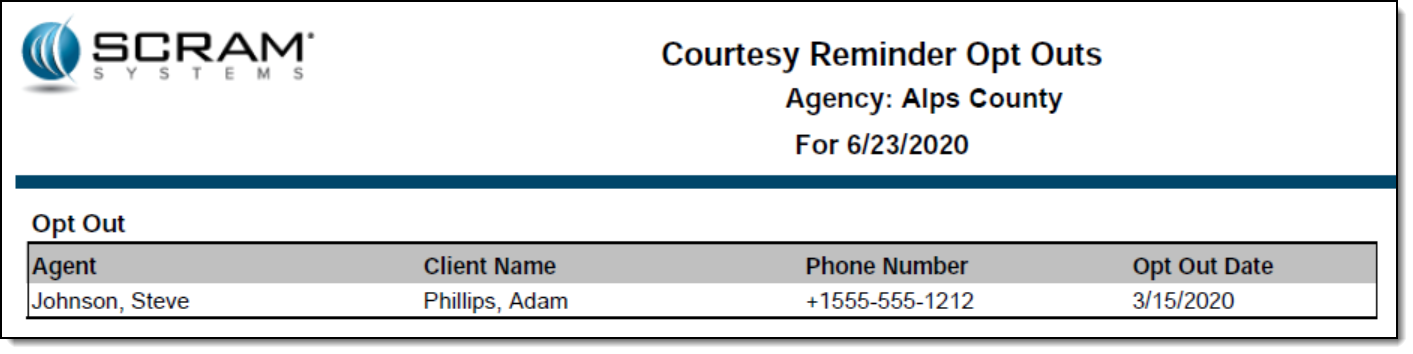
A new Courtesy Reminder Opt Outs report is now available for each caseload in SCRAMNET®. This report lists all SCRAM Remote Breath® clients who elected to opt out of receiving courtesy reminders that assist those clients with performing each breath test at the scheduled time.
To access the report:
Access the caseload in SCRAMNET.
Click the Reports tab.
Select the Courtesy Reminder Opt Outs option in the left report list.
Click the View Report button.
All active SCRAM Remote Breath clients in the caseload who have ever opted out of receiving courtesy reminders will appear on the report.
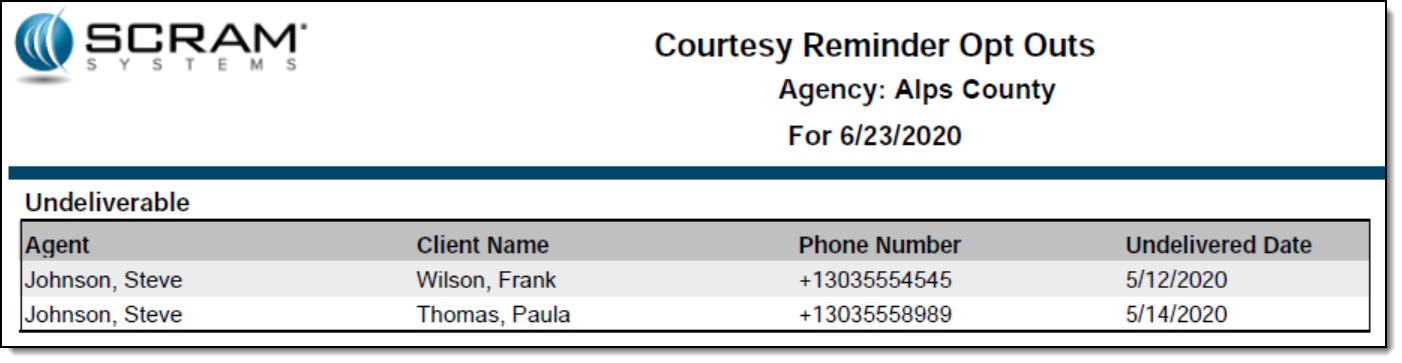
The second page of the report will list each client with an associated phone number that resulted in an “Undeliverable” message being generated when a courtesy reminder was sent.
Feedback
As always, please feel free to contact SCRAM Systems Customer Services at 1-303-785-7879 with any recommendations for system improvements.
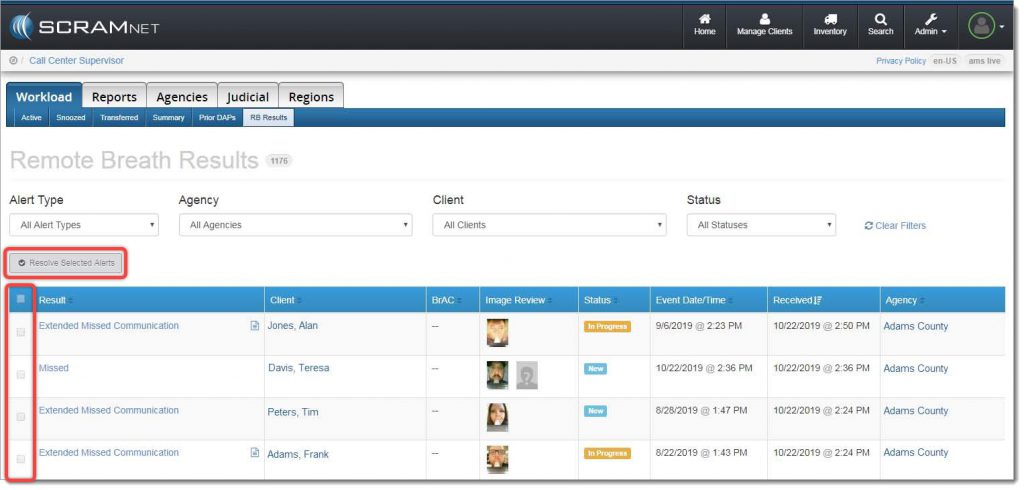
With the October 24, 2019 release, SCRAMNET® offers you a simple way to resolve multiple SCRAM Remote Breath® alerts in one action. A real time-saver when you are managing a heavy client caseload! To accomplish this, navigate to the RB Results page (shown below), and locate the new Resolve Selected Alerts button and checkbox column.
Remote Breath Results page
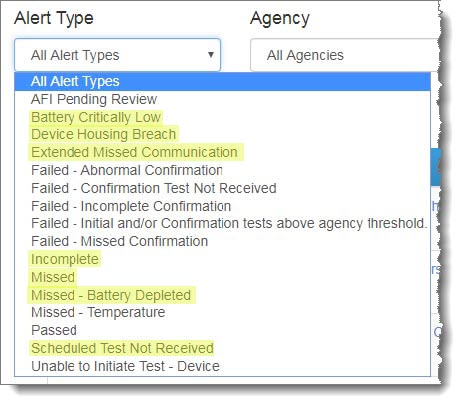
Next, select the specific type of alert you wish to bulk resolve from the Alert Type dropdown menu:
Alert Type dropdown menu
IMPORTANT: Bulk Resolve is only available for the following Alert Types:
Battery Critically Low
Battery Low
Device Housing Breach
Extended Missed Communication
Incomplete
Missed
Missed – Battery Depleted
Scheduled Test Not Received
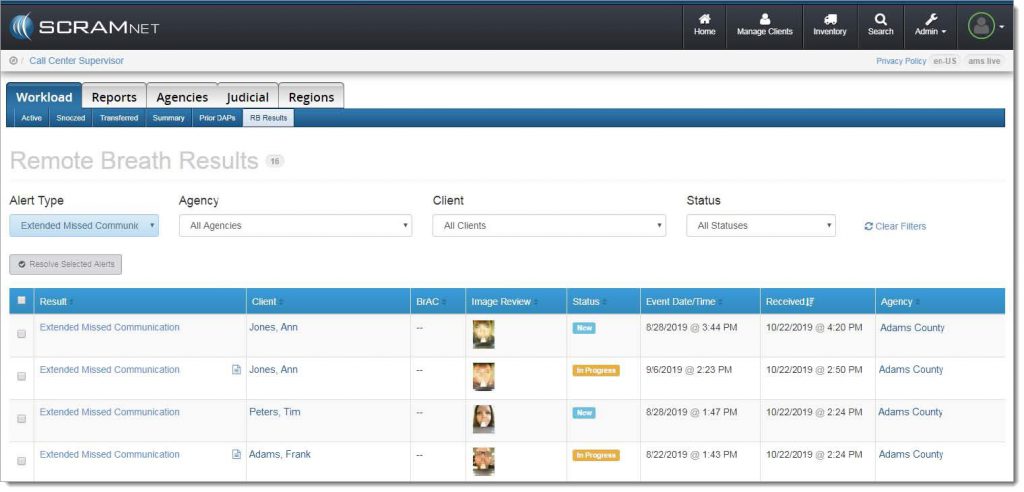
The alert list will be filtered to display only the selected alert type:
Filtered results
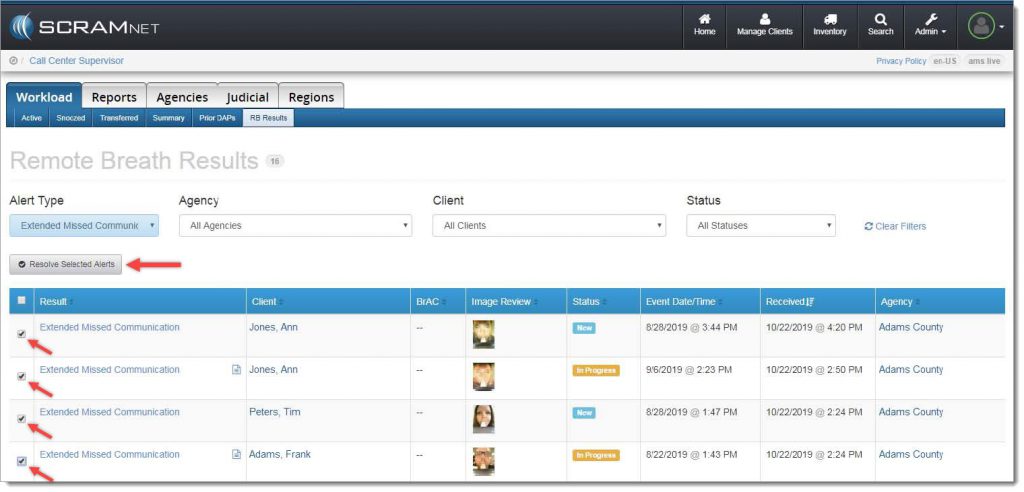
Select the checkbox for each individual alert to be resolved, or select the checkbox in the blue table header at the top of the list to select all alerts listed, and then click the Resolve Selected Alerts button.
Resolve the selected alerts
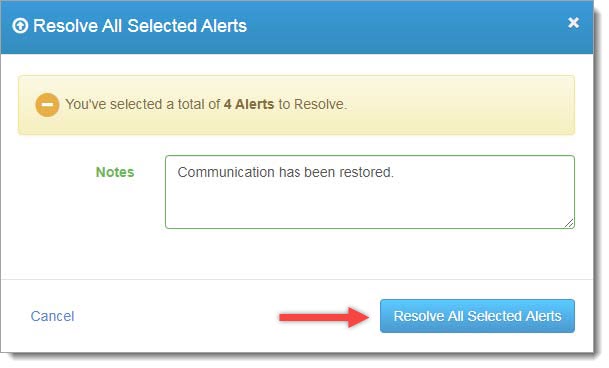
A confirmation pop-up window will appear as shown below. To complete the process, enter a note (required), and then click the Resolve All Selected Alerts button.
Confirmation pop-up window
The resolved alerts will no longer appear on the RB Results page.
Feedback
As always, please contact SCRAM Systems Customer Service at 1-303-785-7879 with any recommendations for system improvements.
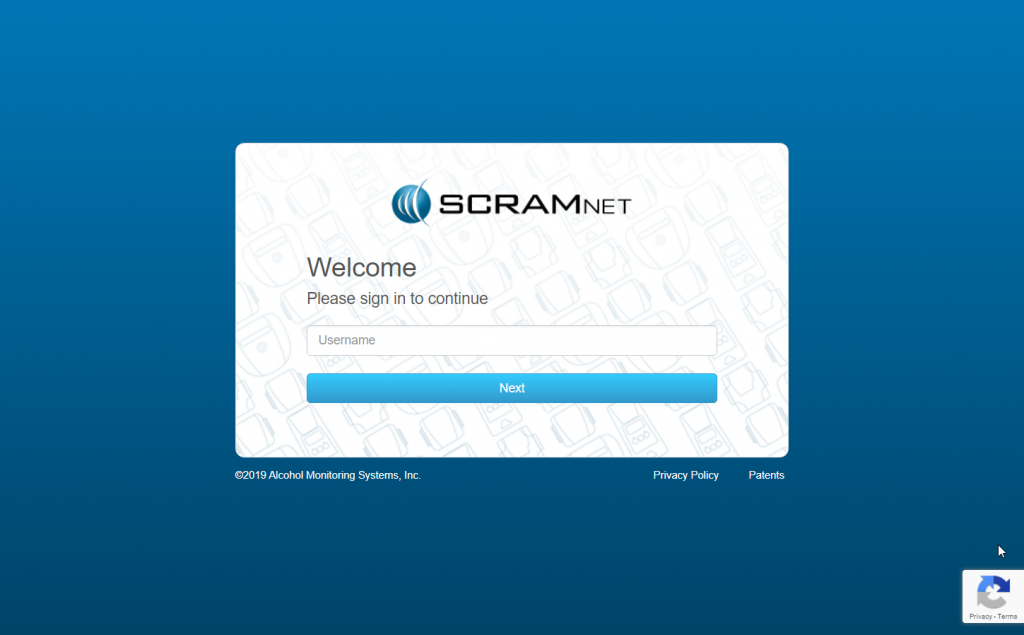
Starting this Wednesday, September 18, 2019, when
you log into any of our SCRAM client management systems, you will notice newly
designed login pages. Simply enter your user name, click the Next
button, enter your password, and click the Sign In button to access the
system.
The primary reason for notifying you regarding this
change is to ensure you that, when you see this new look-and-feel, you are actually
logging into the correct site and not a pirated or “spoofed” site.