archives

Overview:

This Release includes a couple of very exciting new features:

  • Browser Notifications for SCRAM TouchPoint™ Messages
  • The addition of Client Directives

Officer: TouchPoint Message Browser Notifications

As an officer, you now can opt-in to receive Browser Notifications from SCRAM Nexus®. This will allow you to be notified when you have new TouchPoint messages, even if you do not have Nexus visible on a screen.
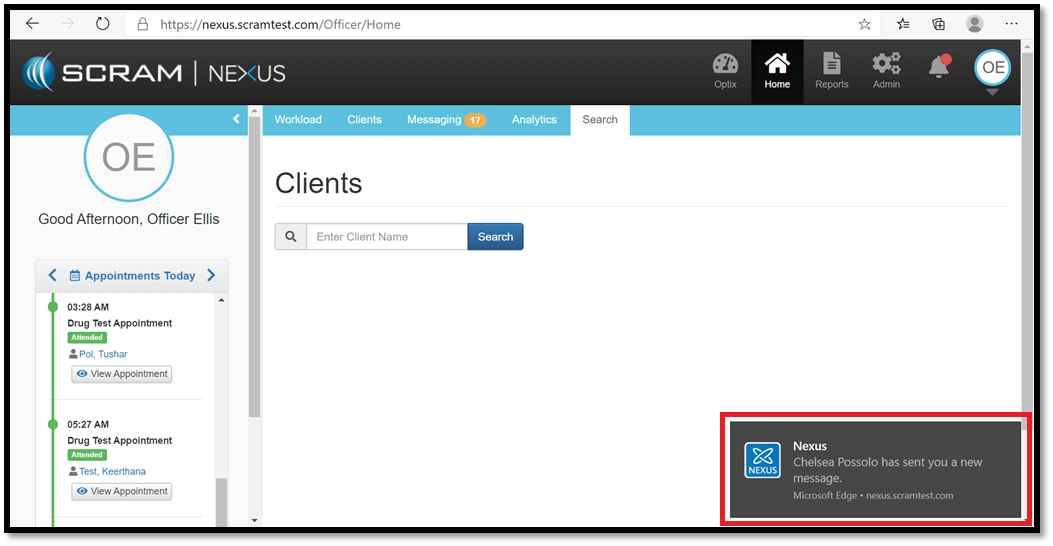
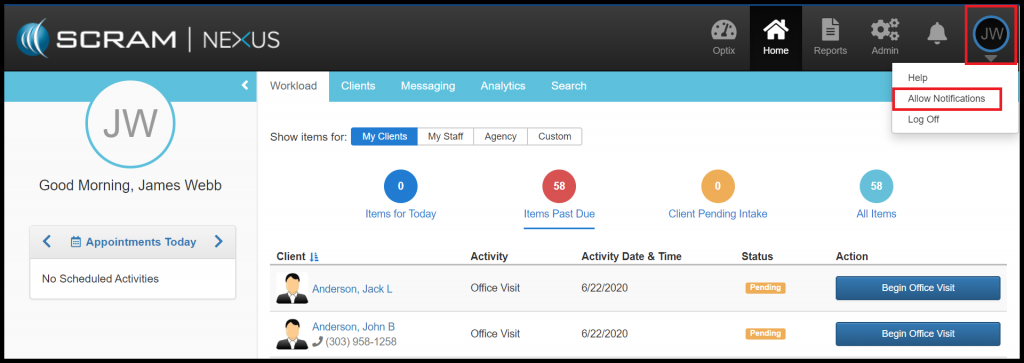
The next time you log into Nexus, you will be asked to “Allow” notifications on the browser that you are logged in with. This feature works on all modern browsers (Chrome, Firefox, and Edge to name a few). If you are not prompted to “Allow” notifications, you can manually do this by clicking on your user initials in the upper right corner and select “Allow Notifications”.
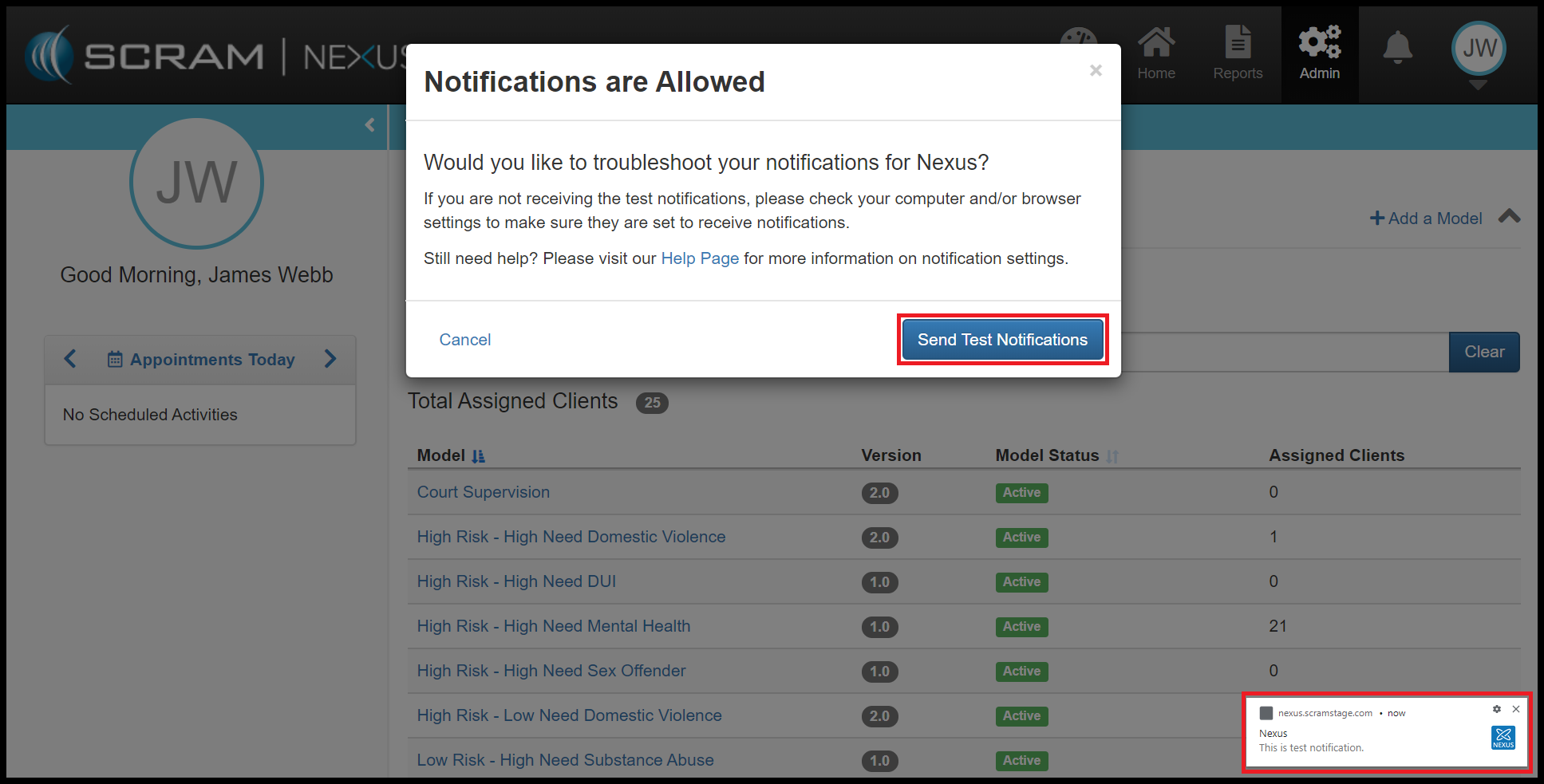
Once the notifications are enabled, you can send yourself a test message.
Client: Track Client Directives

As an Officer, you now can assign Client Directives. Client Directives differ from Client Tasks in that directives can be used to easily track recurring instructions. For example, “Bring in your time-sheet every 2 weeks” or “Turn in AA Attendance Sheet”. Directives have a start dates, due dates, and can track when the client successfully completed or failed to complete the directive.
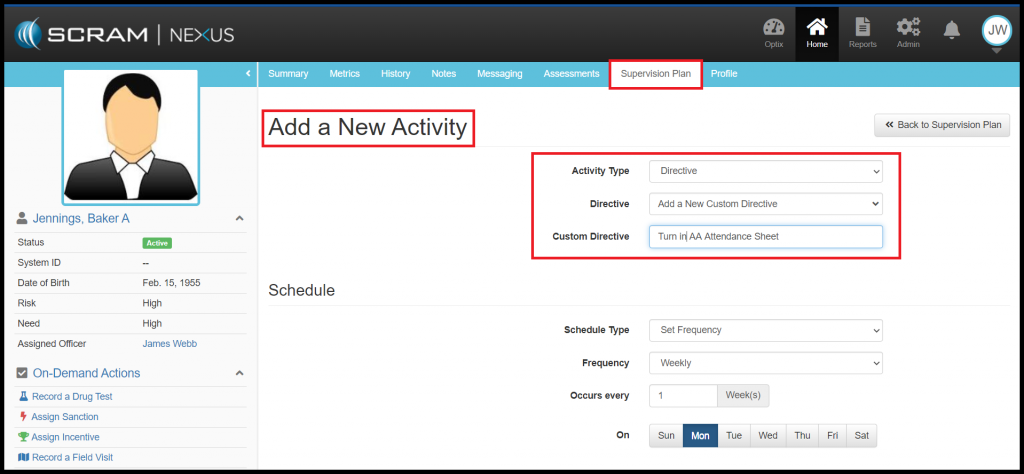
Administrators of Nexus can add Directives to the Condition Catalog and to a Model. Directives can then be assigned to a client through the Supervision Plan. An Officer can add a Directive to a Client’s Supervision Plan from the Activity list, or they can create a Custom Directive for the client. The officer will need to indicate whether the directive will be a one-time or a recurring event and enter in a date that the directive is due. Officers can also indicate whether the directives will require a behavior response based on the outcome of the directive. If a response is required, Nexus will automatically recommend an incentive or sanction upon completion (or incompletion) of the Directive.

Feedback

As always, please contact SCRAM Systems Customer Service at 1-303-785-7879 with any recommendations for system improvements.
Continue Reading

Overview

On Wednesday June 17, 2020, SCRAM Systems will be releasing new features in SCRAM 24/7™ that include the ability to create a Caseload Specific Fees and the option of having a new or edited fee be applied to all current clients or just new clients.

  • Add a Caseload Specific Fee
  • Apply a New or Edited Fee to all Active Clients
  • Associate an Existing Fee to a Specific Caseload
  • Disable a Fee for an Activity and Apply to All Active Clients

Add a Caseload Specific Fee and Apply the Fee to all Active Clients

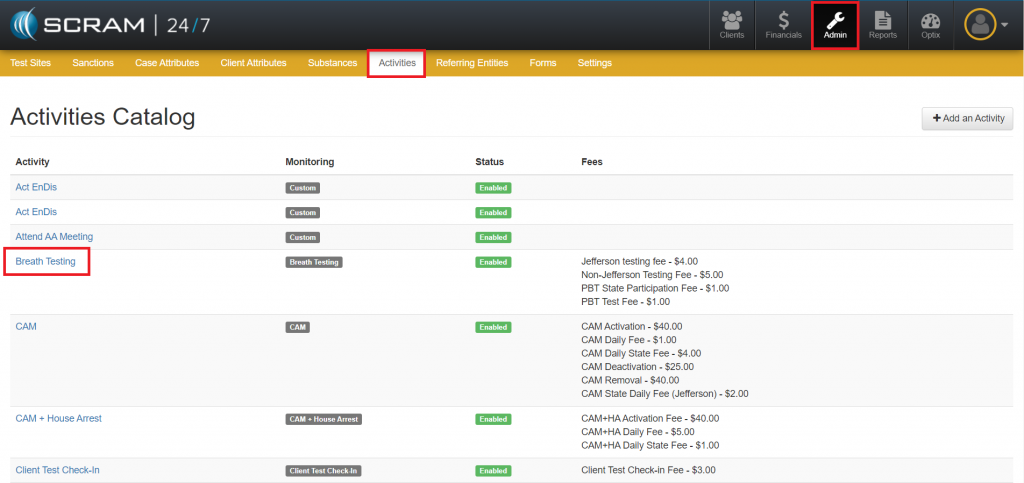
  1. Access the Activities Catalog page in the Admin area.
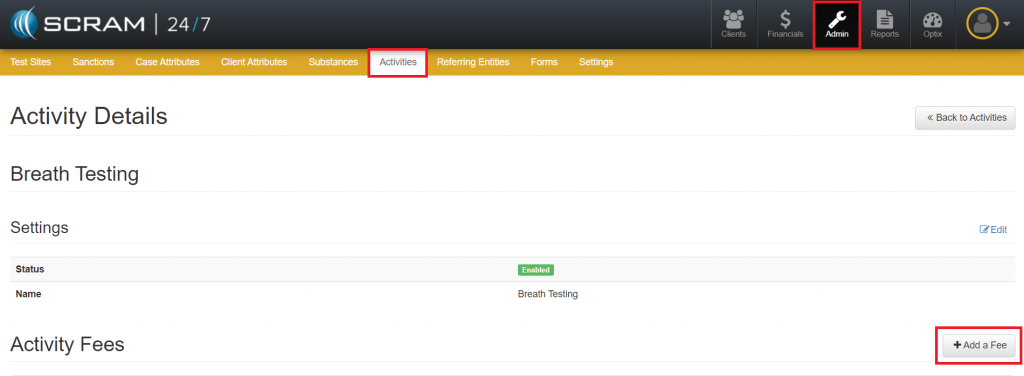
  2. Select the activity in which a Caseload Specific Fee will be added.
  1. Click the Add a Fee button.
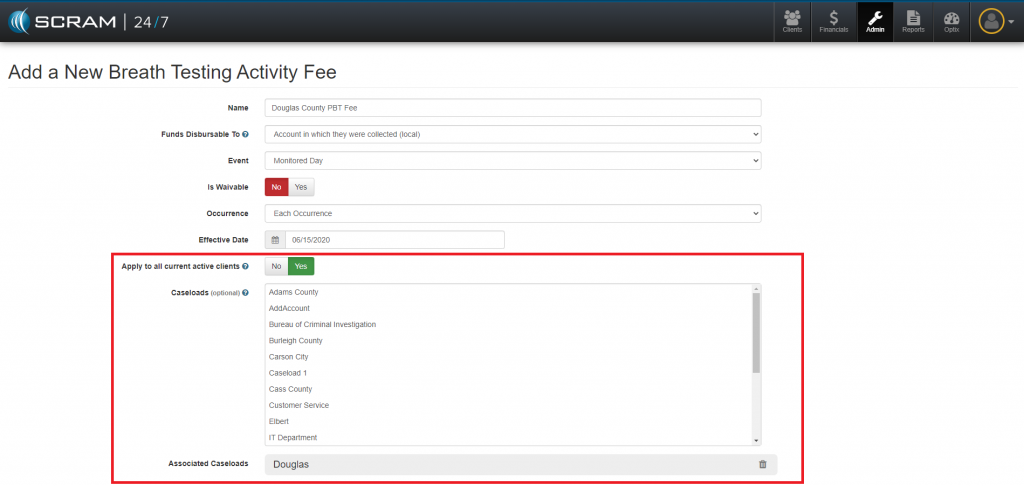
  1. Create the Fee:
    1. Name
    2. Funds Disbursable – Designate whether the fee should be disbursable to the state.
    3. Event – What should trigger the fee to be issued?
    4. Is Waivable
    5. Occurrence – How often should the fee be issued?
    6. Effective Date – Fee cannot be backdated.
    7. Apply to All Current Active Clients – Clicking the Yes button will apply this fee to active clients who have this activity assigned.
    8. Caseload – This option allows you to specify the test where the fee will be applied. If none is selected, the fee will be applied to all test sites.
    9. Amount Type:
      1. Single Fixed Value
      2. Range of Values
      3. Fixed Set of Values

Edit Fee Amount and Apply to All Active Clients

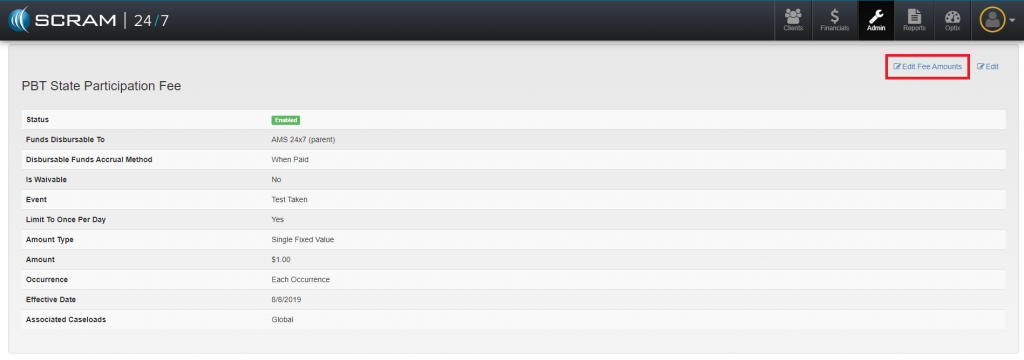
  1. Navigate to the fee.
  2. Click the Edit Fee Amounts link.
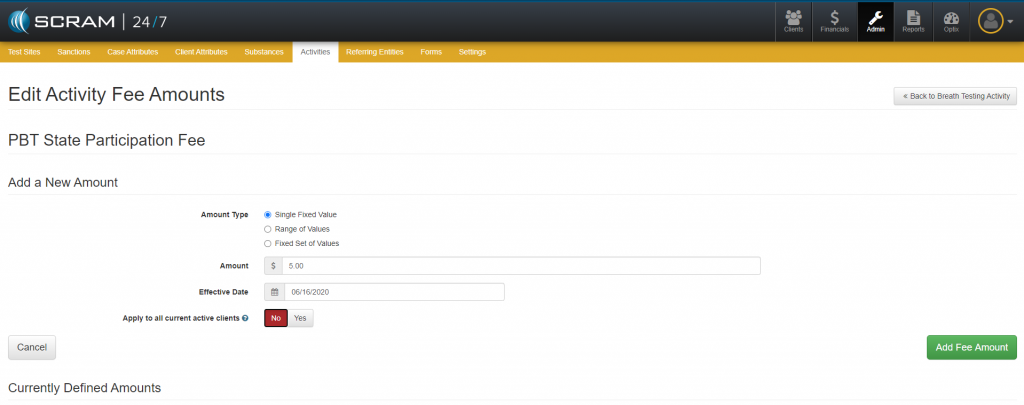
  1. Edit the Amount Type, the Amount and or the Effective Date.
  2. Select whether the change should be Applied to All Current Active Clients.
    • Selecting the Yes button – Will apply this edited fee to all active clients who have this activity assigned.
    • Selecting the No button – Will only apply this edited fee to new clients that have been assigned to this activity.

Associate an Existing Fee to a Specific Caseload

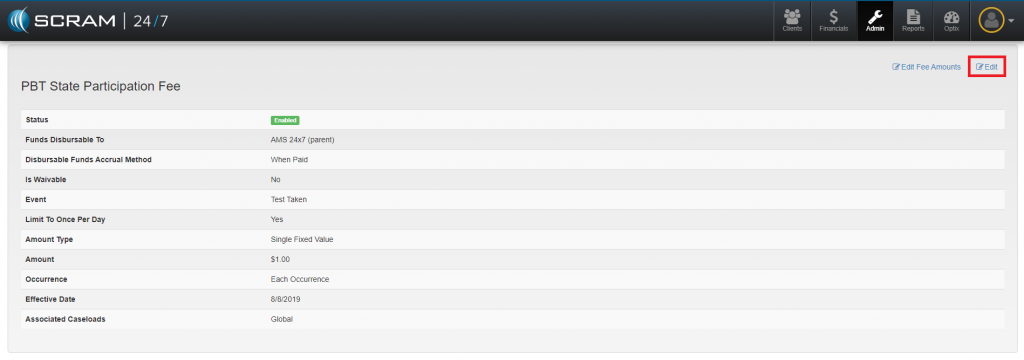
  1. Navigate to the fee.
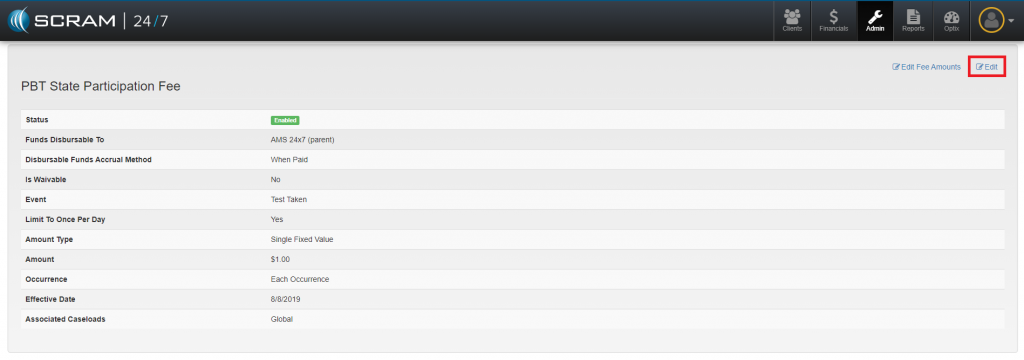
  2. Click the Edit link.
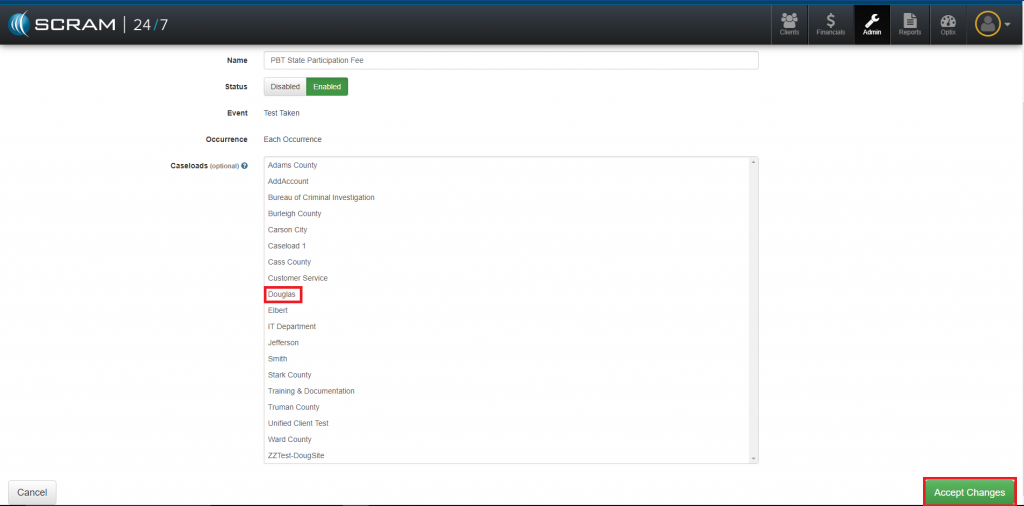
  1. Select Caseload(s).
  2. Click the Accept Changes button.

Disable a Fee for an Activity/Applied to All Active Clients

  1. Navigate to the fee.
  2. Click the Edit link.
  1. Click the Disable button.
  2. Apply to all Current Active Clients field.
    • Selecting the Yes option – Will remove this fee for all active clients who have this activity assigned.
    • Selecting the No option – The fee will remain for current clients but will not be an option for future clients.

Feedback

As always, please feel free to contact SCRAM Systems Customer Service at 1-303-785-7879 with any recommendations for system improvements.
Continue Reading