archives

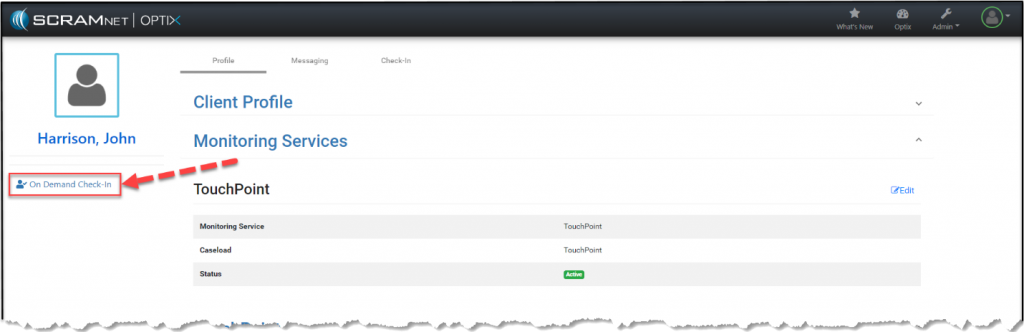
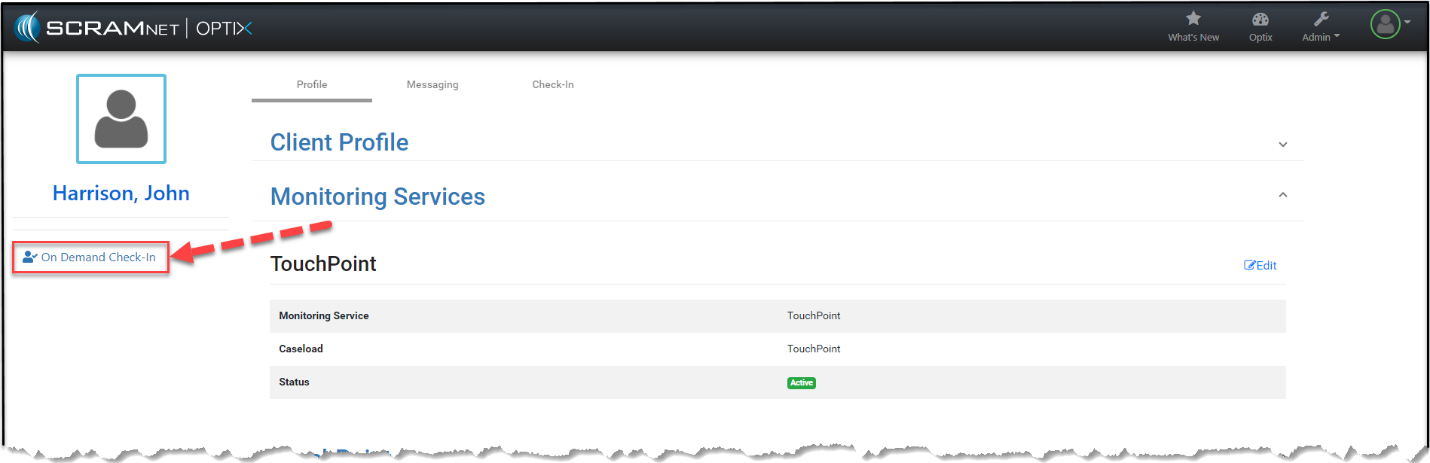
On, March 7, 2022, SCRAM Systems® will release an update to the TouchPoint client profile page.  With this update, you will be able to send an on-demand check-in by selecting the new On-Demand link, which is available on the left side of the client’s profile page.

To get started:

  1. Navigate to the client’s profile page in Optix and select On Demand Check-In.
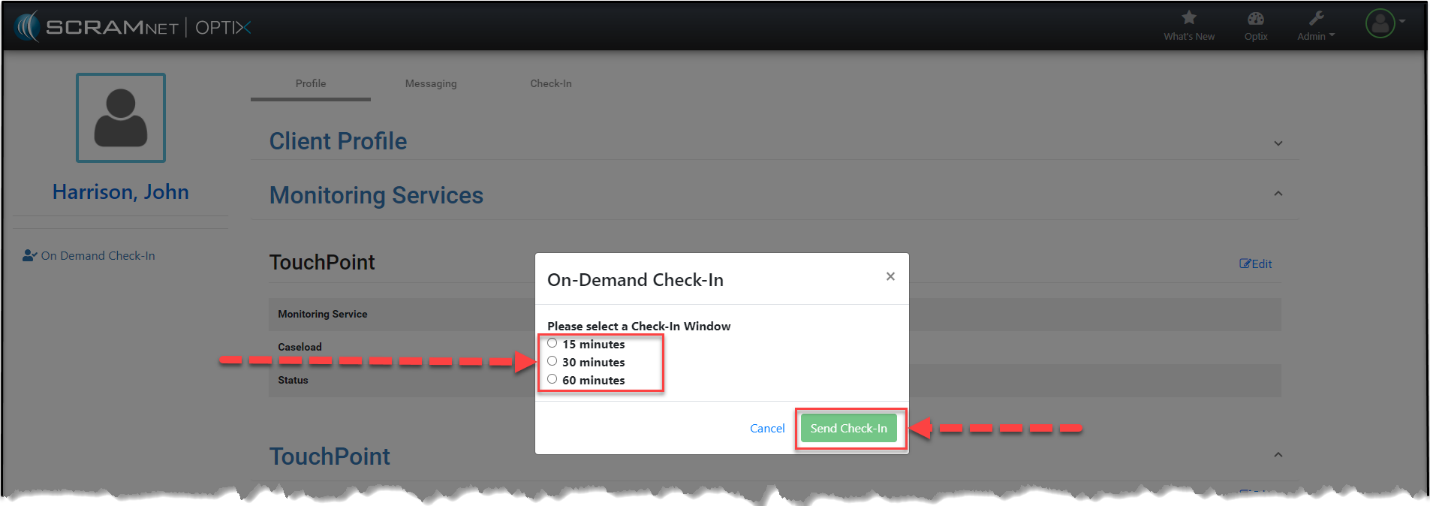
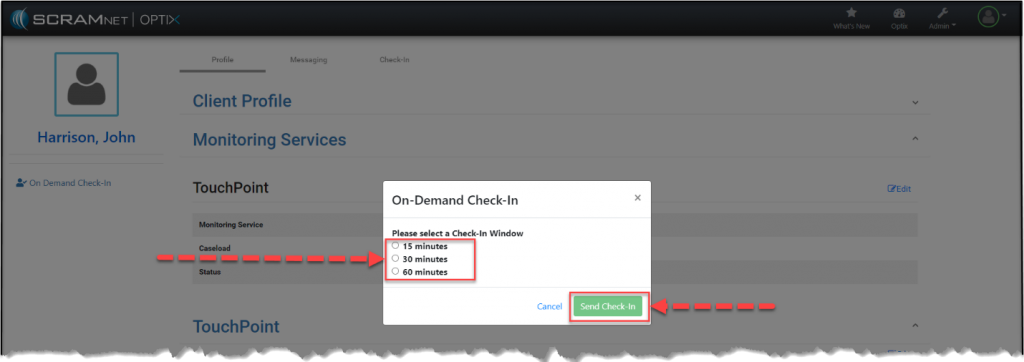
  2. A notification on the client’s phone will inform the client of the length of the check-in window. After selecting the desired Check-In Window duration, click Send Check-In to initiate the On-Demand Check-In.
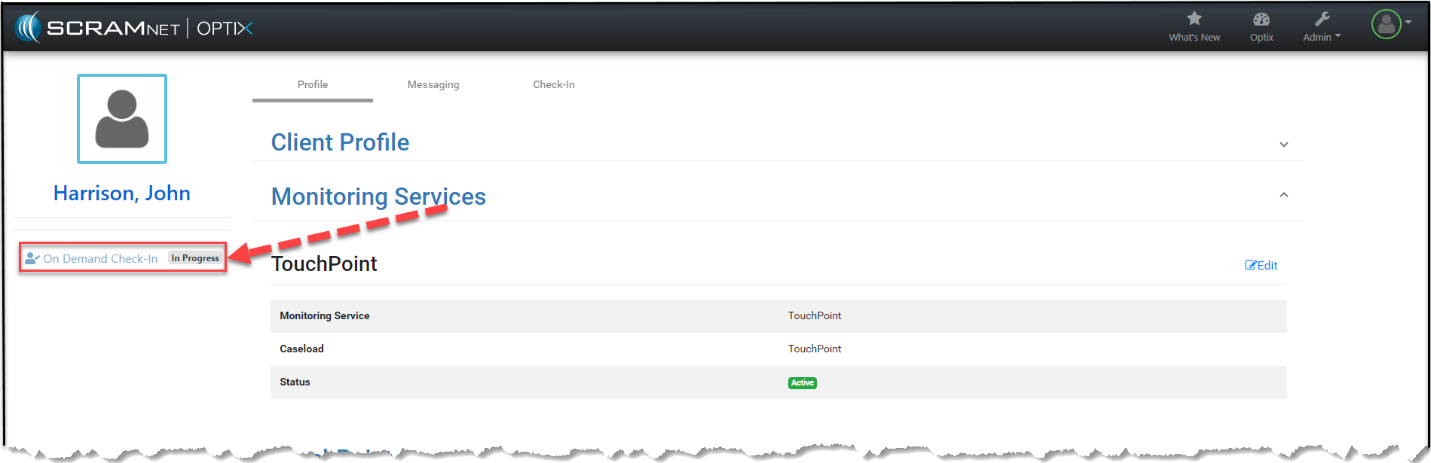
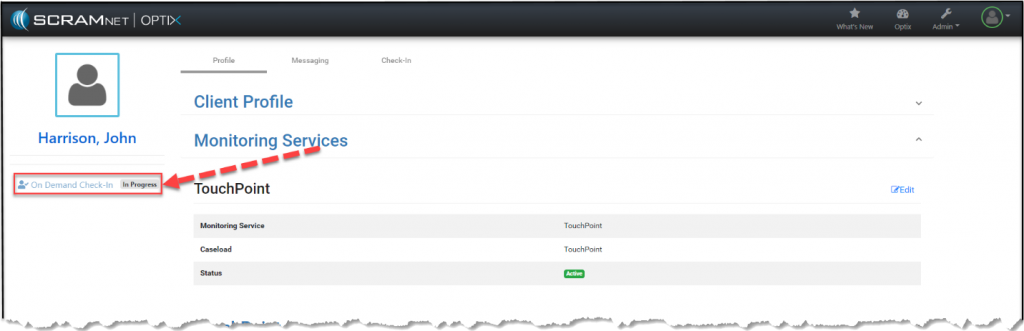
  3. When the On-Demand Test is sent, the link will update showing that an on-demand test is “In Progess”.
Any On-Demand check in that is sent to a client during the same time as a scheduled client check-in will replace that scheduled check-in. The client check-in log will reflect that the scheduled check-in is resolved with the completed On-Demand check-in.
Continue Reading

At 1:00 PM MDT on Thursday, September 2, 2021, SCRAM Systems is introducing a new caseload filter to the Text-to-All feature in Optix TouchPoint. During the 15-minute deployment, you may not be able to access messages from the Optix TouchPoint Client Messaging facility.

Text-to-All Caseload Filter

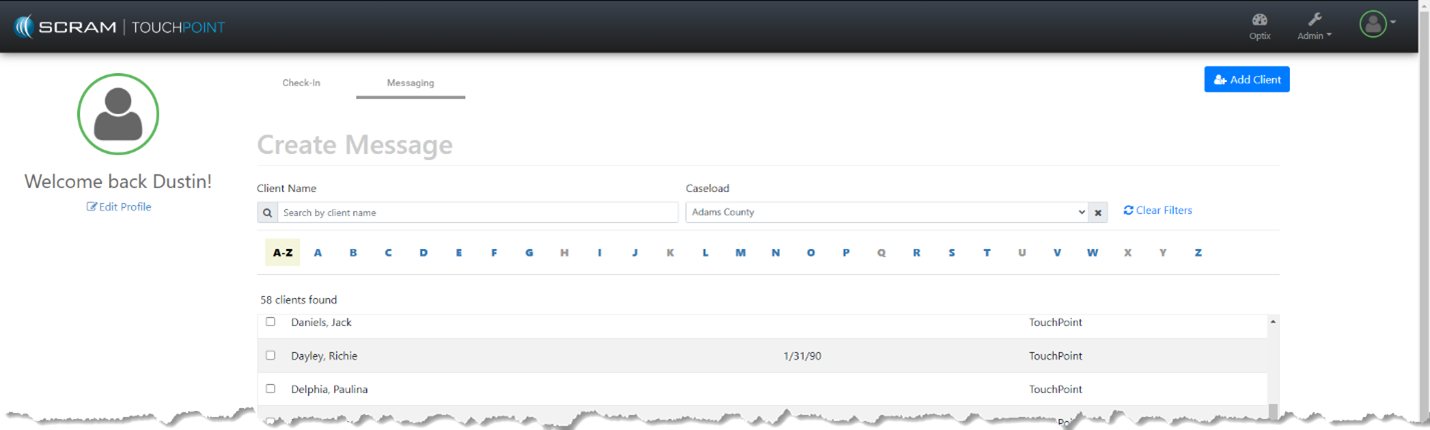
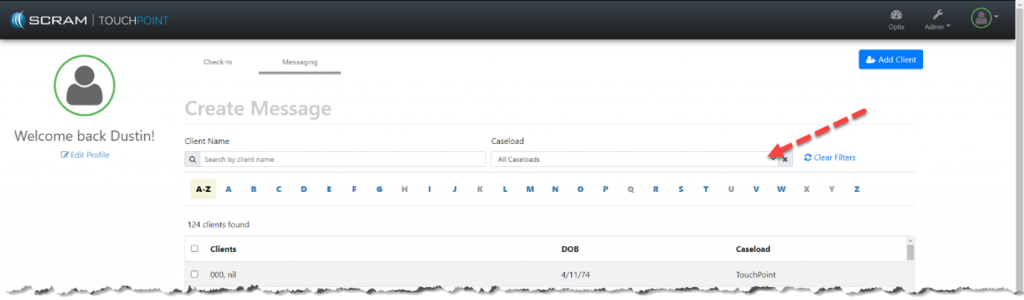
When accessing the mass messaging feature in Optix TouchPoint, officers and case managers can now select a specific caseload to filter all clients by.

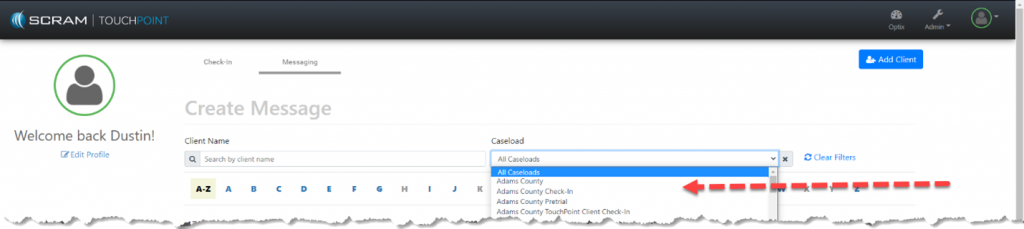
Start by clicking on the caseload dropdown:

image of caseload dropdown to select specific caseload of clients to message.

Then, select the specific caseload to filter all clients by:

image of available caseload selections to choose from. Select one caseload to filter client list.

Once the Caseload filter has been selected, you are now ready to send a Text-to-All mass message to only the clients in that specific Caseload:

image of filtered text-to-all client by the selected caseload.

Continue Reading