 |
The service for managing fines and fees must be enabled for your account before you may utilize it. For more information, contact your SCRAM Systems Account Representative. |
Once enabled, you may add, edit, and record payment for any fines and fees issued for the client.
Navigate to the Fines & Fees Tab
- Select the client’s name hyperlink from the Clients tab on the Home page.
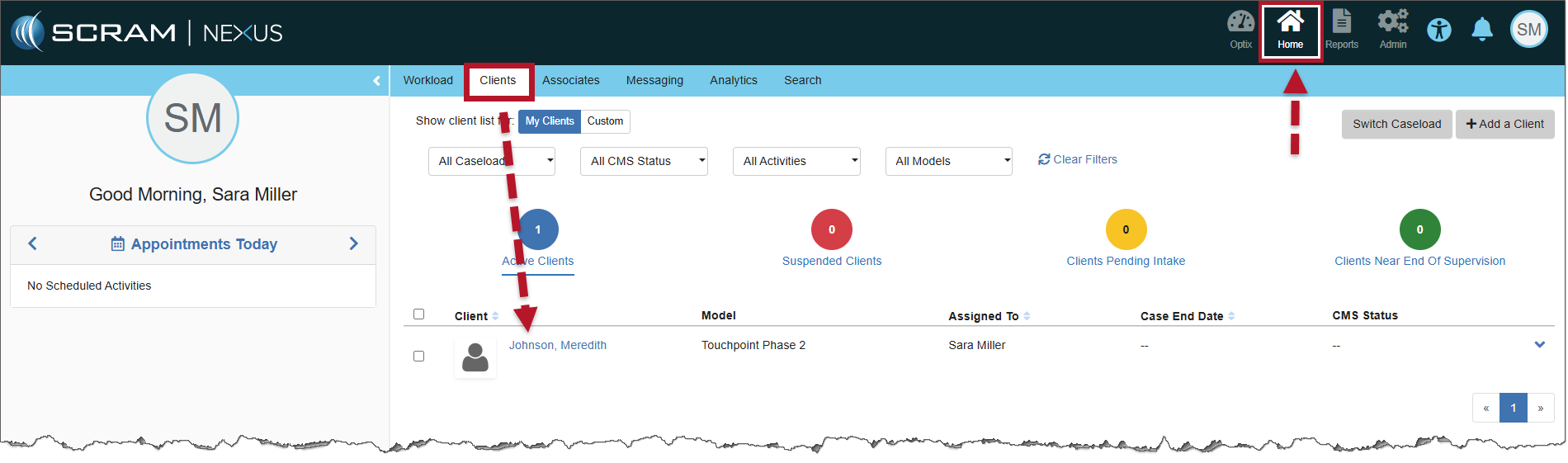
Nexus Clients page (click to enlarge)
- On the Client Summary page, select the Fines & Fees tab.
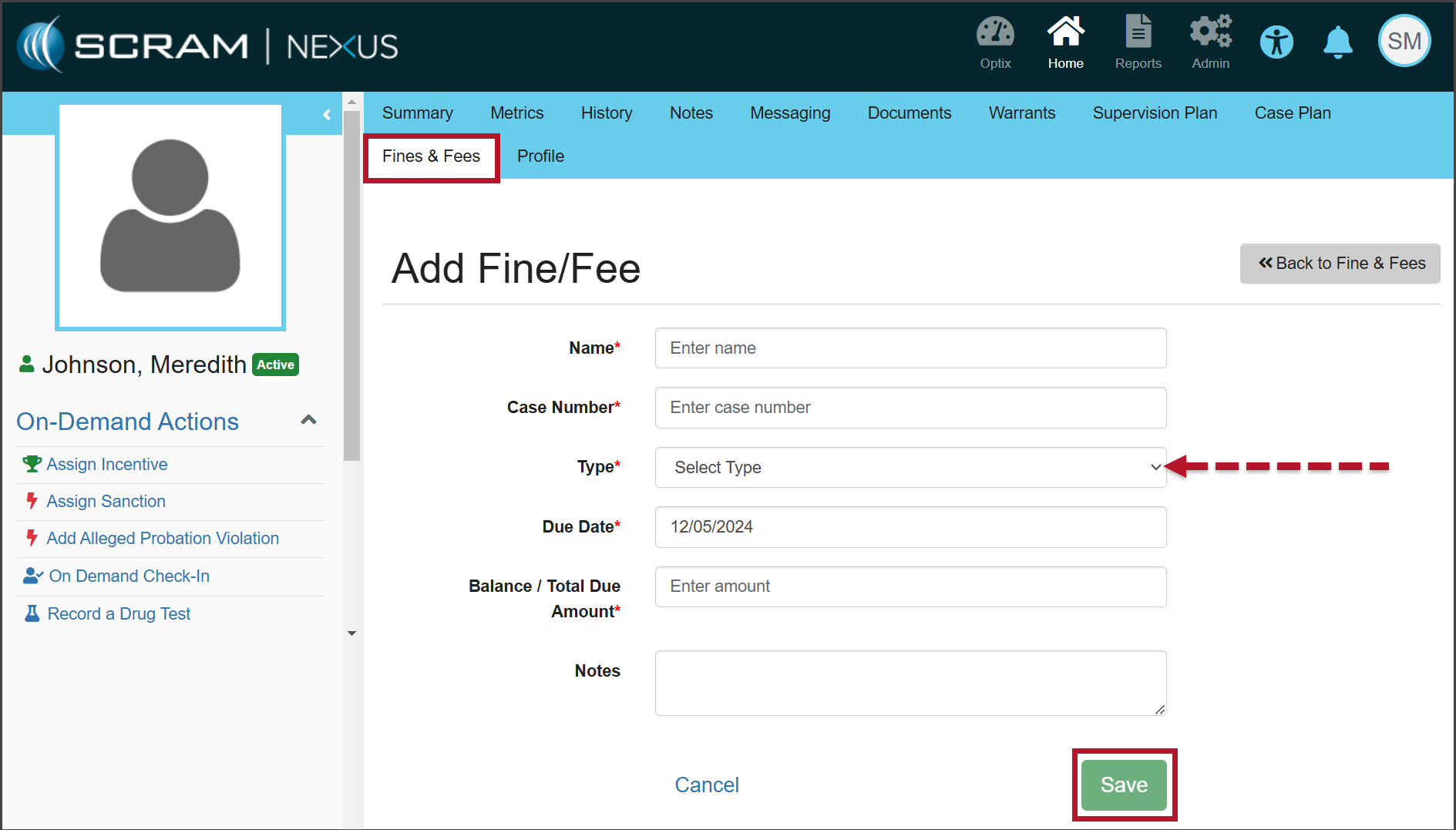
The Add Fine/Fee page (click to enlarge)
- Enter the details for the fine or fee, on the Add Fine/Fee page. Unless otherwise indicated, all fields are required.
- Open the Type dropdown menu and select whether this fine or fee is One Time or Scheduled.
- After entering the information, select the Save button.
- Once saved, a green “success” banner is displayed.
Record Payment of Fines & Fees
When recording a payment, users have the ability to record complete or partial payments submitted by the client.
- On the Open Fines & Fees page, select the Record Payment hyperlink for the fine or fee for which you would like to record payment.
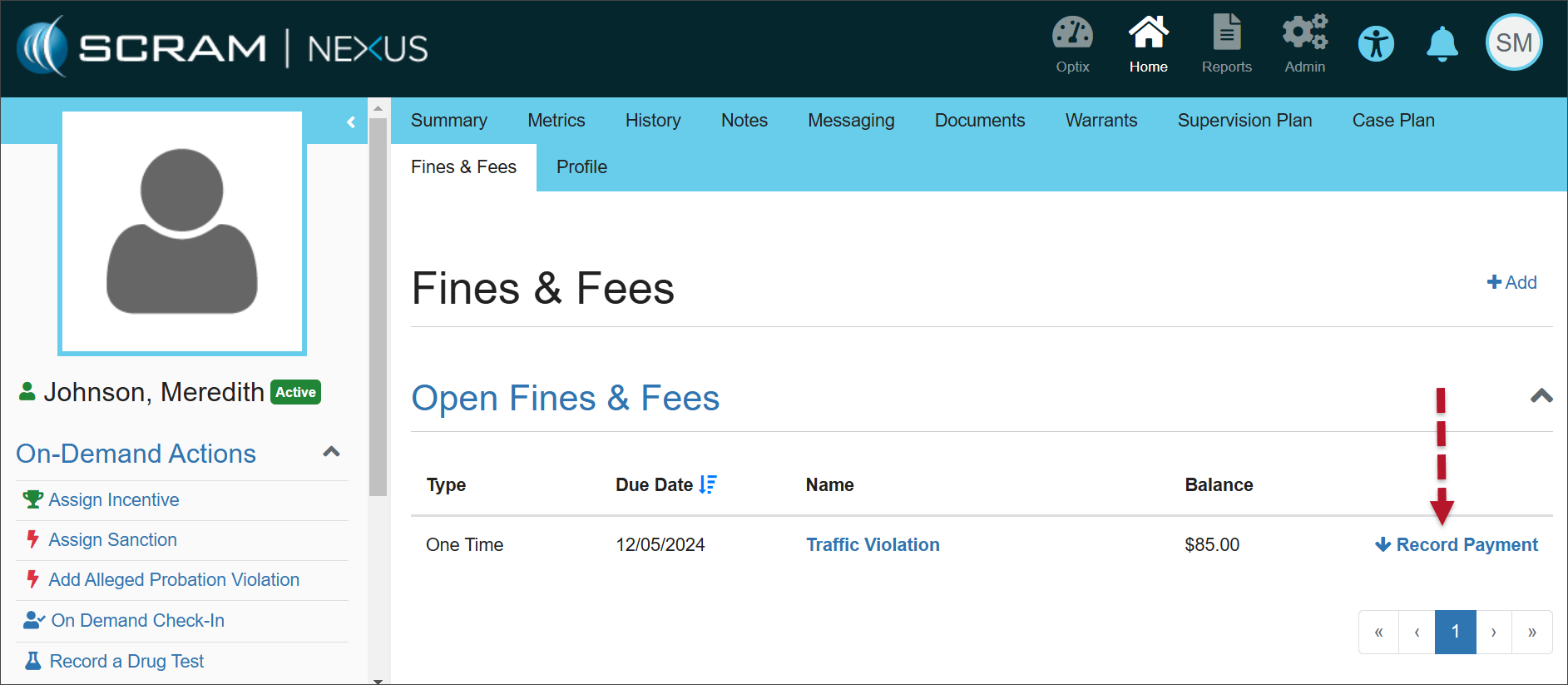
Open Fines & Fees (click to enlarge)
- Enter the payment amount and any relevant notes, then select the Record button.
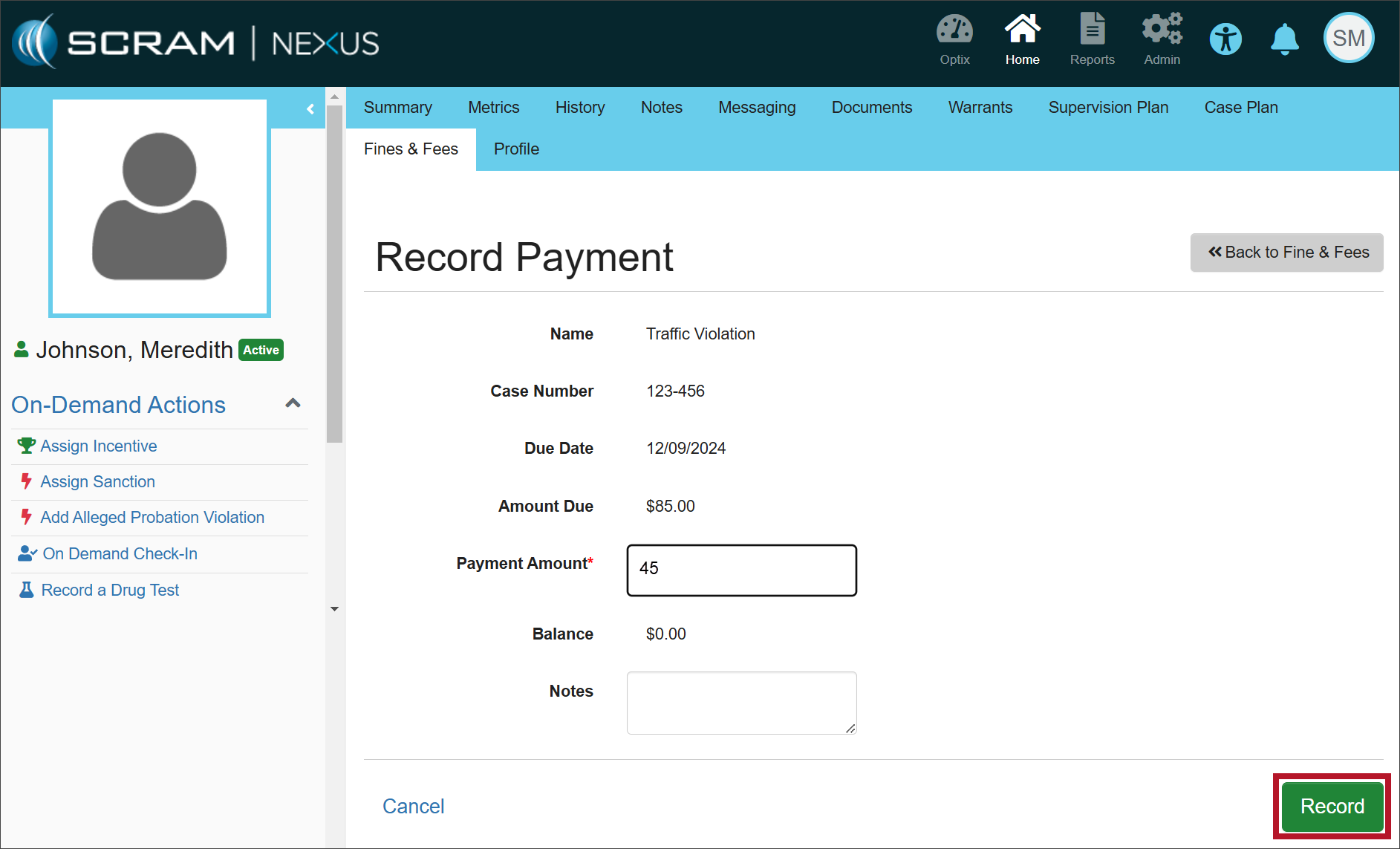
Record Payment page (click to enlarge)
|
Once payment has been made in full, you must manually change the status of the fine or fee to “Closed.” If the status is not closed, the fee will appear under Open Fines & Fees with a balance of $0.00. |
Edit the Fines/Fees
In some cases, the details of the fine or fee may need to be edited.
- Select the Name hyperlink in the Open Fines & Fees
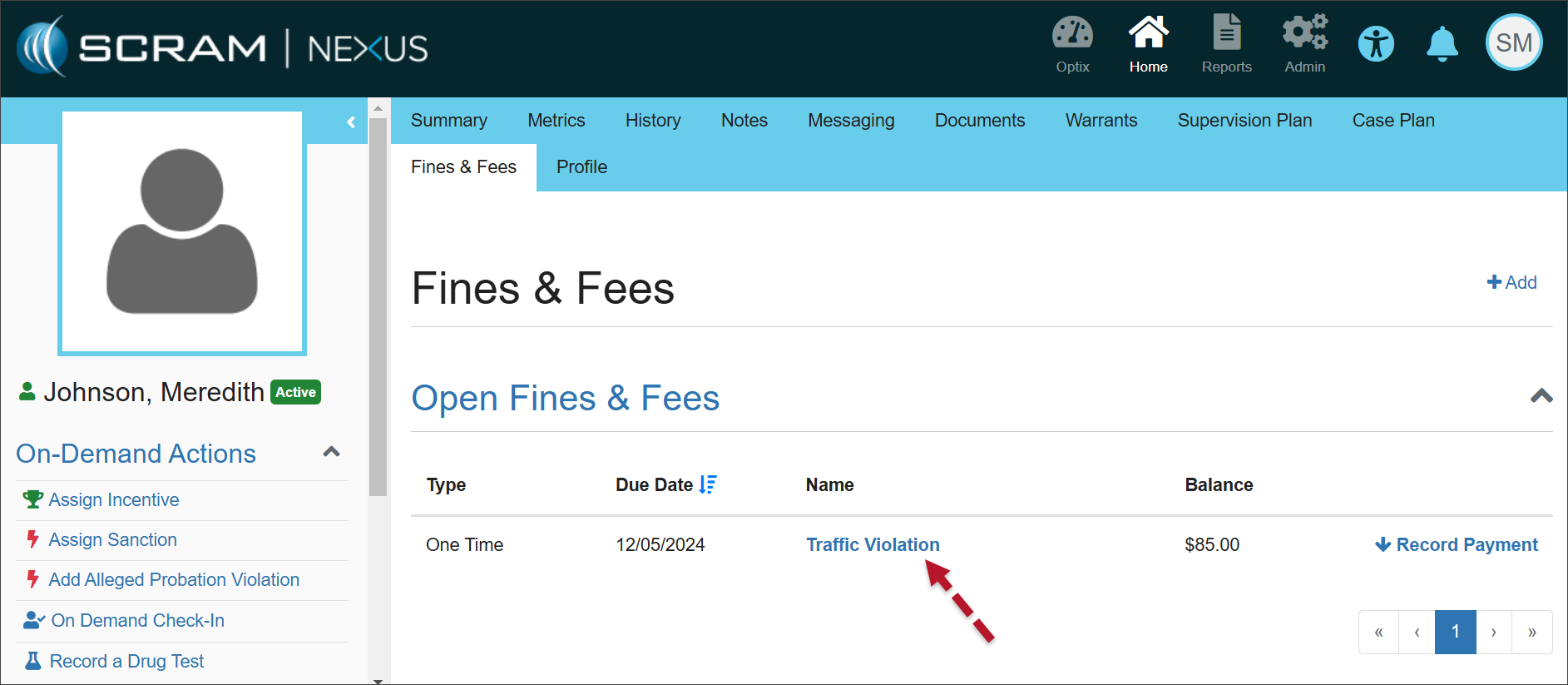
Open Fines & Fees (click to enlarge)
- Select Edit to make changes to the details of the specific fine or fee.
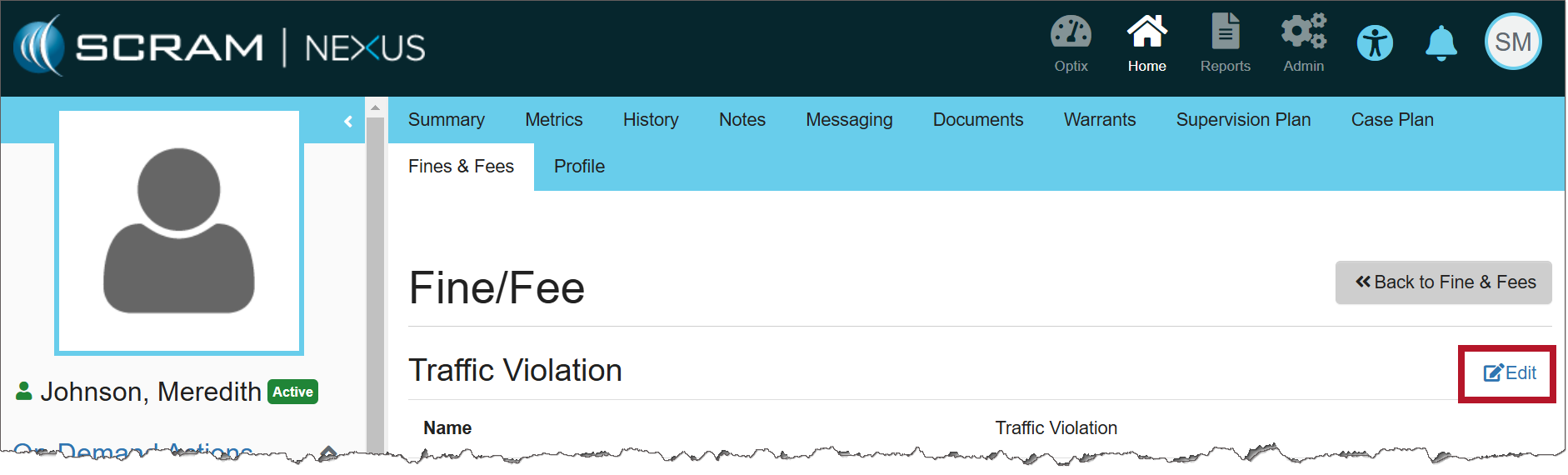
Fine/Fee page (click to enlarge)
- Make any necessary changes to the information.
- Once the status has been updated to either ‘Closed’ or ‘Dismissed,’ the fine or fee will be displayed with its details in the Closed Fines & Fee
- Select the Update button to save your changes.
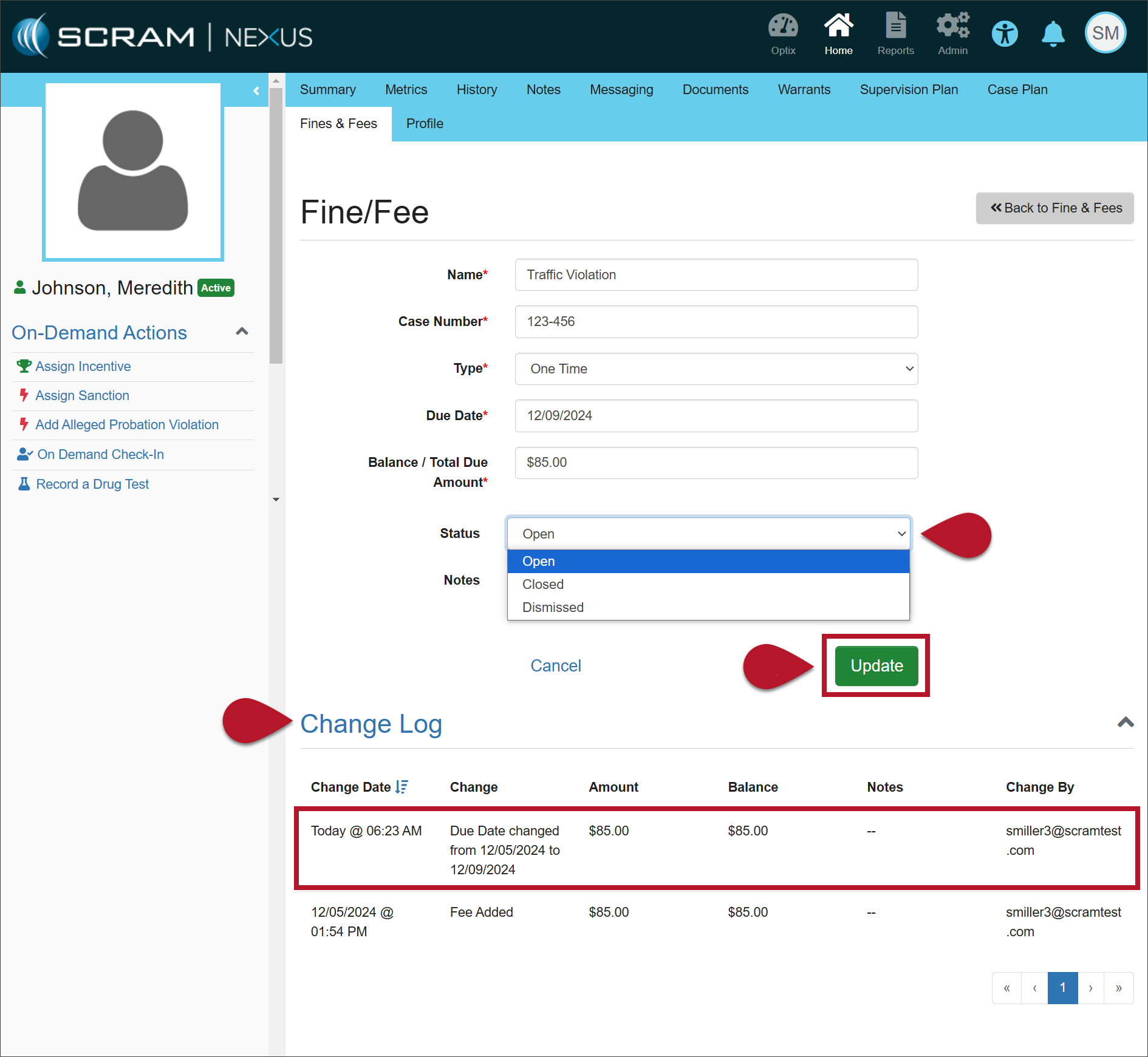
Fine/Fee page (click to enlarge)
The Change Log will record your changes.
|
If you don’t see the enhancement in SCRAM Nexus, please clear your cached and cookies and refresh your browser window. |